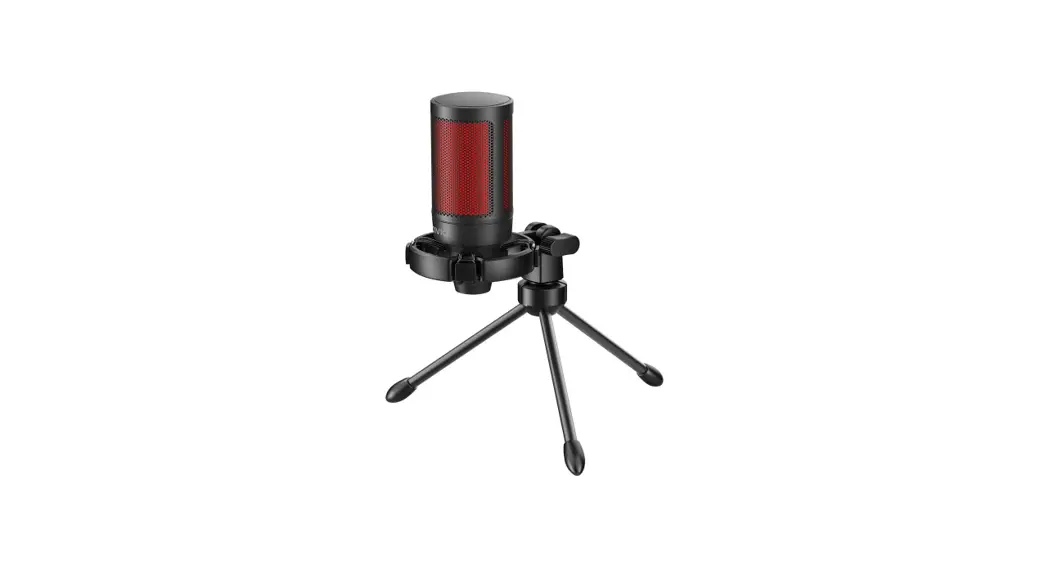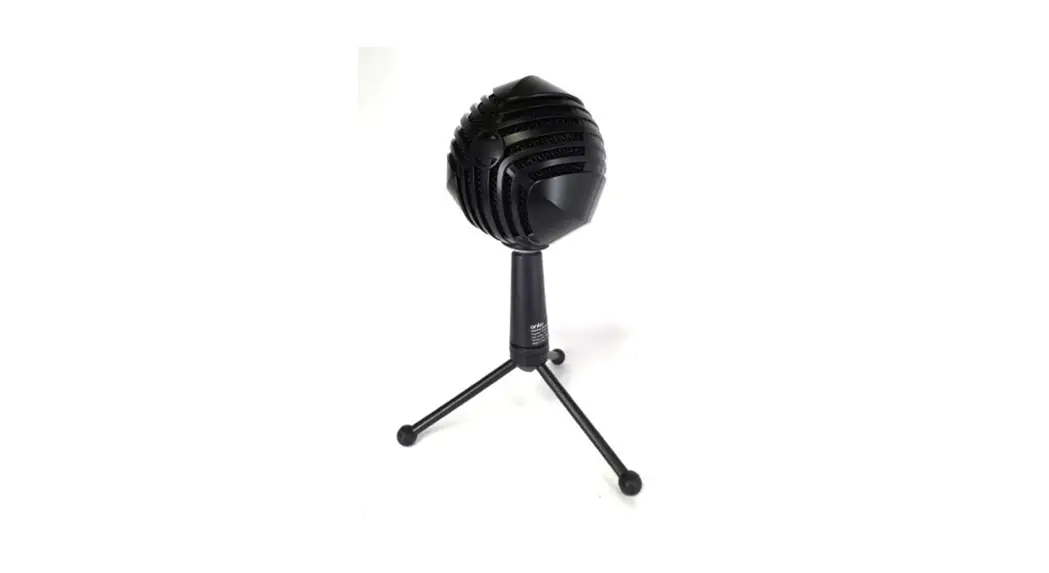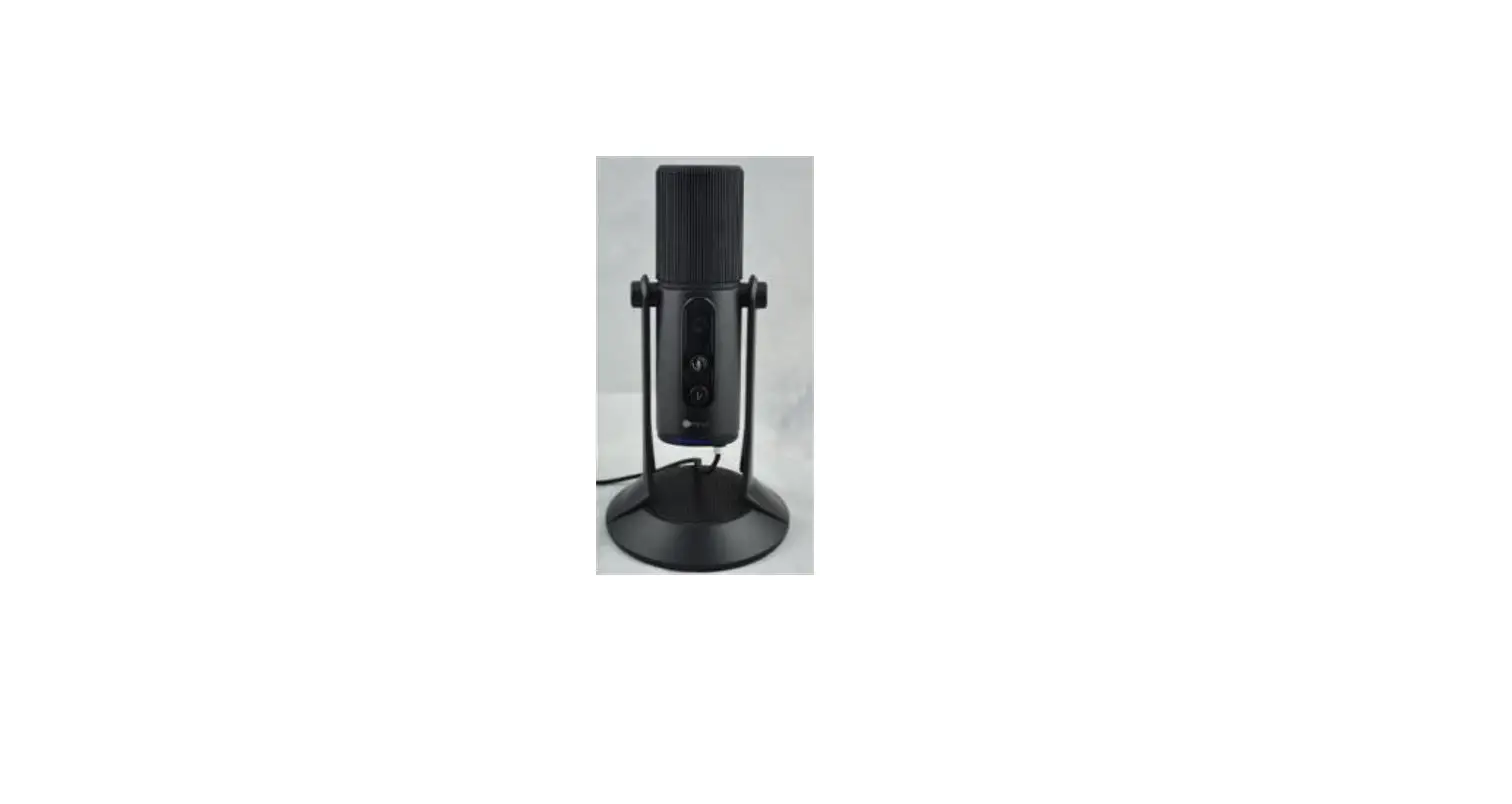

deco geag DGMIC1G Gaming Microphone
FAQ
- Deco Gear does not recommend using the microphone output to external speakers which can damage hardware, cause poor recording, and interference.
- The audio jack is designed for a 3-pin headphone plug. Some 4-pin headphone plugs won’t be compatible.
- Please make sure the headphone plug is fully inserted into the microphone.
- Please use the provided cable or another high-quality cable to connect. Inferior cables will affect performance and, in some cases, the microphone will not work.
- Notice: We suggest to not use a USB hub or the front USB port on PC to avoid performance issues
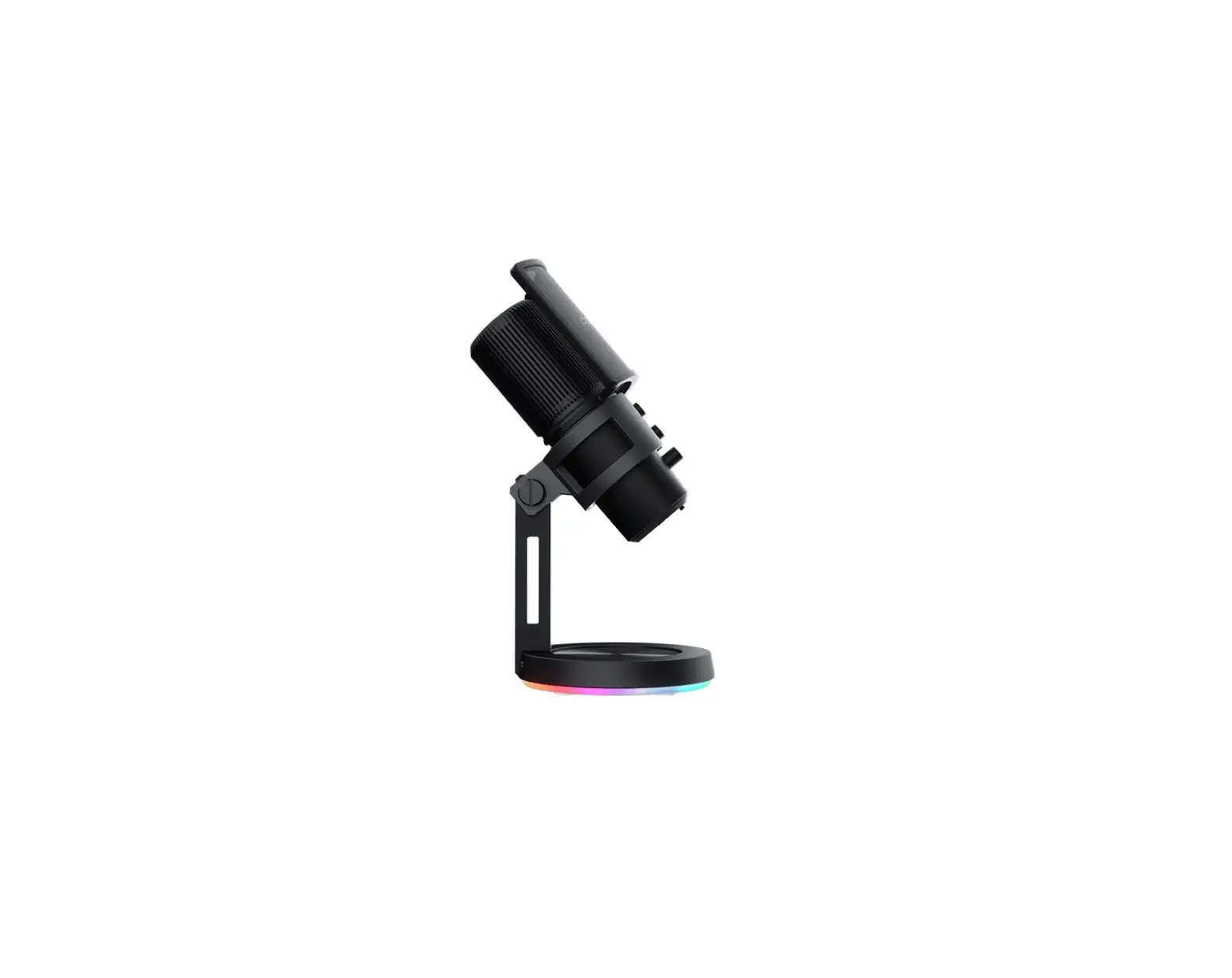
- The microphone should be placed upright, as shown below. Do not tilt in order to achieve the best pickup direction.
- When the microphone isn’t recognized on your PC, please take the following steps:
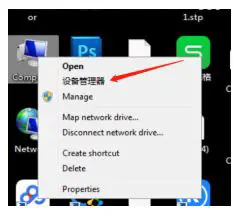
- Open the device manager of PC (if you cannot find the device manager, you can find it in Properties)

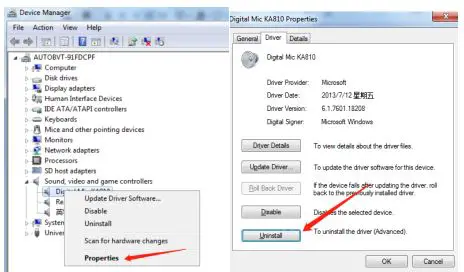
- Find the unrecognized microphone under sound, video, and game controllers
- Open the unrecognized microphone properties, and uninstall the driver on the driver tab;

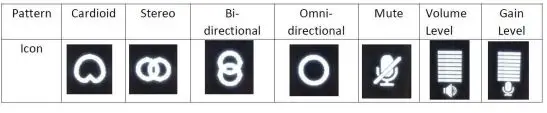
- Unplug the microphone and wait for about 10 seconds, then reconnect to the PC OLED display for patterns and Gain and Volume levels

- Open the device manager of PC (if you cannot find the device manager, you can find it in Properties)
- In order to prevent the OLED display interference, the OLED display will enter into standby mode and turn off based on without knob operation for 15 seconds. The OLED display will start again by rotating any knob or pressing mode knob.
- In order to get best pickup effects, please select appropriate recording pattern for different occasions:
Recording Pattern Occasions Cardioid Streaming Podcasts Voiceover Instruments Omni-directional Conference Events Bi-directional Vocal Instruments Stereo Interview Instruments Duet - LED light effects
mode Switching Description for changes Description for light color Long press for Press Dynamic light effects
Rainbow(default mode) Rainbow color changing Dynamic Breathing 6 colors(Yellow, red,blue,green,pink,blue) cycling breathing Dynamic flashing 6 colors(Yellow, red,blue,green,pink,blue) dynamic flashing RGB running light,left 6 colors(Yellow, red,blue,green,pink,blue) running left RGB running light,right 6 colors(Yellow, red,blue,green,pink,blue) running ring Rainbow flow Rainbow color flow Single light always on
single color switching 6 colors(Yellow, red,blue,green,pink,blue),single color always on Single light flashing single color switching 6 colors(Yellow, red, blue,green,pink,blue),single color flashing Single light breathing single color switching 6 colors(Yellow, red, blue,green,pink,blue),single color breathing turn off / all light off
Setup for Windows OS
- Use the provided USB cable and Plug the microphone into a USB port into your computer directly; (Notice: We suggest avoiding using USB hub or front USB port to avoid affecting performance)
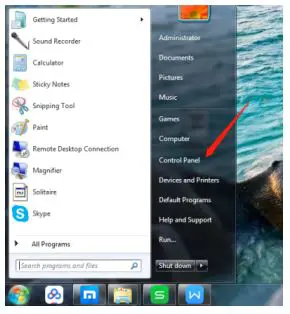
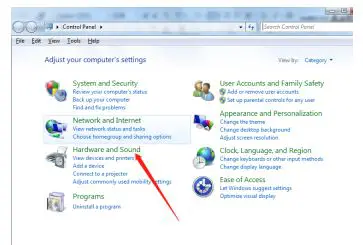
- Open the control panel from Start Menu

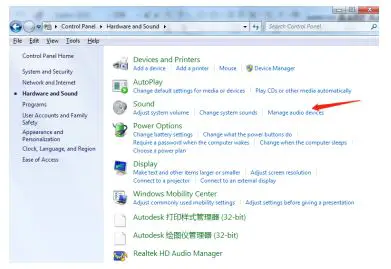
- Select Hardware and Sound from the control panel

- Select Manage audio devices from Hardware and Sound menu

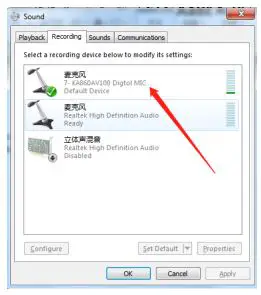
- Select the recording tab, and select microphone KA860 as the default device

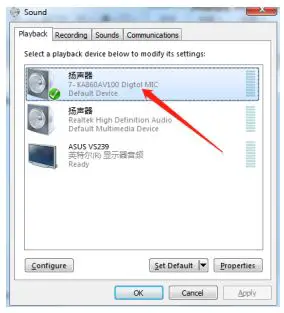
- Select the playback, and select microphone KA860 as the default device

- Then adjust the needed recording Mode/Gain/ Output Volume from the Microphone
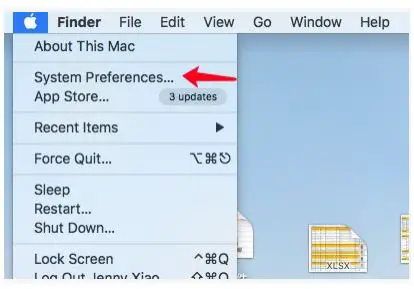
Setup for MAC OS
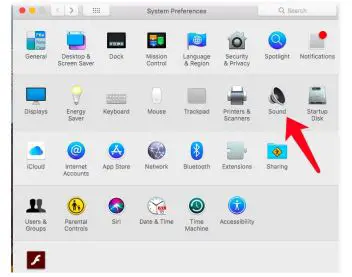
- Open system preferences

- Select Sound from sound preferences

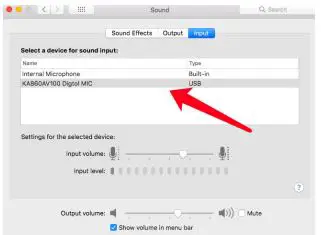
- Select microphone KA860 on input tab

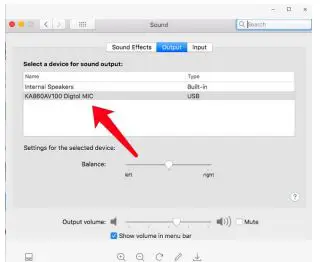
- Select Microphone KA860 on output tab

- Then adjust the needed recording Mode/Gain/ Output Volume from Microphone.
FCC
This device complies with part 15 of the FCC Rules. Operation is subject to the following two conditions: (1) this device may not cause harmful interference, and (2) this device must accept any interference received, including interference that may cause undesired operation. Any changes or modifications not expressly approved by the party responsible for compliance could void the user’s authority to operate the equipment.
NOTE: This equipment has been tested and found to comply with the limits for a Class B digital device, pursuant to Part 15 of the FCC Rules. These limits are designed to provide reasonable protection against harmful interference in a residential installation. This equipment generates, uses and can radiate radio frequency energy and, if not installed and used in accordance with the instructions, may cause harmful interference to radio communications. However, there is no guarantee that interference will not occur in a particular installation. If this equipment does cause harmful interference to radio or television reception, which can be determined by turning the equipment off and on, the user is encouraged to try to correct the interference by one or more of the following measures: — Reorient or relocate the receiving antenna. Increase the separation between the equipment and receiver. Connect the equipment into an outlet on a circuit different from that to which the receiver is connected. Consult the dealer or an experienced radio/TV technician for help. The device has been evaluated to meet general RF exposure requirements. The device can be used in portable exposure conditions without restriction.
 Deco Gear Official Store | Electronics, Gaming, Kitchenware and More