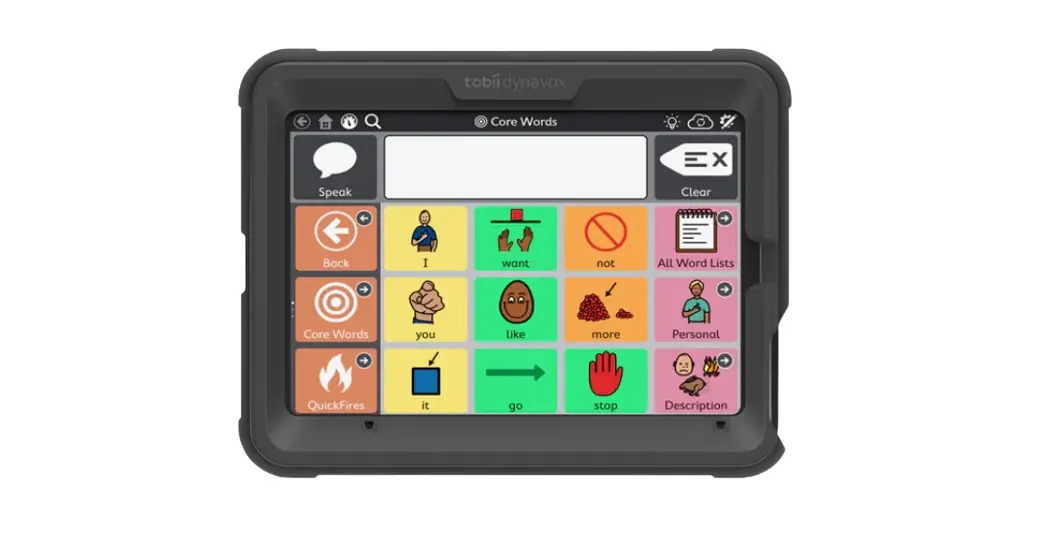
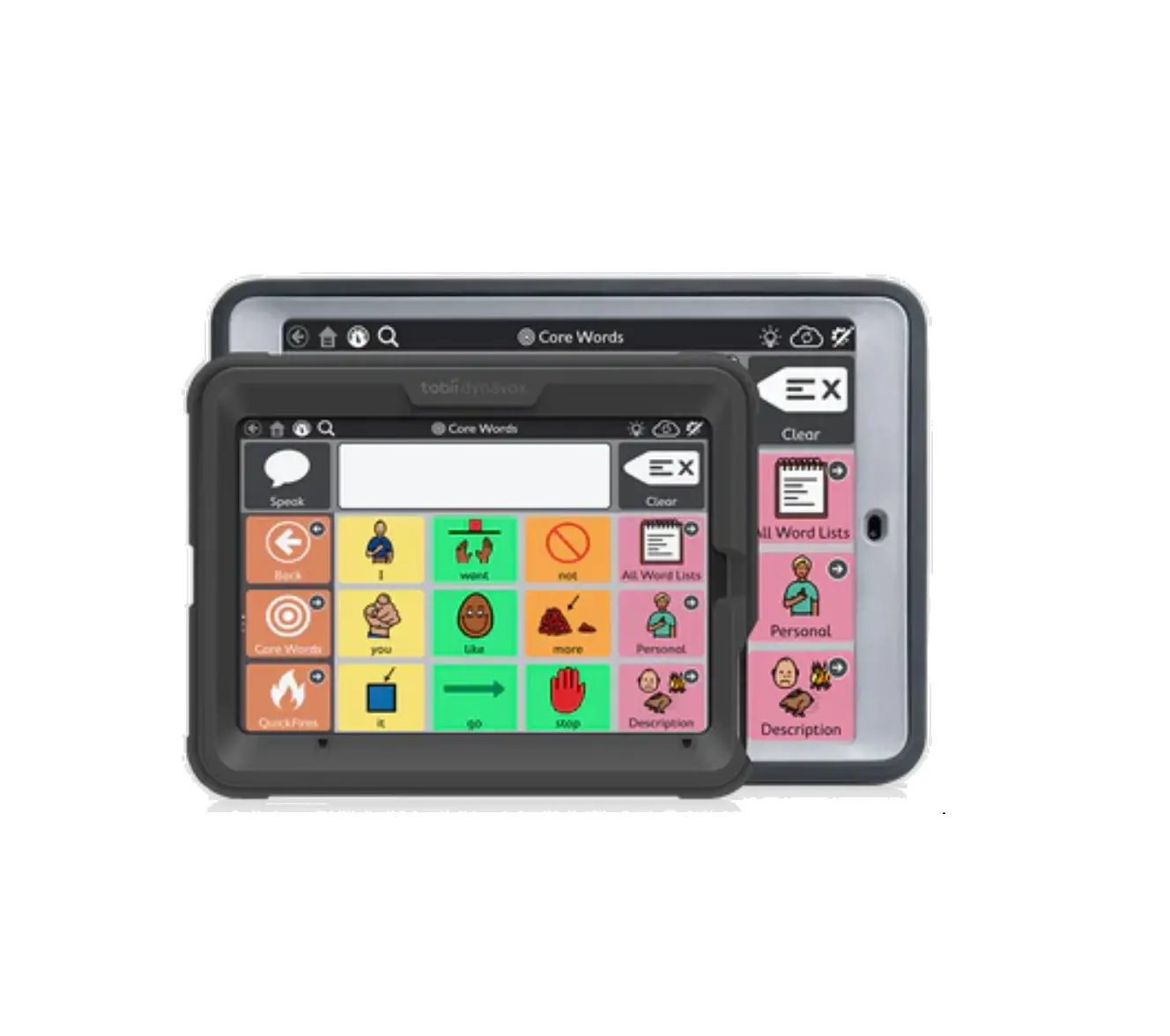
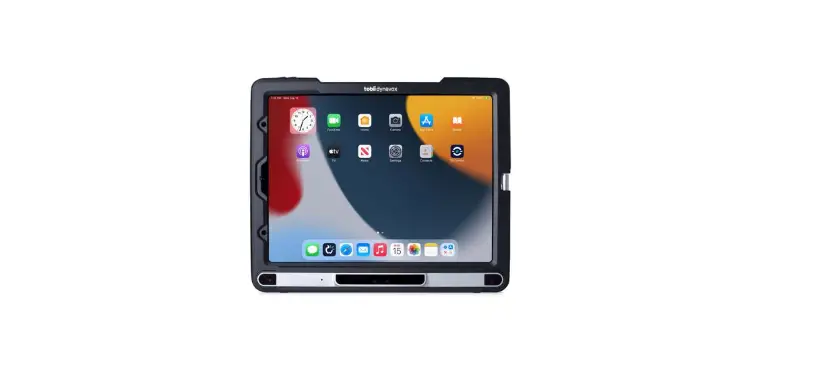
TD I-13 Light Fast Durable Speech Generating Device
TD I-13 and TD I-16 Product Information
The TD I-13 and TD I-16 are communication devices designed to
assist individuals with disabilities in communicating using eye
tracking technology. The devices come with an adjustable base,
power cable, and a mounting plate for easy positioning. The devices
have USB 3.0 connectors, a headphone jack, power connector, and
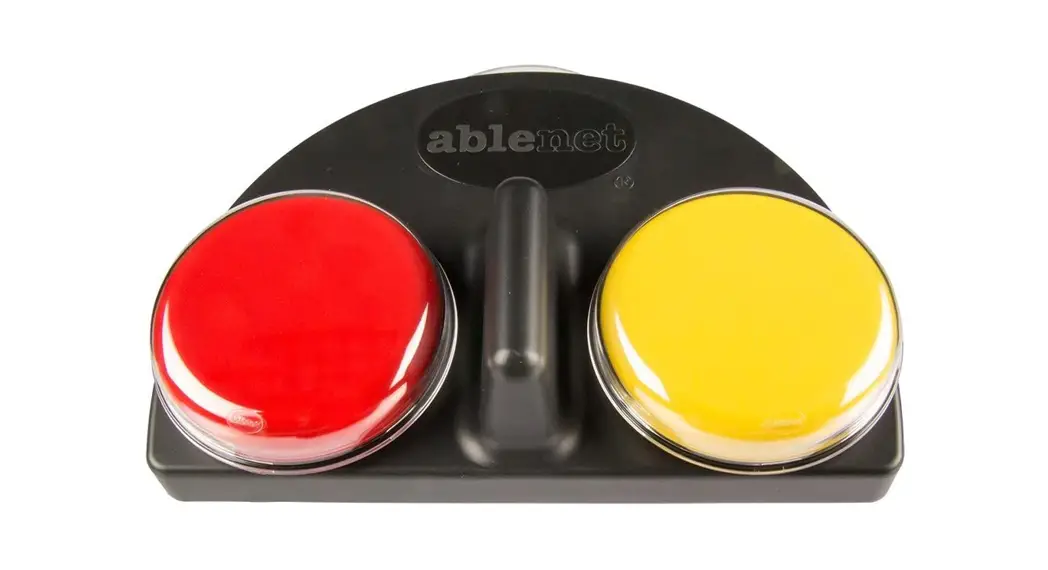
adaptive buttons for easy use.
Getting Started Guide
The Getting Started Guide includes a safety and compliance
booklet, document folder, and training cards to assist in the setup
process.
What’s in the Box
- TD I-Series Device
- Adjustable Base
- Power Cable
- Getting Started Guide
- Training Cards
Getting to Know Your Device
The device has adaptive buttons, volume buttons, power
connector, USB 3.0 connectors, headphone jack, switch ports 1 and
2, power button, and a partner window. The battery is located at
the bottom of the device. If using a Daessy Mount, a Conversion
Plate is required.
Product Usage Instructions
Step 1: Initial Setup
Plug in the power cable to the device and connect it to an
outlet. Press the power button to turn on the device. If it has not
been pre-configured, complete the Windows Setup process first.
Step 2: Configure Communication Software
Follow the prompts in your chosen software to create a new user
or restore an existing user file.
- TD Snap Symbol-Supported Communicators
- Communicator 5 Text-Supported Communicators
Step 3: Mount and Position
Prepare the user to start using eye tracking by positioning them
comfortably. If they use glasses, make sure they are wearing them
and that the lenses are clean. Launch Track Status by touching the
Adaptive button on the front of the device to find the optimal
distance and position for the device.
Place the I-Series device on your mounting system or on the
adjustable base on a stable surface in front of the user at, or
slightly below, their eye level. Tilt the I-Series device to match
if their head is tilted left or right. The angle of the screen
surface should match the angle of the user’s face. Most users will
need to have the I-Series device positioned higher than the table
surface.
Refine the position of the device during the Calibrate steps on
the next page. Always adjust the position of the device to suit the
user, not the other way around. A mounting system is recommended
for precise device positioning that is easy to adjust throughout
the day.
Step 4: Calibrate
A perfect calibration score is not required to use eye tracking
effectively. Calibrate once without worrying too much about the
scores and then let the individual practice using eye tracking.
Revisit calibration later if necessary.
TD I-13 and TD I-16
Getting Started Guide
What’s in the Box
1
2
3
7 6
1 TD I-Series Device 2 Adjustable Base 3 Power Cable
4 Getting Started Guide 5 Training Cards
Getting to Know Your Device
A
B
Front
C
E
F D
Sides
A Adaptive Buttons B Volume Buttons C Power Connector D USB 3.0 Connectors
E Head Phone Jack F Switch Ports 1 and 2 G Power Button H Partner Window
*If using a Daessy Mount, you will need a Conversion Plate. **Battery is located at the bottom of the device.
4
5 6 Safety & Compliance Booklet 7 Document Folder
G H
I
J
K
Back
I Mounting Plate* J IR Receiver/Transmitter K Battery Access**
1
Follow the steps in this guide to set up and start using your device.
Step 1: Initial Setup
Plug in and Start the Device
1 Connect the power cable to the device and plug in to
1
2
an outlet.
2 Press the Power button.
Setup When you turn on your device, you will see one of two screens. If your device has not been pre-configured, you will be prompted to complete the Windows Setup process first.
Windows Setup
Start Up Wizard: Pick Your App
While this process does not require a Microsoft account, we recommend that you connect to or create a user’s account and not a caregiver’s account.
Choose which app to automatically launch when the device powers on.
Step 2: Configure Communication Software
Follow the prompts in your chosen software to create a new user or restore an existing user file.
TD Snap Symbol-Supported Communicators
Communicator 5 Text-Supported Communicators
Note Do not perform calibration for Eye Gaze (Gaze Interaction) until the device has been mounted and the individual is positioned comfortably. See Step 3 for mounting and positioning tips.
2
Step 3: Mount and Position
Prepare the user to start using eye tracking by positioning them comfortably. If they use glasses, make sure that they are wearing them and that the lenses are clean. To launch Track Status, touch the Adaptive button on the front of the device. Track Status helps you find the optimal distance and position for the device.
Place the I-Series device on your mounting system or on the adjustable base on a stable surface in front of the user at, or slightly below, their eye level. If their head is tilted left or right, tilt the I-Series device to match. It is important that the angle of the screen surface match the angle of the user’s face. Most users, when seated at a table or desk, will need to have the I-Series device positioned higher than the table surface.
You may need to refine the position of the device during the Calibrate steps on the next page. Always adjust the position of the device to suit the user, not the other way around.
Note A mounting system is the best option for precise device positioning that is easy to adjust throughout the day. Several mounting options are available, including floor mounts, desk mounts, and wheelchair mounts. Visit TobiiDynavox.com or contact your local Tobii Dynavox partner.
3
Step 4: Calibrate
A perfect calibration score is not required to use eye tracking effectively. When you are just getting started, calibrate once without worrying too much about the scores and then let the individual practice using eye tracking. You can always revisit calibration later.
Note You don’t need to calibrate each time you use the device.
To calibrate TD Snap:
1 Select the Edit button.
2 Select User.
To calibrate Communicator 5:
1 Open the Quick Menu. To open the Quick Menu, press Ctrl + M on your keyboard, right click with your mouse, or touch, hold, then release anywhere on the screen.
3 Select Access Method. 4 Select Eye Gaze.
2 Select Advanced Settings.
5 Scroll down and select Calibrate.
3 Select Input Method and confirm Gaze Interaction is selected.
4 Select Gaze Interaction Settings. Here you can change the activation type between dwell and switch, change calibration profiles, and start a new calibration.
4
Step 5: Learn, Practice, and Troubleshoot
Your TD I-Series device is now ready to use! Feel free to start exploring your device and apps. When you are ready to learn more, check out the TD Snap Training Cards or Communicator 5 Training Cards. The training cards teach you how to use the main features of your communication software, grow your AAC communication skills, and troubleshoot issues.
TD Snap Training Cards qrco.de/bdSEpR
Communicator 5 Training Cards qrco.de/bdqiVT
myTobiiDynavox.com
Your free myTobiiDynavox.com account gives you access to numerous benefits including cloud storage for backups, page set syncing and sharing, lesson plans and more!
Joining myTobiiDynavox will allow you to do the following:
Safely back up your system Download free tools and resources Review free Core First lesson plans Learn about available updates Access Tech Support and FAQs Share page sets and Page Bundles
myTobiiDynavox myTobiiDynavox.com
5
Additional Resources
Tobii Dynavox Learning Hub learn.tobiidynavox.com
TD Facebook Community qrco.de/TDFB
UK Technical Support 0114 481 0011 [email protected]
I-Series Product Support qrco.de/bbBdN3
I-Series User’s Manual qrco.de/ISManual
#12007970 Tobii Dynavox I-Series Getting Started Guide v.1.3 – en-UK
 tobiidynavox
 myTobiiDynavox
 I-Series (I-13 I-16) Product Support - Tobii Dynavox US
 Tobii Dynavox Global: Assistive technology for communication