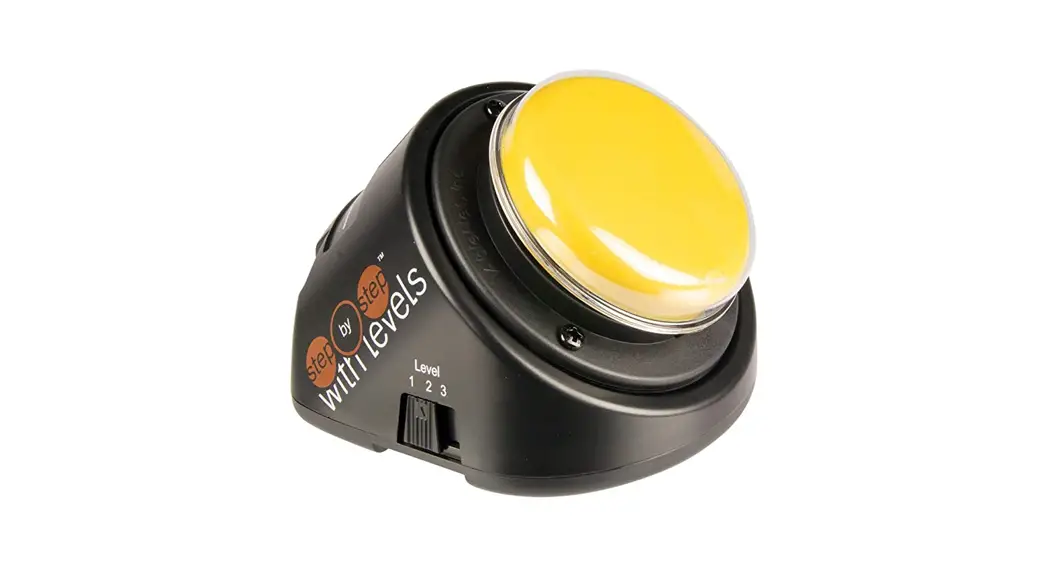

10000044 Little Step-by-Step Speech Device
User Guide
LITTLE Step-by-Step™
speech device
WARRANTY
AbleNet manufactured products include a 2-year limited warranty. This warranty is against defects in materials and manufacturing for 2-years from the date of purchase. Full
warranty details are available at www.ablenetinc.com.
AbleNet, Inc.
2625 Patton Road Roseville,
MN 55113
United States of America
(651) 294-3101
[email protected]
www.ablenetinc.com Made with recycled content
Product Registration
Registering your product provides you access to AppleCare, product updates, and resources for your product. Scan the QR code below to register your product.
https://www.ablenetinc.com/product-registration/
Getting Started
Scan the QR code below to watch a short getting started video or follow the instructions listed.
https://ablenetinc.zendesk.com/hc/en-us/articles/360060500011
To get started:
- Add one alkaline 9-volt battery to the device (battery not included).
- Turn the device on.
- Select the desired level.
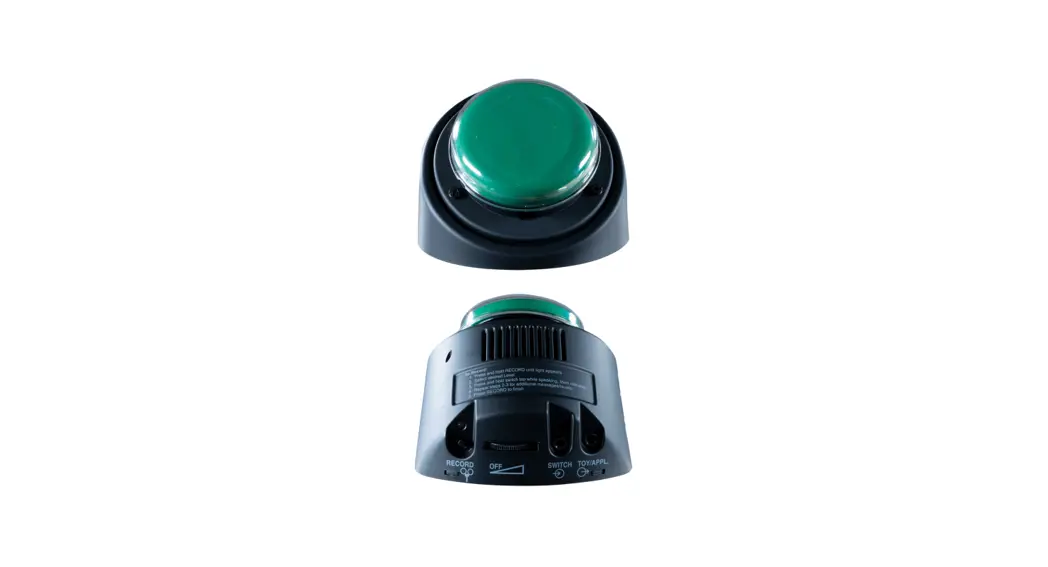
- Press and hold the record button until the recording indicator light turns on.
- Press and hold colored switch top. Begin speaking into the microphone after you hear a beep.
- When done recording message, release colored switch top.
- Repeat steps 5 and 6 to record additional messages.
- Press the record button to turn the recording indicator light off.
- Optional: Select a different recording level to record a second and third set of messages.
- Adjust volume as needed.
- Your device is ready to use.
This device can do more! Full Instructions for Use are available at www.ablenetinc.com. Download the AppleCare app to access live support from the AppleCare Product Success team, an online knowledge base filled with videos and getting started information, and other resources.
Scan the QR code below to download the free AppleCare app to your phone or tablet.
 |  |
| https://apps.apple.com/us/app/ablecare/id1564779986?ign-mpt=uo%3D2 | https://play.google.com/store/apps/details?id=com.ablenet.ablecaresupport |
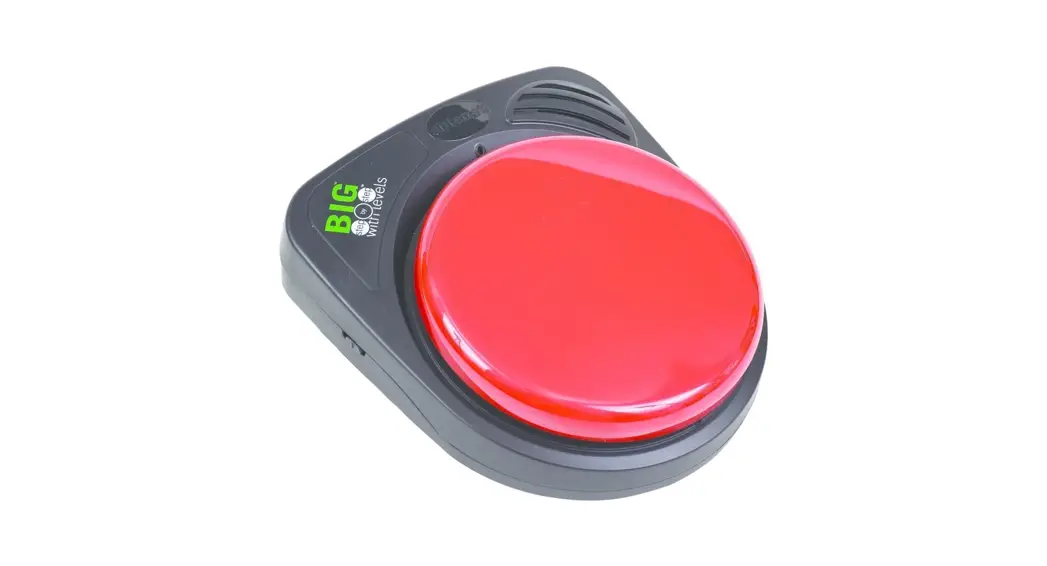
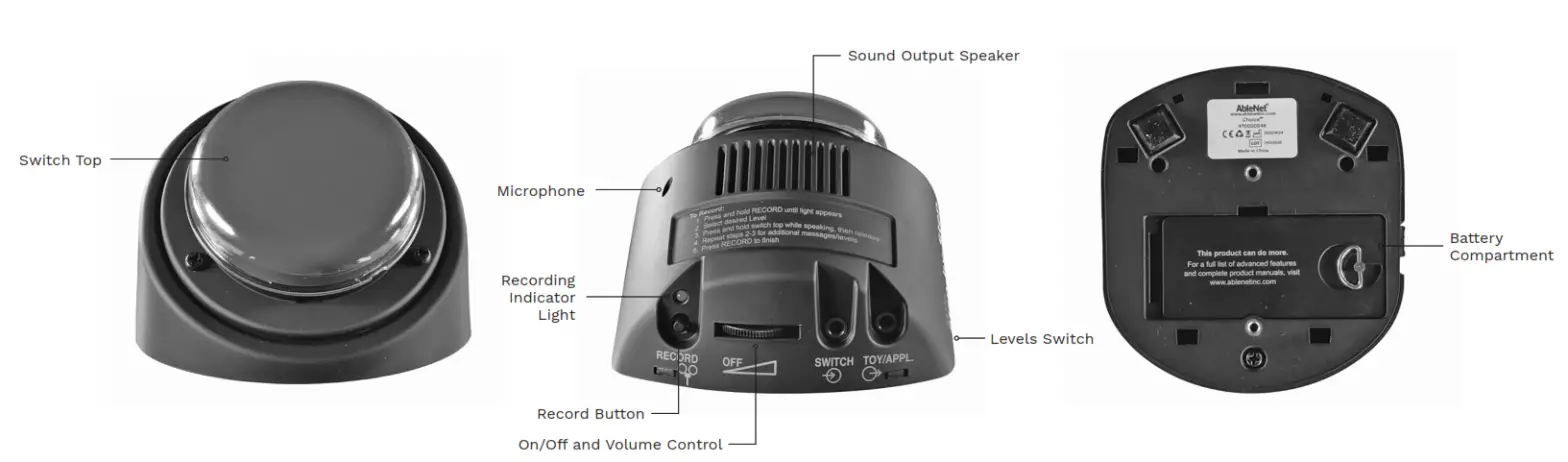
Device Overview

Create printable picture symbol overlays for your device with the FREE AbleNet Symbol Overlay Maker app. Scan the QR code to download today!
https://apps.apple.com/us/app/symbol-overlay-maker/id1510255596
 Home - AbleNet
 Home - AbleNet