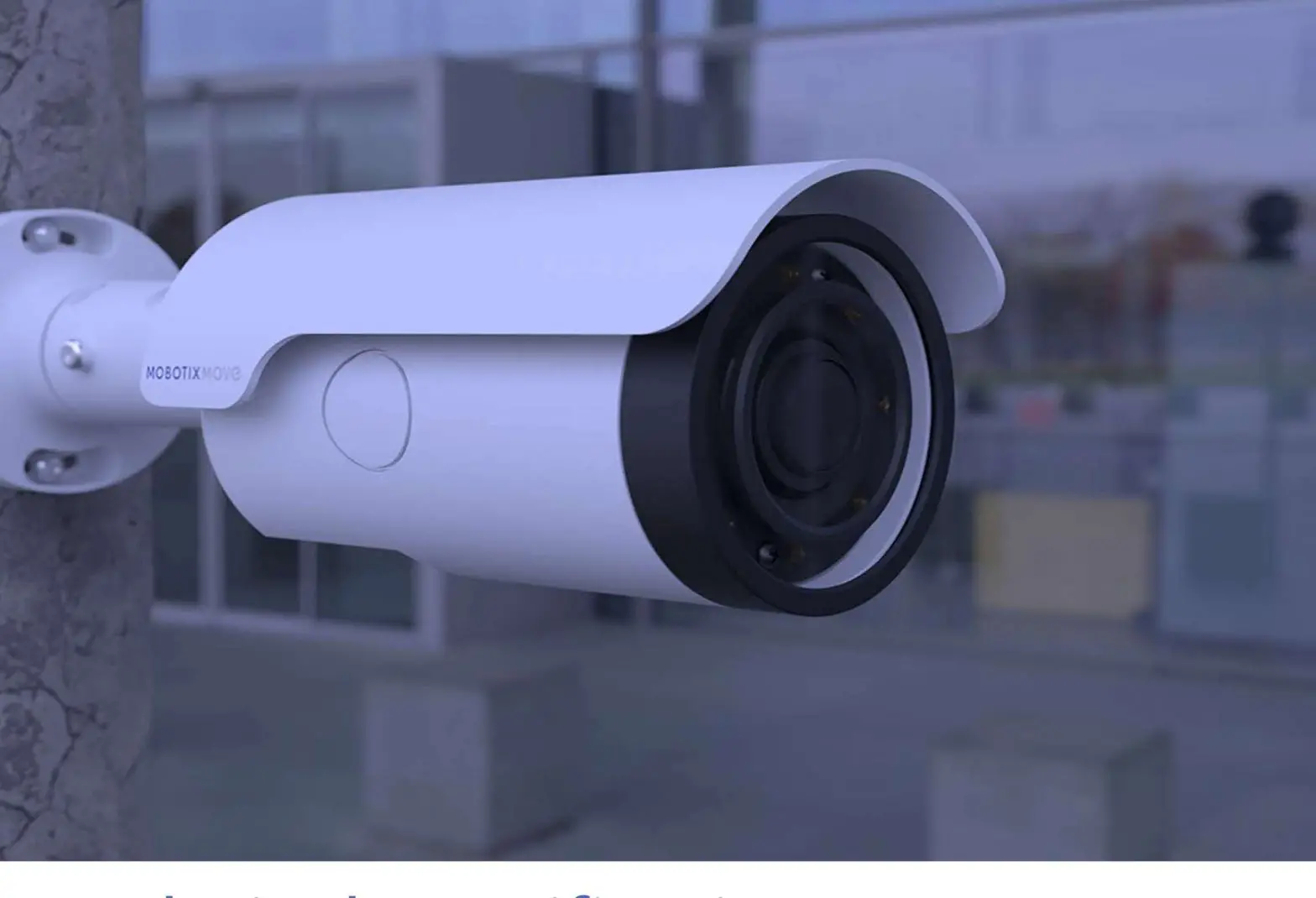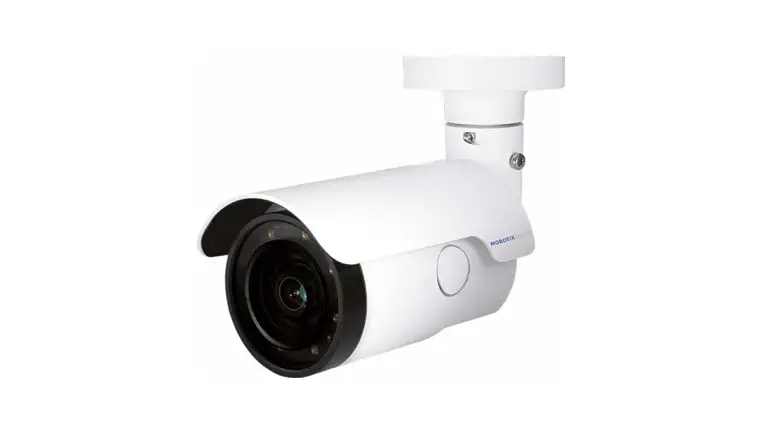

VandalBullet
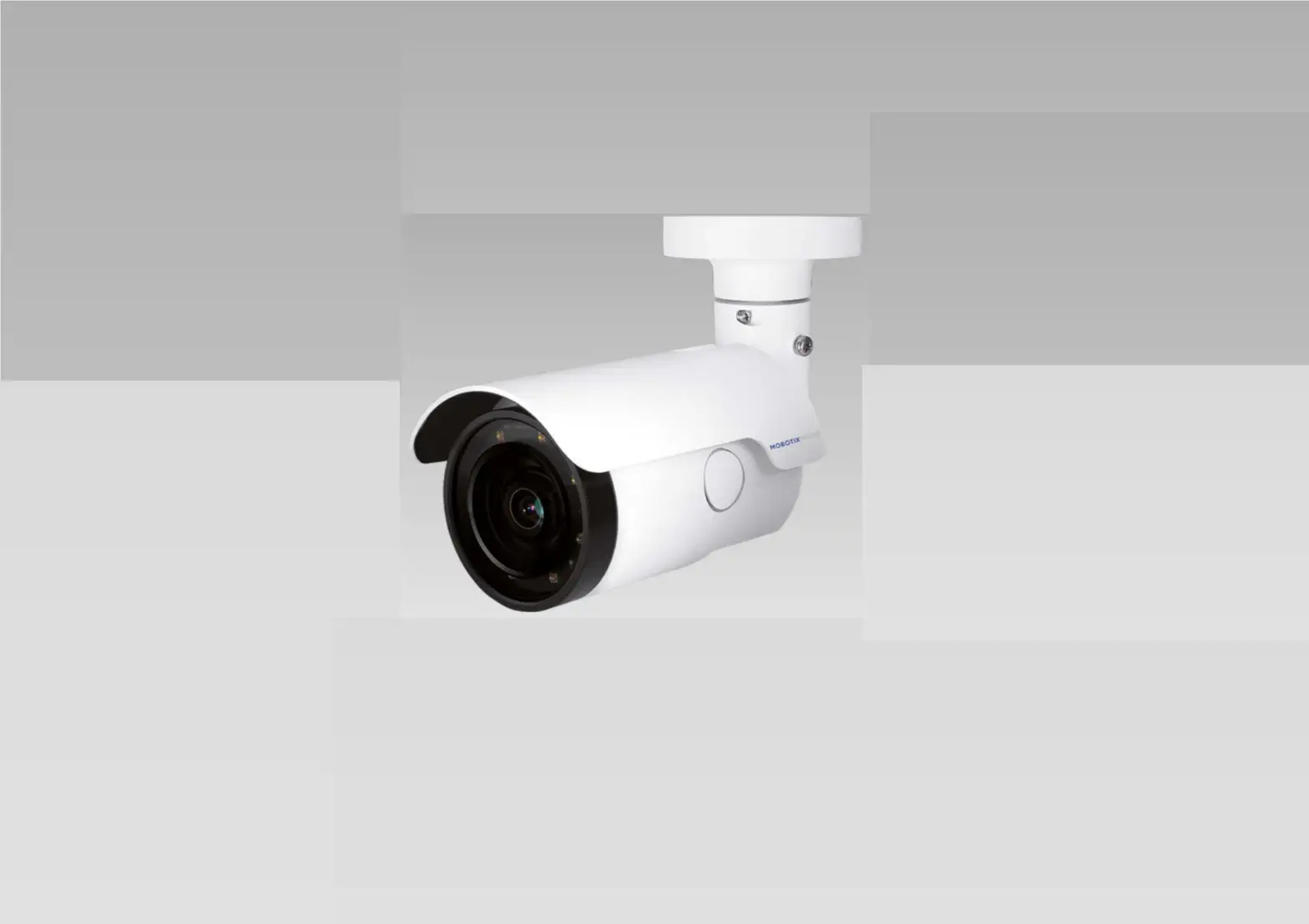
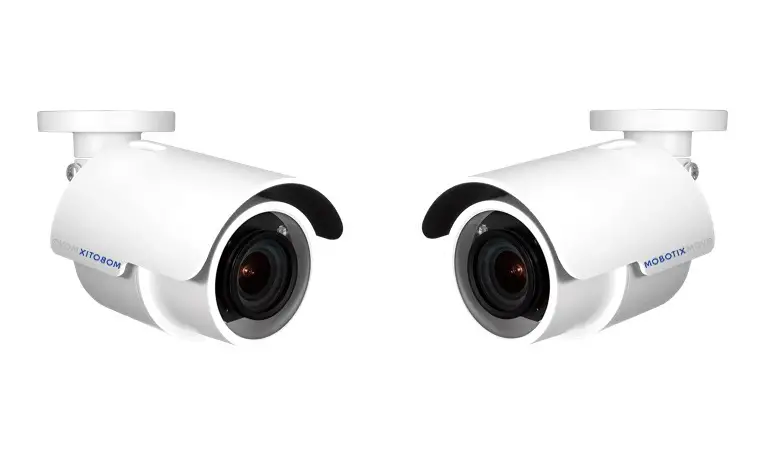
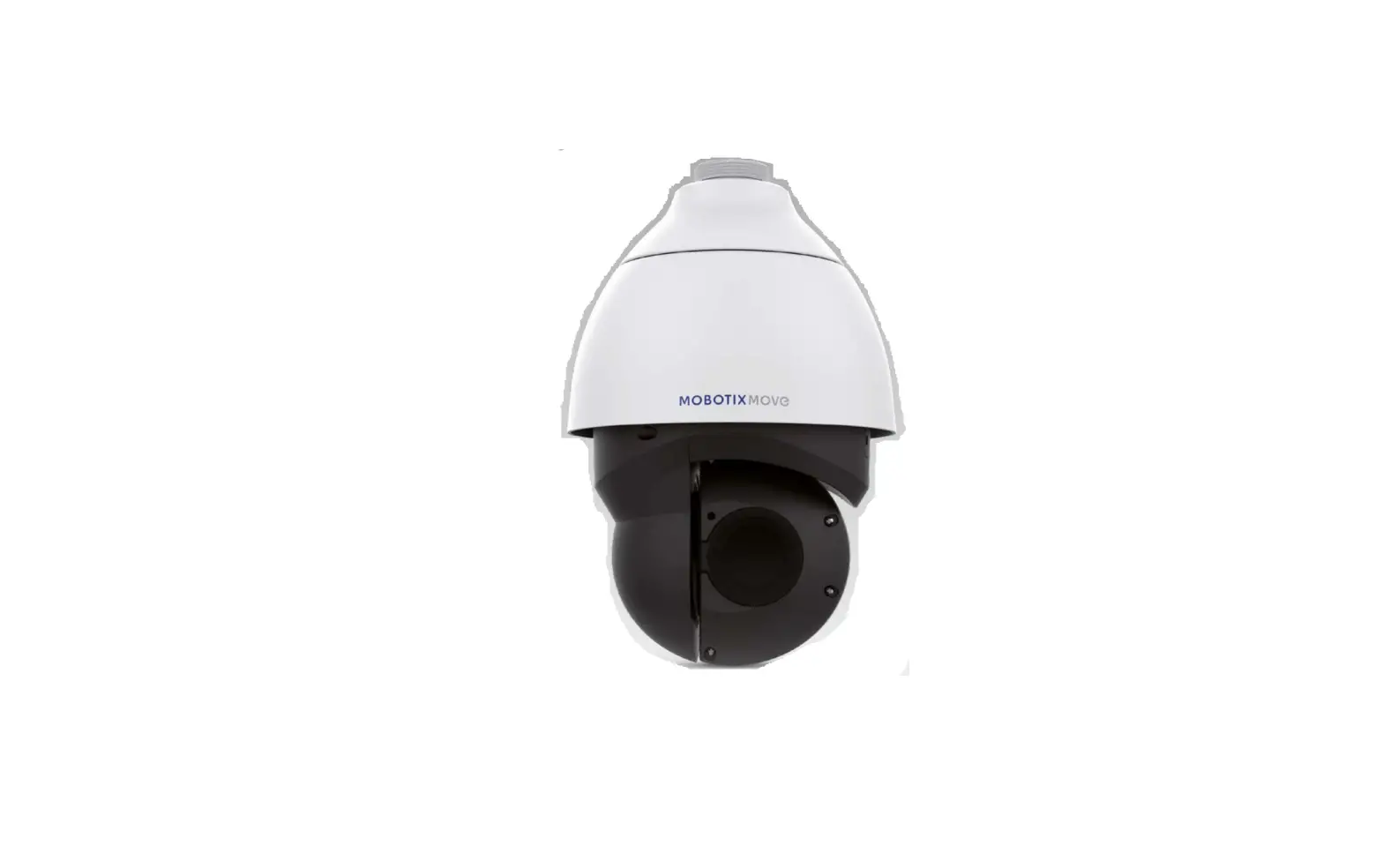
MOBOTIX MOVE VB-4-IR
Quick Install
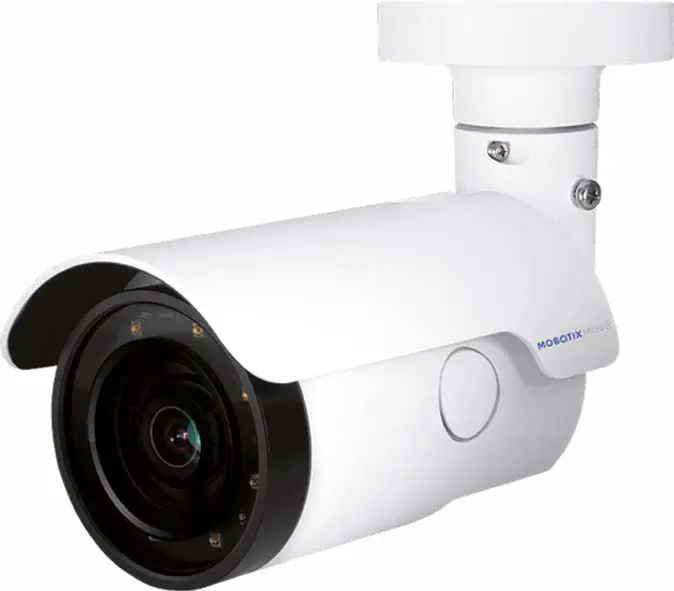

This guide is for quick installing and connecting the VandalBullet MOBOTIX MOVE VB-4-IR. You can find detailed information on the installation and connections in the Camera Manual (PDF, available on www.mobotix.com > Support > Download Center > Documentation > Manuals).
Removal of the Desiccant
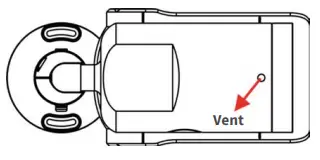
Before installation, remove the desiccant on the vent at the bottom of the camera body (see figure).
Installation Notices
- This camera must be installed by qualified personnel and the installation should conform to all local codes.
- This camera contains replaceable batteries. To prevent explosion risks, confirm the battery type before replacement. Dispose of used batteries in accordance with the local regulations.
- To use an external power supply, please contact the camera manufacturer to confirm that the power supply uses the same power specifications as the camera. The power supply must comply with the LPS requirements.
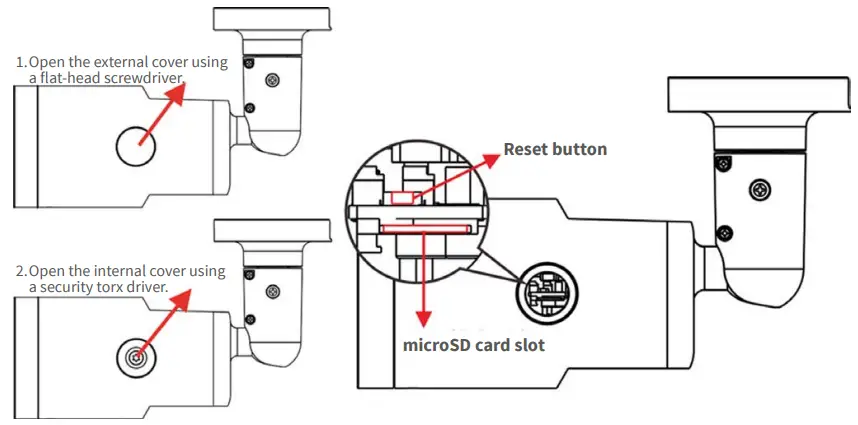
To exchange the microSD card slot or to press the reset button, you need to open the camera as shown below. Make sure that you properly close the covers once you are finished.
microSD Card Slot
Insert the microSD card into the card slot to store videos and snapshots. Do not remove the microSD card when the camera is powered on. NOTE: We do not recommend permanent recording on a microSD card, as it may not be able to support long-term continuous data read/write. Please contact the manufacturer of the microSD card for information regarding reliability and life expectancy.
Reset Button
Press the reset button with a proper tool for at least 20 seconds to restore the system.
Camera Cabling
Please follow the instructions below for cable connections.
Power Connection
Use a DC 12V/AC 24V adaptor and connect it to the 2-pin terminal block of the All-in-One cable and the power outlet. Alternatively, connect the Ethernet cable to the RJ-45 connector of the All-in-One cable, and plug the other end of the cable to a Power over Ethernet (PoE) switch.
Ethernet Cable Connection
Connect one end of the Ethernet cable to the RJ-45 connector of the All-in-One cable, and plug the other end of
the cable to the network switch or PC.NOTE: Check the status of both power and network activity indicator LEDs. If either LED is unlit, please check the corresponding connection.
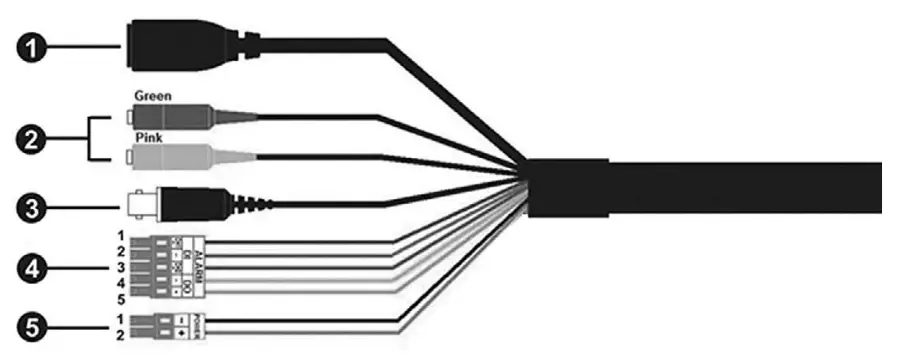
All-in-One Cable
| No. | Connector | Pin | Definition | Remarks | |
| 1 | RJ-45 | For network and PoE connections | |||
| 2 | Audio I/O | Green | Audio Out/Mic Out (Line Out) | Two-way audio transmission | |
| 3 | BNC (Optional) | Pink | Audio In/Mic In (Line In) | ||
| 4 | Alarm I/O (5-pin Terminal | Pink | For analog video output | ||
| 1 | Alarm In 2+ | Alarm connection
| |||
| 2 | Alarm In – | ||||
| 3 | Alarm In 1+ | ||||
| 4 | Alarm Out – | ||||
| 5 | Alarm Out + | ||||
| 5 | Power (DC 12V/AC 24V) (2-pin Terminal Block) | 1 | DC 12V − | AC 24V 1 | Power connection |
| 2 | DC 12V + | AC 24V 2 | |||
Before Logging Into the Camera
A client program will be automatically installed to the PC when connecting to the camera. Before logging in to the camera, ensure downloading the ActiveX control is allowed by either changing the ActiveX controls and plug-ins or setting Internet’s security level to default.
| ActiveX Controls and Plug-ins Settings | Internet Security Level |
| Step 1: Start the Internet Explorer (IE). Step 2: Select from the main menu of the browser. Then click on. Step 3: Click on the tab and select, and click on to change ActiveX settings. Step 4: Set “ActiveX controls and plug-ins” items to or. | Step 1: Start the IE Internet Explorer (IE). Step 2: Select from the main menu of the browser. Then click on. Step 3: Click on the tab and select. Step 4: Down the page, click on and to confirm the setting. Close the browser window, and open a new one later for accessing the IP camera. |
Camera Login
The default IP address of the camera is: 10.x.x.x. By default, the camera starts as a DHCP client and automatically tries to get an IP address from a DHCP server.
Login ID & Password
Key in the camera’s IP address in the URL bar of the web browser window and hit “Enter”. Enter the default username (admin) and password (meinsm) in the prompt request dialogue. The password must be changed upon the first login.
Install the ActiveX Control
- After connecting to the camera, the request for installing the ActiveX control will appear just below the URL bar.
- Right-click on the information bar and click on <Install ActiveX Control…> to permit ActiveX control installation.
- In the pop-up security warning window, click on <Install> to start downloading Viewer software on the PC.
- Click on <Finish> after the Viewer installation is completed.
 Unique Quality - Made in Germany
 Mobotix Move MX-VB1A-4-IR Vandal Bullet Camera