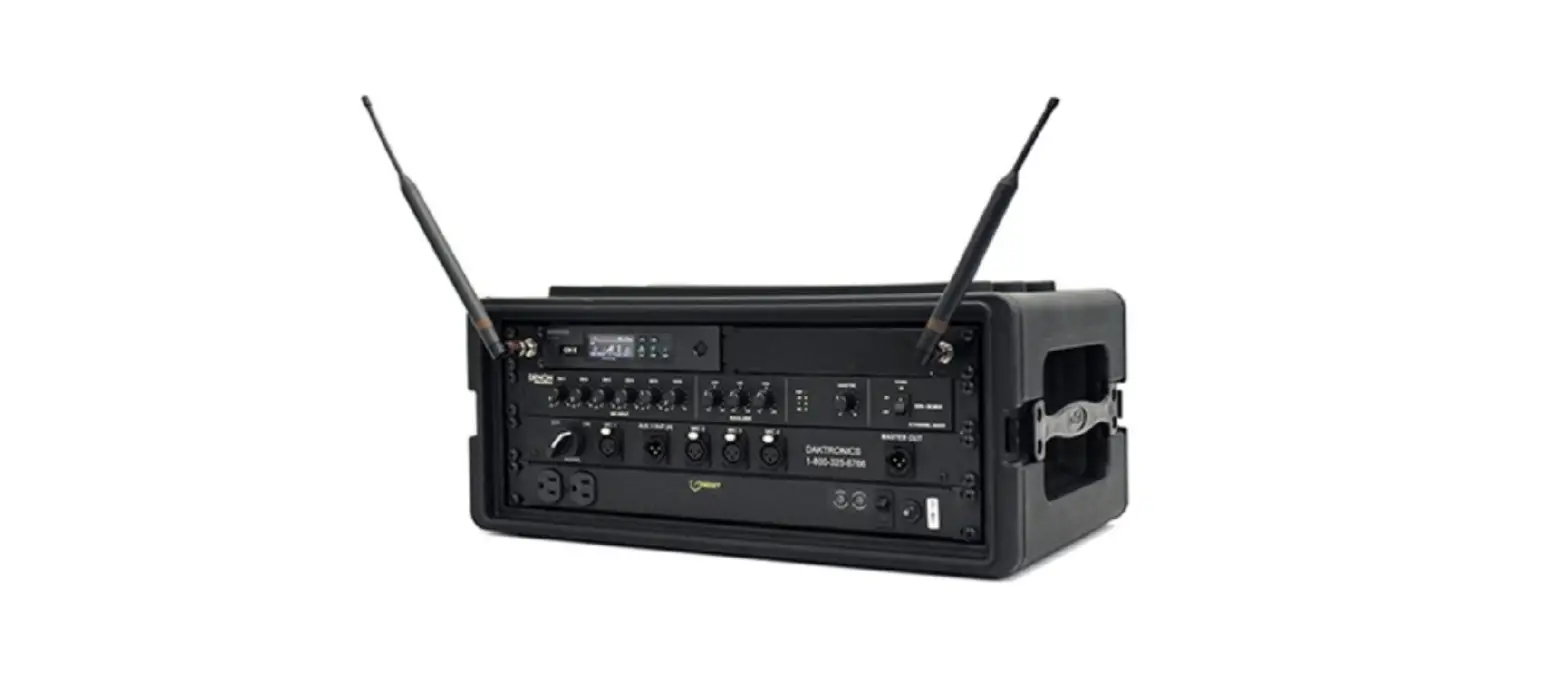
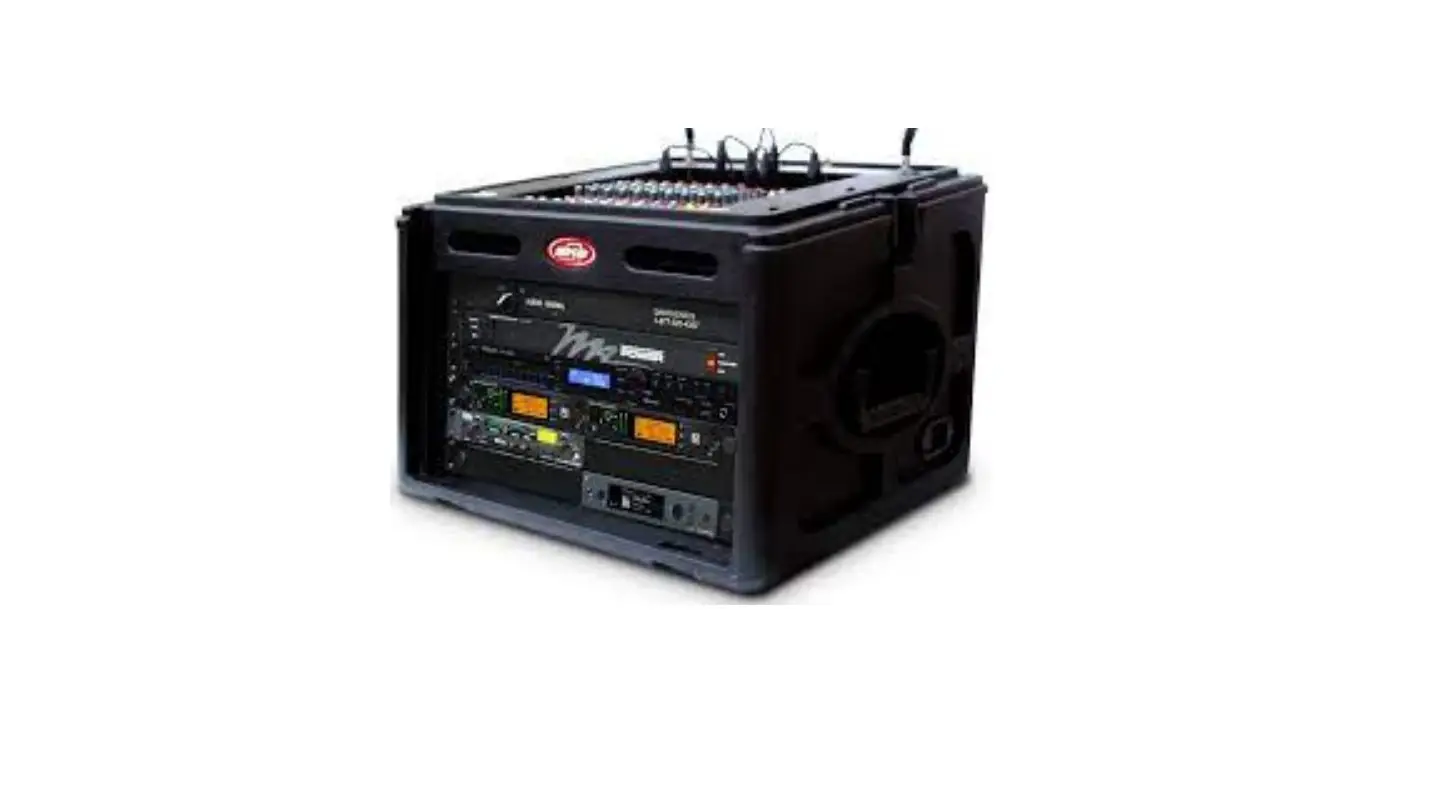
DD3953258 Sportsound SSR-100 Gen III Audio Rack-Controller
Sportsound SSR-100 Gen III
The Sportsound SSR-100 Gen III is a sound system designed for
sports events and announcements. It provides high-quality audio
output and includes various input sources for versatile usage.
Setup
- Place the rack on a flat, sturdy surface. Remove the front and
rear cover pieces by releasing all latches; set the covers
aside. - Announcer’s Interface setup:
- Connect the 2′ (610 mm) XLR cable between the microphone and
the MIC 1 INPUT jack. - Connect headphones to the 1/4 or 1/8 jack.
- Connect the provided 12 VAC wallpack transformer to the power
input jack, and then use the tab above the power jack as a strain
relief for the power cord.
- Connect the 2′ (610 mm) XLR cable between the microphone and
- Connect the 15′ (4.6 m) XLR cable from MIC 1 & AUX 1 on the
announcer’s interface to the MIC 1 & AUX 1 (OUT 2) jacks on the
front of the rack. Also, plug the wallpack transformer into one of
the power outlets on the front of the rack. - Connect the 1/8 to 1/8 cable (part # W-3511512) between the
MUSIC input on the Multimedia Mixer and the headphone jack of a
laptop or MP3 player. - Connect the 25′ (7.6 m) XLR cable between the MAIN OUTPUT (OUT
1) jack on the front of the rack and the SYSTEM AUDIO jack on the
bottom of the fiber box. If there is no fiber box, as in an indoor
system, the cable typically connects to a wall plate junction
box. - Plug the 3-prong power cord in the rear of the rack into a
standard outlet. Ensure the fiber box (if included) also has
power. - Turn on the power strip, mixer, and optional wireless
receiver(s). - Switch the SIGNAL to ON.
Announcer’s Interface
The Announcer’s Interface is a key component of the Sportsound
SSR-100 Gen III system. It allows you to connect a microphone,
headphones, and power supply.
Fiber Box
The Fiber Box is an optional component used for outdoor
installations. It provides connectivity for audio signals between
the rack and the outdoor system.
Mixer Operation
The mixer is used to adjust the audio levels and control the
output volume. Follow the provided instructions to set the desired
output level and avoid overloading the system.
Surge Protector
The power strip features a built-in surge protector with a 15A
breaker. If the breaker trips, press the small button next to the
power switch to reset it. Ensure that both the green POWER ON LED
and the red SURGE PROTECTED LED are illuminated when the rack is
plugged into a functioning outlet and powered on.
Input Sources
Ensure that all source equipment, such as MP3 players or
laptops, are turned on and operational. Use high-quality audio
files and adjust the volume settings for optimal sound quality.
Note: Always follow the provided instructions
for powering up and powering down the system. Keep all accessories
in a secure location to prevent damage or theft.
Sportsound SSR-100 Gen III Quick Start Guide
This guide will assist with starting up and operating a Sportsound® SSR-100 Gen III audio rack. For detailed operation, configuration, and troubleshooting, refer to the Sportsound Rack SSR-100 Gen III Operation Manual (DD3953255), available at www.daktronics.com.
Setup
Place the rack on a flat, sturdy surface. Remove the front and rear cover pieces by releasing all latches; set the covers aside.
1. Announcer’s Interface setup is described below. Refer also to the quick guide (DD3083838) shipped with the device.
a. Connect the 2′ (610 mm) XLR cable between the microphone and the MIC 1 INPUT jack.
b. Connect headphones to the 1/4″ or 1/8″ jack.
c. Connect the provided 12 VAC wallpack transformer to the power input jack, and then use the tab above the power jack as a strain relief for the power cord.
2. Connect the 15′ (4.6 m) XLR cable from MIC 1 & AUX 1 on the announcer’s interface to the MIC 1 & AUX 1 (OUT 2) jacks on the front of the rack. Also, plug the wallpack transformer into one of the power outlets on the front of the rack.
3. Connect the 1/8″ to 1/8″ cable (part # W-3511512) between the MUSIC input on the Multimedia Mixer and the headphone jack of a laptop or MP3 player.
4. Connect the 25′ (7.6 m) XLR cable between the MAIN OUTPUT (OUT 1) jack on the front of the rack and the SYSTEM AUDIO jack on the bottom of the fiber box. If there is no fiber box, as in an indoor system, the cable typically connects to a wall plate junction box.
5. Plug the 3-prong power cord in the rear of the rack into a standard outlet. Ensure the fiber box (if included) also has power.
6. Turn on the power strip, mixer, and optional wireless receiver(s).
7. Switch the SIGNAL to ON.
Announcer’s Interface
7 2
5
DD3953258 Rev 03 19 December 2022
201 Daktronics Drive Brookings, SD 57006-5128 www.daktronics.com/support
800.325.8766
Page 1 of 5
Fiber Box
1
(outdoor)
Wall Plate
(indoor)
OR
Front View 6 6
6
4
3
to MP3 Player or Laptop
Rear View
Sportsound SSR-100 Gen III Quick Start Guide
Page 2 of 5
Ensure any antennas are angled outward at 45° ~45. Alternately, coaxial cable from the high
gain antenna kit may be connected into the jacks off to the sides of the wireless receiver(s).
The antennas should be located within 50′
(15.2 m) of the rack, using desktop stands or
mounted to the ceiling.
Adjust the OUT volume level(s) to achieve the final output. If the red LED(s) illuminate, decrease the level(s).
Follow the above steps in reverse order to power down the system. Place all accessories in a secure location to avoid damage/theft.
Input Sources
Ensure all source equipment is turned on and operational. If any optional wireless microphone systems are included, refer to Page 3.
Remember: Bad input = bad output. No adjustment on the mixer can make a poor source sound better. For best results, be sure to use high-quality audio files from your MP3 player or laptop, and set the device to near full volume.
Whenever red LEDs are illuminated on the mixer, this is generally a sign that input settings need adjustment. PROLONGED OVERLOAD
OUTPUT SIGNAL WILL DAMAGE THE AUDIO SYSTEM!
Mixer Operation
For each channel (input source) in use, verify the green LED is illuminated, and then turn up the knob until the red LED starts to light, and then turn it down by one half to one full number.
Surge Protector
The power strip features a 15A breaker. If the breaker trips, press the small button next to the power switch to reset it. The green POWER ON LED and the red SURGE PROTECTED LED should both be illuminated when the rack is plugged into a functioning outlet and powered on.
Note: For each MIC input, depress the LOW CUT button as needed to help increase speech intelligibility.
DD3953258 Rev 03 19 December 2022
201 Daktronics Drive Brookings, SD 57006-5128 www.daktronics.com/support
800.325.8766
Sportsound SSR-100 Gen III Quick Start Guide
Page 3 of 5
Mixer DIP Switch Settings
1. DUCKER ON/OFF ON (default) = When audio is sensed above a threshold at MIC 1 and/or MIC 2 inputs, all other inputs will be reduced to the level set by the ducking level (switch 2). All other inputs will gradually come back up to normal output level automatically. Note that the CV Input will mute all other inputs of mixer when signal is sensed above a threshold regardless of this switch setting. OFF = Signal levels will not be automatically reduced. Exception: the CV Input will mute all inputs.
2. DUCKING LEVEL -15 (default) = When ducker is active, MIC 3 & 4, MIC/LINE 1 & 2, RCA 1 & 2, and MUSIC inputs will be reduced by 15dB. -70 = When ducker is active, MIC 3 & 4, MIC/LINE 1 & 2, RCA 1 & 2, and MUSIC inputs will be muted
3. LIMIT 1 ON/OFF ON (default) = OUT 1 level will be limited to threshold (switch 4). OFF = OUT 1 level is not limited improper use of mixer with limiter off may damage sound system!
4. LIMIT 1 THRESHOLD +4 (default) = Allows OUT 1 to reach full line level output while protecting against improper use and large signal spikes. -6 = Reduces OUT 1 output level while providing the greatest protection against improper use of the sound system.
5. LIMIT 2 ON/OFF ON (default) = OUT 2 level will be limited to threshold (switch 6). OFF = OUT 2 level is not limited improper use of mixer with limiter off may damage sound system!
6. LIMIT 2 THRESHOLD +4 (default) = Allows OUT 2 to reach full line level output while protecting against improper use and large signal spikes. -6 = Reduces OUT 2 output level while providing the greatest protection against improper use of the sound system.
7. ALARM NC/NO N/O (default) = Use with Normally Open fire alarm contacts mixer output will MUTE when contacts are closed. N/C = use with Normally Closed fire alarm contacts mixer output will MUTE when contacts are opened.
8. PHANTOM POWER: ON = Supplies 48VDC to MIC 14 inputs to power condenser microphones. OFF (default) = Select when using dynamic microphones.
DD3953258 Rev 03 19 December 2022
201 Daktronics Drive Brookings, SD 57006-5128 www.daktronics.com/support
800.325.8766
Sportsound SSR-100 Gen III Quick Start Guide
Page 4 of 5
Shure Wireless Receiver System Operation
b
c
a
Wireless Microphone & Bodypack Operation
Power ON/OFF
def g h
IR Window
IR Window
Power
The wireless receiver unit displays the following information:
a) Transmitter Battery Life b) TV Channel
c) Frequency d) Group Number
e) Channel Number f) RF Signal Strength g) Transmitted Audio Level h) Gain Level
Single Receiver
1. Ensure all transmitters are powered off. Press the power button to turn on the receiver if it is not already on.
2. Press menu until “scan” displays on the LCD.
3. Press enter to start frequency scan. When scan is complete, Group and Channel will display on the LCD.
Network Receivers
1. Ensure all transmitters are powered off. Turn on all receivers and wait one minute to allow time to connect to the network.
2. Press menu on one receiver until group number flashes. 3. Use the arrow buttons to select a group to scan. 4. Press enter, wait for channel, and then press enter again. 5. Press menu until “network scan” displays on the LCD. 6. Press enter twice to deploy channels to other receivers.
Note: Perform a scan on all of the wireless units just minutes before the game! If a scan is performed too far ahead of time, frequencies set up by the media later on may interfere with previously configured settings.
Power ON/OFF
1. Open the battery cover. Insert new or fully-charged AA batteries prior to each use, and always have spares on hand.
2. Power on the transmitter device. 3. Hold the transmitter device up close to one receiver in the rack,
ensuring the infrared (IR) windows are aligned. 4. Press sync on the receiver; “good” will display if sync succeeded. 5. Repeat steps 14 to pair another transmitter device with an
additional receiver (if present).
Note: Plug the referee mute switch into the jack on top of the bodypack unit and plug headphones/lapel mic into the referee mute switch.
Verify Reception: With a transmitter and the receiver both turned on and having matching GROUP and CHANNEL numbers, the RF meter on the receiver should be indicating signal. Speak into the microphone and the Audio meter should indicate signal presence.
DD3953258 Rev 03 19 December 2022
201 Daktronics Drive Brookings, SD 57006-5128 www.daktronics.com/support
800.325.8766
Sportsound SSR-100 Gen III Quick Start Guide
Page 5 of 5
Electro-Voice Wireless Receiver System Operation Wireless Microphone & Bodypack Sync
a
b hc
d
ef g
Sync Port
Sync Port
Power
The wireless receiver unit displays the following information:
a) Antenna Status b) Audio Output Volume Level c) Transmitter Activity Status d) Transmitter Battery Life
e) Group Number f) Channel Number g) Frequency h) RF/AF Signal Strength
Group/Channel Scan
1. Ensure all transmitters are powered off. Press the power button to turn on the receiver if it is not already on.
2. Press and hold SCAN for three seconds.
3. Press SET to start frequency scan. When scan is complete, view the results list.
4. Use the up/down arrows to select the group with the most open channels, and then press SET.
5. Use the up/down arrows to select a channel, and then press SET.
6. Briefly press SYNC to return to the home screen where the selected group and channel will now appear.
7. Repeat Steps 26 for all additional receivers. Ensure that all receivers are on the same group number.
Note: Perform a scan on all of the wireless units just minutes before the game! If a scan is performed too far ahead of time, frequencies set up by the media later on may interfere with previously configured wireless microphone settings.
Power & Mute
1. Open the battery cover. Insert new or fully-charged AA batteries prior to each use, and always have spares on hand.
2. Power on the transmitter device.
3. Hold the transmitter device steady up close to one receiver in the rack, ensuring the sync ports are aligned. A direct line of sight is required. Maintain a distance between 2-12″ (5-30cm) for best sync performance.
4. Press SYNC on the receiver. The LED indicator on the transmitter flashes blue during the sync operation and glows solid blue for three seconds when sync operation is successful.
5. Repeat steps 14 to pair another transmitter device with an additional receiver (if present).
Note: Plug the referee mute switch into the jack on top of the bodypack unit and plug headphones/lapel mic into the referee mute switch.
Verify Reception: With a transmitter and the receiver both turned on and having matching Group and Channel numbers, the RF meter on the receiver should be indicating signal. Speak into the microphone and the AF meter should indicate signal presence. Ideal level should show all green LEDs and the yellow LED lit on emphasis peaks. An occasional red LED is OK, but a constant, solid red LED should be avoided.
DD3953258 Rev 03 19 December 2022
201 Daktronics Drive Brookings, SD 57006-5128 www.daktronics.com/support
800.325.8766
 Daktronics :: Scoreboards, LED Video Displays, Message Signs, Billboards