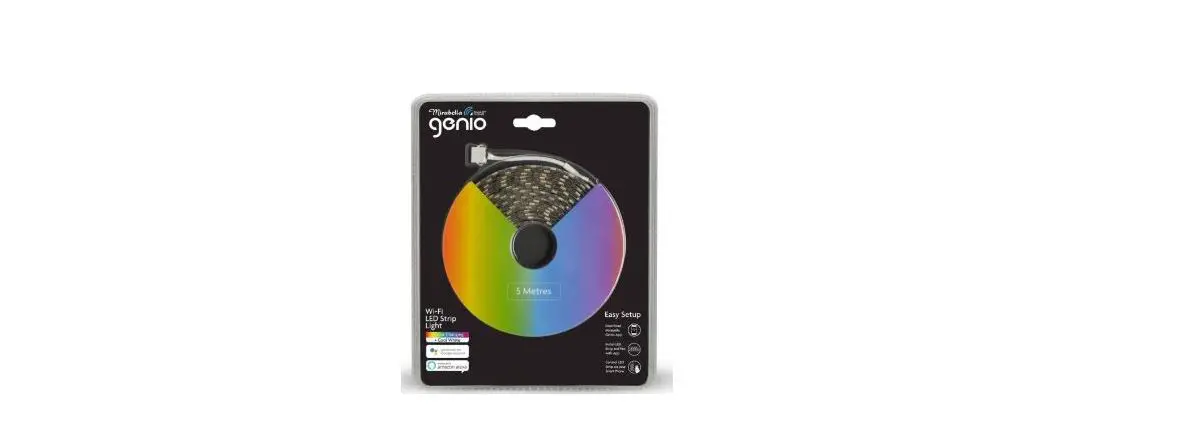
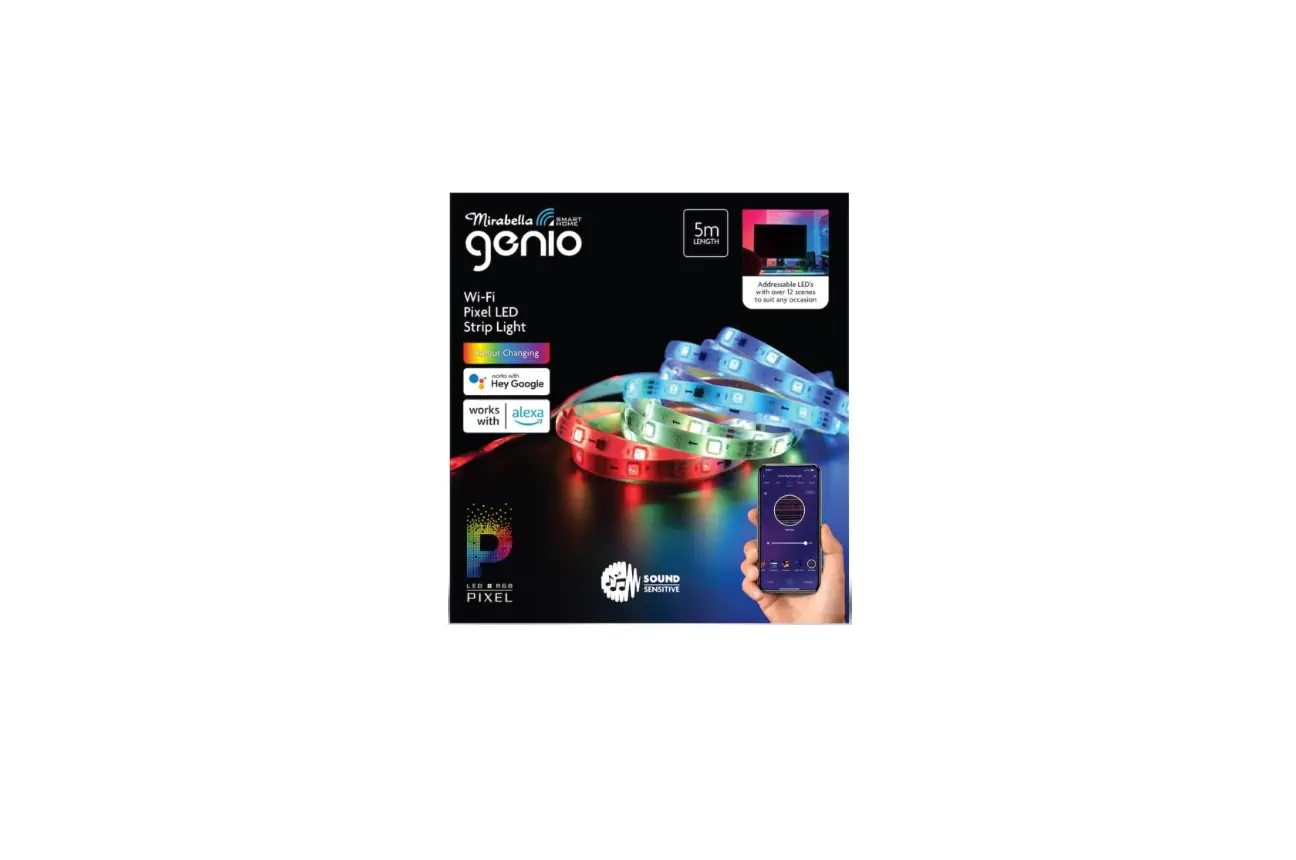
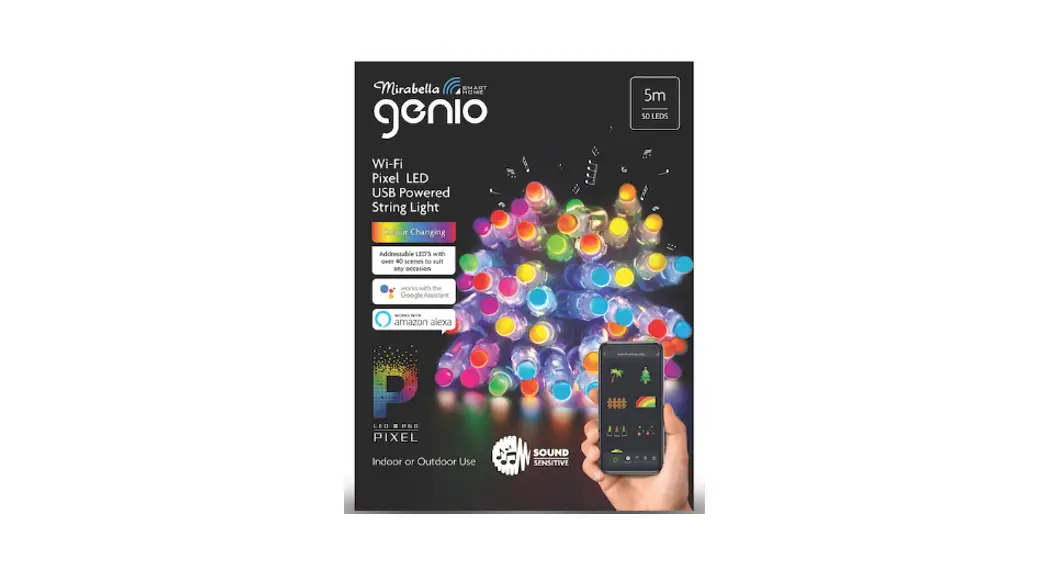
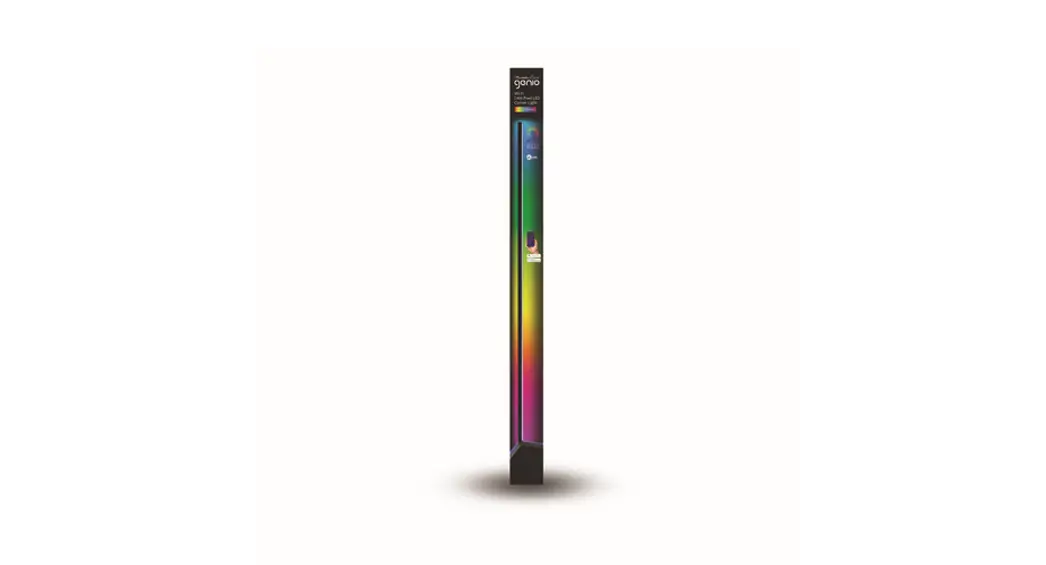
I003972 4M Wi-Fi LED Pixel Neon Light
Product Information
- Product Name: Genio 4M Wi-Fi LED Pixel Neon Light
- Usage: Indoor or outdoor use under shade only
- Important Note: Adaptor/transformer and Wi-Fi controller must
remain indoor at all times for safe and satisfactory operation - Manufacturer’s Website: www.mirabellagenio.com.au
Product Usage Instructions
- Connection Preparation:
- Ensure your phone is connected to a 2.4GHz Wi-Fi network (not
5GHz). - Check that you have a strong Wi-Fi signal (at least two bars)
in the installation location.
- Connect the neon light to the adaptor and switch on the
power. - Wait a few seconds for the neon light to start blinking fast.
If it doesn’t, proceed to step 2.
- If the neon light doesn’t automatically start blinking fast,
press and hold the pairing button on the Wi-Fi controller until the
light starts blinking rapidly (2 blinks per second).
- Open the Mirabella Genio APP on your phone.
- Add the Genio strip light manually by tapping on the “+”
button. - Select “Genio strip light” from the list.
- Enter your 2.4GHz Wi-Fi name and password (ensure the Wi-Fi
name doesn’t end with “-5G”). - Follow the instructions in the APP carefully to complete the
network pairing process.
- If the fast-blinking method (EZ method) doesn’t work, try the
slow blinking method (AP method). - While the strip light is rapidly blinking, press and hold the
pairing button on the Wi-Fi controller again. - Wait for the light to start blinking slowly (1 blink per every
2 seconds). - Open the Mirabella Genio APP and follow the same steps as
mentioned in step 3 to complete the network pairing process.
- After connecting to the SmartLife_XXXX Wi-Fi network, return to
the Mirabella Genio APP. - The APP will begin adding the device automatically.
- Refer to the online FAQ page if you encounter any issues or
receive a time-out error.
- If the light never stops blinking:
- Ensure you entered the correct 2.4GHz Wi-Fi name and
password. - Check your phone settings, especially if you are using iOS 14.
Ensure local network permission is turned on for Genio.
moving it to a location with better coverage.
I003972 Genio 4M Wi-Fi LED Pixel Neon Light
WARNING: LED NEON LIGHT CAN BE USED INDOOR OR OUTDOOR UNDER THE SHADE ONLY
ADAPTOR/ TRANSFORMER AND Wi-Fi CONTROLLER MUST REMAIN INDOOR AT ALL TIMES TO ENSURE THE SAFE AND SATISFACTORY OPERATION OF THIS SET PLEASE READ THESE INSTRUCTIONS CAREFULLY AND
RETAIN IT FOR FUTURE REFERENCE FOR ANY QUESTIONS OR TROUBLESHOOTING PLEASE VISIT www.mirabellagenio.com.au
We recommend that the set be tested prior to being set up in the desired location SAFETY INFORMATION:
· Remove set from the packaging before connecting to the power supply. · Before using or re-using the set, inspect the set carefully · Use only with the adaptor/transformer supplied · Do not connect the set electrically to another set from a different manufacturer · Ensure that the cable is completely uncoiled whilst set is in use. Failure to do so may cause overheating · Avoid damage to wire insulation (cable), as this could cause a short-circuit and damage the transformer · Do not use any set which has been: cut, damaged, or has frayed wire insulation, loose connections or exposed wires
Note: When connecting, please ensure the arrows are aligned with one another, otherwise it will NOT light up
Neon light cannot be cut and join like the LED strip light.
1. Connection Preparation
Your phone must be connected to 2.4Ghz Wi-Fi and not the 5GHz, To verify your mobile phone is connected a 2.4Ghz Wi-Fi network, Navigate to the Setting menu and click on Wi- Fi. In this menu you will see all detectable networks in your area. Locate the SSID for your network, select a Wi-Fi SSID that doesn’t end with 5GHz.
Check you have a strong Wi-Fi signal (at least two bars) in the location where the smart device
is installed.
If you don’t have at least two bars signal on your phone, then you may need to reconsider the location or getting a Wi-Fi extender to boost the Wi-Fi signal strength. If you have dual band router but you don’t see two Wi-Fi name SSID’s, one with 5G and one without 5G, you MUST log into the router and manually disable the 5Ghz Wi-Fi signal if you’re having connection issues. Please contact your internet provider on how to disable 5Ghz Wi- Fi for your router or check our website;s FAQ for some common router settings.
Install the APP and register Account For the best experience, download the “Mirabella Genio” APP to your smartphone from the App Store or Google Play, the APP icon will be displayed after it’s installed successfully EZ method when the light is fast blinking (2 blinks per second)
1. Connect the neon light to the adaptor then switch on the power, wait a few seconds, neon light will be blinking fast 2. If it did not automatically start to blink fast when first powered on, press and hold the pairing button on the Wi-Fi
controller until the light starts to blink rapidly (2 blinks per second)
3. Open Mirabella Genio APP, tap on +, add Manually then choose genio strip light from the list
4. Entre your 2.4Ghz Wi-Fi name and password, (make sure Wi-Fi name doesn’t end with -5G) Follow the APP instruction carefully to complete the network pairing process.
if the fast-blinking method (EZ method, mentioned above) doesn’t work, please try the slow blinking (AP method) below. While the strip light is rapidly blinking, press and hold the pairing button on the Wi-Fi controller again and then wait for the light to start blinking slowly (1 blink per every 2 seconds)
1. open up the Mirabella genio APP, tap on + , add Manually then choose genio strip light from the list Entre your 2.4Ghz Wi-Fi name and password, (make sure the Wi-Fi name doesn’t end with -5G) then in reset the device first screen tap on EZ mode in the Top right hand corner just below the battery image , select AP Mode (refer to the 1st and 2nd image below) Now Confirm indicator slowly blinking (refer to image 3), hit Next, then Go to connect and connect to Wi-Fi named SmartLife_XXXX
Note: If you fail to see Wi-Fi name beginning with the word SmartLife_XXXX, then mean the device is not slowly blinking, please reset and make it slowly blinking
2 . After connected to SmartLife_XXXX, return back to Mirabella Genio, APP will commence adding device
Please pay attention to this screen please check our online FAQ page
to determent the cause of the
and ensure
time-out error
If the light never stops blinking,
1. You enter the correct 2.4Ghz Wi-
there could be an issue with your
Fi name and password
phone setting, if you are using IOS
14, please ensure local network
2.Wi-Fi controller is in a location
permission is turned on for Genio with good Wi-Fi coverage, try move
APP
it closer to the router for the pairing
process
if light stopped blinking, but unable
to progress to “register on cloud” it 3. 5Ghz Wi-Fi signal is turned off on
indicates a communication error
the router (5Ghz can be turn on
with your router to our cloud
after the device is connected)
service, please check your router
setting
If you don’t have Wi-Fi at home or cannot pair it but still want to use it , simply wait for the light to stopped blinking, then you can short press the pairing button to change different modes without the need of genio APP.
Should the transformer, supply plug or supply flexible cord get damaged, do not attempt to repair. TO BE REPAIRED BY AN AUTHORIZED PERSON ONLY THIS IS AN AUSTRALIAN STANDARDS REQUIREMENT IN THE INTEREST OF YOUR SAFETY·
FAQ: Q. I have internet/power outage and the device went offline and doesn’t reconnect back online by itself? A. Go the strip light co’ settings page (pencil icon), look for “remove device” Remove it and reset the device and pair it again through the app.
Q. how do I control two or more neon lights at the same time? A. Go the device’ settings page (pencil icon), look for the “create group” option,
If you are using Telstra/Optus NBN and you still having issue with pairing when use AP method, please call our tech support line or check our online FAQ pages on how to disable the 5Ghz WiFi on the router setting www.mirabellagenio.com.au/faqs
Mirabella International Pty Ltd 1 Mirabella Drive Tullamarine VIC. 3043 Australia
t: 1800 636 528 e: [email protected]