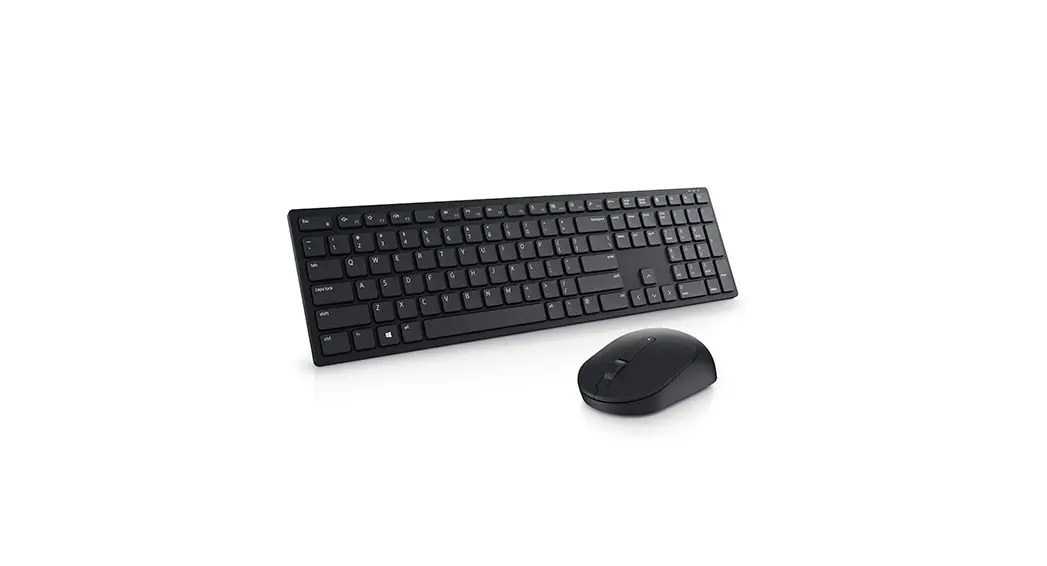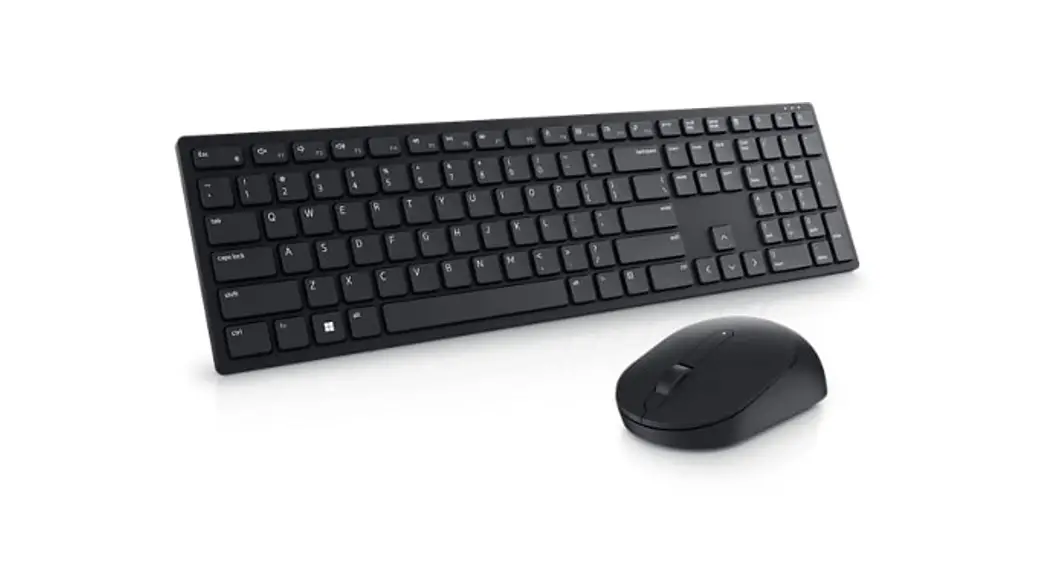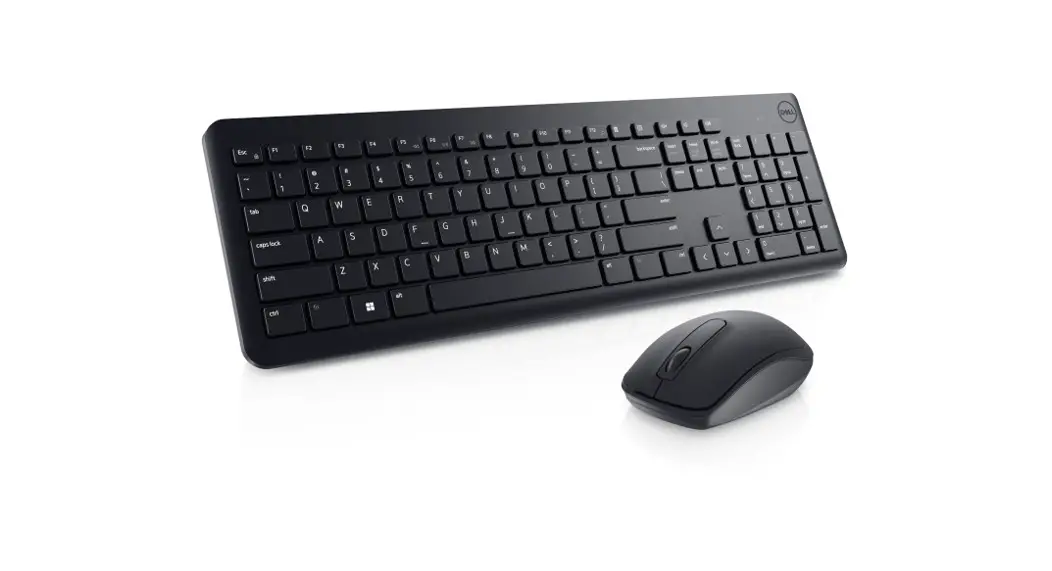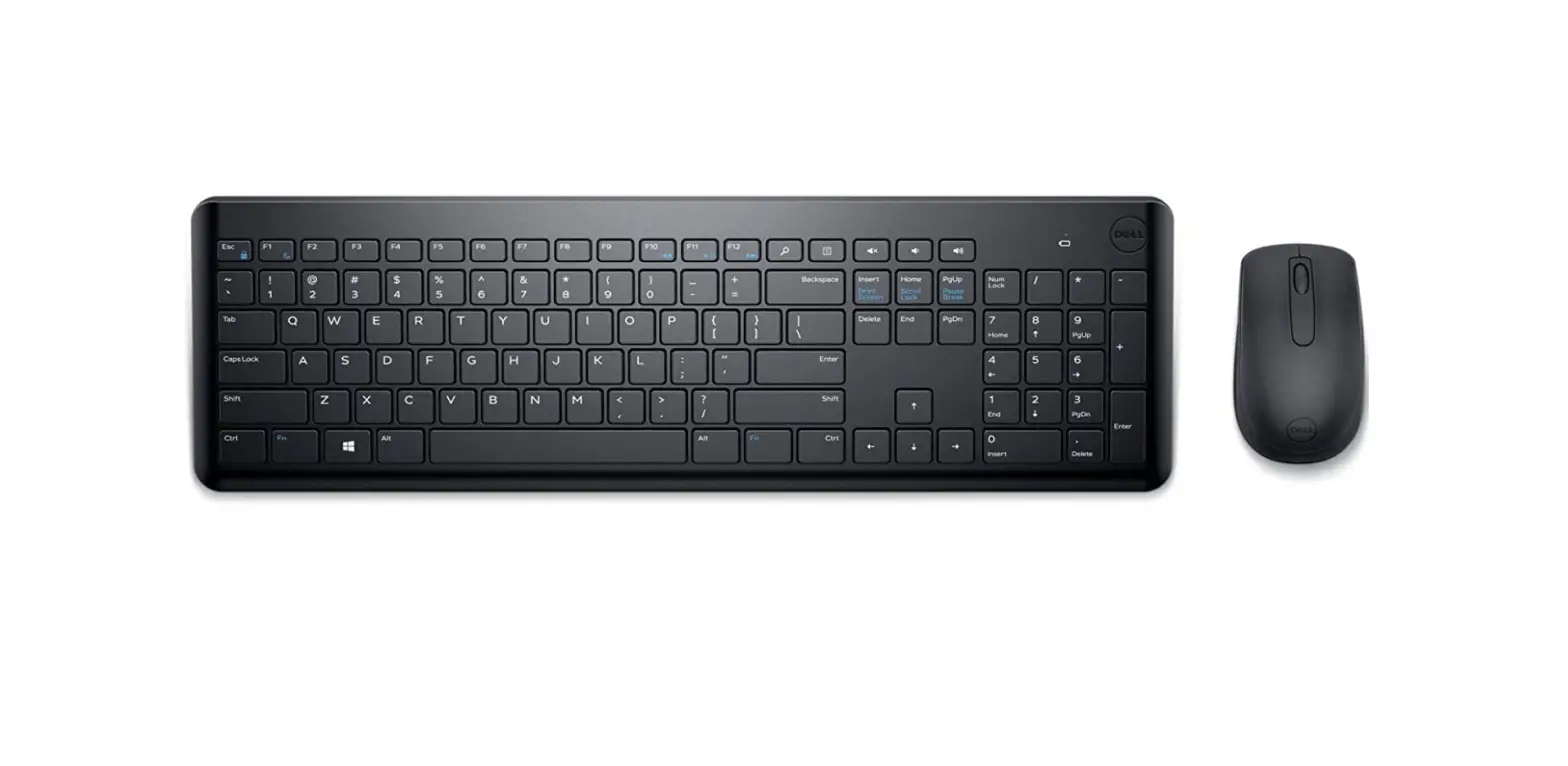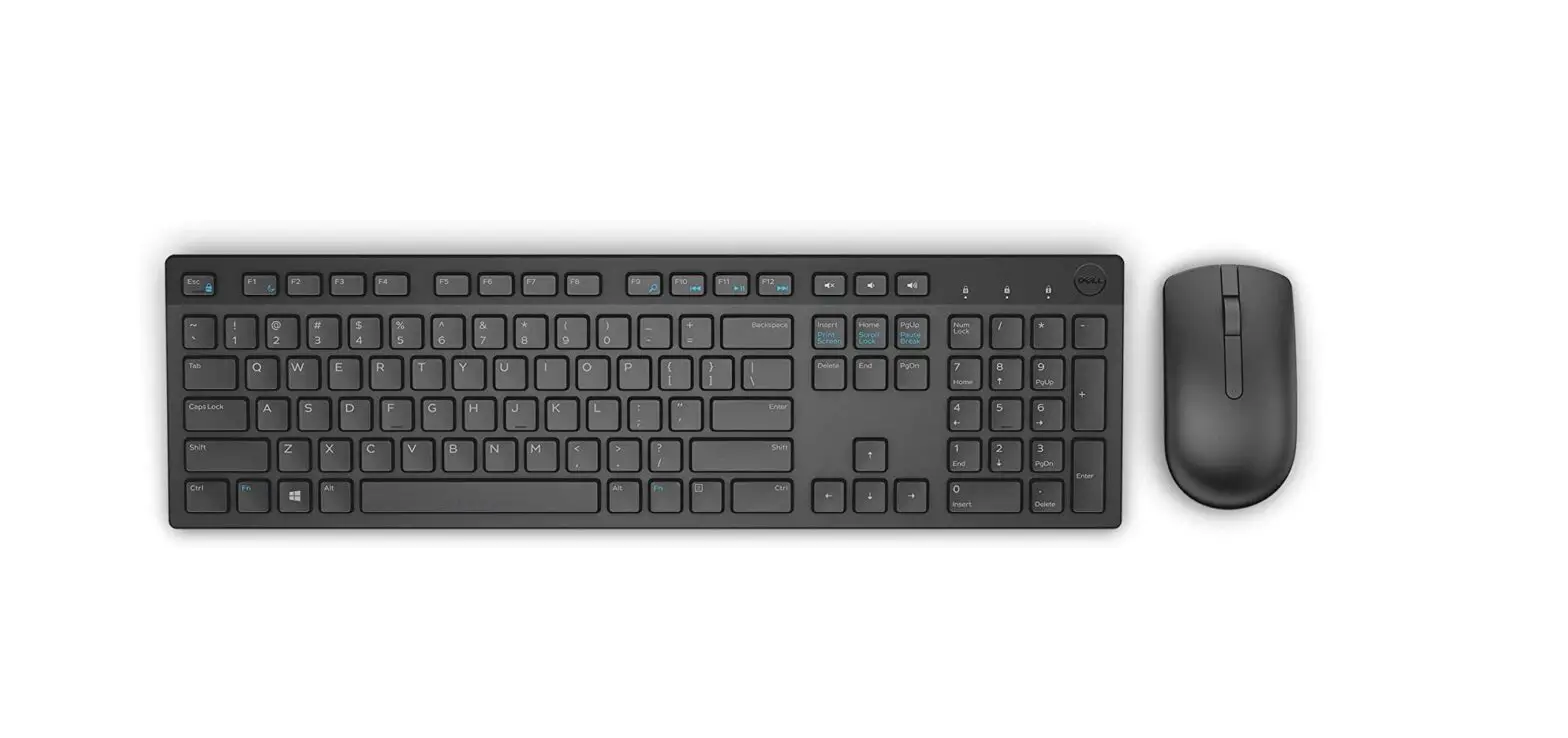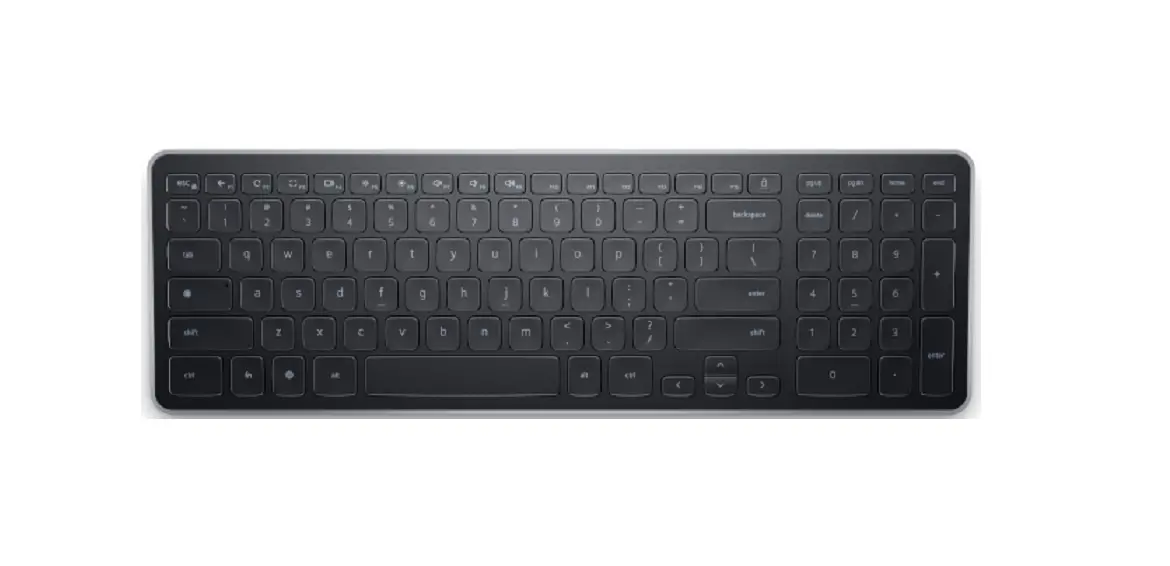
DELL Chrome Wireless Keyboard KB5220W-C User Guide
Setup
System Requirements
- One USB port (for the USB receiver)
- Google Chrome
Contents of the Box


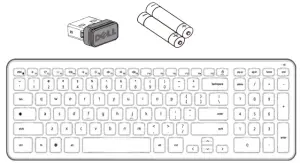
- One wireless keyboard
- One USB receiver
- Two batteries
- Product documentation
 NOTE: The USB receiver may be pre-installed on your computer. NOTE: The documents that shipped with the keyboard and mouse may vary based on your region.
Setting Up Your Wireless Keyboard
1. Install the two AAA batteries in your keyboard.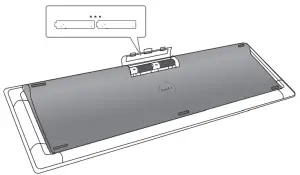
2. Connect the USB receiver to the computer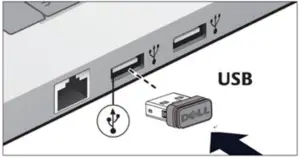
If your keyboard or mouse is not working, see the Troubleshooting section.
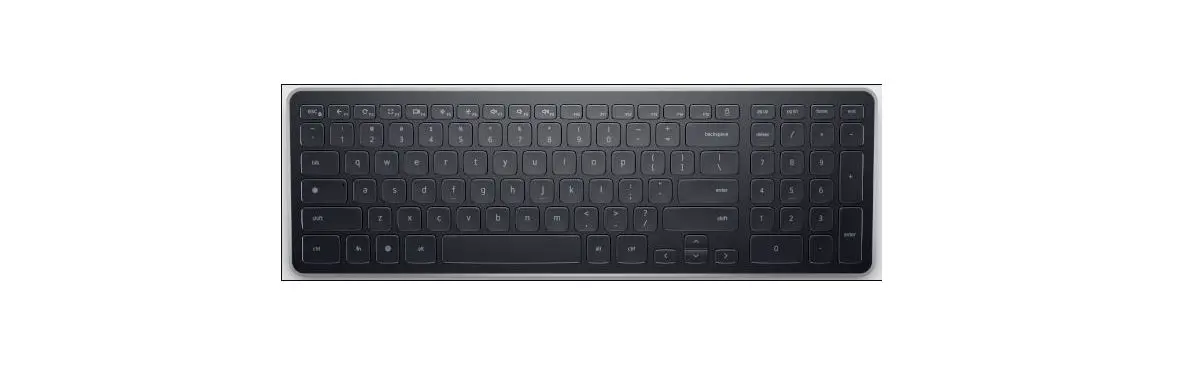
Function keys

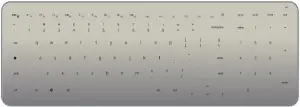
- Back page

- Reload page
- Reload page
- Overview
- Decrease brightness
- Increase brightness
- Mute
- Decrease volume
- Increase volume
- Screen Lock (Pressed and hold for 2s to activate Lock screen)
- Language Switch

- Screen Toggle (To execute lower F12 function, press Fn +F12)

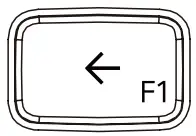
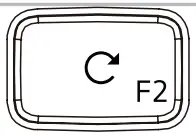
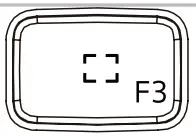
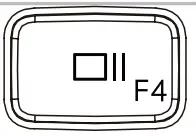
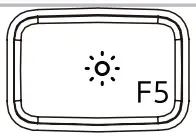
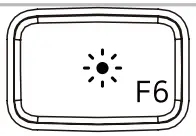
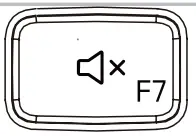
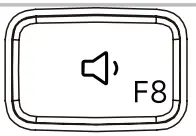
Function keys
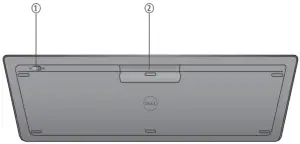
- Power switch
- Battery compartment
Troubleshooting
If you have problems with your keyboard;
- Check if the batteries are inserted in the correct orientation.
- Check if the keyboard’s power switch is set to “On”.
- Remove and reinstall the batteries. The power status light turns on (solid white) for about 15 seconds and then turns off.
- Remove and reconnect the USB receiver on your computer.
- Connect the USB receiver into another USB port on your computer.
- Restart your computer.
Specifications
Genera
Model number
KB5220W-C
Connection type
2.4 GHz wireless technology
Supported operating systems
Google Chrome
Rollover
Pseudo N-key rollover capability
Key mechanism
Scissor
Electrical
Operating voltage
2.05 V to 3.2 V
Battery life
Approximately 12 months
Battery required
Two AAA Alkaline
Environmental
Operating temperature
0 °C to 40 °C
Storage temperature
-40 °C to 65 °C
Operating humidity
90% maximum Relative Humidity, non condensing
Storage humidity
95% maximum Relative Humidity, non condensing
2.4 GHz Wireless
Radio transmission
Bi-directional communication (Transceiver)
Range
Up to 10 m
Limited Warranty and Return Policies
Dell-branded products carry a 1-year limited hardware warranty. If purchased together with Dell system, it will follow the system warranty.
For U.S. customers:
This purchase and your use of this product are subject to Dell’s end user agreement, which you can find at www.dell.com/terms. This document contains a binding arbitration clause.
For European, Middle Eastern and African customers:
Dell-branded products that are sold and used are subject to applicable national consumer legal rights, the terms of any retailer sale agreement that you have entered into (which will apply between you and the retailer) and Dell’s end user contract terms. Dell may also provide an additional hardware warranty – full details of the Dell end user contract and warranty terms can be found by going to www.dell.com, selecting your country from the list at the bottom of the “home” page and then clicking the “terms and conditions” link for the end user terms or the “support” link for the warranty terms.
For non-U.S. customers:
Dell-branded products that are sold and used are subject to applicable national consumer legal rights, the terms of any retailer sale agreement that you have entered into (which will apply between you and the retailer) and Dell’s warranty terms. Dell may also provide an additional hardware warranty – full details of Dell’s warranty terms can be found by going to www.dell.com, selecting your country from the list at the bottom of the “home” page and then clicking the “terms and conditions” link or the “support” link for the warranty terms.

 Computers, Monitors & Technology Solutions | Dell USA