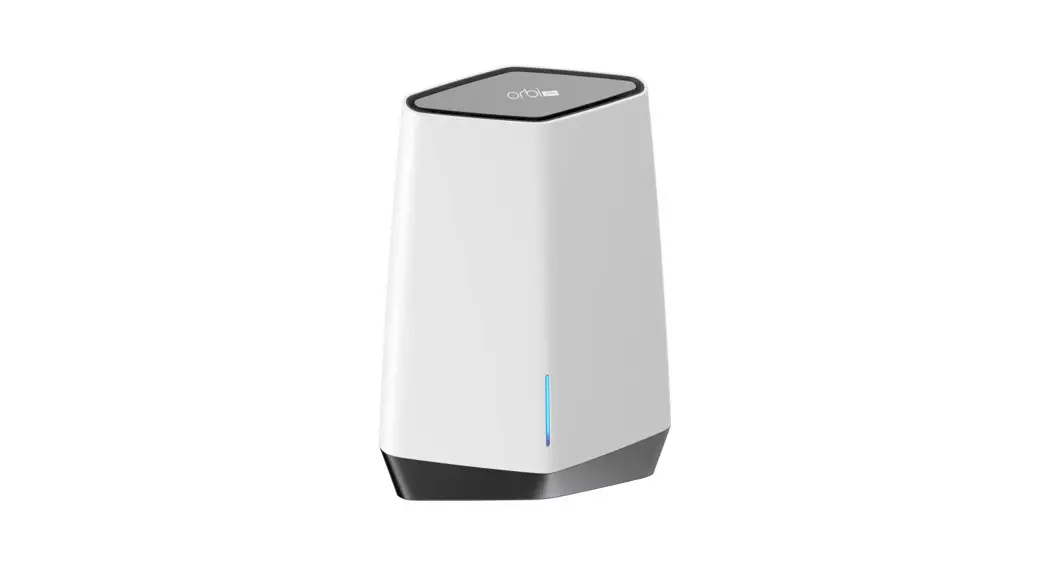

Quick Start
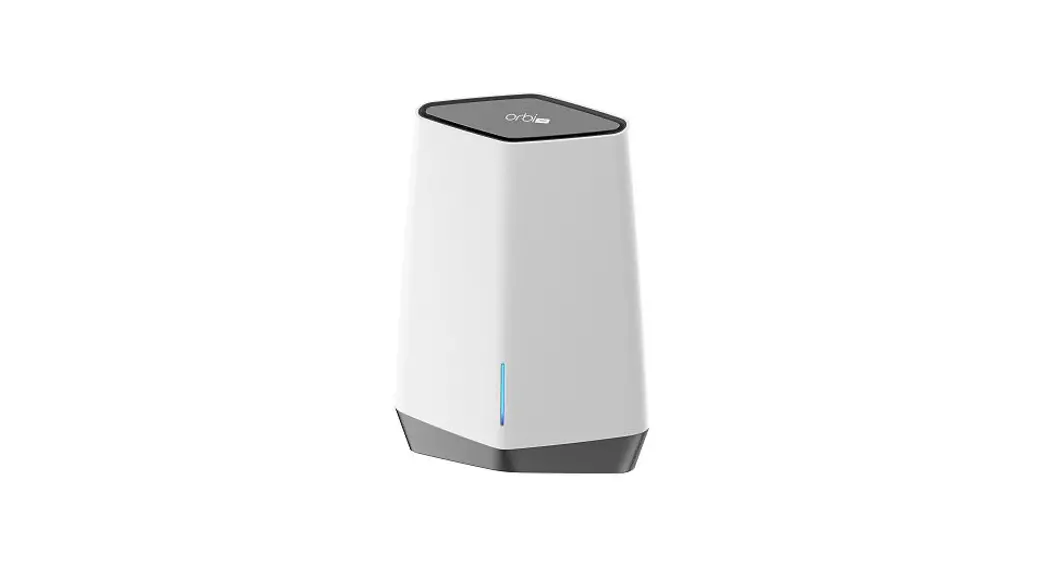
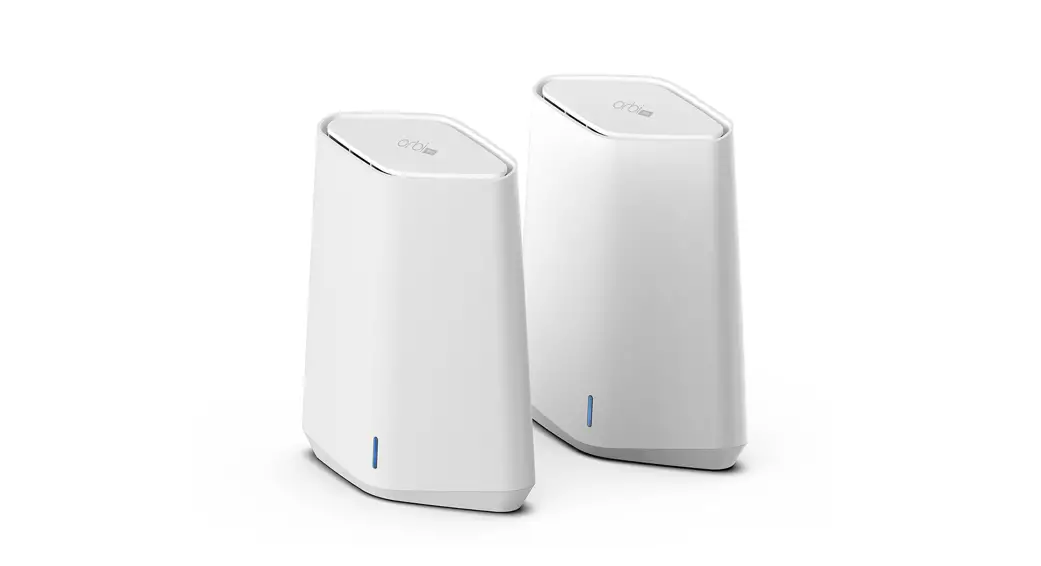
Model SXS80
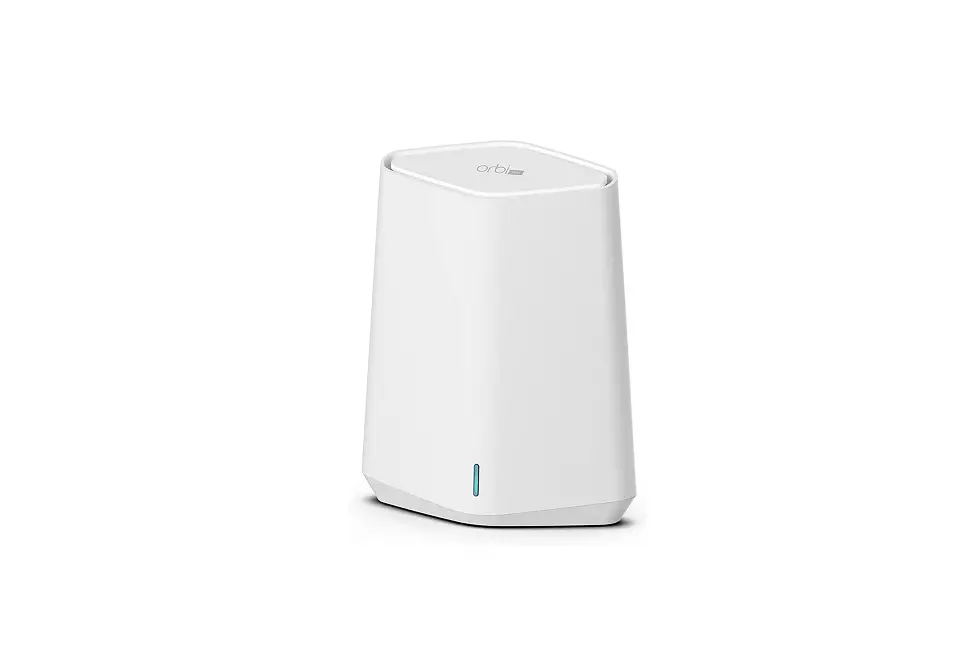
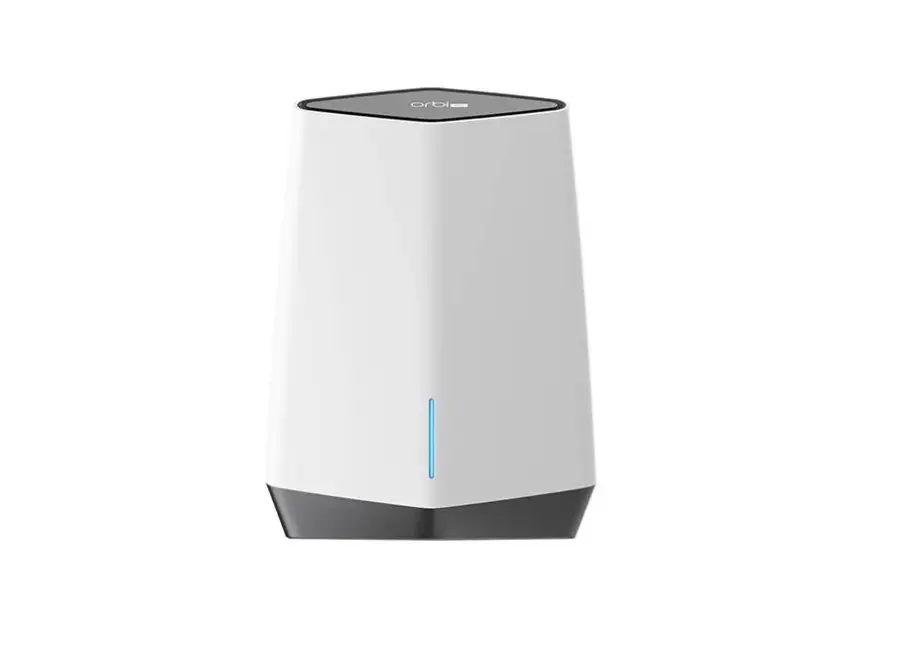
Package contents
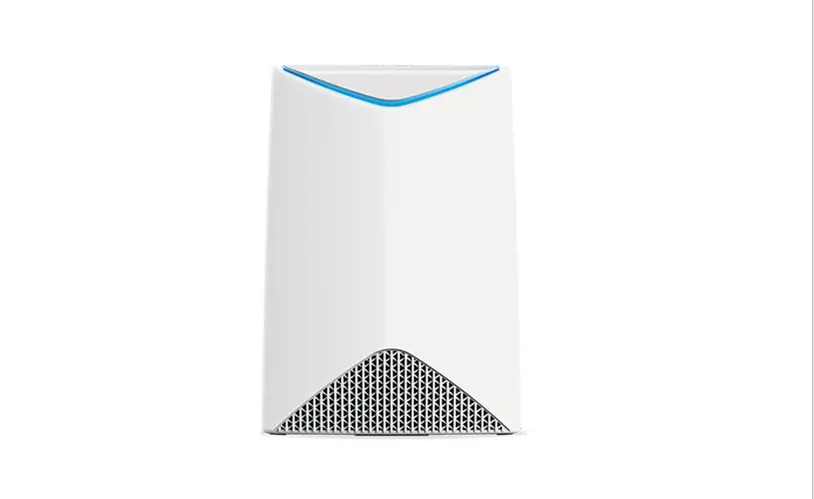
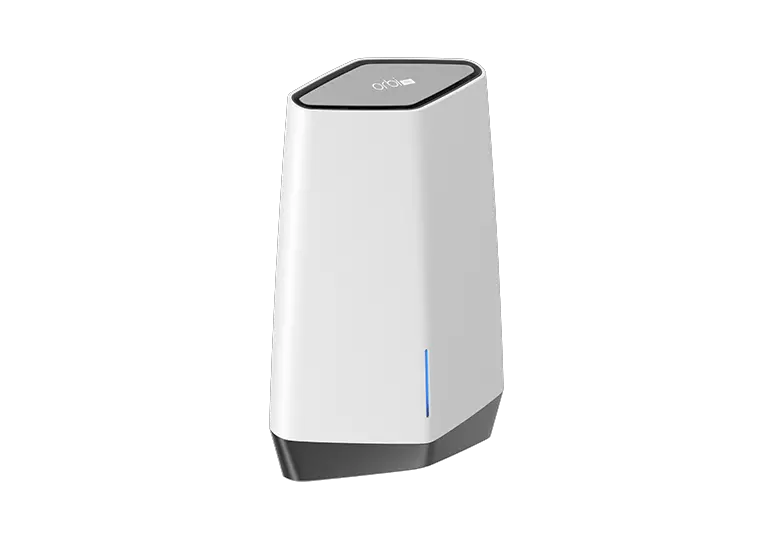
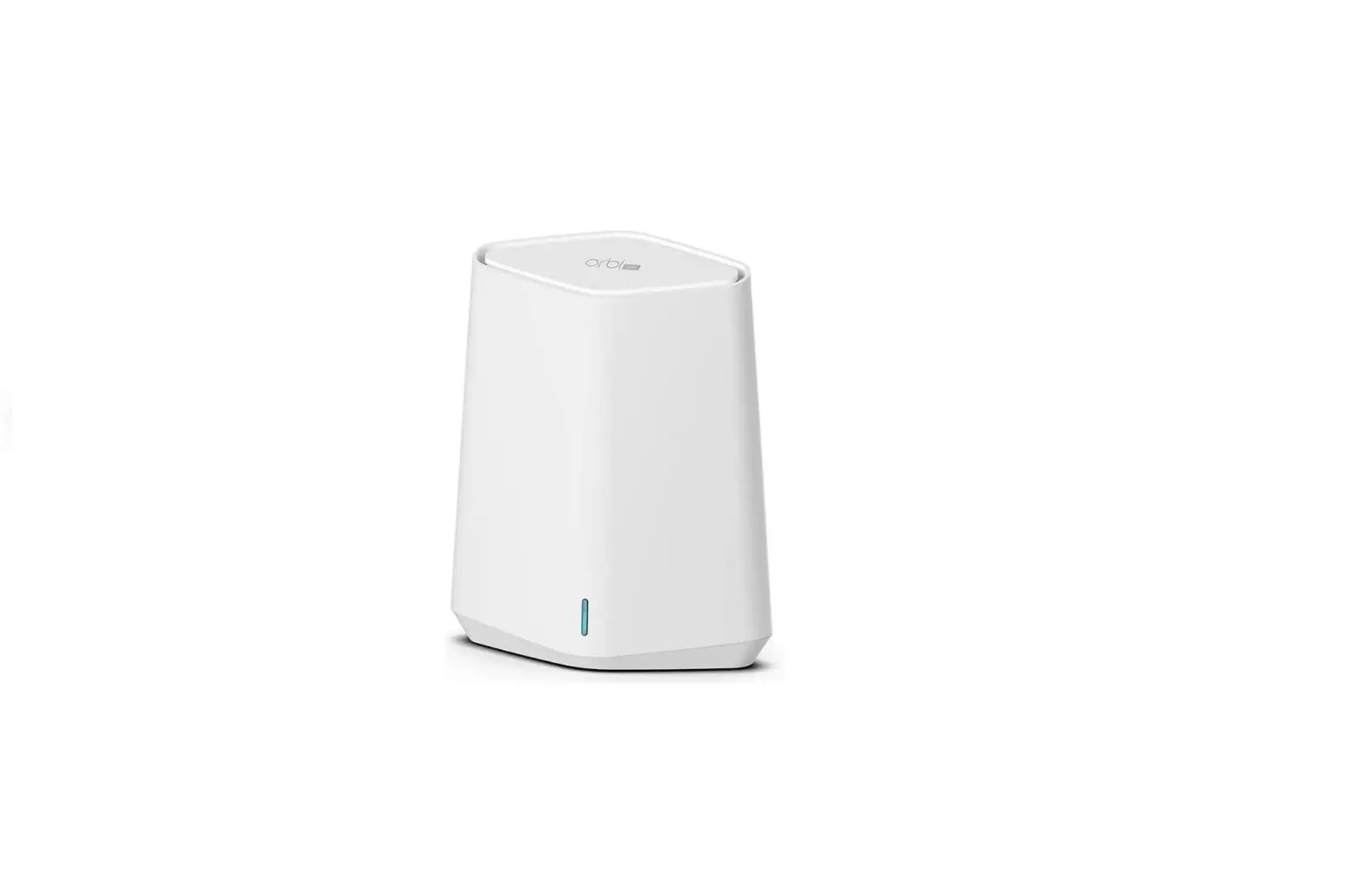
Orbi Pro WiFi 6 Satellite (Model SXS80)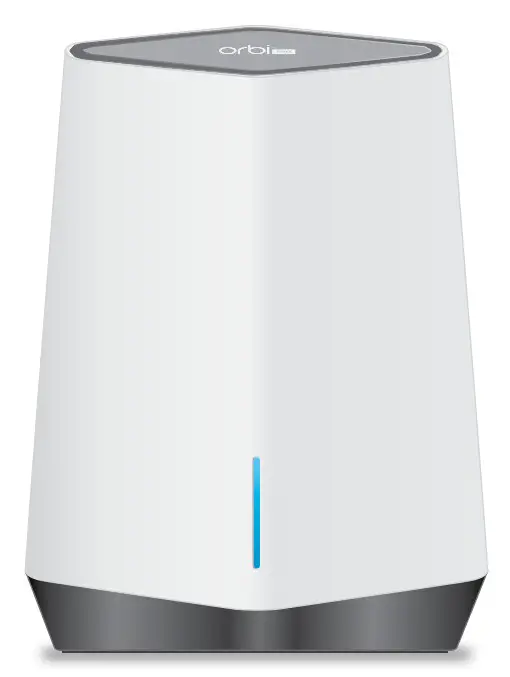 | Power adapter (1) (varies by region)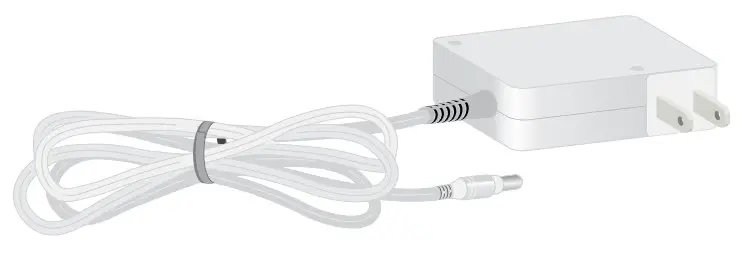 | 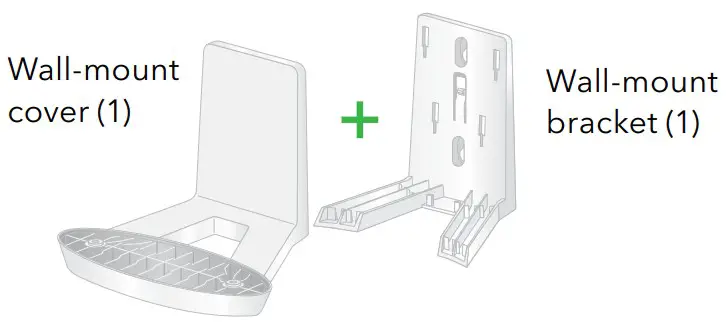 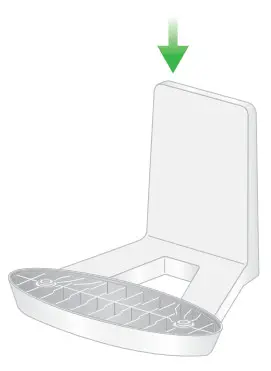 |
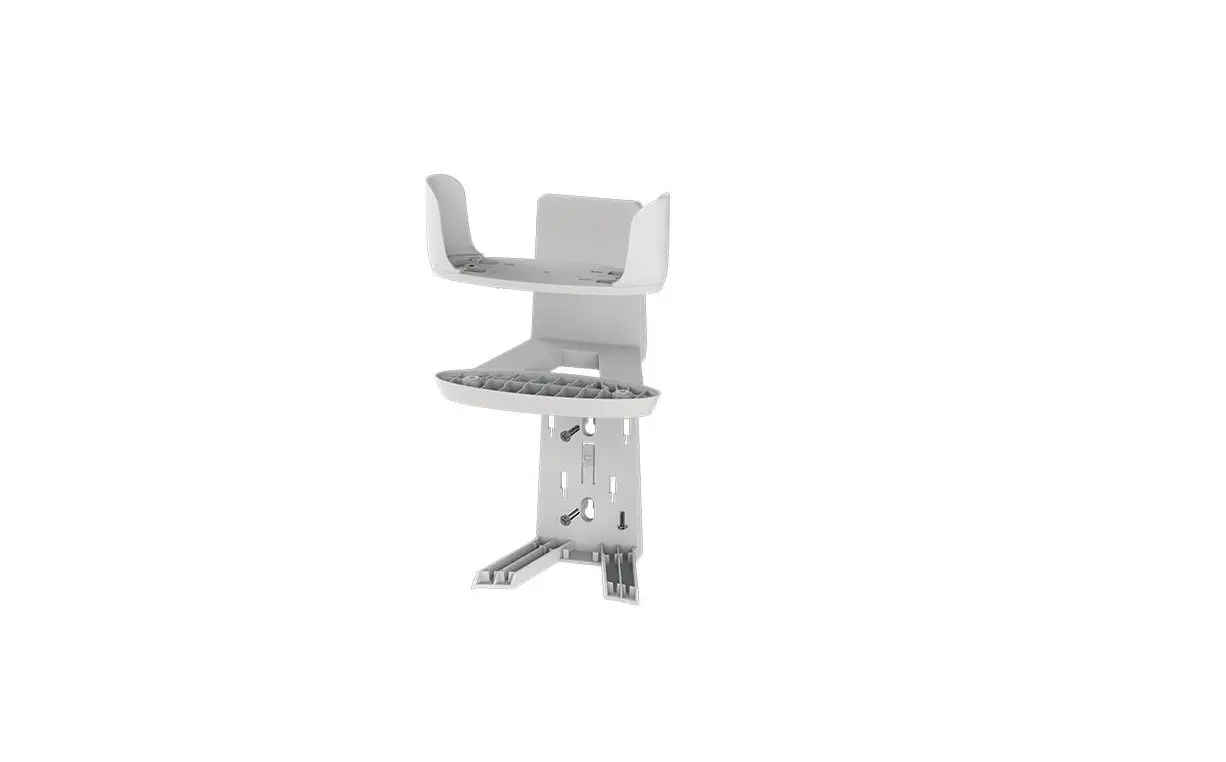
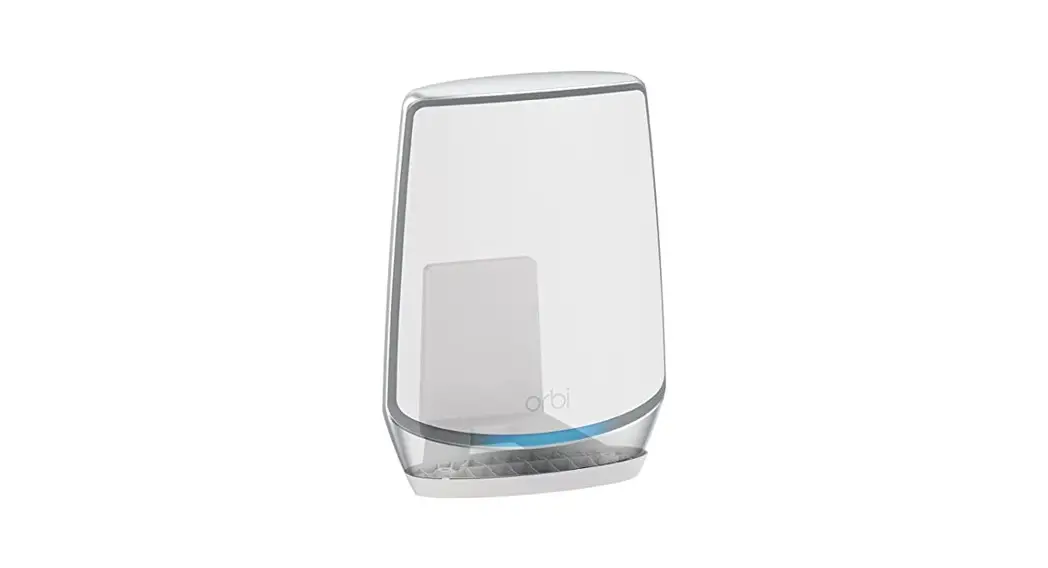
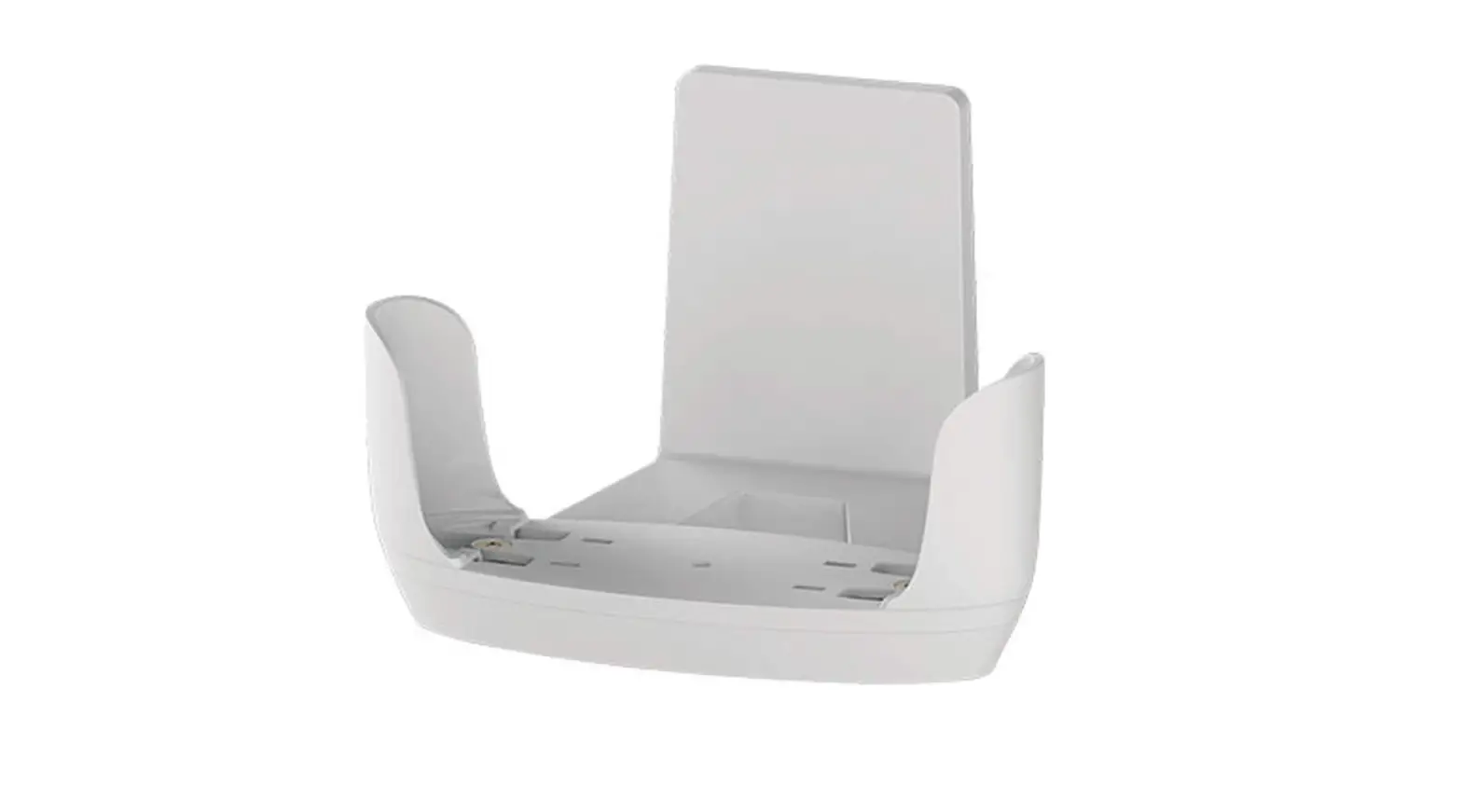
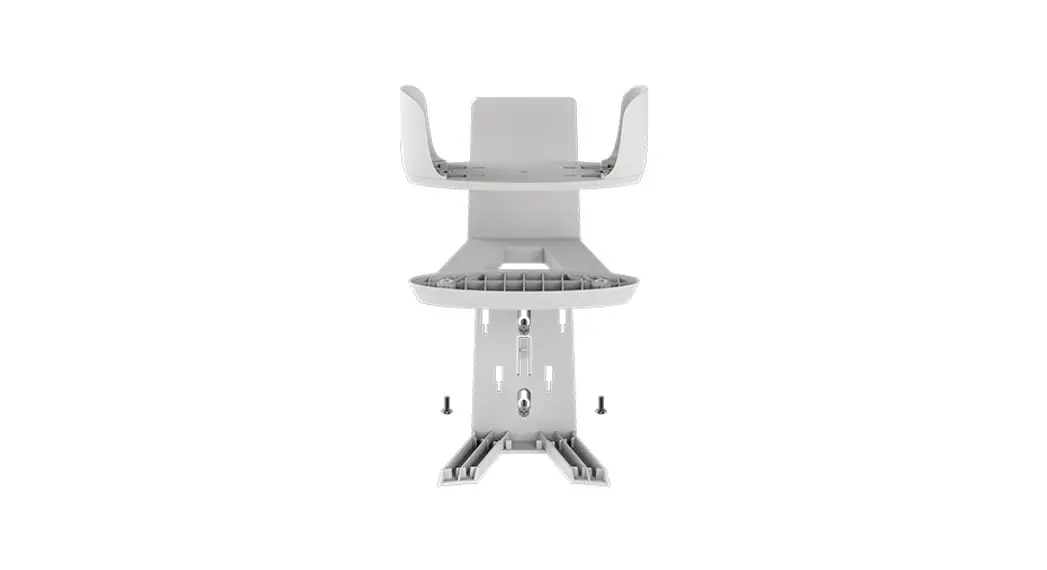
Note: The bracket and cover come preattached.
Wall anchors (2), one set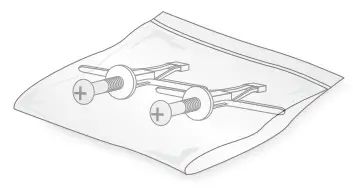 | Screws (2), one set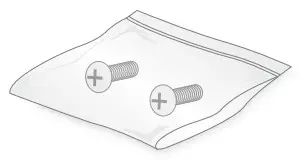 |
Hardware overview
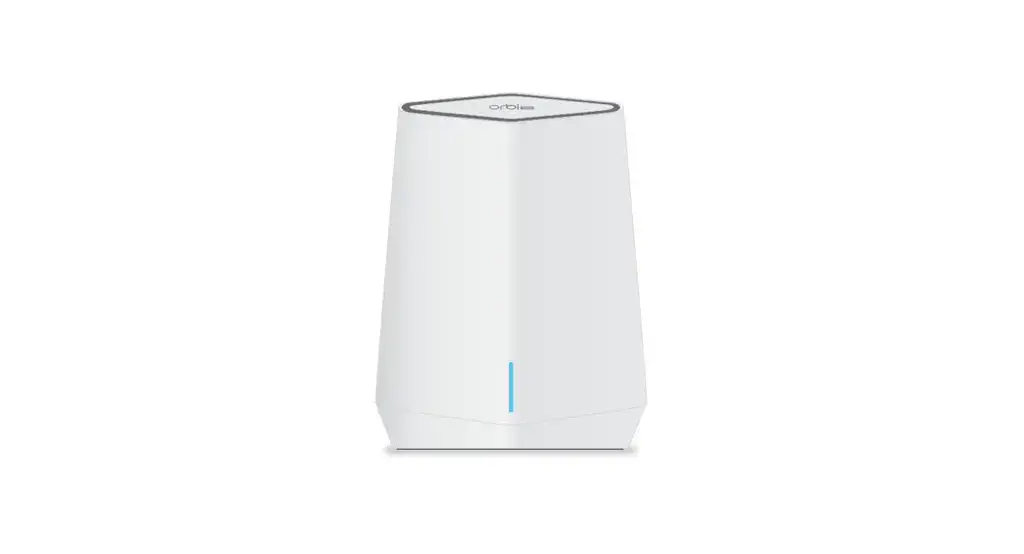
Orbi Pro WiFi 6 Satellite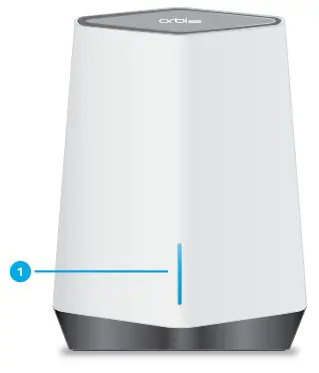 | Orbi Pro WiFi 6 Satellite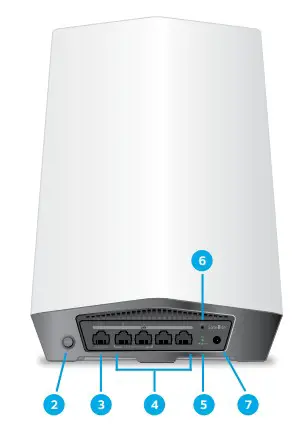 |
- Bar LED2
- Sync button (also used for WPS connection)
- LAN port that supports 1 Gigabit and 2.5 Gigabit Ethernet. Use the port for a high-speed LAN connection.
- LAN Ethernet ports 2–5. Ports 2 and 3 support link aggregation.
- Power LED
- Reset button
- DC power connector
Prepare the wall mount
IMPORTANT: You can install the wall mount only vertically on a wall. Do not install the wall mount horizontally or on the ceiling.
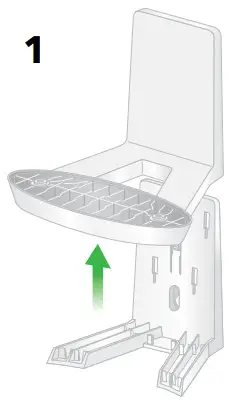 | 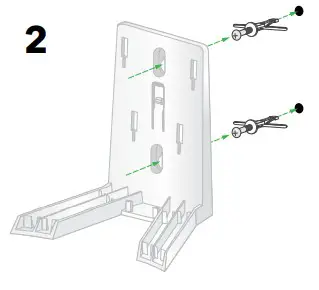 |
Wall-mount the Orbi Pro
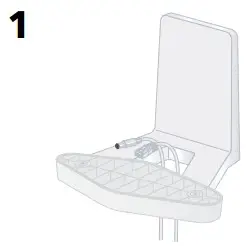 | 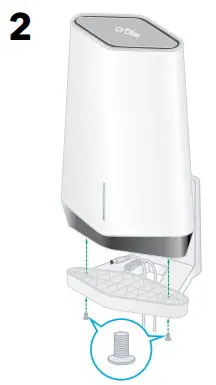 |
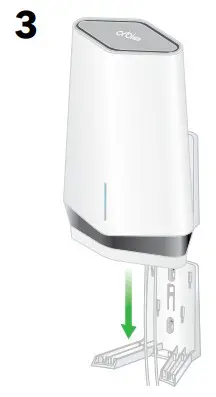 | 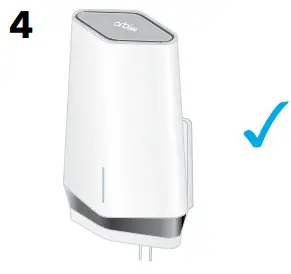 |
Sync your Orbi Pro WiFi 6 satellite
To sync your Orbi Pro WiFi 6 satellite with your Orbi Pro WiFi 6 router, you can use the
NETGEAR Insight app or you can manually sync your satellite.
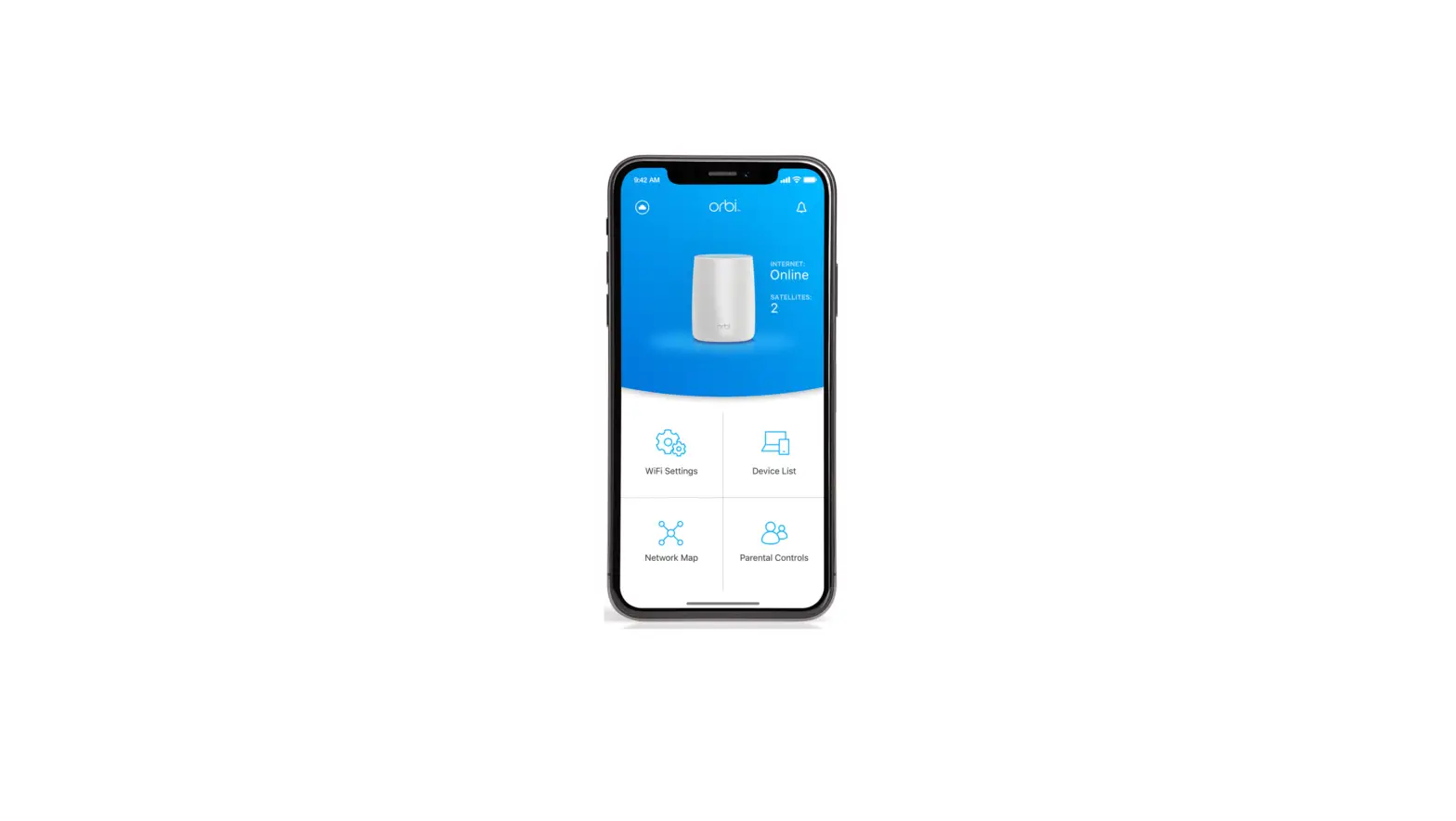
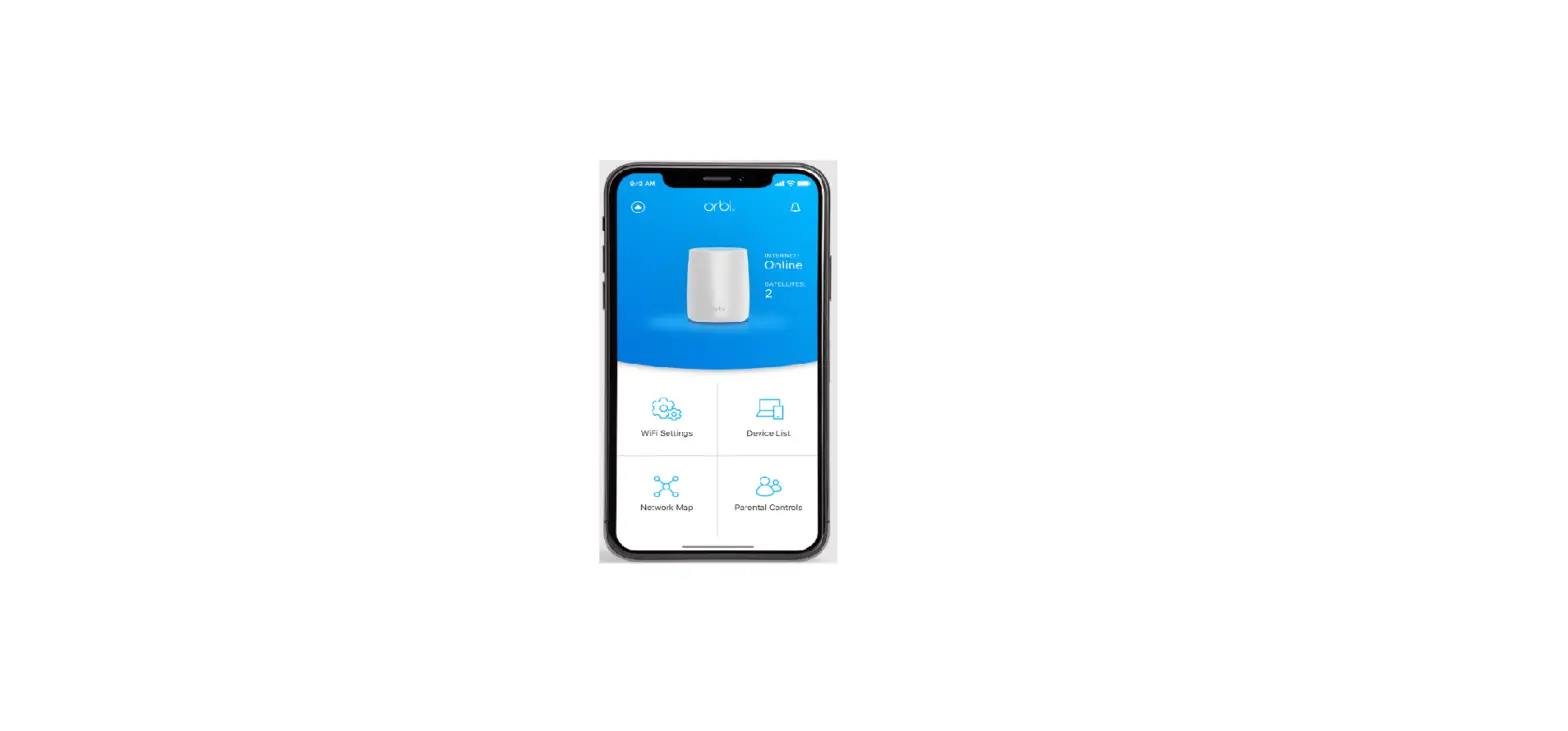
Sync your satellite using the NETGEAR Insight app
You can use the NETGEAR Insight app to sync your satellite with your Orbi Pro router.
For more information about the app, visit https://www.netgear.com/insight/.
 Download the NETGEAR Insight app from the Apple App Store or Google Play Store.
- Launch the NETGEAR Insight app on your mobile device and follow the prompts.
 Download the NETGEAR Insight app from the Apple App Store or Google Play Store.
Manually sync your satellite with your router
You can manually sync your satellite using the Sync buttons on your Orbi Pro satellite and router.
- Place the Orbi Pro satellite in a central location for the best WiFi coverage.
- Connect the Orbi Pro satellite to a power source. The Power LED on the back of the Orbi Pro satellite lights green.
- Press the Sync button on the back of your satellite, and within two minutes, press the Sync button on the back of your router.
The Orbi Pro router’s ring LED turns off after the setup is complete.
Orbi Pro WiFi 6 satellite sync information
The Orbi Pro satellite’s bar LED lights white while the satellite attempts to sync with the Orbi Pro router. After the Orbi Pro satellite’s bar LED lights white, it lights one of the following colors for about three minutes and then turns off: Blue
Blue
The connection between the Orbi Pro Router and the Orbi Pro satellite is good. Amber
Amber
The connection between the Orbi Pro Router and the Orbi Pro satellite is fair. Consider moving the Orbi Pro satellite closer to the Orbi Pro router. Magenta
The Orbi Pro satellite was unable to connect to the Orbi Pro router. Move the Orbi Pro satellite closer to the Orbi Pro router.
Note: If the bar LED still lights magenta after about one minute, press the Sync button on the back of the Orbi Pro Router and on the back of the Orbi Pro satellite. When the Orbi Pro satellite syncs with the Orbi Pro router, the satellite’s bar LED lights white then light blue to indicate a good connection and then turns off.
Support and Community
Visit netgear.com/support to get your questions answered and access the latest downloads.
You can also check out our NETGEAR Community for helpful advice at community.netgear.com.
Regulatory and Legal
(If this product is sold in Canada, you can access this document in Canadian French at https://www.netgear.com/support/download/.)
For regulatory compliance information including the EU Declaration of Conformity, visit https://www.netgear.com/about/regulatory/.
See the regulatory compliance document before connecting the power supply. For NETGEAR’s Privacy Policy, visit https://www.netgear.com/about/privacy-policy.
By using this device, you are agreeing to NETGEAR’s Terms and Conditions at https://www.netgear.com/about/terms-and-conditions.
If you do not agree, return the device to your place of purchase within your return period.
NETGEAR, Inc.
350 East Plumeria Drive
San Jose, CA 95134, USA
September 2020
NETGEAR INTERNATIONAL LTD
Floor 1, Building 3,
University Technology Centre
Curraheen Road, Cork,
T12EF21, Ireland
© NETGEAR, Inc., NETGEAR, and the NETGEAR Logo are trademarks of NETGEAR, Inc. Any non‑NETGEAR trademarks are used for reference purposes only.
 English - NETGEAR Communities
 NETGEAR Support | NETGEAR
 NETGEAR Privacy Policy | NETGEAR