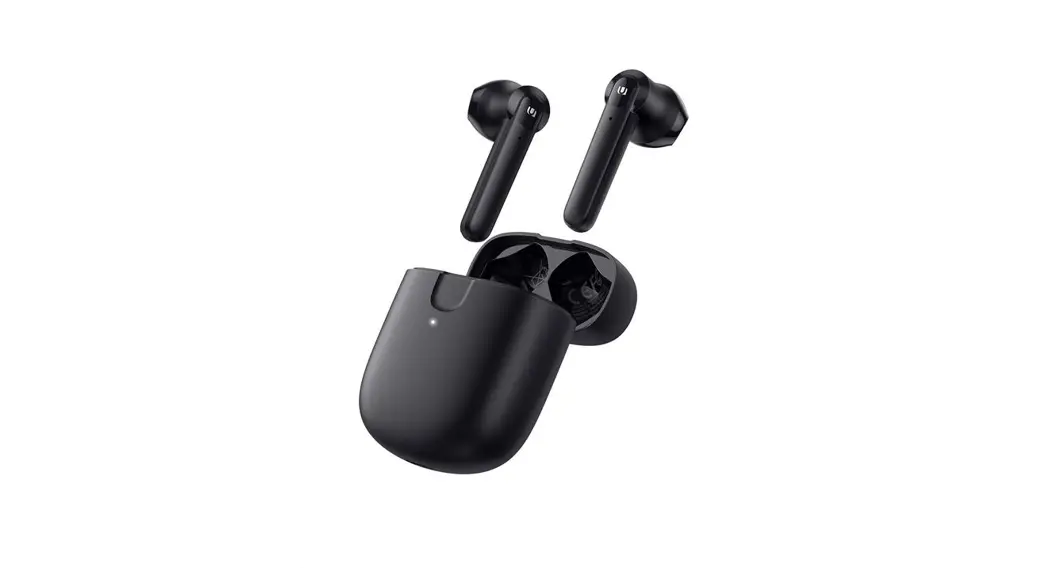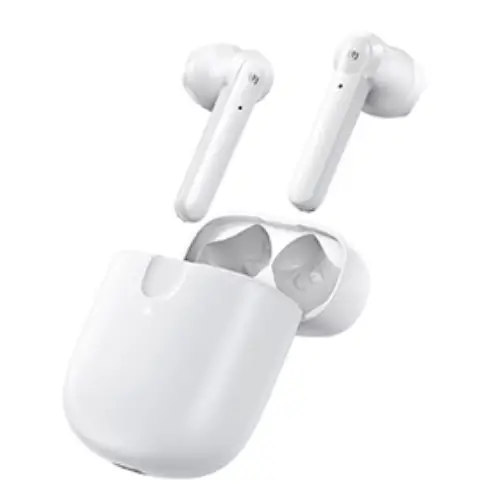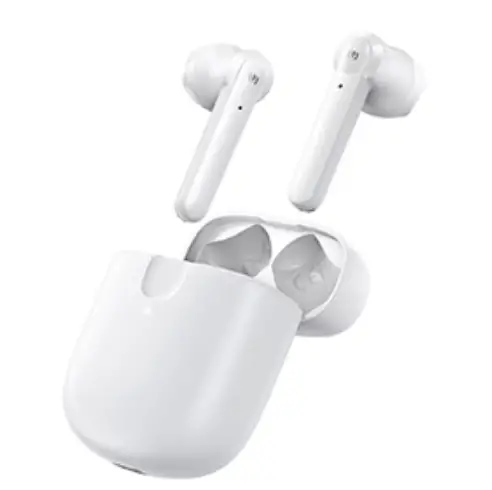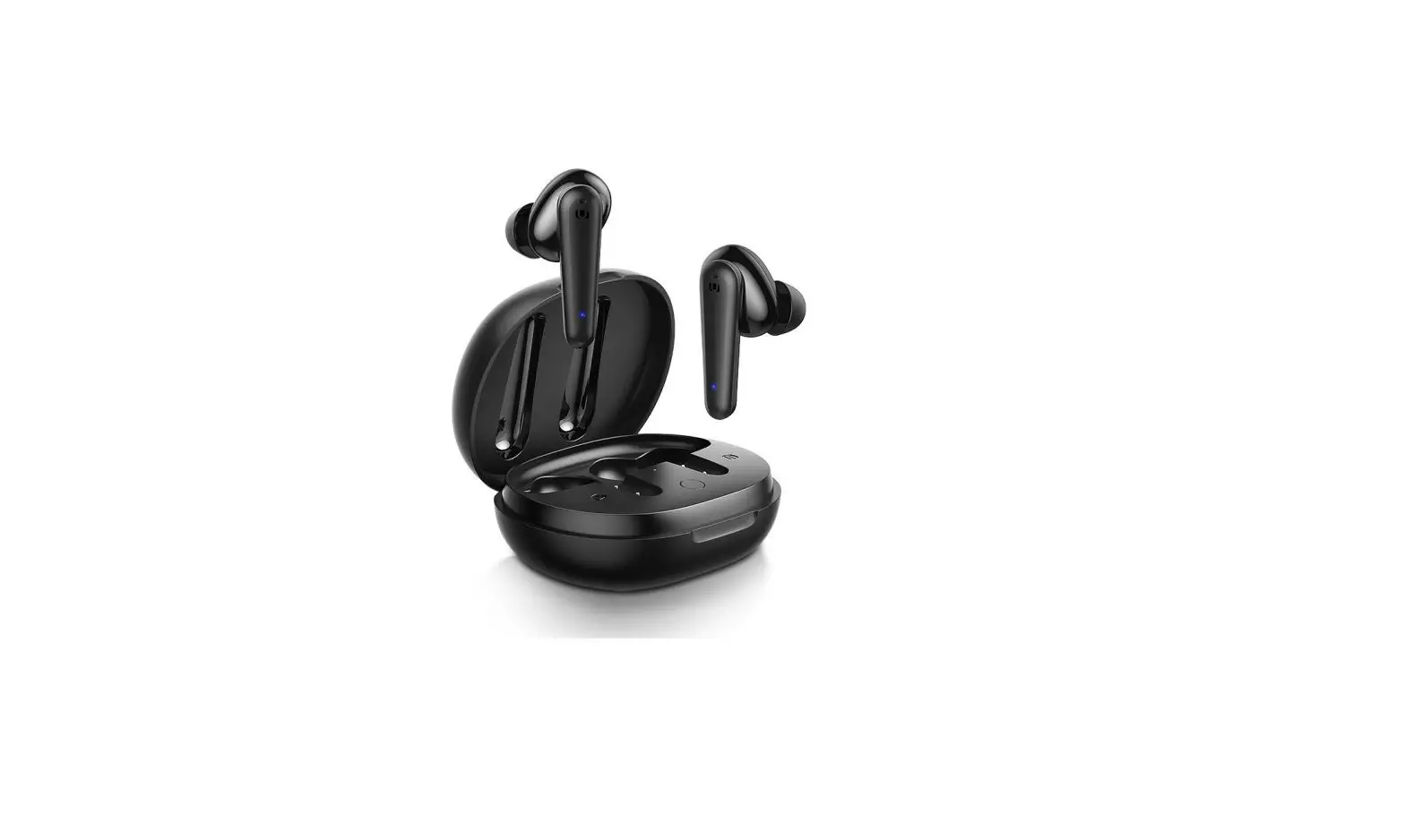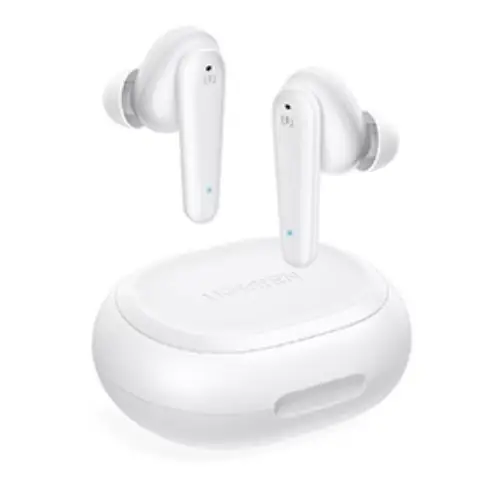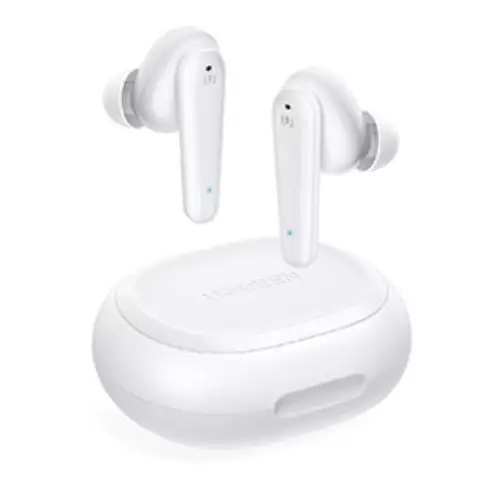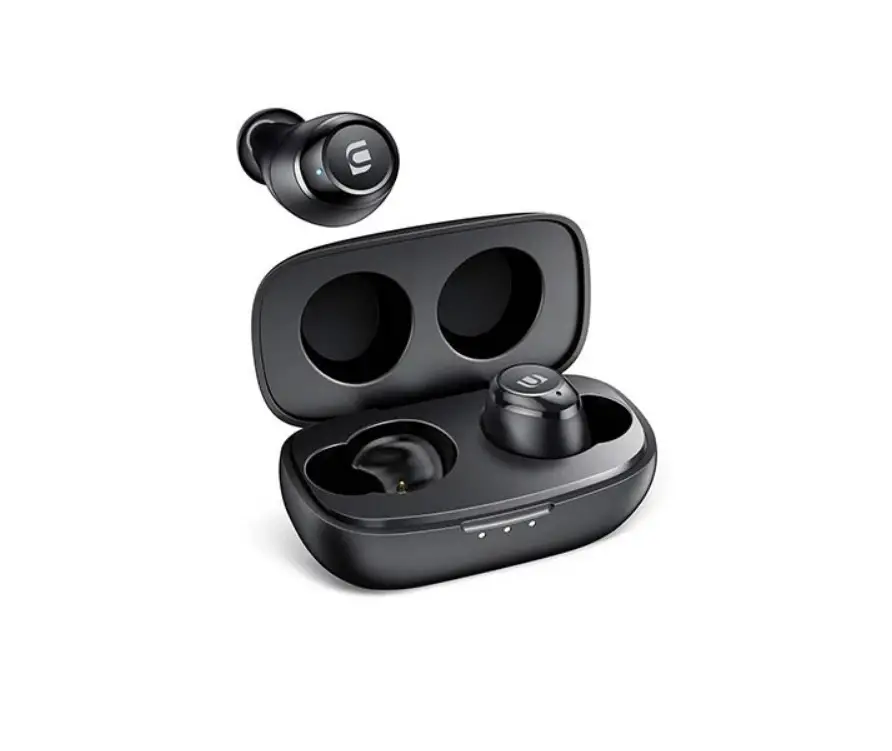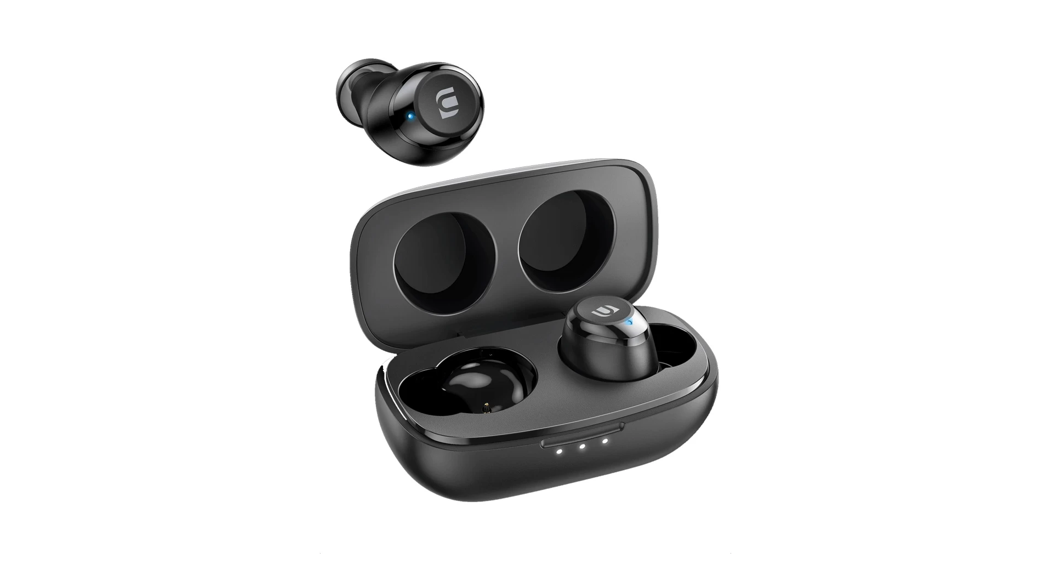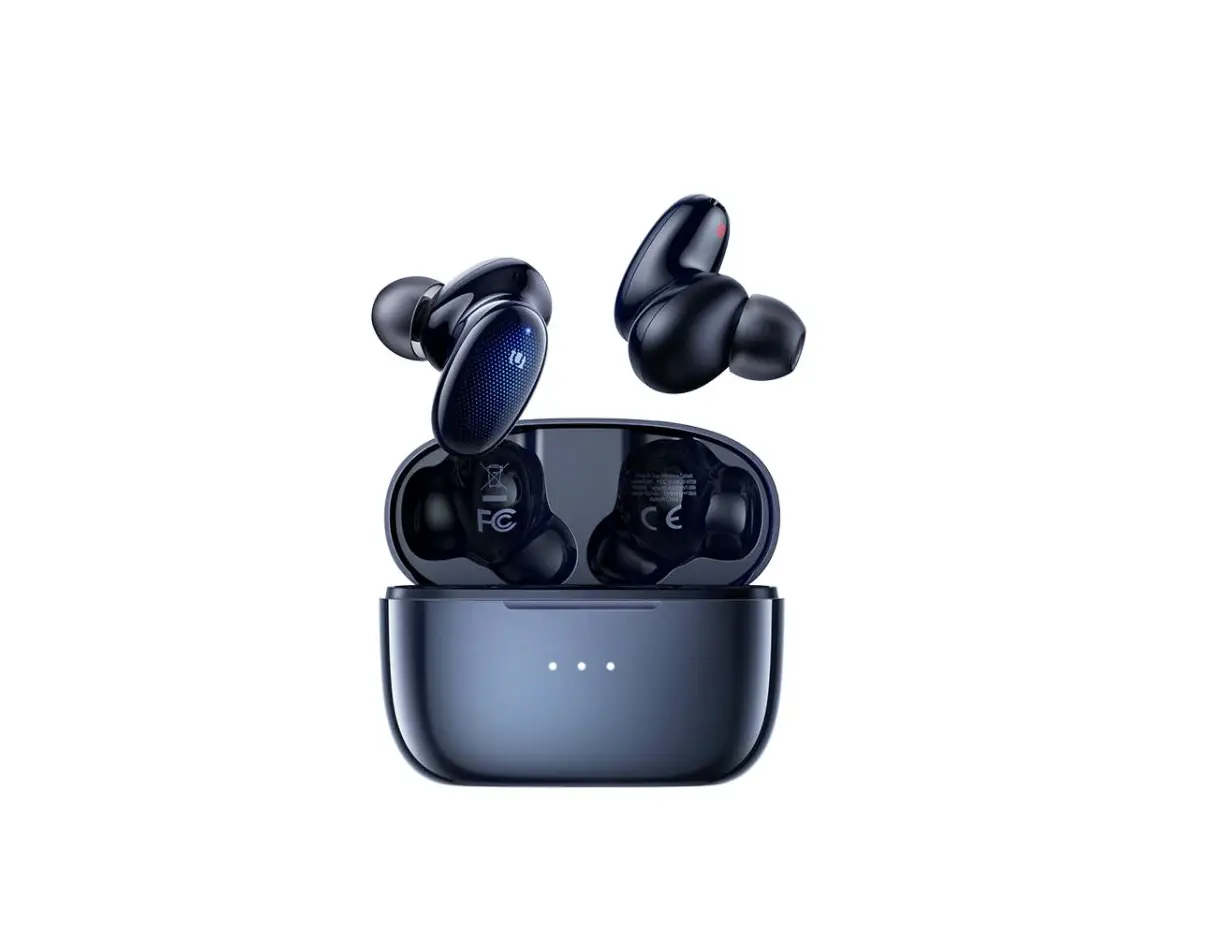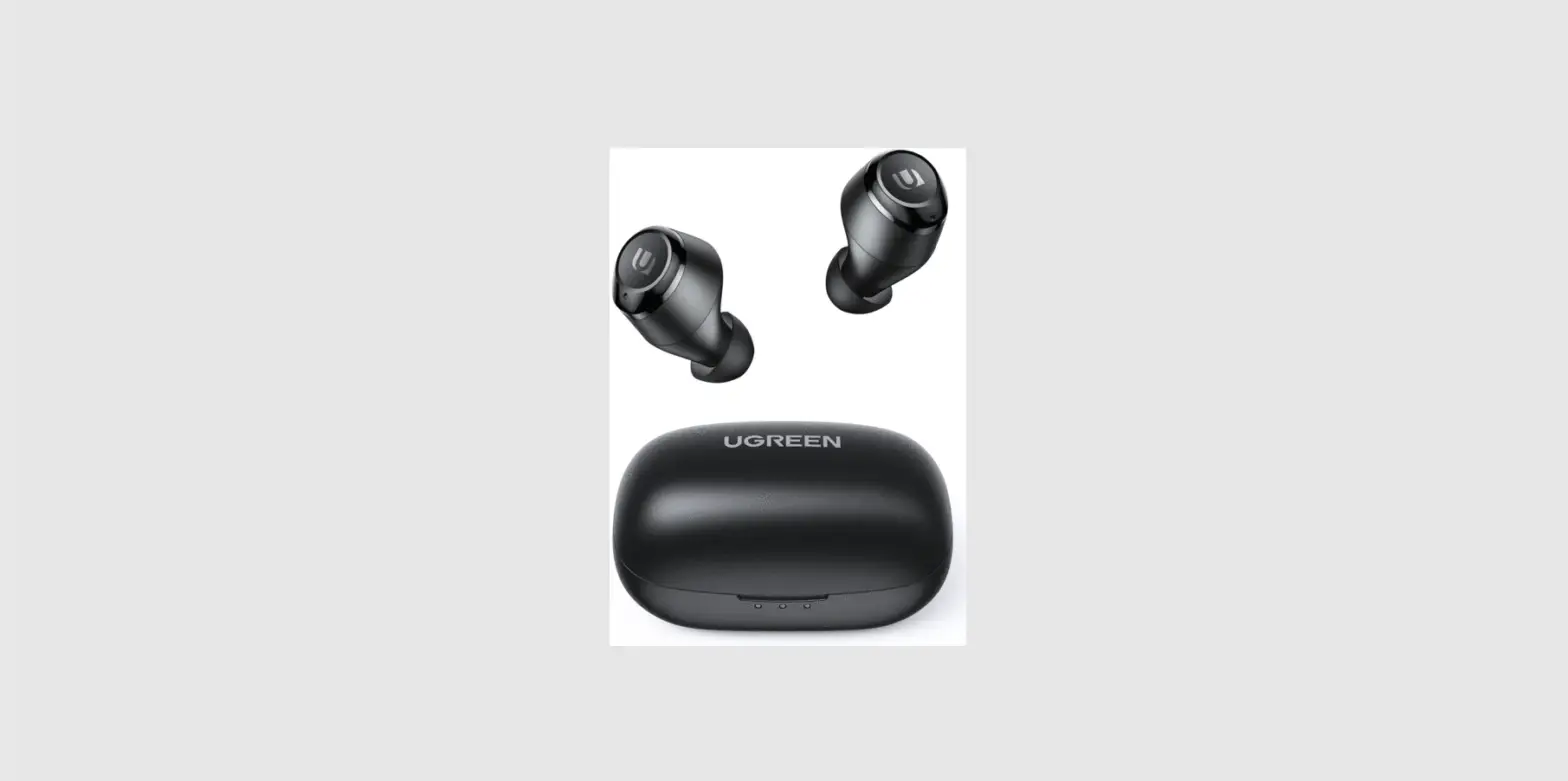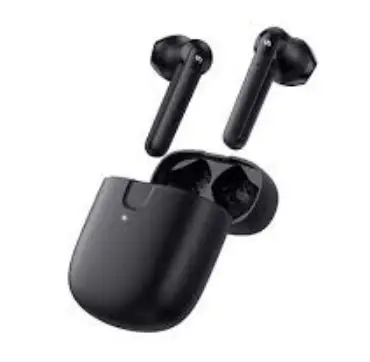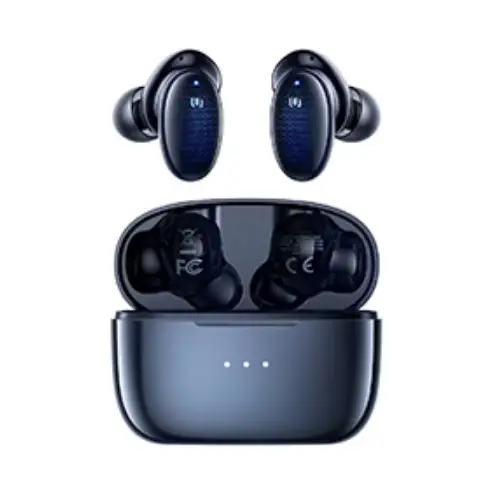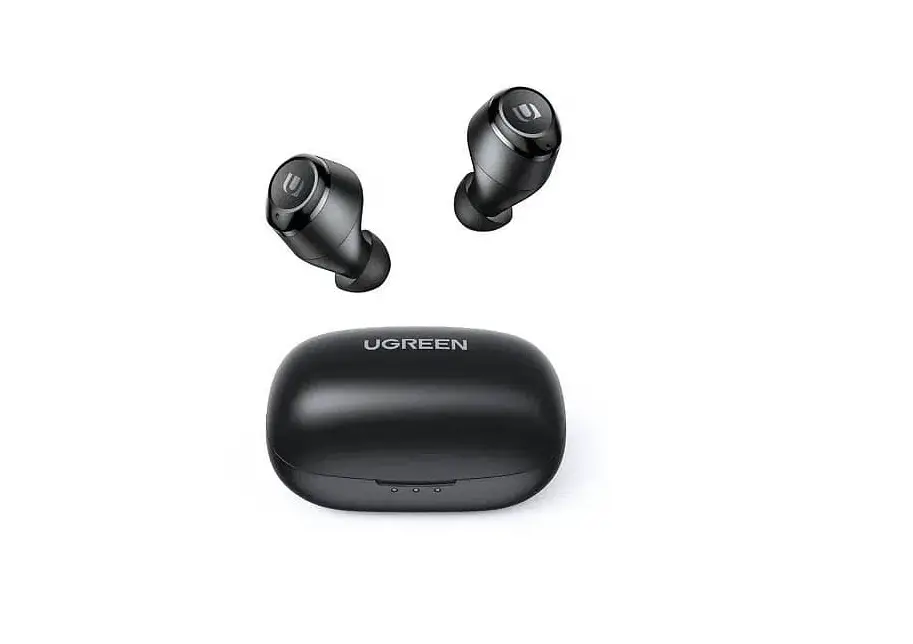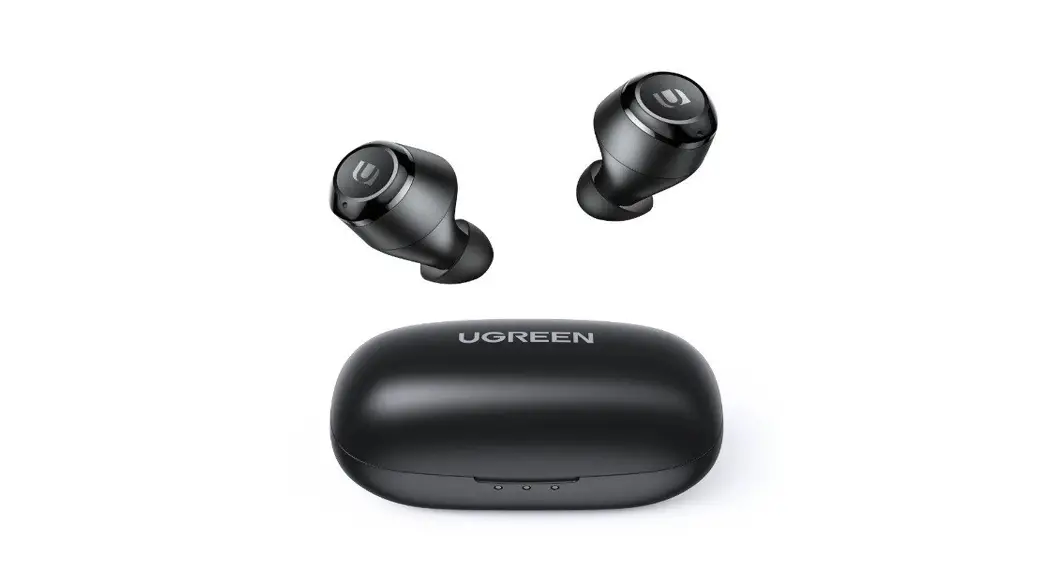
 WS105 HiTune T2 True Wireless Earbuds
User Manual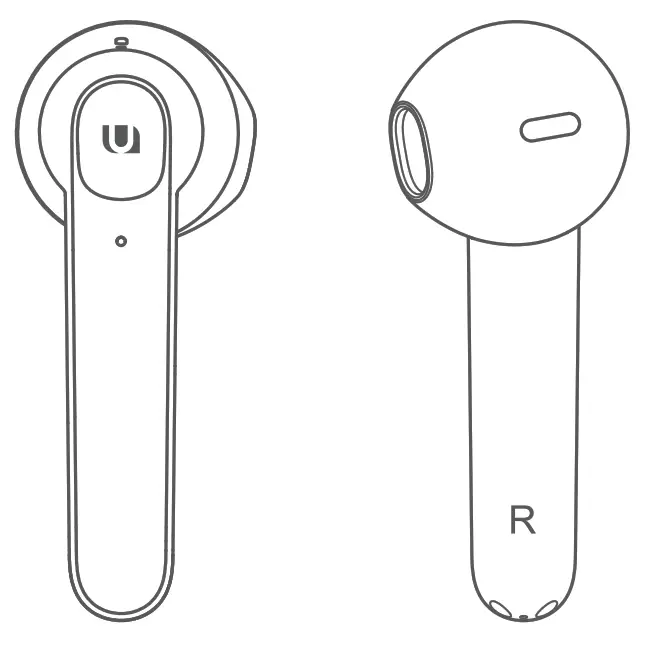
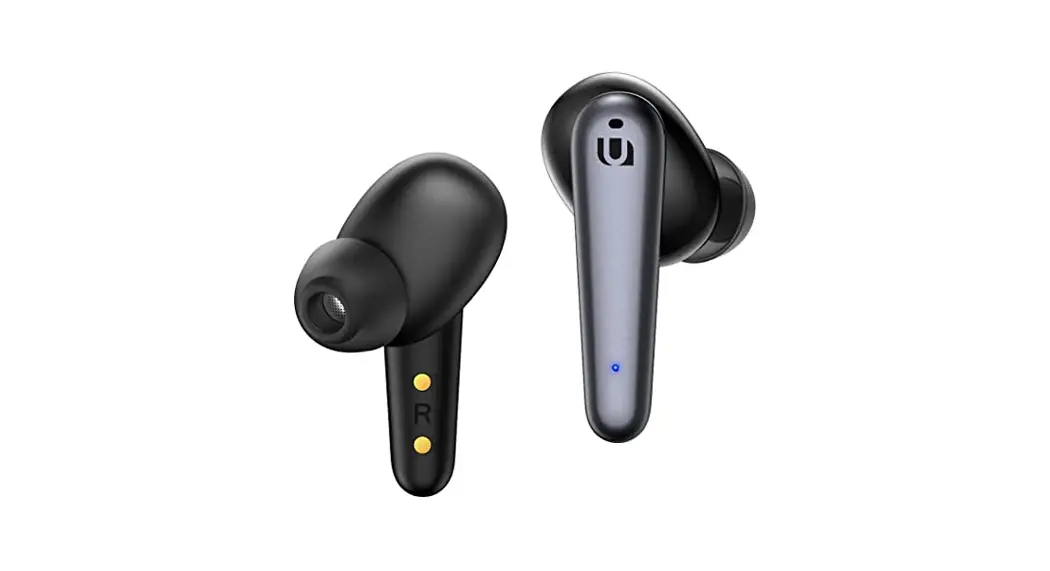
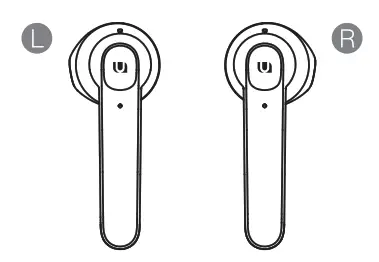
Product overview
- LED indicator light
- Touchpad
- Noise-canceling microphone
- Voice pickup microphone
- L/R marking
- Pogo Pin charging contacts
Specifications
| Product name | HiTune T2 True Wireless Earbuds |
| Product model | WS105 |
| Bluetooth version | Bluetooth 5.0 |
| Bluetooth profiles | HSP, HFP, AVRCP, A2DP |
| Bluetooth frequency | 2400MHz-2483.5MHz |
| Bluetooth range | 10m |
| Codecs | AAC, SBC |
| Charging case input | 5V=400mA |
| Charging case output | 5V=100mA |
| Charging port | USB-C |
| Wireless charging | Yes |
| Fully charge the earbuds | 1.5hrs |
| Fully charge the case | 1.5hrs |
| Operating time | 4hrs (earbuds) + 16hrs (charging case) |
Get ready for first use
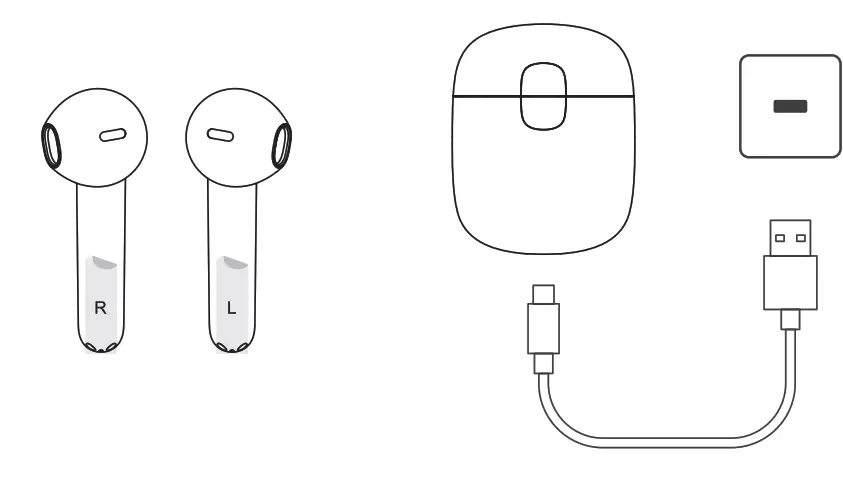
Remove the insulating film of earbuds, make sure to fully charge the earbuds (with charging case) by a specified 5V/1A USB charger on their first use.
Connect your mo service
1. Power on/off
- Power on removes the earbuds from the charging case.
- Power off: place the earbuds in the charging case and close the lid.
- Manual-on: When earbuds are OFF, press the Touchpad quickly for 2 seconds.
- Manual-off: When earbuds are ON, press and hold the Touchpad for 6 seconds.
2. Bluetooth connection
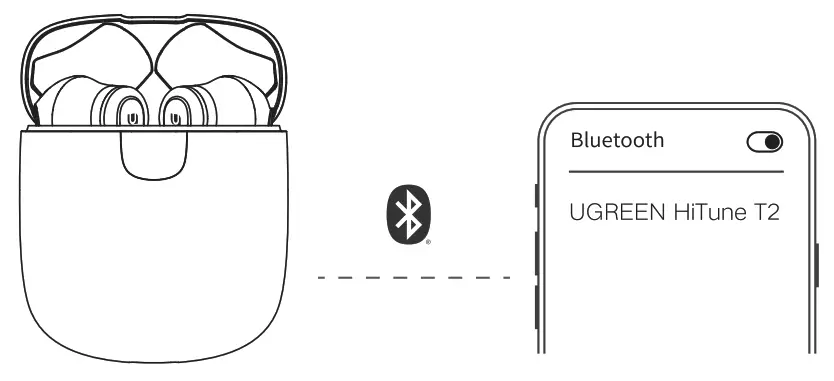
- TWS mode Open the charging case, the earbuds will be paired automatically and be ready for connecting your mobile device.
- First connection Turn on the Bluetooth access on your mobile device and search “UGREEN HiTune T2” from the Bluetooth list and tap to connect. Once connected, a voice prompt announces “Bluetooth connected”.
- Auto-reconnection Take out the earbuds and they will connect to the latest paired mobile device automatically the next time.
3. Mono mode
The earbuds can be used separately. In Mono mode, remove either the left one or the right one, then the earbud light blinks alternate blue and white. Find “UGREEN HiTune T2” from the Bluetooth list and tap to connect.
4. Factory reset
If TWS mode fails or earbuds don’t connect with a mobile device, see the following steps:
Step 1: Delete “UGREEN HiTune T2” information from the Bluetooth list on your mobile device;
Step 2: Place the earbuds in the charging case and keep the lid opening, press and hold the reset button for 10 seconds and the earbuds lights blink alternate blue and white for 3 times. 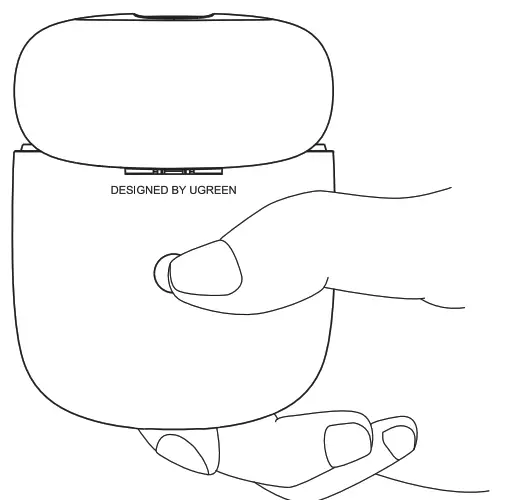
5. Abnormal connection
- Unavailable Bluetooth distance: The maximum wireless operating range is 10m. If you exceed the range, the earbuds will disconnect from your mobile device automatically. The connection will be re-established automatically once you re-enter an available range within 5 minutes, or the earbuds will turn off automatically 5 minutes later.
- Connection timed out: If earbuds are not connected to your mobile device within 5 minutes, they will turn off automatically.
Touchpad functions
 Music Playback
 L/R x 1 L/R x 1 | Play/Pause |
 R x3 R x3 | Next track |
| L x3 | Previous track CanciOn anterior |
| R x2 | Volume up Volumen + |
| L x2 | Volume down |
 Call functions L/Rx 1 ……………….. Answer/End a callL/R 2s ………………. Decline a call
 EQ) Switch
Switch between L/R X4……………………. Normal &Gaming modes: quadruple-tap on L/R earbud Activating voice assistant L/RZ2s……………………… Activate voice control
Charge & Check battery level
Earbuds battery level & Charging
- Check the earbuds battery: Check the status bar on the upper corner of the screen on your mobile device (Not available in all mobile devices).
- While charging: The case light delivers breathing white until fully charged.
- Low battery notification: The notification will be given at a remaining battery level of 20 percent (running for around 45 minutes) every 15 minutes until turn off.
Charging case battery level & Charging
- Charge the charging case (1). Wired charging: Charge by a specified 5V/1A adapter and provided USB-C cable.
- Wireless charging: Charge by Qi-certified wireless mat.
2. Check the case battery level
Open the charging case and the light shows the current battery level for 3 seconds, then turns off.
- Ultra-low battery: less than 5 percent, the light blinks red rapidly for 3 seconds, indicating a hungry for charging.
- Low battery: less than 30 percent, the light blinks red slowly for 3 seconds, indicating less than one full charge remains.
- Fully battery: more than 30 percent, the light blinks white slowly for 3 seconds, indicating the case is ready for work.
3. White charging
The light glows solid white until fully charged.
Earbuds voice Prompts
| Status | Voice prompts |
| Power on | Power on |
| Pairing | Pairing |
| Bluetooth connected | Bluetooth connected |
| Bluetooth disconnected | Bluetooth disconnected |
| Battery low | Battery low |
| EQ switch | Normal mode/Gaming mode |
| Power off | Power off |
Earbuds Indicators
| Status | Indicator state |
| Power on | Solid blue for 1 second, then turn off |
| Charging | Charging case: breathing white until fully charged; Earbuds: no lights are displayed |
| L/R earbuds connection | Fast blinking blue |
| Pairing | Blue & White alternate blinking |
| Using | No lights are displayed |
| Power off | Solid white for 1 second, then turn off |
Chargings case Indicators
| Status | Indicator state |
| Charging | Solid white |
| Fully charged | No light is displayed |
| Low battery | Fast blinking red for 3 seconds |
| Error | Fast blinking red |
FAQ
What should I do if there are connection and pairing issues?
- Please check the earbuds or your mobile device is not connected to any other device;
- Turn the Bluetooth access on your mobile device off and then re-open it;
- Delete the “UGREEN HiTune T2” pairing information from the Bluetooth list on your mobile device and re-connect again;
- Open the charging case and make sure the earbuds are on. Press and hold the reset button on the charging case for 3 seconds to establish a mandatory connection;
- If the previous steps all failed, please put the earbuds into the charging case, press and hold the reset button on the charging case for 10 seconds, then the lights on earbuds blink alternate blue and white for 3 times, indicating the factory reset is completed.
Can I use my iTunes wireless earbuds when swimming or bathing?
No, iTunes T2 Earbuds have been tested and found to comply with IPX5 standard, not protected from submersion in water. To avoid accidental damage or poor performance, do not expose earbuds to substances or elements including salt, chlorine, chemicals, and solvents.
Notices
- Please clean the earbuds regularly for optimal use.
- Listening at a high volume for extended periods may cause hearing loss, please keep a comfortable and moderate volume level.
- Please stop using the earbuds immediately and consultyour physician if you feel uncomfortable or tinnitus occurs.
- DO NOT submerge or expose the earbuds for an extended period to water, or wear them while participating in water sports, e.g., swimming surfing, etc.
- Use caution and follow the local traffic laws or other relevant regulations if using the earbuds for phone calls while driving.
- The earbuds contain small parts which may cause accidental ingestion and choking hazard. Please keep the earbuds away from children under age 3.
- For your safety, please wear or place the earbuds that far from your cardiac pacemaker (10km away).
Warnings
- The earbuds contain a lithium battery.
- Do not disassemble, crush, cause an impact on or dispose of in fire.
- Stop using immediately if earbuds are swollen.
- Do not expose earbuds to excessive temperature.
- Stop using immediately if earbuds are submerged.
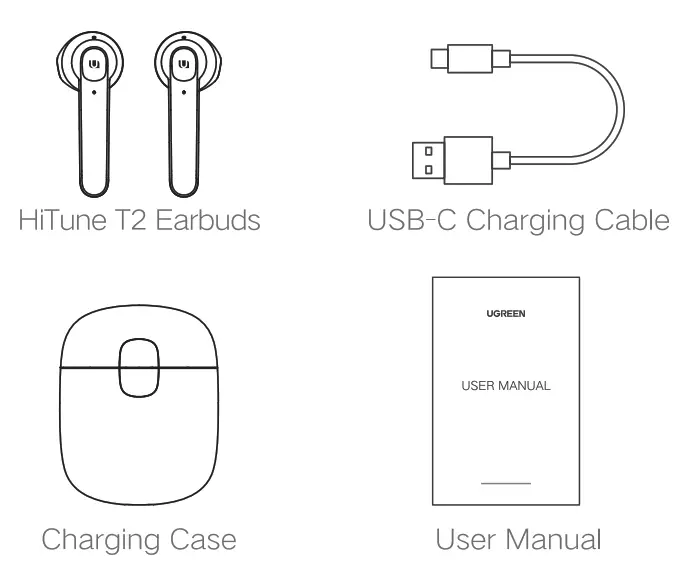
What’s in the box
Important WEEE Information
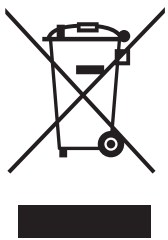 This symbol on the product(s) and/or accompanying documents indicates that, under the new Directive 2012/19/EU on waste electrical and electronic equipment (WEEE), product(s) used electrical and electronic equipment (WEEE) should not be mixed with general household waste. For proper treatment, recovery, and recycling, please take this product(s) to designated collection points where it will be accepted free of charge.
Disposing of this product correctly will help save valuable resources and prevent any potential negative effects on human health and the environment, which could otherwise arise from inappropriate waste handling.
Please contact your local authority for further details of your nearest designated collection point.
Penalties may be applicable for incorrect disposal of this waste, in accordance with your national legislation.
For professional users in the European Union
If you wish to discard electrical and electronic equipment (EEE), please contact your dealer or supplier for further information.
For disposal in countries outside of the European Union,
This symbol is only valid in the European Union (EU). If you wish to discard this product please contact your local authorities or dealer and ask for the correct method of disposal.
Warranty Information
A limited 2-year warranty applies to all UGREEN products purchased from UGREEN’s official store or authorized sellers. Please feel free to contact us if you run into any problems.
Contact Us
For Amazon Marketplaces
North America
US: [email protected]
FCC Statement
This device complies with Part 15 of the FCC rules. Operation is subject to the following two conditions: (1) this device may not cause harmful interference, and (2) this device must accept any interference received, including interference that may cause undesired operation. Warning: Changes or modifications not expressly approved by the party responsible for compliance could void the user’s authority to operate the equipment.
FCC Radiation Exposure Statement
This equipment complies with FCC radiation exposure limits set forth for an uncontrolled environment. This transmitter must not be co-located or operating in conjunction with any other antenna or transmitter. Note: This equipment has been tested and found to comply with the limits for a Class B digital device, pursuant to part 15 of the FCC Rules. These limits are designed to provide reasonable protection against harmful interference in a residential installation. This equipment generates uses and can radiate radio frequency energy and, if not installed and used in accordance with the instructions, may cause harmful interference to radio communications. However, there is no guarantee that interference will not occur in a particular installation. If this equipment does cause harmful interference to radio or television reception, which can be determined by turning the equipment off and on, the user is encouraged to try to correct the interference by one or more of the following measures.
Reorient or relocate the receiving antenna.
Increase the separation between the equipment and receiver.
Connect the equipment into an outlet on a circuit different from that to which the receiver is connected.
Consult the dealer or an experienced radio/TV technician for help.
Learn more about the EU Declaration of Conformity: https://www.ugreen.com/download/
IC
This device complies with Industry Canada licence-exempt RSS standard(s). Operation is subject to the following two conditions: (1) this device may not cause interference, and (2) this device must accept any interference, including interference that may cause undesired operation of the device.”
FCC ID: 2AQI5-WS105
FCC ID: 2AQI5-WS105-CASE
IC ID: 26850-WS105
IC ID: 26850-WS105CASE Telec
ID: R210-154070 R210-154070