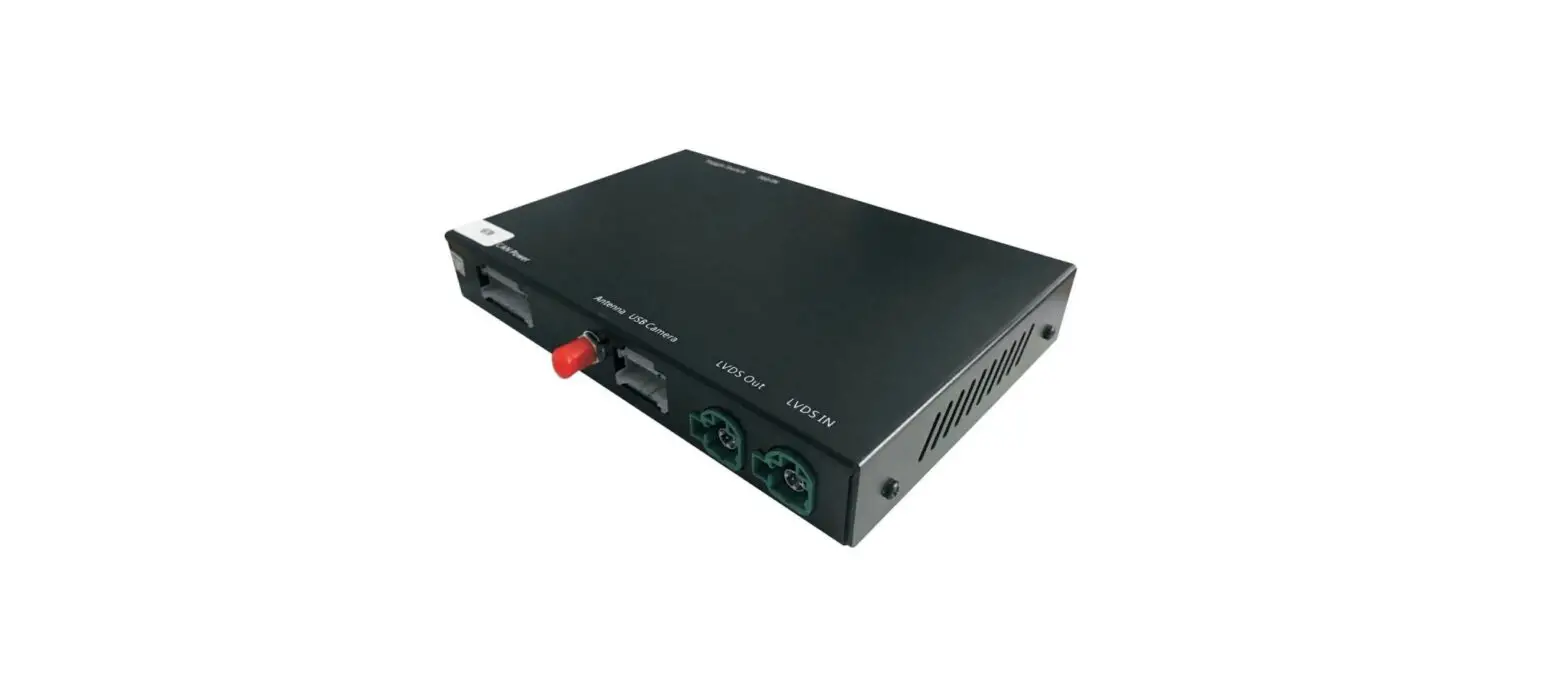
AudioVolt NBT Wireless Carplay User Manual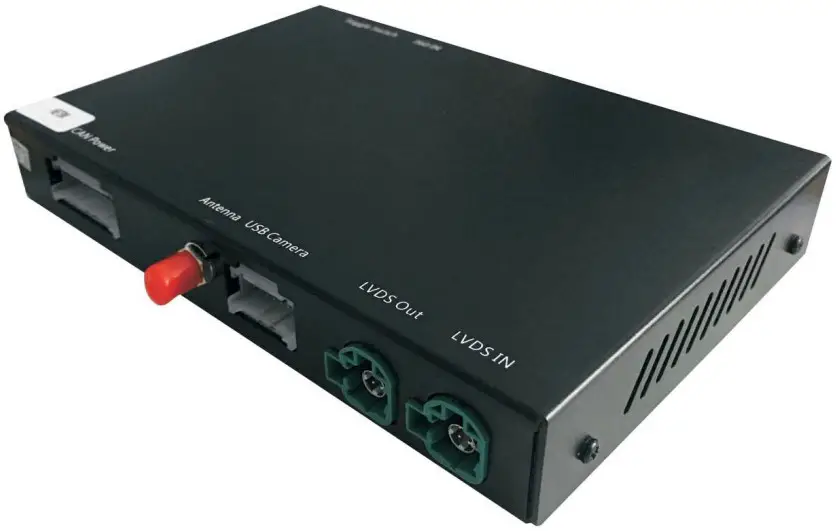
Specifications
| Input | USB/CVBS signal input |
| Input Voltage | 12-16V DC |
| Rated Current | 2A |
| Rated Power | 24W |
| Control | Voice control, iDrive control |
| Material | Housing aluminum |
Panel description
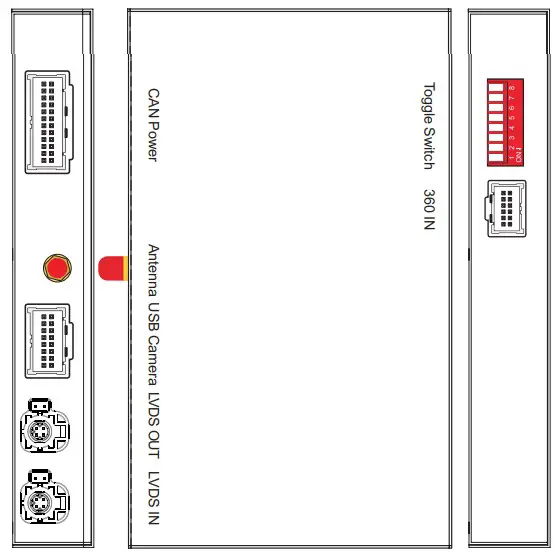
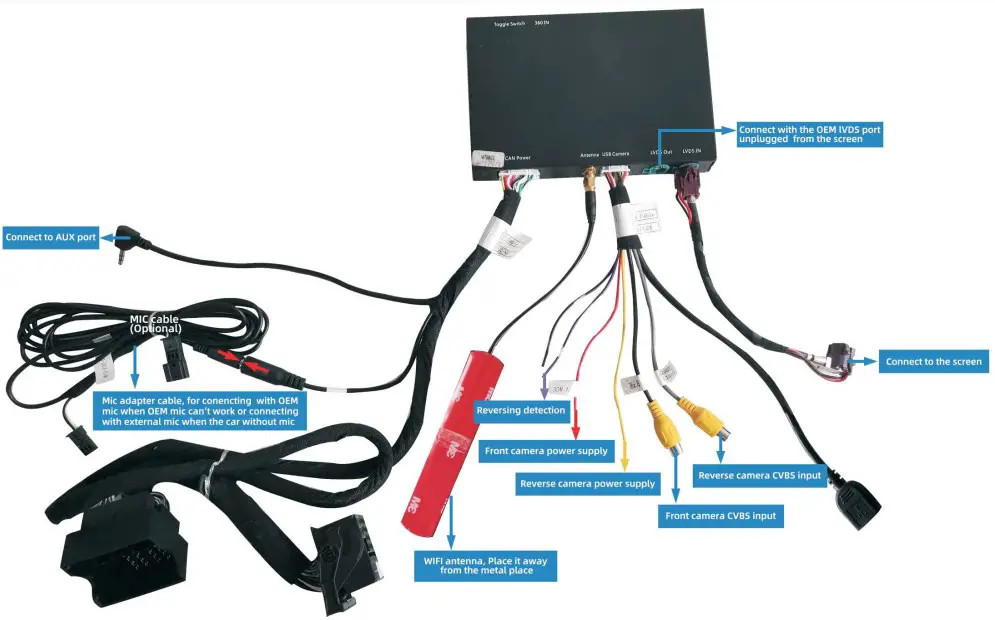
| CAN Power | For power cable connection, CAN data transmission |
| Antenna | Wifi antenna connector |
| USB Camera | USB data transmission, and for reverse/front camera conenction |
| LVDS OUT | Connect with cable labelled ‘LVDS-GPBMW1901-NBT’ |
| LVDS IN | Connect with OEM LVDS from the screen |
| Toggle switch | Refer DIP code setting to set for different screen size |
| 360 IN | Exterior 360 input(VGA signal input) |
Features
- Compatible with OEM microphone and external microphone
- Sound outputs via AUX in carplay system
- Support wireless/wired Carplay connection
- Support wireless/wired Android auto connection
- USB HD playback function
- Keep the OEM system function, back camera view, parking sensor, etc
Accessories
LVDS cable LVDS-NBT-C19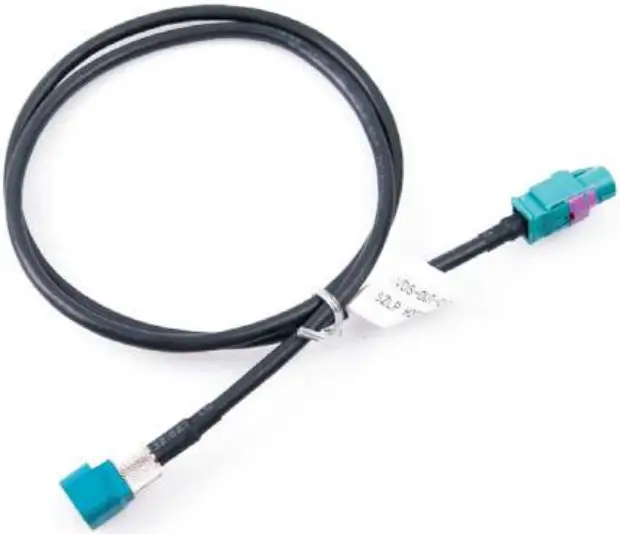
WIFI antenna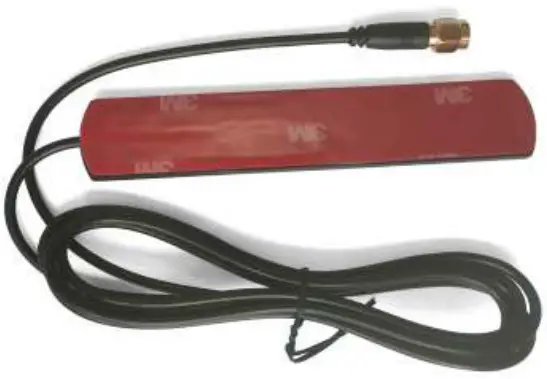
AV/USB cabl AV-USB-GP68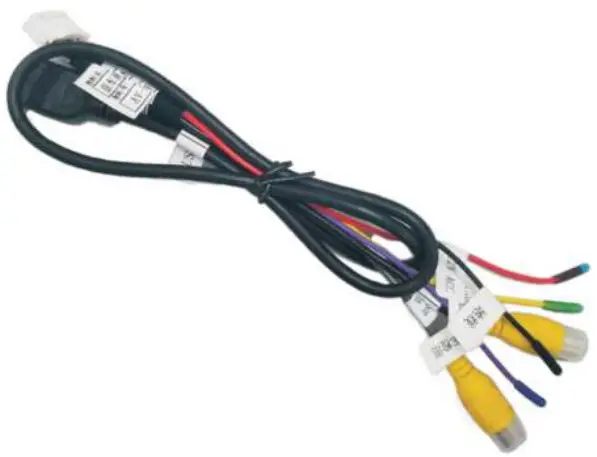
CAN power cable CAN-NBT-C19
(Note:This cable isn’t for bmw i3/i8, longer for i3/i8)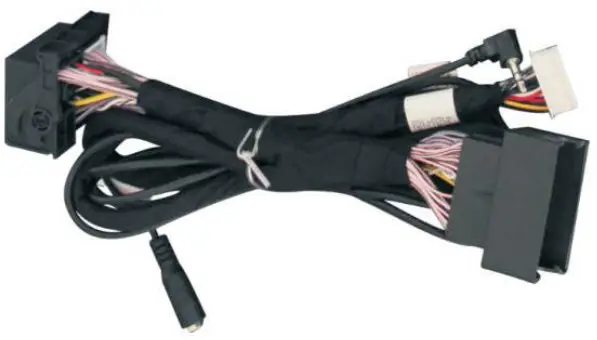
MIC adapter cable MIC-22C-DZ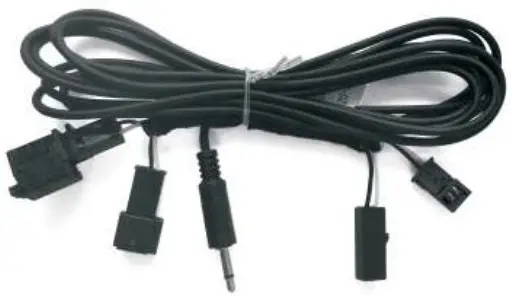
Compatible car model
| Series | Car model | Production year | Toggle switch |
| 1 | F20,F21 | 2012-2016 | OFF ON |
| 2 | F22 | 2014- | |
| 3 | F30/F31/F34 | 2013-2015 | |
| 4 | F32/F33/F36 | 2014-2016 | |
| 5 | F10/F11/F07 | 2013-2015 | |
| 6 | F12/F13 | 2013- | |
| 7 | F01/F02 | 2013- | |
| X3 | F25 | 2013- | |
| X4 | F26 | 2014- | |
| X5 | F15 | 2014- | |
| X6 | F16 | 2015- | |
| MINI | F56 | 2014- |
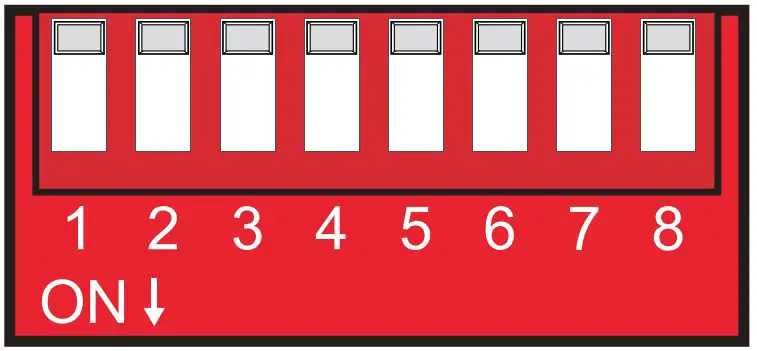 6.5 inch: 11000000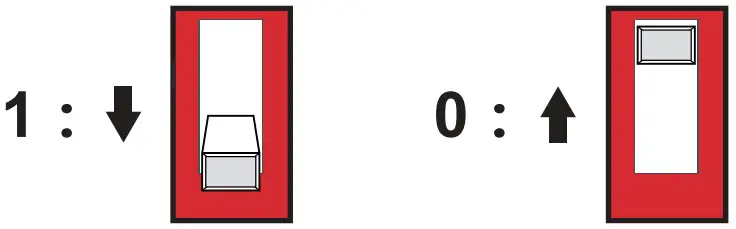
Connection Diagram
Wireless carplay connection
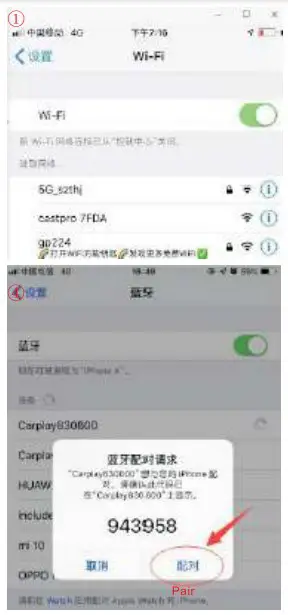
- Turn on WIFI (Fig.1)

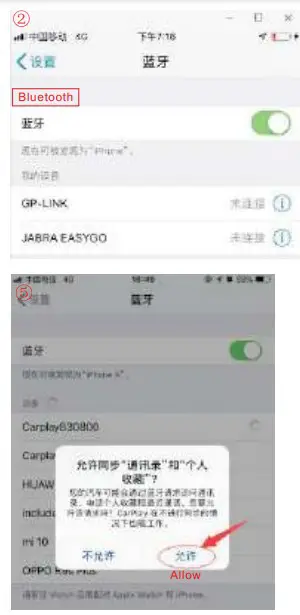
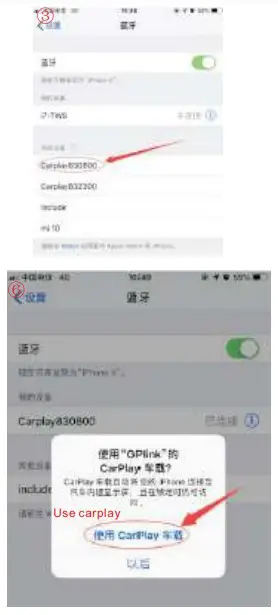
- Turn on Bluetooth (Fig.2), and connect Carplay’s bluetooth (Fig.3/4)


- After the bluetooth connection is completed, the following prompts will pop up, click ‘Allow-Use carplay’ (Fig.5/6)
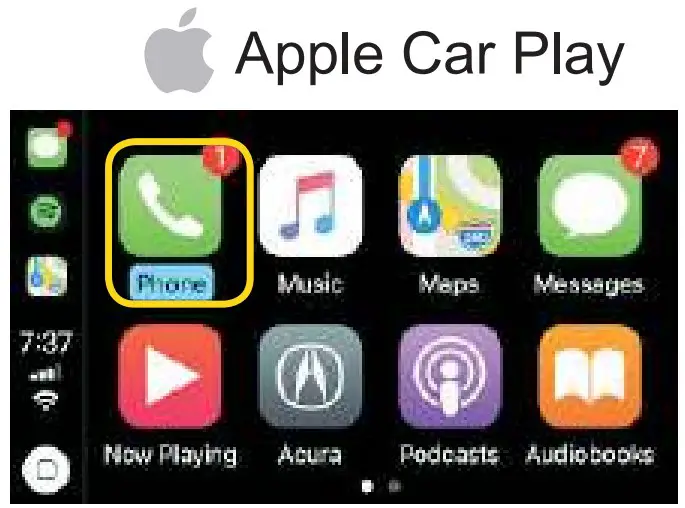
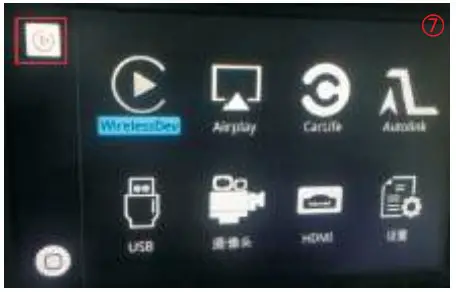
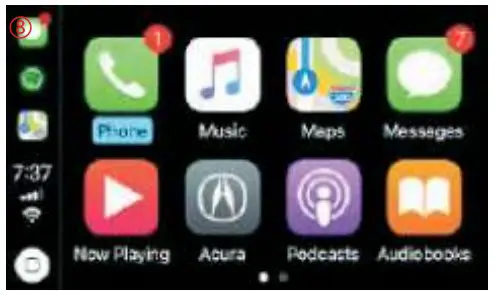
- After the connection is successful, the Carplay icon will display on the main menu of the screen(Fig.7). And it will enter Carplay automatically (Fig.8)


Wired Android auto connection
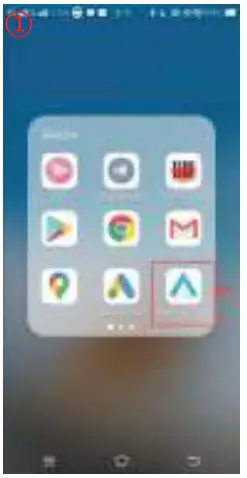
- Download Android auto APP on your Android phone (Fig.1).

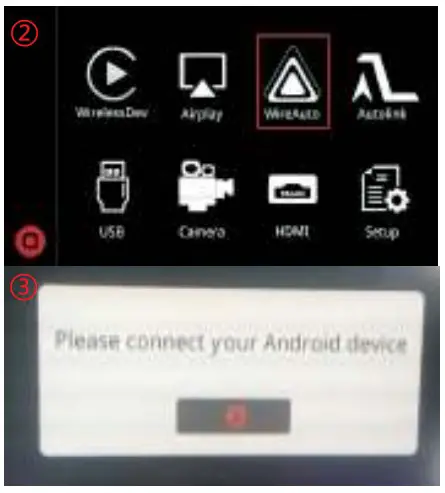
- Click ‘WireAuto’ icon (Fig.2), the prompt ‘Please connect your Android device’ will pop up (Fig.3).

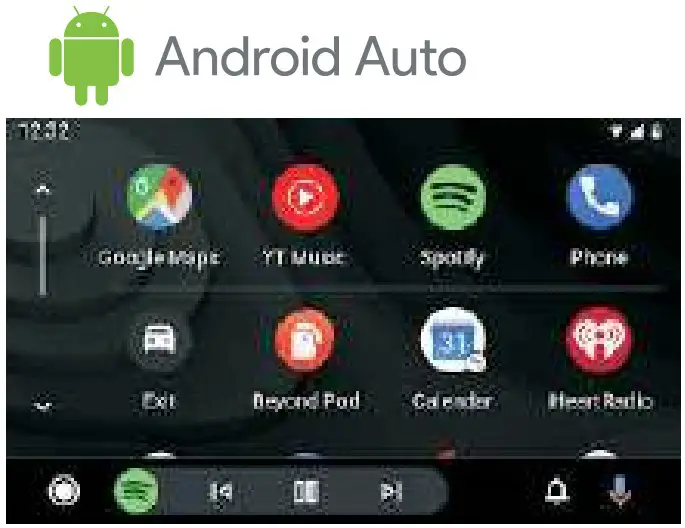
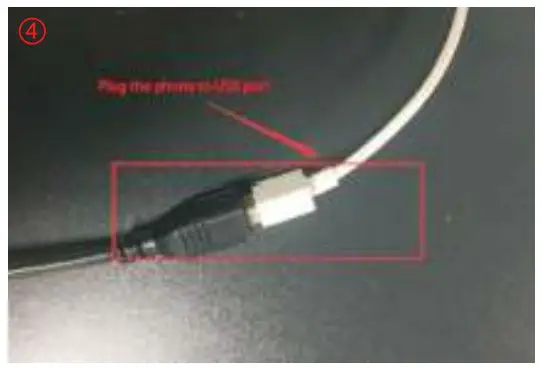
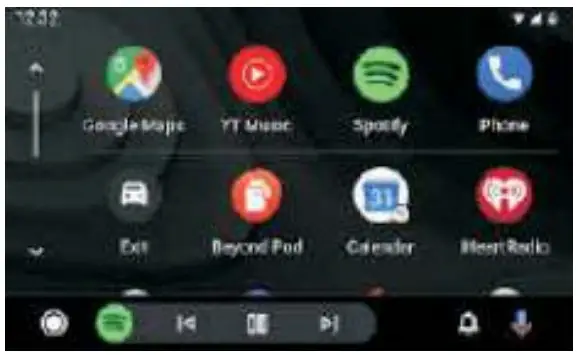
- Plug your phone to USB port. then it will enter Android auto automatically (Fig.4).


Wireless Android auto connection
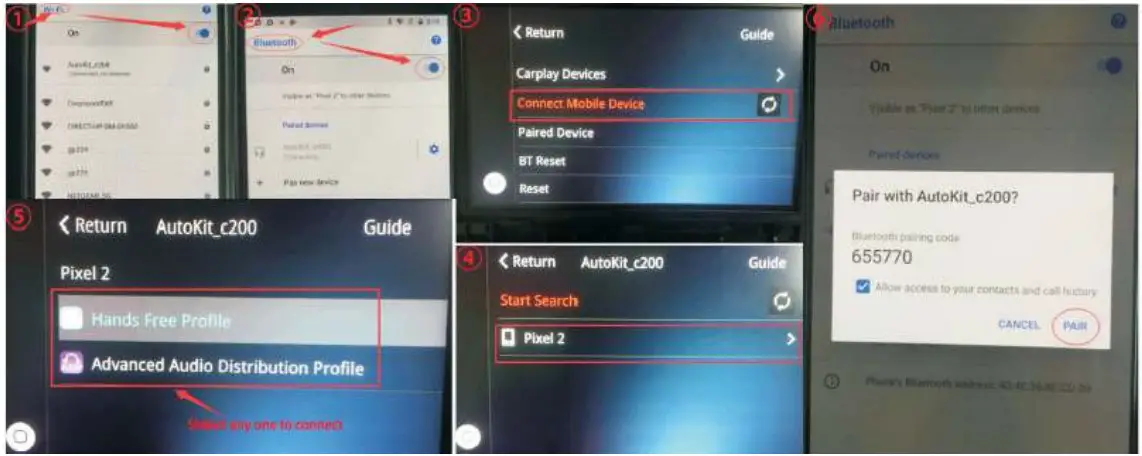
- Turn on WIFI (Fig.1)
- Turn on Bluetooth (Fig.2)
- Search the Android phone’s bluetooth on the screen in Carplay system (Fig.3/4/5)
- Pair the bluetooth with your phone.(Fig.6)

- After connecting the bluetooth, it will pop up the following prompts (Fig.7/8)
- Then it will enter Android auto automatically (Fig.9)


Wireless Airplay connection
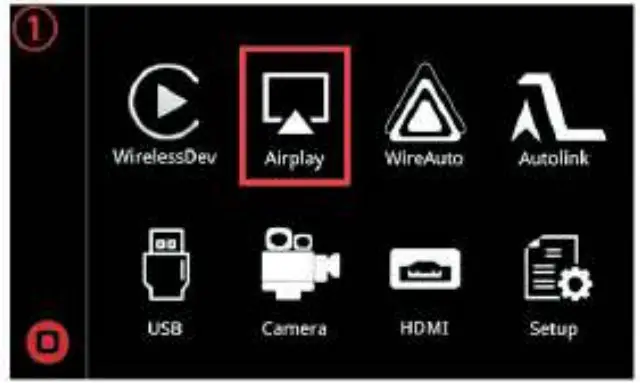
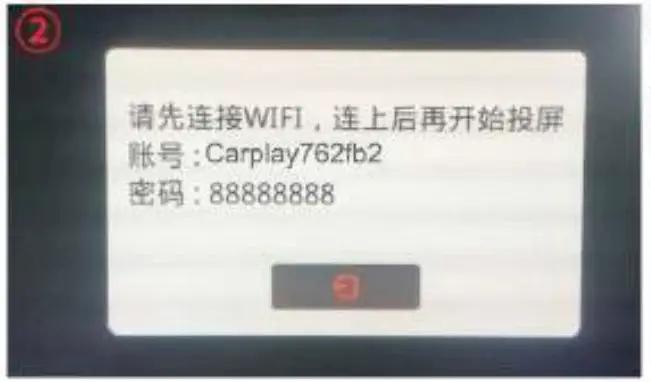
- Click ‘Airplay’ icon first (Fig.1), the pairing information with the phone will be displayed (Fig.2)


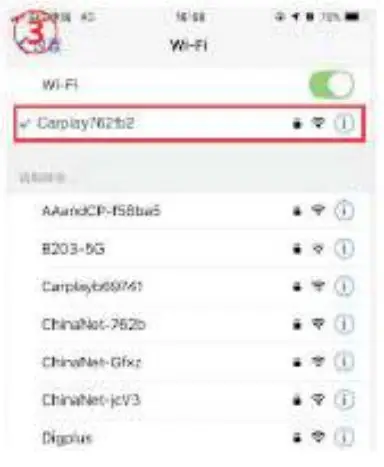
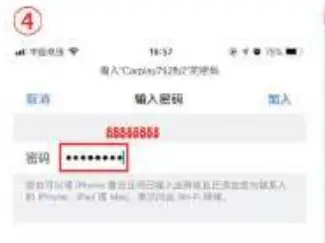
- Search wifi signal of Airplay and conenct (Fig.3/4)


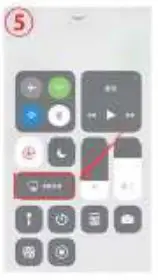
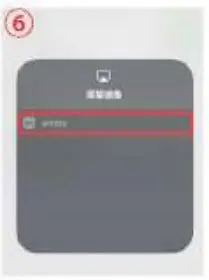
- Turn on Airplay (Fig5/6)


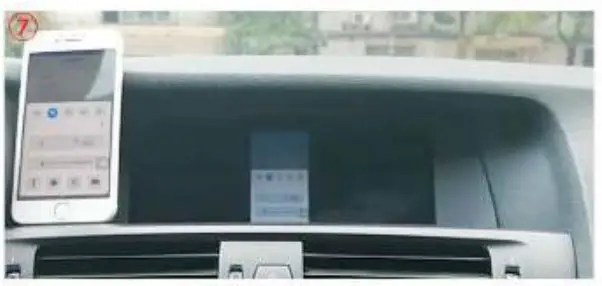
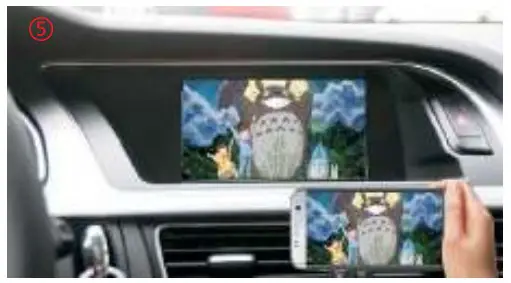
- After connecting Airplay, it will show like Fig.7

Note: If you have connected Carplay before, you need to disconnect Carplay first!
Wired Autolink connection
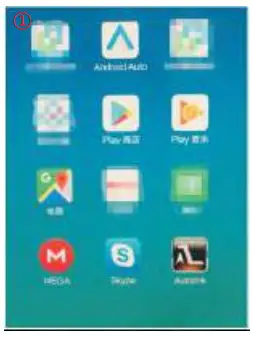
- Download Android auto APP on your Android phone(Fig.1).

- Click ‘Autolink’ icon (Fig.2), the prompt ‘Please connect your Android
device’ will pop up (Fig.3).
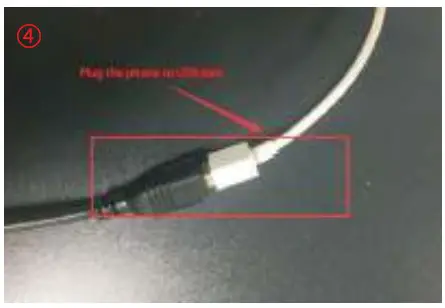
- Plug your phone to USB port (Fig.4). then it will enter Android auto automatically (Fig.5).



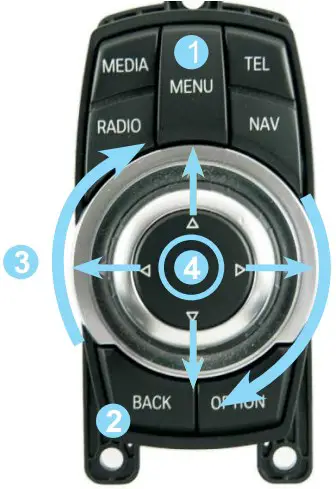
BMW i-Drive Button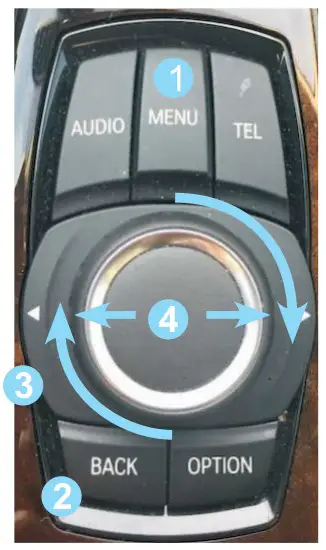
Steering Wheel Buttons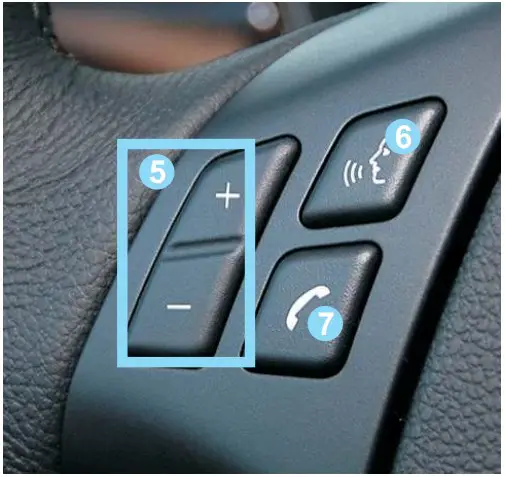
| Button | Function | Operation | Remarks |
| 1 MENU | System switching | Long press the button for 3 seconds | OEM  CarPlay CarPlay |
| 2 Back | Go back | Press the button short time | Apple Car Play Function  |
Google Android Auto  | |||
| Restart | Press the button 5 seconds | You can use this function when you get in trouble | |
3 | Move the pointer Left or Right | Turn the dial Move Left or Right | Apple Car Play Function |
| Google Android Auto | |||
 Dial | Move the pointer Up or Down | Move the Dial Long time | Apple Car Play Function |
| Google Android Auto | |||
| 5 | Volume adjustment | Press to increase/decrease the volume | Apple Car Play Function |
Google Android Auto  | |||
6 | “Siri” “Google Assistant” | Press the button 3 seconds | Apple Car Play Function |
| Google Android Auto |

FAQ
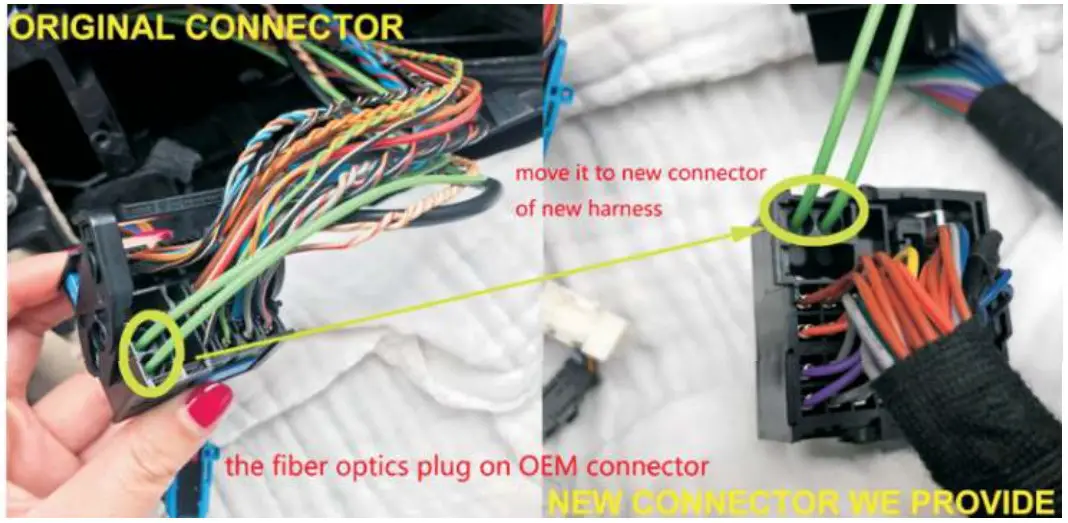
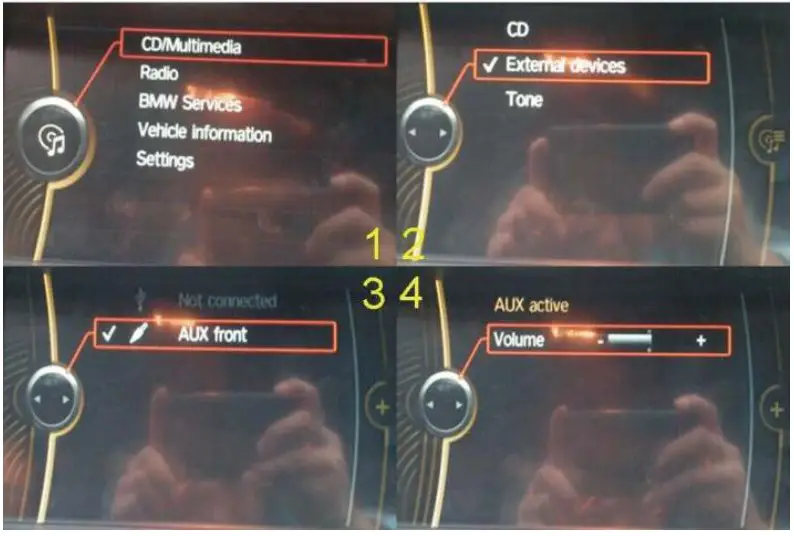
Q: I don’t have sound when I connect carplay, what can I do?
A:
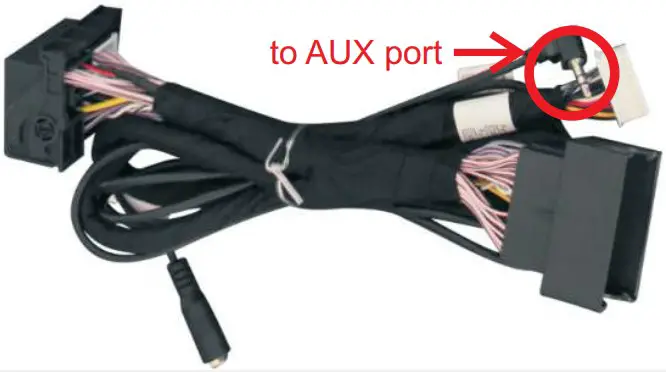
- Connect fiber cable
- Set AUX on OEM system
- If there is no sound after step1/2, connect AUX cable to AUX port of armrest box


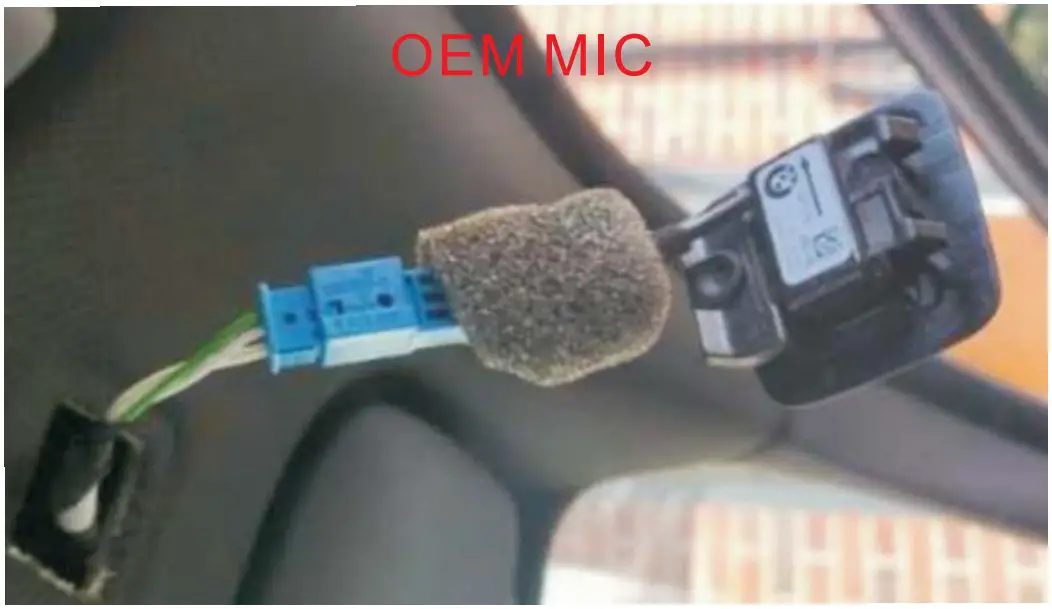
Q:My car has OEM microphone, but it can’t work, what can I do?
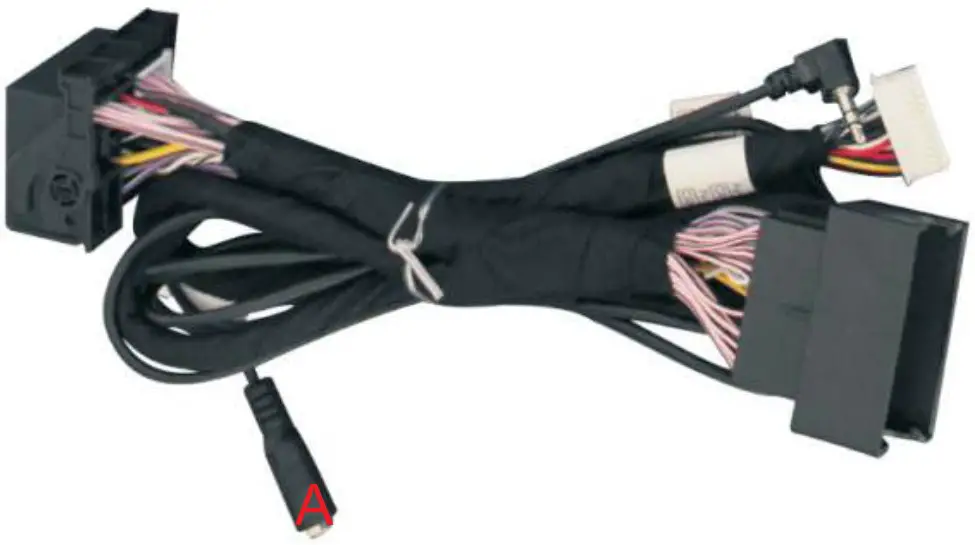
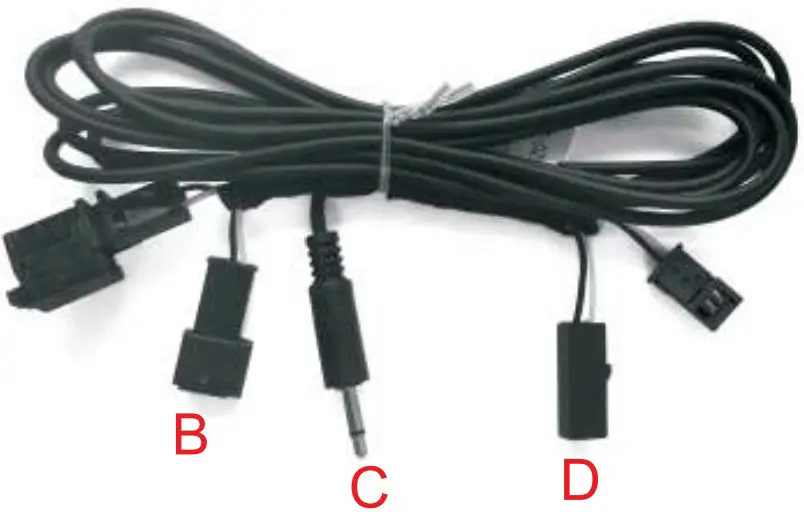
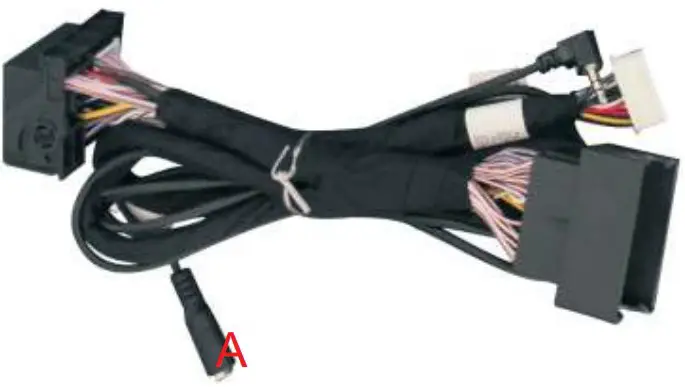
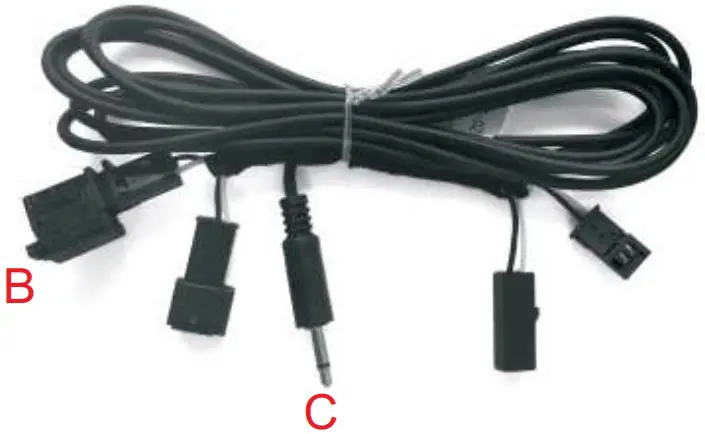
A: Please use the following cable to connect to OEM microphone.
- Connect A to C
- Unplug blue connectors and place mic tap cable in between the connector with microphone on it and the main wiring harness coming from the roof.(B/D need to be connected)


Q: I don’t have OEM microphone, how to connect external microphone?
A: You can do as following solutions
- Connect A with C, B with D.
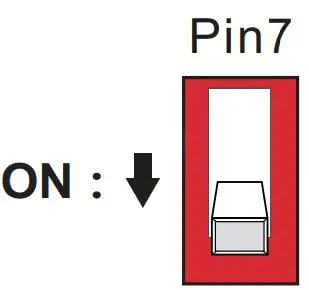
- Set pin7 to ON, and restart


Q: I can’t connect wireless Carplay automatically, what can I do?
A: you can do as following solutions
- Please confirm if you turn on wifi and connect carplay’s bluetooth.
- If your car has OEM bluetooth, please delete the connection record, then reconnect carplay’s bluetooth.
- Please confirm the wifi antenna is away from metal.
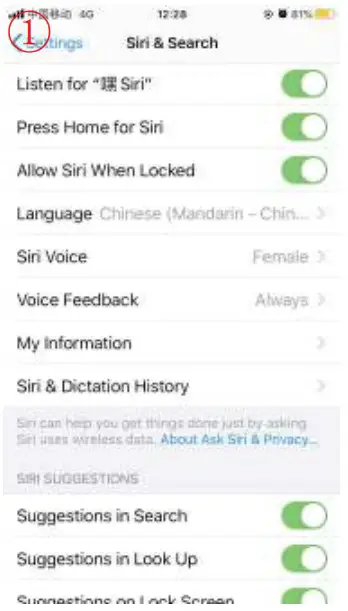
- Please confirm all siri permissions are allowed (Fig.1).
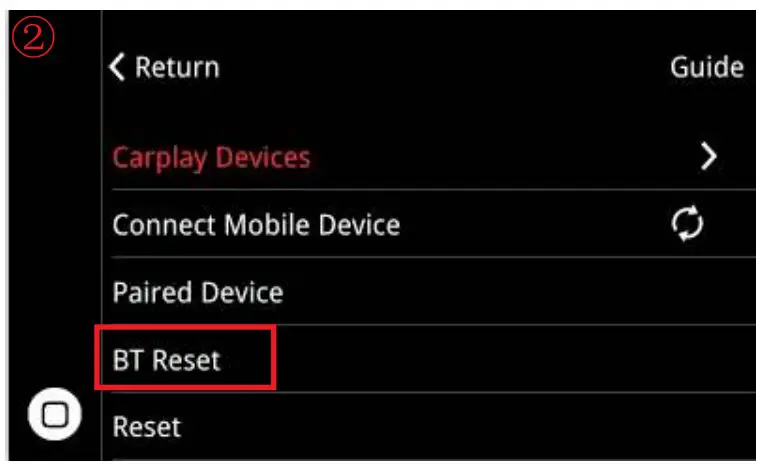
- Reset the connection records on the phone and car (Fig.2) simultaneously, then reconnect.


Q:When I call someone, he can hear himself, how to do?
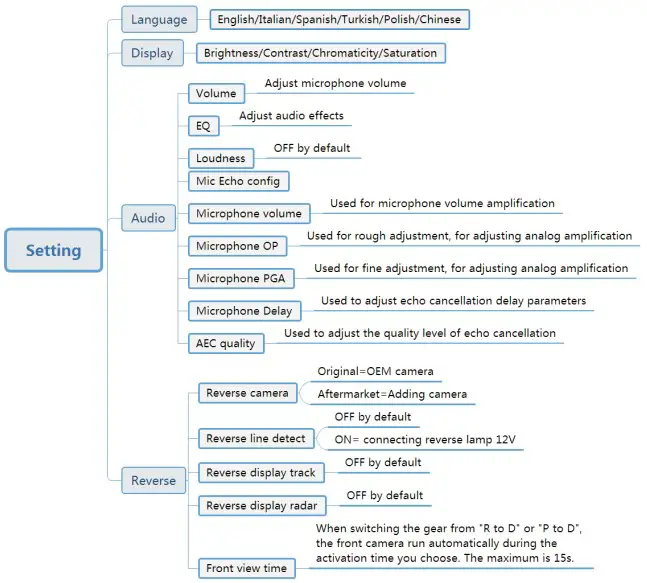
A: Adjust ‘Microphone volume’ to 12, ‘Microphone PGA’ to 24
- Adjust ‘Microphone OP’ from 0 until the sound is loud enough, Keeping the OP value is as small as possible
- Fine-tune the ‘Microphone PGA’ at this time. After adjusting, restart this deivice
- Adjust ‘AEC quality’ to 2
- Finally fine-tune the ‘Microphone delay’, starting from 0 alternately, until there is no echo
Note: If the sound is distorted, please adjust ‘Microphone OP’
Q: I install the carplay, but the button on steering wheel can’t work.
A: Set the setting ‘Enable wheel key’ to ON (Fig.1)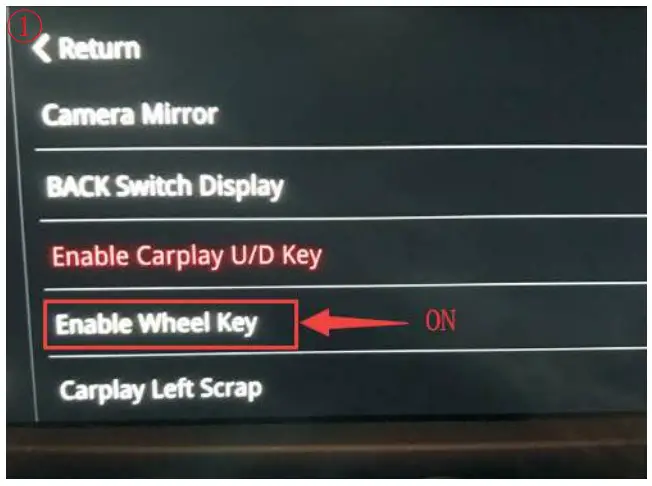
Q:How ro connect reverse camera?
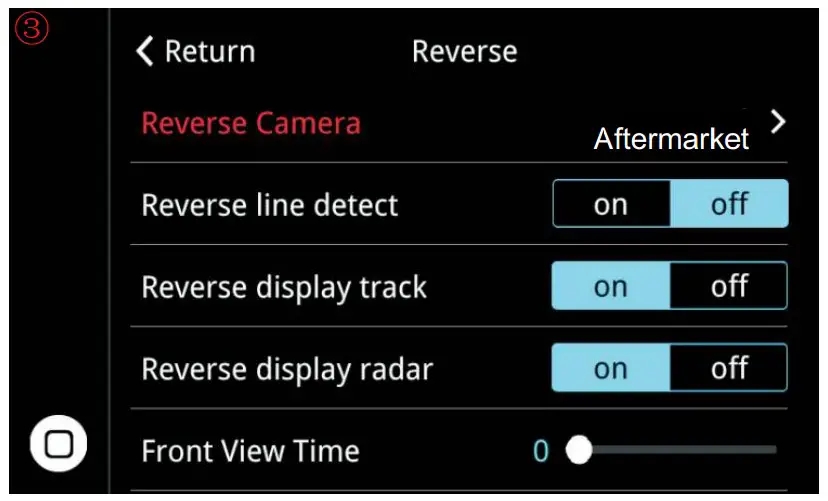
A: Refer the following connection and setting (Fig.3).(Fig.2)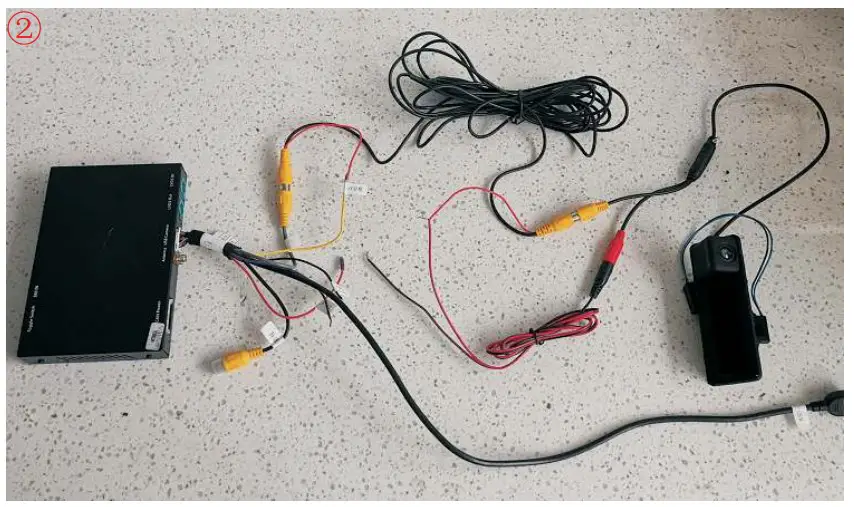
- Connect the reverse camera to CVBS OUT labeled ‘Reverse camera’
- Connect the cable labeled ’12V reverse camera(yellow) to camera power
- Setting → Reverse → Reverse camera → Aftermarket