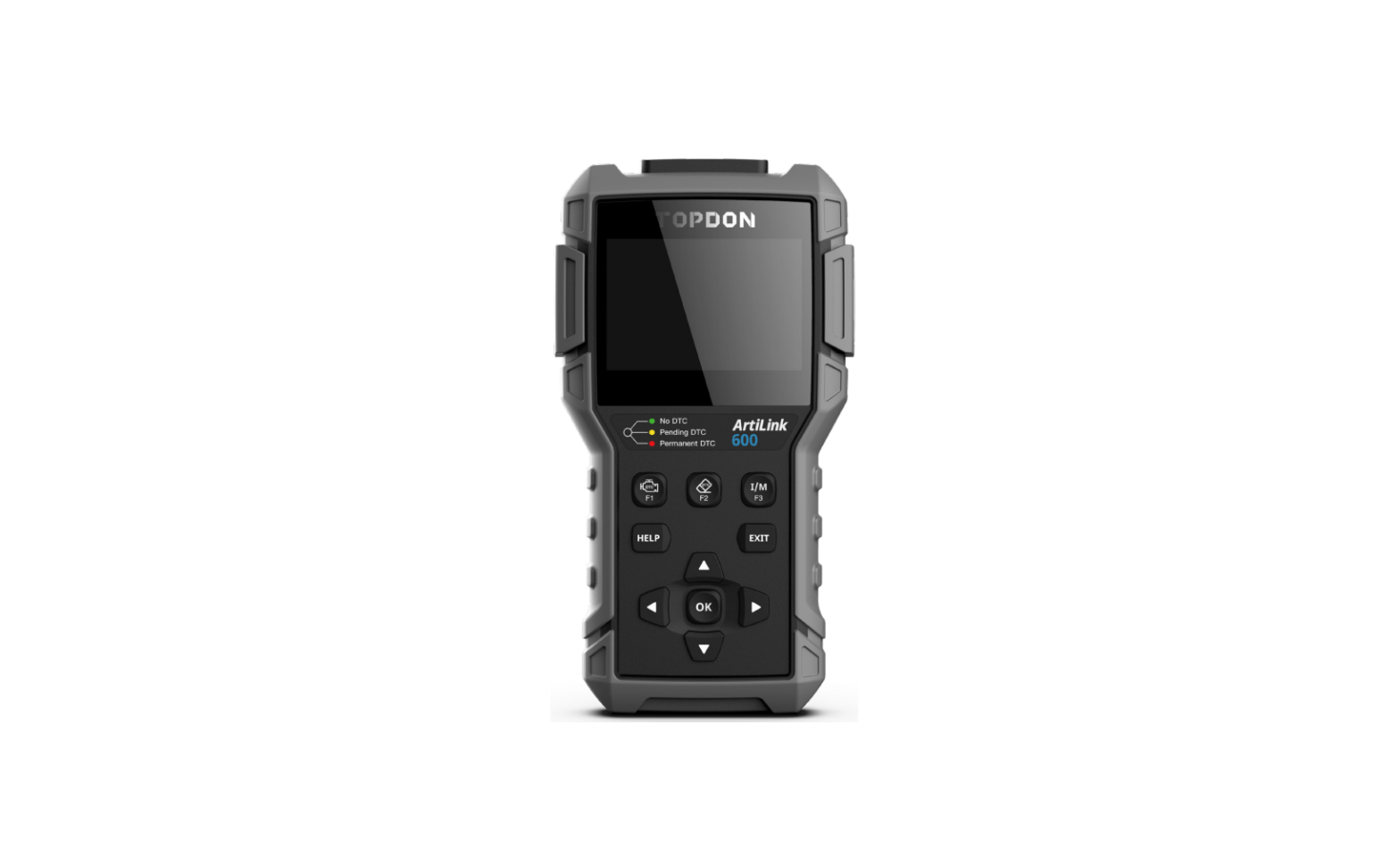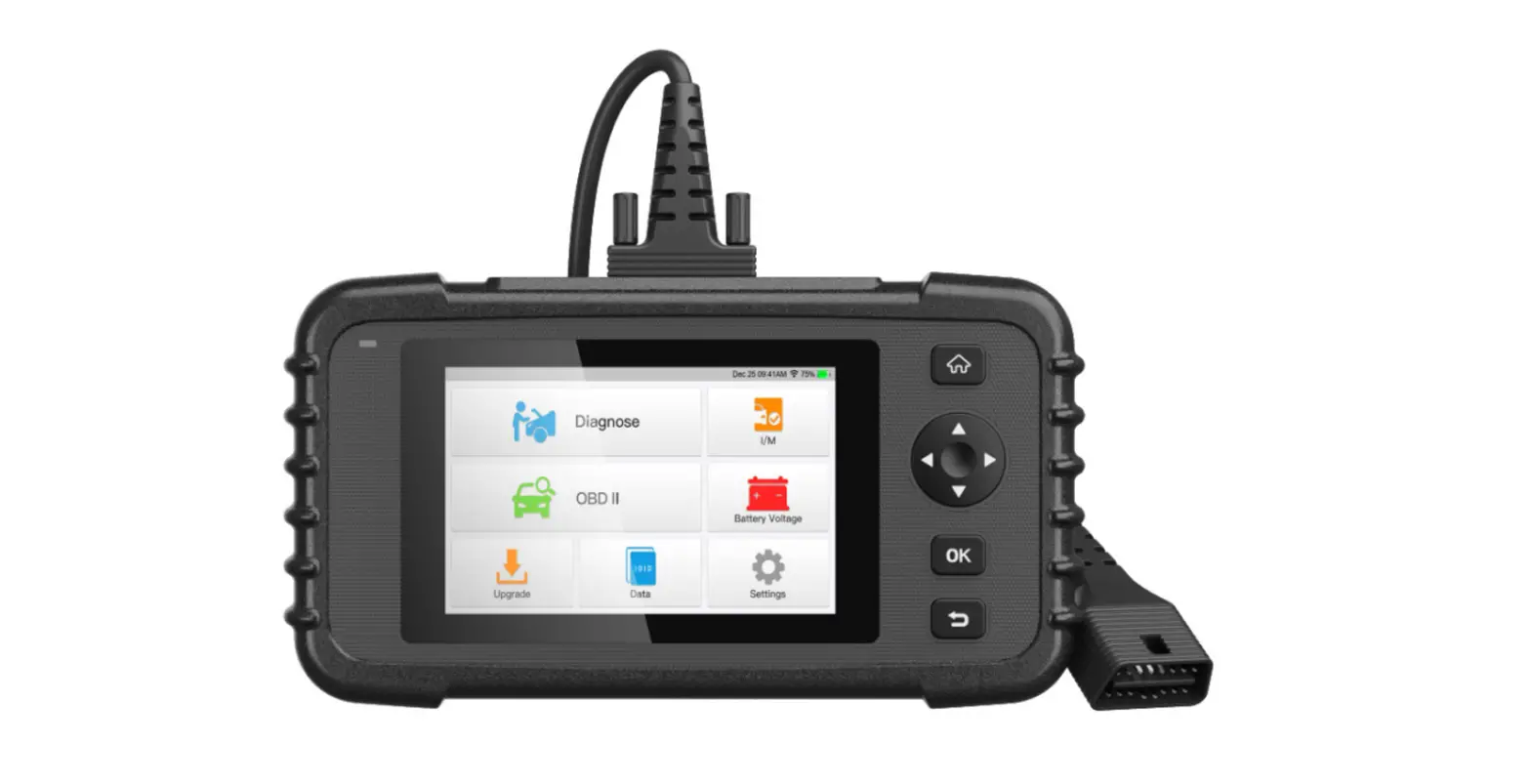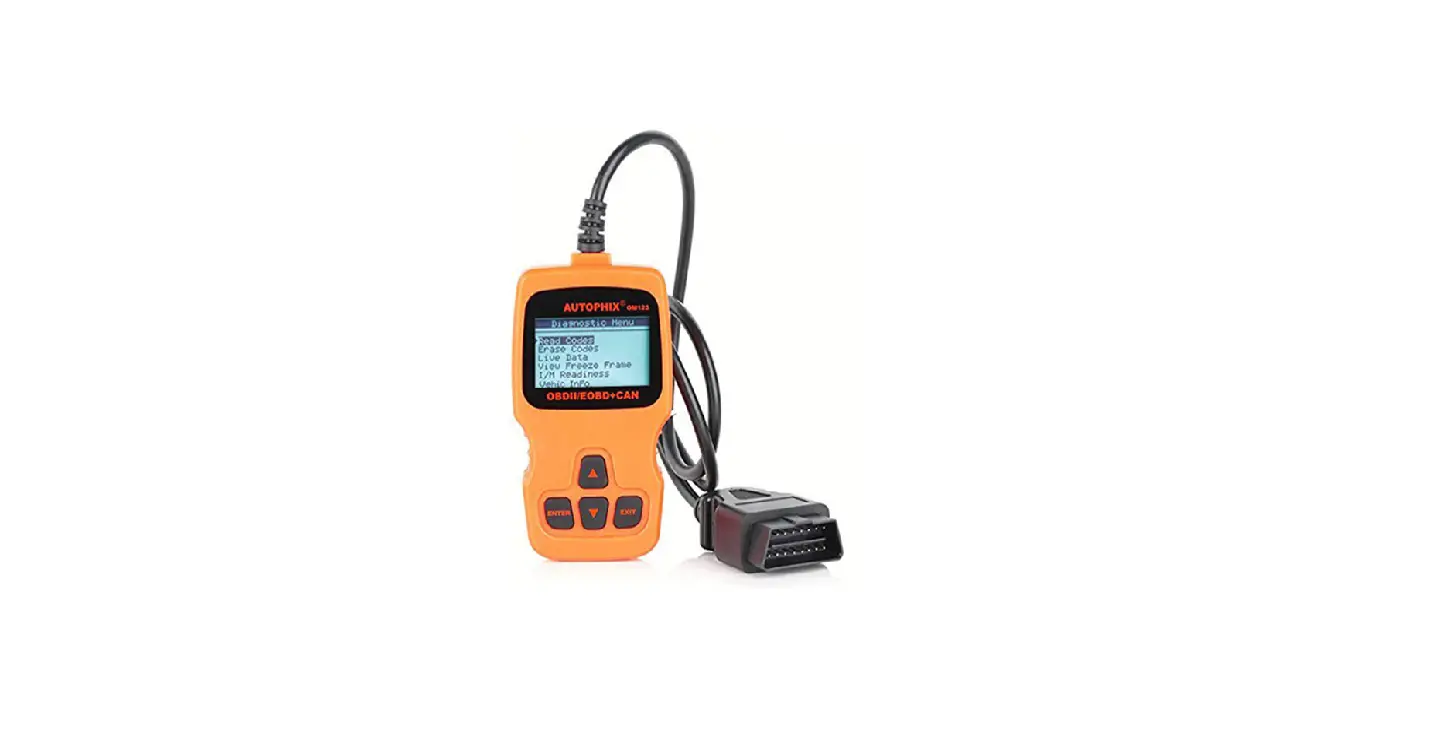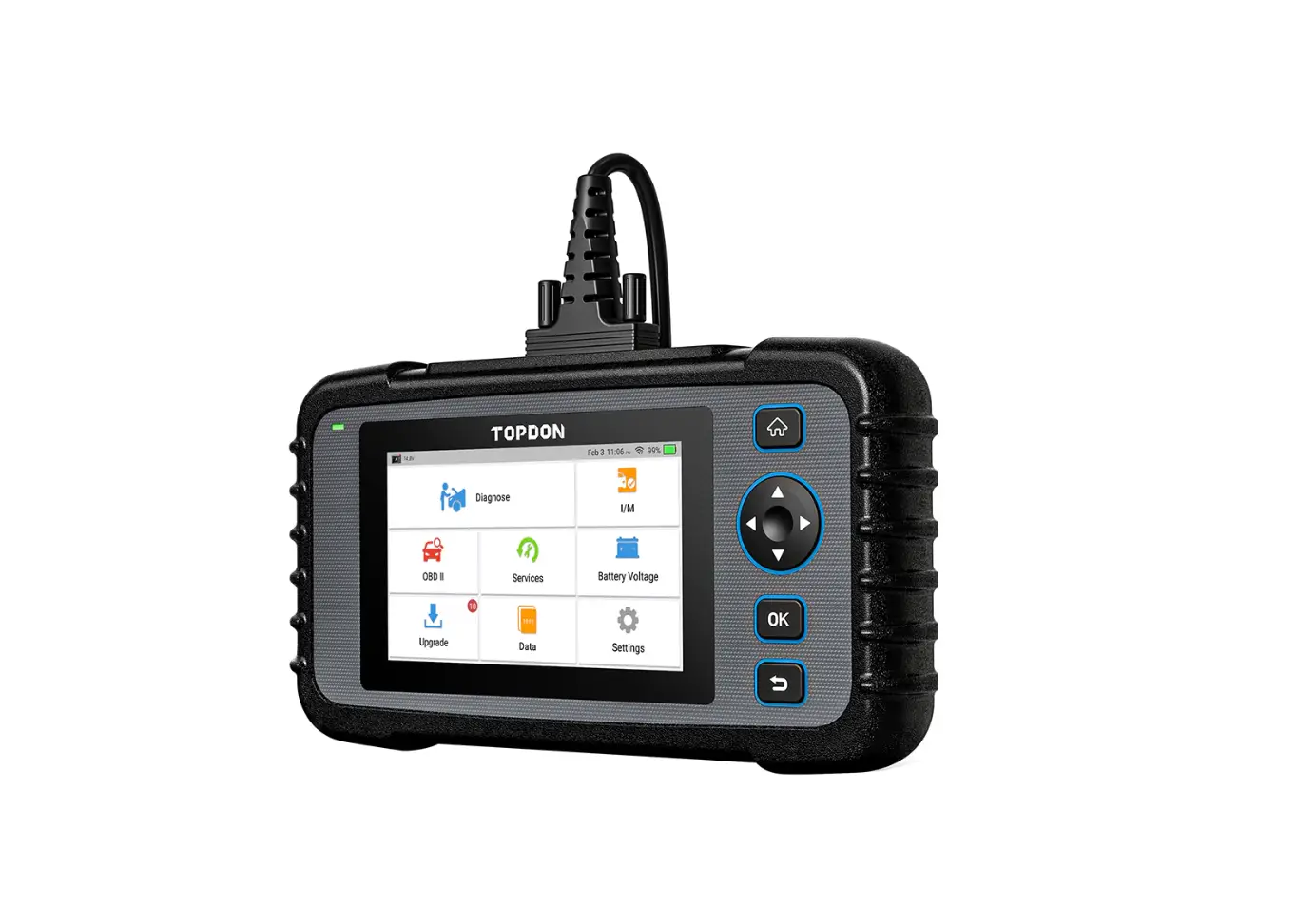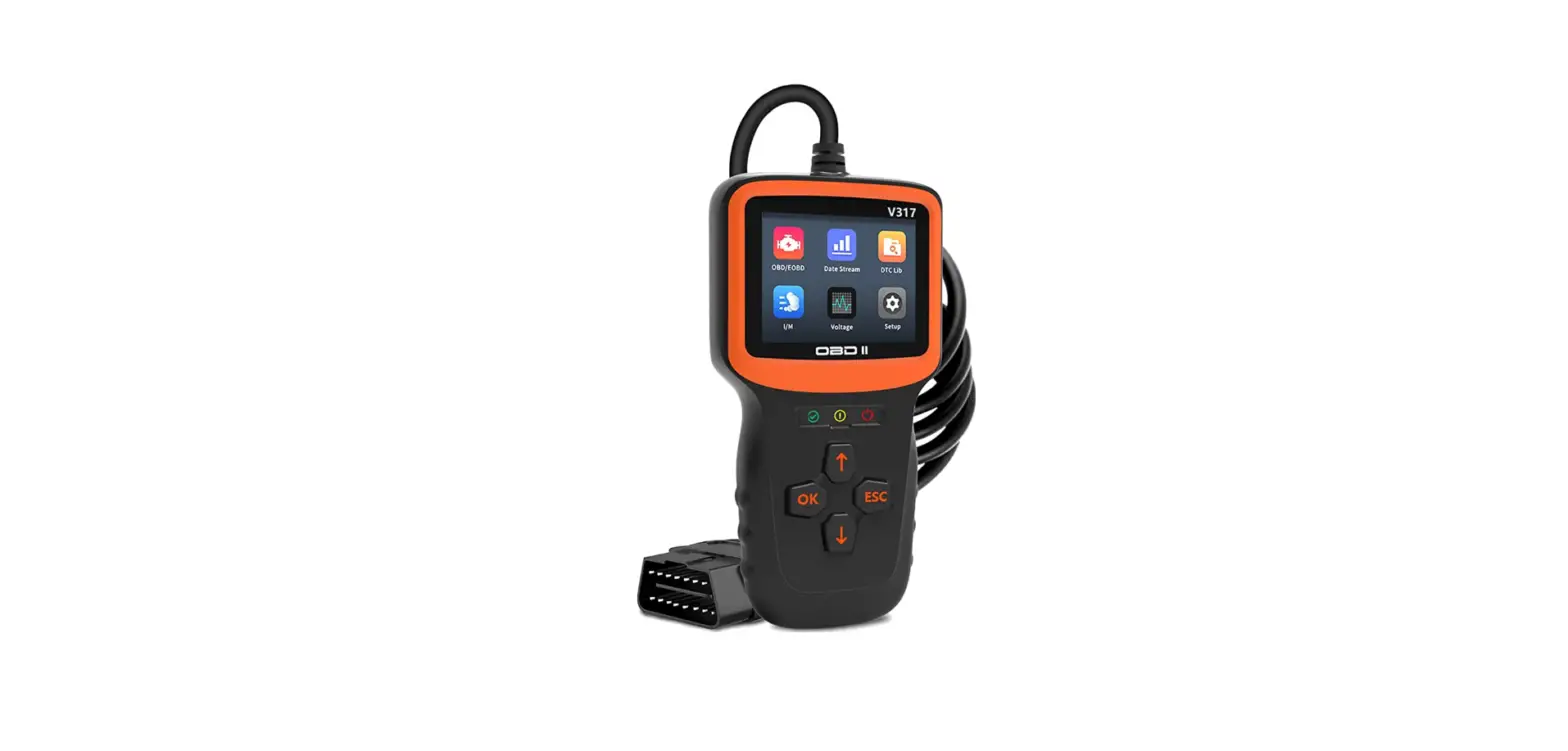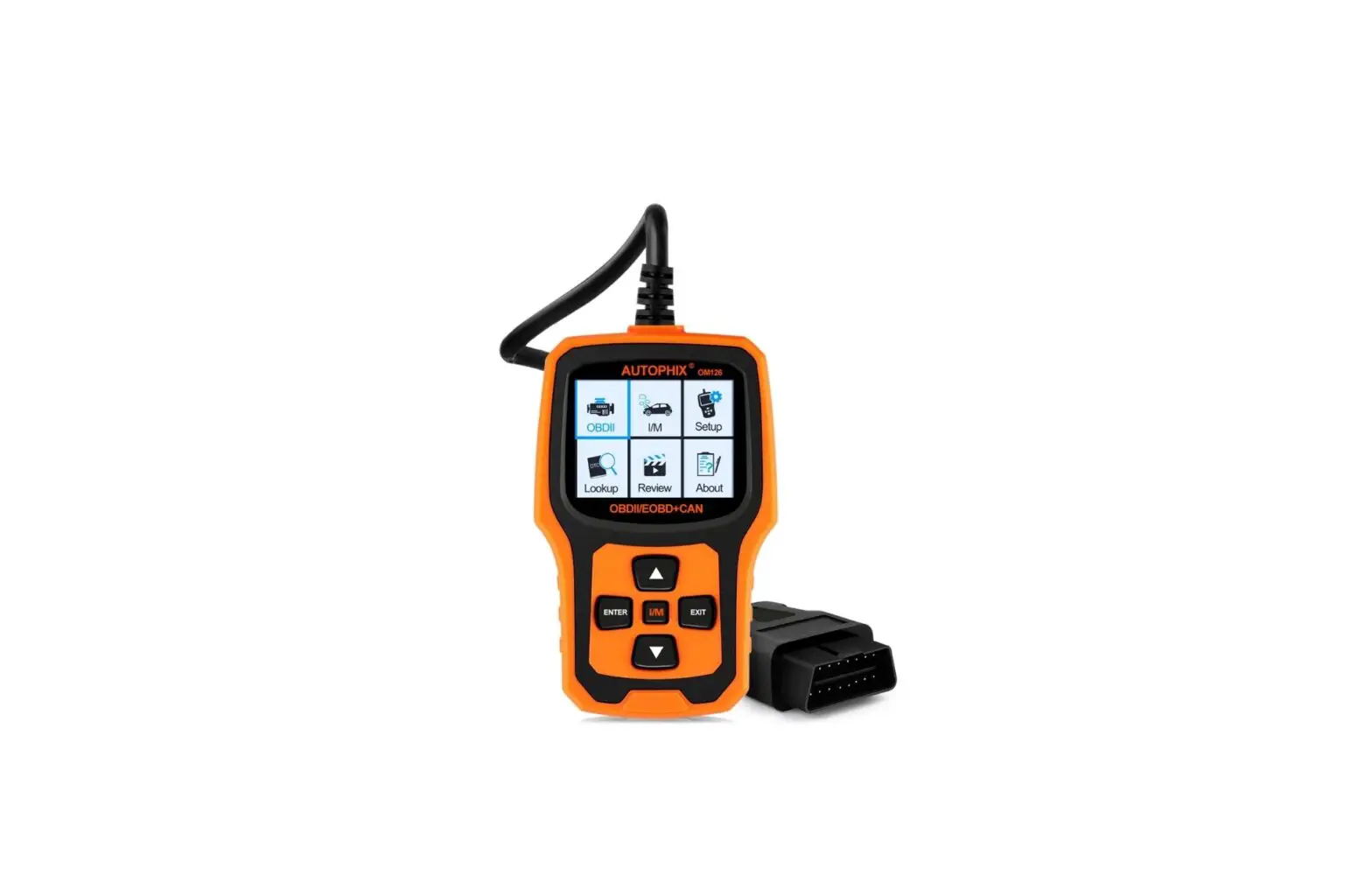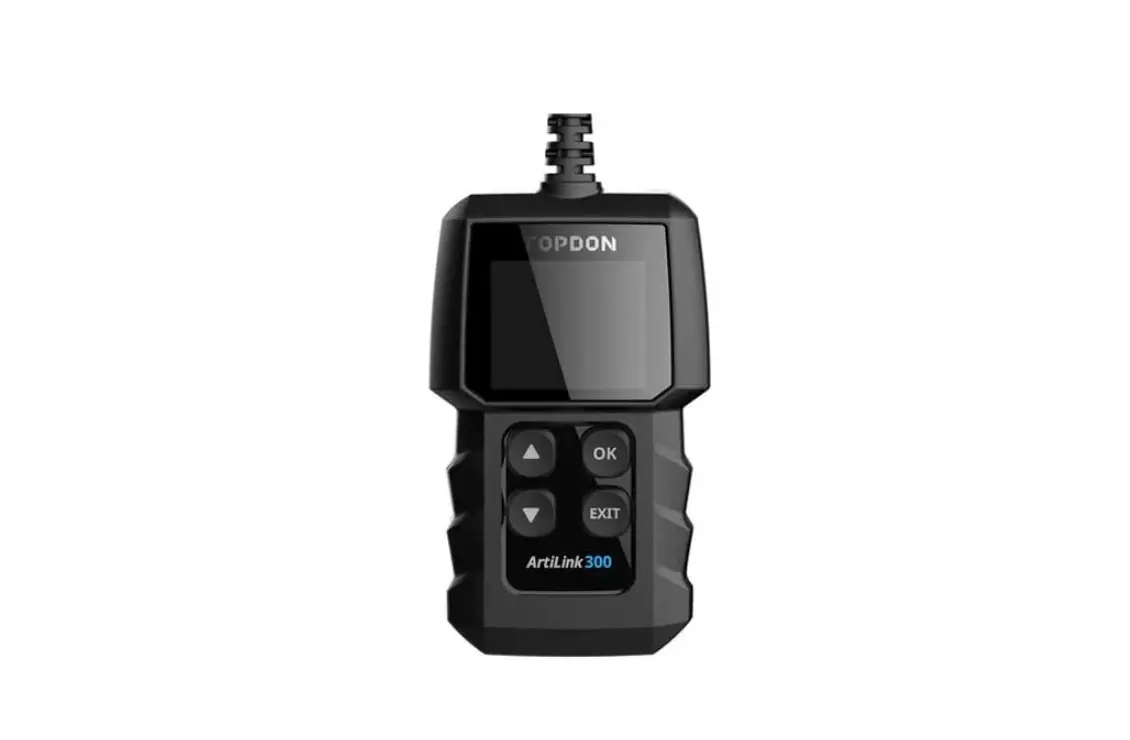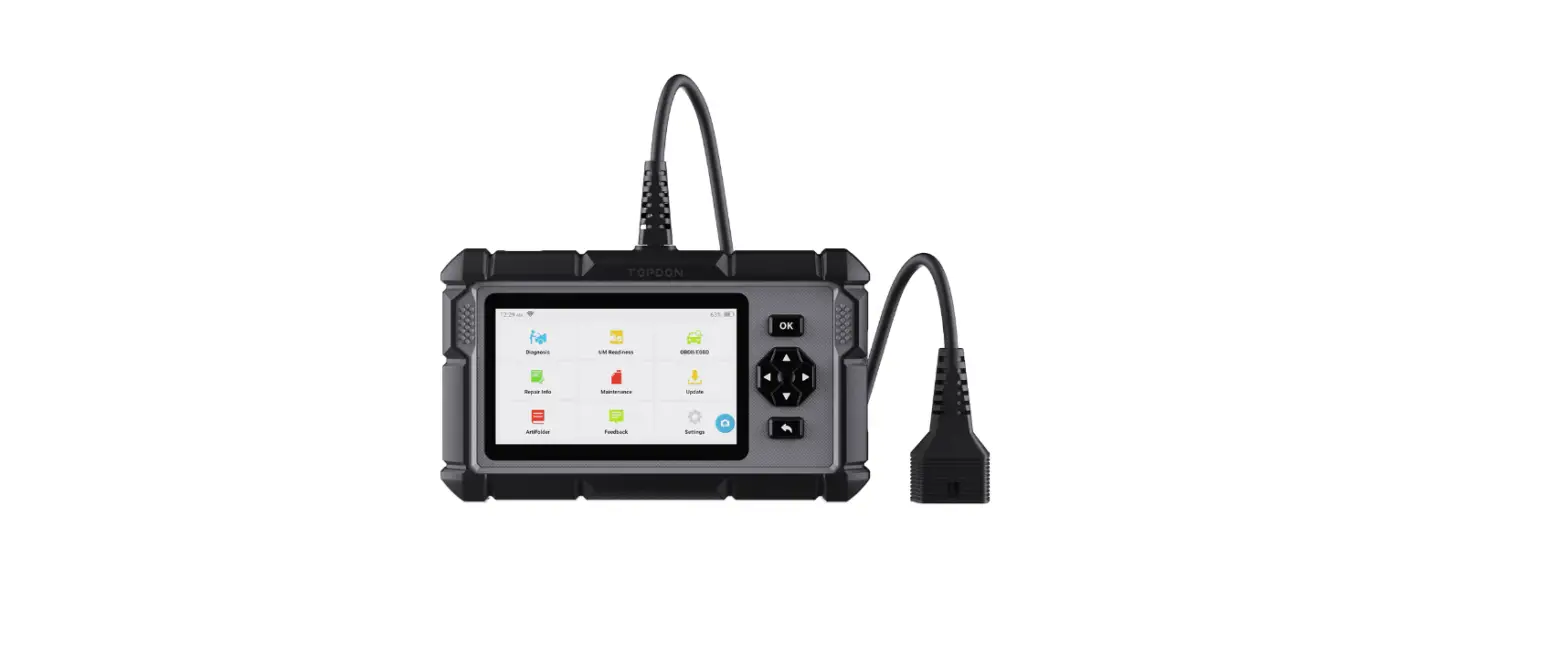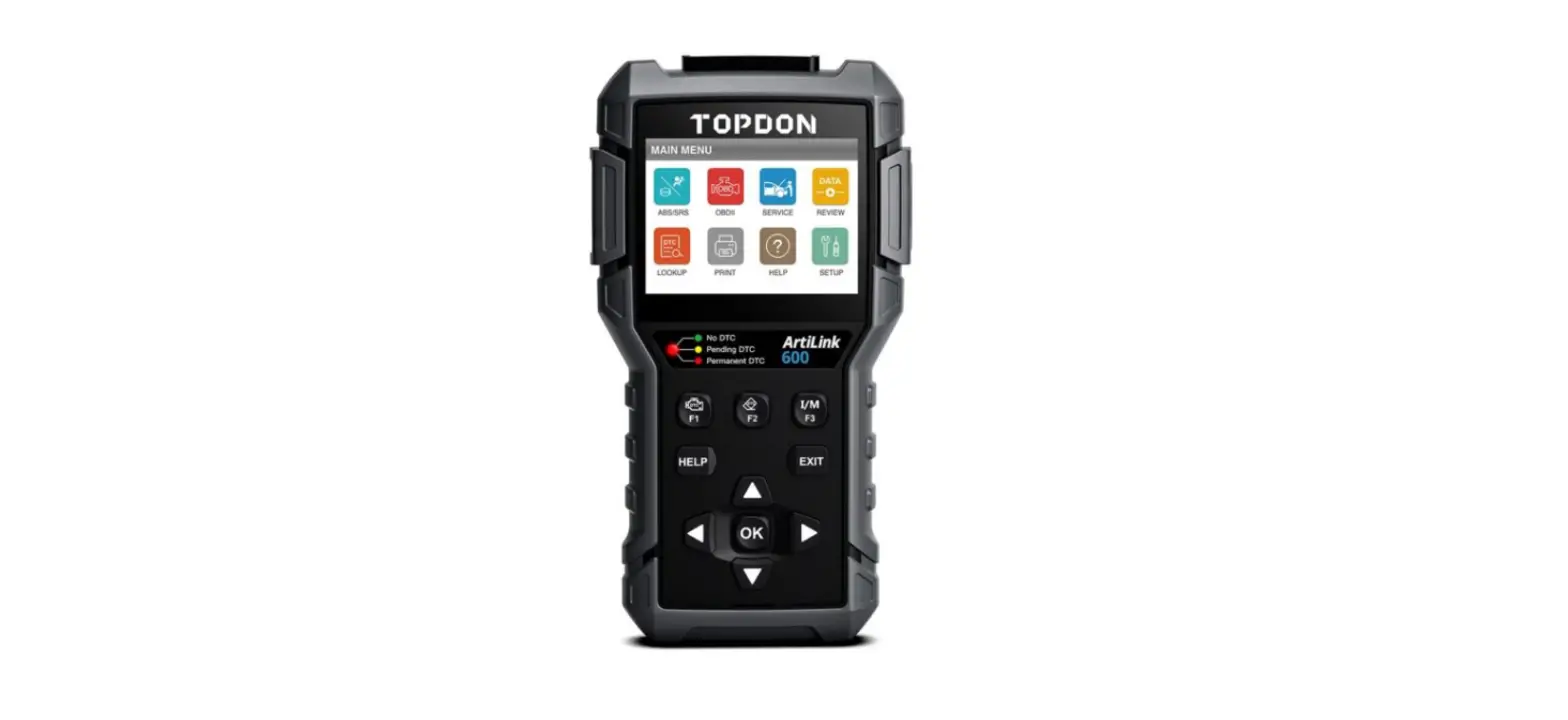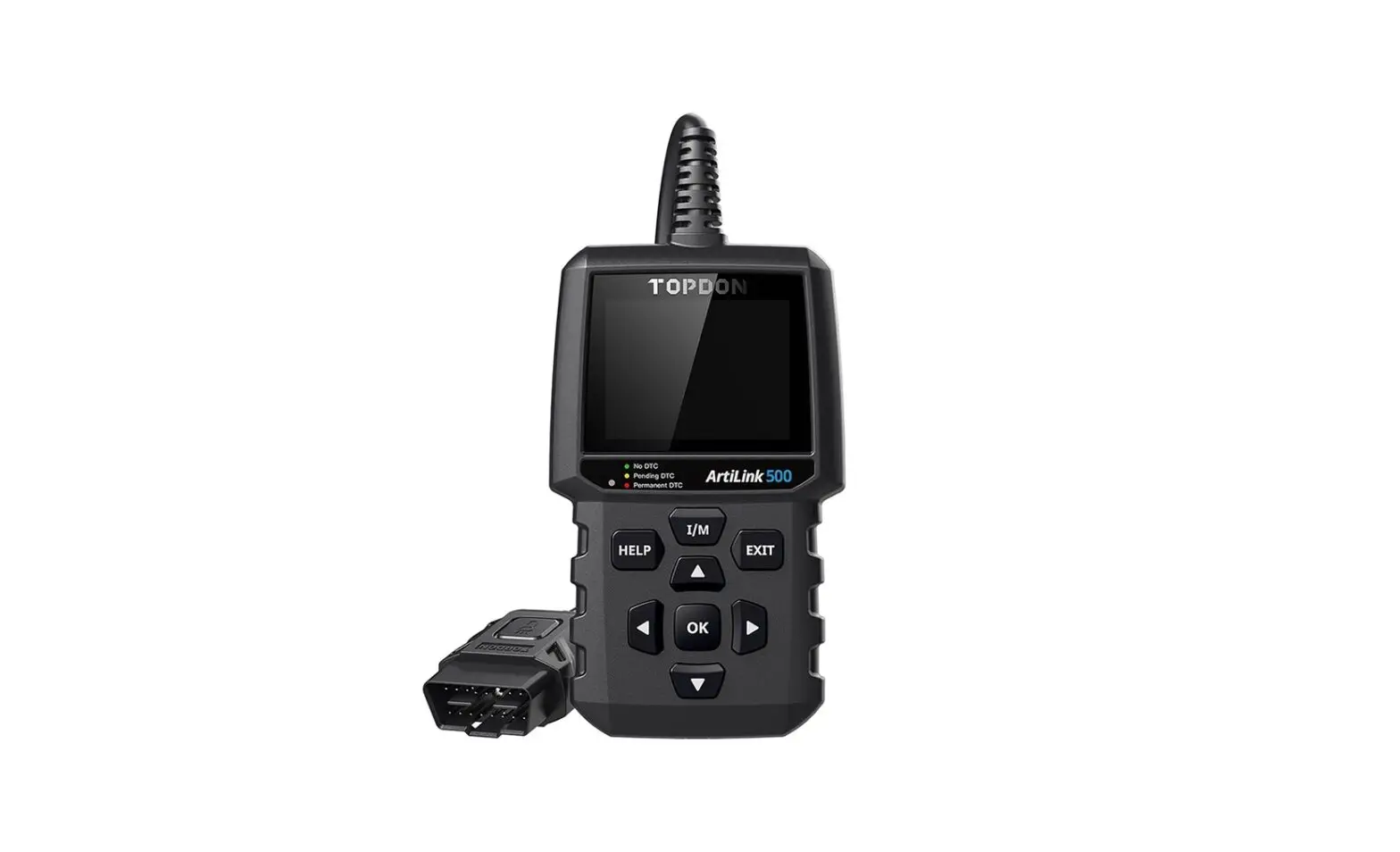
TOPDON ArtiLink 500 Multifunctional Obd2 Car Diagnostic Tool User Manual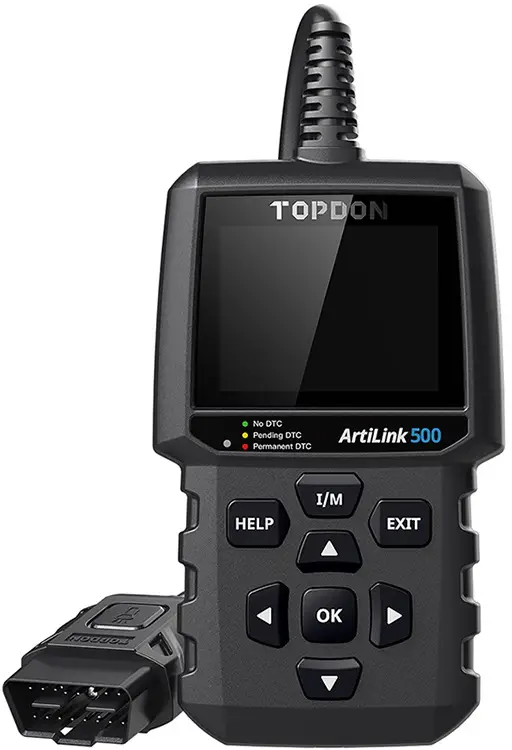
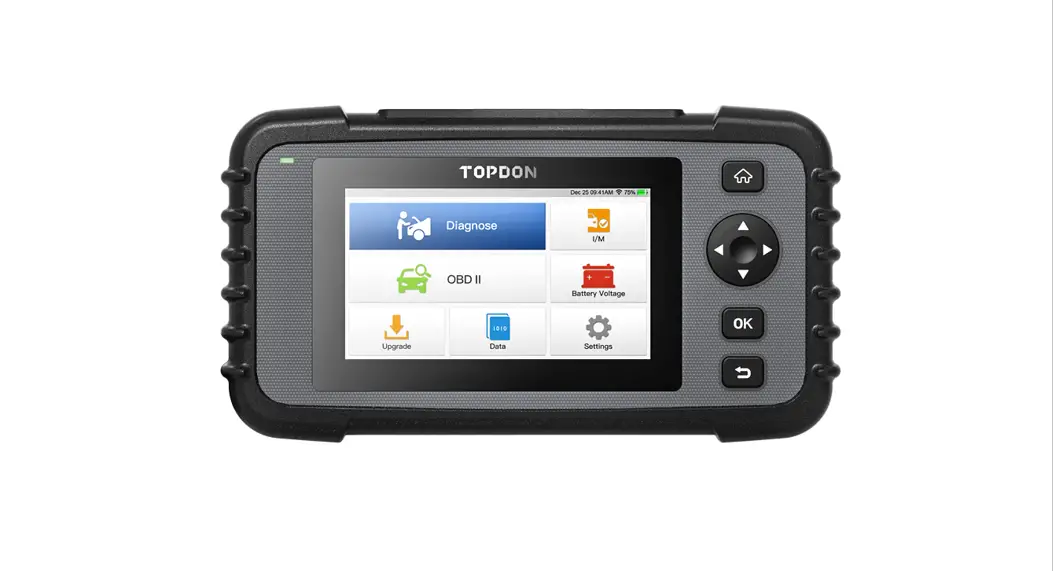
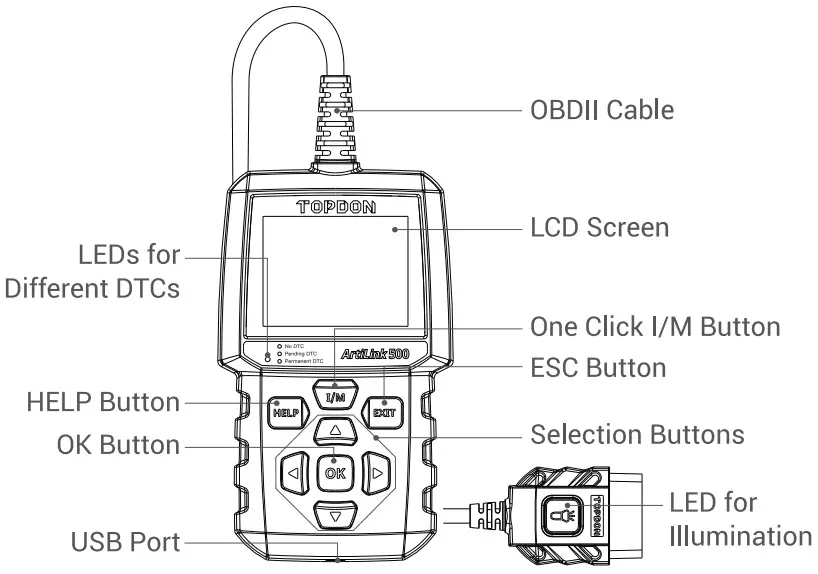
Product Overview
Upgrade
- Go to www.topdondiagnostics.com, click “SUPPORT” of the page, and select “Rom Update”.
- Download, decompress and install the TOPDON Update Tool in your computer (compatible with Windows XP, 7, 8 & 10).
- After the installation, connect ArtiLink500 to the computer via the USB cable.
- Power up ArtiLink500.Launch the TOPDON Update Tool in your computer.
- Click [Device Upgrade] once the ArtiLink500 Serial Number is retrieved.
- Register your information. Click [Submit] to the update center.
- Click [Upgrade].
- ArtiLink500 will reboot automatically after the upgrade is successful.
Preparation
- The ignition is turned on.
- The vehicle battery voltage is 9-18 volts.
- The throttle is in the closed position.
Start Diagnostics
- Locate the vehicle’s DLC port for OBDII connection.
- Connect ArtiLink500’s OBDII cable to the vehicle’s DLC port.
- ArtiLink500 will power on automatically, and be ready to use.
IMPORTANT: Read the instruction carefully and use the unit properly before operating. Fail to do so may cause damage and/or personal injury, which will void the product warranty.
NOTE: This Quick Start Guide is subject to change without written notice.