770G Insulin Pump
Product Information
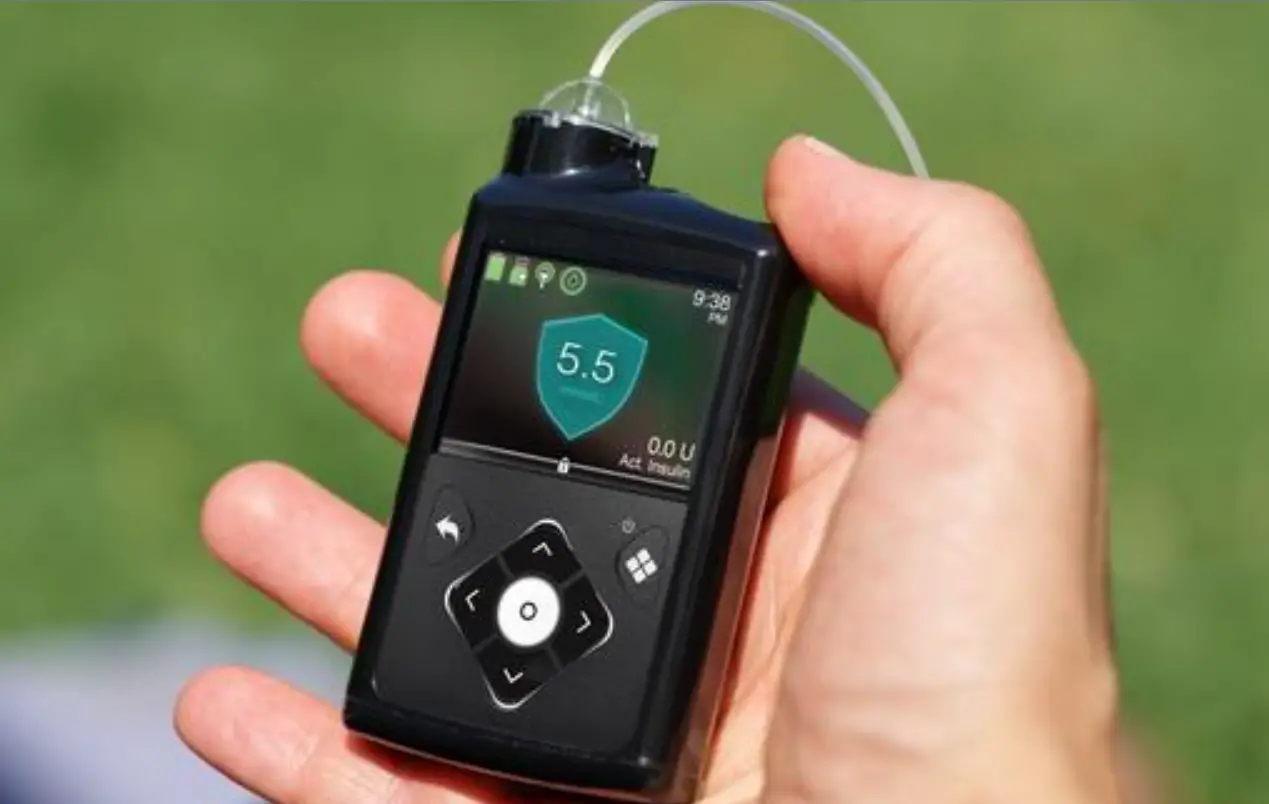
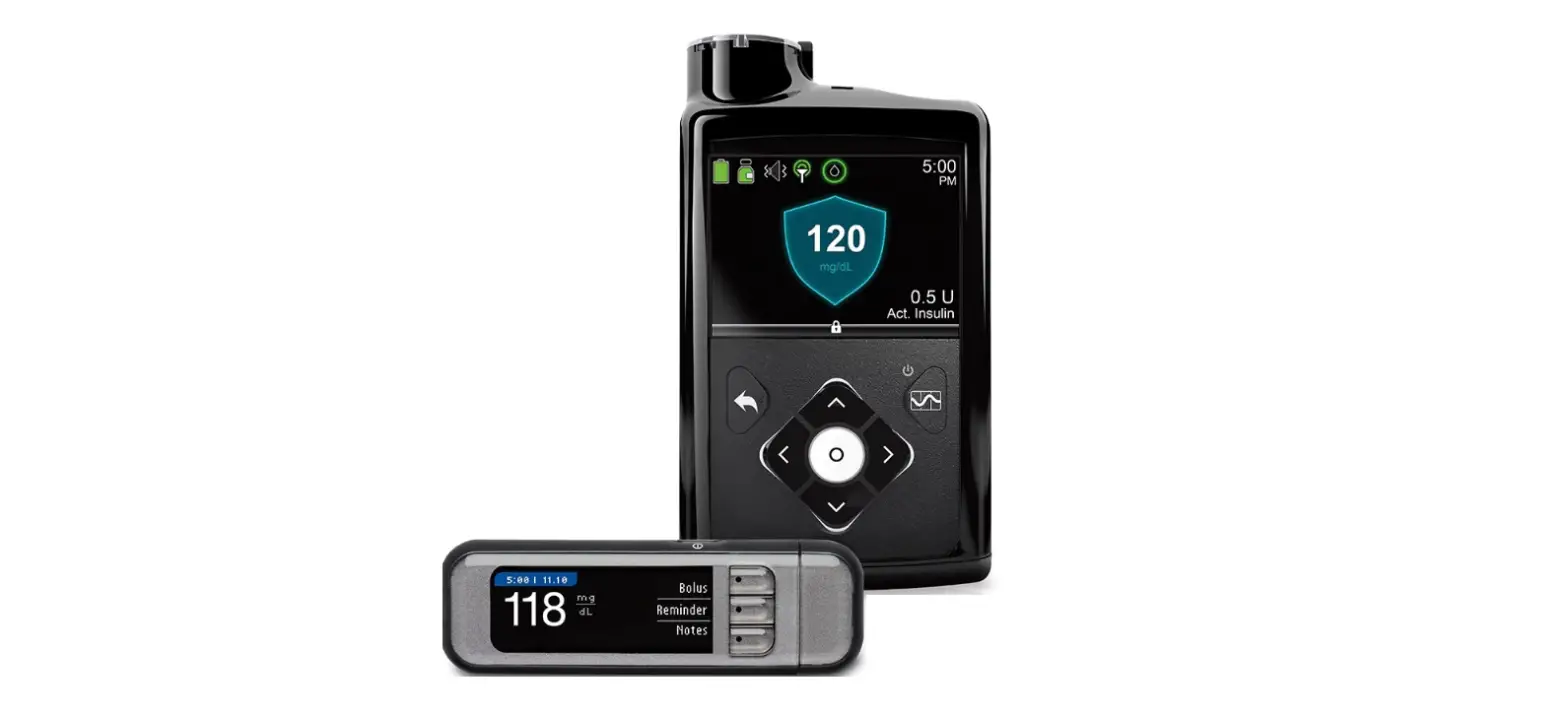
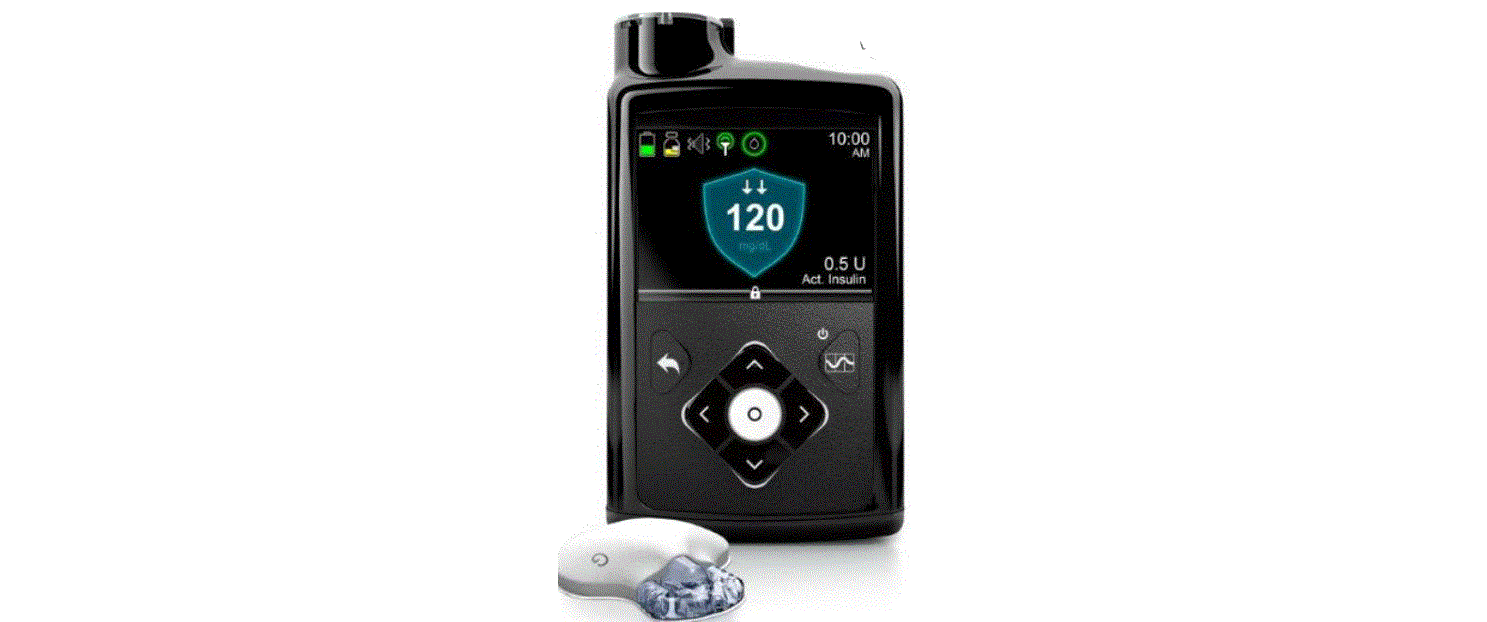
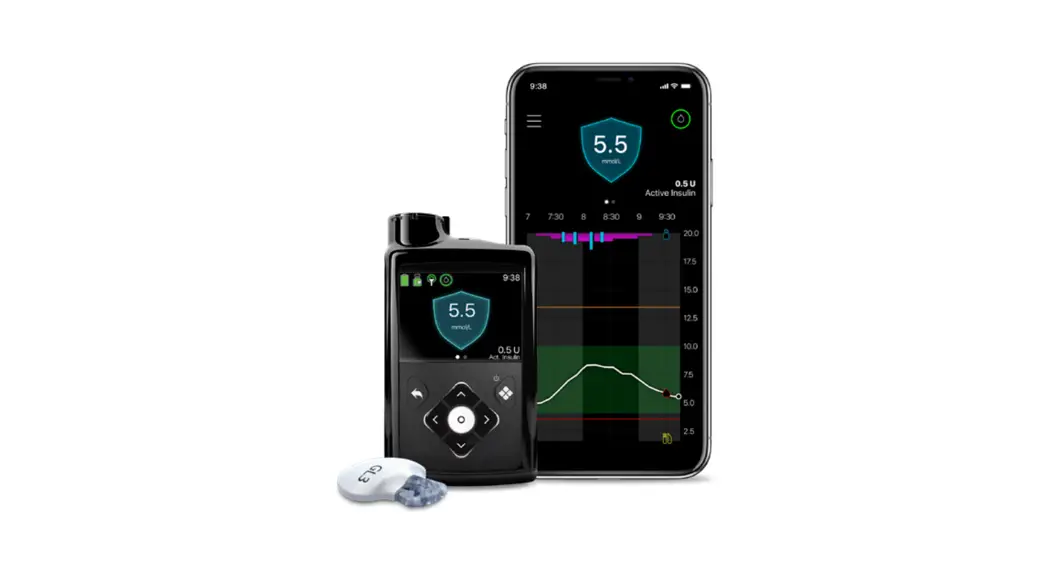
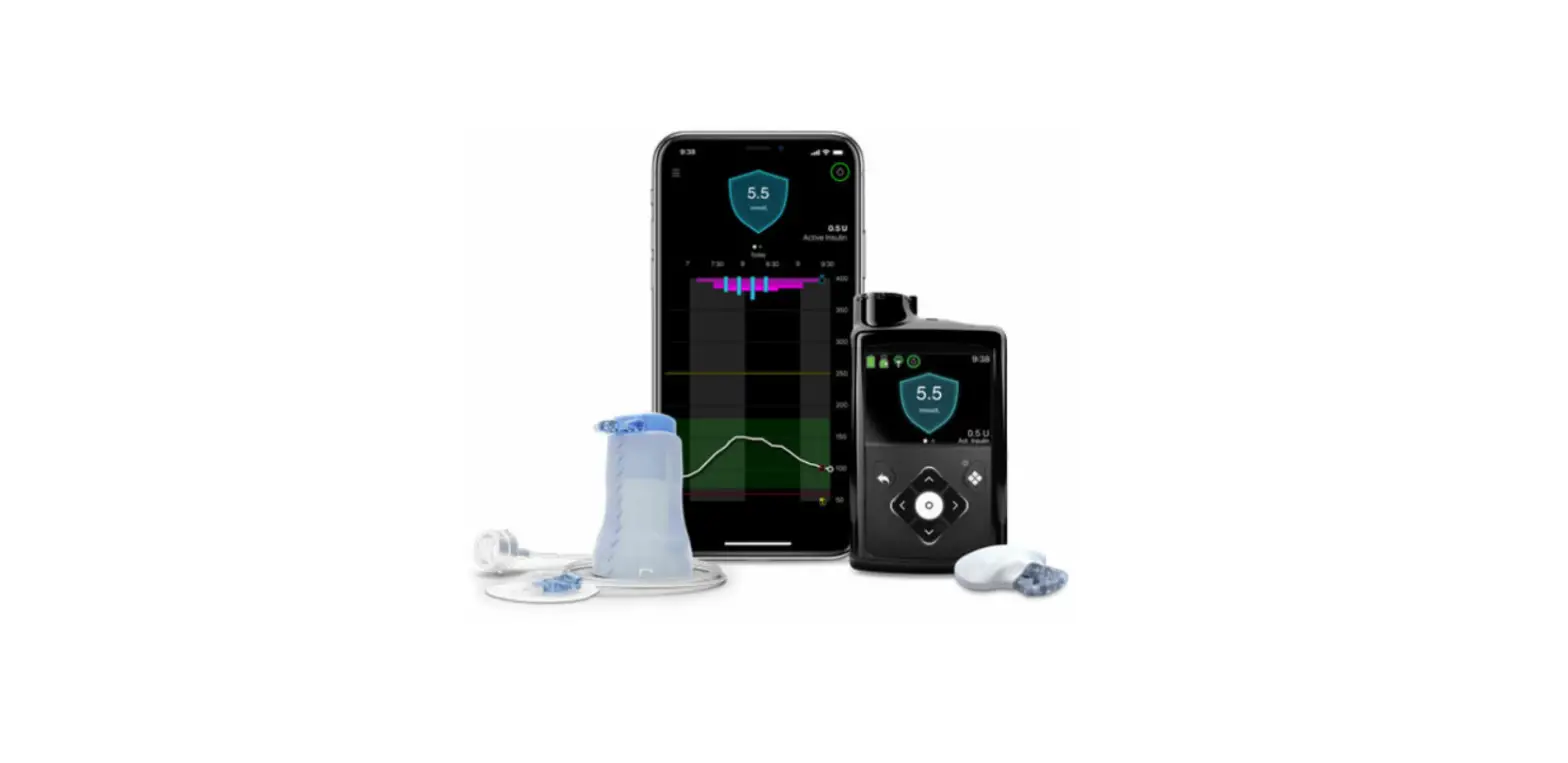
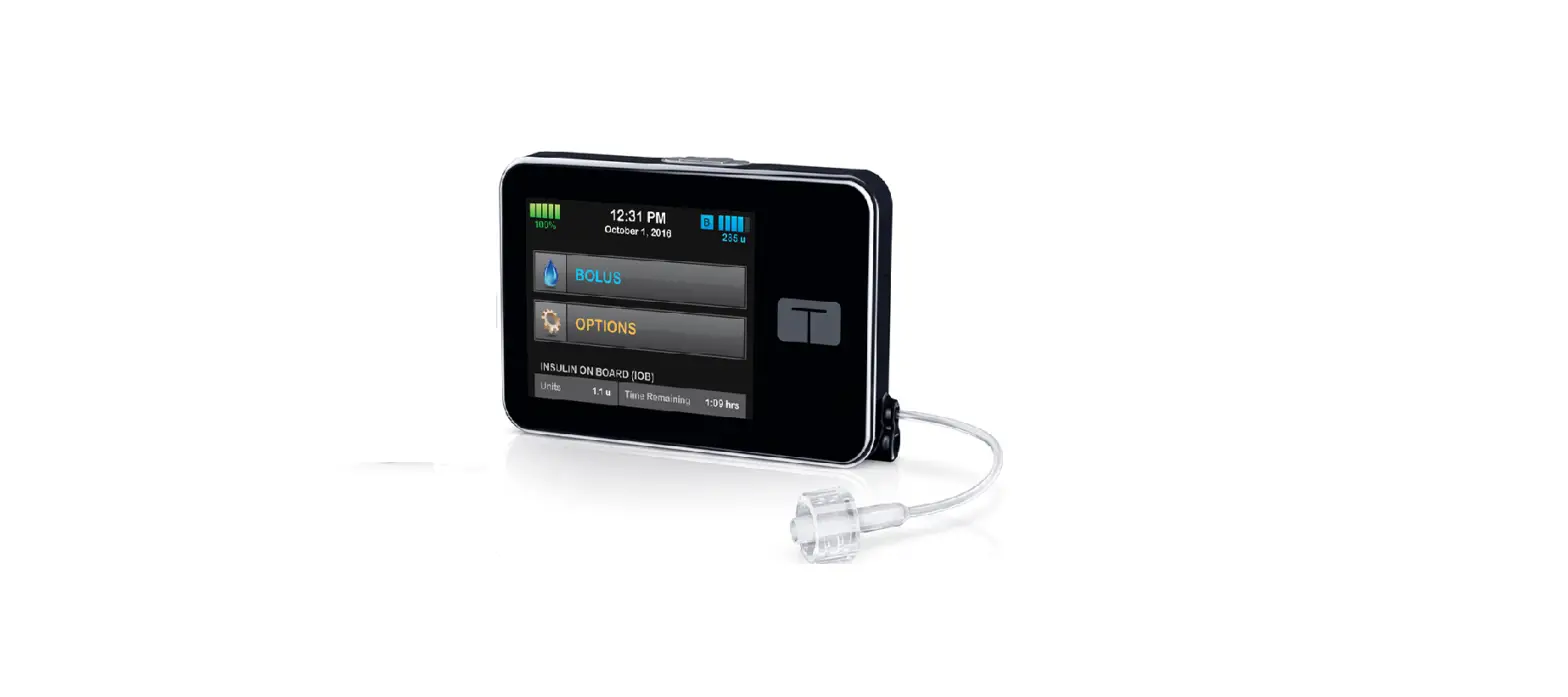
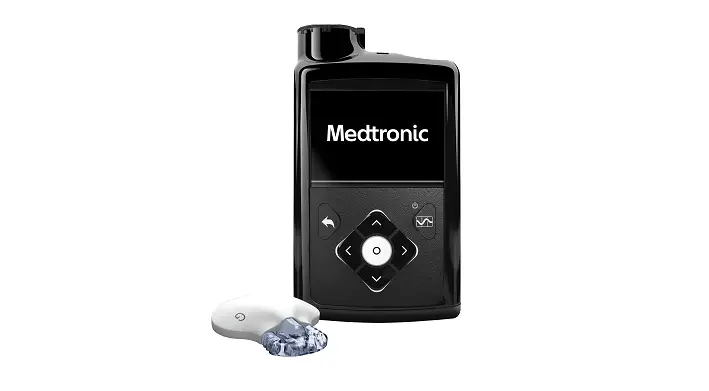
The MiniMedTM 770G Pump is an insulin pump used for delivering
insulin to individuals with diabetes. The MiniMedTM 780G Pump is
the upgraded version of the 770G pump. The user manual provides
instructions for transferring settings from the 770G pump to the
780G pump. Please note that the settings shown in the manual are
for illustration purposes only and may vary for each
individual.
Delivery Settings
The delivery settings control various aspects of insulin
delivery, including preset bolus setup, bolus increment, maximum
basal/bolus limits, easy bolus, auto suspend, and bolus speed.
Utilities
The utilities section includes options for turning the sensor
on/off and adjusting display settings such as brightness and auto
backlight. It also includes the SmartGuard Auto Mode feature, which
can be turned on/off and configured with high and low settings.
Sensor Settings
The sensor settings allow users to configure high and low
settings for the SmartGuard feature. Users can set high and low
limits, alerts before high/low, time before high/low, snooze
duration, and other custom settings.
Programming the MiniMed 780G Insulin Pump
The startup wizard provides step-by-step instructions for
setting up the MiniMed 780G insulin pump. This includes setting the
maximum basal and bolus amounts.
Product Usage Instructions
Transferring Settings from MiniMed 770G Pump to MiniMed 780G
Pump
- Record all settings from the MiniMed 770G pump on the provided
form. - Refer to the recorded settings when entering them into the new
MiniMed 780G pump.
Setting Max Basal on MiniMed 780G Insulin Pump
- Go to Menu > Delivery Settings.
- Select Max Basal/Bolus and press Enter.
- Select Max Basal and confirm by selecting Continue.
- Enter the desired basal rate in units per hour (U/hr) using the
up and down arrows. - Press Enter to save the setting.
Setting Max Bolus on MiniMed 780G Insulin Pump
- Go to Menu > Delivery Settings.
- Select Max Basal/Bolus and press Enter.
- Select Max Bolus and confirm by selecting Continue.
- Enter the desired bolus amount in units (U) using the up and
down arrows. - Press Enter to save the setting.
Please note that the above instructions are for illustration
purposes only. Your specific settings may be different.
TRANSFER SETTINGS
MiniMedTM 770G Pump to MiniMedTM 780G Pump
Transfer Settings: MiniMed 770G pump to MiniMed 780G pump STEP 1 Copy your current settings onto the insulin pump settings form. If for any reason you cannot copy the settings, please contact your healthcare professional. STEP 2 Insert a AA battery into your new pump. You can use either a lithium, alkaline, or rechargeable battery. STEP 3 Follow the instructions found in this guide to enter the settings that you have recorded on the insulin pump settings form into your new pump. For additional information on your pump, please consult the MiniMed pump system user guide.
Note: The settings shown in this guide are for illustration purposes only — your settings may be different.
Settings from the MiniMed 770G insulin pump We recommend that you record all settings on this form and use this form as reference when you enter your settings into the new pump
Delivery Settings, Utilities, SmartGuard
DELIVERY SETTINGS BOLUS WIZARD SETUP: Menu > Bolus > Delivery Settings > Bolus Estimate Setup Bolus Wizard: On Off Carb Ratio: 12:00 A ________ ________ g/U ________ ________ ________ g/U ________ ________ ________ g/U Insulin Sensitivity Factor: 12:00 A ________ ________ mg/dL/U ________ ________ ________ mg/dL/U ________ ________ ________ mg/dL/U BG Target: 12:00 A ________ ________-________ mg/dL ________ ________ ________-________ mg/dL ________ ________ ________-________ mg/dL Active Insulin Time: ________________ hr BASAL PATTERN SETUP: Menu > Basal > Delivery Settings > Basal Pattern Setup Basal 1: 12:00 A ________ ________ U/hr ________ ________ ________ U/hr ________ ________ ________ U/hr Basal Pattern Name: ________________________ 12:00 A ________ ________ U/hr ________ ________ ________ U/hr ________ ________ ________ U/hr PRESET TEMP SETUP: Menu > Options > Delivery Settings > Preset Temp Setup Preset Temp Name: ________________________ Type: Rate __________ U/hr Percent __________ % Duration ________ hr DUAL/SQUARE WAVE: Menu > Options > Delivery Settings > Dual/Square Wave Dual: On Off Square: On Off
DELIVERY SETTINGS (CONT.) PRESET BOLUS SETUP: Menu > Options > Delivery Settings > Preset Bolus Setup Preset Bolus Name: ________________________ Bolus: __________ U Type: __________ __________ Now __________ Square Duration ________ hr BOLUS INCREMENT: Menu > Options > Delivery Settings > Bolus Increment
0.025 U 0.05 U 0.1 U MAX BASAL/BOLUS: Menu > Options > Delivery Settings > Max Basal/Bolus Max Basal: __________ U/hr Max Bolus: __________ U EASY BOLUS: Menu > Options > Delivery Settings > Easy Bolus
On Off Step Size ____________ U AUTO SUSPEND: Menu > Options > Delivery Settings > Auto Suspend Alarm: On Off Time: ________ hr BOLUS SPEED: Menu > Options > Delivery Settings > Bolus Speed
Standard Quick UTILITIES TURN SENSOR ON: Menu > Options > Utilities > Sensor Settings Sensor: On Off DISPLAY OPTIONS: Menu > Options > Utilities Brightness ________ Auto Backlight ________________ sec / min SMARTGUARD AUTO MODE: Menu > Options > SmartGuard Auto Mode: On Off Auto Mode BG alert: On Off
Sensor Settings
HIGH SETTINGS Menu > Options > SmartGuard > High Setup
High Limit
Alert before high
Time before high
12:00A – __________ ________ mg/dL
On
__________ min
________ – __________ ________ mg/dL On
__________ min
________ – __________ ________ mg/dL On
__________ min
SNOOZE Menu > Options > SmartGuard > Snooze > High Snooze: __________ hr
a Option only available when the Rise Alert feature is set to on
Alert on high On
Rise Alert On
On
On
On
On
Rise Limita
Custom __________ mg/dL/min or | |
Custom __________ mg/dL/min or | |
Custom __________ mg/dL/min or | |
LOW SETTINGS Menu > Options > SmartGuard > Low Setup
Low Limit
Alert before low
Alert on low
12:00A – __________ ________ mg/dL
On
On
________ – __________ ________ mg/dL
On
On
________ – __________ ________ mg/dL
On
On
SNOOZE Menu > Options > SmartGuard > Snooze > Low Snooze: __________ hr
a Option only available when the Suspend on low feature or the Suspend before low feature is set to on
Suspend before low On On On
Suspend on low On On On
Resume basal alerta On On On
Programming the MiniMed 780G insulin pump Startup Wizard
Note: The settings shown in this guide are for illustration purposes only — your settings may be different.
Once you’ve inserted the battery, the pump powers up and the Startup Wizard begins; it will guide you through setting language, time format, and current time and date. 1. Select English. 2. When the Select Time Format screen appears, select a 12 Hour or a 24 Hour time format. 3. When the Enter Time screen appears, the hour will be flashing. Press or to the correct hour and press . 4. The minutes will be flashing. Press or to the correct minutes and press . 5. The AM / PM will be flashing. Press or if needed and press . Select Next. 6. When the Enter Date screen appears, select Year. Press or to the correct year and press . Repeat this step to set up Month and Day. Select Next. 7. The Rewinding screen will briefly appear, followed by a confirmation message. Select OK.
Setting Max Basal
Note: The settings shown in this guide are for illustration purposes only — your settings may be different.
Menu > > Delivery Settings 1. Select Max Basal/Bolus and press . 2. Select Max Basal. A confirmation message appears. Select Continue. 3. Select Max Basal to enter the U/hr amount. Use and to set the Max Basal amount. Press . 4. Select Save.
Setting Max Bolus
Note: The settings shown in this guide are for illustration purposes only — your settings may be different.
Menu > > Delivery Settings 1. Select Max Basal/Bolus and press . 2. Select Max Bolus. A confirmation message appears. Select Continue. 3. Select Max Bolus to enter the units (U) amount. Use and to set the Max Bolus amount. Press . 4. Select Save.
Setting a Basal Pattern
WARNING: The pump is intended to be used with a basal pattern. The basal pattern must be manually entered and saved into the pump. The pump will operate with a basal rate of 0.0 U/hr until a basal pattern is entered and saved. There is no reminder message to program basal rates. Consult a healthcare professional to determine what basal pattern is needed. For more information about basal patterns, consult the MiniMed 780G System User Guide.
Note: The settings shown in this guide are for illustration purposes only — your settings may be different.
Menu > > Delivery Settings > Basal Pattern Setup 1. Select Basal 1. 2. Select Options, then select Edit. 3. Press to enter End time. Press to leave the end time at 12:00A. If you are setting multiple rates use or to change the end time and press . 4. Press to enter U/hr and press . 5. Continue adding end times and basal rates as needed. The end time for your last rate must be 12:00A. 6. The Review option appears only when the last end time in your basal pattern is set to 12:00A. Select Review after all rates are entered to go to the next screen. Note: Your basal rates have not yet been saved. 7. A screen appears that lets you review your basal pattern. Press to review all the settings. If you need to make any changes, press to return to the edit screen. Note: If you press to return to the edit screen without saving, your changes will not be saved. After making any changes on the edit screen, select Review to return to the review screen. 8. Select Save. If you do not select Save, your changes are not saved.
CAUTION: If you have not selected Save after settings are entered and the screen goes dark, the entered settings will not be saved.
Turn On and Set Up the Bolus Wizard Feature
Note: The settings shown in this guide are for illustration purposes only — your settings may be different.
Menu > > Delivery Settings > Bolus Wizard Setup 1. Select Bolus Wizard to turn the feature on. 2. Press to see the rest of the message then select Next. 3. Review the description of carb ratio and select Next. 4. Press to enter End time. Press again to leave the end time at 12:00A. If you are setting multiple carb ratios use or to change the end time, then press . 5. Press or to enter g/U then press . Continue adding end times and carb ratios as needed. 6. Select Next when done. 7. Review the description of insulin sensitivity factor and select Next. 8. Press to enter End time. Press again to leave the end time at 12:00A. If you are setting multiple insulin sensitivity factors, use or to change the end time, then press . 9. Press or to enter mg/dL per U, then press . Continue adding end times and insulin sensitivity factors as needed.
10. Select Next when done. 11. Review the description of BG target and select Next. 12. Press to enter End time. Press again to leave the end time at 12:00A. If you
are setting multiple BG targets, use or to change the end time, then press . 13. Press or to enter the low limit (Lo) and then press . 14. Press or to enter the high limit (Hi) and then press . Continue adding end times and BG targets as needed. 15. Select Next when done. 16. Review the description of active insulin time and select Next. 17. Press to enter the duration for the active insulin time. 18. Press or to enter the hours of duration then press . 19. Select Save. The Bolus Wizard feature setup is now complete.
Turn Sensor On
Note: The settings shown in this guide are for illustration purposes only — your settings may be different.
Menu > > Device Settings · Select Sensor to turn the feature on. You can now access the SmartGuard menu
and enter the SmartGuard settings.
Pair the Transmitter
Note: The settings shown in this guide are for illustration purposes only — your settings may be different.
Menu > 1. Attach GuardianTM 4 transmitter to the charger and place the transmitter (attached to the charger) next to the pump. 2. Select Pair New Device on the pump and immediately remove the transmitter from the charger. 3. The Select Device screen appears with a list of available devices. Select the CGM device that matches the serial number indicated on the back of the transmitter.
Your pump displays a message if the pump and transmitter are paired successfully. When the transmitter is communicating with the pump, the Sensor feature is turned on and appears on the Home screen.
Programming High SG Settings
Note: The settings shown in this guide are for illustration purposes only — your settings may be different.
Menu > > Alert Settings 1. Select High Alert. The High Setup screen appears. 2. Press on the time segment. Press again to leave the End time at 12:00A. If setting multiple time segments, press to enter the end time of the first segment, and press . 3. Press or to set the high limit (Hi) and press . Press to continue. 4. Select each setting you wish to turn on. If a setting is on, select it again to turn it off. 5. Once settings are selected, select Next. If needed, continue adding time segments and settings to complete the 24-hour period. When done, select Review. 6. Verify that settings are correct and select Save. 7. If snooze time needs to be changed, press to Snooze High & Low and press . Select High Snooze. Press or to set up the desired duration and press . Select Save.
Your High Setup is now complete.
Programming Low SG Settings
Note: The settings shown in this guide are for illustration purposes only — your settings may be different.
Menu > > Alert Settings 1. Select Low Alert. The Low Setup screen appears. 2. Press on the time segment. Press again to leave the End time at 12:00A. If setting multiple time segments, press to enter the end time of the first segment, and press . 3. Press or to set the low limit (Lo) and press . Press to continue. 4. Select each setting you wish to turn on. If a setting is on, select it again to turn it off. 5. Once settings are selected, select Next. If needed, continue adding time segments and settings to complete the 24-hour period. When done, select Review. 6. Verify that settings are correct and select Save. 7. If snooze time needs to be changed, press to Snooze High & Low and press . Select Low Snooze. Press or to set up the desired duration and press . Select Save.
Your Low Setup is now complete.
Turn SmartGuard On
Note: The settings shown in this guide are for illustration purposes only — your settings may be different.
Menu > 1. Select SmartGuard to turn the SmartGuard feature on. 2. Review the message on the screen and select OK. 3. Review the SmartGuard Checklist to see if any additional requirements must be met before the SmartGuard feature can be activated. Press to view the checklist.
Note: The SmartGuard warm-up period begins at the first midnight after the pump starts delivering insulin. If you turn SmartGuard on before the warm up is complete, you may receive an alert at midnight to enter a BG for SmartGuard. You may want to wait until day 3 of your pump use to avoid this alert at midnight.
Programming SmartGuard Settings
Note: The settings shown in this guide are for illustration purposes only — your settings may be different.
Note: Make sure you consult with your healthcare provider on your personalized settings before programming the SmartGuard settings.
Menu > > SmartGuard Settings 1. Review the Target. 2. Press to change the target. 3. Press or to the desired target and then press . 4. Check to make sure that Auto Correction is set to On. Select Save.
Note: Please take some time to review ALL your settings and ensure they have been correctly saved. Technical Support In Need of Technical Assistance? 24-Hour Technical Support is here to help Call 1.800.646.4633 For medical advice, contact your healthcare team.
Medtronic MiniMed 18000 Devonshire Street Northridge, CA 91325 USA 1 800 646 4633 +1 818 576 5555 www.medtronicdiabetes.com
RF: M994838A001
© 2023 Medtronic M037936C001_1 2023-05-10
*M037936C001*
 Medtronic: Diabetes Products And Therapy Options