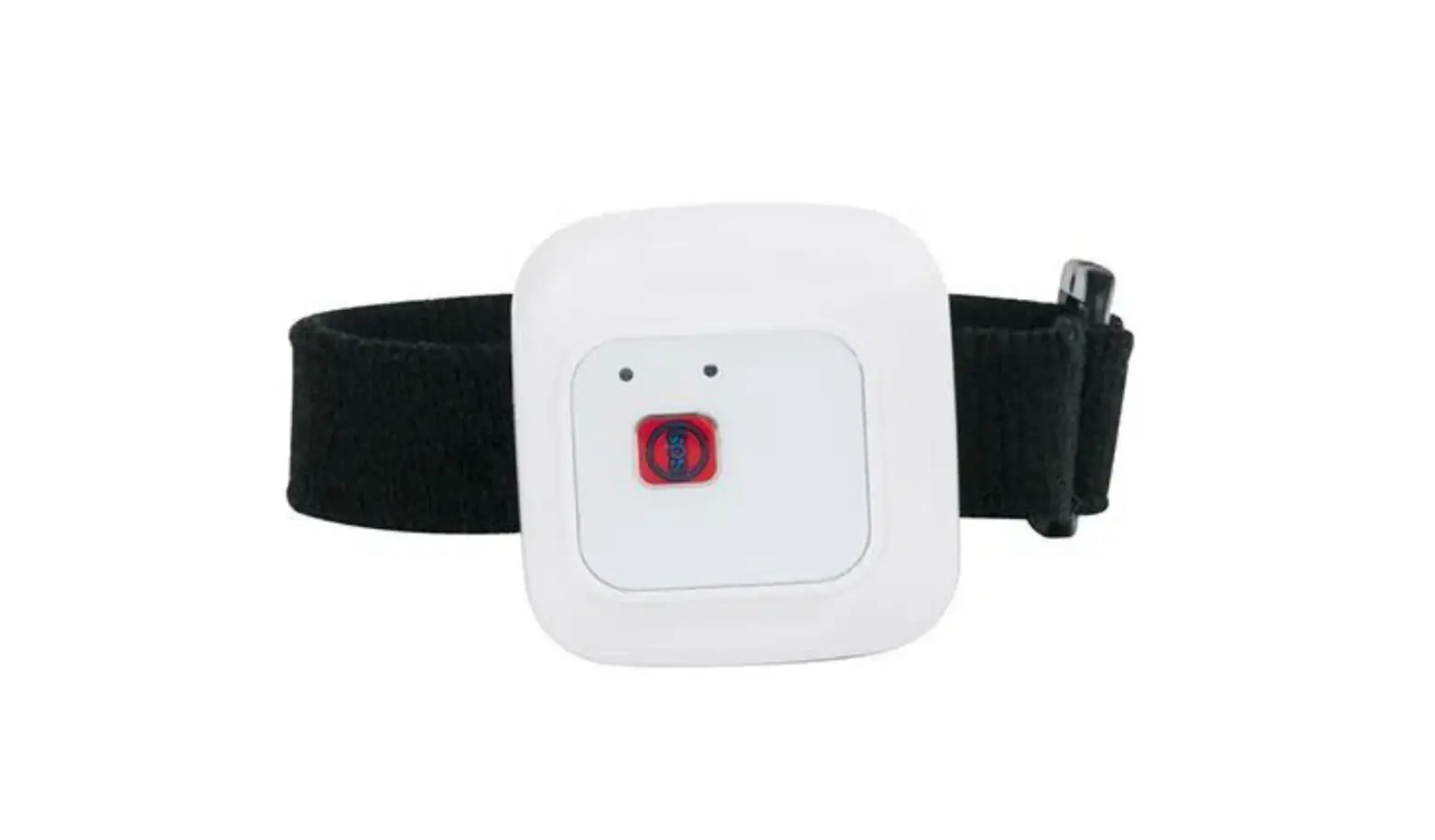
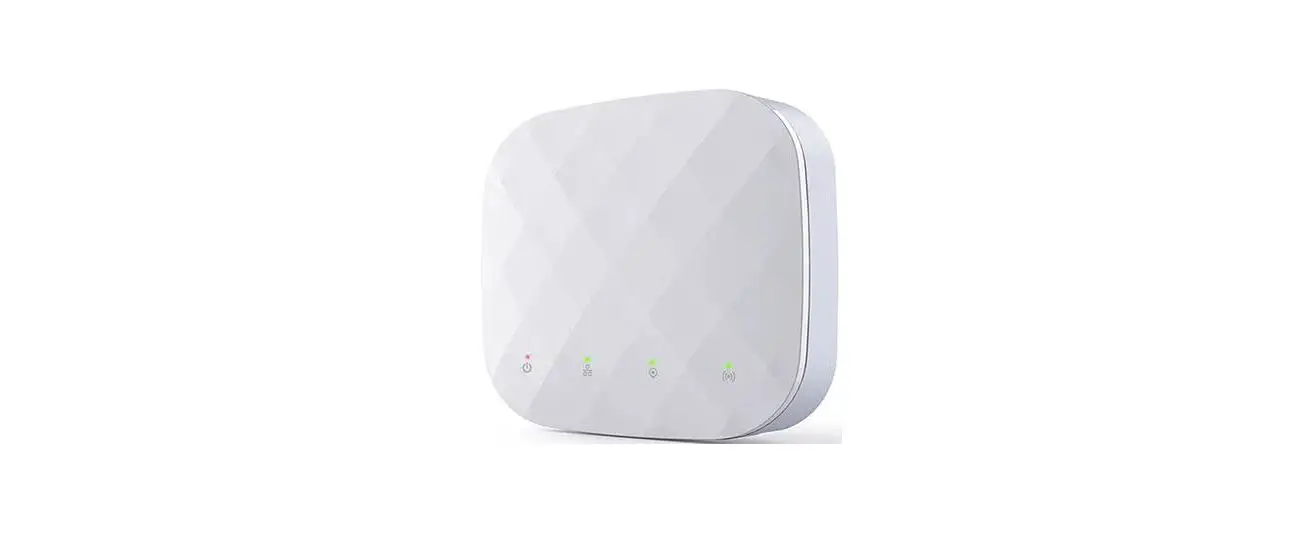
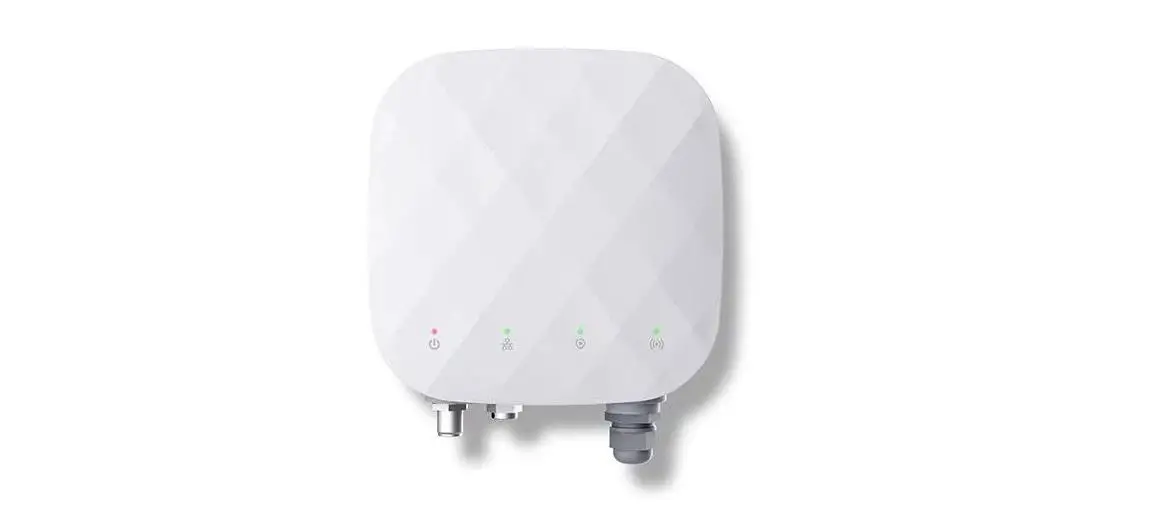
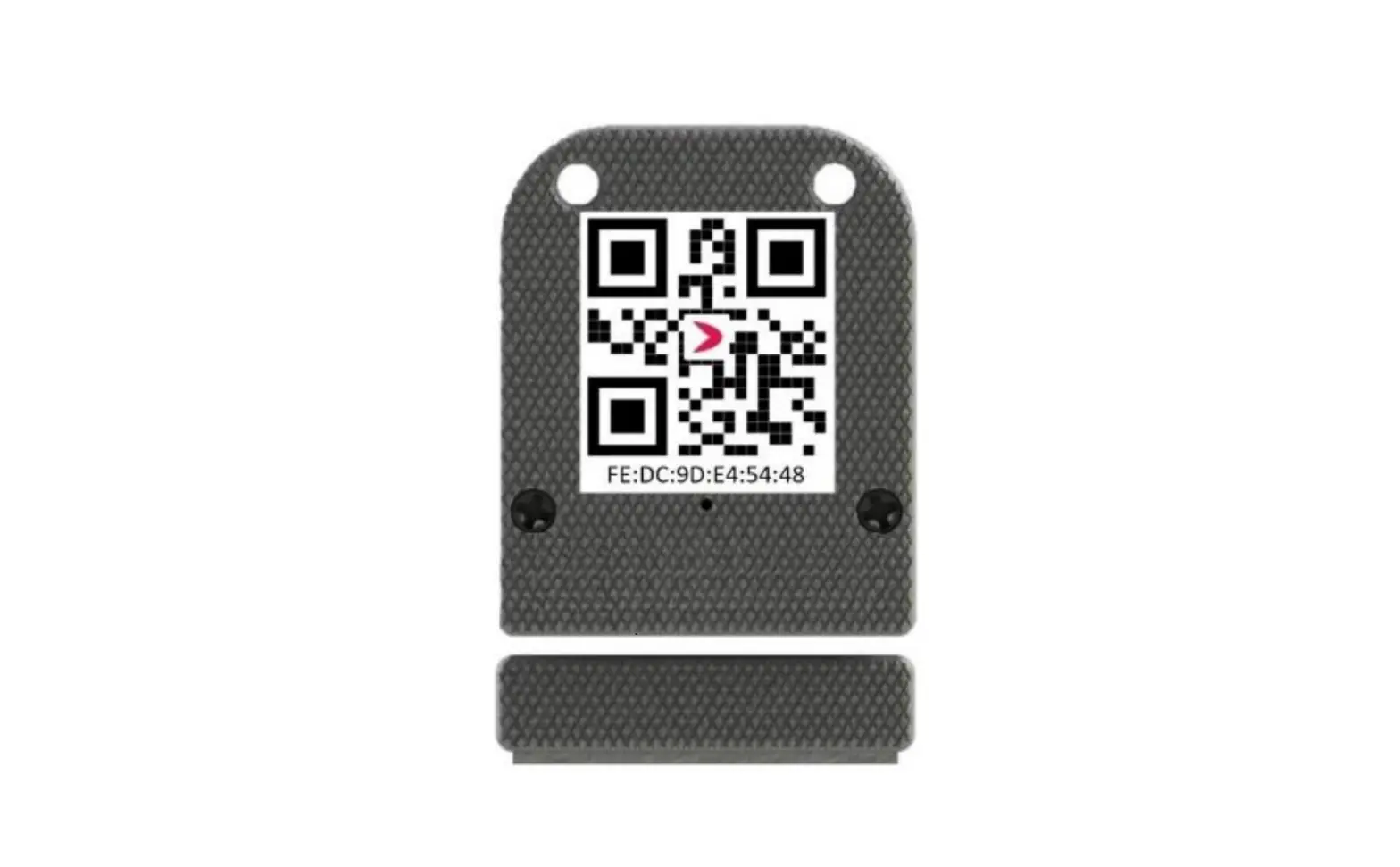
UT-224 UWB Tag
Product Information
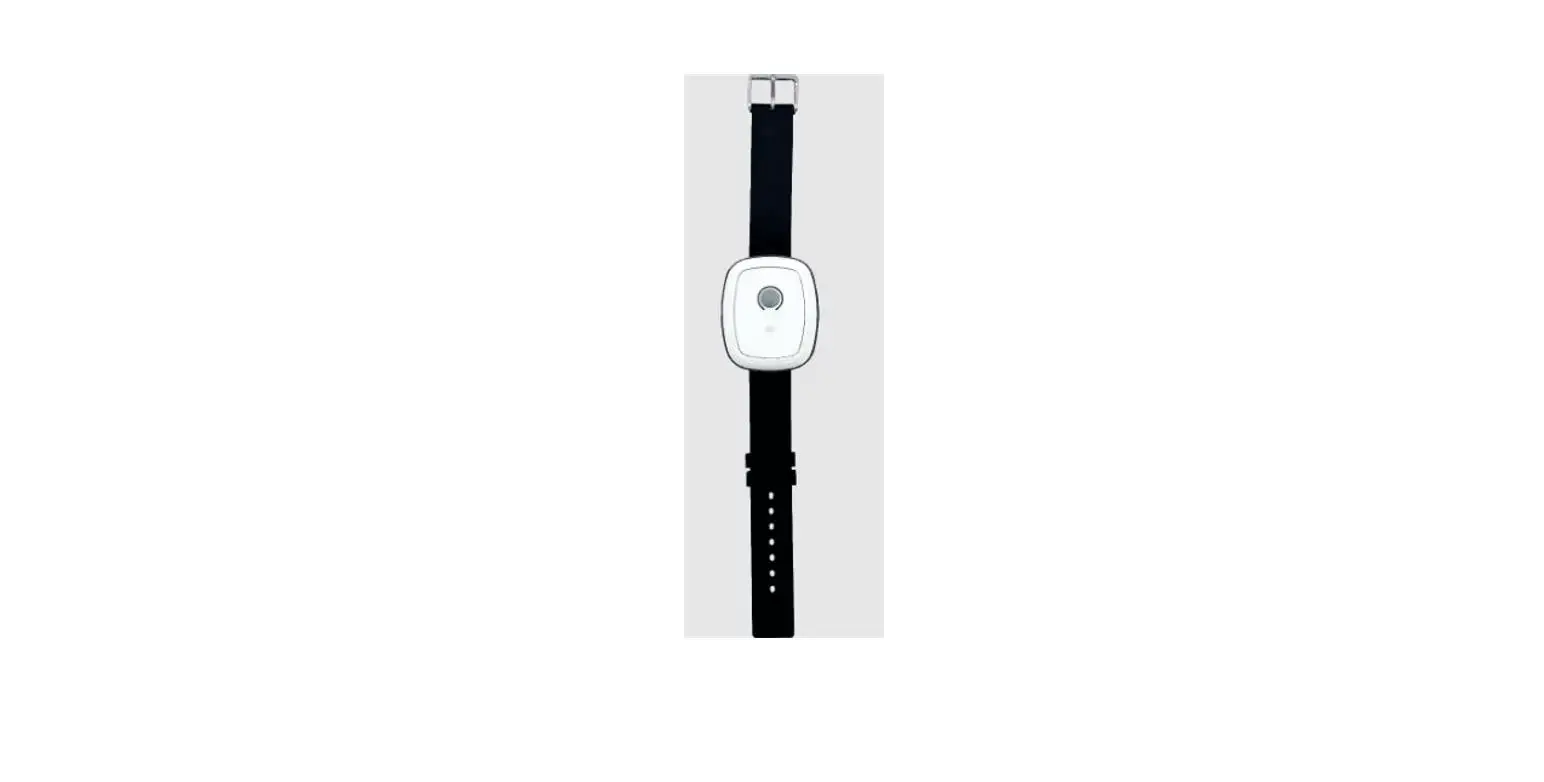
The UT-224 is a versatile device manufactured by Woxu Wireless
Co., Ltd. It features multiple interfaces and functions to enhance
your daily activities. The device includes six interfaces: main
interface, heart rate interface, blood oxygen interface, step
counting interface, message interface, and setting interface.
The main interface displays the time and date. Swiping left on
the screen will switch to the heart rate interface, which allows
you to measure and display your heart rate. Swiping right on the
heart rate interface will return you to the main interface. Swiping
left on the heart rate interface will switch to the blood oxygen
interface, which measures and displays your blood oxygen
levels.
The step counting interface shows your step count and progress.
Swiping right on this interface will switch to the message
interface, where you can view incoming messages. Swiping left on
the step counting interface will switch to the blood oxygen
interface.
The setting interface allows you to configure various settings
of the UT-224. To access this interface, swipe left on the message
interface or click the icon on the main interface.
Product Usage Instructions
Heart Rate Measurement
To measure your heart rate:
- Swipe left on the main interface to switch to the heart rate
interface. - Wait for the device to perform the heart rate measurement.
- The measured heart rate will be displayed on the screen.
Blood Oxygen Measurement
To measure your blood oxygen levels:
- Swipe left on the heart rate interface to switch to the blood
oxygen interface. - Wait for the device to perform the blood oxygen
measurement. - The measured blood oxygen level will be displayed on the
screen.
Step Counting
The step counting interface displays your step count and
progress:
- Swipe left on the main interface to switch to the step counting
interface. - Your step count and progress will be displayed on the
screen.
Message Display
The message interface allows you to view incoming messages:
- Swipe right on the step counting interface to switch to the
message interface. - You can view up to 10 saved messages on the screen. When more
than 10 messages are received, only the most recent 10 will be
displayed. - To exit the message interface, click the button on the
screen.
Device Configuration
To configure device settings:
- Swipe left on the message interface to switch to the setting
interface. - You can customize various settings on this interface.
Please refer to the UT-224 Use and Configuration Manual provided
by Woxu Wireless Co., Ltd for more detailed instructions and
information.
UT-224 use and configuration manual
Version:V01
Woxu Wireless Co., Ltd Copyright
UT-224 Use and Configuration Manual
www.woxuwireless.com 1 / 15
Content
1 Basic introduction of UT-224 ………………………………………………………………………………………………………. 5 1.1 Main interface …………………………………………………………………………………………………………….. 5 1.2 Heart rate interface ………………………………………………………………………………………………….. 5 1.3 Blood oxygen interface ………………………………………………………………………………………………. 6 1.4 Step counting interface …………………………………………………………………………………………….. 7 1.5 Message interface ……………………………………………………………………………………………………….. 8 1.6 Set interface ………………………………………………………………………………………………………………. 8 1.7 Situation bar ………………………………………………………………………………………………………………. 9 1.8 Button …………………………………………………………………………………………………………………………. 10 1.9 UWB ………………………………………………………………………………………………………………………………. 10
2 UT-224 Firmware Upgrade Process…………………………………………………………………………………………….. 10 2.1 Preparation……………………………………………………………………………………………………………………..11 2.2 Use nRF Connect software to upgrade the firmware of UT-224……………………………………………..11
9. Other description ……………………………………………………………………………………………………………………… 16
Version:V01
UT-224 Use and Configuration Manual
www.woxuwireless.com 4 / 20
1 Basic introduction of UT-224
UT-224 have six interface and one situation barSix interfaces are main interface, heart rate interface, blood oxygen interface, step counting interface, message interface, setting interface. The interface can be switched by swiping left or right, ach interface is responsible for one function, each interface is described in a section below.
1.1 Main interface
The main interface is mainly responsible for the display of time and date. Slide to the right and there is no response. Slide to the left and switch to the heart rate interface, the real interface is shown below.
1.2 Heart rate interface
Heart rate interface is mainly responsible for heart rate measurement and heart rate display function, Swipe right to switch to the main interface, swipe left to switch to the blood oxygen screen.
1. Start heart rate detection When switching from the main interface or blood oxygen interface to the heart rate interface, And stay in the heart rate interface for 6 seconds when the heart rate detection startedYou can see the green light flashing on the back of UT-224, Heart rate results will be detected in about 20 seconds, And updates the heart rate results to the screen in real time. Heart rate interface reminder functionWhen the heart rate is activated, The heart rate picture flashes at a frequency of 1HZ, When the detection is not started or the result is detected, the icon light is on. 2. Turn off heart rate monitoring
Version:V01
UT-224 Use and Configuration Manual
www.woxuwireless.com 5 / 20
When switching from the heart rate screen to another screen or turning off the screen, Heart rate monitoring will stop.
Heart rate periodic detection function, In the resting situation, the test is performed every five minutes for 40 seconds each time.
1.3 Blood oxygen interface
Blood oxygen interface is mainly responsible for blood oxygen measurement and blood oxygen display function, Swipe right to switch to the pedometer screen, swipe left to switch to the heart rate screen.
1. Start the blood oxygen test When you switch from another interface to the blood oxygen interface, And the blood oxygen detection started when the blood oxygen interface stayed for 6 secondsYou can see that the red light on the back of UT-224 is steady on, After about 30 seconds, blood oxygen results will be measured and blood oxygen results will be updated to the screen in real time. Blood oxygen interface reminder functionWhen the blood oxygen was activatedBlood oxygen images were flickered at a frequency of 1HZWhen the detection is not started or the result is detected, the icon light is on Meanwhile, a warm reminder phrase “Warm reminder: Please keep your arm still” will be displayed during the detection process.
2. Shut down the blood oxygen test When switching from blood oxygen screen to another screen or turning off the screen, Blood oxygen monitoring will be stop.
Version:V01
UT-224 Use and Configuration Manual
www.woxuwireless.com 6 / 16
1.4 Step counting interface
Step counting interface includes step count and progress, Mainly responsible for step number display function, Swipe right to switch to the message screen, swipe left to switch to the blood oxygen screen.
The default target number of steps is 10000, The progress follows the new progress based on the current number of stepsFor example, the current walk 2500 steps, the progress into the degree of 25%. As shown in the figure below, 0 represents the number of steps taken, and the small yellow circle represents the progress circle. One round of the progress circle means that 10,000 steps have been taken, and the progress is 100%. If the number of steps exceeds 10,000, steps will continue to be counted and displayed normally, but the circle will not change. Step counting starts at 0 am, step count and progress are cleared the next day. Restart the device will clear the number of steps.
Version:V01
UT-224 Use and Configuration Manual
www.woxuwireless.com 7 / 16
1.5 Message interface
1Message interface is mainly responsible for message display functionSwipe right to switch to step counting interface, swipe left to switch to setting interface, and click the icon to enter the message interface, Click the button to exit, A maximum of 10 messages can be saved. After 11 phrases are sent, only 10 phrases are displayed. The first phrase is replaced.
1.6 Set interface
The setting interface is mainly responsible for setting functions. Swipe right to switch to the message interface, swipe left to get no response, click the icon to enter the setting interface, slide down to click the button to exit.
Language Mode The interface supports switching between Chinese and English, which takes effect immediately after setting the language mode.
Version:V01
UT-224 Use and Configuration Manual
www.woxuwireless.com 8 / 16
1.7 Situation bar
The situation bar consists of signal icon, Bluetooth icon, battery percentage icon, and battery icon. Power percentage displays real-time powerWhen the charger is connected, the electric quantity is displayed in greenWhen the charger is disconnected, the electric quantity is displayed in white. The battery icon changes dynamically in real time according to the current battery quantity, as shown in the following figure
Version:V01
UT-224 Use and Configuration Manual
www.woxuwireless.com 9 / 16
1.8 Button
The button is used to turn off the screen, turn on the screen, and restart the screen. When you press the button, the screen turns on or off. Hold down the button for 10 seconds and release the button to restart the system. Press and hold down the button for 3s to send an SOS alarm.
1.9 UWB
UWB support to channel 5 and9, default ID is 0x10000000, The default ranging mode is TOF when it online.
2 UT-224 Firmware Upgrade Process
Ut-224 firmware upgrade tools requireda smart phoneiOSAndroidnRF Connect softwareone UT-224 UT-224 firmware.
Version:V01
UT-224 Use and Configuration Manual
www.woxuwireless.com 10 / 16
2.1 Preparation
1. Before upgrading, please kindly confirm that the UT-224 has sufficient power. If the power is not sufficient, please connect it to the charger to ensure that the power will be not off during the firmware upgrade process.
2. Download and install the nRF Connect software in the phone. 3. Please kindly save the firmware of UT-224 in the directory of the mobile phone, the name of firmware may not be “app apdate”, please refer to the actual name, as shown in the following picture.
2.2 Use nRF Connect software to upgrade the firmware of UT-224
Before upgrading the firmware, please place the UT-224 as close as possible to the mobile phone. 1. Open the nRF Connect software, click the two ENABLE buttons on the interface, the interface is as shown in the picture below.
Version:V01
UT-224 Use and Configuration Manual
www.woxuwireless.com 11 / 16
1. After finishing the previous step, the interface will enter the following interface. If you enter the interface of this step directly after opening the software, you do not need to operate the first step.
2. Click the “SCAN” button and you will see a lot of Bluetooth devices, find the Bluetooth device named “nus_netcore” (this device is the UT224 device), if you can’t find the “nus_netcore” Bluetooth device, click the “SCAN” button again to find.
Version:V01
UT-224 Use and Configuration Manual
www.woxuwireless.com 12 / 16
3. Click the connect button, the interface will jump to the CLIENT sub-interface, if there is no jump, please manually change to this page.
4. Click the “DFU” button in the upper right corner of the CLENT sub-interface to enter the interface of file management, and then find the firmware in the third step of section 2.1, then click the file named “app_update.bin”, finally click the ” OK” button.
Version:V01
UT-224 Use and Configuration Manual
www.woxuwireless.com 13 / 16
5. In the “Select mode” interface, select the option of “Confirm only”, and then click the “OK” button to enter the upgrade interface
Version:V01
UT-224 Use and Configuration Manual
www.woxuwireless.com 14 / 16
6. The upgrade interface is shown in the picture below. Please be patient and wait for the progress bar to reach 100% (the upgrade process takes about 6 minutes). During this process, please try not to perform other operations on both UT224 and the mobile phone to ensure the stability of the upgrade process.
Version:V01
UT-224 Use and Configuration Manual
www.woxuwireless.com 15 / 16
7. After the progress bar reaches 100%, UT-224 will be upgraded internally. And this process will take about two minutes. Do not perform any operation on UT-224 at this time! ! ! After the upgrade is finished, the UT-224 will automatically turn on the screen, which means that the upgrade is complete. At this time, the UT-224 interface is shown as the picture below.
8. After the upgrade is complete, you can turn off the Bluetooth and nRF Connect software
9. Other description
The phones used in this document are Android phonesThe nRF Connect software is also available on Android, Note If you use an IOS mobile phone, download the latest VERSION of nRF Connect. The operating process of nRF Connect for IOS is the same as that for Android.
FCC Statement Any Changes or modifications not expressly approved by the party responsible for compliance could void the user’s authority to operate the equipment. This device complies with part 15 of the FCC Rules. Operation is subject to the following two conditions: (1) Thisdevicemaynotcauseharmfulinterference,and (2) Thisdevicemustacceptanyinterferencereceived,includinginterferencethatmaycauseundesiredoperation. RF warning for Portable device: The device has been evaluated to meet general RF exposure requirment. The device can be used in portable exposure condition without restriction. Note : This equipment has been tested and found to comply with the limits for a Class B digital device, pursuant to part 15 of the FCC Rules. These limits are designed to provide reasonable protection against harmful interference in a residential installation. This equipment generates,uses and can radiate radio frequency energy and, if not installed and used in accordance with the instructions, may cause harmful interference to radio communications. However, there is no guarantee that interference will not occur in a particular installation. If this equipment does cause harmful interference to radio or television reception, which can be determined by turning the equipment off and on, the user is encouraged to try to correct the interference by one or more of the following measures: –Reorient or relocate the receiving antenna. –Increase the separation between the equipment and receiver. –Connect the equipment into an outlet on a circuit different from that to which the receiver is connected. –Consult the dealer or an experienced radio/TV technician for help. The product may not be employed for the operation of toys. Operation onboard an aircraft, a ship or a satellite is prohibited. Class B (damped wave) emissions does not apply to it.
Version:V01
UT-224 Use and Configuration Manual
www.woxuwireless.com 16 / 16
 沃旭通讯-位置数字化服务方案商