
Philips Hue Bridge Account and App
Guide to using Philips Hue Account and App
FAQs
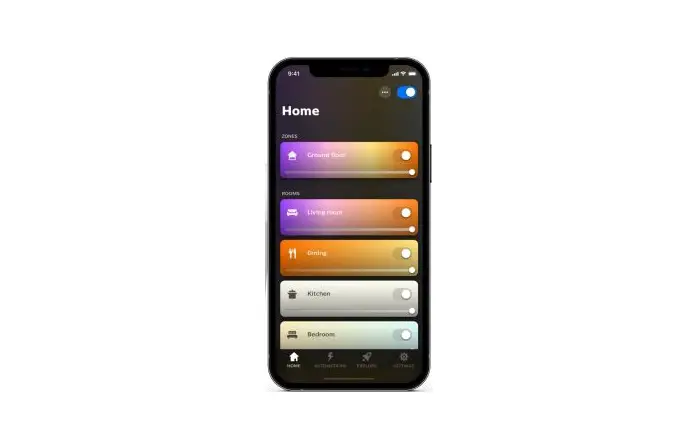
Which Apple (iPods, iPhones and iPads) or Android operation system/devices supported the latest Philips Hue app 3.0?
The latest Philips Hue app supports all iOS devices which will run on iOS11 or higher, like: iPod Touch 6G. iPhone 5S, iPhone 6, iPhone 6 Plus, iPhone 7, iPhone 7 Plus, iPhone 8, iPhone 8 plus and iPhone X iPad 3, iPad 4, iPad Air, iPad Air 2, iPad 2017, iPad 2018, iPad Pro (12.9 inch), iPad Pro (9.7 inch), iPad Pro (10.5 inch). iPad Mini 2, iPad Mini 3, iPad Mini 4. For Android, it will run on all devices which support 7.0 (Nougat) or higher.
How to create a Hue account and link to your Hue Bridge?
Creating a Hue account and linking it to your Hue Bridge allows you to control your Hue system over the cloud, useful when you are not connected to your own home WiFi network.
Create a new Hue account in the Hue app and link it to your Hue Bridge Make sure your phone is connected to the same Wifi network – the same router that your Bridge is plugged into – before getting started.
- Open the Hue app and navigate to the “Settings” tab.
- Tap on “Out of home control” at the top of the screen.
- Tap on “Login or Sign in” at the bottom of the screen.
- Tap on the “Create an account” button on the sign-in page
- Enter your account details and make sure you are close by your Bridge when you tap on “Continue”
- After tapping continue you will see a screen where you need to press the middle (round) button on your Bridge. Press it within the 60 second countdown.
- Your account is now linked to your Hue Bridge and the Hue app should be signed in to your new Hue account.
- Don’t forget to verify your account using the email that was sent to the address you provided.
Create a new Hue account from a Mac/PC and link it to your Hue Bridge Make sure your Mac or PC is connected to your home (WiFi) network – the same router that your Bridge is plugged into – before getting started.
- Go to account.meethue.com
- Tap on the “Create an account” button on the sign in page
- Enter your account details and make sure you are close by your Bridge when you tap on “Continue”
- After tapping continue you will see a screen where you need to press the middle (round) button on your Bridge. Press it within the 60 second countdown.
- Your account is now linked to your Hue Bridge.
Link an existing Hue account to your Hue Bridge Make sure your device (phone/computer) is connected to the same (Wifi) network – the same router that your Bridge is plugged into – before getting started.
- Sign in to your Hue account
- Navigate to “Bridge” in the menu
- Tap or Click on “Add a bridge”
- Press the round button in the middle of your Hue bridge to link it to your Hue account
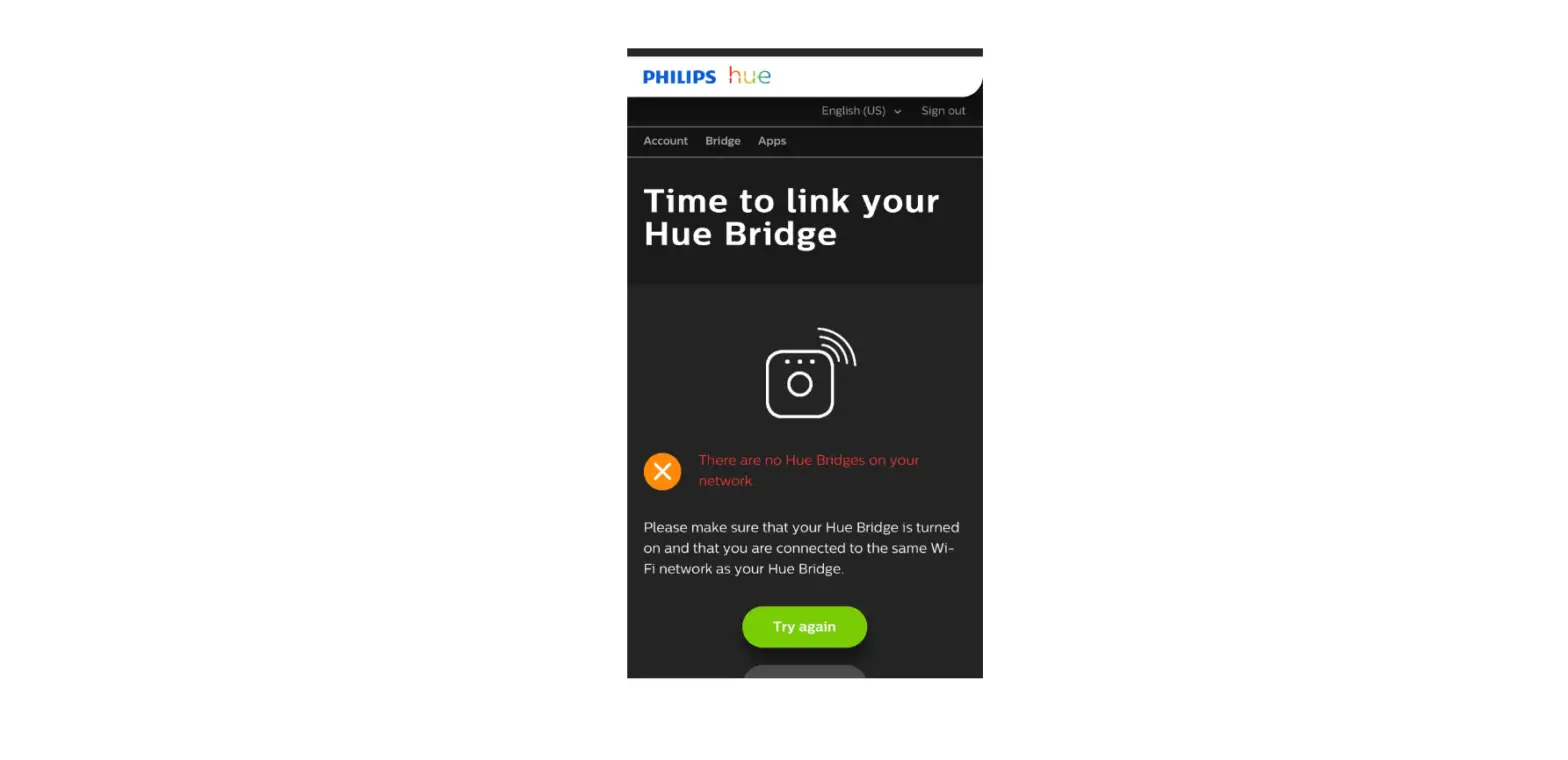
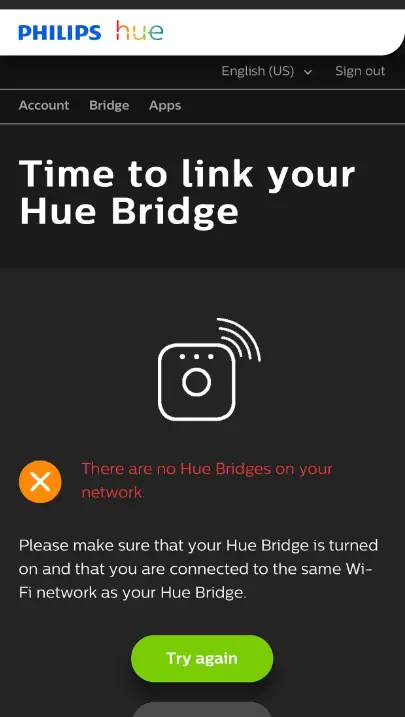
If you have trouble linking your Hue account to your Hue Bridge Make sure your device (phone/computer) is connected to the same (Wifi) network – the same router that your Bridge is plugged into – before getting started.
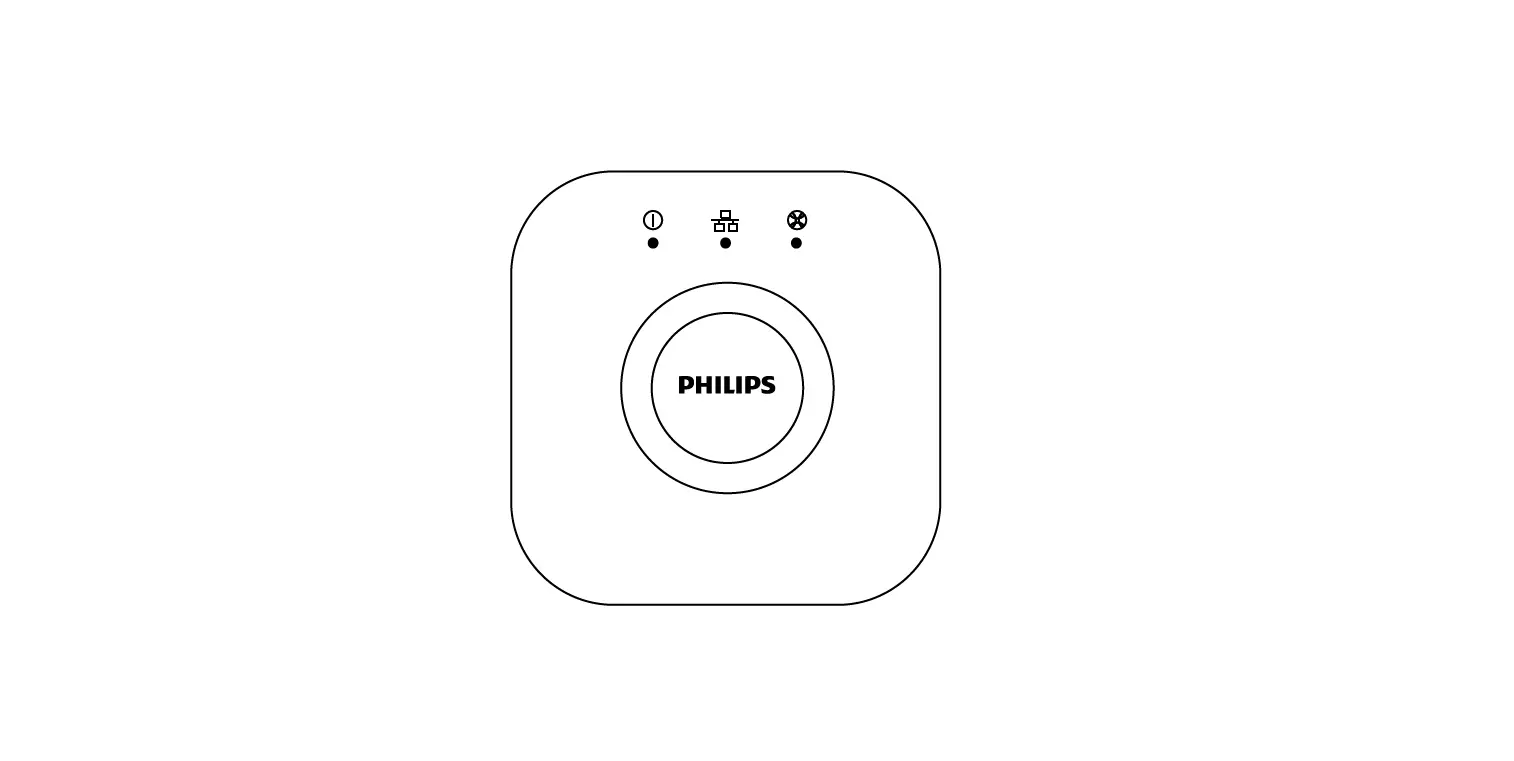
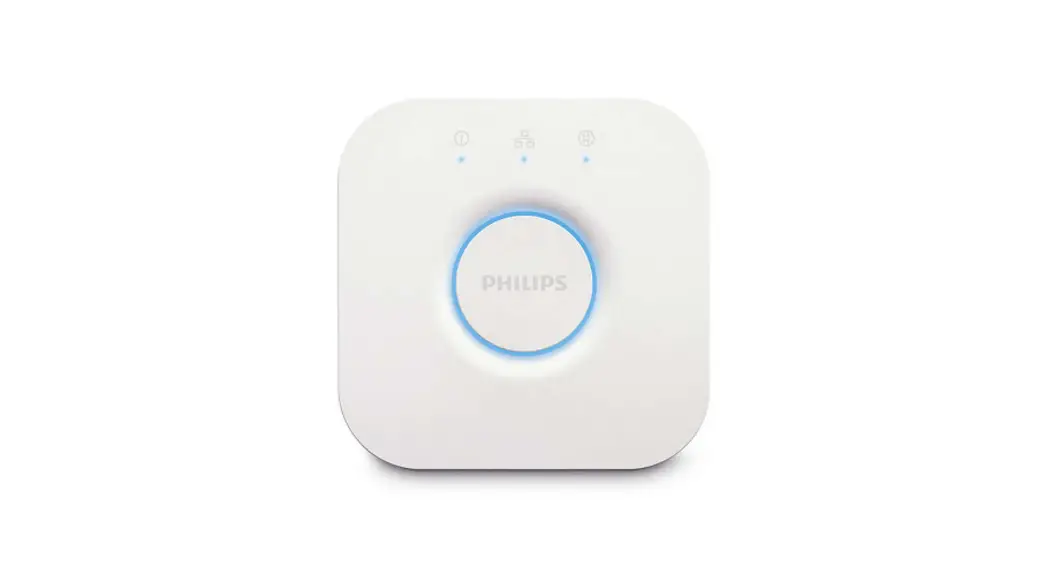
Make sure that the Bridge is fully operational by checking the 4 lights on top of the Bridge, all 4 should be lit up.
Make sure that your device (phone/computer) is not connected to a VPN service and that there are no firewalls in your network that block the Hue bridge from accessing the Internet.
If you are unable to control your lights when you are away from home Make sure the Hue app is signed in to your Hue account and the Hue account is linked to your Hue bridge (see above for steps).
Make sure your phone has an internet connection, the Hue app should show “Connected via Cloud” when starting up.
Make sure that there are no firewalls in your network or VPN services that are blocking the Hue bridge from connecting to the Internet.
I cannot log in to my Hue account via the Philips Hue app, what can I do?
Check if you are logged in to your Hue account in the Philips Hue app. Go to ‘Settings’ and check if you are logged in.
If not, login with your user name and password.
If it is not working, check the settings in your Hue account (https://account.meethue.com) if your Hue bridge is connected. Be sure that your Hue bridge is powered.
Can I control multiple Hue bridges with the Philips Hue app?
The Philips Hue app enables you to connect to multiple Hue bridges, however, you can only control one at a time. Go to ‘Settings’ > ‘Hue bridges’ and select the bridge you want to control.
Can I control my Philips Hue lights from multiple devices?
Yes, you can. Just download the Philips Hue app to each device and you’re good to go. You can operate your Hue system on up to 10 devices.
I am unable to control my bridge when I am away from home.
Please double check that you are logged in to your Hue account, going to ‘Settings’ and check that under ‘Hue account’ it is written ‘Logged in’. If you are not ‘logged in’, please tap on ‘Hue account’ > ‘Log in’ and folow onscreen instructions.
P.s. for out of home control you need to link your Hue bridge to your account. To do this you need to be at home for pressing the puch link button on your Hue bridge.
When I open the Philips Hue app on my device I cannot identify or connect with my lights, what should I do?
First, go in the Philips Hue app to ‘Settings’ > ‘Light setup’ > ‘Add light’ and select ‘Search’. When the lights isn’t found use the 6 digit serial nr which is printed on the Hue lights or Hue luminaries, by selecting ‘+ Add serial number’ and follow onscreen instructions.
I can’t use some of the new hue features. What shall I do?
Make sure that you have downloaded the latest Philips Hue app and set up a Hue account linked to your hue bridge.
Go to the ‘Settings’ > ‘Software update’ and follow the onscreen instructions. The Philips Hue app will tell you if you are up to date or if a software update is being downloaded.
A notification will appear when new software is available for your Hue bridge or Hue lights.
You will receive a notification in your Philips Hue app to upgrade your system.
What does “Unreachable” below my light names mean?
There is nothing wrong but it seems that your Hue light has been physically switched off (e.g. by using the wall switch) or is out of the operating range of the system. If the text pops up when other wireless devices are used, like WiFi camera, streaming video (watching TV on your device) or streaming audio and the hue system becomes uncontrollable, perform a ZigBee Channel Change. Go to ‘Settings’ > ‘Hue bridges’ > tap on “i’ > ‘Zigbee channel change’ and follow onscreen instructions. For further troubleshooting contact our customer support.