
Four-Faith CPE F-NR300 Smart Power
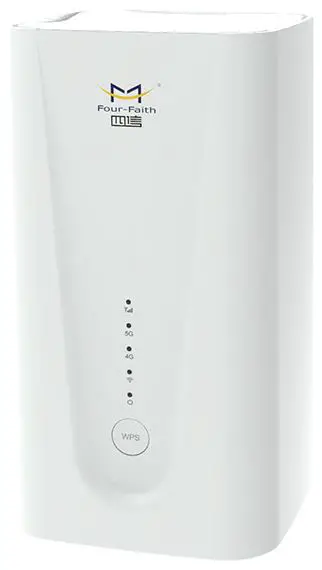
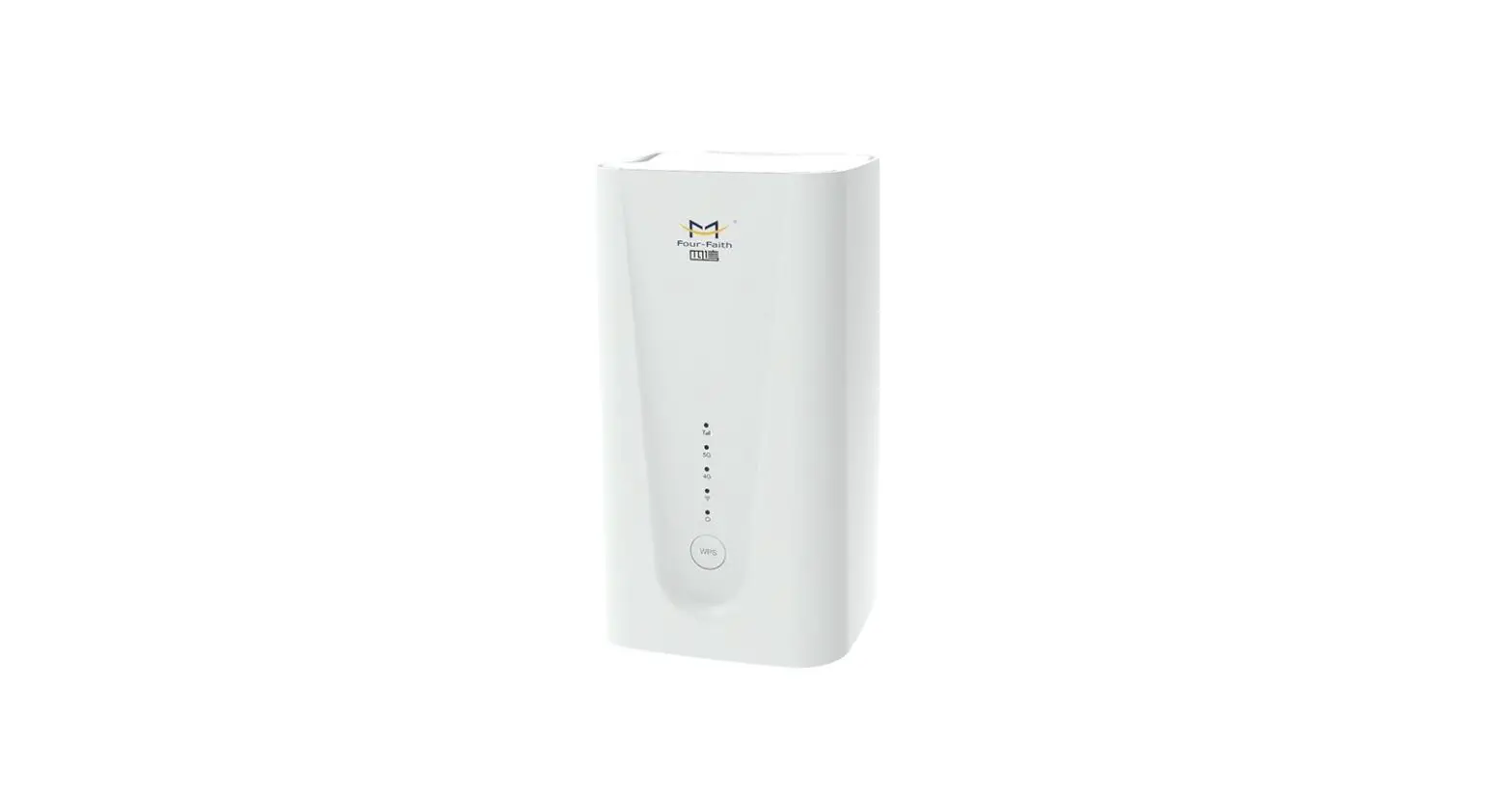
Description of 5G CPE Ports and Indicators
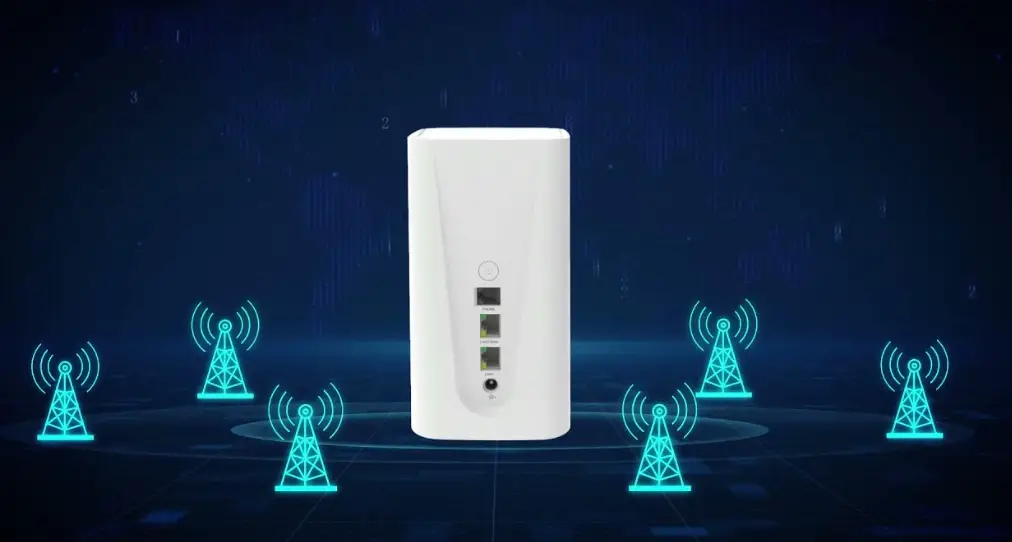
5G CPE Interfaces
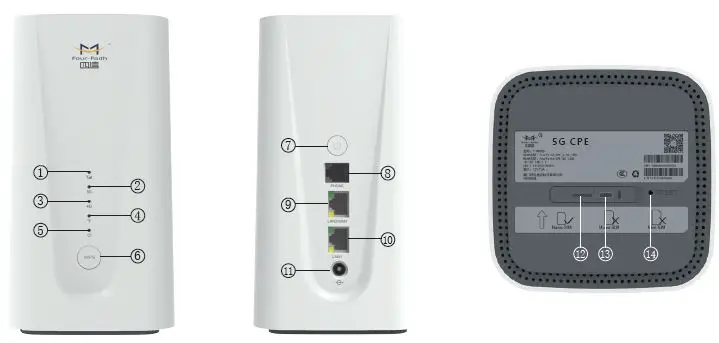
Indicator Description
| Indicator | Name | Description |
1
| Cellular Network Indicator | 1)Blue,signal value RSRP≥ -95dBm 2)Yellow,signal value RSRP < -95dBm |
2
| 5G Indicator | 1)On,Connect to 5G network 2)Off,Disconnect with 5G network 3)Blink,dialing, blink frequency 500ms/time |
3
| 4G Indicator | 1)On, Connect to 4G network 2)Off,Disconnect with 4G network; 3)Blink,dialing, blink frequency 500ms/time |
4
| WIFI Indicator | 1) On,WIFI on 2) Blink:After press the WPS button,500ms/time, continue 2 minutes 3) Off,WIFI off |
5
| Power Indicator | 1)On,Power on 2)Off, Power off |


| Button | Description |
| 6
| 1. After the button is pressed, the WiFi indicator light will blink 500ms/time for 2 minutes. 2. The user terminal can quickly establish a secure WIFI connection without manually entering a password |
| 7
| 1. After the button is pressed, the WiFi indicator light will blink 500ms/time for 2 minutes. 2. After Devices Shutdown: Plug and unplug the power supply, it will automically turn on. 3.After Shutdown: Long press the power button for 3s, turn on the device. |
| RESET 14 | Press and hold the button for more than 10 seconds to reset to the factory setting. |


Interfaces Description
| Interfaces | Name | Description |
| 8 PHONE (Optional) | Phone Port | Phone RJ11 port, can directly connect the phone to make calls |
| 9 LAN2/WAN | Ethernet Port | 1. Indicator is green and steady on, it is connected 2. Indicator is yellow and blinking, data is transmit or receive |
| 10 LAN1 | Ethernet Port | 1. Indicator is green and steady on, it is connected 2. Indicator is yellow and blinking, data is transmitt or receive |
| 11
| Power | DC 12V/3A |
| 12 SIM Card | Nano-SIM Card Slot | Insert the Nano-SIM card |
| 13 Type C | Type-C Port | The type-c interface is used only R&D personnel testing |

Set up SIM Card or Wired Broadband Internet Access
Can choose a SIM card or wired broadband connection to the network
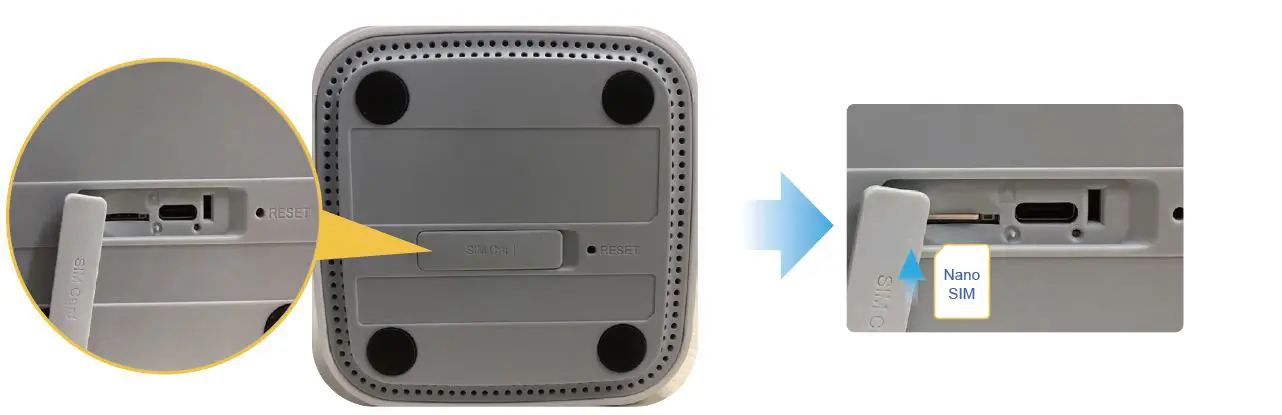
SIM Card
Step 1:
Insert SIM card direction shown as below (Chip face down, notch face in)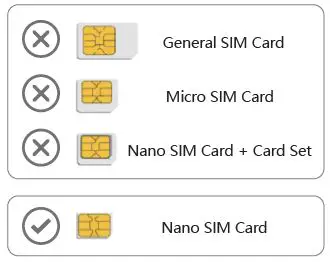
Wired Broadband Network
Step 1:
Network cables can only be connected to LAN2/WAN network ports.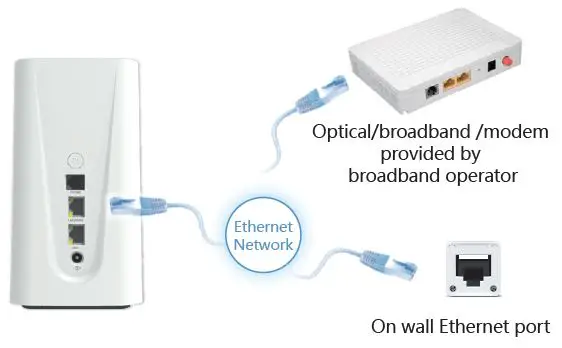
Step 2:
Connect the power supply, the device will turn on automatically.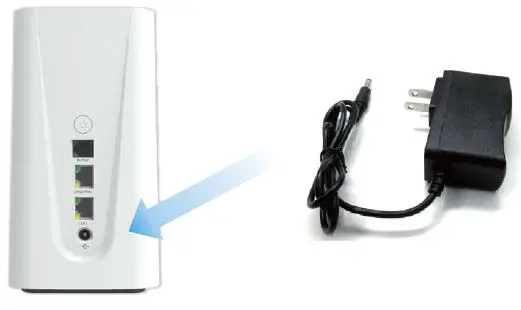
Step 3:
Connect to network devices
Mobile phones, tablets or other devices are connected to Four-Faith 5G CPE wireless networks.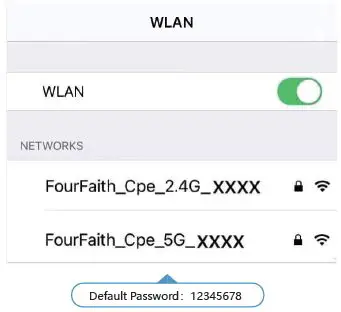
The desktop computer is connected to the LAN port of Four-Faith 5G CPE through a network cable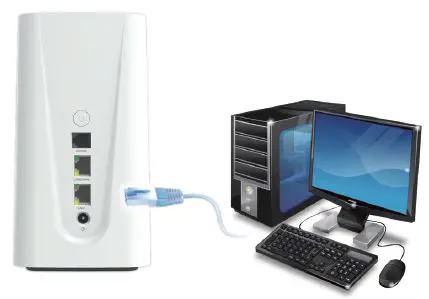
Step 4:
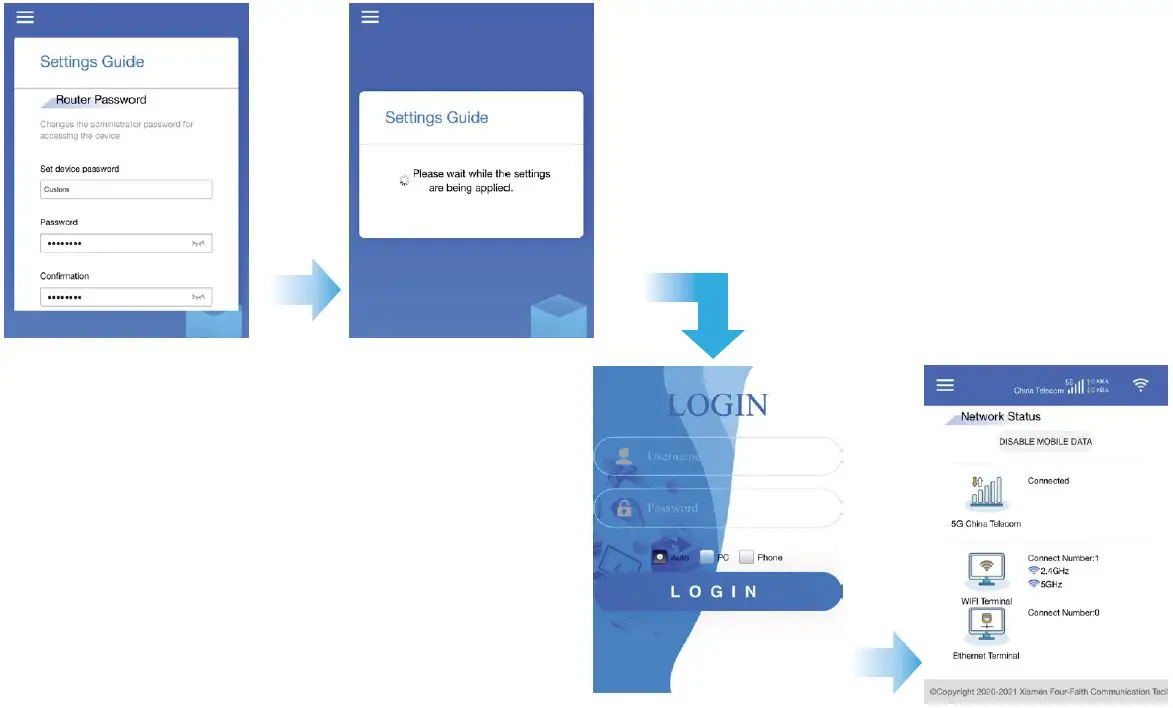
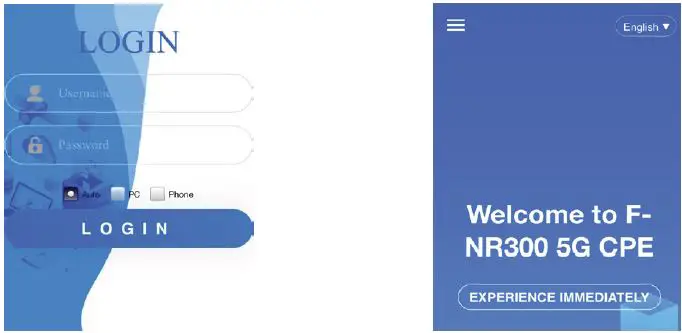
Open the browser, and the page is automatically displayed. ( If no, manually enter 192.168.1.1 )
- Default Account: admin
- Default Password: admin

Step 5:
Setting the user name and password for the WLAN.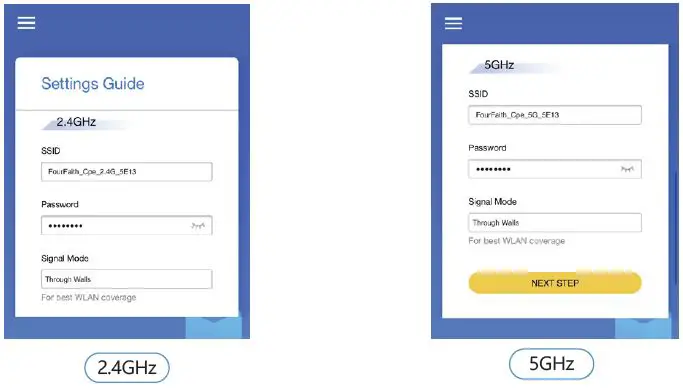
Step 6:
Set the password for logging in to the host
After the application setting is complete, the login page will be displayed. Enter the password of the new account and click login.