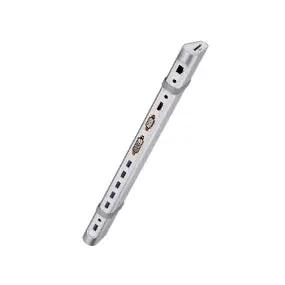
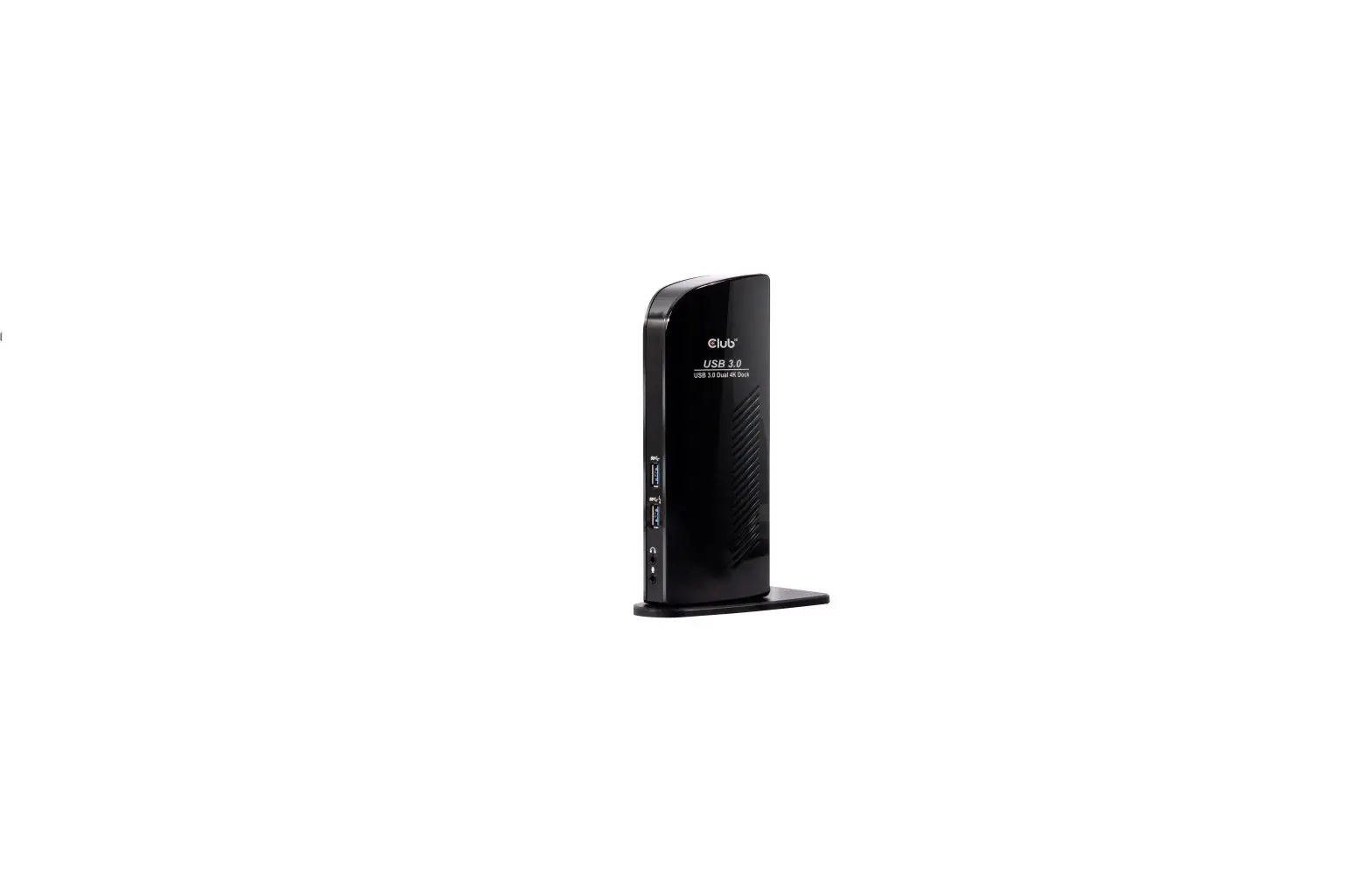
Triple 4K Display Docking Station
Product Information:
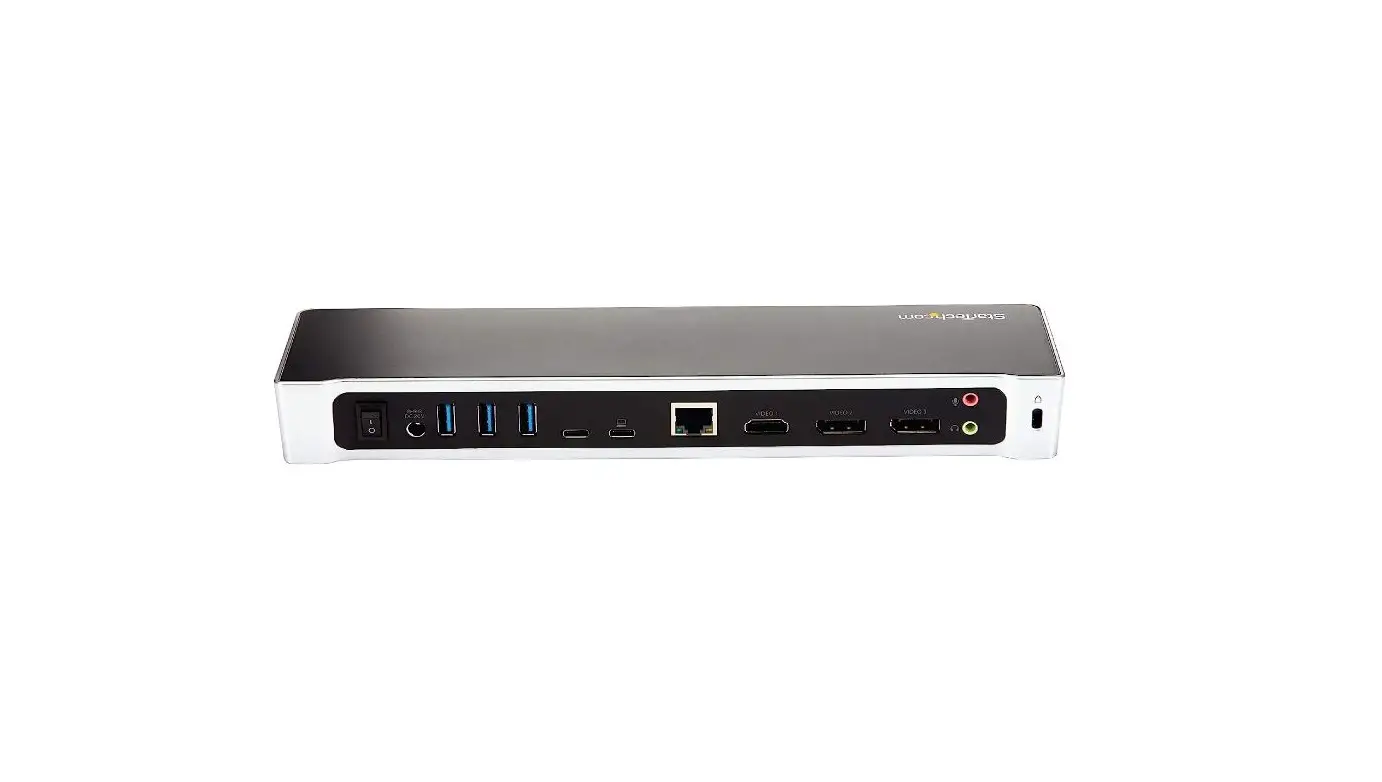
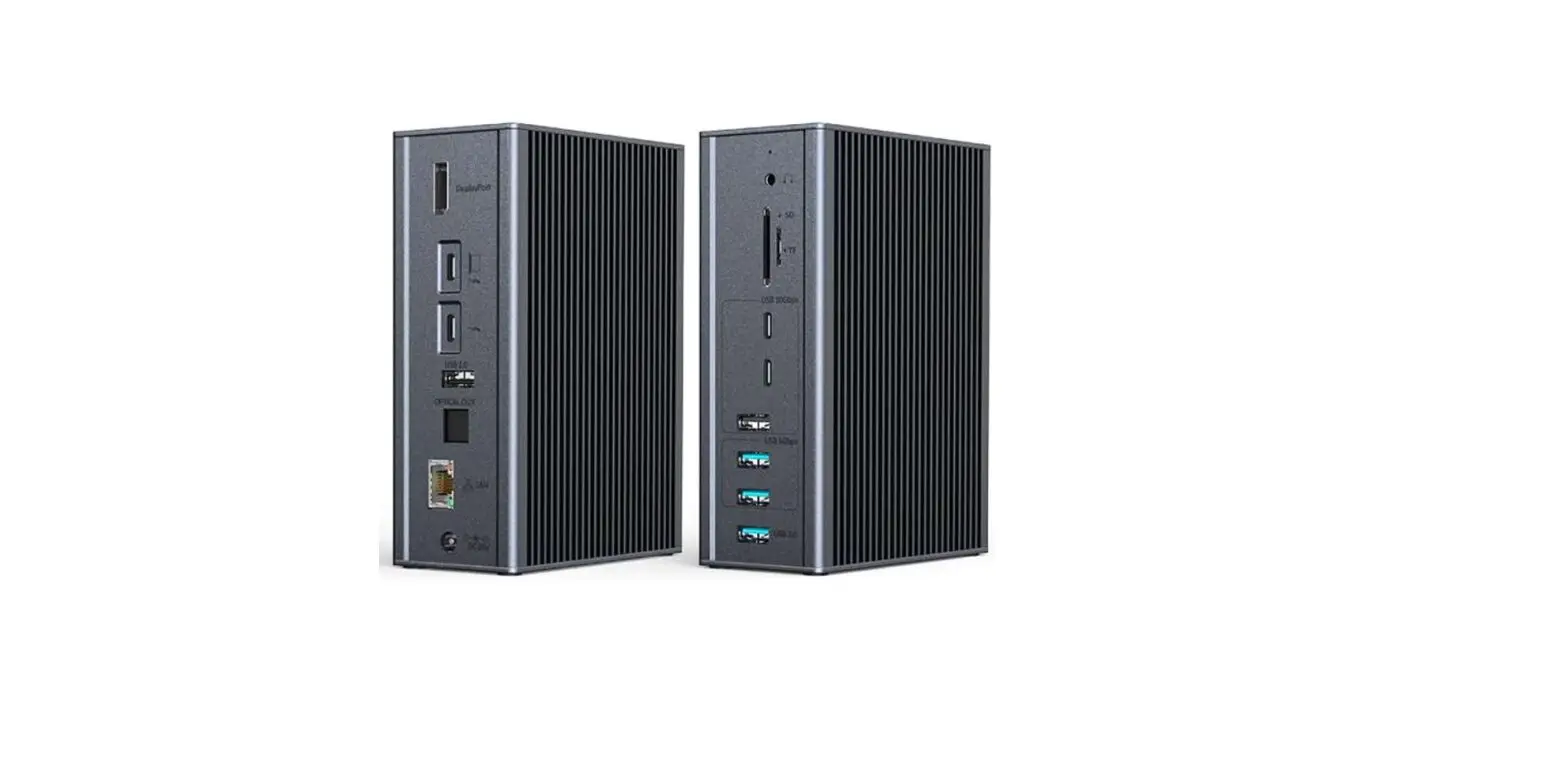
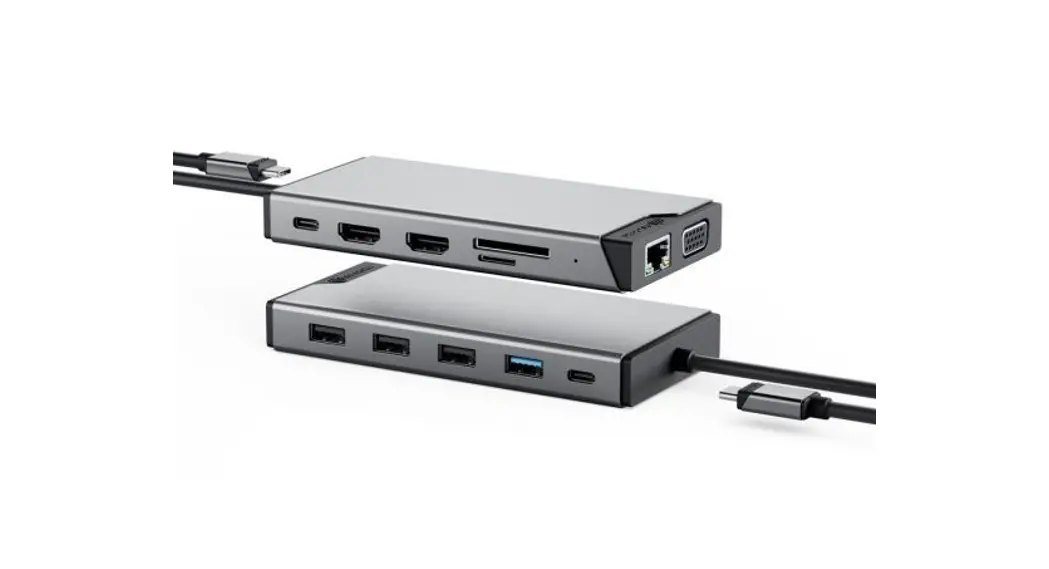
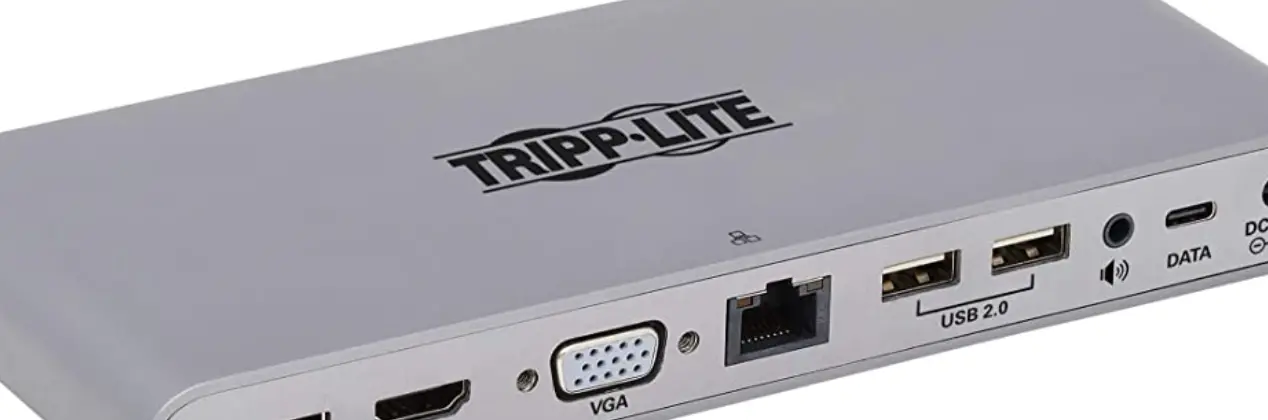
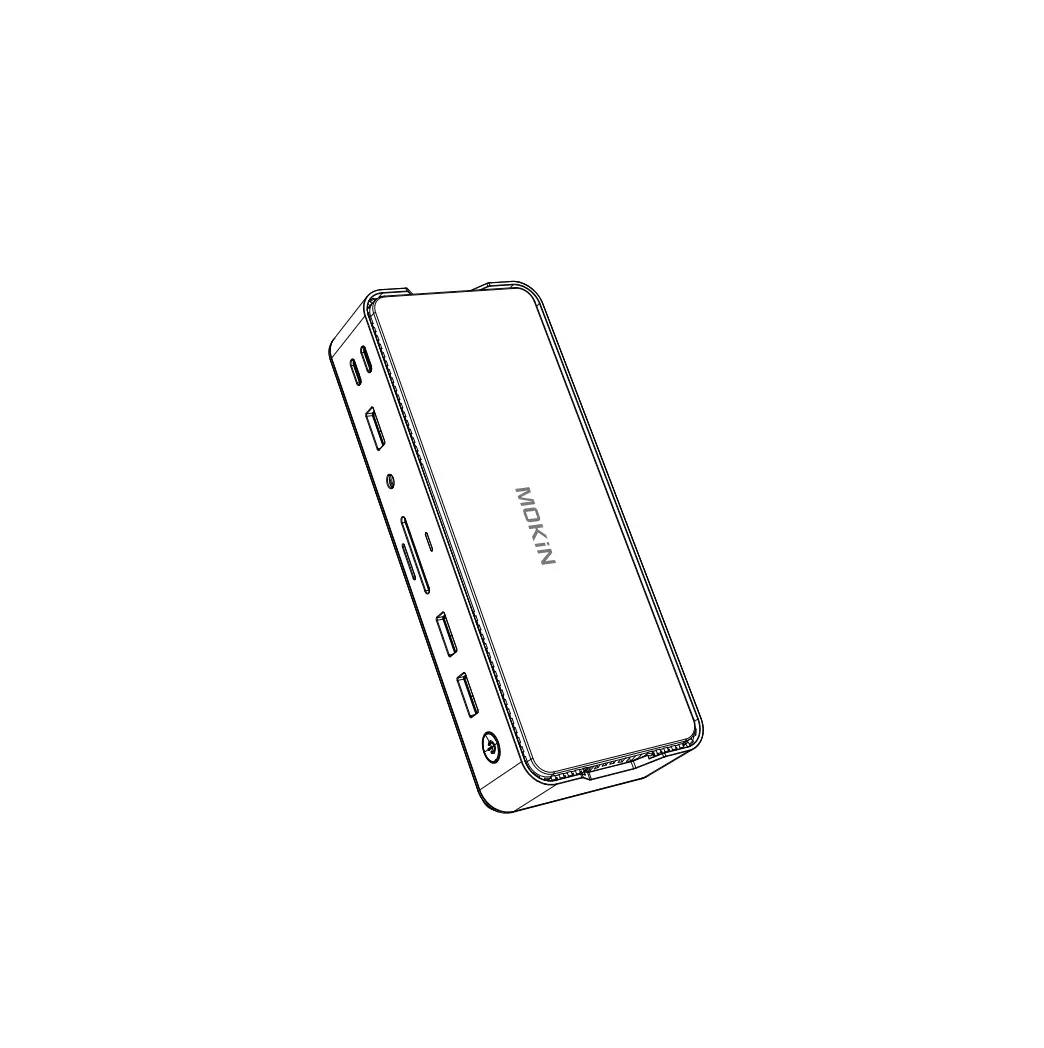
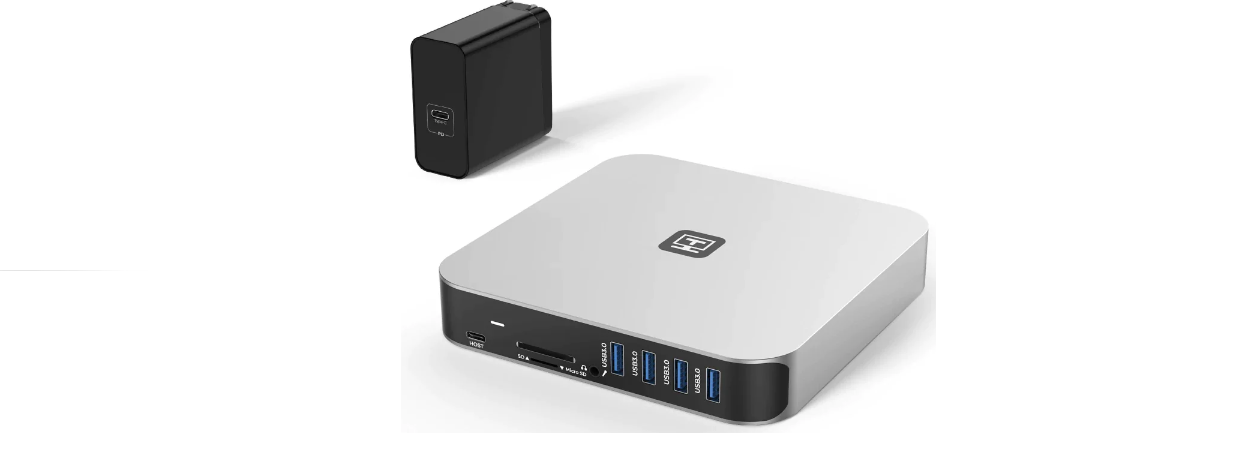
The Triple 4K Display Docking Station is a device that allows
you to connect multiple displays and various peripherals to your
host device. It supports up to three 4K displays and provides
multiple USB ports, audio I/O jack, Gigabit Ethernet port, and
power charging capabilities.
Key Features:
- Supports triple 4K displays
- Includes power adapter for automatic power-on
- USB-C connectivity with USB-A adapter option
- Requires DisplayLink software installation for HDMI and
DisplayPorts in Display 2 & 3 groups - Multiple USB ports with different speeds (up to 10Gbps and up
to 5Gbps) - Audio I/O jack for connecting audio devices
- Gigabit Ethernet port for high-speed internet connection
- Supports DP Alt mode and HDMI connections
Product Usage Instructions:
- Connect the included power adapter to the Dock. The dock will
automatically turn on. - To turn off the dock, press the power button located on top of
the dock. - Connect the included USB-C cable to your host device. If your
host device has a USB-A port, use the USB-C to USB-A adapter
attached. - Download and Install DisplayLink Software on your host device.
Follow the instructions provided at https://satechi.net/pages/displaylink-instructions.
This software is required for HDMI and DisplayPorts in Display 2
& 3 groups to output video. - Connect your USB devices to the available USB ports on the
dock. The dock provides USB 3.1 and USB 3.0 ports with different
speeds (up to 10Gbps and up to 5Gbps). - Attach an audio device to the 3.5mm Audio I/O jack. Make sure
to change the sound output/input settings on your host device when
connecting headphones or a microphone. Go to System Preferences
> Sound > Output/Input > USB Audio. - Connect an RJ45 Ethernet cable to the dock’s Gigabit Ethernet
port for high-speed internet connection (up to 1Gbps). - Use DisplayPort cables to connect up to two DisplayPort-enabled
monitors using DisplayLink. - Use HDMI cables to connect up to three HDMI-enabled monitors.
Connect one HDMI via Display 1 (DP Alt mode) and the others using
HDMI in Display 2 & 3 via DisplayLink.
Attention:
Please ensure that you follow the provided instructions and
requirements for proper functionality of the Triple 4K Display
Docking Station.
QUICK GUIDE
TRIPLE 4K DISPLAY DOCKING STATION
1
2
Connect the included power adapter to the Dock. Once connected, the dock will automatically turn on. To turn the dock off you must press the power button located on top of the dock.
Connect the included USB-C cable to your host device. Cable can be connected to host device with USB-A port by using USB-C to USB-A adapter attached.
3
DISPLAY 3
DISPLAY 2
DISPLAY 1
Download and Install DisplayLink Software on your host device: https://satechi.net/pages/displaylink-instructions DisplayLink software must be installed in order for HDMI and DisplayPorts in Display 2 & 3 groups to output video.
4
USB 3.1
USB 3.1
USB 3.0
5
USB 3.1
USB 3.1
USB 3.0
UP TO
10Gbps
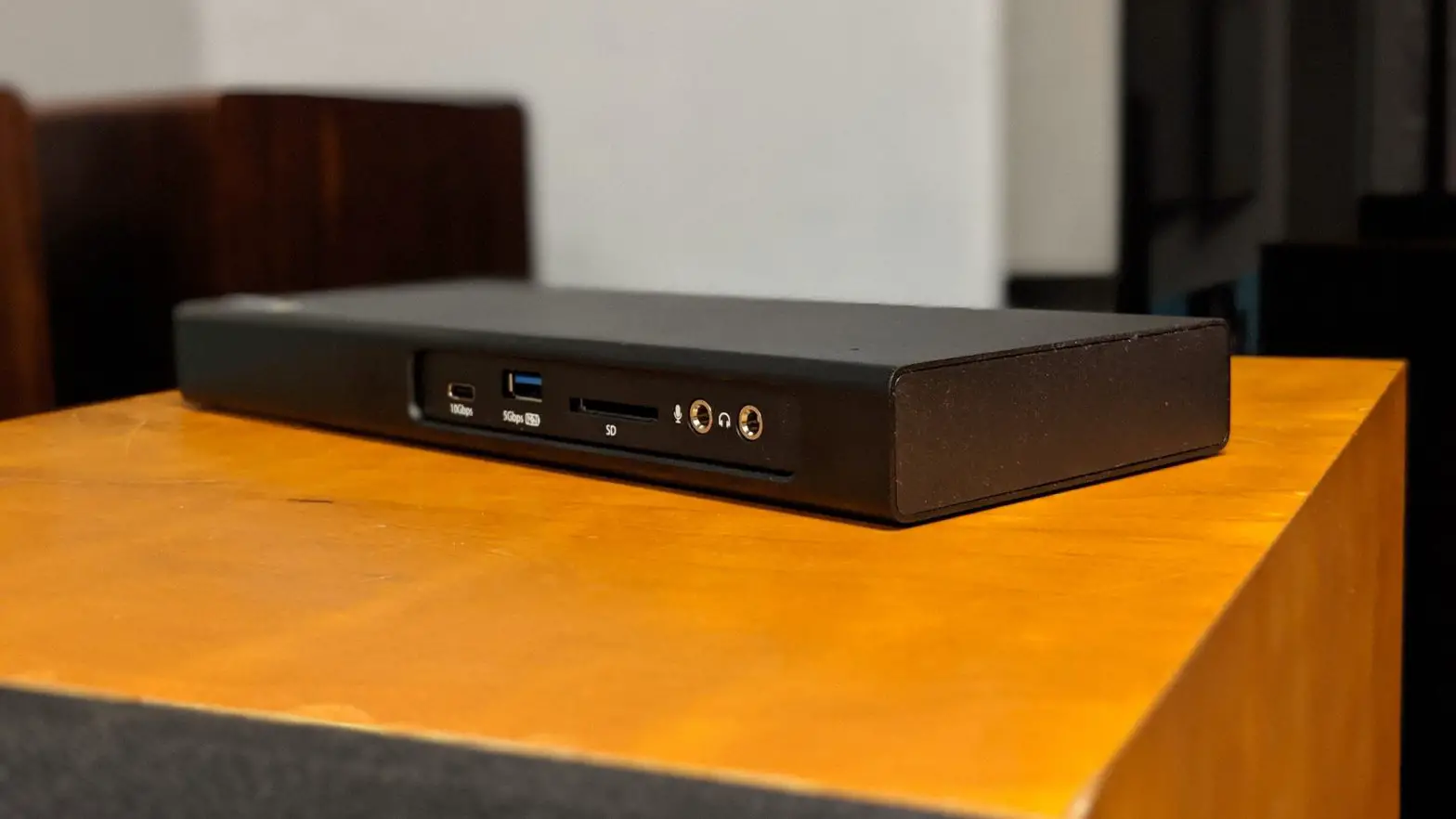
Use the USB-A and USB-C 3.1 ports for fast charging and transfers up to 10Gbps. Does not support CD readers, including Apple SuperDrive.
UP TO
5Gbps
Use the USB-C data port up to 5Gbps. Does not support charging or CD readers, including Apple SuperDrive.
6
USB 3.1
USB 3.1
USB 3.0
7
DC 24V
USB 3.0 5GBPs USB 3.0 5GBPs
DISPLAY 3
DISPLAY 2
DISPLAY 1
Attach audio device to 3.5mm Audio I/O jack. You will need to change sound output/input settings when connecting headphones/mic. (System Preferences > Sound > Output/Input > USB Audio).
8
DC 24V
USB 3.0 5GBPs USB 3.0 5GBPs
DISPLAY 3
DISPLAY 2
DISPLAY 1
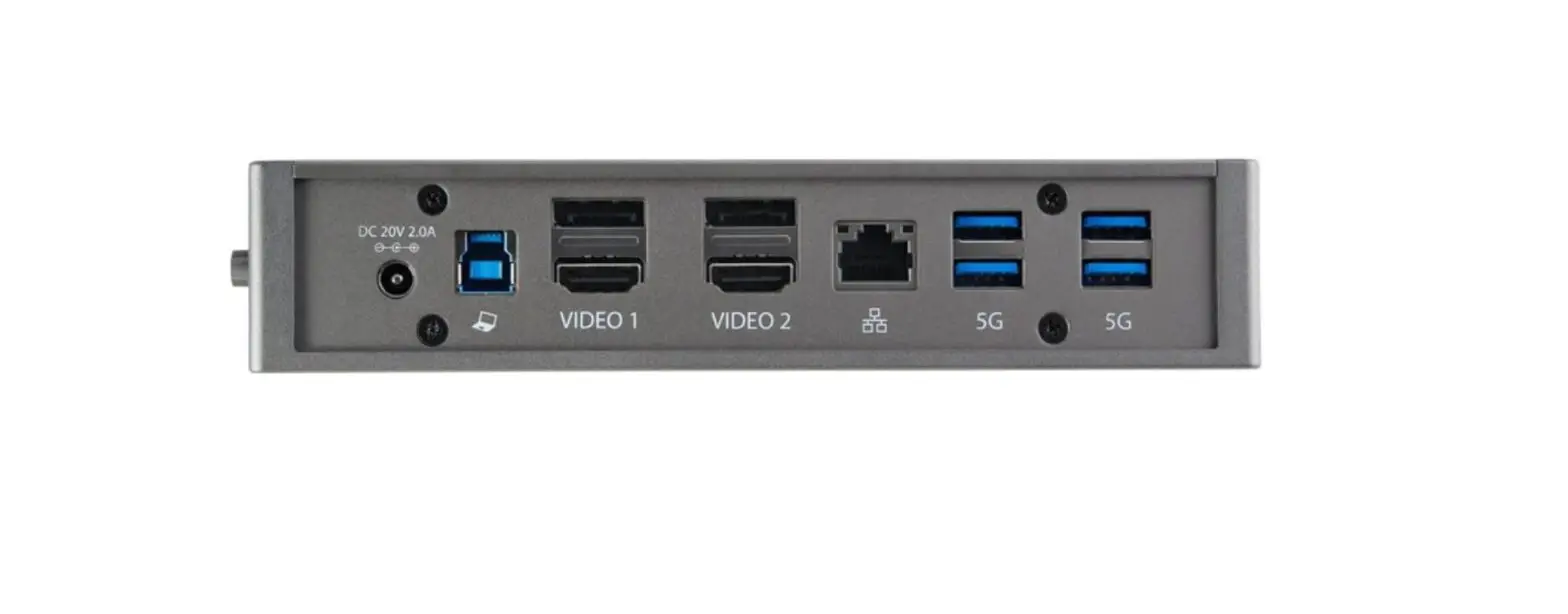
Connect an RJ45 Ethernet cable to the dock’s Gigabit Ethernet port. Up to 1Gbps.
9
UP TO
5Gbps
Use the two USB-A 3.0 ports for file transfers up to 5Gbps. Does not support charging or CD readers, including Apple SuperDrive.
DC 24V
USB 3.0 5GBPs USB 3.0 5GBPs
DISPLAY 3
DISPLAY 2
DISPLAY 1
Use DisplayPort cables to connect up to two DisplayPort-enabled monitors using DisplayLink.
10
DC 24V
USB 3.0 5GBPs USB 3.0 5GBPs
DISPLAY 3
DISPLAY 2
DISPLAY 1
DP Alt mode
DisplayLink
DisplayLink
Use HDMI cables to connect up to three HDMI-enabled monitors. You must connect one HDMI via Display 1 (DP Alt mode) and the others using HDMI in Display 2 & 3 via DisplayLink.
Attention:
When using the USB-A connection the host device will not receive power. DisplayLink software must be installed to achieve up to three external displays. When connecting to USB-A host device using included adapter, only video groups 2 and 3 will function via DisplayLink software. Video group 1 will not function when using USB-A host device. Prior to powering off Docking Station, ensure all external storage devices are properly ejected. If you don’t eject external storage devices properly, data on them may be damaged or corrupted.
 DisplayLink Instructions