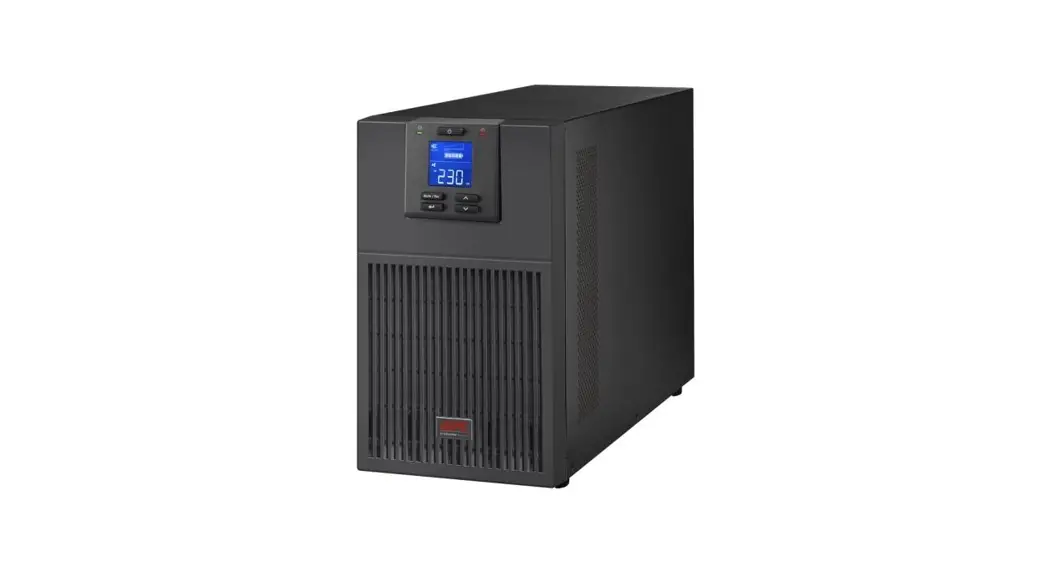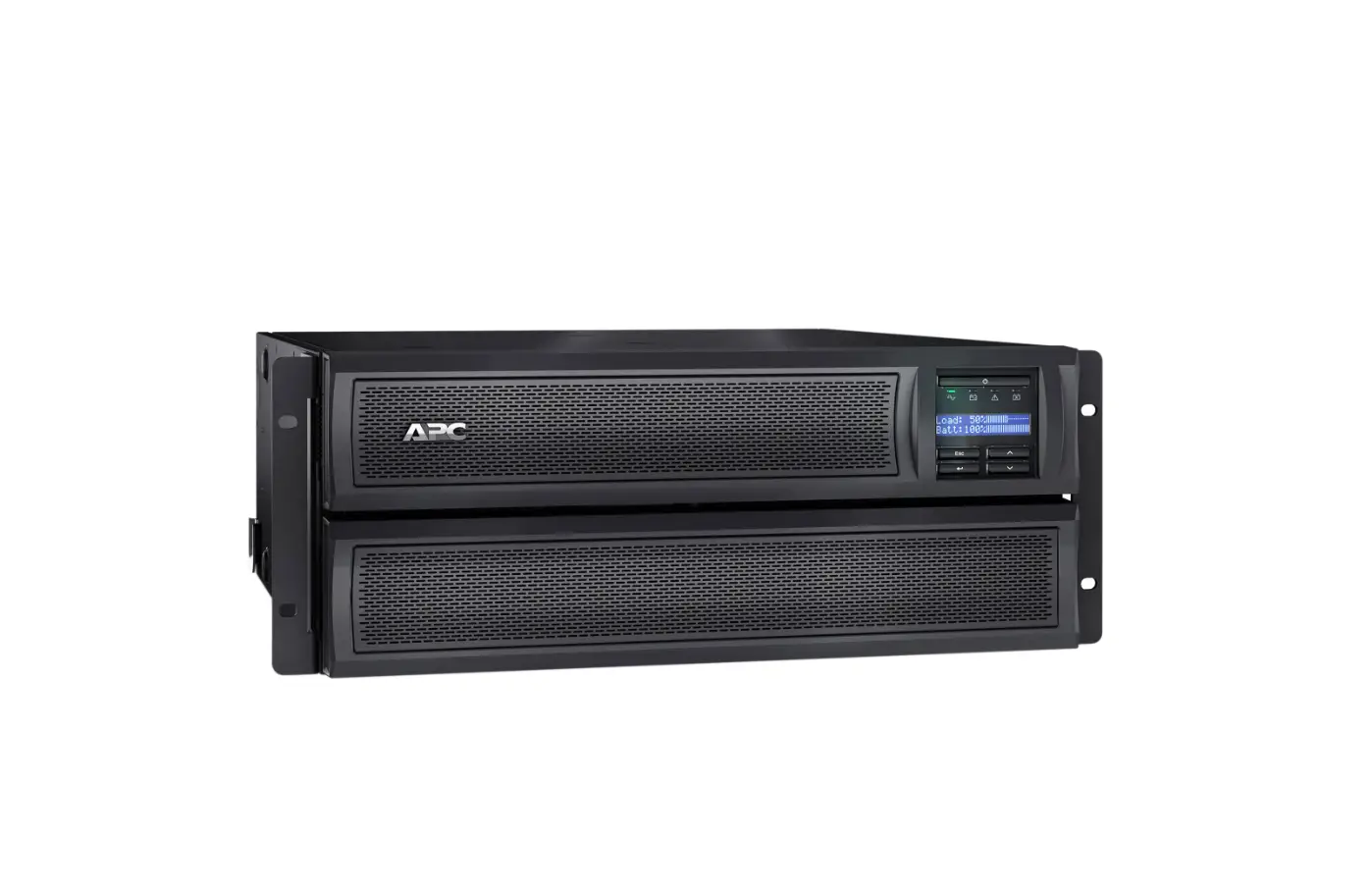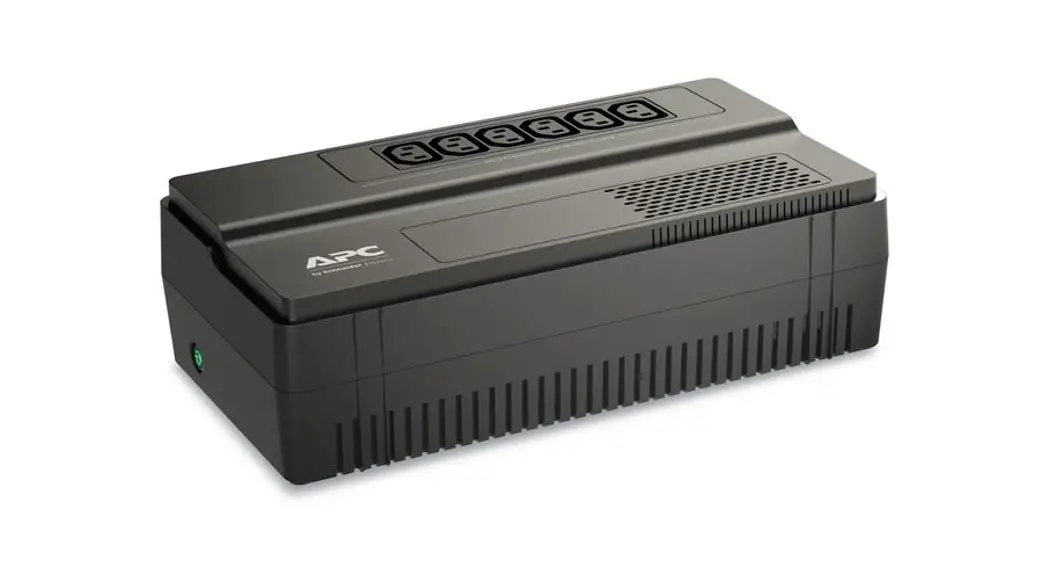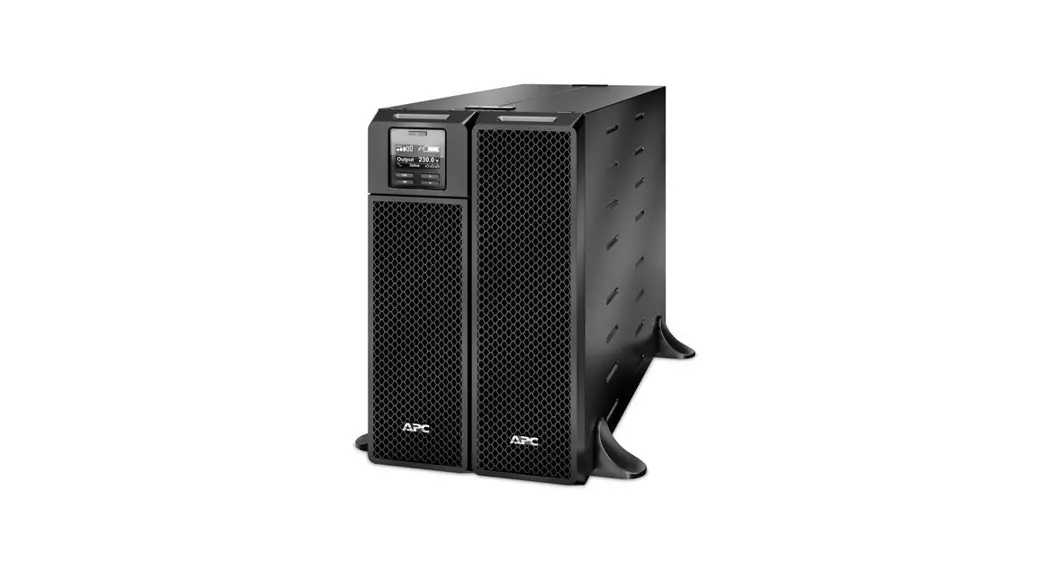

Smart-UPS
SRT/SMC/XU/XP/SMX/SMT/SCL/SLC/SRC/CHS Models
Firmware Upgrade
Using the Network Management Card
Users Guide
We recommend using the APC Firmware Upgrade Wizard via a Serial or USB connection to the UPS whenever possible.
The APC Firmware Upgrade Wizard guides you through the upgrade process and incorporates more checks, providing a more consistent upgrade experience. You can find the Firmware Upgrade Wizard in Kbase #FA164737.
Instructions are being provided here for users that are unable to use the Firmware Upgrade Wizard and wish to upgrade their Smart-UPS Firmware using an APC Network Management Card.
The entire process should take 10 to 20 minutes to complete.
The load attached to the UPS must be powered down. If you encounter any issues upgrading your UPS, please contact APC Technical Support for further assistance. http://support.apc.com
Step 1 –
NOTE: The UPS and the Network Management card each have their own firmware revisions. Think of them as two separate devices that talk to each other. This document is about upgrading the UPS firmware.
- Network Management Card 3 (AP9640, AP9641) – All NMC3 firmware revisions support UPS Firmware upgrades.
- Network Management Card 2 (AP9630, AP9631, etc) – These cards require that they are running firmware 6.4.0 or higher to support UPS firmware upgrades. Verify the firmware revision of your Network Management Card 2 (AP9630, AP9630CH, AP9631, or AP9631CH). From the NMC web interface choose “About”, then “Network”.
Network Management Card 2 Firmware level must be 6.4.0 or higher
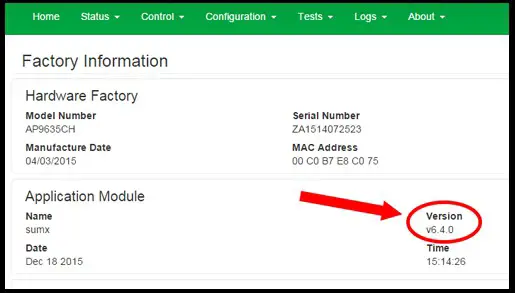
Step 2 – Find the correct UPS Firmware Image.
- Use the UPS “ID” number to select the proper Image for your UPS.
- From the NMC web interface choose “About”, then “Network”:


The “ID” is a unique identifier for the hardware platform of your UPS.
We use the “ID” number to make sure we select the correct firmware file. Sometimes one specific model UPS may have different “ID” numbers depending on when it was produced. Always check the “ID” number of the unit you are going to upgrade.
The chart on the following page will allow you to determine which firmware file your particular UPS needs.
Firmware Revision Table
| UPS ID | UPS Prefix | Latest Firmware Image | After Upgrade |
| 1000 | SMC | SMC1000UPS 10-0 | UPS 10.0 |
| 1005 | SMC | SMC1005UPS 12-0 | UPS 12.0 |
| 1007 | SMC | SMC1007UPS 11-0 | UPS 11.0 |
| 1013 | SRT | SRT1013UPS 05-1 | UPS 05.1 |
| 1001 | SRT | SRT1001UPS 02-9 | UPS 02.9 |
| 1020 | SRT | SRT1020UPS 10-1 | UPS 10.1 |
| 1014 | SRT | SRT1014UPS 05-2 | UPS 05.2 |
| 1002 | SRT | SRT1002UPS 05-2 | UPS 05.2 |
| 1021 | SRT | SRT1021UPS 12-0 | UPS 12.0 |
| 1015 | SMT SmartConnect | SMT1015UPS 04-1 | UPS 04.1 |
| 1018 | SMC SmartConnect | SMC1018UPS 04-1 | UPS 04.1 |
| 1010 | SRT | SRT1010UPS 08-3 | UPS 08.3 |
| 1019 | SRT | SRT1019UPS 08-2 | UPS 08.2 |
| 1024 | SRT | SRT1024UPS 00-8 | UPS 00.8 |
| 1017 | XUIK3LLXXRCC | XUL1017UPS 02-3 | UPS 02.3 |
| 1033 | XU2KOLLXXRCC | XUL1033UPS 00-3 | UPS 00.3 |
| 1025 | SRT | SRT1025UPS 07-9 | UPS 07.9 |
| 1016 | XP1K9NN42RCC | PMU1016UPS 02-3 | UPS 02.3 |
| 5008 | CSH2 | SRT5008UPS 02-5 | UPS 02.5 |
| 1031 | SMX | SMX1031UPS 02-0 | UPS 02.0 |
| 1029 | SLC SmartConnect | NMC1029UPS 02-5 | UPS 02.5 |
| 1030 | SCL SmartConnect | LCE1030UPS 02-5 | UPS 02.5 |
| 1037 | SCL SmartConnect | LCE1037UPS 02-5 – 01-10-19 | UPS 02.5 |
| 20 | SMX | SMT2OUPS 10-2 | UPS 10.2 |
| 23 | SMX | SMX23UPS 07-0 | UPS 07.0 |
| 18 | SMT | SMT18UPS 09-6 | UPS 09.6 |
| 11 | SMX | SMXI1UPS 03-8 | UPS 03.8 |
| 17 | SMT | SMTI7UPS 07-1 Le | UPS 07.1 |
| 1003 | SMX | SMX1003UPS 08-1 | UPS 08.1 |
| 1004 | SRC | YAMUNA_03-8 | UPS 03.8 |
| 33 | EER32000 | bootloader+Copy of Palomar CTC App.enc | UPS |
Step 3 – Turn UPS Output Off
- From the NMC web interface choose “Control”, then “UPS”:
WARNING:
UPS DAMAGE CAN RESULT IF UPS OUTPUT IS NOT TURNED OFF.
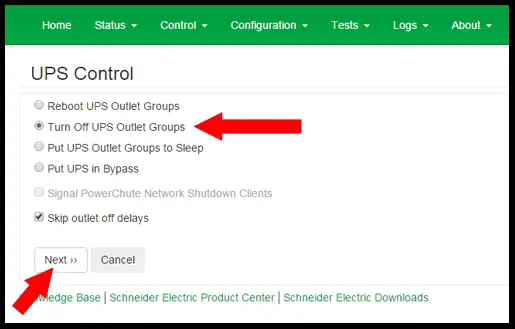
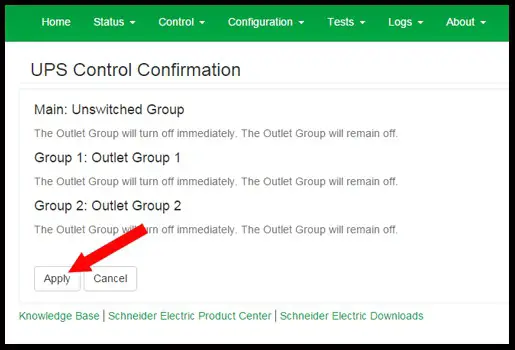
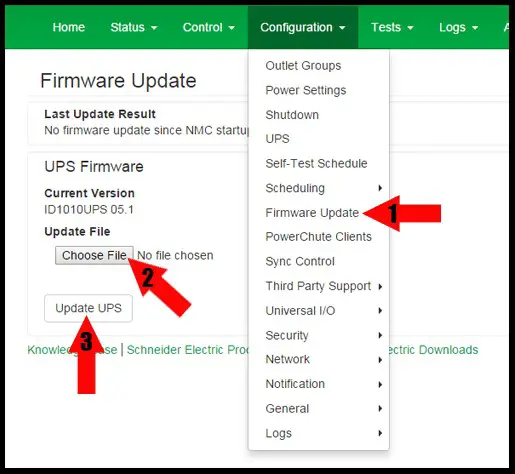
Step 4 – Once the UPS output is Off, go to “Firmware Update from the “Configuration” menu, then use the “Choose File” button to navigate to the firmware image you downloaded in step 2.
Once you have selected the correct Firmware image, click the “Update UPS” button to apply the upgrade.
If you attempt to update the UPS with the output power still on, you will see this message:

If you do, you should turn off the output power, and then you will be able to continue.
DO NOT ATTEMPT TO UPGRADE WITH OUTPUT POWER ON.
Once you click “Update UPS” you will see this (Please note: Upgrade may take several minutes):
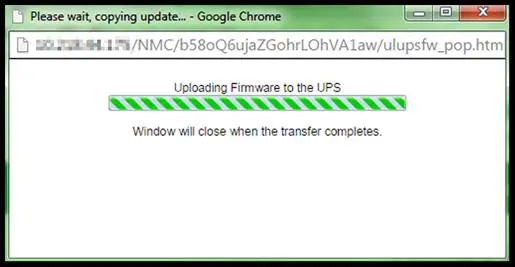 When this window closes, the update is complete.
Verify that the new Firmware version is shown.
NOTE: If the update does not complete, or if you receive any errors, Please re-try using the Firmware Upgrade Wizard, which can be found in FA #164737.
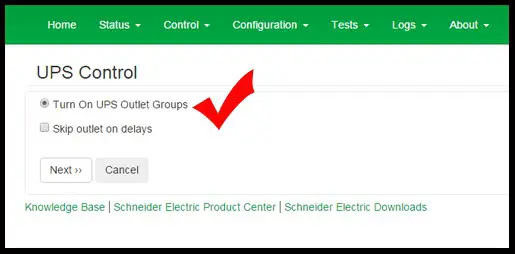
Step 5 – You may now turn your UPS back on
From the NMC web interface choose “Control”, then “UPS”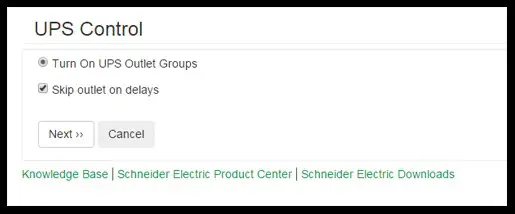
Select “Skip outlet on delays” to ensure power is restored immediately Click “Next”.
Verify that power is restored to your attached load. Your upgrade is now complete.
If you encounter any issues upgrading your UPS, please contact APC Technical Support for further assistance.
http://support.apc.com