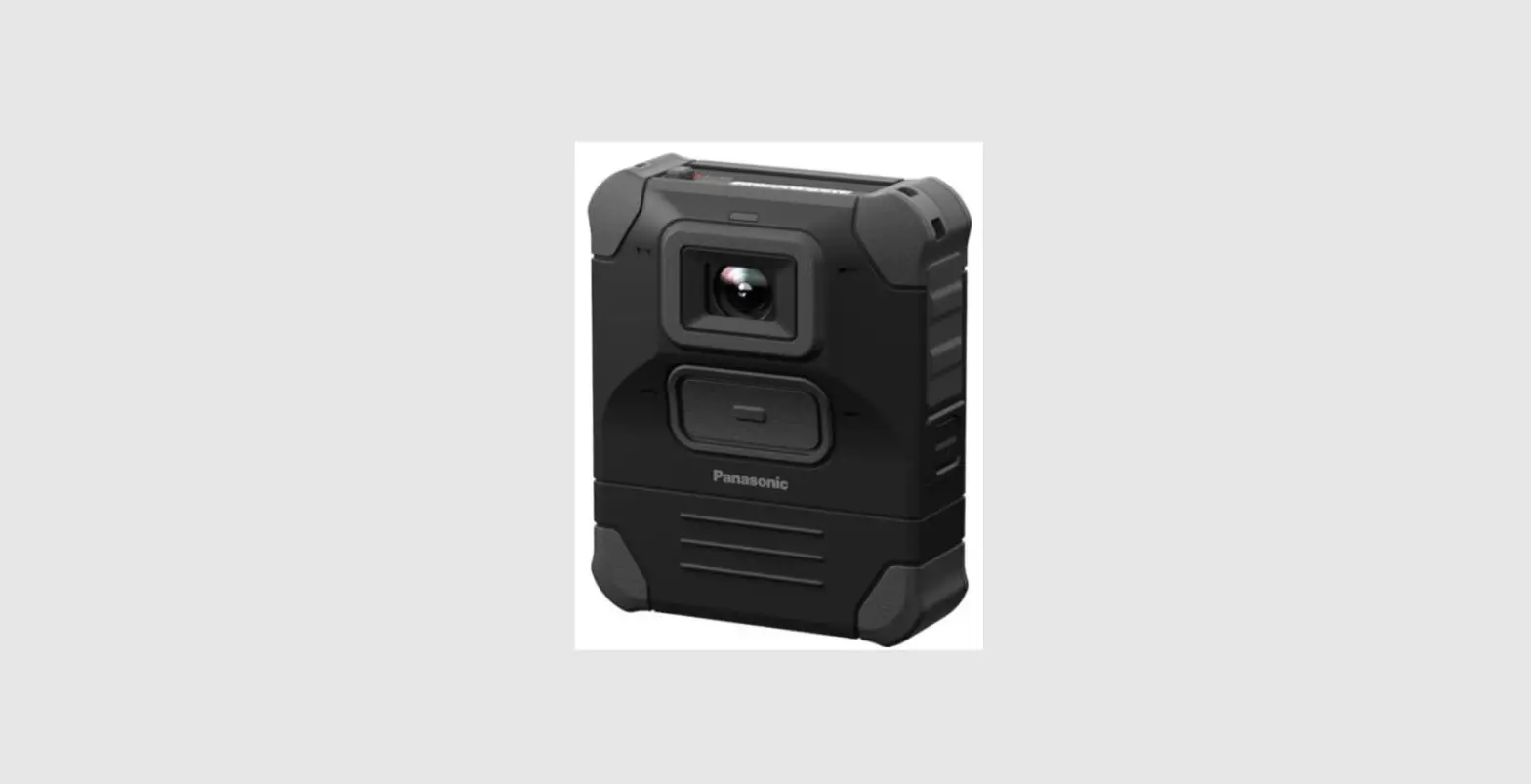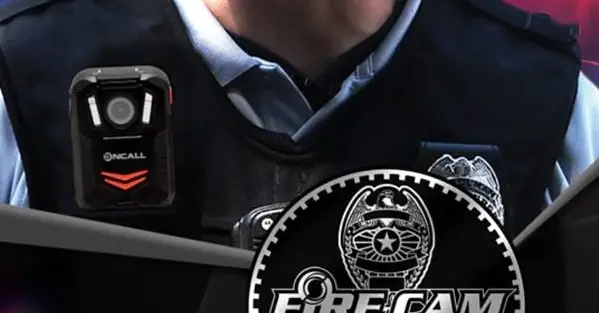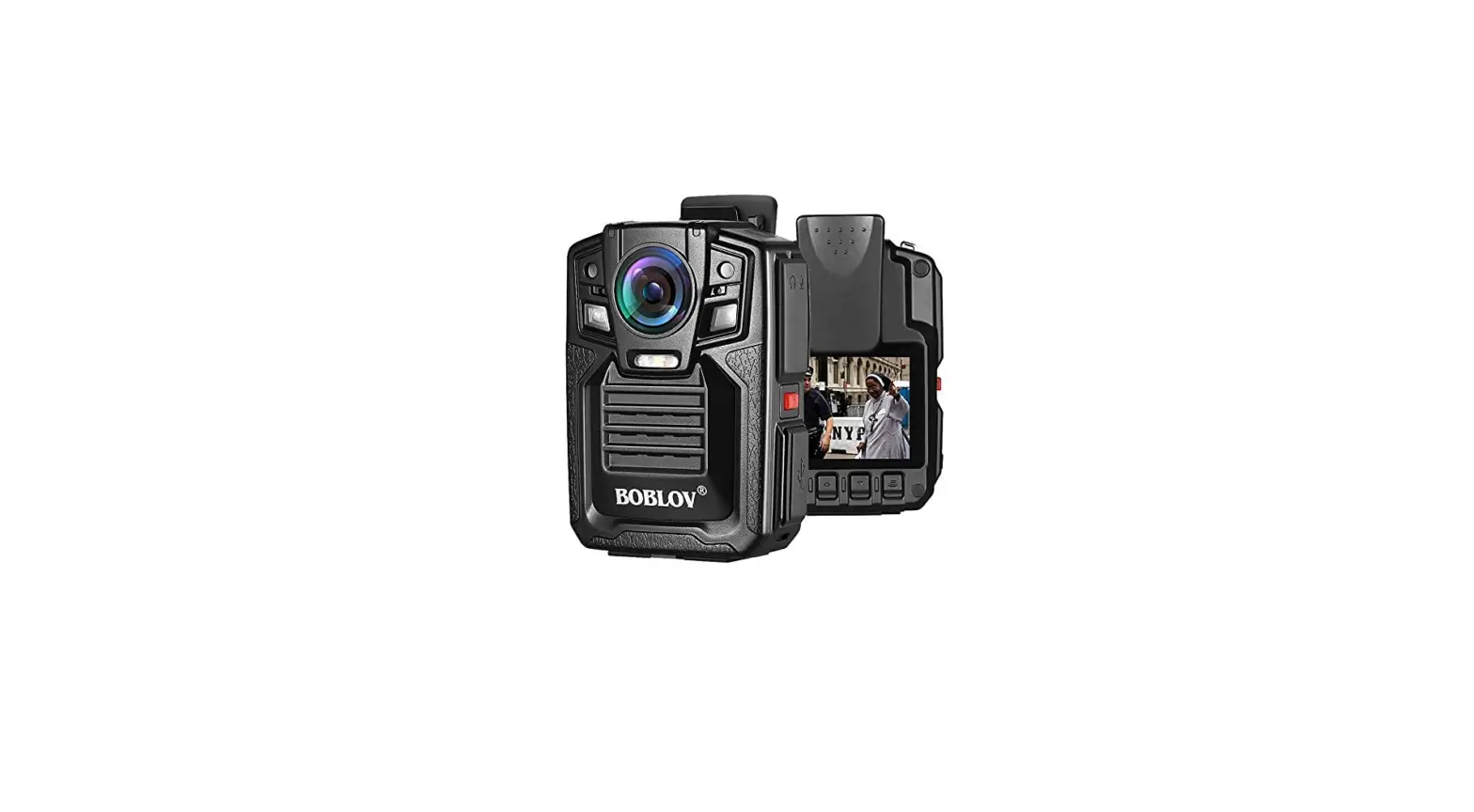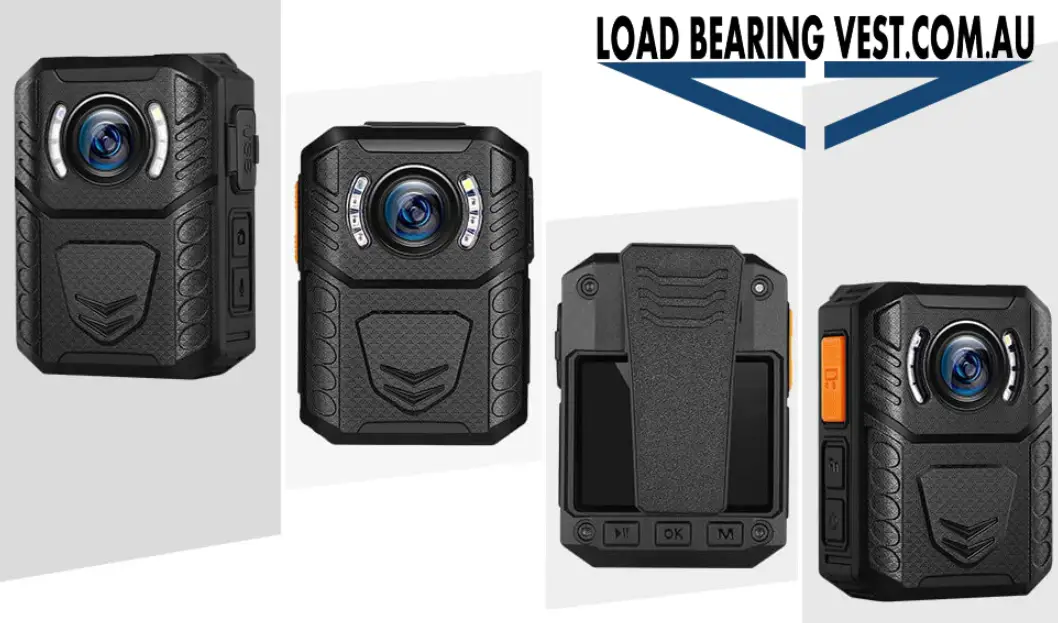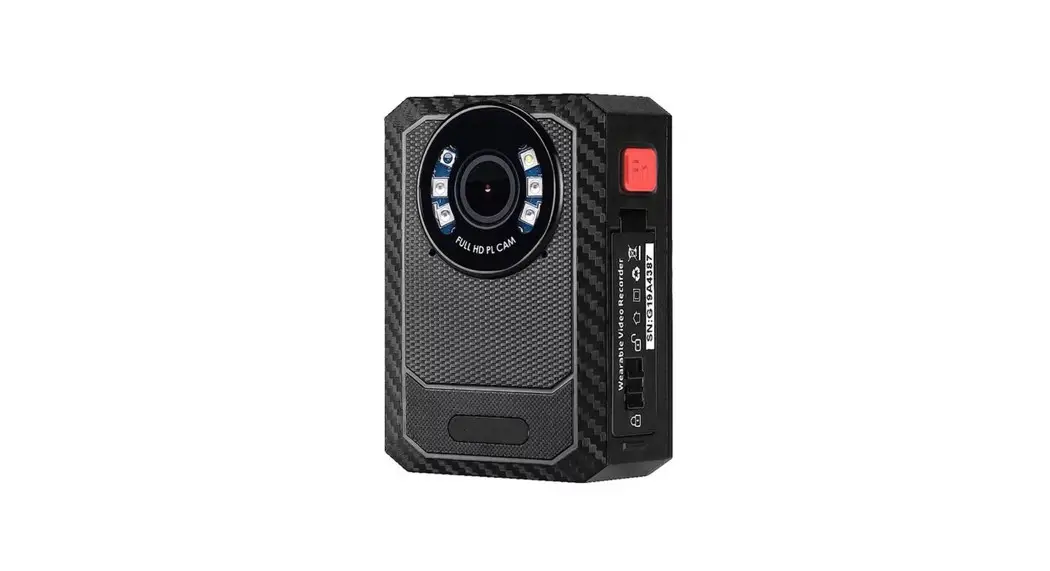
 F1EL21 Body Worn Camera
User Manual
Body Worn Camera
Thanks for your purchasing. This camera is specially designed for video recording and photo taking. Please read the user manual before using it.
Important information: before you start to use this device, please connect it to computer through auxiliary USB cable, then press Fn button for six times to get access to camera storage. Copy BodyCam PC software to your computer for camera setting purpose in the future. BodyCam PC software will be deleted if you format the camera storage. Please contact vendor if it is lost.
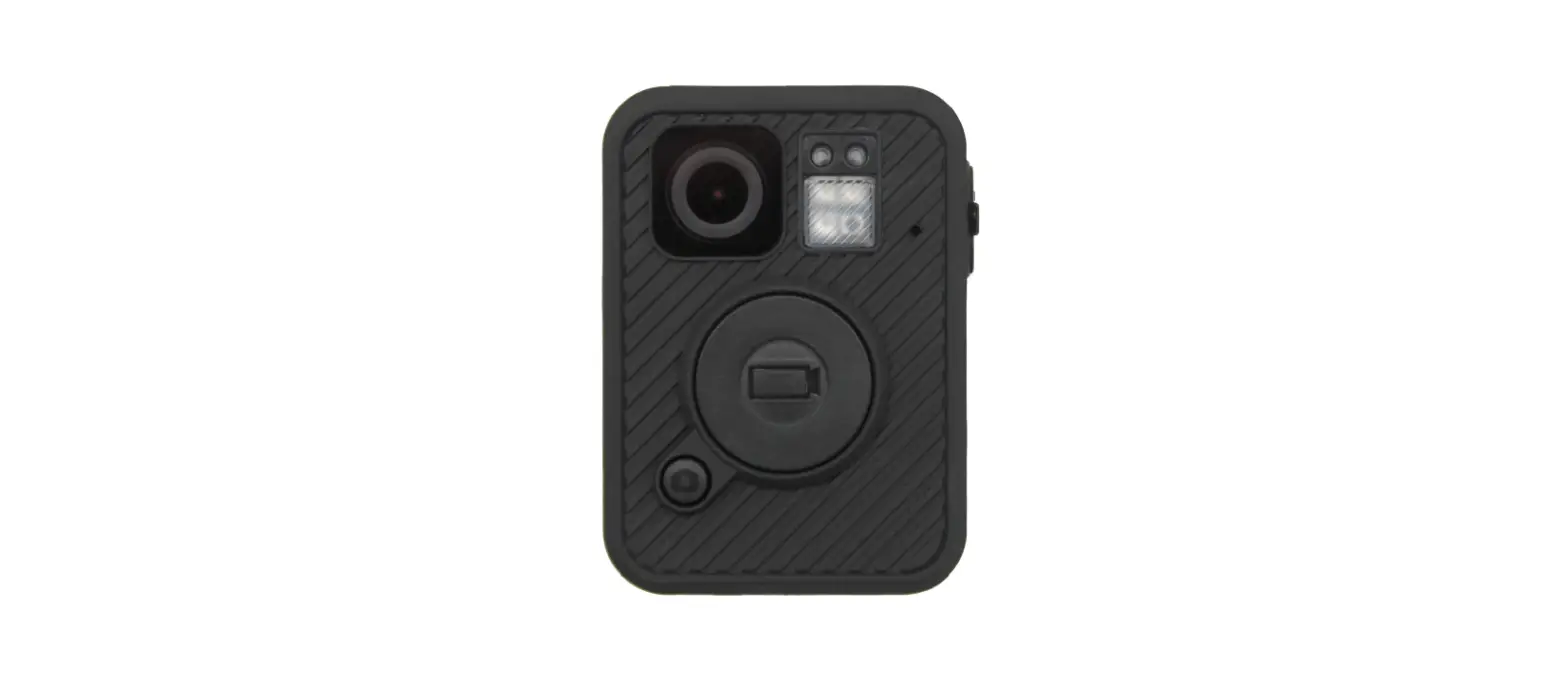
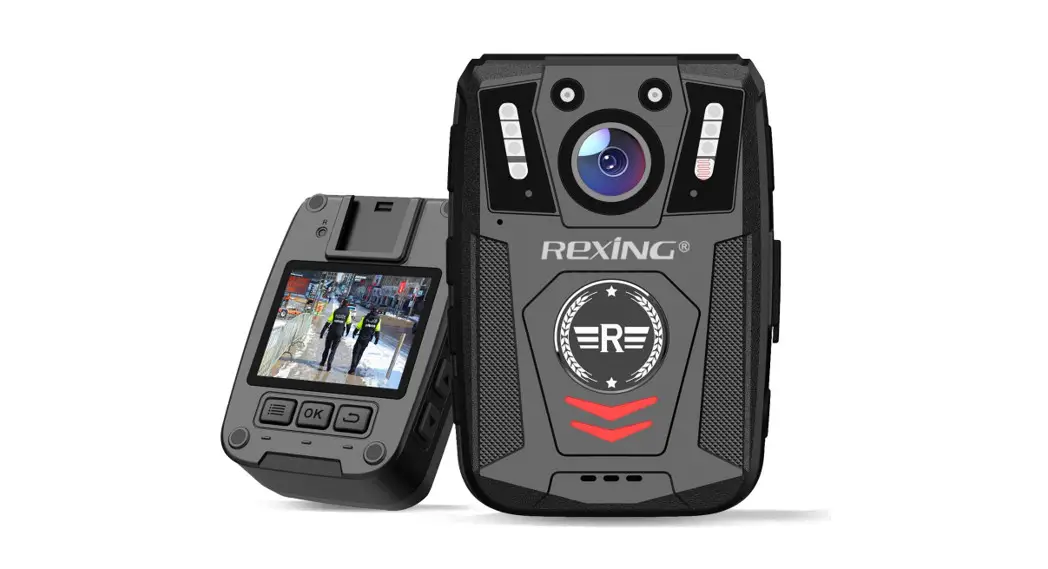
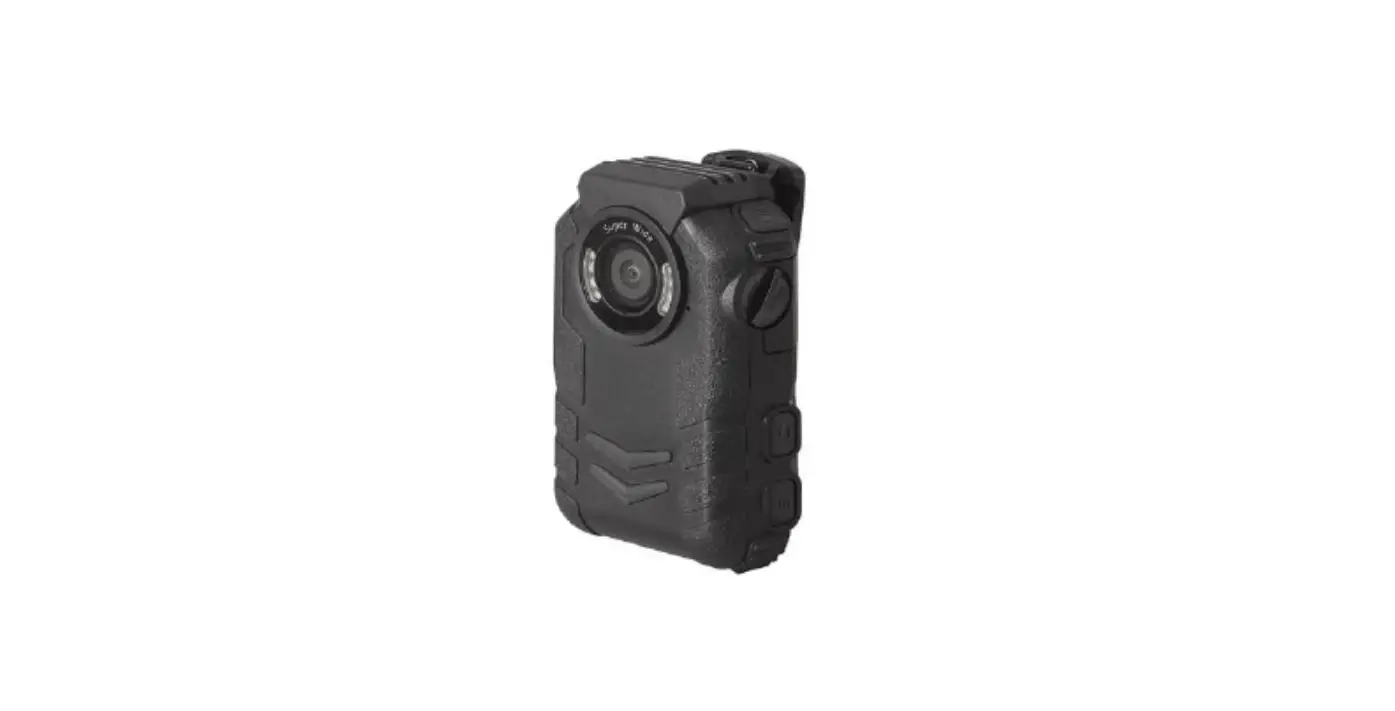
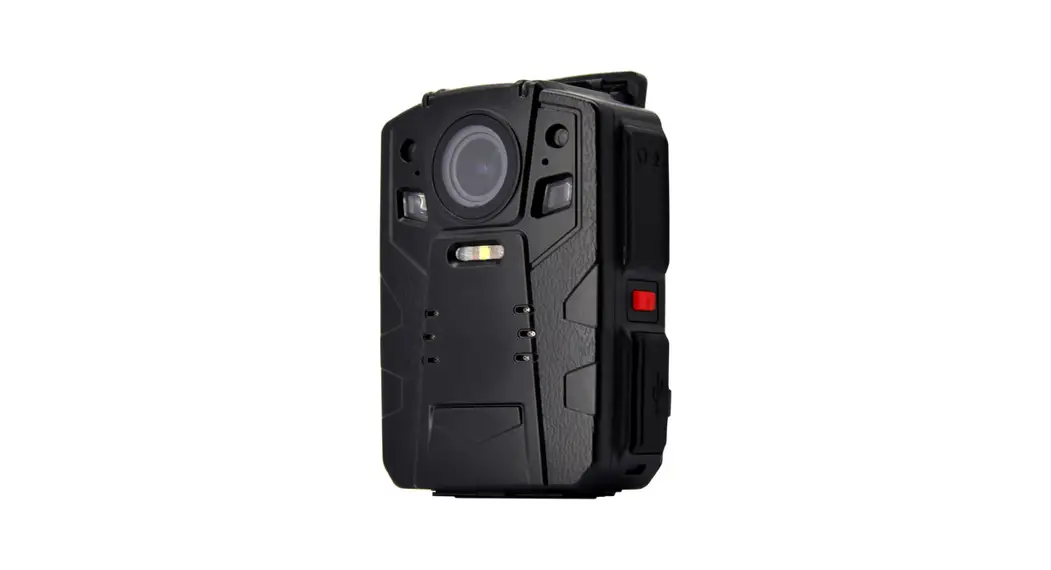
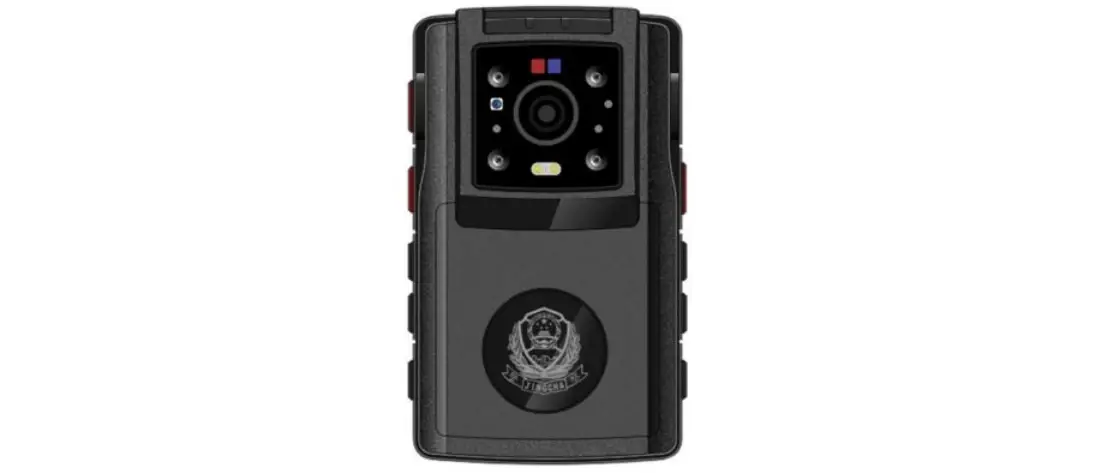
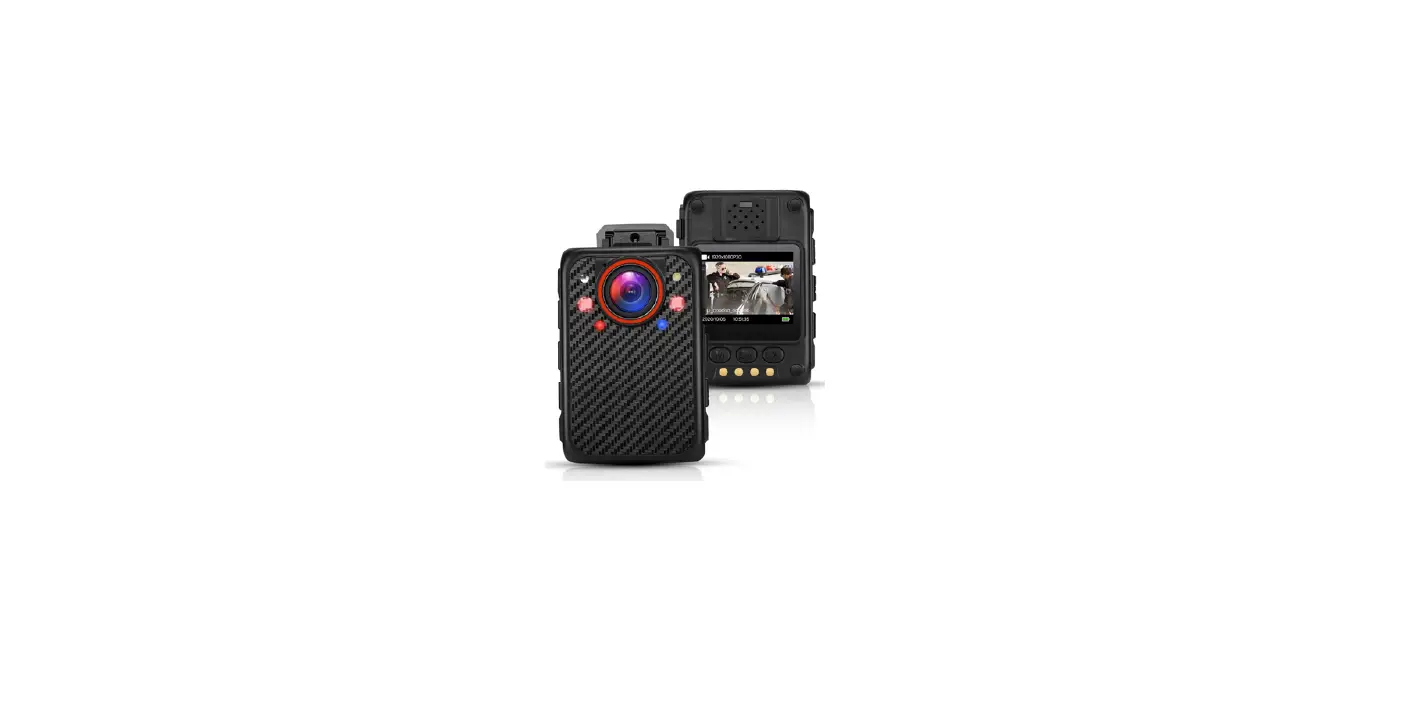
Body Camera Exterior Overview
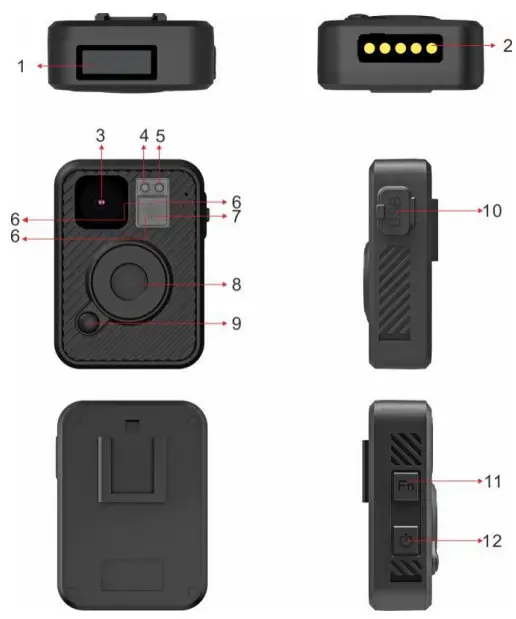
| Item | Description |
| 1.I.CD Screen | Showing the battery, storage, GPS,WIFI, Mute, Infrared, Video recording status; Press power button to turn LCD on/off |
| 2.Charging dock connector | Connect charging dock for charging or connecting PC. |
| 3.Camera Lens | Full HD camera |
| 4.Status Indicator LED | Green: standby mode(power on but not recording) Solid Red: pre-record mode Flashing Red: video recording Flash once(red): taking photo |
| 5.Charging Indicator LED | Blue: charging status White: charge done (fully charged) |
| 6.Infrared Lights | Providing infrared light compensation to help camera record good quality video in low light conditions. |
| 7.Light Sensor | Detect changes of light and turn on/off IR for low light recording automatically. |
| 8.Record Button | a)Press to start video recording b)Hold 3 seconds to stop video recording c)While camera is powered off, hold 3 seconds, camera will turn on and start recording. |
| 9.Snapshot Button | a)Press to take a photo in standby mode. b)Press to take a single snapshot image while in video recording mode. c)Hold 3 seconds to enable covert mode, both voice, LED & LCD indication will be disabled, camera will only vibrate: Start recording, vibrate once, stop recording, vibrate twice. |
| 10.USB Port & Reset button | For charging or connection to PC PS: connects to external camera (optional). Reset button is inside small hole near USB port and it is used to reset the device when it works abnormally. |
| 11.Fn Button | a)Press to turn on/off infrared lights when infrared lights are in manual mode. b)When camera is in standby mode, hold 3 seconds to turn on/off WIFI. c)Double click (press 2 times in 1 second) Fn button to enable/disable video mute. When video mute is turned on, recorded video will have no audio, only video. |
| 12.Power Button | Hold 3 seconds to turn on; Hold 3 seconds to turn off. |
How to Operate
Power on/off and Standby mode
Hold the power button 3 seconds to turn the camera on, camera will be in standby mode. Hold 3 seconds again to turn the camera off.
Video Recording
When camera is in standby mode, press REC button to start video recording, recording initiates with audio prompt (Recording start), Status Indicator LED (Red recording indicator flashing) and camera vibrate once.
Hold 3 seconds to stop recording, camera vibrate twice and status indicator LED turns to solid green.
Note: When camera is powered off, hold Record button 3 seconds to power camera on and start video recording.
Snapshot
Either when camera is in standby mode or recording video, press snapshot button to take a photo, status indicator LED will flash once(red).
Hold snapshot button 3 seconds to enable covert mode, both LED, LCD & voice indication will be disabled. Camera recording status will be indicated by vibration: start recording vibrate once, stop recording vibrate twice.
WIFI
When camera is in standby mode, hold Fn button 3 seconds to turn on/off WIFI.
Note: When WiFi is on, external camera connection is disabled.
GPS
Set GPS on/off via Camera Manager.exe (from BodyCam PC software).
IR infrared night vision
Press Fn button once to turn on IR, press again to turn IR off.
Covert Mode (Stealth mode)
Hold photo button 3 seconds to enable/disable covert mode.
When covert mode is on, camera LED, LCD & audio alerts will all be disabled. Camera will vibrate only: vibrate once-start video recording; vibrate twice-stop video recording.
Video Mute
Press Fn button twice in one second (double click) to enable Video Mute function, when Mute is on, the recorded video won’t have audio. When mute is enabled, camera will beep once, when mute is disabled, camera will beep twice.
LCD Screen
After camera is powered on, LCD will turn on, and LCD will turn off automatically after 1 minute. Press power button to turn on/off LCD.
When camera goes to covert mode, LCD will go off, once covertmode is disabled, LCD will turn on again.
LCD screen overview:
Standby mode
(power on but not recording)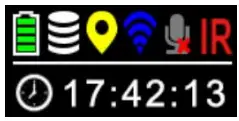 Recording mode
(video recording)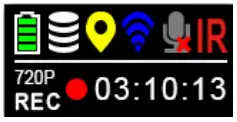 Pre-Recording mode
(Pre- recording is set on)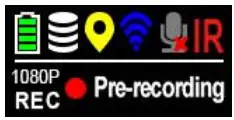
IR icon : When camera IR Infrared light has been turned on, IRicon will show up.
Mute icon : When camera mute function has been turned on,Mute icon will show up.
GPS icon : When GPS was set off, the GPS icon
 shows up.
When GPS has been set on, GPS icon will show up, flashing. After GPS signal being received, GPS icon will go solid.
WIFI icon : When WIFI is off, WIFI icon is .
When WIFI has been turned on, WIFI icon will turn blue.
Storage icon : When storage is full, it will show 4 blocks, then one block less once storage has been used.
Battery icon : When battery is full, it will show 4 blocks, then one block less once battery has been used.
Resolution icon : When resolution has been set, Resolution icon will show accordingly, for example, 1440P, 1080P, 720P.
Video recording icon : When video recording starts, the red dot will start flashing. When camera is in standby mode, the red dot will be solid red.
Recording time : The time format HH:MM:SS, indicatethe video recorded time.
LED indication
Charging indication LED:
Blue: charging status
White: camera is fully charged
Status Indicator LED:
Solid Green: camera is in standby mode
Solid Red: camera is in standby mode, while pre-record is set on
Flashing Red: camera is recording video
Flash red once: camera is taking photo
Charging
Use the USB cable supplied in the box to charge the camera via the USB port on the side, or the USB port on the charging dock where camera is docked.
Note: upon receiving your body camera, it is recommended to get device fully charged before usage; Recharge the camera before long period of not being used.
Reset
RESET BUTTON is inside the USB port
Press RESET BUTTON when camera freezes up or works abnormally.
Note:
When camera battery level goes to 5%, camera will prompt voice alarm: LOW BATTERY, LOW BATTERY … …
When camera memory level descend to 200MB, camera will prompt voice alarm: CARD FULL, CARD FULL … …
WiFi
Search “Eyescam Pro” in App Store or Google Play and download it to your phone or tablet.
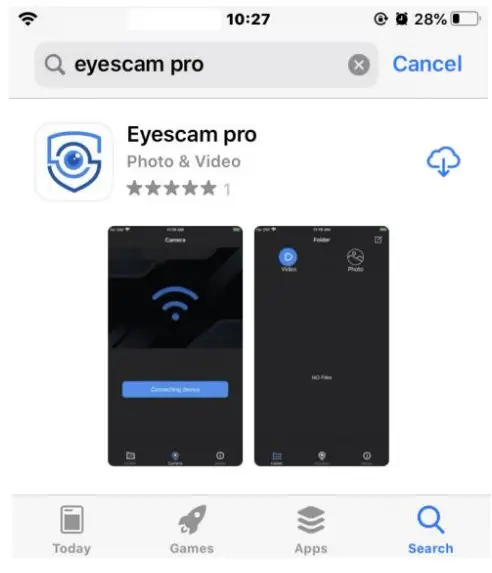
Hold Fn button for 3 seconds to turn on “WiFi”. You will see blue WiFi icon on top row of screen.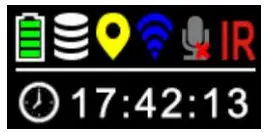 Go to phone/tablet WiFi setting. Find out your body camera’s WiFi SSID (amba_boss-****) and select, then input WiFi password (1234567890 as default) and connect.
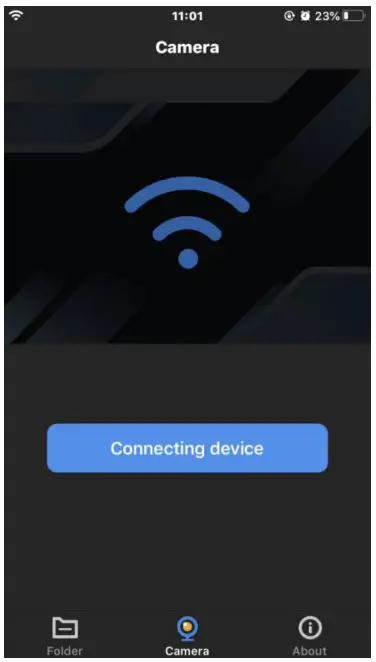
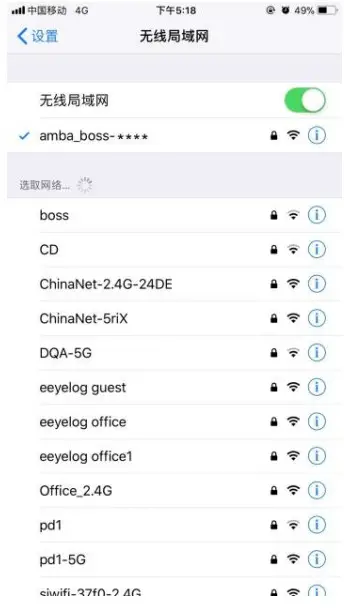 Open Eyescam Pro and tap “connecting device” to enter camera interface.
 Tap resolution window to change video resolution.
Tap setting icon to enter simple setting menu.
Tap RED button to start/stop video recording. Tap PHOTO button to make a snapshot.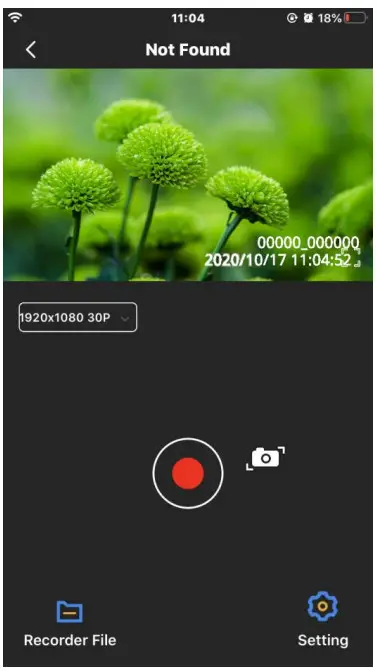
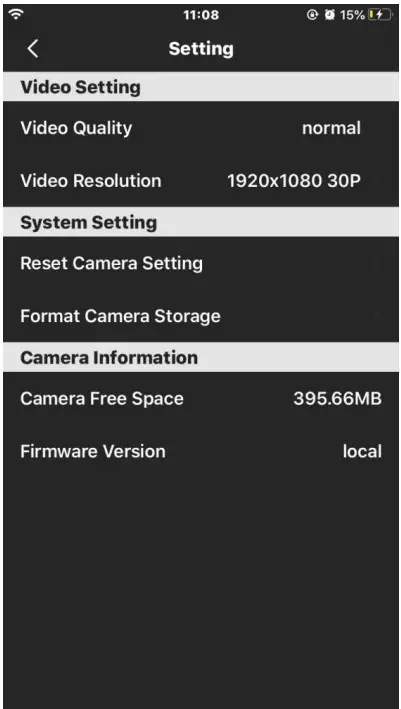 Tap “Recorder File” to view the video and photo files.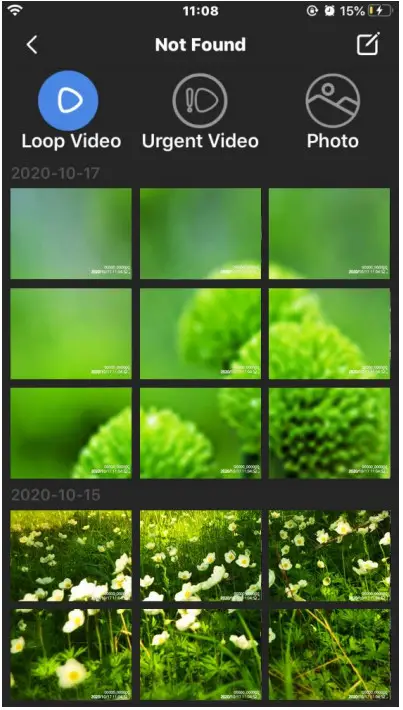
Camera setting through CAM MANAGER
Camera setting can be changed through Camera Manager (from BodyCam PC software). Before using this camera, please connect it to computer through auxiliary USB cable, then press Fn button for six time to get access camera storage on PC. You can find BodyCam PC Software in root folder. Please copy it to your PC for further use.
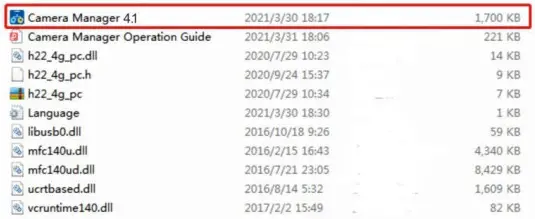
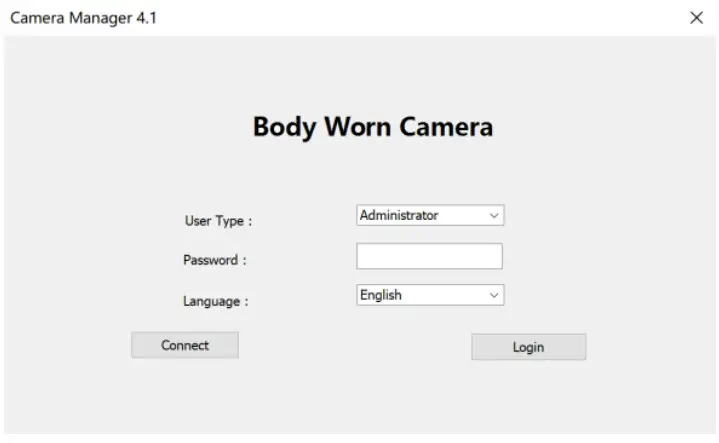
- Open Camera Manager and enter password, connect and login. (Default password is 000000)

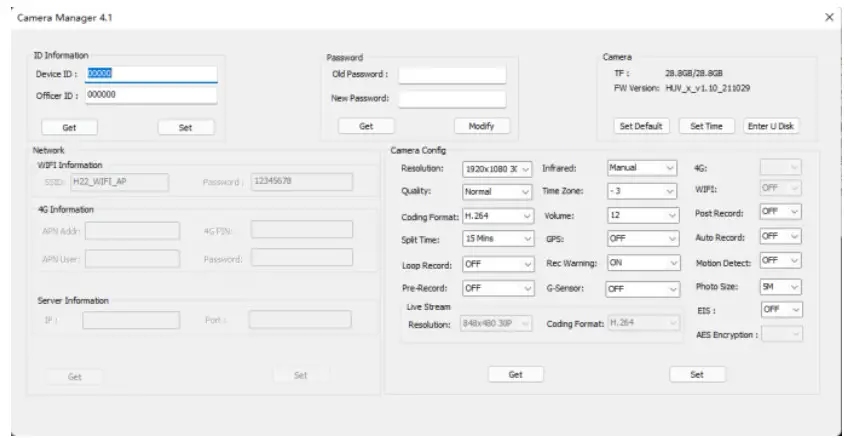
- Click “Get” to show up camera original settings. Choose target setting and click “Set”, then setting is changed.

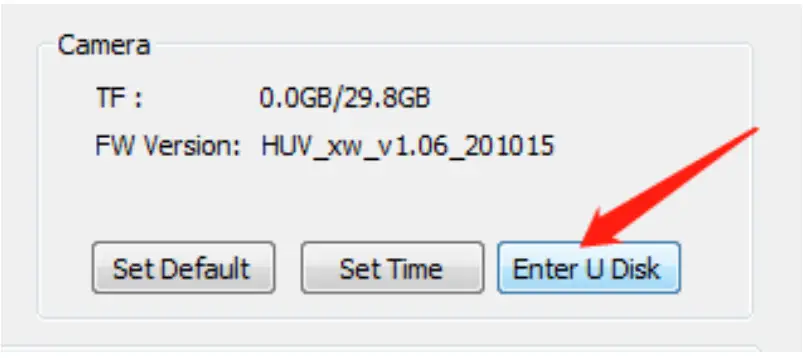
- Click “Enter U Disk” (upper right corner) to make camera to be recognized by PC as a folder. You can check all files from the camera folder.

IMPORTANT INFORMATION
The clips and attachment studs rotate 360 degrees –
The crocodile clip, epaulette clip, chest harness and shoulder harness attachment studs ALL turn 360 degrees. Slot the clip into the back of the camera then turn the clip vertically. Or you can slot the clips into the back of the body camera first, then attach the body camera to the chest or shoulder harness, then turn the body camera vertically.
Reset device-
To reset the device, use a small needle to jab the reset button. The reset button is located next to the USB port.
Delete files –
You can only delete the recorded files from a computer. This is to stop people from getting rid of the evidence straight from the device itself. To delete the files from your computer, right click, and then delete them.
Product warranty –
We offer a 12-month warranty on the body camera. This warranty covers faults that were caused by the manufacturer. If the fault was caused by the customer, then the warranty will be void.
USB cable –
Please only use the USB cable provided in the product box. Using other USB cables might cause damage to the body camera.
Attention –
- Charge camera fully after camera is left without working for long time.
- Keep camera bottom away from water to avoid short circuit or oxidation.
- Don’t disassemble camera without authorized instruction.
- When WiFi is on or low battery, external camera connection is disabled.