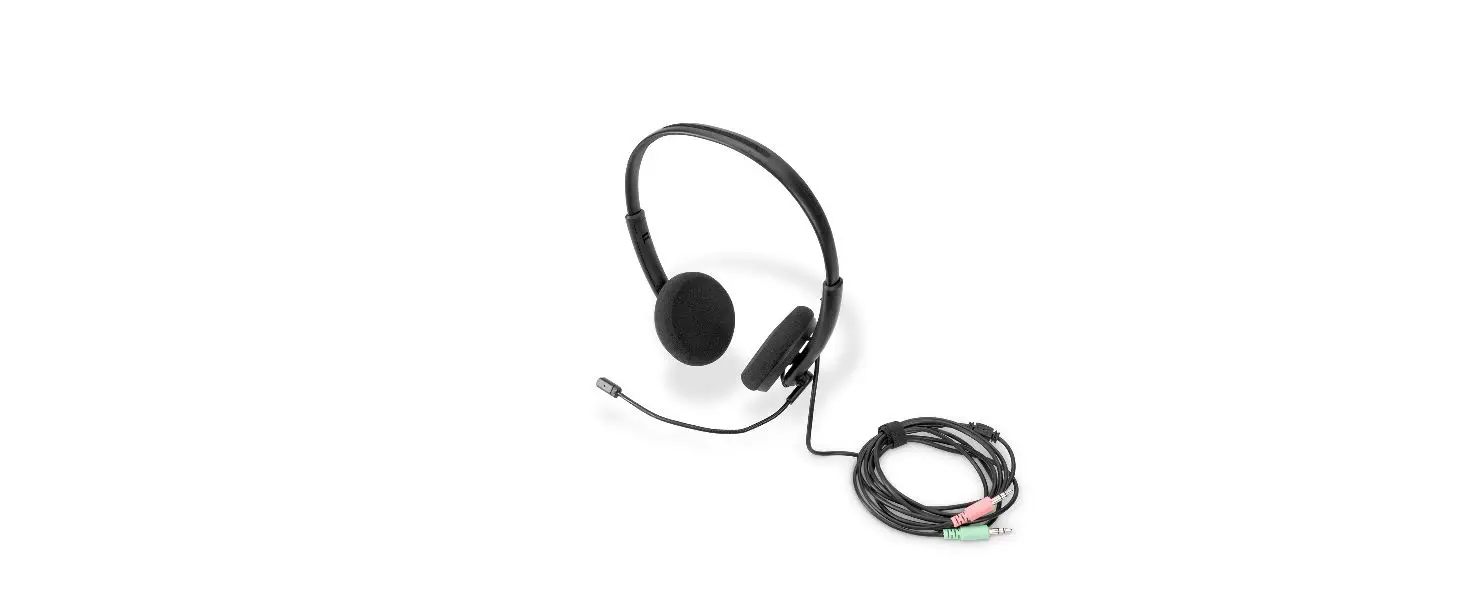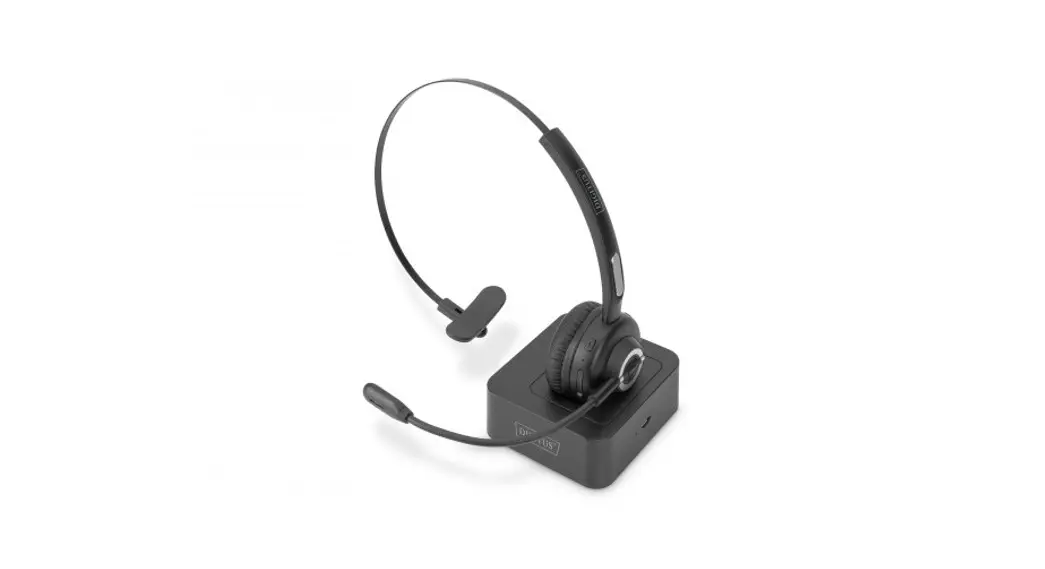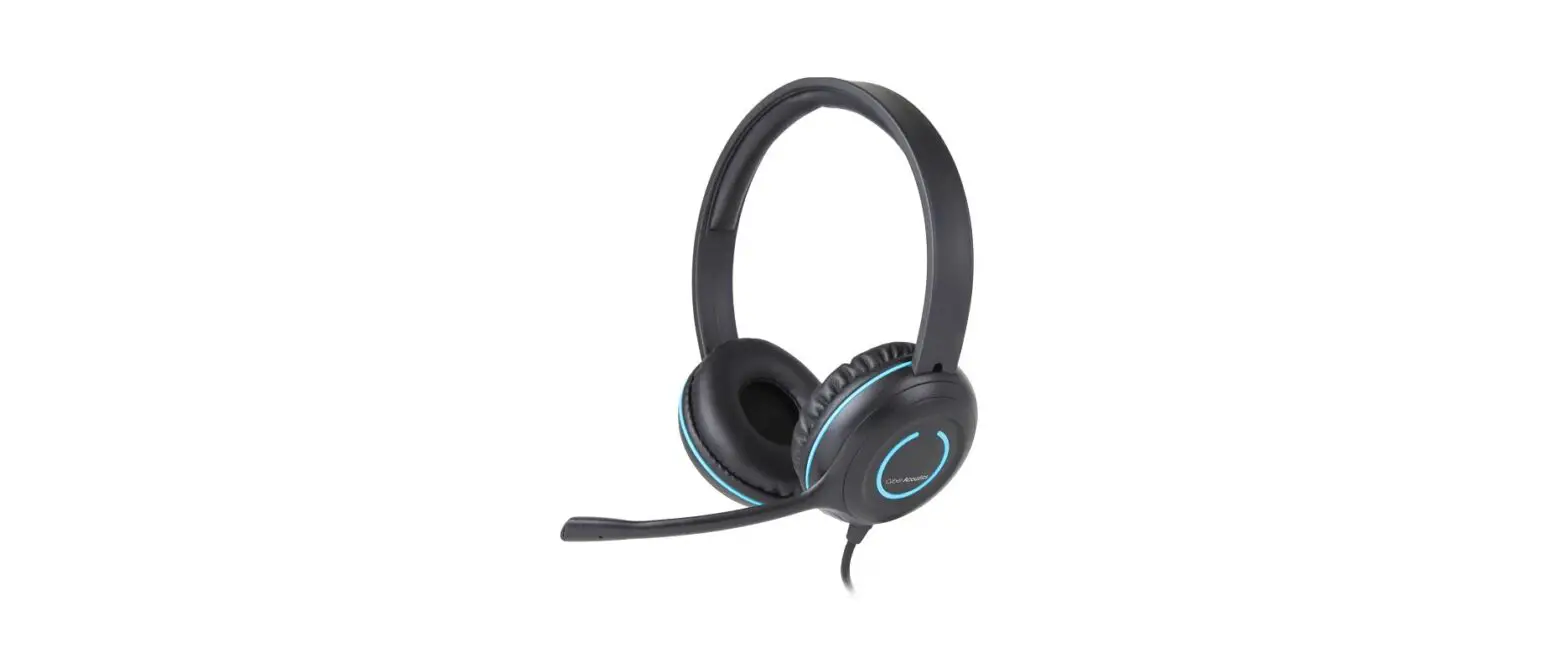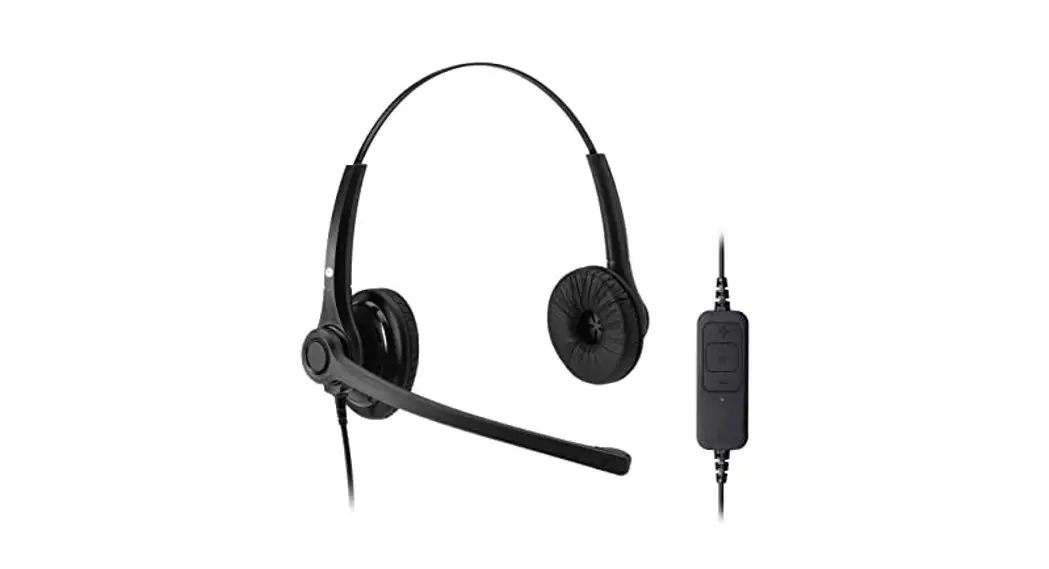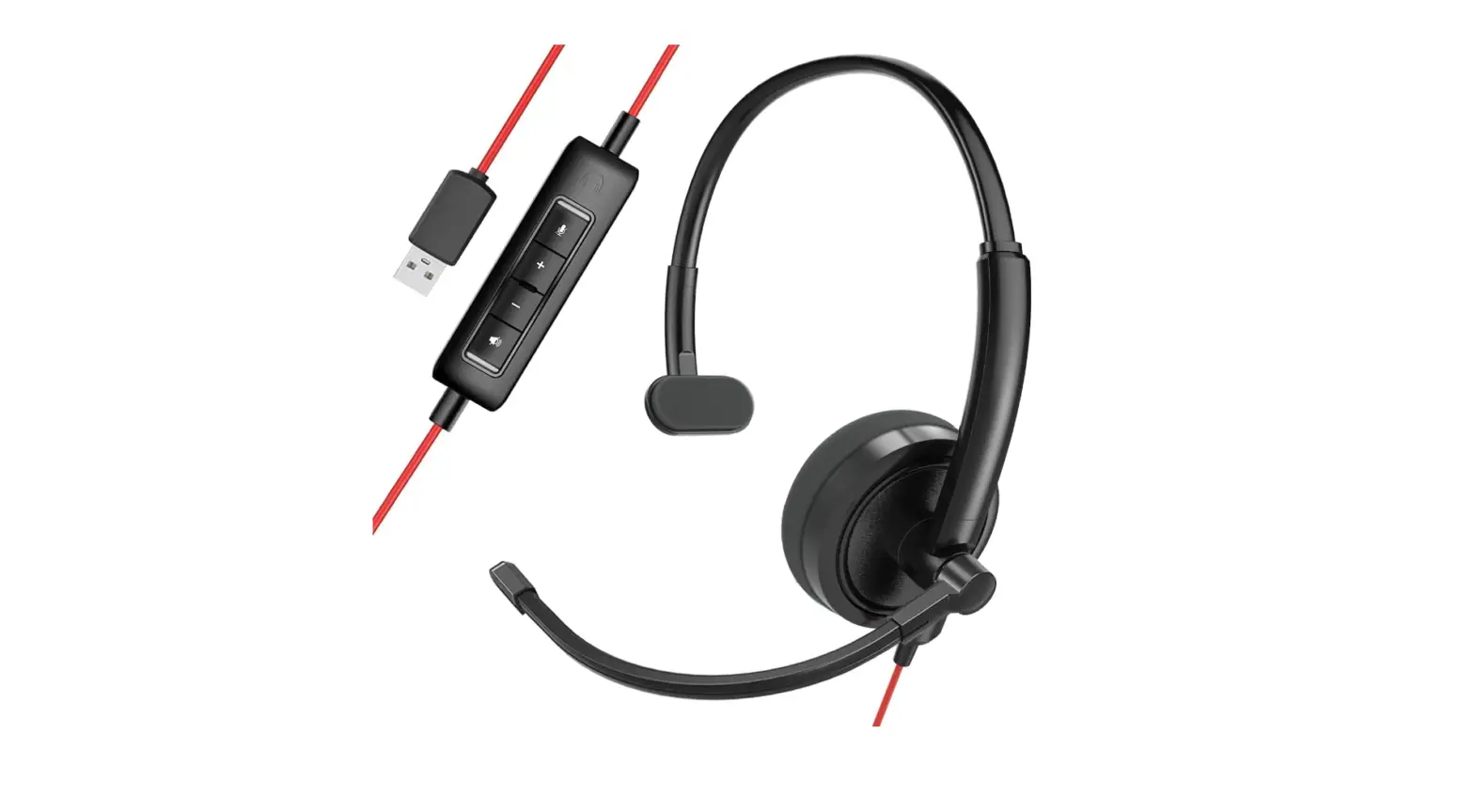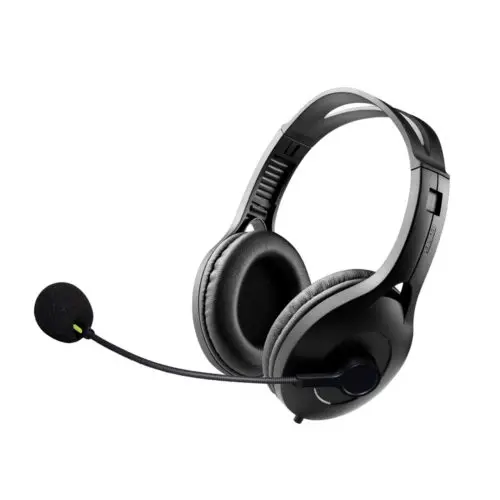
DIGITUS DA-12003 Ear Office Headset with Noise Reduction, USB
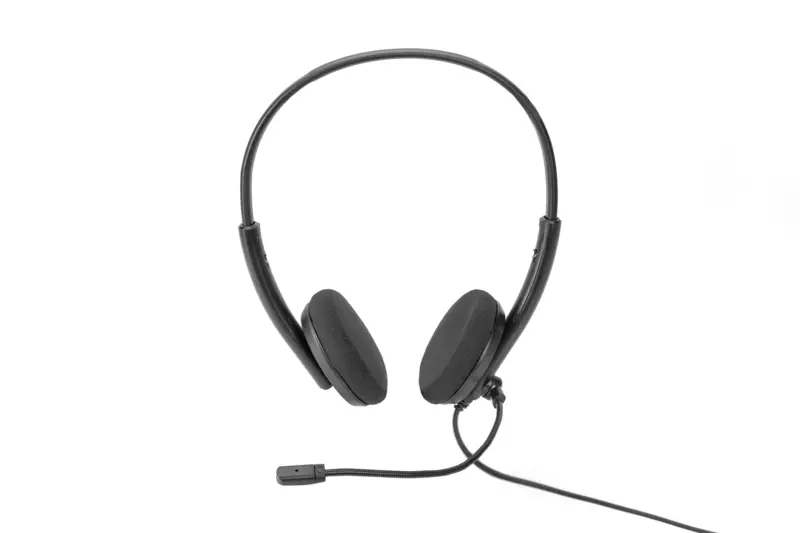
Specifications
| DA-12003 | DA-12004 | |
| Connection type | USB 2.0 (USB A) | |
| Connection cable length | 195 cm | |
| Features | Microphone noise reduction (one direction) | |
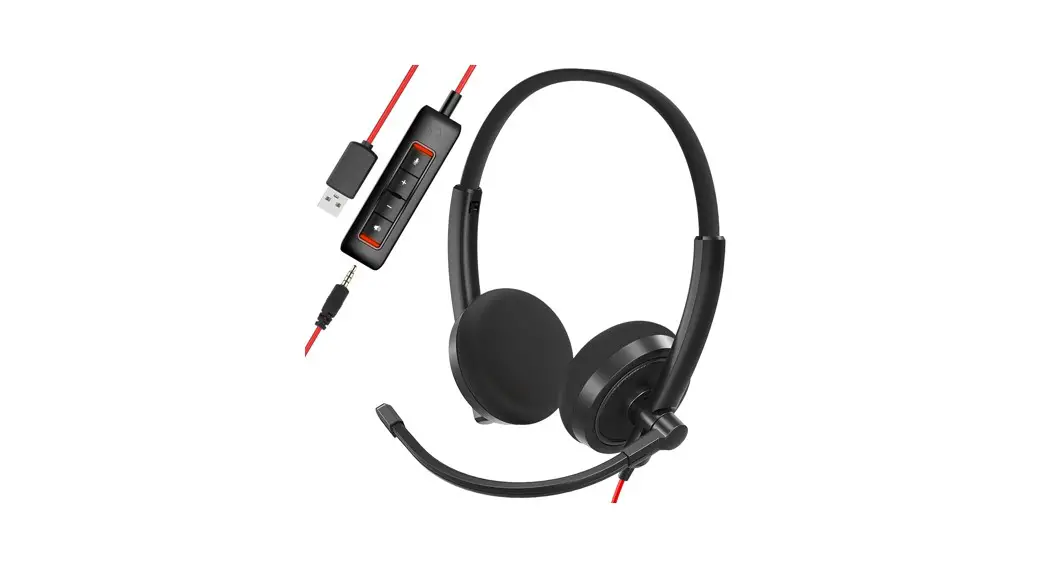
| Control module | Volume control & mute for microphone and speaker | |
| Earpiece diameter | 30 mm | 40 mm |
| Earpiece cushions | Foam | Synthetic leather |
| Headphone sensitivity | 115 dB ± 3dB | |
| Headphone impedance | 32 Ohm | |
| Headphone frequency | 20 – 20,000 Hz | |
| Max. power | 84 mW | |
| Microphone sensitivity | -42 dB | -52 dB |
| Microphone impedance | ≤ 2.2 kOhm | |
| Microphone frequency | 50 – 15,000 Hz | |
| Operating systems | Windows 10/8/7/XP, macOS 10.4 or higher | |
Packaging Content
- 1 x On-Ear Office Headset with Noise Reduction, USB
- 1 x QIG
Installation
To use the USB headset, simply connect it to an available USB port on your computer. Installation on both Windows and Mac operating systems will be automatic and completed shortly after connecting the headset. Once the installation is complete, you can verify that the headset is ready to use by following these steps:
Windows
Go to Control Panel > Sound and check that the USB PnP Sound Device is set as the default device in both the Playback and Recording tabs.
macOS
Go to System Preferences > Sound and check that USB PnP Sound Device is set as the default device in both the Input and Output tabs.
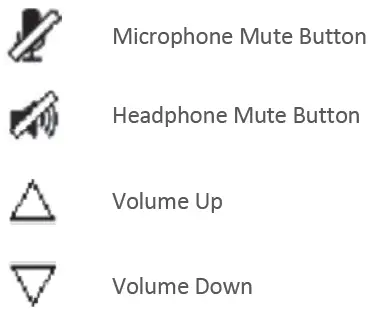
The USB headset can control the output volume of your computer using the volume up and down buttons and can completely mute audio output via the headphone mute button. It is possible to monitor the level that the computer is set to by hovering the mouse over the speaker icon in the system tray in Windows, whilst macOS will show the volume adjustment on screen with each button press. It is also possible to mute just the microphone by using the microphone mute button. A red LED will illuminate on the controller to signify that the = microphone is muted.
Under normal operation the green LED will flash, if it is permanently lit please adjust the microphone level: Windows > Control Panel > Sound > Recording > USB PnP Sound Device > Properties > Levels macOS > System Preferences > Sound > Input > USB PnP Sound Device > Input Volume
Controls
Hereby Assmann Electronic GmbH declares that the Declaration of Conformity is part of the shipping content. If the Declaration of Conformity is missing, you can request it by post under the below mentioned manufacturer address.
www.assmann.com
Assmann Electronic GmbH
Auf dem Schüffel 3
58513 Lüdenscheid
Germany
 ASSMANN Electronic GmbH | Germany