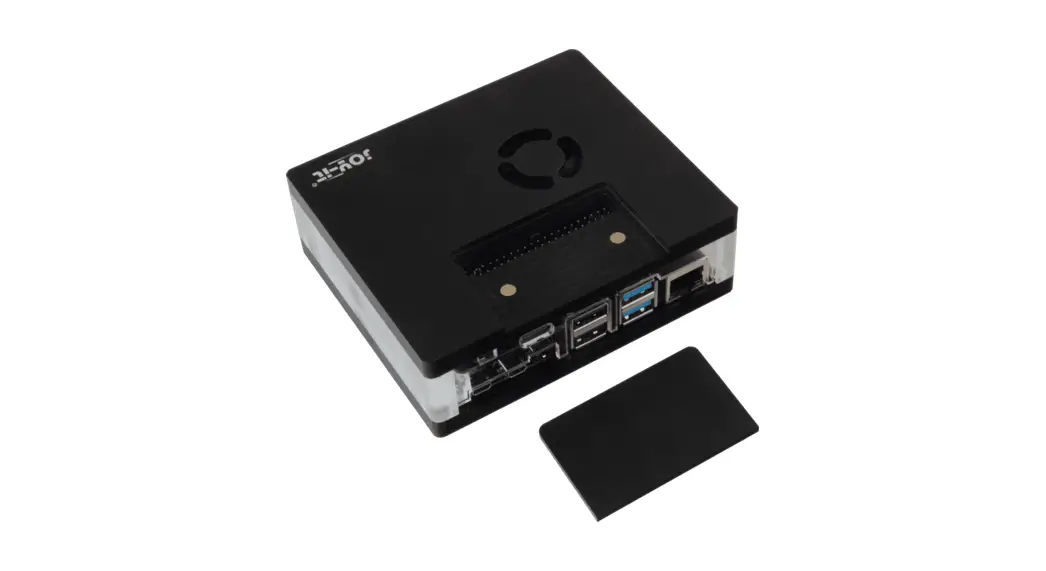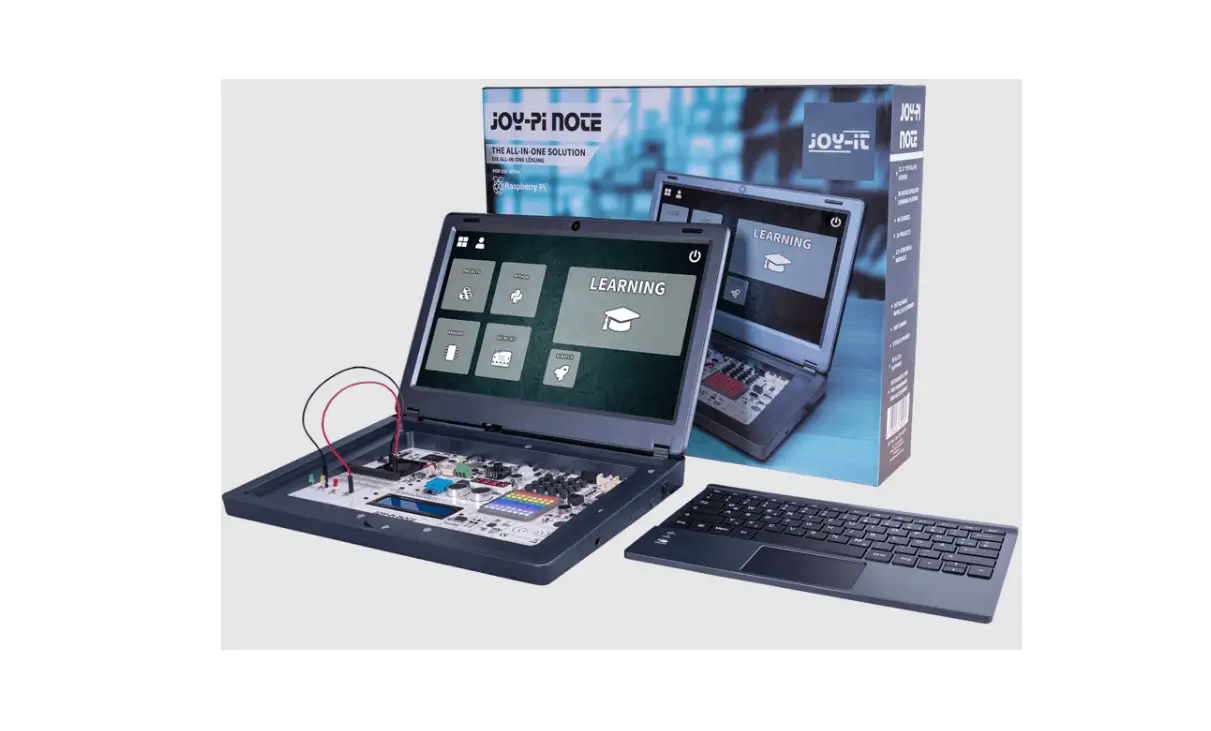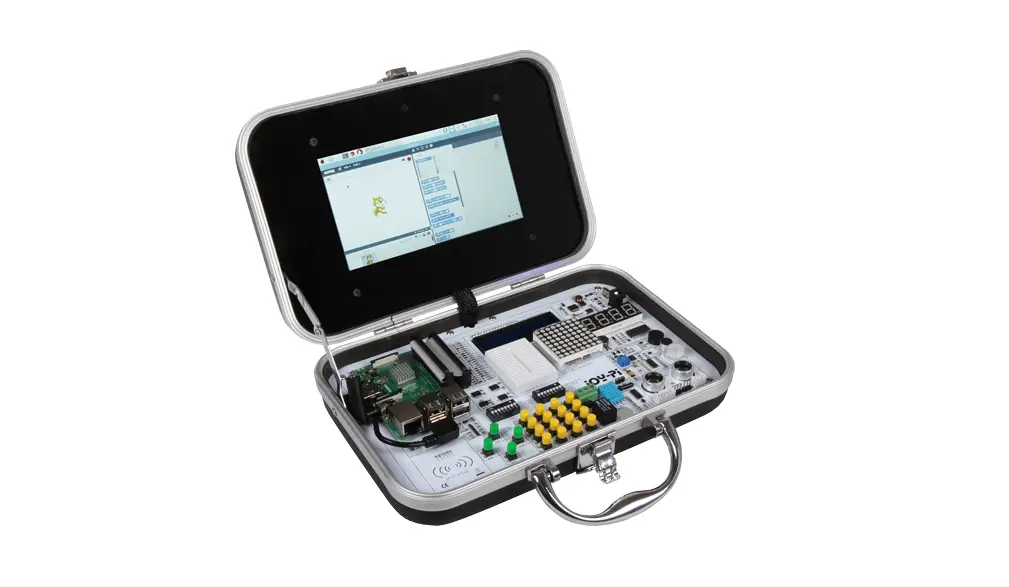
Joy PI Experimental and Education Case
Experimental and education case
www.joy-it.net Pascalstr. 8 47506 Neukirchen-Vluyn
1. TABLE OF CONTENT
1. Table of content 2. General information & saftey instructions 3. Details 4. Commissioning & operation 5. Changing modules and using the GPIOs 6. Usage of Python and Linux 7. Lessons
1. Lesson : Using the buzzer for warning sounds 2. Lesson : Controlling the buzzer with key inputs 3. Lesson : How a relay is working and how to control it 4. Lesson : Sending a vibration signal 5. Lesson : Detecting noises with the sound sensor 6. Lesson : Detecting brightness with the light sensor 7. Lesson : Detecting the temperature and the humidity 8. Lesson : Detecting movements 9. Lesson : Measuring distances with the ultrasonic sensor 10. Lesson : Controlling the LCD display 11. Lesson : Reading and writing RFID cards 12. Lesson : Using stepper motors 13. Lesson : Controlling servo motors 14. Lesson : Controlling the 8 x 8 LED matrix 15. Lesson : Controlling the 7 segment display 16. Lesson : Detecting touches 17. Lesson : Detecting tilts with the tilt sensor 18. Lesson : Using the button matrix 19. Lesson : Controlling and using the IR sensor 20. Lesson : Own circuits with the breadboard 21. Lesson : Photographing with the Raspberry Pi camera 8. Other information 9. Copyright information 10. Support
The login data is: Username : pi Password : 12345
www.joy-it.net Pascalstr. 8 47506 Neukirchen-Vluyn
2. GENERAL INFORMATION & SAFETY INSTRUCTIONS Dear customer, Thank you very much for choosing our product. In the following, we will show you what has to be observed during commissioning and use. Should you encounter any unexpected problems during use, please feel free to contact us. The following lessons are designed so that, regardless of how much prior knowledge you already have, you can complete all lessons without any problems. For the different lessons, you have to download sample files and run them on the Joy-Pi. How to do this can also be found in this manual. But these tutorials are only the beginning you can use your Joy-Pi for a variety of projects. We are looking forward to see what you will do with our Joy-Pi.
Safety instructions
1. This device is intended for use in dry indoor areas. It must not become wet or damp! Also do not touch the device with wet hands!
2. The permissible ambient temperature is : 5 – 40 °C 3. Do not expose the device to direct sunlight, as the Joy-Pi could heat
up by this. 4. If the unit is damaged or has faults, do not longer use it and contact
our service for further instructions 5. Unplug the power supply from the power outlet if you are not going
to use it for a longer period of time. 6. Handle this product with care. It must not contain high exposed to
temperature, humidity or pressure. It may not be short-circuit either.
www.joy-it.net Pascalstr. 8 47506 Neukirchen-Vluyn
3. DETAILS
1 2 3 4 5 6 7 8 9 10 11 12 13 14 / 15
Raspberry Pi GPIO LED display
Breadboard 16 x 2 LCD module (MCP23008)
Power supply 8 x 8 LED matrix (MAX7219) 7 segment LED display(HT16K33)
Vibration module Light sensor (BH1750)
Buzzer Sound sensor Motion sensor (LH1778) Ultrasonic distance sensor Servo interfaces
www.joy-it.net Pascalstr. 8 47506 Neukirchen-Vluyn
16
Stepper motor interface
17
Tilt sensor (SW-200D)
18
Infrared sensor
19
Touch sensor
20
DHT11 temperature and humidity sensor
21
Relay
22
Key matrix
23
Independent keys
24
RFID module (MFRC522)
25
Switch
26
Fan connection
27
Power supply microUSB
4. COMMISSIONING & OPERATION First you must insert your microSD card into the slot provided by the Raspberry Pi. If you do not want to use our image, please read chapter 5.3 and chapter 6.1 to create your own image. Now you can wire the Raspberry Pi to the Joy-Pi. For this purpose plug the AUX adapter into the AUX port and the USB cable into one of the USB ports. Then connect both GPIO bars, one from the Raspberry Pi and one from the Joy-Pi with the supplied cable. With the HDMI cable, please note that you may need to replace the HDMI adapter depending on the Raspberry Pi you are using. For the Raspbbery Pi 4 you need the small micro HDMI adapter, for all older Raspberry Pi models you need the big HDMI adapter. Changing the adapter is done quickly. Pull the plastic lock of the connector carefully downwards to release the HDMI cable, as shown by the arrows in the picture below. Now you can simply pull the cable out of the adapter.
www.joy-it.net Pascalstr. 8 47506 Neukirchen-Vluyn
Now take the other HDMI adapter and, as in the previous step, carefully pull the plastic latch of the connector downwards to release the lock. Now you can plug the HDMI cable into the connector. Make sure that the side of the cable with the silver contacts, as shown in the picture below, points away from the adapter.
When the cable is fully inserted into the connector, you can close the lock by carefully pushing the plastic latch of the connector upwards.
Now you can plug the HDMI cable into your Raspberry Pi and screw the Raspberry Pi firmly onto the board of the JoyPis. To start the Joy-Pi, all you have to do is to supply it with power. The power cable which is included, should be connected on the right side of the board. The Joy-Pi should now start as soon as you flip the switch on the power cord.
www.joy-it.net Pascalstr. 8 47506 Neukirchen-Vluyn
You have various possibilities to operate your Joy-Pi. One is via the wireless keyboard, which can be used in combination with the touch display, or you can provide a connection to your computer using VNC or SSH.
Wireless keyboard
First, connect the USB stick of the keyboard to one of your USB ports of the Raspberry Pi. Now you can switch it on at the right side of the keyboard and with the help of the key combination Fn+RF it will connect to the Joy-Pi. In order to make the key assignment match the German keyboard layout of the keyboard, German must be selected as language in the system preferences. To do this, open the terminal and enter the following command to open the system settings: sudo raspi-config There you select 4 Localisation Options I1 Change Locale to select German as language. There is also a touchpad on the keyboard that you can use to move the cursor. Further functions are described in the enclosed instructions. The enclosed microUSB cable is intended for charging the keyboard.
VNC
With the help of the program VNC Viewer, which you can download here. With this program, you can see the desktop of your Joy-Pi on your computer and you can operate it completely. To use this function you must first allow a VNC connection. You enable this in the system settings. To do this, execute the following command: sudo raspi-config There you activate VNC in 5 Interfacing Options P3 VNC. Now you can connect to the Raspberry Pi via your network. To do so, enter the IP address of the Joy-Pi. You can see the IP address of the Joy-Pi by clicking on the VNC sign in the upper right corner. Now you only have to login with the login data and then you have fully access from your computer to your Joy-Pi.
user name : pi password : 12345
www.joy-it.net Pascalstr. 8 47506 Neukirchen-Vluyn
SSH
SSH is a different connection path than VNC to connect wirelessly to your Joy-Pi from a PC. You can use for example MobaXTerm, which you can download here. To be able to establish an SSH connection, you must enable SSH and your Joy-Pi must be connected to your network. Enable SSH in system preferences 5 Interfacing Options P2 SSH. Open system preferences with: sudo raspi-config
Now click you enter
tohneSIPesasdiodnreisnsManodbatXhTeeursmertonaemstea.bTlihseh
a new connection. There IP address can be dis-
played by clicking on the VNC icon in the upper right corner.
user name : pi password : 12345
You must then enter the password. Attention! It is possible that the keystrokes are not displayed when entering the password. Now, you can see a terminal which can control the Joy-Pi.
www.joy-it.net Pascalstr. 8 47506 Neukirchen-Vluyn
5. CHANGING MODULES AND USING THE GPIOS
5.1 Change of modules
On the Joy-Pi board there are two switching units with 8 switches each. The switches make it possible to switch between different sensors and modules. Since the Raspberry Pi has only a limited number of GPIO pins, these switches are needed to use more sensors and modules than GPIO pins are available. Using these switches is quite simple and will be needed in some of the following lessons. In the table you can see which switch switches which sensor or module.
Sensors / modules Key matrix
Independent keys Vibration module
Tilt sensor Stepper motor Servo motor
Switching unit Left Left Right Right Right Right
Keys 1 – 8 5 – 8
1 2 3, 4, 5, 6 7, 8
5.2 Usage of GPIOs
In the following we will explain in more detail what GPIO’s are, how they work and how they are controlled.
www.joy-it.net Pascalstr. 8 47506 Neukirchen-Vluyn
GPIO stands output).
for:
General
–
purpose
input
/
output
(universal
input
/
GPIO pins do not have a specific purpose. They can be configured as ei-
ther input or output and have a general purpose. This depends on what
you want to achieve.
Example input pin: Button If the button is pressed, the signal will be transferred through the input pin of the Raspberry Pi.
Example output pin: Buzzer A signal will be sent via the output pin of the Raspberry Pi to the buzzer to control it.
If you look on the opened Joy-Pi from the front, the GPIO pins will be on the right side of the Raspberry Pi.
There are 2 possible schemata of the Raspberry Pi GPIO: GPIO – BOARD and GPIO – BCM. The GPIO – BOARD schemata that reference pins via the actual pin number. That means that the pin numbers of the following picture is used.
TChheansncheel.mThaetaseGaPrIeOt-hBeCnMummbeearnssatfhteart
the pins GPIO:
reference
Broadcom
SOC
1
3.3 V DC
2
3
GPIO 2 (SDA1, I2C)
4
5
GPIO 3 (SCL1, I2C)
6
7
GPIO 4
8
9
Ground
10
11
GPIO 17
12
13
GPIO 27
14
15
GPIO 22
16
17
3.3 V
18
19
GPIO 10 (SPI, MOSI)
20
21
GPIO 9 (SPI, MISO)
22
23
GPIO 11 (SPI, CLK)
24
25
Ground
26
27
ID_SD (I2C, EEPROM)
28
29
GPIO 5
30
31
GPIO 6
32
33
GPIO 13
34
35
GPIO 19
36
37
GPIO 26
38
39
Ground
40
www.joy-it.net Pascalstr. 8 47506 Neukirchen-Vluyn
5 V DC 5 V DC Ground GPIO 14 (TXD0) GPIO 15 (RXD0) GPIO 18 Ground GPIO 23 GPIO 24 Ground GPIO 25 GPIO 8 (SPI) GPIO 7 (SPI) ID_SC Ground GPIO 12 Ground GPIO 16 GPIO 20 GPIO 21
GPIO – BOARD 1 2 3 4 5 6 7 8 9 10 11 12 13 14 15 16 17 18 19 20 21 22 23 24 25 26
27
28 29 30 31 32
33
34
35
36 37 38 39 40
Sensors and modules 3.3 V 5.0 V
I2C, SDA1 (Light sensor, LCD display, 7 segment display) 5.0 V
I2C. SCL1 (Light sensor, LCD display, 7 segment display) Ground
DHT11 sensor TXD0
Ground RXD0 Touch sensor Buzzer Button matrix(ROW1), vibration motor Ground Button matrix (ROW2), tilt sensor Motion sensor 3.3 V Sonic sensor SPI Ground SPI Servo2, Button matrix (COL1), left button SPI RFID module Ground LED matrix ID_SD (I2C, EEPROM (Electrically Erasable Programmable Read – only Memory)) ID_SC Stepper motor (STEP1), button matrix (ROW3) Ground Stepper motor (STEP2), button matrix (ROW4) Ultrasonic sensor (Echo) Stepper motor (STEP3), button matrix(COL4), down button Ground Stepper motor (STEP4), button matrix (COL3), right button Ultrasonic sensor (TRIG) Servo1, button matrix (COL2), up button Infrared sensor Ground Relay
www.joy-it.net Pascalstr. 8 47506 Neukirchen-Vluyn
In our examples, we use the programming language Python to control the GPIO pins. In Python exists a library which is known as RPi.GPIO. This library is necessary to control the pins with Python.
The following example and comments in the code should help you to understand the program.
First, you have to import the required library with the import command.
The variable TOUCH and BUZZER references to the pins of the touch
sensor and the buzzer. Afterwards, you define the connection with
GPIO.setmode(GPIO.BOARD) as the used GPIO schemata. As the next
step, you configurate the earlier set variables with the command
GPIO.setup() as input or rather output. Pin 11 (TOUCH) is set as input and
pin 12 (BUZZER) as output.
The main function queries if a touch has been detected by the touch sen-
Tsohri.sIffutnhcistiiosnthpericnatsset,htehteefxutnTcotiuocnhddoe_tesmctethd
will be executed. and sets the buzzer
HIGH
and one second later LOW again(buzzer will sum one second):
import RPi.GPIO as GPIO import time #import libraries import signal
TOUCH = 11 #declaring variables BUZZER = 12
def setup_gpio(): #definition of inputs and outputs GPIO.setmode(GPIO.BOARD) GPIO.setup(TOUCH, GPIO.IN, pull_up_down=GPIO.PUD_UP) GPIO.setup(BUZZER, GPIO.OUT)
def do_smt(channel): #function for the output if touch was dected print(“Touch detected”) #and output that touch was detected GPIO.output(BUZZER, GPIO.HIGH) #signal output time.sleep (1) #wait 1 second GPIO.output(BUZZER, GPIO.LOW) #stop signal output
def main(): setup_gpio() try: #checking if touch is detected GPIO.add_event_detect(TOUCH,GPIO.FALLING,callback=do_smt,bouncetime=200) except KeyboardInterrupt: #CTRL + C exists the script pass finally: GPIO.cleanup()
if _name_==`_main_`: main()
To learn more about the purpose and usage of GPIO, we recommend that you read the official documentation on that topic of GPIO pins which is written by the Raspberry Pi Foundation. https://www.raspberrypi.org/documentation/usage/gpio/
www.joy-it.net Pascalstr. 8 47506 Neukirchen-Vluyn
5.3 Software installation for the Joy-Pi
On the included microSD card is a preinstalled operating system already installed. If you want to rewrite the card, you can do it like described in the following: First of all, you should download the latest image file for the Joy-Pi from our website www.joy-pi.net. 1. Download the image file (.zip format). After
unzipping the file, you get a file that ends with .img. 2. Connect your microSD card to your computer and format it with
the program SD formatter. A microSD card reader is included in the scope of delivery. 3. Start the program Win32-Disk-Imager and choose the downloaded image file. the device which is to be written. 4. Now the card is written with the operating system and you can insert it into the microSD card slot of the Raspberry Pi.
5. At the end, you have to edit the image to the size of your SD card.
Therefore, start the Raspberry Pi, open the terminal and enter
sudo raspi-config.
Click After
anorewstoanrtA, dthveasniczeedofOtphteioimnsagaendwailfltbeer
tahdajtuEstxepdatnodyFoiuler sSyDstem.
card.
6. USAGE OF PYTHON AND LINUX
6.1 Download of code examples
This step is optional but it makes it easier to execute scripts without having to create them individually. On our prepared image for the Joy-Pi all code examples are already downloaded. So all scripts are already on the desktop. The scripts which are used in this guide can be downloaded directly from a package. Therefore, follow the following instructions:
www.joy-it.net Pascalstr. 8 47506 Neukirchen-Vluyn
1. Open the Terminal. We will need this to perform most of our Python scripts and to download scripts and expansions.
2. After we have successfully opened the terminal, we need to download the script archive to the desktop (included on the image) using the following command
cd Desktop/ wget https://joy-pi.net/wp-content/uploads/2020/09/Joy-Pi.zip 3. Press Enter on your keyboard. Now you have to unzip the archive: unzip Joy-Pi.zip 4. Press Enter again on your keyboard and wait until the process
succeeded. 5. With the command cd, you can change to the right folder to be able
to use the scripts which are placed there: cd Joy-Pi
Attention! Every time you shut down your Joy-Pi, you must repeat these steps to change the folder.
The login data is: Username : pi Password : 12345
6.2 Installation of the required libraries
If you are not using our prepared image, you can install the required libraries as follows:
16×2 LCD
For the 16×2 LCD the library Adafruit_CircuitPython_CharLCD from adafruit is used. Enter the following command into the terminal for the installation: sudo pip3 install adafruit-circuitpython-charlcd
www.joy-it.net Pascalstr. 8 47506 Neukirchen-Vluyn
Segment Anzeige
For the segment display the library Adafruit_CircuitPython_HT16K33 from adafruitis used. Enter the following commands into the terminal for the installation: sudo apt-get install python3-pip sudo apt-get install python3-pil sudo pip3 install adafruit-circuitpython-ht16k33
LED-Matrix
For the LED matrix the library luma.led_matrix from rm-hull is used. Enter the following command into the terminal for the installation: sudo wget https://github.com/rm-hull/luma.led_matrix/ archive/refs/heads/master.zip Now extract the downloaded archive: sudo unzip master.zip Now navigate to the library folder and edit the setup.cfg file with the following commands: cd luma.led_matrix-master sudo nano setup.cfg Now remove the following line from the file: ws2812; platform_machine==”armv7l” and platform_system==”Linux” Save the changes with Ctrl + O and close the file with Ctrl + X. After that you can install the library with the following command: sudo pip3 install e .
www.joy-it.net Pascalstr. 8 47506 Neukirchen-Vluyn
RFID-MFRC522
For the RFID Module the library MFRC522-python from lucassarcanjo is used. Furthermore the library SPI-Py from lthiery is required. Enter the following commands into the terminal for the installation:
sudo git clone https://github.com/lthiery/SPI-Py.git
cd SPI-Py/
sudo python3 setup.py install
sudo git clone –single-branch –branch python3-spi-updates https:// github.com/lucassarcanjo/MFRC522-python.git Note that also the last command must be entered as just one line.
IR-Sensor
For the IR-Sensor the library IR-Remote-Receiver-Python-Module from owainm713 is used. Enter the following commands into the terminal for the installation: sudo git clone https://github.com/owainm713/IR-RemoteReceiver-Python-Module.git You can save the file IRModule.py in your library folder under “/usr/lib/ python3.7/IRModule.py”. This allows you to run the sample script from any folder. You can use this command to do this: sudo mv /home/pi/IR-Remote-Receiver-Python-Module/ IRModule.py /usr/lib/python3.9/IRModule.py
DHT11
For the DHT11 the library DHT11_Python from szazo is used. Enter the following command into the terminal for the installation:
sudo pip3 install Adafruit_DHT
6.3 Performing Python scripts
After we successfully downloaded our script, we would like to execute it. Open the terminal again and follow the instructions below to run the script: 1. Enter the command sudo python3 <script name> to perform
a Python script like for example: sudo python3 buzzer.py This command consist of 3 parts. Because of the command sudo , the following part of the command line will be performed with root right (admin rights).python3 is the command of the programming language with the same name, in which the scripts are written in. At the end of the command, the name of the script is stated. Therefore, you should note that you must be in the right folder in which the script is saved or the indicated path (e.g. ~/Joy-Pi/buzzer.pyw).ww.joy-it.net
Pascalstr. 8 47506 Neukirchen-Vluyn
7. LESSON
Lesson 1 : Using the buzzer for warning sounds
In the previous explanation, we learned how to use the GPIO pin both as output and input. To test this now, we go ahead with a real example and apply our knowledge from the previous lesson. The module we will use is the Buzzer. We will use the GPIO output to send a signal to the buzzer and to close the circuit, to generate a loud buzz. Then we will send another signal to turn it off.
The buzzer is located on the right side of the Joy-Pi-Board and is easily recognized by the loud noise that it will make when activated. When you use your Joy-Pi for the first time, the buzzer may have a protective sticker on it. Make sure this sticker has been removed before using the Buzzer. Just like in the previous example, we have prepared a special script with detailed comments that will explain how the whole buzzer process works, and how we can control the buzzer with the GPIOs. First, we import the RPi.GPIO library and the time library. Then we configure the buzzer. At pin 12 we set the GPIO mode to GPIO BOARD and the pin as OUTPUT. We output a signal for 0.5 seconds and then turn it off.
Attention! In this example, you have to switch all switches on the left as well as on the right OFF.
www.joy-it.net Pascalstr. 8 47506 Neukirchen-Vluyn
#!/usr/bin/python import RPI.GPIO as GPIO import time
#import the required librarys
buzzer_pin = 12
#define buzzer pin
GPIO.setmode(GPIO.BOARD) GPIO.setup(buzzer_pin, GPIO.OUT)
GPIO.output(buzzer_pin, GPIO.HIGH)
#make buzzer sound
time.sleep(0.5)
#wait 0.5 seconds
GPIO.output(buzzer_pin, GPIO.LOW) #stop buzzer sound
GPIO.cleanup()
Execute the following commands and try it yourself:
cd /home/pi/Desktop/Joy-Pi sudo python3 buzzer.py
Lesson 2 : Controlling the buzzer with key inputs
After successfully demonstrating how to turn the buzzer on and off, it is time to make things a little more exciting. In this lesson, we will combine a button with the buzzer so that the buzzer is only turned on by pressing the button. This time we will use 2 GPIO setups. One will be the GPIO.INPUT, which takes the button as an input, another will be the GPIO.OUTPUT, which sends a signal to the buzzer to output a sound.
Attention! For this example, you have to switch between the modules. Turn switch numbers 5, 6, 7 and 8 on the left switching unit ON. All the other switches should be turned OFF.
www.joy-it.net Pascalstr. 8 47506 Neukirchen-Vluyn
In our example we use the upper of the 4 keys on the lower left side. Theoretically, however, any of the 4 keys can be used. If you still want to use another key, you have to change the pin assignment accordingly.
GPIO37 GPIO33 GPIO22 GPIO35
Upper button Lower button
Left button Right button
For this part of our tutorial we need to use 2 GPIO settings. One input and one output. The GPIO input is used to determine when a key was pressed and the GPIO output is used to activate the buzzer when that key is pressed. If you press the button on your Joy-Pi, the buzzer does a sound! Release the key and the buzzer will stops. The programm will be performed as long as CTRL + C is not beeing pressed.
Code example:
#!/usr/bin/python import RPI.GPIO as GPIO import time
#import necessary libraries
#define pins button_pin = 37 buzzer_pin = 12
#set board mode to GPIO.BOARD GPIO.setmode(GPIO.BOARD)
#setup button_pin as input and buzzer_pin as output GPIO.setup(button_pin, GPIO.IN, pull_up_down=GPIO.PUD_UP) GPIO.setup(buzzer_pin, GPIO.OUT)
try: while True: #check if button pressed if (GPIO.input(button_pin) == 0): #set buzzer on GPIO.output(buzzer_pin, GPIO.LOW) else: #button is not pressed, set buzzer off GPIO.output(buzzer_pin, GPIO.LOW)
except KeyboardInterrupt: GPIO.cleanup()
www.joy-it.net Pascalstr. 8 47506 Neukirchen-Vluyn
Execute the following commands and try it yourself: cd /home/pi/Desktop/Joy-Pi sudo python3 button_buzzer.py
Lesson 3 : How a relay is working and how to control it
Now that we know everything we need to know about the buzzer, it is time for the next lesson. Now we will learn how to use the relay, what the function of the relay is and how to control it. Simplified a relay is a switch that can be turned on and off with the help of GPIO pins. Relays are used to control a circuit through a separate low power signal or in case that more than circuit must be controlled through one signal. In our example, we show you how a GPIO signal is sent to close the relay to activate an individual circuit and how to sent another signal, to open the relay and to deactivate the circuit.
The relay is located in the middle, lower part of the board, next to the key
matrix. It normally Common
has 3 inputs of which we will closed, NO means normally
oupseen2ainndthCisOeMxammepalen.sNcCommmeaonns.
means, in this case, the common ground.
If a circuit is connected to NC and COM, the circuit is closed if the control
current circuit has not any voltage (GPIO.LOW). If the control current has
a voltage (GPIO.HIGH), the relay opens the connection of the operating
current circuit and the current flow will be stopped
The usage of NO and COM is exactly the opposite. If the control current
circuit has no current (GPIO.LOW), the relay is opened and the operating
current circuit is interrupted. If the control current circuit is supported by
current (GPIO.HIGH), the relay closes the operating current and the cur-
rent flows.
Attention! In this example you have to switch all switching units on the left as well as all on the right OFF.
Attention! It is essential that you do not try to connect high voltage devices to the relay (e.g. table lamp, coffee machine, etc.) This could cause electric shocks and serious injuries.
www.joy-it.net Pascalstr. 8 47506 Neukirchen-Vluyn
#!/usr/bin/python import RPI.GPIO as GPIO import time #define relay pin relay_pin = 40 #set GPIO mode as GPIO.BOARD GPIO.setmode(GPIO.BOARD) #setup relay_pin as OUTPUT GPIO.setup(relay_pin, GPIO.OUT) #open relay GPIO.output(relay_pin, GPIO.LOW) #wait haf a second time.sleep(0.5) #close relay GPIO.output(relay_pin, GPIO.HIGH) GPIO.cleanup() Execute the following commands and try it yourself: cd /home/pi/Desktop/Joy-Pi sudo python3 relay.py
Lesson 4 : Sending a vibration signal
Have you ever wondered how your phone vibrates when someone calls you or when you receive a message? We built exactly the same module into our Joy-Pi and now we will learn how to use it.
The vibration module is located on the right side of the LED matrix and below the segment LED. If it is on, it is difficult to tell where the vibration is coming from because it feels like the whole Joy-Pi board is vibrating. The vibration module uses a GPIO.OUTPUT signal just like the Buzzer and other modules previously used. If you send an output signal, the module will start vibrating. If you stop the signal with GPIO.LOW, the vibration will stop. You can adjust the vibration length with different time.sleep() intervals. Try it yourself and maybe you can expand this example.
www.joy-it.net Pascalstr. 8 47506 Neukirchen-Vluyn
Attention! For this example you have to switch between the modules. Turn switch number 1 on the right switching unit ON. All the other switches should be turned OFF.
Code example: #!/usr/bin/python import RPI.GPIO as GPIO import time #define vibration pin vibration_pin = 13 #set board mode to GPIO.BOARD GPIO.setmode(GPIO.BOARD) #setup vibration pin to OUTPUT GPIO.setup(vibration_pin, GPIO.OUT) #turn on vibration GPIO.output(vibration_pin, GPIO.HIGH) #wait one second time.sleep(1) #clean up GPIO GPIO.output(vibration_pin, GPIO.LOW) GPIO.cleanup() Execute the following commands and try it yourself: cd /home/pi/Desktop/Joy-Pi sudo python3 vibration.py
www.joy-it.net Pascalstr. 8 47506 Neukirchen-Vluyn
Lesson 5 : Detecting noises with sound sensor
In this lesson, we will learn how to use the sound sensor to make inputs, detect loud noises and react accordingly. So you can build your own alarm system that detects loud noises or turn on an LED by clapping!
The sound sensor consists of two parts: a blue potentiometer, which regulates the sensitivity, and the sensor itself, which detects the input of sounds. The sound sensor can be easily recognized by the blue potentiometer and the sensor itself is located on the right under the buzzer. With the help of the potentiometer we can regulate the sensitivity of the sensor. For our script to work, we must first learn how to control the sensitivity. To adjust the sensitivity you have to turn the small screw on the potentiometer with a screwdriver to the left or right. The best way to test the sensitivity is to run the script. Clap your hands and see if the device is receiving a signal. If no signal is received this means that the sensitivity of the sensor is not set high enough. This can be easily corrected by turning the potentiometer.
#!/usr/bin/python import RPI.GPIO as GPIO import time #define sound_pin sound_pin = 18 #set GPIO mode to GPIO.BOARD GPIO.setmode(GPIO.BOARD) #setup sound_pin as INPUT GPIO.setup(sound_pin, GPIO.IN, pull_up_down=GPIO.PUD_UP) try:
while True: #check if sound detected or not if(GPIO.input(sound_pin)==GPIO.LOW): print(`Sound detected`) time.sleep(0.1)
except KeyboardInterrupt: #CTRL+C detected, cleanning and quitting the script GPIO.cleanup()
www.joy-it.net Pascalstr. 8 47506 Neukirchen-Vluyn
Execute the following commands and try it yourself: cd /home/pi/Desktop/Joy-Pi sudo python3 sound.py First, we define our pin GPIO 18. Afterwards, we set a while loop to run this script permanently. We check if we have received an input from the sound sensor indicating that loud noises have been detected and then we print Sound detected. If you press CTRL + C, the programm will be closed.
Attention! In this example you have to switch all switching units on the left as well as all on the right OFF.
Lesson 6 : Detecting brightness with the light sensor
The light sensor is one of our favorites. It is extremely useful in many projects and situations, e.g. with lamps that switch on automatically as soon as it gets dark. With the light sensor we can see how bright the module surface is.
The light sensor is difficult to detect because it consists of very small parts. The sensor is to the left of the buzzer. If you cover it with your finger, the output of the light sensor should be close to zero, as no light can reach it. It is time to test it in real time and see how it works. However, the light sensor is a little different from other sensors because it works with I2C and not with the normal GPIOs as we learned in the lessons before. In this script we use a function to communicate with the sensor, this way we can get the wished output with the brightness. The higher the displayed number, the brighter is the surrounding.
www.joy-it.net Pascalstr. 8 47506 Neukirchen-Vluyn
#!/usr/bin/python # -*- coding: utf-8 -*# Author: Matt Hawkins # Author’s Git: https://bitbucket.org/MattHawkinsUK/ # Author’s website: https://www.raspberrypi-spy.co.uk import RPi.GPIO as GPIO import smbus import time
if(GPIO.RPI_REVISION == 1): bus = smbus.SMBus(0)
else: bus = smbus.SMBus(1)
class LightSensor(): def __init__(self): #define some constants from the datasheet self.DEVICE = 0x5c #default device I2C address self.POWER_DOWN = 0x00 #no active state self.POWER_ON = 0x01 #power on self.RESET = 0x07 #reset data register value #start measurement at 4 Lux self.CONTINUOUS_LOW_RES_MODE = 0x13 #start measurement at 1 Lux self.CONTINUOUS_HIGH_RES_MODE_1 = 0x10 #start measurement at 0.5 Lux self.CONTINUOUS_HIGH_RES_MODE_2 = 0x11 #start measurement at 1 Lux #device is automatically set to power down mode after measurement self.ONE_TIME_HIGH_RES_MODE_1 = 0x20 #start measurement at 0.5 Lux #device is automatically set to power down mode after measurement self.ONE_TIME_HIGH_RES_MODE_2 = 0x21 #start measurement at 4 Lux #device is automatically set to power down mode after measurement self.ONE_TIME_LOW_RES_MODE = 0x23
def convertToNumber(self, data): #Simple function to convert 2 Bytes of data #into a decimal number return ((data[1] + (256 * data[0])) / 1.2)
def readLight(self): data = bus.read_i2c_block_data(self.DEVICE,self.ONE_TIME_HIGH_RES_MODE_1) return self.convertToNumber(data)
def main(): sensor = LightSensor() try: while True: print(“Light Level : ” + str(sensor.readLight()) + ” lx”) time.sleep(0.5) except KeyboardInterrupt: pass
if __name__ == “__main__”: main()
www.joy-it.net Pascalstr. 8 47506 Neukirchen-Vluyn
Attention! In this example you have to switch all switching units on the left as well as all on the right OFF.
Execute the following commands and try it yourself: cd /home/pi/Desktop/Joy-Pi sudo python3 light_sensor.py
Lesson 7 : Detecting the temperature and the humidity
The DHT11 is a very interesting sensor, because it has not only one function, but two! It contains both a humidity sensor and a temperature sensor, both of which are very accurate. Ideal for any weather station project, or if you want to check the temperature and humidity in the room!
The DHT11 sensor is very easy to recognize. A small blue sensor with many small holes. It is located to the right of the relay and above the touch sensor. As specially accessible, we recommend the Python DHT Sensor Library which was published on https://github.com/coding-world/Python_DHT . The library is used to display the values for the temperature and humidity import RPi.GPIO as GPIO import dht11 # initialize GPIO GPIO.setwarnings(False) GPIO.setmode(GPIO.BCM) GPIO.cleanup() # read data using pin 14 instance = dht11.DHT11(pin = 4) result = instance.read() while not result.is_valid(): # read until valid values
result = instance.read() print(“Temperature: %-3.1f C” % result.temperature) print(“Humidity: %-3.1f %%” % result.humidity)
www.joy-it.net Pascalstr. 8 47506 Neukirchen-Vluyn
Execute the following commands and try it yourself: cd /home/pi/Desktop/Joy-Pi sudo python3 dht_11.py
Attention! In this example you have to switch all switching units on the left as well as all on the right OFF.
Lesson 8 : Detecting movements
The motion sensor is one of the most useful and frequently used sensors. It can be used, for example, to build an alarm system. When the sensor detects a movement, it can send a signal to the buzzer, which then makes a loud alarm.
The motion sensor is located directly under the sound sensor and is covered by a small, transparent cap. The cap helps the sensor to detect more movements by refracting the infrared light of the environment. The sensitivity of the motion sensor, like that of the sound sensor, is controlled with a potentiometer. This is located below the potentiometer of the sound sensor, but is much smaller. By using a screwdriver, you can set the distances, over which the motion sensor should react. By turning it clockwise the sensitivity decreases and counter-clockwise it increases.
The motion sensor is controlled by the GPIO pins. When a motion is detected, the motion sensor will send a signal. This will stop for some time and then start again until the sensor detects the next movement.
www.joy-it.net Pascalstr. 8 47506 Neukirchen-Vluyn
#!/usr/bin/python # -*- coding: utf-8 -*-
import RPi.GPIO as GPIO import time #import of the libraries
motion_pin = 16 #define motion pin
GPIO.setmode(GPIO.BOARD) #set GPIO as GPIO.BOARD GPIO.setup(motion_pin, GPIO.IN) #set motion pin as INPUT
try:
# beginning of loop
while True: if(GPIO.input(motion_pin) == 0): #If sensor input = 0
print(“No movement …”) # print-command will be executed elif(GPIO.input(motion_pin) == 1): #If sensor input = 1
print(“Motion detected!”) #print-command will be executed
time.sleep(0.1) #wait 0.1 seconds except KeyboardInterrupt:
GPIO.cleanup() #enable GPIO ports again
Execute the following commands and try it yourself:
cd /home/pi/Desktop/Joy-Pi sudo python3 motion.py
Attention! In this example you have to switch all switching units on the left as well as all on the right OFF.
Lesson 9 : Measuring distances with the ultrasonic sensor
Now we will learn how to use the ultrasonic sensor to measure distances and display them on the Joy-Pi screen. By the way, cars use the same method to measure distances.
www.joy-it.net Pascalstr. 8 47506 Neukirchen-Vluyn
The ultrasonic sensor is located at the bottom right of the Joy-Pi board, directly above the stepper motor and servo interfaces. It is easily recognizable by the two large circles. We will move our hands over the distance sensor to measure the distance between our hands and the Joy-Pi. The distance sensor works with GPIO INPUT, but it is slightly different from what we used in our previous lessons. The sensor needs a certain interval to be able to detect the distance in an accurate way. It sends an ultrasonic signal and with a built-in sensor it receives the echo reflected by an obstacle. From the time difference between sending the signal and receiving the echo, the distance is calculated.
Attention! In this example you have to switch all switching units on the left as well as all on the right OFF.
#!/usr/bin/python # -*- coding: utf-8 -*#Author : www.modmypi.com #Link: https://www.modmypi.com/blog/hc-sr04-ultrasonic-range-sensor-on-the-raspberry-pi
import RPi.GPIO as GPIO import time
GPIO.setmode(GPIO.BOARD) #set GPIO board configuration
TRIG = 36 ECHO = 32
#declaration of variable #declaration of variable
print (“Distance measurement in progress.”) #issues text in console
GPIO.setup(TRIG,GPIO.OUT) #set variable TRIG as output GPIO.setup(ECHO,GPIO.IN) #set variable ECHO as input
GPIO.output(TRIG, False) print (“Warte auf den Sensor.”) time.sleep(2) #wait 2 seconds
GPIO.output(TRIG, True) #start sending ultrasonic signal
time.sleep(0.00001)
#waits 0.00001 seconds
GPIO.output(TRIG, False) #stops sending a signal
while GPIO.input(ECHO)==0: pulse_start = time.time()
while GPIO.input(ECHO)==1: pulse_end = time.time()
www.joy-it.net Pascalstr. 8 47506 Neukirchen-Vluyn
pulse_duration = pulse_end – pulse_start #calculation for duration of pulse
distance = pulse_duration * 17150 #calculation for determining distance
distance = round(distance, 2)
#solution is rounded to 2 decimal place
print (“Distance:”,distance,”cm”) #output in console of distance in cm
GPIO.cleanup() #enable GPIO ports again
Execute the following commands and try it yourself: cd /home/pi/Desktop/Joy-Pi sudo python3 distance.py
Lesson 10 : Controlling the LCD display
With the Joy-Pi you can display the LCD data that you collect with your sensors and update it in real time depending on the changes that the modules go through. For example, in conjunction with the temperature sensor – always display the current temperature and humidity on the LCD.
The LCD screen takes up a large part of the Joy-Pi board – it is located at the top center of the Joy-Pi, to the right of the GPIO LED display. As soon as the demo script and the examples are executed, the display turns on. Thanks to the integrated backlight you can read data on the display even in complete darkness. Like the sound and motion sensors, the LCD also has an associated potentiometer. With this potentiometer, you can adjust the brightness of the backlight of the display. If you turn it counterclockwise the brightness gets higher and if you turn it clockwise it will get lowered. Rotate the potentiometer counterclockwise to increase the contrast, rotate it clockwise to decrease the contrast.
www.joy-it.net Pascalstr. 8 47506 Neukirchen-Vluyn
Attention! In this example you have to switch all switching units on the left as well as all on the right OFF.
##!/-*u-sDGeriaP/cgsIbnoOLide-CnitT/Dnseipg,ccy:shhotnbwhuoeotilseonfog-eni8iend.ie-gDr*ese-agsnhudat leubrmewSmierednhsdroearresenBinfuutsensgkyrtsiieoterntmieerSec”nhI2anClitc”uhnvtegmrewnitednedret, das iiimmmpppooorrrsAkVtttcoekhrtmtbbbirveouimiiniasmebudriereenudonninzgdvieoerznseunCTudzeruixestosl,aerEssrsiuneI2ssnwCc.h-D.AagadletsreseLensCnsdDdeeehrhtaewHtriedsnrtitdeeelelrAengdn.rru,enksdösbenen0leexnu2c1Bh,etiunfendhgelmedewwsiierLCezDi.nBse,. import adafruit_character_lcd.character_lcd_i2c as character_lcd
Zur Steuerung des LCDs wird die Adafruit_CharLCDBackpack Bibliothek #defivneerwaemnoduentt. of lines and columns from LCD lcd_columns = 16 lcd_rows = 2 #initialization of I2C Bus i2c = busio.I2C(board.SCL, board.SDA) #set the LCD in the variable LCD lcd = character_lcd.Character_LCD_I2C(i2c, lcd_columns, lcd_rows, 0x21) try:
#turn on the background lcd.backlight = True #issues 2 words with line break lcd.message = “HellonWorld!” #wait 5 seconds time.sleep(5.0) #show cursor lcd.clear() lcd.cursor = True lcd.message = “Show Cursor!” #wait 5 seconds time.sleep(5.0) #let cursor blink lcd.clear() lcd.blink = True lcd.message = “Blinky Cursor!” #wait 5 seconds, stop nlinking cursor and hide cursor time.sleep(5) lcd.blink = False lcd.clear()
www.joy-it.net Pascalstr. 8 47506 Neukirchen-Vluyn
# scroll message from right to left lcd.clear() scroll_msg = “<– Scroll –>” lcd.message = scroll_msg for i in range(len(scroll_msg)):
time.sleep(0.5) lcd.move_right() for i in range(len(scroll_msg)): time.sleep(0.5) lcd.move_left()
ltl#l#ltsADGekVcctctciicoiekaPddududmmghrtms..r.r.eeInbirOvbmncnb..Leemii-naelassCiteTbucsneoclldDsreeeksoafkeeniu,ccnnlarfleeinshhziga(ippogdvinbegen)bg((woeore51hdahznsieluse..ot=ctnCo00okTgeundz))i=f”g=eiernduifFrxes.ietFTloosgl,DararbaueresEsesluasnrsagissechdunenIhuek2ssndatwCgblc.leuhraib-D.rAmaocggeadlwukhetsSmrnltesieeLredinnedsnCngishsdDdlhnedroeeeitgahrrhrtgesaeewhnHntrBitiiendfsnnnuurttitdieesenesln5egklrAyegnrgtdsiins.reotru,eernetnmckiseedoösrSbnenecde”nnh0Ilse2eaxn.nCul2i.tcc”1u.Bhh,n”vtetiegunfmerendwhnigetlemeddneedwwrseiiterL,CezdDi.naBses,.
tZiumreS.tselueeerpu(n1g.d0e)s lvcedr.wbeancdkelti.ght =
LCDs wird False
die
Adafruit_CharLCDBackpack
Bibliothek
#change message
lcd.clear()
lcd.message = “Goodbye”
#turn on background lightning lcd.backlight = True
#turn off background lightning time.sleep(2.0)
lcd.clear() lcd.backlight = False
except KeyboardInterrupt: #turn off LCD lcd.clear() lcd.backlight = False
Execute the following commands and try it yourself:
cd /home/pi/Desktop/Joy-Pi sudo python3 lcd.py
www.joy-it.net Pascalstr. 8 47506 Neukirchen-Vluyn
Lesson 11 : Reading and writing RFID cards
In this lesson, you will learn how to control the RFID module. The RFID module is a very interesting and useful module. It is used worldwide in a variety of solutions such as Intelligent door locks, employee IDs, business cards and even dog collars.
The RFID module is located directly under the Raspberry Pi and looks like a small Wifi symbol. This symbol means wireless connectivity. To use it, we need to take the chip, or card, that comes with the Joy-Pi and hold it over the Joy-Pi RFID chip area. It must be close enough for our script to be recognized. 2-4cm should be close enough. Just try it out! To use the RFID RC522 Shield we need the SPI Bus. We have to modify the config.txt file otherwise the kernel could not start. To get access to the config.txt, we use the following command: sudo nano /boot/config.txt The following lines have to be attached to the end of the file: device_tree_param=spi=on dtoverlay=spi-bcm2708 Save and exit the file with the keys CTRL + O and CTRL + X. Afterwards, activate SPI: sudo raspi-config Aafctteivrwataerdins.Interfacing Options SPI and restart the Raspberry Pi
Attention! In this example you have to switch all switching units on the left as well as all on the right OFF.
www.joy-it.net Pascalstr. 8 47506 Neukirchen-Vluyn
To navigate to the folder for the RFID scripts you have to use the following command: cd /home/pi/Desktop/Joy-Pi/MFRC522-python If you want to write on the chip or card you can use the following command: sudo python3 Write.py To edit the files which are saved on the catd or the chip, you must modify the programm:
To modify the data you have to change the numbers in the square brackets, but the numbers must be higher than 0 and smaller than 255. If you want to read out the number sequence you have to use the following command: sudo python3 Read.py If you now apply the card or chip onto the reader, the saved number sequence will be shown in the console.
www.joy-it.net Pascalstr. 8 47506 Neukirchen-Vluyn
Code example RFID-Read:
#!/usr/bin/env python # -*- coding: utf8 -*# # Copyright 2014,2018 Mario Gomez <[email protected]> # This file is part of MFRC522-Python # MFRC522-Python is a simple Python implementation for # the MFRC522 NFC Card Reader for the Raspberry Pi. # MFRC522-Python is free software: you can redistribute it and/or modify # it under the terms of the GNU Lesser General Public License as published by # the Free Software Foundation, either version 3 of the License, or # (at your option) any later version. # MFRC522-Python is distributed in the hope that it will be useful, # but WITHOUT ANY WARRANTY; without even the implied warranty of # MERCHANTABILITY or FITNESS FOR A PARTICULAR PURPOSE. See the # GNU Lesser General Public License for more details. # You should have received a copy of the GNU Lesser General Public License # along with MFRC522-Python. If not, see <http://www.gnu.org/licenses/>. import RPi.GPIO as GPIO import MFRC522 import signal
continue_reading = True
# Capture SIGINT for cleanup when the script is aborted def end_read(signal,frame):
global continue_reading print(“Ctrl+C captured, ending read.”) continue_reading = False GPIO.cleanup()
# Hook the SIGINT signal.signal(signal.SIGINT, end_read)
# Create an object of the class MFRC522 MIFAREReader = MFRC522.MFRC522()
# Welcome message print(“Welcome to the MFRC522 data read example”) print(“Press Ctrl-C to stop.”)
# This loop keeps checking for chips. If one is near it will get the UID and authenticate while continue_reading:
# Scan for cards (status,TagType) = MIFAREReader.MFRC522_Request(MIFAREReader.PICC_REQIDL)
# If a card is found if status == MIFAREReader.MI_OK:
print(“Card detected”)
# Get the UID of the card (status,uid) = MIFAREReader.MFRC522_Anticoll()
www.joy-it.net Pascalstr. 8 47506 Neukirchen-Vluyn
# Print UID print(“Card read UID: %s,%s,%s,%s”.format(uid[0], uid[1], uid[2], uid[3]))
# This is the default key for authentication key = [0xFF,0xFF,0xFF,0xFF,0xFF,0xFF]
# Select the scanned tag MIFAREReader.MFRC522_SelectTag(uid)
# Authenticate status = MIFAREReader.MFRC522_Auth(MIFAREReader.PICC_AUTHENT1A, 8, key, uid)
# Check if authenticated if status == MIFAREReader.MI_OK:
MIFAREReader.MFRC522_Read(8) MIFAREReader.MFRC522_StopCrypto1() else: print(“Authentication error”)
Code example RFID-Write:
#!/usr/bin/env python # -*- coding: utf8 -*import RPi.GPIO as GPIO import MFRC522 import signal
continue_reading = True
#function to perform cleanup functions if the script is aborted def end_read(signal,frame):
global continue_reading print (“Ctrl+C captured, ending read.”) continue_reading = False GPIO.cleanup()
signal.signal(signal.SIGINT, end_read)
#create an object from the class MFR522 MIFAREReader = MFRC522.MFRC522()
#this loop searches permanently for chips or cards. If one is near, it gets the UID and identifies itself while continue_reading:
# SUcht Karten (status,TagType) = MIFAREReader.MFRC522_Request(MIFAREReader.PICC_REQIDL)
# Wenn Karte gefunden if status == MIFAREReader.MI_OK:
print (“Card detected”) # UID der Karte erhalten (status,uid) = MIFAREReader.MFRC522_Anticoll()
www.joy-it.net Pascalstr. 8 47506 Neukirchen-Vluyn
#if UID is found, continue if status == MIFAREReader.MI_OK:
#issues UID in console print (“Card read UID: %s,%s,%s,%s” % (uid[0], uid[1], uid[2], uid[3])) #standard key for authentication key = [0xFF,0xFF,0xFF,0xFF,0xFF,0xFF]
MIFAREReader.MFRC522_SelectTag(uid) #authenticating status = MIFAREReader.MFRC522_Auth(MIFAREReader.PICC_AUTHENT1A, 8, key, uid) print (“n”) #Ensure if authenticated if status == MIFAREReader.MI_OK:
#variables of values which should be saved on card data = [99, 11, 55, 66, 44, 111, 222, 210, 125, 153, 136, 199, 144, 177, 166, 188] for x in range(0,16):
data.append(0xFF) print (“Sector 8 looked like this:”) #read block 8 MIFAREReader.MFRC522_Read(8) print (“n”) print (“Sector 8 will now be filled with 0xFF:”) #write files MIFAREReader.MFRC522_Write(8, data) print (“n”) print (“It now looks like this:”) #Checking if written MIFAREReader.MFRC522_Read(8) print (“n”) MIFAREReader.MFRC522_StopCrypto1() #Ensure to stop reading for cards continue_reading = False else: print (“Authentification error”)
www.joy-it.net Pascalstr. 8 47506 Neukirchen-Vluyn
Lesson 12 : Using stepper motors
The stepper motor is an independent module that you will have to connect to the board. We need to take the stepper motor that came with the kit and connect it to your Joy-Pi. Simply connect the stepper motor to the following connector on the Joy-Pi board:
The module may heat up during use. This is due to technical reasons and is not unusual. The stepper motor is connected to 4 GPIO pins, which are switched on quickly one after the other. This causes the stepper motor to “push” forward and take one step. Any number of steps can be executed with the turnSteps function. The turnDegrees function rotates the motor by a certain angle.
Attention! For this example you have to switch between the modules. Turn switch number 3, 4, 5 and 6 on the right switching unit ON. All the other switches should be turned OFF.
www.joy-it.net Pascalstr. 8 47506 Neukirchen-Vluyn
Code example stepper motor
#!/usr/bin/python # -*- coding: utf-8 -*# Author : Original author ludwigschuster # Original Author Github: https://github.com/ludwigschuster/RasPi-GPIO-Stepmotor
import time import RPi.GPIO as GPIO import math
class Stepmotor:
def __init__(self): #set GPIO mode GPIO.setmode(GPIO.BOARD) #the pins of your Raspberry Pi which are used self.pin_A = 29 self.pin_B = 31 self.pin_C = 33 self.pin_D = 35 self.interval = 0.010
#declare pins as output GPIO.setup(self.pin_A,GPIO.OUT) GPIO.setup(self.pin_B,GPIO.OUT) GPIO.setup(self.pin_C,GPIO.OUT) GPIO.setup(self.pin_D,GPIO.OUT) GPIO.output(self.pin_A, False) GPIO.output(self.pin_B, False) GPIO.output(self.pin_C, False) GPIO.output(self.pin_D, False)
def Step1(self):
GPIO.output(self.pin_D, True) time.sleep(self.interval) GPIO.output(self.pin_D, False)
def Step2(self):
GPIO.output(self.pin_D, True) GPIO.output(self.pin_C, True) time.sleep(self.interval) GPIO.output(self.pin_D, False) GPIO.output(self.pin_C, False)
def Step3(self):
GPIO.output(self.pin_C, True) time.sleep(self.interval) GPIO.output(self.pin_C, False)
def Step4(self): GPIO.output(self.pin_B, True) GPIO.output(self.pin_C, True) time.sleep(self.interval) GPIO.output(self.pin_B, False) GPIO.output(self.pin_C, False)
def Step5(self): GPIO.output(self.pin_B, True) time.sleep(self.interval) GPIO.output(self.pin_B, False)
www.joy-it.net Pascalstr. 8 47506 Neukirchen-Vluyn
def Step6(self):
GPIO.output(self.pin_A, True) GPIO.output(self.pin_B, True) time.sleep(self.interval) GPIO.output(self.pin_A, False) GPIO.output(self.pin_B, False)
def Step7(self):
GPIO.output(self.pin_A, True) time.sleep(self.interval) GPIO.output(self.pin_A, False)
def Step8(self):
GPIO.output(self.pin_D, True) GPIO.output(self.pin_A, True) time.sleep(self.interval) GPIO.output(self.pin_D, False) GPIO.output(self.pin_A, False)
def turn(self,count): for i in range (int(count)): self.Step1() self.Step2() self.Step3() self.Step4() self.Step5() self.Step6() self.Step7() self.Step8()
def close(self): #release GPIOs for other activities GPIO.cleanup()
def turnSteps(self, count): #Move n steps # (n will be set by yourself) for i in range (count): self.turn(1)
def turnDegrees(self, count): #Turn n degrees (small values can cause inaccuracy) # (n degree from which will be turned) self.turn(round(count*512/360,0))
def turnDistance(self, dist, rad): self.turn(round(512*dist/(2*math.pi*rad),0))
def main():
print(“Movement started.”) motor = Stepmotor() print(“One step”) motor.turnSteps(1) time.sleep(0.5) print(“20 steps”) motor.turnSteps(20) time.sleep(0.5)
www.joy-it.net Pascalstr. 8 47506 Neukirchen-Vluyn
print(“quarter of a rotation”) motor.turnDegrees(90) print(“Movement stopped.”) motor.close() if __name__ == “__main__”: main()
Execute the following commands and try it yourself: cd /home/pi/Desktop/Joy-Pi sudo python3 stepmotor.py
Lesson 13 : Controlling servo motors
With the help of the servo motor, devices can be mechanically controlled and parts can be moved. For example, intelligent waste bins, a box with an intelligent opening and closing door and many other interesting projects can be created. The Joy-Pi has two servo interfaces, both of which can be used to control servo motors. In this tutorial, we will use interface number two, which is marked as Servo2. Of course, you can also use the other servo interface, but you have to adapt the script to the correct GPIOs for this. The servomotor needs three pins: positive, negative, and the data pin. The positive pin is the red cable, the negative pin is the black cable (also called ground) and the data cable is yellow.
www.joy-it.net Pascalstr. 8 47506 Neukirchen-Vluyn
Attention! For this example you have to switch between the modules. Turn switch number 7 and 8 on the right switching unit ON. All the other switches should be turned OFF.
Cable Brown
Red Orange
Pin
Left pin of Servo2
Middle pin of Servo2
Right pin of Servo2
Let’s take a look at our example code to understand it better: The servo uses the GPIO.Board pin number 22. Each time the script will set the direction of the servo motor to rotate. We can use positive degrees to rotate left and negative degrees to rotate right. Just change the degrees and see how the rotation of the motor changes.
Execute the following commands and try it yourself:
cd /home/pi/Desktop/Joy-Pi sudo python3 servo.py
Code example servomotor:
#!/usr/bin/python # -*- coding: utf-8 -*# Author : Original author WindVoiceVox # Original Author Github: https://github.com/WindVoiceVox/Raspi_SG90 import RPi.GPIO as GPIO import time import sys
class sg90:
def __init__( self, pin, direction ): GPIO.setmode( GPIO.BOARD ) GPIO.setup( pin, GPIO.OUT ) self.pin = int( pin ) self.direction = int( direction ) self.servo = GPIO.PWM( self.pin, 50 ) self.servo.start(0.0)
def cleanup( self ): #function to stop and to release used GPIOs self.servo.ChangeDutyCycle(self._henkan(0)) time.sleep(0.3) self.servo.stop() GPIO.cleanup()
www.joy-it.net Pascalstr. 8 47506 Neukirchen-Vluyn
Code example continued:
def currentdirection( self ): #function which set the current position return self.direction
def _henkan( self, value ): return 0.05 * value + 7.0
def setdirection( self, direction, speed ): #function to indicate direction for d in range( self.direction, direction, int(speed) ): self.servo.ChangeDutyCycle( self._henkan( d ) ) self.direction = d time.sleep(0.1) self.servo.ChangeDutyCycle( self._henkan( direction ) ) self.direction = direction
def main(): servo_pin = 22 s = sg90(servo_pin,0) #declaration of pin and motor
try: while True:
print (“Turn left …”)
s.setdirection( 100, 10 ) #rotate around left
time.sleep(0.5)
#wait 0.5 seconds
print (“Turn right …”)
s.setdirection( -100, -10 ) #rotate around right
time.sleep(0.5)
#wait 0.5 seconds
except KeyboardInterrupt:
s.cleanup()
if __name__ == “__main__”: main()
Lesson 14 : Controlling the 8 x 8 LED matrix
The LED matrix plays an important role in many flashing LED projects. Even if you don’t see it at first glance, the LED matrix can do much more than just blink red. It can be used to display small symbols and you can even play Snake on it. The LED matrix module is a large square module located on the left side of the segment LED and just below the LCD. It can easily be recognized by the small white dots that are the LEDs. In this example, we display a short text on the LED matrix. In the script, we create a string with a message and use therefore show_message(), to display it on the matrix. We can control properties, such as delays, that make the message faster or slower. The Matrix LED, unlike other modules, uses an SPI interface from which it can be controlled. Try this example and modify it to see how you influence the displayed information.
www.joy-it.net Pascalstr. 8 47506 Neukirchen-Vluyn
Attention! In this example you have to switch all switching units on the left as well as all on the right OFF.
Code example LED matrix
#!/usr/bin/env python # -*- coding: utf-8 -*# Copyright (c) 2017-18 Richard Hull and contributors # License: https://github.com/rm-hull/luma.led_matrix/blob/master/LICENSE.rst # Github link: https://github.com/rm-hull/luma.led_matrix/ #download all required modules import re import time from luma.led_matrix.device import max7219 from luma.core.interface.serial import spi, noop from luma.core.render import canvas from luma.core.virtual import viewport from luma.core.legacy import text, show_message from luma.core.legacy.font import proportional, CP437_FONT, TINY_FONT, SINCLAIR_FONT, LCD_FONT
def main(cascaded, block_orientation, rotate): #create and set matrix device serial = spi(port=0, device=1, gpio=noop()) device = max7219(serial, cascaded=cascaded or 1, block_orientation=block_orientation, rotate=rotate or 0) #display initilisation of matrix in console print(“[-] Matrix initialized”) #show Hello World on matrix msg = “Hello World” #show issued text in console print(“[-] Printing: %s” % msg) show_message(device, msg, fill=”white”, font=proportional(CP437_FONT), scroll_delay=0.1)
if __name__ == “__main__”: # cascaded = Number of cascaded MAX7219 LED matrices, default = 1 # block_orientation = choices 0, 90, -90, default = 0 # rotate = choices 0, 1, 2, 3, Rotate display 0=0°, 1=90°, 2=180°, 3=270°, default = 0 try: main(cascaded=1, block_orientation=90, rotate=0) except KeyboardInterrupt: pass
Execute the following commands and try it yourself: cd /home/pi/Desktop/Joy-Pi sudo python3 matrix_demo.py
www.joy-it.net Pascalstr. 8 47506 Neukirchen-Vluyn
Lesson 15 : Controlling the 7 segment display
The segment LED is a very useful display when it comes to numbers and data. It can show us the time and can count how many times we have done certain things. The segment display is also used in many industrial solutions, such as elevators. The segment display is located directly above the vibration sensor and next to the LED matrix. When it is turned off, 4 eights are visible. As soon as you have activated the segment display module the dark colour becomes a shiny, bright red. In our example, we demonstrate a clock. We will use the time and date modules to get the Raspberry Pi system time, which we display using the segment.write_display() function. The set_digit() function, in combination with the numbers 0,1,2 and 3, sets the position on the display where the number should be shown. Since the current system time is retrieved in this example, it is necessary to configure the Raspberry Pi to the correct time zone first. Open a terminal window and enter the following command: sudo dpkg-reconfigure tzdata A window opens in which you can select your current time zone. After you have selected the correct time zone, confirm with the OK button and press Enter again to confirm. Execute the following commands and try it yourself: cd /home/pi/Desktop/Joy-Pi sudo python3 segment.py
Attention! In this example you have to switch all switching units on the left as well as all on the right OFF.
www.joy-it.net Pascalstr. 8 47506 Neukirchen-Vluyn
Code example segment display
#!/usr/bin/python # -*- coding: utf-8 -*-
import time import datetime import board
from adafruit_ht16k33.segments import Seg7x4
i2c = board.I2C() segment = Seg7x4(i2c, address=0x70) # segment of I2C address 0x70 and assign the display definition
segment.fill(0) # intialisation of the display, # must be performed once before the display can be used
print (“STRG+C Druecken zum beenden.”) # print command for output to end the script
# loop which permanently updates the time and shows on the display try:
while(True): now = datetime.datetime.now() hour = now.hour minute = now.minute second = now.second
segment.fill(0)
# display for the hours segment[0] = str(int(hour / 10)) segment[1] = str(hour % 10) # display for the minutes segment[2] = str(int(minute / 10)) segment[3] = str(minute % 10)
# tens # single – figure numerals
# tens # single – figure numerals
if second % 2 == 0: segment.colon = True
else: segment.colon = False
segment.show() # is needed to update LEDs time.sleep(1) # wait one second except KeyboardInterrupt: segment.fill(0)
www.joy-it.net Pascalstr. 8 47506 Neukirchen-Vluyn
Lesson 16 : Detecting touches
The touch sensor is very useful when it comes to key functions. Many products on the market use touch instead of pressing a button, such as smartphones and tablets. The touch sensor is located directly below the DHT11 sensor and to the right of the relay. The easily accessible positioning on the Joy-Pi allows easy operation. The touch sensor works like any other key module. The only difference is that it only needs to be touched instead of pressed. By touching the touch sensor, the module closes a circuit because the computer detects that the sensor has been touched. The touch sensor uses GPIO board pin 11.
Code examples touch sensor:
#!/usr/bin/env python # -*- coding: utf-8 -*-
from RPi import GPIO import signal
#add libraries
TOUCH = 11
#set TOUCH pin 11 (declaration of variables).
def setup_gpio():
#create function setup_gpio
GPIO.setmode(GPIO.BOARD) #use GPIO pins like in the GPIO board schemata
GPIO.setup(TOUCH, GPIO.IN, pull_up_down=GPIO.PUD_UP)
def do_smt(channel): print(“Touch detected”)
def main(): setup_gpio() try: GPIO.add_event_detect(TOUCH, GPIO.FALLING, callback=do_smt, bouncetime=200) signal.pause() except KeyboardInterrupt: pass finally: GPIO.cleanup()
if __name__ == ‘__main__’: main()
Attention! In this example you have to switch all switching units on the left as well as all on the right OFF.
www.joy-it.net Pascalstr. 8 47506 Neukirchen-Vluyn
Execute the following commands and try it yourself: cd /home/pi/Desktop/Joy-Pi sudo python3 touch.py
Lesson 17 : Detecting tilts with the tilt sensor
The tilt sensor allows us to detect an inclination to the right or left. It is used in robotics and other industries to ensure that things are held straight. It is a small, elongated, black sensor that lies between the DHT11 sensor and the ultrasonic sensor and can easily be detected by the sound it makes when you tilt the board a little. If the tilt sensor is tilted to the left, the circuit is activated and a GPIO HIGH signal is sent. If the tilt sensor is tilted to the right, the circuit is deactivated and a GPIO LOW signal is sent.
Attention! For this example you have to switch between the modules. Turn switch number 2 on the right switching unit ON. All the other switches should be turned OFF.
Code example tilt sensor:
#!/usr/bin/python import time import RPi.GPIO as GPIO #define tilt_pin tilt_pin = 15 #set GPIO mode to GPIO.BOARD GPIO.setmode(GPIO.BOARD) # set pin as INPUT GPIO.setup(tilt_pin, GPIO.IN) try:
while True: #positive is tilt to the left / negative is tilt to the right if GPIO.input(tilt_pin): print (“[-] Left Tilt”) else: print (“[-] Right Tilt”) time.sleep(1)
except KeyboardInterrupt: #CTRL+C exists programm GPIO.cleanup() www.joy-it.net Pascalstr. 8 47506 Neukirchen-Vluyn
Execute the following commands and try it yourself:
cd /home/pi/Desktop/Joy-Pi sudo python3 tilt.py
Lesson 18 : Using the button matrix
Columns (COL):
1
2 3 4
1 2 3 4
Rows (ROW):
The button matrix is a module with 16 independent buttons that can be used for many projects such as a keyboard or a memory game. The button matrix is located at the bottom center of the Joy-Pi board, to the right of the relay. It is easily recognizable by the 16 individual buttons. The excellent positioning on the board allows easy operation of the keys while still providing a good overview of all other sensors. The button matrix consists of four columns and rows. We configure the matrix rows and columns with their GPIO pins and initialize the object ButtonMatrix() as a variable for buttons. Then we can press any button of the matrix and see which one has been pressed. In our example, after recognizing a keystroke, we activate the function activateButton(), which displays the number of the pressed button. You can, of course, edit this module to do anything you can imagine.
Attention! For this example you have to switch between the modules. Turn ALL switches on the left switching unit ON. All the other switches should be turned OFF.
www.joy-it.net Pascalstr. 8 47506 Neukirchen-Vluyn
#!/usr/bin/python # -*- coding: utf-8 -*# Author : original author stenobot # Original Author Github: https://github.com/stenobot/SoundMatrixPi
import RPi.GPIO as GPIO import time
class ButtonMatrix():
def __init__(self):
GPIO.setmode(GPIO.BOARD)
#set IDs of the buttons self.buttonIDs = [[4,3,2,1],[8,7,6,5],[12,11,10,9],[16,15,14,13]] #declarate GPIO pins for the lines self.rowPins = [13,15,29,31] #declarate GPIO pins for the columns self.columnPins = [33,35,37,22]
#define 4 inputs with pull up resistors for i in range(len(self.rowPins)):
GPIO.setup(self.rowPins[i], GPIO.IN, pull_up_down = GPIO.PUD_UP)
#define 4 outputs ans set them on high for j in range(len(self.columnPins)):
GPIO.setup(self.columnPins[j], GPIO.OUT) GPIO.output(self.columnPins[j], 1)
def activateButton(self, rowPin, colPin): #get button number btnIndex = self.buttonIDs[rowPin][colPin] – 1 print(“button ” + str(btnIndex + 1) + ” pressed”) #prevent several presses on a button in a short time time.sleep(.3)
def buttonHeldDown(self,pin): if(GPIO.input(self.rowPins[pin]) == 0): return True return False
def main():
#initialisation of button matrix buttons = ButtonMatrix() try:
while(True): for j in range(len(buttons.columnPins)): #every output pin is set on low GPIO.output(buttons.columnPins[j],0) for i in range(len(buttons.rowPins)): if GPIO.input(buttons.rowPins[i]) == 0: buttons.activateButton(i,j) #do nothing as long as teh button is pressed while(buttons.buttonHeldDown(i)): pass GPIO.output(buttons.columnPins[j],1)
except KeyboardInterrupt: GPIO.cleanup()
if __name__ == “__main__”: main()
www.joy-it.net Pascalstr. 8 47506 Neukirchen-Vluyn
Execute the following commands and try it yourself: cd /home/pi/Desktop/Joy-Pi sudo python3 button_matrix.py
Lesson 19 : Controlling and using the IR sensor
In this lesson, we will learn how to use the infrared receiver and how to receive IR codes from a remote control. The use of this method is extremely useful because we can use different define actions for different buttons. With a remote control, we can switch on different LEDs or control the servo motor each time the button is pressed. The IR sensor will be delivered with the Joy-Pi but is not pre-installed. You have to plug it in the slot as shown in the picture above. The IR sensor is located to the right of the DHT11 sensor and above the tilt sensor. It looks like a small LED with 3 pins. We also need the IR remote control, which is included in the Joy-Pi-Kit.
Important! Remove the IR-sensor before you close the Joy-Pi case. Attention! In this example you have to switch all switching units on the left as well as all on the right OFF.
www.joy-it.net Pascalstr. 8 47506 Neukirchen-Vluyn
Code example IR receiver:
#!/usr/bin/env python3 “””IRModuleExample1, program to practice using the IRModule Created Apr 30, 2018″””
“”” Copyright 2018 Owain Martin This program is free software: you can redistribute it and/or modify it under the terms of the GNU General Public License as published by the Free Software Foundation, either version 3 of the License, or (at your option) any later version. This program is distributed in the hope that it will be useful, but WITHOUT ANY WARRANTY; without even the implied warranty of MERCHANTABILITY or FITNESS FOR A PARTICULAR PURPOSE. See the GNU General Public License for more details. You should have received a copy of the GNU General Public License along with this program. If not, see <http://www.gnu.org/licenses/>. “””
import RPi.GPIO as GPIO import IRModule import time
def remote_callback(code):
# Codes listed below are for the # Sparkfun 9 button remote
if code == 0xffa25d: print(“KEY_CH-“)
elif code == 0xff629d: print(‘KEY_CH’)
elif code == 0xffe21d: print(‘KEY_CH+’)
elif code == 0xff22dd: print(‘KEY_PREV’)
elif code == 0xff02fd: print(‘KEY_NEXT’)
elif code == 0xffc23d: print(‘KEY_PLAY/PAUSE’)
elif code == 0xffe01f: print(‘KEY_VOL-‘)
elif code == 0xffa857: print(‘KEY_VOL+’)
elif code == 0xff906f: print(‘KEY_EQ’)
elif code == 0xff6897: print(‘KEY_0’)
elif code == 0xff9867: print(‘KEY_100+’)
www.joy-it.net Pascalstr. 8 47506 Neukirchen-Vluyn
Code example IR receiver:
elif code == 0xffb04f: print(‘KEY_200+’)
elif code == 0xff30cf: print(‘KEY_1’)
elif code == 0xff18e7: print(‘KEY_2’)
elif code == 0xff7a85: print(‘KEY_3’)
elif code == 0xff10ef: print(‘KEY_4’)
elif code == 0xff38c7: print(‘KEY_5’)
elif code == 0xff5aa5: print(‘KEY_6’)
elif code == 0xff42bd: print(‘KEY_7’)
elif code == 0xff4ab5: print(‘KEY_8’)
elif code == 0xff52ad: print(‘KEY_9’)
else: print(‘UNKNOWN’) # unknown code
return
# set up IR pi pin and IR remote object irPin = 20 ir = IRModule.IRRemote(callback=’DECODE’) # using ‘DECODE’ option for callback will print out # the IR code received in hexadecimal # this can used to get the codes for whichever NEC # compatable remote you are using
# set up GPIO options and set callback function required
# by the IR remote module (ir.pWidth) GPIO.setwarnings(False)
GPIO.setmode(GPIO.BCM)
# uses numbering outside circles
GPIO.setup(irPin,GPIO.IN) # set irPin to input
GPIO.add_event_detect(irPin,GPIO.BOTH,callback=ir.pWidth)
ir.set_verbose() # verbose option prints outs high and low width durations (ms) print(‘Starting IR remote’) print(‘Use ctrl-c to exit program’)
www.joy-it.net Pascalstr. 8 47506 Neukirchen-Vluyn
Code example IR receiver: try:
#time.sleep(5) # turn off verbose option and change callback function # to the function created above – remote_callback() print(‘Turning off verbose setting and setting up callback’) ir.set_verbose(False) ir.set_callback(remote_callback) # This is where you could do other stuff # Blink a light, turn a motor, run a webserver # count sheep or mine bitcoin while True:
time.sleep(1) except:
print(‘Removing callback and cleaning up GPIO’) ir.remove_callback() GPIO.cleanup(irPin)
Execute the following commands and try it yourself: cd /home/pi/Desktop/Joy-Pi sudo python3 IR.py
Lesson 20: Own circuits with the breadboard
The breadboard is an extremely useful part of the Joy-Pi that allows us to create our own circuits and functions. Now that we’ve learned how to use all the sensors, it’s time to create our own. In this lesson, you will create your first custom circuit using a flashing LED example. The breadboard is located in the middle of the Joy-Pi board. It is a small, white, board with many small holes.
www.joy-it.net Pascalstr. 8 47506 Neukirchen-Vluyn
We will create a custom circuit with the function to make an LED blink. To do this, we need to use GPIO as output and GND, as we already did in earlier lessons. We will connect the servo interface (SERVO1 interface) to GPIO 37.
You can use this picture as a guide to create your circuit on the plug-in board. Remember that pin number 37 is on the GPIO port and GND is on the GND port of the SERVO1 interface.
Attention! For this example you have to switch between the modules because the servo pins are used. Turn switch number 7 and 8 on the right switching unit ON. All the other switches should be turned OFF. We must use a resistor and connect it to the negative side of the LED (the negative side of the LED is the one with the shorter leg). We will connect the other side of the resistor directly to the GND pin on the SERVO1 interface using the cable. Connect the positive side of the LED to the GPIO37 pin of the SERVO1 interface.
www.joy-it.net Pascalstr. 8 47506 Neukirchen-Vluyn
After you build the circuit ist time to write the code that will control the LED. The plan is to send GPIO.HIGH to the GPIO37 Pin then wait for 0.2 seconds and cut the signal with GPIO.LOW. This will be looped and the LED will start blinking. You can stop the program by clicking CTRL+C.
Important! The LED, the resistor and the cable are not included in the scope of delivery.
Code example:
#!/usr/bin/python import time import RPi.GPIO as GPIO
#define LED pin led_pin = 37 #set GPIO mode to GPIO.BOARD GPIO.setmode(GPIO.BOARD) #set pin as output GPIO.setup(led_pin, GPIO.OUT)
try: while True: #turn on LED GPIO.output(led_pin, GPIO.HIGH) #wait 0.2 seconds time.sleep(0.2) #turn off LED GPIO.output(led_pin, GPIO.LOW) #wait 0.2 seconds time.sleep(0.2)
except KeyboardInterrupt: #CTRL+C to exit the programm GPIO.cleanup()
www.joy-it.net Pascalstr. 8 47506 Neukirchen-Vluyn
Execute the following commands and try it yourself: cd /home/pi/Desktop/Joy-Pi sudo python3 blinking_led.py
Lesson 21 : Photographing with the Raspberry Pi camera
The Raspberry Pi camera is extremely useful and can be used for a variety of projects. For example for security cameras, face recognition and much more. In the following lesson, we will introduce you to the basics of using the Raspberry Pi camera. This will teach you how to take a picture. The camera is located centrally above the Joy-Pi’s screen and is connected directly to the Raspberry Pi with a USB cable.
First, after you ensured that the camera is connected, install the fswebcam package with the following command (the package is in the prepared image already installed): sudo apt-get install fswebcam Enter the command fswebcam followed by the name of the file. The webcam will take a picture and will save it with the entered filename in the current directory: sudo fswebcam image.jpg You can take a picture with the resolution of 1280 x 1024 like that: sudo fswebcam -r 1280-1024 image2.jpg If you add now the command –no-banner , you remove the time and date stamp: sudo fswebcam -r 1280-1024 –no-banner image3.jpg
www.joy-it.net Pascalstr. 8 47506 Neukirchen-Vluyn
To capture a video, we use the following command whereby the resolution can be modified: sudo ffmpeg -f v412 -r 25 -s 780×480 -i /dev/video0 Beispiel.avi
8. OTHER INFORMATION Our Information and Take-back Obligations according to the German Electronic Law (ElektroG) Symbol on Electrial and Electronic Products: This crossed-out bin means that electrical and electronic products do not belong into the household waste. You must hand over your old appliance to a registration place. Before you can hand over the old appliance, you must remove used batteries and replacement batteries which are not enclosed by the device.
Return Options: As the end user, you can hand over your old appliance (which has essentially the same functions as the new one bought with us) free of charge for disposal with the purchase of a new device. Small devices, which do not have outer dimensions bigger than 25 cm can be handed in for disposal independently of the purchase of a new product in normal household quantities.
1. Possibility of return at our company location during our opening hours Simac Electronics Handel GmbH, Pascalstr. 8, D-47506 Neukirchen-Vluyn
2. Possibility of return nearby We will send you a parcel stamp with which you can send us your old appliance free of charge. For this possibility, please contact us via e-mail at [email protected] or via telephone.
Information about Package: Please package your old appliance safe for transport. Should you not have suitable packaging material or you do not want to use your own material, you can contact us and we will send you an appropriate package.
9. COPYRIGHT INFORMATION This product contains software wich are available under the terms of an open content licence of the type GNU General Public License, Version 2 (GPL) or X11 License (also named MIT). The complete licence texts will you see on the following sites. You can find more detailed informations at http://www.gnu.org/licenses/old-licenses/gpl-2.0 and https://www.gnu.org/licenses/license-list.html. As this is free software, there is no warranty, as far as permitted by law. Details hierzu finden Sie in der GNU General Public License und der X11 License. Please note that the warranty for the hardware of course is not affected and exists in full Furthermore we will provide the source code in machine-readable form, calculated only the manufacturing cost of the medium. The request schould be sent to [email protected]. If you have further questions, we would like to answer them at [email protected].
www.joy-it.net Pascalstr. 8 47506 Neukirchen-Vluyn
GNU GENERAL PUBLIC LICENSE
Version 2, June 1991 Copyright (C) 1989, 1991 Free Software Foundation, Inc. 51 Franklin Street, Fifth Floor, Boston, MA 02110-1301, USA Everyone is permitted to copy and distribute verbatim copies of this license document, but changing it is not allowed.
Preamble The licenses for most software are designed to take away your freedom to share and change it. By contrast, the GNU General Public License is intended to guarantee your freedom to share and change free software–to make sure the software is free for all its users. This General Public License applies to most of the Free Software Foundation’s software and to any other program whose authors commit to using it. (Some other Free Software Foundation software is covered by the GNU Lesser General Public License instead.) You can apply it to your programs, too. When we speak of free software, we are referring to freedom, not price. Our General Public Licenses are designed to make sure that you have the freedom to distribute copies of free software (and charge for this service if you wish), that you receive source code or can get it if you want it, that you can change the software or use pieces of it in new free programs; and that you know you can do these things. To protect your rights, we need to make restrictions that forbid anyone to deny you these rights or to ask you to surrender the rights. These restrictions translate to certain responsibilities for you if you distribute copies of the software, or if you modify it. For example, if you distribute copies of such a program, whether gratis or for a fee, you must give the recipients all the rights that you have. You must make sure that they, too, receive or can get the source code. And you must show them these terms so they know their rights. We protect your rights with two steps: (1) copyright the software, and (2) offer you this license which gives you legal permission to copy, distribute and/or modify the software. Also, for each author’s protection and ours, we want to make certain that everyone understands that there is no warranty for this free software. If the software is modified by someone else and passed on, we want its recipients to know that what they have is not the original, so that any problems introduced by others will not reflect on the original authors’ reputations. Finally, any free program is threatened constantly by software patents. We wish to avoid the danger that redistributors of a free program will individually obtain patent licenses, in effect making the program proprietary. To prevent this, we have made it clear that any patent must be licensed for everyone’s free use or not licensed at all. The precise terms and conditions for copying, distribution and modification follow.
www.joy-it.net Pascalstr. 8 47506 Neukirchen-Vluyn
Terms and conditions for copying, distribution and modification
0. This License applies to any program or other work which contains a notice placed by the copyright holder saying it may be distributed under the terms of this General Public License. The “Program”, below, refers to any such program or work, and a “work based on the Program” means either the Program or any derivative work under copyright law: that is to say, a work containing the Program or a portion of it, either verbatim or with modifications and/or translated into another language. (Hereinafter, translation is included without limitation in the term “modification”.) Each l icensee is addressed as “you”. Activities other than copying, distribution and modification are not covered by this License; they are outside its scope. The act of running the Program is not restricted, and the output from the Program is covered only if its contents constitute a work based on the Program (independent of having been made by running the Program). Whether that is true depends on what the Program does.
1. You may copy and distribute verbatim copies of the Program’s source code as you receive it, in any medium, provided that you conspicuously and appropriately publish on each copy an appropriate copyright notice and disclaimer of warranty; keep intact all the notices that refer to this License and to the absence of any warranty; and give any other recipients of the Program a copy of this License along with the Program. You may charge a fee for the physical act of transferring a copy, and you may at your option offer warranty protection in exchange for a fee.
2. You may modify your copy or copies of the Program or any portion of it, thus forming a work based on the Program, and copy and distribute such modifications or work under the terms of Section 1 above, provided that you also meet all of these conditions:
a.
You must cause the modified files to carry prominent
notices stating that you changed the files and the date of
any change.
b.
You must cause any work that you distribute or publish,
that in whole or in part contains or is derived from the
Program or any part thereof, to be licensed as a whole at no
charge to all third parties under the terms of this License.
c.
If the modified program normally reads commands
interactively when run, you must cause it, when started
running for such interactive use in the most ordinary way,
to print or display an announcement including an
appropriate copyright notice and a notice that there is no
warranty (or else, saying that you provide a warranty) and
that users may redistribute the program under these
conditions, and telling the user how to view a copy of this
License. (Exception: if the Program itself is interactive but
does not normally print such an announcement, your work
based on the Program is not required to print an
announcement.)
These requirements apply to the modified work as a whole. If identifiable sections of that work are not derived from the Program, and can be reasonably considered independent and separate works in themselves, then this License, and its terms, do not apply to those sections when you distribute them as separate works. But when you distribute the same sections as part of a whole which is a work based on the Program, the distribution of the whole must be on the terms of this License, whose permissions for other licensees extend to the entire whole, and thus to each and every part regardless of who wrote it.
www.joy-it.net Pascalstr. 8 47506 Neukirchen-Vluyn
Thus, it is not the intent of this section to claim rights or contest your rights to work written entirely by you; rather, the intent is to exercise the right to control the distribution of derivative or collective works based on the Program. In addition, mere aggregation of another work not based on the Program with the Program (or with a work based on the Program) on a volume of a storage or distribution medium does not bring the other work under the scope of this License. 3. You may copy and distribute the Program (or a work based on it, under Section 2) in object code or executable form under the terms of Sections 1 and 2 above provided that you also do one of the following: a) Accompany it with the complete corresponding
machine-readable source code, which must be distributed under the terms of Sections 1 and 2 above on a medium customarily used for software interchange; or, b) Accompany it with a written offer, valid for at least three years, to give any third party, for a charge no more than your cost of physically performing source distribution, a complete machine-readable copy of the corresponding source code, to be distributed under the terms of Sections 1 and 2 above on a medium customarily used for software interchange; or, c) Accompany it with the information you received as to the offer to distribute corresponding source code. (This alternative is allowed only for noncommercial distribution and only if you received the program in object code or executable form with such an offer, in accord with Subsection b above.) The source code for a work means the preferred form of the work for making modifications to it. For an executable work, complete source code means all the source code for all modules it contains, plus any associated interface definition files, plus the scripts used to control compilation and installation of the executable. However, as a special exception, the source code distributed need not include anything that is normally distributed (in either source or binary form) with the major components (compiler, kernel, and so on) of the operating system on which the executable runs, unless that component itself accompanies the executable. If distribution of executable or object code is made by offering access to copy from a designated place, then offering equivalent access to copy the source code from the same place counts as distribution of the source code, even though third parties are not compelled to copy the source along with the object code. 4. You may not copy, modify, sublicense, or distribute the Program except as expressly provided under this License. Any attempt otherwise to copy, modify, sublicense or distribute the Program is void, and will automatically terminate your rights under this License. However, parties who have received copies, or rights, from you under this License will not have their licenses terminated so long as such parties remain in full compliance. 5. You are not required to accept this License, since you have not signed it. However, nothing else grants you permission to modify or distribute the Program or its derivative works. These actions are prohibited by law if you do not accept this License. Therefore, by modifying or distributing the Program (or any work based on the Program), you indicate your acceptance of this License to do so, and all its terms and conditions for copying, distributing or modifying the Program or works based on it. 6. Each time you redistribute the Program (or any work based on the Program), the recipient automatically receives a license from the
www.joy-it.net Pascalstr. 8 47506 Neukirchen-Vluyn
original licensor to copy, distribute or modify the Program subject to these terms and conditions. You may not impose any further restrictions on the recipients’ exercise of the rights granted herein. You are not responsible for enforcing compliance by third parties to this License. 7. If, as a consequence of a court judgment or allegation of patent infringement or for any other reason (not limited to patent issues), conditions are imposed on you (whether by court order, agreement or otherwise) that contradict the conditions of this License, they do not excuse you from the conditions of this License. If you cannot distribute so as to satisfy simultaneously your obligations under this License and any other pertinent obligations, then as a consequence you may not distribute the Program at all. For example, if a patent license would not permit royalty-free redistribution of the Program by all those who receive copies directly or indirectly through you, then the only way you could satisfy both it and this License would be to refrain entirely from distribution of the Program. If any portion of this section is held invalid or unenforceable under any particular circumstance, the balance of the section is intended to apply and the section as a whole is intended to apply in other circumstances. It is not the purpose of this section to induce you to infringe any patents or other property right claims or to contest validity of any such claims; this section has the sole purpose of protecting the integrity of the free software distribution system, which is implemented by public license practices. Many people have made generous contributions to the wide range of software distributed through that system in reliance on consistent application of that system; it is up to the author/donor to decide if he or she is willing to distribute software through any other system and a licensee cannot impose that choice. This section is intended to make thoroughly clear what is believed to be a consequence of the rest of this License. 8. If the distribution and/or use of the Program is restricted in certain countries either by patents or by copyrighted interfaces, the original copyright holder who places the Program under this License may add an explicit geographical distribution limitation excluding those countries, so that distribution is permitted only in or among countries not thus excluded. In such case, this License incorporates the limitation as if written in the body of this License. 9. The Free Software Foundation may publish revised and/or new versions of the General Public License from time to time. Such new versions will be similar in spirit to the present version, but may differ in detail to address new problems or concerns. Each version is given a distinguishing version number. If the Program specifies a version number of this License which applies to it and “any later version”, you have the option of following the terms and conditions either of that version or of any later version published by the Free Software Foundation. If the Program does not specify a version number of this License, you may choose any version ever published by the Free Software Foundation. 10. If you wish to incorporate parts of the Program into other free programs whose distribution conditions are different, write to the author to ask for permission. For software which is copyrighted by the Free Software Foundation, write to the Free Software Foundation; we sometimes make exceptions for this. Our decision will be guided by the two goals of preserving the free status of all derivatives of our free software and of promoting the sharing and reuse of software generally. NO WARRANTY
www.joy-it.net Pascalstr. 8 47506 Neukirchen-Vluyn
11. BECAUSE THE PROGRAM IS LICENSED FREE OF CHARGE, THERE IS NO WARRANTY FOR THE PROGRAM, TO THE EXTENT PERMITTED BY APPLICABLE LAW. EXCEPT WHEN OTHERWISE STATED IN WRITING THE COPYRIGHT HOLDERS AND/OR OTHER PARTIES PROVIDE THE PROGRAM “AS IS” WITHOUT WARRANTY OF ANY KIND, EITHER EXPRESSED OR IMPLIED, INCLUDING, BUT NOT LIMITED TO, THE IMPLIED WARRANTIES OF MERCHANTABILITY AND FITNESS FOR A PARTICULAR PURPOSE. THE ENTIRE RISK AS TO THE QUALITY AND PERFORMANCE OF THE PROGRAM IS WITH YOU. SHOULD THE PROGRAM PROVE DEFECTIVE, YOU ASSUME THE COST OF ALL NECESSARY SERVICING, REPAIR OR CORRECTION.
12. IN NO EVENT UNLESS REQUIRED BY APPLICABLE LAW OR AGREED TO IN WRITING WILL ANY COPYRIGHT HOLDER, OR ANY OTHER PARTY WHO MAY MODIFY AND/OR REDISTRIBUTE THE PROGRAM AS PERMITTED ABOVE, BE LIABLE TO YOU FOR DAMAGES, INCLUDING ANY GENERAL, SPECIAL, INCIDENTAL OR CONSEQUENTIAL DAMAGES ARISING OUT OF THE USE OR INABILITY TO USE THE PROGRAM (INCLUDING BUT NOT LIMITED TO LOSS OF DATA OR DATA BEING RENDERED INACCURATE OR LOSSES SUSTAINED BY YOU OR THIRD PARTIES OR A FAILURE OF THE PROGRAM TO OPERATE WITH ANY OTHER PROGRAMS), EVEN IF SUCH HOLDER OR OTHER PARTY HAS BEEN ADVISED OF THE POSSIBILITY OF SUCH DAMAGES.
END OF TERMS AND CONDITIONS How to Apply These Terms to Your New Programs If you develop a new program, and you want it to be of the greatest possible use to the public, the best way to achieve this is to make it free software which everyone can redistribute and change under these terms. To do so, attach the following notices to the program. It is safest to attach them to the start of each source file to most effectively convey the exclusion of warranty; and each file should have at least the “copyright” lineand a pointer to where the full notice is found. one line to give the program’s name and an idea of what it does. Copyright (C) yyyy name of author This program is free software; you can redistribute it and/or modify it under the terms of the GNU General Public License as published by the Free Software Foundation; either version 2 of the License, or (at your option) any later version. This program is distributed in the hope that it will be useful, but WITHOUT ANY WARRANTY; without even the implied warranty of MERCHANTABILITY or FITNESS FOR A PARTICULAR PURPOSE. See the GNU General Public License for more details. You should have received a copy of the GNU General Public License along with this program; if not, write to the Free Software Foundation, Inc., 51 Franklin Street, Fifth Floor, Boston, MA 02110-1301, USA. Also add information on how to contact you by electronic and paper mail. If the program is interactive, make it output a short notice like this when it starts in an interactive mode: Gnomovision version 69, Copyright (C) year name of author Gnomovision comes with ABSOLUTELY NO WARRANTY; for details type `show w’. This is free software, and you are welcome to redistribute it under certain conditions; type `show c’ for details. The hypothetical commands `show w’ and `show c’ should show the appropriate parts of the General Public License. Of course, the commands you use may be called something other than `show w’ and `show c’; they could even be mouse-clicks or menu items–whatever suits your program.
www.joy-it.net Pascalstr. 8 47506 Neukirchen-Vluyn
You should also get your employer (if you work as a programmer) or your school, if any, to sign a “copyright disclaimer” for the program, if necessary. Here is a sample; alter the names: Yoyodyne, Inc., hereby disclaims all copyright interest in the program `Gnomovision'(which makes passes at compilers) written by James Hacker. signature of Ty Coon, 1 April 1989 Ty Coon, President of Vice
GNU GENERAL PUBLIC LICENSE
Version 3, 29 June 2007 Copyright © 2007 Free Software Foundation, Inc. <https://fsf.org/> Everyone is permitted to copy and distribute verbatim copies of this license document, but changing it is not allowed. PThreeaGmNbUleGeneral Public License is a free, copyleft license for software and other kinds of works. The licenses for most software and other practical works are designed to take away your freedom to share and change the works. By contrast, the GNU General Public License is intended to guarantee your freedom to share and change all versions of a program–to make sure it remains free software for all its users. We, the Free Software Foundation, use the GNU General Public License for most of our software; it applies also to any other work released this way by its authors. You can apply it to your programs, too. When we speak of free software, we are referring to freedom, not price. Our General Public Licenses are designed to make sure that you have the freedom to distribute copies of free software (and charge for them if you wish), that you receive source code or can get it if you want it, that you can change the software or use pieces of it in new free programs, and that you know you can do these things. To protect your rights, we need to prevent others from denying you these rights or asking you to surrender the rights. Therefore, you have certain responsibilities if you distribute copies of the software, or if you modify it: responsibilities to respect the freedom of others. For example, if you distribute copies of such a program, whether gratis or for a fee, you must pass on to the recipients the same freedoms that you received. You must make sure that they, too, receive or can get the source code. And you must show them these terms so they know their rights. Developers that use the GNU GPL protect your rights with two steps: (1) assert copyright on the software, and (2) offer you this License giving you legal permission to copy, distribute and/or modify it. For the developers’ and authors’ protection, the GPL clearly explains that there is no warranty for this free software. For both users’ and authors’ sake, the GPL requires that modified versions be marked as changed, so that their problems will not be attributed erroneously to authors of previous versions. Some devices are designed to deny users access to install or run modified versions of the software inside them, although the manufacturer can do so. This is fundamentally incompatible with the aim of protecting users’ freedom to change the software. The systematic pattern of such abuse occurs in the area of products for individuals to use, which is precisely where it is most unacceptable. Therefore, we have designed this version of the GPL to prohibit the practice for those products. If such problems arise substantially in other domains, we stand ready to extend this provision to those domains in future versions of the GPL, as needed to protect the freedom of users. Finally, every program is threatened constantly by software patents. States should not allow patents to restrict development and use of software on general-purpose computers, but in those that do, we wish to avoid the special danger that patents applied to a free program could make it effectively proprietary. To prevent this, the GPL assures that patents cannot be used to render the program non-free. The precise terms and conditions for copying, distribution and modification follow.
www.joy-it.net Pascalstr. 8 47506 Neukirchen-Vluyn
TERMS AND CONDITIONS 0. Definitions.
“This License” refers to version 3 of the GNU General Public License. “Copyright” also means copyright-like laws that apply to other kinds of works, such as semiconductor masks. “The Program” refers to any copyrightable work licensed under this License. Each licensee is addressed as “you”. “Licensees” and “recipients” may be individuals or organizations. To “modify” a work means to copy from or adapt all or part of the work in a fashion requiring copyright permission, other than the making of an exact copy. The resulting work is called a “modified version” of the earlier work or a work “based on” the earlier work. A “covered work” means either the unmodified Program or a work based on the Program. To “propagate” a work means to do anything with it that, without permission, would make you directly or secondarily liable for infringement under applicable copyright law, except executing it on a computer or modifying a private copy. Propagation includes copying, distribution (with or without modification), making available to the public, and in some countries other activities as well. To “convey” a work means any kind of propagation that enables other parties to make or receive copies. Mere interaction with a user through a computer network, with no transfer of a copy, is not conveying. An interactive user interface displays “Appropriate Legal Notices” to the extent that it includes a convenient and prominently visible feature that (1) displays an appropriate copyright notice, and (2) tells the user that there is no warranty for the work (except to the extent that warranties are provided), that licensees may convey the work under this License, and how to view a copy of this License. If the interface presents a list of user commands or options, such as a menu, a prominent item in the list meets this criterion. 1. Source Code. The “source code” for a work means the preferred form of the work for making modifications to it. “Object code” means any non-source form of a work. A “Standard Interface” means an interface that either is an official standard defined by a recognized standards body, or, in the case of interfaces specified for a particular programming language, one that is widely used among developers working in that language. The “System Libraries” of an executable work include anything, other than the work as a whole, that (a) is included in the normal form of packaging a Major Component, but which is not part of that Major Component, and (b) serves only to enable use of the work with that Major Component, or to implement a Standard Interface for which an implementation is available to the public in source code form. A “Major Component”, in this context, means a major essential component (kernel, window system, and so on) of the specific operating system (if any) on which the executable work runs, or a compiler used to produce the work, or an object code interpreter used to run it. The “Corresponding Source” for a work in object code form means all the source code needed to generate, install, and (for an executable work) run the object code and to modify the work, including scripts to control those activities. However, it does not include the work’s System Libraries, or general-purpose tools or generally available free programs which are used unmodified in performing those activities but which are not part of the work. For example, Corresponding Source includes interface definition files associated with source files for the work, and the source code for shared libraries and dynamically linked subprograms that the work
www.joy-it.net Pascalstr. 8 47506 Neukirchen-Vluyn
is specifically designed to require, such as by intimate data communication or control flow between those subprograms and other parts of the work. The Corresponding Source need not include anything that users can regenerate automatically from other parts of the Corresponding Source. The Corresponding Source for a work in source code form is that same work. 2. Basic Permissions. All rights granted under this License are granted for the term of copyright on the Program, and are irrevocable provided the stated conditions are met. This License explicitly affirms your unlimited permission to run the unmodified Program. The output from running a covered work is covered by this License only if the output, given its content, constitutes a covered work. This License acknowledges your rights of fair use or other equivalent, as provided by copyright law. You may make, run and propagate covered works that you do not convey, without conditions so long as your license otherwise remains in force. You may convey covered works to others for the sole purpose of having them make modifications exclusively for you, or provide you with facilities for running those works, provided that you comply with the terms of this License in conveying all material for which you do not control copyright. Those thus making or running the covered works for you must do so exclusively on your behalf, under your direction and control, on terms that prohibit them from making any copies of your copyrighted material outside their relationship with you. Conveying under any other circumstances is permitted solely under the conditions stated below. Sublicensing is not allowed; section 10 makes it unnecessary. 3. Protecting Users’ Legal Rights From Anti-Circumvention Law. No covered work shall be deemed part of an effective technological measure under any applicable law fulfilling obligations under article 11 of the WIPO copyright treaty adopted on 20 December 1996, or similar laws prohibiting or restricting circumvention of such measures. When you convey a covered work, you waive any legal power to forbid circumvention of technological measures to the extent such circumvention is effected by exercising rights under this License with respect to the covered work, and you disclaim any intention to limit operation or modification of the work as a means of enforcing, against the work’s users, your or third parties’ legal rights to forbid circumvention of technological measures. 4. Conveying Verbatim Copies. You may convey verbatim copies of the Program’s source code as you receive it, in any medium, provided that you conspicuously and appropriately publish on each copy an appropriate copyright notice; keep intact all notices stating that this License and any non-permissive terms added in accord with section 7 apply to the code; keep intact all notices of the absence of any warranty; and give all recipients a copy of this License along with the Program. You may charge any price or no price for each copy that you convey, and you may offer support or warranty protection for a fee. 5. Conveying Modified Source Versions. You may convey a work based on the Program, or the modifications to produce it from the Program, in the form of source code under the terms of section 4, provided that you also meet all of these conditions: a. The work must carry prominent notices stating that you
modified it, and giving a relevant date. b. The work must carry prominent notices stating that it is
released under this License and any conditions added under section 7. This requirement modifies the requirement in
www.joy-it.net Pascalstr. 8 47506 Neukirchen-Vluyn
section 4 to “keep intact all notices”. c. You must license the entire work, as a whole, under this
License to anyone who comes into possession of a copy. This License will therefore apply, along with any applicable section 7 additional terms, to the whole of the work, and all its parts, regardless of how they are packaged. This License gives no permission to license the work in any other way, but it does not invalidate such permission if you have separately received it. d. If the work has interactive user interfaces, each must display Appropriate Legal Notices; however, if the Program has interactive interfaces that do not display Appropriate Legal Notices, your work need not make them do so. A compilation of a covered work with other separate and independent works, which are not by their nature extensions of the covered work, and which are not combined with it such as to form a larger program, in or on a volume of a storage or distribution medium, is called an “aggregate” if the compilation and its resulting copyright are not used to limit the access or legal rights of the compilation’s users beyond what the individual works permit. Inclusion of a covered work in an aggregate does not cause this License to apply to the other parts of the aggregate. 6. Conveying Non-Source Forms. You may convey a covered work in object code form under the terms of sections 4 and 5, provided that you also convey the machine-readable Corresponding Source under the terms of this License, in one of these ways: a. Convey the object code in, or embodied in, a physical product (including a physical distribution medium), accompanied by the Corresponding Source fixed on a durable physical medium customarily used for software interchange. b. Convey the object code in, or embodied in, a physical product (including a physical distribution medium), accompanied by a written offer, valid for at least three years and valid for as long as you offer spare parts or customer support for that product model, to give anyone who possesses the object code either (1) a copy of the Corresponding Source for all the software in the product that is covered by this License, on a durable physical medium customarily used for software interchange, for a price no more than your reasonable cost of physically performing this conveying of source, or (2) access to copy the Corresponding Source from a network server at no charge. c. Convey individual copies of the object code with a copy of the written offer to provide the Corresponding Source. This alternative is allowed only occasionally and noncommercially, and only if you received the object code with such an offer, in accord with subsection 6b. d. Convey the object code by offering access from a designated place (gratis or for a charge), and offer equivalent access to the Corresponding Source in the same way through the same
www.joy-it.net Pascalstr. 8 47506 Neukirchen-Vluyn
place at no further charge. You need not require recipients to copy the Corresponding Source along with the object code. If the place to copy the object code is a network server, the Corresponding Source may be on a different server (operated by you or a third party) that supports equivalent copying facilities, provided you maintain clear directions next to the object code saying where to find the Corresponding Source. Regardless of what server hosts the Corresponding Source, you remain obligated to ensure that it is available for as long as needed to satisfy these requirements. e. Convey the object code using peer-to-peer transmission, provided you inform other peers where the object code and Corresponding Source of the work are being offered to the general public at no charge under subsection 6d. A separable portion of the object code, whose source code is excluded from the Corresponding Source as a System Library, need not be included in conveying the object code work. A “User Product” is either (1) a “consumer product”, which means any tangible personal property which is normally used for personal, family, or household purposes, or (2) anything designed or sold for incorporation into a dwelling. In determining whether a product is a consumer product, doubtful cases shall be resolved in favor of coverage. For a particular product received by a particular user, “normally used” refers to a typical or common use of that class of product, regardless of the status of the particular user or of the way in which the particular user actually uses, or expects or is expected to use, the product. A product is a consumer product regardless of whether the product has substantial commercial, industrial or non-consumer uses, unless such uses represent the only significant mode of use of the product. “Installation Information” for a User Product means any methods, procedures, authorization keys, or other information required to install and execute modified versions of a covered work in that User Product from a modified version of its Corresponding Source. The information must suffice to ensure that the continued functioning of the modified object code is in no case prevented or interfered with solely because modification has been made. If you convey an object code work under this section in, or with, or specifically for use in, a User Product, and the conveying occurs as part of a transaction in which the right of possession and use of the User Product is transferred to the recipient in perpetuity or for a fixed term (regardless of how the transaction is characterized), the Corresponding Source conveyed under this section must be accompanied by the Installation Information. But this requirement does not apply if neither you nor any third party retains the ability to install modified object code on the User Product (for example, the work has been installed in ROM). The requirement to provide Installation Information does not include a requirement to continue to provide support service, warranty, or updates for a work that has been modified or installed by the recipient, or for the User Product in which it has been modified or installed. Access to a network may be denied when the modification itself materially and adversely affects the operation of
www.joy-it.net Pascalstr. 8 47506 Neukirchen-Vluyn
the network or violates the rules and protocols for communication across the network. Corresponding Source conveyed, and Installation Information provided, in accord with this section must be in a format that is publicly documented (and with an implementation available to the public in source code form), and must require no special password or key for unpacking, reading or copying. 7. Additional Terms. “Additional permissions” are terms that supplement the terms of this License by making exceptions from one or more of its conditions. Additional permissions that are applicable to the entire Program shall be treated as though they were included in this License, to the extent that they are valid under applicable law. If additional permissions apply only to part of the Program, that part may be used separately under those permissions, but the entire Program remains governed by this License without regard to the additional permissions. When you convey a copy of a covered work, you may at your option remove any additional permissions from that copy, or from any part of it. (Additional permissions may be written to require their own removal in certain cases when you modify the work.) You may place additional permissions on material, added by you to a covered work, for which you have or can give appropriate copyright permission. Notwithstanding any other provision of this License, for material you add to a covered work, you may (if authorized by the copyright holders of that material) supplement the terms of this License with terms: a. Disclaiming warranty or limiting liability differently from the
terms of sections 15 and 16 of this License; or b. Requiring preservation of specified reasonable legal notices
or author attributions in that material or in the Appropriate Legal Notices displayed by works containing it; or c. Prohibiting misrepresentation of the origin of that material, or requiring that modified versions of such material be marked in reasonable ways as different from the original version; or d. Limiting the use for publicity purposes of names of licensors or authors of the material; or e. Declining to grant rights under trademark law for use of some trade names, trademarks, or service marks; or f. Requiring indemnification of licensors and authors of that material by anyone who conveys the material (or modified versions of it) with contractual assumptions of liability to the recipient, for any liability that these contractual assumptions directly impose on those licensors and authors. All other non-permissive additional terms are considered “further restrictions” within the meaning of section 10. If the Program as you received it, or any part of it, contains a notice stating that it is governed by this License along with a term that is a further restriction, you may remove that term. If a license document contains a further restriction but permits relicensing or conveying
www.joy-it.net Pascalstr. 8 47506 Neukirchen-Vluyn
under this License, you may add to a covered work material governed by the terms of that license document, provided that the further restriction does not survive such relicensing or conveying. If you add terms to a covered work in accord with this section, you must place, in the relevant source files, a statement of the additional terms that apply to those files, or a notice indicating where to find the applicable terms. Additional terms, permissive or non-permissive, may be stated in the form of a separately written license, or stated as exceptions; the above requirements apply either way. 8. Termination. You may not propagate or modify a covered work except as expressly provided under this License. Any attempt otherwise to propagate or modify it is void, and will automatically terminate your rights under this License (including any patent licenses granted under the third paragraph of section 11). However, if you cease all violation of this License, then your license from a particular copyright holder is reinstated (a) provisionally, unless and until the copyright holder explicitly and finally terminates your license, and (b) permanently, if the copyright holder fails to notify you of the violation by some reasonable means prior to 60 days after the cessation. Moreover, your license from a particular copyright holder is reinstated permanently if the copyright holder notifies you of the violation by some reasonable means, this is the first time you have received notice of violation of this License (for any work) from that copyright holder, and you cure the violation prior to 30 days after your receipt of the notice. Termination of your rights under this section does not terminate the licenses of parties who have received copies or rights from you under this License. If your rights have been terminated and not permanently reinstated, you do not qualify to receive new licenses for the same material under section 10. 9. Acceptance Not Required for Having Copies. You are not required to accept this License in order to receive or run a copy of the Program. Ancillary propagation of a covered work occurring solely as a consequence of using peer-to-peer transmission to receive a copy likewise does not require acceptance. However, nothing other than this License grants you permission to propagate or modify any covered work. These actions infringe copyright if you do not accept this License. Therefore, by modifying or propagating a covered work, you indicate your acceptance of this License to do so. 10. Automatic Licensing of Downstream Recipients. Each time you convey a covered work, the recipient automatically receives a license from the original licensors, to run, modify and propagate that work, subject to this License. You are not responsible for enforcing compliance by third parties with this License. An “entity transaction” is a transaction transferring control of an organization, or substantially all assets of one, or subdividing an organization, or merging organizations. If propagation of a covered work results from an entity transaction, each party to that transaction who receives a copy of the work also receives whatever licenses to the work the party’s predecessor in interest had or could give under the previous paragraph, plus a right to possession of the Corresponding
www.joy-it.net Pascalstr. 8 47506 Neukirchen-Vluyn
Source of the work from the predecessor in interest, if the predecessor has it or can get it with reasonable efforts. You may not impose any further restrictions on the exercise of the rights granted or affirmed under this License. For example, you may not impose a license fee, royalty, or other charge for exercise of rights granted under this License, and you may not initiate litigation (including a cross-claim or counterclaim in a lawsuit) alleging that any patent claim is infringed by making, using, selling, offering for sale, or importing the Program or any portion of it. 11. Patents. A “contributor” is a copyright holder who authorizes use under this License of the Program or a work on which the Program is based. The work thus licensed is called the contributor’s “contributor version”. A contributor’s “essential patent claims” are all patent claims owned or controlled by the contributor, whether already acquired or hereafter acquired, that would be infringed by some manner, permitted by this License, of making, using, or selling its contributor version, but do not include claims that would be infringed only as a consequence of further modification of the contributor version. For purposes of this definition, “control” includes the right to grant patent sublicenses in a manner consistent with the requirements of this License. Each contributor grants you a non-exclusive, worldwide, royalty-free patent license under the contributor’s essential patent claims, to make, use, sell, offer for sale, import and otherwise run, modify and propagate the contents of its contributor version. In the following three paragraphs, a “patent license” is any express agreement or commitment, however denominated, not to enforce a patent (such as an express permission to practice a patent or covenant not to sue for patent infringement). To “grant” such a patent license to a party means to make such an agreement or commitment not to enforce a patent against the party. If you convey a covered work, knowingly relying on a patent license, and the Corresponding Source of the work is not available for anyone to copy, free of charge and under the terms of this License, through a publicly available network server or other readily accessible means, then you must either (1) cause the Corresponding Source to be so available, or (2) arrange to deprive yourself of the benefit of the patent license for this particular work, or (3) arrange, in a manner consistent with the requirements of this License, to extend the patent license to downstream recipients. “Knowingly relying” means you have actual knowledge that, but for the patent license, your conveying the covered work in a country, or your recipient’s use of the covered work in a country, would infringe one or more identifiable patents in that country that you have reason to believe are valid. If, pursuant to or in connection with a single transaction or arrangement, you convey, or propagate by procuring conveyance of, a covered work, and grant a patent license to some of the parties receiving the covered work authorizing them to use, propagate, modify or convey a specific copy of the covered work, then the patent license you grant is automatically extended to all recipients of the covered work and works based on it. A patent license is “discriminatory” if it does not include within the scope of
www.joy-it.net Pascalstr. 8 47506 Neukirchen-Vluyn
its coverage, prohibits the exercise of, or is conditioned on the non-exercise of one or more of the rights that are specifically granted under this License. You may not convey a covered work if you are a party to an arrangement with a third party that is in the business of distributing software, under which you make payment to the third party based on the extent of your activity of conveying the work, and under which the third party grants, to any of the parties who would receive the covered work from you, a discriminatory patent license (a) in connection with copies of the covered work conveyed by you (or copies made from those copies), or (b) primarily for and in connection with specific products or compilations that contain the covered work, unless you entered into that arrangement, or that patent license was granted, prior to 28 March 2007. Nothing in this License shall be construed as excluding or limiting any implied license or other defenses to infringement that may otherwise be available to you under applicable patent law. 12. No Surrender of Others’ Freedom. If conditions are imposed on you (whether by court order, agreement or otherwise) that contradict the conditions of this License, they do not excuse you from the conditions of this License. If you cannot convey a covered work so as to satisfy simultaneously your obligations under this License and any other pertinent obligations, then as a consequence you may not convey it at all. For example, if you agree to terms that obligate you to collect a royalty for further conveying from those to whom you convey the Program, the only way you could satisfy both those terms and this License would be to refrain entirely from conveying the Program. 13. Use with the GNU Affero General Public License. Notwithstanding any other provision of this License, you have permission to link or combine any covered work with a work licensed under version 3 of the GNU Affero General Public License into a single combined work, and to convey the resulting work. The terms of this License will continue to apply to the part which is the covered work, but the special requirements of the GNU Affero General Public License, section 13, concerning interaction through a network will apply to the combination as such. 14. Revised Versions of this License. The Free Software Foundation may publish revised and/or new versions of the GNU General Public License from time to time. Such new versions will be similar in spirit to the present version, but may differ in detail to address new problems or concerns. Each version is given a distinguishing version number. If the Program specifies that a certain numbered version of the GNU General Public License “or any later version” applies to it, you have the option of following the terms and conditions either of that numbered version or of any later version published by the Free Software Foundation. If the Program does not specify a version number of the GNU General Public License, you may choose any version ever published by the Free Software Foundation. If the Program specifies that a proxy can decide which future
www.joy-it.net Pascalstr. 8 47506 Neukirchen-Vluyn
versions of the GNU General Public License can be used, that proxy’s public statement of acceptance of a version permanently authorizes you to choose that version for the Program. Later license versions may give you additional or different permissions. However, no additional obligations are imposed on any author or copyright holder as a result of your choosing to follow a later version. 15. Disclaimer of Warranty. THERE IS NO WARRANTY FOR THE PROGRAM, TO THE EXTENT PERMITTED BY APPLICABLE LAW. EXCEPT WHEN OTHERWISE STATED IN WRITING THE COPYRIGHT HOLDERS AND/OR OTHER PARTIES PROVIDE THE PROGRAM “AS IS” WITHOUT WARRANTY OF ANY KIND, EITHER EXPRESSED OR IMPLIED, INCLUDING, BUT NOT LIMITED TO, THE IMPLIED WARRANTIES OF MERCHANTABILITY AND FITNESS FOR A PARTICULAR PURPOSE. THE ENTIRE RISK AS TO THE QUALITY AND PERFORMANCE OF THE PROGRAM IS WITH YOU. SHOULD THE PROGRAM PROVE DEFECTIVE, YOU ASSUME THE COST OF ALL NECESSARY SERVICING, REPAIR OR CORRECTION. 16. Limitation of Liability. IN NO EVENT UNLESS REQUIRED BY APPLICABLE LAW OR AGREED TO IN WRITING WILL ANY COPYRIGHT HOLDER, OR ANY OTHER PARTY WHO MODIFIES AND/OR CONVEYS THE PROGRAM AS PERMITTED ABOVE, BE LIABLE TO YOU FOR DAMAGES, INCLUDING ANY GENERAL, SPECIAL, INCIDENTAL OR CONSEQUENTIAL DAMAGES ARISING OUT OF THE USE OR INABILITY TO USE THE PROGRAM (INCLUDING BUT NOT LIMITED TO LOSS OF DATA OR DATA BEING RENDERED INACCURATE OR LOSSES SUSTAINED BY YOU OR THIRD PARTIES OR A FAILURE OF THE PROGRAM TO OPERATE WITH ANY OTHER PROGRAMS), EVEN IF SUCH HOLDER OR OTHER PARTY HAS BEEN ADVISED OF THE POSSIBILITY OF SUCH DAMAGES. 17. Interpretation of Sections 15 and 16. If the disclaimer of warranty and limitation of liability provided above cannot be given local legal effect according to their terms, reviewing courts shall apply local law that most closely approximates an absolute waiver of all civil liability in connection with the Program, unless a warranty or assumption of liability accompanies a copy of the Program in return for a fee. END OF TERMS AND CONDITIONS
How to Apply These Terms to Your New Programs If you develop a new program, and you want it to be of the greatest possible use to the public, the best way to achieve this is to make it free software which everyone can redistribute and change under these terms. To do so, attach the following notices to the program. It is safest to attach them to the start of each source file to most effectively state the exclusion of warranty; and each file should have at least the “copyright” line and a pointer to where the full notice is found.
www.joy-it.net Pascalstr. 8 47506 Neukirchen-Vluyn
<one line to give the program’s name and a brief idea of what it does.> Copyright (C) <year> <name of author> This program is free software: you can redistribute it and/or modify it under the terms of the GNU General Public License as published by the Free Software Foundation, either version 3 of the License, or (at your option) any later version. This program is distributed in the hope that it will be useful, but WITHOUT ANY WARRANTY; without even the implied warranty of MERCHANTABILITY or FITNESS FOR A PARTICULAR PURPOSE. See the GNU General Public License for more details. You should have received a copy of the GNU General Public License along with this program. If not, see <https://www.gnu.org/licenses/>. Also add information on how to contact you by electronic and paper mail. If the program does terminal interaction, make it output a short notice like this when it starts in an interactive mode: <program> Copyright (C) <year> <name of author> This program comes with ABSOLUTELY NO WARRANTY; for details type `show w’. This is free software, and you are welcome to redistribute it under certain conditions; type `show c’ for details. The hypothetical commands `show w’ and `show c’ should show the appropriate parts of the General Public License. Of course, your program’s commands might be different; for a GUI interface, you would use an “about box”. You should also get your employer (if you work as a programmer) or school, if any, to sign a “copyright disclaimer” for the program, if necessary. For more information on this, and how to apply and follow the GNU GPL, see <https://www.gnu.org/licenses/>. The GNU General Public License does not permit incorporating your program into proprietary programs. If your program is a subroutine library, you may consider it more useful to permit linking proprietary applications with the library. If this is what you want to do, use the GNU Lesser General Public License instead of this License. But first, please read <https://www.gnu.org/licenses/why-not-lgpl.html>.
X11 License (MIT License)
Copyright (C) 1996 X Consortium
Permission is hereby granted, free of charge, to any person obtaining a copy of this software and associated documentation files (the “Software”), to deal in the Software without restriction, including without limitation the rights to use, copy, modify, merge, publish, distribute, sublicense, and/or sell copies of the Software, and to permit persons to whom the Software is furnished to do so, subject to the following conditions: The above copyright notice and this permission notice shall be included in all copies or substantial portions of the Software. THE SOFTWARE IS PROVIDED “AS IS”, WITHOUT WARRANTY OF ANY KIND, EXPRESS OR IMPLIED, INCLUDING BUT NOT LIMITED TO THE WARRANTIES OF MERCHANTABILITY, FITNESS FOR A PARTICULAR PURPOSE AND NONINFRINGEMENT. IN NO EVENT SHALL THE X CONSORTIUM BE LIABLE FOR ANY CLAIM, DAMAGES OR OTHER LIABILITY,
www.joy-it.net Pascalstr. 8 47506 Neukirchen-Vluyn
WHETHER IN AN ACTION OF CONTRACT, TORT OR OTHERWISE, ARISING FROM, OUT OF OR IN CONNECTION WITH THE SOFTWARE OR THE USE OR OTHER DEALINGS IN THE SOFTWARE. Except as contained in this notice, the name of the X Consortium shall not be used in advertising or otherwise to promote the sale, use or other dealings in this Software without prior written authorization from the X Consortium. X Window System is a trademark of X Consortium, Inc.
10. SUPPORT If any questions remained open or problems may arise after your purchase,we are available by e-mail, telephone and ticket support system to answer these. E-Mail: [email protected] Ticket-system: http://support.joy-it.net Telephone: +49 (0)2845 98469 66 (10 – 17 o’clock) For further information visit our website: www.joy-it.net
Published: 08.04.2022
SIMAwC wwElwwec.wjtor.oyjo-niytic.-nsiteG.tnmebt H PPaascsacalsltsrt.r8.,8474570560N6eNuekiurckhirecnh-eVnlu-yVnluyn
References
 GitHub - lucassarcanjo/MFRC522-python: A small class to interface with the NFC reader Module MFRC522 on Rasperry Pi
 ITnet | Servizi di Colocation e Cloud
-
Win32 Disk Imager download | SourceForge.net
-
Joy-IT Helpdesk
-
Licenses - GNU Project - Free Software Foundation
-
GNU General Public License v2.0 - GNU Project - Free Software Foundation
-
For Makers and Professionals | Joy-IT
-
The All-In-One Solution | Joy-Pi
 The Ultimate Raspberry Pi & Maker Store– The Pi Hut
-
Bitbucket
-
Front Page — Free Software Foundation — working together for free software
-
GitHub - adafruit/Adafruit_CircuitPython_CharLCD: Library code for character LCD interfacing
-
GitHub - adafruit/Adafruit_CircuitPython_HT16K33: Adafruit CircuitPython driver for the HT16K33, a LED matrix driver IC.
-
GitHub - coding-world/Python_DHT: Library um Daten mit dem DHT11 und Python3 zu messen.
-
lthiery (Louis Thiery) · GitHub
-
GitHub - lthiery/SPI-Py: Hardware SPI as a C Extension for Python
-
GitHub - lthiery/SPI-Py: Hardware SPI as a C Extension for Python
-
lucassarcanjo (Lucas Arcanjo) · GitHub
-
GitHub - lucassarcanjo/MFRC522-python: A small class to interface with the NFC reader Module MFRC522 on Rasperry Pi
-
GitHub - ludwigschuster/RasPi-GPIO-Stepmotor: A python class to use with Raspberry Pi and Stepmoters
-
owainm713 (Owain) · GitHub
-
GitHub - owainm713/IR-Remote-Receiver-Python-Module: Python (2 or 3) module for receiving IR remote control signals (NEC format) on a Raspberry Pi
-
rm-hull (Richard Hull) · GitHub
-
GitHub - rm-hull/luma.led_matrix: Python module to drive LED Matrices & 7-segment displays (MAX7219) and RGB NeoPixels (WS2812 / APA102)
-
GitHub - rm-hull/luma.led_matrix: Python module to drive LED Matrices & 7-segment displays (MAX7219) and RGB NeoPixels (WS2812 / APA102)
-
luma.led_matrix/LICENSE.rst at master · rm-hull/luma.led_matrix · GitHub
-
GitHub - stenobot/SoundMatrixPi: A button matrix in Python for Raspberry Pi
-
szazo · GitHub
-
GitHub - szazo/DHT11_Python: Pure Python library for reading DHT11 sensor on Raspberry Pi
-
GitHub - WindVoiceVox/Raspi_SG90: Use SG90 on Raspberry pi
-
MobaXterm free Xserver and tabbed SSH client for Windows
-
Licenses - GNU Project - Free Software Foundation
-
GNU Lesser General Public License v3.0 - GNU Project - Free Software Foundation
-
Various Licenses and Comments about Them - GNU Project - Free Software Foundation
-
Why you shouldn't use the Lesser GPL for your next library - GNU Project - Free Software Foundation
 GitHub - lucassarcanjo/MFRC522-python: A small class to interface with the NFC reader Module MFRC522 on Rasperry Pi
 ITnet | Servizi di Colocation e Cloud
 Win32 Disk Imager download | SourceForge.net
 Joy-IT Helpdesk
 Licenses - GNU Project - Free Software Foundation
 For Makers and Professionals | Joy-IT
 The All-In-One Solution | Joy-Pi
 The Ultimate Raspberry Pi & Maker Store– The Pi Hut
 Bitbucket
 Front Page — Free Software Foundation — working together for free software
 MobaXterm free Xserver and tabbed SSH client for Windows