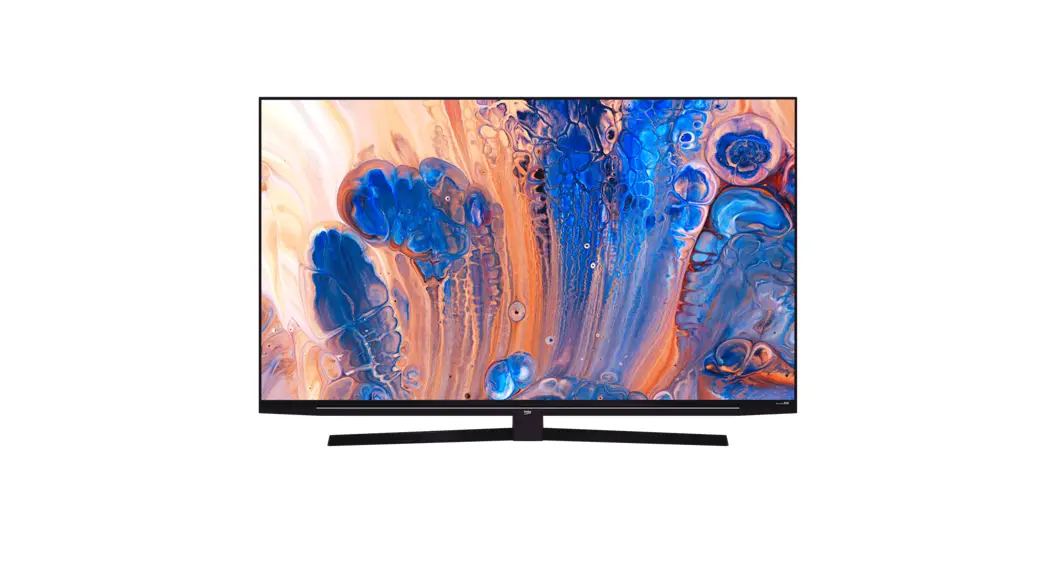
 B55 C 985 B Smart Android TV
User Manual
INSTALLATION-AND-SAFETY
Intended-use
- The TV set is designed for use in dry rooms.
- Use the TV set with the supplied stand or a suitable VESA installation kit.
- The TV is primarily intended for the playback of TV programmes, streaming content and audio/video material from external devices. Any other use is strictly prohibited.
It is not intended as an information display or for predominant use as a computer monitor. If a still image or a non-full-format image is displayed for an extended period, visible traces may remain on the screen for some time.
This is not a defect that can be used as the basis for a warranty claim.
Interface-criteria
This product has been manufactured in compatibility with Turkish Telecommunication networks.
Safety WARNING
Risk-of-electrical-accident
IMPORTANT SAFETY INSTRUCTIONS – KEEP INSTRUCTIONS FOR FUTURE REFERENCE
Immediately followed by: Read all safety warnings, instructions, illustrations and specifications provided with this appliance.
- Standby LED turns off when the mains plug is disconnected. If Standby LED is lit then it means that your product is connected to mains.
- Do not dismantle the TV. Safety risks may arise and also the guarantee of the product can become void if the television is dismantled.
- The TV can only be operated with the power cable or the AC/DC adapter supplied with the product.
- Do not operate the TV with a damaged power cable or AC/DC adaptor (if supplied).
- If the plug on the TV has an earthing contact, insert the plug only into a socket with an earthing contact.
- Plug your TV into the mains socket only after you have connected the external devices and the antenna.
- Protect your TV set from moisture. Do not place any vessels filled with water (such as vases) on the TV.
Fire-hazard
 To prevent the spread of fire, keep candles or other open flames away from this product at all times.
- Do not cover the ventilation slots on the TV.
- Always unplug the power plug and antenna plug during lightning and thunderstorm.
- Keep candles or other open flames away from the TV.
- Do not expose the batteries to extreme heat such as sunshine, fire or the like.
- Only use batteries of the same type (brand, size, properties). Do not use used and new batteries together.
 To prevent the spread of fire, keep candles or other open flames away from this product at all times.
WARNING
Injuries-caused-by-falling-TV
Never place the TV on an unstable surface.
The TV may fall, causing serious injury, possibly leading to death in isolated cases. Observe the following precautions:
- Make sure that the stand or other furniture you will place the TV on is robust enough to carry the television.
- Make sure that the TV does not protrude beyond the dimensions of the furniture on which it is resting.
- Do not place the TV on tall furniture that has the risk of tipping over such as cabinets, sideboards or bookcases. If you have no other choice, fix the furniture and the TV to the wall to prevent them from tipping over.
- Do not place the TV on fabric or other materials located between the TV and furniture.
- Instruct children that there is danger associated with climbing on furniture when the TV is to be reached.
- Consider the above mentioned warnings whenever you change the location of the TV.
NOTICE
Shortened-service-life-due-to-highoperating-temperature
- Do not place the TV next to heating units or indirect sunlight.
- To ensure adequate ventilation, maintain clearance of at least 10 cm around the TV.
Discolouration-of-furniture-due-to rubber-feet
- Some furniture surfaces may discolour when they come in contact with rubber. To protect furniture, you can place a sheet made of glass or plastic under the stand. Do not use textile underlays or mats such as doilies.
Electromagnetic-interference
- Devices connected to he product (satellite receiver, DVD player, and etc.) or signal emitting devices (router and etc.) close to the product may cause disturbance in the image and noise in the sound.
- Connection cables used on the product must be shorter than 3 m.
- If the product cannot perform its function due to electrostatic discharge, the user may need to switch off and then switch on the product.
- A shielded, HDMI-certified and ferrite cable must be used with the product.
Environmental-information
 Do not dispose of batteries with the household waste. Used batteries must be returned to retail stores or public collection points You help protect the environment in this way.
- Be sure to dispose of packaging materials for your product separately according to the guidelines of local authorities so that they can be recycled in an environmentally safe manner.
- Switch the TV set to stand-by if you will not use it for a while. In standby mode, the TV uses very little energy (≤ 0.5 W).
If you do not use the TV set for an extended period, turn it off with the power switch or unplug the power cord from the socket. - Select a location where no direct sunlight falls on the screen. Thus, you can select a lower backlight and provide power saving.
 Do not dispose of the product along with normal household waste at the end of its service life. Take it to a recycling centre for electrical and electronic equipment.
 Do not dispose of batteries with the household waste. Used batteries must be returned to retail stores or public collection points You help protect the environment in this way.
 Do not dispose of the product along with normal household waste at the end of its service life. Take it to a recycling centre for electrical and electronic equipment.
GENERAL-INFORMATION
Television’s-unique-features
- Android TV allows you to access your favourite TV shows, movies, subscription services, songs, pictures and games.
- Many features of the TV set require an Internet connection. The TV set is equipped with WLAN feature and a LAN port.
- Your television set enables you to receive and watch digital stations (via DVB-S, DVB-T and DVB-C), including the High Definition (HD) ones. At present, reception for these digital television channels in High Definition is only possible in some countries in Europe.
- Although this television meets the current DVB-S, DVB-T and DVB-C standards as of August 2012, its compatibility with future DVB-S digital satellite broadcasts, DVB-T digital terrestrial broadcasts and DVB-C digital cable broadcasts is not guaranteed.
- This television can receive and process all unencrypted digital stations. This television set has an integrated digital receiver. The digital receiver unit converts the signals from digital stations to provide outstanding audio and picture quality.
- The TV guide (only for digital stations) tells you of any schedule changes at short notice, and provides an overview of all the channels’ schedules for the next few days.
- Wireless USB keyboard and mouse support of your television provides convenience to the user in internet applications.
- With the Time Shift function, you can easily stop and resume a programme with the remote control in a fast and simple way. Programme is recorded to the external data medium.
- You can save any digital TV channel you have chosen, if no limitation has been imposed by the broadcaster.
TV channel is transformed by the TV and saved to a USB external data medium.
You can recall and play saved programmes from the archive.
You may select another recording from the archive and watch it during a recording.
Receiving-digital-stations
- To receive digital satellite stations (DVB-S) you need a satellite antenna.
- To receive digital stations (DVB-T) you need a digital rooftop or indoor antenna (passive or active indoor antenna with its own power supply).
- The antenna cable of the cable TV network that broadcast in DVB-C must be plugged into TV in order to receive the DVB-C broadcasts.
- You can find the current transmission information on teletext from various broadcasters, or look in a TV guide or on the Internet.
- Various digital television stations from private broadcasters are encrypted (DVB-S, DVB-T and DVB-C). Watching these stations is only possible with the appropriate CI module and a Smart Card. Ask your specialist dealer.
SCR-System
Your TV supports SCR system (Single Channel Router). With SCR satellite system, several users can individually receive all signals from the satellite simultaneously.
Things-to-do-for-energy-saving
Those items mentioned below will help you reduce the consumption of natural resources as well as save your money by reducing electricity bills.
- If you will not be using the TV set for several days, the TV set should be disconnected from the mains for environmental and safety reasons. TV will not consume energy in this condition.
- If the TV set has main switch, it will be enough to turn the TV off via main switch. TV will reduce energy consumption almost to Zero Watt.
- Your device consumes less energy when brightness is reduced.
Notes-on-still-images
Watching the same image for a long time on the screen may cause a still image remains feebly on the background. Feeble image(s) on the background is/are originated from LCD/LED technology and does/do not require any action under guarantee. To avoid such cases and/or minimize the impact, you may observe the tips below.
- Do not allow the same TV channel to stay on the screen for a very long time. Channel logos may cause this situation.
- Do not allow the images, which are not full screen, to constantly stay on the screen; if not streamed in full screen format by the broadcaster, you can convert the images to full screen by changing picture formats.
- Higher brightness and/or contrast values will lead this impact to appear faster; therefore, you are recommended to watch your TV in the lowest brightness and contrast levels.
Note-on-software-update
- Explanations and pictures at operating manual can change with the update of TV software.
PACKING-CONTENTS
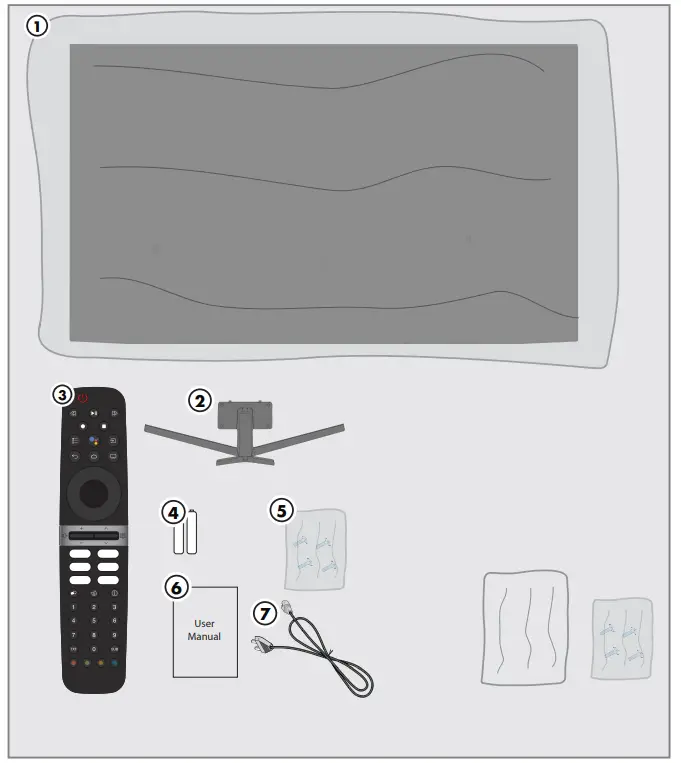
Standard-accessories
- Television
- Stand
- Remote control
- Batteries for remote control
- Screws and installation instructions for the stand
- Quick instruction manual
- Power cord
Optional-Accessories
Cleaning cloth
Wall hanging screws
CONNECTION/PREPARATION
Connecting-the-antenna-and-the-power-cable
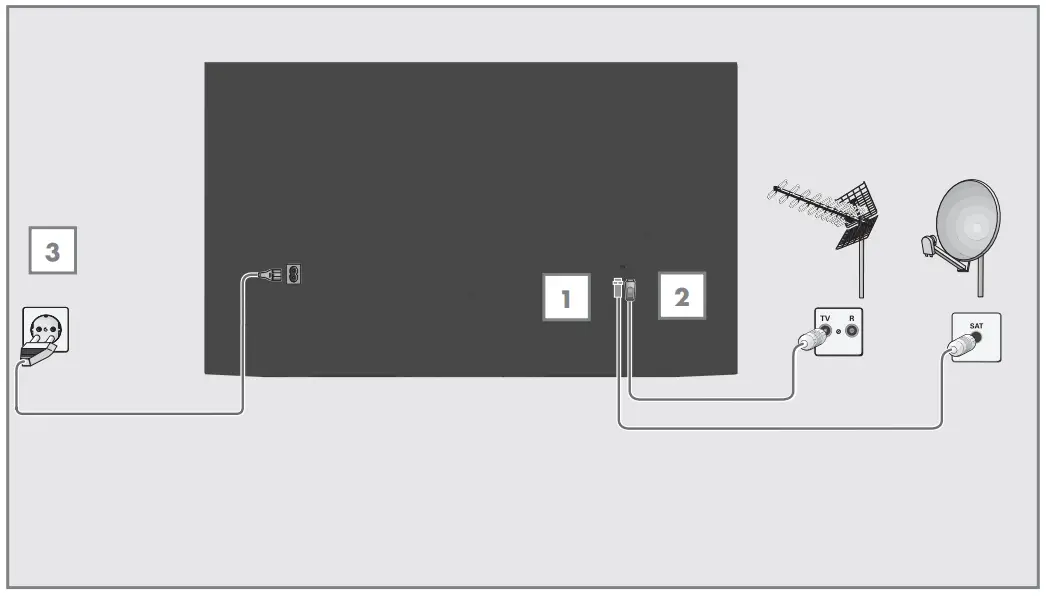
- To receive digital satellite channels (DVB-S), connect the satellite antenna cable to the »SATELLITE« antenna socket on the television set; and / or
- 2a For terrestrial digital stations (DVB-T), plug the cable of the rooftop, indoor antenna (passive or active indoor antenna with its own power supply) into the antenna socket »ANT-IN« on the television set;
or
2b For digital stations of the cable TV network (DVB-C), plug the antenna cable into the antenna socket »ANT-IN« on the television set.
Note:
• When connecting an indoor antenna you may have to try it out at different positions until you get the best reception. - Connect the power cable to the »AC-IN« socket on the television.
- Plug the power cable into the wall socket.
Note:
- Plug the appliance into the mains socket only after you have connected the external devices and the antenna.
- Do not use an adapter plug or extension cable which does not meet the applicable safety standards. Do not tamper with the power cable.
Installation-or-hanging
- Select a location so that no direct sunlight falls on the screen.
Installation-with-stand
- To mount the stand, refer to the installation instructions included.
- Place the TV set on a hard and level surface.
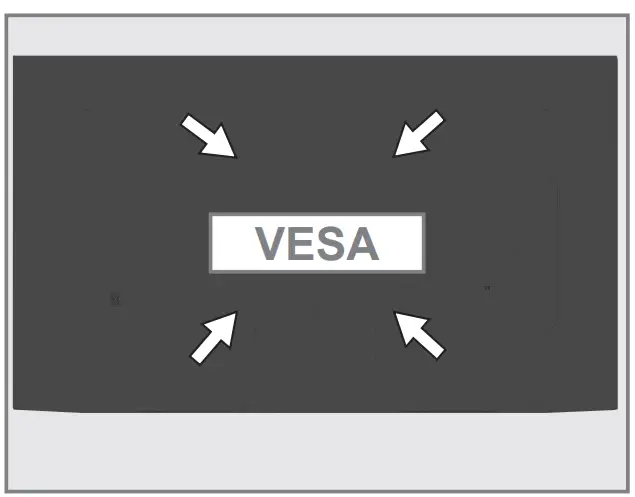
Installation-preparation-for-VESA- installation-kit
Contact authorised dealer to purchase the bracket.
You will need:
- A pair of scissors,
- A cross-tip screwdriver.
Follow the installation instructions for the VESA installation kit.
- Place the TV in the film on a smooth surface with the screen facing down.
- Cut open the film on the back side using the scissors.
- Connect the required cables to the connectors on the TV. See the “Connections” section in this manual.
- Tie the cables so they do not hang down onto the floor.
- Screw the VESA installation kit onto the television and mount it according to its installation instructions.
Inserting-batteries-into-theremote-control
- Open the battery compartment.
- Insert batteries as marked on the bottom of the battery compartment (2 × Alkaline/LR03/AAA).
- Close the battery compartment.

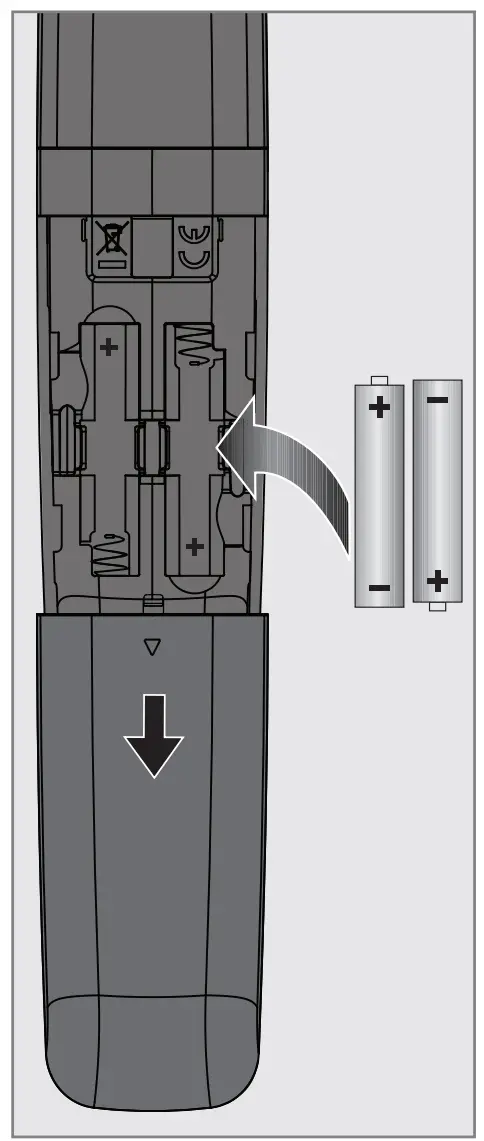
Note:
- If the television no longer reacts properly to remote control commands, the batteries may be flat. Be sure to remove used batteries.
- The manufacturer accepts no liability for damages resulting from used batteries.
Environmental-note
- This symbol on the battery or on the packaging indicates that the battery provided with this product should not be treated as household waste. On certain batteries this symbol might be used in combination with a chemical symbol. The chemical symbols for mercury (Hg) or lead (Pb) are added if the battery contains more than 0.0005% mercury or 0.004% lead.
Batteries, including those which contain no heavy metal, must not be disposed of with household waste. Please dispose of used batteries in an environmentally sound manner. Find out about the legal regulations which apply in your area.
OVERVIEW
Connections-of-the-television
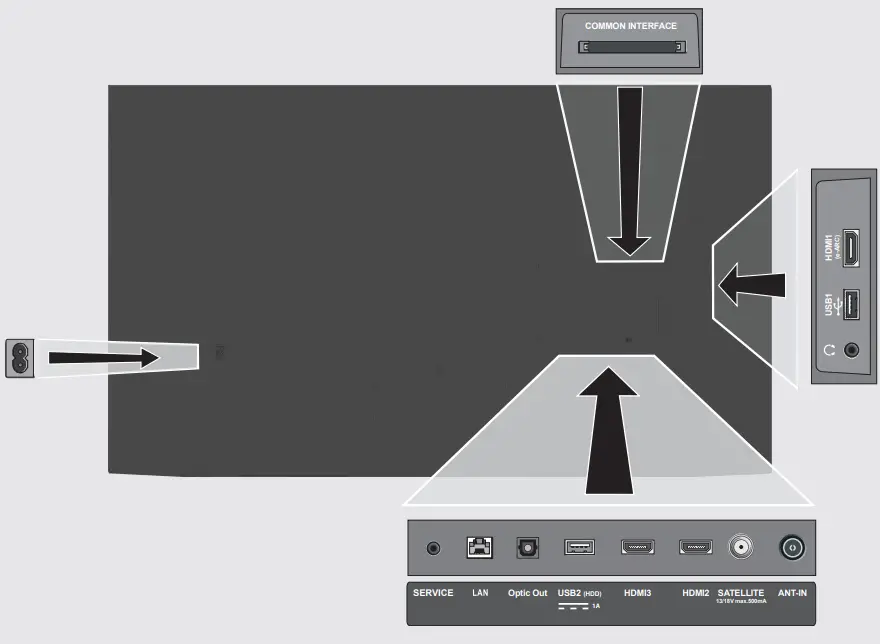
- AC-IN: Power cord input.
- Service: Service only.
- LAN: Network connection.
- Optic-Out: optical audio output.
- USB(HDD): For external data media.
- HDMI3: Input for digital audio and image data.
- HDMI2:-Input for digital audio and image data.
- SATELLITE:-Input for satellite antenna signal. Suitable for single-cable SCR system.
- ANT-IN: Input for antenna cable (terrestrial antenna or cable connection).
- U: Earphone output.
- USB-1: For data medium and keyboard.
- HDMI1-(e-ARC):-Input for digital audio and image data.
- CI: For CA modules for receiving encrypted channels.
Keypad
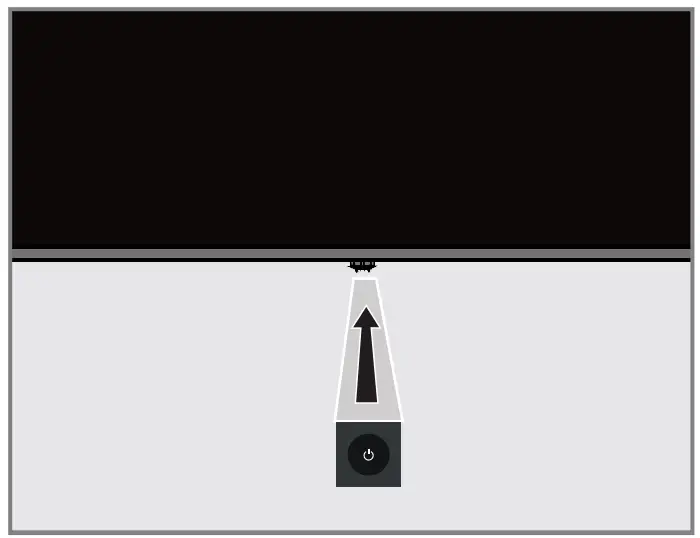
Switching-the-TV-on-from-the standby-mode
- Press »
 « to turn on the TV from the standby mode.
 « to turn on the TV from the standby mode.
Switching-the-TV-to-sleep-mode,and-turning-it-on-from-the-sleep mode
- The TV shall switch to sleep mode when » « is pressed shortly when the TV is on.
- The TV shall switch on from the sleep mode when » « is pressed shortly when the TV is in sleep mode.
Switching-the-TV-to-the-standby mode
- Press » « for 5 seconds to switch the TV to the standby mode. – Close menu is displayed.
- Select »OK« and confirm by pressing »
 «.
«. - The TV switches to the standby mode.
Remote-control
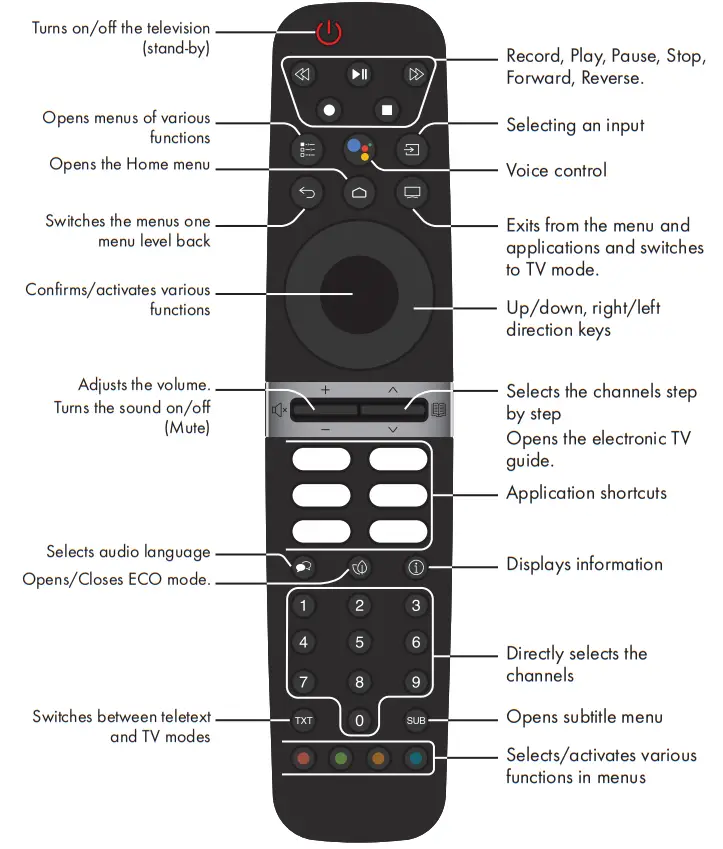
Cursor-Control
 | Moves the cursor up and down in the menus. |
| moves the cursor left/right in menus | |
| Activates various functions. |
SETTINGS
The Television is fitted with an “installation assistant”, which guides you step by step through the basic settings.
Using the screen dialogue, the user guide enables supposedly complex settings and data entries to be presented simply and clearly for everybody.
Pages and dialogue items appear on the screen, which identify the subsequent and likely operating steps.
Settings-for-connecting-to-the home-network
Depending on the connection type of the home network, connect your television to the home network:
- via a LAN connection or
- Wireless network connection with WLAN
Tuning-television-channels
Depending on the type of antenna connected, you can decide which channels you would like the television to search for.
DVB-S – For setting up digital satellite TV channels, see page 18
DVB-C – For setting up digital cable TV channels, see page 20
DVB-T – For setting up digital terrestrial TV channels, see page 21
Note:-
- See “Detailed Channel Settings” section starting from page 93 for more information on digital television channel settings.
Initial-setup-and-setting-the TV
- Connect the antenna and external device cables.
- Insert the power plug into the socket.
- Switch on the TV by pressing » « on the remote control.
– The welcome menu shall be displayed on the screen after a while. - Select language.
– Accessories menu shall be displayed. If you want to pair a Bluetooth accessory press » «.
«. - In order to pair the Bluetooth remote control, press »
 « and
« and  simultaneously for 5 seconds.
– The white LED on the remote control starts to flash. - Bluetooth devices scanned and found shall be displayed on the menu. Select »Android TV Remote Control« and press » «.
– This completes the pairing of the remote control and the TV.
Important:
• If you have problems in pairing the Bluetooth remote control, you need to reset it. To do this, press and hold » « and on the remote control simultaneously for 5 seconds.
Note:-
• You may set up your TV using 2 methods.
– »Quick Set-up« – If you have an Android phone, you may transfer the network settings and account settings easily from your phone.
– »Manual Set-up« – If you do not own an Android phone, you may enter all settings manually.
– Resume from article 7 for quick set-up;
or
– Resume from article 16 for manual set-up.
Quick-Set-up - Select »Resume« and press » « to confirm.
- Follow the instructions displayed on your TV and on the screen of your TV.
– »Network Privacy Policy« menu will be displayed. - Select »Accept«.
– »Terms of Service« menu is displayed. - Select »Accept«.
– »Google Services« menu is displayed. - Select »Accept«.
- »Google Assistant« menu is displayed.
Confirm » Continue « by pressing » «. To get personal results, confirm » Open « by pressing » «.
or
Select »No, thanks« and confirm by pressing» «. - To get e-mails for enabling you to follow the latest features of Assistant confirm »Yes« with» «.
or
Use » « or »
  « to select »No« and confirm with » «.
 - Select the applications you want to install from the list of the recommended applications and select »Continue« to continue and confirm with » «.
- Android set-up is complete. Press »
 « to view the features of your device.
Note:-
• Resume from article 24 if you have performed a Quick set-up.
Manual-set-up - Select »Skip«.
- Select your wireless network with » « or » « or press » «.
- Enter the wireless network password with the screen keyboard, select
 and press » «.
– »Connect to network…….« message is displayed, and then »Successfully Connected to Internet« message is displayed.
– »Network Privacy Policy« menu will be displayed. - Select »Accept«.
– Google account Sign in menu is displayed. - Confirm »Log in« with » «.
or
to continue without logging in, select »Skip« and confirm with » «. - Select »
 « and press » « to continue after entering your e-mail address with the screen keyboard.
 - Select » « and press » « to continue after entering your account password with the screen keyboard.
- Follow the instructions displayed on your TV and on the screen of your TV.
– The »Service of Terms« menu is displayed when the setting is completed. - Select »Accept«.
– »Google Services« menu is displayed. - Select »Accept«.
- »Google Assistant« menu is displayed.
Confirm » Continue « by pressing » «. To get personal results, confirm » Open « by pressing » «.
or
Select »No, thanks« and confirm by pressing »«. - To get e-mails for enabling you to follow the latest features of Assistant confirm »Yes« with » «
or
Use » « or » « to select »No« and confirm with » «. - Select the applications you want to install from the list of the recommended applications and select »Continue« to continue and confirm with » «.
- Android set-up is complete. Press » « to view the features of your device.
- Select the country.
- Press the » « to set a password.
- Enter the password »1 2 3 4« using »1…0« on the displayed password screen and press » «.
- Enter the password »1 2 3 4« again using »1…0« on the displayed confirmation screen.
– »Select TV mode« menu shall be displayed. - Confirm »Home« by pressing » «;
or
Use » « or » « to select »Store« and confirm with the » «.
– »Home« – mode is optimized to provide energy efficiency when the TV is used in a household.
– »Store« – mode is optimized to allow demo display on a store with fixed settings. - To turn on the integrated Chrome cast feature, select »On« and confirm with » «;
or
Use » « or » « to select »Off« and confirm with the » «.
Important:-
• To keep integrated Chrome cast feature continuously on increases the energy consumption. - Select the antenna type.
- The next procedure depends on the selected antenna type. Follow the instructions on the screen.
– For DVB-S (Satellite) reception, go to article 38
– For DVB-C (Cable) reception, go to article 56
– For DVB-T (Terrestrial) reception, go to article 63
Searching-for-satellite-channels - Select »Satellite«.
– »Satellite antenna type« menu shall be displayed.
- Confirm »Single Cable« with » «;
or
Depending on the satellite system you use, select »DiSEqC 1.0«, »DiSEqC 1.1«, »DiSEqC 1.2«, »Single Cable I«, »Single Cable II« or »Tone Burst« with » « or » « and confirm with » «.
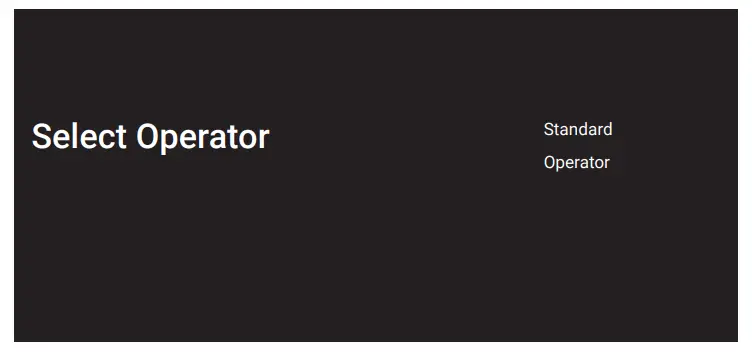
– »Select Operator« menu shall be displayed.
- Confirm »General« with » «;
or
Select »Operator 2« and press » « to confirm.
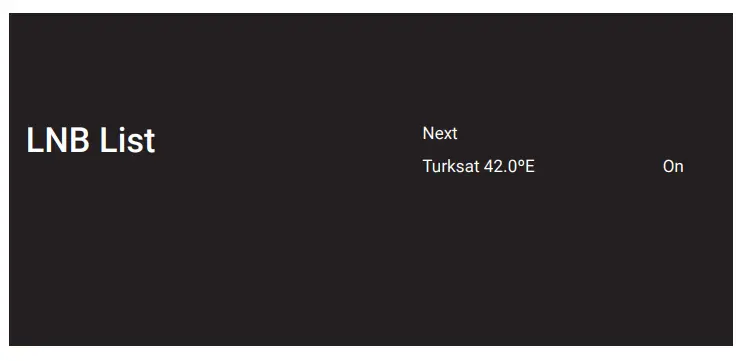
– »LNB List« menu shall be displayed.
Important:-
• Operators and operator numbers differ according to the country.
- Select the satellite displayed on the list and confirm with » «.
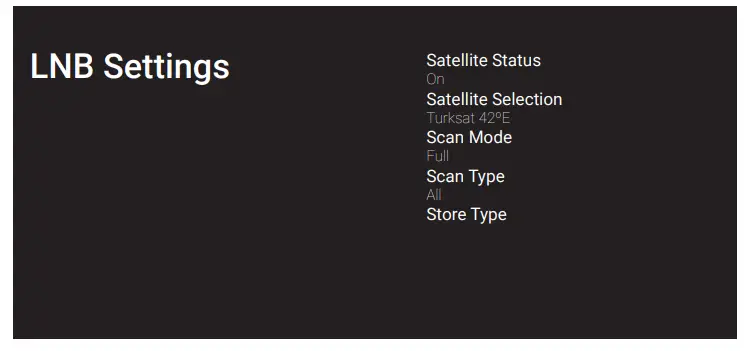
– »LNB Settings« menu shall be displayed.
- Select »Satellite Status« as »On« with » «.
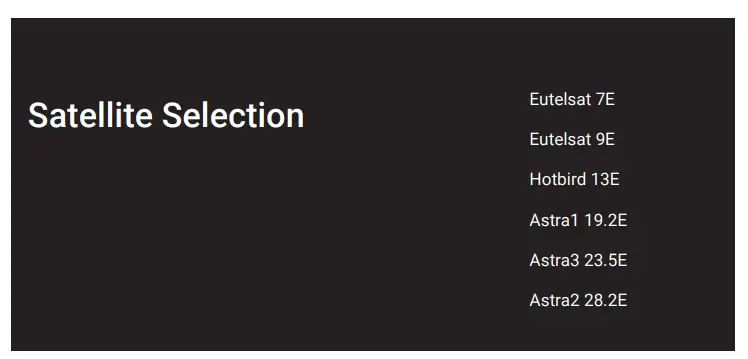
- Select »Satellite Selection«.
– »Satellite Selection« menu shall be displayed.
- Select the satellite you want to perform scan on with » « or » « and confirm with » «.
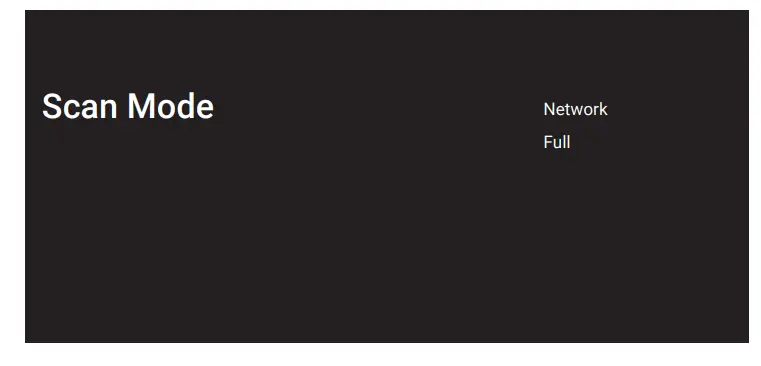
- Select »Scan Mode«.
– »Scan Mode« menu shall be displayed.
- Select »Network« or »Full« with » « or » « and confirm with » «.
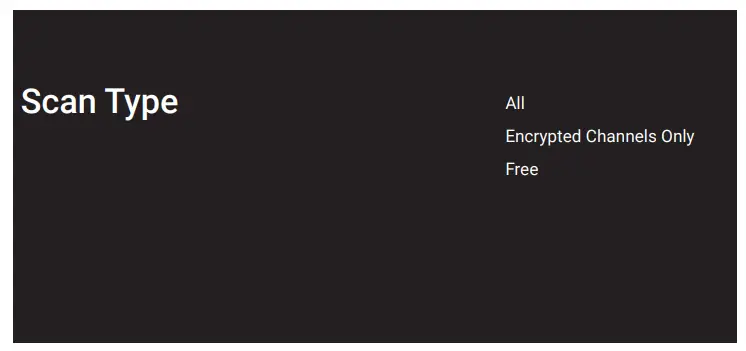
- Select »Scan Type«.
– »Scan Type« menu shall be displayed.
- To select whether you want to search for free digital channels (free) only or encrypted digital channels (Encrypted) only or both (Free+encrypted), press » « or » « to select »All«, »Encrypted Channels Only« or »Free« and press » « to confirm.
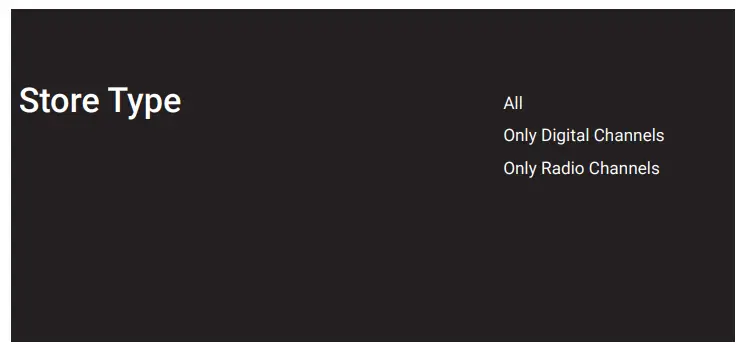
- Select »Store Type«.
– » Store Type« menu shall be displayed.
- To select whether you want to search for digital channels (digital) only or radio channels (Radio) only or both (Digital+Radio), press » « or » « to select »All«, »Only Digital Channels« or »Only Radio Channels« and press » « to confirm.
Note:-
• If you encounter a significant shortage of channels or no signal, make sure that the cable connection, signal level, Diseqc A/B/C/D and LNB selections are done correctly. - Press » « to return to the previous menu after completing the settings.
- Use » « or » « to select »Next« and confirm with the » «.
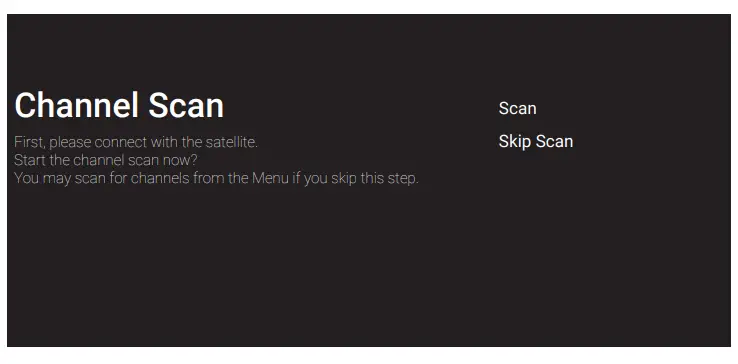
– »Channel Scan« menu shall be displayed.
- To start scanning for channels, select »Scan«and press » « to confirm.
– The »Scanning« menu shall be displayed and the scan for TV stations shall start.
– The scan is complete when the »FINISH« message is displayed. - Press » « to complete the set-up and exit.
– »Smart TV Terms of Service« menu is displayed. - Select »Accept« and press » «.
Searching-for-cable-channels - Select »Cable«.
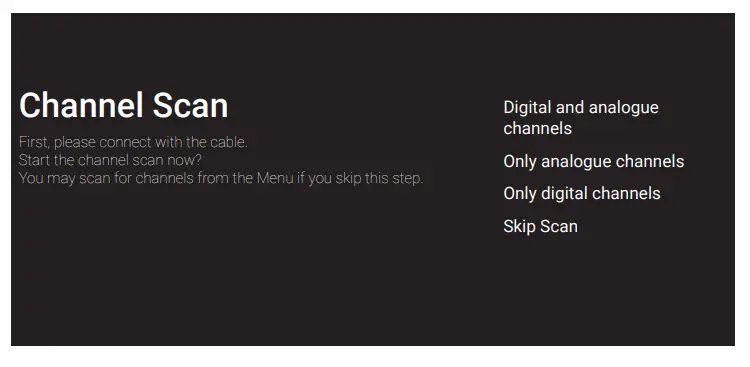
– »Channel Scan« menu shall be displayed.
- To start scanning for channels, make your selection and press » « to confirm.
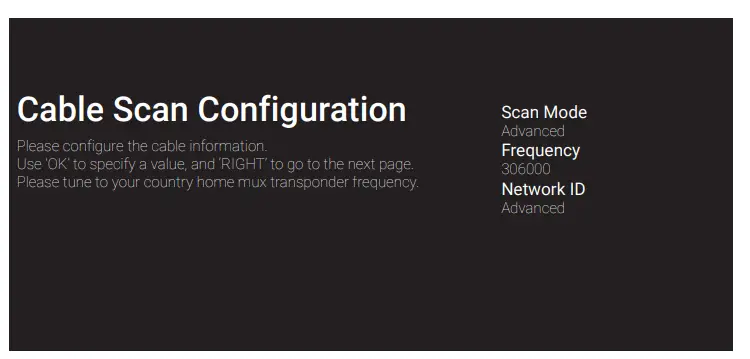
– »Cable Scan Configure« menu shall be displayed.
- To select the »Scan Mode«, press » «.
- Press » « or » « to select »Full«, »Advanced« or »Fast« and press » «.
- To start the channel scan, press » «.
– The »Scanning« menu shall be displayed and the scan for TV stations shall start.
– The scan is complete when the »FINISH« message is displayed. - Press » « to complete the set-up and exit. – »Smart TV Terms of Service« menu is displayed.
- Select »Accept« and press » «.
Searching-for-terrestrial channels - Select »Antenna«.
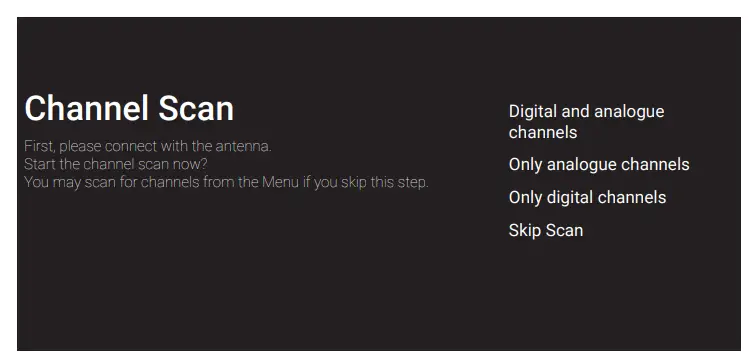
– »Channel Scan« menu shall be displayed.
- To start scanning for channels, make your selection and press » « to confirm.
– The »Scanning« menu shall be displayed and the scan for TV stations shall start.
– The scan is complete when the »FINISH« message is displayed. - Press » « to complete the set-up and exit.
– »Smart TV Terms of Service« menu is displayed. - Select »Accept« and press » «.
 «.
«. simultaneously for 5 seconds.
 « to view the features of your device.
 and press »
  « and press »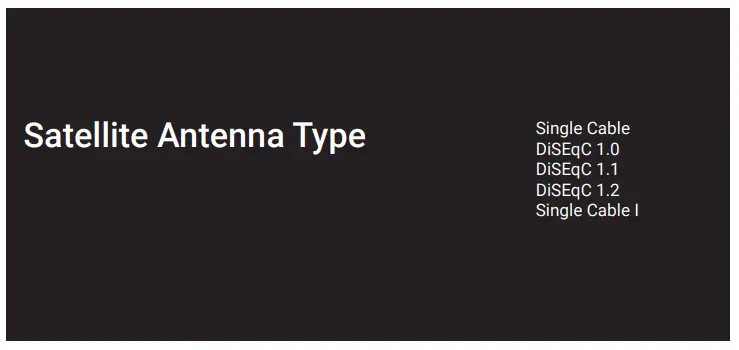
Editing-digital-channels
Channels found at the end of the scan are stored separately for each broadcast source.
You can change the order of channels, skip channels, rename channels and delete the channel list via the channel management. You can also create and edit your favourites list.
You can edit the television channels from the »Channels« menu, or you can easily edit the channels with the »Channel Editor« application built into your television.
Press »  «.
«.
- In the »Applications« tab, select the »Channel Editor« application with » « and confirm with » «.
– »Edit Channel« menu is displayed.
Note:
• Additional procedures are explained in the following sections.
Starting-Channel-Editor-Application
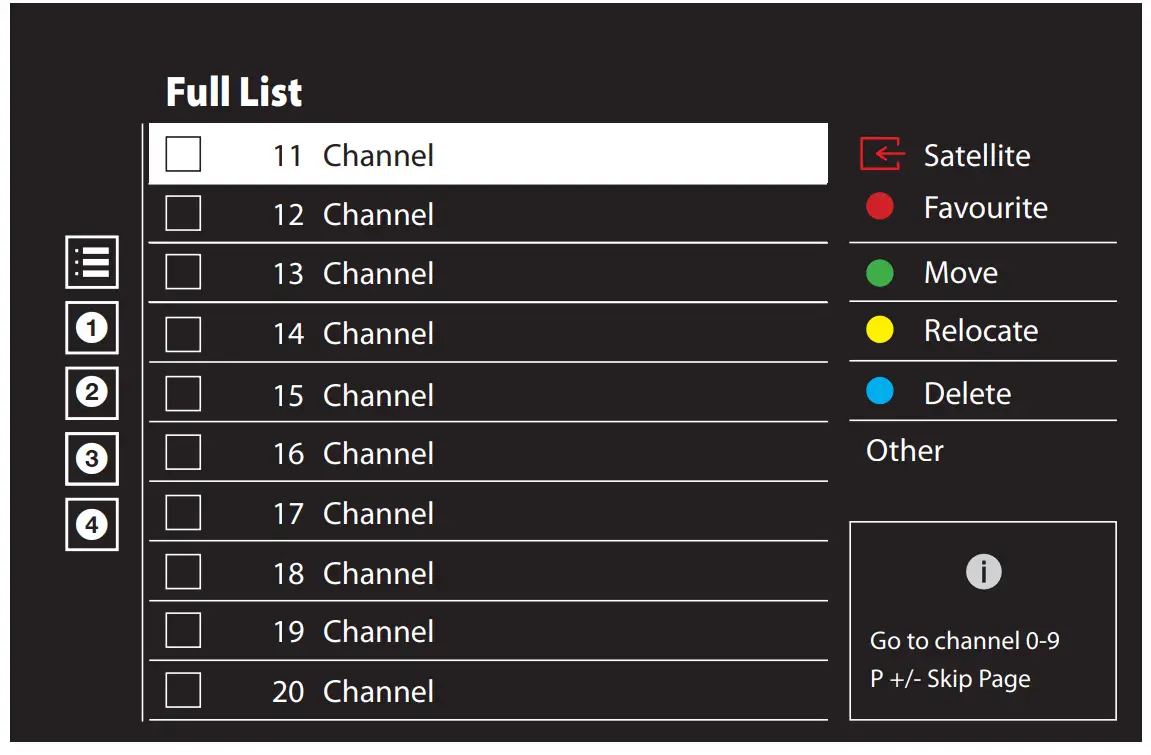
Broadcast-source-selection
The channel table for all sources as satellite (Standard), satellite (Operator), cable and antenna is stored separately. To edit, first select the broadcast source you will edit.
- Select »Source« from »Channel Editor« menu with » «, » « or » « and confirm with » «.
– »Input Source« menu will be displayed.
Select the source you want to edit from
»Satellite«, »Cable«, »Antenna« options with »  « or »
  « and confirm with »
  «.
«.
– The channel list is displayed based on your choice of channel.
Creating-a-list-of-favourites
You can select your favourite channels and save them as a list.
Notes:
- Favourite lists must be created separately for all sources (satellite, cable and air).
- You can save your favourite channels in 4 separate lists. Before adding channels to the favourite list, it is necessary to select the favourite list to be added.
- In the »Channel Editor« menu, press » « or » « to select the channel(s) you want to add to the favourite list and press » « to confirm.
–The channel will be marked with » «. - Press » « (red) to select the favourite list.
- Select favourite list you want to add channels with » « (red), » « (green), » « (yellow) or » « (blue) (FAV 1- FAV 4).
- To exit from »Channel Editor« press » «, select »Yes« and confirm with » «.
Moving-channels-in-the-favourites-list
Move favourite channels to the channel location you want and edit the list.
- Select the favourite list you want to edit on menu »Channel Editor« with » «, » « or » « and confirm with » «.
– Selected favourites list channels are displayed. - Select the channel you want to move with » « or » « and highlight it with » «.
–The channel/channels will be marked with » «. - Press » « (green).
- Select new channel location with » « or » « and confirm with » «.
– Channels are moved to the new channel location. - To exit from »Channel Editor« press » «, select »Yes« and confirm with » «.
Channel-Move-in-favourites-list
Change the location of the channels reciprocally in favourites list. For example; Move channel 2 to channel 20, channel 20 to channel 2.
- Select the favourite list you want to edit on menu »Channel Editor« with » «, » « or » « and confirm with » «.
– Selected favourites list channels are displayed. - Select the first channel you want to move reciprocally with » « or » « and highlight with » «.
–The channel will be marked with » «. - Press » « (yellow).
- Select the second channel you want to move with » « or » « and confirm with » «.
– Two channels’ locations are changed reciprocally. - To exit from »Channel Editor« press » «, select »Yes« and confirm with » «.
Deleting-channels-in-the-favourites-list
- Select the favourite list you want to edit on menu »Channel Editor« with » «, » « or » « and confirm with » «.
– Selected favourites list channels are displayed. - Select the channel you want to delete with » « or » « and highlight it with » «.
–The channel/channels will be marked with » «. - Press » « (blue) to delete the selected channels.
– Channel/Channels are deleted from the selected favourite list. - To exit from »Channel Editor« press » «, select »Yes« and confirm with » «.
Move-channel
Move the channels to the channel location you want and edit the list. - In the »Channel Editor« menu, press » « or » « to select the channel(s) you want to move and press » « to confirm.
–The channel/channels will be marked with » «. - Press » « (green).
- Select new channel location with » « or » « and confirm with » «
– Channel/Channels are moved to the new channel location. - To exit from »Channel Editor« press » «, select »Yes« and confirm with » «.
Change-channel-location
Change the location of the channels reciprocally. For example; Move channel 2 to channel 20, channel 20 to channel 2.
- Select the first channel you want to move reciprocally with » « or » « in the »Channel Editor« menu highlight with » «.
–The channel will be marked with » «. - Press » « (yellow).
- Select the seconf channel you want to move with » « or » « and confirm with » «
-Two channels’ locations are changed reciprocally. - To exit from »Channel Editor« press » «, select »Yes« and confirm with » «.
Deleting-the-channel
- In the »Channel Editor« menu, press » « or » « to select the channel(s) you want to delete and press » « to confirm.
–The channel/channels will be marked with » «. - Press » « (blue) to delete the selected channels.
– Channel/Channels are deleted. - To exit from »Channel Editor« press » «, select »Yes« and confirm with » «.
Delete-channel-list
Delete the channel list of the selected broadcast source.
- Press »
 « to return to the TV mode.
 - Press »
 « and select »Settings« with » «, and confirm with » «.
 - Select »Channel« with » « or » «, and confirm with » «.
- Confirm »Channels« with » «.
- Select »Delete The Channel List« with » « or » «, and confirm with » «.
- Select »OK« with » « » « to confirm the deletion and press » «;
or
select »Cancel« and press » « to cancel it. - Press » « to return to the previous menu or press » « to return to Home menu or press » « to return to the TV broadcast.
 « to return to the TV mode.
 « and select »Settings« with »
 Edit-channel
Rename channels.
- Press » « to return to the TV mode.
- Press » « and select »Settings« with » «, and confirm with » «.
- Select »Channel« with » « or » «, and confirm with » «.
- Confirm »Channels« with » «.
- Select »Edit Channel« with » « or » «, and confirm with » «.
– Edit Channel menu shall be displayed. - Select the channel you want to edit with » « or » «, and confirm with » «.
– Channel information shall be displayed. - Select »Channel Name« with » « or » «, and confirm with » «.
- To delete the current name, select »
 « with » « » «, » « or » « and press » «.
 - Select the required character/number with » « » «, » « or » « and move to the next character with » «.
Do the same for all characters/numbers.
Note:
• You can switch between uppercase/lowercase letters using » «
«  » «, and switch between special characters/letters by using »
  123« » «.
 - To save the new name, select » « with » « » «, » « or » « on the screen keyboard and press » «.
- Press » « to return to the previous menu or press » « to return to Home menu or press » « to return to the TV broadcast.
 « with »
  «
«  »
»  123«
123« Skip-channel
With » «, » « or »  «, you can select the TV channels you want to skip during channel selection. It is possible to select channels that are skipped with the number buttons.
- Press » « to return to the TV mode.
- Press » « and select »Settings« with » «, and confirm with » «.
- Select »Channel« with » « or » «, and confirm with » «.
- Confirm »Channels« with » «.
- Select »Skip Channel« with » « or » «, and confirm with » «.
– Skip Channel menu shall be displayed. - Select the channel you want to skip in the channel list with » « or » « and highlight it with » «.
–The channel will be marked with » «.
Note:
• Press » « (red) to display the previous page in the skip channel menu, press » « (green) to view the next page. - Press » « to return to the previous menu, press » « to return to TV broadcast or press » « to return to Home menu.
PICTURE-/-SOUND-SETTINGS
- Press » «.
- Use » « » «, » « or » « to select »
 « Settings and confirm with » «.
 - Select »Device Preferences« with » « and confirm with » «.
- Select »Picture« with » « and confirm with » «.
or
Press » « after » « and select »Picture« with » «, and confirm with » «.
– »Picture« menu shall be displayed.
- Select the desired line/function with » « or » «, select the value/option with » « or » «.
Note:
• Other settings are available under »Advanced Video«. - Select »Advanced Video« with » « and confirm with » «.
- Select the desired line/function with » « or » « and confirm with » «.
Select the value/option with » « or » « and confirm with » «. - Press » « to return to the previous menu or press » « to return to Home menu.
 « Settings and confirm with »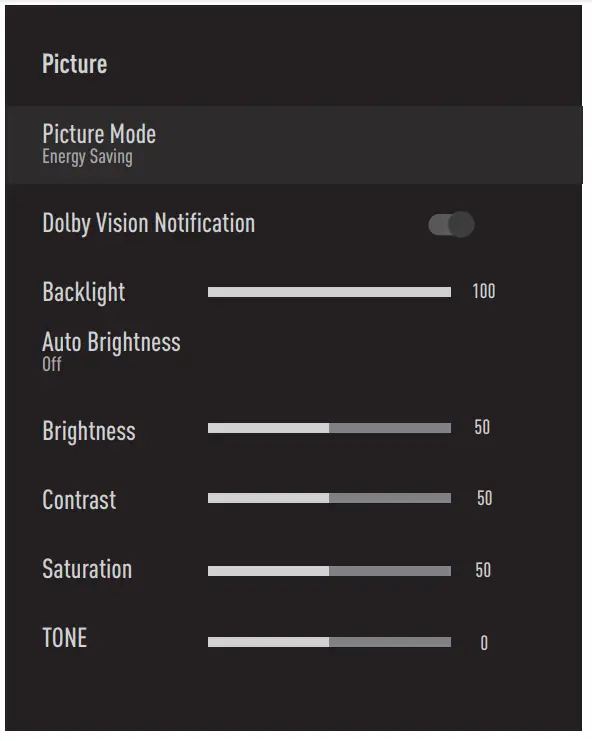
Enhanced-picture-settings
The “enhanced picture settings” are in principal digital image improvements however, these should be only used when necessary, when picture quality and transmission is excellent. They may well improve the display with poor material, but may adversely affect the display where transmission and picture quality are excellent.
- »Gamma« – This setting determines which brightness value should be displayed for which digital transmission value. Most recordings are transmitted with a gamma value of 2.2 (all Windows PCs and newer PCs with a MAC operating system work with this; older MAC systems and transmissions without a colour profile mostly operate with a gamma value of 1.8).
- »Colour Management System« – This function allows the brightness, contrast and tone of the colours to be adjusted separately. It is possible to adjust these settings separately for red, green, blue, magenta, black and yellow colours. With this function, advanced settings can be made in very specific contents
- »11 Point White Balance Correction «- This function makes precise colour temperature adjustment in different shades of gray. When content containing shades of gray is played on the screen, the red-green blue components of the gray tones can be precisely adjusted separately with this function.
- »Noise Reduction« – Reduces the visible “snow” by displaying the picture a little less sharply and creating a slight blurring. Thus, it must be used as little as possible with good picture material.
- »Digital Noise Reduction« – This function can only be selected with digital receiver sources and AV pre-sets. It reduces any interference from artefacts (pixel blocks) from digital programmes due to MPEG compression (such as from DVB-T receivers and lower transmission rates or DVD players).
- »Dynamic Contrast« – The function dynamically and optimally adjusts the contrast for the respective picture content by analysing images and then altering this depending in a change in contrast. This increase in the contrast however, may also reduce the visible brightness levels in the picture.
- »Micro Dimming« – Increases the level of detail in dark images. The television divides the screen into small sections and analyses each section individually to determine the best brightness value. This ensures that more detailed pictures are obtained in dark contents.
- »Film mode« detects and processes feature films automatically for all channel sources. This means you will always receive an optimal picture. This functions in the modes 480i, 576i and 1080i in TV playback and for other channel sources. The »Film Mode« will be enabled for programmes that do not have a feature film signal, and insignificant problems may be observed such as dull pictures, incorrect subtitles or fine lines on the picture.
- »Maximum Vividness« – This function creates the perception of highest vividness by applying High contrast and saturated colour settings. While this feature is on, no change can be made in “dynamic contrast” feature.
- »Fresh Tone« – This function provides the most accurate skin colour by adjusting the brightness and saturation specific to the skin colour.
- »Colour Transition Improvement« – This function provides smooth colour transitions by eliminating content-related errors in colour transitions.
- »Low Blue Light« – This function reduces the amount of blue light emitted from the LEDs, allowing more natural light to be emitted from the TV screen and reducing eye strain.
- »MEMC« – Motion stabilization eliminates judder effects in motion content, providing a smoother viewing experience.
Restoring-factory-defaults-for-picture- settings
- To reset the changes made in the »Picture« menu, press » « to select »Reset to Default« and confirm with » «.
- Select »OK« with » « or » « to confirm the deletion and press » «; or select »Cancel« and press » « to cancel it.
- Press » « to return to the previous menu or press » « to return to Home menu or press » « to return to the TV broadcast.
Sound-settings-
- Press » «.
- Use » « » «, » « or » « to select » »Settings« and confirm with the » «
- Select »Device Preferences« with » « and confirm with » «.
- Select »Sound« with » « and confirm with » «.
or
Press » « after » « and select »Sound« with » >«, and confirm with » «.
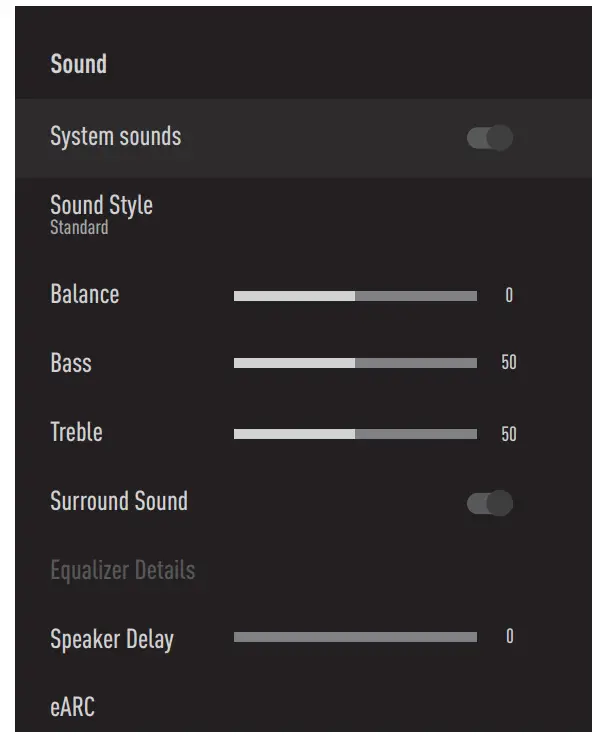
– »Sound« menu shall be displayed.
Note:
- Additional procedures are explained in the following sections.
System-Sounds
You can turn system sounds on or off.
- Select the line »System Sounds« with » « or » « and select the position »On« or »Off« with » «.
- Press » « to return to the previous menu or press » « to return to Home menu or press » « to return to the TV broadcast.
Balance
- Select the line »Balance« from the sound menu with » « or » «.
- Select the value with » « or » «.
- Press » « to return to the previous menu or press » « to return to Home menu or press » « to return to the TV broadcast.
Bass
- Select the line »Bass« from the sound menu with » « or » «.
- Select the value with » « or » «.
- Press » « to return to the previous menu or press » « to return to Home menu.
Treble
- Select the line »Treble« from the sound menu with » « or » «.
- Select the value with » « or » «.
- Press » « to return to the previous menu or press » « to return to Home menu or press » « to return to the TV broadcast.
Surround-sound
- Select »Surround Sound« from audio menu with » « or » « and select the position »On« or »Off« with » «.
- Press » « to return to the previous menu or press » « to return to Home menu or press » « to return to the TV broadcast.
Equalizer-Details
Equalizer offers a sound setting that you can create.
Note:
- »Equalizer Details« is active in the menu when »Sound Style« is selected as »User«.
- Select the line »Equalizer Details« from the sound menu with » « or » « and confirm with » «.
– »Equalizer Details« menu shall be displayed. - »120Hz« frequency band shall be displayed.
Press » « or » « to set the preferred value. - Select the next frequency band with » « or » « to repeat the adjustment procedure.
- Press » « to return to the previous menu or press » « to return to Home menu or press » « to return to the TV broadcast.
Speaker-delay
- Select the line »Speaker Delay« from the sound menu with » « or » «.
- Select the value with » « or » «.
- Press » « to return to the previous menu or press » « to return to Home menu or press » « to return to the TV broadcast.
eARC
- Select the line »eARC« from the sound menu with » « or » « and confirm with » «.
- Use » « or » « to select »Auto« or »Off« and confirm with » «.
- Press » « to return to the previous menu or press » « to return to Home menu or press » « to return to the TV broadcast.
Digital-input
- Select the line »Digital Input« from the sound menu with » « or » « and confirm with » «.
- Select »Auto«, »Direct Switch«, »PCM«, »Dolby Digital Plus« or »Dolby Digital« with » « or » « and confirm with » «.
- Press » « to return to the previous menu or press » « to return to Home menu or press » « to return to the TV broadcast.
SPDIF-Delay
- Select the line »SPDIF Delay« from the sound menu with » « or » «.
- Select the value with » « or » «.
- Press » « to return to the previous menu or press » « to return to »Home« menu.
Digital-output-delay
- Select the line »Digital Output Delay« from the sound menu with » « or » «.
- Select the value with » « or » «.
- Press » « to return to the previous menu or press » « to return to Home menu or press » « to return to the TV broadcast.
Auto-volume
Television channels broadcast at different volumes. Automatic Volume Control function means the volume is kept the same when you switch between channels.
- From the sound menu, select the line »Automatic Volume Control« with » « or » « and select »On« or »Off« with » «.
- Select the line »AVL« with » « or » « and select »On« with » «.
- Press » « to return to the previous menu or press » « to return to »Home« menu or press » « to return to the TV broadcast.
Down mix-Mode
- Press » « or » « to select »Down mix Mode« and press » « to confirm.
- Use » « or » « to select »Stereo« or »Surround« and confirm with the » «.
- Press » « to return to the previous menu or press » « to return to »Home« menu or press » « to return to the TV broadcast.
DTS-DRC
Adjusts the range between loudest and quietest.
- Select »DTS DRC« with » « or » « and select the position »On« or »Off« with » «.
- Press » « to return to the previous menu or press » « to return to »Home« menu or press » « to return to the TV broadcast.
DTS-Virtual:X
- Select the line »DTS Virtu:X« from the sound menu with » « or » « and confirm with » «.
- Select »Virtual:X«, »TBHDX«, »Limiter« with » « or » « and select the position »On« or »Off« with » «.
Note:
• »TBHDX« and »Limiter« is active on the menu when »Virtual:X« is selected as »On«. - Press » « to return to the previous menu or press » « to return to »Home« menu or press » « to return to the TV broadcast.
Restoring-factory-defaults-for-sound-settings
- To reset the changes made in the »Sound« menu, press » « to select »Reset to Default« and confirm with » «.
- Select »YES« with » « or » « to confirm the deletion and press » «;
or
select »NO« and press » « to cancel it. - Press » « to return to the previous menu or press » « to return to »Home« menu or press » « to return to the TV broadcast.
FUNCTIONING-OF-THE-TV—BASIC-FUNCTIONS
Switching-on-and-off
- Press » « to switch on the television in standby mode.
- Press » « to switch the television to standby.
Selecting-the-TV-mode
- From the »Home« menu »Applications« tab, select the »TV« application with » « or » « and confirm with » «.
or
Press » « on TV remote.
– TV mode shall be displayed on the last selected antenna source.
Selecting-the-signal-source-and antenna-type
- Press »
 «, select the signal source or antenna type with » « or » « and confirm with » «.
or
Press » « in the TV application, confirm »Source« with » «, select the signal source or antenna type with » « or » « and confirm with » «.
or
Select » « Inputs in the »Home« menu with » « » «, » « or » « and confirm with » «. Select the signal source or antenna type with » « or » « and confirm with » «.
 «, select the signal source or antenna type with »
 Selecting-channels
- Use »1…0« to select channels directly.
or
Use » « to select channels step by step;
or
In TV mode, press » « In the »Channel List All channels« menu, select a channel with » « or » « and confirm with » «.
Adjusting-the-volume
- Adjust the volume with »
 «.
«.
 «.
«.Muting
- Press » « on the perpendicular axis
Sound-Style
- Press » « and then press » «.
- Select »Sound« with » « or » « and confirm with » «.
- Use » « or » « to select »Sound Style« and confirm with » «.
- Press » « or » « to select audio language you want and press » « to confirm.
- Press » « to return to the previous menu or press » « to return to »Home« menu or press » « to return to the TV broadcast.
FUNCTIONING-OF-THE-TV—ADDITIONAL-FUNCTIONS
Picture-mode
- Press » « and then press » «.
- Select »Picture« with » « or » « and confirm with » «.
- Use » « or » « to select »Picture Mode« and confirm with » «.
- Select the picture mode you want with » « or » « and confirm with » «.
- Press » « to return to the previous menu or press » « to return to »Home« menu or press » « to return to the TV broadcast.
Changing-the-picture-format
- Press » « and then press » «.
- Select the »Picture« with » « or » « and confirm with » «
- Select »Display Mode« with » « and confirm with » «.
- Select the display mode you want with » « or » « and confirm with » «.
- Press » « to return to the previous menu or press » « to return to »Home« menu or press » « to return to the TV broadcast.
Notes:
You can select one of the following picture formats.
»Auto«-format
The picture format is automatically switched to »16:9« for 16:9 programmes.
The picture format is automatically switched to »4:3« for 4:3 programmes.
»Full-Screen«-format
When this mode is selected, the high resolution picture from the HDMI and Component inputs is not cropped and it is displayed in its original size. This mode is only enabled in the HDMI mode and for resolutions at or above 720p.
»Super-Zoom«-format
This setting is suited to films with a large width/height ratio.
»Unscaled«-format-
Unscaled format displays pictures in their original size.
»4:3«-format
The picture is shown in 4:3 format.
»Movie-expand-14:9«-and-»Movie-expand-16:9«-formats
During programmes in 4:3 format, the picture is stretched horizontally if »16:9« or »14:9« is selected.
The picture geometry is stretched horizontally.
With actual 16:9 signal sources (from a satellite receiver or the Euro-AV socket) the picture fills the screen completely and with the correct geometry.
Power-Settings
Sleep-timer
In the »Sleep Timer« menu you can enter a time for the television to switch off. After this time has elapsed, the TV will switch to standby mode.
- Press » « and then press » «.
- Select the »Power« with » « or » « and confirm with » «.
– Power menu shall be displayed. - Use » « or » « to select »Sleep Timer« and confirm with » «.
- Select the off time with » « or » « and confirm with » «.
- Press » « or » « to return to the broadcast.
Picture-off
You can only turn picture off without taking the TV to stand-by mode.
- Press » « and then press » «.
- Select the »Power« with » « or » « and confirm with » «.
– Power menu shall be displayed. - Use » « or » « to select »Picture Off« and confirm with » «.
– Television picture shall be turned off. - Press any key on the remote control to turn the picture back on.
- Press » « or » « to return to the broadcast.
Auto-off-timer
- Press » « and then press » «.
- Select the »Power« with » « or » « and confirm with » «.
– Power menu shall be displayed. - Use » « or » « to select »Off Timer« and confirm with » «.
- Select the off time with » « or » « and confirm with » «.
- Press » « or » « to return to the broadcast.
Automatic-shut-down-when-no-signal
Select the time when the TV will switch off automatically if it does not receive any broadcast signals.
- Press » « and then press » «.
- Select the »Power« with » « or » « and confirm with » «.
– Power menu shall be displayed. - Use » « or » « to select »Automatic Shut Down When No Signal« and confirm with » «.
- Select the off time with » « or » « and confirm with » «.
- Press » « or » « to return to the broadcast.
Automatic-shut-down
This function will switch the television to standby mode in 4 hours according to European regulations, if no key on the keypad of the TV or the remote control is not pressed.
- Press » « and then press » «.
- Select the »Power« with » « or » « and confirm with » «.
– Power menu shall be displayed. - Use » « or » « to select »Automatic Shut Down« and confirm with » «.
- Select the off time with » « or » « and confirm with » «.
- Press » « or » « to return to the broadcast.
You can adjust the advanced settings of the TV in the »Advanced Options« menu.
- Press » « and then press » «.
- Select the »Advanced Options« with » « or » « and confirm with » «.
– »Advanced Options« menu shall be displayed.
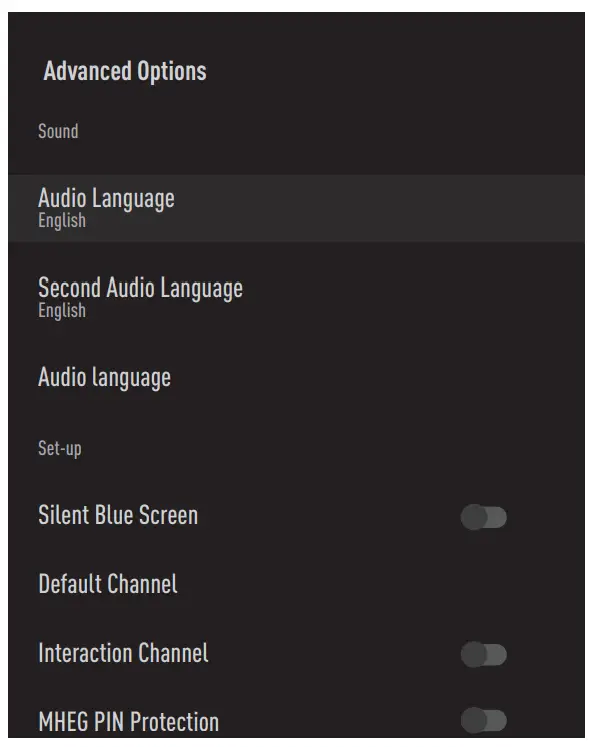
Note:
- Additional procedures are explained in the following sections.
Changing-the-audio-language
(only for digital television channels)
You can define a primary and a secondary audio language.
- Select »Audio Language« from the »Advanced Options« menu with » « or » « and confirm with » «.
- Press » « or » « to select audio language and press » « to confirm.
- Press » « or » « to select »Secondary Subtitle Language« and press » « to confirm.
- Press » « or » « to select the secondary audio language and confirm with » «.
- Press » « or » « to return to the broadcast.
Audio-language
You can select various languages when watching digital channels. This depends on the programme being broadcast.
- Select »Audio Language« from the »Advanced Options« menu with » « or » « and confirm with » «.
- Press » « or » « to select supported audio language and press » « to confirm.
Note:
• In TV mode you can change »Audio Language« by pressing » «.
«. - Press » « or » « to return to the broadcast.
 «.
«.Blue-Screen
You can select the screen colour blue when there is no TV broadcast signal.
- Press » « or » « to select »Silent Blue Screen« from the »Advanced Options« menu.
- Select the position »On« or »Off« with » «.
- Press » « or » « to return to the broadcast.
Default-Channel
Select the default channel that the TV will turn on.
- Select »Default Channel« from the »Advanced Options« menu with » « or » « and confirm with » «.
- Confirm »Select Mode« with » «.
- Select »End Status« or »User Choice« with » « or » «.
Note:
When »User Choice« is selected, »default Channel« needs to be selected from »Show Channels«. - Press » « or » « to return to the broadcast.
Interaction-Channel
Turn the interaction channel feature on or off.
- Press » « or » « to select »Interaction Channel« from the »Advanced Options« menu.
- Select the position »On« or »Off« with » «.
- Press » « or » « to return to the broadcast.
MHEG-PIN-Protection
Enable PIN protection on interactive MHEG applications.
- Press » « or » « to select »MHEG PIN Protection« from the »Advanced Options« menu.
- Select the position »On« or »Off« with » «.
- Press » « or » « to return to the broadcast.
Subtitles
- Select »Subtitle« from the »Advanced Options« menu with » « or » « and confirm with » «.
– »Subtitle« menu shall be displayed.
Note:
- In TV mode, you can open the »Subtitle« menu by pressing »SUB« on remote control.
Analogue-Subtitle
- Select »Analogue Subtitle« from the »Subtitle« menu with » « or » « and confirm with » «.
- Press » « or » « to select »On« or »Off« and confirm with » «.
- Press » « to return to the previous menu or press » « to return to the broadcast.
Digital-Subtitle
- Select »Digital Subtitle« from the »Subtitle« menu with » « or » « and confirm with » «.
- Press » « or » « to select »On« or »Off« and confirm with » «.
- Press » « to return to the previous menu or press » « to return to the broadcast
Digital-Subtitle-Language
- Select »Digital Subtitle Language« from the »Subtitle« menu with » « or » « and confirm with » «.
- Press » « or » « to select the digital subtitle language and press » « to confirm.
- Press » « to return to the previous menu or press » « to return to the broadcast
Second-Digital-Subtitle-Language
- Select »Second Digital Subtitle Language« from the »Subtitle« menu with » « or » « and confirm with » «.
- Press » « or » « to select the second digital subtitle language and press » « to confirm.
- Press » « to return to the previous menu or press » « to return to the broadcast
Subtitle-Type
- Select »Subtitle Type« from the »Subtitle« menu with » « or » « and confirm with » «.
- Press » « or » « to select »Normal« or »Hearing Impaired Option« and confirm with » «.
Note:
• If the »Hearing Impaired« option is selected, subtitle services are provided with annotations. - Press » « to return to the previous menu or press » « to return to the broadcast
Teletext-language-selection
- Select »Teletext« from the »Advanced Options« menu with » « or » « and confirm with » «.
– »Teletext« menu shall be displayed.
Digital-Teletext-Language
- Select »Digital Teletext Language« from the »Teletext« menu with » « or » « and confirm with » «.
- Press » « or » « to select the digital teletext language and press » « to confirm.
- Press » « to return to the previous menu or press » « to return to the broadcast
Page-Decoding-Language
- Select »Page Decoding Language« from the »Teletext« menu with » « or » « and confirm with » «.
- Press » « or » « to select the page decoding language and press » « to confirm.
- Press » « to return to the previous menu or press » « to return to the broadcast
BISS-Key
Biss key is an encryption technique. You can watch a frequency encrypted with the Biss key by entering the Biss key.
Note:
- The BISS Key item is displayed in the menu only when the broadcast source is selected as Satellite.
- Select »BISS Key« from the »Advanced Options« menu with » « or » « and confirm with » «.
- To add BISS Key press » «.
- Use » « or » « to select »Frequency« and confirm with » «.
- Enter the frequency at which you will enter the biss key with the »1…0«, select the » « on the virtual keyboard and confirm with » «.
- Use » « or » « to select »Symbol Rate (Ksym/s)« and confirm with » «.
- Enter the frequency symbol rate for which you will enter the biss key with the »1…0«, select the » « on the virtual keyboard and confirm with » «.
- Use » « or » « to select »Polarization« and confirm with » «.
- Select the polarization of the frequency for which you will enter the biss switch with » « or » « and confirm with » «.
- Use » « or » « to select »Programme ID« and confirm with » «.
- Enter the frequency programme id for which you will enter the biss key with the »1…0«, select the » « on the virtual keyboard and confirm with » «.
- Use » « or » « to select »CW Key« and confirm with » «.
- Enter the biss key with the »1…0«, select the » « on the virtual keyboard and confirm with » «.
- Use » « or » « to select »Save Key« and confirm with » «.
Note:
• The BISS Key can be entered for more than one frequency. Repeat steps 2 to 13 to add Biss keys to different frequencies. - Press » « to return to the previous menu or press » « to return to the broadcast
Preferred-List
- Select »Preferred List« from the »TKGS Setting« menu with » « or » « and confirm with » «.
- Press » « or » « to select »HD« or »SD« and confirm with » «.
- Press » « to return to the previous menu or press » « to return to the broadcast.
Signal-information
- Select »System Information« from the »Advanced Options« menu with » « or » « and confirm with » «.
– »System information« shall be displayed.
Notes:
• Signal information changes depending on the current source.
• The signal level not only depends on your receiver system, but also on the channel which is currently active. Remember this when aligning your antenna using the signal level display. - Press » « to return to the previous menu or press » « to return to the broadcast
ELECTRONIC-TV-GUIDE
The electronic programme guide offers an overview of all programmes that will be broadcast in the next week (for digital stations only).
- Press » « and then press » « to start the electronic TV guide.
- Select the Channels tab with » «.
- Select »Programme Guide« and press » « to confirm.
or
Press » « on perpendicular axis on remote control. – Electronic TV Guide is displayed.
Notes:
Not all channels provide a detailed TV guide.
Many broadcasters supply the daily programme but no detailed descriptions.
There are broadcasters which do not provide any information at all. - Select the channel with » « or » «.
– Information about the actual programme is displayed in the selected television channel. - Press » « to select information on the next broadcasts and press » « to return to the information for the current broadcasts.
- Press » « (red) to view the programmes of the previous day, press » « (green) to view the programmes of the next day.
- Press » « (blue) to filter the programmes.
Note:
• See the instructions on the screen for additional options. - Press » « or » « to return to the broadcast.
HBBTV-MODE
What-is-HbbTV?
With its modern structure, content and high definition (HD) pictures and videos, HbbTV is a new technology where broadcast and the broadband can be used together and which permits access to interactive applications that the broadcast provides through internet. The TV must be connected to internet to receive HbbTV broadcast.
When you switch to a TV channel that offers HbbTV service, the relevant message shall be displayed.
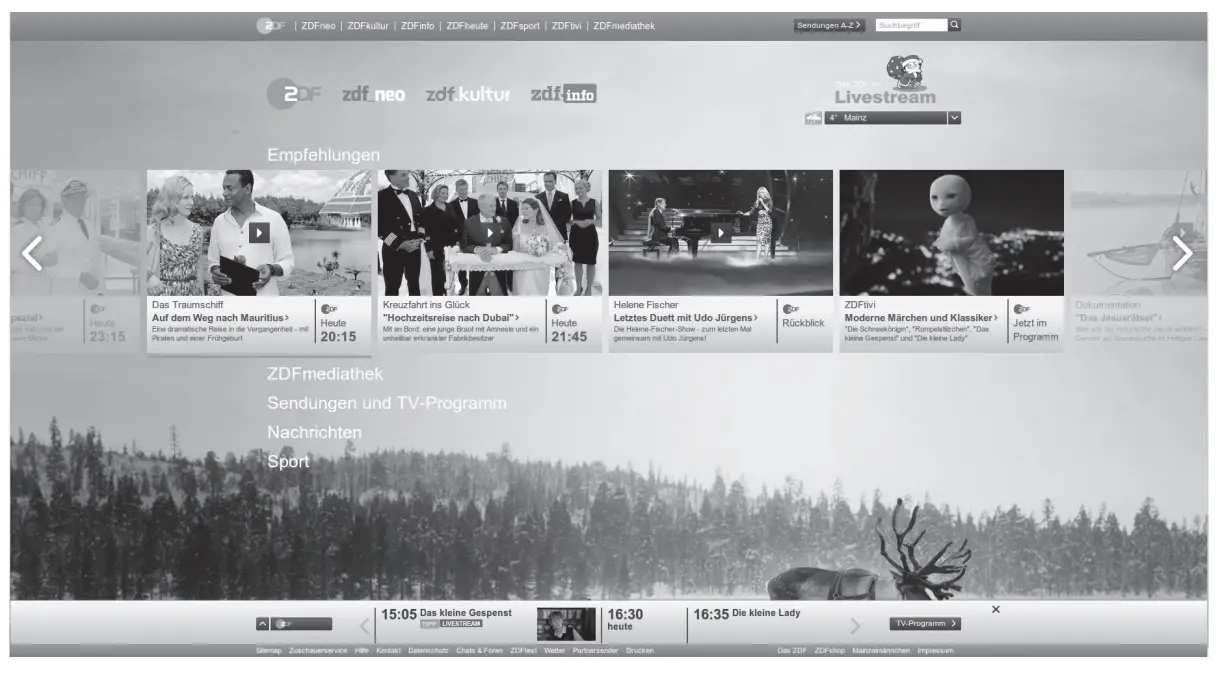
Using-HbbTV
When you switch to a TV programme that supports HbbTV, an info message will appear stating that HbbTV broadcast is available.
Note:
- For HBBTV to be active HBBTV Support must be enabled from HBBTV Settings.
- Press » « (red) to open HbbTV.
– Information regarding the service will appear on the screen. Additionally, coloured buttons necessary for browsing the menus will also appear.
Notes:
• The range of subjects and selection of individual subjects are subject to the programme provider.
• Numeric buttons between »1« and »0« are used for additional functions. - Press » « (green), » « (yellow) or » « (blue) to select the desired topic field.
- Select the option you want with » « » «, » « or » « in the selected topic field and confirm with » «.
- Press » « (red) to close HbbTV.
Note:
• If navigation does not work in HbbTV mode, press » « to exit the function.
Additional-functions-for-video indexes
- Press »
 « to start playback.
 - Press » « to pause playback.
- Press » « to resume playback.
- Press »
 « to rewind, press »
  « to fast forward.
 - Press » « for 5 seconds to stop playback.
 « to start playback.
 « to rewind, press »
  « to fast forward.
HBBTV-Settings
- Press » « to return to the TV mode.
- Press » «, select the »Advanced Options« with » « or » « and confirm with » «.
- Use » « or » « to select »HBBTV Settings« and confirm with » «.
– HBBTV Settings menu shall be displayed.
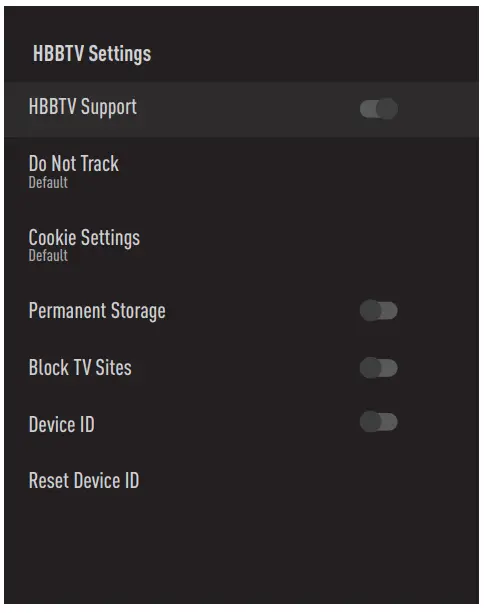
Note:
- Additional procedures are explained in the following sections.
HBBTV-Support
You can turn off HbbTV, by this way warnings for HbbTV are not displayed on channels broadcasting HbbTV.
- Select »HBBTV Support« with » « or » « and select the position »On« or »Off« with » «.
- Press » « or » « to return to the broadcast.
Watch-preference
Set your watching preference for HbbTV services.
- Select »Do Not Track« with » « or » « and confirm with » «.
- Press » « or » « to select »On«, »Off« or »Default« and confirm with » «.
- Press » « or » « to return to the broadcast.
Cookie-Settings
Set your cookie preference for HbbTV services.
- Select »Cookie Settings« with » « or » « and confirm with » «.
- Select »Block All«, »Block 3rd party cookies« or »Default« with » « or » « and confirm with » «.
- Press » « or » « to return to the broadcast.
Permanent-Storage
Permanent storage on/off for HbbTV services.
- Select »Permanent Storage« with » « or » « and select the position »On« or »Off« with » «.
- Press » « or » « to return to the broadcast.
Block-TV-Sites
Block/allow TV sites.
- Select »Block TV Sites« with » « or » « and select the position »On« or »Off« with » «.
- Press » « or » « to return to the broadcast.
Device-ID
Turn off/on device ID.
- Select »Device ID« with » « or » « and select the position »On« or »Off« with » «.
- Press » « or » « to return to the broadcast.
Reset-Device-ID
- Use » « or » « to select »Reset Device ID« and confirm with » «.
- Confirm »OK« with » « to confirm the reset.
or
press » « to cancel. - Press » « or » « to return to the broadcast.
TELETEXT-MODE
TOP-text-or-FLOF-text-mode
- Press »TXT« to switch to teletext mode.
- You can select teletext pages directly with »1…0« or step by step with » «.
Note:
• At the bottom of the screen, you will see an information line consisting of a red, green and, depending on the station, yellow and blue text field. Your remote control has buttons with the corresponding colours. - Press » « (red) to go to the previous page.
- Press » « (green) to select topic.
- Press » « (yellow) to select partition.
- Press » « (blue) to go to the next page.
- Press »TXT« to exit teletext mode.
Normal-text-mode
- Press »TXT« to switch to teletext mode.
- You can select teletext pages directly with »1…0«.
- Press » « « to go to the next page or previous page.
- Press »TXT« to exit teletext mode.
Calling-the-sub page-directly
If the selected teletext page contains further pages, the number of the current sub-pages as well as the total number of pages is displayed.
- Press » « or » « to select a sub page.
USB-RECORDING
Information-on-recording-and playing-television-programmes
- Recording and reproducing programmes, this can only be done with digital television stations (DVB-S, DVB-T and DVB-C).
- The digital television stations (DVB-S, DVB-T and DVB-C) you are able to record and playback also depend on the broadcasting station.
- Besides recording and playing programmes, the Time shift function can only be carried out using an external data medium (hard drive or USB stick).
- Recordings can be made with most data mediums on the market. However, we cannot guarantee operation for all data media.
- Recording can only be done on USB memory sticks and hard disks with FAT and FAT32 format.
- If you record a programme on an external data medium, you can only watch it on your television. You cannot watch this programme on any other device.
- If you send your television to be repaired and hardware components need to be replaced, you might not be able to play the recordings again on the repaired television.
- Beko isn’t responsible for any loss of data stored on any external storage device.
- It is recommended to play the files saved on DTV by PVR media player.
Possible-restrictions-on-using-an external-data-medium
Depending on the broadcasting station, you may experience various restrictions on some functions from some television stations.
BEKO’nun-has-no-influence-on-these restrictions.
- Recording a programme on the external data medium can be disabled by the broadcaster. If »URI* protected! PVR function is blocked« is displayed on the screen, then recording or time shift is restricted (one recording possible) or disabled (recording not possible) by the broadcaster.
*URI = user rights information. - If you record and save a programme on the archive of an external data medium, playback can be restricted. The broadcaster can allow you to see this programme one or more times but could also just make it available for a certain period of time.
- Stations from which children are protected, immediately require a PIN number before recording starts. If this authorization is not given, the recording may not start.
Connecting-external-data medium
Notes:
- It is advised to put the television on stand-by mode before connecting the External Data medium.
- Before disconnecting the external data medium, the television must first be switched to standby, otherwise files can be damaged.
- There are two USB inputs on the television, USB2-(HDD) and USB1.
A USB device that needs additional power (eg external hard disk) is connected to the USB2-(HDD).
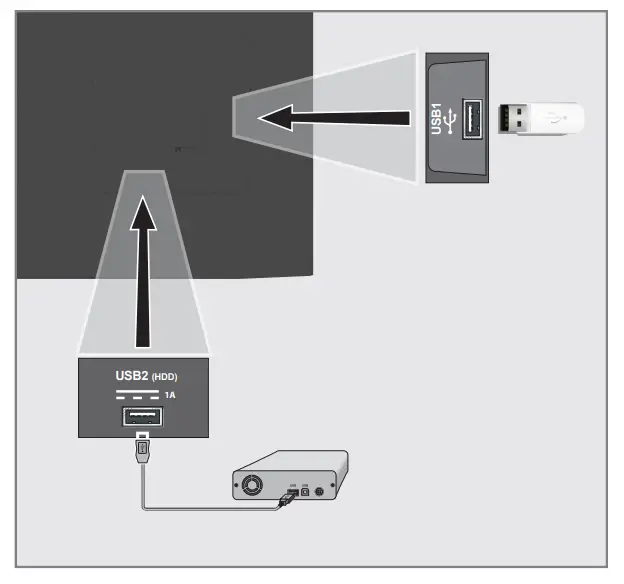
- Plug the external hard disk to the USB2(HDD)-USB interface of the television;
or
plug the memory stick in one of the USB1 sockets of the television.
Notes:
- According to the USB standard, the USB1 socket of the TV supports a current of 500 mA. Devices such as external hard disk and etc. that consume more power can only be connected to the USB2-(HDD) USB interface of the television.
- USB2-(HDD) If you are using a power cable for the external hard disk that you have connected to the USB interface, then the power cable of the external hard disk shall also be unplugged when the TV is turned off.
- You must not disconnect the USB Device from the TV while a file on the USB Device is being read by the TV.
USB-recording-settings
- Press » « to return to the TV mode.
- Press » « and select »Save« with » «.
- Select »Device Information« with » « and confirm with » «.
- Select the external data media connected to the TV and confirm with » «.
– »Device Info Setting« is displayed on the menu.
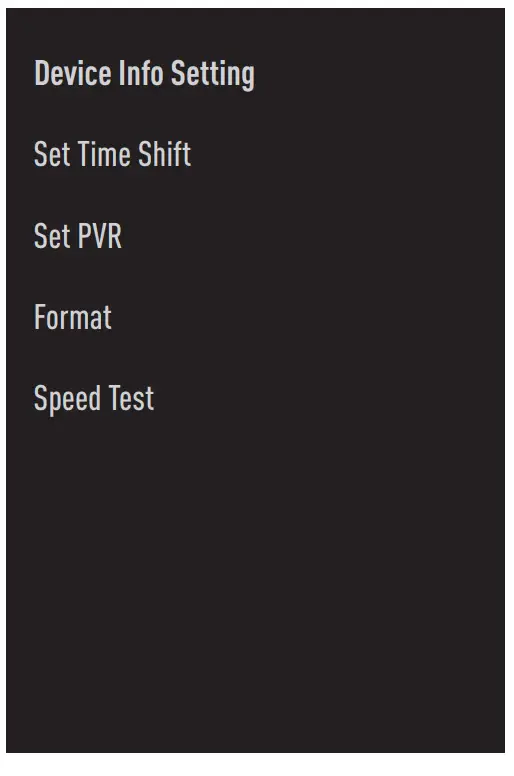
Note:
- Additional procedures are explained in the following sections.
Formatting-external-data-medium
Important:
- Formatting external data medium causes all data in the data medium to be permanently deleted.
- Select »Format« from the »Device Info Setting« menu with » « or » « and confirm with » «.
– A warning message shall be displayed. - Select »Yes« to confirm formatting;
or
select »No« to cancel formatting and confirm with » «. - When the format is complete, the »Device Information« menu is displayed.
Selecting-external-data-medium-for-Record/Time-shift
If more than one external data medium is connected to TV, you can set different data media for record/time shift or assign both records to one data medium.
- Select »Set time shift« and/or »Set PVR« from »Device Info Setting« menu with » « or » « and confirm with » «.
- According to the selection you made for the disc in the »Device Information« menu, »TSHIFT« is displayed if only time shift is selected, »PVR« if only recording is selected, or »PVR/TSHIFT« if both recordings are selected on the same data medium.
Notes:
- You can connect two different external data media to the TV and select one separately as »PVR« recording and the other as »TSHIFT« recording.
- Functions do not work if no external data medium is assigned for recording/time shift.
Testing-external-data-medium
You can test the external data media to see if it is suitable for the required functions.
- Select »Speed Test« from the »Device Info Setting« menu with » « or » « and confirm with » «.
- After a short time the speed test result of the external data medium is displayed on the screen.
- Confirm »Exit« with » « to exit the Speed Test menu.
Enabling-and-disabling-the-time shift-function
You can turn time shift off or on with this feature.
- Press » « to return to the TV mode.
- Press » « and select »Save« with » «.
- Select »Time Shift Mode« with » « and confirm with » «.
– The Time Shift Mode menu shall be displayed. - Select »On« or »Off« with » « in »Time Shift Mode«.
- Press » « to return to the broadcast.
Time-shift-disc-set-up
If you are going to connect an external data medium to TV for the first time and use it for time shift, a disc set-up is required.
Automatic-disc-set-up
- Connect the external data medium to the USB input of TV.
Notes:
To make a time shift disk setup, »Time Shift Mode« must be selected as »On«. - Press » «.
– Disc Set-up menu shall be displayed. - Select »Auto« and press » « to confirm.
– The external data medium is automatically configured and the message »Disc Set-up Complete« is displayed.
Notes:
• This should be done when an external data medium is first connected to TV or when the external data medium is formatted by TV.
• An external disc larger than 4 GB is required for this operation.
• Auto set-up creates 4GB time shift space on discs below 32GB and 16GB on discs above 32GB. - Press » « to return to the broadcast.
Manual-disc-set-up
- Connect the external data medium to the USB input of TV.
Notes:
• To make a time shift disk setup, »Time Shift Mode« must be selected as »On«. - Press » «.
– Disc Set-up menu shall be displayed. - Select »Manual« with » « and confirm with » «.
- Select »Format« to format the external data medium;
or
to continue without formatting, select »Skip« and confirm with » «.
Important:
• It is recommended to format the external data medium for better performance. This action will delete all data on the external data medium. - The formatting warning message shall be displayed. Select »Format« and confirm with » «.
– Formatting progress is displayed on the screen. - When formatting is complete, select the size you want to reserve for time shifting according to the size of the external data medium with » « or » « and confirm with » «.
– The external data medium is manually configured and the message »Disc Set-up Complete« is displayed. - Press » « to return to the broadcast.
“Pausing”-time-shift-and continuous-recording programmes
You can pause any programme you are watching. For instance, if the phone rings when you are watching a movie, you can pause the movie and resume it after the call without missing anything.
The last scene that was frozen is displayed and time shift is recorded into the external data media.
With the continuous recording feature, TV records the channel you are currently watching as much as the time shift memory you create on external data media. Thus, you can use the rewind feature on the channel you are watching.
Note:
Use an external USB Disk driver for an uninterrupted “Permanent Time Shift”.
- Press » « during the broadcast.
– Television picture is paused and delay time is displayed. - To resume the broadcast, press » «.
– The system continues recording the broadcast while you are watching it.
Note:
• The following functions can be used in the time shift mode.
– Fast rewind, press » « several times for the desired speed;
– Fast forward, press » « several times for the desired speed;
– To pause, press » «. - To stop time shift, press and hold »
 «.
«.
 «.
«.Recording-Programmes
You can record a TV channel. Programmes are recorded onto the external data media and the archive is managed via television.
A memory of 44 MB up to 110 MB is required for a 1 minute record.
- Select the channel with »1…0« or » « to start recording.
- Press » « on remote control.
– Recording information shall be displayed:
Recording symbol, channel name, programme time and recording time.
– This information will disappear after a short while, the »REC« symbol and the recording time appear in the lower left corner of the screen. - Press » « to stop recording.
Notes:
- When recording is complete, it will automatically be stored on the external data media.
- If you remove the external data media during recording, then the recording is cancelled automatically and no data is recorded onto the external data media.
Switching-the-TV-to-stand-by-during- recording
- Select the channel with »1…0« or » « to start recording.
- Press » « on remote control.
- To switch the TV to stand-by, press »8«.
Recording-a-programme-from-the channel-list
- Press » « to open the channel list.
- Select a channel with » « or » « and press » « to confirm.
- Press » « on remote control.
– Recording information shall be displayed:
Recording symbol, channel name, programme time and recording time.
– This information will disappear after a short while, the »REC« symbol and the recording time appear in the lower left corner of the screen. - Press » « to stop recording.
Adding-recording-timer
…-with-electronic-programme-guide
Electronic programme guide data can be used for recording.
- Press » « on the perpendicular axis to open the electronic TV guide.
- To add record timer, select the channel you want with » « or » «.
- Select the schedule you want to add record timer with » « or » « and confirm with » «.
– »Schedule List – Add« menu is displayed. - From »Schedule Type« select »Save«.
- From »Repeat Type«, select (»Once«, »Weekly« or »Everyday«).
Note:
• To add a recording timer for a programme at a time interval other than the broadcast time specified in the electronic programme guide, select »Timing Programming« from the »Event Model« item. - To save the settings, press » « (green).
- Press » « to return to the broadcast.
Notes:
- A warning is displayed before the timer recording starts and counts down for 15 seconds to allow you to switch to the channel. At the end of 15 seconds, the channel to be recorded appears automatically.
- If the timer recording starts during playback, playback stops. If you do not select »Yes« in the warning prompt, recording will start automatically at the end of the countdown.
- Note specific to UPC customers: Parts of previous or next files can be included into the record while the programme is being recorded resulting from possible Programme Guide errors. In such cases, keep in mind that the highest family protection level will apply for the whole recording if one or more of those programmes have any level of family protection.
…-by-entering-the-information-manually
- Press » « to return to the TV mode.
- Press » « and select »Save« with » «.
- Select »Programme List« with » « and confirm with » «.
- »Information« menu will be displayed. Select »Add« with » « and confirm with » «.
Note:
• If there is a previously programmed timer, the »Schedule List« menu is displayed without the »Information« menu being displayed. Press » « (yellow) to add broadcasts to the timer in this status. - Select »Channel Info« and press » «. Select the channel you want to save with » « or » « and press » «.
- Select »Starting Date« and press » «. Select year, month and day with »1…0« and press » « (green).
- Select »Starting Time« and press » «. Select hour, minute and sec with »1…0« and press » « (green).
- Select »Stop Time« and press » «. Select hour, minute and sec with »1…0« and press » « (green).
- Select »Schedule Type« and press » «. Select »Save« with » « or » « and press » « (green).
- Select »Repeat Type« and press » «. Press » « or » « to select (»Once«, »Daily« or »Weekly«) and press » « (green).
- From »Event Model« line select »Timing Programming« with » « » « and press » « (green).
- To save the timer, press » « (green).
- Press »H« to return to the broadcast.
Editing-recording-timer
You can delete programmed timers.
- Press » « to return to the TV mode.
- Press » « and select »Save« with » «.
- Select »Programme List« with » « and confirm with » «.
– The scheduled recording timers shall be displayed.
– Select the recording timer you want to edit with » « or » « and press » « (red). - Edit recording timer.
- To save the changes, press » « (green).
Deleting-recording-timer
You can delete programmed timers.
- Press » « to return to the TV mode.
- Press » « and select »Save« with » «.
- Select »Programme List« with » « and confirm with » «.
– The scheduled recording timers shall be displayed. - Select the recording timer you want to delete with » « or » « and press » « (blue).
- Select »Yes« with » « or » « to delete the timer;
or
To cancel the deletion, select »No« with » « or » « and confirm with » «.
Play
Either started manually or with the timer function, the recorded programmes are all stored in the external data media. You can display the archive on the external data media from the »Recorded files list« menu.
Selecting-a-broadcast-from-the recorded-files-list
- Press » « to return to the TV mode.
- Press » « and select »Save« with » «.
- Select »Recorded Files List« with » « and confirm with » «.
– Recorded Files List shall be displayed. - Press » « or » « to select the broadcast you want to play and press » « to start playing.
- Press » « to pause playback.
- Press » « to stop play.
Forward/reverse-picture-search
- Press » « repeatedly during playback to select the playback speed (2x, 4x, 8x, 16x, or 32x).
or
press » « repeatedly to select the playback speed (2x, 4x, 8x, 16x or 32x).
Deleting-broadcasts-from-therecorded-files-menu
You can delete recorded broadcasts from the Recorded Files list.
- Press » « to return to the TV mode.
- Press » « and select »Save« with » «.
- Select »Recorded Files List« with » « and confirm with » «.
– Recorded Files List shall be displayed. - Select the recording you want to delete with » « or » « and press » « (yellow).
- To confirm deletion, press » « » « to select »Yes«;
or
to cancel deletion, press » « » « to select »No«. - Press » « to return to the broadcast.
USB-OPERATION
File-formats
Your television can be operated via the USB input with the following file formats:
Video-data
Video compression/decompression (codec) is intended for decreasing the storage area without sacrificing the picture quality.
Your TV allows you to play compressed video data with XVID, H.264/MPEG-4 AVC (L4.1, Ref. Frames:4), MPEG-4, MPEG-2, MPEG-1, MJPEG, MOV standards.
File extensions supported by the device: “.avi”, “mkv”, “.mp4”, “.ts”, “.mov”, “.mpg”, “.dat”, “.vob”,”.divx”. In addition to video data, these files also contain audio data compressed and “packaged” by MP3, AAC or Dolby Digital. Format (codec) information is embedded within the file content and may differ depending on the file extension. “.avi”, “.mkv” or “.divx” files containing divx codec within are not played back.
Audio-data
Your television can play audio data coded with MP3, AAC standards.
MP3 indicates MPEG-1 Volume Level 3 and is based on the MPEG-1 standard that was developed by MPEG (Motion Picture Expert Group).
AAC indicates the Advanced Audio Coding and is developed by MPEG. AAC provides higher audio quality with the same data rate (bit rate). File extensions supported by the device: “.mp3”, “.mp2”, “.m4a”, “.aac”, “.wav”
MP3 files can be organized into folders and sub-folders similar to the files on a computer.
Picture-data
Your television can display picture data in JPEG, PNG and BMP formats.
JPEG stands for Joint Picture Experts Group. This process is intended to compress picture files. PNG and BMP are designed to compress picture data without any losses.
Picture files can be saved onto a data medium along with other file types.
Such files can be organised as folders and subfolders.
See http://patents.dts.com for DTS patents.
Manufactured under license of DTS Licensing Limited. DTS, DTS-HD, and the DTS-HD logos are registered trademarks or trademarks of DTS, Inc. in the United States and other countries. © 2021 DTS, Inc. ALL RIGHTS RESERVED.
Connecting-external-data medium
It is advised to put the television on stand-by mode before connecting the External Data medium. Connect the device and then switch the television on again.
Before disconnecting the data medium, the television must first be switched to standby, otherwise files can be damaged.
Notes:
- According to the USB standard, the USB1 socket of the TV supports a current of 500 mA. Devices such as external hard disk and etc. that consume more power can only be connected to the USB2-(HDD) interface of the television.
- USB2-(HDD) If you are using a power cable for the external hard disk that you have connected to the USB interface, then the power cable of the external hard disk shall also be unplugged when the TV is turned off.
- You must not disconnect the USB Device from the TV while a file on the USB Device is being read by the TV.
- A duplex data transfer as defined for ITE (Information Technology Equipment) devices in EN 55022/EN 55024 is not possible
- USB transfer is not an operating mode in itself. It is only an additional function.
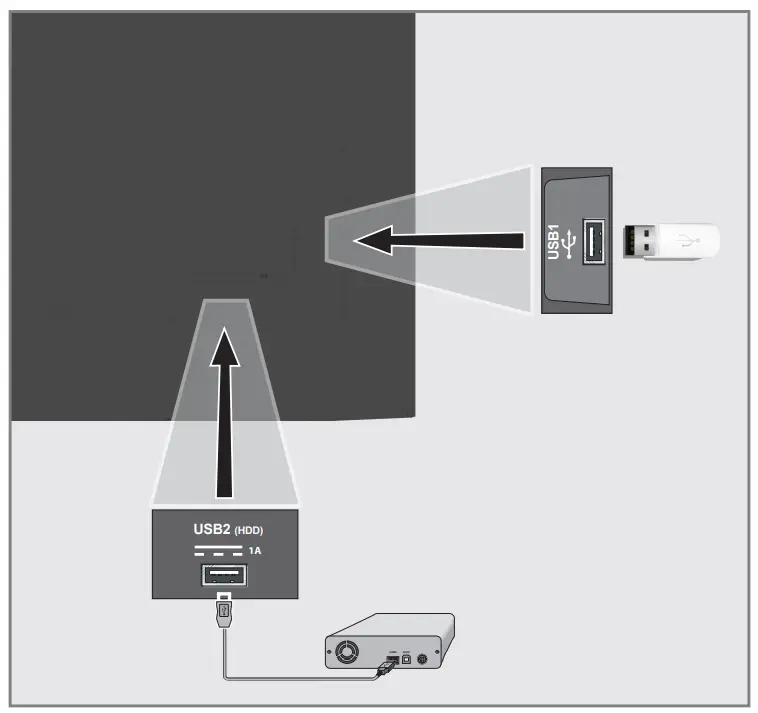
- Connect the USB2-(HDD) interface of the television and the corresponding socket on the data device (external hard drive, digital camera, card reader or MP3 player) using a USB cable;
or
plug the memory stick in one of the »USB1« sockets of the television.
Removing-the-external-data-medium
Before removing the external data medium, log off the data medium.
- Press » «.
- Use » « » «, » « or » « to select » « Settings and confirm with » «.
- Select »Device Preferences« with » « and confirm with » «.
- Select »Storage« with » « and confirm with » «.
- Select the external data medium you want to remove with » « or » « and confirm with » «.
- Confirm »Remove« with » «.
– The message »….. safely removed« is displayed. - Remove the data medium from the socket.
Multi-Media-Player-menu
Multi Media Player file browser shows video, audio, picture and text data on external data medium.
If an external data medium contains different file formats, you can disable data (Video file, Audio file, Picture file or Text file) that you do not need to play/display with the file format selection, so that you can only play files in the format you want to view.
- Press » «.
- In the »Applications« tab, select the »Media Center« application with » « or » « and confirm with » «.
– Media Center file format selection shall displayed. - Select the file format you want to play with » « or » « by selecting »Video«, »Photo« or »Music« and confirm with » «.
– File browser menu for the file format you selected shall be displayed.
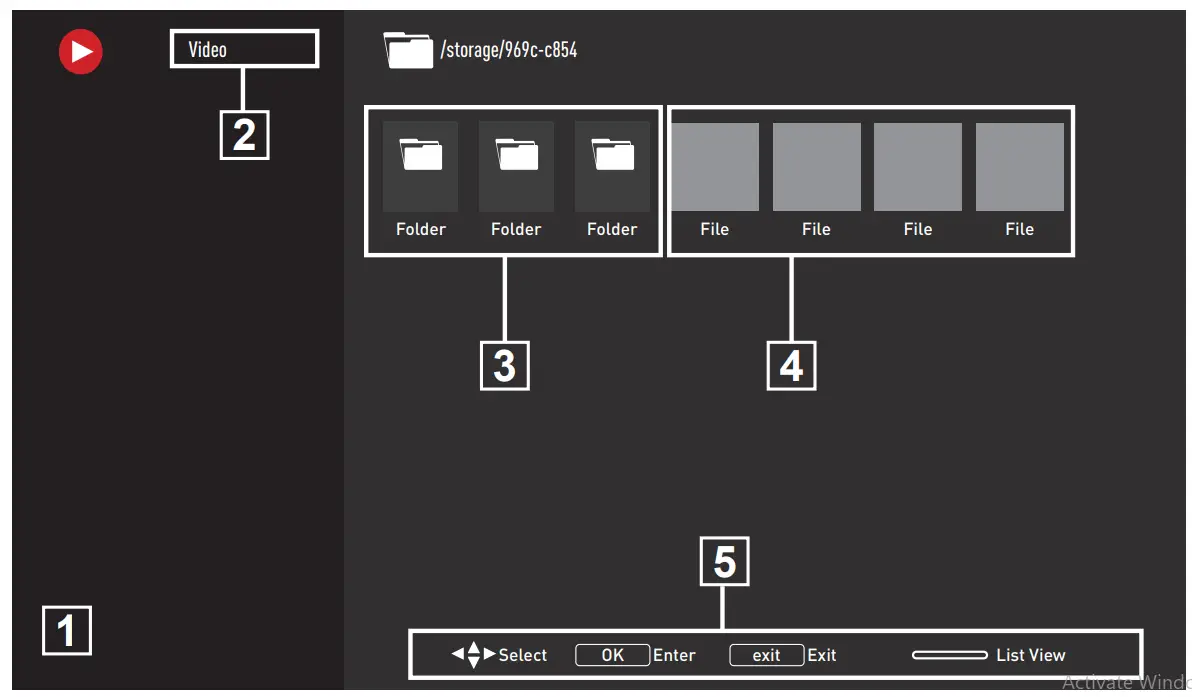
- File browser
- Data type.
- Data medium folders.
- Data medium files
- Options.
Play-basic-functions
- Select the file you want to play from the file browser with » « » «, » « or » « and confirm with » «.
- Press » « to pause playback.
- Press » « to resume playback.
- Press » « to end playback.
– The file browser appears.
Notes:
- It is possible that some files that are supported in USB mode do not operate due to some problems that may arise depending on how such files are created (compression) although they have the supported file extension.
- If there are more than one audio source (audio stream) in the video files that are being played, then you can switch between the audio sources with »SUB« while the file is being played in full screen mode.
- Movies you will be watching from a movie file only support subtitles with .srt, .sub, .ass, .ssa, .smi format. Names of the subtitle and movie files must be the same. Otherwise, subtitle can not be displayed.
Additional-playback-functions
Depending on the file formats used, it is possible to use the following additional functions.
View-information-in-all-file-formats
- Press » « during playback.
- Select »Show information« and press » « to confirm.
– File information shall be displayed. - Press » « to exit the menu.
Moving-to-the-desired-time
(only video and audio files)
You can select different speeds (2-fold, 4-fold, 8-fold, 16-fold and 32-fold forwards and backwards).
- Press » « or » « to jump to the desired time during playback.
Moving-to-a-specific-part-of-a-video
- Press » « during playback.
- Use » « or » « to select »Search« and confirm with » «.
- Enter the time that you want to move to with »1…0« and confirm with » «.
Repeat-function
(only video and audio files)
- Press » during playback.
- Use » « or » « to select »Repeat« and confirm with » «.
- Press » « or » « to select »None«, »Repeat One« or »Repeat All« and confirm with » «.
Picture-settings-in-video-files
You can change the display settings while playing video files.
- Press » « during playback.
- Select »Picture Settings« and confirm with » «.
– Picture menu shall be displayed.
Note:
- For other settings, refer to the »Picture Settings« section.
Audio-settings-in-video-and-audio-files
You can change the audio settings while playing video and audio files
- Press » « during playback.
- Select »Sound Settings« and confirm with » «.
– Sound menu shall be displayed.
Note:
- For other settings, refer to the »Sound Settings« section.
Turning-shuffle-on-for-audio-files
You can put the audio files in the external data medium on shuffle.
- Press » « during playback.
- Confirm »Shuffle: “Off” with » «.
– Shuffle mode will turn on for tracks in the external data medium.
Note:
- Select »Shuffle Off« to play the tracks in the external data medium in sequence.
Playing-audio-files-with-the-screen-off
You can turn off the screen while playing audio files on external data media.
- Press » « during playback.
- Use » « or » « to select »Picture Off« and confirm with » «.
– Power menu shall be displayed. - Use » « or » « to select »Picture Off« and confirm with » «.
– TV Screen turns off and audio files continue to play. - Press » « to turn picture on again.
Turning-the-picture-display-
(only picture files)
Pictures can be rotated by 90°.
- Press » « during playback.
- Use » « or » « to select »Rotate« and confirm with » «.
– The picture will turn by 90° clockwise or counterclockwise.
Enlarging-the-picture-display-(Zoom)
(only picture files)
- Press » « during playback.
- Use » « or » « to select »Zoom« and confirm with » «.
- Press » « or » « to select »1X«, »2X« or »4X« and confirm with » «.
BEKO-ANDROID-TV
Terms,-Conditions-and Privacy
On the first set-up of your TV, a Terms of Service page is shown by Google for you to accept or decline. This page has buttons for the “Google Terms of Service”, “Google Privacy Policy” and “Google Play Terms of Service”, along with Accept option.
Please read these agreements with their visit details on the relevant web pages and select the Accept option accordingly.
If you don’t select Accept option at this step, you won’t be able to use Android TV features. Again on initial set-up, Smart TV Terms of Service are displayed. In this contract, the terms of the services provided on your television are explained in detail and detailed information about data processing is given. Please read this agreement carefully.
Sign-in-with-Googleaccount
Skip this step if you signed in with an existing Google account in the initial set-up.
- In Home menu, select »)« Settings with » « » «, » « or » « and confirm with » «.
- Select »Accounts and Login« with » « and confirm with » «.
- Select »Login« and confirm with » «
- Select »Use your remote control« and confirm with » «.
- Select »
 « and press » « to continue after entering your e-mail address with the screen keyboard.
 - Select » « and press » « to continue after entering your account password with the screen keyboard,
- Follow the instructions displayed on your TV and on the screen of your TV.
– »Successful« message is displayed on TV screen.
 « and press »
 Home-Menu-(Home-Screen)
Your TV has an Android operating system. Just like your smartphone or tablet, you can find the most practical applications you want on your new Android TV. Just connect your TV to your home network and the Internet to watch TV, play online games, use videos, pictures, music, social sharing apps, the most popular news and sports apps.
As with your Android smartphone or tablets, the home menu is the center of your TV. You can decide what to watch by browsing through the Home menu, app and live TV entertainment options. Home menu has channels to let you discover great content from your favourite apps.
To access the TV home menu, simply press » «.
Note:
- Appearance of Home menu may change with Google software updates.
Open-Home-menu
- Press » «.
- To open/start an item with » « » «, » « or » «, press » «.
- Press » « repeatedly or » « to return to home screen.
Note:
• When opening home screen, application/content playing in the background is stopped. You need to reselect app or content from Home screen to continue.
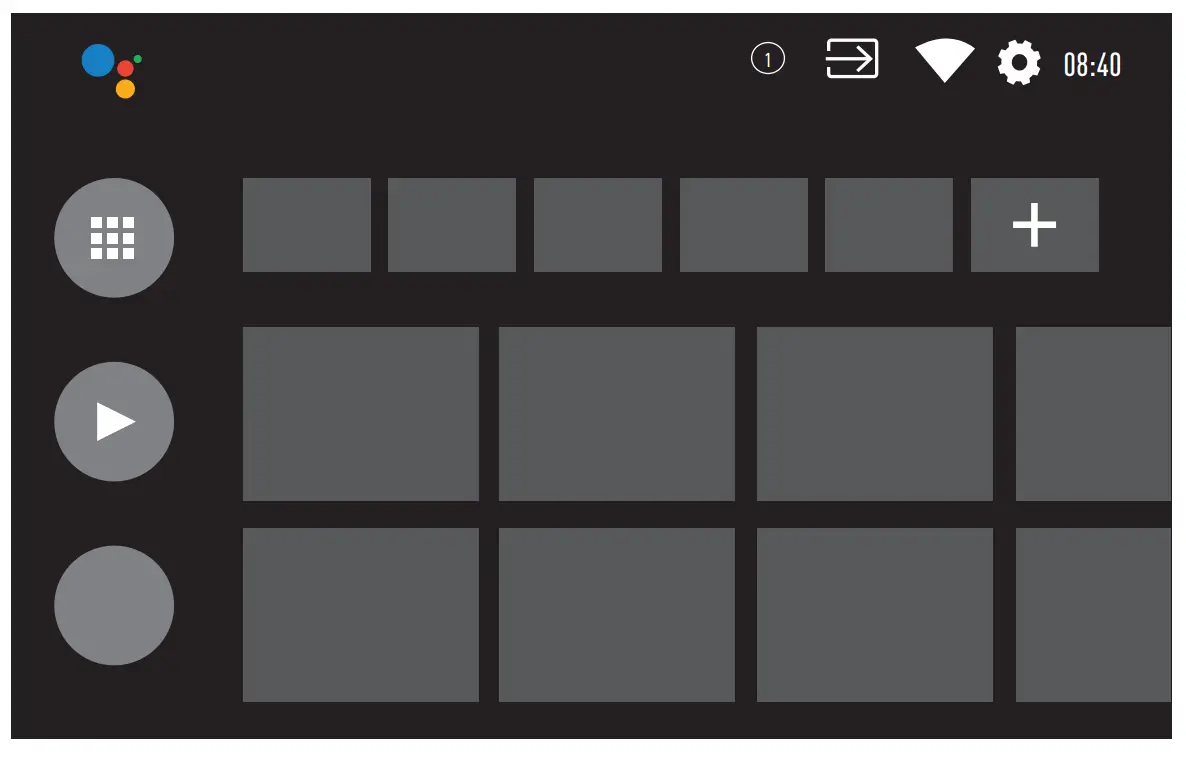
Home-menu-settings
- Press » «.
- Use » « » «, » « or » « to select » « Settings and confirm with » «.
- Select »Device Preferences« with » « and confirm with » «.
- Select »Home Screen« with » « and confirm with » «.
– »Home Screen« menu shall be displayed.
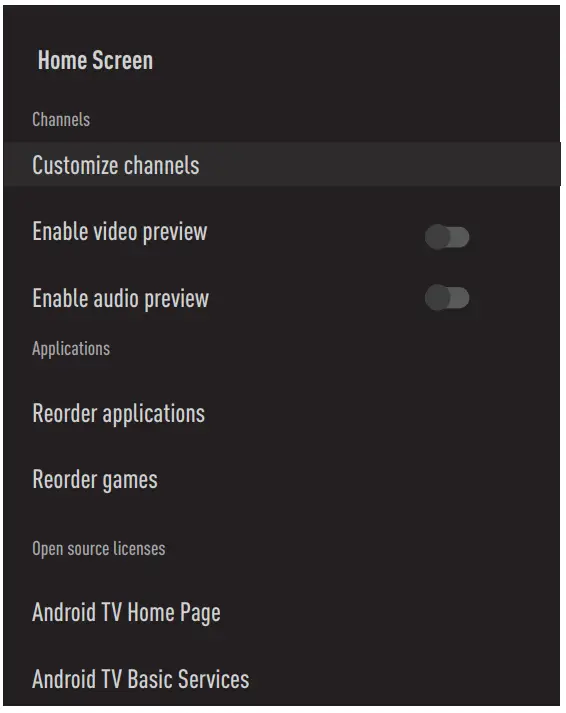
Note:
- Additional procedures are explained in the following sections.
Customize-channels-in-Home-menu
Home menu is organized as channels. These channels consist of the contents of installed applications. You can customize these channels and have them displayed according to your preference.
- Select »Customize Channels« from the »Home Screen« menu;
or
Press » « and go to the bottom of the screen with » « on the home screen, select »Customize Channels« and confirm with » «. - Supported applications and channels shall be displayed, customize the options you want the channels to display.
- Press » « to return to the previous menu or press » « to return to Home menu.
Video/audio-preview-in-home-menu channels
You can turn the Home menu video/audio preview on or off.
- From »Home Screen« menu, select »Enable video preview« and/or »Enable sound preview« with » « or » «.
- Select the position »On« or »Off« with » «.
- Press » « to return to the previous menu or press » « to return to Home menu.
Sorting-of-applications-in-the-Home menu-applications-tab
Sort the apps in apps menu of home menu according to your personal preference.
Note:
- To display the apps menu, select »
 Applications« from Home menu and confirm with » «.
 Applications« from Home menu and confirm with »
 - Select »Reorder apps« from »Home Screen« menu with » « and confirm with » «.
– Applications menu shall be displayed. - Select the application you want to replace with » «.
- Move the application to its new position with » « » «, » « or » « and confirm with » «.
- Press » « to return to the previous menu or press » « to return to Home menu.
Sorting-of-applications-in-the-Home-menu-games-tab
Sort the apps in games menu of home menu according to your personal preference.
- Select »Reorder games« from »Home Screen« menu with » « and confirm with » «.
– Games menu shall be displayed. - Select the game you want to replace with » «.
- Move the game to its new position with » « » «, » « or » « and confirm with » «.
- Press » « to return to the previous menu or press » « to return to Home menu.
Home-menu-open-source-licenses
View open source licenses of Home menu.
- Select »Android TV Home« or »Android TV Basic Services« from the »Home Screen« menu with » « or » « and confirm with » «.
– Open source license shall be displayed. - Press » « to return to the previous menu or press » « to return to Home menu.
Applications-
You can find your favourite Apps in Apps tab of Home menu.
You can download apps and games from Google Play Store to TV just like with smartphones and tablets.
You can only download apps and games which are compatible with your TV. These may differ from apps and games for smartphones/tablets. To download applications from Google Play Store, television must be connected to the Internet and must be logged in with a Google account.
Installing-apps-from-Google Play-Store
- Press » «.
- Select »Applications« tab with » « or » « in Home menu.
- From Applications tab, select »Google Play Store« application with » « or » « and press » «.
– Play Store home screen shall be displayed. - Select the application you want with » « » «, » « or » « or search the application you want via search bar and press » «.
– My application explanation screen shall be displayed. - Select »Load« and press » « to confirm.
- The application will be downloaded and installed on your TV.
Note:
• Depending on the size of the application and your internet speed, loading time of the application may vary.
Starting-an-installed-application
- Press » «.
- Select »Applications« tab with » « or » « in Home menu.
- Select the application you want to start with » « or » « or and confirm with » «.
– Home screen of the application shall be displayed. - Press » « to quit the application.
Add-favourite-applications-to Home-menu-applications-tab
Add your favourite apps to apps tab of Home menu.
- Press » «.
- Select »Applications« tab with » « or » « in Home menu.
- To add favourite application, select »+« with » « or » « and confirm with » «.
– Select application menu shall be displayed. - Select the application you want to add with » « or » « and confirm with » «.
– Application is added to apps tab in Home menu.
Remove-favourite-applications from-home-menu-apps-tab
Remove your favourite apps from Home menu apps tab.
- Press » «.
- Select »Applications« tab with » « or » « in Home menu.
- Select the application you want to remove from favourites and press and hold the » «.
– Menu shall be displayed. - Select »Remove from favourites« with » « and confirm with » «.
– Application is removed from applications tab in Home menu.
Sorting-of-applications-in Applications-tab
Sort apps in applications tab of Home menu according to your personal preference.
- Press » «.
- Select »Applications« tab with » « or » « in Home menu.
- Select the application you want to replace with » « or » « and hold down » «.
– Menu shall be displayed. - Select »Move« with » « and confirm with » «.
- Move the channel to its new position with » « or » « and confirm with » «.
Note:
• Repeat steps 3 – 5 to sort other applications.
Application-Settings
- Press » «.
- Use » « » «, » « or » « to select »)« Settings and confirm with the » «
- Select »Applications« with » « and confirm with » «.
– Applications menu shall be displayed.
Note:
• Additional procedures are explained in the following sections.
Removing-an-installedapplication
You can uninstall applications you don’t need.
- Select »Show all applications« from applications menu with » « and confirm with » «.
– All applications shall be displayed. - Select the application you want to remove with » « or » « and confirm with » «.
– Application details shall be displayed. - Select »Uninstall« with » « and confirm with » «.
- To confirm uninstallation, press » « or » « to select »OK«;
or
select »Cancel« and press » « to cancel it. - Press » « to return to the previous menu or press » « to return to Home menu.
Force-stopping-an-app
If an app doesn’t respond for any reason, you can force it to stop.
- Select »Show all applications« from applications menu with » « and confirm with » «.
– All applications shall be displayed. - Select the application you want to stop with » « or » « and confirm with » «.
– Application details shall be displayed. - Select »Force Stop« with » « and confirm with » «.
- Select »OK« with » « or » « to confirm;
or
select »Cancel« and press » « to cancel it. - Press » « to return to the previous menu or press » « to return to Home menu.
Clear-application-data
You can clear application data.
- Select »Show all applications« from applications menu with » « and confirm with » «.
– All applications shall be displayed. - Select the application whose data you want to clear with » « or » « and confirm with » «.
– Application details shall be displayed. - Select »Clear data« with » « and confirm with » «.
- Select »OK« with » « or » « to confirm;
or
select »Cancel« and press » « to cancel it. - Press » « to return to the previous menu or press » « to return to Home menu.
Clearing-application-cache
You can clear application cache.
- Select »Show all applications« from applications menu with » « and confirm with » «.
– All applications shall be displayed. - Select the application whose data you want to clear with » « or » « and confirm with » «.
– Application details shall be displayed. - Select »Clear cache« with » « and confirm with » «.
- Select »OK« with » « or » « to confirm;
or
select »Cancel« and press » « to cancel it. - Press » « to return to the previous menu or press » « to return to Home menu.
Clearing-application-defaults
You can delete application default preferences.
- Select »Show all applications« from applications menu with » « and confirm with » «.
– All applications shall be displayed. - Select the application whose data you want to clear with » « or » « and confirm with » «.
– Application details shall be displayed. - Select »Clear cache« with » « and confirm with » «.
- Select »OK« with » « or » « to confirm;
or
select »Cancel« and press » « to cancel it. - Press » « to return to the previous menu or press » « to return to Home menu.
Application-notifications
You can turn application notifications off and on.
- Select »Show all applications« from applications menu with » « and confirm with » «.
– All applications shall be displayed. - Select the application you want to set the notification preference with » « or » « and confirm with » «.
– Application details shall be displayed. - Select »Notification« with » « and select »On« or »Off« with » «.
- Press » « to return to the previous menu or press » « to return to Home menu.
Edit-application-permissions
You can edit application permissions.
- Select »Application permissions« from applications menu with » « and confirm with » «.
– Application permissions menu shall be displayed. - Select the application permission type you want to edit with » « or » « and confirm with » «.
- Select the application permission you want to edit with » « or » « and select the option »On« or »Off« with » «.
- Press » « to return to the previous menu or press » « to return to Home menu.
Private-application-access
You can edit application access.
- Select »Private application access« from applications menu with » « and confirm with » «.
– Private application access menu shall be displayed. - Select the private application permission type you want to edit with » « or » « and confirm with » «.
- Select the private application permission you want to edit with » « or » « and select the option »On« or »Off« with » «.
- Press » « to return to the previous menu or press » « to return to Home menu.
Application-security-andrestrictions
- Select »Security and restrictions« from applications menu with » « and confirm with » «.
– Security and restrictions menu shall be displayed. - Select »Unknown sources« or »verify applications« with » « or » « and select »On« or »Off«.
- Press » « to return to the previous menu or press » « to return to Home menu.
CHROME CAST-BUILT-IN™
Your TV has Chrome cast built in. You can instantly switch from your phone, tablet or laptop to TV. With the Chrome cast built-in feature, you can cast all your favourite movies, TV shows, apps, games and more directly to your TV. Chrome cast runs on Android and iOS. Your mobile device or computer must be connected to the same Wi-Fi home network as your TV.
For more information;
visit www.support.google.com/androidtv.
Turning-TV-on-with-Chrome cast
When the TV is in stand-by mode, you can send content to the TV via Chrome cast and turn the TV on.
- In Home menu, select » « Settings with » « » «, » « or » « and confirm with » «.
- Select »Network and Internet« with » « and confirm with » «.
– Network and Internet menu shall be displayed. - Select the »On« position of »Wake On Wireless Network« and »Wake On LAN« with » « and confirm with » «.
- Select »OK« to confirm the switch-on;
or
»Cancel« to cancel and press » « to confirm.
Note:
• When this Setting is set to On, your TV’s power consumption may increase. - Press » « to return to the previous menu or press » « to return to Home menu.
Using-Chromecast-on-anAndroid-or-iOS-mobile-device
You may cast photos, videos or games using an application with Chromecast feature or from an iOS mobile device to your TV.
Notes
- The Android TV and your mobile device shall have the latest version of Chromecast application installed.
- Chrome cast function works on Android 2.3 and above for Android devices and on iOS versions 7.0 and above for Apple iOS devices.
- Broadcasting from Google Chrome browser is not supported on mobile devices.
- The TV and the mobile device shall be connected to the same network.
- Start the application featuring Chrome cast from the mobile device.
- Press
 on the application screen.
- Select TV from the list to start playback.
– The content starts to be played on the TV screen.
 on the application screen.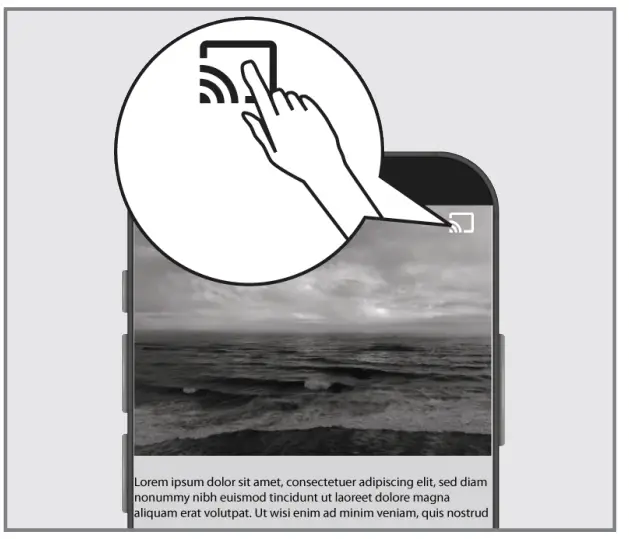
Cast-the-Chrome-browser tab-on-your-TV-via-PC
You can cast Chrome tab or your PC screen on your TV via Chrome cast.
You can cast most web content. But some plugins may not work.
Notes
- To use the Chrome cast feature on PC without any problem, you must be using the latest version of the Chrome browser on PC.
- Your computer must be connected to the same Wi-Fi home network as your TV.
Cast-a-tab-in-the-Chromebrowser-on-TV
- Open the Chrome browser on your computer.
- Click »
 « in the upper right corner of the browser.
 - Click »Cast«.
– »Cast« tab and Chrome cast supported devices that are on the same network shall be displayed. - Select your TV and cast chrome browser tab on your TV.
- To end, click the » « icon located to the right of the browser’s address bar and select »Stop Cast«.
 « in the upper right corner of the browser.
Cast-computer-screen-on-TV
- Open the Chrome browser on your computer.
- Click » « in the upper right corner of the browser.
- Click »Cast«.
– »Cast« tab and Chrome cast supported devices that are on the same network shall be displayed. - Click down arrow next to »Cast to« at the bottom of the »Cast« tab.
- Click »Cast desktop«.
- Select your TV displayed in the »Cast« tab and cast your computer screen on your TV.
- To end, click the » « icon located to the right of the browser’s address bar and select »Stop Cast«.
Cast-music-or-video-files-fromthe-computer-to-the-TV
- Open the Chrome browser on your computer.
- Click » « in the upper right corner of the browser.
- Click »Cast«.
– »Cast« tab and Chromecast supported devices that are on the same network shall be displayed. - Click down arrow next to »Cast to« at the bottom of the »Cast« tab.
- Click »Cast file«.
– The file browser shall be displayed. - Select the music or video file you want to cast and select your TV displayed in the »Cast« tab and play the file on your TV.
- To end, click the » « icon located to the right of the browser’s address bar and select »Stop Cast«.
DEVICE-PREFERENCES
- Press » «.
- Use » « » «, » « or » « to select »)« Settings and confirm with the » «
- Select »Device Preferences« with » « and confirm with » «.
– »Device Preferences« menu shall be displayed.
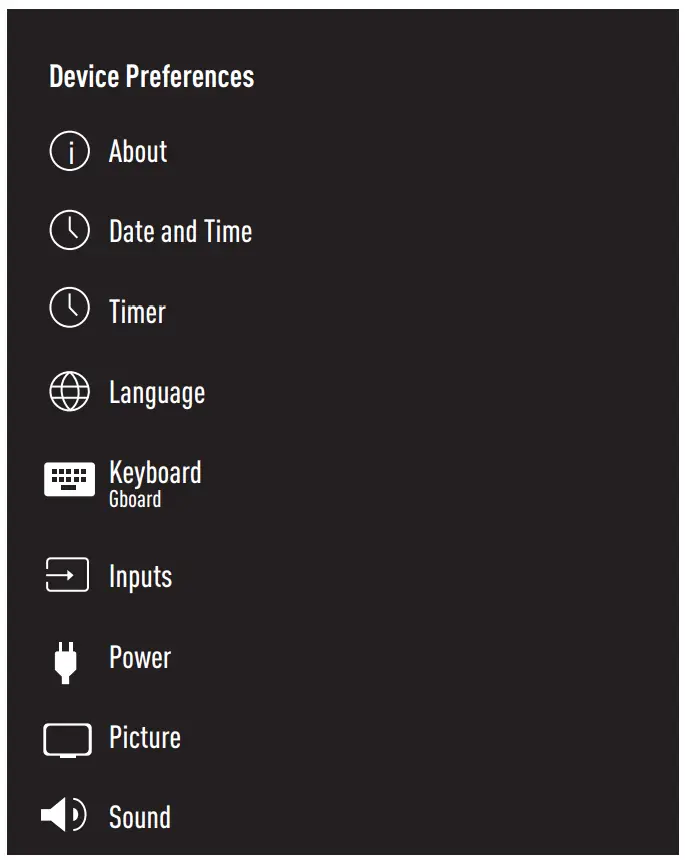
Note:
- Additional procedures are explained in the following sections.
About
In this menu, you can check system updates, change the device name, and view the status and license information of the device.
- Select »About« from the »Device
Preferences« menu and confirm with » «. – »About« menu shall be displayed.
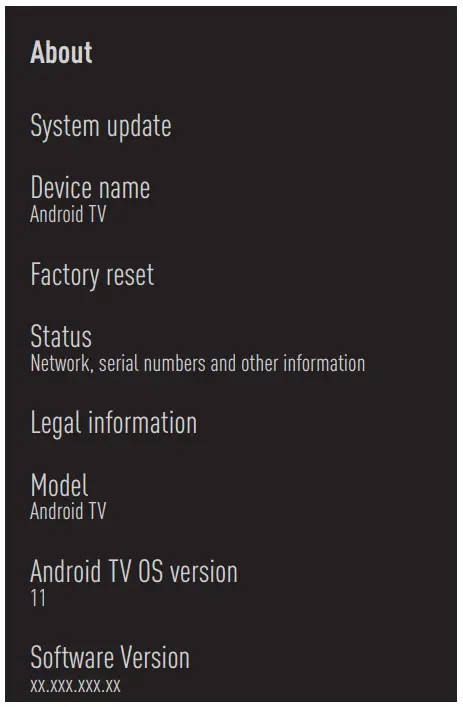
System-update
- Select »System Update« from the »About« menu and confirm with » «.
– System updates are checked. If there is a system update, after your approval, the update will be downloaded and your device will be updated. - Press » « to return to the previous menu or press » « to return to Home menu.
Change-device-name
- Select »Device name« from the »About« menu with » « and confirm with » «.
- To change the device name select »Change« with » « or » «;
or
select »Change« and press » « to cancel it. - You can use one of the suggested device names with » « or » «, or press » « to give your device a name by selecting »Enter Custom Name …«
- Press » « to return to the previous menu or press » « to return to Home menu.
Factory-reset
This process will delete all of the data in your device’s internal storage. The data to be delete dare Google account, system and application data, as well as their settings and downloaded applications.
- Select »Factory Reset« from the »About« menu with » « and confirm with » «.
– A warning screen shall be displayed. - Select »Factory Reset« to confirm the reset;
or
»Cancel« to cancel and press » « to confirm.
– Second warning screen is displayed. - Select »Erase all« to confirm the reset;
or
select »Cancel« to cancel the process and press » « to confirm. - Continue from the tv first set-up and adjustment section on page 17.
View-other-information
- From the »About« menu you can view the information of »Model«, »Version«, »Software Version«, »Netflix ESN«, »Android security patch level«, »Core version« and »Build« with » «.
- Press » « to return to the previous menu or press » « to return to Home menu.
Date-and-time-settings
You can view and manage system date and time information in this menu.
- Select »Date and time« from the »Device Preferences« menu and confirm with » «.
– »Date and time« menu shall be displayed.
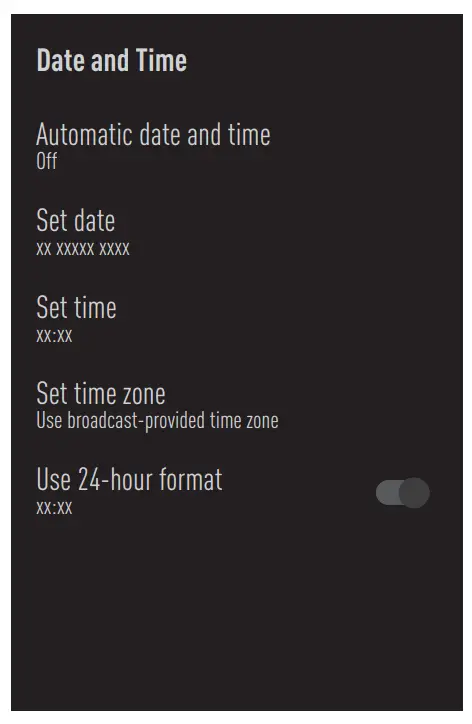
Automatic-date-and-time-adjustment
It is the date and time information provided by the network.
- Select »Automatic date and time« from “Date and time” menu with » « and confirm with » «.
- Use » « or » « to select »Use time provided by network« and confirm with » «.
Note:
• When using the time provided by the network, the options »Set date« and »Set time« in the »Date and time« menu are not active. - Press » « to return to the previous menu or press » « to return to Home menu.
Manual-date-and-time-adjustment
- Select »Automatic date and time« from “Date and time” menu with » « and confirm with » «.
- Use » « or » « to select »Off« and confirm with the » «.
- Select »Set Date« with » « and confirm with » «.
- Select the value with » « or » «, and the next option with » «, select day, month and year, respectively, and confirm with » «.
- Select »Set Time« with » « and confirm with » «.
- Select the value with » « or » «, and the next option with » «, select hour and minute, respectively, and confirm with » «.
- Press » « to return to the previous menu or press » « to return to Home menu.
Set-time-zone
- Select »Set time zone« from “Date and time” menu with » « and confirm with » «.
- Select your time zone with » « or » « and confirm with » «.
- Press » « to return to the previous menu or press » « to return to Home menu.
Set-time-format
- From the »Date and time« menu select »Use 24-hour format« with » « and select »On« to use 24-hour format with » « or »Off« to use 12-hour format.
- Press » « to return to the previous menu or press » « to return to Home menu.
Timer-settings
You can manage timer On and Off settings in this menu.
- Select »Timer« from the »Device Preferences« menu and confirm with » «.
– »Timer« menu shall be displayed.
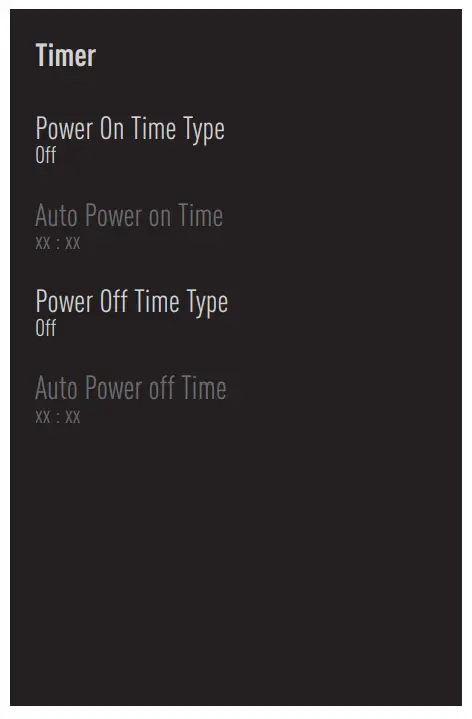
Auto-on-timer
- Select »On Time Type« from the »Timer« menu with » « and confirm with » «.
- Press » « or » « to select »On« or »Once« and confirm with » «.
– »On«: TV is turned on every day at the time entered.
– »Once«: TV is turned on once at the time entered, it does not repeat every day.
Note:
• »Auto On Time« is active in the menu when»On time type« »On« or »Once« selected. - Select »Auto On Time« with » « and confirm with » «.
- Select the value with » « or » «, and the next option with » «, select hour and minute, respectively, and confirm with » «.
- Press » « to return to the previous menu or press » « to return to Home menu.
Automatic-shut-down
- Select »Off Time Type« from the »Timer« menu with » « and confirm with » «.
- Press » « or » « to select »On« or »Once« and confirm with » «.
– »On«: TV is turned off every day at the time entered.
– »Once«: TV is turned off once at the time entered, it does not repeat every day.
Note:
• »Auto Off Time« is active in the menu when »Off time type« »On« or »Once« selected. - Select »Auto Off Time« with » « and confirm with » «.
- Select the value with » « or » «, and the next option with » «, select hour and minute, respectively, and confirm with » «.
- Press » « to return to the previous menu or press » « to return to Home menu.
Language-settings
You can manage the TV language settings in this menu.
- Select »Language« from the »Device Preferences« menu and confirm with » «.
– »Language« menu shall be displayed.
- Use » « or » « to select language and confirm with » «.
- Press » « to return to the previous menu or press » « to return to Home menu.
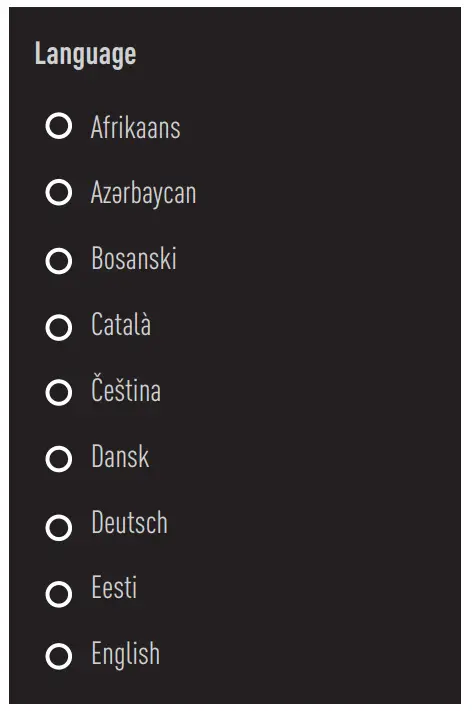
Keyboard-settings
You can manage the virtual keyboard settings in this menu.
- Select »Keyboard« from the »Device Preferences« menu and confirm with » «.
– »Keyboard« menu shall be displayed.
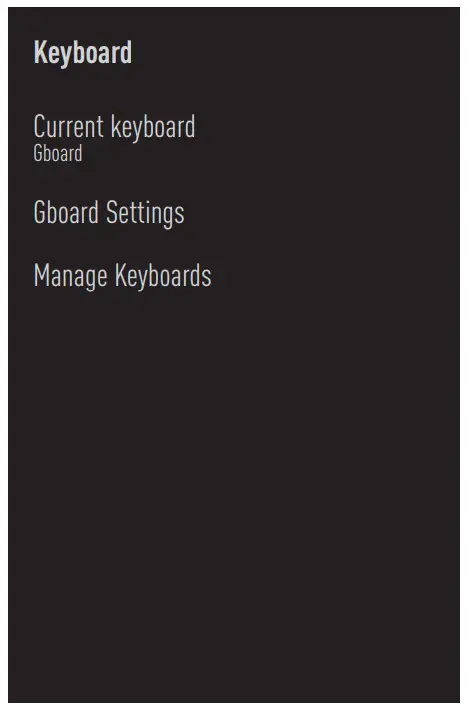
Current-keyboard
- Select »Current keyboard« from the »Keyboard« menu with »V« and confirm with » «.
- Use » « or » « to change keyboard choice and confirm with the » «.
Note:
• To change current keyboard, a 3rd party keyboard application must be downloaded from Play Store. - Press » « to return to the previous menu or press » « to return to Home menu.
Gboard-Settings
Gboard keyboard is the built-in keyboard of the TV, you can adjust its settings in this menu.
- Select »Gboard Settings« in the »Keyboard« menu with » « and confirm with » «.
- With » « or » « you can change the Keyboard language, view the Terms of Service, Privacy Policy, Open source licenses or share Usage statistics.
- Press » « to return to the previous menu or press » « to return to Home menu.
Manage-Keyboards
- Select »Manage Keyboards« from the »Keyboard« menu with » « and confirm with » «.
– Available virtual keyboards shall be displayed. - Select Keyboard with » « or » « and select the position »On« or »Off« with » «.
- Press » « to return to the previous menu or press » « to return to Home menu.
Storage-settings
You can manage storage settings in this menu.
- Select »Storage« from the »Device Preferences« menu and confirm with » «.
– »Storage« menu shall be displayed.
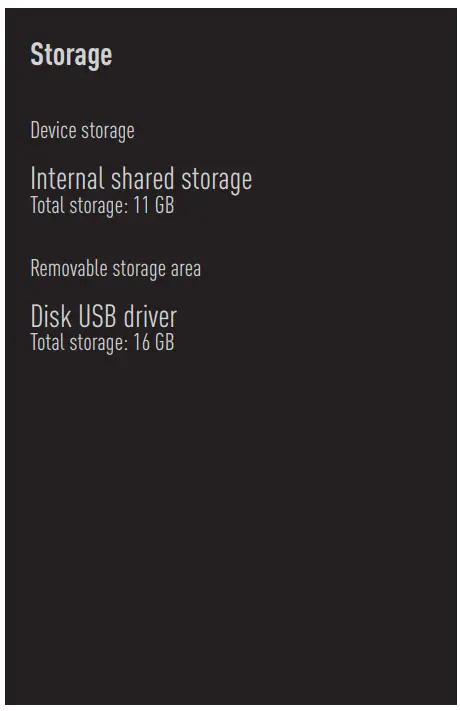
Internal-storage-area
- Select »Internally shared storage area« from the »Storage« menu with » « and confirm with » «.
- With » « or » « you can view the categories used by the internal storage and view the applications and files available on your device under these categories.
- Press » « to return to the previous menu or press » « to return to Home menu.
Removable-storage-area
Note:
- Removable storage is only displayed on the menu when an external data medium is plugged into the TV.
- Select the external data medium under »Removable storage area« with » « in the »Storage« menu and confirm with » «.
- With » « or » « you can view categories using external storage and clear files you don’t need on your device under these categories.
- Press » « to return to the previous menu or press » « to return to Home menu.
Using-removable-storage-area-as-device-storage-area
You can set up an external data medium as device storage so that you can install applications that you will download for the device to this storage.
- Select the external data medium under »Removable storage area« with » « in the »Storage« menu and confirm with » «.
- Select »Delete and format as storage area« with » « or » « and confirm with » «.
- Select »Format« to format the external data medium;
or
»Cancel« to cancel and press » « to confirm.
Important:
• This action will delete all data on the external data medium.
• After formatting, the external data medium can only be used in this device. - After formatting is complete, select »Move Now« and confirm with » « to move your photos, files and application data to the external data medium.
– Your data is moved to external data media. - Press » « to return to the previous menu or press » « to return to Home menu.
Store-Mode-settings
The store mode is the promotion mode of the device, the promotional video and feature logos of the device are displayed. You can turn the store mode on and off in this menu.
- Select »Store Mode« from the »Device Preferences« menu and confirm with » «.
– »Store Mode« menu shall be displayed.
- Use » « or » « to select »Store Mode« and confirm with » «.
- Select »Continue« to activate store mode;
or
»Cancel« to cancel and press » « to confirm.
Important:
• Turning on store mode may increase the TV’s power consumption. - Select »On« to turn store mode on;
or
»Cancel« to cancel and press » « to confirm. - Select »Store Mode Message« with » « and confirm with » «.
- Select among »Promotional Video«, »Store Logo« or »Promotional Video&Store Logo« with » « or » « and confirm with » «.
- Press » « to return to the previous menu or press » « to return to Home menu.
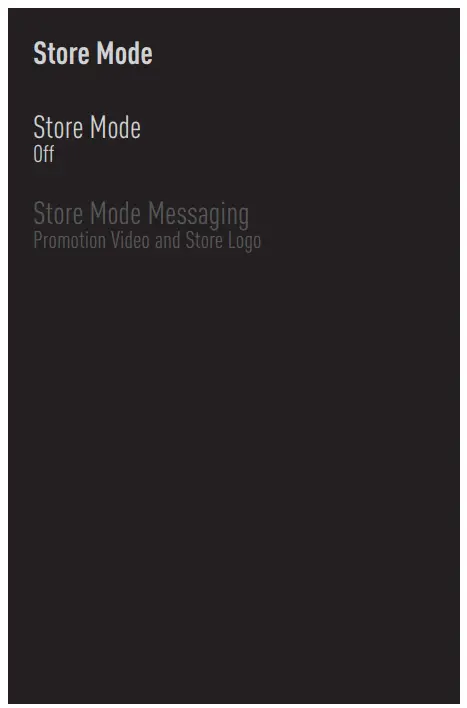
Google-Assistant-settings
You can manage Google Assistant settings in his menu.
- Select »Google Assistant« from the »Device Preferences« menu and confirm with » «.
– »Google Assistant« menu shall be displayed.
- With » « or » « you can view the Connected account, edit Scannable applications, activate the Safe scan filter or view open source licenses.
- Press » « to return to the previous menu or press » « to return to Home menu.
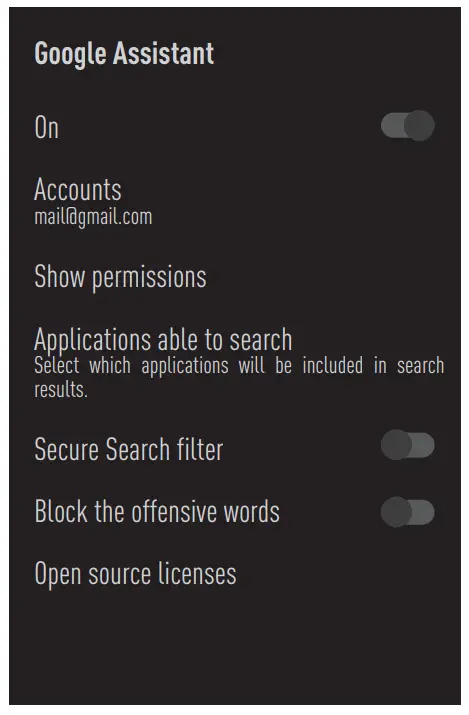
Chromecast-built-in
View the chromecast built-in license, version and serial number in this menu.
- Select »Chromecast built-in« from the »Device Preferences« menu and confirm with » «.
– »Built-in Chromecast« menu shall be displayed.
- With » « or » «, you can allow other devices to control your Streamed media, select and view Open source license, version number or serial number.
Note:
• For information on using the Chromecast feature, see Chromecast Built-in section. - Press » « to return to the previous menu or press » « to return to Home menu.
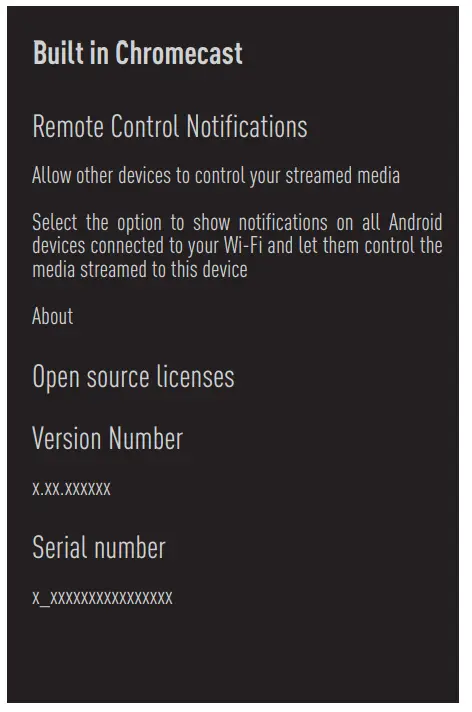
Screen-Saver-settings
- Select »Screensaver« from the »Device Preferences« menu and confirm with » «.
– »Screensaver« menu shall be displayed.
- Use » « or » « to select »Screensaver« and confirm with » «.
- Select the screensaver type with » « or » «, select »Screen Off«, »Background« or »Colours« and confirm with » «.
– »Screen Off«: At the end of the start time, TV screen is turned off.
– »Background«: At the end of the start time, background images are displayed on the TV screen.
– »Colours«: At the end of the start time, changing colours are displayed on the TV screen. - Select »Start Time« with » « and confirm with » «.
- Use » « or » « to select screensaver activation time and confirm with » «.
- To start the screensaver without waiting for the screensaver time, select »Start now« with » « or » « and confirm with » «.
Note:
• When the screensaver is active, press any button of the remote controller to exit. - Press » « to return to the previous menu or press » « to return to Home menu.
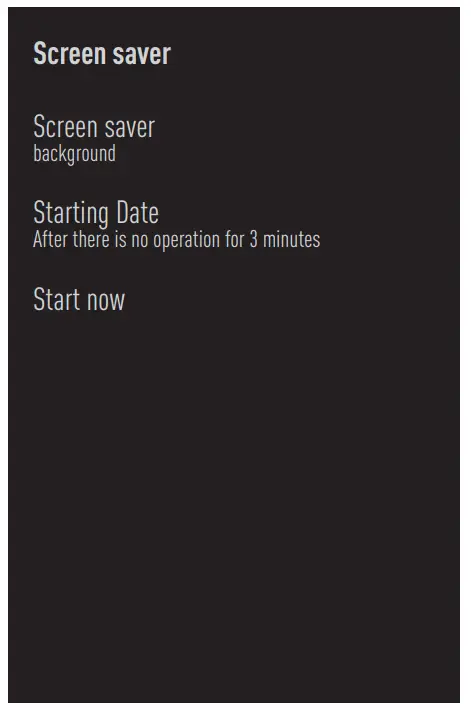
Energy-Saver
- Select »Energy saver« from the »Device Preferences« menu and confirm with » «.
– »Energy saver« menu is displayed.
- Use » « or » « to select »Turn screen off« and confirm with » «.
- Select the off time with » « or » « and confirm with » «.
- Press » « to return to the previous menu or press » « to return to Home menu.
Location-settings
You can manage device location settings in this menu.
- Select »Location« from the »Device Preferences« menu and confirm with » «.
– »Location« menu shall be displayed.
- Use » « or » « to select »Location status« and confirm with » «.
- Select »Use Wi-Fi to estimate location« to turn on location service;
or
select »Off« and confirm with » « to switch off location services.
Note:
• You can also view the applications that make last location requests in the menu, and you can turn off the location service of the application from the application settings by selecting the application. - Press » « to return to the previous menu or press » « to return to Home menu.
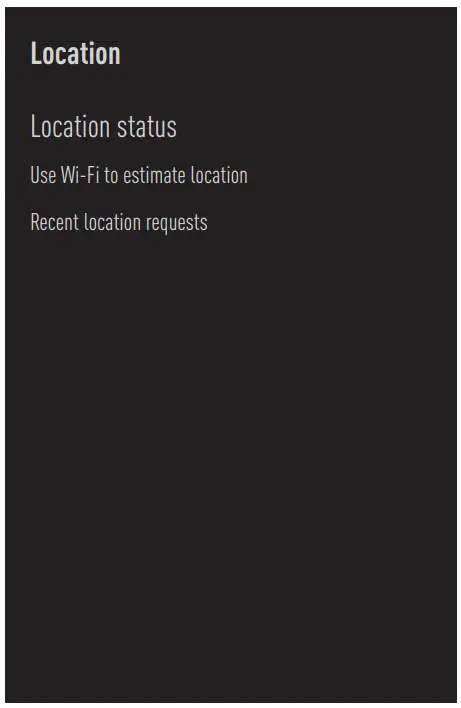
Usage-and-Diagnostic-settings
You can have diagnostic data such as deadlock reports, device, application, and built-in chromecast data automatically sent to Google.
- Select »Usage and Diagnostic« from the »Device Preferences« menu and confirm with » «.
– »Usage and Diagnostic« menu shall be displayed.
- If you want Usage and Diagnostics data to be sent to Google automatically, select »On« with
or
»Off« with » « if you do not want them to be sent. - Press » « to return to the previous menu or press » « to return to Home menu.
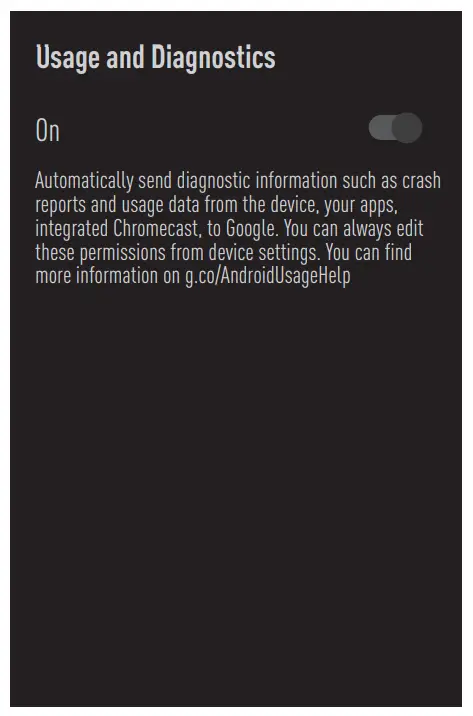
-Accessibility-Settings
You can manage Accessibility settings in this menu.
- Select »Accessibility« from the »Device Preferences« menu and confirm with » «.
– »Accessibility« menu shall be displayed.
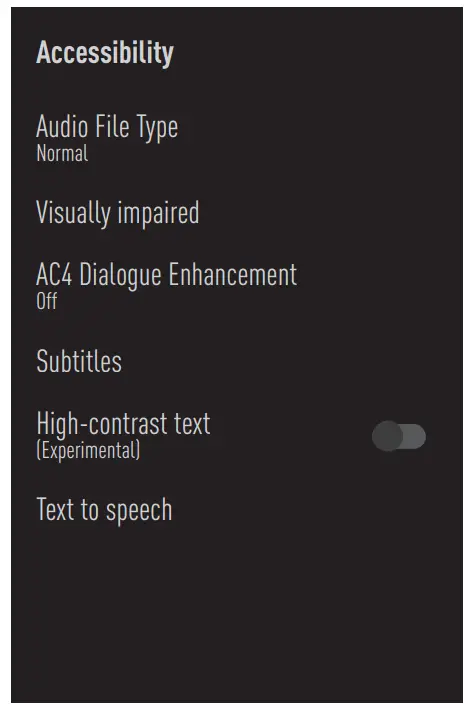
Voice-identification-for-the-visually-impaired
- Select »Sound File Type« from the »Accessibility« menu with » « and confirm with » «.
- Select »Audio Description« with » « and confirm with » «.
– »Visually Impaired« is active. - Select »Visually Impaired« with » « and confirm with » «.
– »Visually Impaired« menu shall be displayed. - Select the desired line/function with » « or » «, select the value/option with » « » « or » «.
- Press » « to return to the previous menu or press » « to return to Home menu.
Enabling-the-hearing-impaired-option
- Select »Audio File Type« from the »Accessibility« menu with » « and confirm with » «.
- Select »Hearing Impaired« with » « and confirm with » «.
- Press » « to return to the previous menu or press » « to return to Home menu.
Enabling-Audio-Subtitle-support-
- Select »Audio File Type« from the »Accessibility« menu with » « and confirm with » «.
- Select »Spoken Subtitle« with » « and confirm with » «.
- Press » « to return to the previous menu or press » « to return to Home menu.
Enabling-Audio-Subtitle-support-
- Select »Audio File Type« from the »Accessibility« menu with » « and confirm with » «.
- Select »Spoken Subtitle« with » « and confirm with » «.
- Press » « to return to the previous menu or press » « to return to Home menu.
Subtitles
- Select »Subtitles« from the »Accessibility« menu with » « and confirm with » «.
– »Subtitles« menu shall be displayed. - Select the desired line/function with » « or » «, select the value/option with » « or » « or » «.
- Press » « to return to the previous menu or press » « to return to Home menu.
High-Contrast-text
- Select »High-Contrast Text« with » « from the »Accessibility« menu and press » « to select »On«.
- Press » « to return to the previous menu or press » « to return to Home menu.
Text-to-speech
- Select »Text to speech« from the »Accessibility« menu with » « and confirm with » «.
– »Text to speech« menu shall be displayed. - Select the desired line/function with » « or » «, select the value/option with » « or » « or » «.
- Press » « to return to the previous menu or press » « to return to Home menu.
Restart
- Select »Restart« from the »Device Preferences« menu with » « and confirm with » «.
- To restart the device select »Restart« with » « or » «;
or
select »Cancel« and press » « to cancel it. - The television will restart.
REMOTE-CONTROLS-AND-ACCESSORIES
You can connect various accessories to your television, e.g. Bluetooth remote controller, game controller, keyboard or mouse. You can display the status of the connected accessory in this menu to make various adjustments.
Note:
- Accessories are sold separately. It is not supplied with the television. Please contact your dealer from where you have purchased your TV in order to obtain more information for buying glasses.
- Press » «.
- Use » « » «, » « or » « to select » «
»Settings« and confirm with the » « - Select »Remote Controls and Accessories« with » « and confirm with » «.
– »Remote Controls and Accessories« menu shall be displayed and accessories shall be searched. - Accessories found shall be displayed in the menu.
- Select the accessory you want to match with » « or » « and confirm with » «.
- Press » « to return to the previous menu or press » « to return to Home menu.
PARENTAL-SETTINGS
There are movies which contain contents or scenes which are not suitable for children.
Certain programmes contain information which identifies these contents or scenes and have been given an access level from 4 to 18. You can select one of the access levels and thus authorize the playback.
- Press » «.
- Use » « » «, » « or » « to select » «
»Settings« and confirm with the » « - Select »Channel« with » « and confirm with » «.
– »Channel« menu shall be displayed. - Select »Parental Controls« with » « and confirm with » «.
– »Enter your PIN« message shall be displayed.
Note:
• PIN code is the PIN code that you have set at the first set-up of the television. - Enter the PIN code with »1…0«.
– »Parental Controls« menu is displayed.
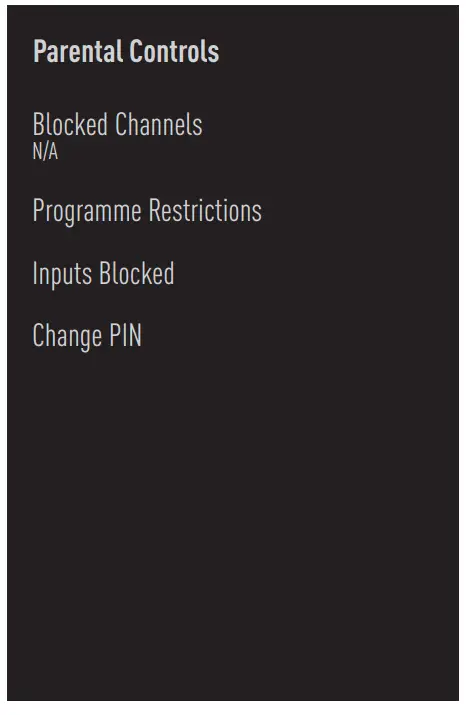
Note:
- Additional procedures are explained in the following sections.
Blocking-a-TV-channel-
You can block individual television channels which are not suitable for children using a personal PIN code.
- Select »Blocked Channels« from »Parental Controls« menu with » « or » « and confirm with » «.
- Select the channel you want to block with » « or » « and confirm with » «.
- Press » « to return to the previous menu or press » « to return to Home menu.
Watching-a-blocked-TV-channel
You can watch a TV channel blocked with PIN code by selecting the TV channel and entering the PIN code.
- Press »1…0« or » « to select the blocked channel.
- Enter the PIN code on the displayed password screen using »1…0«.
– Blocked channel will be viewed.
Note:
• Channel will be blocked again when you change the channel.
Programme-Restrictions
There are movies which contain contents or scenes which are not suitable for children.
Certain programmes contain information which identifies these contents or scenes and have been given an access level from 4 to 18. You can select one of the access levels and thus authorize the playback.
- Select »Programme Restrictions« from »Parental Controls« menu with » « or » « and confirm with » «.
- Select »Grading Systems« with » « and confirm with » «.
- Use » « or » « to select grading system and confirm with » «.
- Press » « to return to the previous menu.
- Select »Grades« with » « and confirm with » «.
- Press » « or » « to select access level and confirm with » «.
- Press » « to return to the previous menu or press » « to return to Home menu.
Blocking-an-external-source-
You can block external sources individually by using your personal PIN code.
- Select »Inputs Blocked« from »Parental Controls« menu with » « or » « and confirm with » «.
- Select the source you want to block with » « or » « and confirm with » «.
- Press » « to return to the previous menu or press » « to return to Home menu.
Watching-a-blocked-external source
You can watch an external source blocked with a PIN code by selecting the blocked source and entering the PIN code. - Press »H« to return to the TV mode.
- Select »Source« with » « and confirm with » «.
or
press » «, select the signal source with » « or » « and confirm with » «;
or
Select » « in the Home menu with » « » «, » « or » « and confirm with » «. - Use » « or » « to select source and confirm with » «.
- Enter the PIN code on the displayed password screen using »1…0«.
– Blocked channel shall be displayed.
Note:
• Source will be blocked again when you change the source.
Changing-the-PIN-code
You can change the PIN code you created in the first installation.
- Select »Change PIN« from »Parental Controls« menu with » « or » « and confirm with » «.
- Enter the existing PIN code as four digits with »1…0«.
- Enter the new PIN code as four digits with »1…0«.
- Enter the new PIN code again as four digits with »1…0«.
- Press » « to return to the previous menu or press » « to return to Home menu.
USING-AN-EXTERNAL-DEVICE
CEC-(Consumer-Electronics Control)
Your TV has CEC (Consumer Electronics Control) feature. This feature utilizes CEC (Consumer Electronics Control) protocol. CEC allows you to make an HDMI connection between your TV and DVD player, STB or video recorder and control such equipment with the remote control of the television. This feature must be supported by the device you connect as well.
Your television supports the following functions. For detailed information about this feature, read the user manual of the external device.
CEC-connection-functions-of-the television
Switching-on-the-external-device-from standby-mode
If you switch on your external device (e.g. DVD player) from standby mode, your television will also be switched on from standby and switch to the HDMI source that your television is connected to.
Depending on the features of the external device (e.g. AV receiver), it may be turned on and your television may remain in standby mode.
Selecting-the-HDMI-source-from-the television
When you switch on your external device (e.g. DVD player), your television will switch to the HDMI source that the external device is connected to (your television must be on).
Selecting-the-menu-language
When you select the menu language of your television, the menu language of the external device will change as well. (If the External Device supports it).
Turning-the-external-device-off-from- standby-mode
After switching your television to standby, your external device (e.g. DVD player) will also switch to standby if it is on.
For detailed information about this feature, read the user manual of the external device.
Enabling-HDMI-CEC-device-control
- Press » «.
- Use » « » «, » « or » « to select » « »Settings« and confirm with the » «
- Select »Device Preferences« with » « and confirm with » «.
- Select »Inputs« with » « and confirm with » «.
- Select »Control for HDMI« with » « and confirm with » « to select »On«.
– A warning message shall be displayed. - Select »OK« to confirm the switch-on;
or
»Cancel« to cancel and press » « to confirm. - Select »CEC Device List« with » « and confirm with » «.
– Devices supporting the CEC feature and connected to the TV shall displayed. - Select device from the list and press » « to confirm.
- If you want the CEC supported external device to be turned off with TV, select
»Device Auto Turn Off« as »On«. - If you want to switch on your TV when you turn on the CEC supported external device, select the »TV Auto Turn On« as »On«.
- Press » « to return to the previous menu or press « to return to Home menu.
High-definition-–-HD-ready
Your television can play high-definition television signals (HDTV).
You can connect the input sources (HDTV set top box or High Definition DVD player) to the »HDMI« socket (digital HDTV signal).
This ensures that you can view digital HDTV programmes, even if they are copy-protected (HDCP High Bandwidth Digital Content Protection).
 HIGH DEFINITION MULTIMEDIA INTERFACE
HDMI, the HDMI logo and High-Definition Multimedia Interface are trademarks or registered trademarks of HDMI Licensing LLC.
Connection-options
- Which television socket(s) you connect your external devices to depends on the sockets the external device is equipped with and the signals which are available.
- Note that with many external devices the resolution of the video signal must be adapted to the input sockets on the television (check the external device’s instruction manual). You can find out which values you need to set by referring to the guidelines in the section about connection options.
- Do not connect any other equipment while the device is on. Switch off the other equipment as well before connecting it.
- Only plug the device into the mains socket after you have connected the external device.
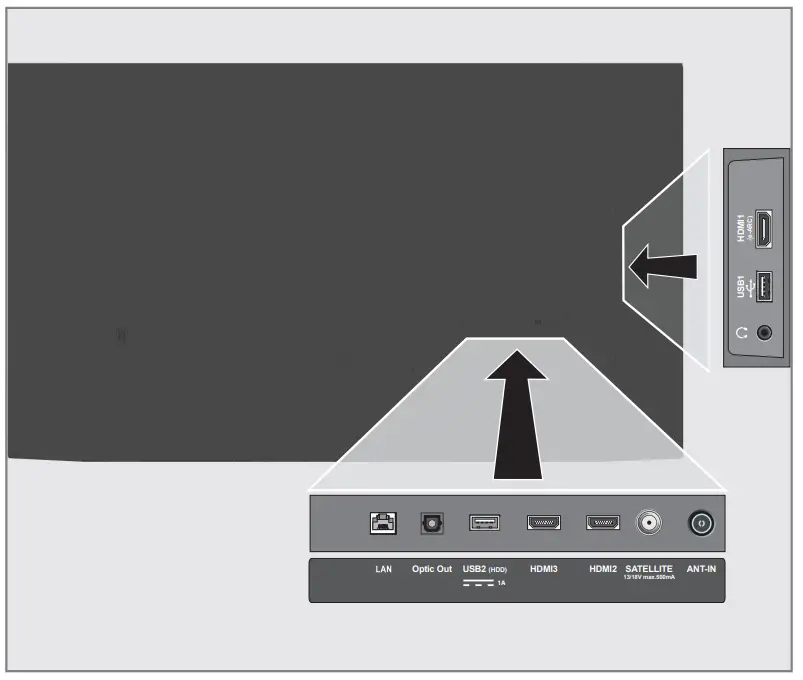
Connecting-an-external-device
With-a-digital-audio/video-signal
- Compatible devices: Digital satellite receiver, game console, BluRay player, DVD player/recorder, set-top box, notebook, PC.
- Video signal: digital image; definition: standard 576p; HDTV 720p, 1080i, 1080p, 4K
- Audio signal: digital audio (stereo, multichannel compression, uncompressed).
- »HDMI1«, »HDMI2«, »HDMI3« channel position.
- Connect the HDMI1-(e-ARC), HDMI2, HDMI3 socket on the television and the corresponding HDMI socket on the external device using a standard HDMI cable (digital video and audio signal).
DVD-recorder,-DVD-player,-or video-recorder-use
- Switch on the DVD recorder, DVD player or video recorder and select the function you wish to use.
- Press » « to return to the TV mode.
- Select »Source« with » « and confirm with » «.
or
Press » « on remote controller, select the signal source with » « or » « and confirm with » «;
or
Select » « in the Home menu with » « » «, » « or » « and confirm with » «. - With » « or » « select the source »HDMI1«, »HDMI2« or »HDMI3« and confirm with » «.
Hi-Fi-system
Connecting-digital-multi-channel- amplifier/AV-receiver
- Connect the HDMI1-(e-ARC) (HDMI 1.4 Audio Return Channel) socket to the relevant socket on the HDMI e-ARC/ARC compliant Digital multichannel amplifier / AV receiver with a standard HDMI cable (digital audio signal);
or - Connect the Optic-Out socket on the television to the corresponding socket on the AV receiver using a standard optic digital cable (digital audio signal).
Important:
- Do not use a HDMI cable longer than 5 m for HDMI e-ARC/ARC connection.
- Press » «.
- Use » « » «, » « or » « to select »)« »Settings« and confirm with the » «
- Select »Device Preferences« with » « and confirm with » «.
- Select »Sound« with » « and confirm with » «.
- Select »Digital Input« with » « and confirm with » «.
- Select »Auto«, »Direct Switch«, »PCM«, »Dolby Digital Plus« or »Dolby Digital« for digital audio output with »V« or »Λ« and confirm with » «.
- Press » « to return to the previous menu or press » « to return to Home menu.
Dolby, Dolby Vision, Dolby Atmos and Double-D symbols are registered trademarks of Dolby Laboratories Licensing Corporation. Manufactured under license of Dolby Laboratories. Hidden unpublished works. Copyright © 2012-2021 Dolby Laboratories. All rights reserved.
OPERATION-WITH-COMMON-INTERFACE
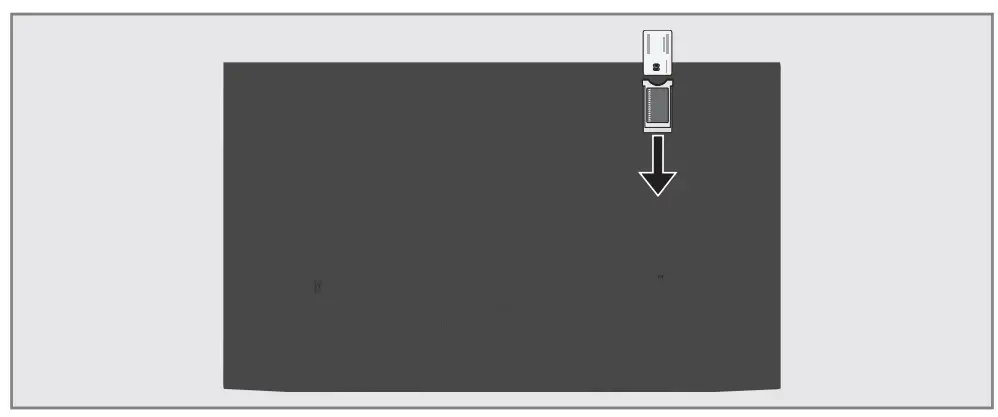
What-is-common-interface?
- Your TV supports CI+1.4.
- Common Interface (CI) is an interface for DVBreceivers.
- Scrambled channels can only be viewed with a CA module suitable for the encoding systemand the corresponding smart card.
- Your television is equipped with a Common Interface slot into which CA modules from various providers can be inserted.
- You can insert the provider’s smart card into the CA module in order to enable the scramble channels you want to see.
Inserting-the-CA-module
Note:
- Switch off the appliance before inserting the CA module in the »COMMONINTERFACE« slot.
- Insert the smart card into the CA module.
- Insert the CA module with the smart card into the »COMMON-INTERFACE« slot on the television.
Note:
- To see which CA module is in the Common Interface slot, go to the »CA – Module« submenu.
- When you insert a CA module into the CI slot on the television for the first time, wait a few moments until the television has registered the CA module.
Access-control-for-CA-module and-smart-cards
- Press » « and then press »q«.
- Select »CI Card« with » « and confirm with » «.
– CA Information menu shall be displayed.
Notes:
This menu give operating instructions and –after you enter your PIN code – access to channels of the PAY-TV provider.
Other settings are described in the manuals for your CA module and smart card.
The CA module is not supported in some countries and regions. Please consult your authorised dealer. - Press » « to return to the previous menu or press » « to return to Home menu.
NETWORK-SETUP
You need wired or wireless internet connection to use features of Android TV.
Network-connection
You can establish a wired or wireless connection between your television and the local network.
If you want to use a wired network connection, please start with the instructions here:
If you use a wireless network connection, please follow the instructions in the “Wireless network connection” section on page 86.
Note:
- The following section describes connecting to the home network if you did not carry this out during the “initial set-up”.
Wired-network
Wired-network-connection
- Connect the output of external modem to »LAN« socket with Cat 5 cable.

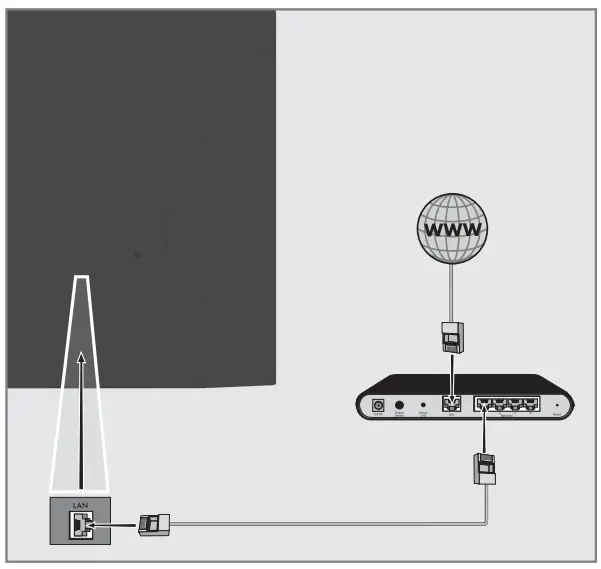
Note:
- Connection cables are not supplied.
Wired-network-settings
There are two ways of making the wired network settings.
A Automatic connection, all data regarding connection settings (»IP Address«, »Netmask«, »Gateway« and »DNS«) are obtained from modem automatically.
B Manual connection, all data regarding connection settings (»IP Address«, »Netmask«, »Gateway« and »DNS«) must be configured manually.
Automatic-connection
Most home networks are Dynamic Networks. If you have a dynamic network, you must use a DSL modem that supports DHCP. Modems and IP sharers that support DHCP obtain the »IP Address«, »Netmask«, »Gateway« and »DNS« values required for internet access automatically, and thus you are not required to enter those values manually. Your TV will automatically connect to the network.
Note:
If you do not have a dynamic network, follow the instructions in manual connection section.
Manual-connection
Certain networks require Static IP address. If your network requires a Static IP address, you must enter the »IP Address«, »Netmask«, »Gateway« and »DNS« values manually. You can get »IP Address«, »Netmask«, »Gateway« and »DNS« values (ISS) from your Internet Service Provider.
- Press »p«.
- Use » « » «, » « or » « to select » « »Settings« and confirm with the » «
- Select »Network and Internet« with » « and confirm with » «.
- Select the line »IP Settings« with » « and confirm with » «.
- Use »V« or » « to select »Static« and confirm with the » «.
- Enter the »IP Address« and select »
 « from the screen archive and confirm with » «.
 - Enter »Gateway« and select » « from the screen archive and confirm with » «.
- Enter »Network prefix length« and select » « from the screen keyboard and confirm with » «.
- Enter »DNS1« if available and select » « from the screen keyboard and confirm with » «.
- Enter »DNS2« if available and select » « from the screen keyboard and confirm with » «.
– Successfully saved! message shall be displayed. - Press » « to return to the previous menu or press » « to return to Home menu.
 « from the screen archive and confirm with »
 Wireless-network
Wireless-network-connection
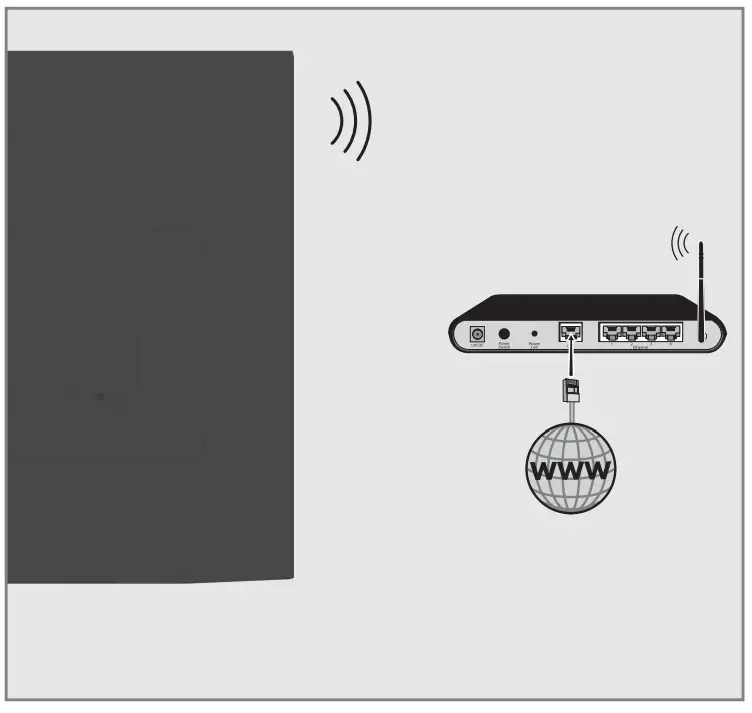
- Television includes a built-in Wireless WiFi Adapter to connect it to wireless network.
Notes:
- Wireless LAN adapter supports IEEE 802.11B/G and N communication protocols. We recommend you to use IEEE 802.11N protocol to obtain the best performance in HD video playback over wireless connection.
- If you use a modem that supports IEEE 802.11B/G, video playback performance may be poor when compared to a modem that supports IEEE 802.11N since the data transfer rate of IEEE 802.11B/G protocol is lower.
- It is recommended to switch off the equipment that are not in use in home network in order to avoid unnecessary network traffic
- Placing the modem or wireless network access point on an elevated location will increase the reception strength of the wireless connection.
- Wireless connection reception strength may vary depending on the type of the modem and the distance between the modem and television.
Wireless-network-configuration
You have several ways to connect your TV to your home network.
Automatic connection,
all data regarding connection settings (»IP Address«, »Netmask«, »Gateway« and »DNS«) are obtained from modem automatically.
Depending on the router, you can use the following options:
– Connection with network password.
Manual connection,
all data regarding connection settings (»IP Address«, »Netmask«, »Gateway« and »DNS«) must be configured manually.
Technical-requirements-
Most home networks are Dynamic Networks. If you have a dynamic network, you must use a DSL modem that supports DHCP. Modems and IP sharers that support DHCP obtain the »IP Address«, »Netmask«, »Gateway« and »DNS« values required for internet access automatically, and thus you are not required to enter those values manually.
Auto-connection-by-entering-the-network-password
- Press » «.
- Use » « » «, » « or » « to select » « »Settings« and confirm with the » «
- Select »Network and Internet« with » « and confirm with » «.
- Select the network you want to connect with » « or » « from the »Available networks« tab and confirm with » «.
– Wireless connection password screen shall be displayed.
Note:
• If you cannot view your network among available networks, select »Show all« and confirm with » «. - Enter the password from the screen keyboard with » « » «, » « or » «, select » « and confirm with » «.
– Connection established successfully message shall be displayed and modem connection shall be established. - Press » « to return to the previous menu or press » « to return to Home menu.
Connecting-the-TV-to-a-“hidden”network
- Press » «.
- Use » « » «, » « or » « to select » « »Settings« and confirm with the » «
- Select »Network and Internet« with » « and confirm with » «.
- Select »Add New Network« with » « and confirm with » «.
–– A menu for entering the SSID shall be displayed. - Enter SSID from the screen keyboard with » « » «, » « or » «, select » « and confirm with » «.
– Password type selection menu shall be displayed. - Press » « or » « to select »No«, »WEP«, »WPA/WPA2 Personal« or »WPA3 Personal« password type and confirm with » «.
– Password entry menu shall be displayed. - Enter the password from the screen keyboard with » « » «, » « or » «, select » « and confirm with » «.
– Connection established successfully message shall be displayed and modem connection shall be established. - Press » « to return to the previous menu or press » « to return to Home menu.
Wireless-manual-network connection
Certain networks require Static IP address. If your network requires a Static IP address, you must enter the »IP Address«, »Netmask«, »Gateway« and »DNS« values manually. You can get »IP Address«, »Netmask«, »Gateway« and »DNS« values (ISS) from your Internet Service Provider.
Auto-connection-by-entering-the- network-password
- Press » «.
- Use » « » «, » « or » « to select » « »Settings« and confirm with the » «
- Select »Network and Internet« with » « and confirm with » «.
- Select the network you want to connect with » « or » « from the »Available networks« tab and confirm with » «.
– Wireless connection password screen shall be displayed.
Note:
• If you cannot view your network among available networks, select »Show all« and confirm with » «. - Enter the password from the screen keyboard with » « » «, » « or » «, select » « and confirm with » «.
– Connection established successfully message shall be displayed and modem connection shall be established. - Press » « or » « to select the network that you are connected and press » « to confirm.
- Use » « or » « to select »IP Settings« and confirm with » «.
- Use » « or » « to select »Static« and confirm with the » «.
- Enter the »IP Address« and select » « from the screen archive and confirm with » «.
- Enter »Gateway« and select » « from the screen archive and confirm with » «.
- Enter »Network prefix length« and select » « from the screen keyboard and confirm with » «.
- Enter »DNS1« if available and select » « from the screen keyboard and confirm with » «.
- Enter »DNS2« if available and select » « from the screen keyboard and confirm with » «.
– Successfully saved! message shall be displayed. - Press » « to return to the previous menu or press » « to return to Home menu.
DETAILED-CHANNEL-SETTINGS
Automatic-search-for-single satellite-connected-digital television-stations
New satellite channels are added or satellite data is changed frequently. Therefore, we recommend you to run auto scan function from time to time.
All transponders are scanned for new channels.
Important:
- If there is a direct cable connection from your satellite antenna to the TV, if there is no common satellite antenna switchboard, you need to search for a single cable.
- Press » « to return to the TV mode.
- Select »Source« with » « and confirm with » «.
- Select »satellite« and confirm with » «.
- Press » « and select »Settings« with » « and confirm with » «.
- Select »Channel« with » « and confirm with » «.
– Channel menu shall be displayed. - Select »Channel Set-up Mode« with » « and confirm with » «.
- Select »Satellite (Standard)« with » « or » « or if you are using an operator, select »Satellite (Operator Mode)« and confirm with » «.
- Use » « or » « to select »Channels« and confirm with the » «.
– Channel menu shall be displayed. - Select »Automatic Channel scan« and press » « to confirm.
– Automatic Channel Scan menu shall be displayed. - Select »Antenna Type« with » « or » « and press » « to confirm.

- Select »Single« with » « or » « and press » « to confirm.

- Use » « or » « to select »Current Satellite« and confirm with » «.
- Confirm »Satellite Selection« by pressing » «, and press » « or » « to select the satellite you want to scan.
- Select »Scan Type« with » « or » «. Press » « or » « to select »Free Channels Only« for free channels only, »Encrypted Channels Only« for encrypted channels or »All« for all satellite channels.
- Select »Store Type« with » « or » «. Press » « or » « to select »Digital Channels Only« for television channels only, »Radio Channels Only« for radio channels or »All« for searching both.
- Press » « to return to the previous menu.
- Select »Next« with » « or » « and press » « to confirm.
– »Automatic Scan« menu shall be displayed and the scan for TV stations will start.
– Scanning may take several minutes depending on the number of television stations received.
Note:
• If some of the frequencies are not stored completely due the changes in satellite parameters made by the broadcaster, it is recommended to set the »Scan Mode« as »Network«. - Press » « to return to the previous menu, press » « to return to TV broadcast or press » « to return to Home menu.
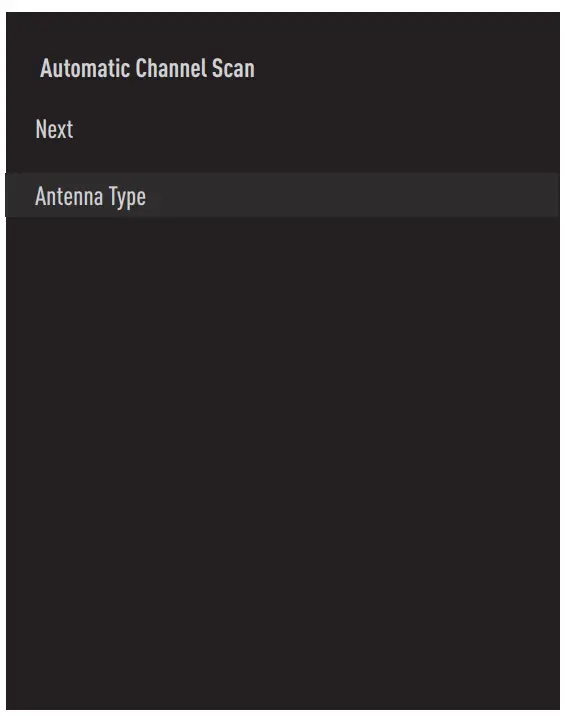
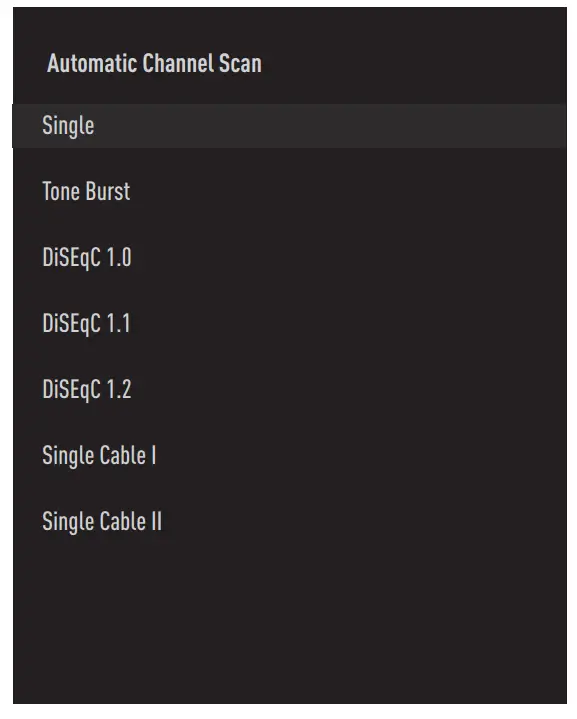
Manual-search-for-single satellite-connected-digital television-stations
If a certain channel cannot be found with automatic scan, you can scan it manually by manual scan function. You must enter all parameters of the channel correctly. You can obtain the current transponder information from Teletext page, satellite TV magazines or internet.
Important:
- If there is a direct cable connection from your satellite antenna to the TV, if there is no common satellite antenna switchboard, you need to search for a single cable.
- Press » « to return to the TV mode.
- Select »Source« with » « and confirm with » «.
- Select »satellite« and confirm with » «.
- Press » « and select »Settings« with » « and confirm with » «.
- Select »Channel« with » « and confirm with » «.
– Channel menu shall be displayed. - Select »Channel Set-up Mode« with » « and confirm with » «.
- Use » « or » « to select »Satellite (Standard)« and confirm with » «.
- Use » « or » « to select »Channels« and confirm with the » «.
– Channels menu shall be displayed. - Use » « or » « to select »Manual Channel search« and confirm with » «.
- Confirm »Current Satellite« with » «.
– Manual Channel Scan menu shall be displayed.
- Select »Transmitter« with » « and press » « to confirm.
– Satellite Detail Transponder menu shall be displayed
- Press » « or » « to select the required items and press » « to confirm.
– Frequency
Enter the 5-digit channel frequency using »1…0«.
Symbol
Enter channel symbol rate with »1…0« as a 5-digit number.
Polarization
Select the channel polarization »Vertical«, »Horizontal«, »Left« or »Right«. - Press » « to return to the previous menu.
- Select »Next« with » « and press » « to confirm.
– »Automatic Scan« menu shall be displayed and the scan for TV stations will start.
– Scanning may take several minutes depending on the number of television stations received. - Press » « to return to the previous menu, press » « or to return to TV broadcast or press » « to return to Home menu.
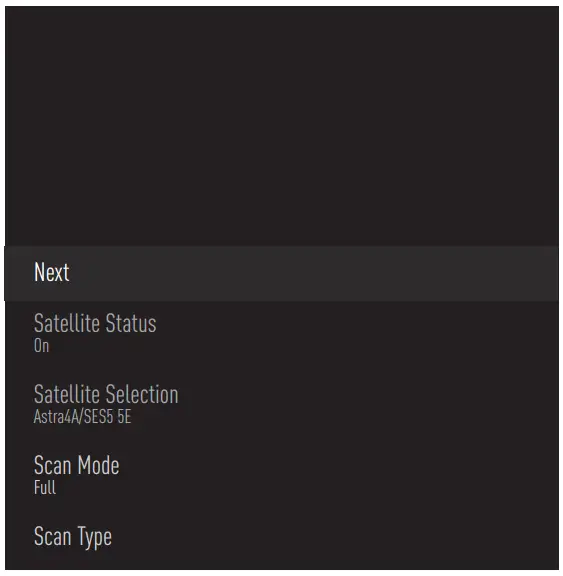
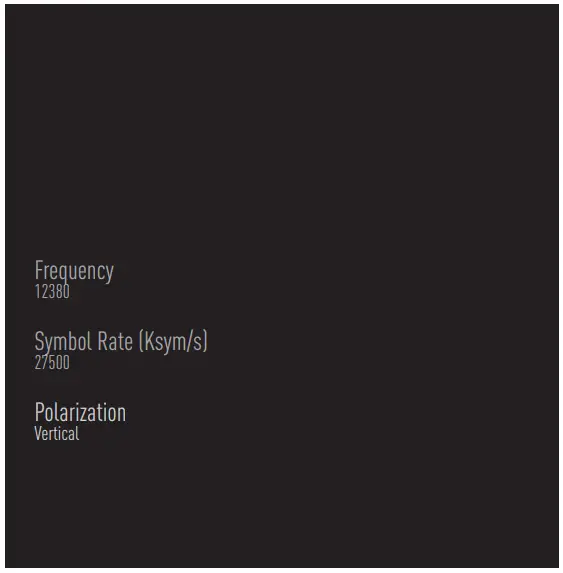
Antenna-settings-for-digital satellite-channels-and-searching for-channels-automatically-with DiSEqC-1.0/1.1
Note:
LNB settings described in the following section require significant expertise on satellite systems. Contact an expert about the subject.
- Press » « to return to the TV mode.
- Select »Source« with » « and confirm with » «.
- Select »satellite« and confirm with »«.
- Press » « and select »Settings« with » « and confirm with » «.
- Select »Channel« with » « and confirm with » «.
– Channel menu shall be displayed. - Select »Channel Set-up Mode« with » « and confirm with » «.
- Select »Satellite (Standard)« with » « or » « or if you are using an operator, select »Satellite (Operator Mode)« and confirm with » «
- Use » « or » « to select »Channels« and confirm with the » «.
- Select »Automatic Channel scan« and press » « to confirm.
– A warning message shall be displayed. - Channels in the previous channel search will be deleted and the channel search will be performed again. Confirm »Next« with » « to continue.
– Automatic Channel Scan menu shall be displayed. - Use » « or » « to select »Antenna Type« and confirm with » «.
– Antenna Type menu shall be displayed.
- Select »DiSEqC1.0« or »DiSEqC1.1« according to your current antenna type and confirm with » «.
DiSEqC-1.0
– By using a satellite or switch, broadcasts can be received from up to four different satellites at the same time.
DiSEqC-1.1
– By using a satellite or switch, broadcasts can be received from up to sixteen different satellites at the same time. - Depending on your selection of »DiSEqC1.0« or »DiSEqC1.1«, 4 or 16 satellites shall be displayed in the menu.
Note:
• Example setup explained with 4 satellites via »DiSEqC1.0«. - Select a satellite from the »Automatic Channel Search« menu with » « or » « and confirm with » «.
- Select the required elements with » «, » «.
Satellite-Status
Select »On« with » « or » «.
Satellite-Selection
Press » «, select the satellite you want to scan with » «, » « and confirm with » «.
Scan-Mode
Select »Full« or »Network« with » « or » «.
Scan-Type
Press » « » « to select »Free Channels Only« for free channels only, »Encrypted Channels Only« for encrypted channels or »All« for all satellite channels.
Store-Type
Press » « » « to select »Digital Channels Only« for television channels only, »Radio Channels Only« for radio channels or »All« for searching both. - Use » « or » « to select »LNB Settings« and confirm with » «.
- Select the required elements with » « » «.
LNB-Power
Press » «, confirm the LNB power with » « or » «, select »On« and confirm with » «.
LNB-Frequency
press » «, select LNB frequency with » « or » « and confirm with » «.
DiSEqC-Port
– Press » «.
– DiESqC Port menu is displayed. Select »DiSEqC A«, »DiSEqC B«, »DiSEqC C« or »DiSEqC D« to select the satellite corresponding to the respective DiSEqC positions in the satellite system.
Note:
• If »Antenna Type«, »DiSEqC 1.1« is selected,choose between »Uncommit 1« and »Uncommit 16«. - Press » « twice to return to »Automatic Channel Scan«.
Note:
• Make the settings described in steps 11 to 18 for other 3 satellites you want to scan. - After completing the settings for the 4 satellites separately, select the »Next« item with » « or » « from the »Automatic Channel Search« menu and confirm with » «.
– »Automatic Scan« menu shall be displayed and the scan for TV stations will start.
– Scanning may take several minutes depending on the number of television stations received. - Press » « to return to the previous menu, press » « to return to TV broadcast or press » « to return to Home menu.
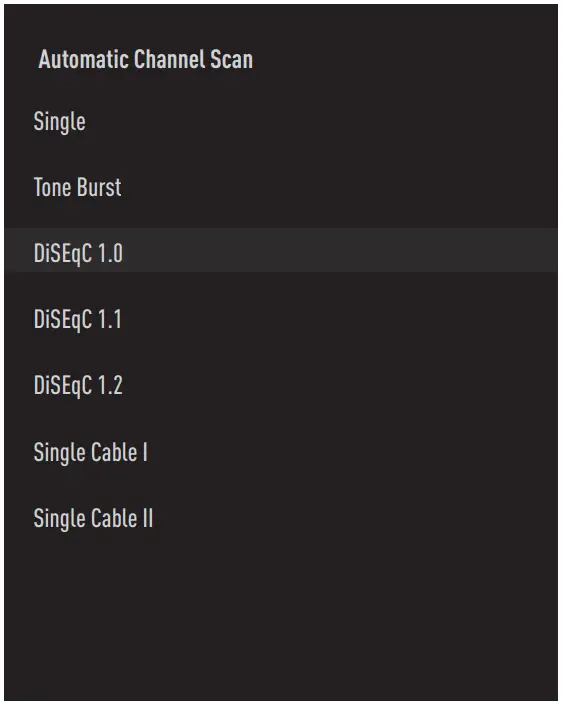
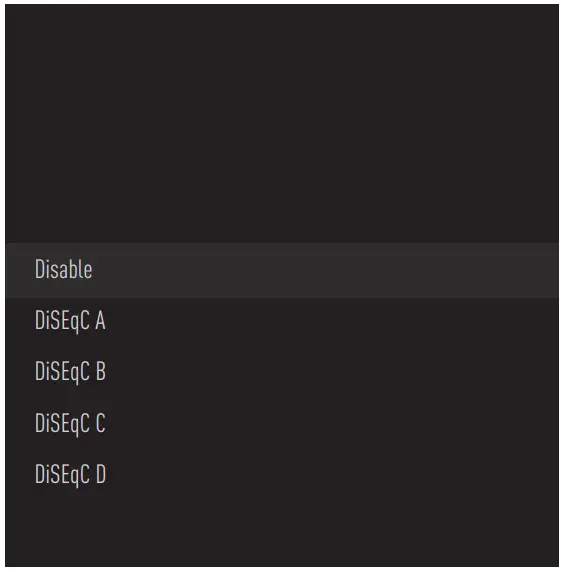 Select »DiSEqC A«, »DiSEqC B«, »DiSEqC C« or »DiSEqC D« to select the satellite corresponding to the respective DiSEqC positions in the satellite system.
Antenna-settings-for-digital satellite-channels-and-searching for-channels-automatically-with SCR-system
Notes:
- Your TV supports SCR system. SCR (Single Channel Router – EN 50494).
- LNB settings described in the following section require significant expertise on satellite systems. Contact an expert about the subject.
- Press » « to return to » « TV mode.
- Select »Source« with » « and confirm with » «.
- Select »satellite« and confirm with » «.
- Press » « and select »Settings« with » « and confirm with » «.
- Select »Channel« with » « and confirm with » «.
– Channel menu shall be displayed. - Select »Channel Set-up Mode« with » « and confirm with » «.
- Select »Satellite (Standard)« with » « or » « or if you are using an operator, select »Satellite (Operator Mode)« and confirm with » «
- Use » « or » « to select »Channels« and confirm with the » «.
- Select »Automatic Channel scan« and press » « to confirm.
– A warning message shall be displayed. - Channels in the previous channel search will be deleted and the channel search will be performed again. Confirm »Next« with » « to continue.
– Automatic Channel Scan menu shall be displayed. - Use »V« or »Λ« to select »Antenna Type« and confirm with »«.
– Antenna Type menu shall be displayed.
- Select »Single Cable I« or »Single Cable II« according to the type of single cable router multi-switch in your antenna system, and confirm with » «.
Single-Cable-I
– By using a single channel router, a maximum of 8 different devices can be broadcast with the same cable.
Single-Cable-II
– By using a single channel router, a maximum of 32 different devices can be broadcast with the same cable. - Depending on your selection of »Single Cable I« or »Single Cable II«, 8 or 32 user bands are displayed in the »Tuner« menu.
Note:
• Example setup is explained for 8 devices via »Single Cable I«. - Select the required elements with »V«, »Λ«.
Tuner
Press »« and with »V«, »Λ« select between »User band 1« and »User band 8« and confirm with »«.
Band-Frequency
Press »«, select the band frequency with »V«, »Λ« and confirm with »«.
User-Defined
You can set the band frequency yourself. When »User Defined« is selected from the »Band frequency«, »User Defined« is displayed in the Single Cabel I menu. Enter the user defined frequency with »1…0«, select the »« on the screen keyboard and confirm with »«. - Use »V« or »Λ« to select »Next« and confirm with the »«. – Automatic Channel Scan menu shall be displayed.
- Select the first satellite displayed in the menu with »V« or »Λ« and confirm with »«.
- Select »Satellite Status« as »On« with » <«, » >«.
- Confirm »Satellite Selection« by pressing »«, and press »V« or »Λ« to select the satellite you want to scan.
- Select »Scan Mode« with »V« or »Λ« and select »Full« or »Network« with » <«, » >«.
- Select »Scan Type« with »V« or »Λ«. Press » <«, » >« to select »Free Channels Only« for free channels only, »Encrypted Channels Only« for encrypted channels or »All« for all satellite channels.
- Select »Store Type« with »V« or »Λ«. Press » <«, » >« to select »Digital Channels Only« for television channels only, »Radio Channels Only« for radio channels or »All« for searching both.
- Use »V« or »Λ« to select »LNB Settings« and confirm with »«.
- Use »V« or »Λ« to select »Location« and confirm with »«.Press »V« or »Λ« to select the location corresponding to the satellite you want to scan and confirm with »«.
- Press » « twice to return to »Automatic Channel Scan«.
Note:
Make the settings described in steps 14 to 24 for each satellite you want to scan. - Select »Next« with »V« or »Λ« and press »« to confirm. – »Automatic Scan« menu shall be displayed and the scan for TV stations will start. – Scanning may take several minutes depending on the number of television stations received.
Notes: Use set-up equipment supported/suggested by your SCR Switch.
Other users / receivers connected to the system may be affected if the specified user band number and frequency are changed during installation.
User band and User band frequency are specified on the SCR switch used; and each user / receiver must select a specified user band and user band frequency.
With SCR satellite system, auto scan by several users / receivers at the same time may cause problems. - Press » « to return to the previous menu, press »H« to return to TV broadcast or press »p« to return to Home menu.
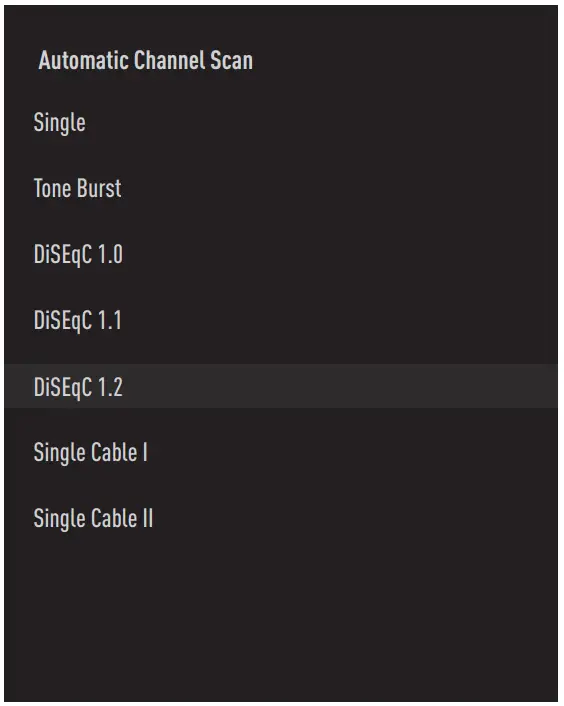
DETAILED-CHANNEL-SETTINGS
Settings-for-antennae-withmotors-(DiSEqC-1.2)
Note:
LNB settings described in the following section require significant expertise on satellite systems. Contact an expert about the subject.
Your TV supports DiSEqC 1.2 motorized satellitesystems. With this feature, you can control the satellite on your television.
Adjust the satellite antenna position for each satellite. By storing these settings, the antenna can be moved to a previously saved location when needed.
- Press»H« to return to »« TV mode.
- Select »Source« with »« and confirm with »«.
- Select »satellite« and confirm with »«.
- Press »q« and select »Settings« with » >« and confirm with »«.
- Select »Channel« with »V« and confirm with »«. – Channel menu shall be displayed.
- Select »Channel Set-up Mode« with »V« and confirm with »«.
- Select »Satellite (Standard)« with »V« or »Λ«or if you are using an operator, select »Satellite (Operator Mode)« and confirm with »«
- Use »V« or »Λ« to select »Channels« and confirm with the »«.
- Select »Automatic Channel scan« and press »« to confirm. – A warning message shall be displayed.
- Channels in the previous channel search will be deleted and the channel search will be performed again. Confirm »Next« with »« to continue. – Automatic Channel Scan menu shall be displayed.
- Use »V« or »Λ« to select »Antenna Type« and confirm with »«. – Antenna Type menu shall be displayed.

- Use »V« or »Λ« to select »DiSEqC 1.2« and confirm with »«.
- Use »V« or »Λ« to select »My longitude« and confirm with »«. Enter the defined longitude with »1…0«, select the »« on the screen keyboard and confirm with »«.
- Use »V« or »Λ« to select »My latitude« and confirm with »«. Enter the defined latitude with »1…0«, select the »« on the screen keyboard and confirm with »«.
- Use »V« or »Λ« to select »Next« and confirm with the »«.
- Press »V« or »Λ« to select the satellite you want to scan and press »« to confirm.
- Use »V« or »Λ« to select »LNB Settings« and confirm with »«.
- Use »V« or »Λ« to select »Motor Settings« and confirm with »«. – Motor Settings menu shall be displayed.

- Use »V« or »Λ« to select »Motion Control« and confirm with »«.
- Select the required elements with »V«, »Λ«.
Movement-Control
Confirm »Movement Control« with »«, select »Continuous«, »Step«, »Timeout« or »USALS« with »V« or »Λ« and confirm with »«.
– »Step«: Moves the antenna in the west or east direction by the specified step size.
– »Continuous«: Moves the antenna in the west or east direction constantly.
Step-Size
Confirm »Step Size« with »«. Select how many steps the antenna should rotate with »1…0«. »Step Size« becomes active when »Movement Control« is selected as »Step«.
Timeout
Confirm »Timeout« with »«. Select the timeout period at which the antenna should rotate with the »1…0«. »Timeout« becomes active when »Movement Control« is selected as »Timeout«.
USALS
Select »USALS« from »Movement Control« menu. Confirm »Timeout« with »«. Select Go To x.x. Angle and confirm with »«.
Move-East
Adjusts the antenna for the selected satellite.
Press »« to move the antenna in the »East« direction.
Move-West
Adjusts the antenna for the selected satellite.
Press »« to move the antenna in the »West« direction.
Stop-Movement
Press »« to stop the antenna.
Note:
When Movement Control is selected as »USALS«, »Move East«, »Move West« and »Stop Movement« cannot be seen on the menu. - Press »« to return to the »Motor Settings« menu.
- Select the required elements with »«, »«.
Disable-Borders
It removes the limits of the maximum rotation of the antenna.
Limit-the-East-Direction
It sets the limit position that the antenna can turn to east at maximum and allows the antenna to move within the specified limits.
Limit-the-West-Direction
It sets the limit position that the antenna can turn to west at maximum and allows the antenna to move within the specified limits. - Press » « twice to return to »Automatic Channel Scan«.
- Select »Scan Mode« with »« or »« and select »Full« or »Network« with » «, » «.
- Select »Scan Type« with »« or »«. Press » «, » « to select »Free ChannelsOnly« for free channels only, »Encrypted Channels Only« for encrypted channels or »All« for all satellite channels.
- Select »Store Type« with »« or »«. Press » «, » « to select »Digital Channels Only« for television channels only, »Radio Channels Only« for radio channels or »All«
for searching both. - Press » « to return to »Automatic Channel Scan«.
Note:
• Make the settings described in steps 17 to 26 for each satellite you want to scan. - Select »Next« with »« or »« and press »« to confirm.
– »Automatic Scan« menu shall be displayed and the scan for TV stations will start.
– Scanning may take several minutes depending on the number of television stations received. - Press » « to return to the previous menu,
press »« to return to TV broadcast or
press »« to return to Home menu.
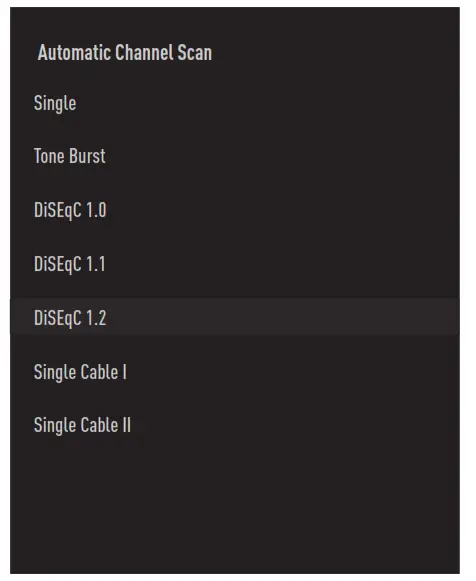
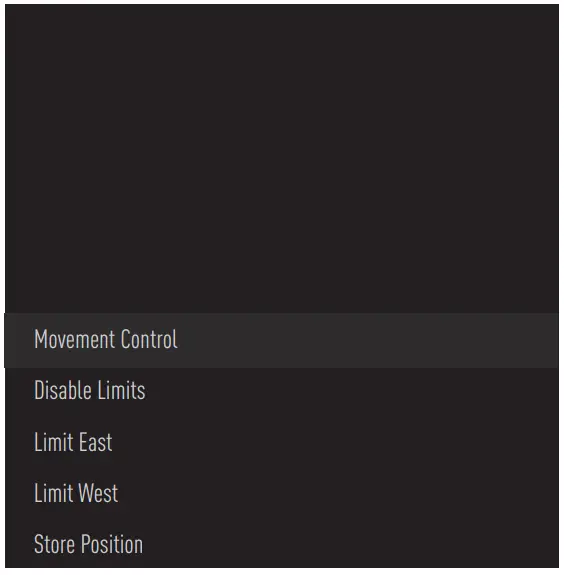
Searching-for-newly-addeddigital-channels-with-satellite up date
With the satellite update feature, only newly added channels are found and saved at the end of the programme list.
- Press »« to return to »« TV mode.
- Select »Source« with »q« and confirm with »«.
- Select »satellite« and confirm with »«.
- Press »« and select »Settings« with » « and confirm with »«.
- Select »Channel« with »« and confirm with »«.
– Channel menu shall be displayed. - Select »Channel Set-up Mode« with »« and confirm with »«.
- Select »Satellite (Standard)« with»« or »«or if you are using an operator, select »Satellite (Operator Mode)« and confirm with »«
- Use »V« or »Λ« to select »Channels« and confirm with »«.
- Use »V« or »Λ« to select »Satellite Update« and confirm with »«.
- Select »Next« and press »« to confirm.
– »Automatic Scan« menu shall be displayed and the scan for TV stations will start.
– Scanning may take several minutes depending on the number of television stations received. - Press » « to return to the previous menu,
press »« to return to TV broadcast or
press »« to return to Home menu.
Searching-for-cable-connected digital-television-stations automatically
- Press »« to return to the TV mode.
- Select »Source« with »« and confirm with »«.
- Select »cable« and confirm with »«.
- Press »« and select »Settings« with » « and confirm with »«.
- Select »Channel« with »« and confirm with »«.
– Channel menu shall be displayed. - Confirm »Channels« with »«.
– Channels menu shall be displayed. - Use »« or »« to select »LCN« and confirm with »«.
Press »« or »« to select »On« or »Off« and confirm with »«. - Select »Channel Scan Type« with »« or »« and press »« to confirm.
Press »« or »« to select »Free Channels
Only« for free channels only, »Encrypted Channels Only« for encrypted channels or »All« for all satellite channels and confirm with »«. - Select »Channel Store Type« with »« or »« and press »« to confirm.
Press »« or »« to select »Digital
Channels Only« for television channels only,»Radio Channels Only« for radio channels only or »All« for scanning both and confirm with »«. - Select »Channel Scan« with »« or »« and press »« to confirm.

- Select »Scan Mode« with »« and select »Advanced«, »Fast« or »Full« with » «, » «.
- Select »Frequency (KHz)« with »« and
press »« Enter the frequency with »1…0«, select »« on the screen keyboard and confirm with »«. - Select »Network ID« with »« and press
»« Enter the frequency with»1…0«, select »« on the screen keyboard and confirm with »«.
Note:
• When the scan mode is selected as »Full«, »Frequency (KHz)« and »Network ID« are not displayed in the menu. - Select »Scan« with »« and press »« to confirm.
- »Automatic Scan« menu shall be displayed and the scan for TV stations will start.
– Scanning may take several minutes depending on the number of television stations received. - Press » « to return to the previous menu,
press »« to return to TV broadcast or
press »« to return to Home menu.
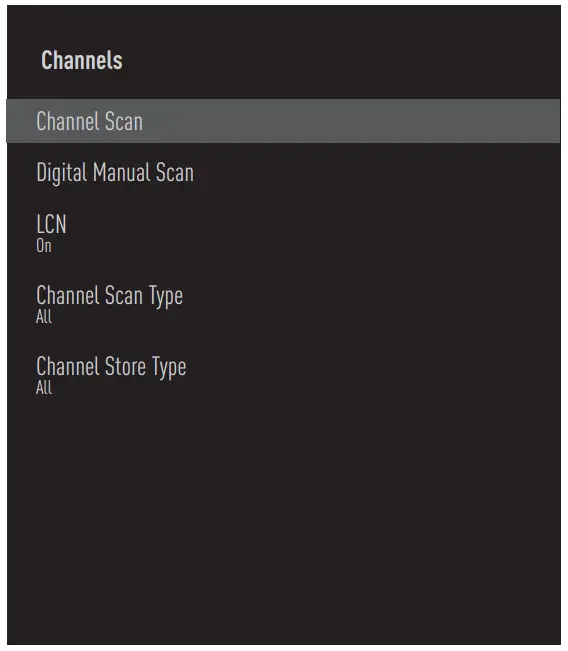
Searching-for-cable-connected digital-television-stations manually
- Press »« to return to the TV mode.
- Select »Source« with »« and confirm with »«.
- Select »cable« and confirm with »«.
- Press »« and select »Settings« with » « and confirm with »«.
- Select »Channel« with »« and confirm with »«.
– Channel menu shall be displayed. - Confirm »Channels« with »«.
– Channels menu shall be displayed. - Use »« or »« to select »LCN« and confirm with »«.
Press »« or »« to select »On« or »Off« and confirm with »«. - Select »Channel Scan Type« with »« or »« and press »« to confirm.
Press »« or »« to select »Free Channels
Only« for free channels only, »Encrypted
Channels Only« for encrypted channels or »All« for all satellite channels and confirm with »«. - Select »Channel Store Type« with »« or »« and press »« to confirm.
Press »« or »« to select »Digital Channels Only« for television channels only, »Radio Channels Only« for radio channels only or »All« for scanning both and confirm with »«. - Select »Digital Manual Scan« with »« or »« and press »« to confirm.

- Select »Frequency« and press »« to confirm.
- Enter the channel frequency with »1…0«, select the »« on the screen keyboard and confirm with »«.
- Select »Scan« with »V« and press »« to confirm.
- »Automatic Scan« menu shall be displayed and the scan for TV stations will start.
– Scanning may take several minutes depending on the number of television stations received. - Press » « to return to the previous menu,
press »«or to return to TV broadcast or
press »« to return to Home menu.
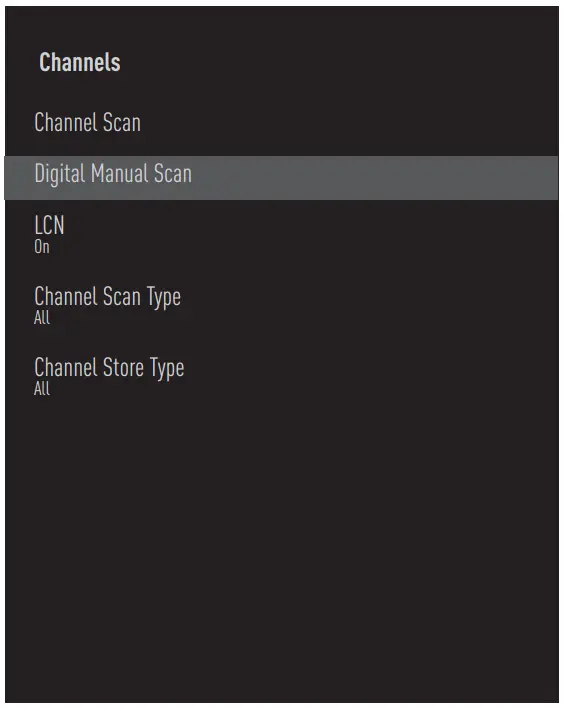
Setting-up-antenna-connected digital-television-stations automatically
- Press »« to return to the TV mode.
- Select »Source« with »« and confirm with »«.
- Select »antenna« and confirm with »«.
- Press »« and select »Settings« with » « and confirm with »«.
- Select »Channel« with »« and confirm with »«.
– Channel menu shall be displayed. - Confirm »Channels« with »«.
– Channels menu shall be displayed. - Use »« or »« to select »LCN« and confirm with »«.
Press »« or »« to select »On« or »Off« and confirm with »«. - Select »Channel Scan Type« with »« or »Λ« and press »« to confirm.
Press »« or »« to select »Free Channels
Only« for free channels only, »Encrypted
Channels Only« for encrypted channels or
»All« for all satellite channels and confirm with »«. - Select »Channel Store Type« with »« or »« and press »« to confirm.
Press »« or »« to select »Digital
Channels Only« for television channels only, »Radio Channels Only« for radio channels only or »All« for scanning both and confirm with »«. - Select »Channel Scan« with »« or »« and press »« to confirm.

- »Automatic Scan« menu shall be displayed and the scan for TV stations will start.
– Scanning may take several minutes depending on the number of television stations received. - Press » « to return to the previous menu,
press »«or to return to TV broadcast or
press » « to return to Home menu.
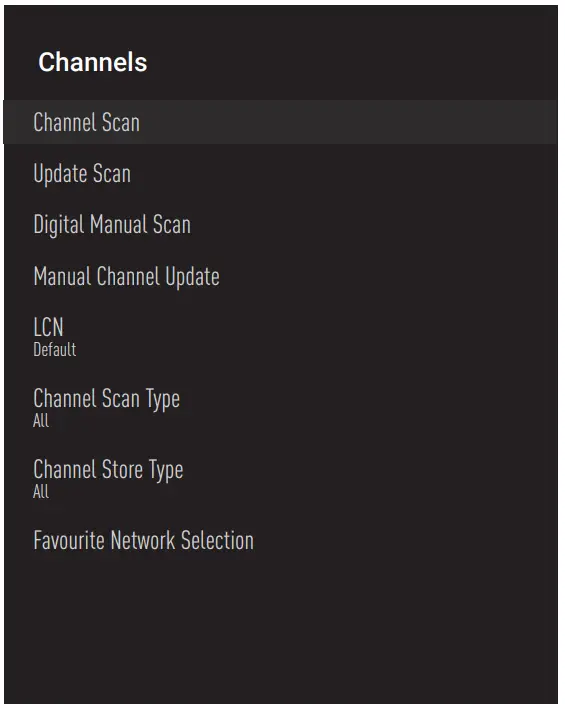
Updating-antenna-connected digital-television-stations automatically
With update scan feature, only newly added channels are found and saved at the end of the programme list.
- Press »« to return to the TV mode.
- Select »Source« with » « and confirm with »«.
- Select »antenna« and confirm with »«.
- Press »q« and select »Settings« with » « and confirm with »«.
- Select »Channel« with »V« and confirm with »«.
– Channel menu shall be displayed. - Confirm »Channels« with »«.
– Channels menu shall be displayed. - Select »Update Scan« with »« or » « and press »« to confirm.

- »Automatic Scan« menu shall be displayed and the scan for TV stations will start.
– Scanning may take several minutes depending on the number of television stations received. - Press » « to return to the previous menu,
press » «or to return to TV broadcast or
press » « to return to Home menu.
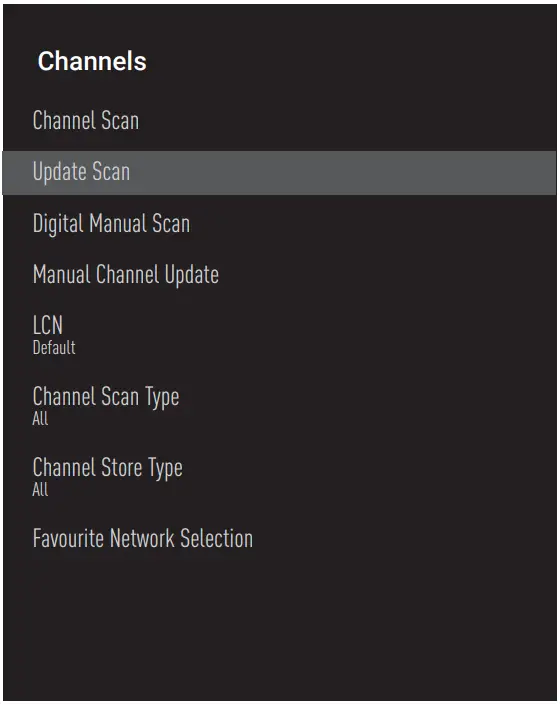
Setting-up-antenna-connected digital-television-stations manually
- Press » « to return to the TV mode.
- Select »Source« with » « and confirm with» «.
- Select »antenna« and confirm with » «.
- Press » « and select »Settings« with » « and confirm with » «.
- Select »Channel« with »« and confirm with » «.
– Channel menu shall be displayed. - Confirm »Channels« with » «.
– Channels menu shall be displayed. - Select »Digital Manual Scan« with » « or » « and press » « to confirm.
– Digital Manual Scan menu shall be displayed.
- Select the RF channel you want to scan from »RF Channel« with » «, » «.
- To start the manual scan, press » «.
– The scan starts and the number of digital channels found is displayed in the menu.
– Scanning may take several minutes depending on the number of television stations received. - Press » « to return to the previous menu,
press » «or to return to TV broadcast or
press » « to return to Home menu.
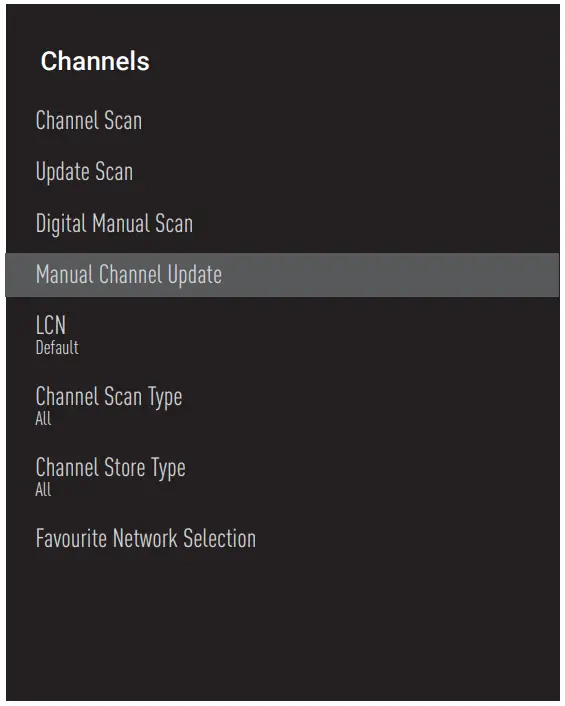
Setting-up-antenna-connected analogue-television-stations automatically
- Press » « to return to the TV mode.
- Select »Source« with » « and confirm with » «.
- Select »ATV« and press » « to confirm.
- Press » « and select »Settings« with » « and confirm with » «.
- Select »Channel« with »« and confirm with » «.
– Channel menu shall be displayed. - Confirm »Channels« with » «.
– Channels menu shall be displayed. - Select »Channel Scan« with »« or » « and press » « to confirm.

- The scan starts and the number of analogue channels found is displayed in the menu.
– Scanning may take several minutes depending on the number of television stations received. - Press » « to return to the previous menu,
press » « or to return to TV broadcast or
press » « to return to Home menu.
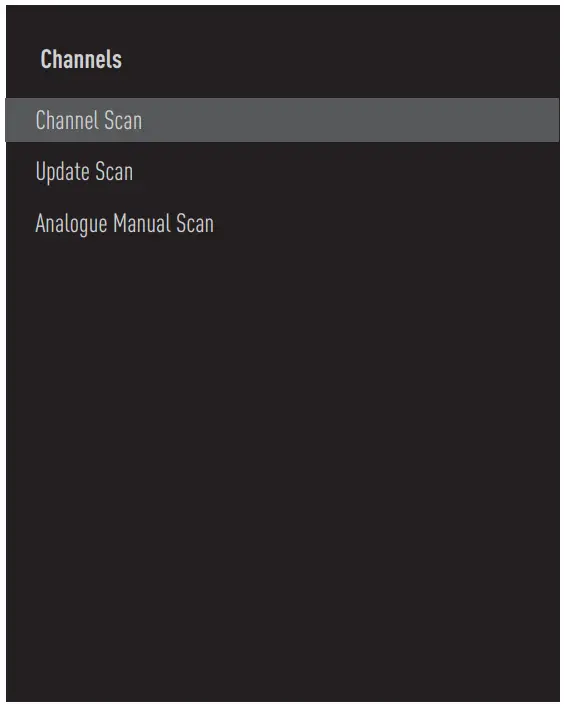
Updating-antenna-connected analogue-television-stations automatically
- Press » « to return to the TV mode.
- Select »Source« with » « and confirm with » «.
- Select »ATV« and press » « to confirm.
- Press » « and select »Settings« with » « and confirm with » «.
- Select »Channel« with » « and confirm with » «.
– Channel menu shall be displayed. - Confirm »Channels« with » «.
– Channels menu shall be displayed. - Select »Update Scan« with » « or » « and press » « to confirm.

- The scan starts and the number of analogue channels found is displayed in the menu.
– Scanning may take several minutes depending on the number of television stations received. - Press » « to return to the previous menu,
press » « or to return to TV broadcast or
press » « to return to Home menu.
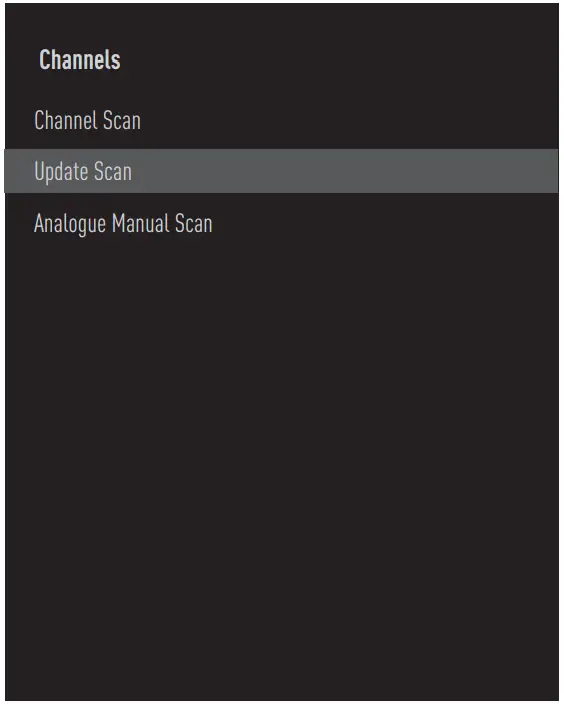
Setting-up-antenna-connected analogue-television-stations manually
- Press » « to return to the TV mode.
- Select »Source« with » « and confirm with » «.
- Select »ATV« and press » « to confirm.
- Press » « and select »Settings« with » « and confirm with » «.
- Select »Channel« with » « and confirm with » «.
– Channel menu shall be displayed. - Confirm »Channels« with » «.
– Channels menu shall be displayed. - Select »Analogue Manual Scan« with » « or » « and press » « to confirm.

- Select »Starting Frequency (MHz)« with » « and enter the frequency you want to scan with »1…0«, select » « on the screen keyboard and confirm with » «.
- To scan upwards from the Frequency you entered, select »Scan Up«; to search downwards, select »Scan Down« with »« or » « and confirm with »«.
- The scan starts and the number of analogue channels found is displayed in the menu.
– Scanning may take several minutes depending on the number of television stations received. - Press » « to return to the previous menu,
press » « or to return to TV broadcast or
press » « to return to Home menu.
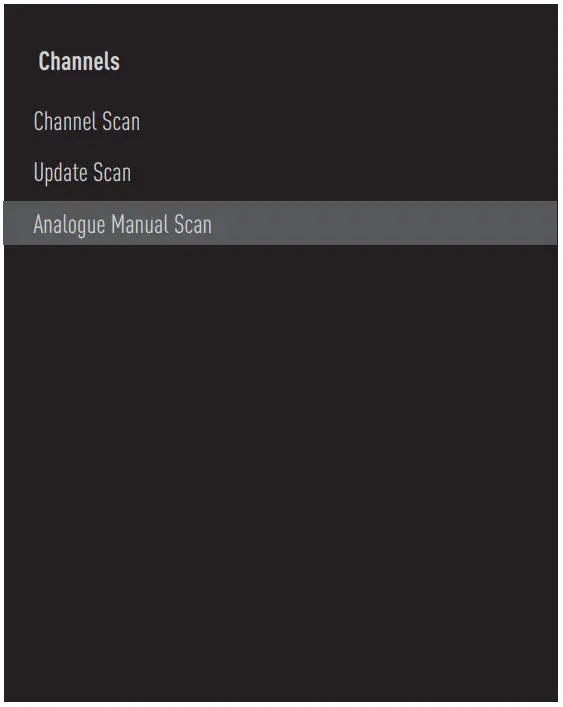
INFORMATION
Wireless-LAN-Module-Specification (if-Wi-Fi-module-applicable)
Standard: IEEE802.11b/g/n
Frequency Range: Output Power (Maximum)
2400 MHz – 2483.5 MHz: <20dBm
Wireless-LAN-Module-Specification (if-Wi-Fi-module-applicable)
Standard: IEEE802.11a/n/ac
Frequency Range: Output Power
(Maximum)
5150 MHz – 5250 MHz: <23dBm
5250 MHz – 5350 MHz: <23dBm
5725 MHz – 5850 MHz: <23dBm
Bluetooth-Module-Specification (if-Bluetooth-module-applicable)
Frequency Range: Output Power
(Maximum)
2400 MHz – 2483.5 MHz: <20dBm
Service-information-for authorised-dealers This product complies with European Union directives and regulations below: 2014/53/EU Radio
Equipment Directive
2009/125/EC: Directive and relevant for ecodesign for products using energy as well as its following sub-directives;
278/2009: Regulation regarding eco-friendly design requirements regarding energy consumption of uncharged external power sources and average active efficiency (for models with AC/DC adapters);
642/2009: Regulation regarding environmentally-conscious design requirements for TVs.
801/2013 Amending regulation regarding ecodesign requirements for televisions.
2010/30/EU: Directives regarding Energy Labelling of Energy-Related products as well as its following sub-directives; 1062/2010: Regulation regarding energy labelling of televisions.
2011/65/EU: Directive on limitations on use of certain hazardous materials on electric, electronic domestic and office equipment.
Licenses
The availability of Google Assistant varies by region. Google, YouTube, Android TV, Chromecast built-in and other trademarks are trademarks of Google LLC.
See http://patents.dts.com for DTS patents.
Manufactured under license of DTS Licensing Limited. DTS, DTS-HD, and the DTS-HD logos are registered trademarks or trademarks of DTS, Inc. in the United States and other countries. © 2021 DTS, Inc. ALL RIGHTS RESERVED. Dolby, Dolby Vision, Dolby Atmos and Double-D symbols are registered trademarks of Dolby Laboratories Licensing Corporation. Manufactured under license of Dolby Laboratories. Hidden unpublished works. Copyright © 2012-2021 Dolby Laboratories. All rights reserved.
Notes-for-wireless-(WLAN)connection
Notes for customers: The following information is only applicable for devices that are sold in countries enforcing EU regulations.
TV’s wireless system can only be used in the countries given in the table below.
 | |||||||
| AT | BE | BG | CH | CY | CZ | DE | DK |
| EE | ES | Fl | FR | GB | GR | HU | IE |
| IS | IT | LI | LT | LU | LV | MT | NL |
| NO | PL | PT | RO | SE | SI | SK | HR |
| EN | |||||||
The 5150-5350 MHz band is restricted to indoor use only. (For Wi-Fi/Bluetooth built-in model or Wi-Fi Built-in model).
This device can also be operated in countries outside Europe.
For-the-customers-in-Italy:
Public use is subject to service provider’s permission.
For-the-customers-in-Norway:
Radio equipment use is not allowed in a geographical area within 20 km diameter of Ny-Alesund, Svalbord.
For-customers-in-Turkey:
This device’s WLAN (Wi-Fi) feature can only be used indoors. In Turkey, outdoor use is not allowed. Make sure WLAN (Wi-Fi) feature is closed when using.
For-the-customers-in-Russia:
Short Range Device Applications with FHSS Modulation.
Maximum 2.5 mW e.i.r.p.
for collecting telemetry information for automatic tracking and source calculation systems, 100mW e.i.r.p is the maximum allowed short range device density value permitted for use on outdoor applications without any limitation on installation height. For uses with other purposes, this applies to outdoor application in which this value does not exceed 10m above the ground.
Short range device density for indoor applications is 100mW e.i.r.p maximum.
Short range device applications with broadband modulation with DSSS and other than FHSS.
The maximum average density value for short range devices with broadband modulation with DSSS and other than FHSS is 2 mW/MHz or 100mW e.i.r.p.
For only the purpose of compiling telemetry data for automatic monitoring and source estimation systems, maximum short range device allowed to be used in outdoor applications is 20 mW/MHz or 100 mW e.i.r.p.
Maximum density value for indoor use of short range devices is 10mW/MHz or 100 mW e.i.r.p.
For-the-customers-in-Ukraine;
Maximum short range device density value for indoor uses, along with internal antenna with 6 dBi amplification factor, is 100 mW e.i.r.p.
Disposing-of-the-packaging
The packaging materials are dangerous for children. Keep the packaging materials out of the reach of children.
The packaging of the product is manufactured from recyclable materials. Dispose of by sorting in accordance with waste regulations. Do not dispose of along with normal household waste.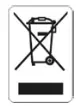 Environmental-note
This product has been made from high-quality parts and materials which can be re-used and recycled.
Therefore, do not dispose of the product along with normal household waste at the end of its service life. Take it to a collection point for recycling electrical and electronic devices. This is indicated by this symbol on the product, in the operating manual and on the packaging. Please find out about collection points operated by your local.
Help protect the environment by recycling used products.
Conformity-with-WEEE-Regulation-and- Disposing-of-Waste-Product
This product This product does not contain hazardous and prohibited substances specified in the “Regulations for Supervision of Waste Electrical and Electronic Equipment” published by Turkish Ministry of Environment and Urban Planning. Conforms the WEEE Regulation. This product has been made from high-quality parts and materials which can be recycled and re-used. Therefore, do not throw the product away with household waste and other waste at the end of its life. Take it to a collection point for recycling electrical and electronic devices. Contact your local authority for the collection points in your region. Help preserve the nature and natural resources by recycling used products. For the safety of children, cut the power cord before disposal.
PCB-Conformity:
“Does not contain PCB (Polychlorinated Biphenyl).”
HELP
Troubleshooting
If the remedies given below do not work, please consult an authorised BEKO dealer. Please bear in mind that malfunctions can also be caused by external devices such as video recorders or satellite receivers.
| Problem | Possible cause | Remedy |
| Screen is on (black screen), but there is no channel Poor picture contrast Interference to picture and/or sound | Antenna cable | Is the antenna cable connected? |
| No TV station programmed | Start a channel scan | |
| Picture settings incorrectly set | Adjust the brightness, contrast or colour setting | |
| Problem at station | Test with a different station | |
| Interference from other devices | Change the position of the device | |
| Ghosting, reflection No colour Picture but no sound | Channel setting | Automatic or manual channel setting |
| Antenna | Have the antenna cable or system checked | |
| Colour intensity at maximum | Turn up the colour | |
| TV standard setting (if setting option is available) | Select the correct colour standard | |
| Problem at station | Test with another channel | |
| Volume set to minimum | Turn up the volume | |
| Remote control does not work | No optical connection | Point the remote control at the television set |
| Remote control batteries | Check the batteries, change if necessary | |
| Operating condition undefined | Switch off the TV by pressing the main power key (if any) or unplugging the mains plug, and leave it off for about 2 minutes. | |
| Picture is dark in PC mode | Incorrect setting for picture resolution and picture frequency on the PC | Change the setting on the PC (for example, picture resolution 1280 x 768, picture frequency 60Hz) |
| Warnings about the connection problems on the display | Network Cable or wireless USB network device may be disconnected | Check network cable or wireless USB network device |
| Modem does not have Internet connection or has problems | Make sure that your modem has Internet connection |
| Videos in video applications are lagging during playback in wireless connection | Internet connection speed is low. | Low Internet speed is a problem that is related with the speed of your subscription or a failure in the Internet infrastructure. Contact your service provider (ISP). |
| Videos in video applications are lagging during playback in cableconnection | Internet connection speed is low. | Low Internet speed is a problem that is related with the speed of your subscription or a failure in the Internet infrastructure. Contact your service provider (ISP). |
Explanation-of-the-symbols-whichmay-be-present-on-back-side-of-thetelevision
 | Double insulation. Indicates that this product doesn’t require grounded connection. |
 | Alternating current. Indicates that the product works with the mains voltage. |
 | Direct current. Indicates that this product works only with AC/DC adapter. |
Note:
- This is a Class A product. During operation the device can cause radio interference. In this case the user may have to remedy this. Please contact your specialist dealer.
GLOSSARY
Features described depend on the TV model.
Not all features are available on all models.
eARC
With eARC (Audio Return Channel) the audiosignal of the television programme can be played back via a HDMI cable or an optical cable with a multi-channel amplifier.
Backlight
Manual setting for back lighting (only active if dynamic back lighting is switched to “OFF”). This setting also directly impacts power consumption.
Block-Noise-Reduction
This function can only be selected with digital reception sources and AV presets. It reduces any interference from artefacts (pixel blocks) from digital programmes due to MPEG compression (such as from DVB-T receivers and lower transmission rates or DVD players).
Common-Interface
It is an interface used in DVB receivers.
Scramble stations can only be viewed with a CA module suitable for the encoding system and the corresponding smart card.
HDMI-CEC
This feature utilizes CEC (Consumer ElectronicsControl) protocol.
CEC enables external devices that are connected to the HDMI socket with the HDMI cable to be controlled via the remote control.
DiSEqC
DiSEqC (Digital Satellite Equipment Control) is a digital system that ensures that the motorized multiple-LNB satellite systems are controlled. DiSEqC is required when two or more satellite locations need to be controlled.
Dynamic-Backlight
Here the device optimally adjusts the back lighting for the picture content by regulating the back lighting depending on the average picture brightness. If a picture has predominately dark areas, then the black level displayed is improved by downward adjustment of the back lighting (in this case the display of the dark areas is improved), and with predominantly bright picture material the back lighting is maximised in order to display these areas more brightly.
Domain-name-system
The domain name system (DNS) is one of the most important services on the Internet. Its main function is to convert an Internet address into the corresponding IP address.
DVB-C
DVB-C (Digital Video Broadcasting – Cable) is a type of DVB used for the transmission of radio and television signals through a cable connection.
DVB-S/S2
DVB-S/S2 (Digital Video Broadcasting – Satellite) broadcasts the DVB signals through the satellite.
DVB-T/T2
DVB-T/T2 (Digital Video Broadcasting –Terrestrial) is a type of DVB used for the transmission of radio and television signals through terrestrial channels.
Dynamic-Contrast
This function dynamically and optimally adjusts the contrast for the respective picture content by analysing images and then altering this depending on a change in contrast. This increase in the contrast however, may also reduce the visible brightness levels in the picture.+
Film-mode
Detects and processes feature films automatically for all channel sources. This means that you get the optimum picture at all times.
This functions in the modes 480i, 576i and 1080i in TV playback and for other channel sources.
If the “Movie Mode” is switched on for programmes without a feature film signal, minor problems such as picture freeze, defective subtitles or fine lines in the picture could occur.
Firmware-version
Firmware is the term used for software that is embedded in a programmed chip (microcontroller). It is mostly stored in a flash memory, an EPROM or an EEPROM. The firmware contains functions for controlling the device.
Gamma
This setting establishes which brightness value should be displayed for which digital transmission value. Most recordings are transmitted with a gamma value of 2.2 (all Windows PCs and newer PCs with a MAC operating system work with this; older MAC systems and transmissions without colour profile mostly operate with a gamma value of 1.8).
Gateway
A gateway allows networks, which may be based on completely different protocols, to communicate with each other. In the home area, a combination of the router and the DSL modem are used as an Internet gateway.
Hardware-version
Hardware in this context means the device.
This includes all components such as processor, display, etc.
HbbTV
HbbTV is the interactive successor of video text, which has content with a modern design, high resolution images and video sequences as well as media libraries.
For full functionality of HbbTV, the TV must be connected to the Internet.
HD/Full-HD/UHD
High Definition (HD) TV is a general name for the television standard that has increased vertical, horizontal and timewise definition.
Full HD is a feature of devices with HDTV that can output or record 1920×1080 pixels of definition.
HD is 3840 x 2160 for UHD.
IP-Address
An IP address (Internet protocol address) is used to uniquely identify the address of computers and other devices in an IP network. The most well-known network in which IP addresses are used is the Internet. Here, for example, web servers are addressed using the IP address. The IP address can be provided automatically by the router (automatic address) or can be entered manually in the router (static address). If it is entered manually, this address must be entered in the TV set.
JPEG
JPEG stands for Joint Picture Experts Group. It is the compressing process of picture data.
LNB
The Low Noise Block resides at the centre of parabolic antenna.
Eg. It implements the satellite frequencies that are between 10.7–11.75 or 11.8–12.75 GHz in 950 to 2150 MHz and ensures cable transmission with coaxial cables (and with fibre-optic cables recently) and reception with satellite receivers.
MP3
Compressed audio file format.
NAS-(network-attached-storage)
The abbreviation NAS is used for devices that provide data from a hard drive to a network.
Network-mask
The network mask or net mask, sometimes also referred to as a subnet mask, is a bit mask that separates an IP address into a network part and a device/host part. It is used in IP networks to make routing decisions.
Network-name-(SSID)-
The network name (SSID – service set identifier) is the term used for the identification of a wireless network that is based on IEEE 802.11. Every wireless LAN has a configurable SSID,which uniquely identifies the wireless network. The character sequence of the network name can be up to 64 characters in length. It is configured in the base station (access point) of a wireless LAN and set on all clients which access it.
Noise-Reduction
Reduces the “snow” areas by displaying the picture a bit sharper and creating a slight blur. Thus, it must be used as little as possible with good picture material.
Perfect-Clear
Improves the general image by means of a gentle blue hue (giving the appearance of greater sharpness) and increases the black level by setting this entirely to black from a specific level of black hue. This reduces the visible grey values in the dark areas of the picture.
Special-IP-Address
Private IP addresses belong to the particular IP address ranges that are not routed in the Internet. They can be used by anybody for private networks, such as LANs. Many computer networks require complete connectivity at IP level, but only limited access to the Internet. If such a computer network has a private IP address range, it forms an Intranet which cannot be accessed from the Internet as the Internet routers ignore private address ranges. A gateway or router that is placed in this private network and which has a public address in the Internet as well as a private IP address makes the connection to the Internet. This can be performed by a proxy or using NAT/PAT/ masking. As the address range used can only be viewed within the private network, the same range can also be used in other private networks. The unique nature of an IP address required by the Internet protocol is ensured by this restricted visibility.
Proxy-server
A proxy or proxy server is a service programme for computer networks that administers data transfer. It makes data transfer faster, and can also increase security by implementing access control mechanisms. The transfer is conducted between computers or programmes in computer networks. On the server side, the proxy acts as a client; on the client side, it acts as a server.
Router
A router is a network component that links several computer networks. Router analyses (on the basis of layer 3 information) the network packages of a protocol it receives and forwards it to the intended destination network. Conventional routers work on layer 3 of the application layer. A router has an interface for every network connected to it. When data is received, the router determines the correct path to the destination and thereby the suitable interface via which the data can be transferred. For this it uses a locally available routing table that specifies via which router connection a particular network can be reached.
SCR-(Single-Channel-Router)
Single Cable System EN 50494.
If your antenna system is equipped with a single cable system multi switch, the televisions which are connected to this antennae system can receive television programmes independently from one another.
DiSEqC-1.0
It is used when more than one LNB is used on an antenna and/or when different satellite signals are used by using more than one antenna. DiSEqC1.0 can support a maximum of 4 LNBs or 4 Antennas.
DiSEqC-1.1
For use in systems where multiple LNBs or antennas are used (diagonal, cascading).
DiSEqC1.1 can support a maximum of 16 LNBs or 16 Antennas.
DiSEqC-1.2
Supports motorized antenna systems. Antenna motors can be controlled manually on the television.
Security-(WEP/WPA)
WEP (wired equivalent privacy) is the standard encryption algorithm for WLAN. It controls both access to the network as well as ensuring the confidentiality and integrity of data. This procedure is considered insecure nowadays. For this reason, recent WLAN installations should use the more secure WPA encryption.
Symbol-rate
It is the amount of the symbols transmitted in a unit of time in the digital transmission technology.
Transponder
It is a cluster of various transmitters in a frequency.
Vibrant-Colour
Improves colour contrast and contrast setting. This setting is mostly too strong for use with normal pictures and should only be used where necessary (low or off) otherwise nuances in the image can be suppressed.
Wi-Fi
Wireless transmission of Internet and Intranet packets.
 Patents - DTS