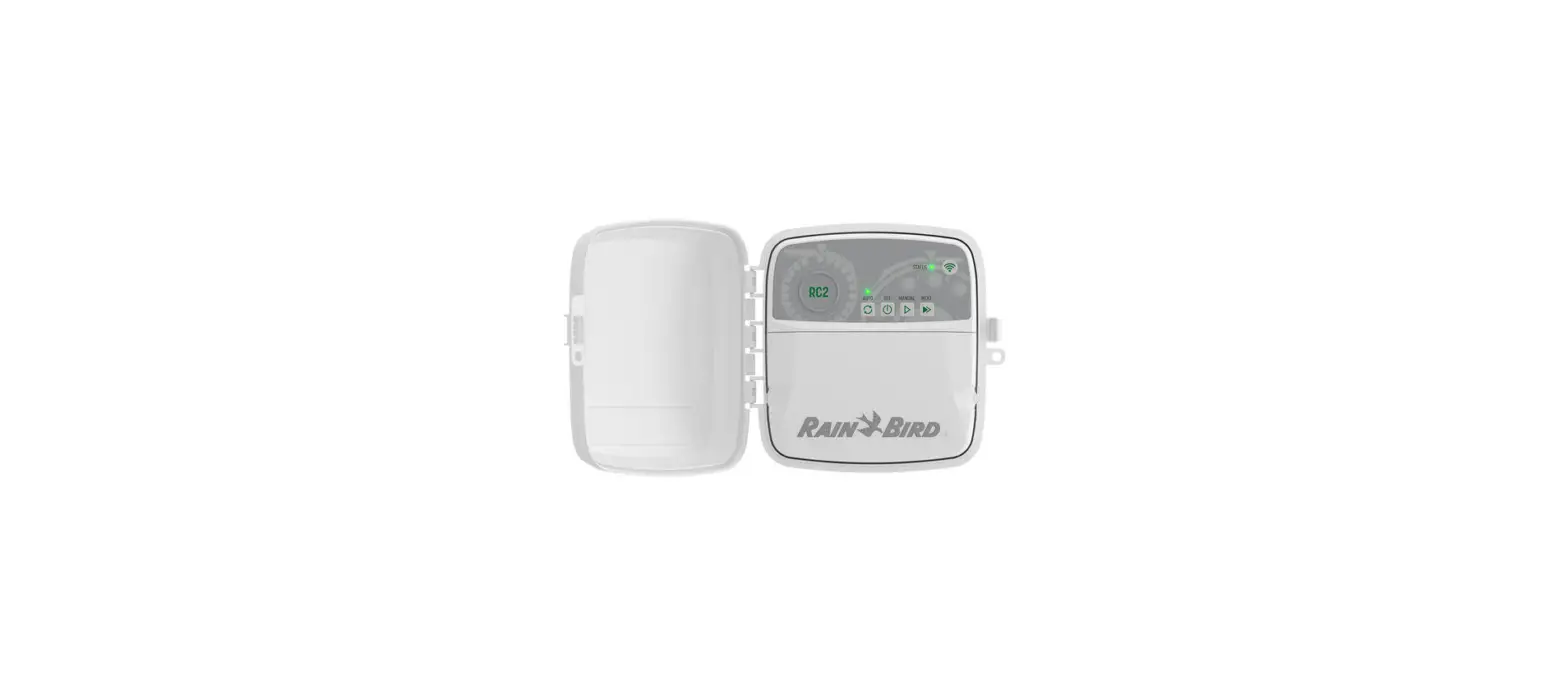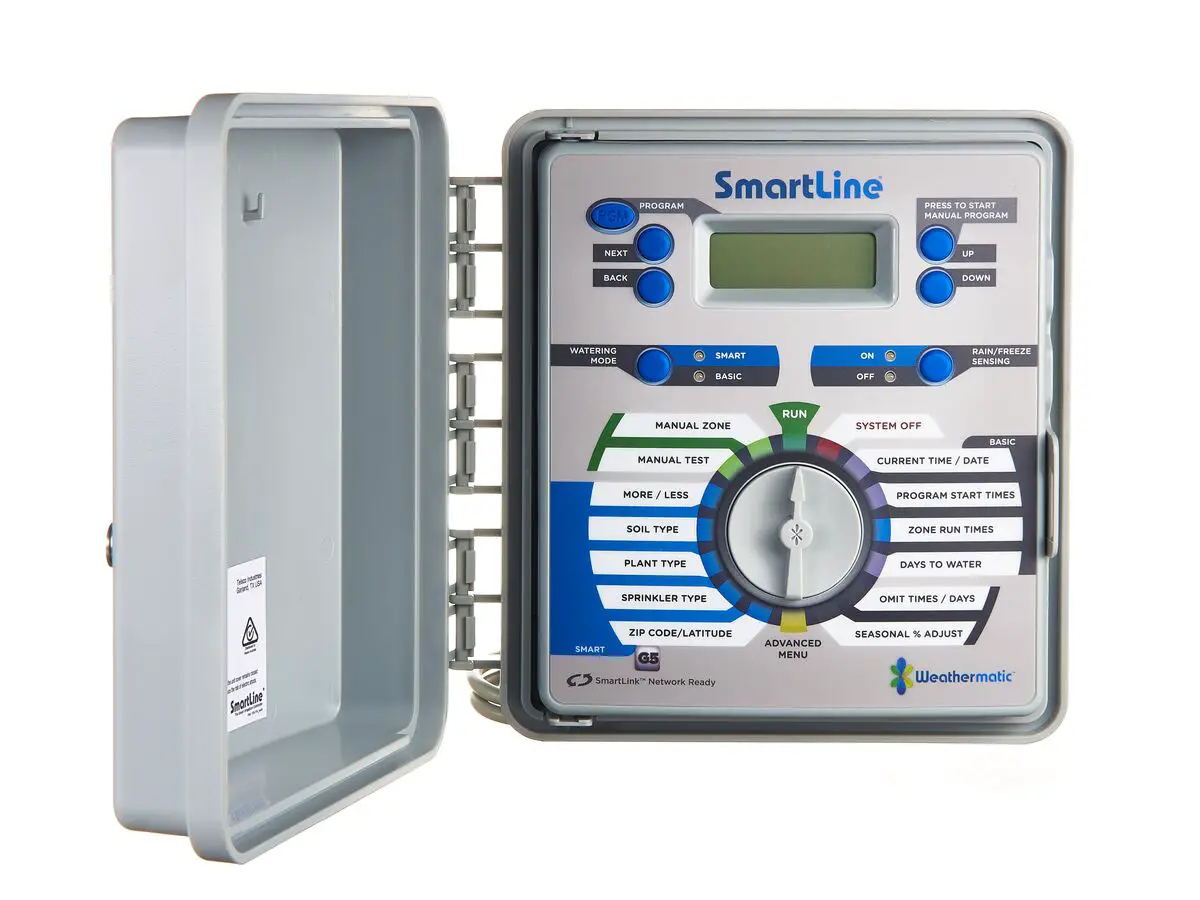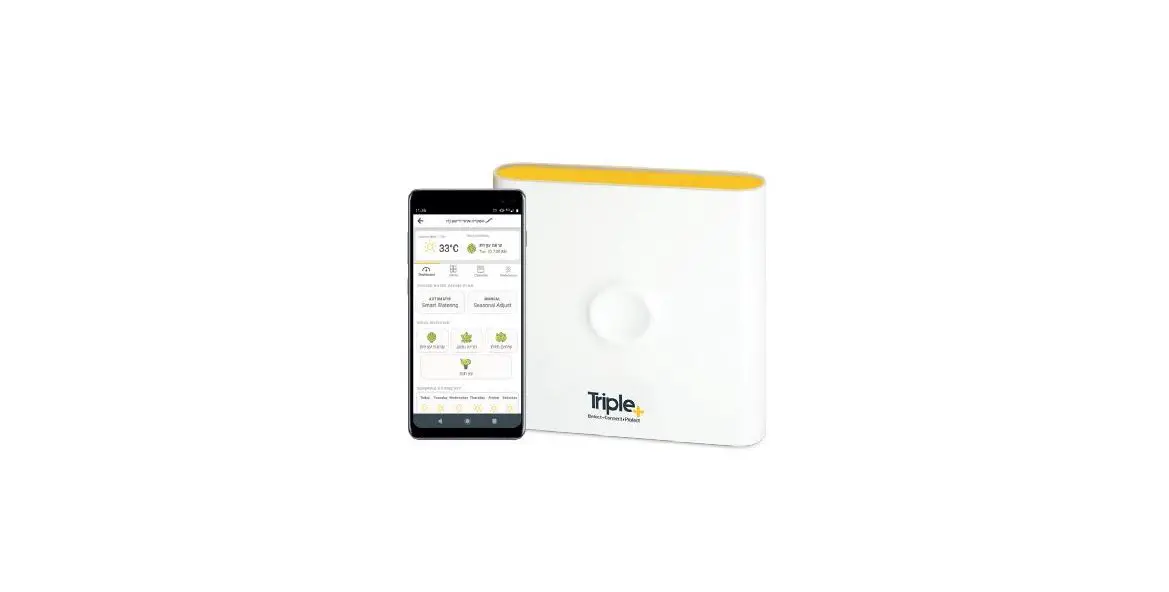

Triple+ CLM Wi-Fi Irrigation Smart Controller Apps
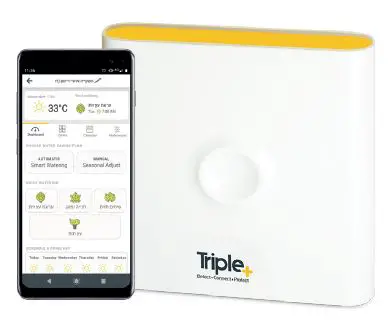
Thank you for purchasing the Triple+ CLM™ Irrigation controller Please follow the steps shown in this guide to properly install your new smart system
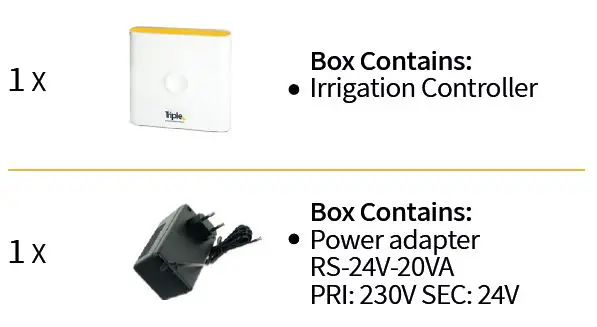
IN THE KIT
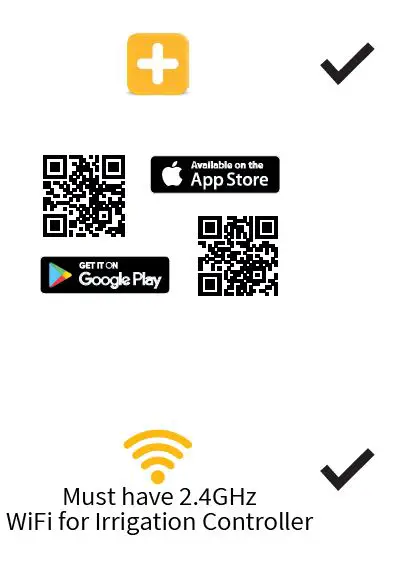
Before you start
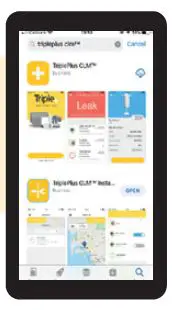
Search and download the Triple+ CLM APP available online or scan the QR code
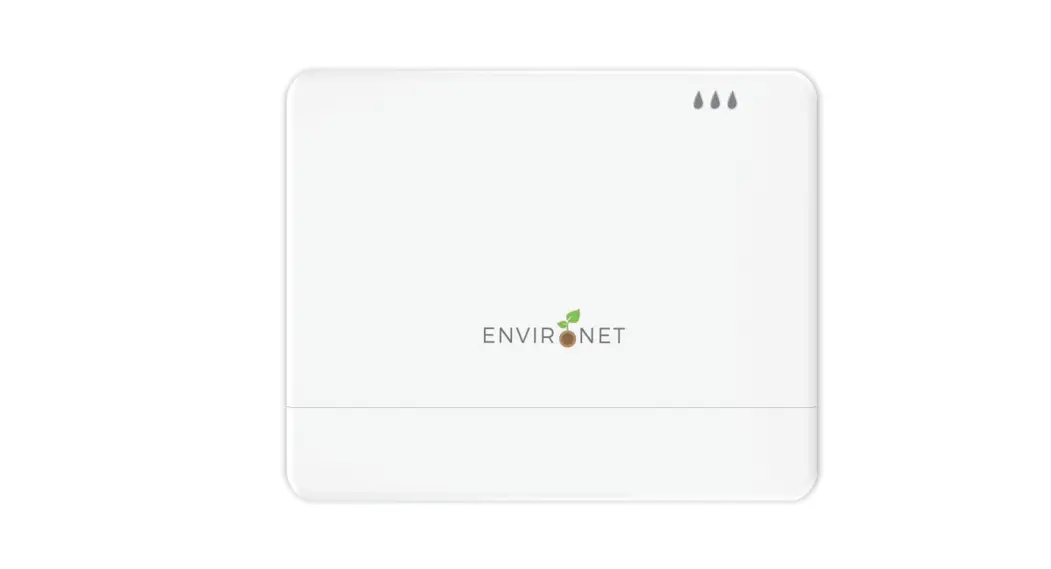
Irrigation Controller wall installation
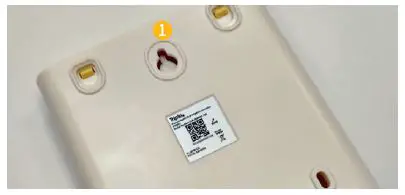
Using a single screw, align the Irrigation Controller to the wall.
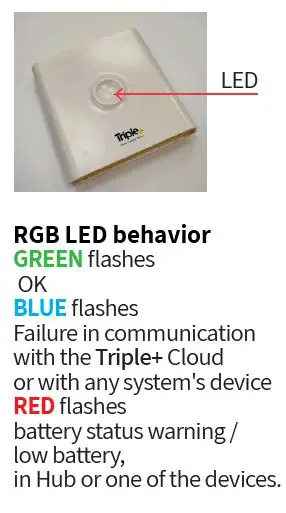
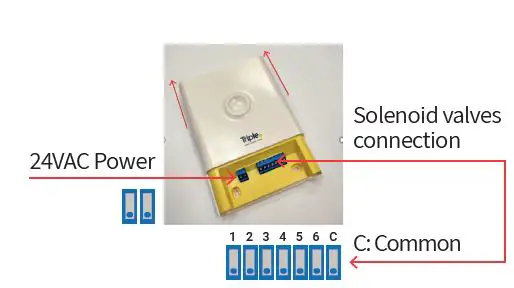
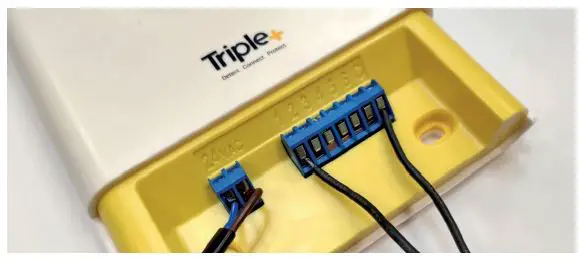
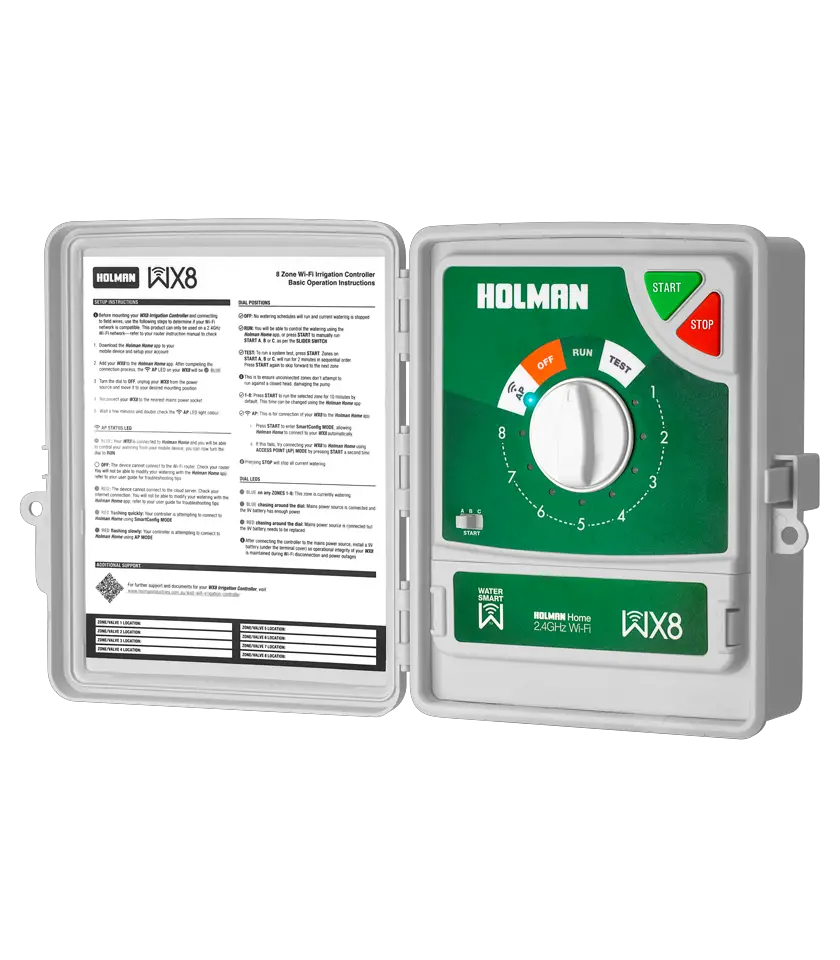
- Connect the Irrigation Controller to a certified 24VAC Power Supply.
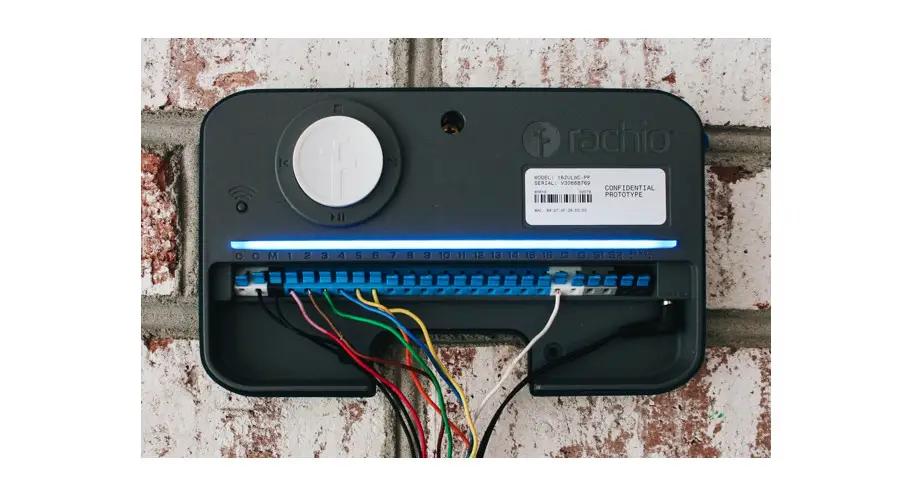
- Connect the Irrigation Controller to up 6 certified 24VAC Solenoid valves (Use “C” a Common).
Triple+ CLM™ Wi-Fi Installation Instructions
- Download the free Triple+ CLM™ APP for your smart phone from Google Play or the AppStore. The entire installation is managed via your smartphone

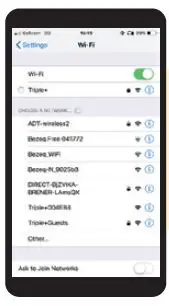
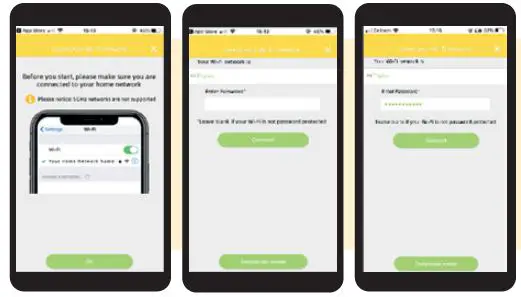
- You will be registering the Triple+ CLM™ Hub V2.0 to your designated Wi-Fi network; please make sure that your mobile phone is connected to that same
Note: Our network requirements are Wi-Fi 2.4GHz only (not 5GHz).
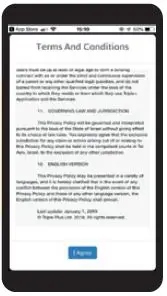
- Read the terms and conditions, scrolling all the way down, then tap the “I Agree button” at the bottom if you approve

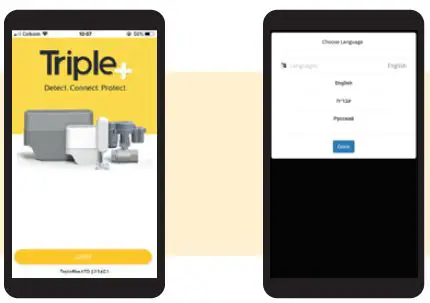
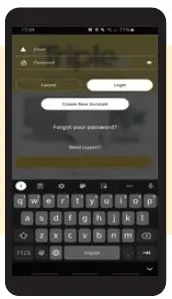
- Tap the Login button Select your language

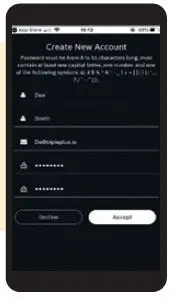
- Tap the Create New Account button Fill out the required fields and tap the Accept button


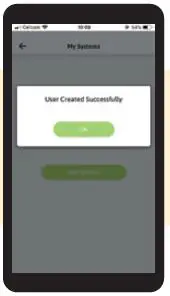
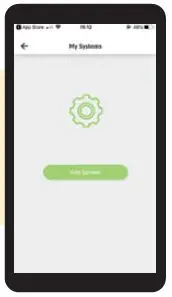
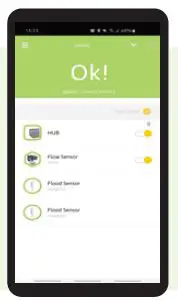
- Tap the OK button Tap the Add System button


Note: If you tapped the back arrow, tap on the 3 lines on the top left corner (Main Menu) -> Settings -> Add System - Scan the Kit installation QR code on the OUTSIDE of the main kit box delivered


Optional Technician Mode
Installation Procedure
- Whenever the Triple+ CLM™ Hub V2.0 cannot connect to the desired Wi-Fi network, please follow the following steps: A)Make sure that the Wi-Fi that you want to work with supports 2.4GHz. B)Tap on the “Technician mode” button.

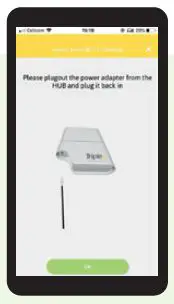
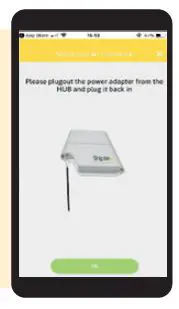
- Follow the instructions on the APP to initiate the installation sequence. When requested to unplug the power from the Hub, please disconnect AC power first, then remove AA batteries, and reinsert AA batteries before plugging AC Power back in, then tap the “OK” button.

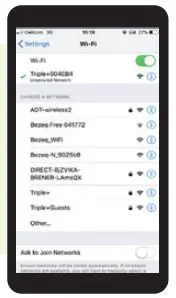
- Go to the Wi-Fi network selector on your mobile phone and connect to the Triple+ Wi-Fi network the WiFi name will start with “Triple+” and six characters – no password is required.

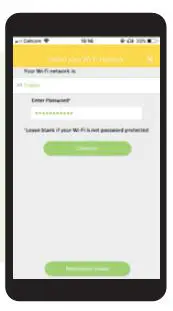
- Return to the Triple+ App and wait for the “Successfully connected to Triple+ HUB” pop up. Tap on “Continue” and select your designated Wi-Fi network from the list. Enter a password if necessary and wait for the application to give further instructions.
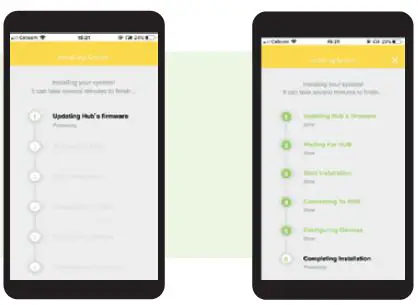
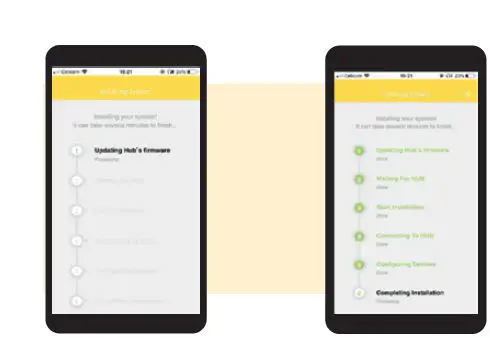
- After the hub connects to the Wi-Fi the installation will start automatically

- Locate the devices in their intended, permanent location and verify that all the devices communicate with the Triple+ CLM™ Hub V2.0 by verifying that all displaying in green. You can now secure the devices in those locations with the two-sided tape or screws.

- Follow the instructions on the APP to initiate the installation sequence. When requested to unplug the power from the Hub, please disconnect AC power first, then remove AA batteries, and reinsert AA batteries before plugging AC Power back in, then tap the “OK” button

- batteries back in the hub and plug in the AC power, please check to ensure that you are connected to your selected WiFi network

Note: If you do not see your network in “Your Wi-Fi network is:” -> verify that you are connected to the required network -> tap on the “X” -> Accept to cancel the installation -> connect your mobile phone to the required network -> and restart the installation. If the HUB can’t connect to the Wi-Fi please refer to Technician Mode and follow the instructions. - After the Hub connects to the Wi-Fi the installation will start automatically

- Connect the solenoids to Irrigation controller channels

| Part No. | CLM-IRAMAP-1-02, CLM-IREMEA-1-02 |
| Product description | Irrigation Controller for 24VAC solenoid irrigation valves |
| Dimensions | 130x26x130mm (5.11×1.02×5.11”) |
| Weight | 220gr (7.76 Oz) |
| Power supply | External Adaptor Input 24V AC |
| Operation voltage | 24VAC |
| Operating RF | 868/915 MHz |
| Transmission range | Open space – up to 230 m (750 ft.) Indoor environment up to 120 m (390 ft.) Avoid installing in a metal cabinet |
| Working Temp. | 20 to +500C (-4 to +1220F) |
| Certifications | FCC ID: 2AFOICIC IC: 20798-CIC |
Triple+ Canada Inc.
375-700 Lawrence Ave. West Toronto, ON M6A 3B4 Canada
For more support information visit our website at: www.tripleplus.io