
21.5” FHD Director Monitor
N21 Pro
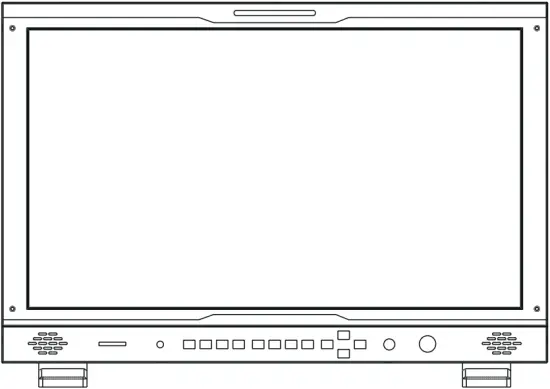
V1.0
 Introduction
 Introduction
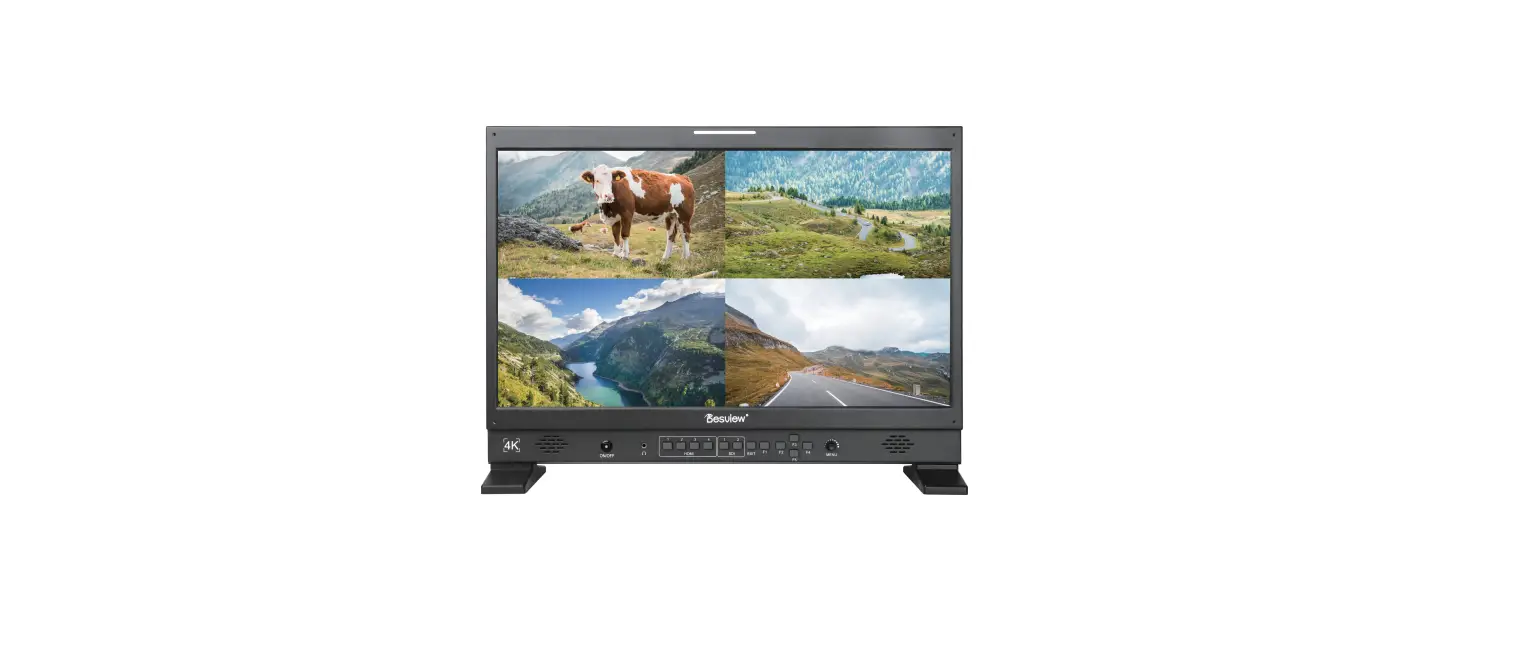
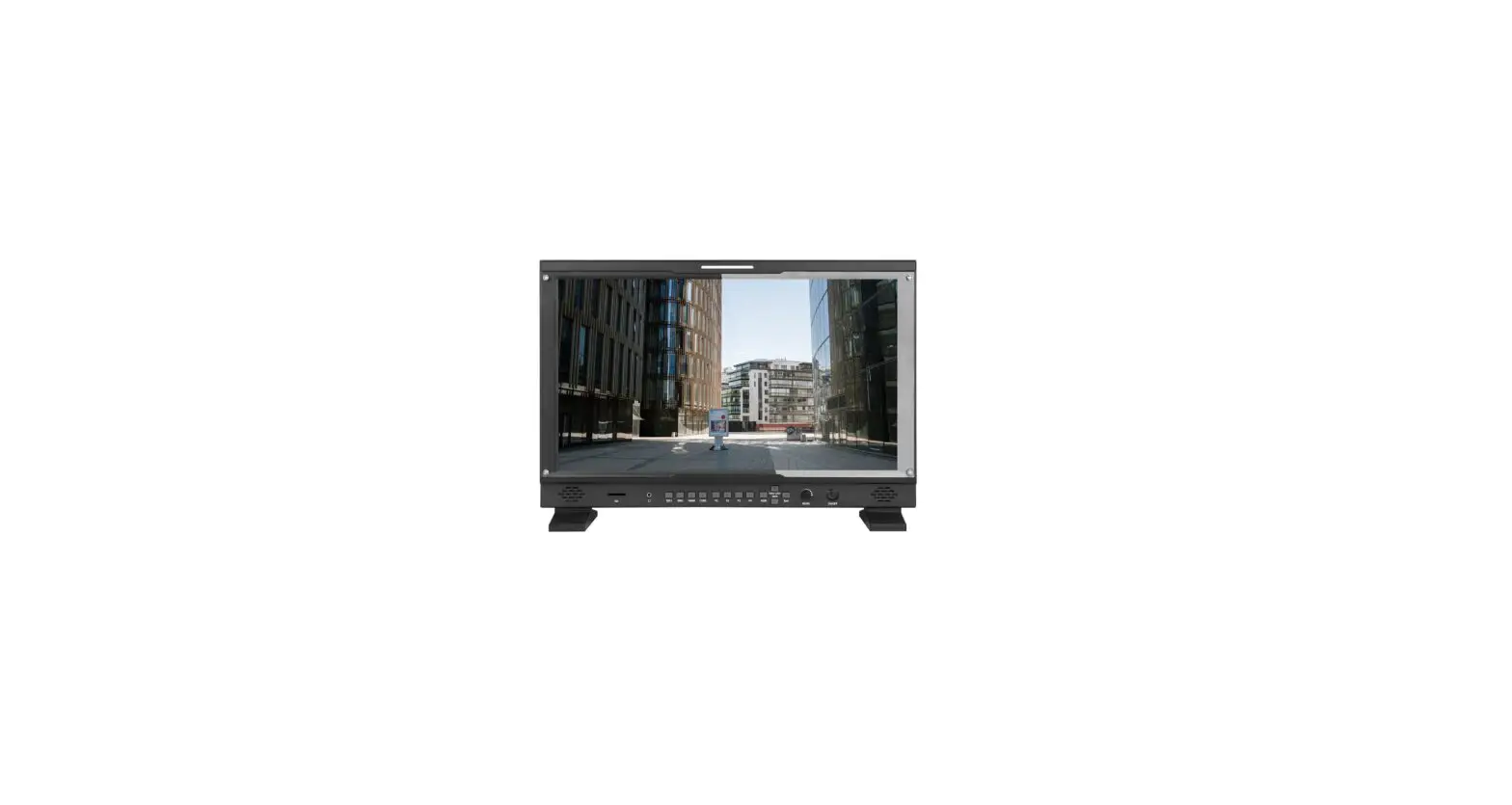
This monitor adopts 1920×1080 resolution FHD LCD screen, with 3D LUT & HDR functions, which makes the image cinematic.
Features
- LUT files lead-in by complimentary SD card
- Two HDR modes, HLG & PQ
- 1xHDMI Input & Output, 4K@30Hz
- 2x3G-SDI Input & Output, 1920*1080@60Hz
- 1x3G-SDI Input & Output, 1920*1080@60Hz
- 1xAV
- 1xAudio L/R
- 1xUMD/RS422
Packing List

Monitor Power Cable HDMI Cable SD Card

Microfiber Cloth
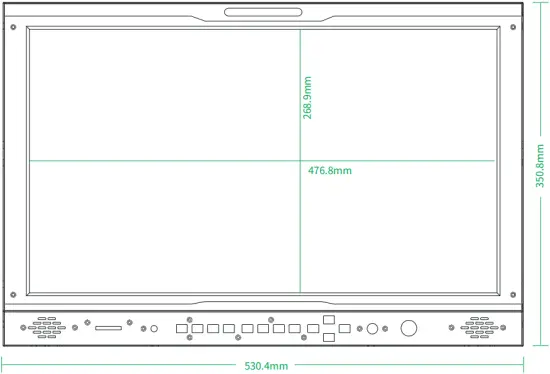
Dimensions

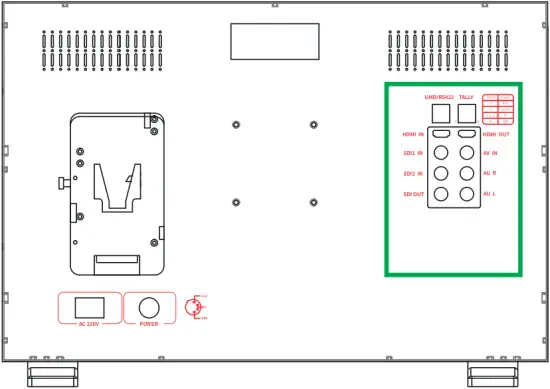
Ports
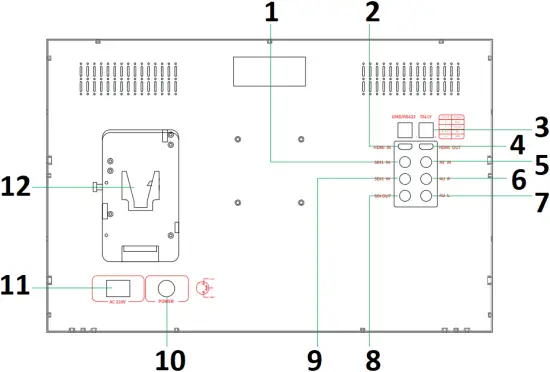
- SDI 1 in
- HDMI in
- TALLY
- HDMI out
- AV in
- Audio R
- Audio L
- SDI out
- SDI 2 in
- XLR DC Power Interface
- AC 220V Power Interface
- V-mount battery plate
Keys
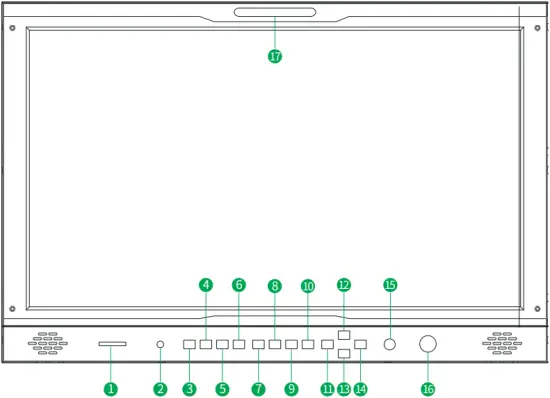
| 1 | SD | LUT Lead-in by SD Card |
| 2 | Audio | 3.5mm Headset jack |
| 3 | SDI 1 | ON means SDI1 port is working |
| 4 | SDI 2 | ON means SDI2 port is working |
| 5 | HDMI | ON means HDMI port is working |
| 6 | CVBS | ON means AV port is working |
| 7 | F1 | User-defined Shortcut Key |
| 8 | F2 | User-defined Shortcut Key |
| 9 | F3 | User-defined Shortcut Key |
| 10 | F4 | User-defined Shortcut Key |
| 11 | HDR | ON means HDR is working |
| 12 | False color | ON means false color is working, switch to press again |
| 13 | Mute | ON means Mute is working |
| 14 | Exit | Exit Key |
| 15 | MENU | Rotary to select the function and press to confirm |
| 16 | ON/OFF | Power on/off |
| 17 | TALLY |
Operation Guide
- Power Supply
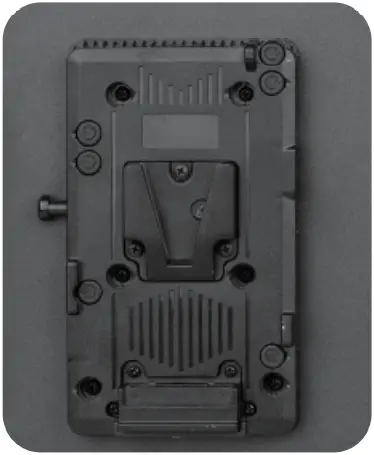

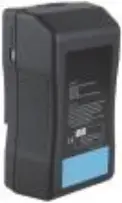 (Need to buy)
V-type battery adapter V-type battery
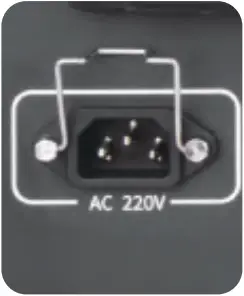 (Equipped)
AC 220V port Power cable
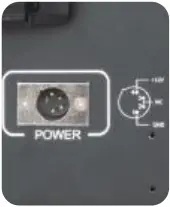
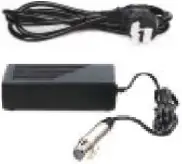 (Need to buy)
XLR DC Power Interface XLR power adapter
- Power On/off
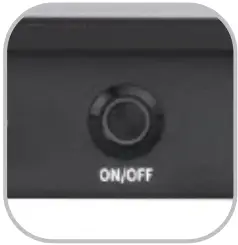 Connecting the cable, Press ON/OFF to power it on, power led will be on
- Connecting the Signal
1. Cable Connection
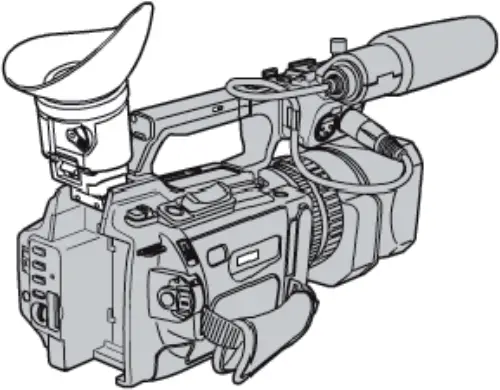
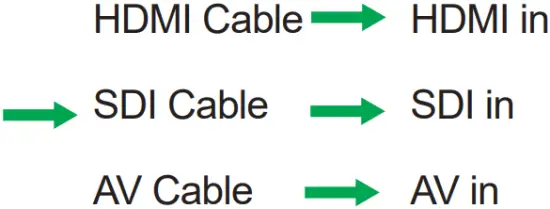
Camera Monitor
2.Wireless Connection
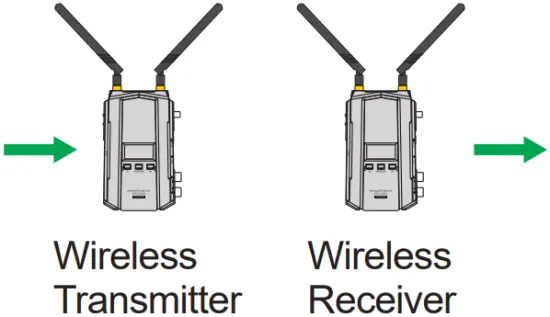
Camera Monitor
- LUT Lead-in
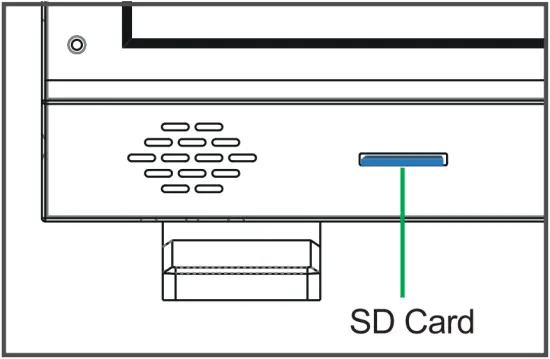
1. Power it on and insert SD Card into the slot
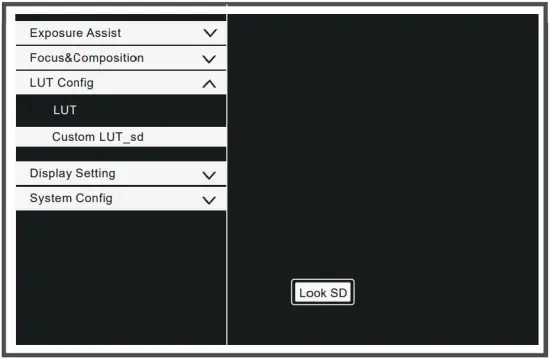
2. Find LUT setting, LUT_sd customization on the left menu, and confirm search SD on the right
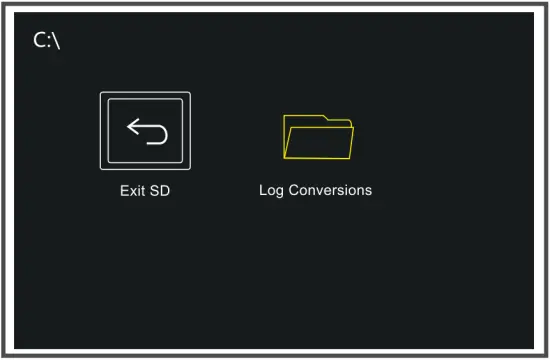
3. Find “log Conversions” in the menu and confirm
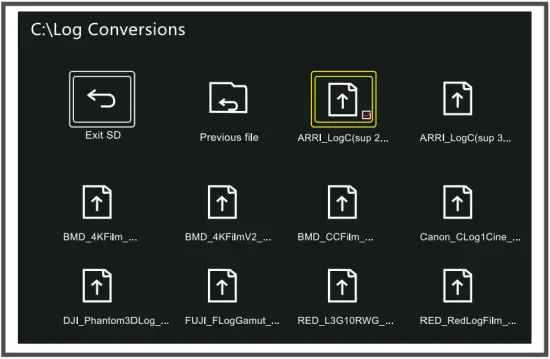
4. Choose the LUT you need to use,  when the icon shows , it indicates that the LUT has been imported successfully.
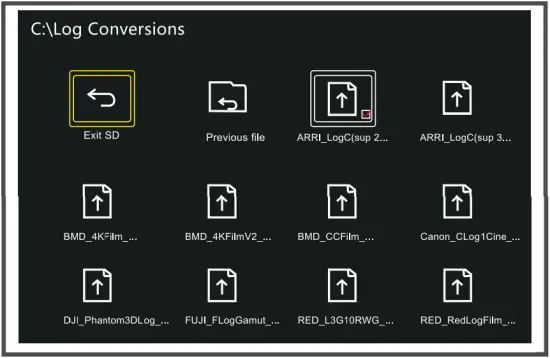
5. After import the LUT file, touch “Exit SD” and confirm
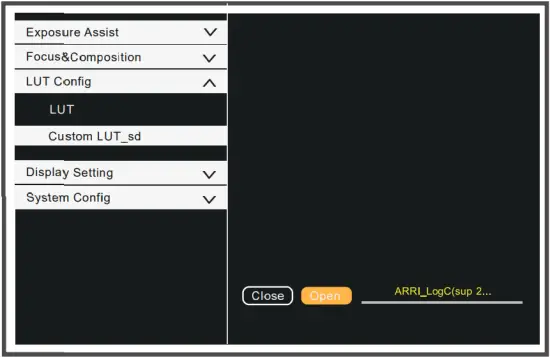
6. Enter the menu and find LUT setting again, select target LUT file and confirm.
- Upgrade
1. Power it on and insert SD card into the slot
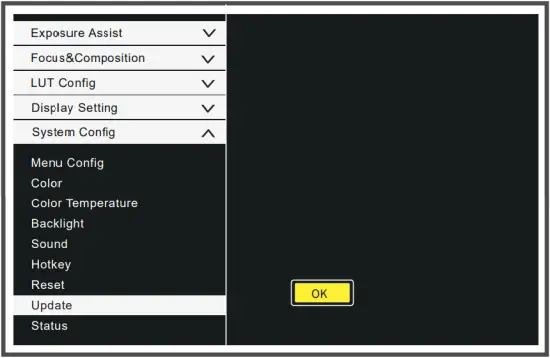
2. Find the “Update” in “System config” menu, then touch “OK”
Menu
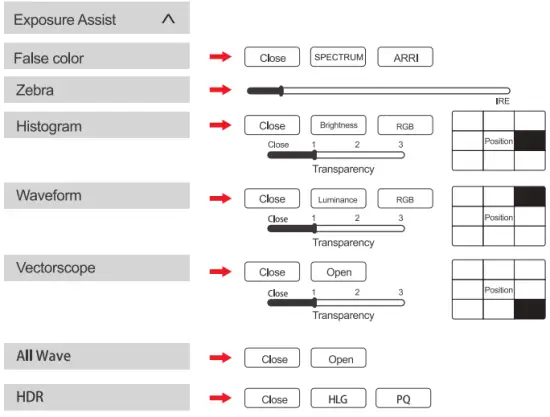
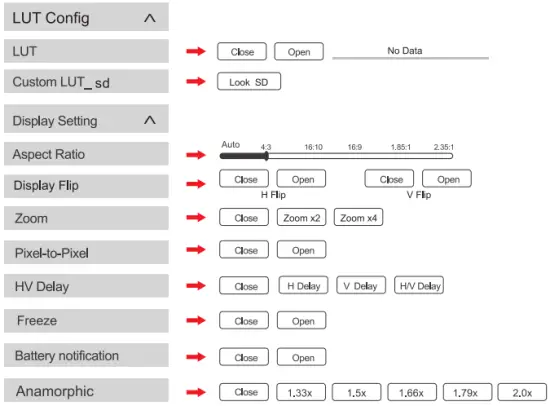
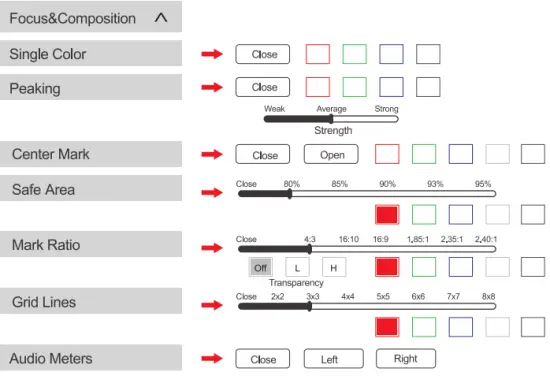
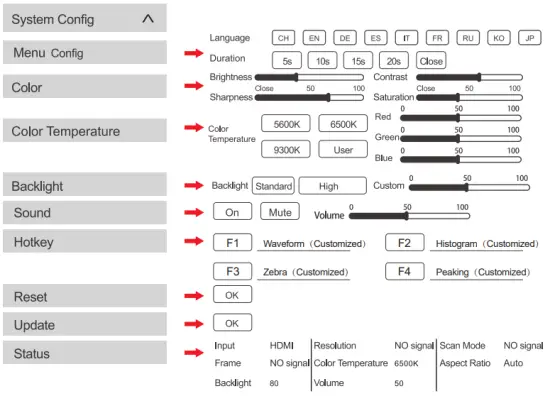
Specifications
| Screen Size | 21.5 inch |
| Unit Size | 530.4×377.8×47.3mm |
| Weight | 8.54kg |
| Resolution | 1920×1080 |
| Contrast Ratio | 1000:1 |
| Brightness | 400nits |
| Viewing Angle | 178°(H/V) |
| Backlight | LED |
| Texture | Metal |
| Input Voltage | DC12-24V |
| Power Consumption | 23W |
| Input | 1x HDMI1.4, 2x 3G-SDI, 1x AV, 1x TALLY, 1x Audio L/R, 1x UMD/RS422 |
| Output | 1x HDMI1.4, 1x 3G-SDI |
| LUT Lead-in | SD Card |
| HDMI Signal Format | 4096x2160p@24Hz 3840x2160p@24,25,30Hz [email protected], 24, 25, 29.97,30,50,59.94,60Hz 1920x1080psf@24, 25, 29.97, 30Hz 1920x1080i@50, 59.94, 60Hz 1280x720p@50, 59.94, 60Hz 720x576i&720x576p@50Hz 720x480i&[email protected], 60Hz |
| 3G-SDI Signal Format | [email protected], 24, 25, 29.97,30,50,59.94,60Hz 1920x1080psf@24, 25, 29.97, 30Hz 1920x1080i@50, 59.94, 60Hz 1280x720p@50, 59.94, 60Hz 720x576i@50Hz [email protected], 60Hz |
| Power | AC110-240V, DC12-24V |
| Operating Temperature | -20°C ~60°C |
| Storage Temperature | -30°C ~60°C |
| Relative humidity | No condensation operating humidity 10%-90% |
After-sales Service
Conditions of Warranty Service
- Free service for one year from the day of purchase if the issue is caused by manufacturing errors.
- The components and maintenance service fee will be charged if the period is expired.
Free service will not be provided in the following situations
(* Even if the product is still within the warranty period)
- Damage caused by abuse or misuse, dismantling, or changes to the product not made by the company.
- Damage caused by a natural disaster, abnormal voltage, and environmental factors, etc.
| Warranty Card | |
| User Infomation | |
| Name: | Phone: |
| Add: | |
| Sales Infomation | |
| Sale date: | |
| Distrbutor name: | |
| Distrbutor tel: | |
| Repair log | |
| Repair date: | Repair name: |
| Issue: | |
Result:  Repaired Not repaired Return Repaired Not repaired Return | |