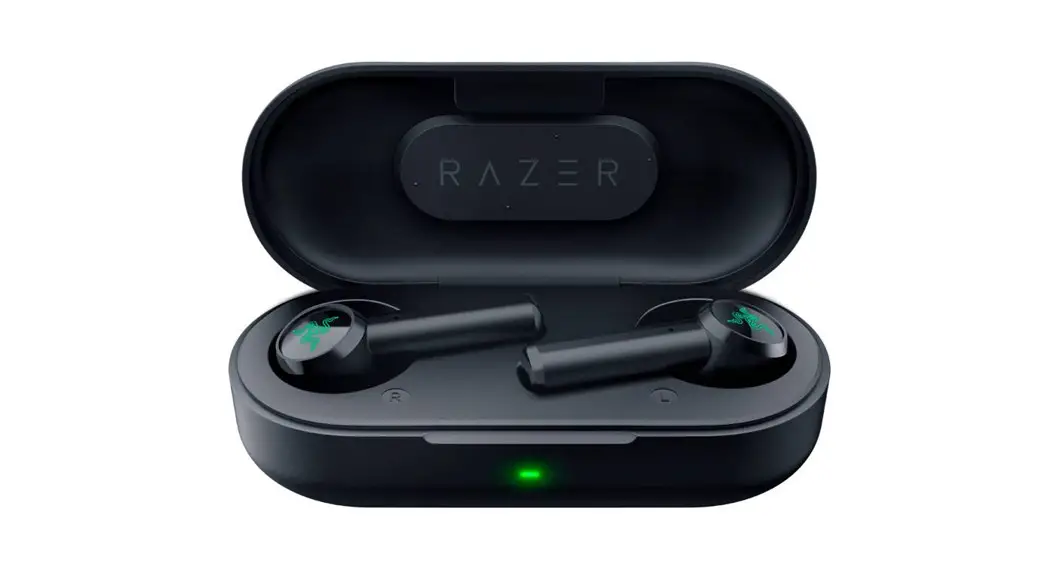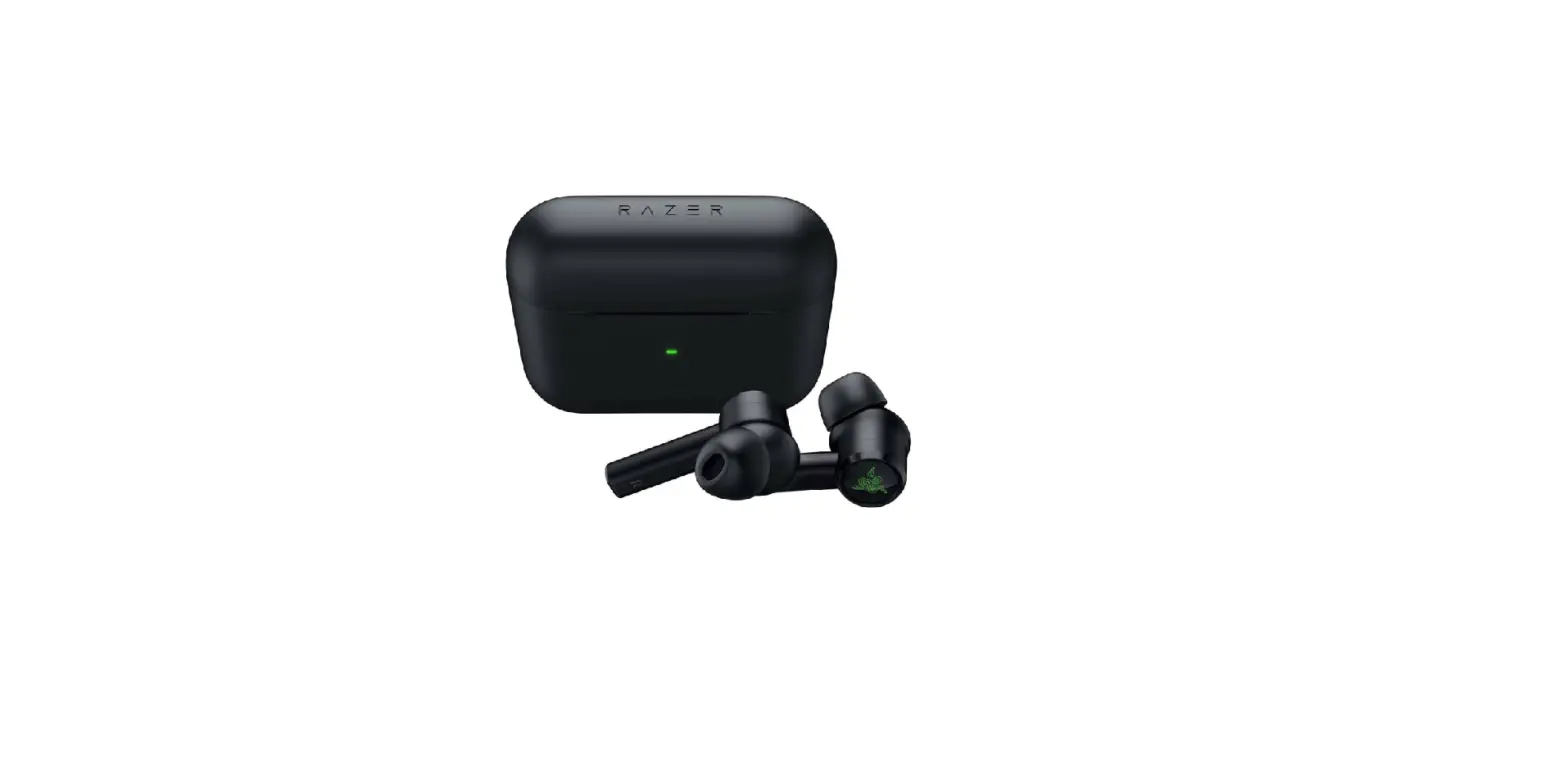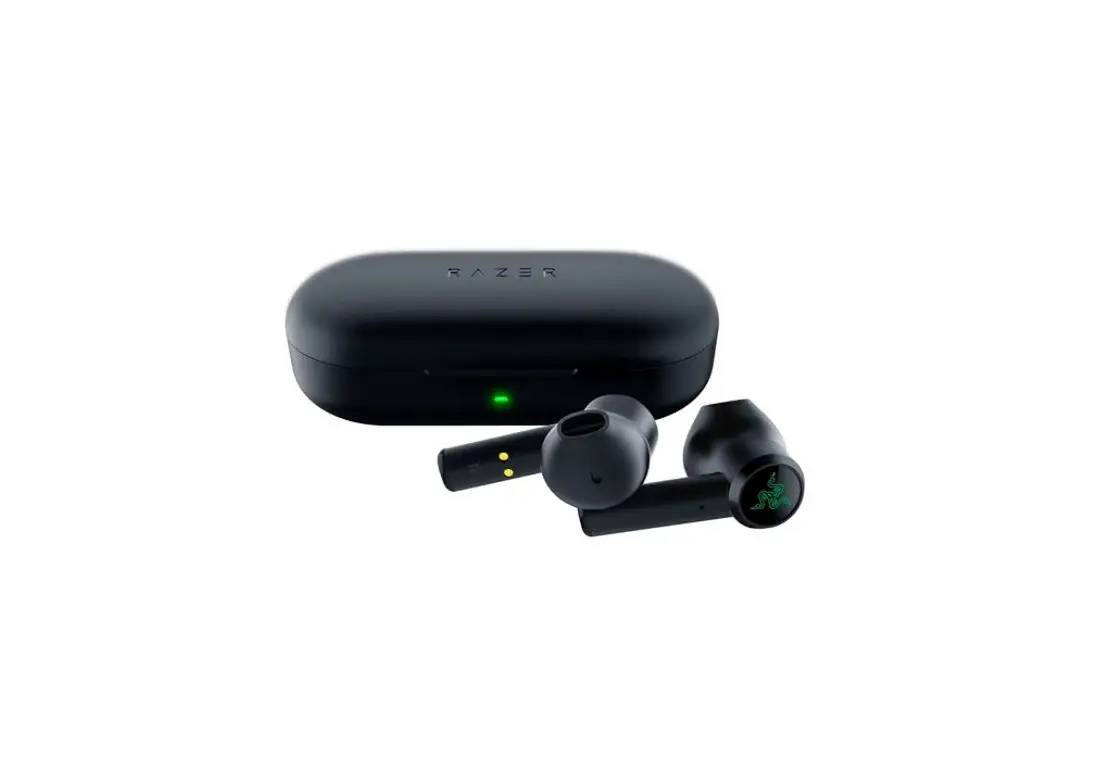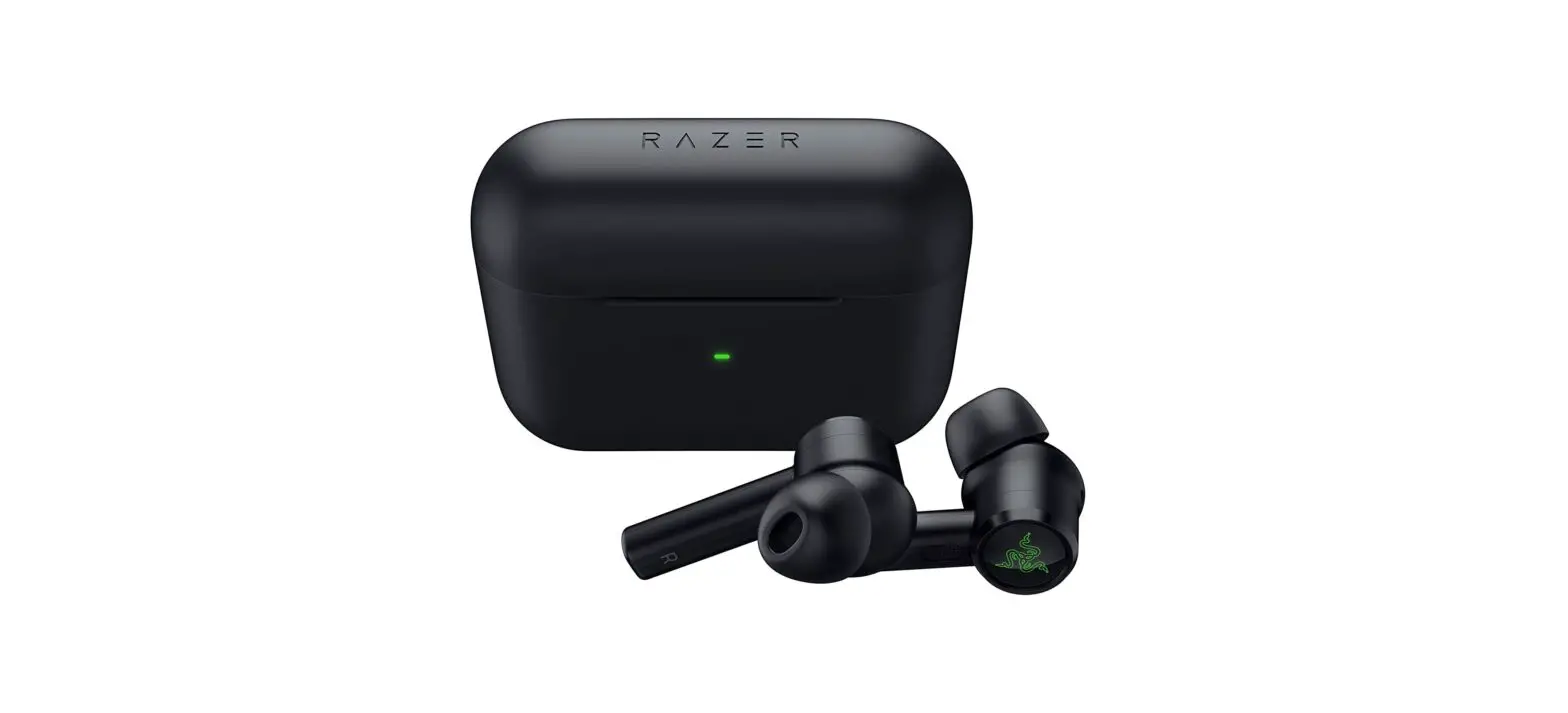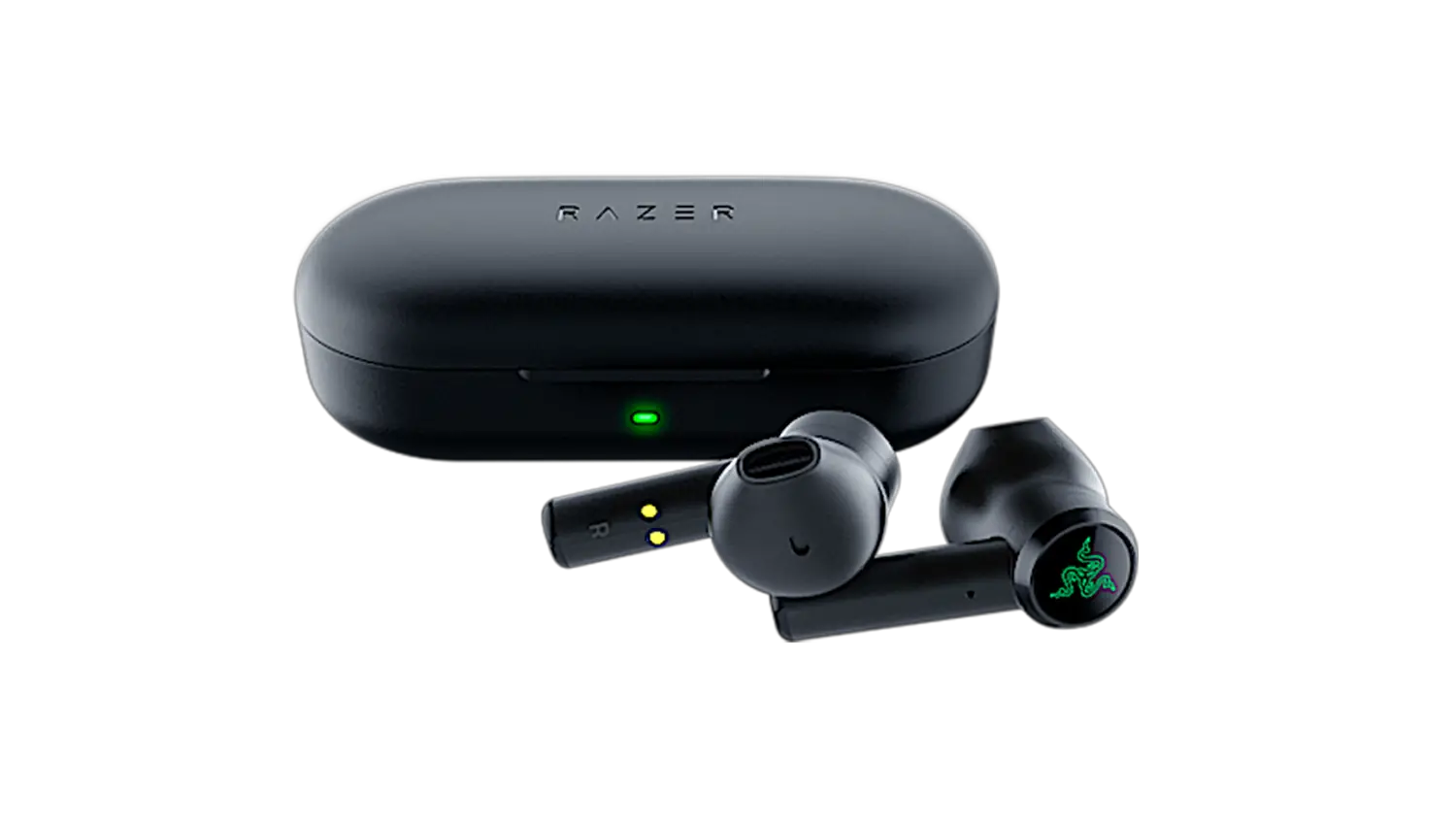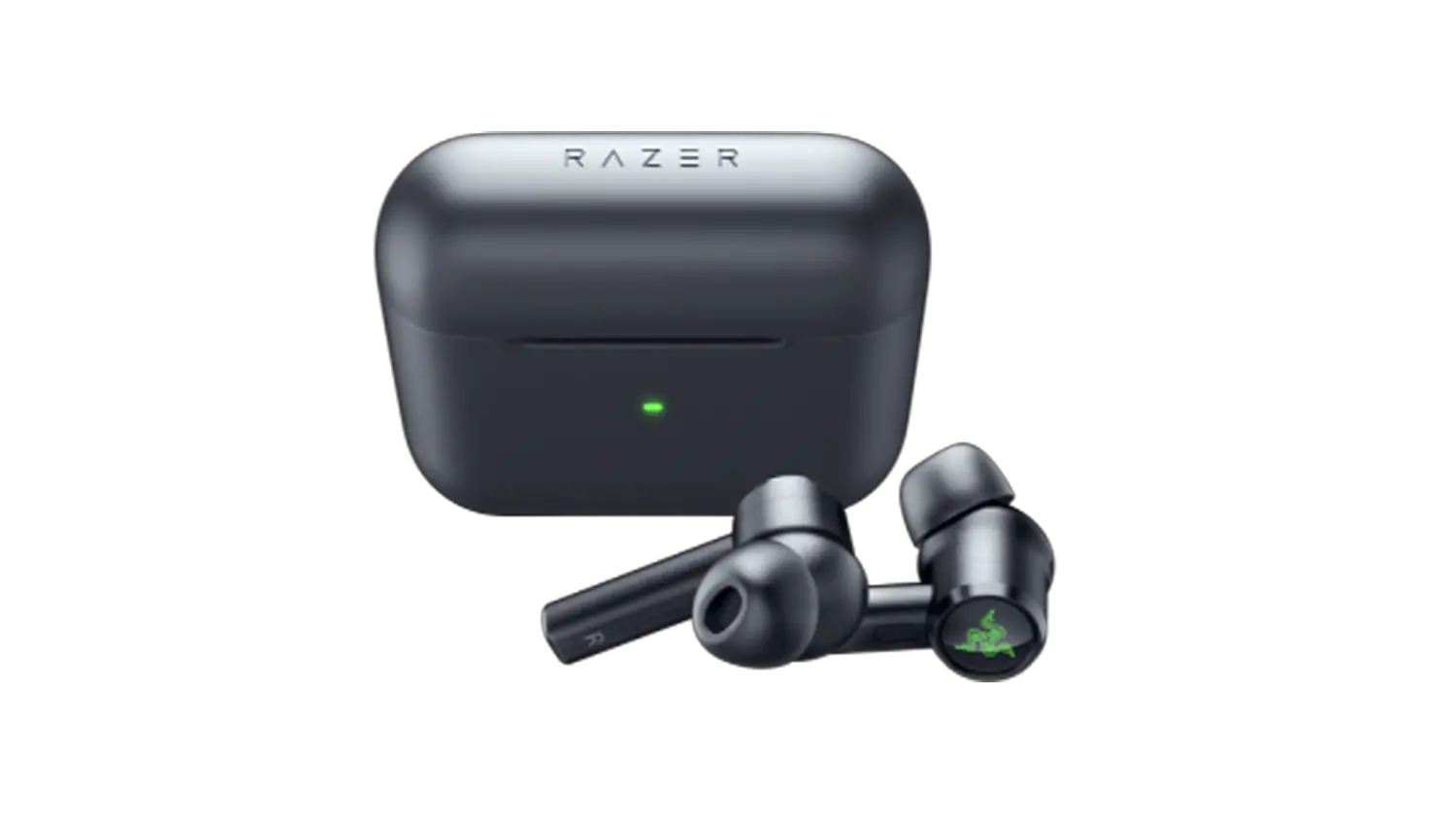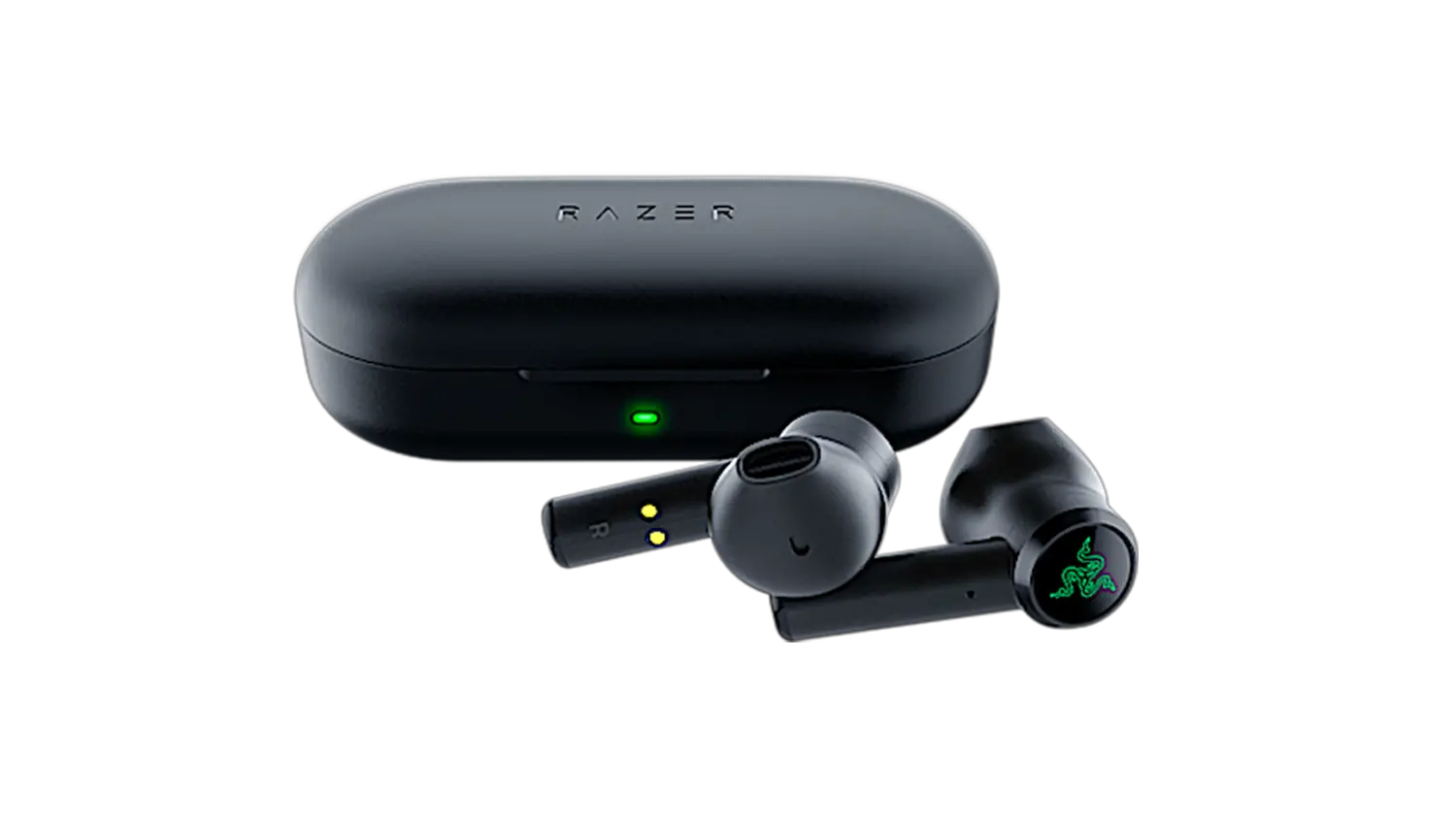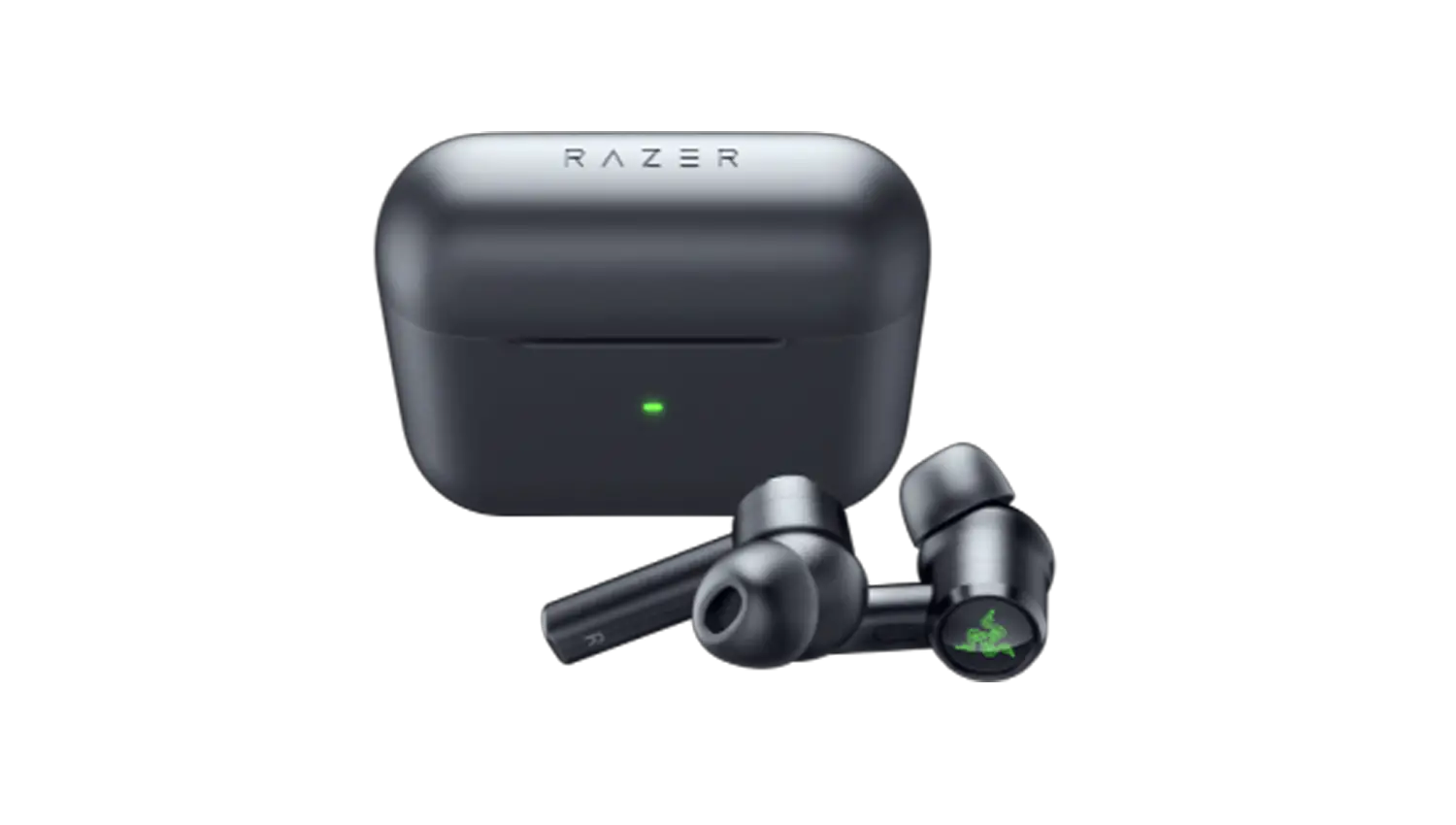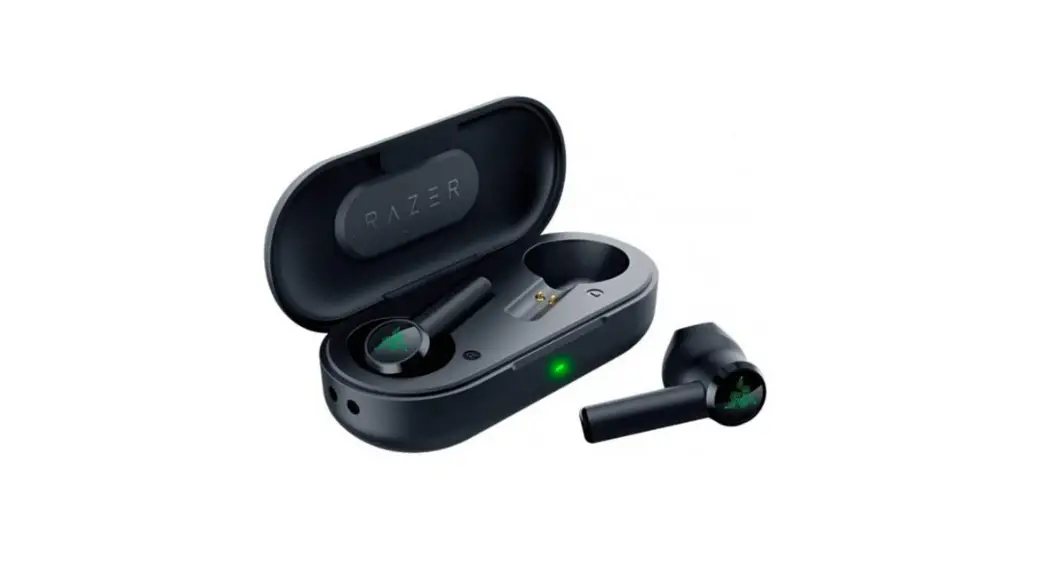
 B650 Razer Hammerhead True Wireless
User Guide
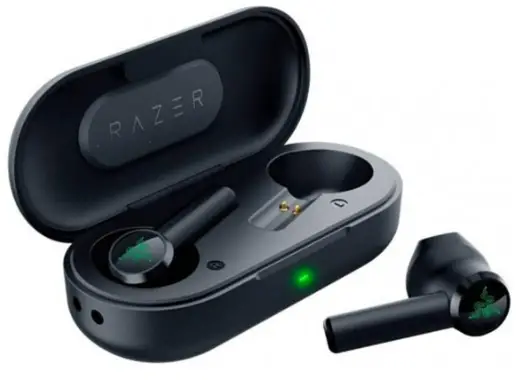
RAZER HAMMERHEAD
TRUE WIRELESS
MASTER GUIDE
B650 Razer Hammerhead True Wireless
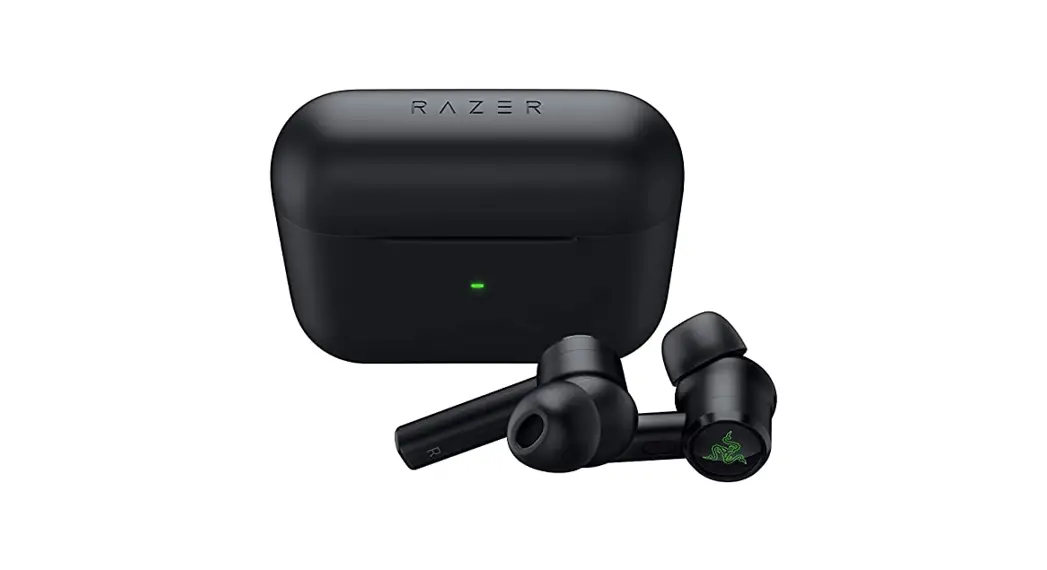
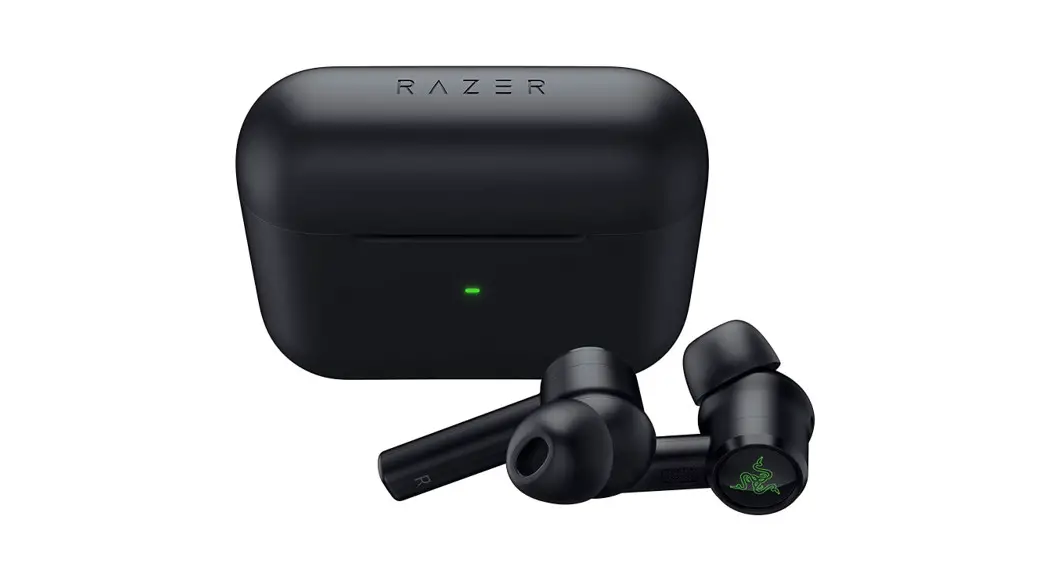
Light up your immersion with the new Razer Hammerhead True Wireless cutting-edge earbuds destined to dominate the soundstage Designed to dazzle in a blaze of RGB glory and decked out with ANC and a 60ms low latency Gaming Mode, brace your senses for an audio experience like never seen before.
WHATS INSIDE /WHATS NEEDED
WHAT’S INSIDE
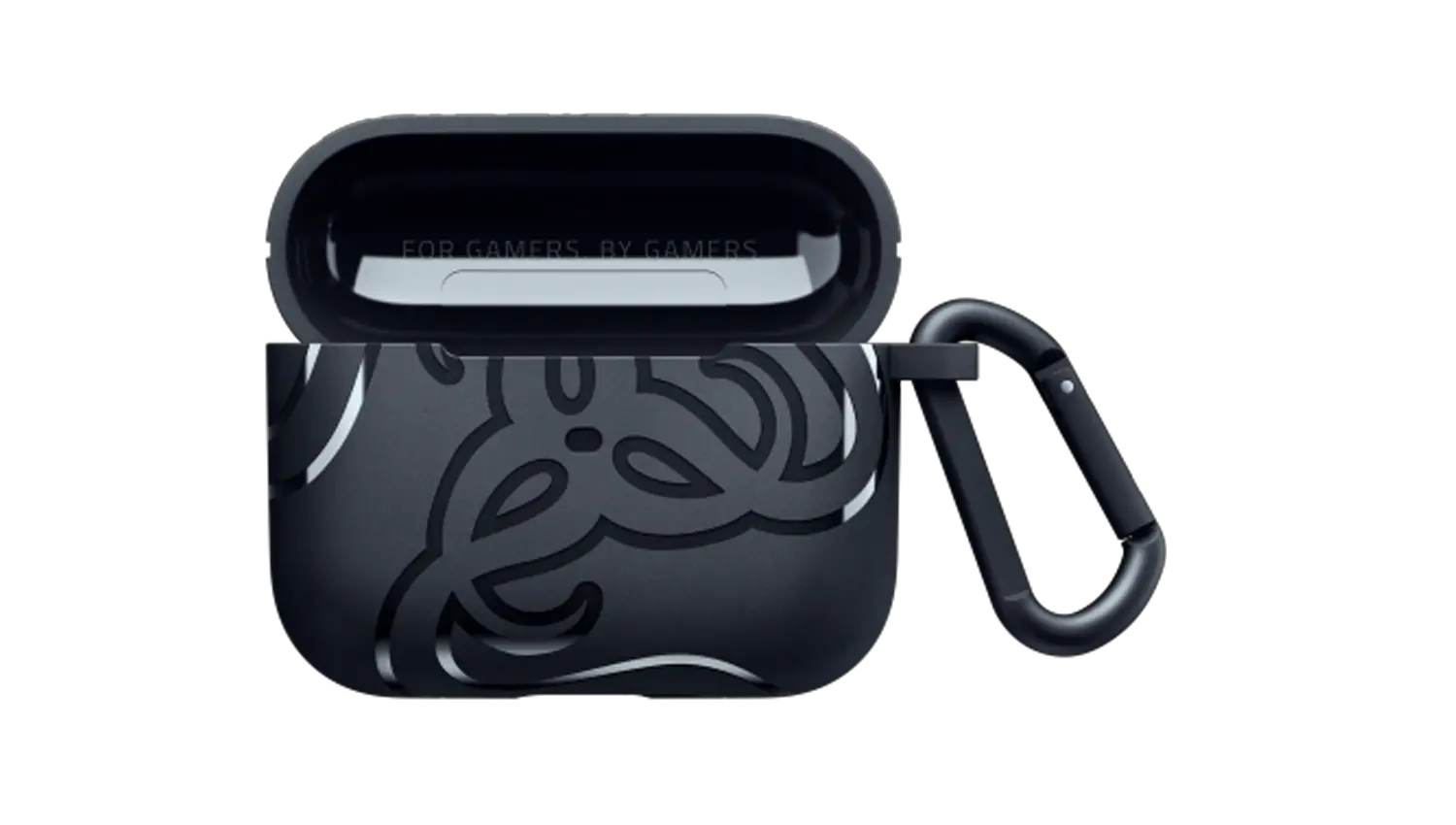
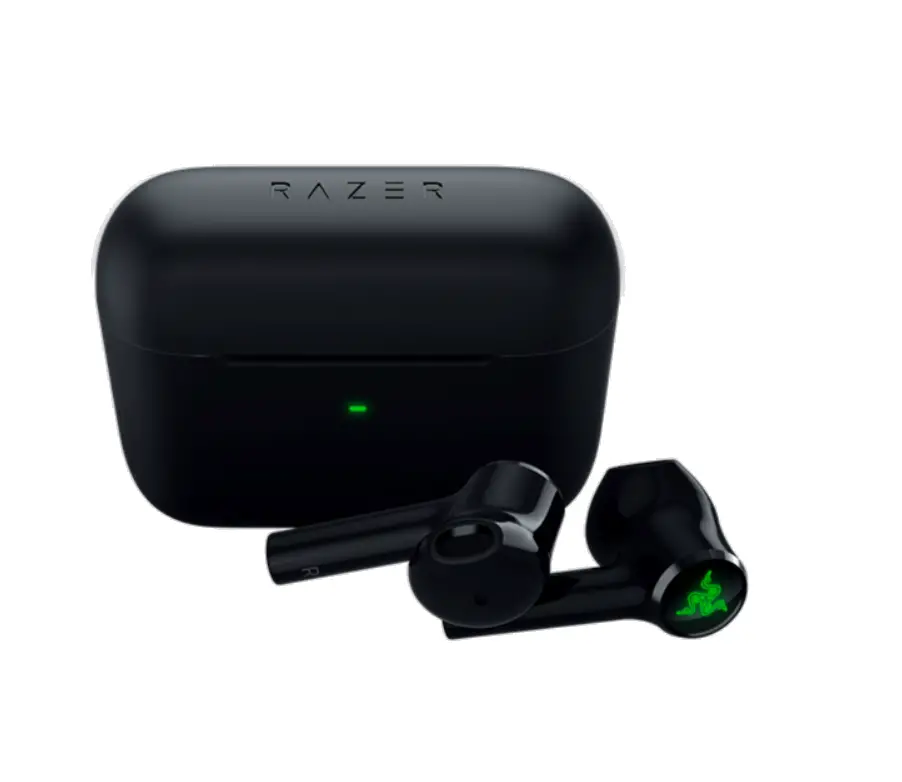
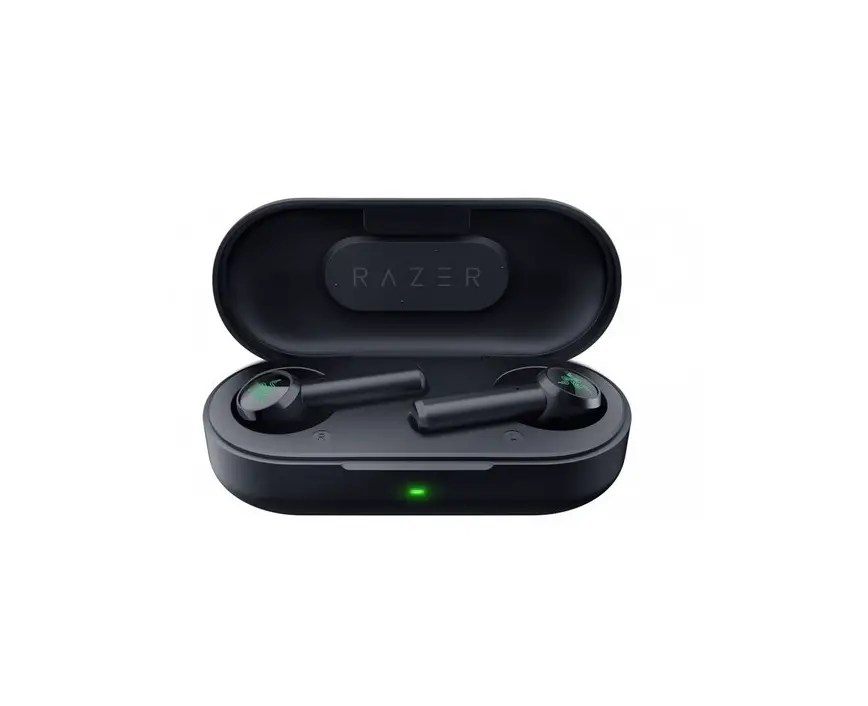
- Razer Hammerhead True Wireless earbuds

- Charging case

- Charging cable

- Silicone ear-tips in 3 sizes (5, M*, L)
‘Pre-installed with the earbtids - Important Product Information Guide
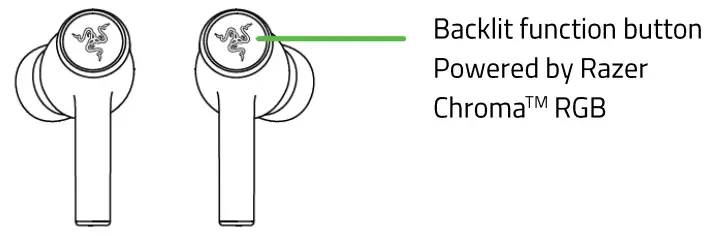
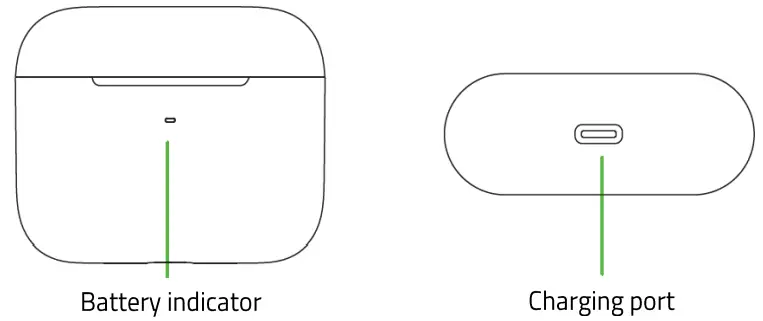

WHAT’S NEEDED
- Devices with Bluetooth audio capability
- Internet connection for app installation
LET’S GET YOU COVERED
You’ve got a great device in your hands, complete with a 2-year limited warranty coverage. Now maximize its potential and score exclusive Razer benefits by registering at razerid.razer.com
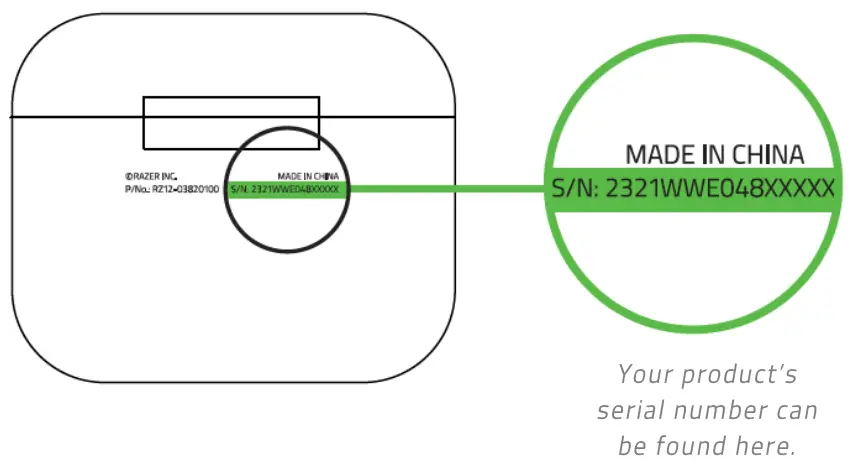
Got a question? Ask the Razer Support Team at support.razer.com
TECHNICL SPECIFICATIONS
- Headphone frequency response: 20 Hz – 20 kHz
- Headphone impedance: 16 0
- Headphone sensitivity: 91 dB@ 1mW / 1 kHz
- Headphone input power: 5 m/ (max input)
- Headphone drivers: 10 mm
- Headphone Connector: Bluetooth 5.2
- Microphone pick up pattern: Omnidirectional
- Microphone signal-to-noise ratio: 64 dB
- Microphone sensitivity: -26 dBs
- Compatibility:
o Devices with Bluetooth audio capability
o Smartphone app available for Android and iOS
o Supported Codecs: SBC, AAC
GETTING STARTED
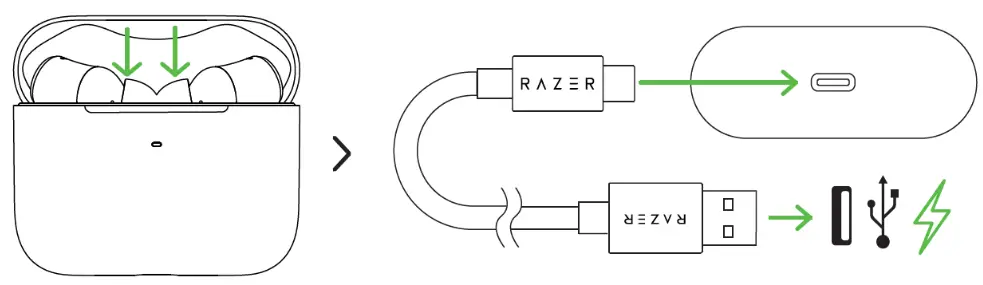
Wait until your Razer Hammerhead True Wireless is fully charged.
BATTERY INDICATOR FOR THE CHARGING CASE
When Plugged In
| Status | |
Static red –  | Charging |
Static green  | Fully charged |
When Unplugged
| Status | |
| Static green | Battery full |
Static orange  | Battery low |
| Blinking red | Battery critical |
PAIRING TO A MOBILE DEVICE
When trying to connect your Razer product, remember to keep it within 1 meter of your mobile device.
- While inside the charging case, simply open the lid to enter pairing mode.

- Enable Bluetooth on your mobile device and select Razer Hammerhead TWS (2nd Gen) Razer Hammerhead TWS (2nd Gen) from the list of devices found.

- Wait for pairing to complete. You will hear an audio prompt when the earbuds have successfully paired and connected to your device.

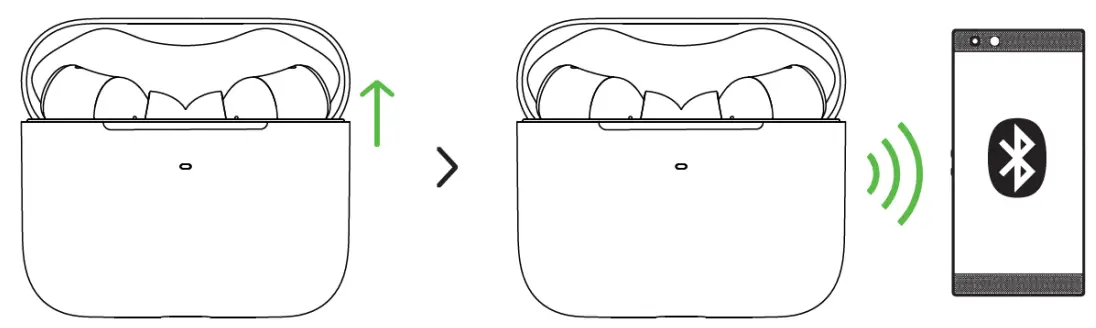
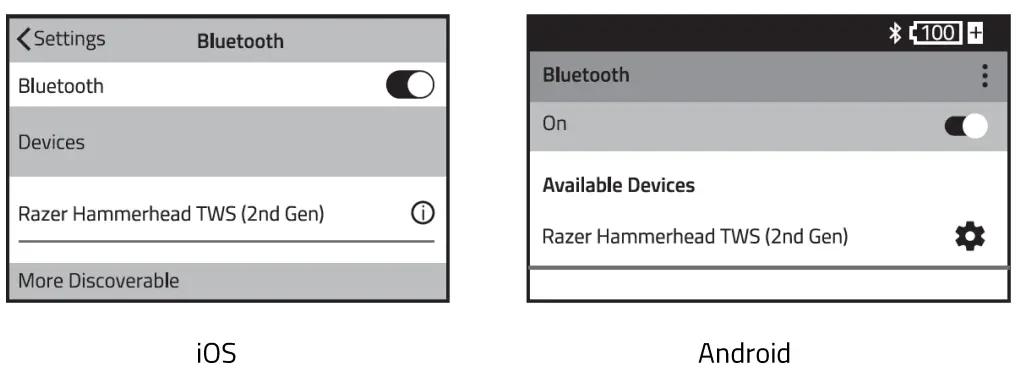
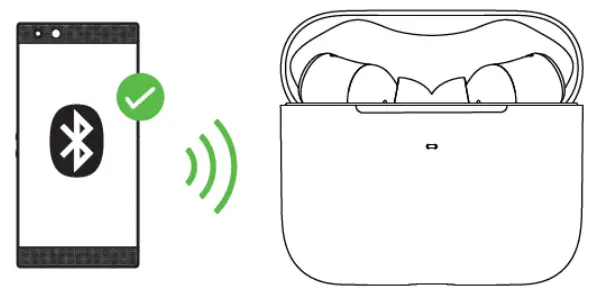
If the earbuds fail to connect to your audio source, the earbuds will stay in search mode then power off after 3 minutes. If this happens, simply repeat the steps again to pair. Once the earbuds have been paired, it will automatically try to connect to that paired mobile device every time the charging case’s lid is opened, or the earbuds are powered on. Your earbuds can only connect to one mobile device at a time.
USING YOUR EARBUDS
GAMING MODE
While connected, triple tap then hold the last tap for at least 2 seconds on any earbud to activate gaming mode. Once enabled, your earbuds will function at a lower latency; giving you real-time audio feedback while gaming. Repeat the same gesture to disable gaming mode.
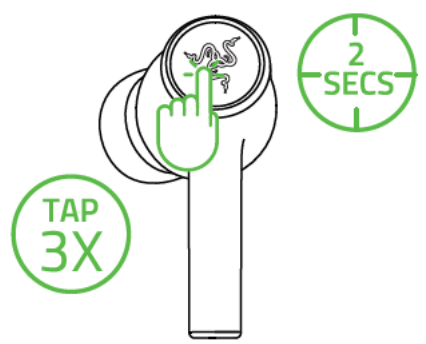
For best performance, it is recommended to keep your earbuds within a very close distance of the audio source.
ACTIVE NOISE CANCELLATION (ANC) / QUICK ATTENTION MODE
Active Noise Cancellation helps eliminate background noise while Quick Attention Mode allows you to hear your surroundings without needing to remove the earbuds. While connected, tap and hold on any earbud for at least 2 seconds to activate ANC and repeat to activate Quick Attention Mode.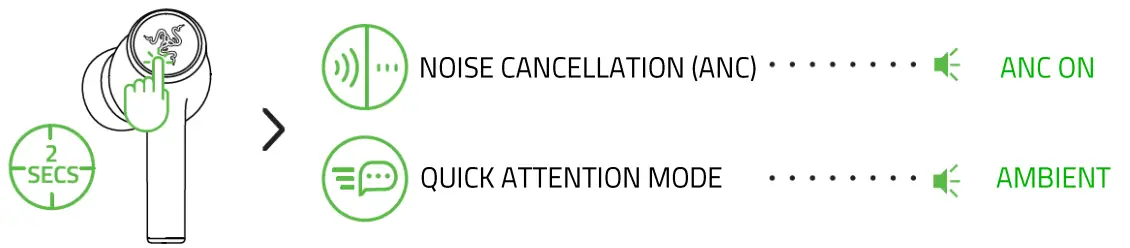 An audio prompt will notify you when ANC and Quick Attention Mode have been enabled. Complete customization of these functions can be made using the Razer Audio app.
POWER ON/OFF
To power off the device, simply place the earbuds back inside the charging case and close the lid.
Opening the lid if they are in the charging case will power them on. 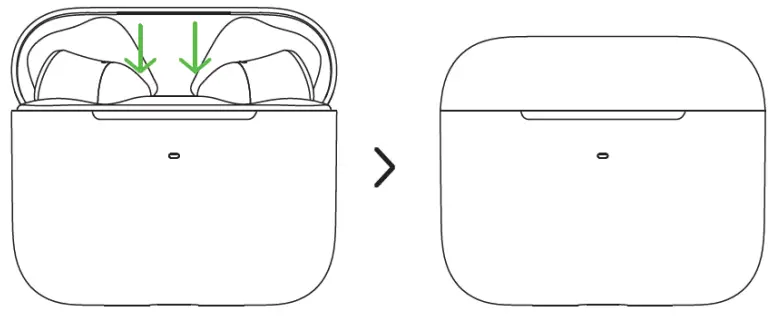
If the earbuds are left idle outside the charging case for a few minutes, you will hear an audio prompt and then the earbuds will power off.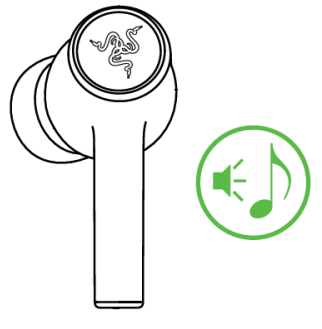
Tap and hold the function button on each earbud for at least 2 seconds to power them on again.
You will hear an audio prompt from each earbud once they are powered on. 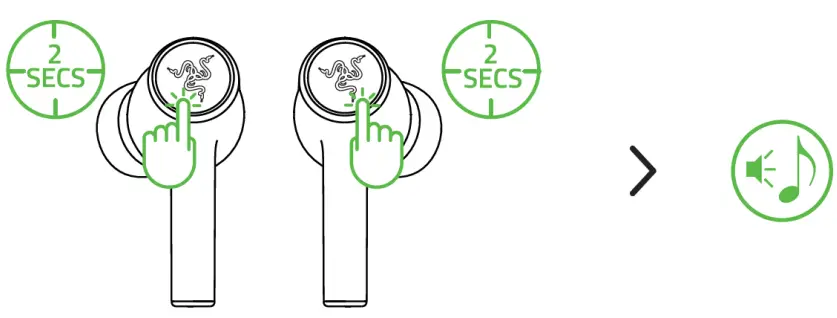
USING THE SILICONE EAR-TIPS
The silicone ear-tips offer increased comfort, sound isolation, and security. Various size options let you achieve a comfortable and secure fit that effectively reduces unwanted noise. 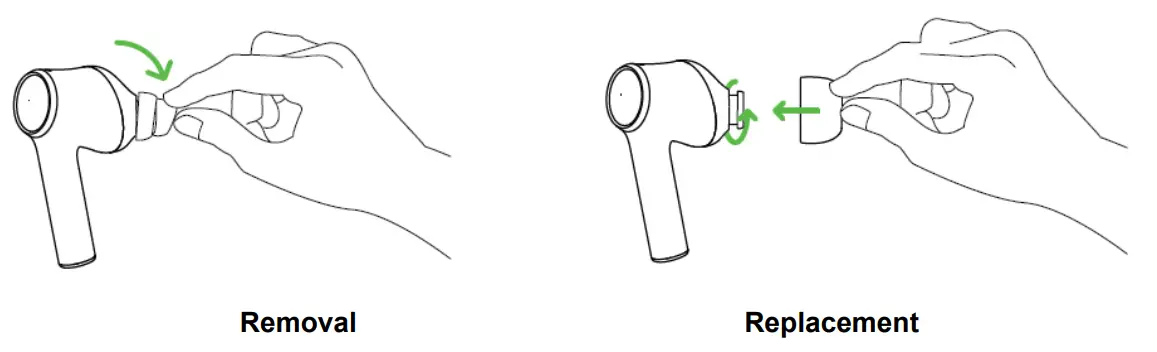
Due to the different ear canal sizes of individuals, it’s recommended to interchange the ear-tips to a larger or smaller size to improve comfort and sound quality and achieve a proper seal.
FUNCTION BUTTON QUICK REFERENCE
The following default gestures are only available when the earbuds are paired to a mobile device.
| I ACTION | EFFECT | AUDIO PROMPT |
| Tap | Answer call | Voice |
| End call | Tone | |
| Play/pause media | None | |
| Tap and hold for 2 seconds | Cycle between Enable ANC and Enable Quick Attention Mode | Voice |
| Power on the corresponding earbud | Voice | |
| Reject incoming call | Voice | |
| Tap and hold for 4 seconds | Activate pairing mode for the corresponding earbud | Voice |
| Double tap | Accept incoming call or switch calls | None |
| Skip to the next track when playing media | None | |
| Double tap then hold the last tap for 2 seconds | Decrease volume (on the left earbud) | None |
| Increase volume (on the right earbud) | ||
| Triple tap | Return to the previous track when playing media | None |
| Triple tap then hold the last tap for 2 seconds | Enable/disable Gaming Mode | Voice |
| While in pairing mode, clear paired devices | Voice |
The default gestures can be remapped using the Razer Audio App.
PERSONALIZE YOUR MOBILE EXPERIENCE
RAZER AUDIO APP
Making advanced customization just got a whole lot easier for your Razer Hammerhead True Wireless. With the Razer Audio App, you’ll be able to customize its EQ settings and auto shutoff feature, remap touch gestures, update to the latest firmware, and much more anytime, anywhere.
RAZER CHROMA RGB APP
With 16.8 million colors and a suite of effects to choose from, use the Razer Chroma RGB app to bring out your style and stand out from the crowd with the ultimate wireless earbud flex. 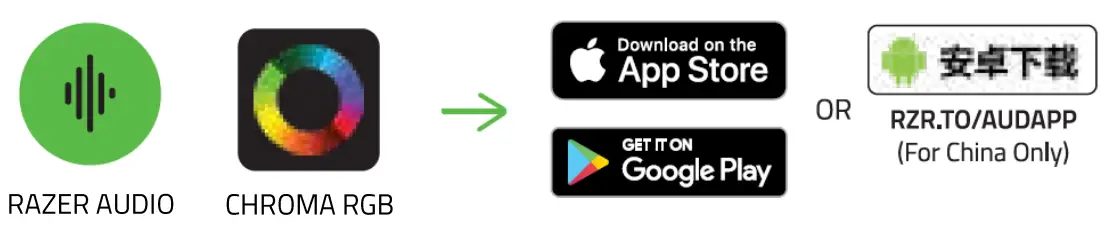
- Download the mobile app on your mobile device.
- Launch the app and follow the onscreen instructions.
SAFETY AND MAINTENANCE
SAFETY GUIDELINES
In order to achieve maximum safety while using your Razer Hammerhead True Wireless, we suggest that you adopt the following guidelines:
Should you have trouble operating the device properly and troubleshooting does not work, unplug the device and contact the Razer hotline or go to support.razer.com for assistance. Do not take apart the device (doing so will void your warranty) and do not attempt to operate it under abnormal current loads.
Keep the device away from liquid, humidity or moisture. Operate the device only within the specific temperature range of 0° C (32 ° F) to 40 ° C (104 ° F). Should the temperature exceed this range, unplug and/or switch off the device in order to let the temperature stabilize to an optimal level. The device isolates external ambient sounds even at low volumes, resulting in lowered awareness of your external surroundings. Please remove the device when engaging in any activities that requires active awareness of your surroundings.
Listening to excessively loud volumes over extended periods of time can damage your hearing.
Furthermore, legislation of certain countries permits a maximum sound level of 86db to affect your hearing for 8 hours a day. We therefore recommend that you reduce the volume to a comfortable level when listening for prolonged periods of time. Please, take good care of your hearing.
MAINTENANCE AND USE
The Razer Hammerhead True Wireless requires minimum maintenance to keep it in optimum condition. Once a month we recommend you clean it using a soft cloth or cotton swab to prevent dirt buildup. Do not use soap or harsh cleaning agents.
LEGALESE
COPYRIGHT AND INTELLECTUAL PROPERTY INFORMATION
@2021 Razer Inc. All rights reserved. Razer, the triple-headed snake logo, Razer logo, “For Gamers.
By Gamers.” and “Razer Chroma” are trademarks or registered trademarks of Razer Inc. and/or affiliated companies in the United States and other countries. Actual product may differ from pictures. All other trademarks are the property of their respective owners. Warranty not valid outside of product’s intended region.
©2018 Google LLC All rights reserved. Android, Google, Google Logo, Google Play, and the Google Play logo are registered trademarks of Google LLC.
Apple, the Apple logo, and iPhone are trademarks of Apple Inc., registered in the U.S. and other countries. App Store is a service mark of Apple Inc.
The Bluetooth® word mark and logos are registered trademarks owned by Bluetooth SIG, Inc., and any use of such marks by Razer is under license.
Razer Inc. (“Razer”) may have copyright, trademarks, trade secrets, patents, patent applications, or other intellectual property rights (whether registered or unregistered) concerning the product in this guide. Furnishing of this guide does not give you a license to any such copyright, trademark, patent or other intellectual property right. The Razer Hammerhead True Wireless (the “Product”) may differ from pictures whether on packaging or otherwise. Razer assumes no responsibility for such differences or for any errors that may appear. Information contained herein is subject to change without notice.
LIMITED PRODUCT WARRANTY
For the latest and current terms of the Limited Product Warranty, please visit razer.com/warranty.
LIMITATION OF LIABILITY
Razer shall in no event be liable for any lost profits, loss of information or data, special, incidental, indirect, punitive or consequential or incidental damages, arising in any way out of distribution of, sale of, resale of, use of, or inability to use the Product. In no event shall Razer’s liability exceed the
retail purchase price of the Product.
GENERAL
These terms shall be governed by and construed under the laws of the jurisdiction in which the Product was purchased. If any term herein is held to be invalid or unenforceable, then such term (in so far as it is invalid or unenforceable} shall be given no effect and deemed to be excluded without invalidating any of the remaining terms. Razer reserves the right to amend any term at any time without notice.
FOR GAMERS. BY GAMERS .™
 Razer Warranty Policy | Razer United States
 Official Razer Support
 Razer ID