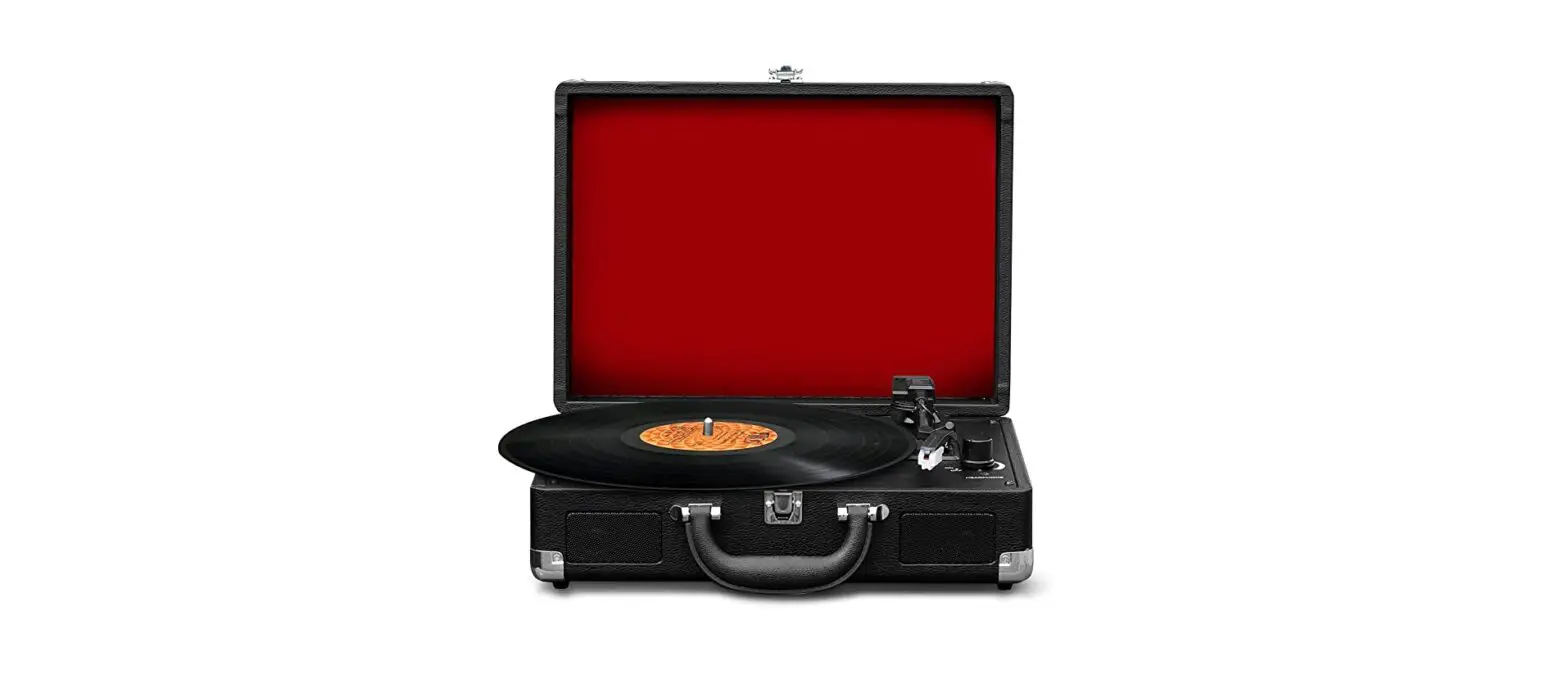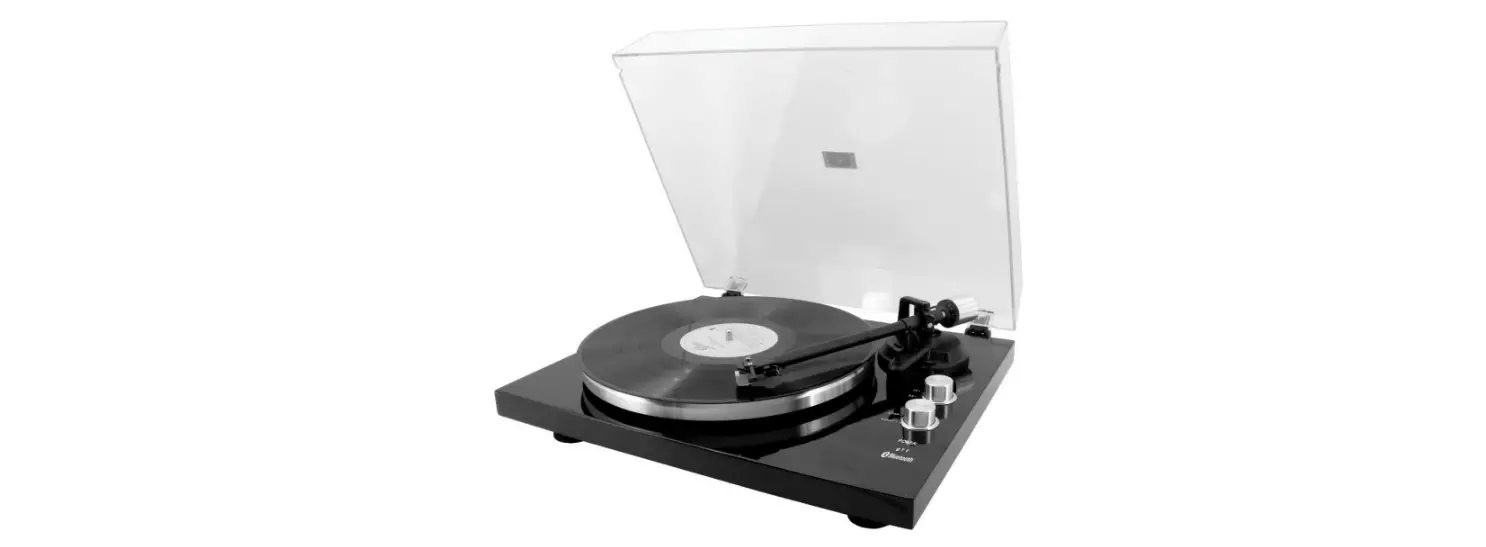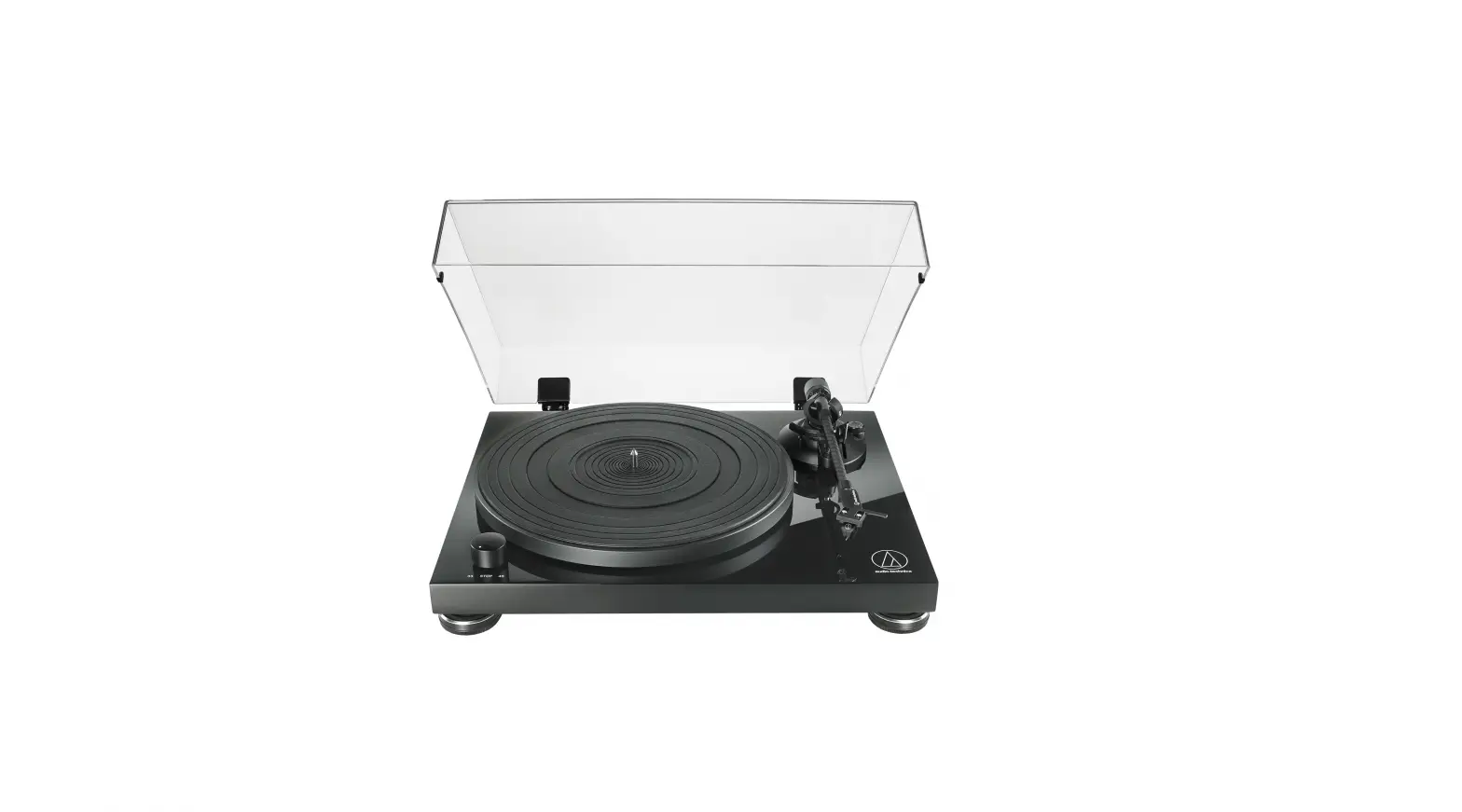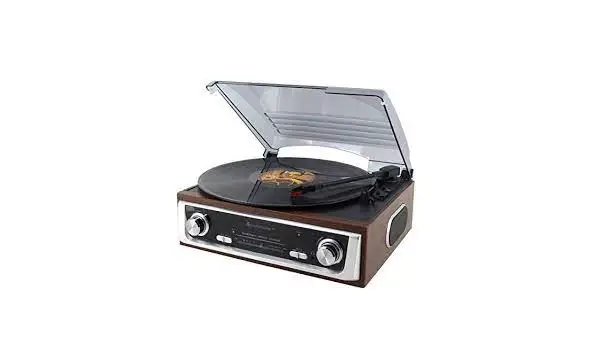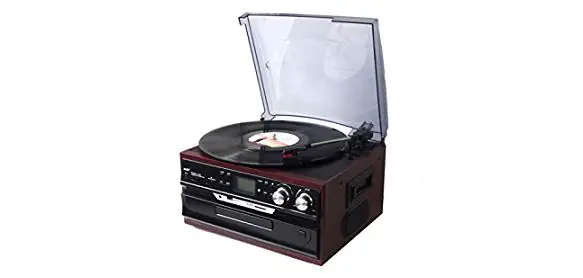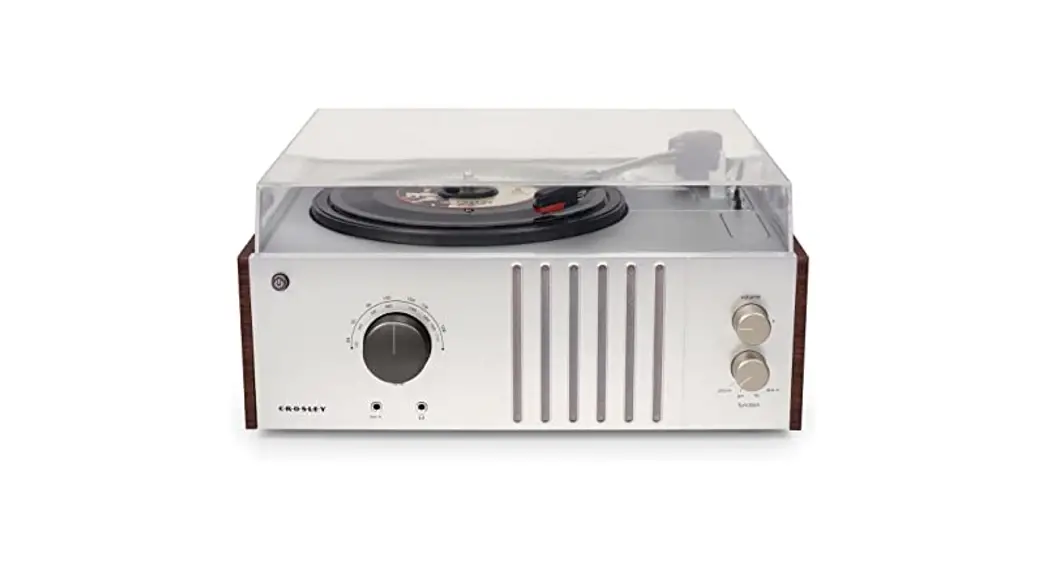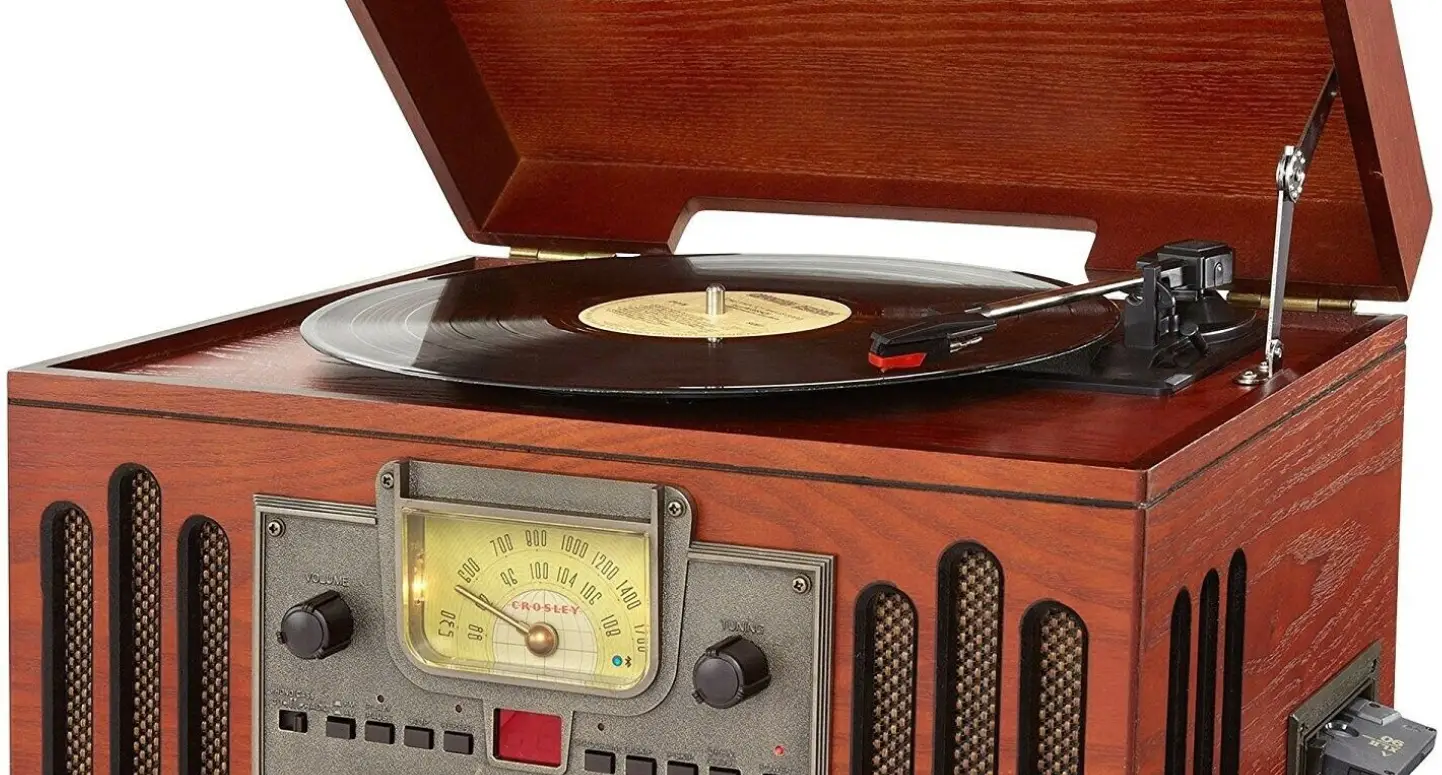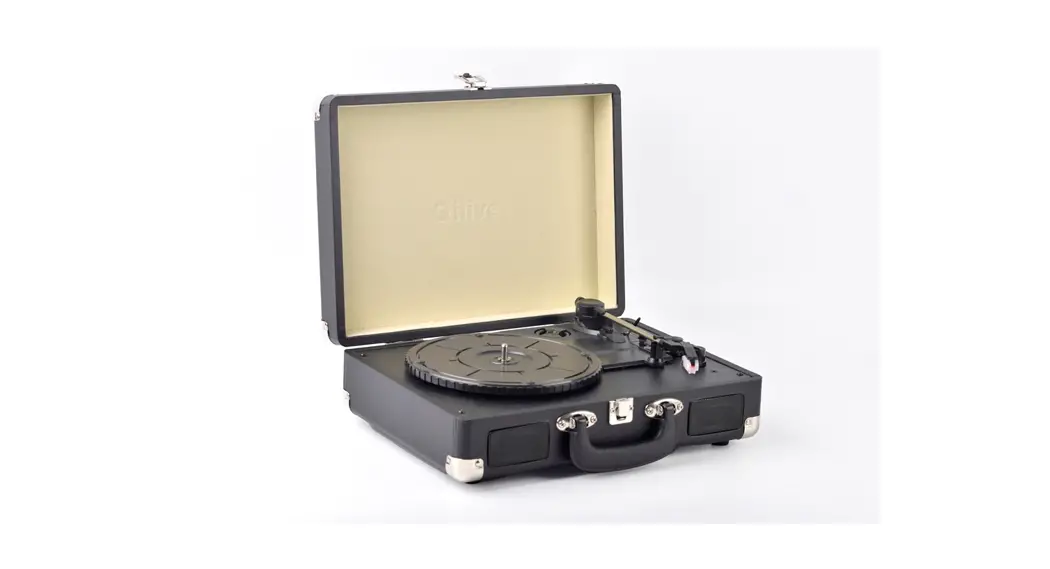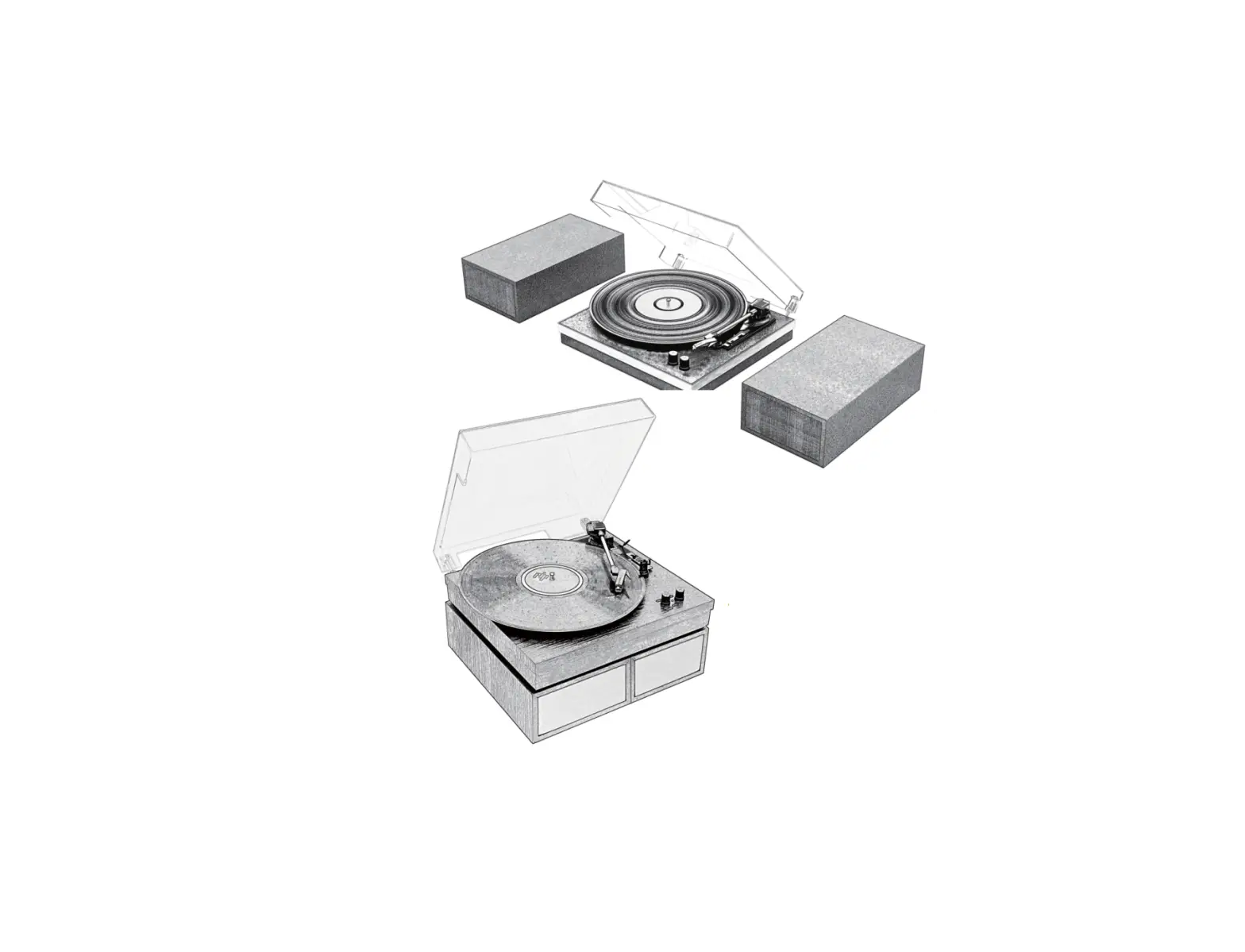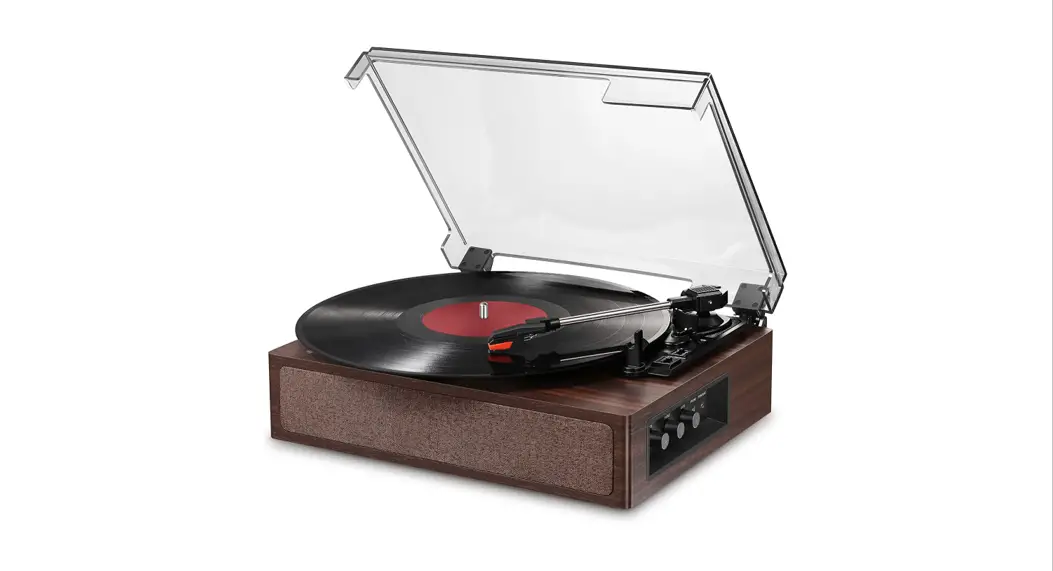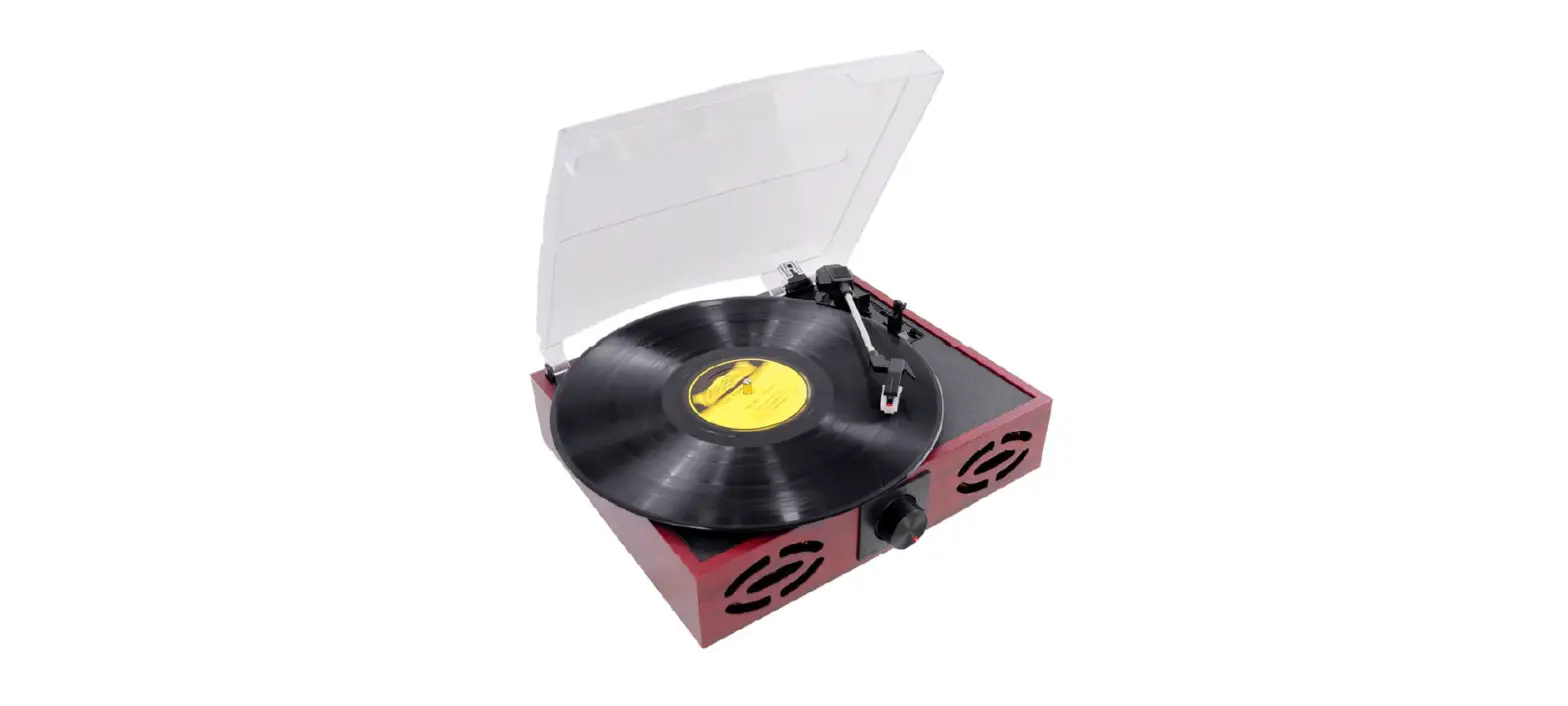
 Pyle PVNT7U Retro Style Turntable
 Pyle PVNT7U Retro Style Turntable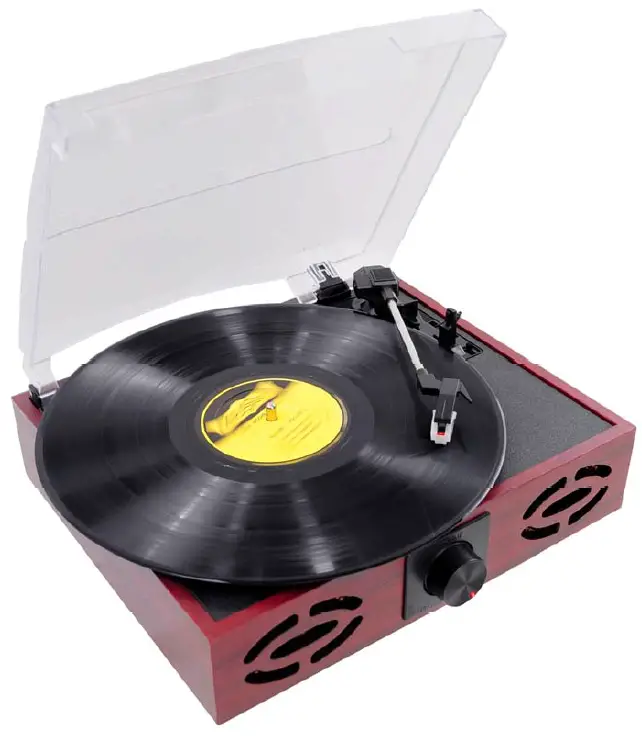
IMPORTANT SAFETY INSTRUCTIONS
When using electrical products, always follow basic precautions:
- Read Instructions-All safety and operating instructions should be read before operating.
- Retain Instructions-Safety and operating instructions should be retained for future reference.
- Follow warnings-All warnings on the product and in the manual should be adhered to.
- Follow instructions-All operating and user instructions should be followed.
- Cleaning-Unplug this product from the wall outlet before cleaning. Do not use liquid or aerosol cleaners instead use a damp cloth for cleaning.
- Attachments-Do not use attachments not recommended by the product manufacturer as they may cause hazards.
- Water and moisture-Avoid exposing the product to water and moisture.
- Accessories-Securely place this unit before use. The product may fall if not properly a stand, bracket, or table recommended by the manufacturer if the product needs to be mounted, you should follow the manufacturer’s instructions and should use a mounting accessory recommended by them.
- Transporting-This product should be moved with care to avoid damage or injury.
- Ventilation-Slots and openings in the cabinet are provided for ventilation. This is to ensure the reliable operation of the product and to protect it from overheating. Openings must not be blocked or covered. This product should not be placed in a built-in installation. such as a bookcase or rack unless proper ventilation is provided or the manufacturer’s instructions have been adhered to .
- Power Sources-This product should be operated only from the type of power source indicated on the marking label. If you are not sure of the type of power supply to your home, consult your product dealer or local power company. For products intended to operate from battery power, or other sources, refer to the instruction manual.
- Power-Cord protection-Power-supply cords should be properly secured so that they are not likely to be entangled in any way.
- Lighting-For added protection for this product during a lightning storm, or when it is left unattended for long periods of time, unplug it from the wall outlet and disconnect the antenna or cable system. This will prevent damage to the product due to lighting and power-line surges.
- Overloading-Do does not overload wall outlets and extension cords, as this can result in a risk of fire or electric shock.
- Object and liquid entry-Never push objects of any kind into this product through openings as they may touch dangerous voltage points or short-out parts that could result in a fire or electric shock.
- Servicing-Do not attempt to repair this product yourself as opening or removing covers may expose you to dangerous voltage or other hazards. Refer all servicing to qualified service personnel.
- Damage requiring service-Unplug this product from the wall outlet and refer servicing to qualified service personnel under the following conditions:
- If the power-supply cord or plug is damaged.
- If liquid or objects have fallen into the product
- If the product has been exposed to rain or water.
- If the product does not operate and you have followed the manual for troubleshooting.
- If the product has been dropped or damaged in any way, and the product exhibits a distinct change in performance may indicate a need for service and/or repair.
- Replacement parts-If a part needs to be replaced, be sure the service technician has used replacement parts specified by the manufacturer or have the same characteristics as the original part. Unauthorized substitutions may result in fire, electric shock, or other hazards.
- Safety check-Upon completion of any service or repairs to this product, ask the service technician to perform safety checks to determine that the product is in proper operating condition.
- Wall of ceiling mounting-The product should be mounted to a wall or ceiling only as recommended by the manufacturer.
- The heat-The product should be situated away from heat sources such as radiators, heat registers, stoves or other products(including amplifiers)that produce heat.
PRECAUTIONS
- In order to shut off the unit completely, unplug the power cord from the wall outlet, be sure to unplug the unit if you do not intend to use it for a long period of time.
- Incorrect use of controls, adjustments and performance other than those specified herein may result in hazardous radiation exposure.
- Should this product malfunction, discontinue use and contact a qualified service center
WARNING
To reduce the risk of fire or electric shock, do not expose this appliance to rain or moisture
CAUTION
RISKS OF ELECTRIC SHOCK-DO NOT OPEN!
To reduce the risk of electric shock, do not remove casing. No user serviceable parts inside. Refer servicing to qualified service personnel. The light flash with arrowhead symbol, within an equilateral triangle,is intended to alert User to the presence of “dangerous voltage” which may be of sufficient magnitude to cause electric shock to persons. The exclamation point inside an equilateral triangle is intended to alert User To the Presence of important operating and maintenance (servicing) instructions in The literature that may accompany the appliance.
CAUTION: To prevent shock, match wide blade of plug to wide slot, fully inserted
UL Warning: Do not expose the apparatus to dripping or splashing and that no objects filled with liquids, such as vases, shall be placed on the apparatus.
BEFORE USE
- Choose a safe location and avoid placing the unit in direct sunlight or near heat source.
- Avoid locations subject to vibrations, excessive dust, cold or moisture.
- Do not open the cabinet as this may result in electrical shock. If a foreign object is inserted accidentally contact your dealer.
- When removing the power plug from a wall outlet, pull the plug directly, Not the cord.
- Do not attempt to clean the unit with chemical solvents as this might damage the finishing. A clean, dry cloth is recommended for cleaning.
- In order to completely turn off the unit, unplug the power cord from the wall outlet.
- Keep this manual for future reference.
TURNTABLE PARTS
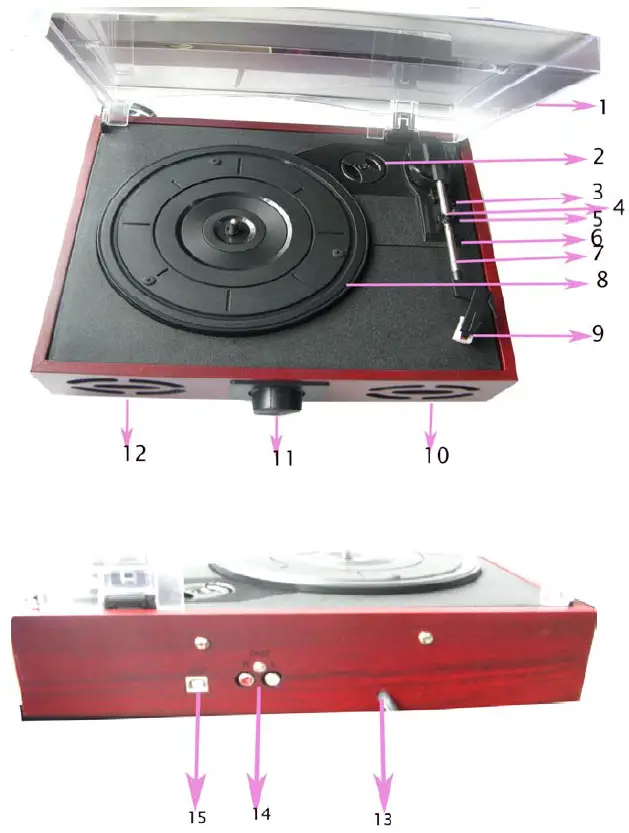
- Dust cover
- 45RPM adapter
- Lift lever
- Tone Arm rest
- Speed selection
- Auto stop control
- Tone Arm
- Platter/Turntable
- Stylus(Needle )Cartridge
- Built-in speaker
- Rotary volume control wit
- AC power cord
- RCA out
- USB jack
PLAY A RECORD
- Raise the dustcover
- Connect the AC power cord to an electrical outlet(120V-60Hz)
- Place a record on the turntable and set the player speed to match the record speed (33/45/78).
NOTE: when playing a single (a 45 rpm record) and/or records with large centre holes, use the 45 rpm adapter. - Remove the tone arm from the rest, push lift lever backward to raise the tone arm and gently move the tone arm to the desired position over the record. The turntable will begin to spin when the tone arm slowly onto the desired position on the record to begin playing the record.
- Turn the manual stop control to right, the turntable platter will stop at once, turn it to left the turntable platter will start again.
- If the Auto Stop Control is turned ON, record will stop automatically when finished. If the Auto Stop Control is turned OFF, record will NOT stop automatically when the finished .
- For best performance and product maintenance, unplug the turntable when not in use.
HOW TO REPLACE THE STYLUS (NEEDLE)
To replace the turntable stylus(needle), please refer on the instructions below.
Removing the TURNTABLE STYLUS (needle) from the cartridge
- Place a screwdriver at the stylus tip and push downward as shown in diagram “A”.
- Remove the stylus by pulling the stylus forward and pushing downward.
Inserting the stylus(needle)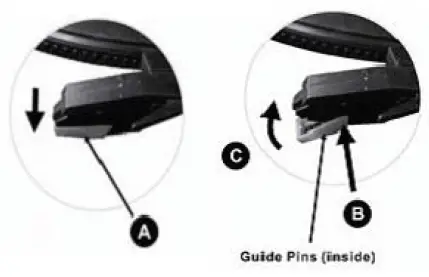
- Hold the tip of the stylus and insert the stylus forward and pushing downward.
- Push the stylus upward and direction “C” until the stylus locks into the tip position
RECORD YOUR VINYL TO YOUR WINDOWS PC
Audacity Recording Software, Your USB turntable is compatible with any recording software that supports USB Audio devices. We have included Audacity, which is free software, distributed under the General Public License (GPL), However you may prefer to use a variety of 3rd party software packages.
BEFORE STARTING THE SOFTWARE
Make sure that your USB turntable is plugged into the computer with the supplied USB cable, and that both the computer and the turntable are plugged in and on. Refer to the USB turntable quick start instruction manual included before proceeding with software installation.
TO INSTALL SOFTWARE ( BOTH PC AND MAC)
RECORDING INTO A COMPUTER
- Press the Record Button

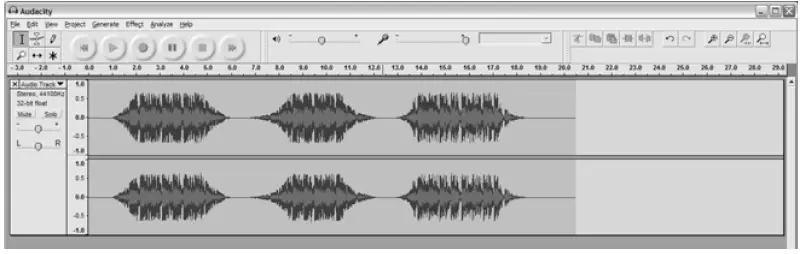
- Start playback on the USB turntable. You will see the waveform of the audio on the screen as it is recording. You will hear the audio coming from the output of your computer’s sound card.
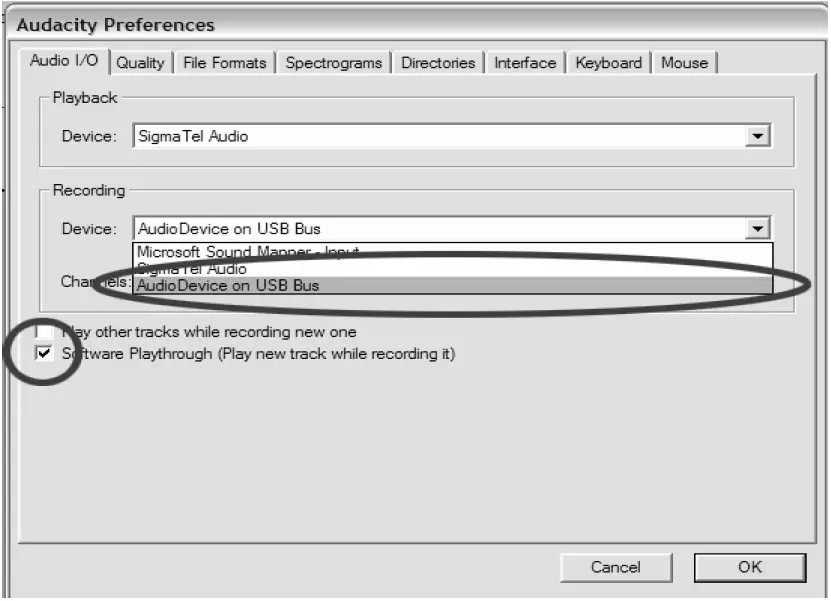
No Audio? – go back to the preference menu (Figure 1) and make sure you have “Software Play through” selected and the speaker volume up on your computer.Figure 1: Select USB Audio Device from Preferences
- Play through the entire track/album you desire to record.
- Press Stop
- SAVE YOUR FILE NOW by clicking on ‘File’ -> ‘Save Project’. Select the destination and file name for the project and click ‘Save’.
- You have completed the recording process. Figure 2: Recording Sample


Adjusting Your Audio Level (Optional)
- Select your entire recording by selecting “Edit”, then “Select…”, then click “All”. You can also use Ctrl+A on a PC or APPLE+A on a Macintosh to quickly select all.
Figure 3: Select All
- Select the “Effect” menu and choose the desired effect.
- There are various types of effects that are described further in the software’s help section as well as on the web (See Figure 4).
- Normalize should be used to have the correct volume on the recording.
 Figure 4: Effect Drop-down List
Figure 5: Normalize
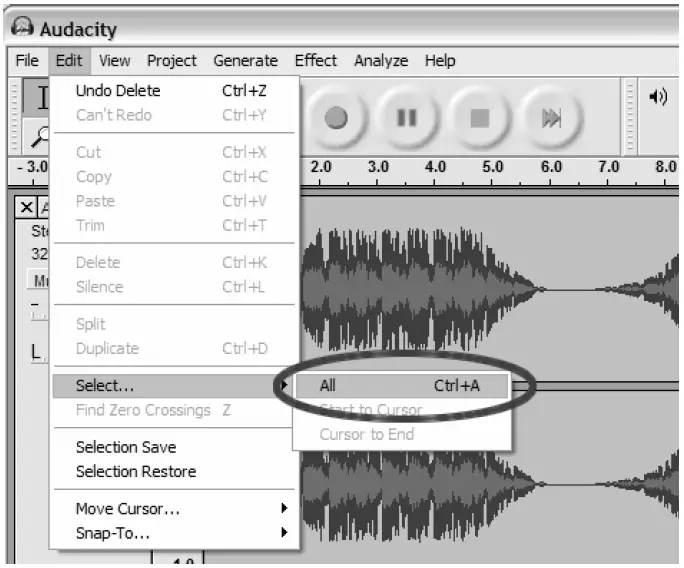
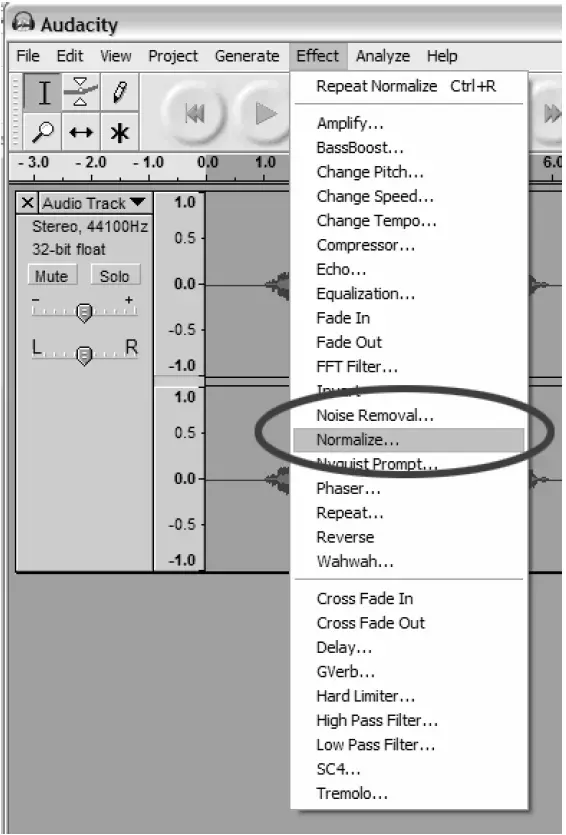 Figure 4: Effect Drop-down List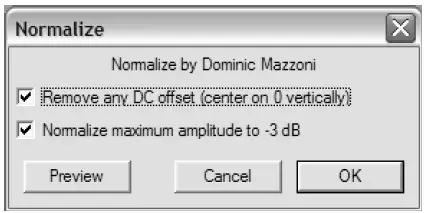
Cleaning Your Audio (Optional)
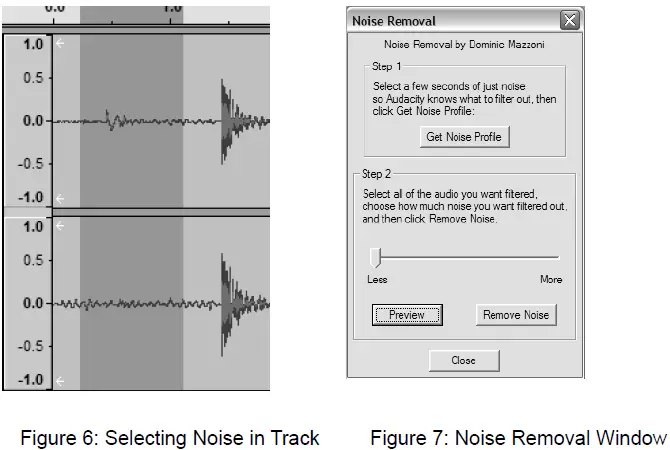
- Drag the cursor over a portion of the audio track that contains noise. We recommend using the beginning or the end of a track where there is no music and only noise. (See Figure 6)
- Select “Noise Removal” from the “Effect” drop-down menu to bring up the “Noise Removal” window. (See Figure 7)
- Click “Get Noise Profile”. The Noise Removal window will now close automatically.
- Select the entire track of audio you wish to remove noise from.
If you wish to clean up the entire recording, use “Select All” under the “Edit Menu” (See Figure 3) - Repeat Step 2 to bring up the “Noise Removal” Window.
- Adjust the amount of audio that you would like to filter by moving the slider in the “Noise Removal” window. We recommend using minimum noise removal for optimum sound.
Note: you can preview the audio before removing the noise by clicking on ‘Preview’. - Click on ‘Remove Noise’.

Cleaning Your Audio (Optional)
- Drag the cursor over a portion of the audio track that contains noise. We recommend using the beginning or the end of a track where there is no music and only noise. (See Figure 6)
- Select “Noise Removal” from the “Effect” drop-down menu to bring up the “Noise Removal” window. (See Figure 7)
- Click “Get Noise Profile”. The Noise Removal window will now close automatically.
- Select the entire track of audio you wish to remove noise from. If you wish to clean up the entire recording, use “Select All” under the “Edit Menu” (See Figure 3)
- Repeat Step 2 to bring up the “Noise Removal” Window.
- Adjust the amount of audio that you would like to filter by moving the slider in the “Noise Removal” window. We recommend using the minimum noise removal for optimum sound.
Note: you can preview the audio before removing the noise by clicking on ‘Preview’. - Click on ‘Remove Noise’.
TIPS FOR BETTER TURNTABLE PERFORMANCE
- When opening or closing the turntable cover, handle it gently, gripping it either at thecenter or at each side.
- Do not touch the needle tip with your fingers; avoid bumping the needle against the turntable platter or record edge.
- Frequently clean the needle tip-use a soft brush in a “back-to-front ‘motion only.
- If you must use a needle cleaning fluid, use very sparingly.
- Gently wipe the dust cover and turntable housing with a soft cloth. Use only a small amount of mild detergent to clean the turntable and dust cover.Never apply harsh
- chemicals or solvents to any part of the turntable system.
FAQS
How can I link my computer to my USB turntable?
Plug the turntable into your computer’s USB port after turning on both the turntable and the PC. Find the Speaker Icon on your computer’s task bar. It frequently resides in the bottom right corner of the screen. Select “Playback devices” by performing a right-click on the Speaker Icon.
My turntable and computer don’t seem to be connected.
Your turntable should be connected to your computer.Use the stereo audio cable to connect your turntable to your amplifier’s phono input. Put the stereo end of the stereo to 3.5mm cable into the amp’s OUT port and the 3.5mm end into the computer’s IN port to complete the connection.
Can I use the speakers on my PC to listen to my USB turntable?
The short answer is yes, but keep in mind that, unlike stereo receivers, computers are designed to be “playback” devices rather than necessarily “play through” ones. As a result, you might need to adjust some settings in your computer to ensure correct performance.
How do USB turntables operate?
The USB turntable transforms the analogue signal from the cartridge into digital PCM and transmits it to the computer over USB using an integrated phono preamp and analog-to-digital converter. The PCM is converted by computer software into the desired format, such as MP3, FLAC, etc.
Can I use my record player’s speakers to connect to my computer?
The turntable can be connected to computer speakers, yes.
How is vinyl converted to digital?
- Wipe the vinyl record clean.
- Purchase a turntable capable of digitising vinyl or utilise a pre-amp.
- Connect the required recording equipment.
- Launch an audio recording programme that is compatible.
- Play the vinyl to record.
- In the recording programme, divide the tracks.
Why would a turntable need a USB port?
Making backup copies of your CDs in case one is lost, stolen, or borrowed by a friend is one of the main advantages of utilising a USB turntable. You’ll at least have a high-quality digital copy of your favourite records, which you can play again without damaging the grooves.
Can a USB turntable play records?
The best USB turntables enable vinyl enthusiasts to digitise and store their beloved LPs onto other devices in addition to playing their favourite records analogically, as many musicians and music producers intended. Computers, cellphones, and MP3 players fall under this category.
Can a turntable be used without a receiver?
You’ll need a system that includes a turntable, a receiver, and decent speakers at the very least. It is just impossible to expect top-notch sound quality without a receiver or amplifier.
Do turntables require an amplifier?
To play vinyl records on a turntable, an amplifier is required. Speakers cannot be driven by a turntable’s output signal because it is too weak. There is one exception, though. Without a separate amplifier, powered speakers with an amplifier built-in can be connected directly to a turntable.
Can I use the speakers on my Mac to listen to my USB turntable?
Select the Sound (Speaker) icon located in the System Preferences pane. An audio window will appear. On the Input tab, click. To designate it as the Sound Input Device, choose USB Audio CODEC.
An ion turntable pairs in what way?
Make sure your Bluetooth speaker is turned on and that pairing mode is selected. Open the Air LP turntable’s power. To begin pairing with your Bluetooth device, press and hold the Bluetooth button on Air LP. The Bluetooth LED will turn solid blue once Air LP has been established with the Bluetooth speaker.
What happens if your turntable is not grounded?
A ground loop will be created if a turntable is not grounded due to a little variance in ground potential. A ground loop could therefore result in your audio cables carrying a 60-cycle alternating current between an amplifier and a turntable.
For a turntable, what kind of amplifier do I need?
For adaptability, an excellent vinyl amplifier should offer a phono input in addition to a built-in preamp. This eliminates the requirement for a separate preamp and allows the connection of turntables without built-in preamps. The use of wireless Bluetooth is another excellent feature.
Can a turntable be used without speakers?
Turntables without speakers built in. There are no speakers integrated into turntables. As a result, in order to play records, they need to be linked to speakers. The speakers have an amplifier and can be powered. A different option is to use passive speakers with a separate amplifier.
Can I use my TV to play my turntable?
The turntable can be connected to powered speakers. You might try to use the audio connection of an unused input to connect it to your TV. You might use the video output from another device into the equivalent video connection for the same input since the TV might not function without video as well.