QUICK START
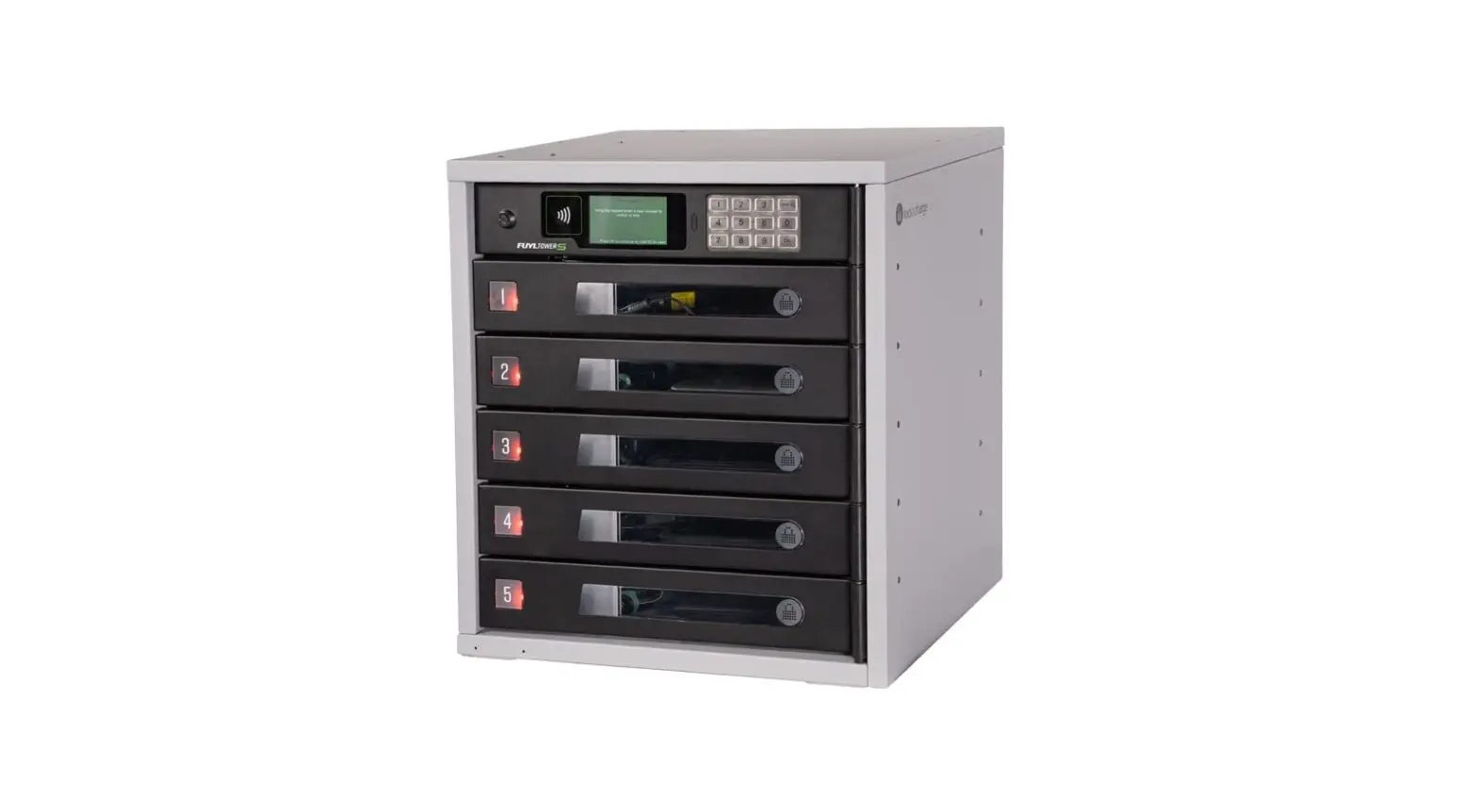
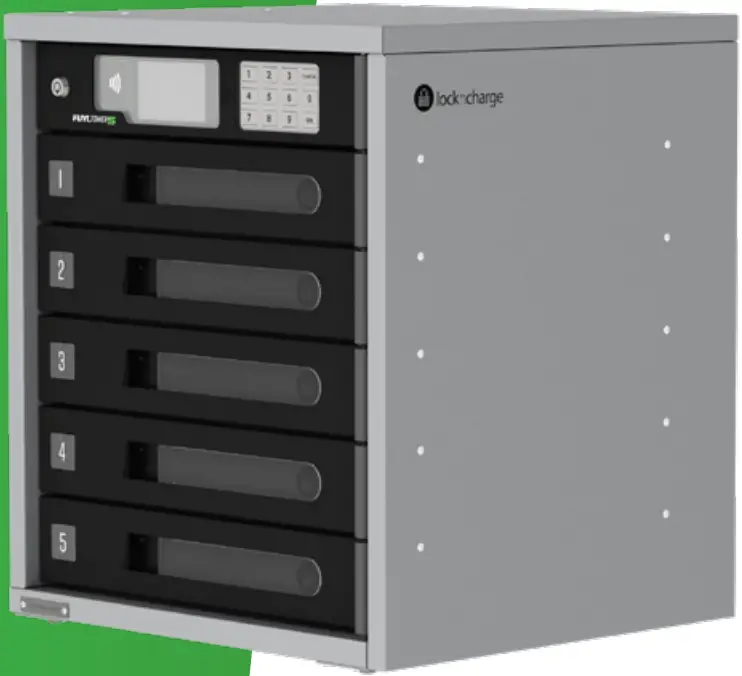
FUYL Tower 5
VIDEO INSTRUCTIONS:
https://vimeo.com/339043097
Visit our website for detailed instructions.
www.lockncharge.com/support (International)
www.pclocs.com.au/support (AUS and NZ)
What’s required?
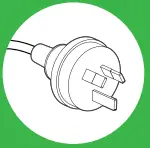
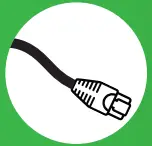

x1 x1 x1


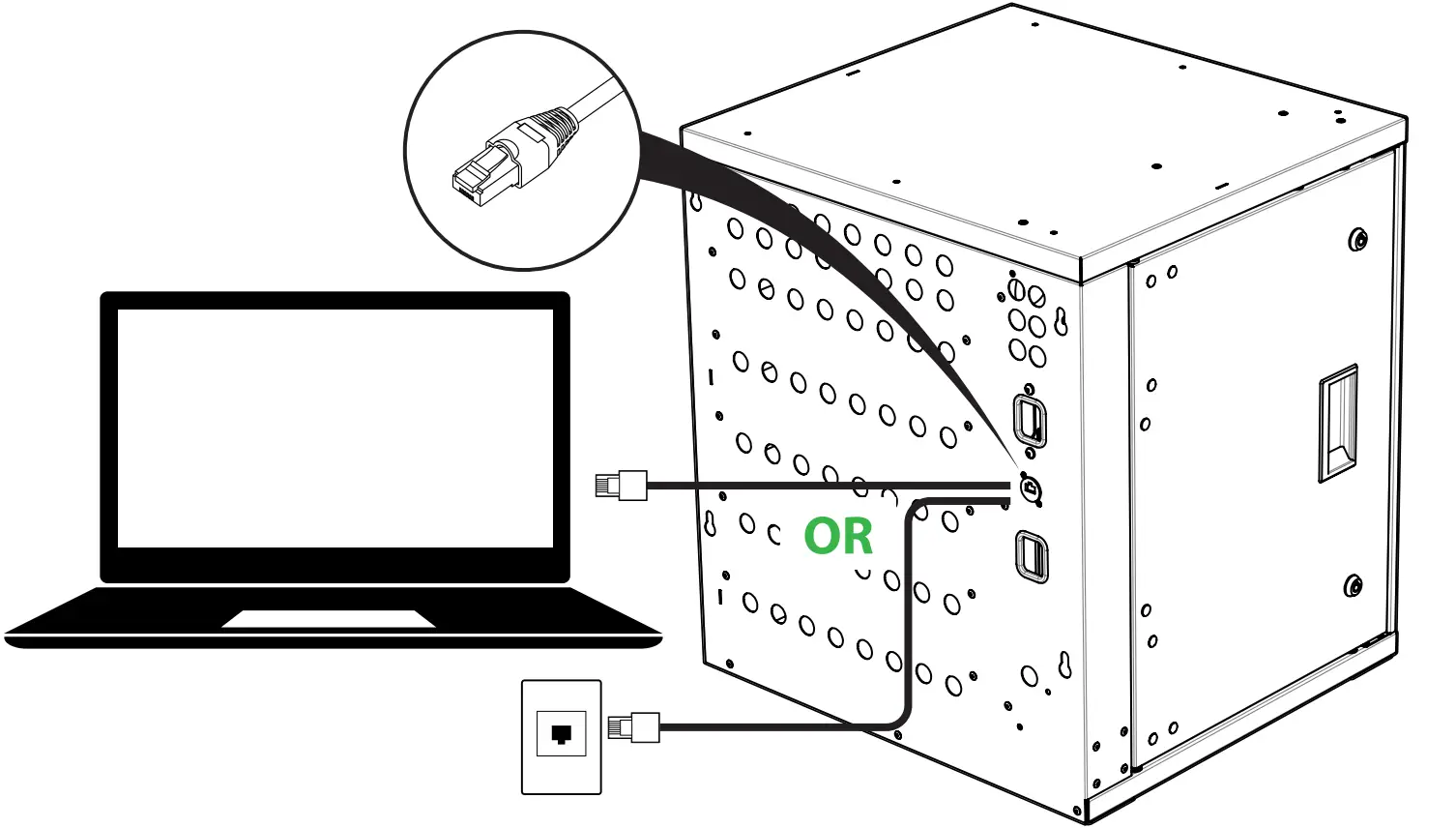
1 CONNECT ETHERNET CABLE
NOTE: This step is not required if you have decided to not connect your Tower to the Cloud.
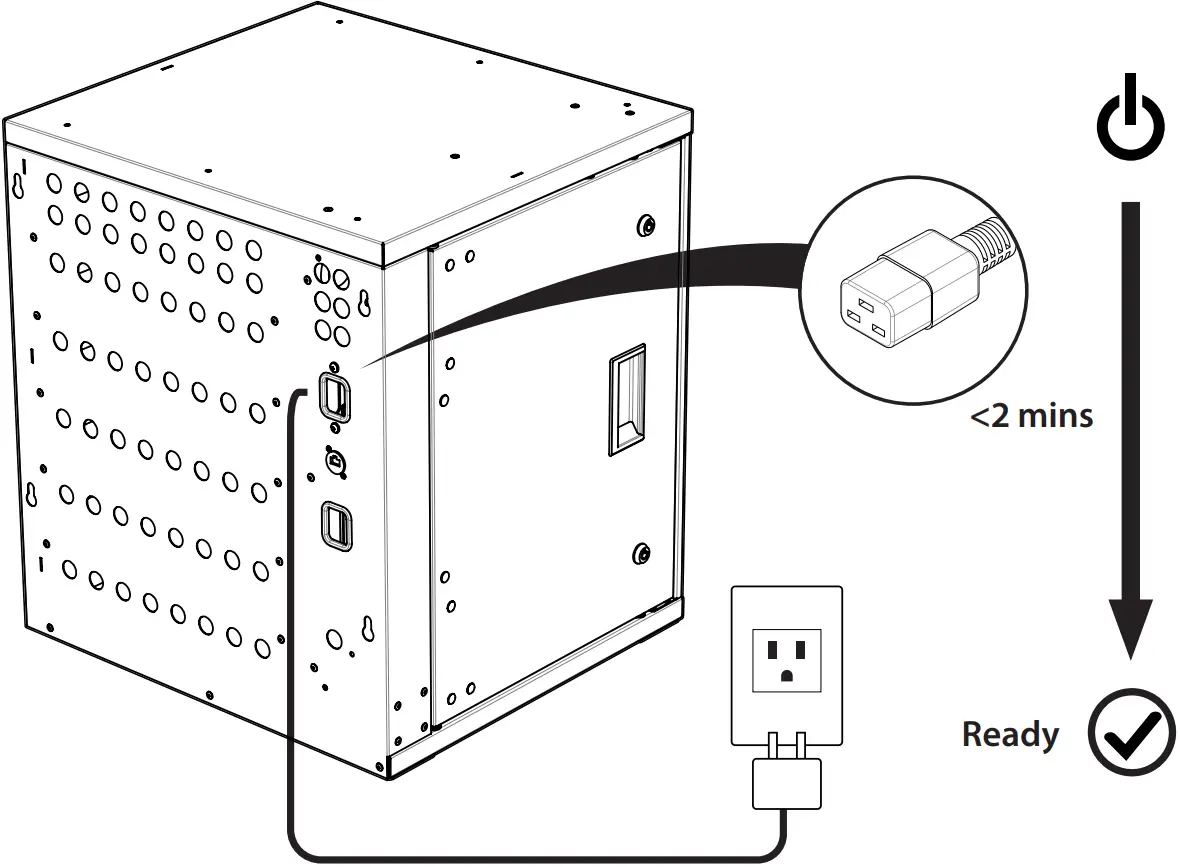
2 CONNECT TO POWER
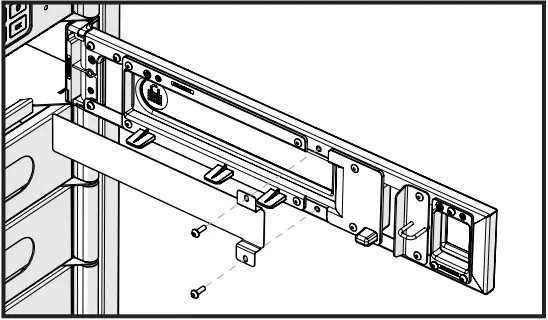
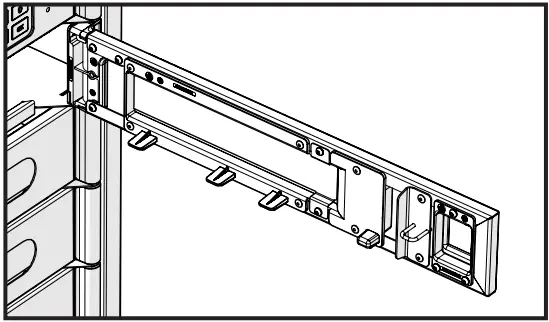
OPTIONAL: FITTING WINDOW COVER

3 FIREWALL AND PROXY
Ensure that your network firewall or proxy is not blocking outgoing connections to the endpoints listed. Please contact your network administrator if you are unsure of any changes to your network configuration that may be required.
| Address | Port | Protocol |
| registry.pclocs.io | TCP 443 | https |
| a136cfw17adicb-ats.iot.us-west-2. amazonaws.com | TCP 8883 | mqtt |
| time1.google.com | UDP 123 | ntp |
| time2.google.com | UDP 123 | ntp |
| time3.google.com | UDP 123 | ntp |
| time4.google.com | UDP 123 | ntp |
4 RETRIEVE LOCAL HOST ADDRESS
Note: If you have powered on your Tower before connecting the ethernet cable to your laptop or port, restart from the Towers display after connecting an ethernet cable.
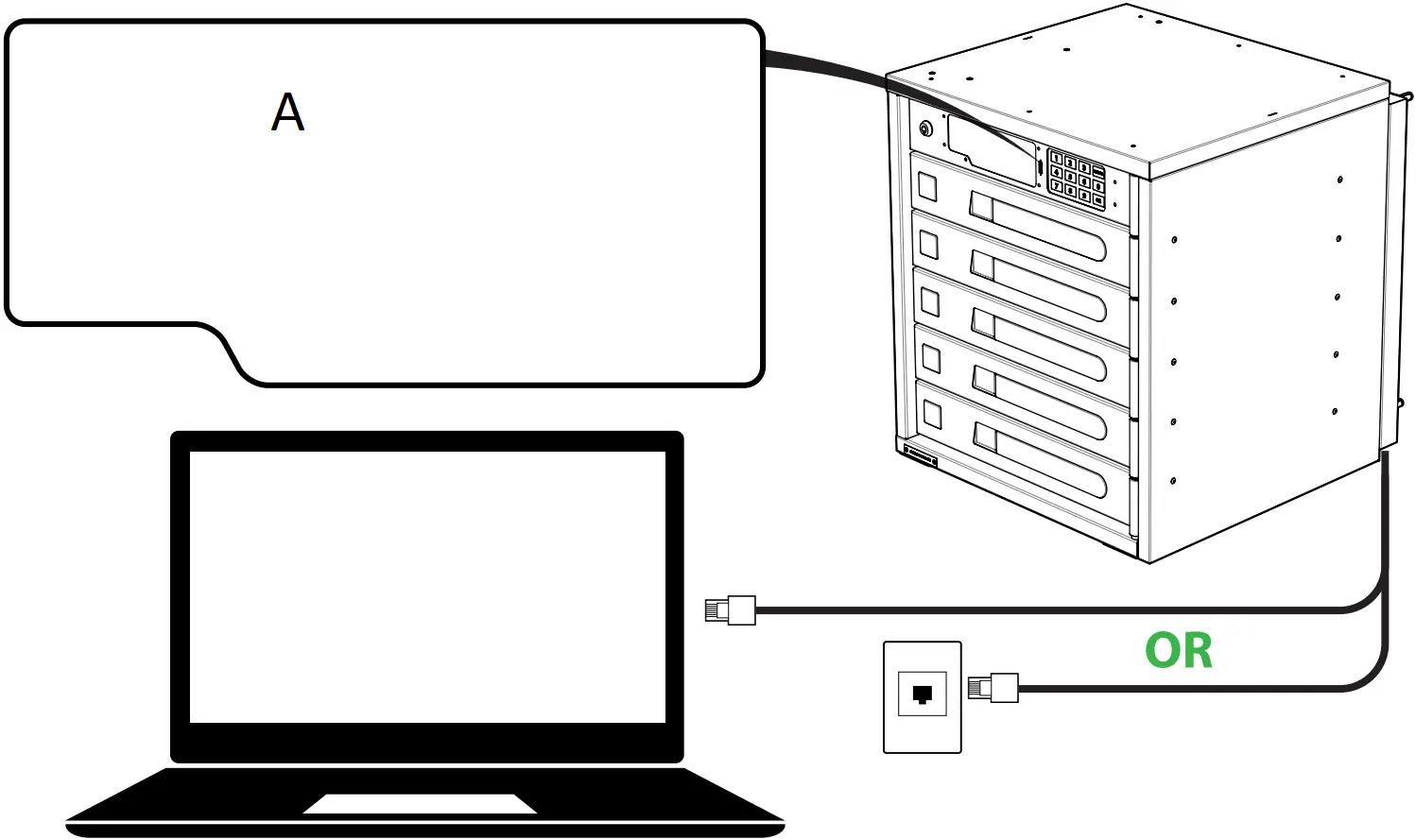
A Press ’00’ and ‘OK’ to enter the Admin Menu. The default password is ‘31082018’
To restart, select Tower Restart. To proceed to retrieve the portal address, select System Status, then Network status.
Record the Portal address.
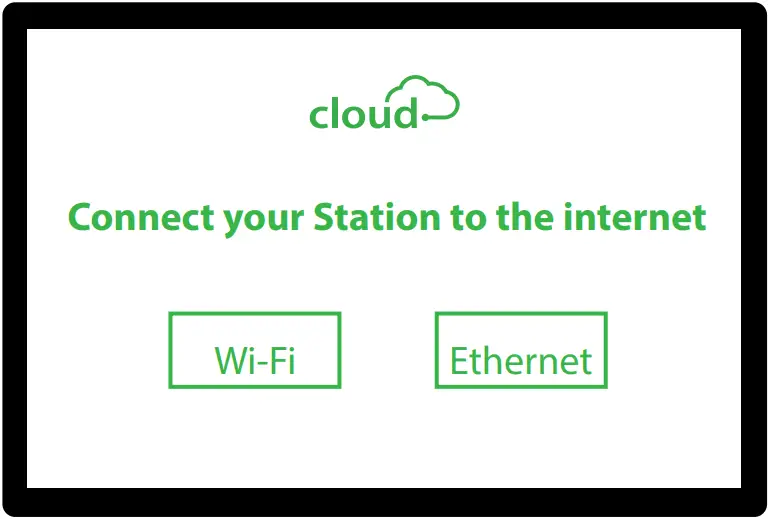
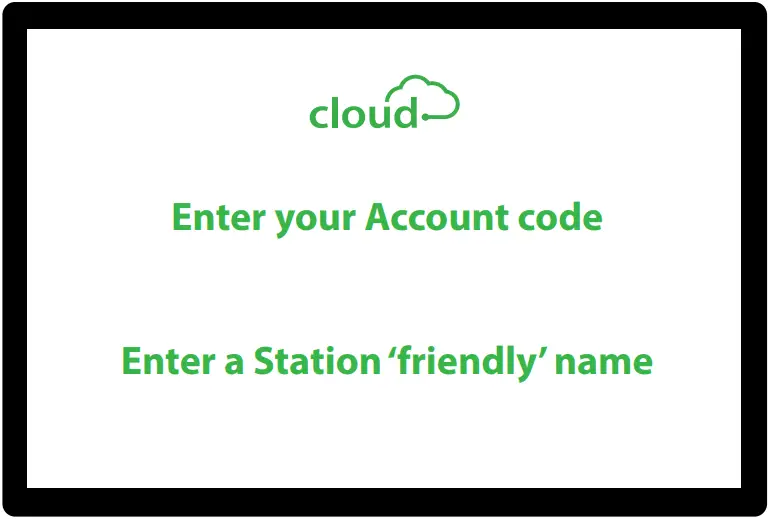
5 ONBOARD TOWER TO YOUR ACCOUNT
Open browser and type the Portal address (local host).
Username: admin
Password: 31082018
NOTE: Some browsers will report security warnings. The security warnings appear because the FUYL Tower has generated a self-signed certificate to secure your connection. It should be safe to proceed because it is a temporary connection to the local host on the FUYL Tower.
Your Account code should have been sent to you via email on sign up.
6 LOGIN TO THE CLOUD PORTAL WITH YOUR ACCOUNT
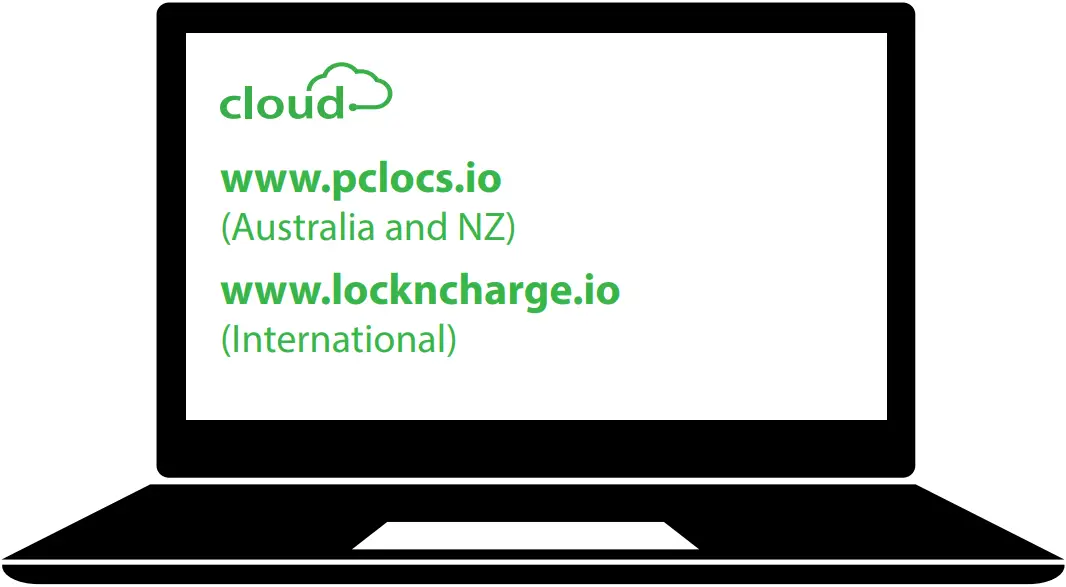
www.lockncharge.com (International)
www.pclocs.com.au (Australia and New Zealand)
 Cloud Computing Services - Amazon Web Services (AWS)
 Mobile Device Charging Stations & Charging Carts | LocknCharge
 lockncharge.io
 Mobile Device Charging Stations for iPads, Laptops & Tablets | PC Locs
 pclocs.io