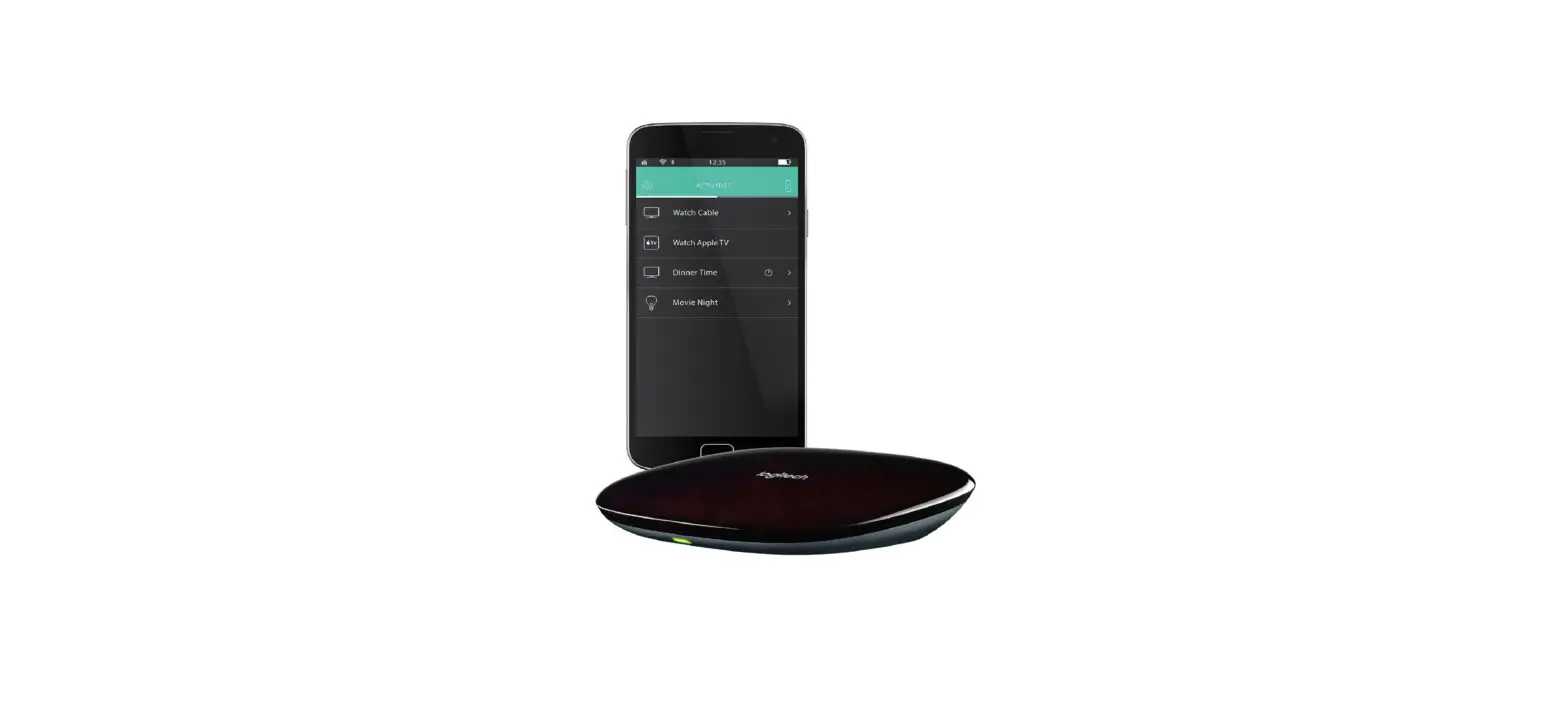

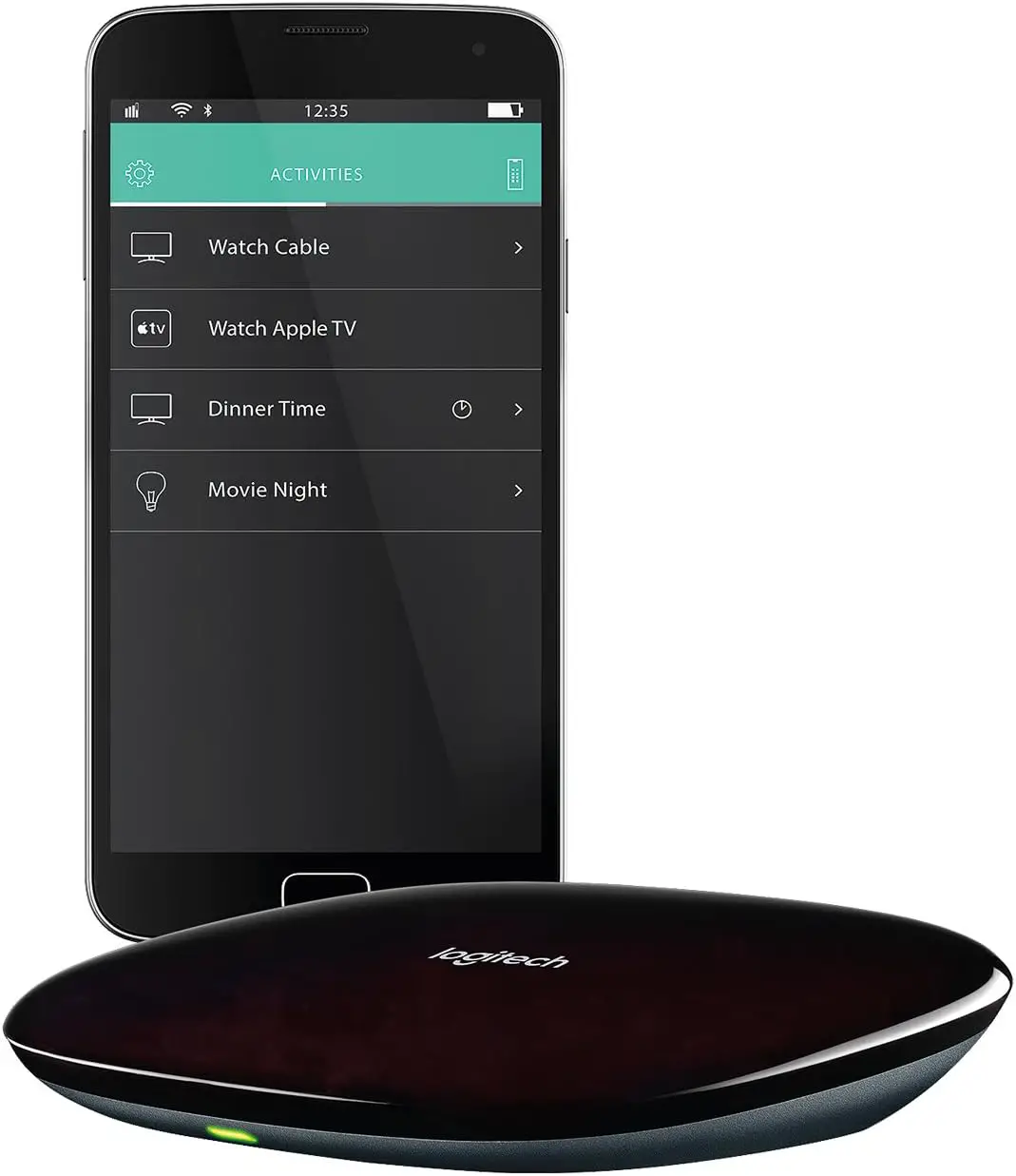
Logitech 915-000238 Harmony Home Hub
Package contents
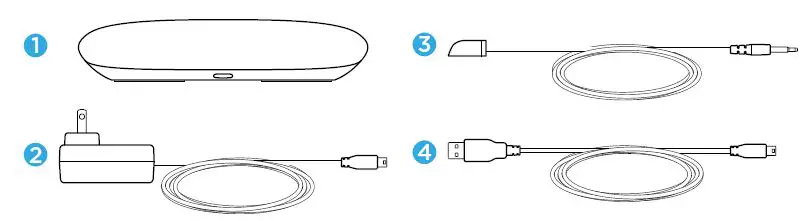
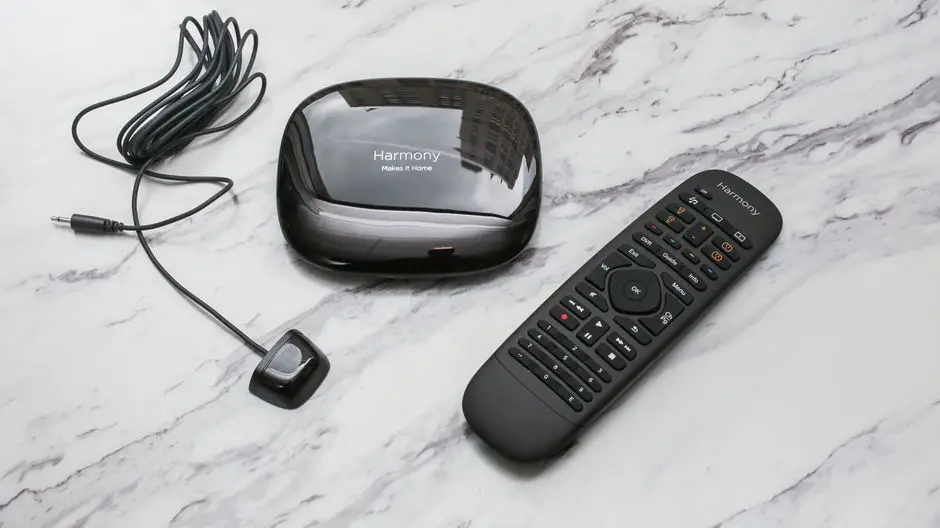
- Home Hub
Controls devices via IR, Bluetooth, or Wi-Fi - Power adapter
Provides power to the Harmony Hub - IR mini blaster
Extends IR coverage when used in combination with the Harmony Hub - USB cable
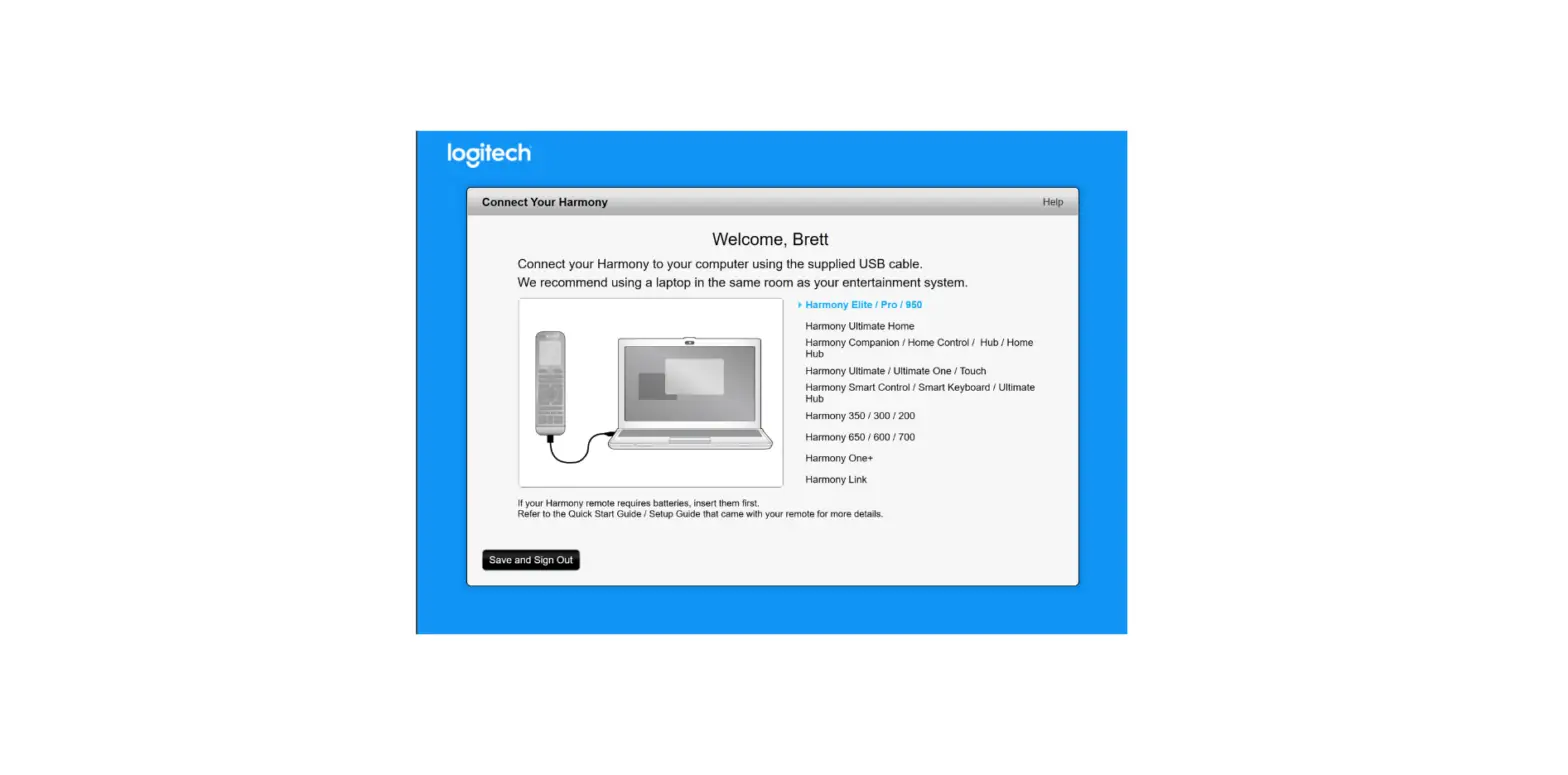
Set up hub via PC or Mac if access to a mobile device is not available.
Congratulations on the purchase of Harmony Home Hub
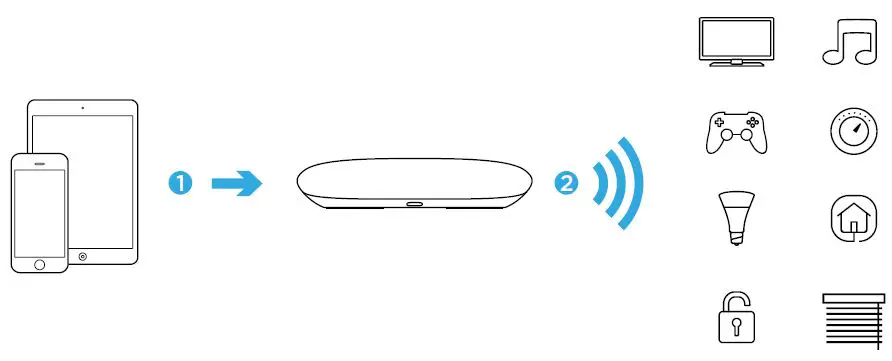
The Harmony Hub is the center of your Harmony system—always keep it powered on!
- The hub receives commands from the mobile app.
- The hub sends commands to your audio video and home control devices in the form of Bluetooth®, Wi-Fi, and infrared signals (IR).
STEP 1
Position the Harmony Hub
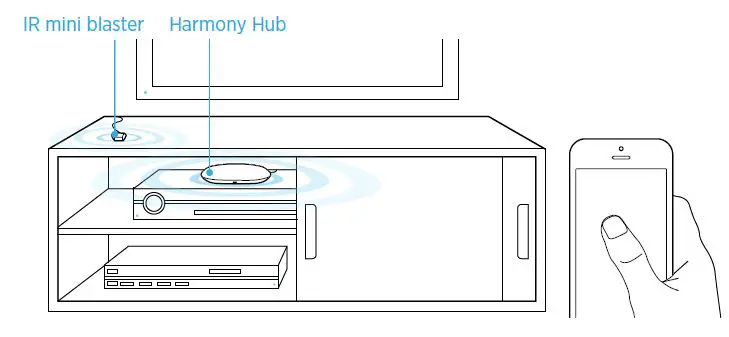
Place the Harmony Hub in an unobstructed location next to your entertainment devices. Or… If using closed cabinets, place the Hub inside the cabinet and the IR mini blaster outside the cabinet to control your TV.
STEP 2
Power up your Harmony Hub
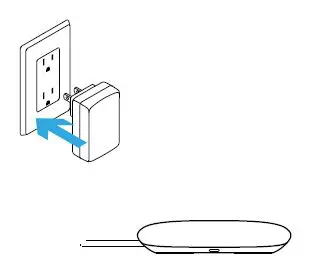
Once plugged in, the hub takes approx. 30 seconds to power up.
STEP 3
Install the Harmony App
- Visit the Apple App Store or Google Play and install the Harmony App.
- Launch the app, select the Setup New Remote button, and follow the setup instructions.
Note: If you have an iPhone 4, iPad 1 or iPad 2, or an Android device that does not support Bluetooth, please visit setup.myharmony.com on a computer to connect the hub to your Wi-Fi network before beginning Step 3 of setup.
For more detailed instructions and product info, please visit support.myharmony.com/home-hub
The remainder of the setup will be done using your mobile device. See the next section for an overview of what to expect.
Mobile App Setup Overview
- Connect the hub to Wi-Fi. Using your mobile device’s Bluetooth, connect your hub to your wireless network.
- Create a Harmony account.
- Scan your Wi-Fi network for devices that can be controlled by Harmony (e.g. Roku, Sonos, Hue, Smart TVs).
- Add home entertainment devices for additional devices not found during the Wi-Fi scan (e.g. TV, cable box, AVR, game console, Blu-ray player).
- Add home control devices. Harmony supports various devices such as select lights, locks, thermostats, and home control platforms. See the Home Controls Explained section for further details.
- Create Activities. You’ll be guided through creating Activities such as Watch TV, Listening to Music, and Play Xbox. See the One-Touch Activities section for further details.
Home Controls Explained
Your Harmony Home Control supports a variety of devices such as lights, light switches, locks, thermostats, and blinds. Harmony Home Control also connects to other home control platforms to access additional devices supported by these solutions. The list of supported devices includes:
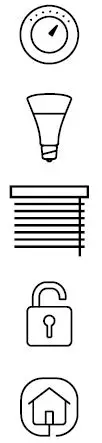 Nest Learning Thermostats, Honeywell Wi-Fi Thermostats
Philips Hue Lights, Lutron Caséta Wireless Lights
Lutron Serena Window Shades
August Smart Locks
SmartThings, PĒQ
The list of Harmony-compatible devices is always growing. Visit myharmony.com/compatibility for the most up-to-date list of compatible brands, devices, and model numbers. Device compatibility is subject to change without notice.
Activities Explained
Create your own customized Activities. Here are some examples of what you can do.
One-Touch Activities
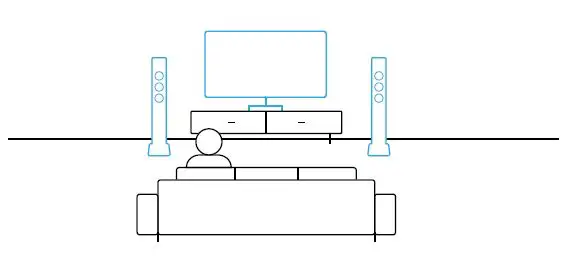
Watch Movie: One touch and your TV, surround sound system, and Blu-ray player are all powered on and switched to the right settings.
One-Touch Activities with Home Control Devices
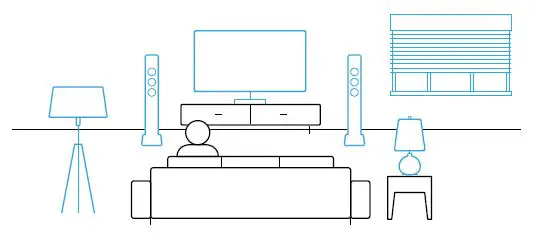
- Movie Time: Your One-touch “Watch Movie” Activity PLUS your lights automatically dim to your favorite setting.
- Get creative: Activities can be configured to automatically turn on lights, open blinds, adjust thermostat temperature, turn on music/TV, or unlock a door.
Troubleshooting
Harmony Hub cannot connect to Wi-Fi or is not detected by the Harmony app.
- Ensure the hub is within range of your router.
- Ensure your phone and hub are connected to the same Wi-Fi network.
- Restart your hub by disconnecting and reconnecting its power supply. It will take 30 seconds to restart.
- Restart your router by disconnecting and reconnecting its power supply.
Support Info
There’s more information and support online for your product. Please visit support.myharmony.com/home-hub where you can find:
- Frequently asked questions
- Troubleshooting
- Support Community
- Online Documentation
- Warranty Information
- Phone and email support info
support.myharmony.com/home-hub
© 2014 Logitech. All rights reserved. Logitech, the Logitech logo, Harmony, the Harmony logo, and other Logitech marks are owned by Logitech and may be registered. All other trademarks are the property of their respective owners. Logitech assumes
no responsibility for any errors that may appear in this manual. Information contained herein is subject to change without notice. www.logitech.com
FREQUENTLY ASKED QUESTIONS
VIDEO – PRODUCT OVERVIEW
DOWNLOAD THE PDF LINK: Logitech 915-000238 Harmony Home Hub Setup Guide