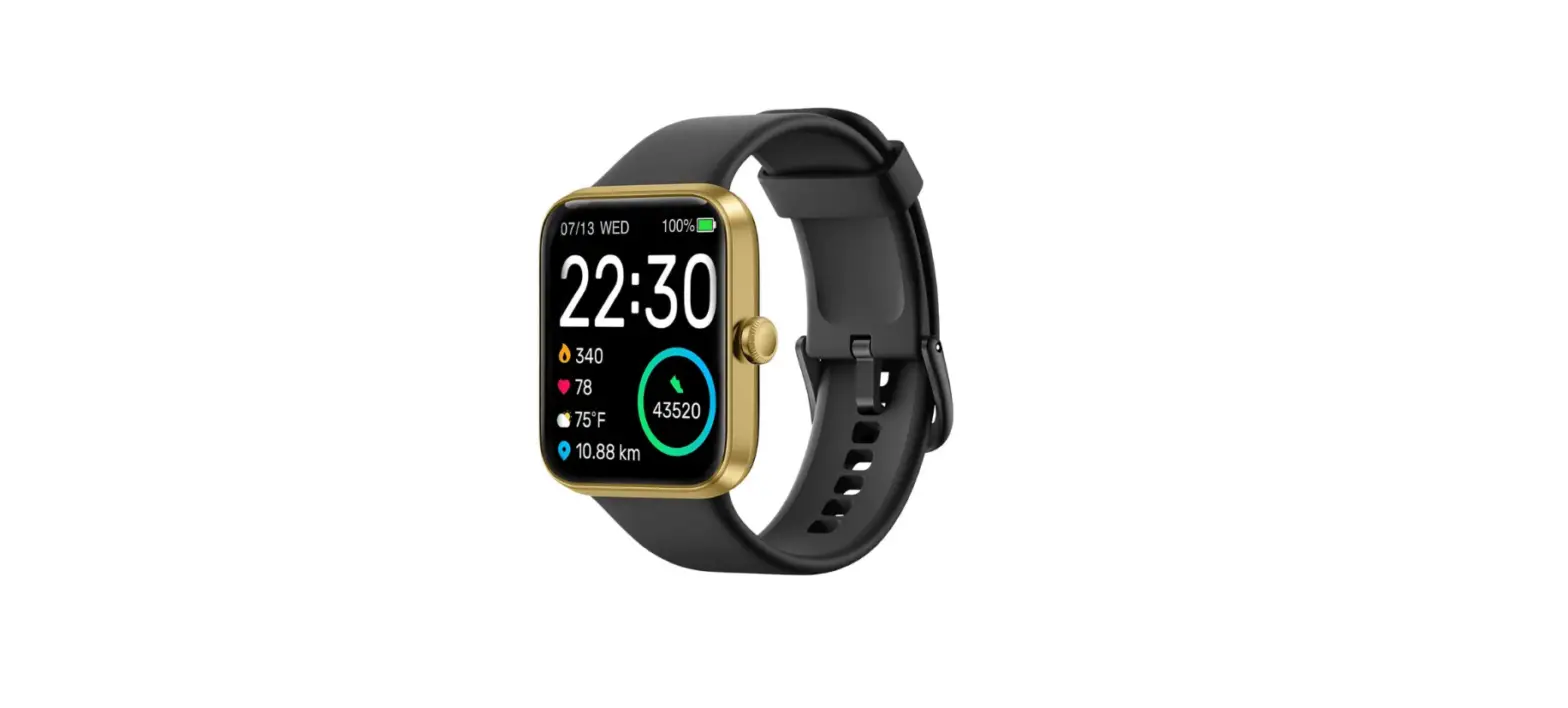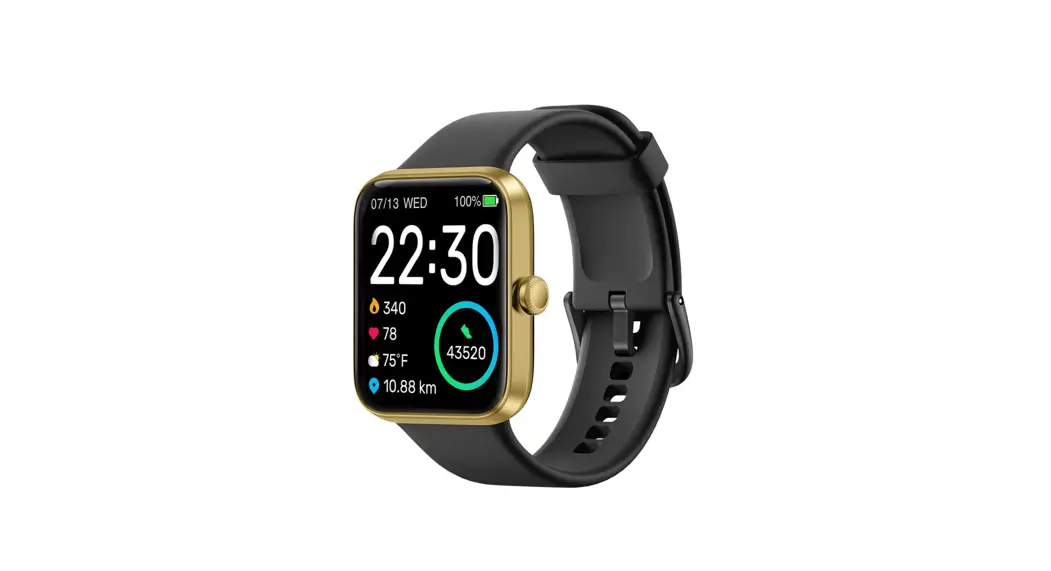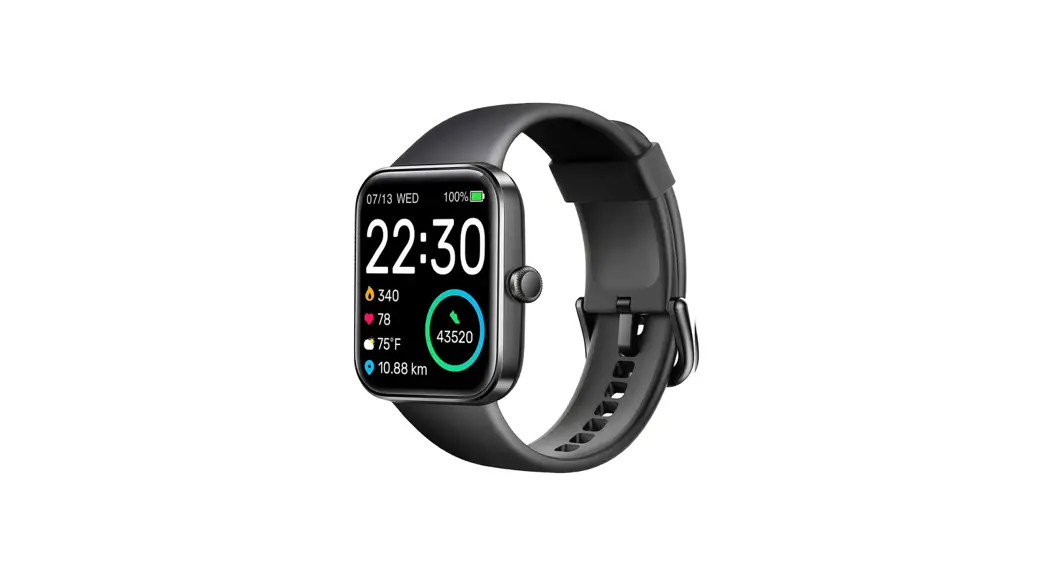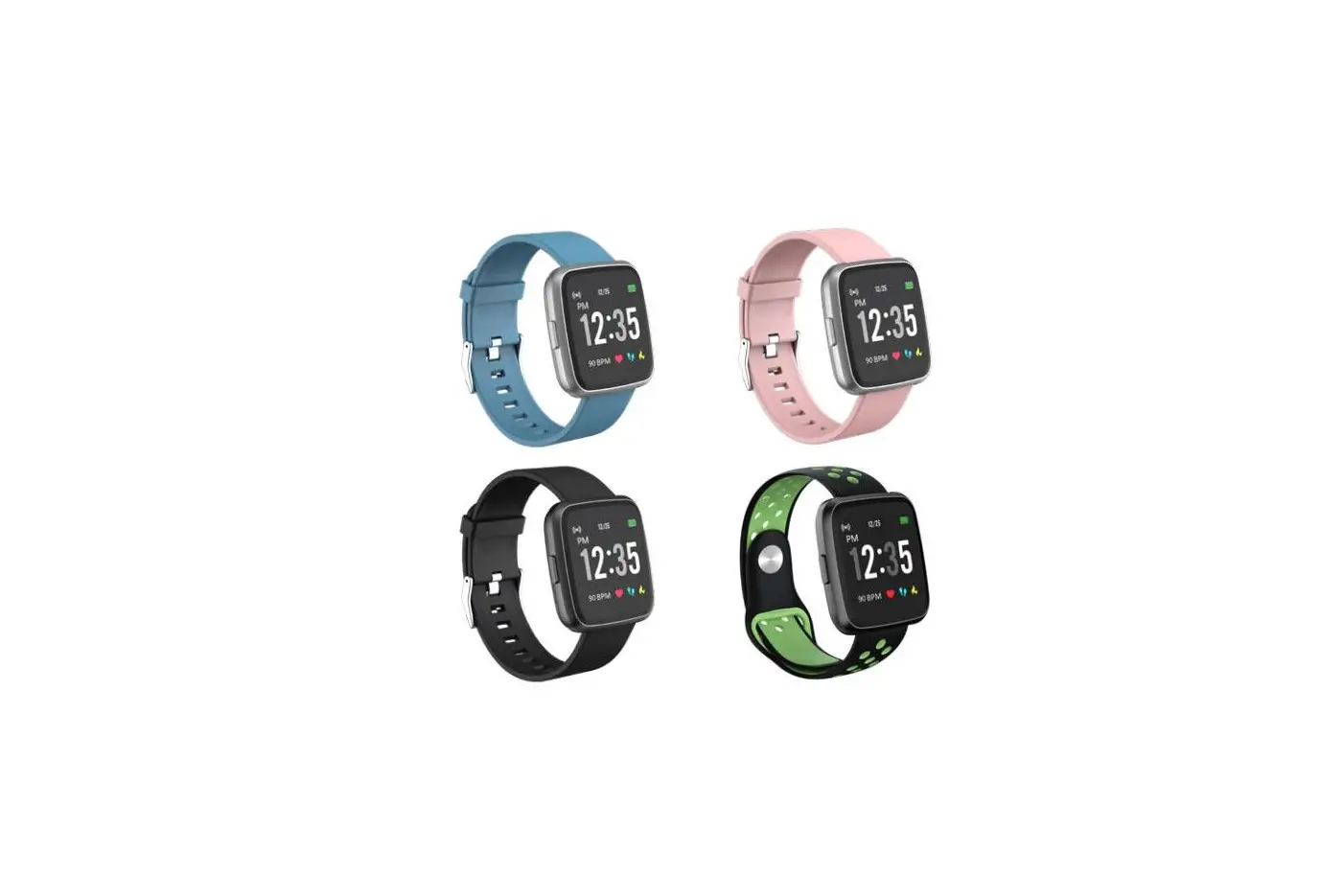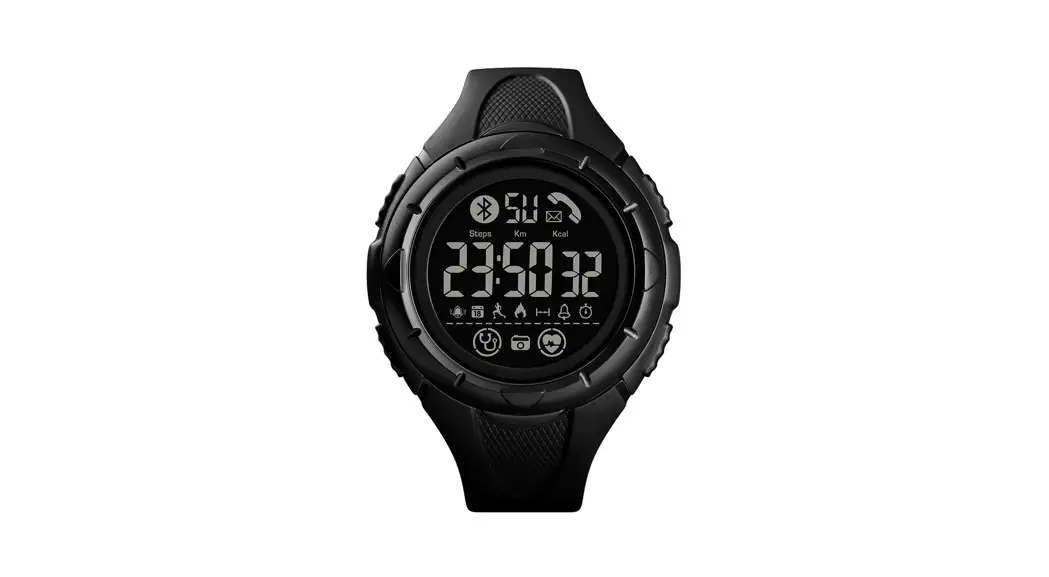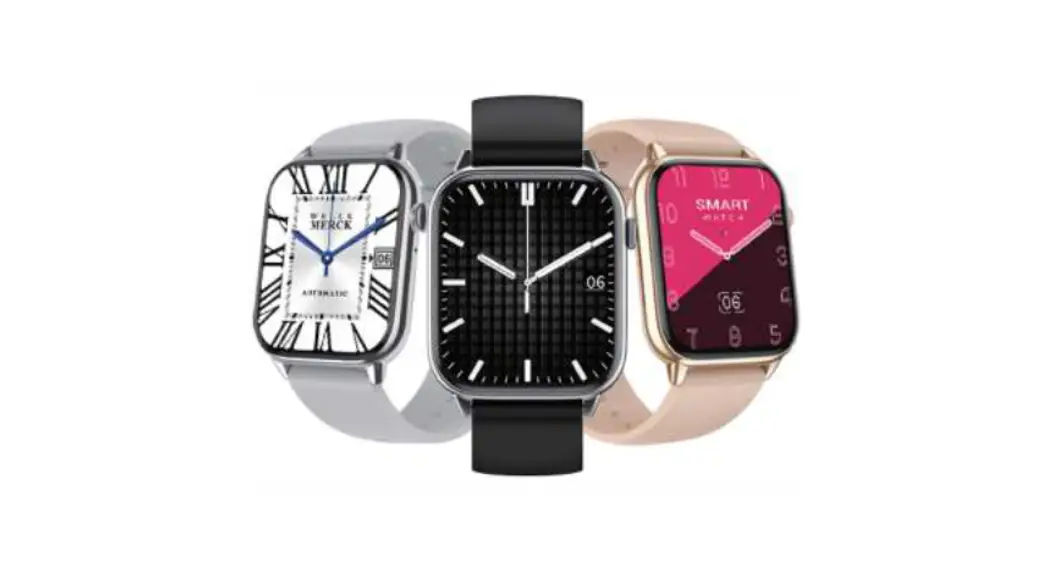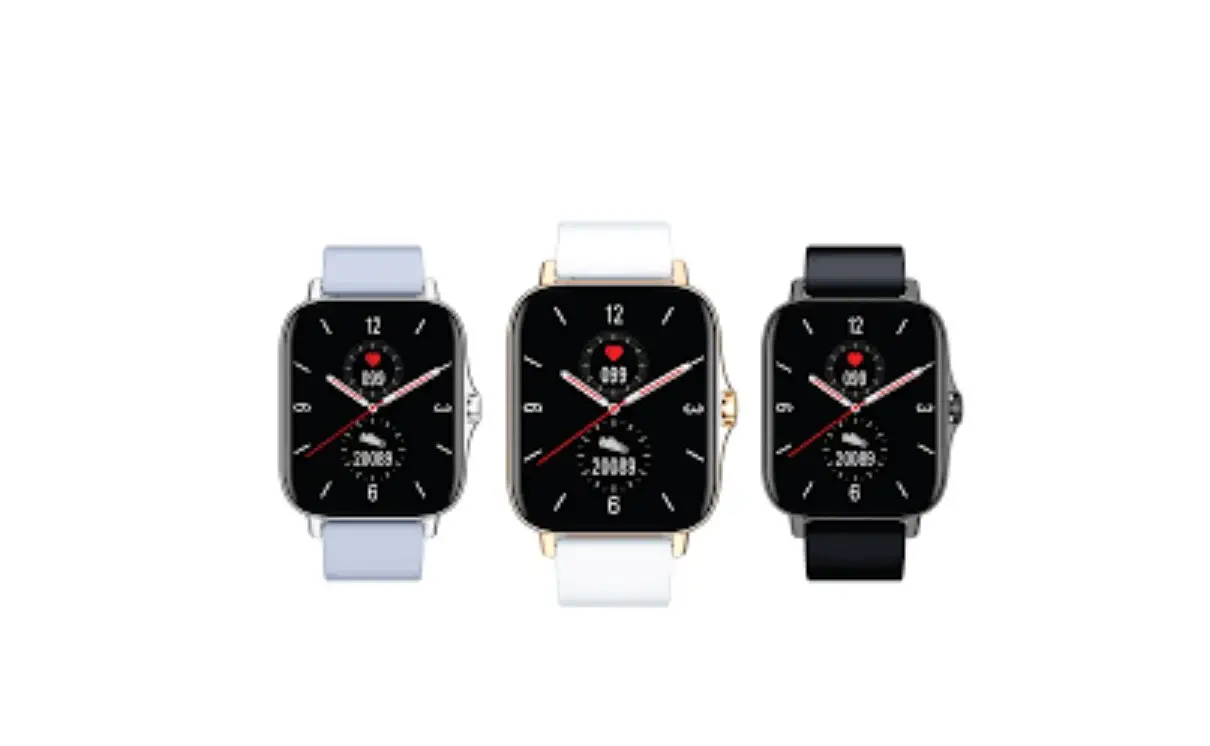

SKG V7 Smart Watch
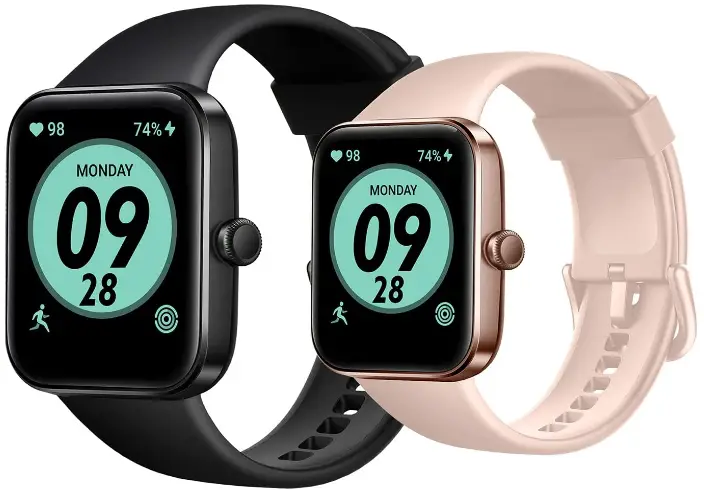
Introduction
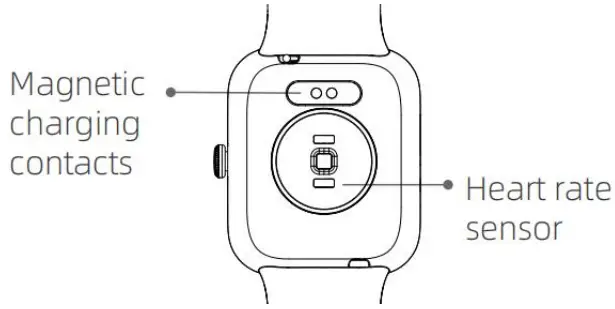
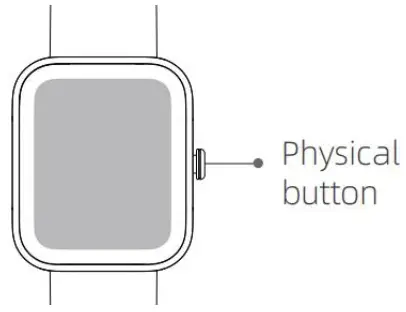
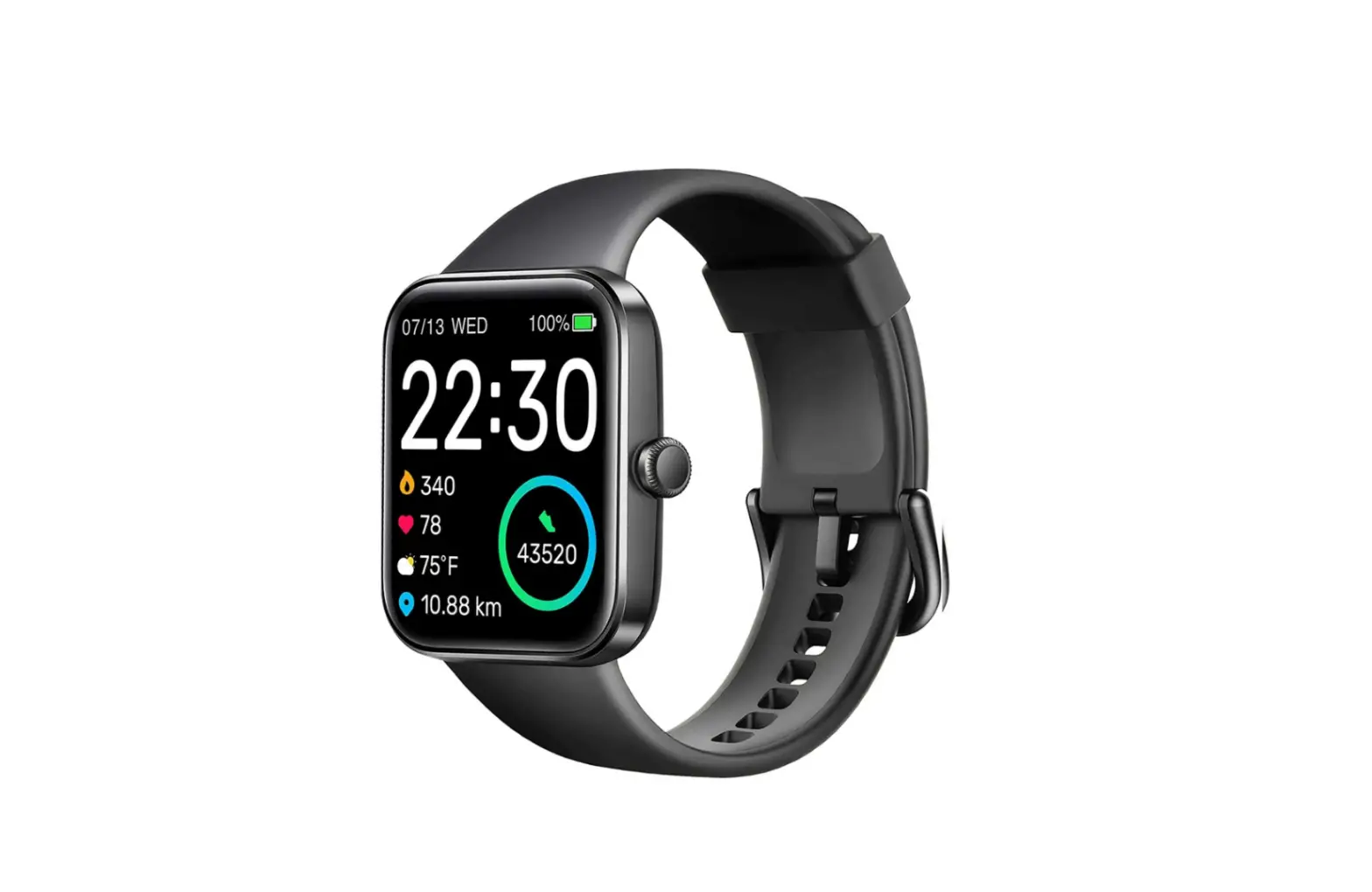
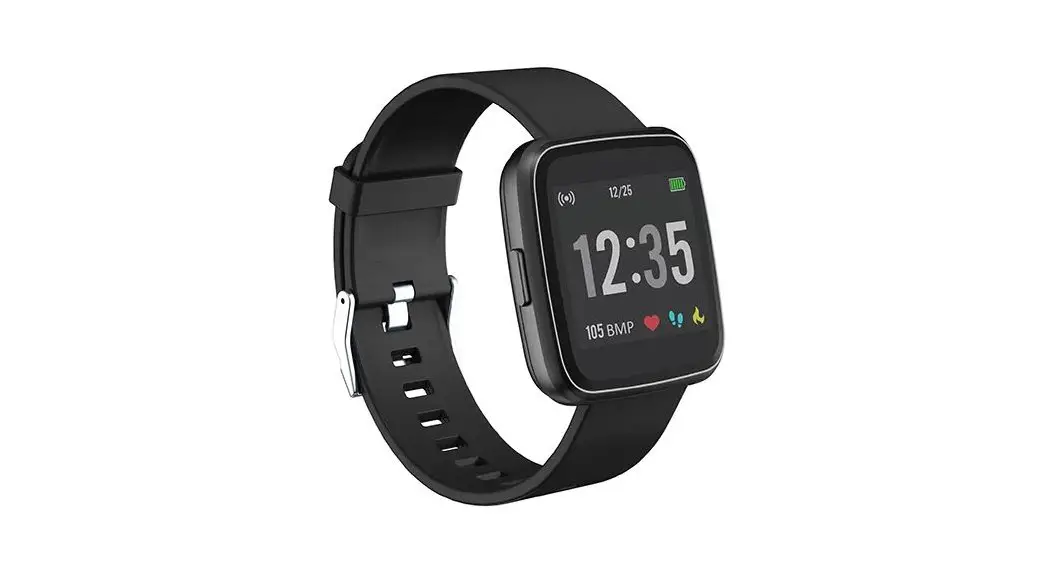
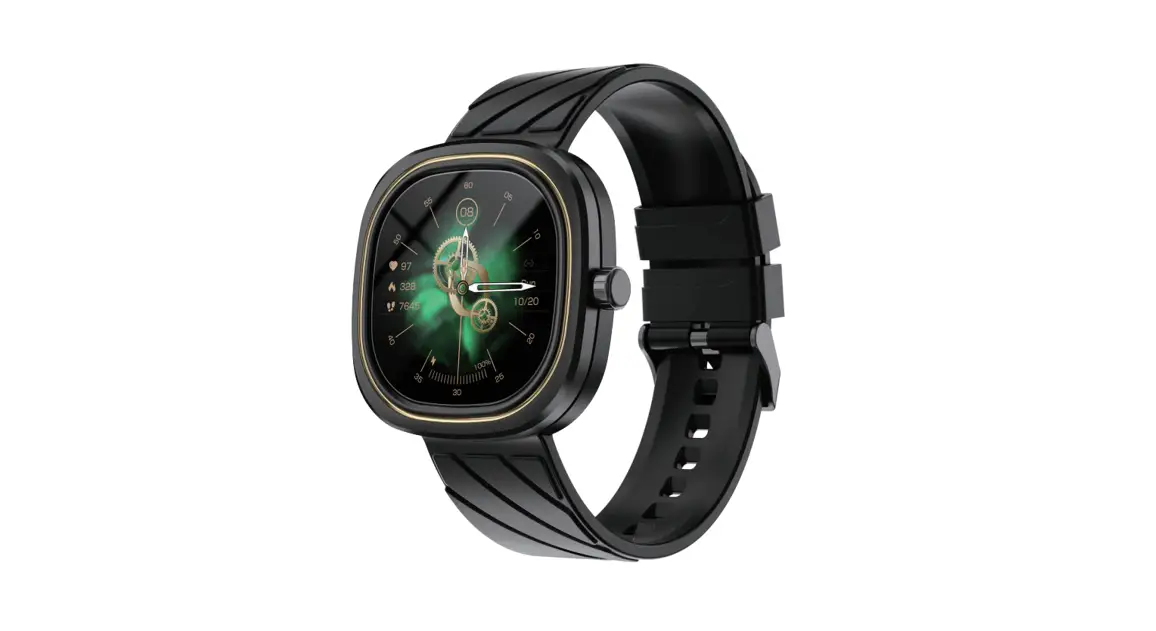
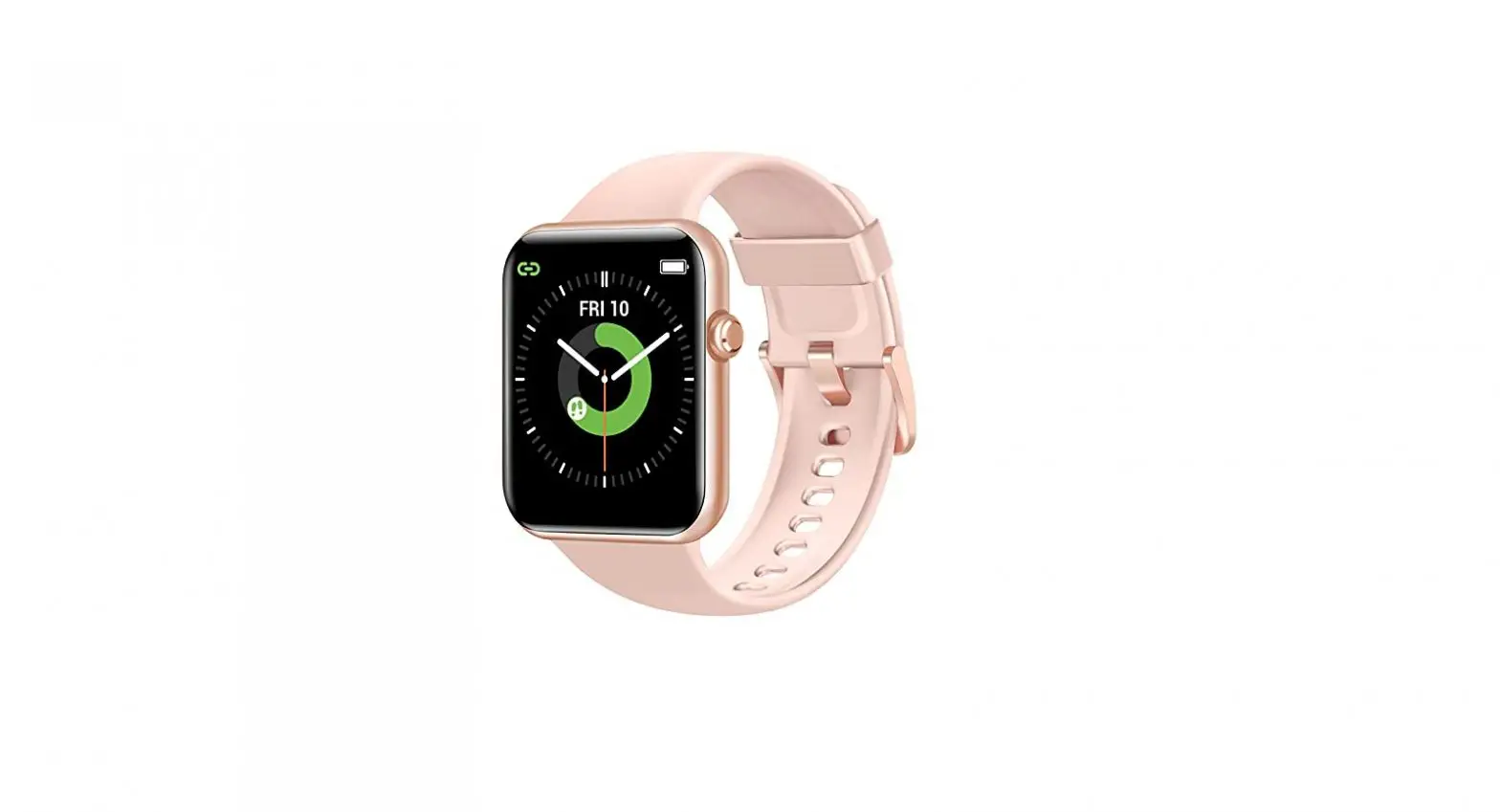
- Screen display area
- Function button
- Heart rate sensor
- Front side
- Back side
- Open the package and check the product
- Package contents: (1) ID207 Smartwatch (with built-in lithium battery); (2) User guide; (3) Charging cable
- Connect the contact points of the magnetic charging cable to the contact points of the watch to charge and activate the device, and to turn it on.
- Search for the “veryfit” in your phone’s app store, and download and install the app; or scan the QR code to download the app from the web;
In the app interface, set your personal information, as well as your step and weight goals
- Open the app, tap the “More” icon in the upper right corner, select “Add Device”, select the device category, and select the device you wish to link in the corresponding search list. You may also link the device directly by scanning the device’ s QR code using the scan function.

Health
Watch
- The watch will automatically record your data.
- You can manually measure your heart rate, Sp02, and stress on the bracelet, moreover, it can monitor your heart rate and sleep throughout the day. You can manually operate it or set it to automatically monitor your health all the time.
- To start an exercise:
- Start the sports App on the bracelet, click an ICON of sports type and set the goal, then start to exercise.
App
- Start “veryfit”, enable the Bluetooth feature;
- Light up the bracelet screen and bring it close to your phone;
- Click “Bind Device” on the App, and select the bracelet model in the search results to bind;
- Confirm the binding request on the bracelet;
- Fill in your information and set your step goal on the App to complete the binding.
Basic Operations
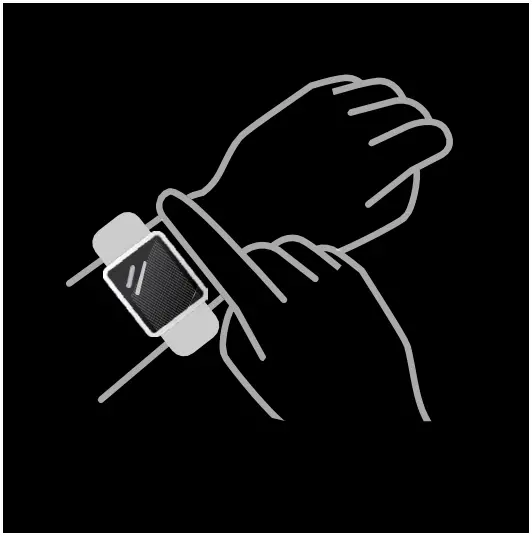
- Wear it correctly: make sure that the bottom sensor is properly attached to the skin, and the strap shall be one finger away from the wrist.
- Touch operation: the ID207 supports full-screen touch operations. Single click: select; long press: enter or confirm.
- Touch key: the ID207 has a touch key. Short press: return or close a notification.
Function Description
Dial
You can switch between different dials in the “Dial Settings”. And you can download and install more dials in the “Dial Market”.
Sports
14 Sports modes are provided: Outdoorrun\Indoorrtm\Outdoorwalk\Indoor walk\Hiking\Outdoor cycle\Indoor cycle\Cricket\Pool swim\ Openwater swim\Yoga\Rower\Elliptical \Workout. You can choose to show or hide any sports mode in “veryfit”.
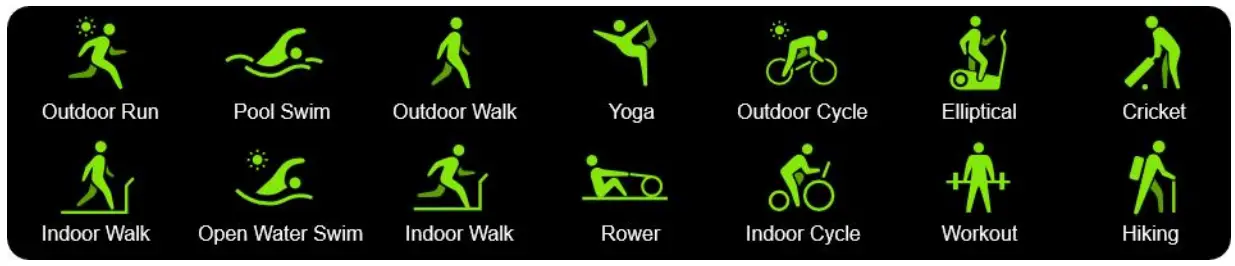
ID207 has the Intelligent Sports Detection function, and can detect if the user is running or walking; this function can be enabled or disabled in the App.
The Sports Summary of ID207 contains a variety of sports data, and the details can be viewed in the veryfit App.
Apps
Swipe up or down to select an icon. The icons include: Message, Health Data, Workout, Heart Rate, Stress, Sp02, Sleep, Relax, Music, Time, and Settings.
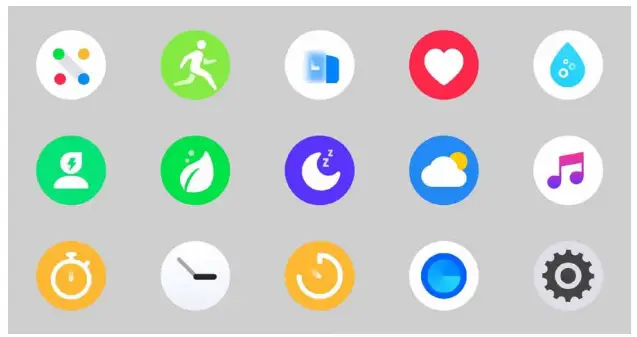
Health Data
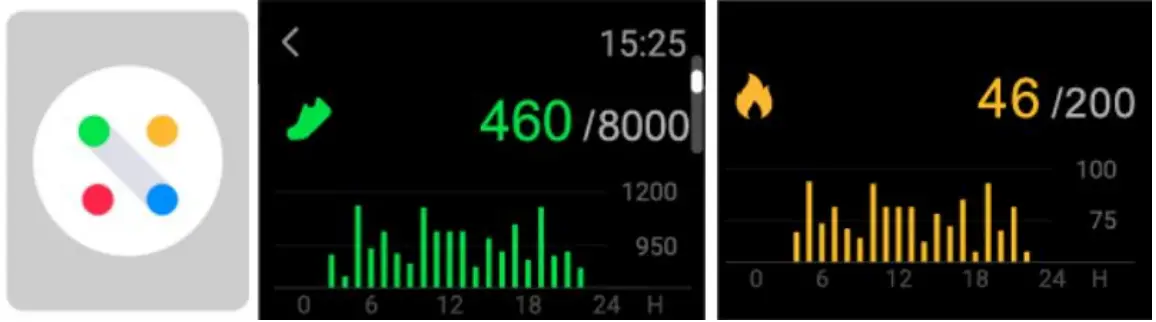
It supports viewing the daily accomplishment of the following info: Steps, Calories, Distance and Activity.
Heart Rate
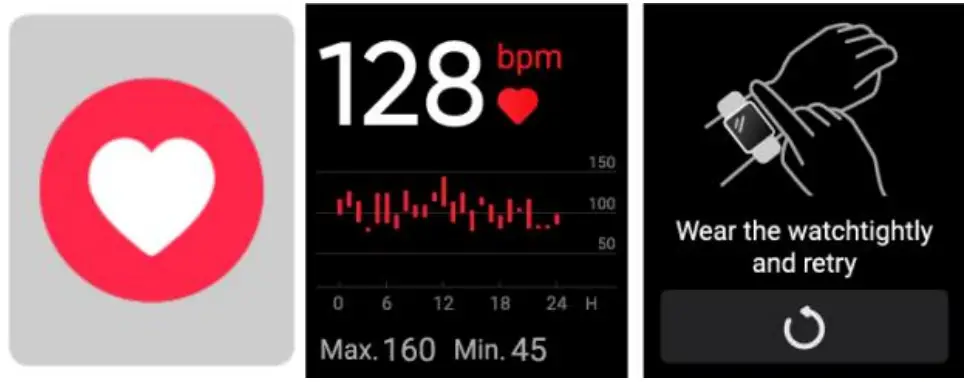
- It supports measuring your heart rate any time or viewing the daily monitoring data. Also, you can set the measurement frequency in the App settings;
- After you start the heart rate measurement App, you should keep your arms and wrists still during the measurement.
Stress
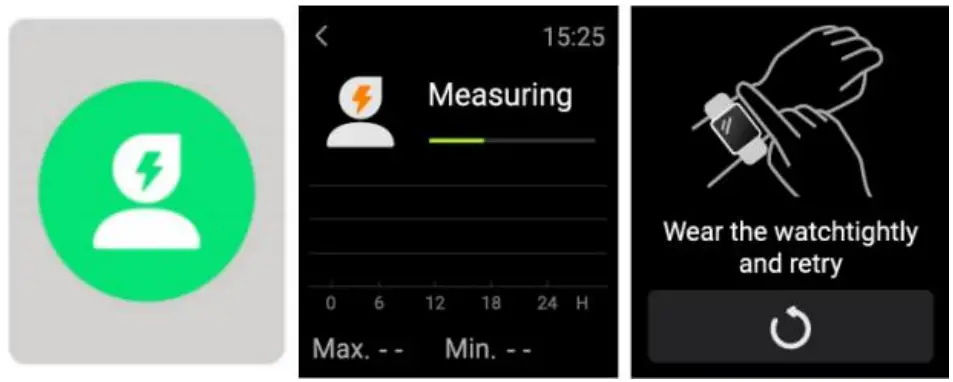
After you start the stress measurement App, you should keep your arms and wrists still during the measurement.
SpO²
After you start the Sp02 measurement App, you should keep your arms and wrists still during the measurement.
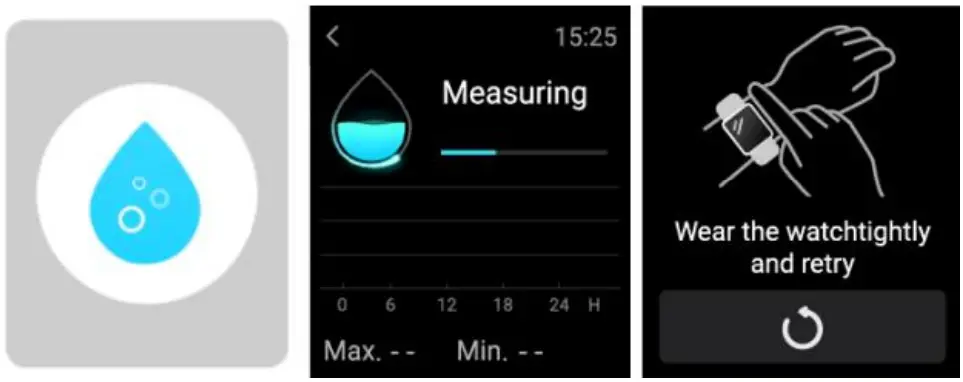
Sleep
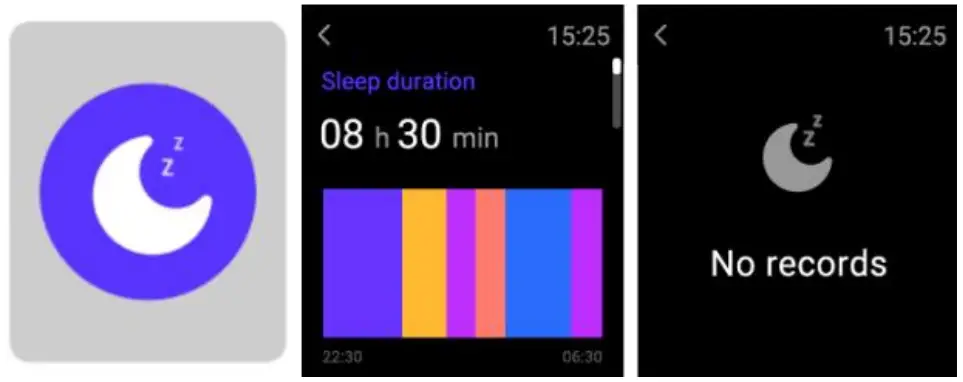
You can view the most recent sleep record and sleep status at each stage.
Relax
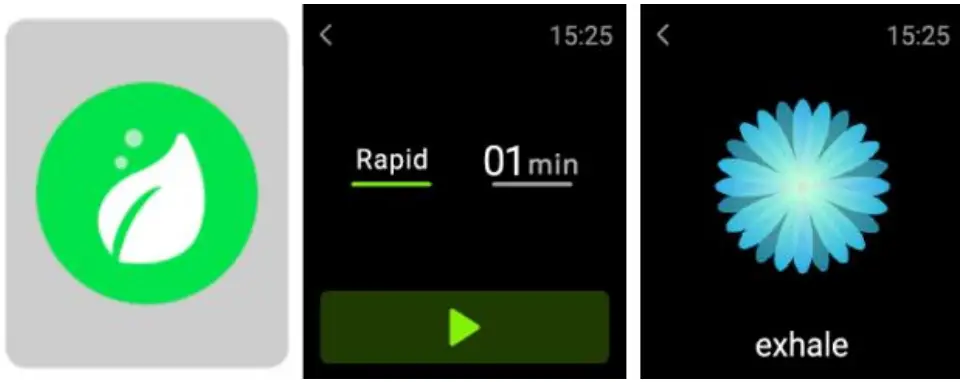
- Enter the Relax App and choose the duration;
- Click to start, then follow the vibration frequency and animation instructions to adjust your breathing and it will help you relax.
Stopwatch
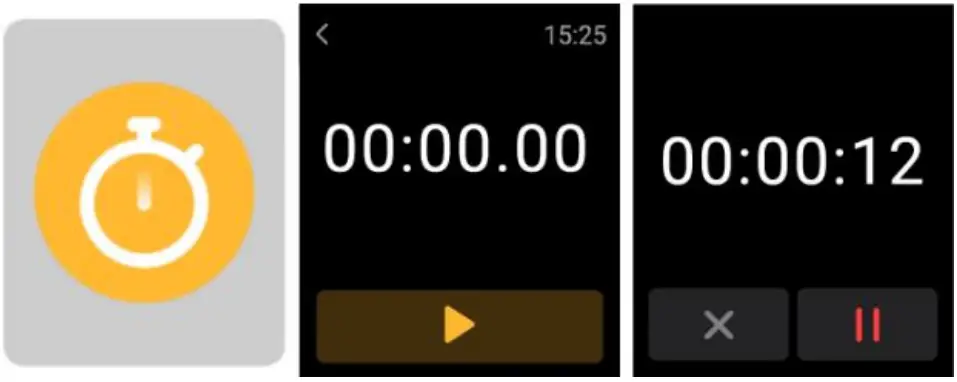
Stopwatch and a timer are provided.
Alarm
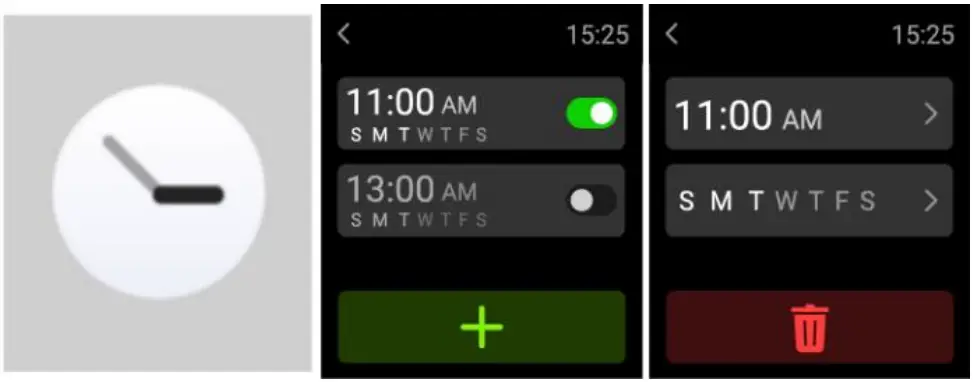
- The watch can be set to add, delete, turn on/off the alarm; you can also set the alarm to the watch through the APP; you can also set the label you need in the alarm to identify the alarm
- You can set the alarm delay time and times in the APP to decide how long you want to delay and how many times to delay
Timer
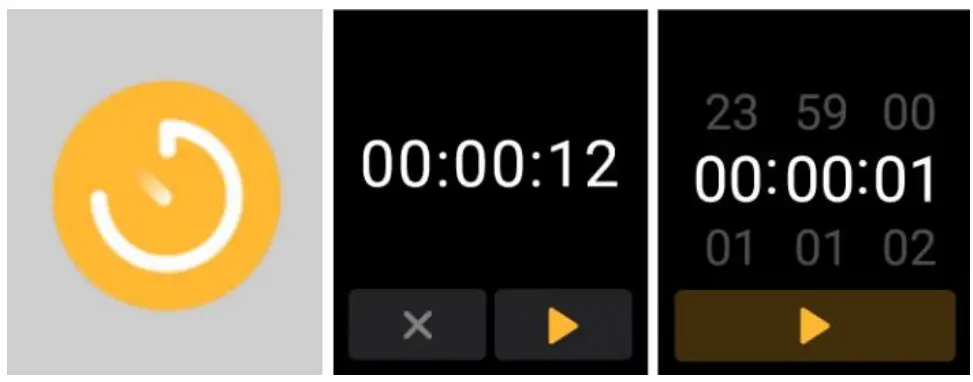
You can set a timer with a preset duration on the watch, and the timer will remind you when the timer expires; you can customize the timer time
Weather
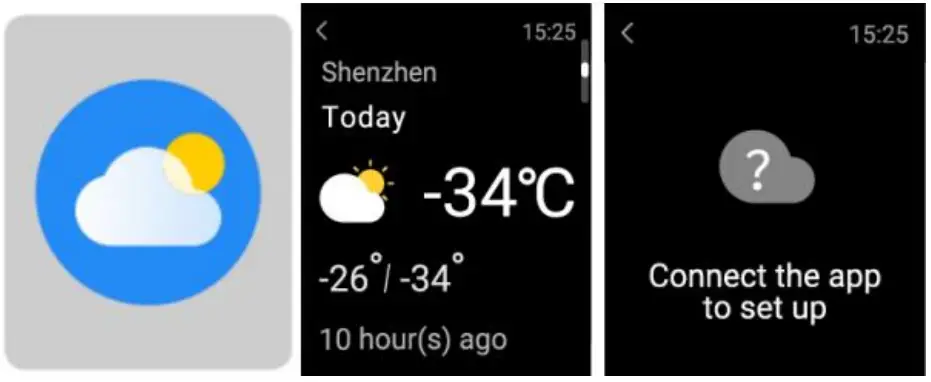
Supports Current city three-day weather viewing, you can view today’ s “current weather, highest and lowest weather values” and the “highest and lowest weather values” for the next two days
Music
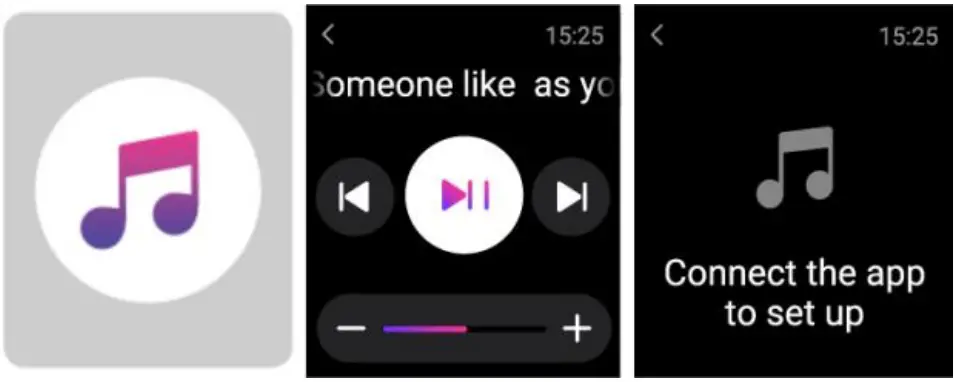
- When the watch is connected to the APP, you can control the mobile music player to perform the functions of “next, previous”, “play\pause” and “volume increase and decrease”.
- This function can be displayed/hide in the APP settings
Exercise Record
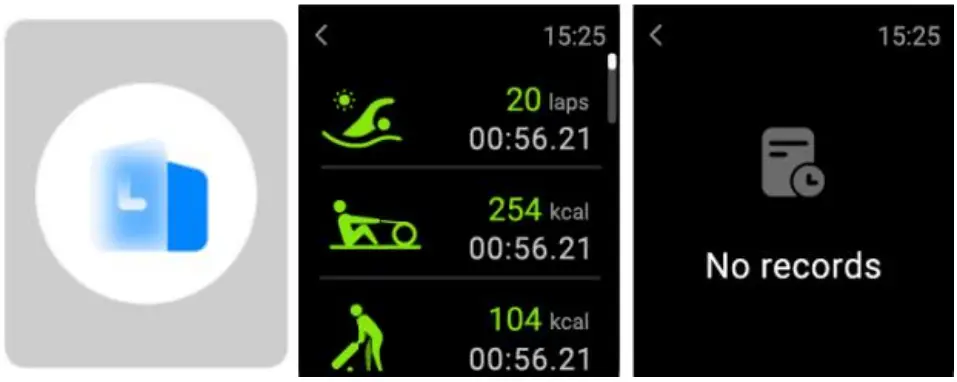
You can view your recent exercise record on the watch, including detailed data about your exercise you can also view the exercise records on the APP
Fine Phone
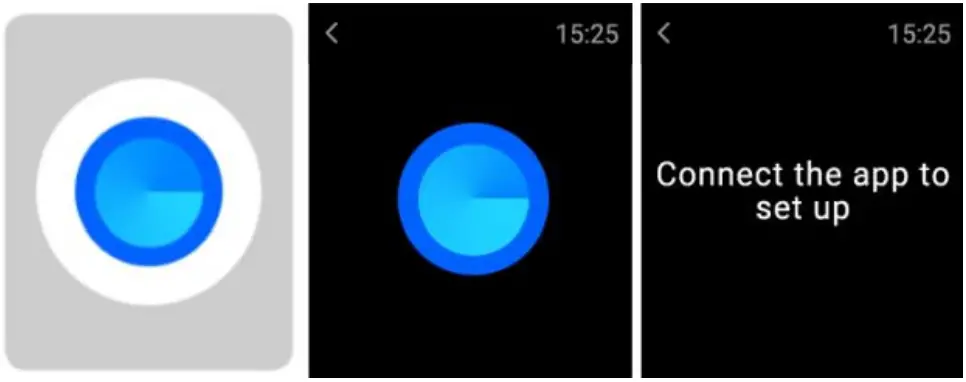
- When the watch is connected to the APP, you can make your phone ring
- Click the icon to end the ringing
- This function can be displayed\hide in the APP settings
Settings
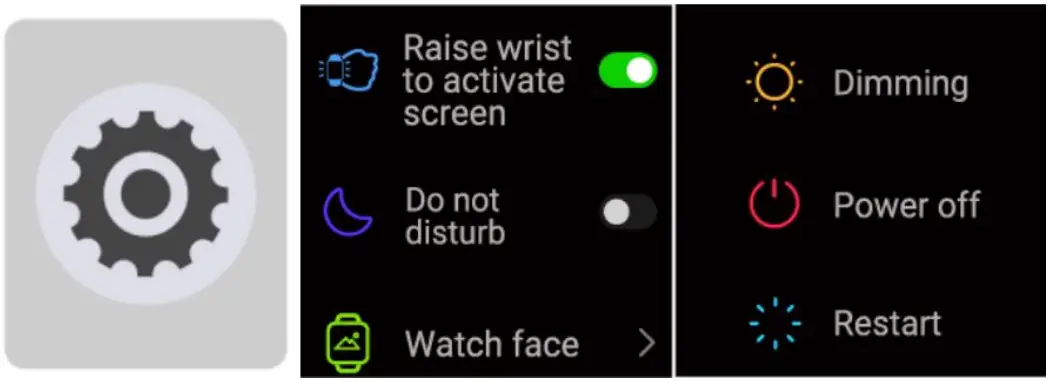
- You can set your wrist-lifting screen, real-time heart rate, and do not disturb switch on the watch This function can be displayed\hide in the APP settings
- You can switch the locally stored watch face on the watch
- You can set the brightness of the watch and the length of time the screen is on on the watch; you can set the switch to reduce the brightness at night
- You can control the shutdown, restart, and factory settings of the watch on the watch (after restoring the factory settings, all data in the watch will be cleared and the binding relationship with the phone will be released)
Message
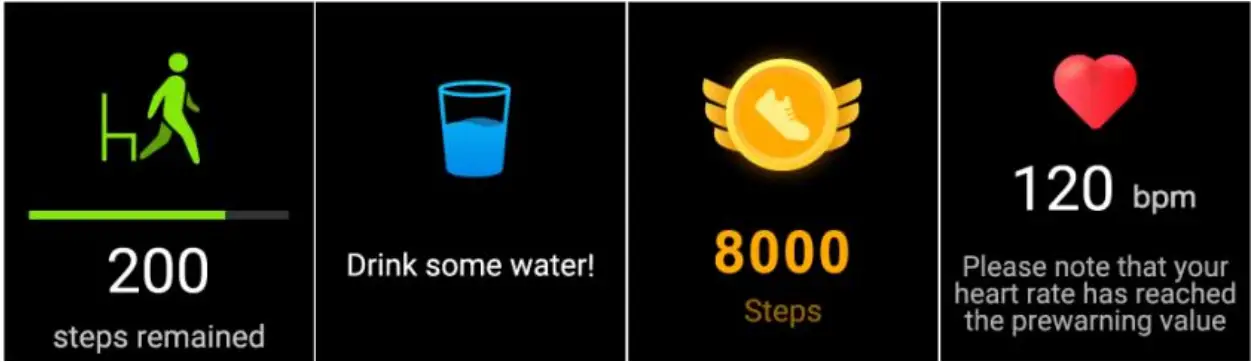
The watch supports multiple reminder modes, including message reminder, incoming call reminder, walking reminder, drinking reminder, exercise goal reminder, exercise center rate warning reminder, etc.
DOWNLOAD RESOURCES
- SKG V7 Smart Watch [pdf] User Guide V7, Smart Watch, V7 Smart Watch
- Read more: https://#manualsee.com/skg/v7-smart-watch-manual#ixzz7eyk5vkkD
FAQs
Make sure the magnetic charging cable is connected to the watch and the power adapter. If it still does not charge, please contact us.
You can change it in the “language” option in the watch settings.
You can set up your personal information in the “health” option in the watch settings.
Press and hold the “power” button for 5 seconds to turn on or off your watch.
You can use your smartwatch to call or send messages via Bluetooth connection with your phone.
When you receive a message from your phone, you will get a notification on your smartwatch; when you receive a message from Facebook, Twitter, WhatsApp, or other social media apps, you will get a notification on your smartwatch as well.
The App supports G7 Pro & K5-3 EN for now.
Video
www://skg.com/