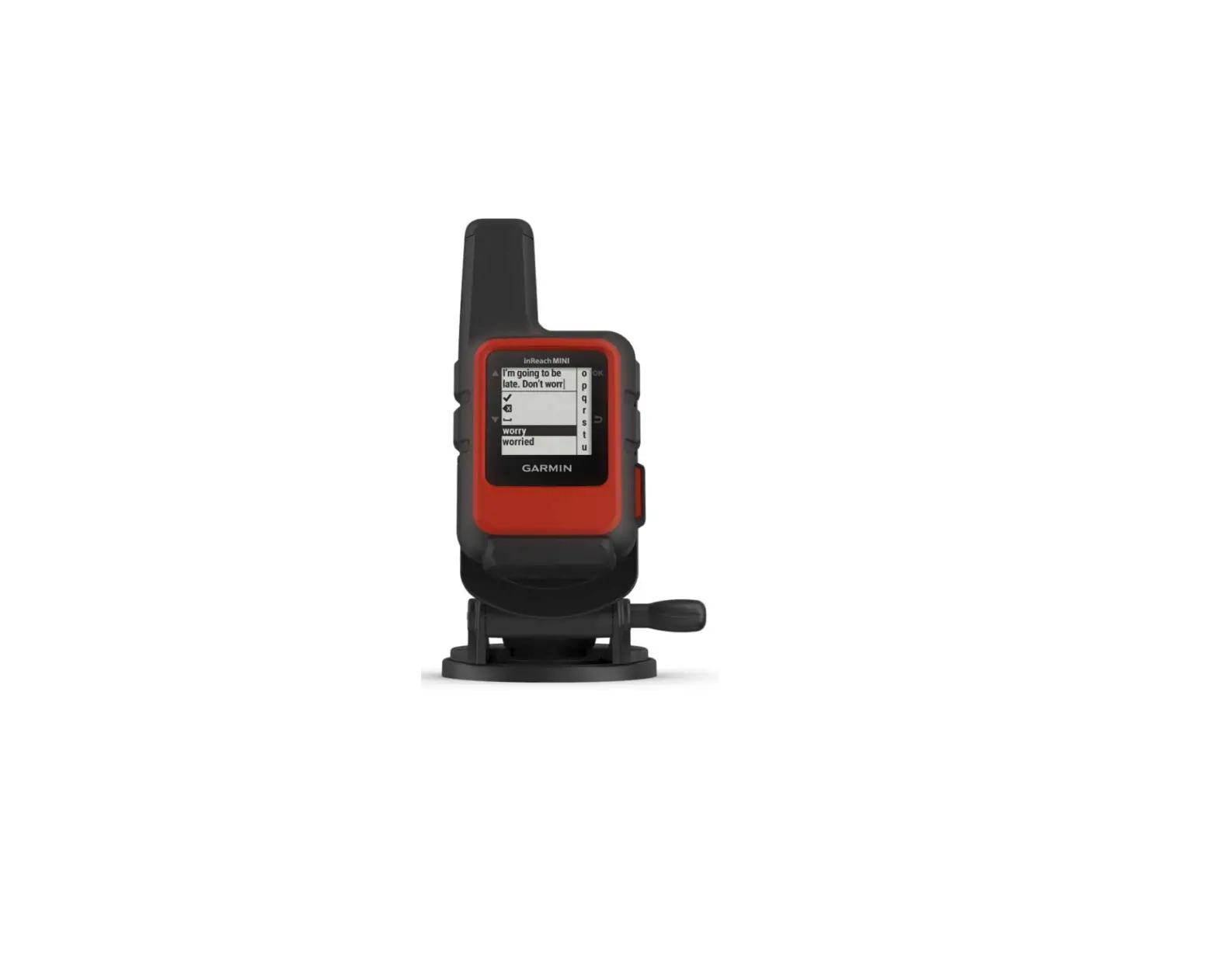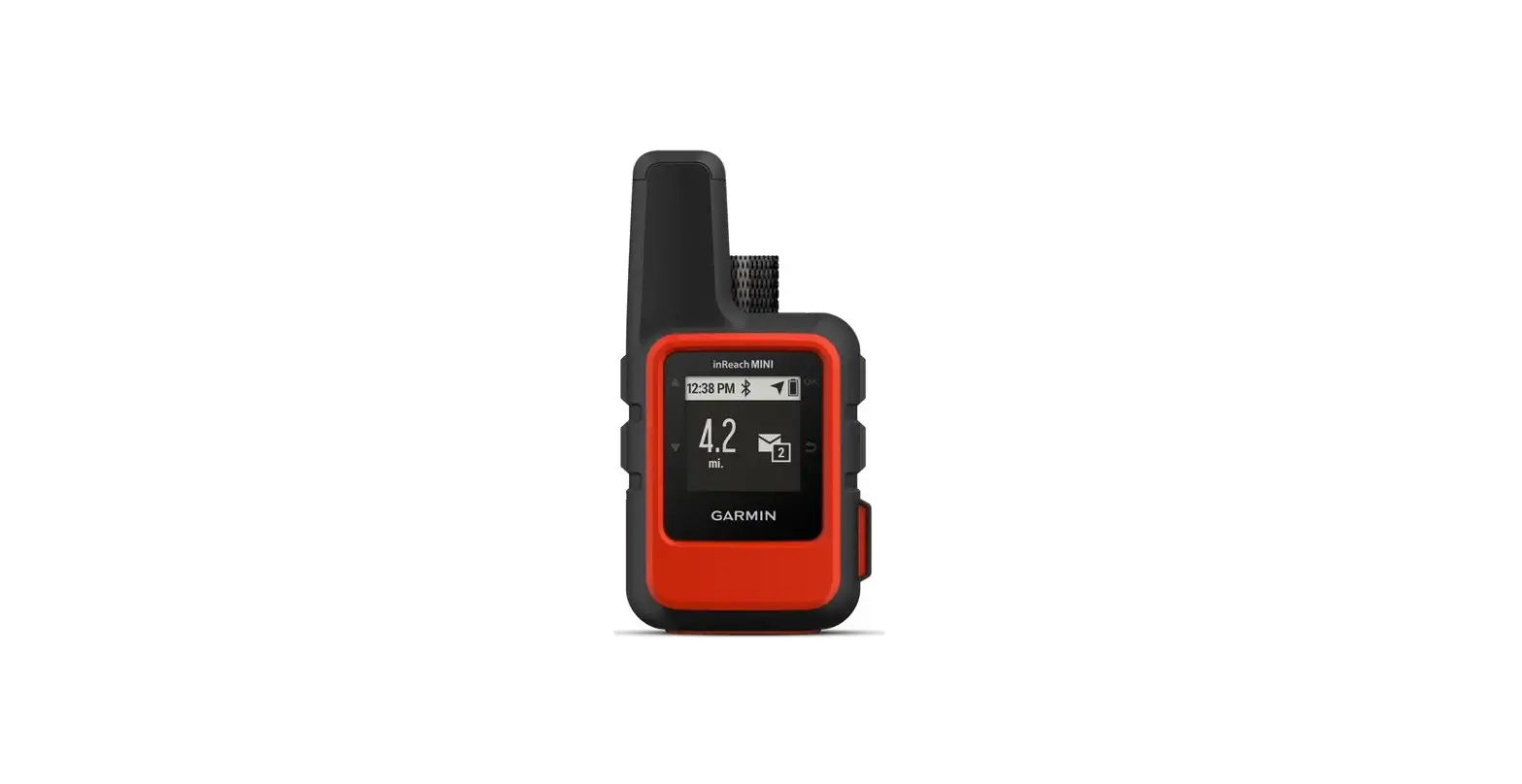

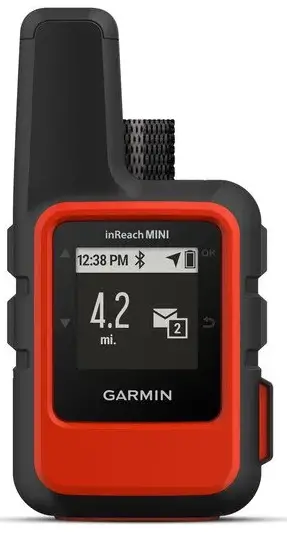
Garmin 010-01879-00 InReach Mini, Lightweight and Compact Satellite Communicator
Getting Started
WARNING
See the Important Safety and Product Information guide in the product box for product warnings and other important information
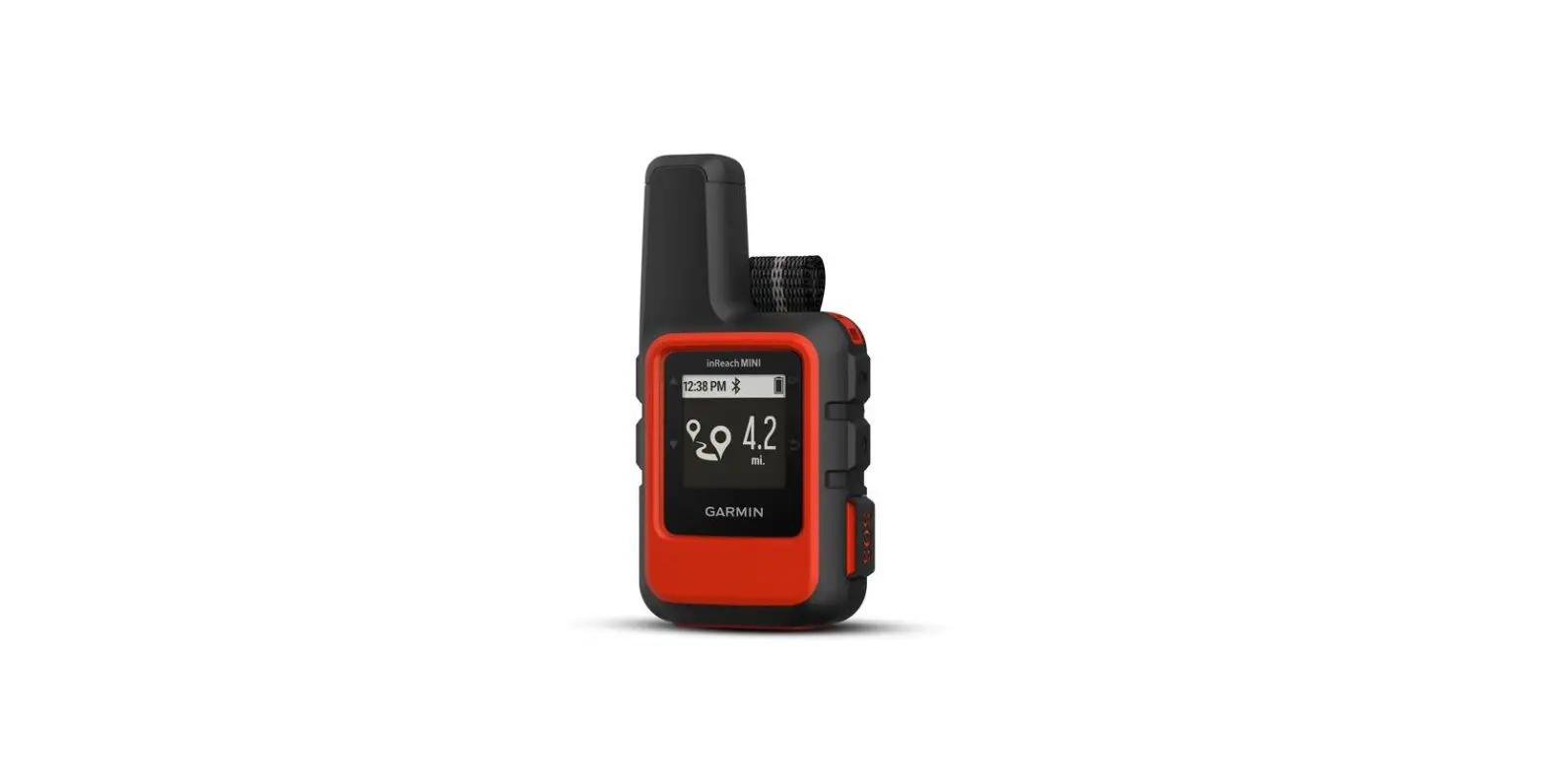
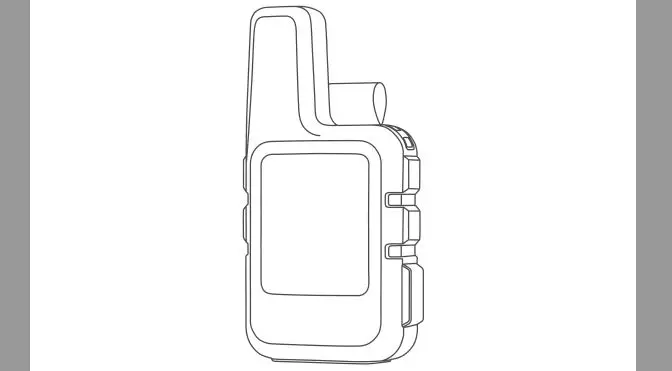
Device Overview
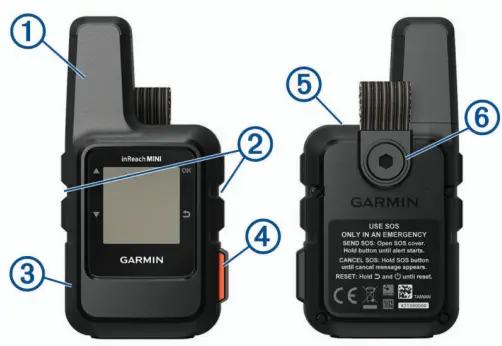
| CD | Internal Iridium® antenna |
| CV | Keys |
| ® | Micro-USB port (under weather cap) |
| ® | SOS button (under protective cap) |
| @ | Power key |
| ® | Mounting screw |
Keys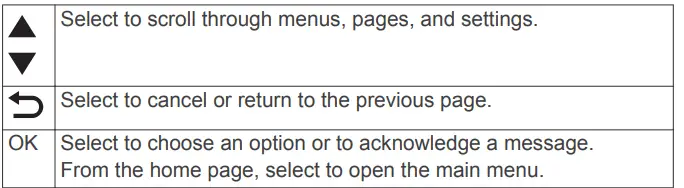
Turning On the Device
Hold
Status Icons
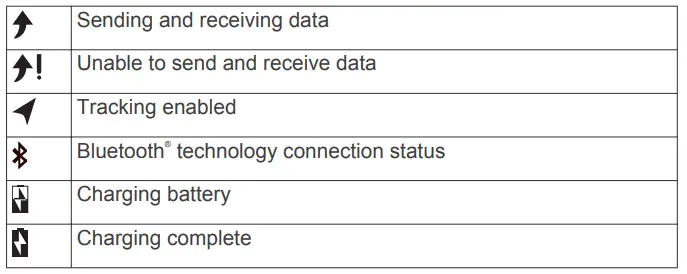
Charging complete activating the Device
- Create an account, and select a satellite subscription at explore.garmin.com
- Turn on the device.3
- Follow the on-screen instructions.
- When prompted, go outdoors to an open area with a clear view of the sky.
- Wait while the device communicates with the Iridium satellite network.
NOTE: It may take up to 20 minutes to activate your device. The device must send and receive several messages, which takes longer than sending a single message during regular use.
Iridium Satellite Network
Your device requires a clear view of the sky to transmit messages and track points over the Iridium satellite network. Without a clear view of the sky, your device attempts to send the information until it acquires satellite signals.TIP: For the best connection with satellites, attach the device to a backpack or to your upper body
Bluetooth Connected Features
Your device has several Bluetooth-connected features for your compatible smartphone or mobile device using the Earthmate®app. The Earthmate app allows you to use inReach features such as maps, tracking, messaging, and SOS on your mobile device.
Downloadable Features: View downloaded maps, aerial imagery, USGS quadrangle maps, and NOAA nautical charts on your mobile device. You should download maps and charts before going on your trip.
Sync: Earthmate syncs your device with your explore.garmin.com account, updating presets, waypoints, and routes.
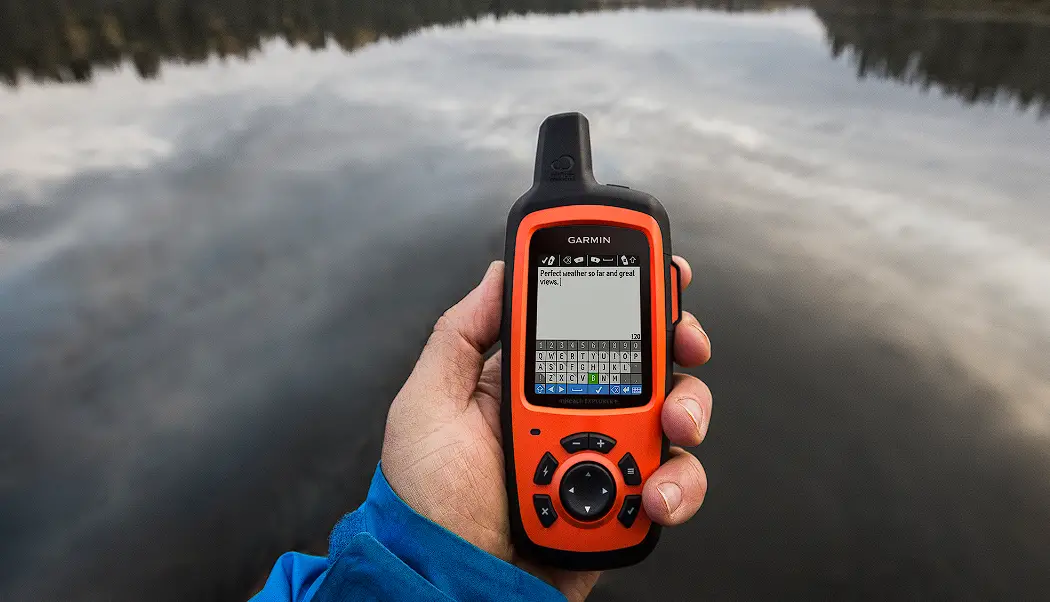
Messages: Allows you to read and write messages, and access the contacts list on your mobile device. Messages appear on both devices.
NOTE: You can have only one mobile device paired with your inReach device at a time.
Pairing Your Mobile Device
- From the app store on your mobile device, install and open the Earthmate app.
- Place the inReach device and your mobile device within 3 m (10 ft.) of each other.
- From the main menu, select Setup > Bluetooth > Pair Device.
- Follow the instructions in the Earthmate app to complete the pairing and setup process.
Testing the Device
You should test the device outdoors before using it on a trip to ensure your satellite subscription is active. From the main menu, select Utilities > Test Service > OK. Wait while the device sends a test message. When you receive a confirmation message, your device is ready to use.
Messages
Your inReach Mini device sends and receives text messages using the Iridium satellite network. You can send messages to an SMS phone number, an email address, or another inReach device. Each message you send includes your location details
Sending a Preset Message
Preset messages are messages that you created at explore.garmin.com. Preset messages have predefined text and recipients.
- From the main menu, select Send Preset.2
- Choose a preset message, and select Send.
Sending a Text Message
- From the Messages page, select OK.
- Select New Message > Select Contacts.
- Choose recipients from your contacts list, and select Done.
- Select an option
- To start with a pre-written message, select Pick Quick Text
- To write a custom message, select Write Message
- When you have finished your message, select
 > Send.
 > Send.
Replying to a Message
- From the Messages page, select OK.
- Select a conversation and select Reply.
- Select an option
- To start with a pre-written message, select Pick Quick Text.
- To write a custom message, select Write Message.
- When you have finished your message, select > Send.
Posting to Social Media
- From the Messages page, select OK
- Select New Message > Select Contacts
- Select one or more options
- To post to your Facebook™ account, select

- To post to your Twitter™ account, select

- To post to your MapShare™ web page, select

- To post to your Facebook™ account, select
- Select Done.
- Select an option:
- Select Write Message to create a new message
- Select Pick Quick Text to select a quick text message.
- Select Send.


Checking for Messages
Your device listens for new messages at regular listen intervals. Satellites announce recently sent messages, and your device receives the message at the next listen interval
NOTE: Your device must be in view of a satellite at the time of the listen to receive messages. You can force a check for messages by manually checking for messages, sending a message, or sending a track point. During a check, your device connects to satellites and receives messages waiting to be sent to your device. From the Mail Check page, select OK.
Deleting Messages
- From the Messages page, select OK
- Select a message
- Select Delete Thread.
Contacts
You can add contacts to the Garmin Explore™ website and sync them to your device. Go to explore.garmin.com
Viewing a Contact
- From the main menu, select Utilities > Contacts
- Select a contact, and select View Details.
Deleting a Contact
- From the main menu, select Utilities > Contacts
- Select a contact, and select Delete.
SOS
During an emergency, you can contact the GEOS International Emergency Rescue Coordination Center (IERCC) to request help. Pressing the SOS button sends a message to the rescue coordination center, and they notify the appropriate emergency responders of your situation. You can communicate with the rescue coordination center during your emergency while you wait for help to arrive. You should only use the SOS function in a real emergency situation.
Initiating an SOS Rescue
NOTE: While in SOS mode, the device cannot be turned off.
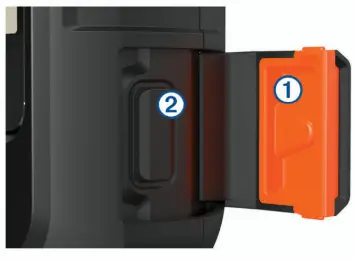
- Lift the protective cap À from the SOS button Á.

- Hold the SOS button.
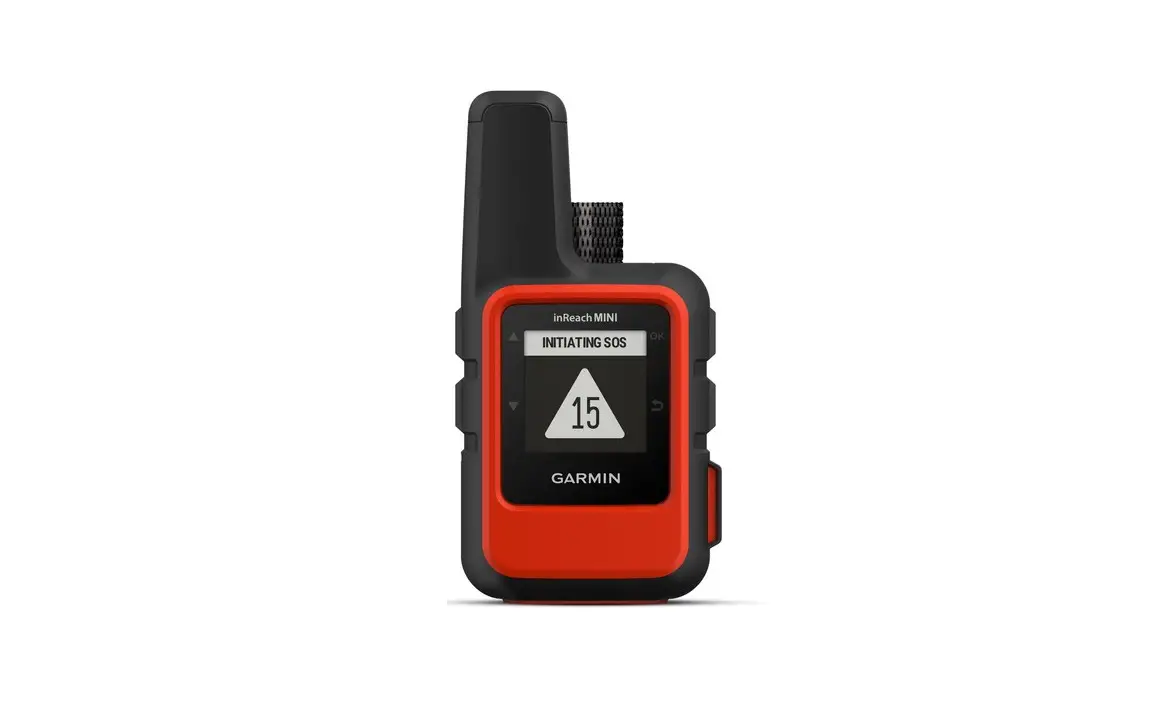
- Wait for the SOS countdown.
- The device sends a default message to the emergency response service with details about your location.
- Reply to the confirmation message from the emergency response service.
Your reply lets the emergency response service know that you are capable of interacting with them during the rescue. For the first 10 minutes of your rescue, an updated location is sent to the emergency response service every minute. To conserve battery power after the first 10 minutes, an updated location is sent every 10 minutes when moving, and every 30 minutes when stationary.
Canceling an SOS Rescue
If you no longer need assistance, you can cancel an SOS rescue after it is sent to the emergency response service
- Lift the protective cap, and hold the SOS button
- Select Yes.
Your device transmits the cancellation request. When you receive a confirmation message from the emergency response service, the device returns to normal operation.
Tracking
Tracking records your path. When you start tracking, your device logs your location and updates the track line at the specified log interval. Your device records track points and transmits them over the satellite network at the specified send interval. You can view the total number of track points sent.
TIP: You can adjust the tracking log interval and the tracking send interval to maximize battery life (Tracking Settings, page 4).
NOTE: When the tracking log storage is full, your device overwrites older track points, but retains a lower-detail tracking line.
Starting Tracking
- From the Tracking page, select OK.
- Your track line and track points appear on your MapShare web page for friends and family to follow your trip.
Stopping Tracking
- From the Tracking page, select OK
- Select Stop Tracking.
Acquiring GPS Satellite Signals
Before you can use GPS navigation features, you must acquire satellite signals. When you turn on your navigation device, the GPS receiver must collect satellite data and establish the current location. The time required to acquire satellite signals varies based on several factors, including how far you are from the location where you last used your navigation device, whether you have a clear view of the sky, and how long it has been since you last used your navigation device. The first time you turn on your navigation device, it may take several minutes to acquire satellite signals
- Turn on the device
- Wait while the device locates satellites.
- It may take up to 60 seconds to acquire satellite signals
- If necessary, go to an open area, away from tall buildings and trees.
Routes
A route is a sequence of locations that leads you to your final destination. You can create and save routes at explore.garmin.com
Navigating a Saved Route
Starting navigation updates your MapShare web page, and your friends and family can view the route you are navigating
- From the main menu, select Navigate > Routes
- Select a route, and select Navigate.
Reversing a Route
You can switch the start and end points of your route to navigate the route in reverse.
- From the main menu, select Navigate > Routes
- Select a route, and select Reverse Route.
Deleting a Route
- From the main menu, select Navigate > Routes
- Select a route, and select Delete.
Waypoints
Waypoints are locations you record and store in the device. Waypoints can mark where you are, where you are going, or where you have been. Creating or editing a waypoint updates your MapShare web page.
Creating a Waypoint
You can save your current location as a waypoint or create custom waypoints.
- Choose an option
- To mark your current location as a waypoint, select Mark Waypoint from the main menu.
- To create a custom waypoint, select Navigate > Waypoints > New Waypoint from the main menu
- If necessary, edit the waypoint information.
Navigating to a Waypoint
- From the main menu, select Navigate > Waypoints.
- Select a waypoint, and select Navigate.
Editing a Waypoint
- From the main menu, select Navigate > Waypoints.
- Select a waypoint, and select an option
- To change the name of the waypoint, select Edit Name.
- To change the symbol representing the waypoint, select Edit Symbol.
- To change the GPS coordinates of the waypoint, select Edit Coordinates
- Enter the new information, and select if necessary.
Deleting a Waypoint
- From the main menu, select Navigate > Waypoints
- Select a waypoint, and select Delete.
Stopping Navigation
- From the navigation page, select OK
- Select Stop Navigating.
Compass
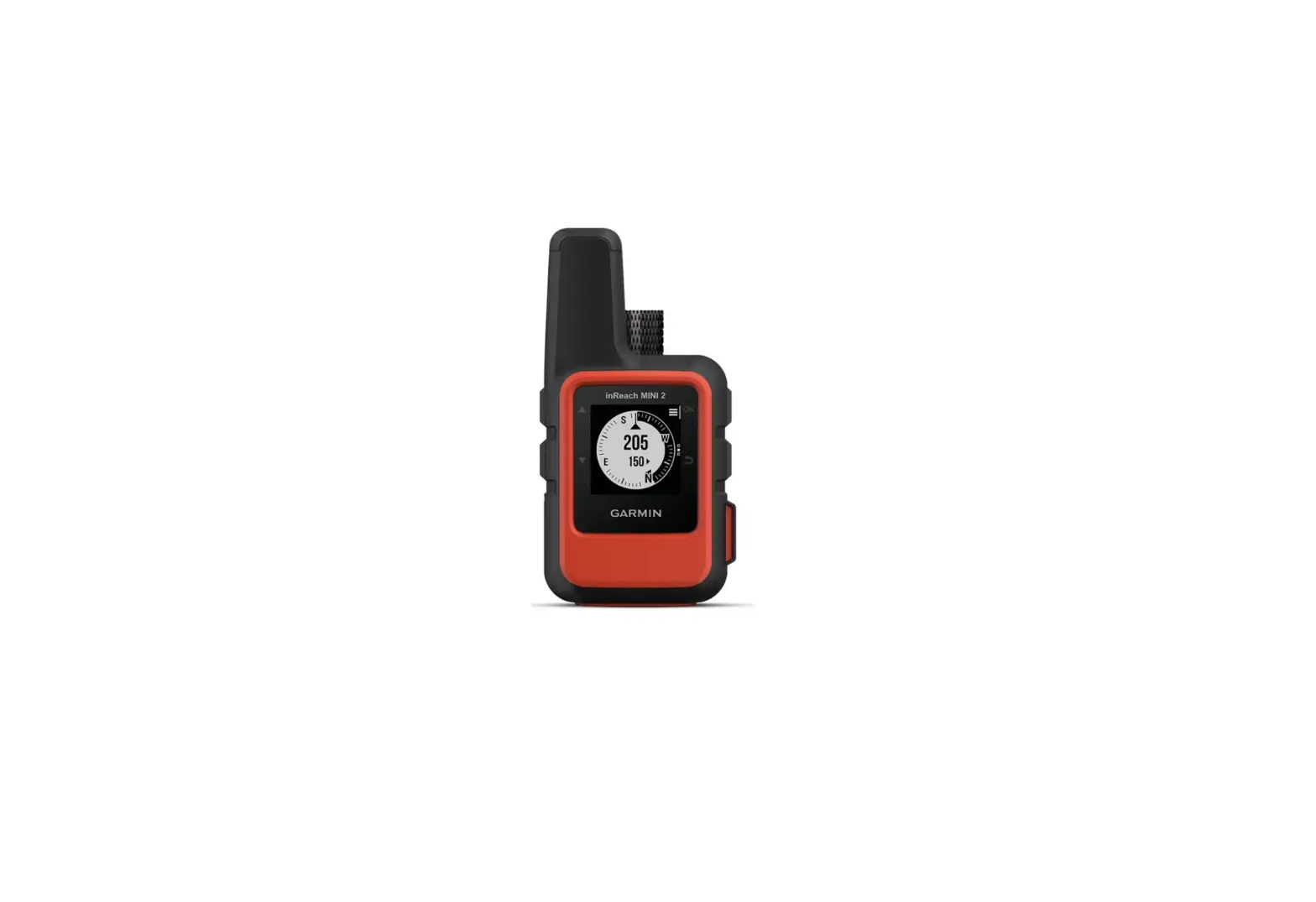
The compass page shows your heading and speed when you are moving.
Location
You can view your current GPS location and elevation from the Location page. Each message you send includes a link to your current location. You can also send your location details as text within a message.
Viewing and Sharing Your Current Location
- From the Location page, select OK
- Select Share Location to send your location details as text within a message.
Weather
Your inReach device can send a message to request basic, premium, or marine weather forecasts. You can receive weather forecasts for your current location, a waypoint, or GPS coordinates. Weather forecasts incur data usage charges. For more information, go to explore.garmin.com
Adding a Weather Location
You can add waypoints as weather locations.
- From the Weather page, select OK
- Select Change Location > New Location
- Select an option
- To add an existing waypoint as a weather location, select a waypoint
- To create a new waypoint to add as a weather location, select New Waypoint.
Setting the Weather Location
- From the Weather page, select OK.
- Select Change Location
- Select a location.
Requesting a Weather Forecast1
- From the Weather page, select OK
- Select Update
- If necessary, select a forecast type.
NOTE: For best results, you should request a marine forecast for a location away from shore and over a large body of water.
Deleting a Weather Location
You must set the weather location before you can delete it (Setting the Weather Location, page 3)
- From the Weather page, select OK
- Select Remove
Remote Control
You can access some inReach Mini features using another compatible device with ANT+® wireless technology, such as the fēnix® watch. You can use remote control to view incoming messages, send preset messages, start and stop tracking, and initiate or cancel an SOS.NOTE: You must enable ANT+ before pairing your device (ANT+ Sensor Settings, page 4).
Data Use and History
Viewing Data Use
You can view the number of messages, preset messages, and track points sent during the current billing cycle. You can also view the details of your current data plan and check for data plan updates. The data use counter resets automatically at the beginning of each billing cycle. From the main menu, select Utilities > Data Use.
Resetting the Data Use Counter
If you are a professional customer, you can reset the data use counter to monitor your usage. From the main menu, select Utilities > Data Use > Reset Counter.
Customizing the Device
Display Settings
- From the main menu, select Setup > Display.
- Brightness: Sets the backlight brightness.
- Timeout: Sets the length of time before the backlight turns off.
Tracking Settings
From the main menu, select Setup > Tracking.
- Send Interval: Sets the frequency at which the device records a track point and transmits it over the satellite network when you are moving.
- Log Interval: Sets the frequency at which the device logs your location and updates the track line in memory.
- Auto Track: Sets the device to start tracking when you turn on the device.
- Extended Tracking: Sets the device to enter sleep mode between track points to maximize battery life. Sleep mode disables Bluetooth wireless technology, detailed track lines, and message checking.
- Stationary Interval: Sets the frequency at which the device records a track point and transmits it over the satellite network when you are not moving. This setting is only available for professional customers.
- Burst Tracking: When tracking, sets the device to create and send a detailed track line to provide the best approximation of your location. You can select the amount of data to use, and the device will create as many track points as possible. This setting is only available for professional customers.
Bluetooth Settings
From the main menu, select Setup > Bluetooth.
- Enabled: Enables Bluetooth wireless technology.
- Pair Device: Connects your device with a compatible Bluetooth enabled mobile device. This setting allows you to use Bluetooth connected features using the Earthmate app.
- Forget Device: Removes the connected device from the list of mobile devices to connect to. This option is available only after the device has paired.
- Pair Again: Restarts the pairing process. This option is available only after the device has paired.
ANT+ Sensor Settings
- From the main menu, select Setup > ANT+
- Enabled: Turns ANT+ on or off.
Messages Settings
From the main menu, select Setup > Messages.
- Ring Until Read: Sets the device to ring until you read a new message. This feature is helpful if you are in a noisy environment.
- Adaptive Mail Check: When this setting is enabled, the device listens more frequently for a reply to a sent message for ten minutes. If the recipient replies quickly, you can receive the reply before the next scheduled listen interval. This setting is only available for professional customers.
Sounds Settings
From the main menu, select Setup > Sounds
Mute All: Mutes all device tones.
Volume: Sets the device volume level.
Message Received: Sets the tone that sounds when you receive a message.
Message Sent: Sets the tone that sounds when the you send a message.
Critical Alert: Sets the tone that sounds when the device announces a critical alert.
Power Off: Sets the tone that sounds when you turn off the device.
Time Settings
From the main menu, select Setup > Time.
- Time Format: Sets the device to show time in a 12-hour or 24-hour format.
- Time Zone: Sets the time zone for the device.
- Daylight Saving: Sets the device to use daylight saving time. This option is not available when Time Zone is set to Automatic.
Units Settings
NOTE: You should not change the position-coordinate format or the map datum coordinate system unless you are using a map or chart that specifies a different position format.
From the main menu, select Setup > Units
- Coordinates: Sets the format used for geographical position coordinates.
- Datum: Sets the coordinate system used by the map.
- Speed/Distance: Sets the unit of measure for distance.
- Temperature: Sets the temperature units to Fahrenheit (°F) or Celsius (°C).Pressure: Sets the pressure units.
- Bearing: Sets the north reference used on the compass to true or magnetic north.
Changing the Device Language
- From the main menu, select Setup > Language.
- Select a language.
Adding Owner Information1
- From the main menu, select Setup > Owner Info.
- Select OK, enter your information, and select.
Device Information
Support and Updates
Go to explore.garmin.com for easy access to these services for inReach devices.
- Product registration
- Firmware updates
- Data uploads and syncing your device with your account.
Attaching the Spine Mount Adapter1
- Remove the short screw 1 from the carabiner strap 2

- Secure the spine mount adapter 1 over the back of the device using the long screw 2 included with the device.

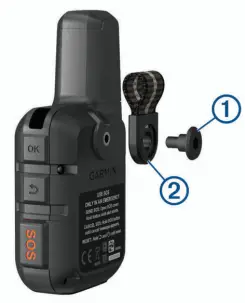
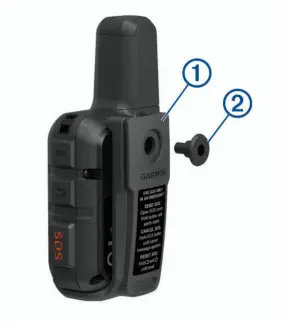
TIP: The spine mount adapter fits over the carabiner strap. You can attach the adapter over the strap or remove the strap.
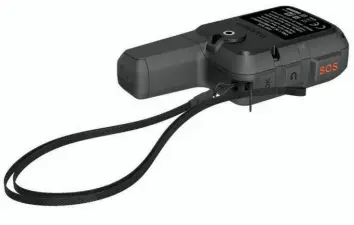
Attaching a Lanyard1
- Insert the loop of the lanyard through the slot in the device

- Thread the other end of the lanyard through the loop, and pull it tight
- If necessary, attach the lanyard to your clothing or backpack to tether it during an activity.
Locking and Unlocking the Keys
You can lock the keys to prevent inadvertent key presses
- Select
 > Lock Screen
 - Select > Unlock to unlock the keys.
Device Care
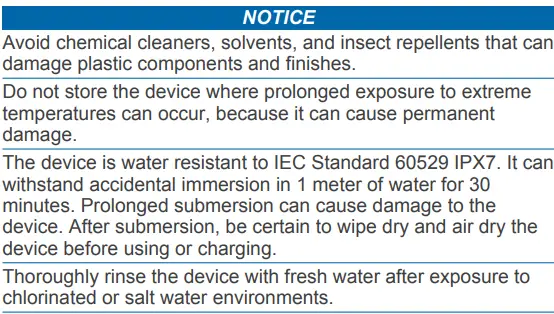
Cleaning the Device1
- Wipe the device using a cloth dampened with a mild detergent solution
- Wipe it dry.
After cleaning, allow the device to dry completely.
Troubleshooting
Maximizing Battery Life
- Turn on the Extended Tracking setting (Tracking Settings, page 4)
- Reduce the backlight timeout (Display Settings, page 4)
- Reduce the value of the tracking Log Interval and Send Interval settings (Tracking Settings, page 4)
- Turn off Bluetooth wireless technology (Bluetooth Settings, page 4)
- Turn off ANT+ wireless technology (ANT+ Sensor Settings, page 4)
Resetting the Device
If the device stops responding, you may need to reset it. This does not erase any of your data or settings.1
- Hold
 and until the device turns off.
 - Hold to turn on the device.
 and
and Restoring All Default Settings
You can restore all device settings to the factory default values. From the main menu, select Setup > Recovery Options > Restore Defaults.
Viewing Device Information
You can view the IMEI number, firmware version, regulatory information, license agreement, and other device information.1
- From the main menu, select Setup.
- Select About This Device.
Viewing E-Label Regulatory and Compliance Information
The label for this device is provided electronically. The e-label may provide regulatory information, such as identification numbers provided by the FCC or regional compliance markings, as well as applicable product and licensing information
- From the main menu, select Setup
- Select About This Device
- Select Regulatory.
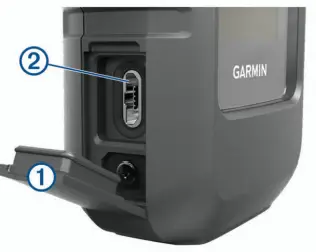
Charging the Device
To prevent corrosion, thoroughly dry the USB port, the weather cap, and the surrounding area before charging or connecting to a computer.
NOTE: The device does not charge when it is outside the approved temperature range (Specifications, page 6)
- Lift the weather cap 1

- Plug the small end of the power cable into the USB port Á on the device
- Plug the other end of the power cable into an appropriate power source
- Charge the device completely.
Specifications
| Battery type | Rechargeable, built-in lithium-ion battery |
| Water rating | IEC 60529 IPX7* |
| Operating temperature range | From -20° to 60°C (from -4° to 140°F) |
| Charging temperature range | From 0° to 45°C (from 32° to 113°F) |
| Wireless frequency/protocol | 1.6 GHz @ 31.7 dBm nominal
2.4 GHz @ 5 dBm nominal |
The device withstands incidental exposure to water of up to 1 m for up to 30 min. For more information, go to www.garmin.com/waterrating
Battery Information
The actual battery life depends on your device settings, such as the tracking and message checking intervals.
| Battery Life | Mode |
| Up to 30 hr. | 10-minute tracking send interval and 1-second log interval |
| Up to 50 hr. | Default mode with 10-minute tracking send interval and 5-minute log interval |
| Battery Life | Mode |
| Up to 20 days | Extended tracking mode with 30-minute tracking send interval |
| Up to 1 yr. | Turned off |
FAQS
To clarify, the inReach Mini does send your location to iOS devices such as the iPad. Apple’s location services then send that information to the Earthmate app, allowing you to see where you are. This works if your device is in Airplane mode or has no cellular service.
No, an EPIRB unit is required for that option. To use the system, InReach requires a monthly subscription plan, but it does offer two-way messaging. The plans are extremely adaptable, with the ability to easily switch between them as needed. The yearly subscription plans are the most affordable overall, and you can use the cheapest plan when you are not using InReach frequently, then switch to the more expensive plan when necessary. It is worth noting that the more expensive plans may be less expensive overall if you intend to use the tracking function or send a large number of messages. Check out the Garmin website for more information on the various plans, and then choose one based on your current requirements. It is simple to switch back and forth.
Yes, you would install the Earthmate app on the device, and when paired, the GPS position of the Mini would be transmitted to it via the GPS antenna.
You will register for an email address through which you will be able to send and receive messages.
As a landslide geologist dealing with slope stability, I can only imagine that trying to get an avalanche detector is one thing, but depending on its accuracy and reliability with your life is something else entirely that I would not do or trust my life to!
It communicates with the rest of the world via the Iridium network. Even if there is no signal, a cell phone can be used to conveniently type and read messages. It is not necessary to have a cell phone.
When activated all, the monthly cost with tax is just over 13 dollars.
Yes. Earthmate is the app you’d use, and it’s available for both iOS and Android devices
You can enable it as needed, but keep in mind that you must have an active subscription. Before you leave the cellphone coverage area, I recommend sending and receiving a test message.
No, it provides GPS coordinates and tracking but does not support GLONASS.
It lacks a satellite phone function and thus cannot make calls. The SOS function sends an emergency rescue message with your location to emergency services. You can also send emergency texts to friends and family, as well as emergency responders.
Our Freedom subscription plans allow you to deactivate the device when you don’t need it and not be charged for those times. More information can be found at https://explore.garmin.com/en-US/inreach/.
Yes, the Inreach Mini is compatible with both Android and IOS devices
The inReach mini connects solely using satellites. It needs a relatively clear view of the sky to function in any location around the world. Cell service, or lack thereof, doesn’t influence the functions of the Garmin inReach Mini.
Yes, the inReach Mini can be used in the cockpit of an airplane