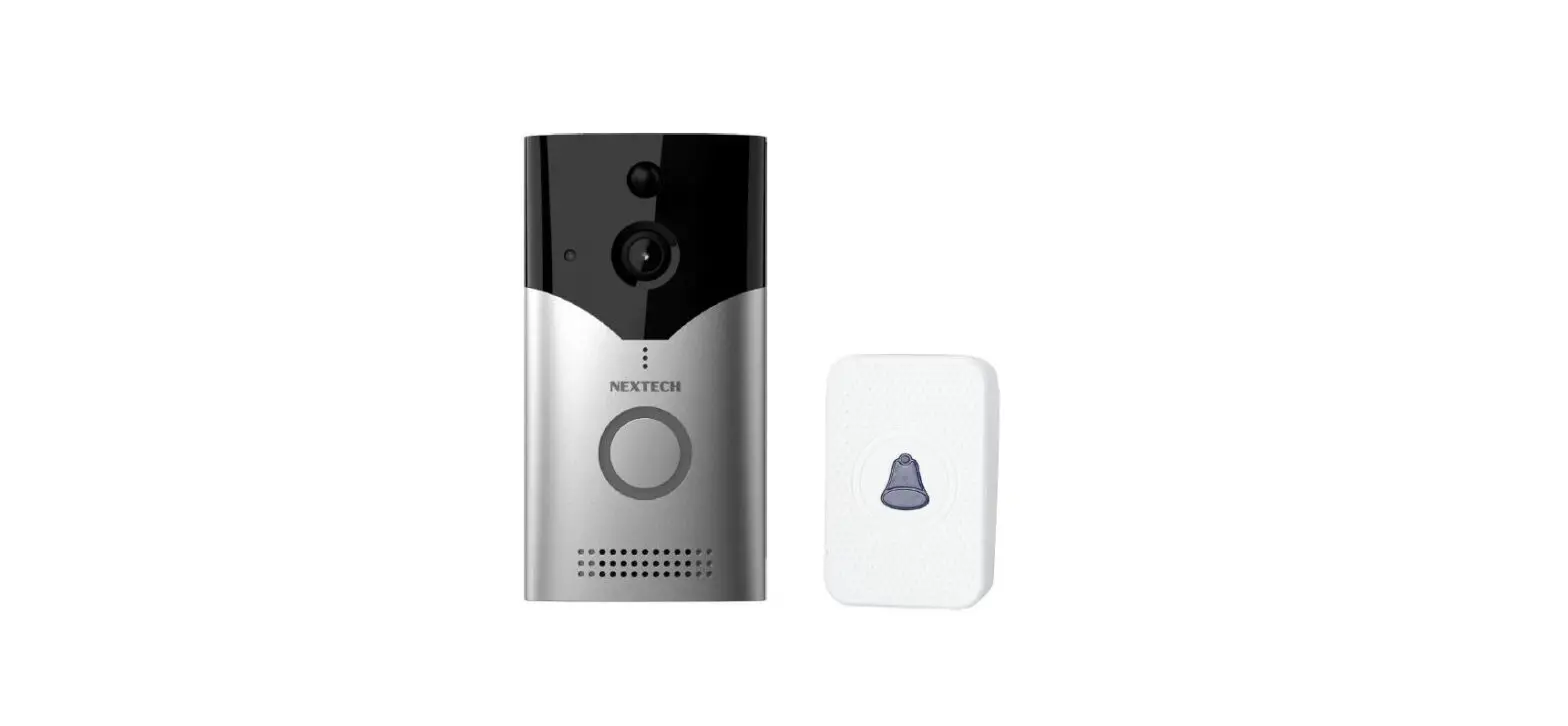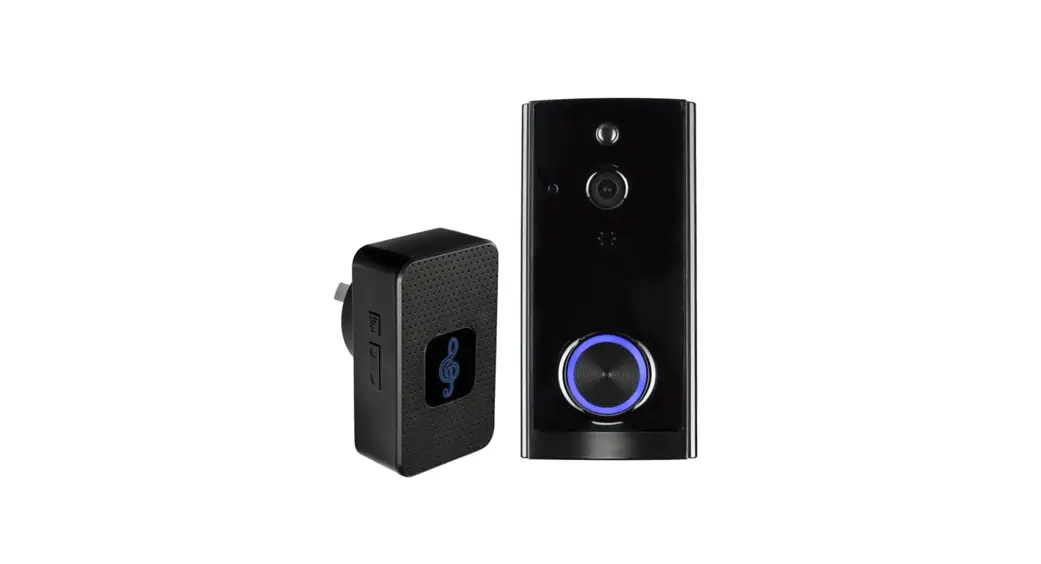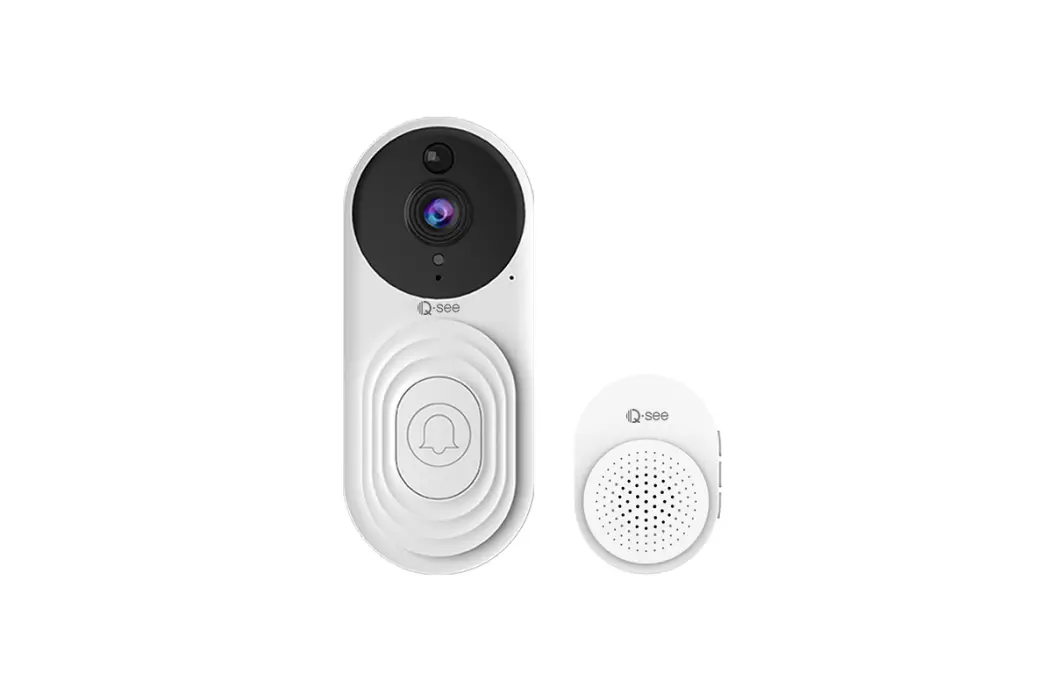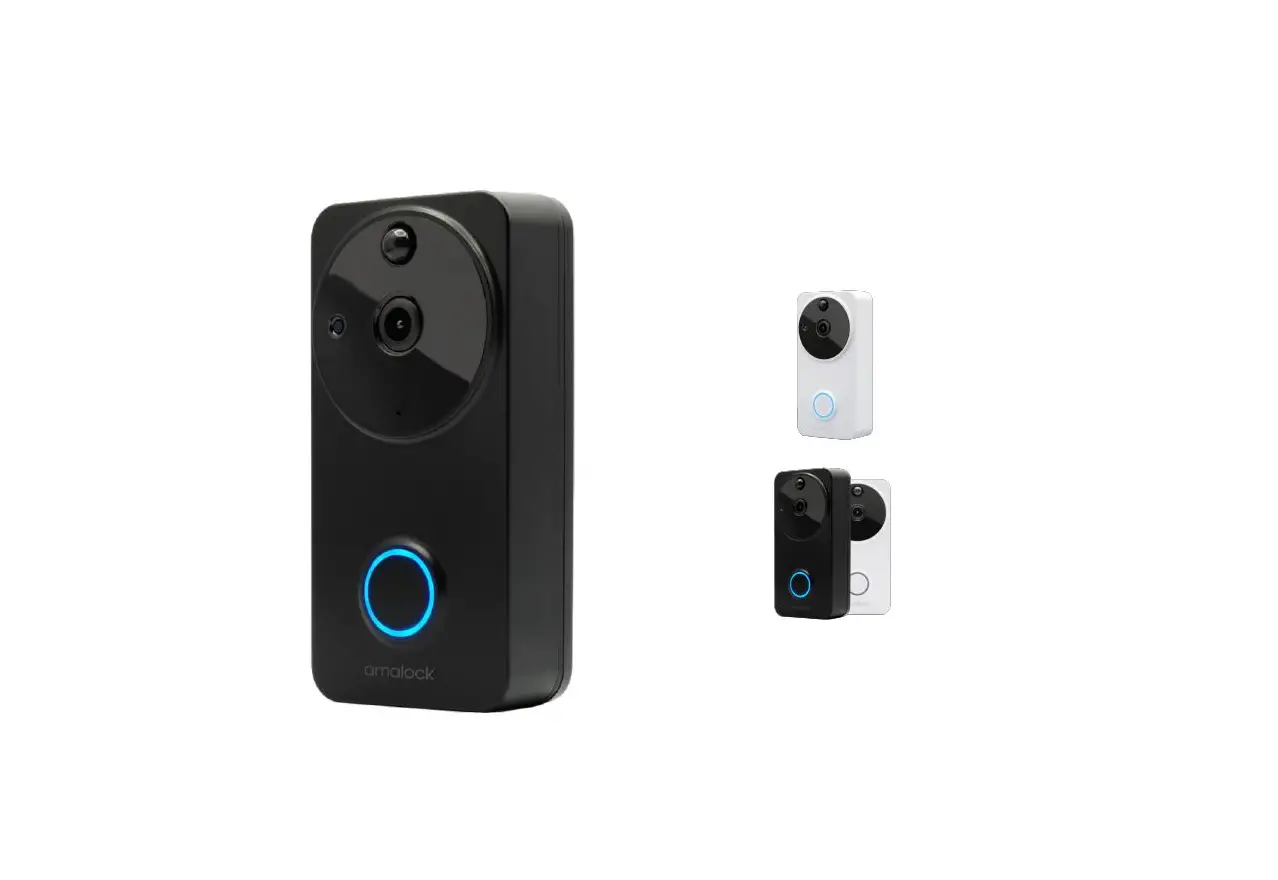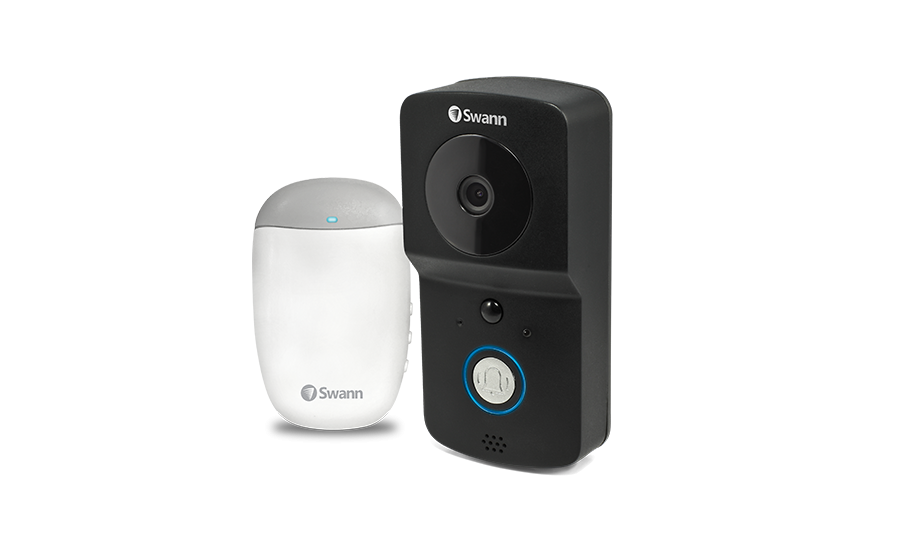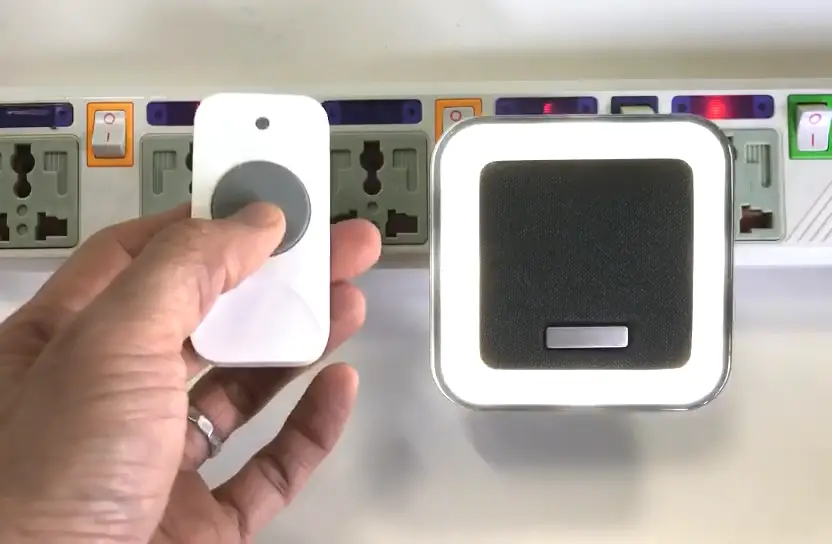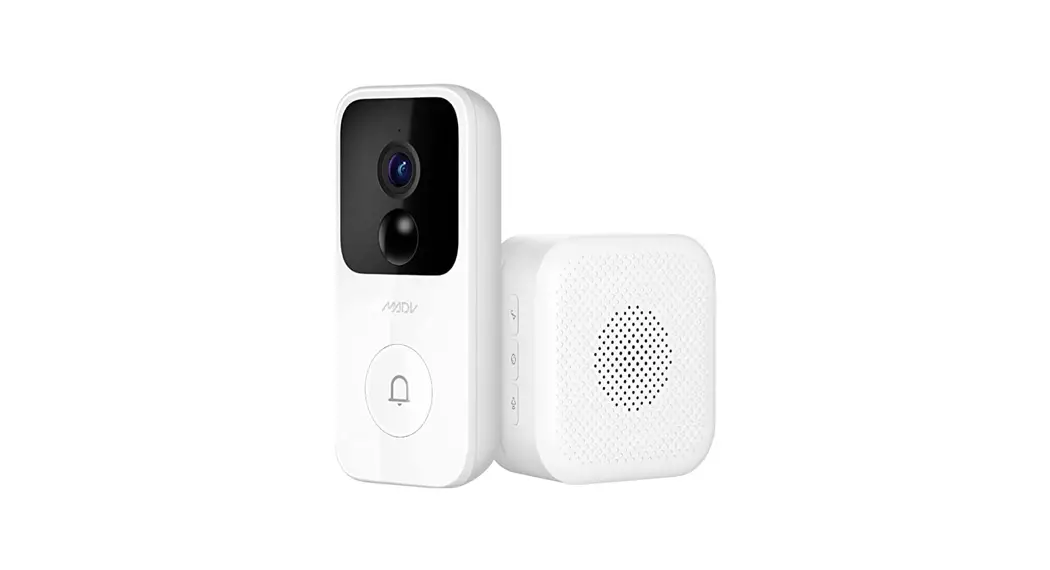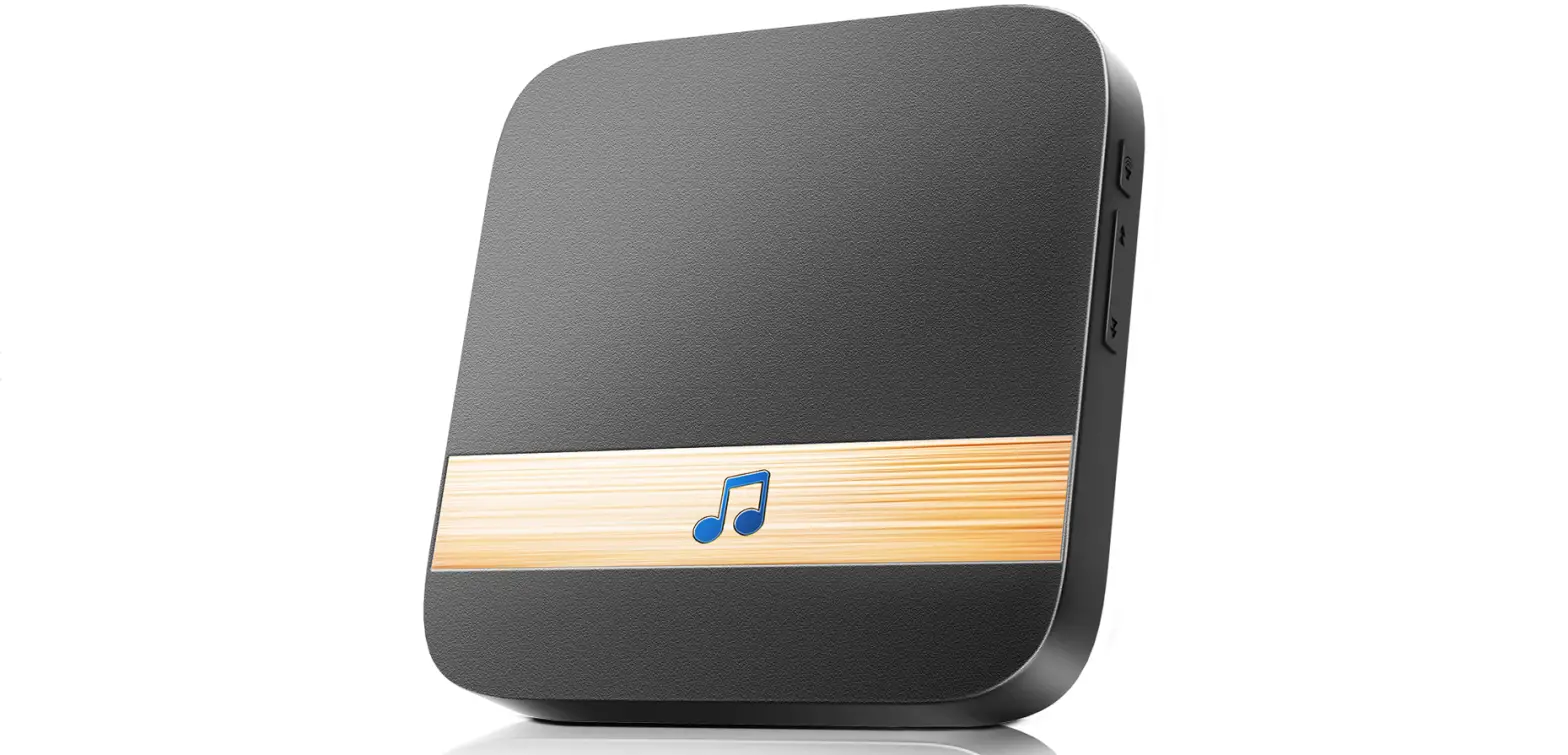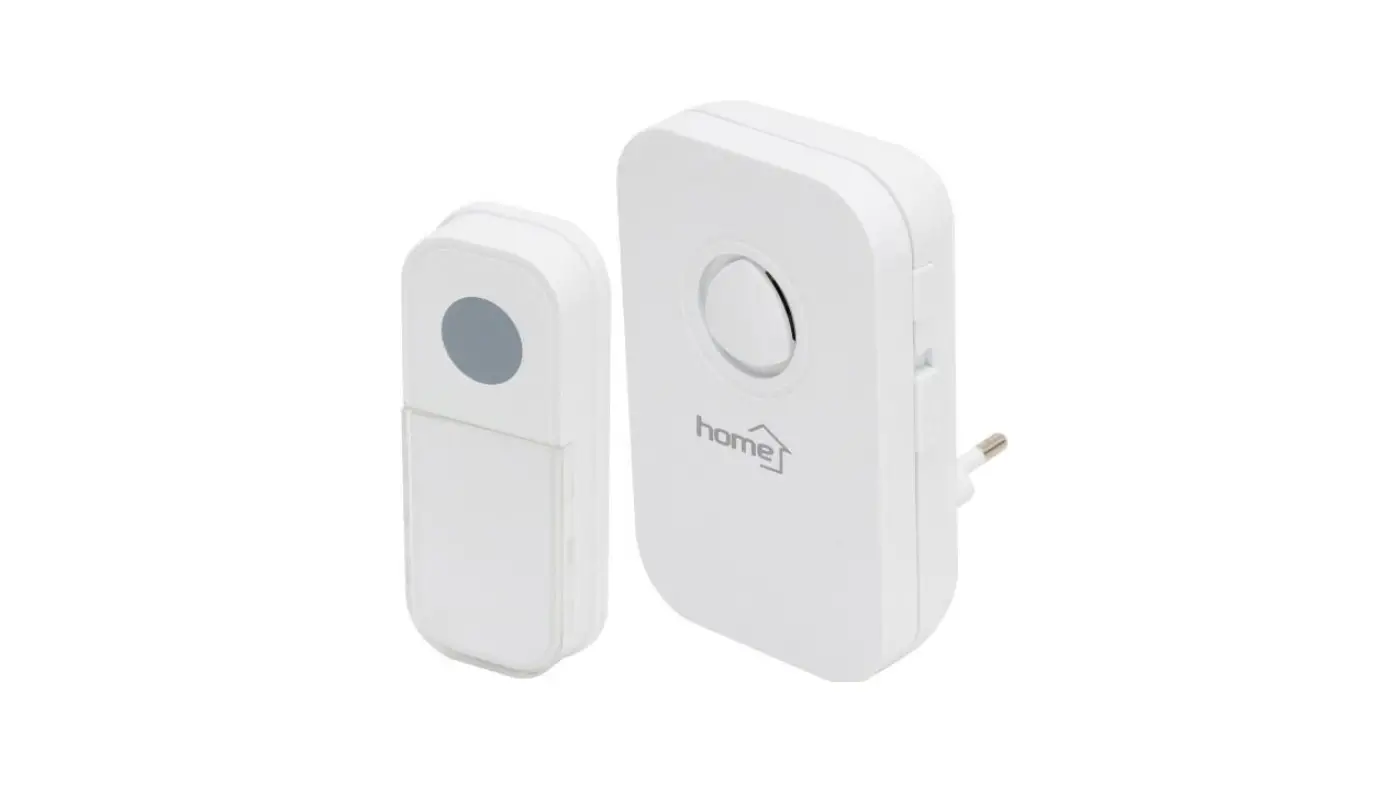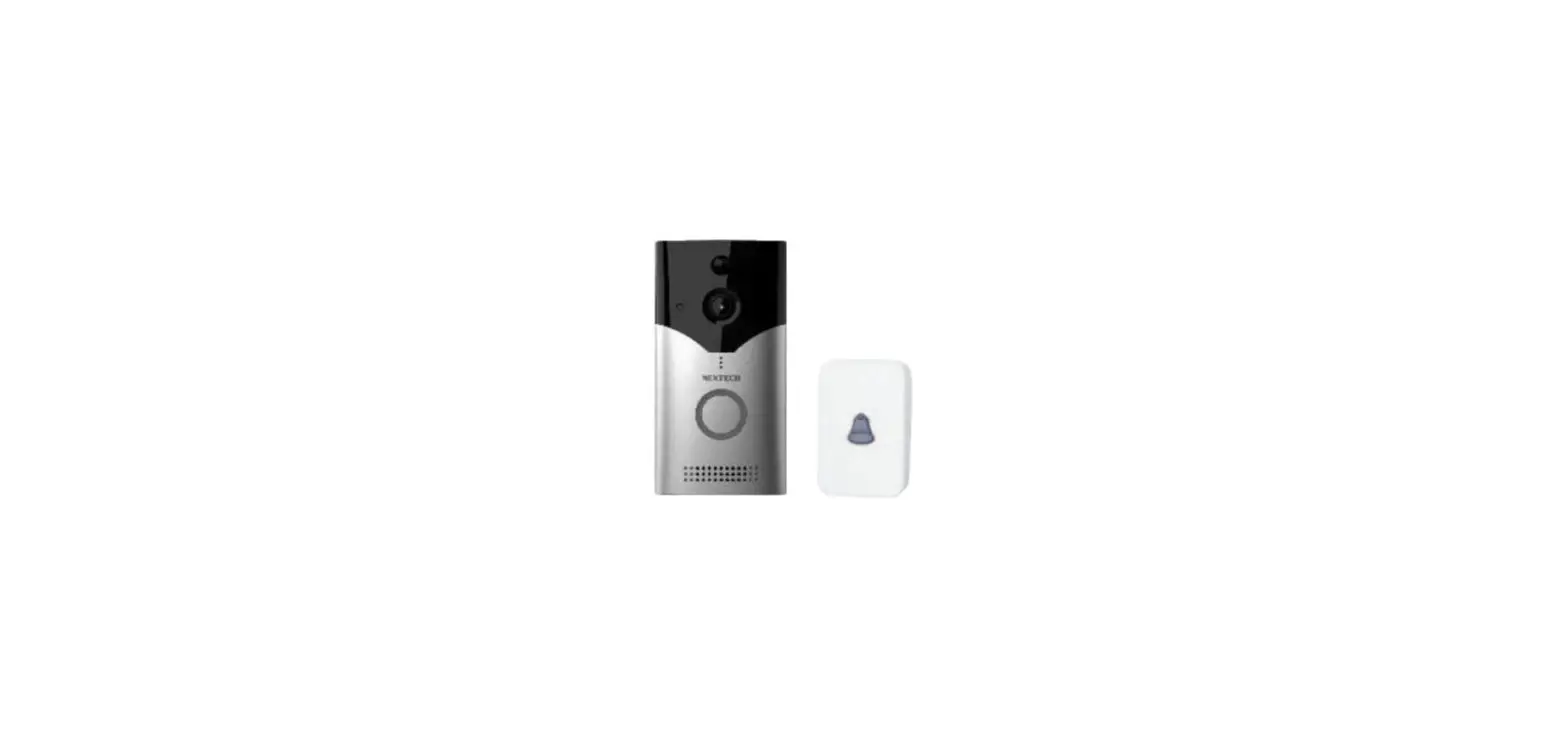

NEXTECH WQC3886 1080p Smart Wireless Doorbell + Chime
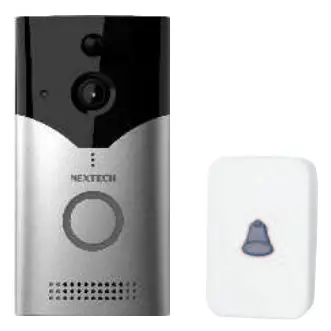
BOX CONTENTS
- 1 x Smart Doorbell Camera 1 x Mounting Bracket
- 1 x Mounting Hardware
- 1 x Chime
- 1 x USB Charging Cable
- 1 x User Manual
PRODUCT DIAGRAM
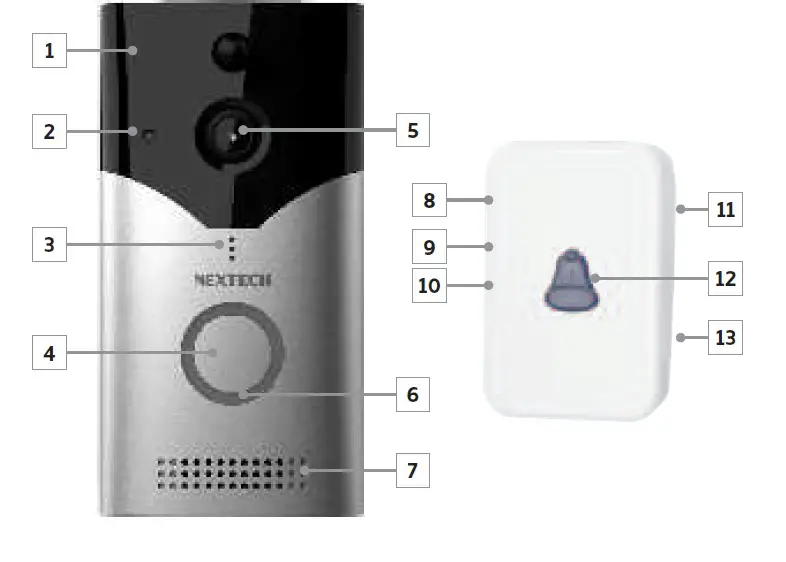
| 1 | PIR Motion Sensor | 6 | Indicator | 11 | Power Plug |
| 2 | Infrared LED | 7 | Speaker | 12 | LED Indicator |
| 3 | Microphone | 8 | Volume Control | 13 | Chime Speaker |
| 4 | Push Button | 9 | Previous Ringtone | ||
| 5 | 170° HD Camera | 10 | Next Ringtone | ||
SETUP:
Install App Download & install the “Smart Life” app from the Google Play or iOS App Store. This can be found by searching for “Smart Life” in the correct store for your phone, or by scanning the below QR code.
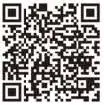
Once you have downloaded & installed the App, you will need to register an account before continuing.
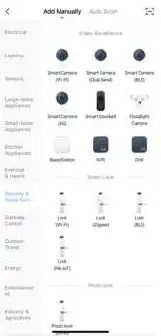
Add Device Press the “+” symbol in the top right of the screen, followed by the “Add Device” button to begin setting up your new wireless doorbell. Select “Add Manually”, choose “Security & Video Surveillance” and finally “Smart Doorbell” as the device.
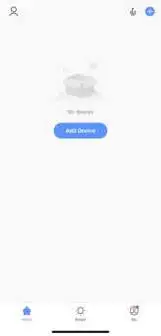
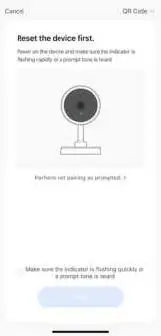
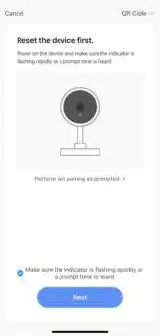
Reset Device Before adding your new wireless doorbell, ensure the unit is reset & in pairing mode. To do this, with batteries inserted press and hold the “Reset” button on the rear until it makes a chime sound. Once confirmed, check the button and press next.
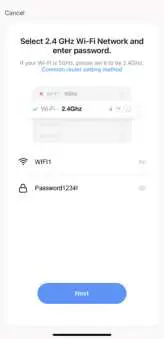
Setup WiFi If your mobile phone is not connected, the App will ask you to connect. Press the “Connect to WiFi” button & connect to the network your wireless door phone will be connected to.
Once connected, enter the WiFi password into the app & press the “Next” button to begin the pairing process.
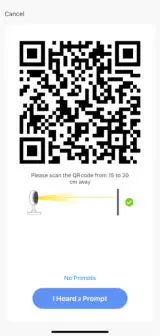
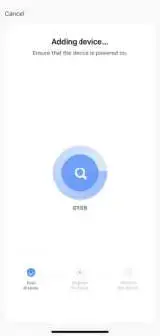
Scan QR Code With the doorbell still powered on, face the QR shown on the App in your phone towards the camera until a chime is heard. Press the “I Heard a Prompt” button to begin the pairing process. The device will begin linking to the app and may take a few minutes. Once complete, the device is setup and ready to use.
USING THE APP
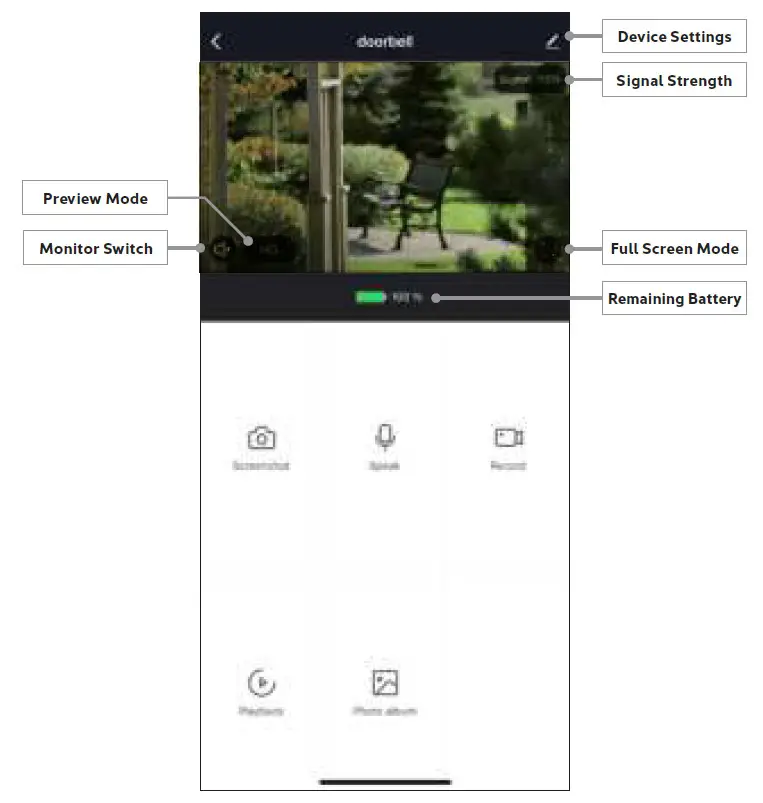
When the doorbell is rung via the button on the unit, a notification will be sent to the App. Within the app, press the “Monitor Switch” button to enable talk and then press & hold the “Speak” button to talk through the door phone. Recorded photo & video can also be played back, providing an SD card has been installed.
PRODUCT SPECIFICATIONS
| Video Resolution: | 1080p (1920 x 1080) |
| Lens Angle: | 170’ |
| Video Compression: | H.264 |
| Recording Format: | Video: MP4 Images: PNG |
| Storage Capacity: | Up to 128GB* MicroSD Card |
| Standby Time: | Up to 6 months |
| Battery: | 2 x 18650 Li-ion Batteries (Not included) |
| Wireless Frequency: | 2.4Ghz WiFi |
| Dimensions: | 131(W) x 68(H) x 29(D)mm |