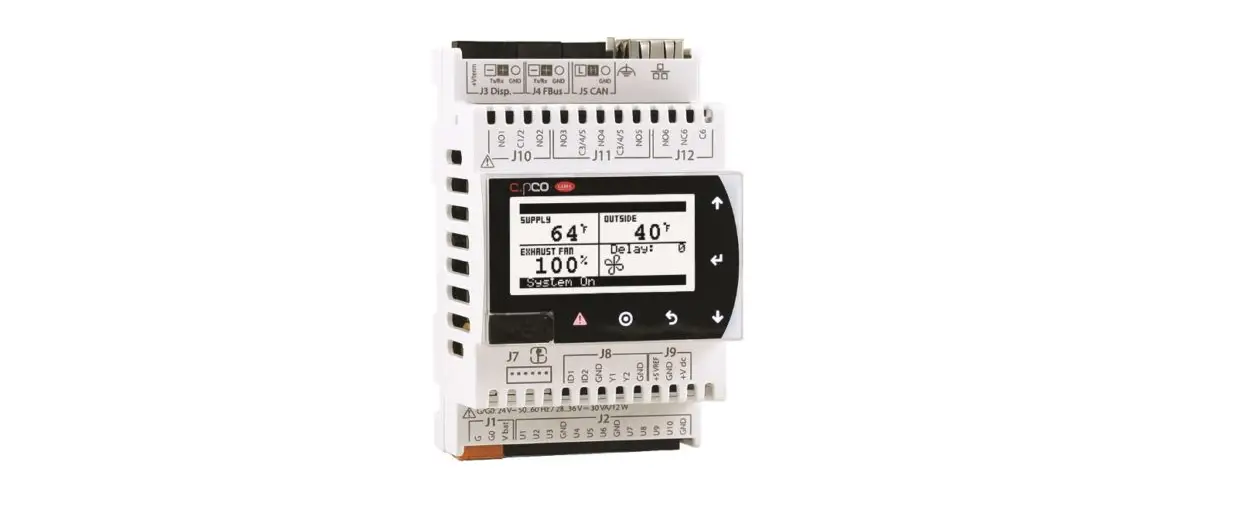

GREENHECK 485931 Microprocessor Controller
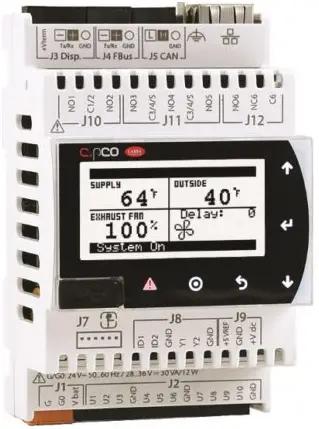
Microprocessor Controller
This quick start document is intended to help with getting the initial unit startup completed, but does not replace the IOM. Please read the IOM for all safety information and precautions before performing any work on the equipment.
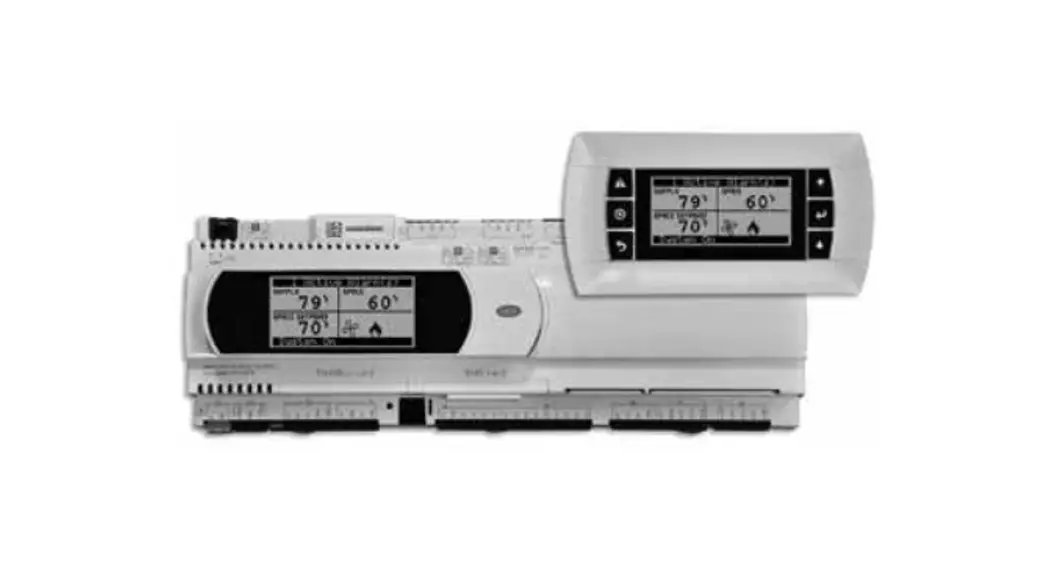
| Keypad Description | ||
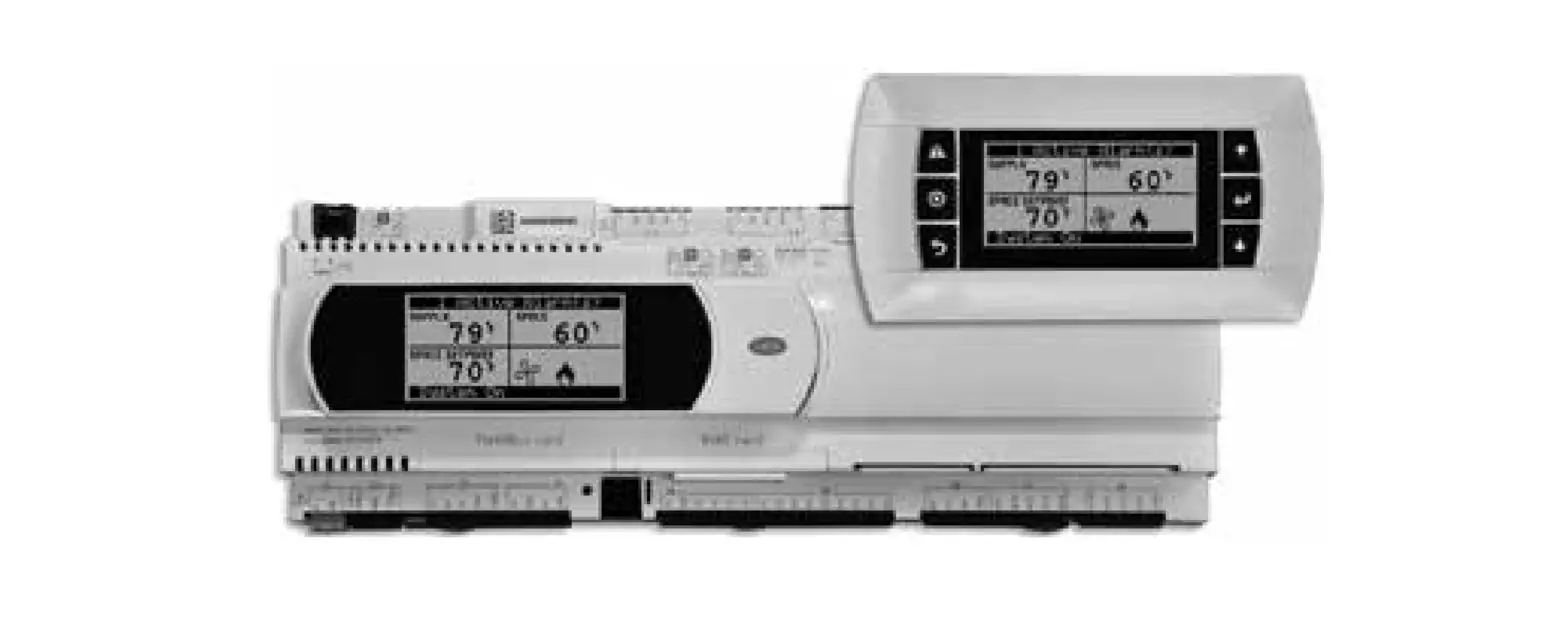
 | Alarm | Button will blink red, indicating an alarm condition. Press to review current alarms. To review previous alarms, access the Alarm Menu. |
 | Down Arrow | The arrow keys allow the user to scroll through different screens and adjust parameters. |
 | Up Arrow | |
|
|
Enter | A. In screens with adjustable parameters, pressing the Enter key moves the cursor from the upper left corner of the screen to the parameter. The arrow keys can then be used to adjust the parameter. B. To move to the next parameter on the same screen, press the Enter button. C. To save the change, press the Enter button until the cursor moves back to the upper left corner of the screen. |
 | Escape | Allows the user to exit the current menu, jumping to the Main Menu. |
 | Program | Pressing the Prg (Program) button allows the user to enter the Main Program Menu. |

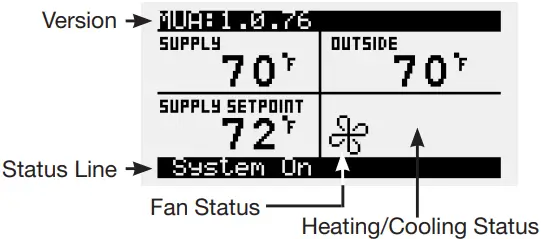
- MAIN SCREEN: The main screen will display the current supply temperature, outside air temperature, space temperature (if equipped), temperature setpoint and symbols to indicate operation. In addition the unit status line will provide the current mode of operation.
- MENU NAVIGATION: The controller will revert to the main screen after several minutes of inactivity. Pressing the UP or DOWN arrow key from the main screen will cycle the display through the Unit Status Menu. Pressing the Program key allows the user to enter the Main Program menu. The Main Program Menu consists of several menus to help guide users with altering program parameters.
- UNIT START COMMAND: The unit ships from the factory in a disabled state. To allow the unit to operate, the controller must receive a run command. Jumper unit terminals R – G to allow the unit to operate. The unite can then be enabled manually in the unit enable menu.
- BMS – Command the unit enable/disable point to control through BMS.
- Scheduler – To use the integral time clock, configure the schedule through the occupancy menu.
- SET POINTS: To view or adjust set points and lockouts, go to the Set point menu.
- BMS Configuration: To configure BACnet or Modbus settings, login using the service password (found in the IOM) by navigating to Ctrl Variables > Advanced Login. Settings such as address, baud rate, etc can then be configured in the Network Settings menu.
- UNIT TESTING: To manually override the units control loops and I/O, go to the Ctrl Variables>Advanced menu and login with the service password found in the controller IOM. Once logged in the manual overrides menu will be available in the Ctrl Variables>Advanced menu.

Main Menu Layout Unit Enable Unit Status Ctrl Variables Temp Control Heat & Vent* Refrigeration Evap Cooling* Damper Control Fan Control Occupancy Advanced Login Manual Overrides** Adv. Setpoints PID Tuning Network Settings Backup/Restore** IO Status/Offset IO Config Unit Config Unit Settings Service Info Alarm Management *Only available when unit is configured with these options **Only available when logged in with the service password
Microprocessor Controller Quick Start Guide, Rev. 2, August 2022