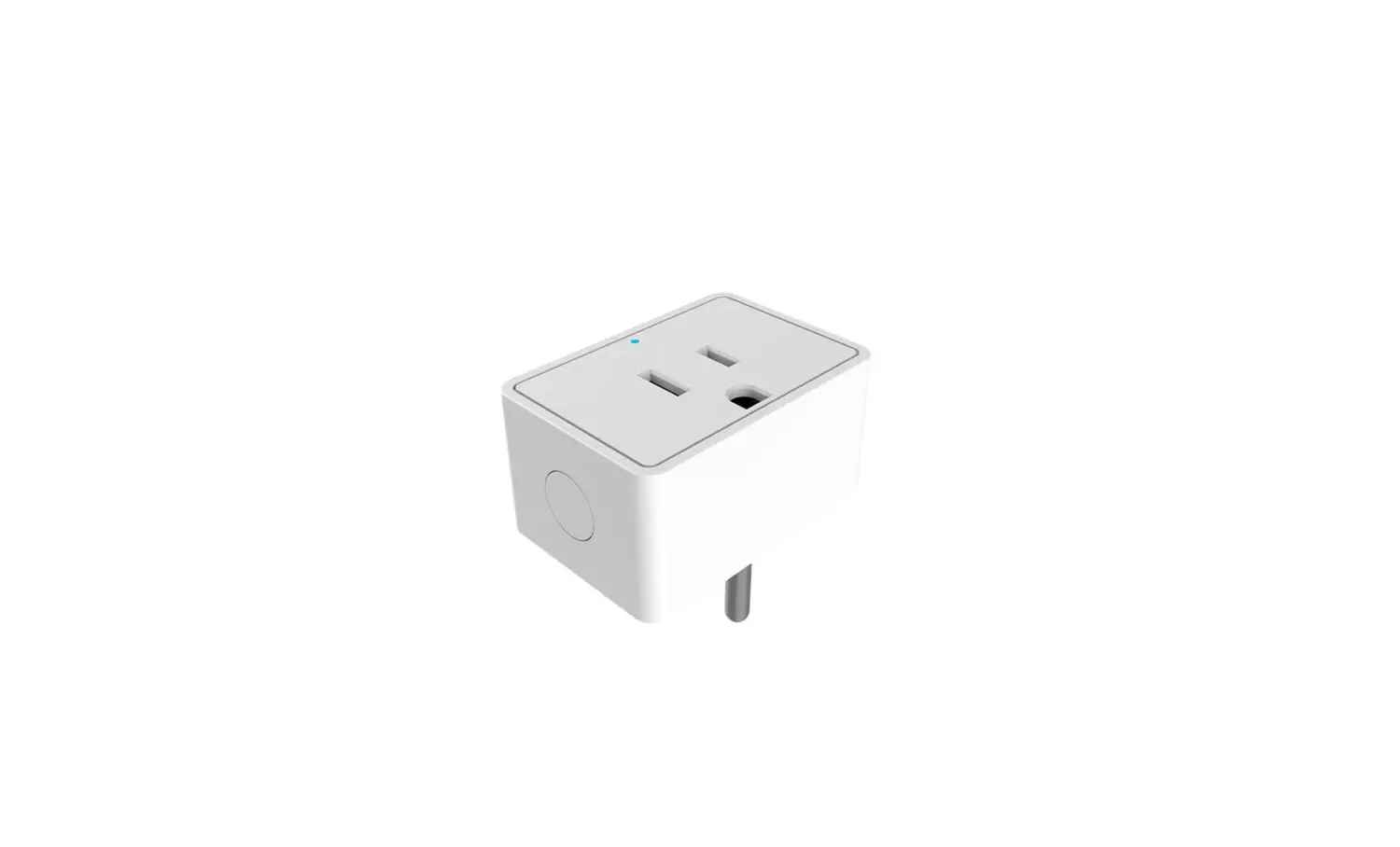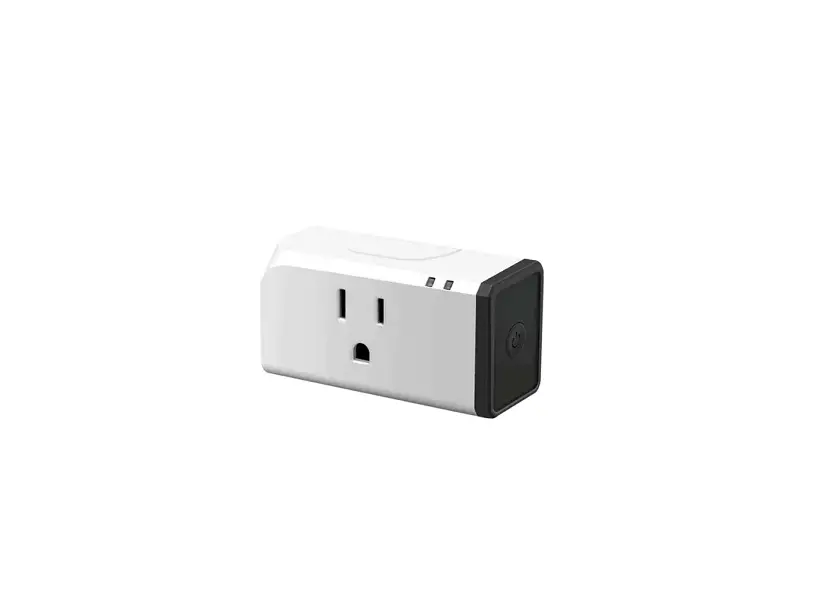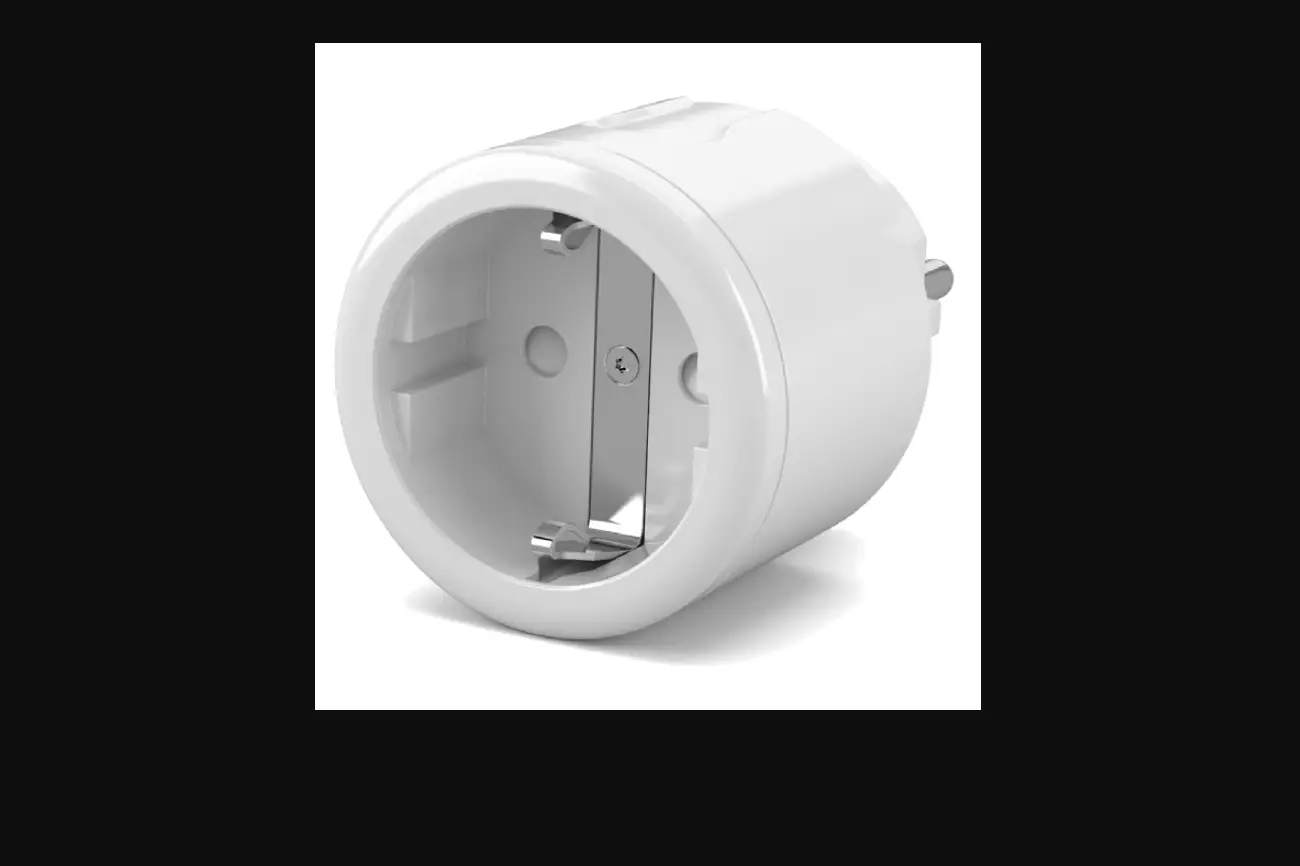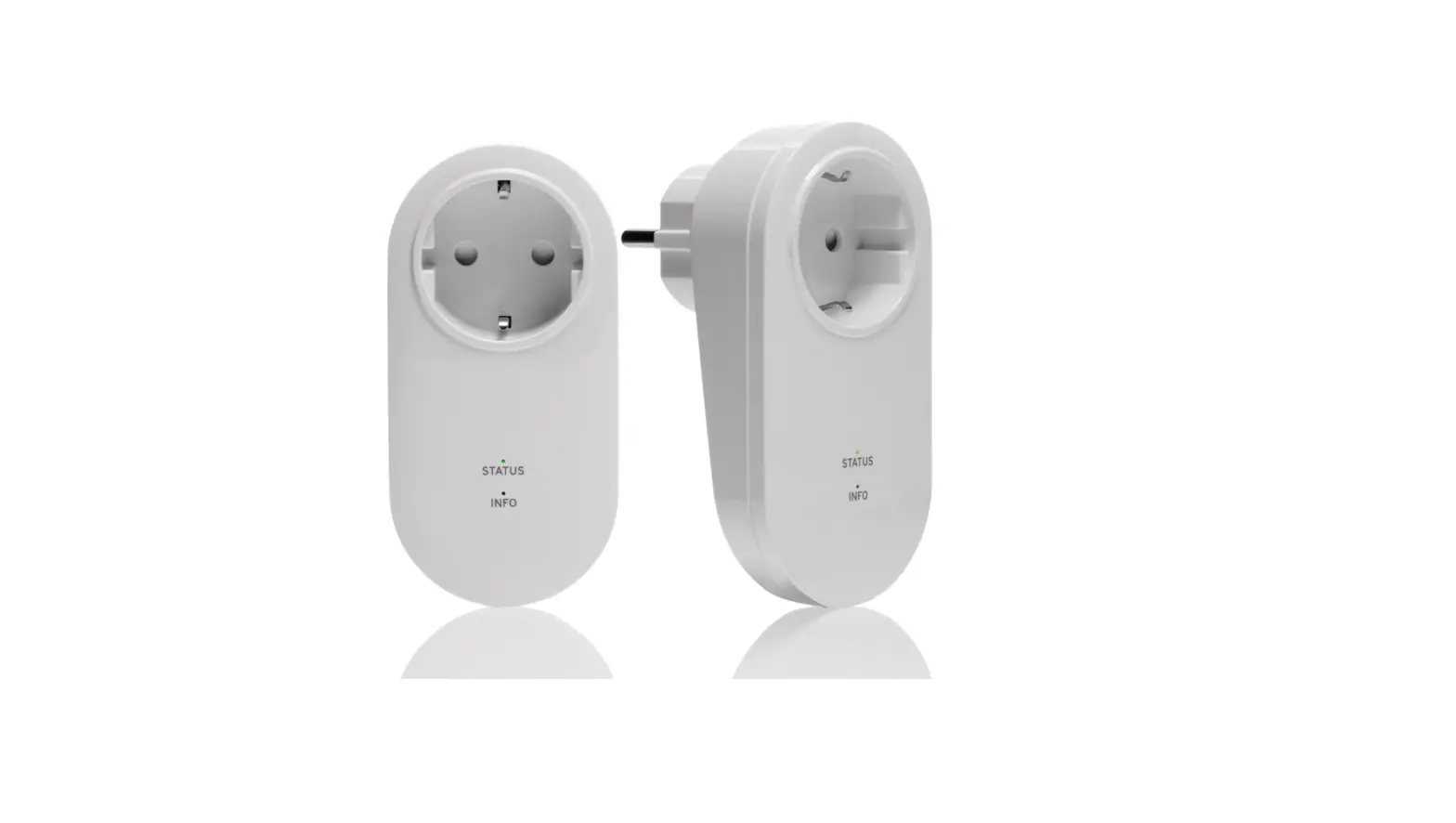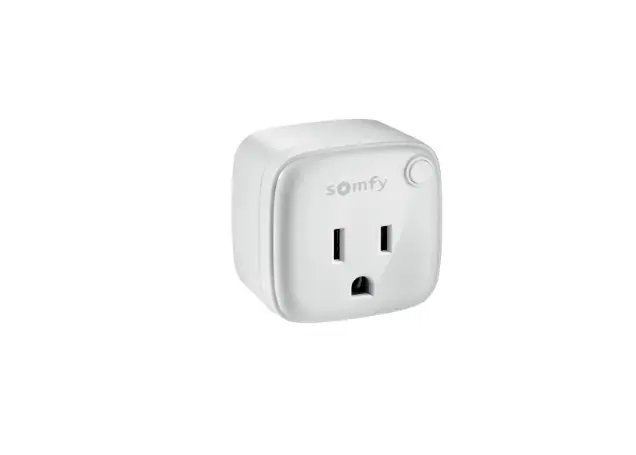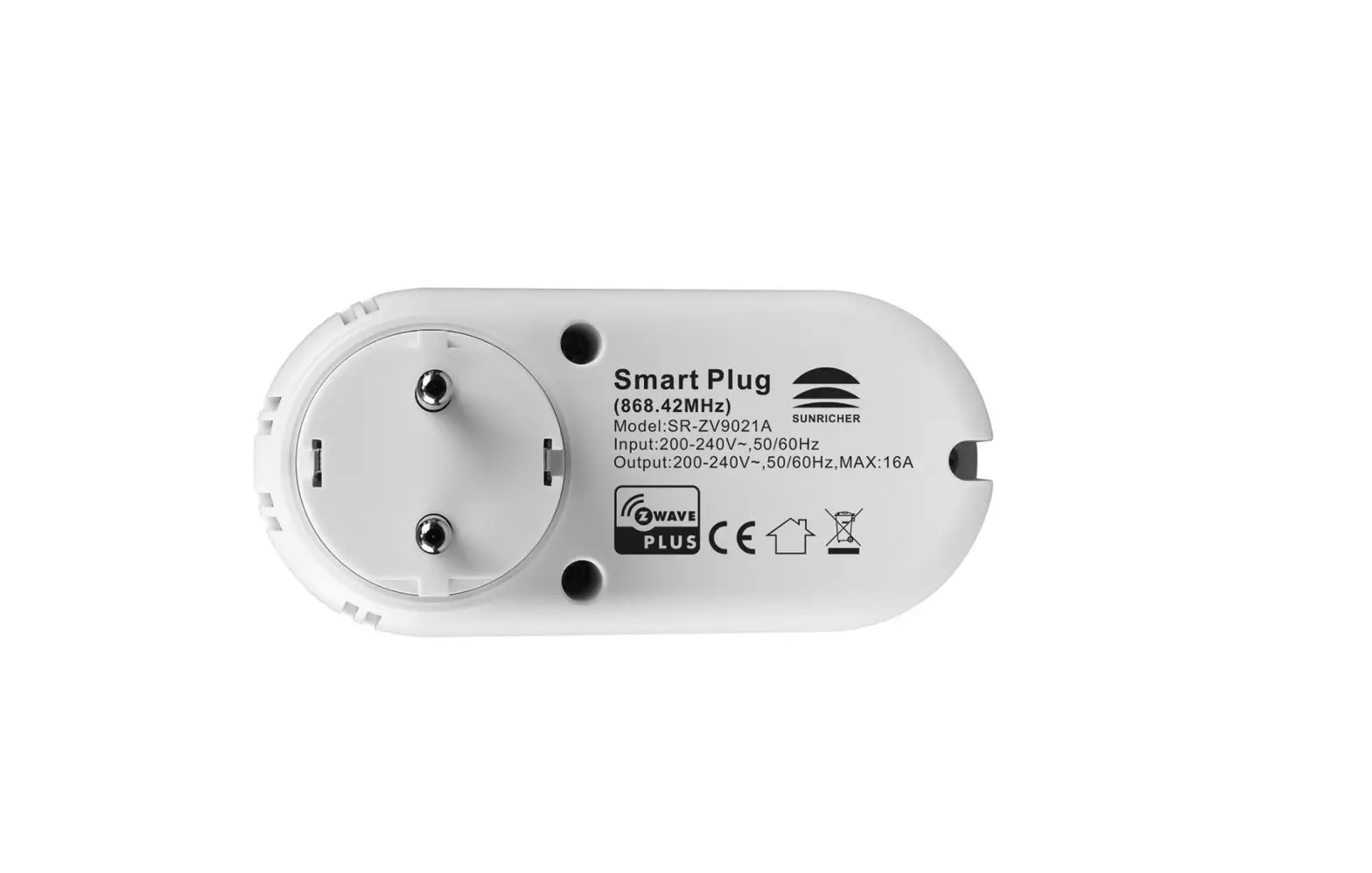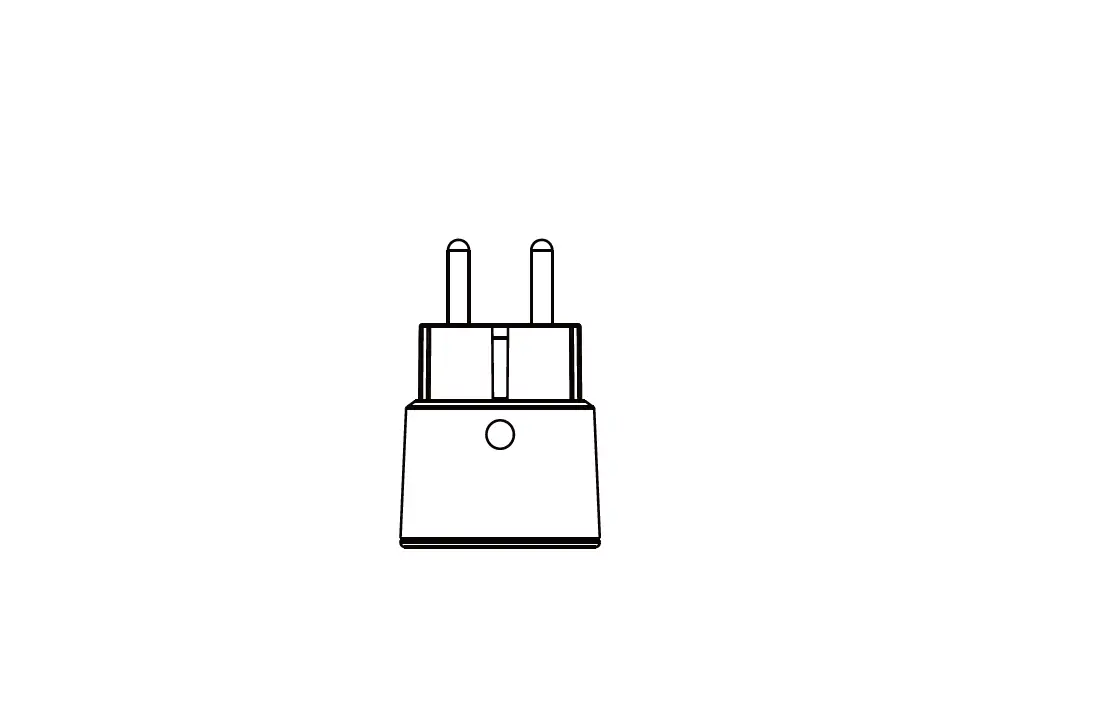

S-BOL V9 Power Plug with Power Monitor
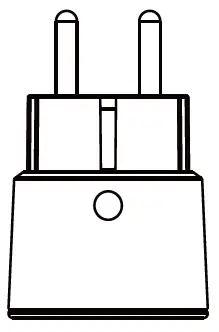
Product configuration
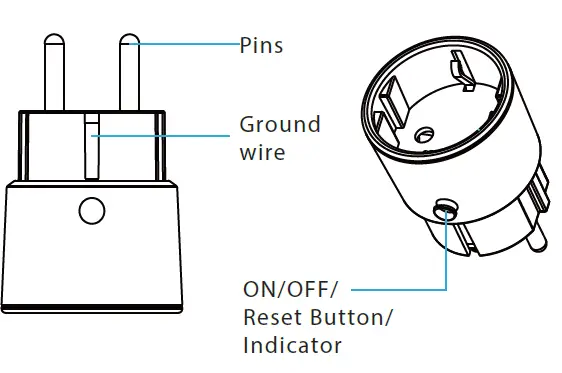
Specifications
- Rated Voltage:AC 85-230V, 50/60Hz
- Rated Current:16A max
- Wireless Type: 2.4GHz
- Wireless Standard: IEEE 802.11b/g/n
- Wireless Distance:45m
- Working Temperature: 0℃~40℃ (32°F~104°F) Working Humidity: 20%~85%
- Storage Temperature: 0℃~60℃ (32°F~140°F) Storage Humidity: 0% ~90%
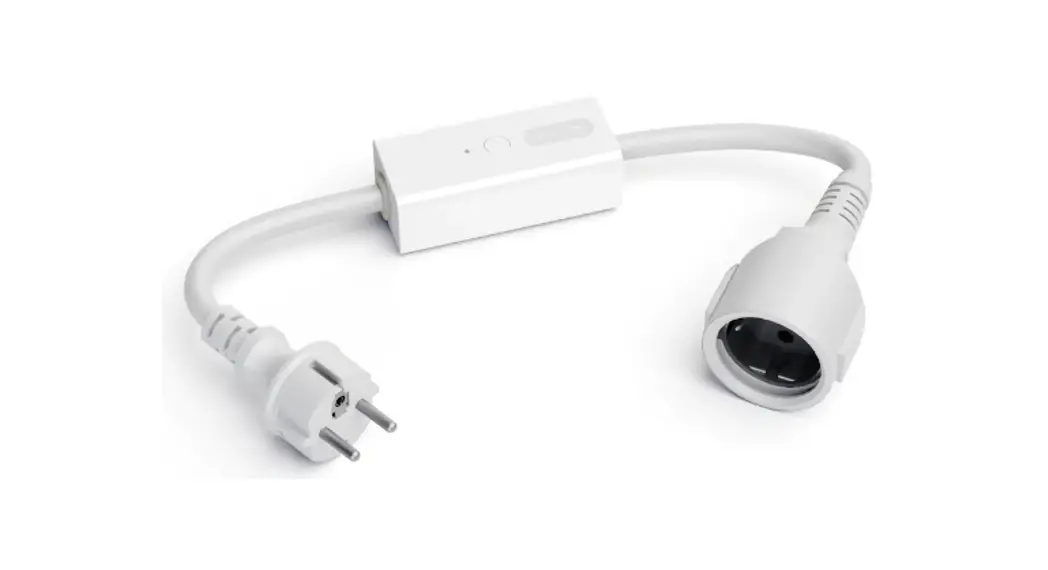
- Size: EU/FR: 71mm x 46mm x 46mm
LED State
| Device Status | LED State |
| Smart Wi-Fi | Indicator flashes quickly |
| AP mode | Indicator flashes slowly |
| on | LED light on |
| off | LED light off |
| Reset | Led will rapidly blink(the first time reset) or slowly blink(the second time reset) |
How to reset?
- Press the reset button for 6 seconds till the indicator flash rapidly.Then device turns to smart wifi mode.
- Press the reset button again for 6 seconds till the indicator flash slowly. The device turns to AP mode.
Get Started with Tuya Smart App
Download APP
- Download the “Smart life” app from APP Store or Google Play to your mobile.
Register and Login
- Launch the “Smart life” app.
- To register,enter your mobile phone number or email address,create a password ,then login to the app. Login if you have an account already.


Add Device
- 3. Add Device
- Power on the power plug.
- Turn on the Bluetooth function of mobile phone first.
- Click “Add Device”, or Select the “+” symbol on the top right-hand corner to add device by bluetooth. Then the app will automatically identify the socket and complete the addition
- Select your product type and follow the instructions of the app.
- If the connecting fails,try using AP Mode.


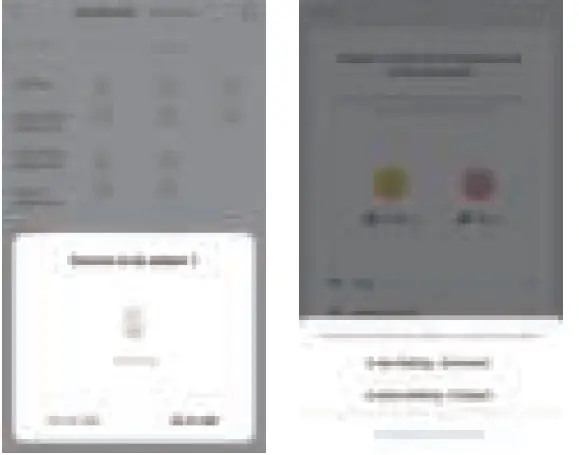
Notice
- Note 1: no matter which adding mode the device is , you can use Bluetooth to add
- Note 2: the default adding mode of the device is smart config mode
- Note 3: if the connection fails, try using AP mode. On the add device page, select AP mode in the upper right corner and follow the instructions of the application.
- Note 4: all Wi Fi products can be added with any Wi Fi product options. The device only supports 2.4GHz Wi Fi sign
What’s the App User Interface Like
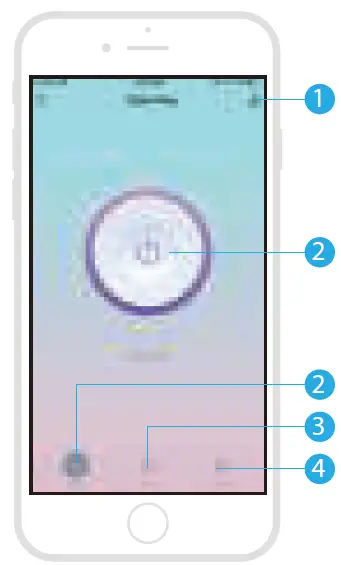
- Settings: device details and other function settings
- On / off button and status display
- Countdown
- Electric power measurement
Experience Advanced Features
You can experience the various advanced features of the product with the app, try and do it yourself.
Main fuction
- Working Status, on/off
- Countdown
- Timing
Association setting
- To connect two Sensors via scene setting.
Device sharing
- Allow others to control the device
Push notification
- Open/close push notification
Remove device
- Restore default settings; Delete and add the device again to clear the record by APP.