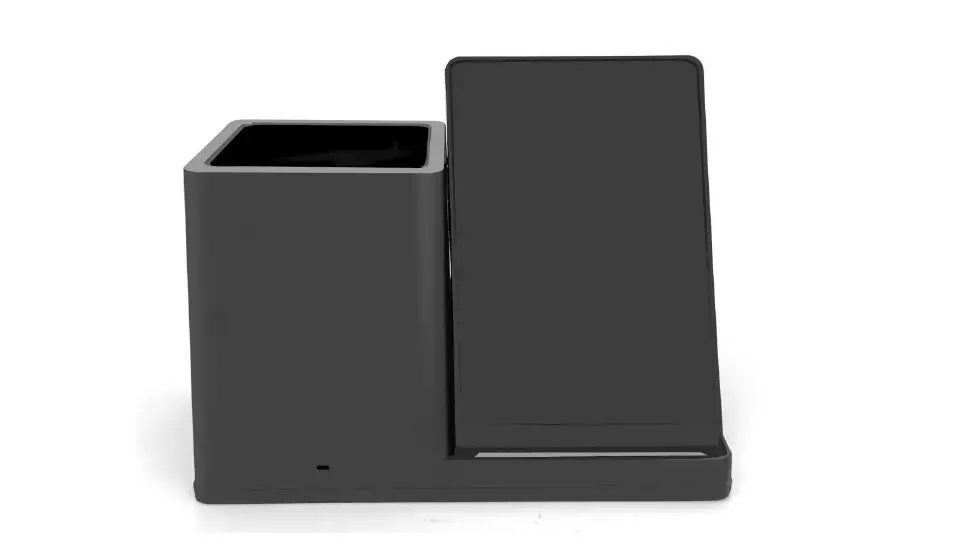
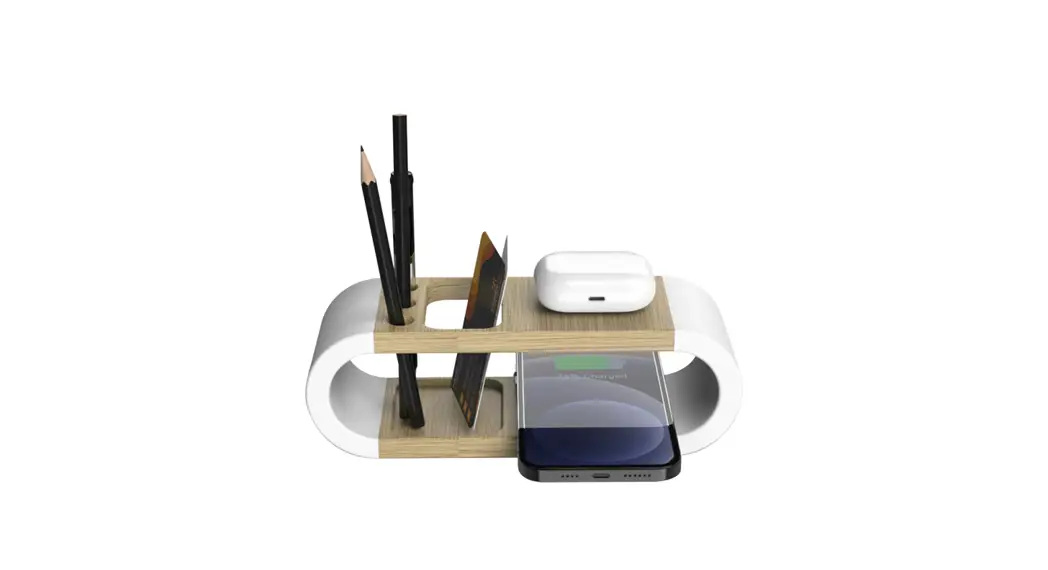
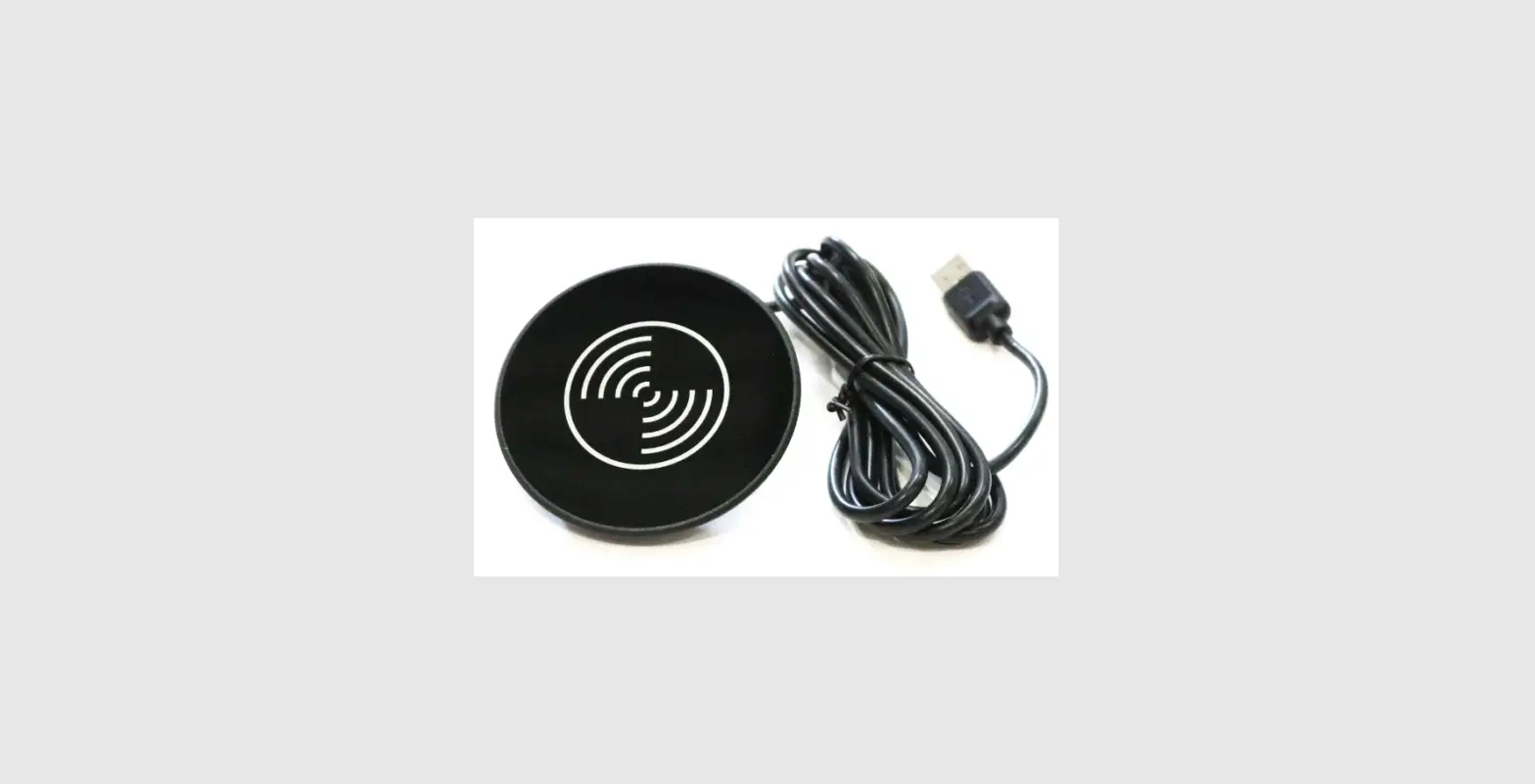
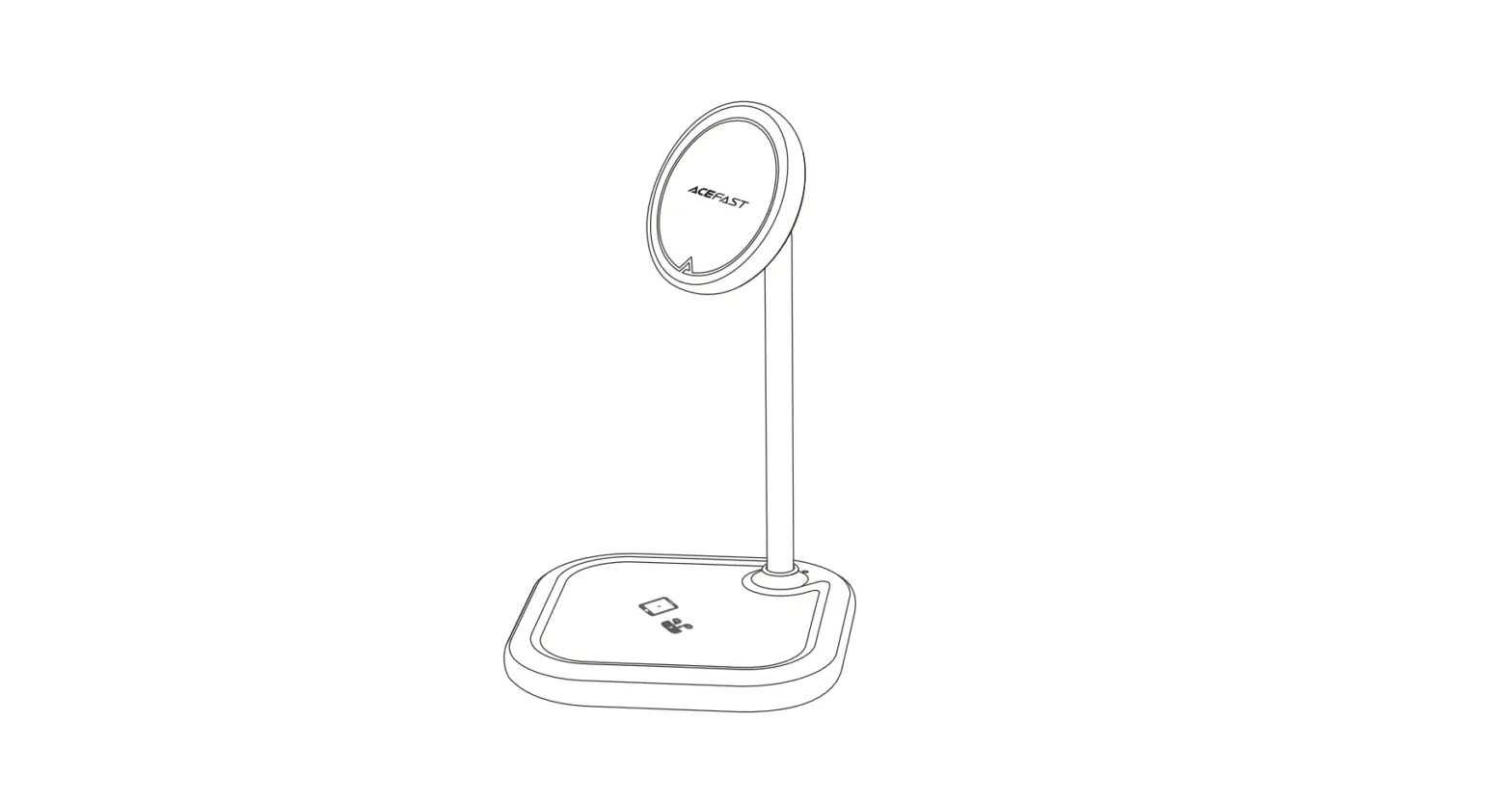
2.0 USB Wireless Charger
USB & Wireless Charger Troubleshooting Guide
Product Information:
| Part | Description |
|---|---|
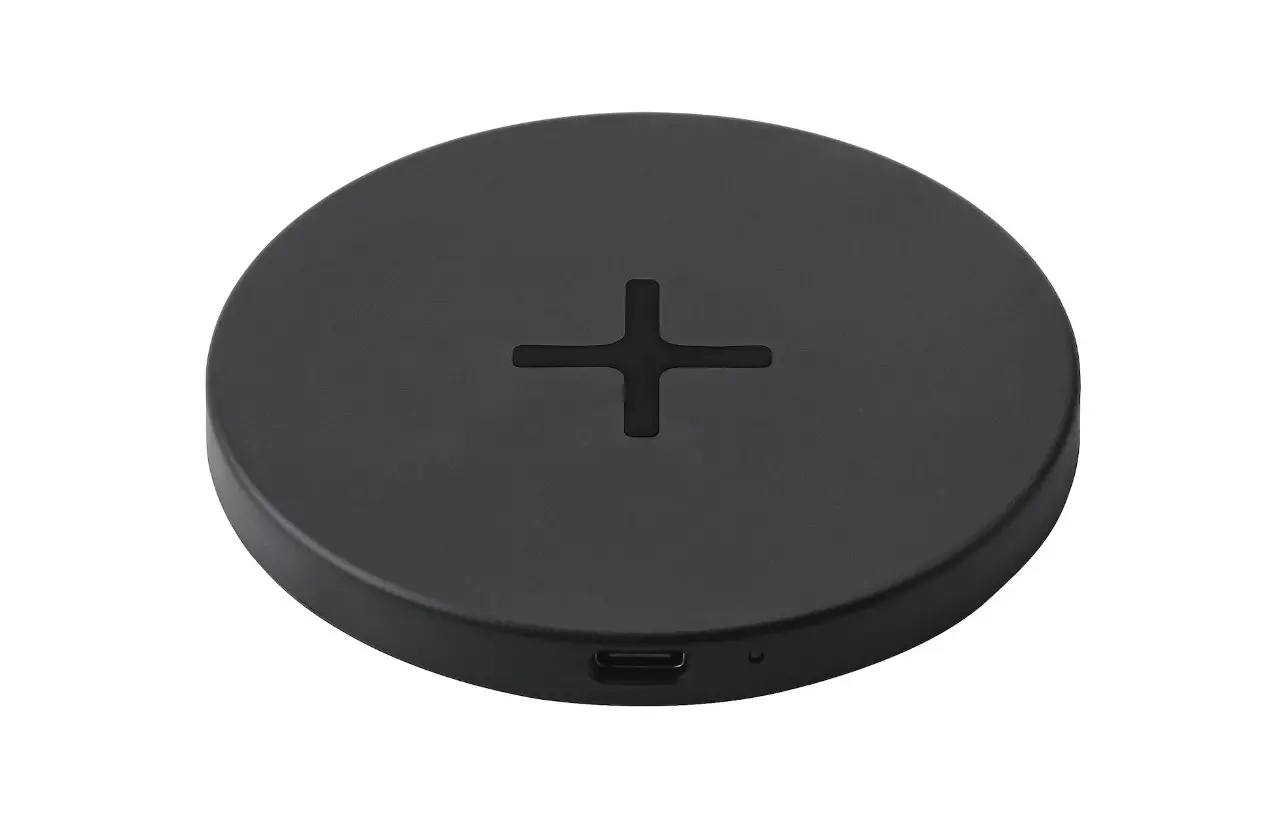
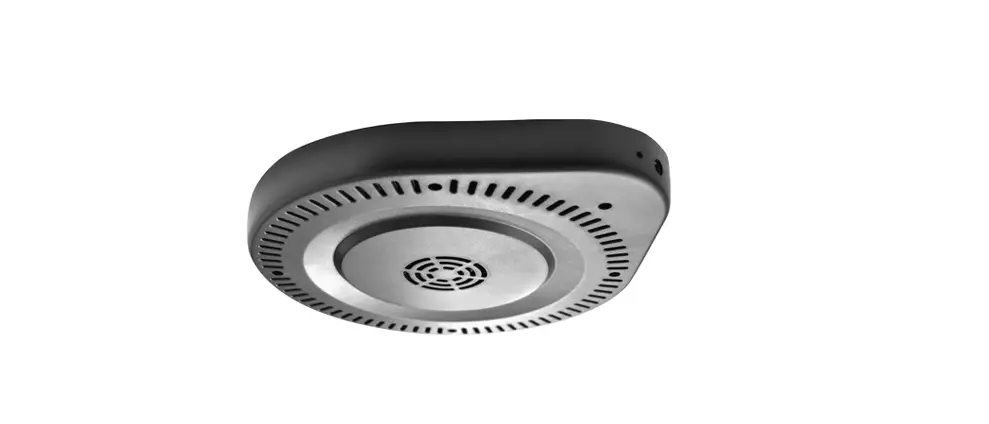
| Wireless charger | The wireless charger is installed beneath a wood panel with a thickness of 1~3mm. It has a diameter of 60mm and is used for wireless charging. |
| USB Port | The USB Port is assembled beneath the wood panel or embedded in the wood panel. It should be connected to the cables of the wireless charger and the adaptor. |
| Power supply | The power supply is an adapter that needs to be plugged into a wall outlet. It provides power to the USB and wireless charging system. |
Installation Instructions:
- The wireless charger is suitable for wood panel thickness
within 18-25mm. - Drill a 60mm blind hole beneath the wood panel and keep it
1~3mm thick on top. - Embed the wireless charger in the blind hole and assemble it
with screws. - Assemble the USB port under the panel.
- Connect all wiring ports of the product and connect the adapter
to AC 220V/110V.
Product Usage Instructions:
- Check all connections:
- Ensure that the power supply is plugged into a wall
outlet. - Insert the USB cable into the USB device and a phone.
- Ensure that the power supply is plugged into a wall
- Make sure your phone is compatible with wireless charging pad.
Compatible phone models include:- Apple: iPhone 8 to iPhone 14 series
- Samsung: S7 to S22 series, Fold 4, Flip 4
- Google: Pixel 4 to above
- Sony: Xperia XZ2 to above
- Huawei: Mate 20 to above series
- LG: G3 to above series
- Place your phone in the center of the charging surface.
- Check the indicator light condition (applies to the wireless
charger):Indicator Light Description Blue LED Indicates that the charger is connected to power. Light on for 5 seconds and then off Indicates that the charger is powered on. Light Off Indicates standby mode. Light Constant On Indicates that wireless charging is in progress. Light Off Indicates that charging is completed. Light Blinking Constantly Indicates an abnormal state. Light Blinking Constantly Indicates foreign object detection. Check for any metal
substance between the phone and the furniture top. - If the indicator light is on when there is no phone on the
wireless charger, you may need to replace the wireless
charger. - If the indicator light is blinking constantly when the phone is
wirelessly charging, check for any metal substance between the
phone and the furniture top. Alternatively, try moving the phone
around to ensure it is correctly positioned over the wireless
charger. If the issue persists, remove the phone for about half a
minute and then place it back on the charger. - Check the USB individually by plugging in the USB cable.
USB & WIRELESS CHARGER TROUBLESHOOTING GUIDE
Version 2.0
Trouble shooting guide to USB & Wireless Charger installed on Upholstery Units.
Parts that make up our USB & wireless charging system-
1. Wireless charger-The wireless charger is installed beneath 1~3mm thick wood panel with diameter 60mm hole.
2. USB Port- The USB Port should be connected to the cables of wireless charger and the adaptor. The USB port is assembled beneath the wood panel or embedded in the wood panel.
3. Power supply-The power supply is an adapter plugged into wall or outlet.
Installation instructions
1. The wireless charger is suitable for wood panel thickness within 18-25mm. 2. Drill 60mm blind hole beneath the wood panel and keep 1~3mm thick on the top of it. 3. Embed the wireless charger in the blind hole and assemble with screws. 4. Assemble USB under the panel 5. Connect all wiring ports of the product and connect the adapter to AC 220V/110V.
Steps to Check
A. Check all connections. #1 power supply is plugged into wall or outlet #2 insert the USB cable to the USB device and a phone.
B. Make sure your phone is compatible with wireless charging pad Apple: iPhone 8 to iPhone 14 series Samsung: S7 to S22 series, Fold 4, Flip 4 Google: Pixel 4 to above Sony: Xperia XZ2 to above Huawei: Mate 20 to above series LG: G3 to above series
C. Place your phone in the center of the charging surface.
D. Check indicator light condition (applies to the wireless
charger):
Item
1 Indicate Light
Blue LED
2 Power On
Light on for 5 seconds and then off
3 Standby
Light Off
4 Wireless Charging
Light Constant On
5 Charging Completed Light Off
6 Abnormal State 7 Foreign Object
Detection
Light Blinking Constantly Light blinking constantly, see if there is any metal substance between phone and furniture top
– If indicator light is on when there is no phone on wireless charger, you may need to replace the wireless charger. – If indicator light is blinking constantly when the phone is wireless charging, see if there is any metal substance between phone and furniture top, or move the phone around to see if it’s right over the wireless, or take the phone away
and wait about half minute, then put it back.
– check USB individually by plugging in USB cable