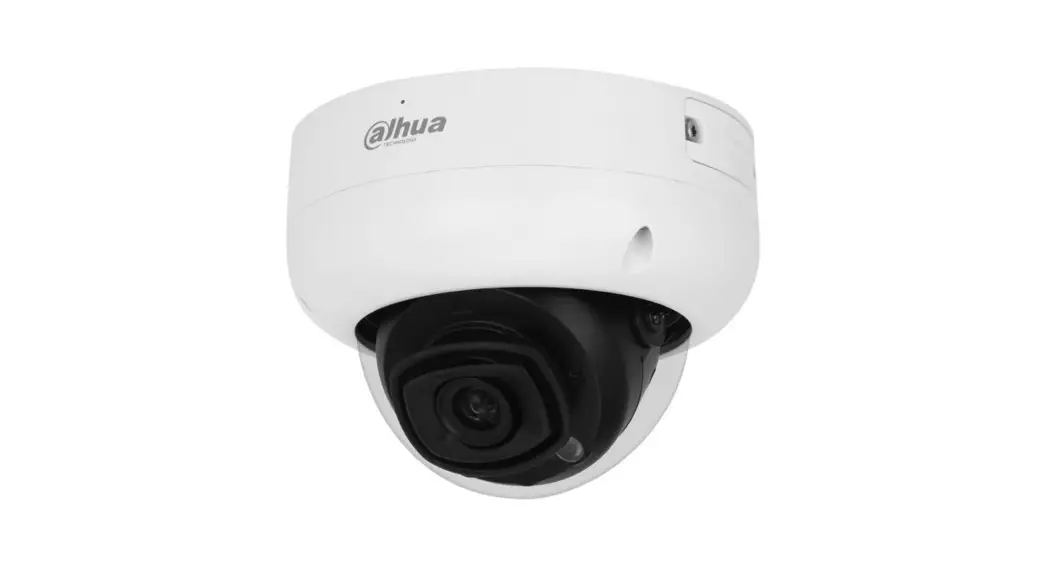
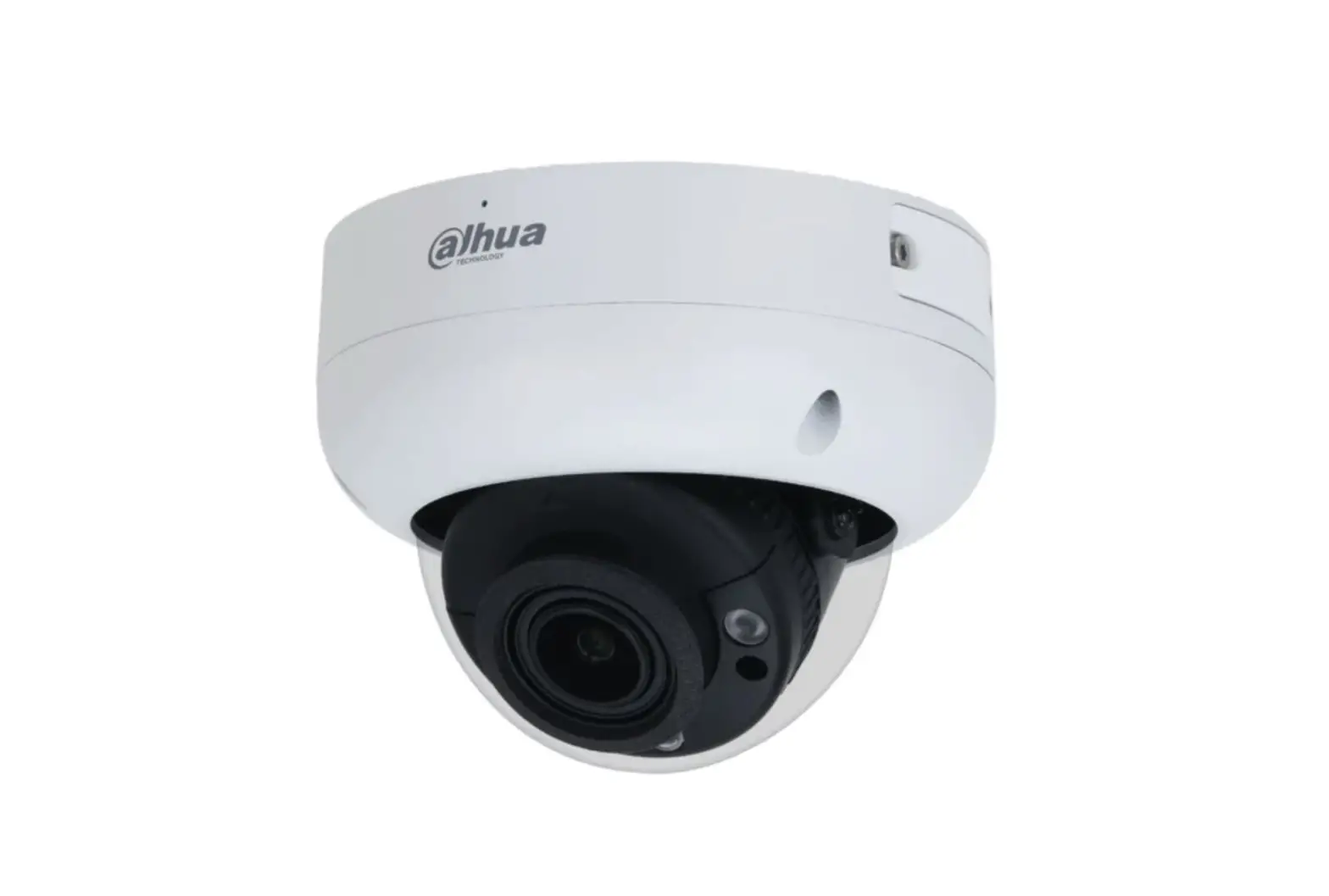
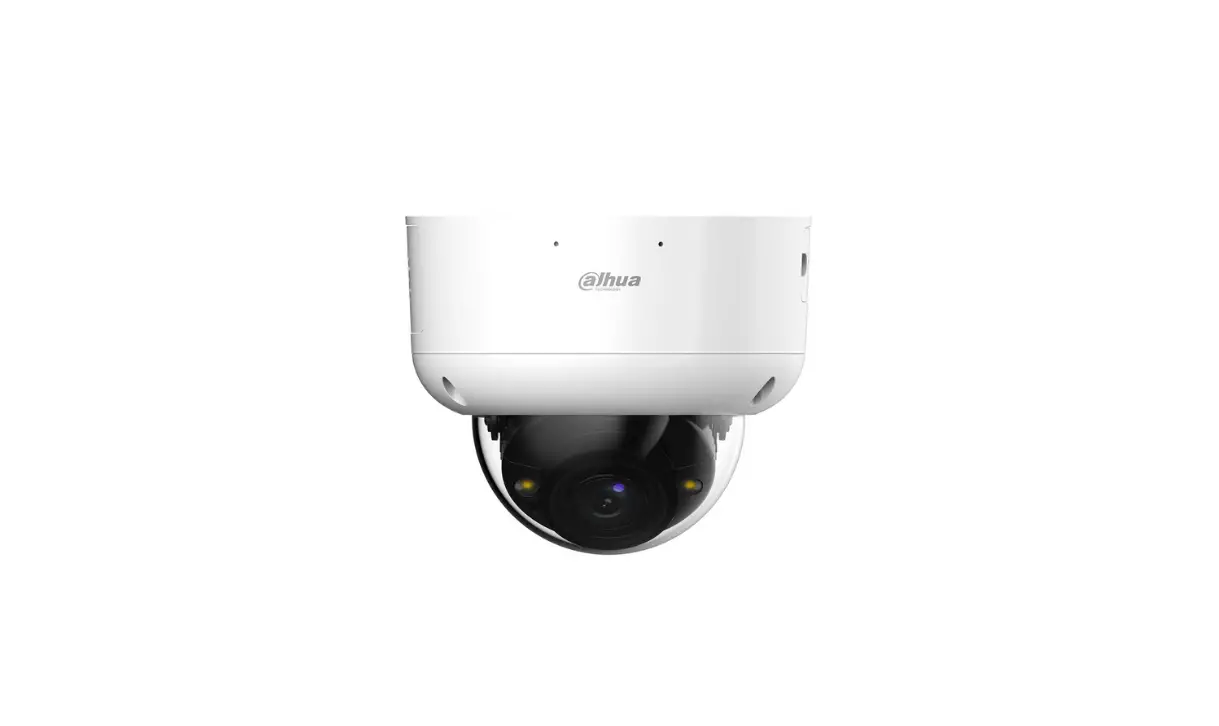
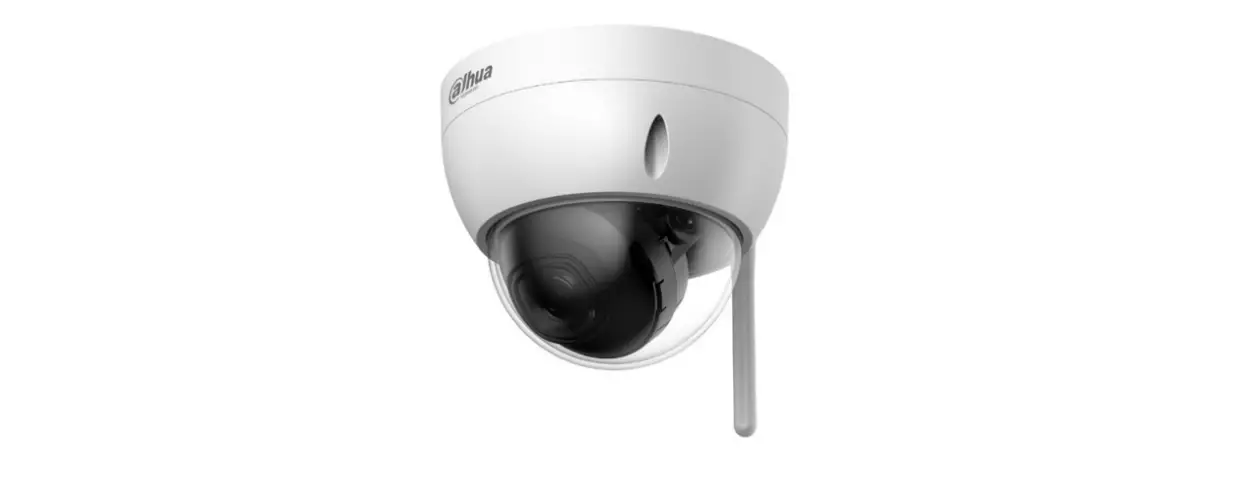
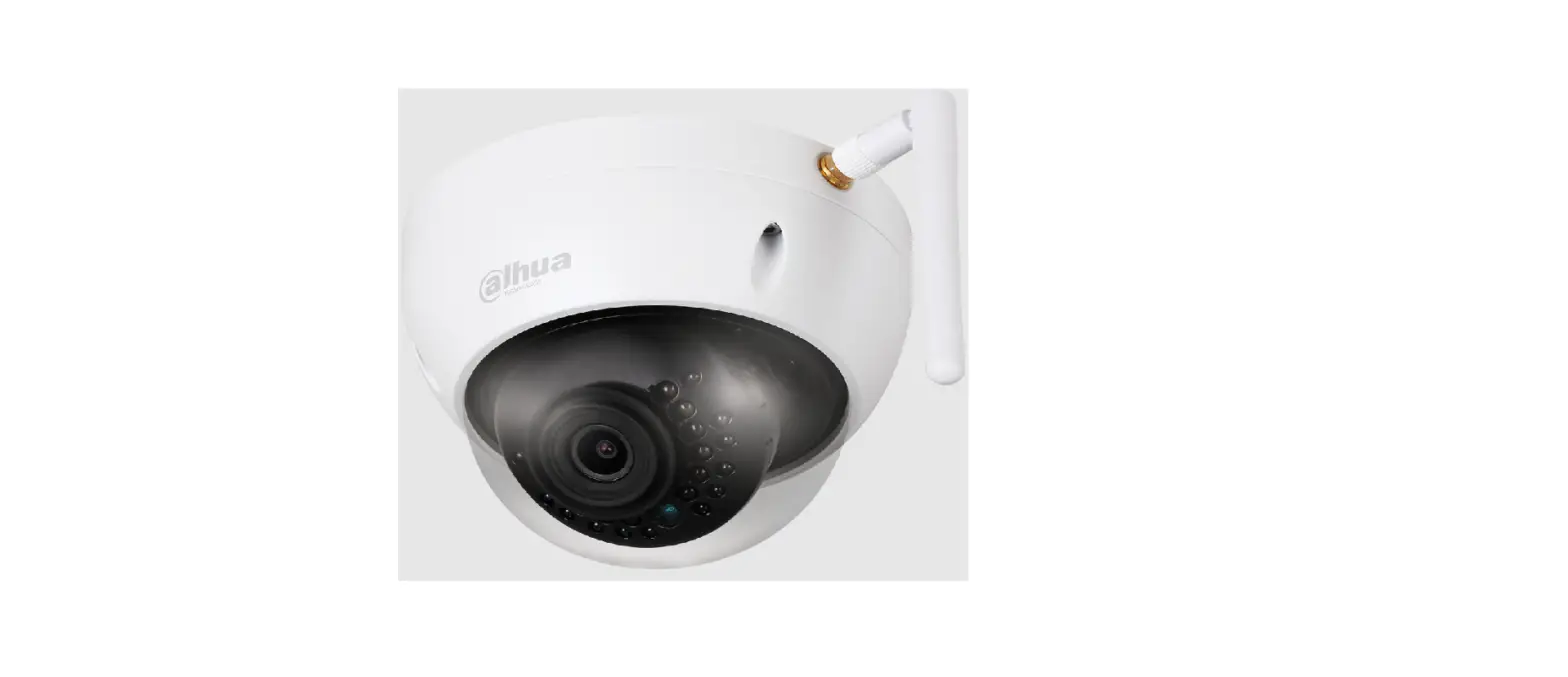
DH-IPC-HDBW5442E-Z4E Best 4MP IR Dome IP Camera
Product Information
The Dome Network Camera is a surveillance camera manufactured by
ZHEJIANG DAHUA VISION TECHNOLOGY CO., LTD. This camera is designed
for network use and is equipped with various features for
installation and operation.
Foreword
The Quick Start Guide provides essential information for the
installation and operation of the Dome Network Camera. It is
important to read this guide carefully before using the device and
keep it safe for future reference.
Safety Instructions
The manual contains signal words that indicate different levels
of potential hazards and provide additional information. It is
important to understand and follow these instructions to avoid
injury, property damage, data loss, or performance issues.
Revision History
Version V1.0.0 of the manual is the first release, providing
initial instructions for the product. The release time was in
November 2022.
Privacy Protection Notice
The device user or data controller must comply with local
privacy protection laws and regulations when collecting personal
data of others, such as face images, fingerprints, or license plate
numbers. The manual recommends implementing measures to protect the
rights and interests of individuals, including providing clear
identification of surveillance areas and contact information.
About the Manual
The manual serves as a reference guide and may contain slight
differences compared to the actual product. It is important to
operate the device in compliance with the manual to avoid any
losses. The manual will be updated according to relevant laws and
regulations, and any changes can be found in the paper User Manual,
CD-ROM, QR code scanning, or the official website.
Designs and software are subject to change without notice, which
may result in differences between the actual product and the
manual. For the latest program and supplementary documentation,
customers are advised to contact customer service.
There may be deviations or errors in the technical data,
functions, and operations described in the manual. If any doubt or
dispute arises, the manufacturer reserves the right of final
explanation.
If the manual in PDF format cannot be opened, it is recommended
to upgrade the reader software or try other mainstream reader
software. All trademarks, registered trademarks, and company names
mentioned in the manual belong to their respective owners. In case
of any problems while using the device, customers are encouraged to
visit the website, contact the supplier, or reach out to customer
service for assistance.
Product Usage Instructions
Important Safeguards and Warnings
This section provides guidelines for proper device handling,
hazard prevention, and property damage prevention. It is crucial to
read and comply with these guidelines when using the Dome Network
Camera.
Transportation Requirements
When transporting the device, ensure that it is within the
allowed humidity and temperature conditions. Use the packaging
provided by the manufacturer or packaging of the same quality to
protect the device during transportation.
Dome Network Camera
Quick Start Guide
ZHEJIANG DAHUA VISION TECHNOLOGY CO., LTD.
V1.0.0
Foreword
Quick Start Guide
General
This manual introduces the installation and operations of network camera. Read carefully before using the device, and keep the manual safe for future reference.
Safety Instructions
The following signal words might appear in the manual.
Signal Words
Meaning
Indicates a medium or low potential hazard which, if not avoided, could result in slight or moderate injury.
Indicates a potential risk which, if not avoided, could result in property damage, data loss, reductions in performance, or unpredictable result.
Provides additional information as a supplement to the text.
Revision History
Version V1.0.0
Revision Content First release.
Release Time November 2022
Privacy Protection Notice
As the device user or data controller, you might collect the personal data of others such as their face, fingerprints, and license plate number. You need to be in compliance with your local privacy protection laws and regulations to protect the legitimate rights and interests of other people by implementing measures which include but are not limited: Providing clear and visible identification to inform people of the existence of the surveillance area and provide required contact information.
About the Manual
The manual is for reference only. Slight differences might be found between the manual and the product.
We are not liable for losses incurred due to operating of the product in ways that are not in compliance with the manual.
The manual will be updated according to the latest laws and regulations of related jurisdictions. For detailed information, see the paper User Manual, use our CD-ROM, scan the QR code or visit our official website. The manual is for reference only. Slight differences might be found between the electronic version and the paper version.
All the designs and software are subject to change without prior written notice. Product updates might result in some differences appearing between the actual product and the manual. Please contact customer service for the latest program and supplementary documentation.
There might be deviations in the description of the technical data, functions and operations, or errors in the print. If there is any doubt or dispute, we reserve the right of final explanation.
Upgrade the reader software or try other mainstream reader software if the manual (in PDF
I
Quick Start Guide format) cannot be opened. All trademarks, registered trademarks and the company names in the manual are the properties of their respective owners. Please visit our website, contact the supplier or customer service if any problems occur while using the device. If there is any uncertainty or controversy, we reserve the right of final explanation.
II
Quick Start Guide
Important Safeguards and Warnings
This section introduces content covering the proper handling of the device, hazard prevention, and prevention of property damage. Read carefully before using the device, comply with the guidelines when using it.
Transportation Requirements
Transport the device under allowed humidity and temperature conditions. Pack the device with packaging provided by its manufacturer or packaging of the same quality
before transporting it. Do not place heavy stress on the device, violently vibrate or immerse it in liquid during
transportation.
Storage Requirements
Store the device under allowed humidity and temperature conditions. Do not place the device in a humid, dusty, extremely hot or cold site that has strong
electromagnetic radiation or unstable illumination. Do not place heavy stress on the device, violently vibrate or immerse it in liquid during storage.
Installation Requirements
Strictly comply with the local electrical safety code and standards, and check whether the power supply is correct before operating the device.
Please follow the electrical requirements to power the device. When selecting the power adapter, the power supply must conform to the requirements of ES1 in IEC 62368-1 standard and be no higher than PS2. Please note that the power supply requirements are subject to the device label. We recommend using the power adapter provided with the device.
Do not connect the device to two or more kinds of power supplies, unless otherwise specified, to avoid damage to the device.
The device must be installed in a location that only professionals can access, to avoid the risk of non-professionals becoming injured from accessing the area while the device is working. Professionals must have full knowledge of the safeguards and warnings of using the device.
Do not place heavy stress on the device, violently vibrate or immerse it in liquid during installation.
An emergency disconnect device must be installed during installation and wiring at a readily accessible location for emergency power cut-off.
We recommend you use the device with a lightning protection device for stronger protection
III
Quick Start Guide
against lightning. For outdoor scenarios, strictly comply with the lightning protection regulations. Ground the function earthing portion of the device to improve its reliability (certain models are not equipped with earthing holes). The device is a class I electrical appliance. Make sure that the power supply of the device is connected to a power socket with protective earthing. The dome cover is an optical component. Do not directly touch or wipe the surface of the cover during installation.
Operation Requirements
The cover must not be opened while the device is powered on. Do not touch the heat dissipation component of the device to avoid the risk of getting burnt.
Use the device under allowed humidity and temperature conditions. Do not aim the device at strong light sources (such as lamplight, and sunlight) when focusing it,
to avoid reducing the lifespan of the CMOS sensor, and causing overbrightness and flickering. When using a laser beam device, avoid exposing the device surface to laser beam radiation. Prevent liquid from flowing into the device to avoid damage to its internal components. Protect indoor devices from rain and dampness to avoid electric shocks and fires breaking out. Do not block the ventilation opening near the device to avoid heat accumulation. Protect the line cord and wires from being walked on or squeezed particularly at plugs, power
sockets, and the point where they exit from the device. Do not directly touch the photosensitive CMOS. Use an air blower to clean the dust or dirt on the
lens. The dome cover is an optical component. Do not directly touch or wipe the surface of the cover
when using it. There might be a risk of electrostatic discharge on the dome cover. Power off the device when
installing the cover after the camera finishes adjustment. Do not directly touch the cover and make sure the cover is not exposed to other equipment or human bodies Strengthen the protection of the network, device data and personal information. All necessary safety measures to ensure the network security of the device must be taken, such as using strong passwords, regularly changing your password, updating firmware to the latest version, and isolating computer networks. For the IPC firmware of some previous versions, the ONVIF password will not be automatically synchronized after the main password of the system has been changed. You need to update the firmware or change the password manually.
Maintenance Requirements
Strictly follow the instructions to disassemble the device. Non-professionals dismantling the device can result in it leaking water or producing poor quality images. For a device that is required to be disassembled before use, make sure the seal ring is flat and in the seal groove when putting the cover back on. When you find condensed water forming on the lens or the desiccant becomes green after you disassembled the device, contact after-sales service to replace the desiccant. Desiccants might not be provided depending on the actual model.
IV
Quick Start Guide Use the accessories suggested by the manufacturer. Installation and maintenance must be
performed by qualified professionals. Do not directly touch the photosensitive CMOS. Use an air blower to clean the dust or dirt on the
lens. When it is necessary to clean the device, slightly wet a soft cloth with alcohol, and gently wipe away the dirt. Clean the device body with a soft dry cloth. If there are any stubborn stains, clean them away with a soft cloth dipped in a neutral detergent, and then wipe the surface dry. Do not use volatile solvents such as ethyl alcohol, benzene, diluent, or abrasive detergents on the device to avoid damaging the coating and degrading the performance of the device. The dome cover is an optical component. When it is contaminated with dust, grease, or fingerprints, use degreasing cotton moistened with a little ether or a clean soft cloth dipped in water to gently wipe it clean. An air gun is useful for blowing dust away. It is normal for a camera made of stainless steel to develop rust on its surface after being used in a strong corrosive environment (such as the seaside, and chemical plants). Use an abrasive soft cloth moistened with a little acid solution (vinegar is recommended) to gently wipe it away. Afterwards, wipe it dry.
V
Table of Contents
Quick Start Guide
Foreword ………………………………………………………………………………………………………………………………………………………………………………..I Important Safeguards and Warnings………………………………………………………………………………………………………………………….. III 1 Introduction …………………………………………………………………………………………………………………………………………………………………….. 1
1.1 Cable ………………………………………………………………………………………………………………………………………………………………………… 1 1.2 Connecting Alarm Input/Output………………………………………………………………………………………………………………………. 2 2 Network Configuration…………………………………………………………………………………………………………………………………………………. 4 2.1 Initializing the Camera………………………………………………………………………………………………………………………………………… 4 2.2 Changing the Device IP Address ………………………………………………………………………………………………………………………. 5 2.3 Logging in to the Webpage ……………………………………………………………………………………………………………………………….. 5 3 Installation……………………………………………………………………………………………………………………………………………………………………….. 6 3.1 Packing List…………………………………………………………………………………………………………………………………………………………….. 6 3.2 Dimensions …………………………………………………………………………………………………………………………………………………………….. 6 3.3 Installing the Camera…………………………………………………………………………………………………………………………………………… 7
3.3.1 Installation Methods ………………………………………………………………………………………………………………………………….. 7 3.3.2 (Optional) Installing the SD Card ……………………………………………………………………………………………………………. 7 3.3.3 Attaching the Camera………………………………………………………………………………………………………………………………… 7 3.3.4 (Optional) Installing the Waterproof Connector………………………………………………………………………………… 8 3.3.5 Adjusting the Lens Angle………………………………………………………………………………………………………………………….. 9
VI
1 Introduction
Quick Start Guide
1.1 Cable
Waterproof all the cable joints with insulating tape and waterproof tape to avoid water damage and prevent short circuits from occurring. For details, see the FAQ manual.
Figure 1-1 Cables
Table 1-1 Cable information
No.
Port Name
Description
Inputs 12 VDC power. Be sure to supply power as instructed in the manual.
1
12 VDC power port
The device might become damaged or behave abnormally if
power is not correctly supplied.
Inputs 24 VAC power. Be sure to supply power as instructed in the manual.
2
24 VAC power port
The device might become damaged or behave abnormally if
power is not correctly supplied.
Connects to network with network cable.
Provides power to the device with PoE.
3
Ethernet port
4
Audio in
5
Audio out
6
Alarm I/O
PoE is available on select models. Connects to sound pickups to receive audio signal.
Audio input is available on select models. Connects to speaker to output audio signal.
Audio output is available on select models. Includes alarm signal input and output ports. The number of I/O ports might vary on different devices.
1
Port Name ALARM_IN
Quick Start Guide Table 1-2 Description of Alarm I/O port
Description Receives the switch signals of external alarm source.
ALARM_IN_GND
Connect different alarm input devices to the same ALARM_IN_GND port.
ALARM_OUT ALARM_OUT_GND
Outputs alarm signals to alarm devices.
When connecting to alarm device, only the ALARM_OUT port and ALARM_OUT_GND port with the same number can be used together.
1.2 Connecting Alarm Input/Output
The camera can connect to external alarm input/output devices through the digital input/output port.
Alarm input/output is available on select models. Step 1 Connect the alarm input device to the alarm input end of the I/O port. See Figure 1-2.
The device collects different statuses of the alarm input port while the input signal is idling and being grounded. Device collects logic “1” when the input signal is connected to +3 V to +5 V or idling. Device collects logic “0” when the input signal is grounded.
Figure 1-2 Alarm input
Step 2
Connect the alarm output device to the alarm output end of the I/O port. The alarm output is an open-drain output, which works in the following modes. Mode A: level application. The alarm outputs high and low level signals, and the alarm
outlet is OD, which requires external pull-up resistance (10 K Ohm typical) to work. The maximum external pull-up level is 12 V, maximum port current is 300 mA, and the default output signal is high-level (external pull-up voltage). The default output signal switches to low- level when an alarm is triggered (As long as the operating current is below 300 mA, the output low-level voltage is lower than 0.8 V).
2
Quick Start Guide Mode B: switch application. Alarm output is used to drive the external circuit, the
maximum voltage is 12 V and the maximum current is 300 mA. If the voltage is higher than 12 V, use an additional electric relay.
Figure 1-3 Alarm output
Step 3
Log in to the webpage, and then configure the alarm input and alarm output in alarm settings. The alarm input on the webpage corresponds to the alarm input end of the I/O port.
There will be high level and low level alarm signals generated by the alarm input device when an alarm occurs. Set the input mode to “NO” (default) if the alarm input signal is logic “0”, and to “NC” if the alarm input signal is logic “1”. The alarm output on the webpage corresponds to the alarm output end of the device, which is also the alarm output end of the I/O port.
3
2 Network Configuration
Quick Start Guide
Device initialization and IP configurations can all be managed with the ConfigTool or through the webpage. For more information, see the web operation manual.
Device initialization is available on select models, and is required at first-time use and after the device is reset.
Device initialization is available only when the IP addresses of the device (192.168.1.108 by default) and the computer are on the same network segment.
Carefully plan the network segment for the device. The following figures and pages are for reference only.
2.1 Initializing the Camera
Step 1 Step 2
Search for the device that needs to be initialized through ConfigTool. 1. Double-click ConfigTool.exe to open the tool. 2. Click Modify IP. 3. Select the searching way, and then click OK. 4. Select one or several cameras in uninitialized status, and then click Initialize. Select the devices to be initialized, and then click Initialize.
Enter the email address for password reset. Otherwise, you can only reset the password through XML file.
Figure 2-1 Password setting
Step 3 Select Auto-check for updates as needed, and then click OK to initialize the device. 4
If initialization failed, click Step 4 Click Finish.
to see more information.
2.2 Changing the Device IP Address
Quick Start Guide
You can change the IP address of one or more devices at a time. This section is based on changing IP addresses in batches.
Changing IP addresses in batches is available only when the corresponding devices have the same login password.
Step 1 Search for the device whose IP address needs to be changed through ConfigTool. 1. Double-click ConfigTool.exe to open the tool. 2. Click Modify IP. 3. Select the searching way, enter the username and password, and then click OK.
Step 2 Step 3
The username is admin, and the password should be the one that you set while initializing the device. Select the devices whose IP addresses need to be changed, and then click Modify IP. Configure IP address. Static mode: Enter Start IP, Subnet Mask, and Gateway, and then the IP addresses of the devices will be modified successively starting from the first IP entered. DHCP mode: When the DHCP server is available in the network, the IP address of devices will be automatically obtained through the DHCP server.
The same IP address will be set for multiple devices if you select the Same IP checkbox. Step 4 Click OK.
2.3 Logging in to the Webpage
Step 1
Step 2 Step 3
Open the IE browser, enter the IP address of the device in the address bar, and then press the Enter key. If the setup wizard opens, follow the on-screen instructions to complete it. Enter the username and password in the login box, and then click Login. (Optional) For first-time login, click Click Here to Download Plugin, and then install the plugin as instructed. The home page opens when installation is complete.
5
3 Installation
Quick Start Guide
3.1 Packing List
Tools required for installation, such as the electric drill, are not included in the package. The operation manual and information on the tools are on the disk or the QR code.
Figure 3-1 Packing list
3.2 Dimensions
Figure 3-2 Dimensions (mm [inch])
6
3.3 Installing the Camera
3.3.1 Installation Methods
Figure 3-3 Installation methods
Quick Start Guide
3.3.2 (Optional) Installing the SD Card
SD card slot is available on select models. Disconnect the power before installing or removing the SD card. Do not leave the device uncovered for a long time to avoid spray in cameras. Press the reset button for 10 seconds to reset the device.
Figure 3-4 Install the SD card
3.3.3 Attaching the Camera
Make sure that the mounting surface is strong enough to hold at least three times the weight of the camera and bracket.
7
Figure 3-5 Cable going through the side cable tray
Quick Start Guide
Figure 3-6 Cable going through the mounting surface
3.3.4 (Optional) Installing the Waterproof Connector
This section is only necessary if a waterproof connector is included in your package, and the device is being installed outdoors.
8
Figure 3-7 Install the waterproof connector
Quick Start Guide
3.3.5 Adjusting the Lens Angle
Figure 3-8 Adjust the lens angle
9
Quick Start Guide