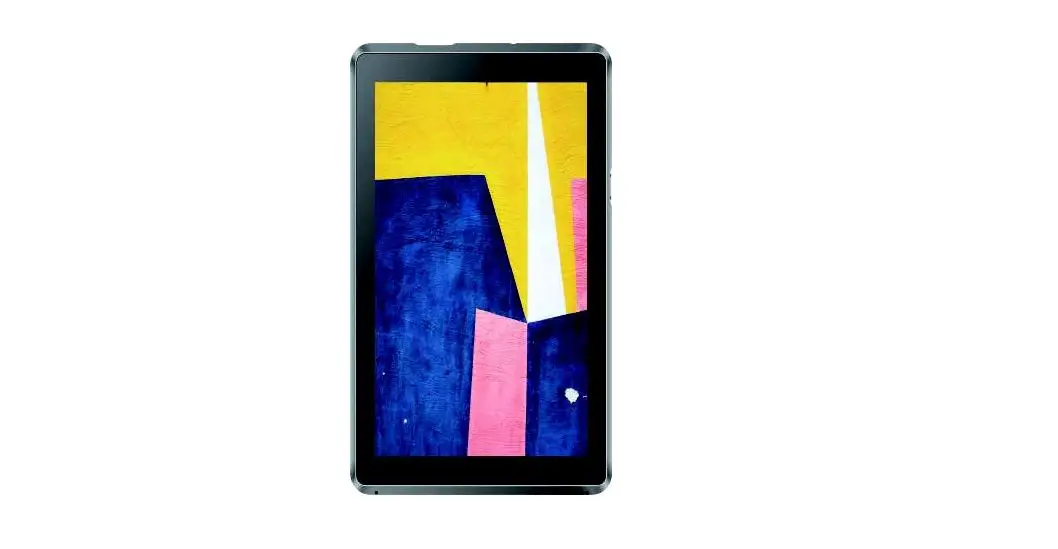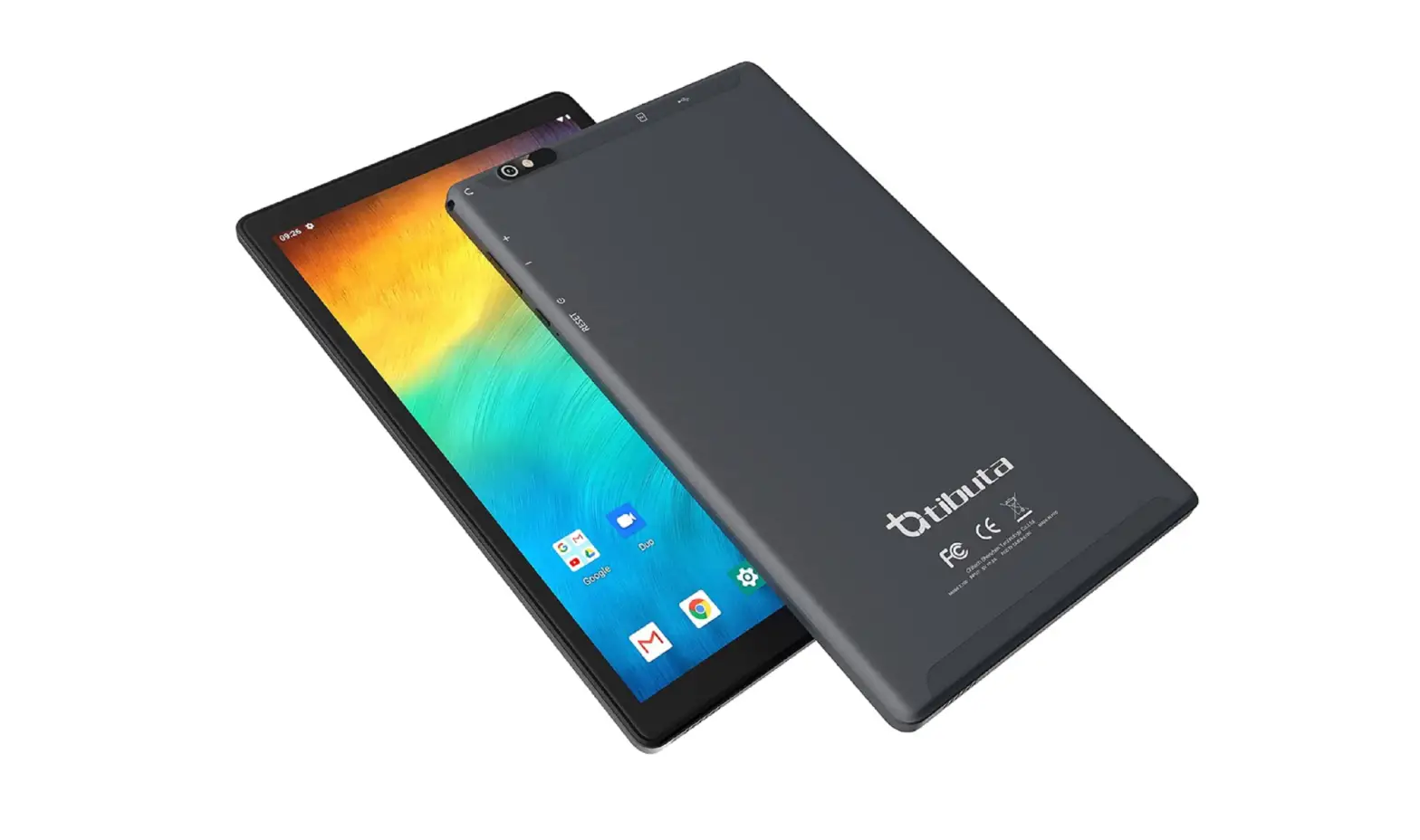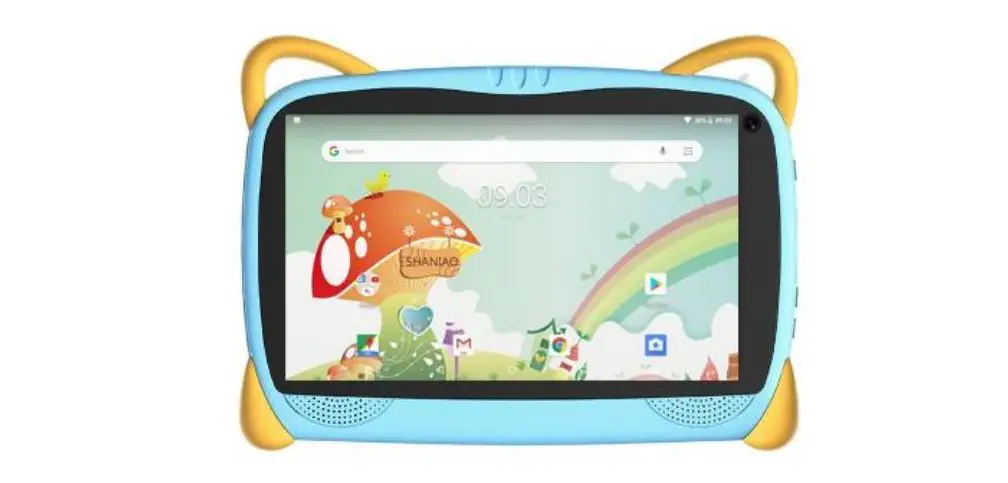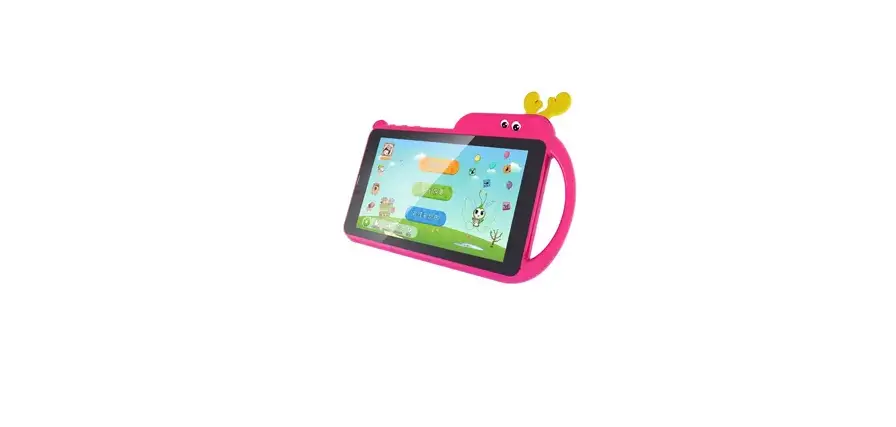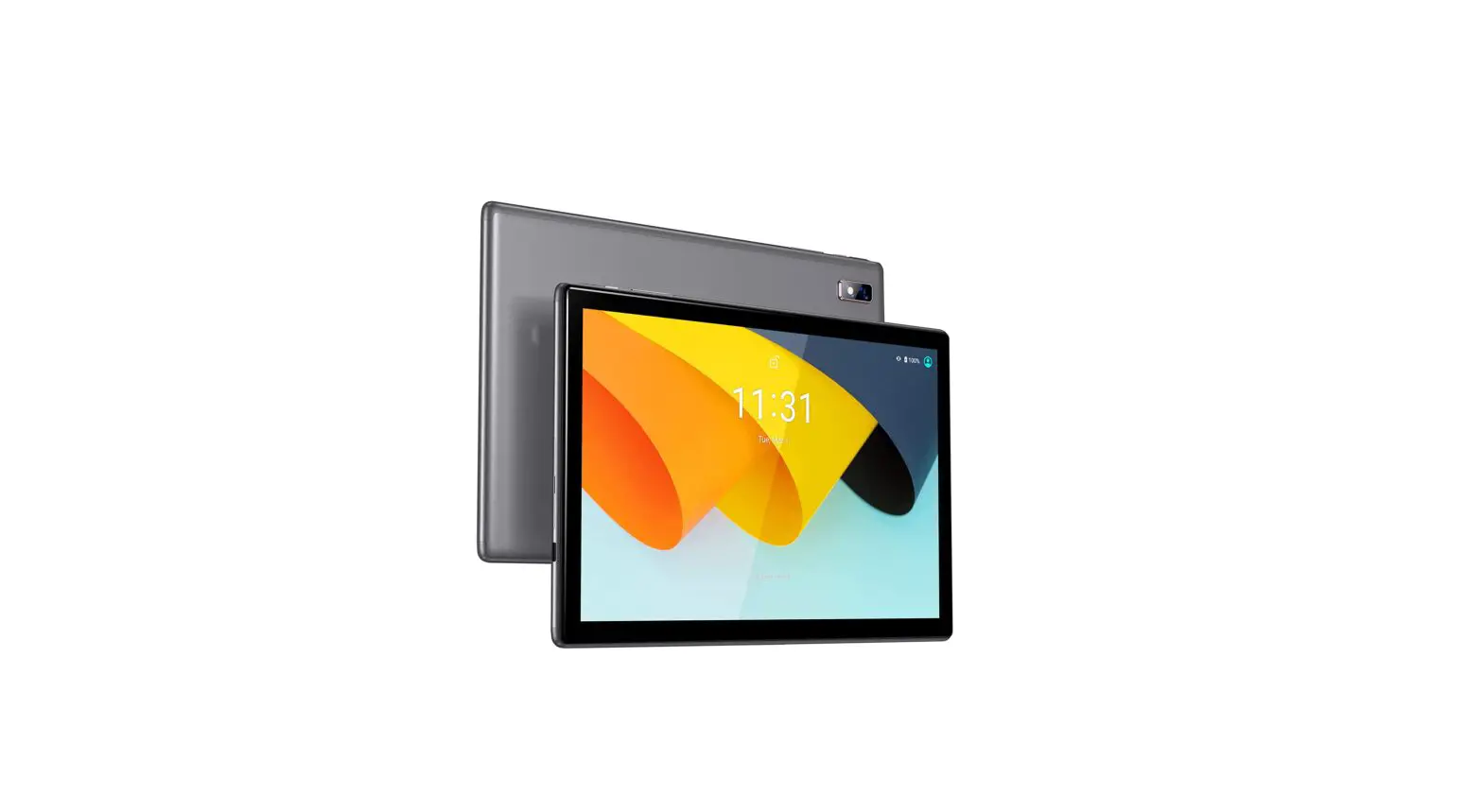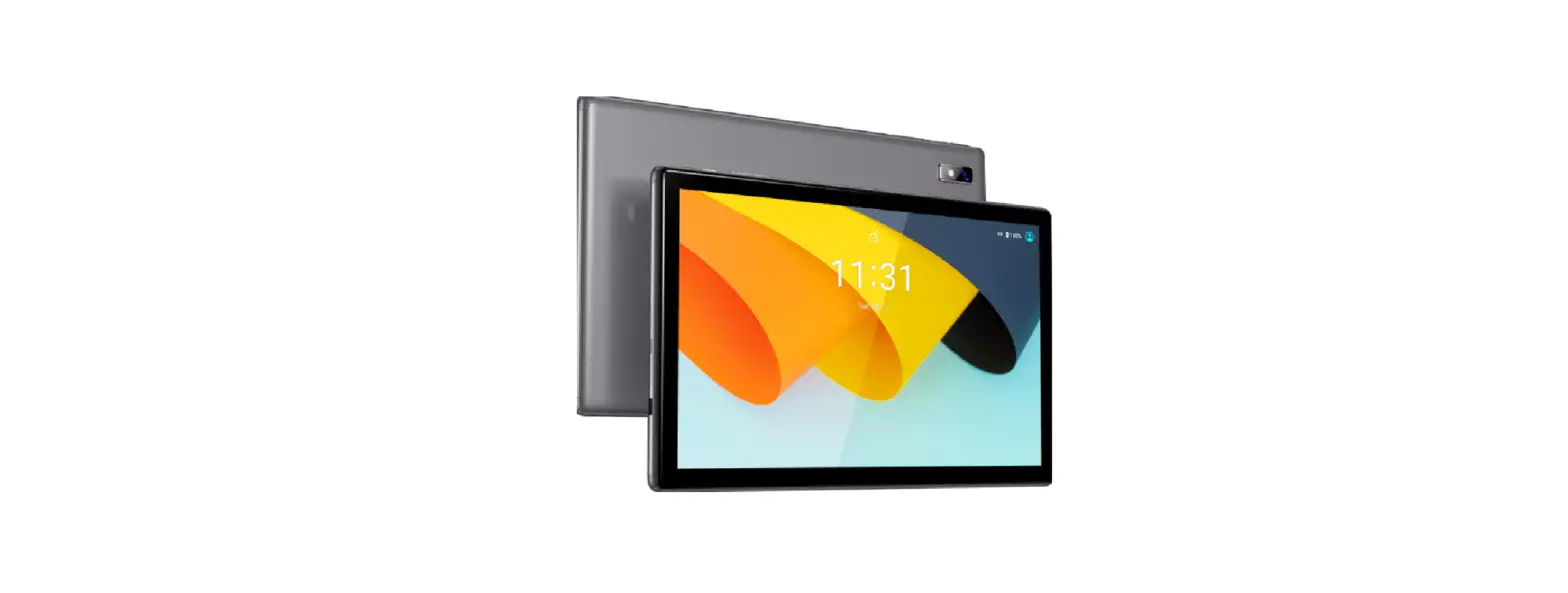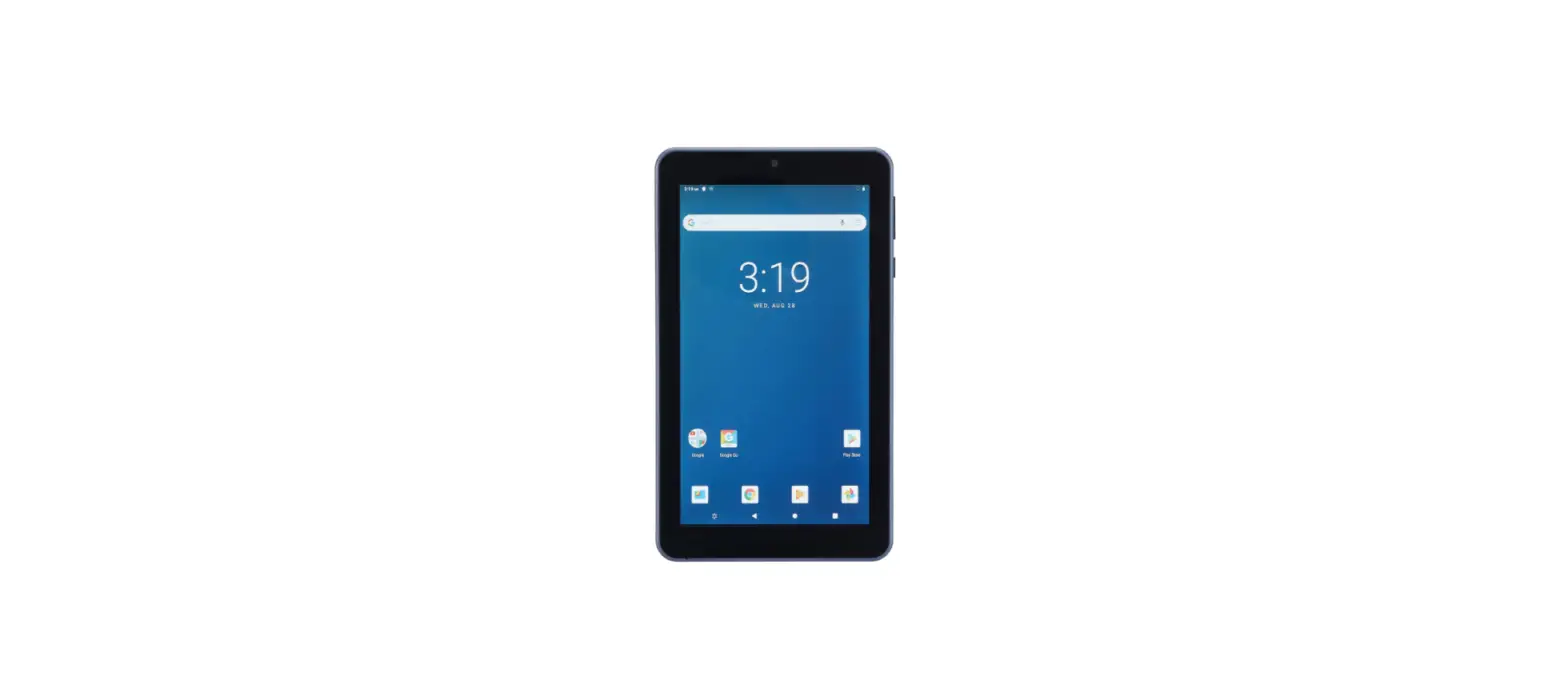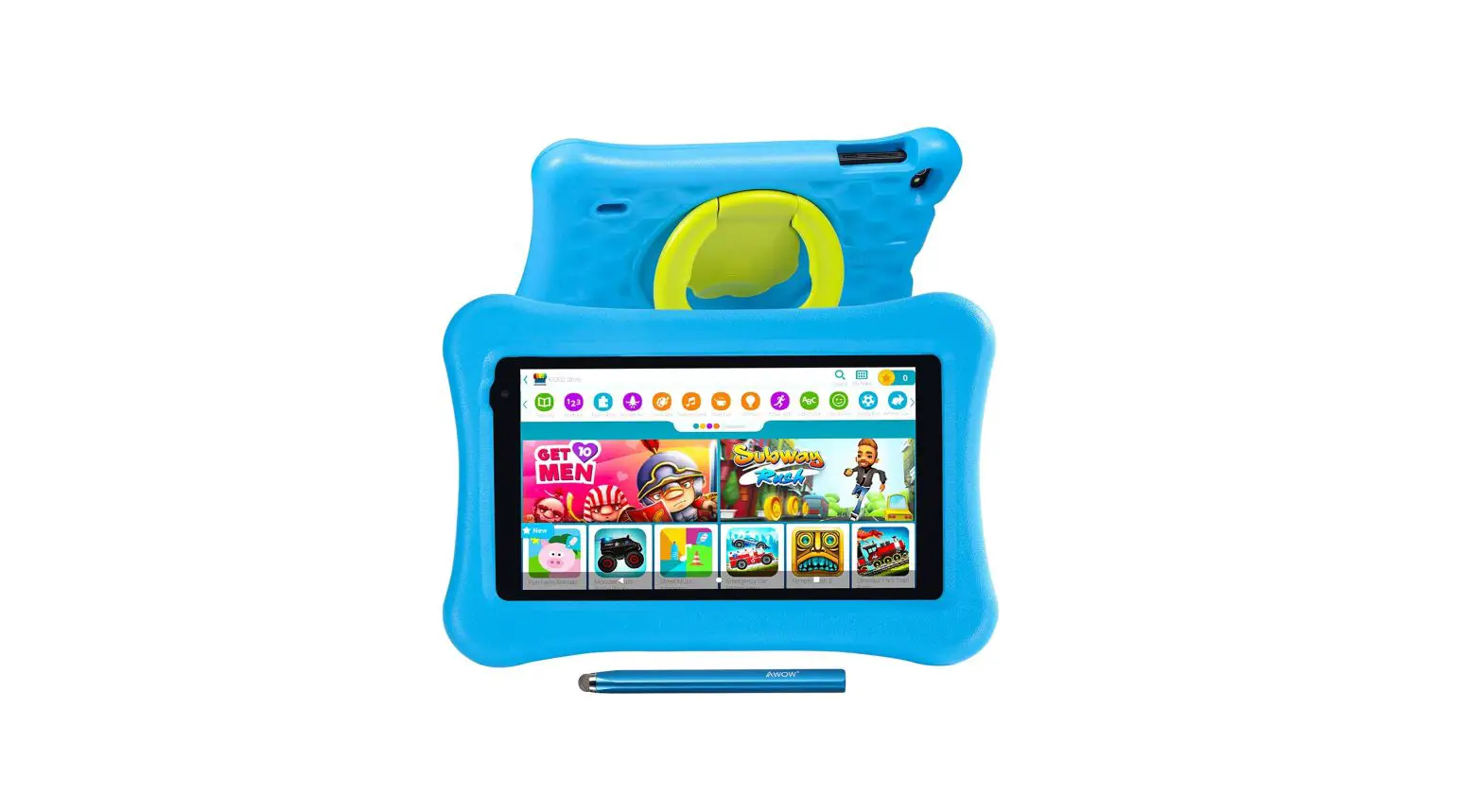
ANXONIT AnPad U2 7 Inch WiFi Android Tablet User Manual
GETTINC STARTED
- Power on the tablet, find
 and tap it to launch.
 - After launching, simply select your language, tap Accept and Continue then tap. Allow in the following 4 pop .up windows to visit KIDOZ as a Guest

 and tap it to launch.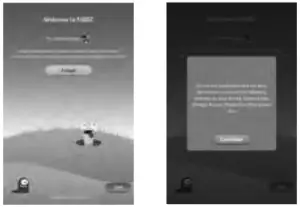
KIDOZ REGISTRATION
CREATE PARENT ACCOUNT
Tap  , on the top navigation bar, then start to create the parent account with a valid email address following the instructions of KIDOZ. A verification email from KIDOZ stands for the successful registration.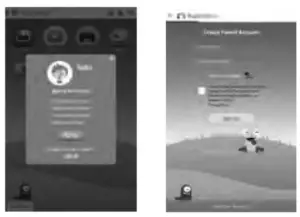
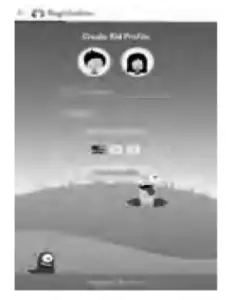
CREATE KID PROFILE
Step 1:
Set your kids gender. name. birthday and choose up to three languages, then tap Create Profile .
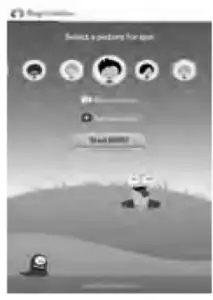
Step 2:
Change the profile photo from gallery (My Pictures in KIDOZ or by taking one with the camera. If you have more kids, you can add more kid profiles. Tap Start KIDOZ to enter the main interface.
Function Overview
Main Interface
 Show Pictures taken by the camera in KIDOZ
- Set/ Cancel the safe environment
 Exit from KIDOZ
 download apps from KIDOZ Store
 watch online videos
 play online games
- visit online websites
- take photos, then save to My Pictures in KIDOZ and Photos in tablet
- change the wallpaper of KIDOZ
 Switch between the main interface and kids centre
- Go to parental control centre
 Show Pictures taken by the camera in KIDOZ
 Set/ Cancel the safe environment
 Exit from KIDOZ
 download apps from KIDOZ Store
 watch online videos
 play online games
 visit online websites
 take photos, then save to My Pictures in KIDOZ and Photos in tablet
 change the wallpaper of KIDOZ
 Switch between the main interface and kids centre
 Go to parental control centre
Description Of Icons In Videos And Games And Websites
 favorite videos/games/ websites
- view history
- create new channel for videos( websites
- Check all the latest videos/games/websites
- Allow or hide specific video channels/games/websites by parents
 favorite videos/games/ websites
 view history
 create new channel for videos( websites
 Check all the latest videos/games/websites
 Allow or hide specific video channels/games/websites by parents
Parental Control Centre
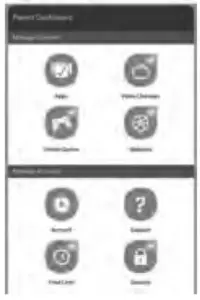
Manace Content
 Tap apps to show or hide one or more apps in KIDOZ.
 Tap video channels/online Games/websites to allow or hide one or more option.
 Tap apps to show or hide one or more apps in KIDOZ.
 Tap video channels/online Games/websites to allow or hide one or more option.
Manage Account
 Tap Account to manage the parent account and kid’s account. You can change password of parent account, edit Kid’s account, delete Kids account, etc..
 Tap Time Limit to activate Time Limit Control. You can set the amount of time (e.g. 1.5 hours) and the daily time frame (e.g. 5:00 PM-8:00 PM) for using KIDOZ.
- Tap Security to enable/disable different security options as required.

 Tap Account to manage the parent account and kid’s account. You can change password of parent account, edit Kid’s account, delete Kids account, etc..
 Tap Time Limit to activate Time Limit Control. You can set the amount of time (e.g. 1.5 hours) and the daily time frame (e.g. 5:00 PM-8:00 PM) for using KIDOZ.
 Tap Security to enable/disable different security options as required.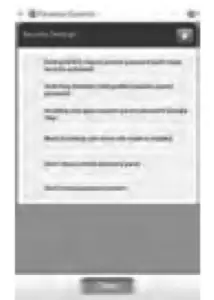
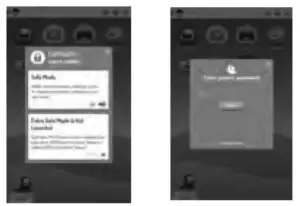
Set Up The Safe Environment
- in order to ensure the safety of your children, KIDOZ comes with a child lock that prevents your kids from exiting the safe environment.
- In Safe Mode – your child will be safe inside KIDOZ, ad links and app purchases will be blocked as long as the device is not turned off.
- In Extra Safe Mode – KIDOZ will act as the default launcher as long as the app is running. And even if you power off your device, when you turn it back on. your child will still be safe inside KIDOZ.
- Select the safety level you want for your child by tapping the Lock icon and choosing the relevant setting.
- For Extra Safe Mode. you’ll be asked to set KIDOZ as default launcher; you can follow the instructions on screen. This will not affect your device use in normal mode.
Kid’s Center
- Tap
 on the top navigation bar to enter kid’s center.
 - Tap to change the photo of your kid’s profile.
- Tap
 to switch to another kid profile or create another kid profile.
 - Tap
 with your credit card.
 Your kid’s favorite videos, games and websites.
 on the top navigation bar to enter kid’s center.
 to switch to another kid profile or create another kid profile.
 with your credit card.
 Your kid’s favorite videos, games and websites.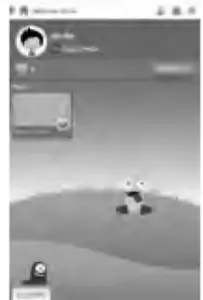
FCC Warning Statement
Changes or modifications not expressly approved by the party responsible for compliance could void the user’s authority to operate the equipment. This equipment has been tested and found to comply with the limits for a Class B digital device, pursuant to Part 15 of the FCC Rules. These limits are designed to provide reasonable protection against harmful interference in a residential installation. This equipment generates uses and can radiate radio frequency energy and, if not installed and used in accordance with the instructions, may cause harmful interference to radio communications. However thee is no guarantee that interference will not occur in a particular installation. If this equipment does cause harmful interference to radio or television reception, which can be determined by turning the equipment off and on, the user is encouraged to try to correct the interference by one or more of the following measures: Reorient or relocate the receiving antenna.
- Increase the separation between the equipment and receiver.
- Connect the equipment into an outlet an a circuit different frail the to which the receiver is connected.
- Consult the dealer or an experienced radio/TV technician for help.
FCC Radiation Exposure Statement
The device has been evaluated to meet general RF exposure requirement. The device can be used in portable exposure condition without restriction.
Contact Us
For any inquiries, please feel free to contact us, we will respond within 24 hours.
Email: [email protected]
Tel: +1909-833-5767