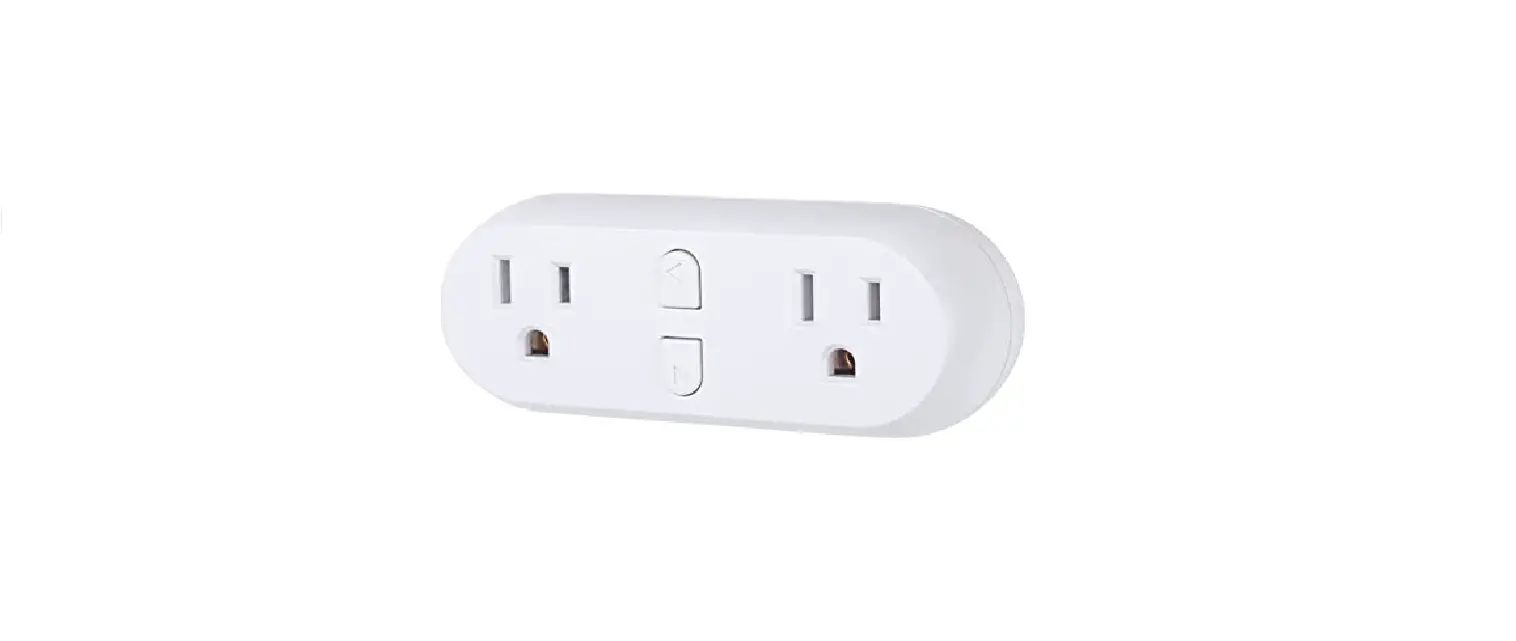
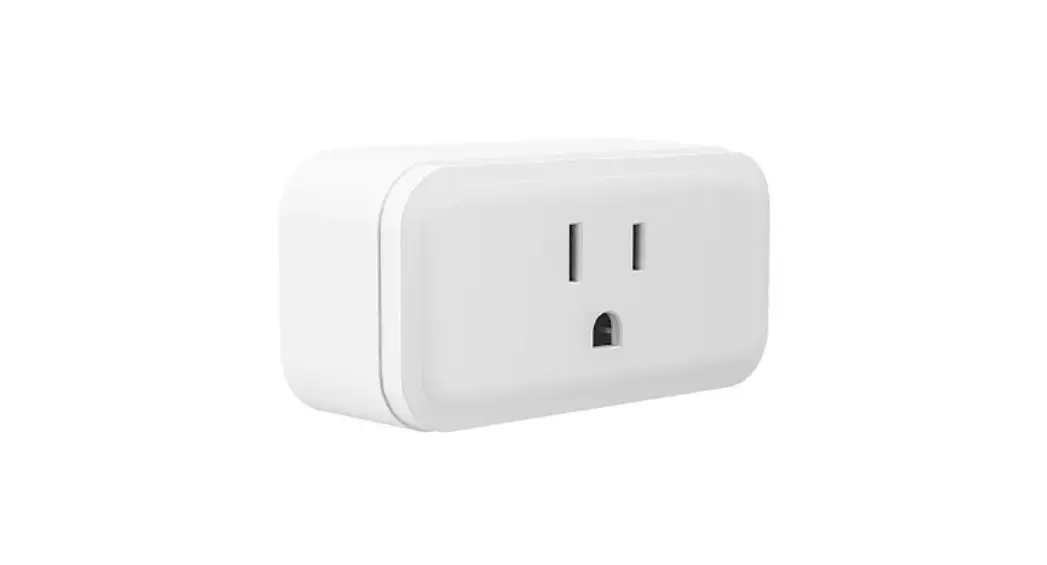
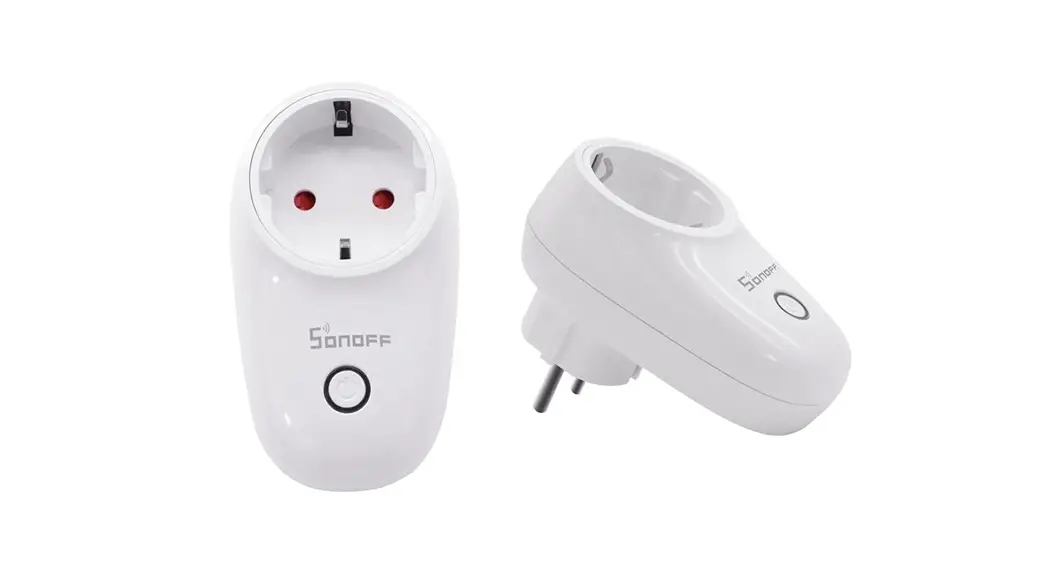
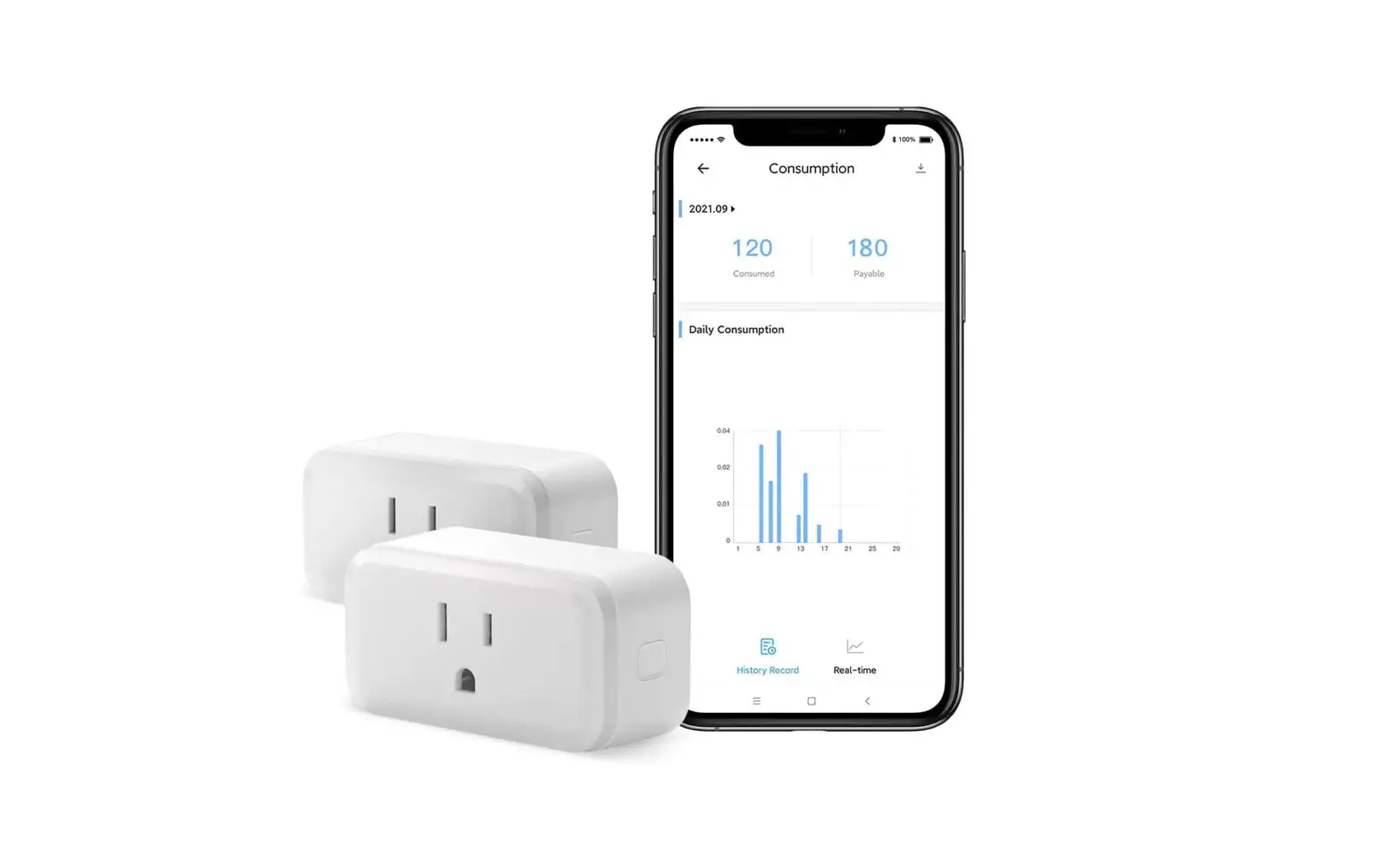
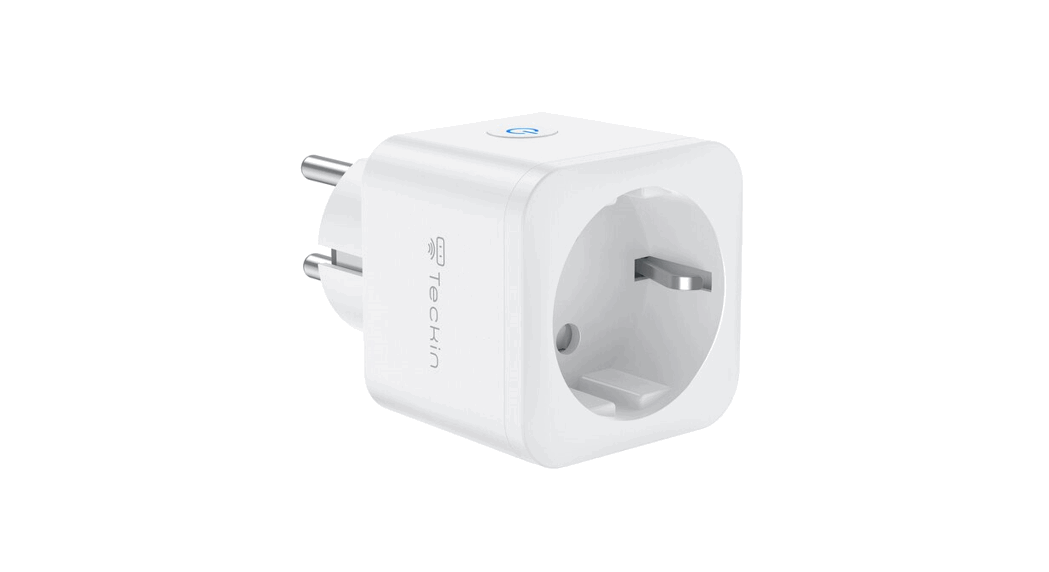
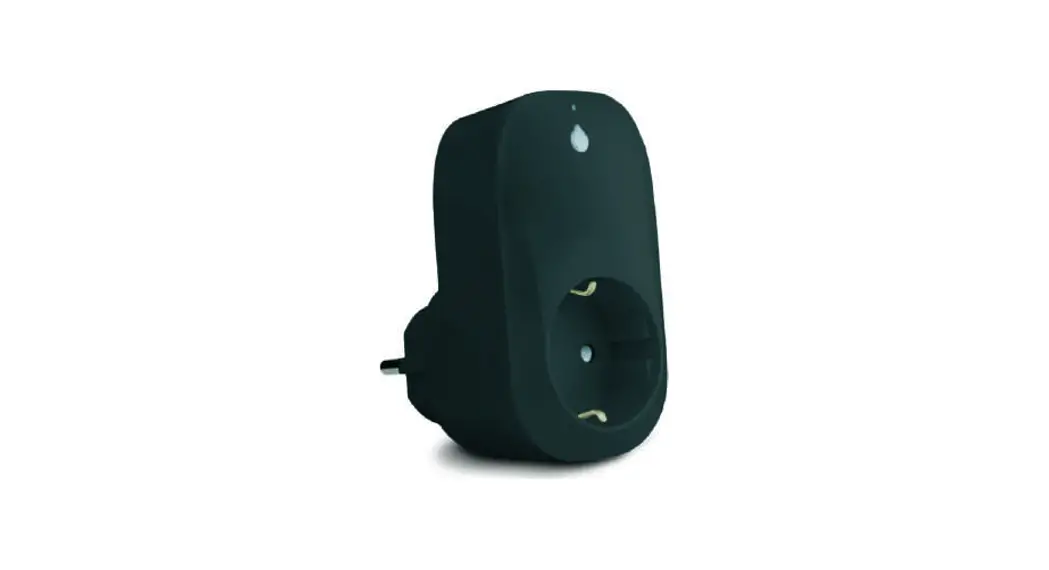
S26 WiFi Smart Plug
Product Information: Wi-Fi Smart Plug
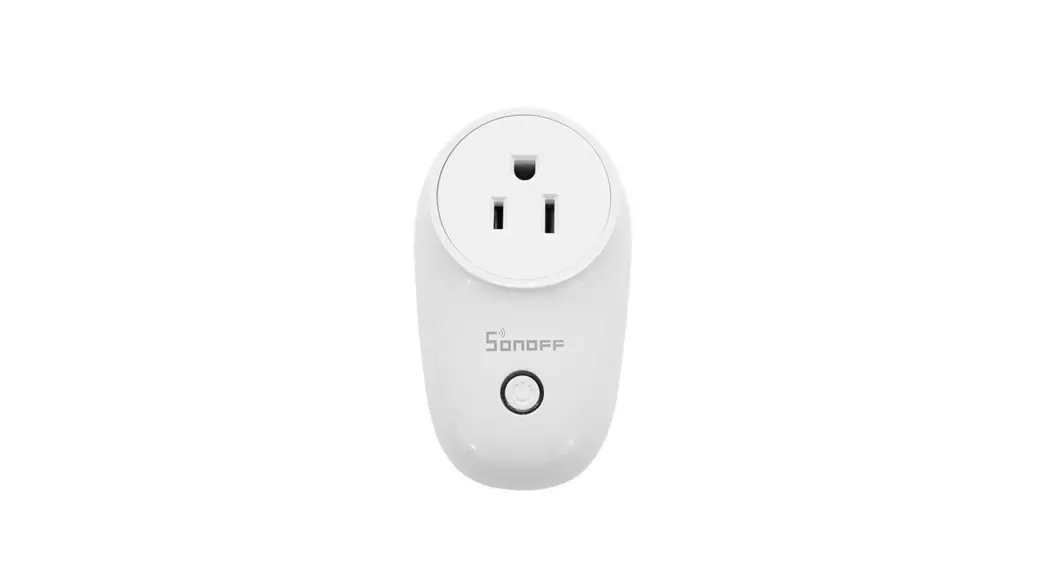
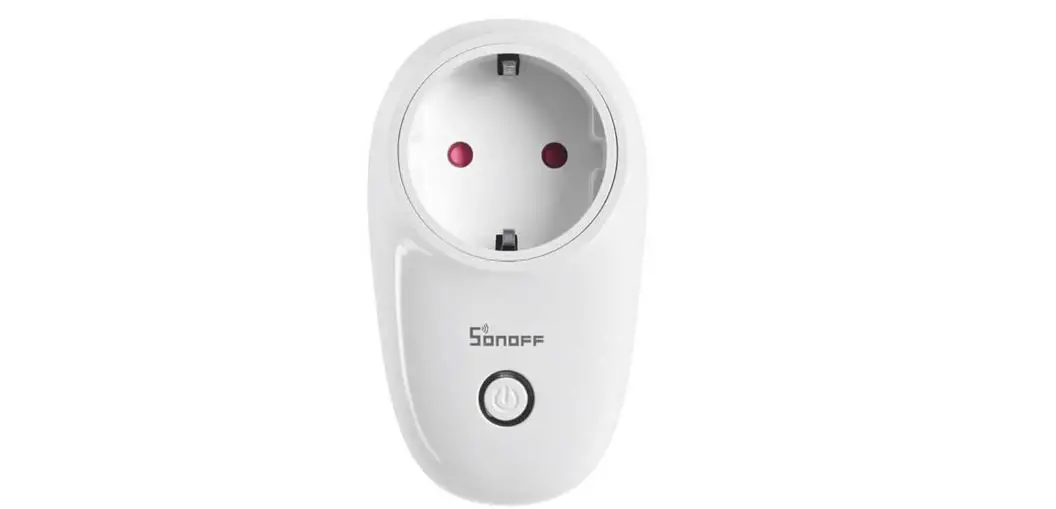
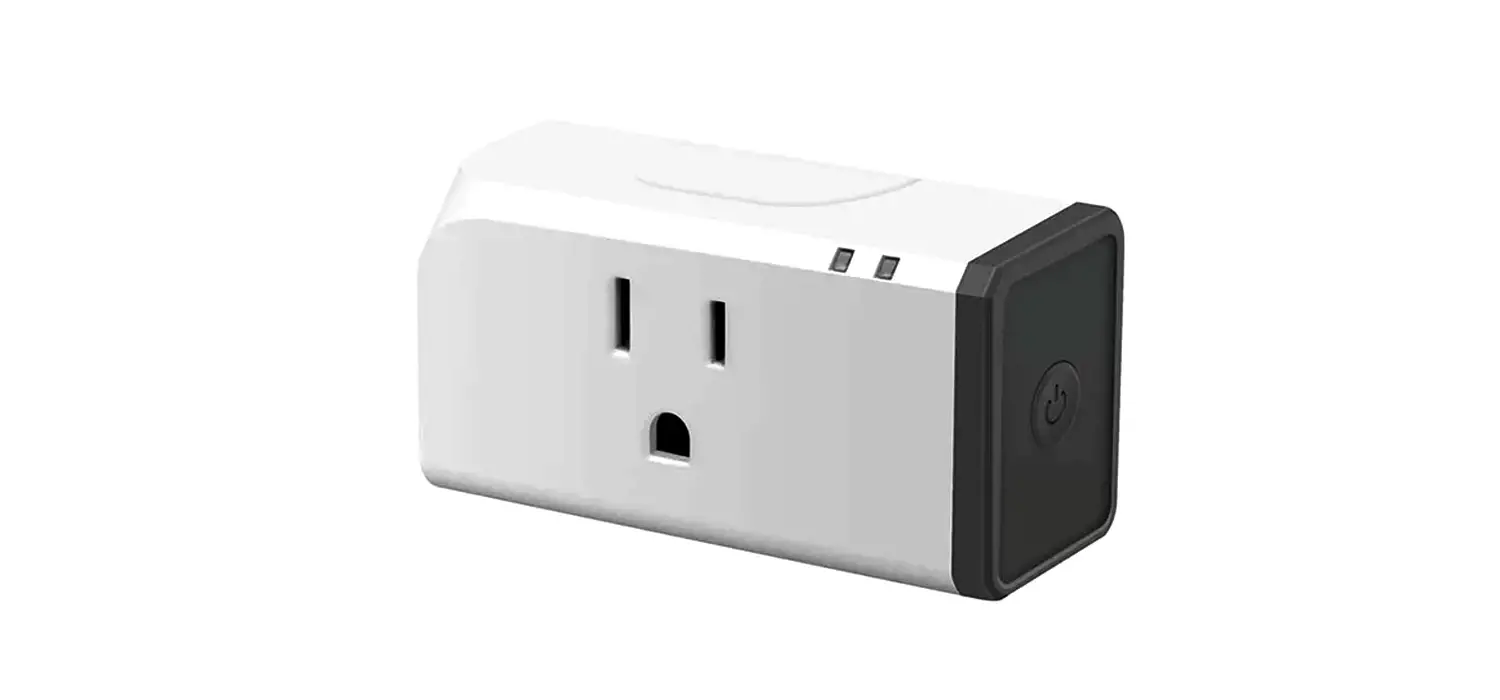
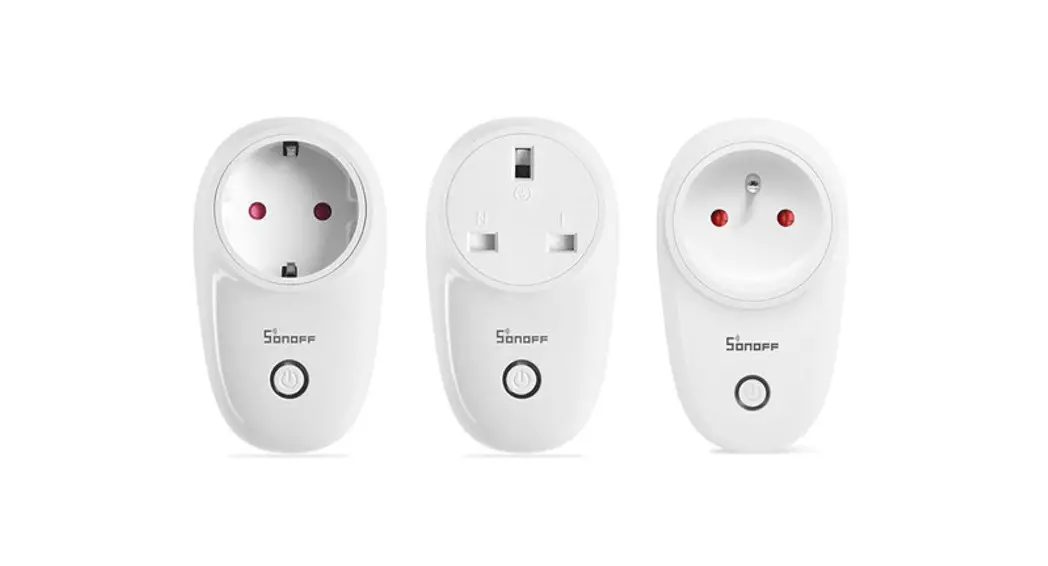
The Wi-Fi Smart Plug is a device manufactured by SONOFF
TECHNOLOGIES CO., LTD. The device is compatible with Android and
iOS operating systems and allows users to remotely turn on/off
devices, schedule them, share control, and control devices
together. The device has a Wi-Fi LED indicator (blue), an On/Off
LED indicator (red), and a pairing button/manual switch. It has a
maximum load input of 250V~ and supports IEEE 802.11 b/g/n 2.4GHz
Wi-Fi frequency. The product dimensions are 97.5x56x35mm.
Specifications:
| Model | Input | Max. Load | Operating Systems |
|---|---|---|---|
| S26R2TPF/S26R2TPG/S26R2TPI/S26R2TPN//S26R2TPH | 250V~, 50/60Hz | S26R2TPF: 4000W/16A S26R2TPG: 3250W/13A S26R2TPI: 3750W/15A S26R2TPN: 4000W/16A S26R2TPH: 4000W/16A | Android & iOS |
| S26R2TPE/S26R2TPB/S26R2TPAI/S26R2TPJ/S26R2TPL | S26R2TPE: 250V~, 50/60Hz S26R2TPB: 120V~, 60Hz S26R2TPAI: 250V~, 50/60Hz S26R2TPJ: 250V~, 50/60Hz S26R2TPL: 250V~, 50/60Hz | S26R2TPE: 3680W/16A S26R2TPB: 1800W/15A S26R2TPAI: 4000W/16A S26R2TPJ: 4000W/16A S26R2TPL: 1500W/6A | Android & iOS |
Product Usage Instructions:
- Download the eWeLink app on your Android or iOS device.
- Power on the Wi-Fi Smart Plug. During the first use, the device
will enter quick pairing mode (Touch), and the Wi-Fi LED indicator
will change in a cycle of two short flashes and one long flash and
release. If you want to enter this mode again, long-press the
manual button for about 5 seconds until the Wi-Fi LED indicator
changes in a cycle of two short flashes and one long flash and
release. - To add the device, tap + and select Quick Pairing on the
eWeLink app. Make sure the device is in pairing mode, and follow
the prompts on the app. If your device supports sound pairing, add
it in this mode. - If you fail to enter Quick Pairing Mode (Touch), try Compatible
Pairing Mode to pair. Long press the pairing button for 5 seconds
until the Wi-Fi LED indicator changes in a cycle of two short
flashes and one long flash and release. Long press the pairing
button again for 5 seconds until the Wi-Fi LED indicator flashes
quickly. Then, tap + and select Compatible Pairing Mode on the
eWeLink app. Select Wi-Fi SSID with ITEAD-****** and enter the
password 12345678, and then go back to the eWeLink app and tap
Next. Be patient until pairing completes.
Note: The device will exit the quick pairing mode (Touch) if not
paired within 3 minutes.
User manual V1.0
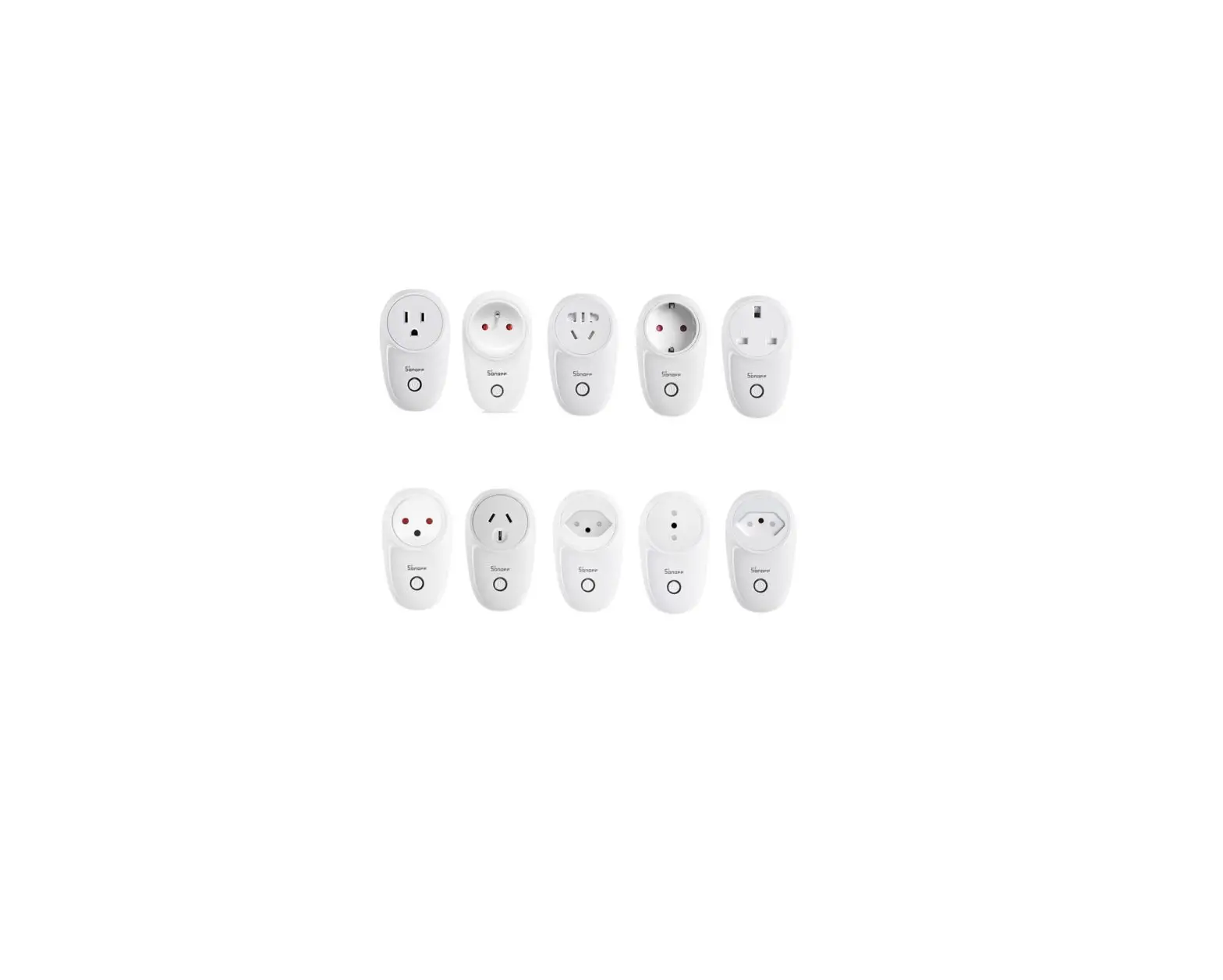
TPG(UK)
TPF(DE)
TPE(FR)
TPB(US)
TPI(AU)
TPAI(CN)
TPH(IL)
TPN(BR)
TPJ(CH)
Wi-Fi Smart Plug
TPL(IT)
SONOFF TECHNOLOGIES CO., LTD.
Operating Instruction
1. Download APP eWeLink
2. Power on
English
eWeLink
AndroidTM & iOS
After powering on, the device will enter the quick pairing mode (Touch) during the first use. The Wi-Fi LED indicator changes in a cycle of two short and one long flash and release.
The device will exit the quick pairing mode (Touch) if not paired within 3mins. If you want to enter this mode, please long press the manual button for about 5s until the Wi-Fi LED indicator changes in a cycle of two short and one long flash and release.
3. Add the device
Add Device
Quick Pairing
WIFI devices can be added in this mo de(make sure the device is in pairing mode).
Scan QR code
GSM devices and devices with QR co de can be added in this mode.
Sound Pairing Add device in this mode if your devic e support this feature.
Tap “+” and select “Quick Pairing”, then operate following the prompt on the APP.
SONOFF TECHNOLOGIES CO., LTD.
English
Compatible Pairing Mode
If you fail to enter Quick Pairing Mode (Touch), please try “Compatible Pairing Mode ” to pair.
1 Long press pairing button for 5s until the Wi-Fi LED indicator changes in a cycle of two short flashes and one long flash and release. Long press pairing button for 5s again until the Wi-Fi LED indicator flashes quickly. Then, the device enters Compatible Pairing Mode.
2 Tap “+” and select ” Compatible Pairing Mode ” on APP.
Select Wi-Fi SSID with ITEAD-****** and enter the password 12345678, and then go back to eWeLink APP and tap “Next”. Be patient until pairing completes.
Specifications
Model
S26R2TPF/S26R2TPG/S26R2TPI/S26R2TPN//S26R2TPH S26R2TPE/S26R2TPB/S26R2TPAI/S26R2TPJ/S26R2TPL
Input
Max. load Operating systems
S26R2TPF: 250V~, 50/60Hz S26R2TPG: 250V~, 50/60Hz S26R2TPI: 250V~, 50Hz S26R2TPN: 250V~, 50/60Hz S26R2TPH: 250V~, 50/60Hz
S26R2TPF: 4000W/16A S26R2TPG: 3250W/13A S26R2TPI: 3750W/15A S26R2TPN: 4000W/16A S26R2TPH: 4000W/16A
Android & iOS
S26R2TPE: 250V~, 50/60Hz S26R2TPB: 120V~, 60Hz S26R2TPAI: 250V~, 50/60Hz S26R2TPJ: 250V~, 50/60Hz S26R2TPL: 250V~, 50/60Hz
S26R2TPE: 3680W/16A S26R2TPB: 1800W/15A S26R2TPAI: 4000W/16A S26R2TPJ: 4000W/16A S26R2TPL: 1500W/6A
Wi-Fi
IEEE 802.11 b/g/n 2.4GHz
Working temperature -10~40
Material
PC V0
Dimension
97.5x56x35mm
SONOFF TECHNOLOGIES CO., LTD.
Product Introduction
English
Wi-Fi LED indicator (Blue)
On/Off LED indicator (Red) Pairing button/Manual switch
Wi-Fi LED indicator status instruction
Wi-Fi LED indicator status Flashes (one long and two short) Keeps on Flashes quickly Flashes quickly once Flashes quickly twice Flashes quickly three times
Status instruction Quick Pairing Mode Device is connected successfully Compatible Pairing Mode Unable to discover the router Connect to the router but fail to connect to Wi-Fi Upgrading
Features
Remotely turn on/off the device, schedule it on/off or share it with your family to control together.
Remote Control Single/Countdown Timing
Voice Control
Share Control
Smart Scene
Inching Mode
Power-on State
Camera Feature
Group control
LAN Control
SONOFF TECHNOLOGIES CO., LTD.
English
Switch Network
If you need to change the network, long press the pairing button for 5s until the Wi-Fi LED indicator changes in a cycle of two short and one long flash and release, then the device enters quick pairing mode and you can pair again.
Factory Reset
Deleting the device on the eWeLink app indicates you restore it to factory setting.
Common Problems
Q: Why my device stays “Offline”? A: The newly added device needs 1 2mins to connect Wi-Fi and network. If it stays
offline for a long time, please judge these problems by the blue Wi-Fi indicator status: 1. The blue Wi-Fi indicator quickly flashes once per 2 seconds , which means that the device failed to connect your Wi-Fi: Maybe you have entered a wrong Wi-Fi password. Maybe there’s too much distance between the switch your router or the
environment causes interference, consider getting close to the router. If failed, please add it again. The 5G Wi-Fi network is not supported and only supports the 2.4GHz wireless network. Maybe the MAC address filtering is open. Please turn it off. If none of the above methods solved the problem, you can open the mobile data network on your phone to create a Wi-Fi hotspot, then add the device again.
2. Blue indicator quickly flashes twice per 2 seconds, which means the device has connected to Wi-Fi but failed to connect to the server. Ensure steady enough network. If double flash occurs frequently, which means you access an unsteady network, not a product problem. If the network is normal, try to turn off the power and restart the device.
Hereby, Shenzhen Sonoff Technologies Co., Ltd. declares that the radio equipment type S26R2TPF/S26R2TPE/S26R2TPG/S26R2TPB/S26R2TPI/S26R2TPAI/S26R2TPN/ S26R2TPJ/S26R2TPH/S26R2TPL is in compliance with Directive 2014/53/EU.The full text of the EU declaration of conformity is available at the following internet address:
Shenzhen Sonoff Technologies Co., Ltd.
1001, BLDG8, Lianhua Industrial Park, shenzhen, GD, China
ZIP code: 518000
Website: sonoff.tech
MADE IN CHINA