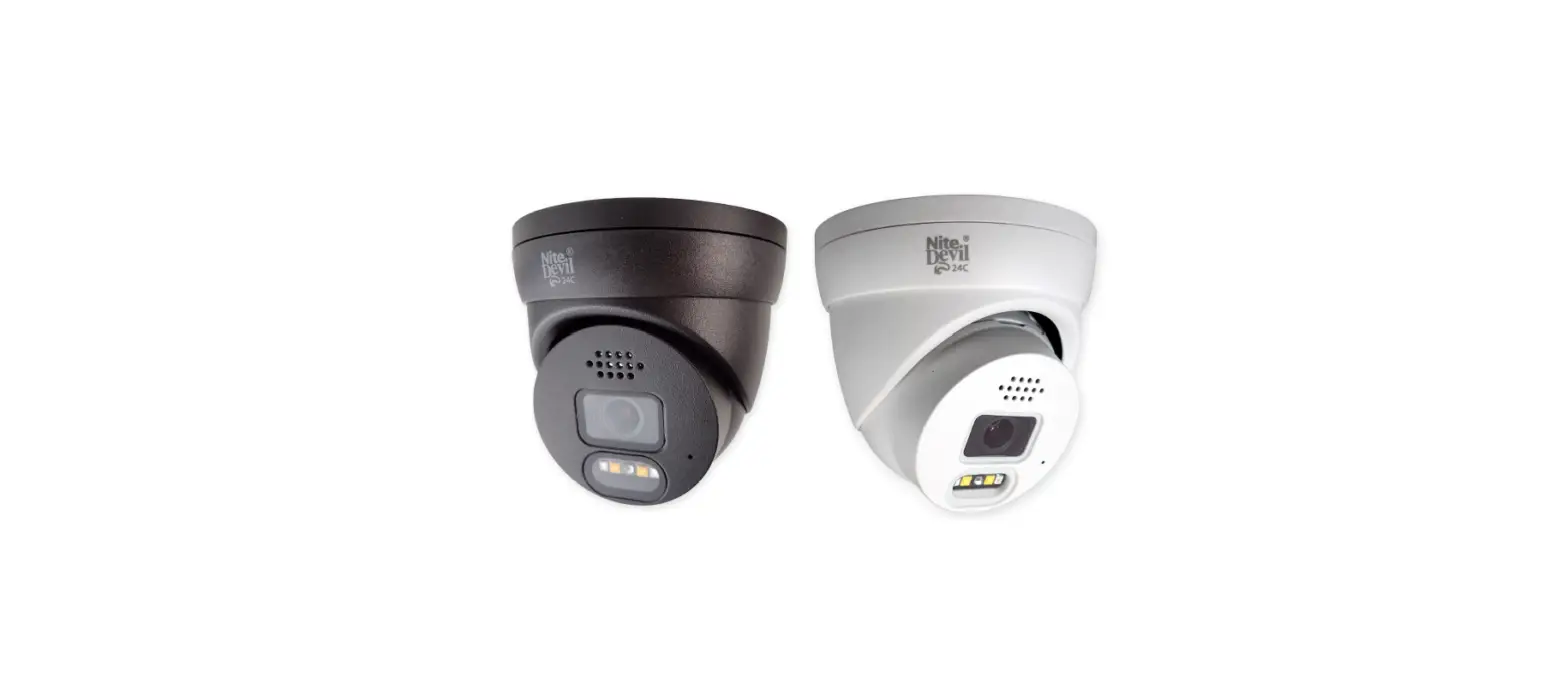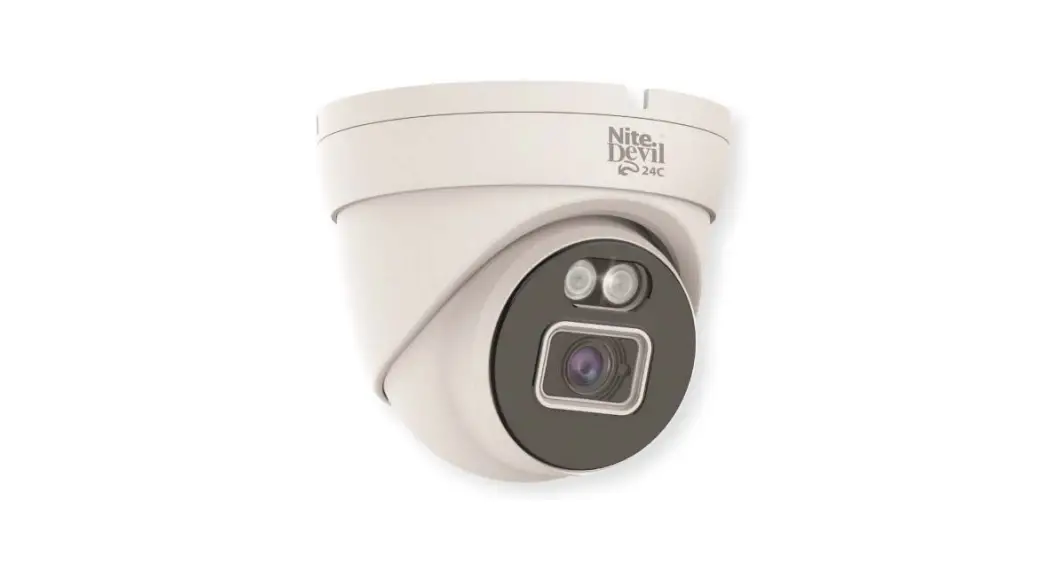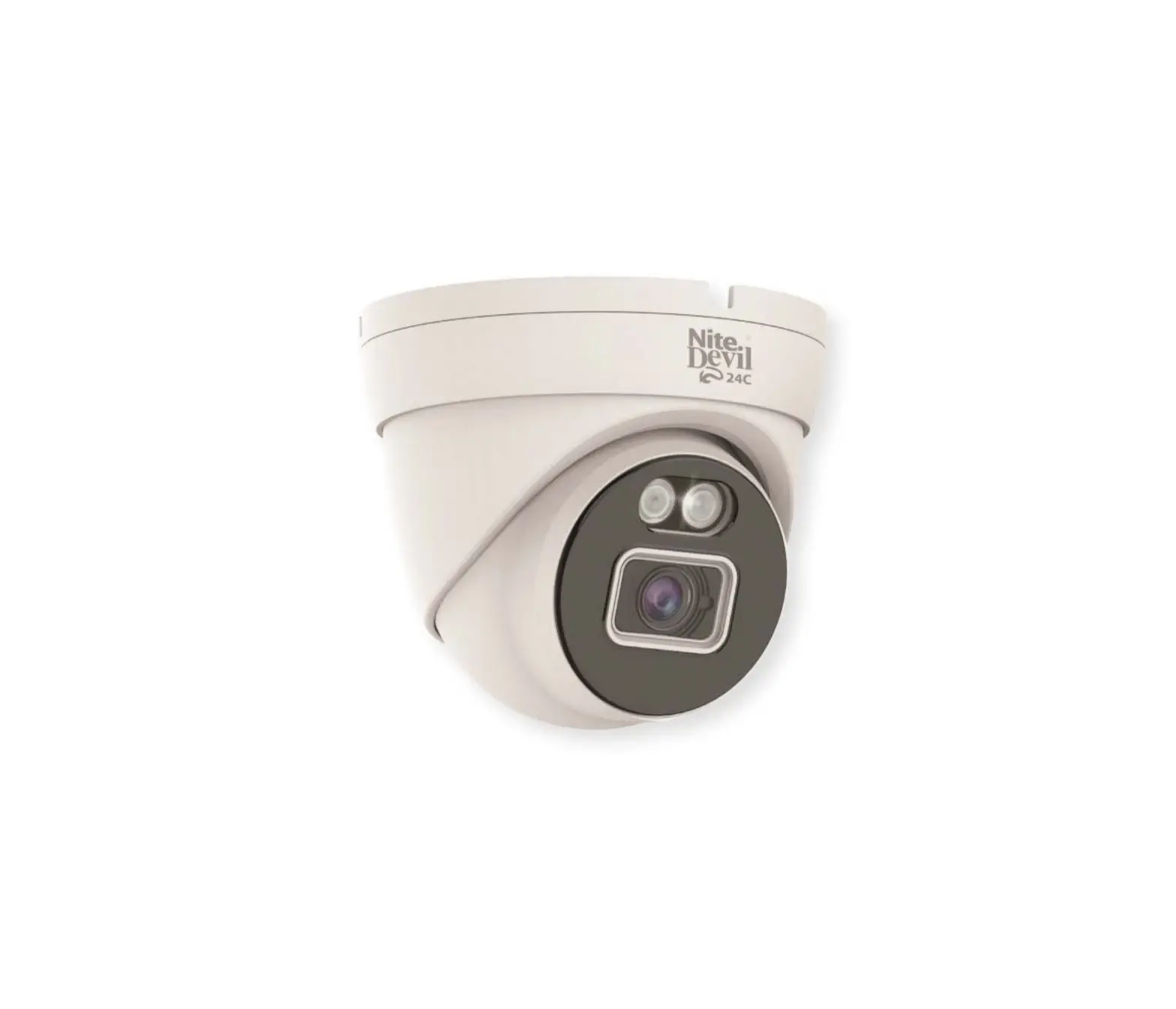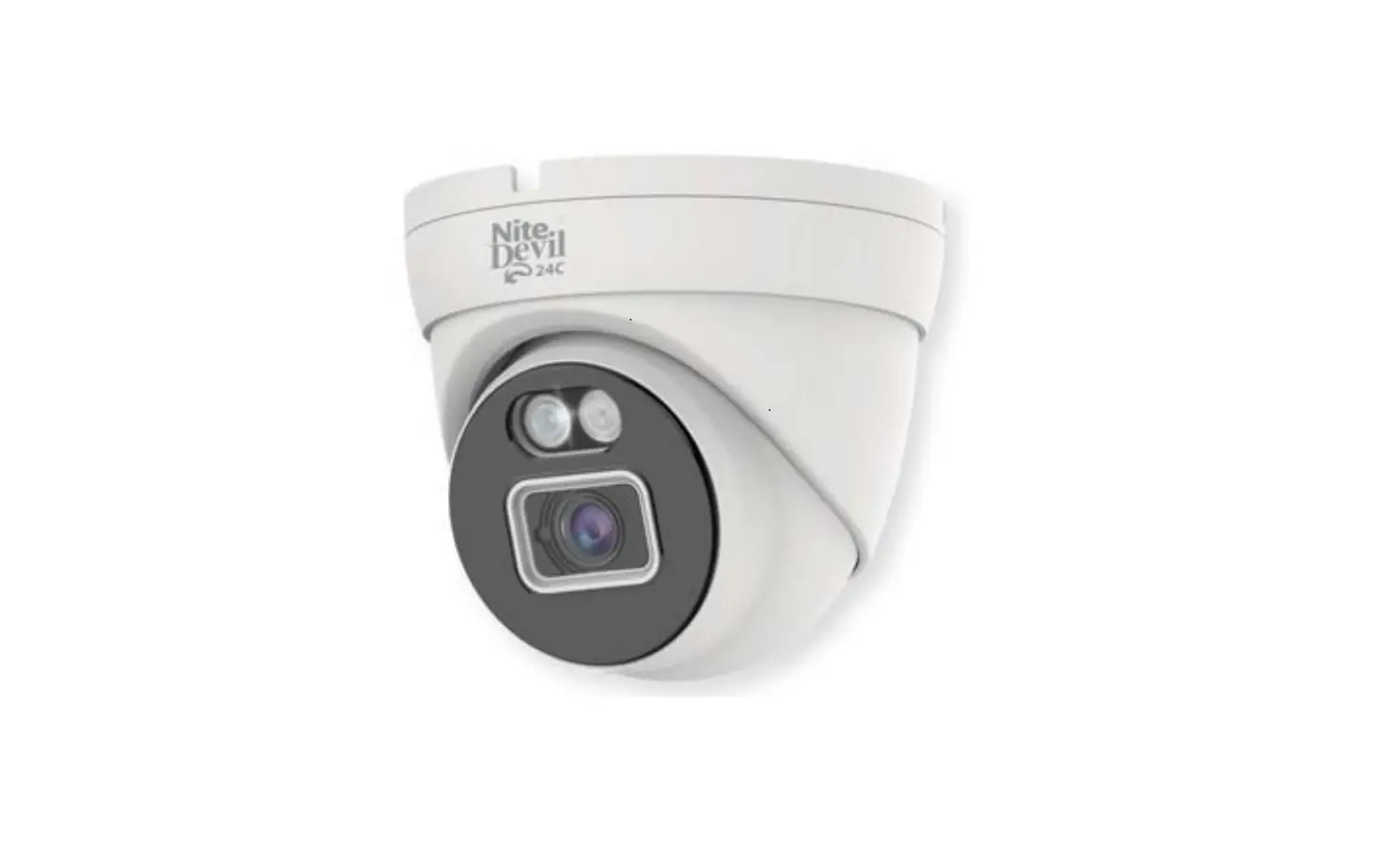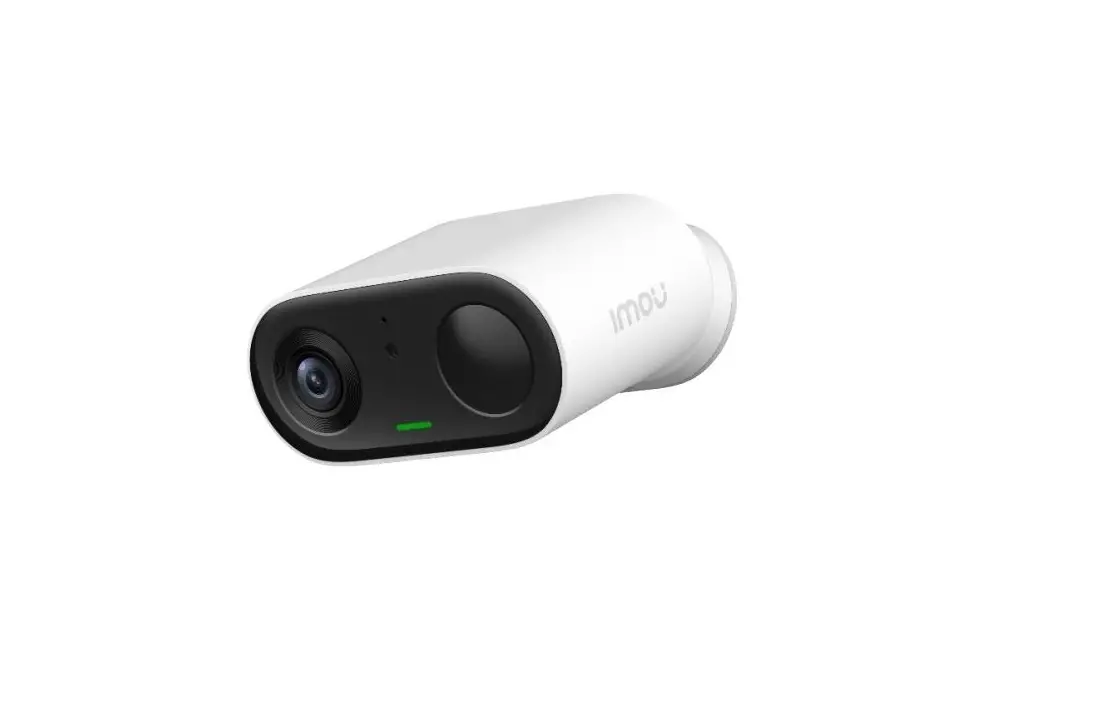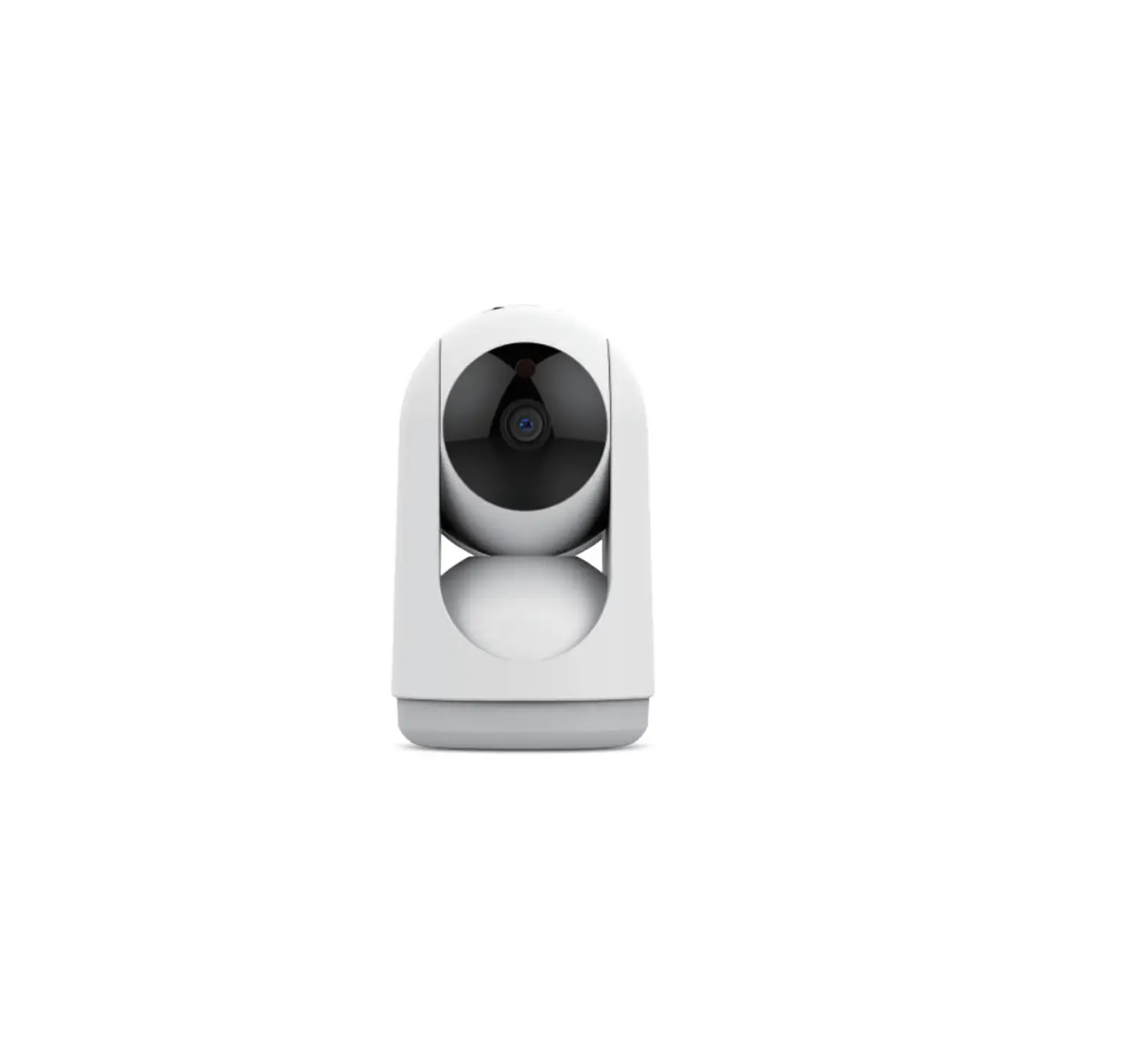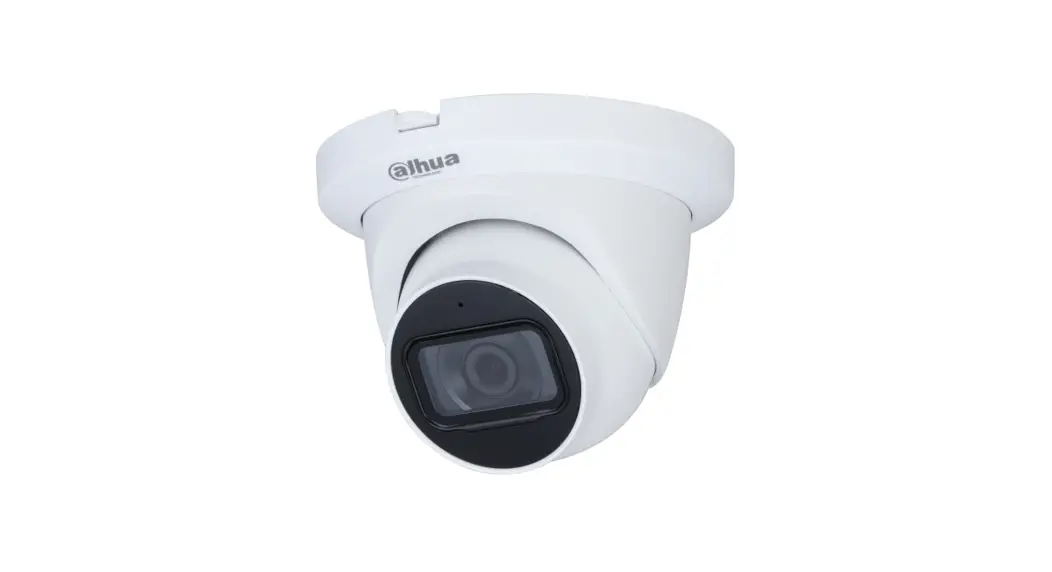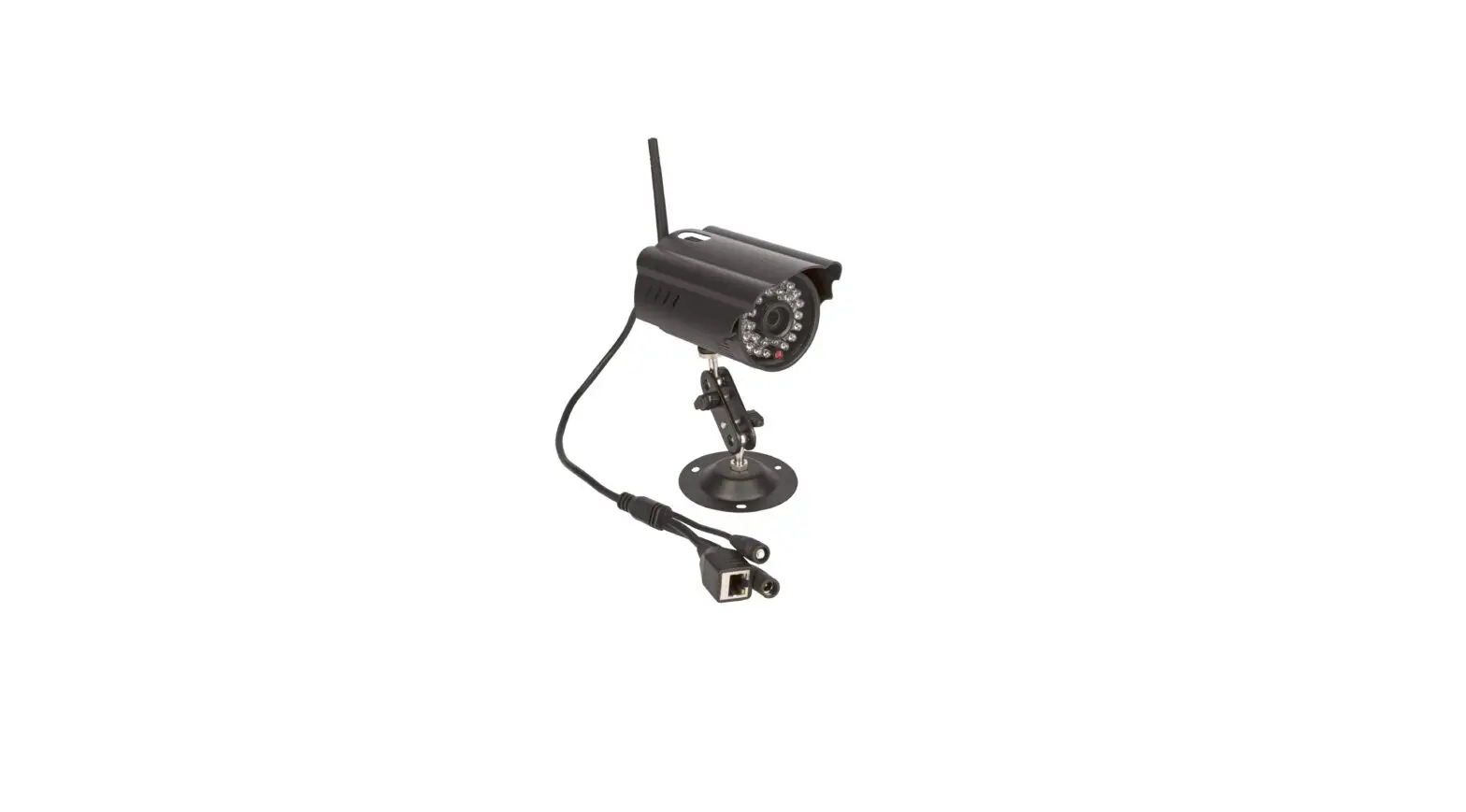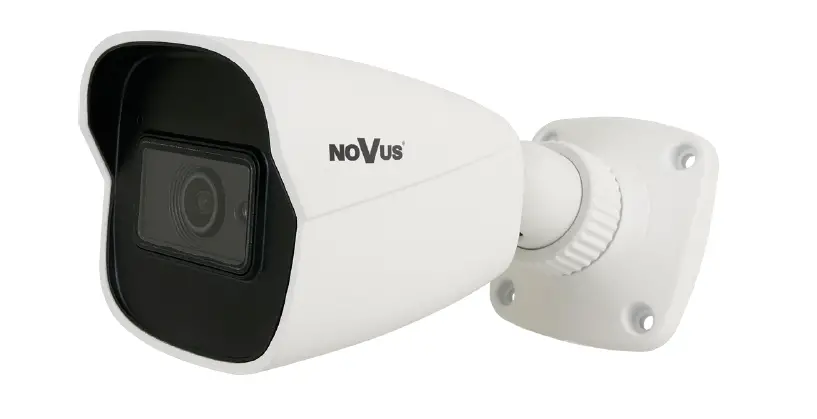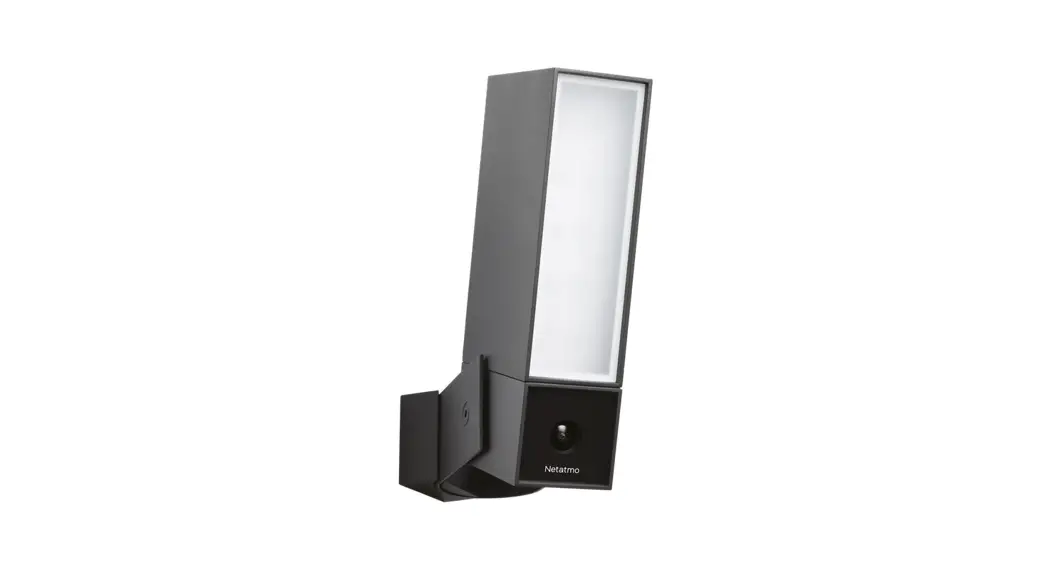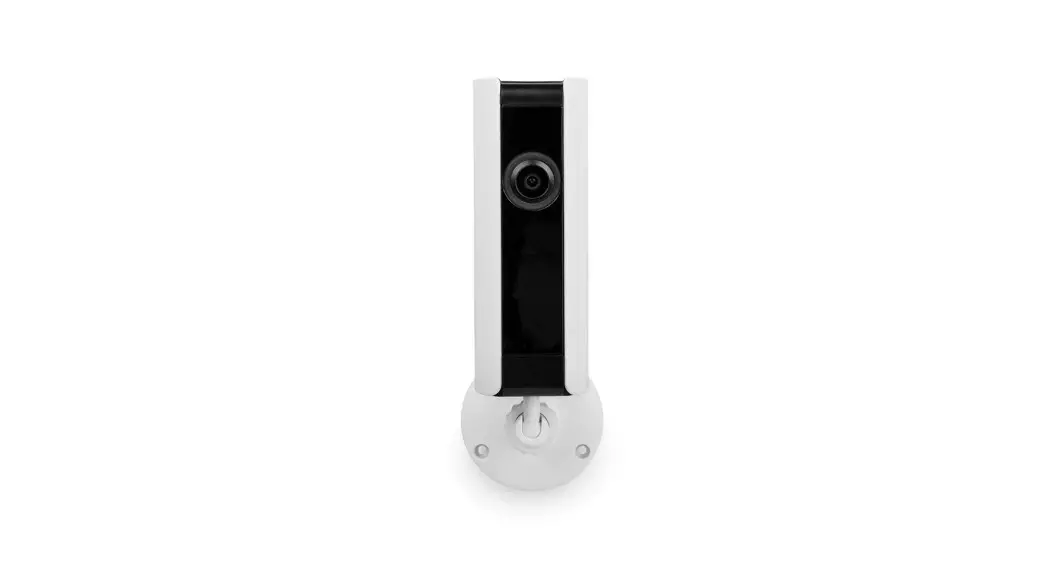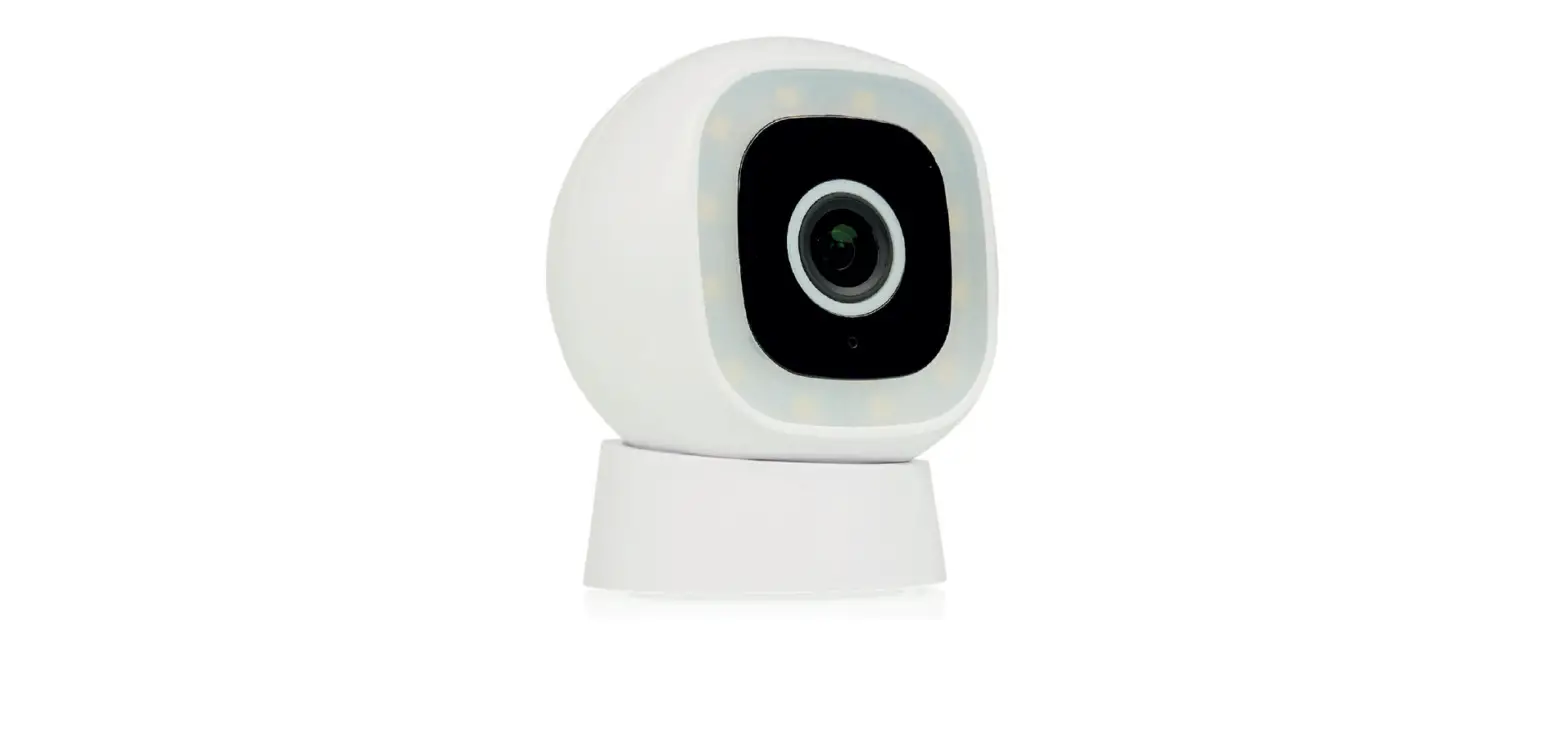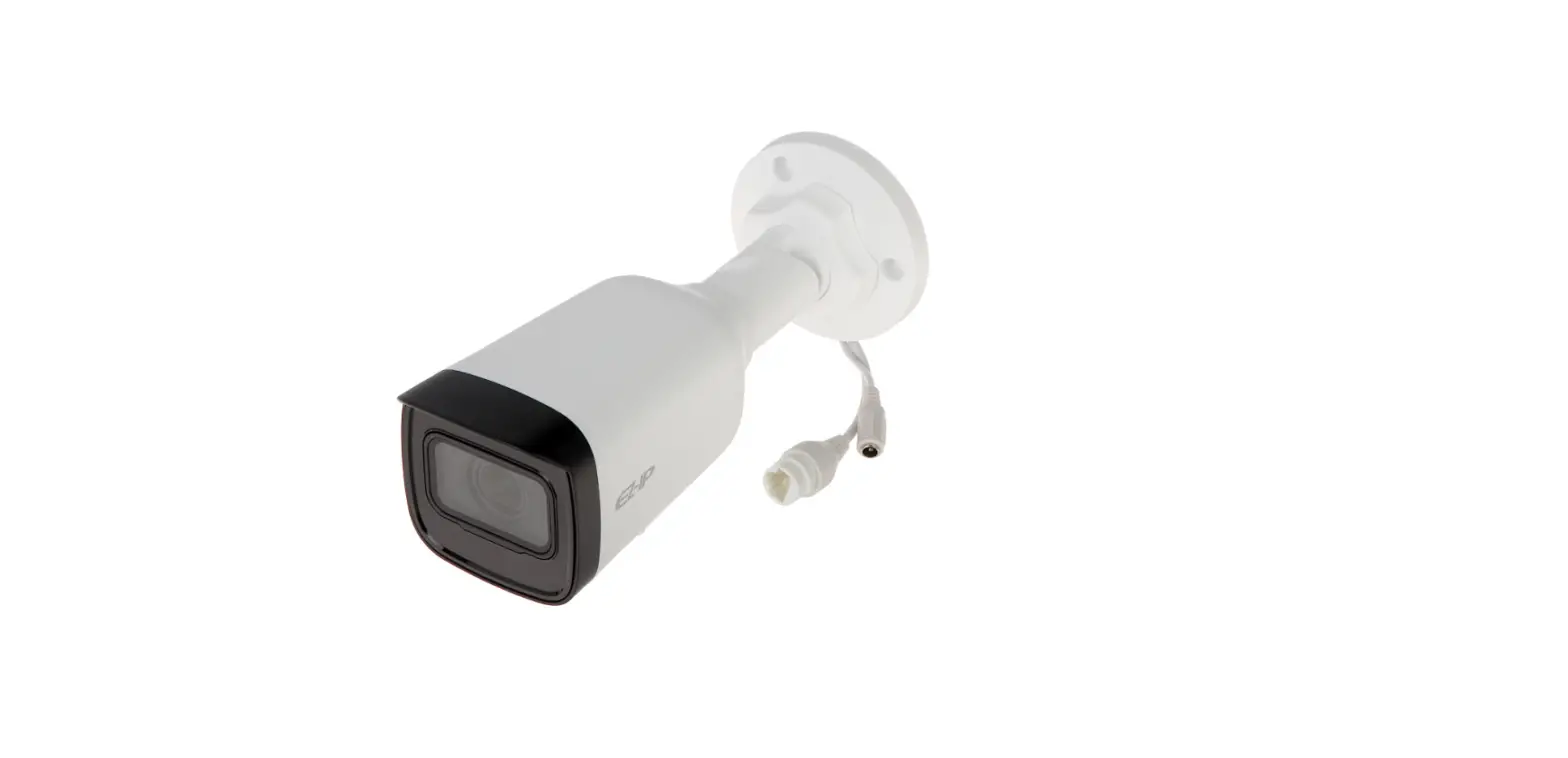

NiteDevil IPCND714 24C Camera
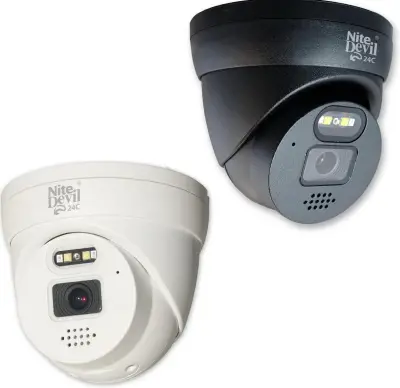
Introduction – NiteDevil Hero
The NiteDevil Hero can stay in full colour around the clock using its built in white light LEDs to produce superb full colour images.
Up to 25m IR range (true day/night filter) and up to 20m white light range, 4MP resolution, built in PoE, H265 and H264 codec. With built in dual IR and white light you can choose how the camera best works in your install. Using white light to give visual warning or using IR illumination to get a more discreet set up.
This model also features blue and red deterrence LED as an option which can warn off intruders, similar to law enforcement strobe lights. *Adjustable with compatible NVR / DVR Firmware.
A built in microphone means you can see and hear what’s happening, recording the audio & video on your NVR for the best possible CCTV evidence.
Dual PoE and 12V means you can power and connect the camera to POE NVRs in seconds using one simple CAT5/6 cable for video, power and audio. If your system doesn’t support PoE use the 12V input or a PoE injector such as our POE200.
Key Features
- Full Colour 24/7
- Sees in Low Light
- NiteDevil® Tech
- 4MP
- Stunning Images
- ONVIF
- White or Grey Case
- IP66 In & Outdoor
- Dual PoE/12V
- Dual IR & White Light
- Red & Blue Strobe Deterrence
- Wide-Angle 2.8mm
- Built-in Mic
- Metal Case
- Motion Detect
- Picture Flip
Essential Tools and ZipFinder
To install this product you will need:
- Laptop / Windows PC
- Screwdriver
- Drill
- ZIP NVR or DVR
- PoE Switch / 12V DC power supply
- Ethernet CAT5/5e/6 Cable
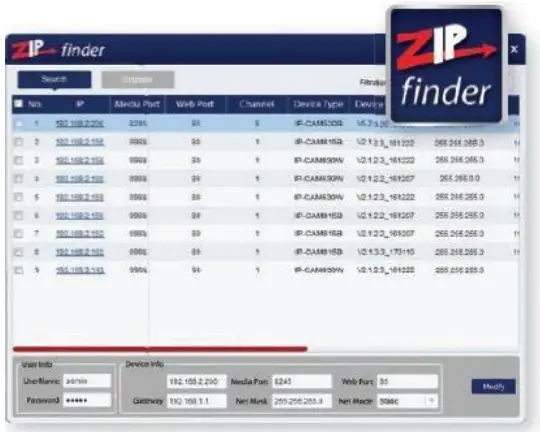
ZipFinder – IP Camera Configuration Tool
ZipFinder is a Windows PC software for discovering and configuring IP cameras a network.
Use ZipFinder on non-PoE installs, to help problem solving issues such as forgotten or unknown
IP Addresses.
To download visit ZipNVR.com
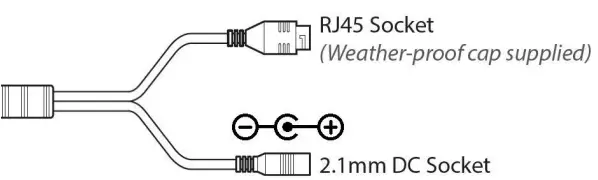
Connections
Powering the camera
Option 1 – Power the camera from 12V DC (via the 2.1mm DC Socket), the current consumption is 420mA.
The camera is polarity sensitive so connections must be correctly made.
Option 2 – Power the camera using a PoE 48V RJ45 Socket
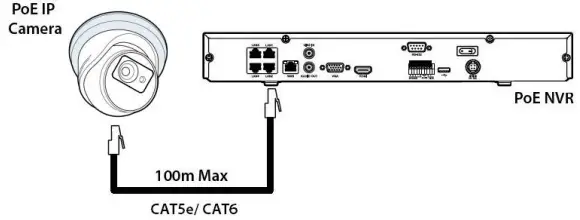
When connecting ZIP PoE NVR plug the camera directly into the NVRs built in PoE switch.
The camera should automatically become visible after being connected for approximately 1 minute.
Mounting
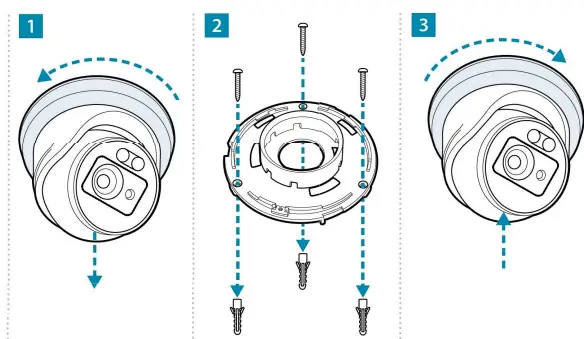
SD Card
The SD Card can be found on the rear of the eyeball, a small gasket will need to be removed to install the SD card.
For local recording on the camera itself an SD card must be installed.
Recording time will vary dependent upon: SD card size and encoding settings
32GB SD Card 31 hours
64GB SD Card 62 hours
128GB SD Card (MAX) 124 hours
The camera can be set to only record when triggered via motion detection, alarm input or AI smart, this maximises the recording time achievable.
Remove power from the camera when inserting / removing the SD card.
Setup Options
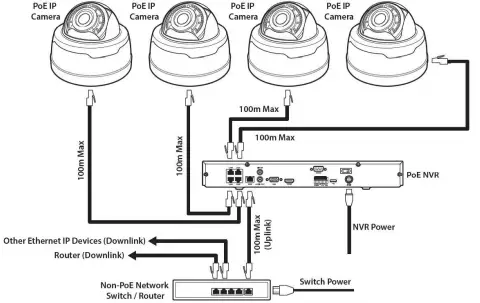
PoE ZIP NVR
When connecting to a ZIP PoE NVR plug the camera directly into the NVR’s built in PoE switch.
The camera should automatically become visible after being connected for approximately 1 minute.
The 100m distance for a camera can be increased when the PoE Mode is set to EPoE.
In the menu on a ZIP PoE NVR go to:-
Video > IP Channels > PoE Mode
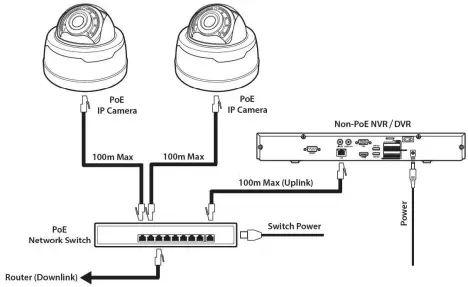
Non-PoE ZIP NVR
When connecting cameras to a Non-PoE NVR, they are first connected to an external network switch which is in-turn connected to the NVR as shown below.
See Extra Resources for more information on Adding IP Cameras manually to a ZIP Recorder.
How to Login via Browser
The AI smart features can be configured in a ZIP recorder or directly in the browser interface of the camera (standalone)
Only one smart detection feature can be enabled at any given time.
See the NVR or DVR manual for information on configuring these features with a ZIP recorder.
Follow the steps below for configuring the settings directly in the camera via a browser for standalone setup.
You will need…
- Windows Based PC/ Laptop connected to router/ PoE switch
- ZipVision Pro App on Mobile Device
- PoE Switch connected to Network/ Router
- Ethernet network cable
- ZipFinder software, available via this link below:-
www.softcctv.com/store/Item/Zip-Finder-IP-CCTV-Security-Camera-Discovery-Tool
NOTE If the PC being used is on a different IP range to the PC then add the IP range of the camera to the PC using the below guide:-
https://softcctv.com/helpdesk/kb/faq.php?id=571
- Plug the camera’s RJ45 port with a network cable into a PoE switch

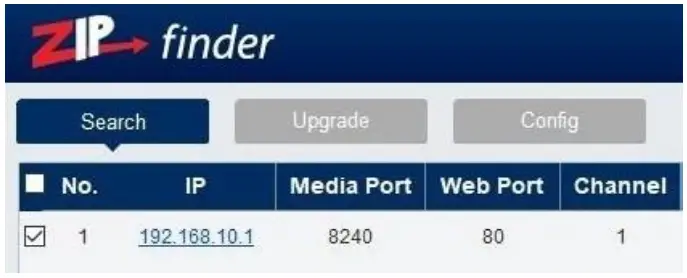
- Using ZipFinder on a Windows Based PC/ Laptop Search and then tick the camera

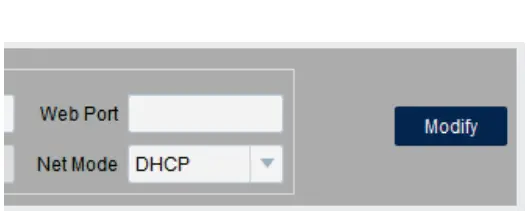
- Select Net Mode = DCHP, then click Modify

- Search again, to get the updated IP address.
- Select the IP address of the camera, Internet Explorer will pop-up, and ask to download and install the plug-in.
- Download, install and follow the steps for the plug-in installation, then re-load the browser by selecting the IP address again.
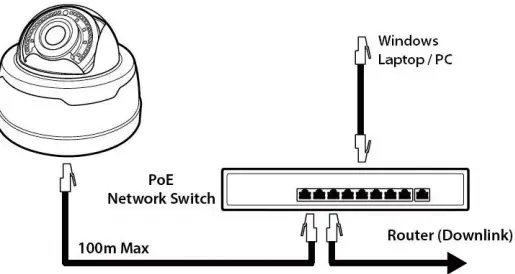
Login to the IP Camera, the default login details are:
| User Name | admin |
| Password | 777777 |
IPCND714
The menu be configured directly in the browser interface of the camera (standalone), in Remote Setting you will find the menu settings below:
| Video | Live | Name | Camera (user editable) | |
| Image Control | Date Format | DD/MM/YYYY / MM/DD/YYYY / YYYY/MM/DD | ||
| Time Format | 24 Hour / 12 Hour | |||
| Flicker Control | 50Hz / 60Hz | |||
| Show Name | Enable / Disable | |||
| Show Time | Enable / Disable | |||
| Save / Refresh | ||||
| Image Control | Image Setting | Full Colour Mode / Day/Night Mode / Schedule | ||
| Mode | Manual / Automatic mode / Schedule / OFF | |||
| Angle Trad | 180 / 0 | |||
| Mirror | Disable / Vertical / Horizontal / All | |||
| Backlight | DWDR / HLC / BLC / Disable | |||
| White Balance | Automatic mode / Manual | |||
| Shutter | Automatic mode / Manual | |||
| Time Exposure | 1/5 to 1/200000 / Flickerless | |||
| 3D Noise Reduction | OFF / Automatic Mode / Manual | |||
| Save / Default / Refresh | ||||
| Privacy Mask | Enable / Disable | |||
| Record | Encode | Mainstream | Resolution | 2560 x1440 |
| FPS | 1 -25 | |||
| Video Code Type | H.265 / H.264 | |||
| Video Code Level | Main Profile | |||
| Bitrate Control | CBR / VBR | |||
| Bitrate Mode | Predefined / User-Defined | |||
| Bitrate | 512 to 4096 | |||
| I Frame Interval | 1 to 100 | |||
| Audio | Enable / Disable | |||
| Save / Refresh | ||||
| Substream | Resolution | 640 x 480 | ||
| FPS | 1 -25 | |||
| Video Code Type | H.265 / H.264 | |||
| Video Code Level | Main Profile / Baseline / High Profile | |||
| Bitrate Control | CBR / VBR | |||
| Bitrate Mode | Predefined / User-Defined | |||
| Bitrate | 128 to 1024 | |||
| I Frame Interval | 1 to 100 | |||
| Audio | Enable / Disable | |||
| Save / Refresh | ||||
| Record | Record | Stream Mode | Mainstream / Substream | |
| Record | Enable / Disable | |||
| PreRecord | Enable / Disable | |||
| Netbreak | Enable / Disable | |||
| Save / Refresh | ||||
| Schedule | User Definable | |||
| Save / Refresh | ||||
| Event | Setup | Motion | Enable | Enable / Disable |
| Sensitivity | 1 to 8 | |||
| Smart motion detection | Enable / Disable | |||
| Save / Refresh | ||||
| Deterrence | Warning Light | Enable / Disable | ||
| Warning Light Duration | 5 to 180 | |||
| Save / Default / Refresh | ||||
| Siren | Siren | Enable / Disable | ||
| Siren Type | Alarm1 | |||
| Siren Level | 1 to 10 | |||
| Siren Duration | 5 to 180 | |||
| Save / Refresh | ||||
| Sound Detection | Enable | Enable / Disable | ||
| Rise | Enable / Disable | |||
| Rise Sensitivity | 1 to 100 | |||
| Sound Intensity | 1 to 100 | |||
| Decline | Enable / Disable | |||
| Decline Sensitivity | 1 to 100 | |||
| Save / Schedule / Refresh | ||||
| Alarm | Motion | Post Recording | OFF / 5s / 10s / 20s / 30s | |
| Send Email | Enable / Disable | |||
| FTP Picture Upload | Enable / Disable | |||
| Enable Record | Enable / Disable | |||
| Deterrent | Enable / Disable | |||
| Save / Schedule / Refresh | ||||
| Sound Detection | Post Recording | |||
| Send Email | ||||
| Enable Record | ||||
| Save / Schedule / Refresh | ||||
| AI | Setup | PID | Enable | Enable / Disable |
| Sensitivity | 1 to 4 | |||
| Detection Type | Pedestrian & Vehicle / Person / Vehicle | |||
| Rule Number | 1 to 4 | ||||
| Rule Enable | Enable / Disable | ||||
| Rule Type | / / B | ||||
| Save / Refresh | |||||
| LCD | Enable | Enable / Disable | |||
| Sensitivity | 1 to 4 | ||||
| Dynamic Marking | Enable / Disable | ||||
| Detection Type | Pedestrian & Vehicle / Person / Vehicle | ||||
| Rule Number | 1 to 4 | ||||
| Rule Enable | Enable / Disable | ||||
| Rule Type | / / B | ||||
| Save / Refresh | |||||
| Alarm | PID / LCD | Post Recording | OFF / 5s / 10s / 20s / 30s | ||
| Send Email | Enable / Disable | ||||
| FTP Picture Upload | Enable / Disable | ||||
| Enable Record | Enable / Disable | ||||
| Deterrent | Enable / Disable | ||||
| Save / Schedule / Refresh | |||||
| Network | General | General | DCHP | Enable / Disable | |
| IP Address | User-definable | ||||
| Subnet Mask | User-definable | ||||
| Gateway | User-definable | ||||
| DNS1 | User-definable | ||||
| DNS2 | User-definable | ||||
| Video Encryption Transmission | Enable / Disable | ||||
| Save / Refresh | |||||
| Port Configuration | HTTP Port | Enable / Disable | User-definable | ||
| Client Port | |||||
| HTTPS Port | |||||
| RTSP Port | |||||
| Muticast Port | 1024 – 65535 | ||||
| P2P Enable | Enable / Disable | ||||
| Save / Refresh | |||||
| Enable / Disable | |||||
| Encryption | OFF / SSL / TLS / Automatic mode | ||||
| SMTP Port | 1 – 65535 | ||||
| SMTP Server | User-definable | ||||
| Username | |||||
| Password | |||||
| Sender | |||||
| Receiver 1 | |||||
| Receiver 2 | |||||
| Receiver 3 | |||||
| Interval | |||||
| Save / Test/ Refresh | |||||
| RTSP | RTSP Enable | ||||
| Anonymous Login | Enable / Disable | ||||
| Instruction: rtsp://IP:RtspPort/ch01/A A: 0(main stream), 1(sub stream), 2(mobile stream) | |||||
| Save / Refresh | |||||
| DDNS | DDNS | Enable / Disable | |||
| Server | NO_IP / DYNDNS | ||||
| Hostname | User-definable | ||||
| Username | User-definable | ||||
| Password | User-definable | ||||
| HTTPS | Certificate Type | Default/ Custom | |||
| Save / Refresh | |||||
| Storage | Disk | Select Disk | |||
| Overwrite | OFF / Auto | ||||
| Save / Format Hard Disk / Refresh | |||||
| Audio | Enable Audio | Enable / Disable | |||
| Output Volume | 0 – 8 | ||||
| Input Volume | 0 – 8 | ||||
| Audio Code Type | G711A / G711U | ||||
| Save / Refresh | |||||
| System | General | Date and Time | Time Setting mode | Static / NTP server synchronization | |
| Date Format | Day/Month/Year Year-Month-Day Month/Day/Year | ||||
| Time Zone | GMT -12:00 to GMT + 13:00 | ||||
| Time Format | 24Hour / 12 Hour | ||||
| System Time | User-definable | ||||
| Server Address | Time.windows.com / time.nist.gov / pool.ntp.org / Define User | ||||
| Save / Synchronize computer time / Refresh | |||||
| Daylight Saving Time | Daylight saving time | Enable / Disable | Set by week / set by date | ||
| Start Time | User-definable | ||||
| End Time | User-definable | ||||
| Time Offset | 1Hour / 2 hours | ||||
| Save / Refresh | |||||
| Multi-User | Customize Each user | Password (Edit) | Username | User-definable | |
| Password | User-definable | ||||
| Password Strength | User-definable | ||||
| Confirm | |||||
| Refresh | |||||
| Maintain | Log | Log Type | System / CON./ Alarm / Account/ Record / Storage / Network / All | Search | |
| Start Time | User-definable | ||||
| End Time | User-definable | ||||
| Load Default | All / Video / Record/ Event/ AI/ Network/ Storage / System | ||||
| Save / Refresh | |||||
| Upgrade | Path | Search Local Files | Upgrade | ||
| Save / Load | Import File | Search Local Files | Import | ||
| Export File Name | Search Local Files | Export | |||
| Auto Reboot | Auto-maintenance | Enable / Disable | |||
| Time | Date / Week / Month | ||||
| Mon / Tues/ Wed / Thur/ Fri / Sat / Sun | |||||
| Time | |||||
| Save / Refresh / Reboot | |||||
| Information | Serial ID | ||||
| Device Name | |||||
| Device Type | |||||
| Hardware Version | |||||
| Software Version | |||||
| Web Version | |||||
| Mac Address | |||||
| P2P ID | |||||
| Refresh | |||||
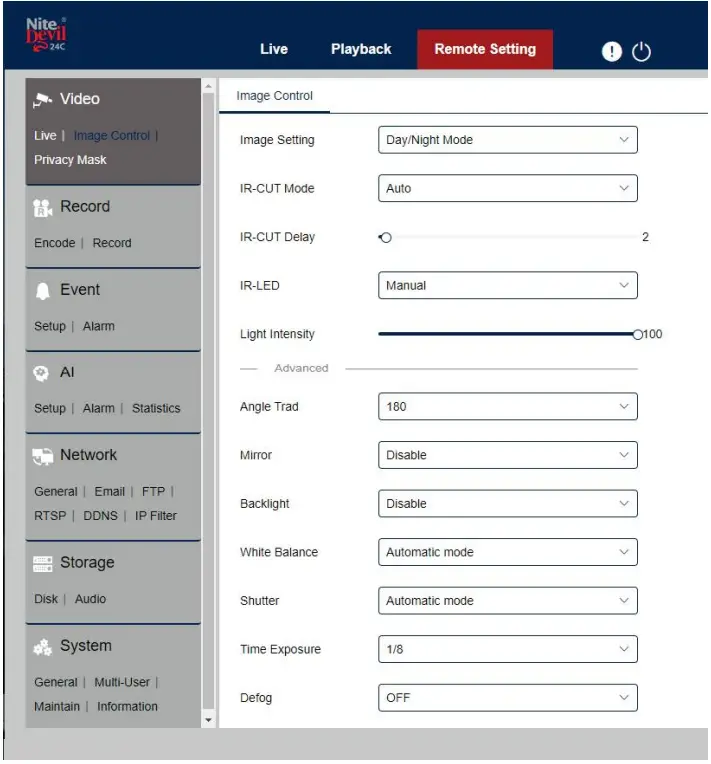
Customising the Day / Night Setting to IR
Once logged into the camera browser interface:-
Go To Remote Settings > Video > Image Control > Image Settings
e.g. Day / Night mode if want the camera to B&W & use the IR
Suggested setting : IR Cut to Auto
AI Features – IPCND714
The AI smart features can be configured in a ZIP recorder or directly in the browser interface of the camera (standalone)
Only one smart detection feature can be enabled at any given time.
See the NVR or DVR manual for information on configuring these features with a ZIP recorder.
Note :- Additional features may be added at a later date.
PID = Perimeter Intrusion Detection
Perimeter intrusion detection can be set to trigger an alarm event when movement is detected in a set area.
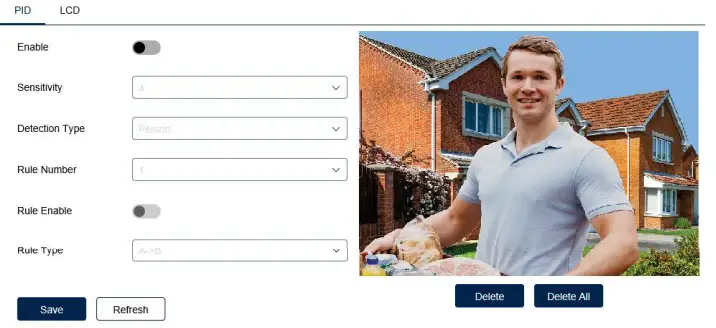
Enable = Enable / Disable this AI feature.
Sensitivity – Determines how much activity or movement is required to generate an event. Options are 1 – 4.
1 = Lowest sensitivity level, a significant amount of movement is needed to trigger.
4 = Highest sensitivity level, only a small amount of moment is needed to trigger.
Detection Type – Options are motion, pedestrian, vehicle or both pedestrian and vehicle.
Rule Number – Up to 4 areas can be set independently in the image area. Use this to enable /disable each of the 4 rules.
Rule Enable – Tick to enable or disable the detection that rule for the rule number selected. Rule Type – The determines how the direction of moment over the perimeter is handled.
A to B (A->B) = Only movement in the direction A to B will trigger. B to A (B->A) = Only movement in the direction B to A will trigger. A or B (A<->B) = Any moment direction over the perimeter will trigger.
LCD = Line Crossing Detection
Line crossing detection can be set to trigger an alarm event when movement is detected across a custom line.
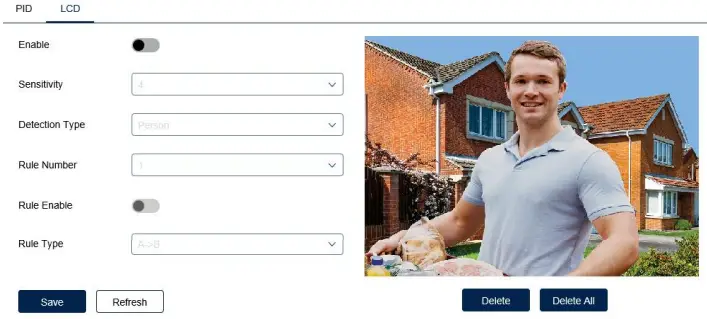
Enable = Enable / Disable this AI feature.
Sensitivity – Determines how much activity or movement is required to generate an event. Options are 1 – 4.
1 = Lowest sensitivity level, a significant amount of movement is needed to trigger.
4 = Highest sensitivity level, only a small amount of moment is needed to trigger.
Detection Type – Options are motion, pedestrian, vehicle or both pedestrian and vehicle.
Rule Number – Up to 4 areas can be set independently in the image area. Use this to enable /disable each of the 4 rules.
Rule Enable – Tick to enable or disable the detection that rule for the rule number selected. Rule Type – The determines how the direction of moment over the perimeter is handled.
A to B (A->B) = Only movement in the direction A to B will trigger. B to A (B->A) = Only movement in the direction B to A will trigger. A or B (A<->B) = Any moment direction over the perimeter will trigger.
General Maintenance
- Routinely clean the camera to prevent dust build up as this can effect the performance of the camera. It is recommended to use a damp non-abrasive microfibre cloth.
- Routinely check the connections for power and data to ensure no water ingress and corrosion.
- Check that the cameras are firmly attached to the wall or mounting bracket.
- Check playback in the recorder to ensure the camera is recording and triggering properly.
Specifications
IPCND714
| Resolution | 4MP (2592 x 1520) |
| Lens Type | Wide Angle 2.8mm Fixed |
| Video Compression | H264 / H265 |
| Bit Rate | 128Kbps ~ 4Mbps |
| Shutter | 1/5 ~ 1/20000s ~ Flickerless |
| Min. Illumination | Colour 24/7 with White Light LEDs |
| Day/Night Function | Auto or Scheduled |
| Microphone | Built-in |
| IR LEDs | 1x High Power |
| IR Range | Up to 25m |
| White Light | 2x High Power |
| White Light Range | Up to 20m |
| Gain Control | Auto |
| Video Connection | RJ45 Socket |
| Onvif | Yes |
| Protocol | TCP/IP, HTTP, DHCP, DNS, DDNS, RTP/RTSP |
| Other Protocols | SMTP, NTP, HTTPS |
| White Balance | Auto / Manual |
| Input Voltage | 12V DC (420mA) / PoE 48V / |
| Consumption | 1.2 – 5W |
| Power Connection | 12V – 2.1mm DC Socket / PoE – RJ45 |
| IP Rating | IP66 |
| Build | Metal |
| Dimensions | 100mm x (H) 90mm |
Conditions
All specifications are approximate. System Q Ltd reserves the right to change any product specifications or features without notice. Whilst every effort is made to ensure that these instructions are complete and accurate, System Q Ltd cannot be held responsible in any way for any losses, no matter how they arise, from errors or omissions in these instructions, or the performance or non-performance of the equipment that these instructions refer to.
This symbol on the products and/or accompanying documents means that used electronic equipment must not be mixed with general household waste. For treatment, recovery and recycling please return this unit to your trade supplier or local designated WEE/CG0783SS collection point as defined by your local council.
© Copyright 2020
NiteDevil is a registered trademark of System Q Ltd, Chesterfield. Derbyshire. S40 2WB
Index
- C
Checking and cleaning the camera 18
Connections 3 - D
Day / Night Setting 14 - E
Essential Tools and software 2 - I
Installation 4
Installing an SD Card 4 - L
Line Crossing Detection 17
Login via browser interface 7 - M
Maintenance 18
Mounting the camera 4 - P
Perimeter Intrusion Detection 16 - S
Setup and Connection Options 5
Specification 19
 NiteDevil: CCTV Cameras That See In The Dark!
 pool.ntp.org
 Zip Finder - IP Camera Discovery Tool - SoftCCTV.com
 ZipNVR: Home
 System Q Ltd Support