



Gaming Monitor User Guide
Copyright
© 2020 GIGA-BYTE TECHNOLOGY CO., LTD. All rights reserved.
The trademarks mentioned in this manual are legally registered to their respective owners.
Disclaimer
Information in this manual is protected by copyright laws and is the property of GIGABYTE.
Changes to the specifications and features in this manual may be made by GIGABYTE without prior notice.
No part of this manual may be reproduced, copied, translated, transmitted, or published in any form or by any means without GIGABYTE’s prior written permission.
- In order to assist in the use of this monitor, carefully read the User Guide.
- For more information, check on our website at: https://www.gigabyte.com
– 2 –
SOFTWARE INSTALLATION
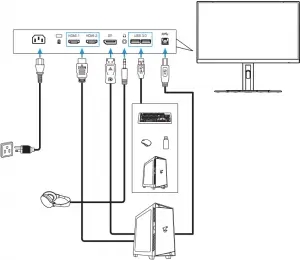
Preparation
- Connect one end of a USB (A-Male to B-Male) cable to the USB port of the LCD monitor and the other end to the USB port of your computer.
- Connect any of the following:
• One end of an HDMI cable to the HDMI port of the LCD monitor and the other end to the HDMI port of your computer.
• One end of a DisplayPort cable to the DP port of the LCD monitor and the other end to the DP port of your computer. - Plug the power adapter to the DC port on the monitor. Then plug the power cables of your computer and the LCD monitor into a power outlet.
- Turn on your computer and the LCD monitor.
– 4 –
Installing the Software
IMPORTANT! If you have installed an older version of the software on your computer, you have to remove the previously installed software first before proceeding with the following installation process. To uninstall the software, refer to the “Uninstalling the Software” section.
1. Open the web browser and enter https://www.gigabyte.com/Monitor/All-Series to the address bar.
2. Click on your gaming monitor name and download the software to your computer.
3. Double-click UpdPack.exe. The extracting wizard appears.
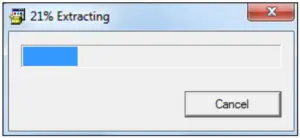
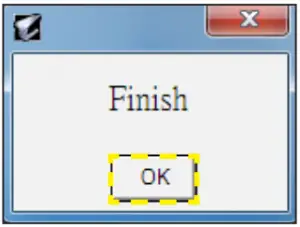
4. Wait until the installation is complete and click OK when prompted.
– 5 –
Uninstalling the Software
1. From the Windows desktop, click  and select GIGABTYE.
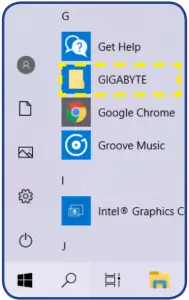
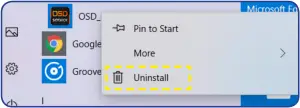
2. Right-click on OSD_Sidekick. Then select Uninstall.
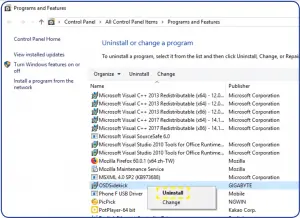
3. The Programs and Features page appears on the screen. Select OSDSidekick from the list.
4. Right-click on OSDSidekick and select Uninstall. Then follow the on-screen instructions to uninstall the software.
– 6 –
USING THE SOFTWARE
Launching the Software
IMPORTANT! Before launching the software, make sure your computer is connected to the LCD monitor through a USB cable as described in step 1 in “Preparation” on page 4.
After the driver installation is complete, the OSD Sidekick software shortcut icon appears on the desktop.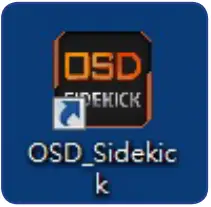
Double-click the  icon to launch the software.
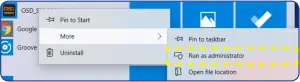
Note: The first time you open the OSD Sidekick software, you need to run it as an administrator. To do so, right-click OSD_Sideclick in > GIGABYTE folder, and select More > Run as administrator. Then launch the software.
Configuring the Settings
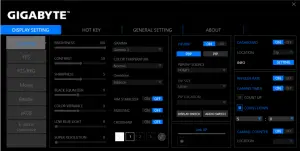
Using the OSD Sidekick software, you can configure the advanced settings for the monitor.
– 7 –
Note:
- Most of the configuration options are similar with the OSD menu and Quick menu that you can directly access using the Control button on the monitor.
For more information, refer to the monitor user guide. - To make the adjustment, generally, you can do one of the following:
 Drag the slider to adjust the setting. Click the ON/OFF button to enable or disable the function. Click the
  icon to select the available option.
 - All the changes will be applied directly to the monitor.
DISPLAY SETTING
Configure the game, image, multi-picture, Dashboard, and Game Assist related settings.
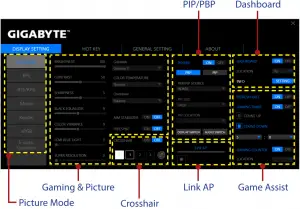
Configuring the Picture Mode Profiles
By default, there are 6 preset Picture Mode profiles. These profiles cannot be deleted.
Note: Hover the cursor over the preset Picture Mode name and click  to reset the preset Picture Mode profile to its default settings.
– 8 –
However, you can still do the following:
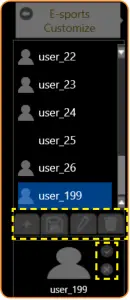
 Click E-sports Customize >
  to add an additional profile or import other profile.
 To add an additional profile, select Add profile.
Note: Make sure to configure the necessary Gaming & Picture settings before creating a new profile. To import other profile from the specified folder, select Import profile.
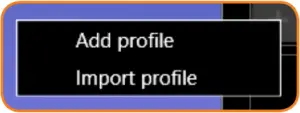
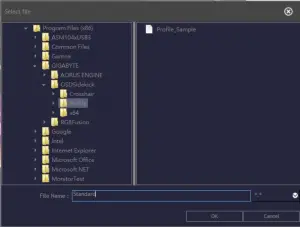
Browse the location and select the profile file to import. Then click OK to import the file.
– 9 –
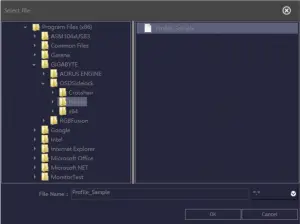
Note: The default Profile folder is located at the OSDsidekick installation path. Click  to export a profile to the specified folder.
Browse the location and enter the file name. Then click OK to export the file.
– 10 –
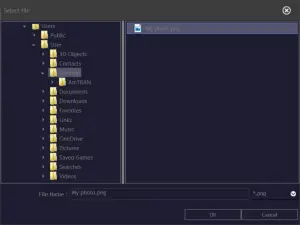
Note: The default Profile folder is located at the OSDsidekick installation path. Click  and do any of the following to customize the profile:
– Rename the profile.
– Click  to modify the profile picture. Browse for the picture, and click OK to upload.
– Click  to confirm the modifications.
– Click  to reject the modifications. Click
  to delete the customized profile. Click
  to close the E-sports Customize menu.
Note: The user defined Picture Mode applies to the monitor Custom 3.
– 11 –
Customizing the Crosshair Cursor
Set the CROSSHAIR setting to ON to activate the function. Then select one of the rectangular grids (marked in the illustration below) and click  .
.

Select the desired color and line thickness. Then draw a new crosshair cursor.
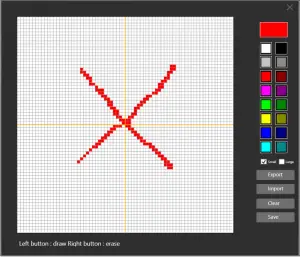
Once complete, click Save. The new crosshair cursor will appear on the screen.
– 12 –
Exporting/Importing the Crosshair Cursor
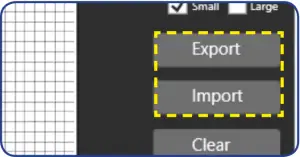
Click Export to export the Crosshair file to the specified folder. Browse the location and enter the file name. Then click OK to export the file.
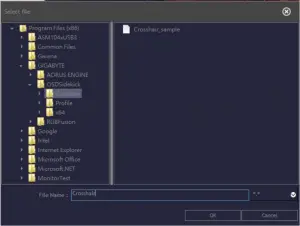
Note: The default Crosshair folder is located at the OSDsidekick installation path. Click Import to import the Crosshair file from the specified folder. Browse the location and select the Crosshair file to import. Then click OK to import the file.
Note: The default Crosshair folder is located at the OSDsidekick installation path.
– 13 –
Linking Apps to the Profile
Click  to link the profile with an application.
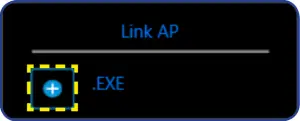
Then select the application (*.exe) you want to link and click OK.
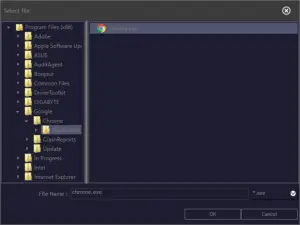
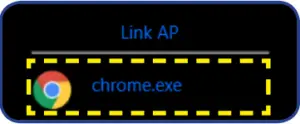
When you open that application, the display setting will automatically change to the profile you linked.
– 14 –
Customizing the Dashboard Information
Set the DASHBOARD setting to ON to activate the function. Then configure the following settings:
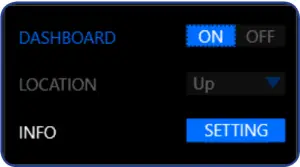 In LOCATION, click the
  icon to set the location of the options on the screen to Up or Down.
Note: The DASHBOARD location on the right side or on the left side of the screen depends on the Game Assist location setting. For example, if the Game Assist items are on the left side of the screen, then the DASHBOARD items are on the right side of the screen and vice versa. Click SETTINGS and check the desired option(s) to be shown on the screen.
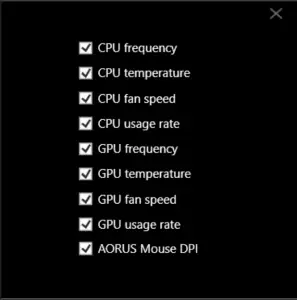
Note: Uncheck the option to hide it from the screen.
– 15 –
Customizing the Game Assist Settings
Configure the following Game Assist settings:
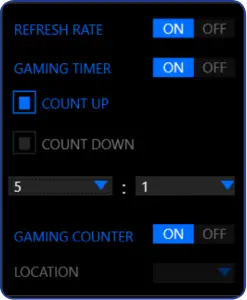
Set the REFRESH RATE setting to ON to enable displaying the refresh rate. Set the GAMING TIMER setting to ON to enable displaying the gaming timer.
– Select either COUNT UP or COUNT DOWN the timer.
– Click the  icon to set the countdown time. Set the GAMING COUNTER setting to ON to enable displaying the gaming counter. In LOCATION, click the icon to set the gaming counter location on the screen to Left Top, Left Center, Left Bottom, Right Top, Right Center, or Right Bottom.
– 16 –
HOT KEY
Manage the keyboard shortcut to access a particular function which you are using frequently.
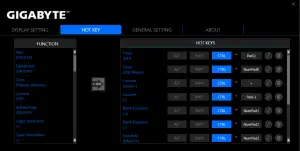
Note: By default, the assigned hot keys appears on the HOT KEYS panel.
Assigning a Hot Key
1. On the FUNCTION panel, scroll down to select the function you want to assign a hot key to.
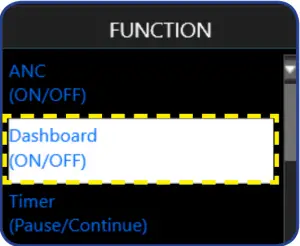
2. Click  to add the function to the HOT KEYS panel.
3. To assign a hot key to the function, do as follows:
a) Click on one or more modifier key(s): ALT, SHIFT, and/or CTRL.
b) Click on the symbol field and enter any desired symbol.
c) Click to save the settings.
– 17 –
Note: A function hot key consists of one or more modifier keys (Alt, Shift, Ctrl) plus a symbol.
Editing a Hot Key
To edit a hot key, do as follows:
1. Select the function on the HOT KEYS panel and click  .
.
2. To assign a new hot key, do as follows:
a) Click on one or more modifier key(s): ALT, SHIFT, and/or CTRL.
b) Click on the symbol field and enter any desired symbol.
c) Click to save the settings.
Deleting a Hot Key
On the HOT KEYS panel, select the hot key you want to delete and click  .
.

– 18 –
GENERAL SETTING
Configure the display screen, system, and hot keys (for the Control button) related settings.
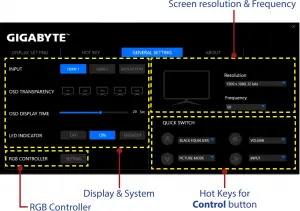
Changing the Hot Key for the Control Button
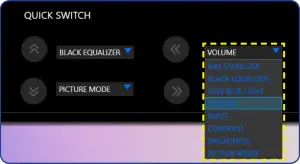
On the QUICK SWITCH panel, you can change the preset hot key function for the Control button.
Select the key position (  /
/ /
/ /
/ ) and click the icon. Then select the desired option.
– 19 –
ABOUT
View the current firmware and software version and give you options to update the latest version.
IMPORTANT! During the firmware updating process, do not turn off the monitor. Any interruption may cause the device to malfunction.
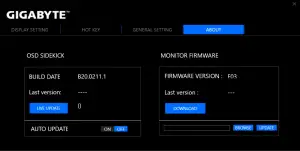
Updating the Software Automatically
Click LIVE UPDATE to check and automatically update software when a new version is available.
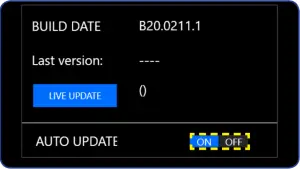
Set the AUTO UPDATE setting to ON to allow the system to check for software updates and display a message when a new update is available every time you open the app.
Note: Checking and updating software automatically requires Internet connection.
– 20 –
Updating the Firmware Manually
Note: Updating firmware manually does not require Internet connection.
1. Click DOWNLOAD. Then download the latest firmware from GIGABYTE web site and save the file on your computer.
2. Click BROWSE. Then select for the firmware file (*.bin) and click OK.
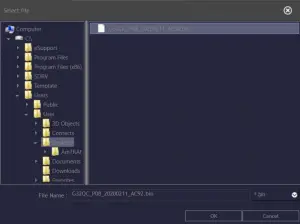
3. The firmware file is displayed on the field. Click UPDATE to update the firmware to the latest version.
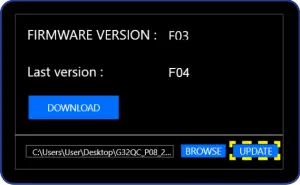
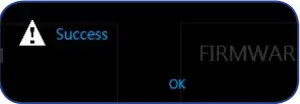
4. Wait until the updating process is complete. Once the process is complete, a “Success” message appears on the screen. Then click OK to close the message window.
– 21 –
 GIGABYTE Global