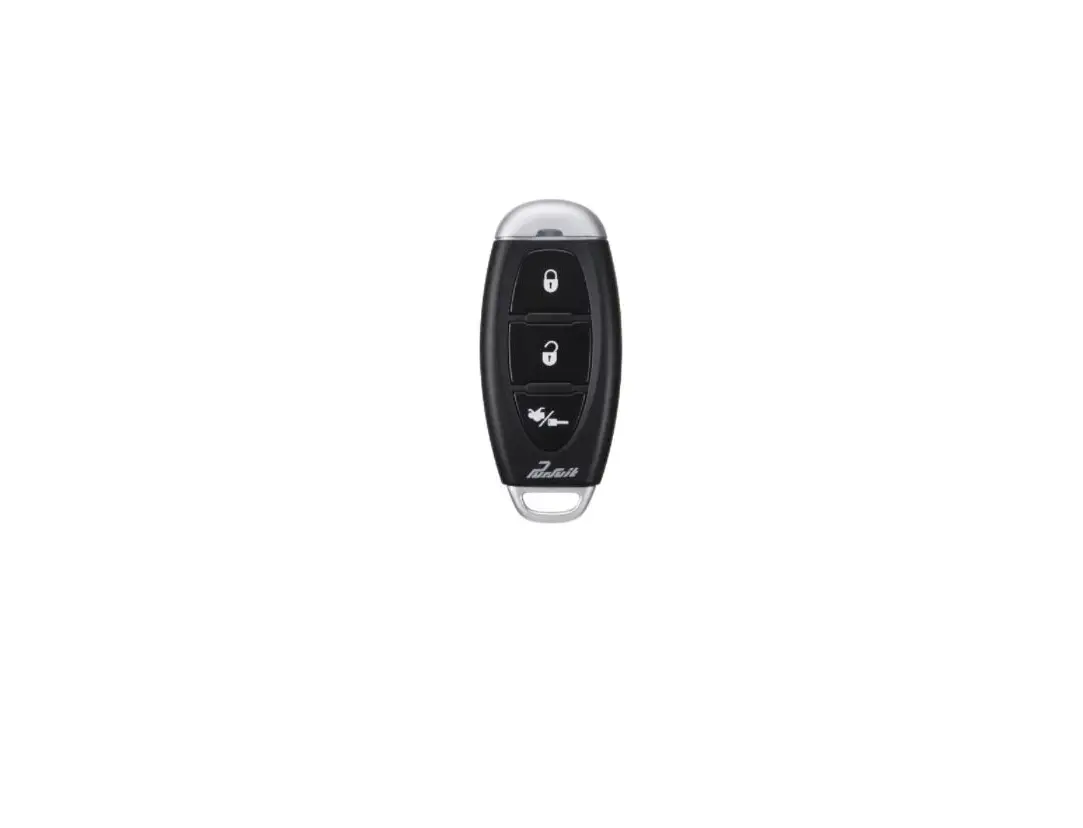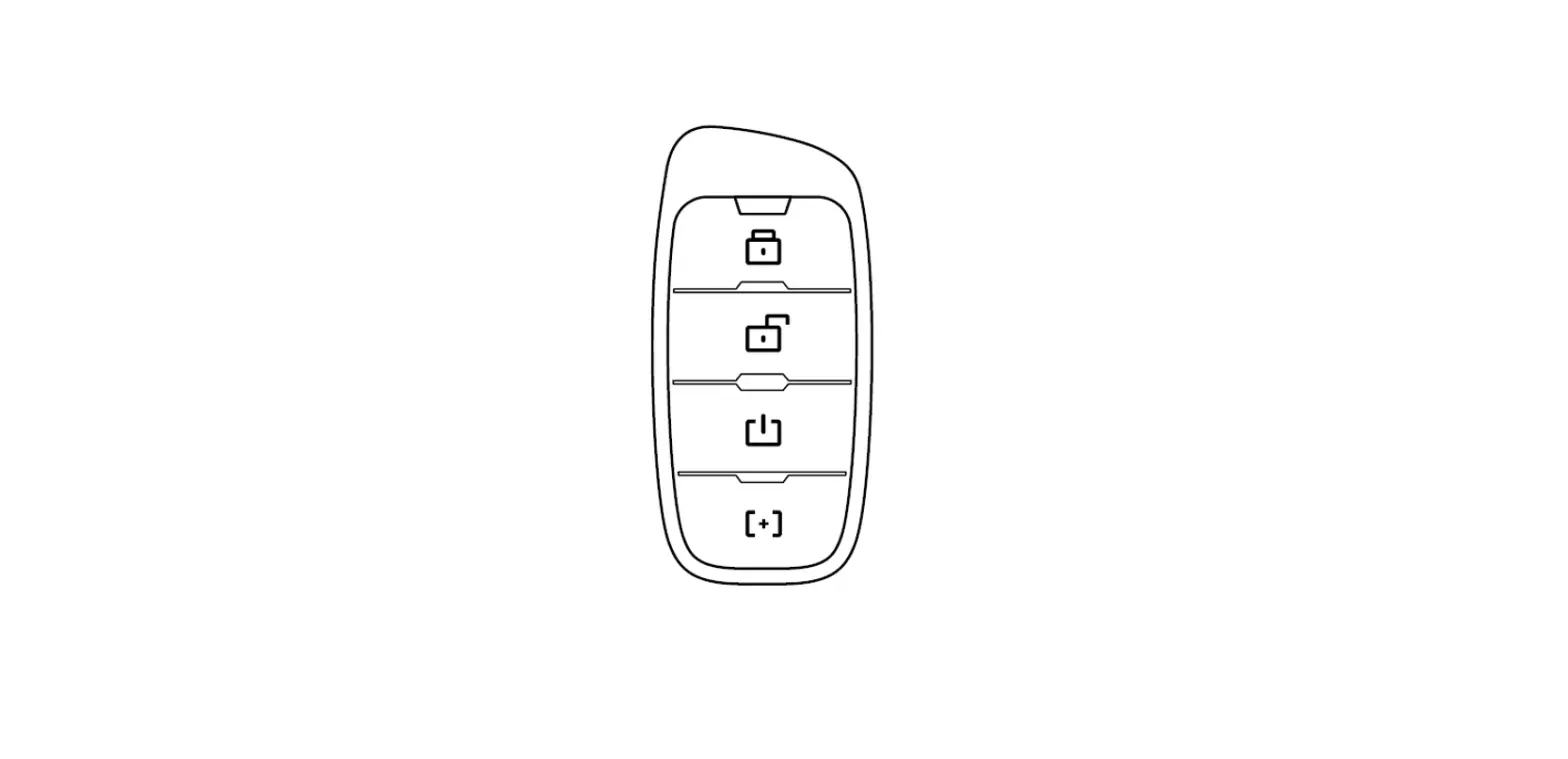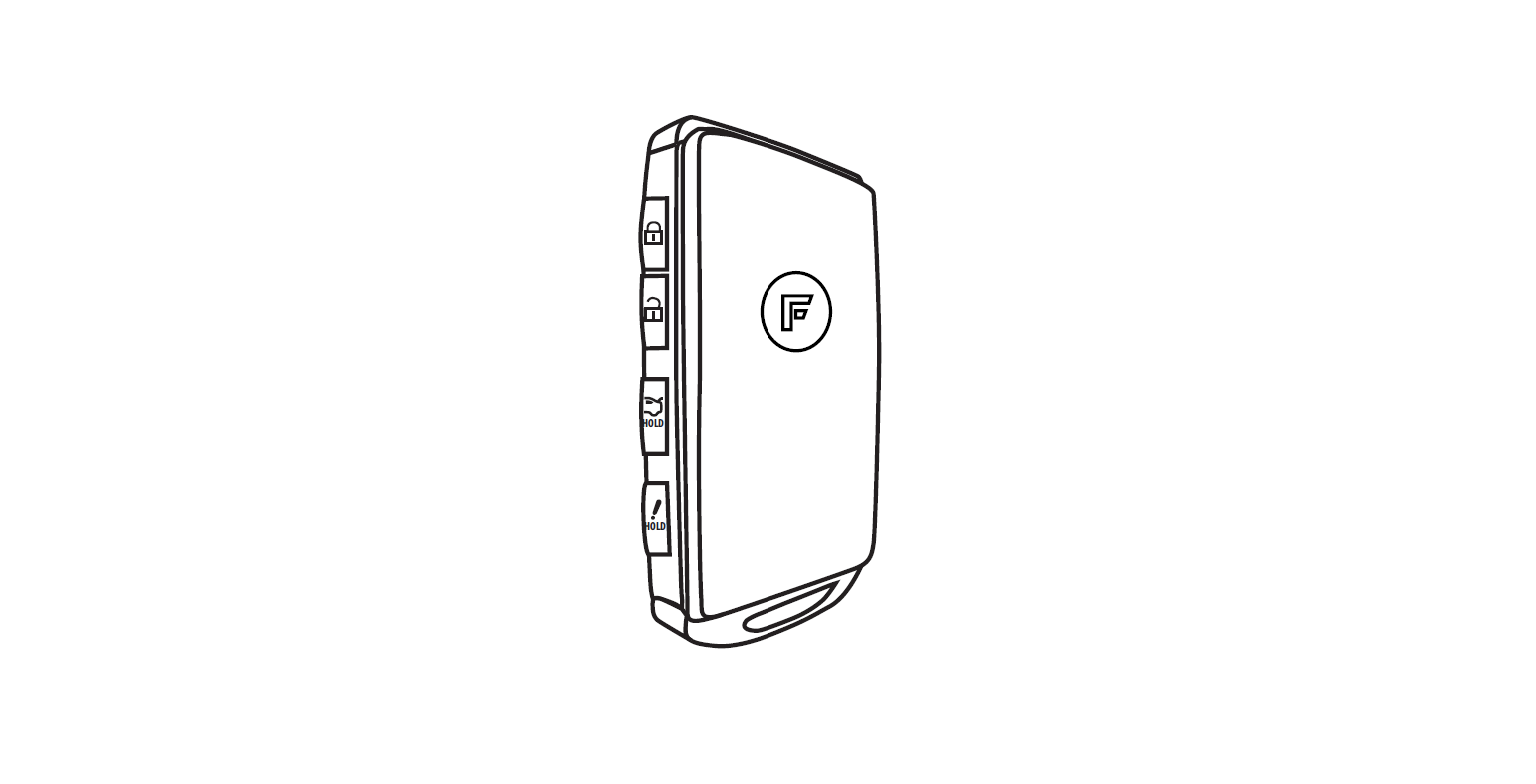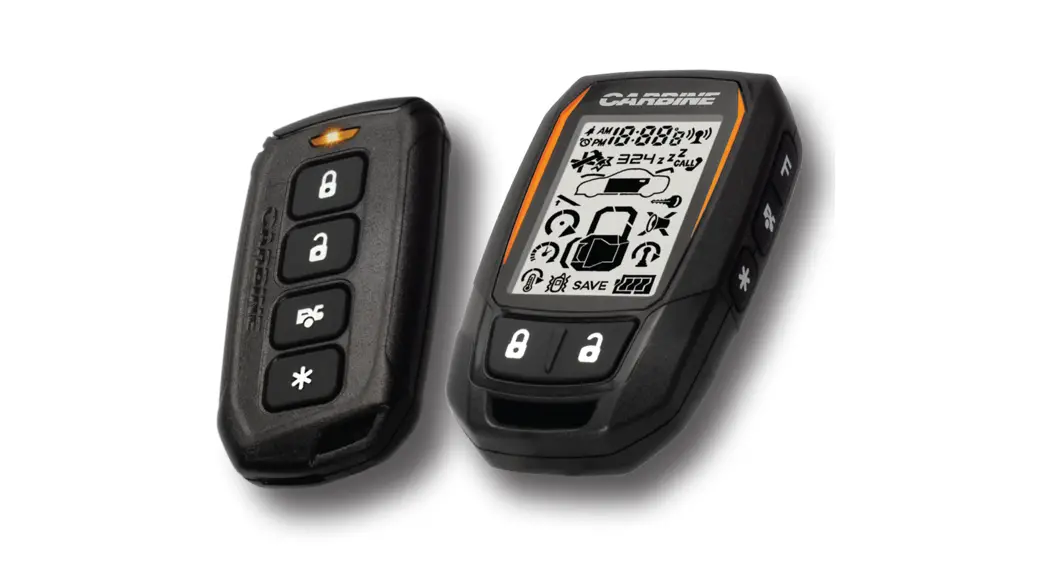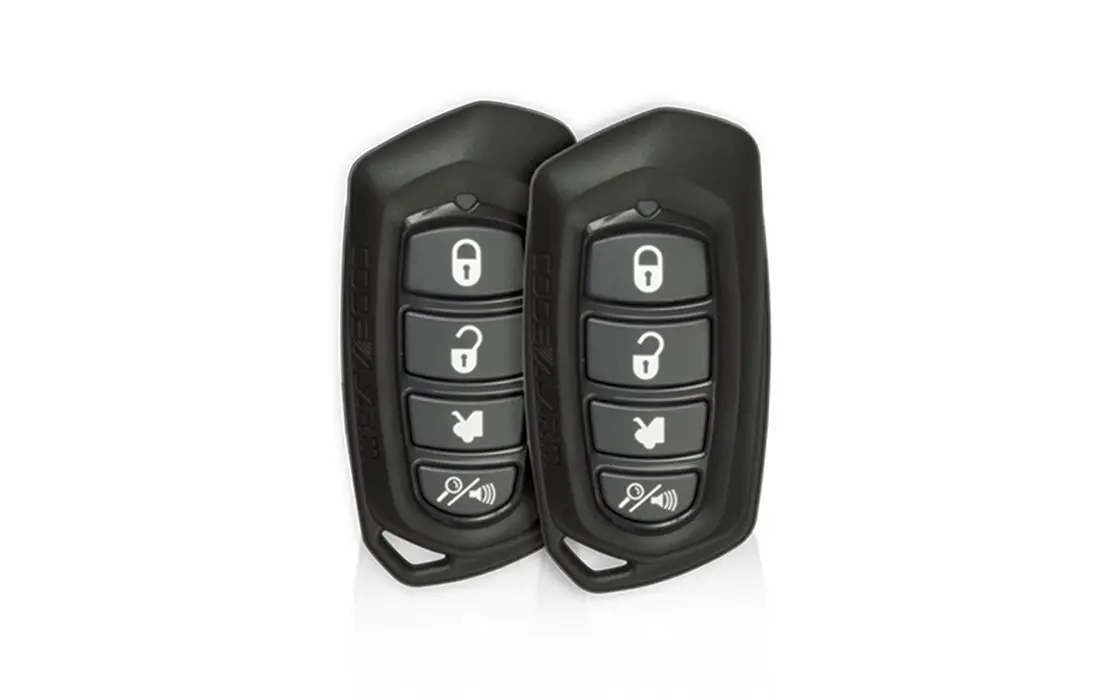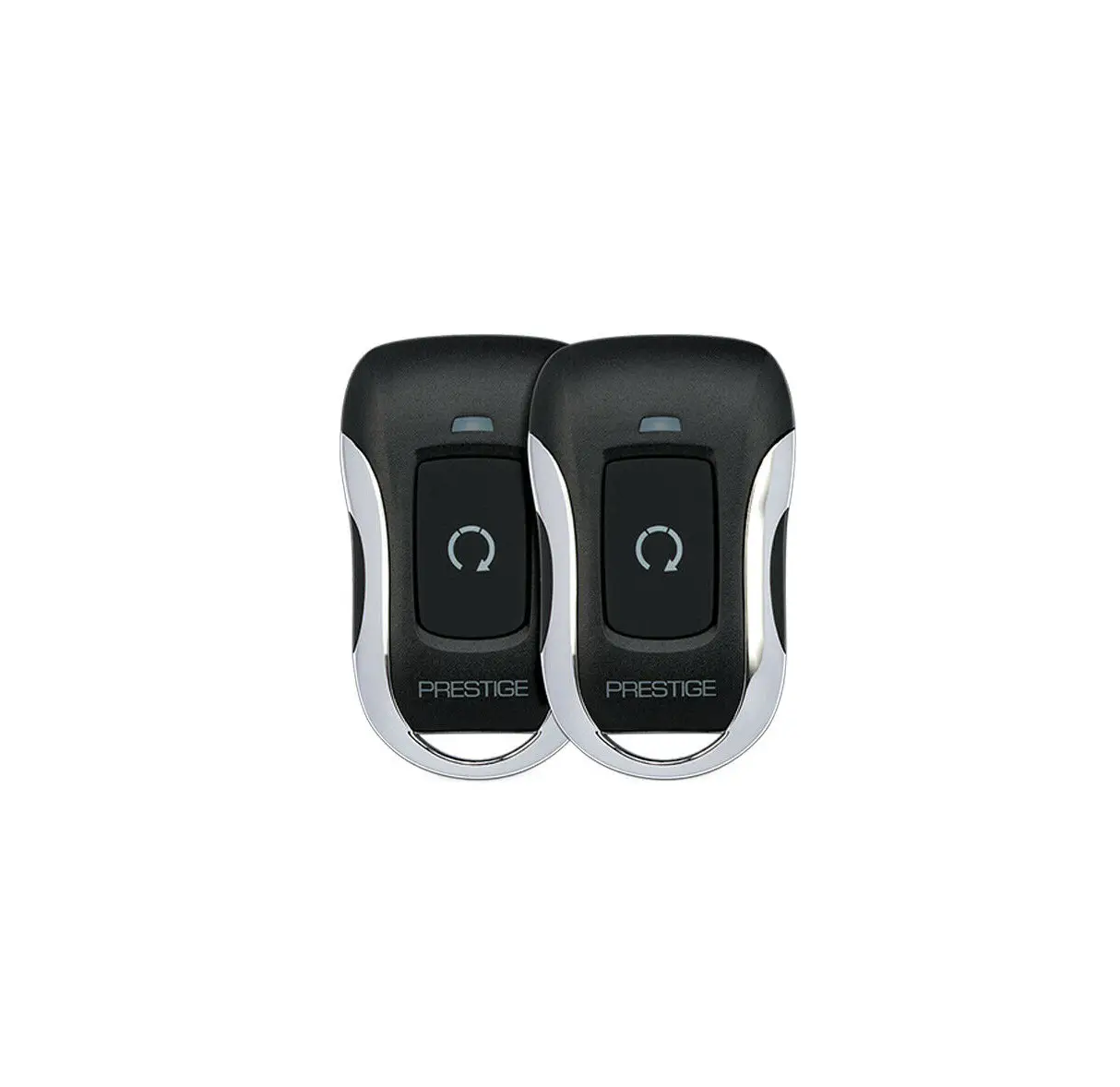
PRESTIGE APS901TM Car Remote Start System Installation Guide
Notifications
Remote Start
If the remote start fails to start the vehicle, the system will flash the vehicle parking lights to indicate the cause.
1 | Runtime Expired |
2 | Remote Shutdown |
| 3 | Brake On |
4 | Manual Mode |
| 5 | Hood Open |
6 | Low / No Tach |
| 7 | Tach Programming |
| 8 | High Tach |
Chirp Delete
System ARM/DISARM chirps can be toggled ON or OFF without entering the Feature Bank programming..
- Turn the ignition key ON/OFF.
- Press and release the valet button three (3) times.
The system will respond with one (1) chirp for ON and two (2) Chirps for OFF. This feature will not affect alarm trigger or programming.
User Programmable LED
System LED notifications can be turned ON or OFF without entering Feature Bank programming.
- Turn the ignition key ON/OFF, ON/OFF.
- Press and hold valet button for five (5) seconds.
The LED will flash one (1) time for ON, two (2) times for OFF. This feature will not affect LED flash during programming.
Tach Programming
The installer must manually configure the Engine Confirmation method in Feature Bank 3, Feature 5. The default method is “Tach”. When using the default “Tach” method, the vehicle tach rate must be programmed. To enter tach rate programming:
- Turn the ignition key ON.
- Press and release the valet button three (3) times.
- Turn the ignition key OFF.
- Press and hold the valet button.
- While holding the valet button, start the engine using the key.
- Hold the valet button for approximately ten (10) seconds. If connected to the vehicle Tach source, the system will flash the parking lights one (1) time every second.
- Release the valet button. The system will turn on the parking lights for two (2) seconds to indicate the tach rate is programmed.
The tach rate can also be programmed without the use of a valet button. This is helpful when using the OEM remote or CarLink system to control this module. To program the tach rate without a valet button:
- Turn the ignition key to the ON position and start the vehicle’s engine.
- Wait for the engine RPM to lower to a normal idle.
- Press and hold the vehicle’s brake pedal.
- Press the LOCK button on the OEM remote or the Carlink App.
Note: Programming tach signal via OEM or Telematics control is only available on Firmware v1.47 or Higher.
Remote Programming
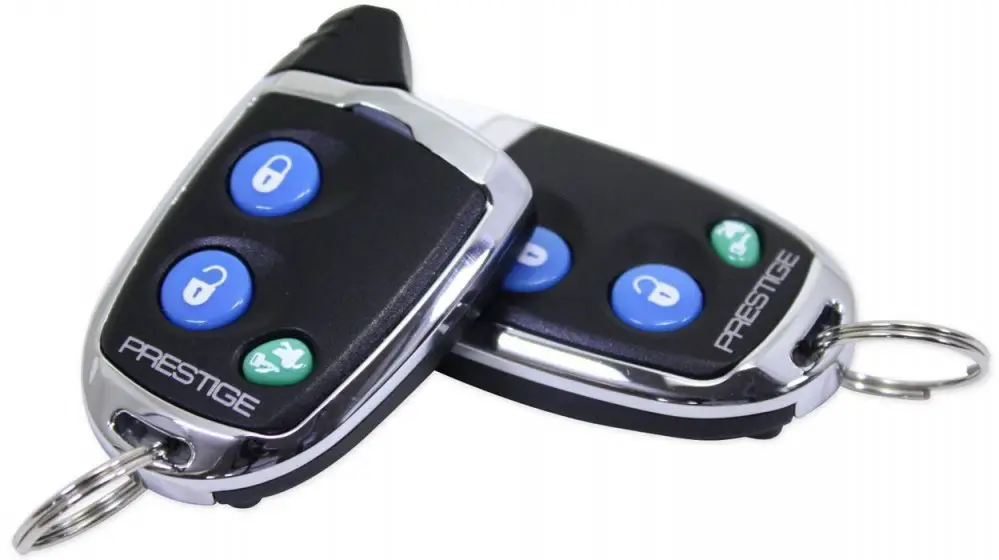
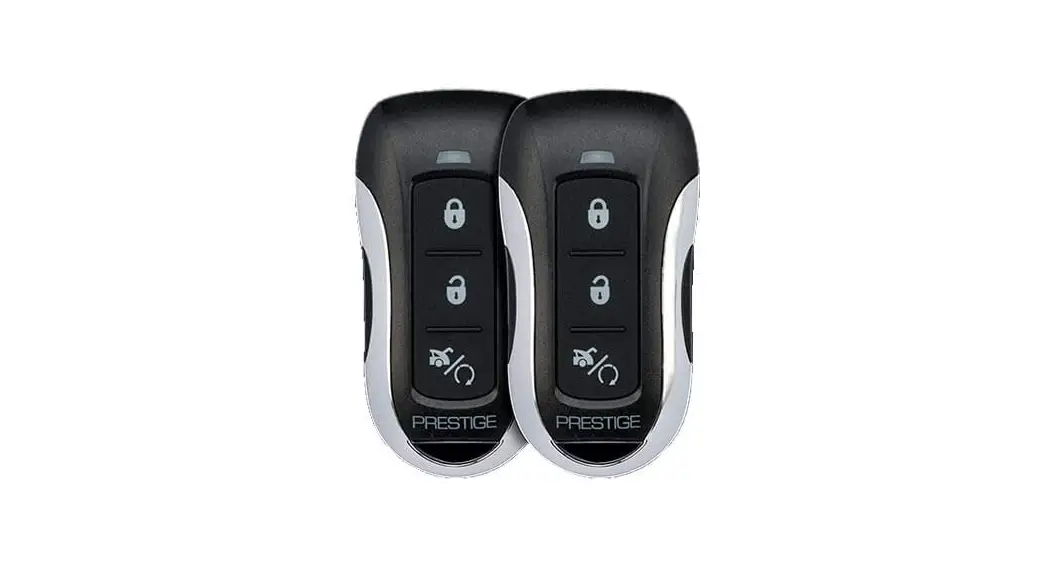
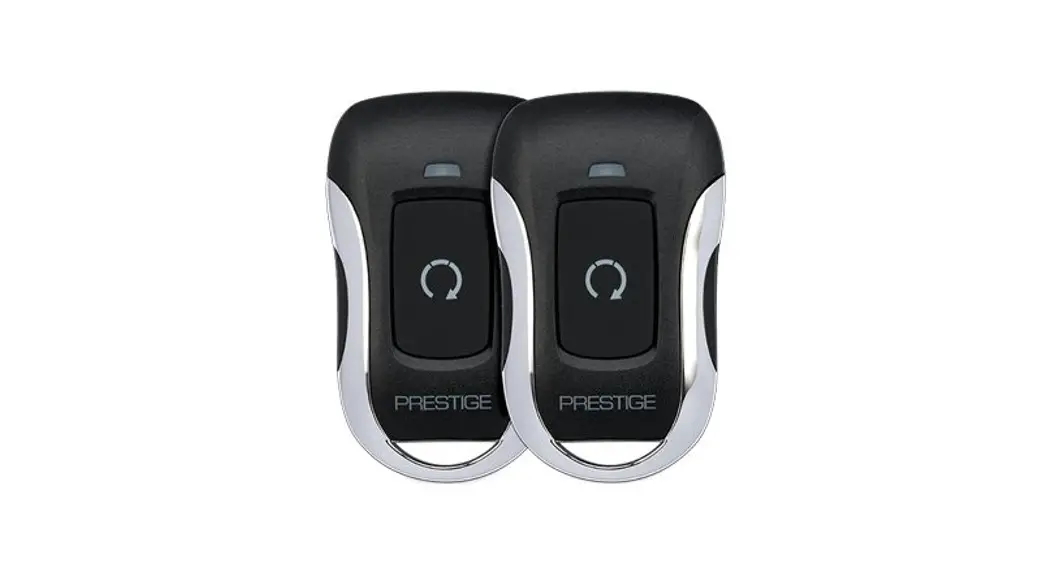
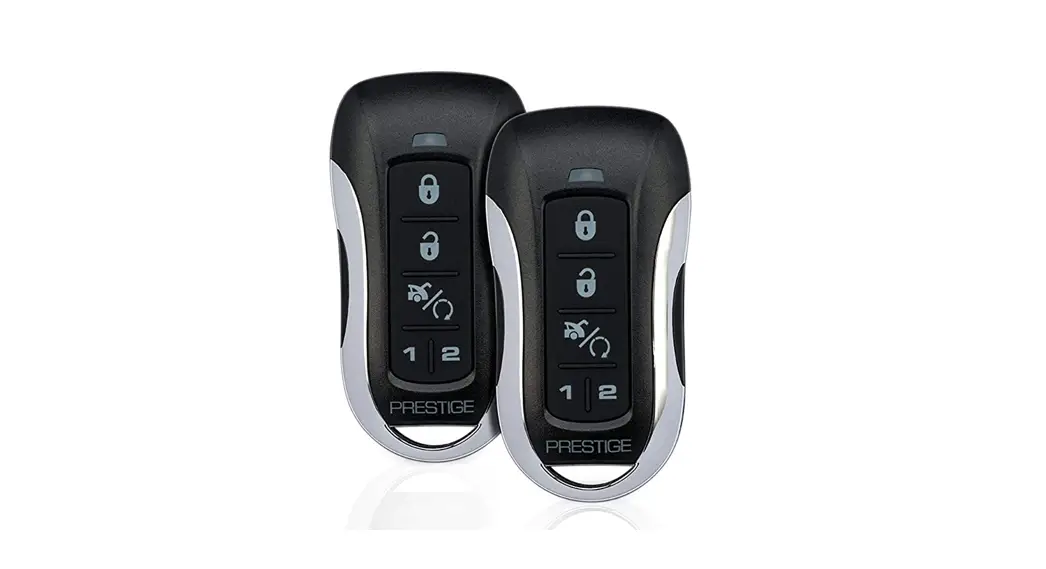
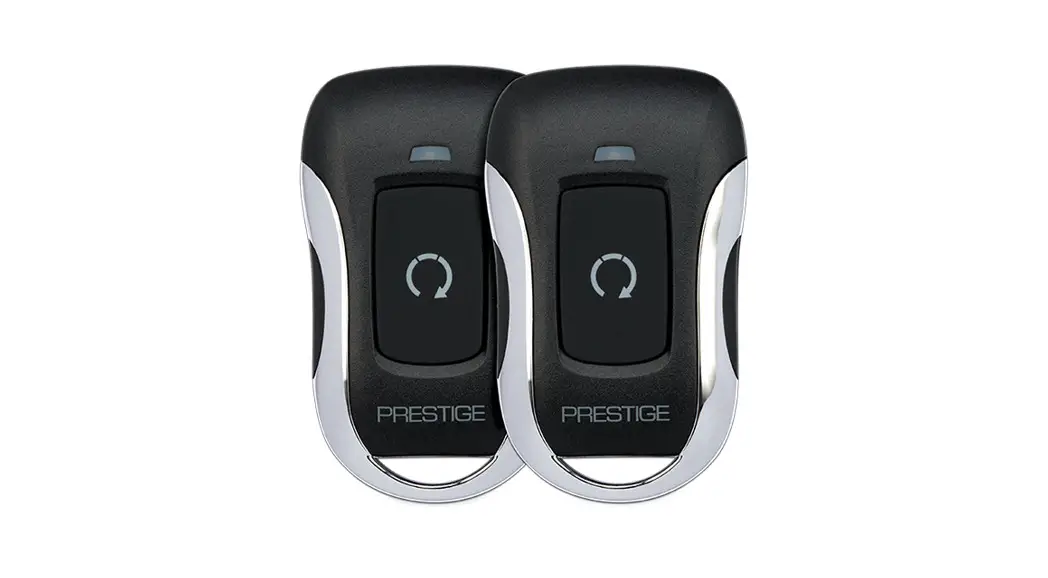
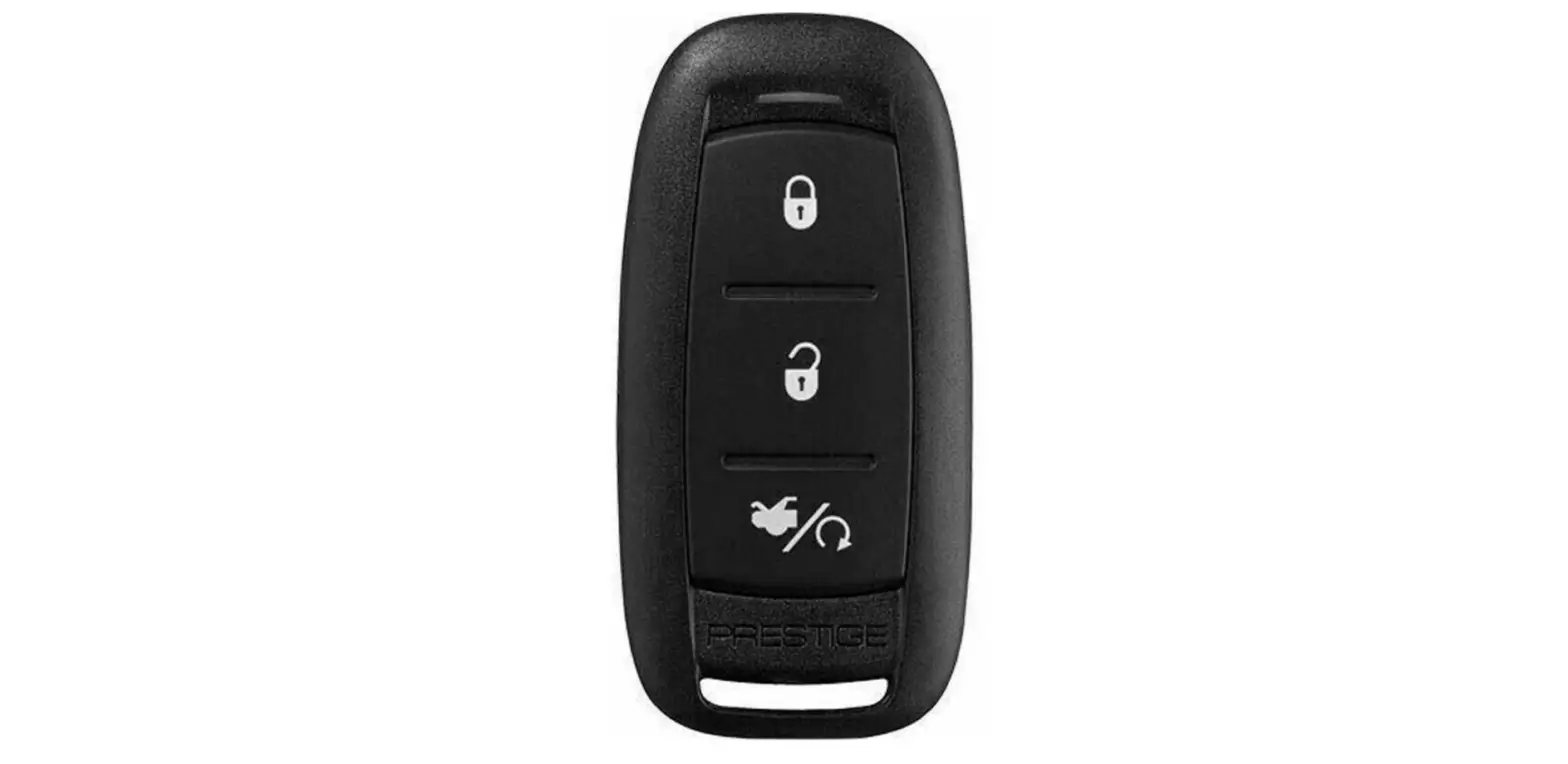
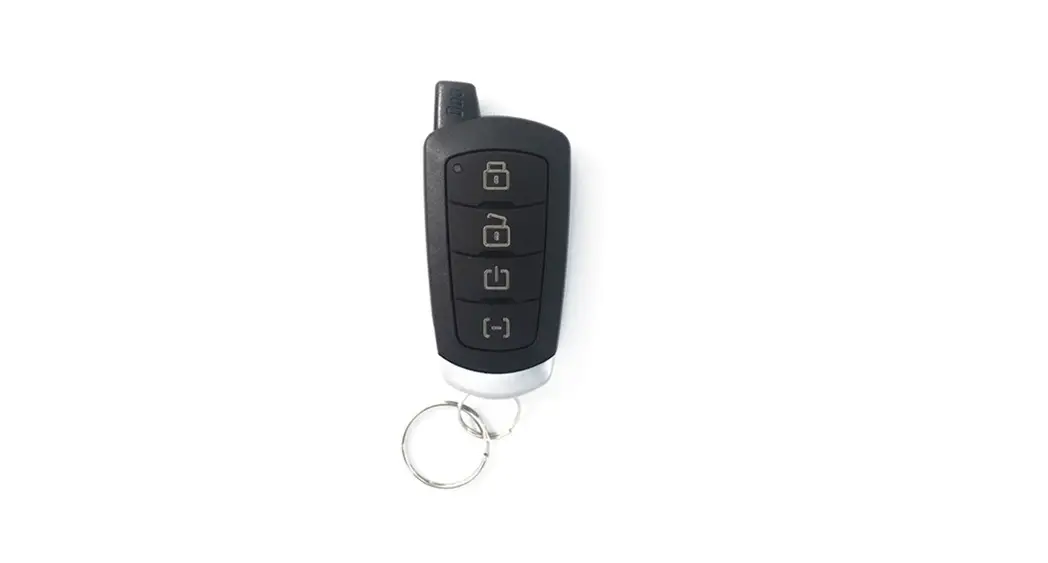
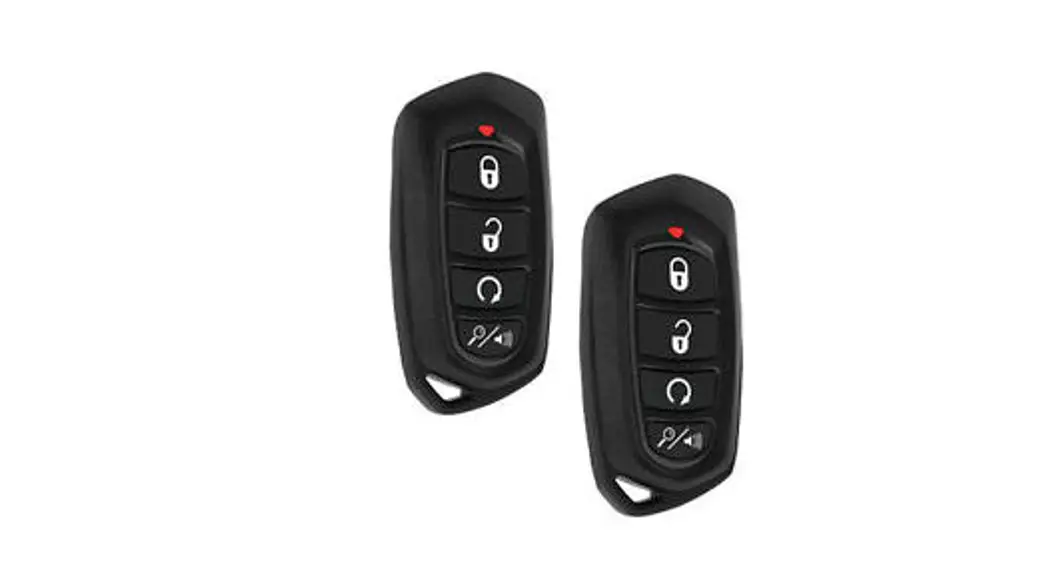
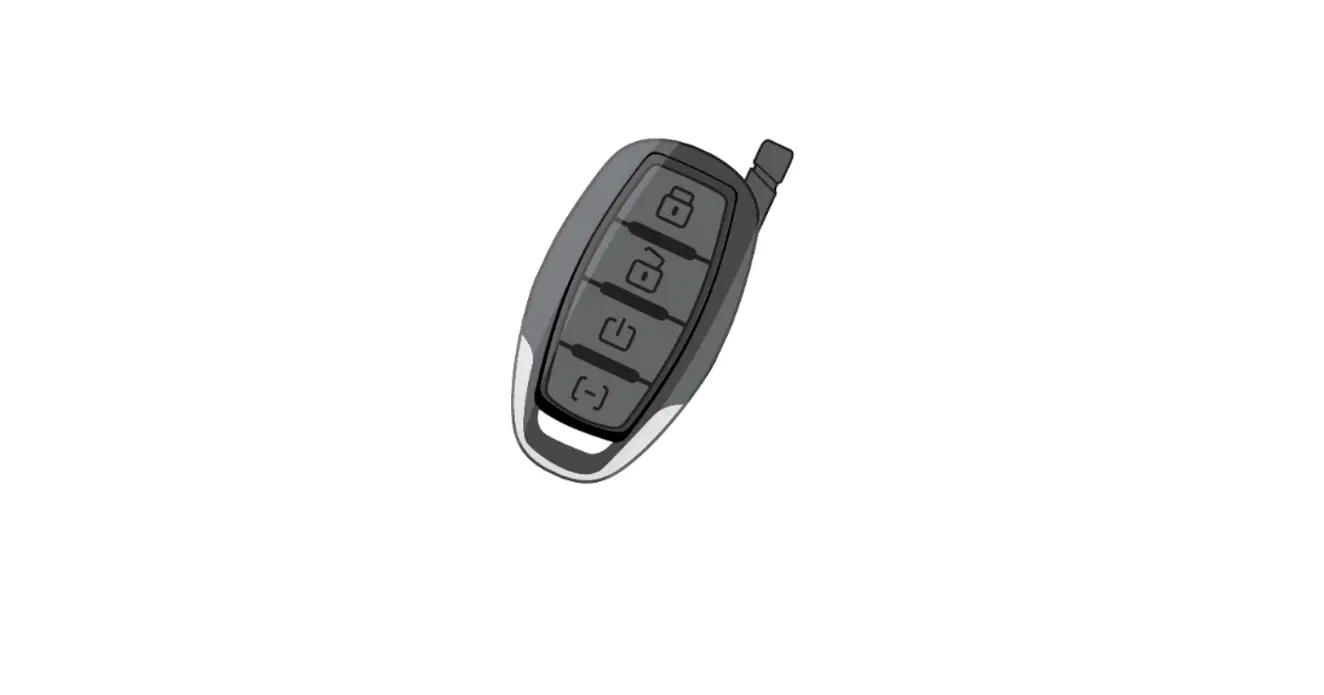
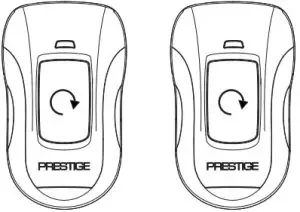
The APS901TM includes two (2) programmed remote controls. If required, additional remote controls can be programmed to the system. Remote Programming is located in Feature Bank 1. To enter Remote Auto Programming:
- Turn the ignition key to ON.
- Press and release the valet button three (3) times. The system will beep and flash the parking lights one (1) time.
- Press the Start button on each remote. The system will beep one (1) times to indicate the remote has been programmed.
Feature Programming
The APS901TM Feature Banks can be programmed by using the valet button and remote. To enter Feature Bank programming:
- Turn the ignition key to ON.
- Press and release the valet button three (3) times. The system will beep and flash the parking lights one (1) time for Feature Bank 1, Remote Programming.
- Cycle the ignition key OFF/ON. The system will beep and flash the parking lights two (2) times for Feature Bank 2.
- Press the valet button to cycle features. The LED will flash to display the feature number.
- Press the Start button to cycle options. The system will beep to indicate the option number.
- Cycle ignition key OFF/ON. The system will beep and flash the parking lights three (3) times for Feature Bank 3.
- Press the valet button to cycle features. The LED will flash to display feature number.
- Press the Start to cycle options. The system will beep to indicate the option number.
Data Protocol Selection
The default data port protocol of this model is ADS (iDatalink 2-Way). This model is capable of detecting the correct data port protocol (ADS or DBI) and automatically configuring Feature Bank 2; Feature 18. To initialize the detection procedure:
- Press and hold the valet button.
- Cycle the vehicle’s Ignition ON/OFF two (2) times.
- Release the valet button.
The system will automatically detect and set the correct data port protocol, ADS or DBI.
Note: This feature is only available on module firmware v2.0 or higher.
The Feature Banks below can also be programmed using the FlashLogic Weblink. Please visit www.FlashLogic.com for more detail.
Feature Bank 2 | Options | |||||||
| 1 Chirp | 2 Chirp | 3 Chirp | 4 Chirp | 5 Chirp | 6 Chirp | |||
Features | 1 | Lock / Unlock Function | 500ms | 3.5sec | 500ms L, DBL UL | DBL L, 500ms UL | DBL L, DBL UL | 500ms L, 350ms UL |
| 2 | Accessory Lock | NA | ||||||
3 | Accessory Unlock | NA | ||||||
| 4 | Exterior Illumination | NA | ||||||
5 | Auto Relock | NA | ||||||
| 6 | Auto Arming | NA | ||||||
7 | Notification Sound | NA | ||||||
| 8 | Horn Timing | 16ms | 30ms | 40ms | 50ms | 10ms | ||
9 | Valet Override Method | NA | ||||||
| 10 | Driver Priority Unlock | NA | ||||||
| 11 | Silent Choice | NA | ||||||
12 | Park Light / Trunk Swap | NA | ||||||
| 13 | AUX Ch. 4 | NA | ||||||
14 | AUX Ch. 5 | NA | ||||||
| 15 | AUX Ch. 6 | NA | ||||||
16 | AUX Ch. 7 | NA | ||||||
| 17 | Security Profile | OFF | OEM Security | W/ OEM Remote Start | OFF W/ Keyless | |||
18 | Data Port Protocol | ADS | DBI | |||||
Feature Bank 3 | Options | |||||||
| 1 Chirp | 2 Chirp | 3 Chirp | 4 chirp | 5 Chirp | 6 Chirp | |||
Features | 1 | Defrost Output | NA | |||||
| 2 | RS Start Notification | ON | OFF | |||||
3 | RS Runtime | 15min | 20min | 45min | 60min | 5min | 10min | |
| 4 | RS Parking Lights | Steady | Flashing | |||||
5 | Engine Confirmation | Tach | Voltage | Data | Hybrid | |||
| 6 | Voltage Level | >0.5v B4 Start | <0.5v B4 Start | |||||
7 | Ignition 2 Output | Ignition | Accessory | Start | ||||
| 8 | Ignition 3 Output | N/A | ||||||
9 | Accessory Output | Accessory | Ignition | Start | ||||
| 10 | Transmission | NA | ||||||
11 | Max Crank Time | 0.8sec | 1.0sec | 1.5sec | 2.0sec | 3.0sec | 4.0sec | |
| 12 | Diesel Delay | OFF | Diesel 5 | Diesel 10 | Diesel 15 | Diesel 20 | Diesel 30 | |
13 | Temperature Start | NA | ||||||
| 14 | Crank Duration | Averaging | Preset | |||||
15 | RS Shock Override | NA | ||||||
| 16 | Turbo Timer | NA | ||||||
17 | Start Activation | Two Press | One Press | Three Press | ||||
| 18 | RS Lock Function | No Change | UL Before L After | UL Before Start | Lock After Start | |||
19 | Factory Disarm Output | Single Pulse | 350ms | 500ms | 800ms | Door Lock Timing | ||
| 20 | Pulse During Crank | During Crank | GWR | Ignition | Accessory | |||
21 | Factory Arm Output | After Start | GWR | Ignition | Accessory | Start | ||
| 22 | Pulse After Shutdown | After Shutdown | GWR | Ignition | Accessory | Start | ||
23 | Additional Unlock Pulse | NA | ||||||
OEM Security
This system can provide OEM level security. The system will monitor and trigger by the analog hood input and all entry zone inputs from the FLCAN or other integration modules.
When an entry zone is detected the system will beep the vehicle horn and flash the parking lights. This feature must be activated in Feature Bank 2, Feature 17.
Operation
- To arm the system, press the start button one (1) time.
- To disarm the system, press the start button two (2) times.
- To start the system, press and hold the start button for three (3) seconds.
Valet Override Procedure
- To disarm the system without the use of a remote, turn the ignition key to ON and press the valet button one (1) time.
Product diagram
Replacement Part #4120467
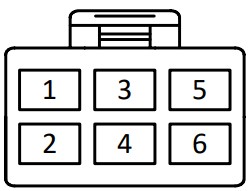
6 Pin RS Harness | 1 | Yellow | Starter Output (+) |
2 | Green | Ignition 2 Output (+) P | |
3 | Red | Battery 12V Input (+) | |
| 4 | Red/White | Battery 12V Input (+) | |
5 | Purple | Accessory Output (+) P | |
| 6 | Blue | Ignition Input / Output (+) |
Replacement Part #4120463
| 4 Pin Light | 1 | White | Parking Light (30) Output P |
| 2 | White/Red | Parking Light (87) Input | |
| 3 | Yellow/Black | Ignition Output For Alarm (+) | |
| 4 | Black | Ground Input (-) |
Accessory Sold Seperatly
CarLink | 1 | White | Data RX |
2 | Black | Ground (-) | |
| 3 | Blue | Data TX | |
| 4 | Red | Battery 12V (+) |
Replacement Part #181BP
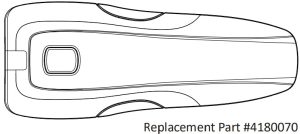
Replacement Part #4180070
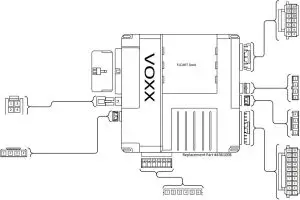
Replacement Part #4120466
14 Pin Main Input/Output | 14 | Green/Orange | Tach Input |
13 | Black/Yellow | Pulse During Crank Output (-) | |
12 | Green/Yellow | Glow Plug Input (+) | |
| 11 | Black/Red | Pulse After Shutdown Output (-) | |
10 | Empty | Empty | |
| 9 | Black/Blue | Factory Disarm Output (-) | |
8 | Brown/Black | Brake Input (+) | |
| 7 | Black/Lt. Green | Factory Arm Output (-) | |
6 | Dk. Blue/Black | External Activation Input (-) | |
| 5 | Lt. Blue | Remote Start Status Output (-) | |
4 | Green | Unlock Output (-) | |
| 3 | Gray/Black | Hood Input (-) | |
2 | Empty | Empty | |
| 1 | Black/White | Horn Output (-) |
Accessory Sold Seperatly
DBI | 4 | Red | Battery 12V (+) |
3 | Blue | Data TX | |
| 2 | Black | Ground (-) | |
| 1 | White | Data RX |
Accessory Sold Seperatly
WebLink | 4 | Red | Battery 12V (+) |
3 | Black | Ground (-) | |
| 2 | White | Data RX | |
| 1 | Blue | Data TX |
Contact Us
For Complete Installation Guide and Technical Support Visit
www.voxxuniversity.com Or Call 1-800-225-6074
Important Update
The default Data Port Protocol of this system is ADS. If using an FLCAN or other external integration module be sure to choose
iDatalink 2-Way when flashing.
This system will also support DBI. This will require programming Feature Bank 2, Feature 18 to DBI.