DP C10 28 Inch 36V LCD
Product Information
The DP C10.CAN is a display unit designed for use with electric
bicycles. It provides information on the bike’s battery capacity,
speed, distance travelled, support level and other data. The
display has a backlight that can be adjusted for brightness and
also features a walk assistance function. The unit also has a USB
charging function to charge external devices.
Product Usage Instructions
Important Notice
Please keep the QR code label attached to the display cable. The
information from the label may be used for future software
updates.
Introduction of Display
To turn on the display, press and hold the button for more than
2 seconds. To turn off the display, press and hold the same button
for more than 2 seconds. If the automatic shutdown time is set to 5
minutes, the display will automatically turn off within that time
when not in operation.
Product Description
Functional Overview
The DP C10.CAN display provides real-time information on battery
capacity, speed, distance travelled, support level and other data.
It also has a walk assistance function and a USB charging
function.
Display
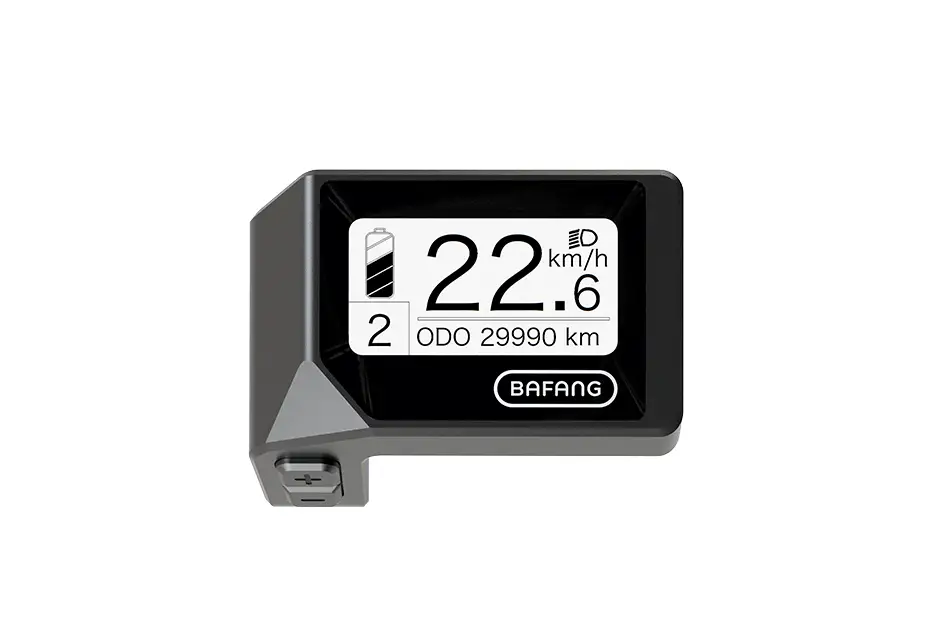
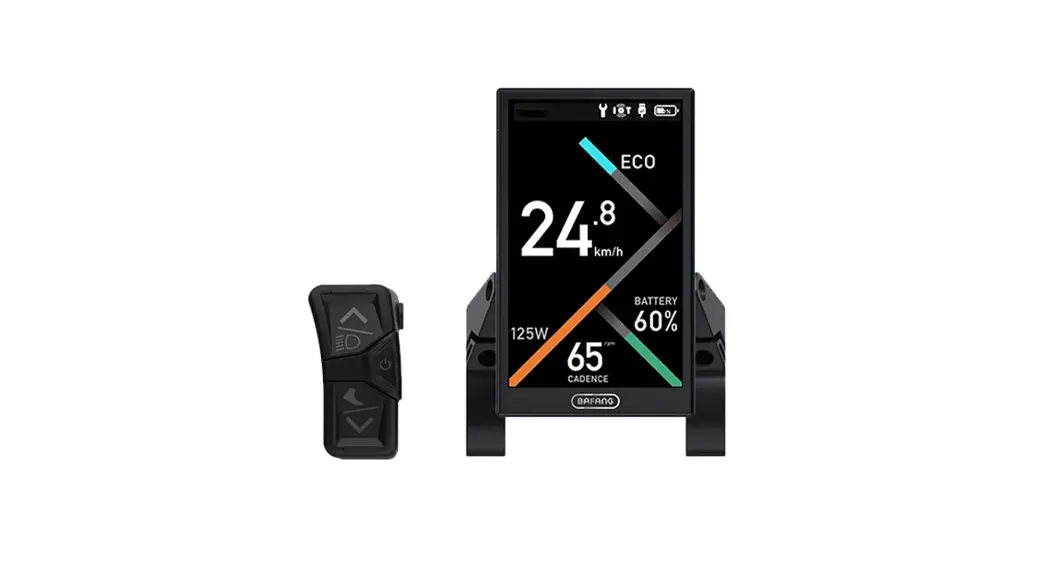
The display shows battery capacity, menu options, digital speed,
speed mode, kilometer stand, data, walking assistance, USB charging
indicator, light indicator, error indicator, error code indicator,
speed unit, unit indicator, remaining distance and support
level.
Key Definition
The display has four function keys: up, down, light on/off and
system on/off.
Normal Operation
Switching the System On/Off
To turn on the system, press and hold the system on/off button
for more than 2 seconds. To turn off the system, press and hold the
same button for more than 2 seconds.
Selection of Support Levels
To select support levels, press the button when the display is
turned on.
Headlights/Backlighting
The display has a headlight and backlight that can be turned off
by pressing the button for more than 2 seconds. The brightness of
the backlight can be adjusted in the display settings.
Walk Assistance
The walk assistance function can only be activated with a
standing pedelec. To activate it, briefly press the button.
USB Charge Function
The display has a USB charging function that can be used to
charge external devices. The USB charging indicator will display an
icon if an external device is connected to the display.
7 USER MANUAL FOR DP C10.CAN
USER MANUAL FOR DISPLAY
CONTENT
7.1 Important Notice
2
7.6.3 Selection mode
6
7.2 Introduction of Display
2
7.6.4 Headlights / backlighting
6
7.3 Product Description
3
7.6.5 Walk Assistance
7
7.3.1 Specifications
3
7.6.6 Battery capacity indication
7
7.3.2 Functions Overview
3
7.6.7 USB charge function
7
7.4 Display
4
7.7 Settings
8
7.5 Key Definition
5
7.7.1 Setting
8
7.6 Normal Operation
5
7.7.2 View Information
10
7.6.1 Switching the System ON/OFF
5
7.8 Error Code Definition
14
7.6.2 Selection of Support Levels
5
BF-UM-C-DP C10-EN November 2019
1
7.1 IMPORTANT NOTICE
· If the error information from the display cannot be corrected according to the instructions, please contact your retailer.
· The product is designed to be waterproof. It is highly recommended to avoid submerging the display under water.
· Do not clean the display with a steam jet, high-pressure cleaner or water hose.
· Please use this product with care.
· Do not use thinners or other solvents to clean the display. Such substances can damage the surfaces.
· Warranty is not included due to wear and normal use and aging.
7.2 INTRODUCTION OF DISPLAY
· Model: DP C10.CAN BUS
· The housing material is PC and Acrylic, and the button material is made of silicone.
· The label marking is as follows:
Note: Please keep the QR code label attached to the display cable. The information from the Label is used for a later possible software update.
2
BF-UM-C-DP C10-EN November 2019
USER MANUAL FOR DISPLAY
7.3 PRODUCT DESCRIPTION
7.3.1 Specifications · Operating temperature: -20~45 · Storage temperature: -20~50 · Waterproof: IP65 · Bearing humidity: 30%-70% RH
7.3.2 Functional Overview
· Speed display (including speed in real time (SPEED), top speed (MAXS) and average speed (AVG), switching between km and miles)
· Switching between km and miles · Battery capacity indicator · Automatic sensors explanation of the light-
ing system · Brightness setting for backlight · Indication of performance support · Walk assistance · Kilometer stand (including single-trip dis-
tance, total distance) · Display for the remaining distance.(Depends
on your riding style) · Motor output power indicator · Energy consumption indicator CALORIES
(Note: If the display has this function) · Error messages view · Service · USB charge function
BF-UM-C-DP C10-EN November 2019
3
7.4 DISPLAY
9 10
1
11
2
3
12
13
4
5 6
7
14
15
8
16
1 Display of battery capacity in real time.
2 Menu.
3 Service: please see the service section.
4 Digital speed display.
5 Speed mode , top speed (MAXS) – Average speed (AVG).
6 Kilometer stand, Daily kilometers (TRIP) Total kilometers (TOTAL).
7 Data: Display data, which corresponds to the current mode.
8 Walking assistance
.
9 USB charging indicator displays the icon , if an external USB device is connected to the display.
10 The display shows this symbol, if the light is on.
11 Error indicator .
12 Error code indicator.
13 Speed unit.
14 Unit indicator.
15 Remaining distance (RANGE).
16 Support level
4
BF-UM-C-DP C10-EN November 2019
USER MANUAL FOR DISPLAY
7.5 KEY DEFINITION
Up Down
Light On/Off System On/Off OK/Enter
7.6 NORMAL OPERATION
7.6.1 Switching the System ON/OFF
Press and hold (>2S) turn off the system.
on the display to turn on the system. Press and hold (>2S)
again to
If the “automatic shutdown time” is set to 5 minutes (it can be set with the “Auto Off” function, See “Auto Off”), the display will automatically be turned off within the desired time when it is not in operation.
7.6.2 Selection of Support Levels
When the display is turned on, press (<0.5S) the or button to switch to the support level, the lowest level is 1, the highest level is 5. When the system is switched on, the support level starts in level 1. There is no support at level null.
BF-UM-C-DP C10-EN November 2019
5
7.6.3 Selection mode
Briefly press (<0.5s) the button to see the different trip modes. Trip: daily kilometers (TRIP) – total kilometers (TOTAL) – Maximum speed (MAXS) – Average speed (AVG) – Remaining distance (RANGE) – Output power (W) – Energy consumption (C (only with torque sensor fitted)).
7.6.4 Headlights / backlighting
Hold (>2S) the
button to activate the headlight and backlight.
Hold (>2S) the
button again to turn off the headlight and backlight. The brightness of the
backlight can be set in the display settings “Brightness”. (If the display /Pedelec is switched on in a
dark environment, the display backlight/headlight will automatically be switched on. If the display
backlight/headlight has been manually switched off, the automatic sensor function is deactivated.
You can only turn on the light manually after switching on the system again.)
6
BF-UM-C-DP C10-EN November 2019
USER MANUAL FOR DISPLAY
7.6.5 Walk Assistance
The Walk assistance can only be activated with a standing pedelec.
Activation: Briefly press (<0.5S) the
button until to level null, and then press
(<0.5s) the button, the
symbol is
displayed. Now hold down the button
and the Walk assistance will activate. The
symbol will flashes and the pedelec
moves approx. 6 km/h. After releasing the
button, the motor stops automatically and
switches back to level null (if no any option
be activated in 5 second). If no speed signal
is detected, it shows 2.5km/h.
7.6.6 Battery capacity indication
The battery capacity is showed in ten bars. Each full bar represents a remaining capacity of the battery in a percentage, if the frame of indicator blinks that means to charge. (as shown in the figure below):
Bars 10 9 8 7 6 5 4 3 2 1 Blinking
Charge in Percentage 90%
80%C<90% 70%C<80% 60%C<70% 50%C<60% 40%C<50% 30%C<40% 20%C<30% 10%C<20% 5%C<10%
C<5%
7.6.7 USB charge function
If an external USB device is connected to the display, the icon appears, the device will be charged. The maximum charging voltage is 5V and the maximum charging current is 500mA.
BF-UM-C-DP C10-EN November 2019
7
7.7 SETTINGS
After the display is turned on, quickly press (<0.3S) the button twice to access the “MENU” interface. pressing the or button, you can select and reset the options. Then press (<0.3S) the button twice to confirm your selected option and to return to the main screen. If no button is pressed within 10 seconds in “MENU” interface, the display will automatically return to the main screen and no data will be saved.
7.7.1 Setting 7.7.1.1 Reset mileage
When the system is on, quickly press (<0.3S) the button twice to access the “MENU” interface and “tC” appears on the display (as shown below). Now using the or button, choose between “y”(YES) or “n”(NO). If choose “y”, the Daily kilometers (TRIP), Maximum speed (MAX) and Average speed (AVG) will be reset. Once you have chosen your desired selection, press (<0.3S) the button twice to save and return to the main screen, or you can press (<0.3S) the button once to save and enter next item “Selection of unit in km/Miles”.
NOTE: If the daily kilometers accumulate 99999km, the daily kilometers will be reset automatically. 7.7.1.2 Selection of unit in km/Miles When the system is on, quickly press (<0.3S) the button twice to access the “MENU” interface, repetitively press the
button until the “S7” appears on the display (as shown below). Now using the
or button, choose between “km/h” or “mile/h”. Once you have chosen your desired selection, press (<0.3S) the button twice to save and return to the main screen, or you can press (<0.3S) the button once to save and enter next item “Set light sensitivity”.
7.7.1.3 Set light sensitivity When the system is on, quickly press (<0.3S) the button twice to access the “MENU” interface, repetitively press the button until the “bL0” appears on the display (as shown below). And then press to increase or to reduce (light
8
BF-UM-C-DP C10-EN November 2019
USER MANUAL FOR DISPLAY
sensitivity for 0-5). Chose 0 means turn off the light sensitivity.
Once you have chosen your desired selection, press (<0.3S) the button twice to save and return to the main screen, or you can press (<0.3S) the button once to save and enter next item “Set display brightness”.
button until the “OFF” appears on the display (as shown below). And then press
to increase or to reduce (brightness for 1-9minute).
Once you have chosen your desired selection, press (<0.3S) the button twice to save and return to the main screen, or you can press (<0.3S) the button once to save and enter next item “Service Tip”.
7.7.1.4 Set display brightness
When the system is on, quickly press (<0.3S) the button twice to access the “MENU” interface, repetitively press the
button until the “bL1” appears on the display (as shown below). And then press
to increase or to reduce (brightness for 1-5).
Once you have chosen your desired selection, press (<0.3S) the button twice to save and return to the main screen, or you can press (<0.3S) the button once to save and enter next item “Set Auto Off”.
7.7.1.6 Service Tip
When the system is on, quickly press (<0.3S) the button twice to access the “MENU” interface, repetitively press the
button until the “nnA” appears on the display (as shown below). And then press
or to choose between “0” or “1”. Chose 0 means turn off the notification.
Once you have chosen your desired selection, press (<0.3S) the button twice to save and return to the main screen.
7.7.1.5 Set Auto Off When the system is on, quickly press (<0.3S) the button twice to access the “MENU” interface, repetitively press the
BF-UM-C-DP C10-EN November 2019
NOTE: If the “Service” function switch on,
every 5000 km (the mileage of more than
5000 km) the indicator ”
” is dis-
played every time at switch on.
9
7.7.2 View Information
All data in this item cannot be changed, only to be viewed.
7.7.2.1 Wheel Size
When the system is on, quickly press (<0.3S) the button twice to access the “MENU” interface, repetitively press the
button until the “LUd” appears on the display (as shown below).
Once you have viewed your desired information, press (<0.3S) the button twice to save and return to the main screen, or you can press (<0.3S) the button once to enter next item “Speed Limit”.
7.7.2.3 Controller hardware info
When the system is on, quickly press (<0.3S) the button twice to access the “MENU” interface, repetitively press the button until the “CHc (Controller Hardware check)” appears on the display (as shown below).
Once you have viewed your desired information, press (<0.3S) the button twice to save and return to the main screen, or you can press (<0.3S) the button once to enter next item “Controller software info”.
7.7.2.2 Speed Limit
When the system is on, quickly press (<0.3S) the button twice to access the “MENU” interface, repetitively press the
button until the “SPL” appears on the display (as shown below).
Once you have viewed your desired information, press (<0.3S) the button twice to save and return to the main screen, or you can press (<0.3S) the button once to enter next item “Controller hardware info”.
7.7.2.4 Controller software info
When the system is on, quickly press (<0.3S) the button twice to access the “MENU” interface, repetitively press the button until the “CSc (Controller Software check)” appears on the display (as shown below).
10
BF-UM-C-DP C10-EN November 2019
USER MANUAL FOR DISPLAY
Once you have viewed your desired information, press (<0.3S) the button twice to save and return to the main screen, or you can press (<0.3S) the button once to enter next item “Display hardware info”.
button until the “dSc (Display Software check)” appears on the display (as shown below).
Once you have viewed your desired information, press (<0.3S) the button twice to save and return to the main screen, or you can press (<0.3S) the button once to enter next item “BMS hardware info”.
7.7.2.5 Display hardware info
When the system is on, quickly press (<0.3S) the button twice to access the “MENU” interface, repetitively press the button until the “dHc (Display Hardware check)” appears on the display (as shown below).
Once you have viewed your desired information, press (<0.3S) the button twice to save and return to the main screen, or you can press (<0.3S) the button once to enter next item “Display software info”.
7.7.2.7 BMS hardware info
When the system is on, quickly press (<0.3S) the button twice to access the “MENU” interface, repetitively press the
button until the “bHc (BMS Hardware check)” appears on the display (as shown below).
Once you have viewed your desired information, press (<0.3S) the button twice to save and return to the main screen, or you can press (<0.3S) the button once to enter next item “BMS software info”.
7.7.2.6 Display software info
When the system is on, quickly press (<0.3S) the button twice to access the “MENU” interface, repetitively press the
BF-UM-C-DP C10-EN November 2019
11
7.7.2.8 BMS software info When the system is on, quickly press (<0.3S) the button twice to access the “MENU” interface, repetitively press the button until the “dSc (Display Software check)” appears on the display (as shown below). Once you have viewed your desired information, press (<0.3S) the button twice to save and return to the main screen, or you can press (<0.3S) the button once to enter next item “Sensor hardware info”.
7.7.2.9 Sensor hardware info When the system is on, quickly press (<0.3S) the button twice to access the “MENU” interface, repetitively press the button until the “SHc (Sensor Hardware check)” appears on the display (as shown below). Once you have viewed your desired information, press (<0.3S) the button twice to save and return to the main screen, or you can press (<0.3S) the button once to enter next item “Sensor software info”.
NOTE: This information is not displayed, if there are no torque sensor in the drive system. 7.7.2.10 Sensor software info When the system is on, quickly press (<0.3S) the button twice to access the “MENU” interface, repetitively press the
button until the “SSc (Sensor Software check)” appears on the display (as shown below). Once you have viewed your desired information, press (<0.3S) the button twice to save and return to the main screen, or you can press (<0.3S) the button once to enter next item “Battery info”.
NOTE: This information is not displayed, if there are no torque sensor in the drive system.
12
BF-UM-C-DP C10-EN November 2019
USER MANUAL FOR DISPLAY
7.7.2.11 Battery Information
When the system is on, quickly press (<0.3S) the button twice to access the “MENU” interface, repetitively press the
button until the “b01” appears on the display (as shown below). You can briefly press (0.3s) to view all information of the battery.
Once you have viewed your desired information, press (<0.3S) the button twice to save and return to the main screen, or you can press (<0.3S) the button once to enter next item “Message of Error Code”.
Content Explanation
b01
Current temperature (°C)
b04
Voltage (V)
b06
Discharge (A)
b07
Remaining Capacity (A/h)
b08
Total Capacity (A/h)
b09
Relative SOC (%)
b10
Absolute SOC (%)
b11
Charging cycles (number)
b12
Maximum not charging time (Hr)
b13
Recently not charging time (Hr)
d00
Number of battery cell
d01
Voltage of cell 1 (m/V)
d02
Voltage of cell 2 (m/V)
dn
Voltage of cell n (m/V)
NOTE: If no data is detected, “–” is displayed.
7.7.2.12 Message of Error Code
When the system is on, quickly press (<0.3S) the button twice to access the “MENU” interface, repetitively press the
button until the “E00” appears on the display (as shown below). You can briefly
press
(0.3s) to view last ten Error Code
“EO0” to “EO9”. Error code “00” means that
there is no error.
Once you have viewed your desired information, press (<0.3S) the button twice to save and return to the main screen.
BF-UM-C-DP C10-EN November 2019
13
7.8 ERROR CODE DEFINITION
The display can show the errors of a pedelec. If an error is detected, the wrench icon appears on the display and one of the following error codes will be displayed. Note: Please read the description of the error code carefully. If you see the error code, restart the system first. If the problem is not resolved, please contact your dealer.
Error
Declaration
Troubleshooting
04
The throttle has fault.
1. Check the connector of throttle whether they are correctly connected.
2. Disconnect the throttle, If the problem still occurs, please contact your retailer.
(only with this function)
Check the throttle can adjust back into its
05
The throttle is not back in its correct correct position, if the situation does not
position.
improve, please change to a new throttle.(only
with this function)
07
Overvoltage protection
1. Remove the battery. 2. Re-Insert the battery. 3. If the problem persists, please contact your retailer.
08
Error with the hall sensor signal inside the motor
Please contact your retailer.
09
Error with the Engine phase’s
Please contact your retailer.
1. Turn off the system and allow the Pedelec
The temperature inside the engine
to cool down.
10
has reached its maximum protection
value
2. If the problem persists, please contact your
retailer.
11
The temperature sensor inside the
Please contact your retailer.
motor has an error
12
Error with the current sensor in the controller
Please contact your retailer.
13
Error with the temperature sensor inside of the battery
Please contact your retailer.
14
BF-UM-C-DP C10-EN November 2019
USER MANUAL FOR DISPLAY
Error
Declaration
Troubleshooting
1. Turn off the system and let the pedelec cool
The protection temperature inside
down.
14
the controller has reached its maxi-
mum protection value
2. If the problem persists, please contact your
retailer.
Error with the temperature sensor
15
inside the controller
Please contact your retailer.
21
Speed sensor Error
1. Restart the system
2. Check that the magnet attached to the spoke is aligned with the speed sensor and that the distance is between 10 mm and 20 mm.
3. Check that the speed sensor connector is connected correctly.
4. If the error persists, please contact your retailer.
25
Torque signal Error
1. Check that all connections are connected correctly.
2. If the error persists, please contact your retailer.
1.Check the connector from the speed sensor
to make sure it is connected correctly.
Speed signal of the torque sensor has
26
an error
2.Check the speed sensor for signs of damage.
3.If the problem persists, please contact your
retailer.
27
Overcurrent from controller
Please contact your retailer.
30
Communication problem
1. Check all connections are correctly connected.
2. If the error persists, please contact your retailer.
Brake signal has an error 33
(If brake sensors are fitted)
1. Check all connectors.
2. If the error continues to occur, please contact your retailer.
BF-UM-C-DP C10-EN November 2019
15
Error
Declaration
Troubleshooting
35
Detection circuit for 15V has an error Please contact your retailer.
36
Detection circuit on the keypad has an error
Please contact your retailer.
37
WDT circuit is faulty
Please contact your retailer.
41
Total voltage from the battery is too high
Please contact your retailer.
42
Total voltage from the battery is too low
Please contact your retailer.
Total power from the battery cells is
43
too high
Please contact your retailer.
44
Voltage of the single cell is too high Please contact your retailer.
Temperature from the battery is too
45
high
Please contact your retailer.
46
The temperature of the battery is
Please contact your retailer.
too low
47
SOC of the battery is too high
Please contact your retailer.
48
SOC of the battery is too low
Please contact your retailer.
61
Switching detection defect
Please contact your retailer. (only with this function)
62
Electronic derailleur cannot release. Please contact your retailer. (only with this
function)
71
Electronic lock is jammed
Please contact your retailer. (only with this function)
Please contact your retailer. (only with this
81
Bluetooth module has an error
function)
16
BF-UM-C-DP C10-EN November 2019