700 Series MiniMed Mobile App
Product Information:
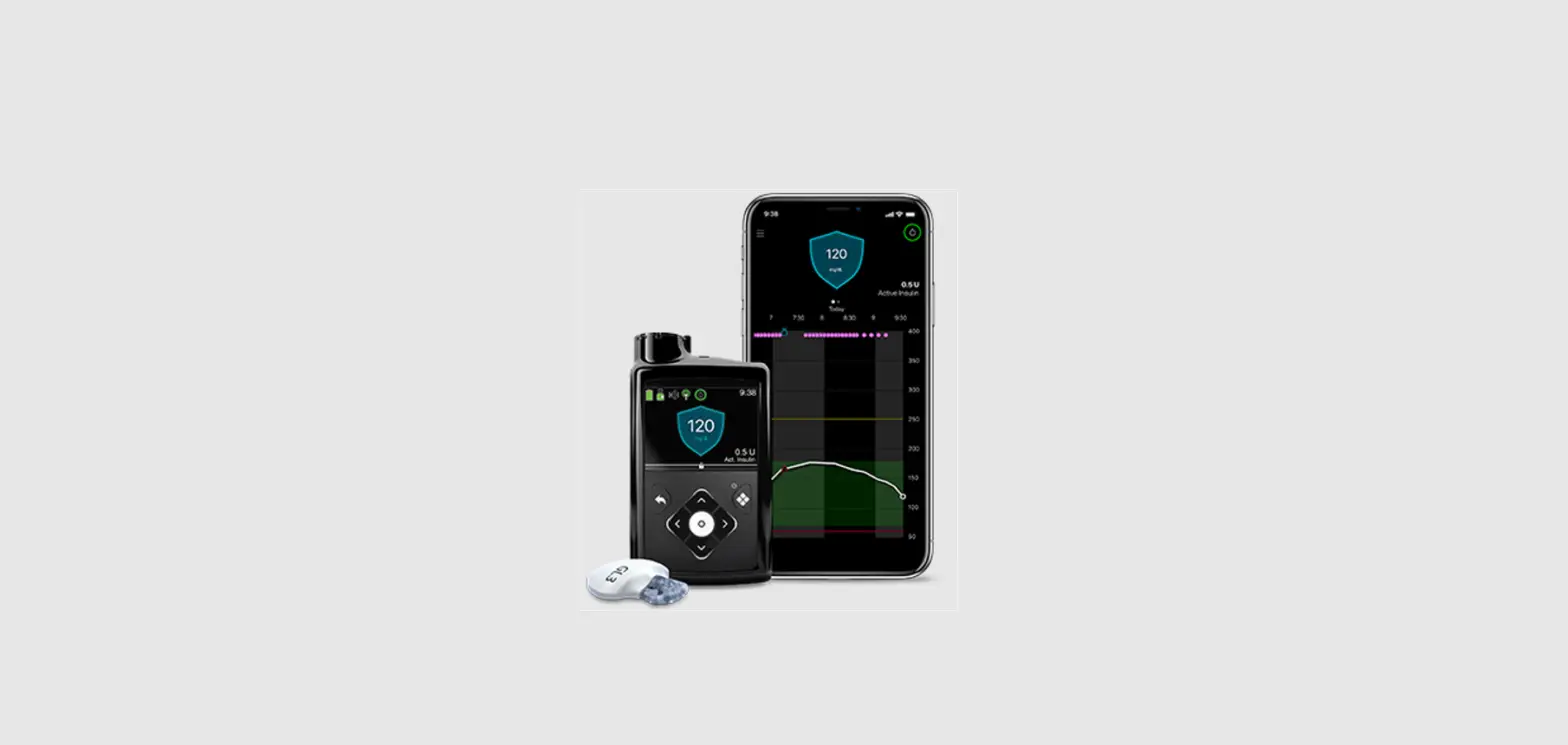
The MiniMedTM Mobile app is a mobile application designed for use
with the Medtronic MiniMedTM 700 series pump and the MiniMedTM 780G
insulin pump. It allows users to manage their insulin delivery
information, view sensor trace events on a graph, track time in
range, and upload data to their CareLinkTM Personal account. The
app also provides compatibility information for different phone
models and offers accessibility options for Apple Watch users.
Product Usage Instructions:
To get started with the MiniMedTM Mobile app, follow these steps:
- Download and open the app on your mobile device.
- If you don’t have a CareLinkTM Personal account, sign up for
one. - Follow the on-screen instructions to pair the app with your
MiniMedTM 700 series pump. - Read the Warning screen and accept by tapping OK and then
Agree.
To navigate the app and access different features:
- Tap the three bars icon to access the menu.
- Use the Sync to CareLinkTM option to manage data uploads to
CareLinkTM Personal. You can switch on automatic uploading or
manually upload all data from your MiniMedTM pump. - Tap Current sensor to access the menu reading and view sensor
trace events on the graph. You can tap on events for more
details. - Check the Time in Range feature to track your insulin delivery
information.
If you are using an iPhone, follow these steps to download the
MiniMedTM Mobile app:
- Get the app via your Apple Watch:
- Press the digital crown button to see the home screen, then tap
the App Store. - Search for “MiniMed Mobile” and find the app with the
corresponding icon. Tap Get to download it.
- Press the digital crown button to see the home screen, then tap
- Get the app via your iPhone:
- On your iPhone, open the Watch app.
- Tap the My Watch tab.
- Tap Install next to the MiniMedTM Mobile app.
For Apple Watch users, ensure that notifications are set up
correctly:
- Enter the Apple Watch app on your iPhone.
- Tap on Notifications.
- Scroll to the “Mirror iPhone alerts from” list and make sure
the MiniMedTM Mobile app is toggled on.
If you find the MiniMedTM Mobile app difficult to see on your Apple
Watch, you can customize the display using different complications:
- With the Watch face showing, touch and hold the display, then
tap Edit. - Swipe left until you reach the end and tap on the complication
node you want to use. - Use the digital crown to scroll through the options. Choose the
one that best suits you from the three available complications:
Extra large, Modular large, or Utility large. Note that not all
watches support all complications.
For more information, please visit your local Medtronic Diabetes
website. Frequently Asked Questions:
- What do I need to use the MiniMedTM Mobile
app? To use the app, you need a Medtronic MiniMedTM 780G
insulin pump, a compatible smart mobile phone that can download
apps, a CareLinkTM Personal account, and an internet
connection. - Can my care partners view my data and receive
alerts/notifications? Yes, your care partners can download
the CareLinkTM Connect app on a compatible mobile device and use
your CareLinkTM Personal username to set up their access. They can
also set up SMS alerts through the CareLinkTM Personal website. Up
to 5 care partners can view your data.
Getting started with the MiniMedTM Mobile app
Getting started with the MiniMedTM Mobile app
1. Download, open the app and follow the on-screen instructions.
2. Log into your CareLinkTM personal account. Sign up if you do not already have an account.
3. Follow the on-screen instructions to pair the app with your MiniMedTM 700 series pump
4. Read the Warning screen and accept by tapping OK and then Agree
United Kingdom
Remember to watch your
phone for pairing requests
Automatic updates to mobile operating systems should also be deactivated If one becomes available, check your local website to see if it supported before installing.
Navigating the app
Sync to CareLinkTM
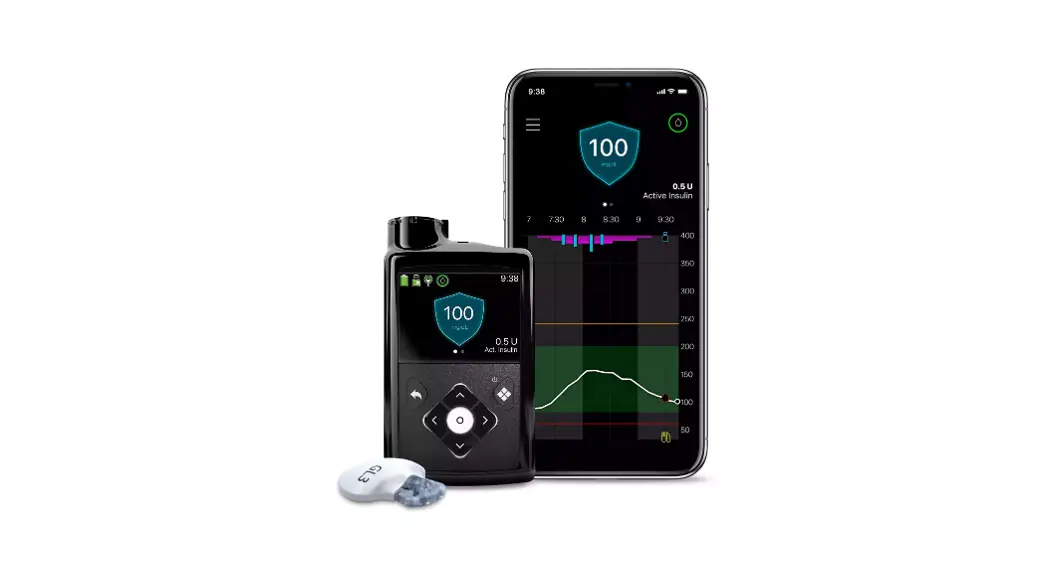
Allows you to manage data uploads to CareLinkTM Personal. Switch on for automatic uploading or tap Upload now to upload all data in you MiniMedTM pump. You can also manage your care partners in this menu
Tap the three bars Current sensor to access the menu reading
Insulin delivery information
Sensor trace. Events on the graph Swipe left to access
can be tapped on for details.
Time in Range
Images shown when paired with a MiniMedTM 780G system Compatible phone? Check your device at (Regional link).
Installing MiniMedTM Mobile on your Apple® Watch
1. Make sure your Apple® Watch and iPhone are connected. You can check this in your Bluetooth® settings and use https://support.apple.com/en-mn/guide/watch/apdde4d6f98e/watchos if it’s not.
2. Download the MiniMedTM Mobile app from the App Store on your iPhone if you haven’t already.
3. Next you need the companion app on your Apple® Watch. If this does not happen automatically, there are two ways of doing it manually.
A. Get the app via your Watch.
B. Get the app via your Iphone.
A. Press the digital crown button to see the home screen then tap the App Store
B. Tap Search and enter “MiniMed Mobile” C. Find the right app with this icon and tap Get
A. On your iPhone, open the Watch app B. Tap the My Watch tab C. Tap Install next to the MiniMedTM Mobile app
MiniMedTM Mobile app
(Apple Watch®)
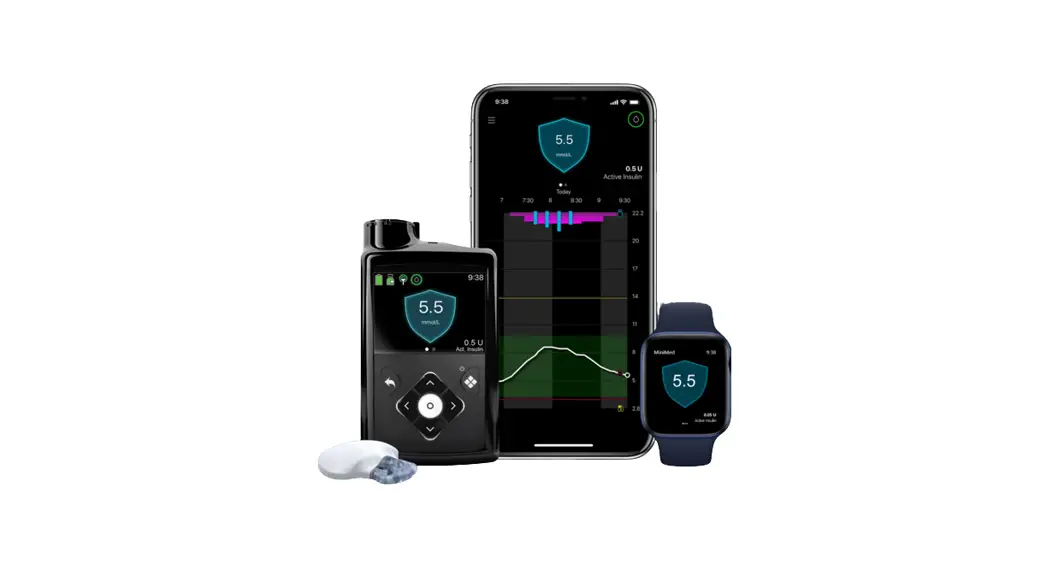
MiniMedTM Mobile app with MiniMedTM 780G pump systems are also compatible with Apple® Watch*. See your values on your watch face or tap to enter the app.
The phone app also has a menu option for the watch app. It can, for example, tell you if your watch or pump is not compatible or if the app on the watch is missing**
Note: Notifications may be dismissed on your mobile device but must be cleared on the pump. They cannot be dismissed or cleared on the Watch.
* Check your local website for full Apple® Watch and MiniMedTM pump supported devices **If default setting on phone has been set to not download companion apps
MiniMedTM Mobile app
Apple Watch Receiving notifications. Ensure mirror is active.
On the iPhone, enter the Apple watch app.
Tap on Notifications.
Scroll to the mirror iphone alerts from: list, find the MiniMedTM Mobile app and make sure it is toggled on.
Watch
Remember: If the iPhone is unlocked, notifications do not go to the Apple watch. Notifications are only received on the Apple watch if the iPhone
is locked or asleep.
Accessibility options
Is the MiniMedTM Mobile app too difficult to make out on your Watch? You can add different complications to your Watch face to make it easier to see, here’s how.
1. With the Watch face showing, touch and hold the display then tap Edit. 2. Swipe left all the way to the end and tap on the complication node you wish to use. 3. Use the digital crown to scroll through the options. MiniMedTM Mobile has three complications that
can be used, chose the one that best suits you*: 1. Extra large, 2. Modular large, 3. Utility large
*not all watches support all complications
For more information, visit your local Medtronic Diabetes website.
MiniMedTM Mobile app frequently asked questions
What do I need to use the MiniMedTM Mobile app? A Medtronic MiniMedTM 780G insulin pump, a compatible* smart (meaning it can download apps) mobile phone, a CareLinkTM Personal account and an internet connection are required to use the MiniMedTM Mobile app.
Can my care partners view my data and receive alerts/notifications? Yes, they can download the CareLinkTM Connect app to a compatible* mobile device and they will need your CareLinkTM Personal username to complete set up. SMS (text) alerts can also be set up by care partners in CareLinkTM Personal website. Up to 5 care partners may view your data.
Can my healthcare provider view my data? Yes but they cannot receive alerts and alarms or view live data. Make sure your MiniMedTM Mobile app has the Sync to CareLinkTM feature on and your CareLinkTM Personal account is linked with your healthcare providers CareLinkTM system account. Your healthcare providers will then have access to your data when they need it without you having to do anything.
My mobile phone has a new update available, should I update? Not immediately. Please make sure auto-updates are deactivated on your mobile device and only manually update once Medtronic has confirmed compatibility for the MiniMedTM Mobile app and the new phone update.
There is an update available for the MiniMedTM Mobile app. Should I update? Yes. New versions of the MiniMedTM Mobile app can be used immediately. We would encourage users to always be on the most up to date version available.
I am having trouble getting the MiniMedTM Mobile app to pair with my pump. Make sure your Bluetooth® is switched on in your phone settings. Delete any previously paired pumps and make sure the pump and phone are within 10 feet/3 meters of each other and try again. If the problem persists, please contact your local Medtronic Diabetes helpline
I have a Medtronic insulin pump that is not the MiniMedTM 780G system. Can I still use the Apple® watch? No. The Apple® watch can only be used by people using the MiniMedTM Mobile app with the MiniMedTM 780G system.
Is there a Android watch app available? No, currently only the Apple version is available
Can I see my data using the Apple® Watch without my phone? No. Your watch will show you the data that your phone is receiving from the pump. Your watch will not directly pair with your pump.
*Please consult your local Medtronic Diabetes website for full device compatibility information
Information contained herein is not medical advice and should not be used as an alternative to speaking with your doctor. Discuss indications, contraindications, warnings, precautions, potential adverse events and any further information with your health care professional.
Europe Medtronic International Trading Sàrl. Route du Molliau 31 Case postale CH-1131 Tolochenaz www.medtronic.eu Tel: +41 (0)21 802 70 00 Fax: +41 (0)21 802 79 00
medtronic.eu
EMEA-SOF-2300008. ©2023 Medtronic. Medtronic, Medtronic logo, and Engineering the extraordinary are trademarks of Medtronic. Third party brands are trademarks of their respective owners. All other brands are trademarks of a Medtronic company.
 Global Healthcare Technology Leader | Medtronic
 Global Healthcare Technology Leader | Medtronic
 Set up and pair your Apple Watch with iPhone - Apple Support (MN)