
Thank you for selecting Globe as your smart home solution. With proper care, this product will provide years of pleasure and enjoyment.
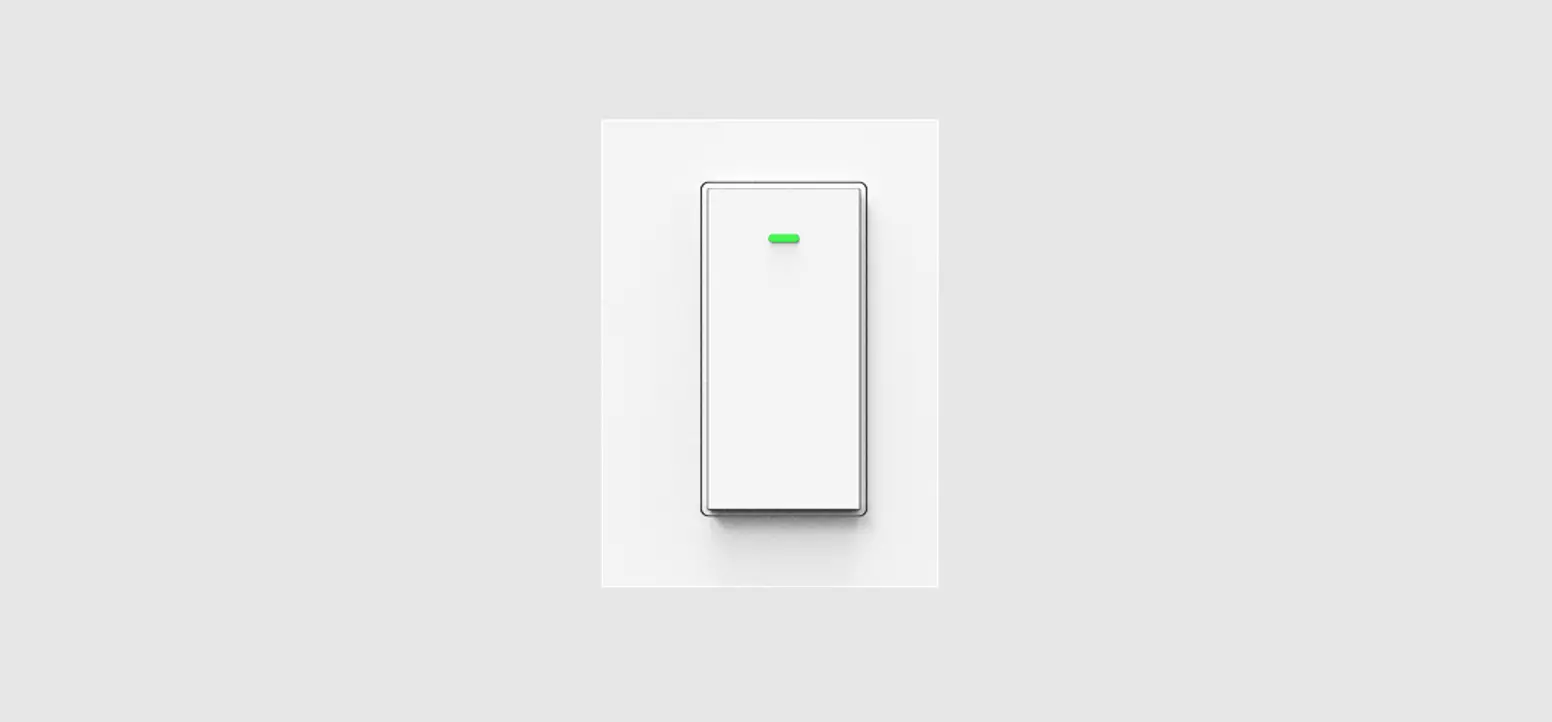
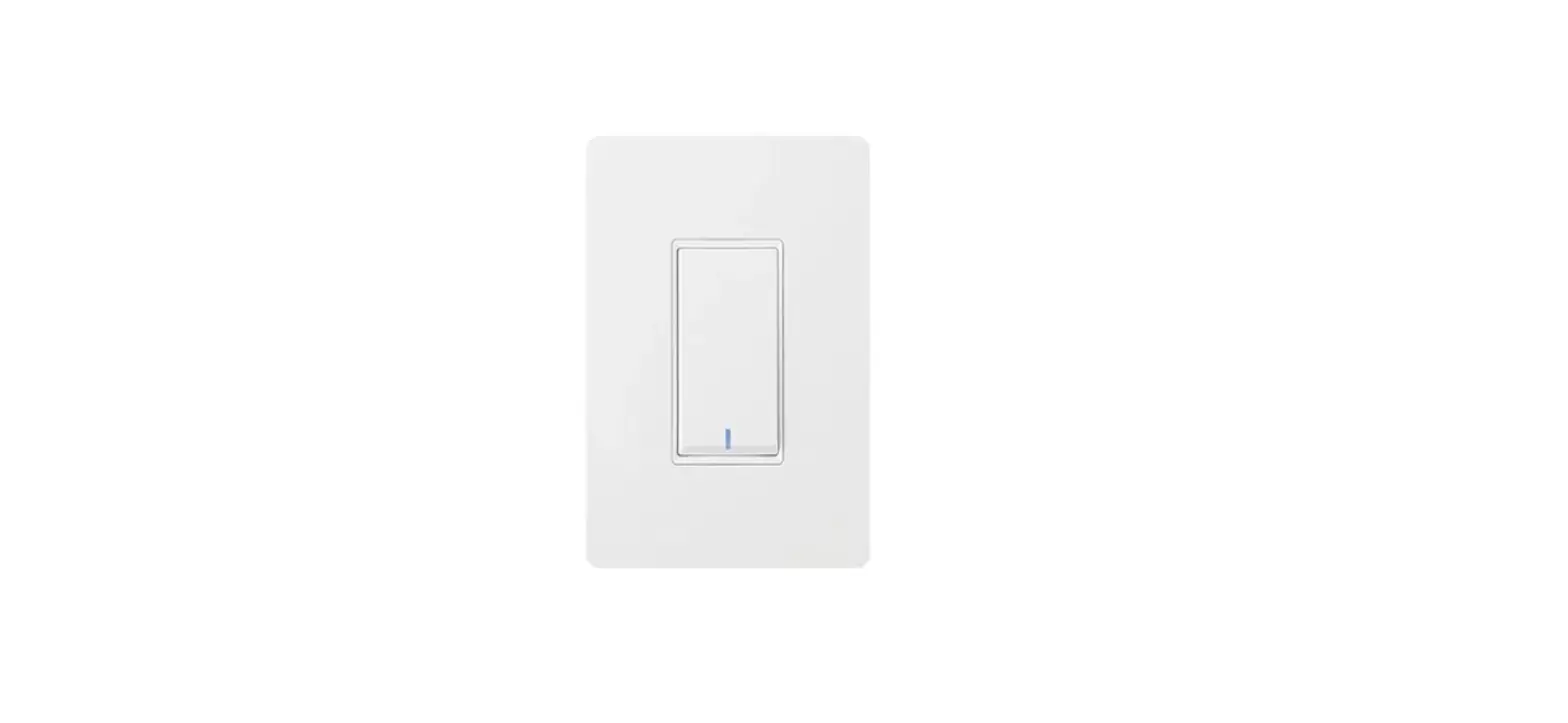
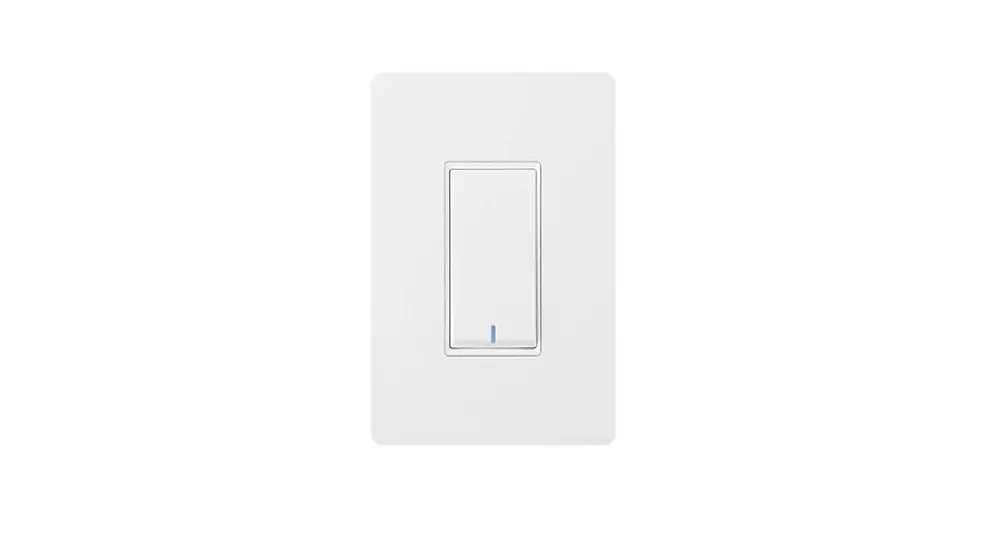
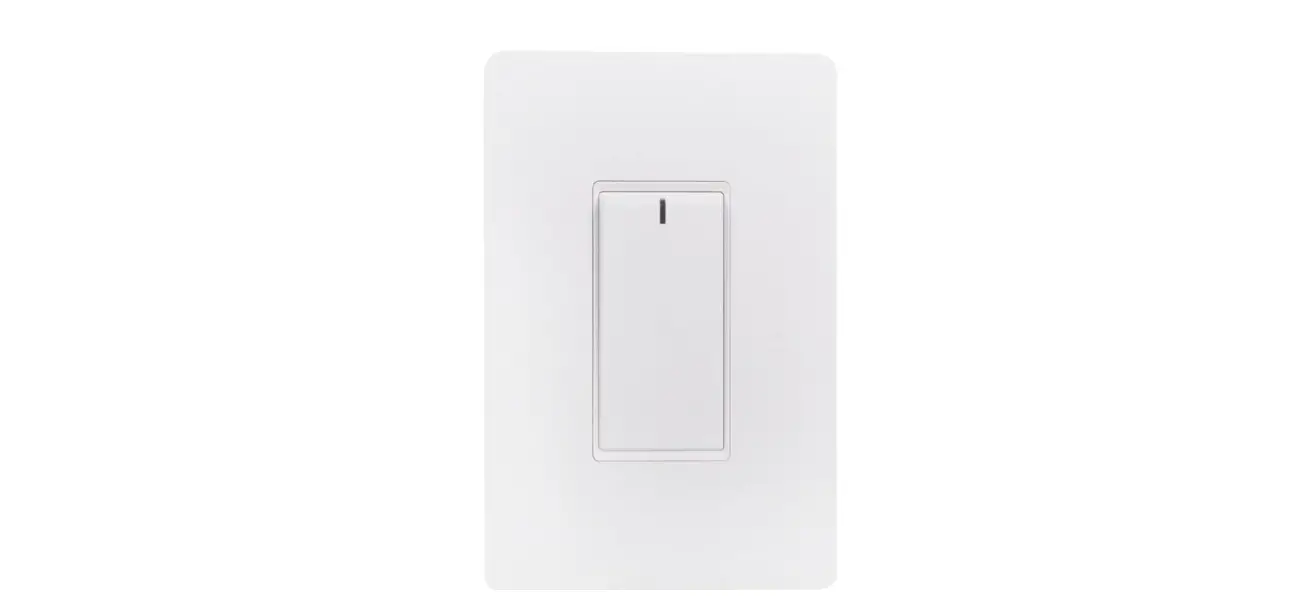
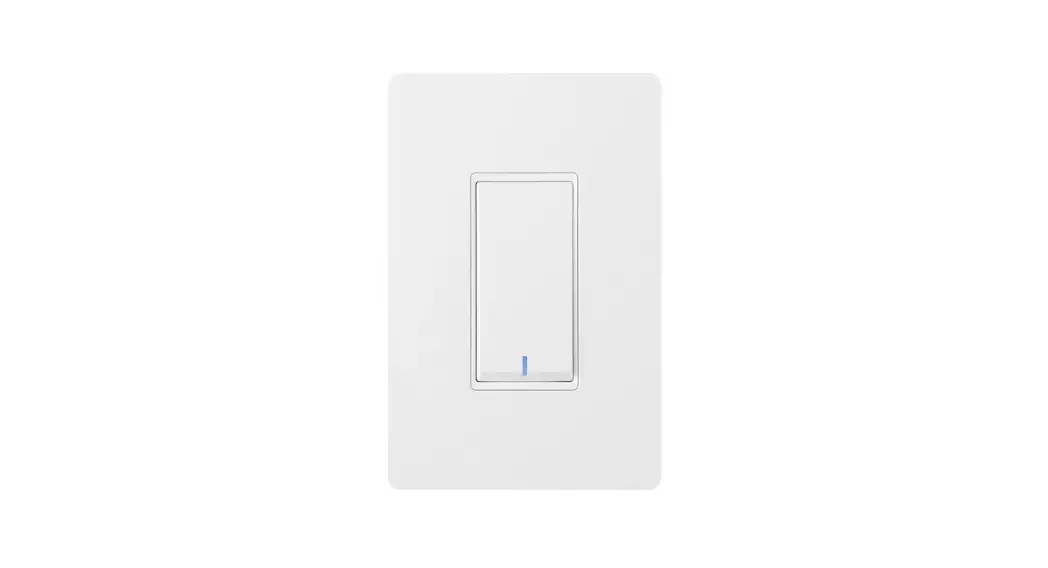
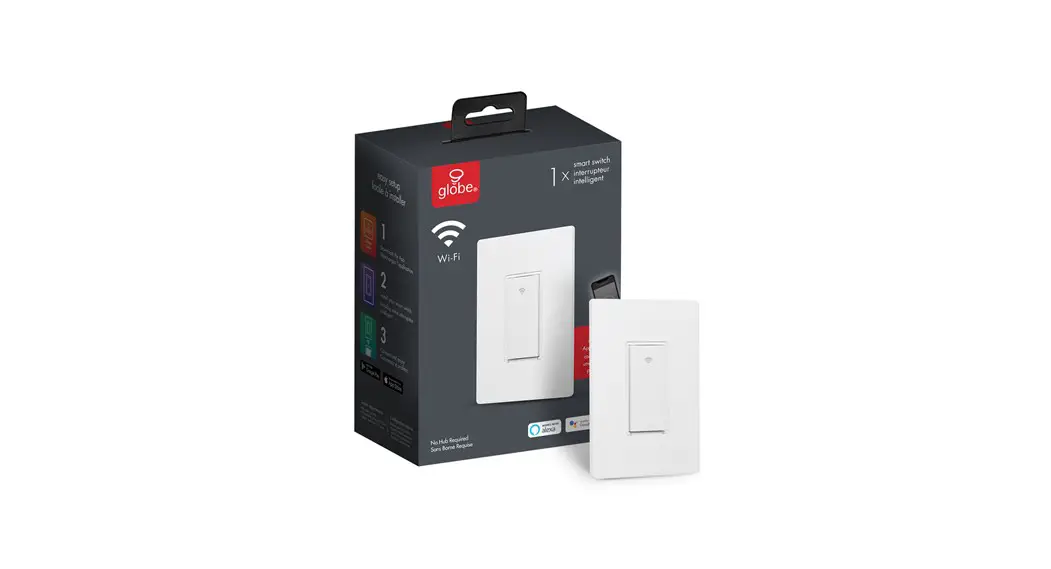
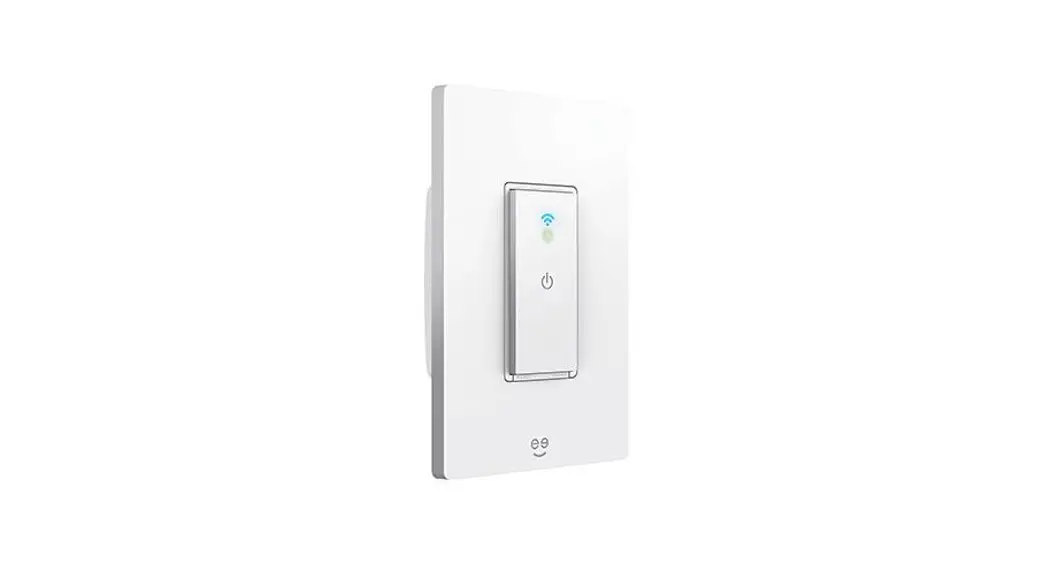
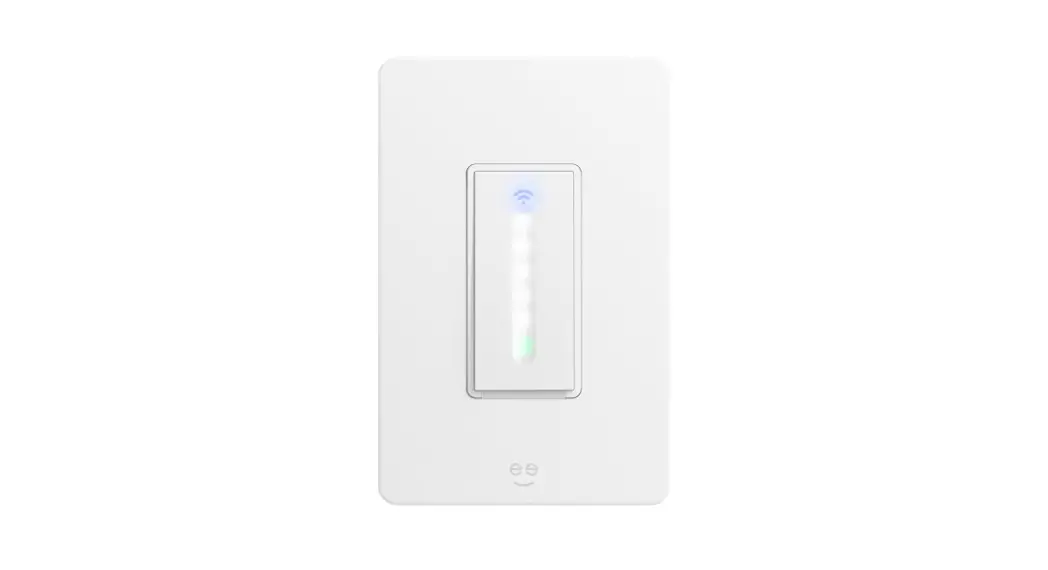
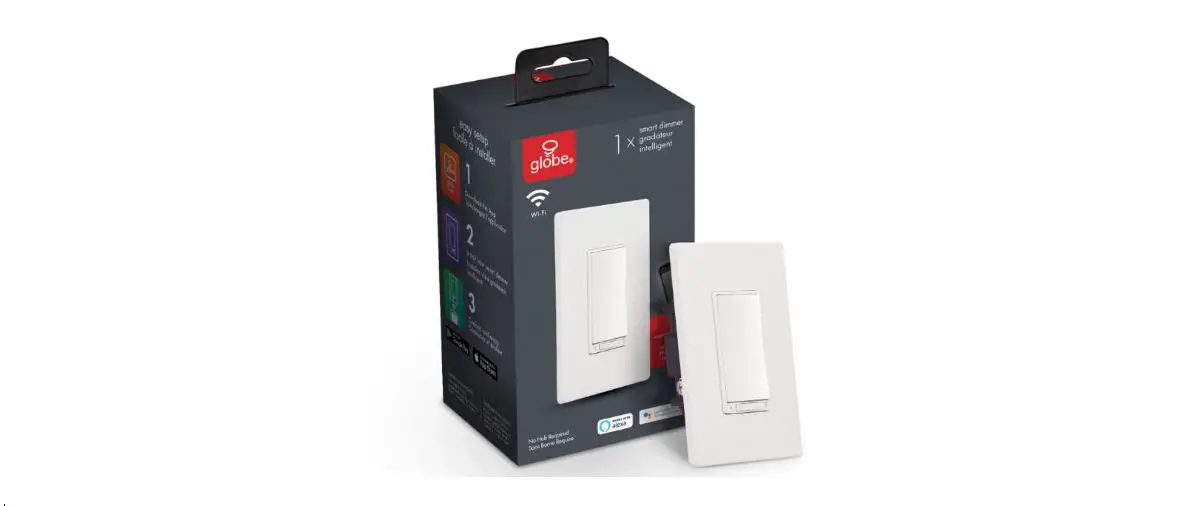
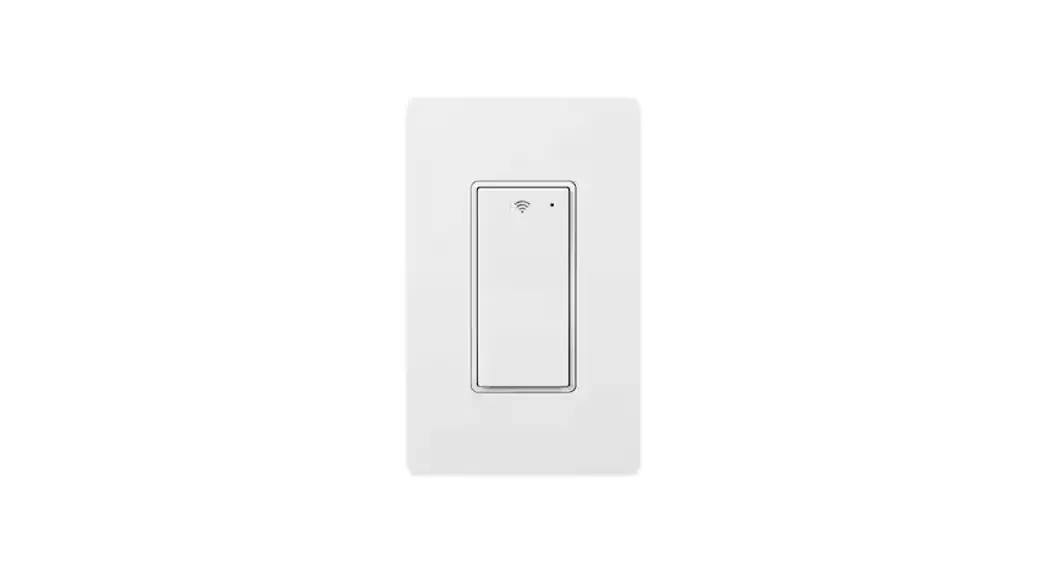
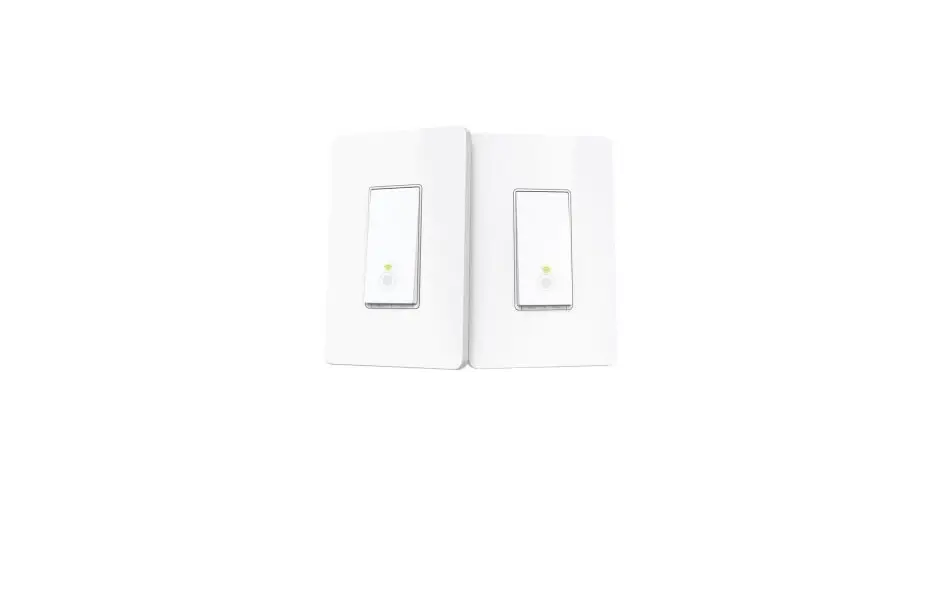
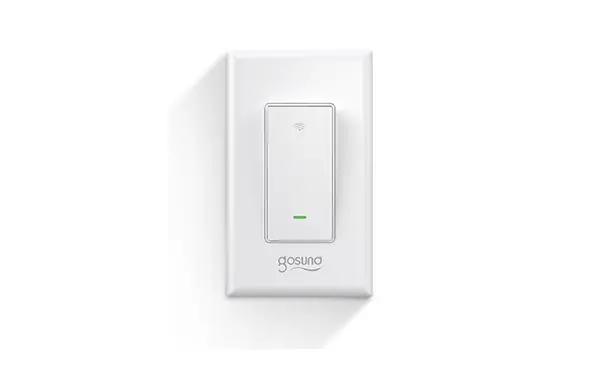
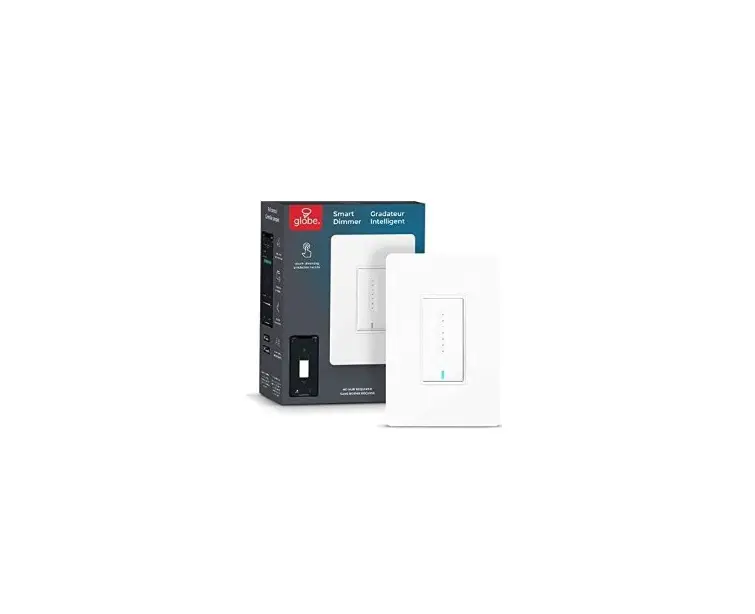
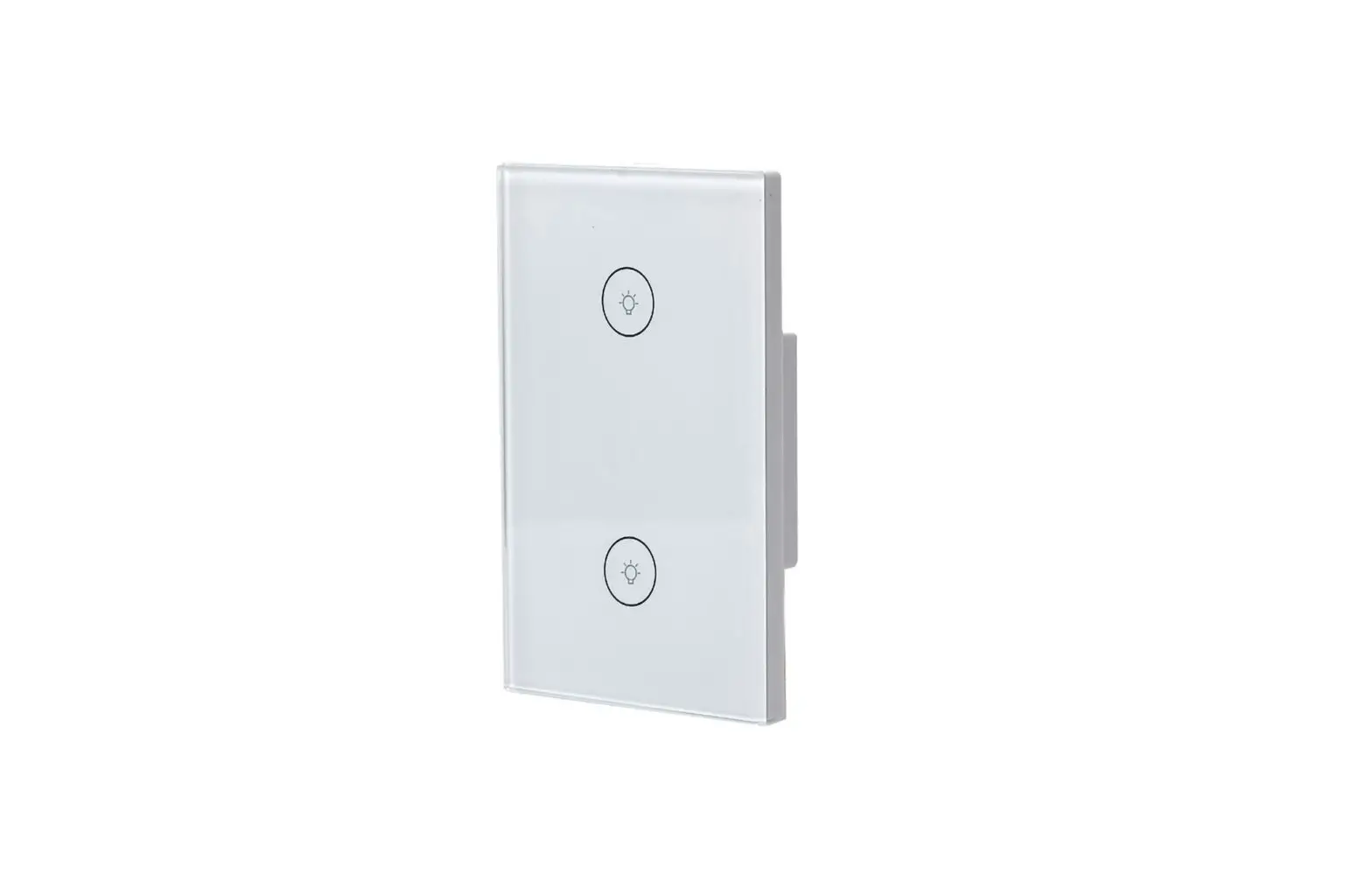
3-WAY SMART SWITCH
Check out the installation video on our website: globe-electric.com/smart
FEATURES
- Back wiring for easier installation
- Perfect replacement for a standard on/off switch,125VAC
- 2 location light control
- Manually or remotely control installed incandescent, CFL and LED light fixtures with the Globe Suite™ app
- Pair with Google Home or Amazon Alexa (sold separately) to control your light fixtures through voice commands
- Schedule lights to turn on/off at desired times
SPECIFICATIONS
- Protocol: IEEE 802.11k:0/gin
- Wireless Type: 2.4G Hz
- Maximum resistive load:15A
- Incandescent: SA
- 3 way compatible
- Neutral wire required
- Voltage:125VAC, 60Hz
FOR YOUR SAFETY
 Most electrical accidents are caused by carelessness or ignorance. If you combine a basic knowledge of electricity, a healthy respect for it, and a dose of common sense, you can safely tackle many household electrical repairs. Here are some basic guidelines for working with electricity:
- Before working on a circuit, go to the main service panel and remove the fuse or trip the breaker that controls that circuit. Tape a sign to the panel warning others to leave the circuit alone while you work.
- Before touching any wire, use a voltage tester to make sure it’s not live. Whenever you check for voltage in a receptacle, check both outlets – each may be controlled by a separate wiring circuit.
- To protect children, place safety covers over any unused outlets.
- Always work with enough light to see what you are doing; it’s easy to make mistakes when you’re working in dim light.
WHAT’S IN THE BOX
TOOLS REQUIRED
WARNING
Improper wiring of any electrical device can cause fire, serious injury or death. Always consult a qualified licensed electrician who will ensure the switch is installed in accordance with local electrical codes and regulations. Before starting installation, ensure power is disconnected at the circuit breaker and test existing switch with a voltage tester.
INSTRUCTIONS – WIRING DIAGRAM
Wiring Diagram
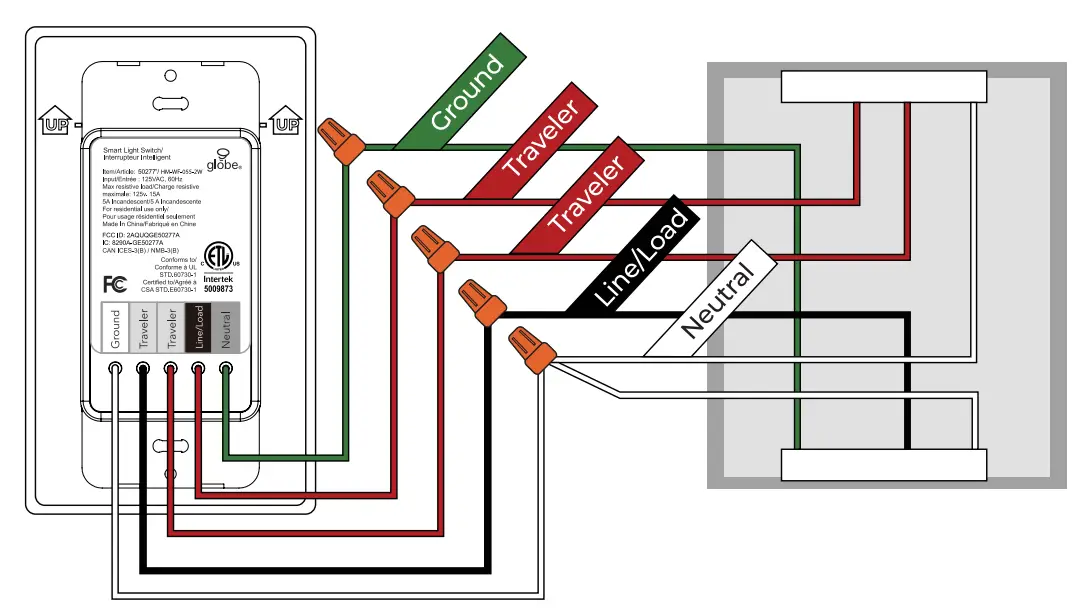
Ground (Optional. The ground wire is suggested to be connected up).
Caution
- Make sure that the power at the circuit breaker is off before wiring
- Not compatible with Smart single-pole, only with a 3-way switch
- Neutral wire is required. Confirm the wall box contains a Neutral wire (typically white)
- The wire colors indicated in this manual are the common colors and may differ in some homes. Please contact an electritian if you have different wire colors.
- Ensure the wire conductors are securly fastened to each wire
Installation
This device is to be installed into a wall box. A standard wall box measures 3″ height x 2″ wide x 2.5″ deep or 12.5 cu-in. For retrofit applications.
- Remove the existing wall plate and screws f rom the wall after having turned off the power at the circuit breaker and tested the outlet with a voltage tester.
- Remove the existing switch from the wall and label the wires with the appropriate stickers included in the box.
- Disconnect the wiring from the old switch.
- Line/Load should be a black wire, please use a voltage tester to verify the power.
- Connect the 3-way smart switch (model 50277) to the existing wiring (See “Wiring Diagram”)
- Wiring: Connect the wires from your dimmer with the appropriate wire in the house
a. Green wire “Ground” to “Ground”
b. Red wire “Traveler 1” to “Line Switched the wire coming from the light fixture”
c. Red wire “Traveler 2” to “Traveler coming from the non-smart switch”
d. Black wire “Line/Load” to ” the common wire from the non-smart switch and the line from the power source”
e. White wire “Neutral” to “Neutral” - Ensure the included wire nuts are securely fastened to each wire.
- Insert the new switch into the wall. Cover with the wall plate and screws provided.
- Restore power at the circuit breaker. Installation is complete.
Front Panel
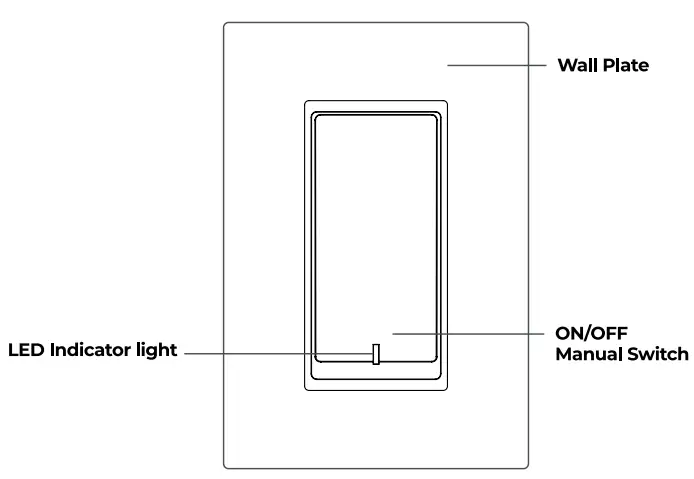
Indicator Light Status
| Light Type | Light Status Dimmed | Switch Status Power OFF | |
| White | |||
| ON | Power ON | ||
| White | Blinking quickly | Ready for default configuration mode (easy mode) | |
| Blinking slowly | Ready for AP (Access Point) configuration mode |
Once installed, you’re now ready to pair with your Globe Suite App (see connecting instructions).
CONNECTING INSTRUCTIONS
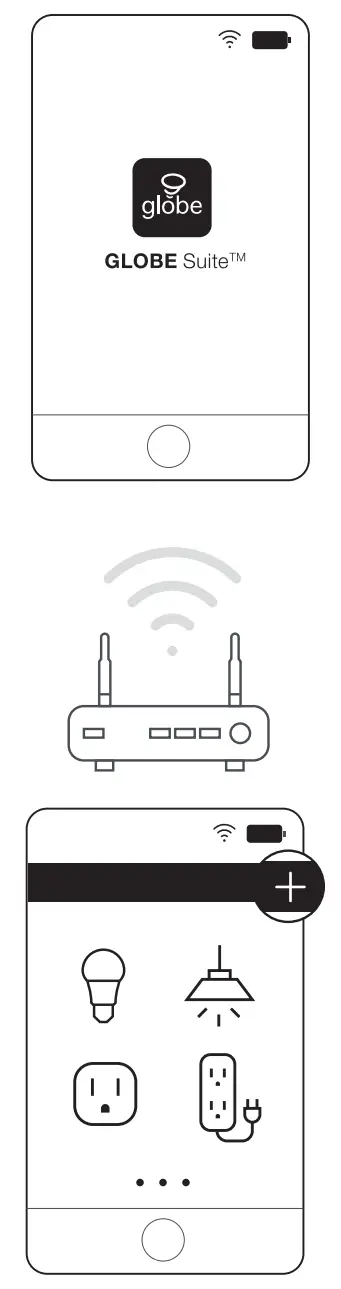
1 Let’s get started!
- Download the Globe Suiten” app from the App Store or Google Play to your mobile device.
- Launch the Globe SulteTM app.
- To register, enter your email address. Create a password, then login to the app. OR
- Login if you already have an account.
2 Verify your network
- Verify your network and ensure your mobile device is connected to a 2.4 GHz Wi-Fi channel.
- Consult your router documentation for detailed instructions on how to change wireless settings.
3 Scan mode
- Power on your device.
- Select the “+” symbol on the top right hand corner.
- Follow instructions within the app.
- If your device is flashing rapidly and fails, try using EZ Mode.
EZ mode
- Select the “+” symbol on the top right hand corner.
- Select “Manual”.
- Select your product type and follow the instructions within the app.
- If the connection fails, try using AP mode.
AP mode
- Select the “+” symbol on the top right hand corner.
- Select “Manual”.
- Select your product type.
- Open the menu on the top right hand corner and select “AP mode”.
- Follow the instructions within the app.
- You’re good to go!
Did you know?
Most modern routers are dual band meaning they support both 2.4 GHz and 5 GHz channels. The most common wireless options are:
- Mixed: The router will broadcast both 2.4 GHz and 5 GHz simultaneously under the same SSID. The device will choose which to connect to based on multiple variables (congestion, distance to router, etc.).
- 2.4 GHz: Broadcast only on this channel.
- 5 GHz: Broadcast only on this channel.
- Dual 2.4 and 5 GHz using Separate SSIDS: Router will broadcast both channels and user manually decides which to connect to.
TOUBLESHOOTING GUIDE
| Possible Problem | Possible Cause | Solution |
| Unable to turn the switch on/off manually | Incorrect wiring | Make sure the switch is wired correctly |
| No electricity | Check the circuit breaker, make sure that the power is restored to the switch | |
| The light bulb is broken or is not compatible | Replace the bulb with a compatible light bulb | |
| The switch won’t respond to APP control | Network delays or is disconnected | Check your network connectivity |
| Permission is denied by your phone | Grant permission on our phone settings | |
| The switch is out of order | Manually switch on to check the switch | |
| Your light bulb is blinking when switched off | Electric leakage occurs or the light bulb and the switch are not compatible | Rewire or replace the light bulb |
| The switch can’t connect to the app | Enter wrong Wi-Fi password | Enter correct Wi-Fi password |
| Weak Wi–Fi signal | Check Wi–Fi signal | |
| Unable to connect to Wi-Fi | Confirm your home Wi-Fi is 4G network |
Since 1932, Globe has taken pride in offering products of the highest quality, and a level of service unparalleled in the industry. Should you encounter any difficulties, have any questions or simply wish to offer us your valuable feedback, you may contact us in the following ways: Toll Free Telephone:1-888-543-1388 (North America Only)
Toll Free Fax:1-800-668-4562 (North America Only)
E-Mail: [email protected] / Mail: Globe Electric Customer Service Department 150 Oneida, Montreal, Quebec, Canada FOP 1A8 Please visit our website to discover other quality Globe products: http://www.globe-electric.com
50277