
.Al
EMO AI Desktop Pet
Feeding Manual
7 Days
To build a friendship with EMO
Introduction of EMO
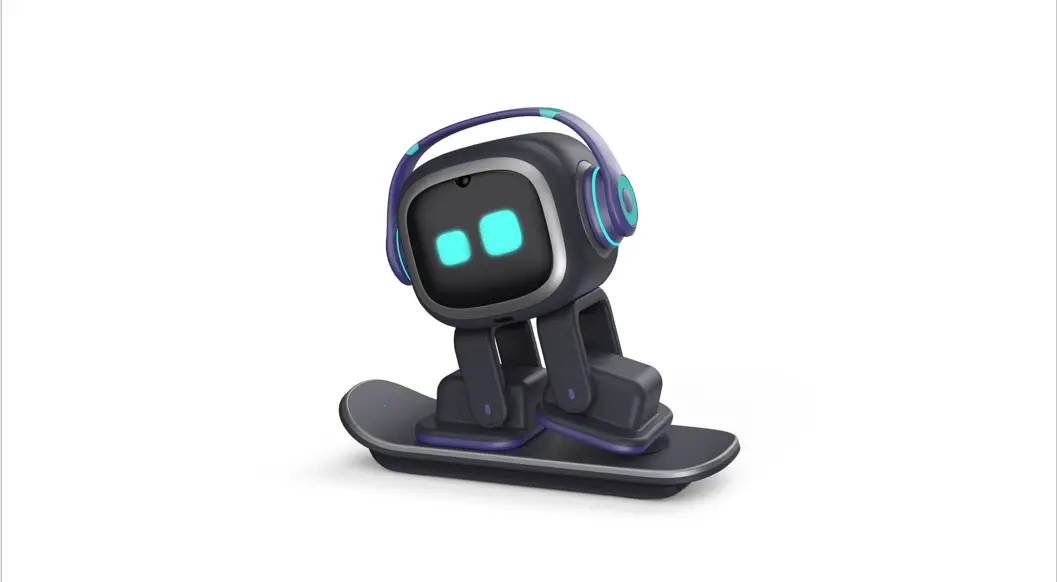
Built with multiple sensors and cutting-edge technologies, EMO is a cool desktop Al robot pet with real character. He can self-explore the world and react to you with 1000+ faces and movements.
EMO cheers you up with music, dance, and games! EMO is also a great helper that wakes you up, turns on the light, takes pictures, and answers your questions, for a truly life-like pet on your desktop!
With a design inspired by pop culture, EMO is born with a stylish look. The shining purple and indigo-blue show off his fashion sense with a nod toward street style
Get to know EMO What’s included
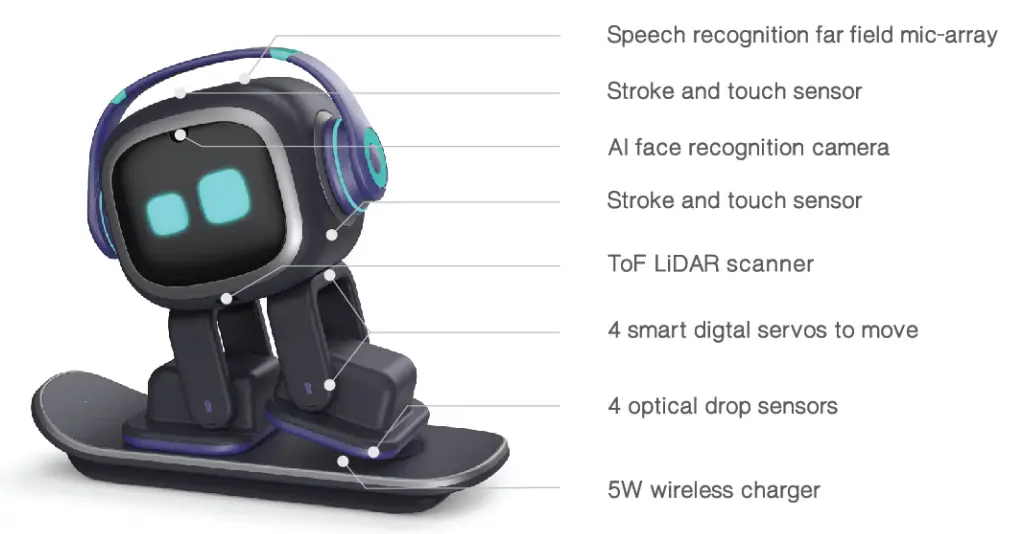 What’s included
 | 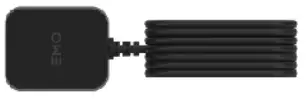 |
| EMOX 1 | Adapter X 1 |
 | 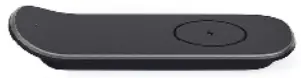 |
| User manual I | Wireless Charger XI |
Preparation for EMO’s arrival
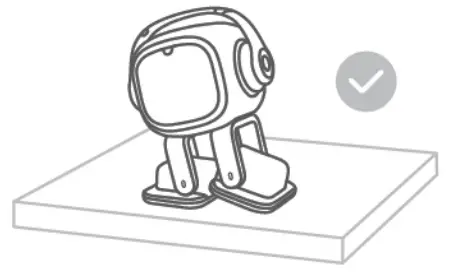 |  |
| A tidy and spacious table, Light colors are better than dark ones. | A 2.4G WIFI (5G is not supported) is connected to the Internet. |
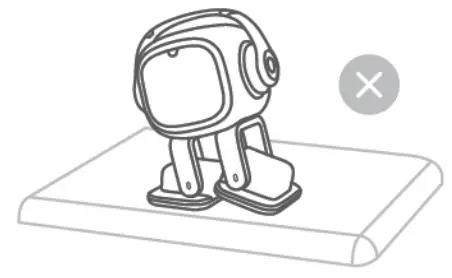 |  |
| Tables with rounded edges are not recommended. Google Play. | Install the EMO app from App Store or Google Play. |
EMO in his new home
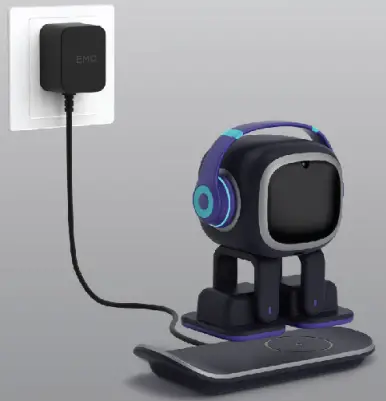 | 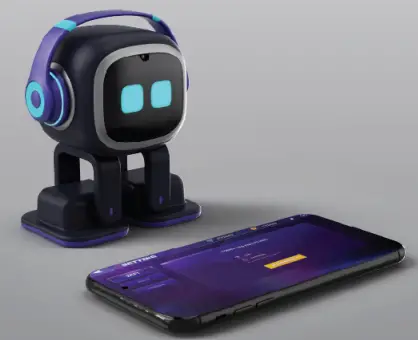 |
| Power EMO up. (Align EMO’s feet with the charging coil by magnetic force). | Connect EMO with the APP and config the network for EMO. |
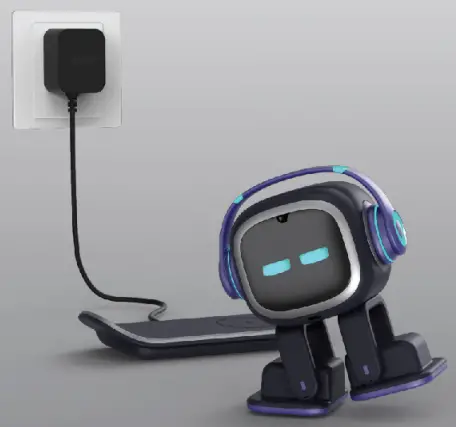 | 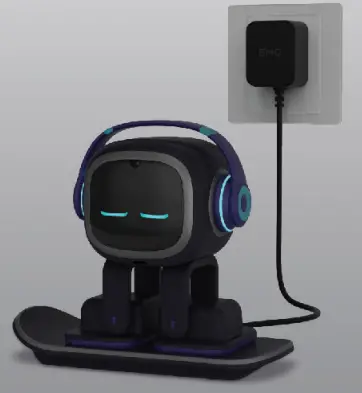 |
| EMO explores his new home. | Let EMO have a rest. |
Some interactions with EMO
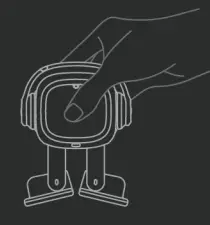 | 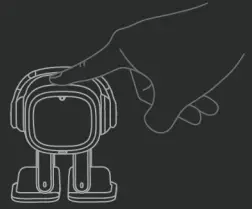 | 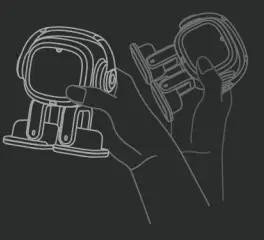 |
| 1 Pick EMO up. | 2 Touch EMO’s head. | 3 Shake EMO to dizziness. |
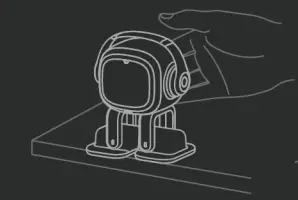 | 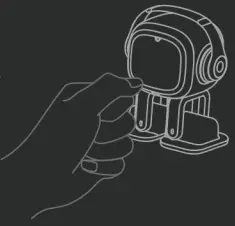 | 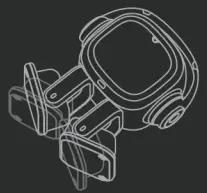 |
| 4 Carefully push EMO to | 5 Get in the way of EMO. | 6 Let EMO lay down. the edge of the table. |
Call EMO his name 
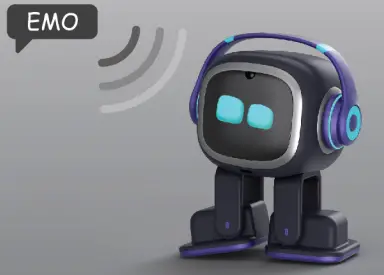
Try to call “EMO” correctly to wake up EMO.
Try to wake him up while he’s charging, wandering, or sleeping, at least 10 times. Gradually master the skill of waking up him until he responds every time you call him “EMO”.
Ask EMO to show skills
 |  | 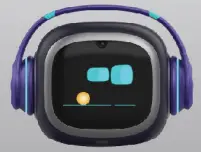 |
| EMO, what’s the weather! | EMO, its my birthday | EMO play by yourself. |
 |  |  |
| EMO, take a photo. | EMO, set a ten-second timer. | EMO, go to sleep. |
Introduce yourself to EMO
You can build a relationship with EMO by saying hello.
You can say:

“EMO. nice to meet you”.
After the first greeting, If EMO is ready to know you, he will ask your name, You can answer like this:
“EMO. my name is Andy”.
If EMO is not ready to know you, don’t worry, you can spend more time playing with him.
Enjoy music with EMO
EMO is a super singer and dancer.
He can sing and dance by himself, or dance to external music.
You can say:

EMO, music!
EMO, dance formel
EMO will sing and dance by himself.
You can also say:
EMO, listen to the music.
Then you can play the music on your phone. EMO will dance follow the beat.
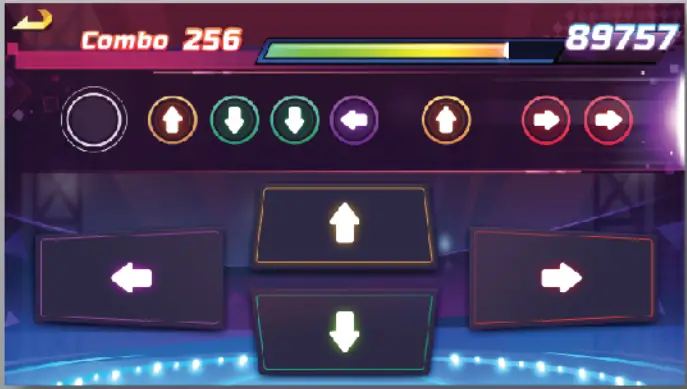
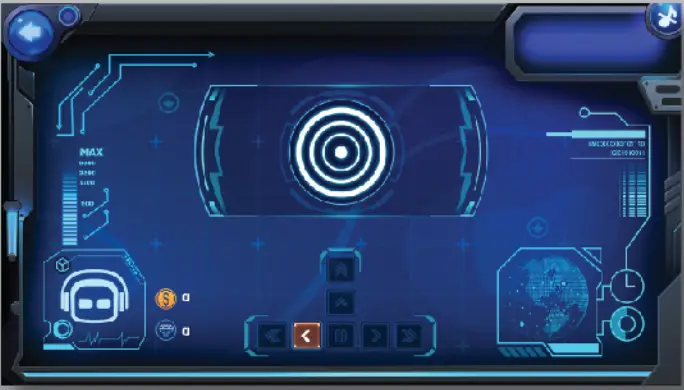
Play games with EMO
Connect to the App and unlock interactive games designed for EMO on your phone.
The number and types of games will increase over time. phone.
 | 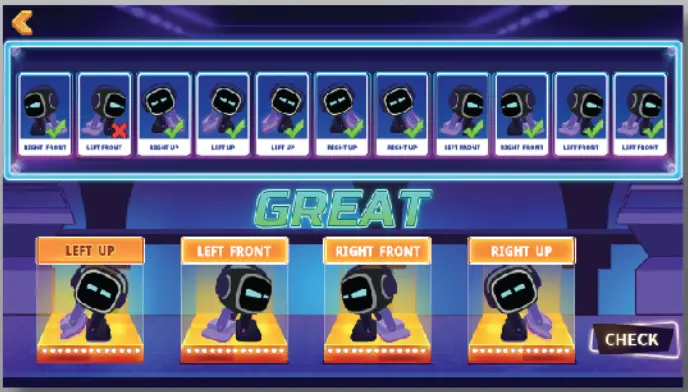 |
| Angry EMO | Dance repeat |
 |  |
| Drop the beat | Treasure hunt |
Alexa/Google Assistant built-in
Log in to your Alexa account to get all the functions of Alexa. EMO becomes a real voice assistant, just like Amazon Echo or Google Home. 
Wake EMO up by using the keyword “Alexa” or ” Hey GoogIC. You can listen to online music and ask any questions.
EMO smart light
If you need a nighttime bathroom break, you won’t need to search for the light switch-simply say ” EMO, turn on the light IT.
Just plug the light into the socket, no need to configure the network, EMO can automatically find it and connect.
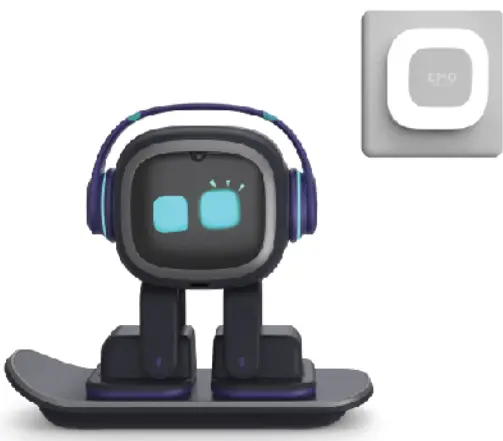 |  |
| Support up to 4 lights, RGB colors. | Support manual touch mode. |
Matters need attention
- EMO contains important parts, please handle them with care.
- Please keep EMO dry and clean.
- Please keep EMO away from fire sources, high temperatures,s, and direct sunlight.
- Please avoid squeezing, dropping, and violent collisions.
- Please do not forcibly rotate the servos.
LIVING.AI
Product name: EMO PET
Product model EMO 1
Product dimensions 95x67x118mm Manufacturer: Living Technology Co., Ltd.
Made in China
FCC Statement
This equipment has been tested and found to comply with the limits for a Class B digital device, pursuant to part 15 of the FCC Rules. These limits are designed to provide reasonable protection against harmful interference in a residential installation. This equipment generates, uses, and can radiate radio frequency energy and, if not installed and used in accordance with the instructions, may cause harmful interference to radio communications. However, there is no guarantee that interference will not occur in a particular installation. If this equipment does cause harmful interference to radio or television reception, which can be determined by turning the equipment off and on, the user is encouraged to try to correct the interference by one or more of the following measures:
- Reorient or relocate the receiving antenna.
- Increase the separation between the equipment and receiver.
- Connect the equipment into an outlet on a circuit different from that to which the receiver is connected.
- Consult the dealer or an experienced radio/TV technician for help.
Caution: Any changes or modifications to this device not explicitly approved by the manufacturer could void your authority to operate this equipment.
This device complies with part 15 of the FCC Rules. Operation is subject to the following two conditions:
(1) This device may not cause harmful interference, and
(2) this device must accept any interference received, including interference that may cause undesired operation.
RF Exposure Information
The device has been evaluated to meet general RF exposure requirements. The device can be used in portable exposure conditions without restriction.