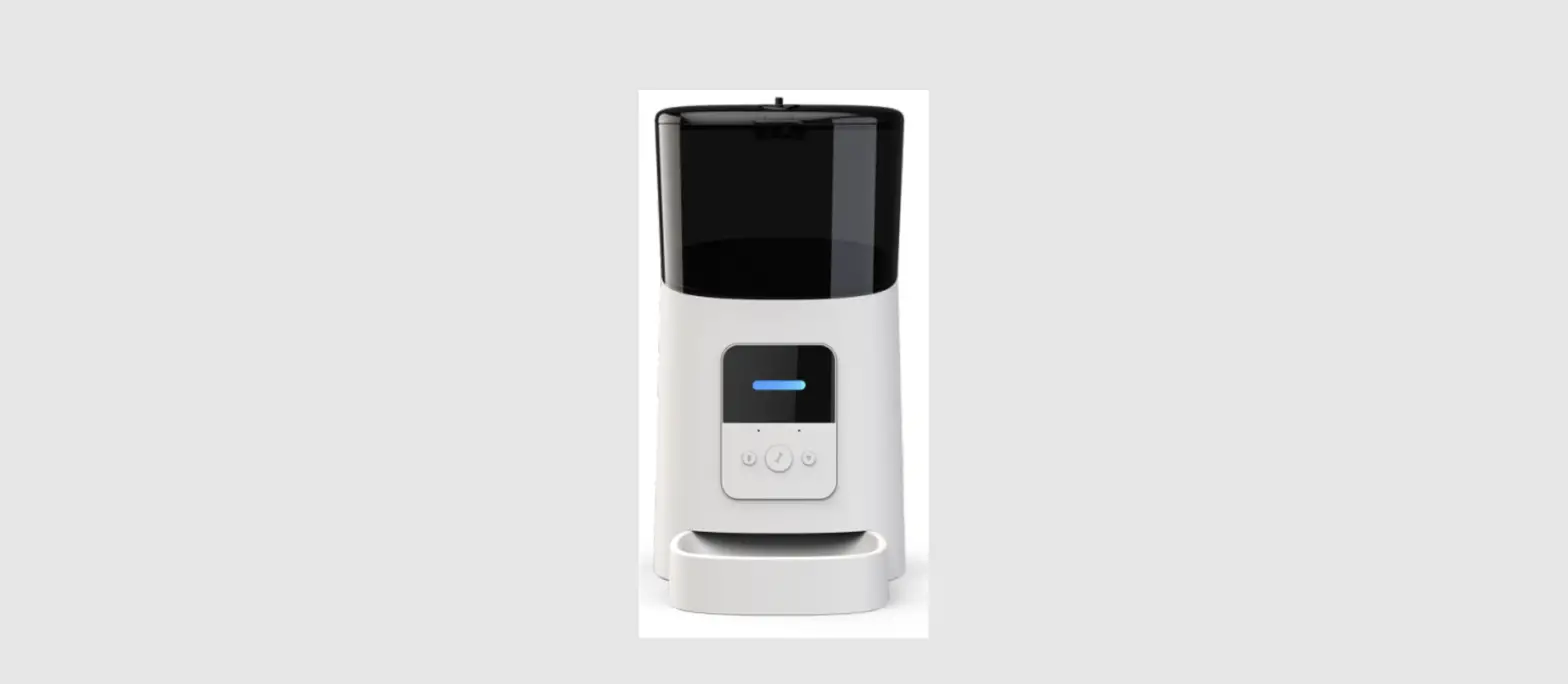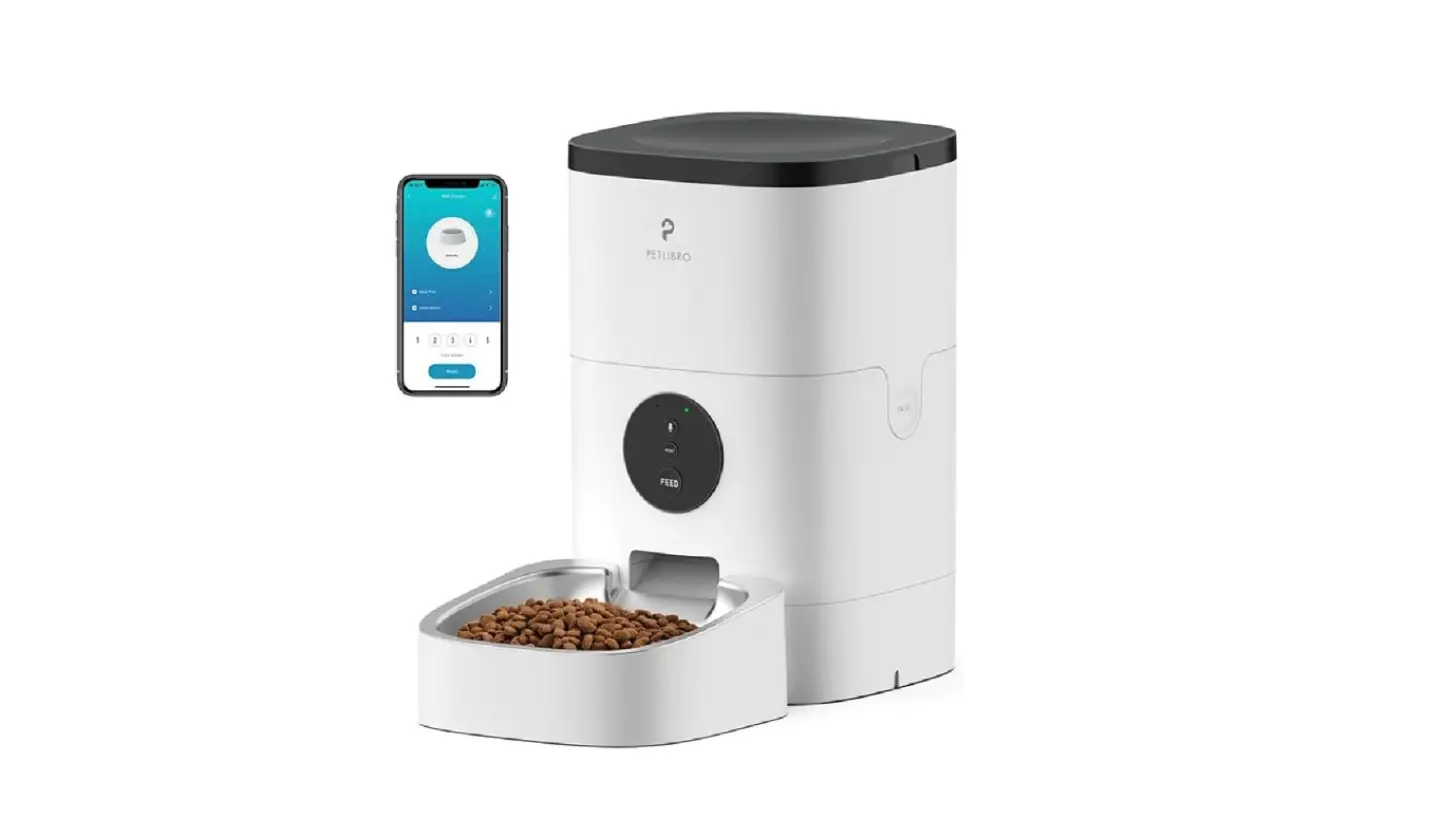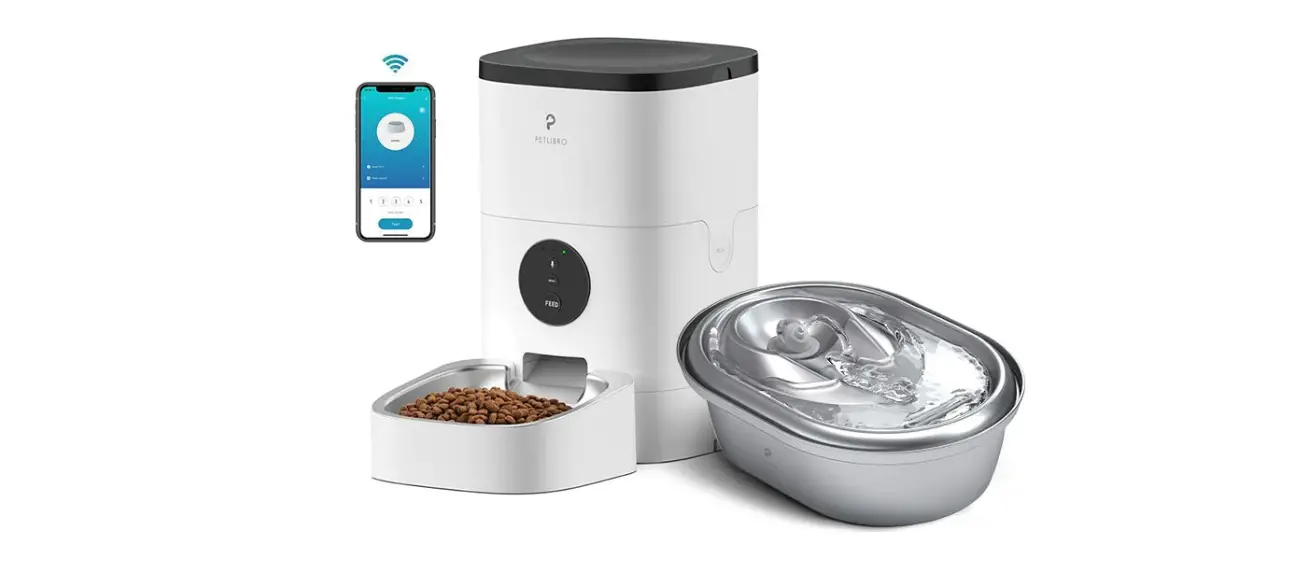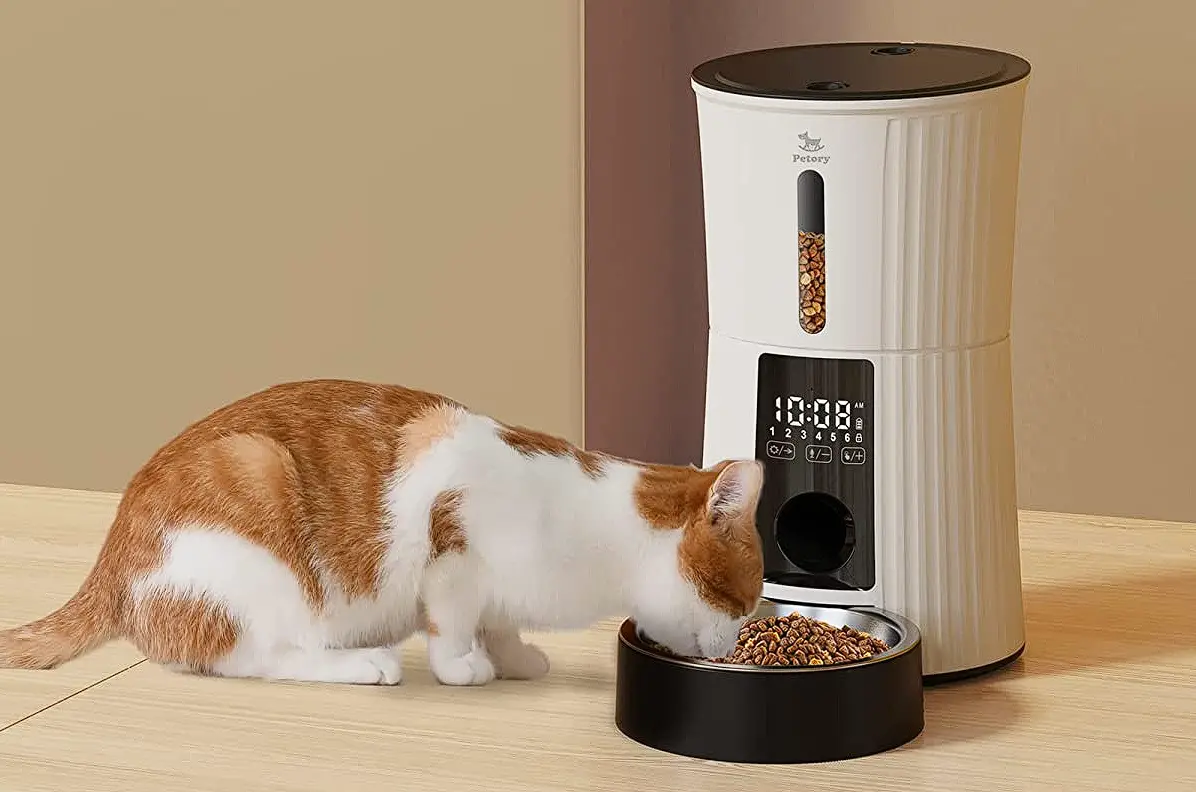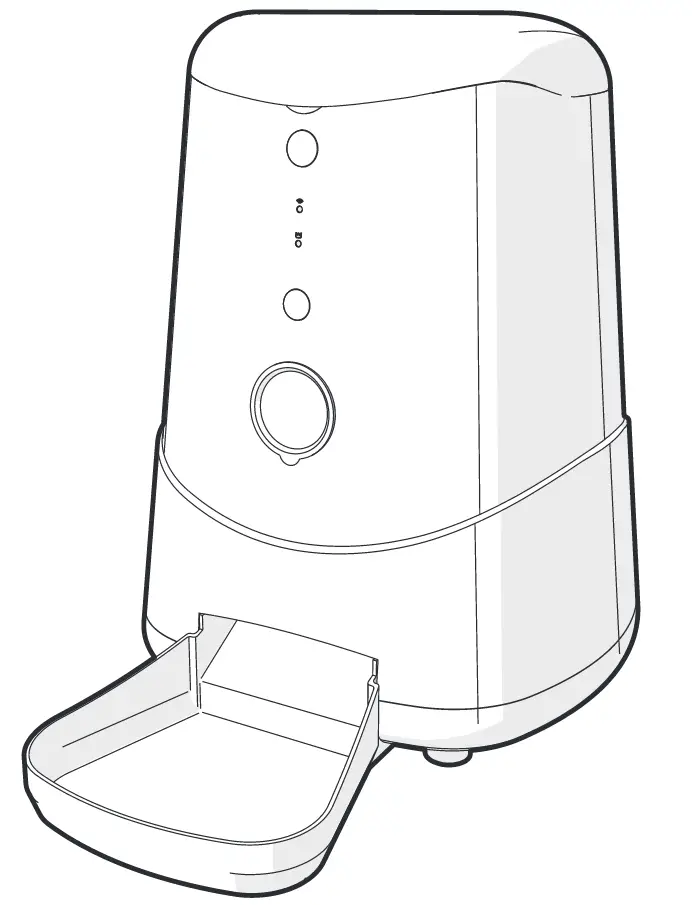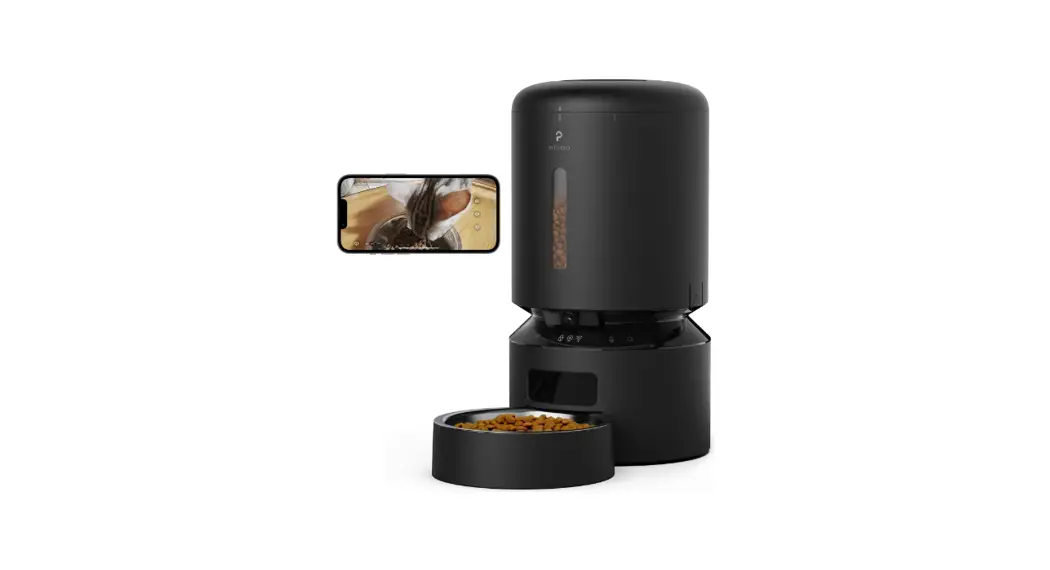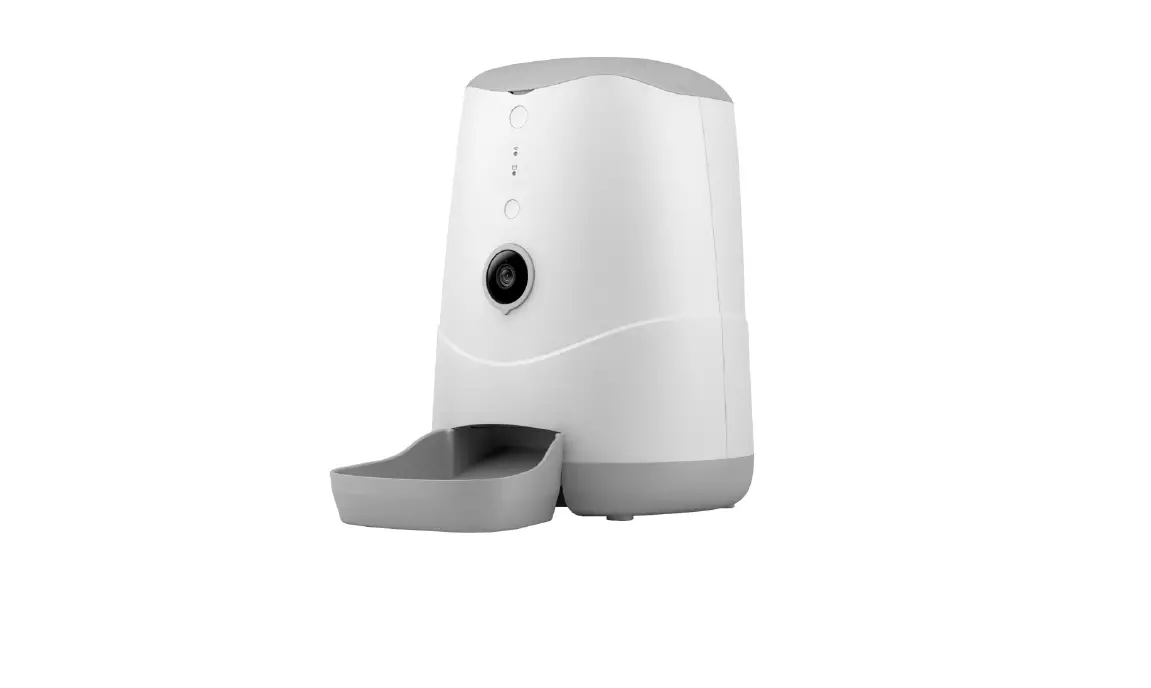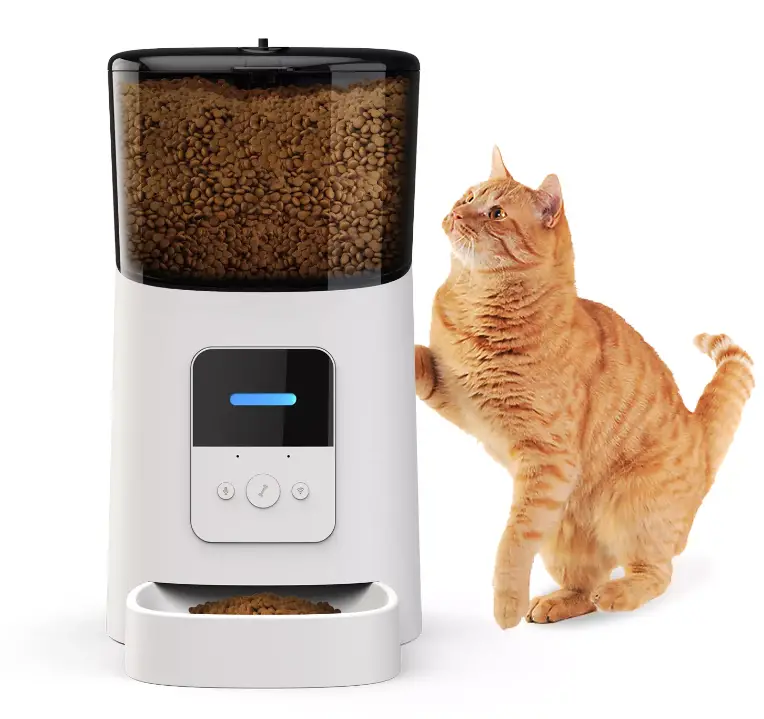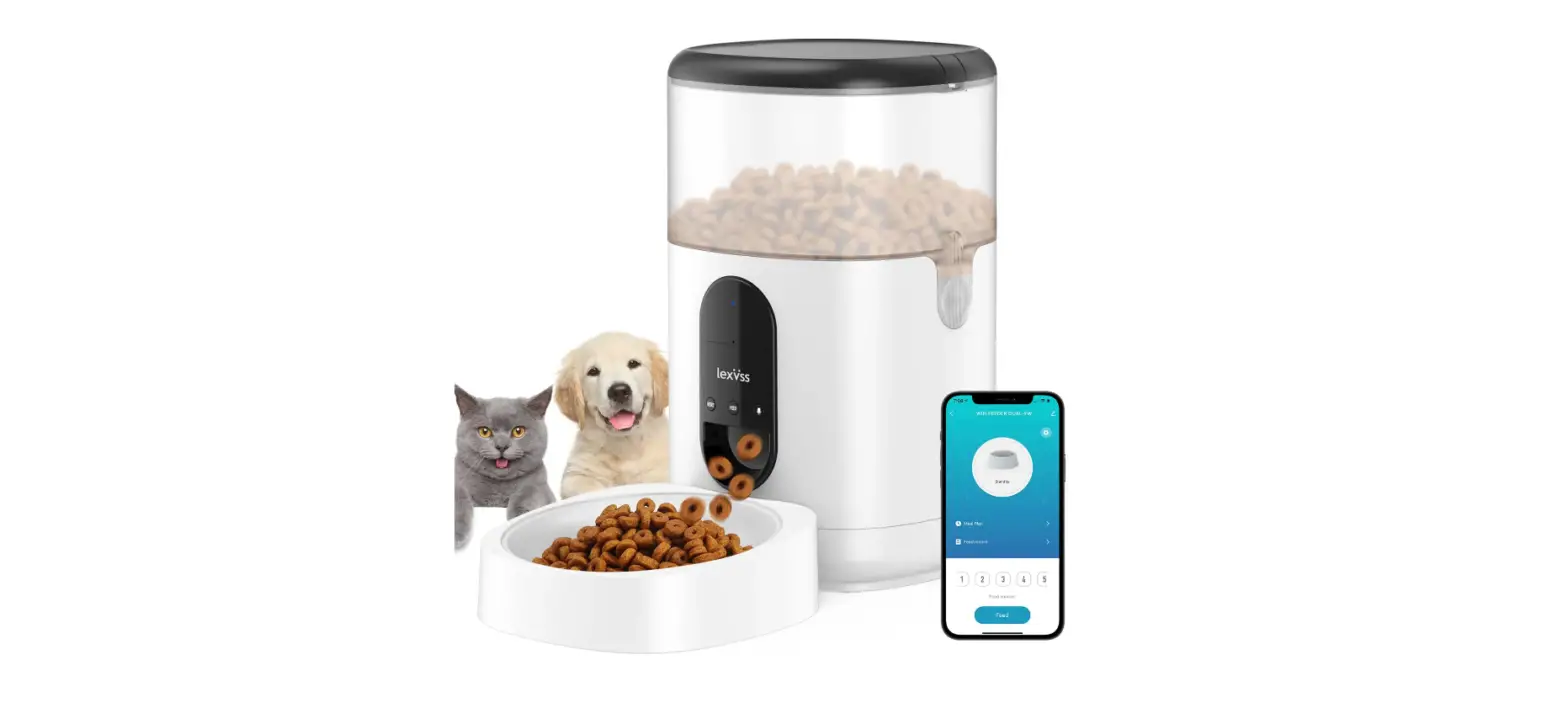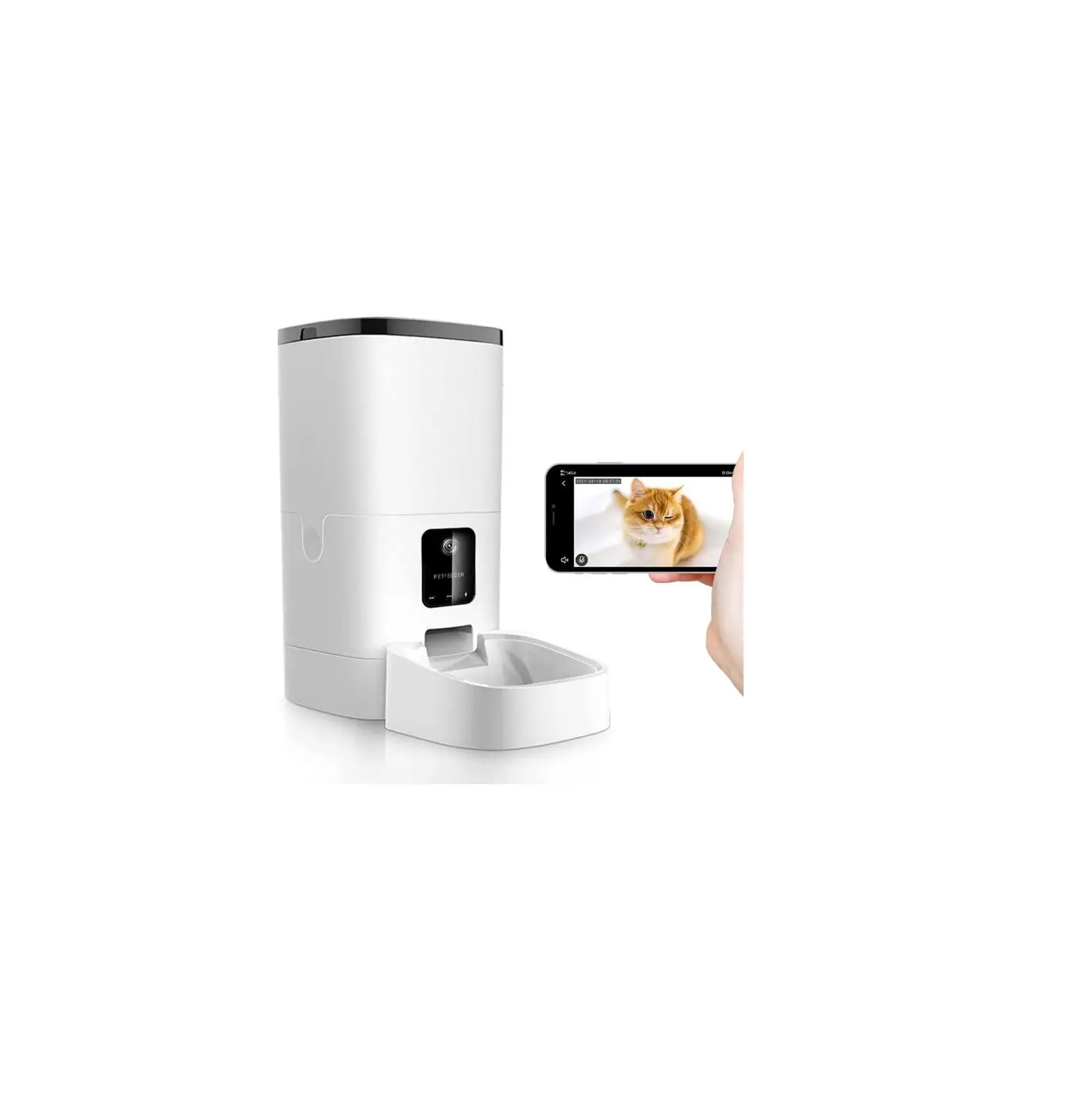
lexvss B08TBDGYY5 Automatic Cat Feeder Wifi Connection User Guide
Prepare to start the connection
- Connect your phone to 2.4G Wi-Fi
- Turn on your phone Bluetooth function.
- Start the feeder device into Pairing Mode(Blue light Rapidly flashing).
- Turn on the location access on your phone(First connection).
Download”Tuya Smart”APP, register an account and log in. Click “Add Device”.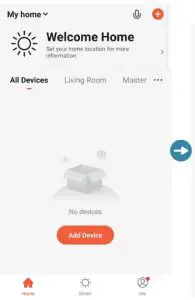
Select the “Auto Scan”. then “Start scaning”.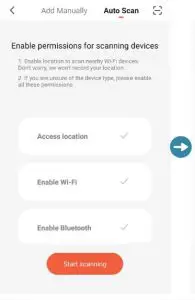
Found the feeder. Go to Next.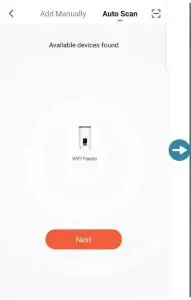
Confirm your WiFi and Password.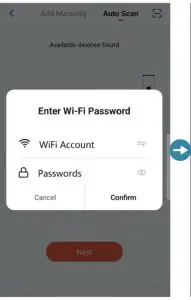
Waiting for the feeder connect to the network till 100% Connected.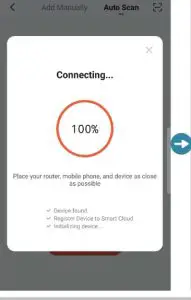
Added Successfully and can rename the feeder. Click “Done”.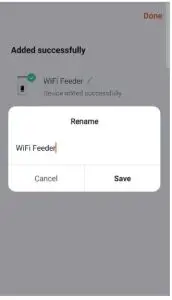
WIFI SETTING TIP
Your WiFi name can’t contain Chinese, and the WIFI password is composed of no more than 12 digits and letters. Special symbols are not supported, such as “!” “&” “%” “$” etc.
Setting feeding program interface. Click “Feed” for manually feeding.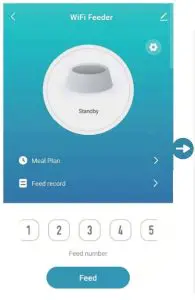
Click “Meal Plan” to set feeding schedule.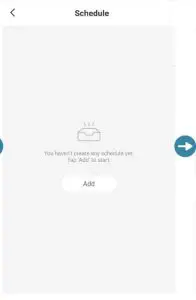
Setting the timer and Feed number Then” Save”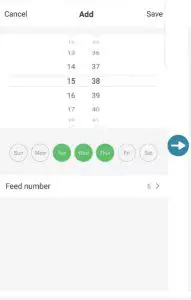
Click”Feed record” to check feeding history.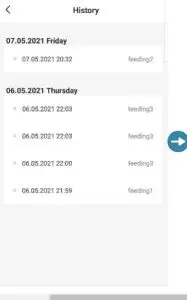
Click top right modify icon to revise more information.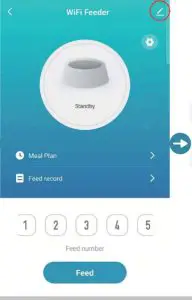
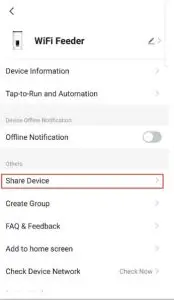
Share feeding shedule with your family or friends.