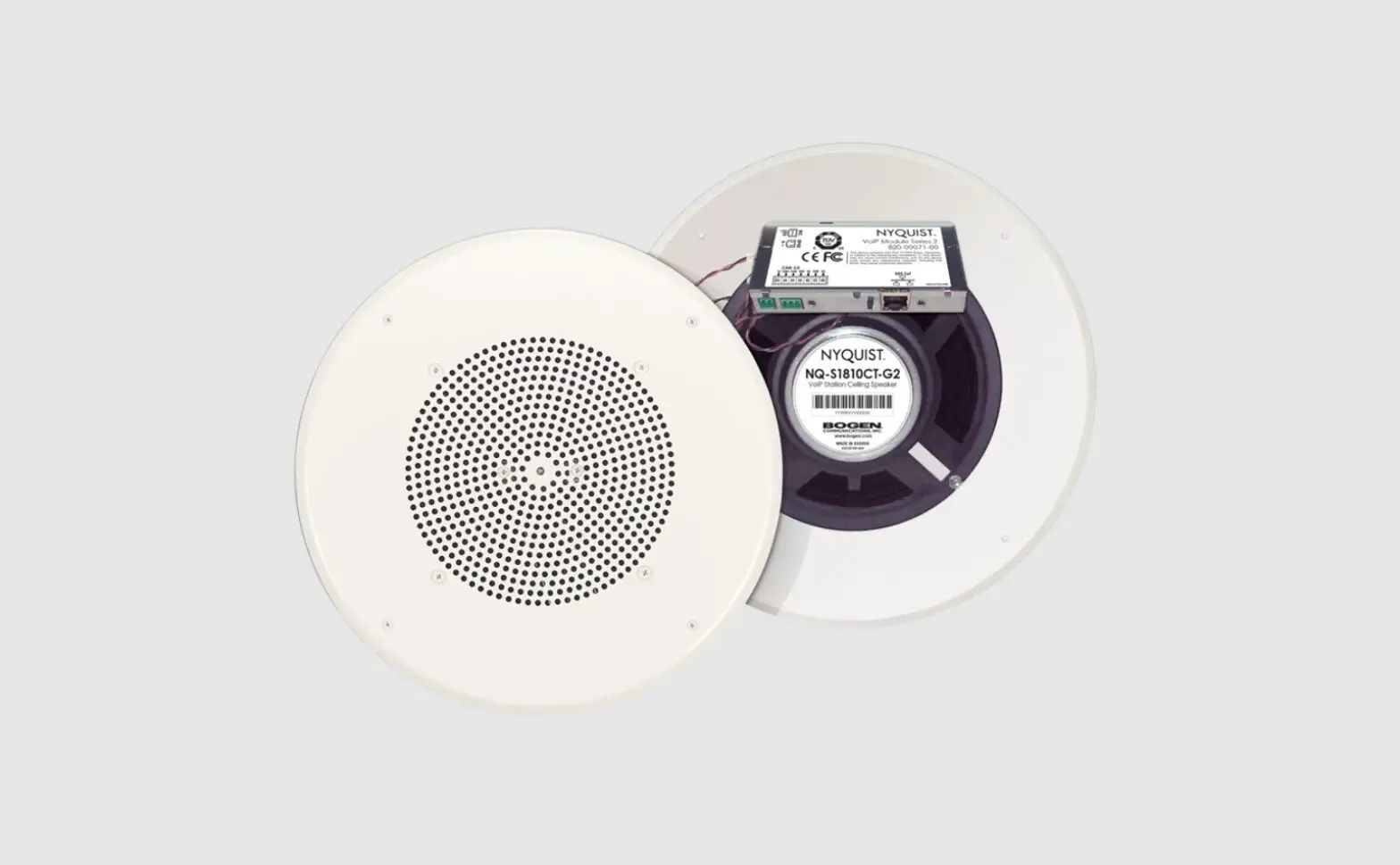
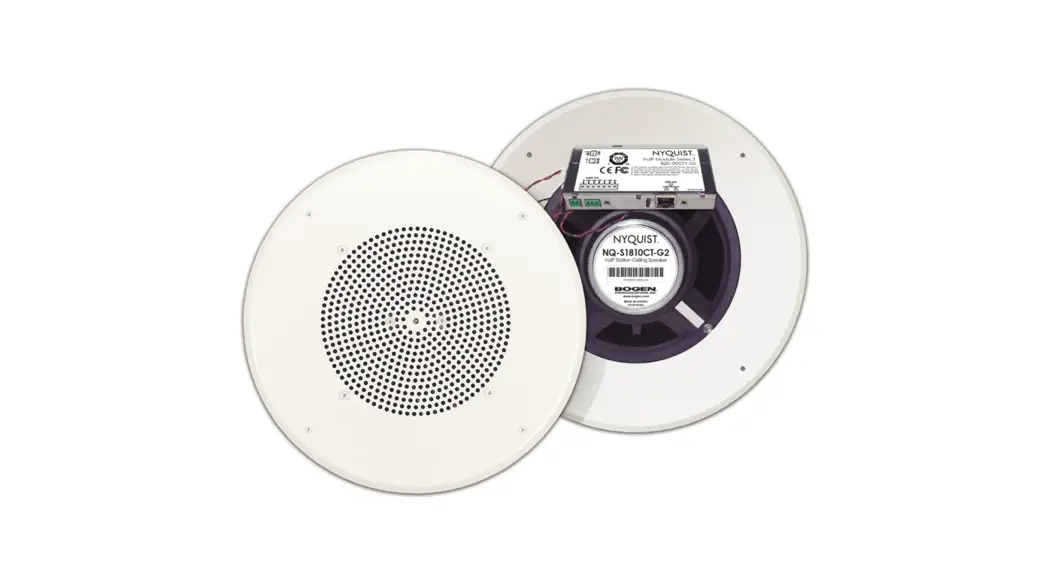
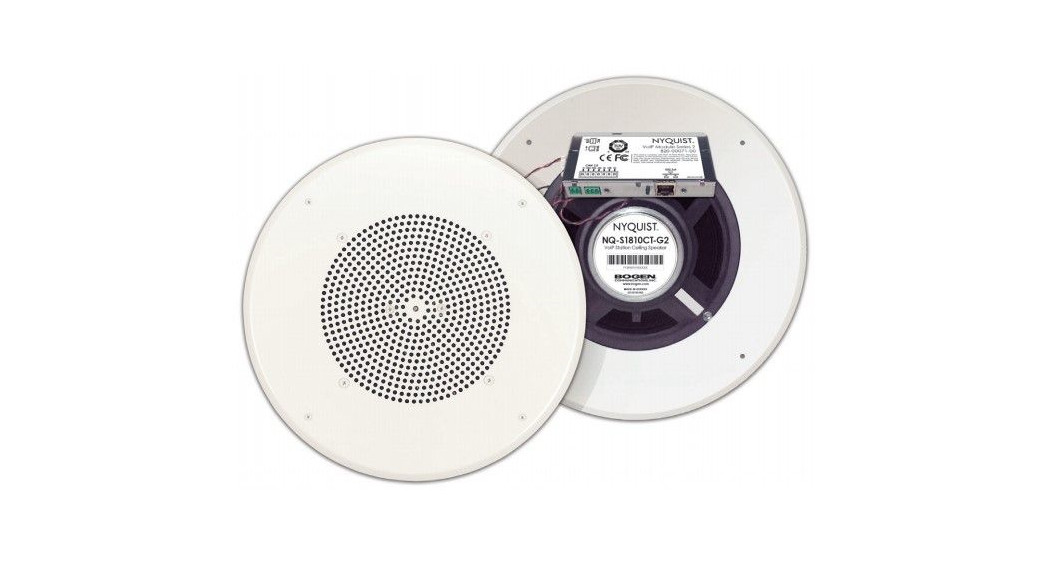
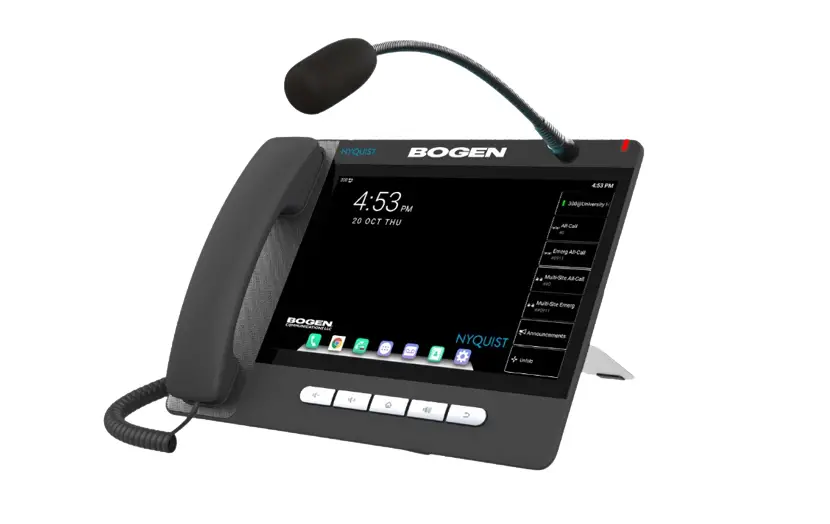
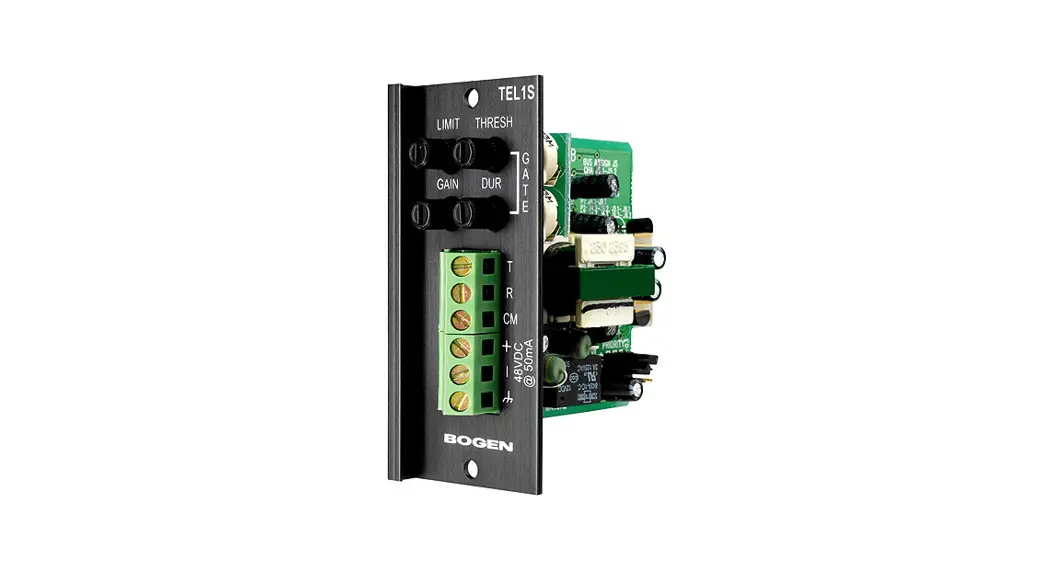
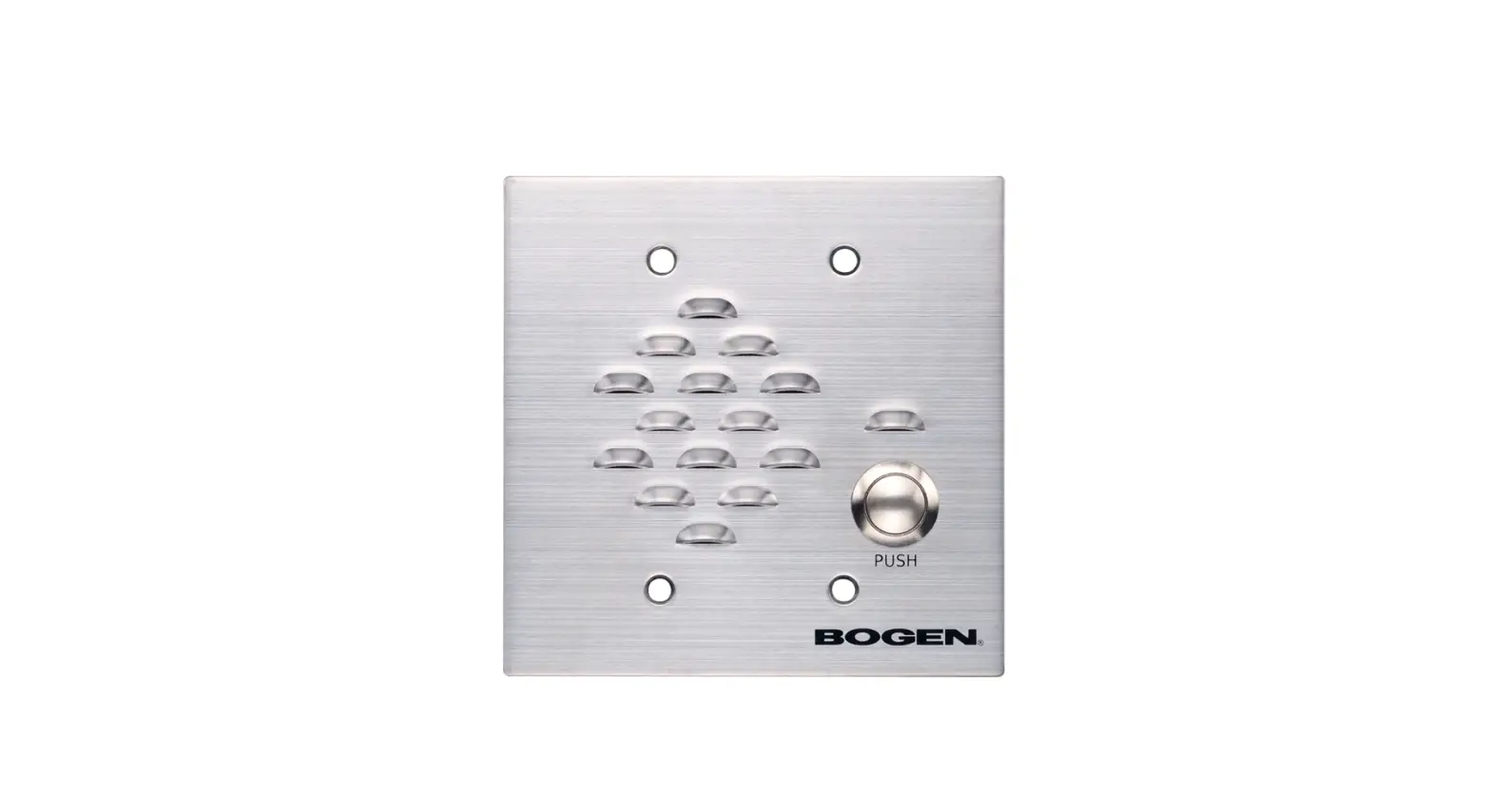
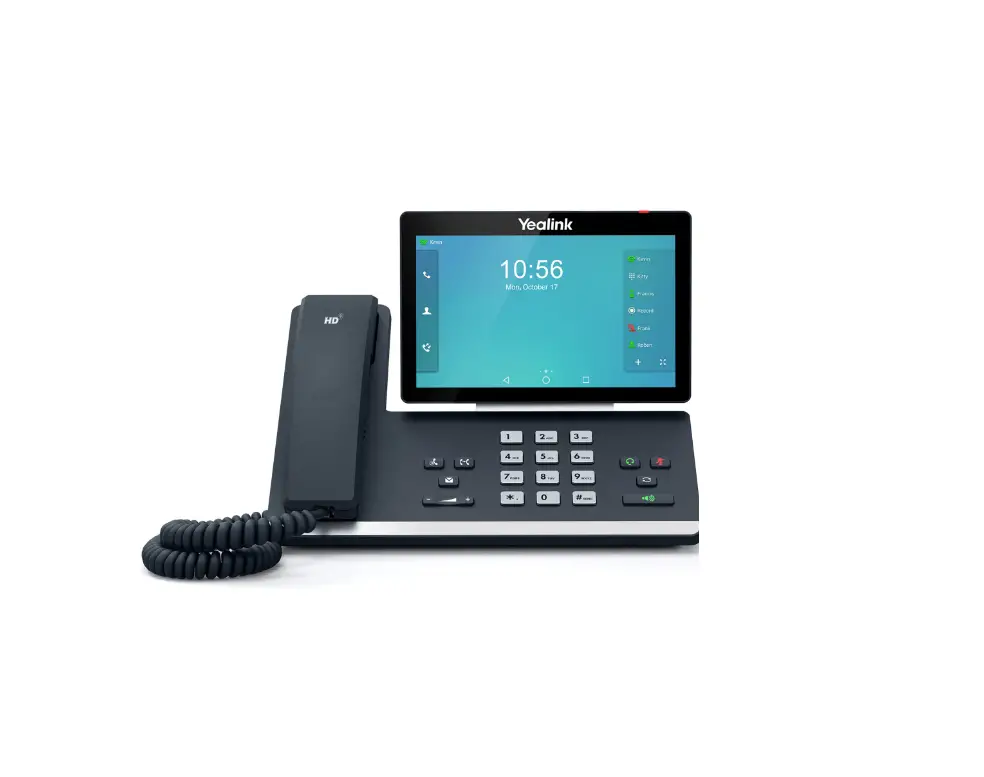
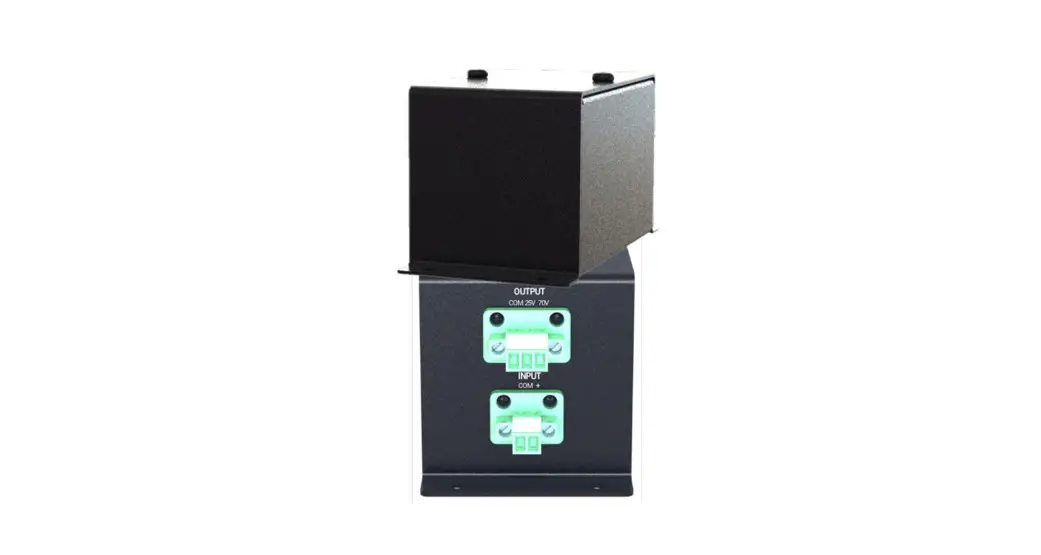
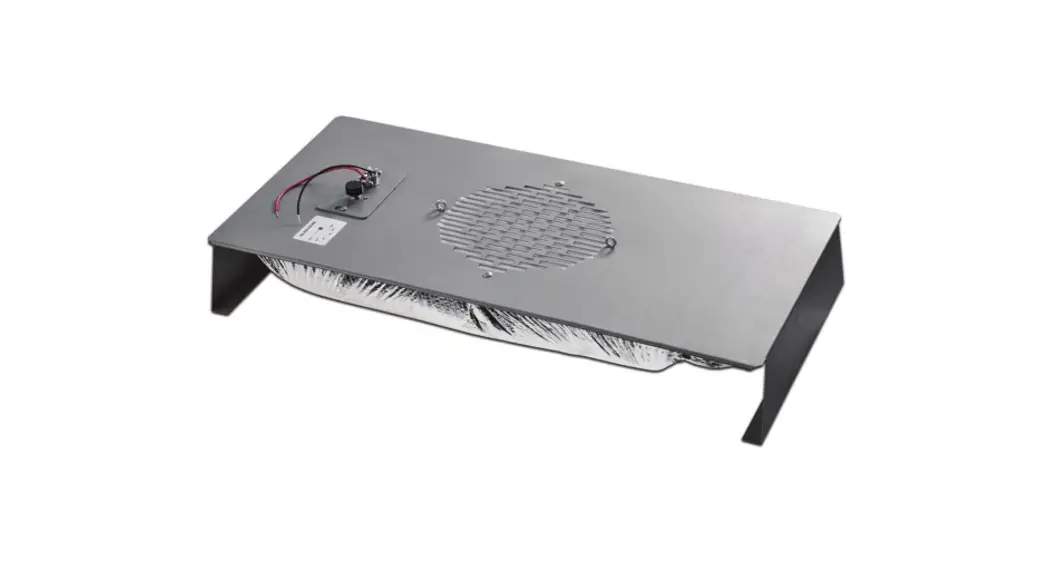
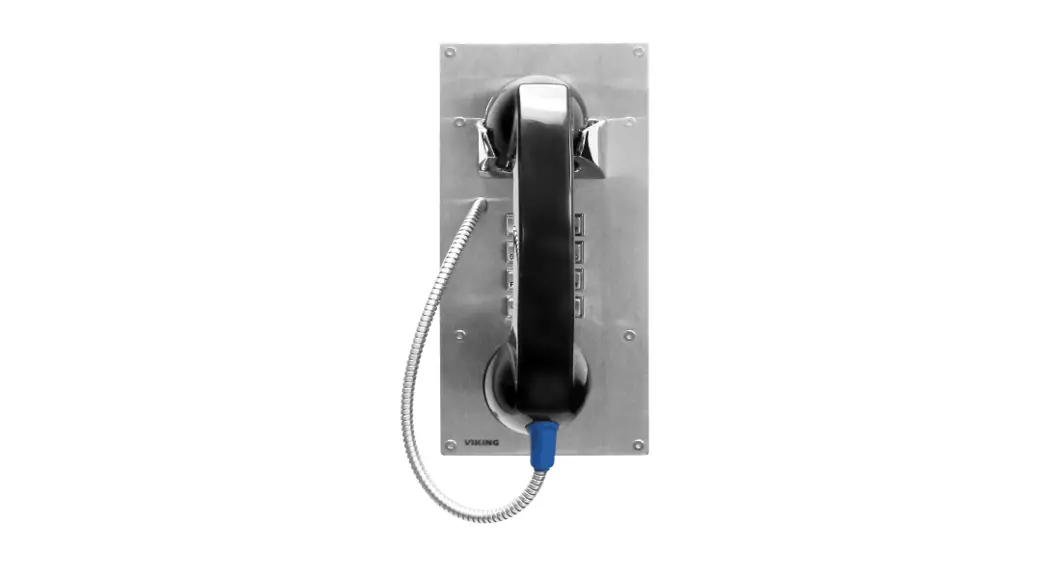
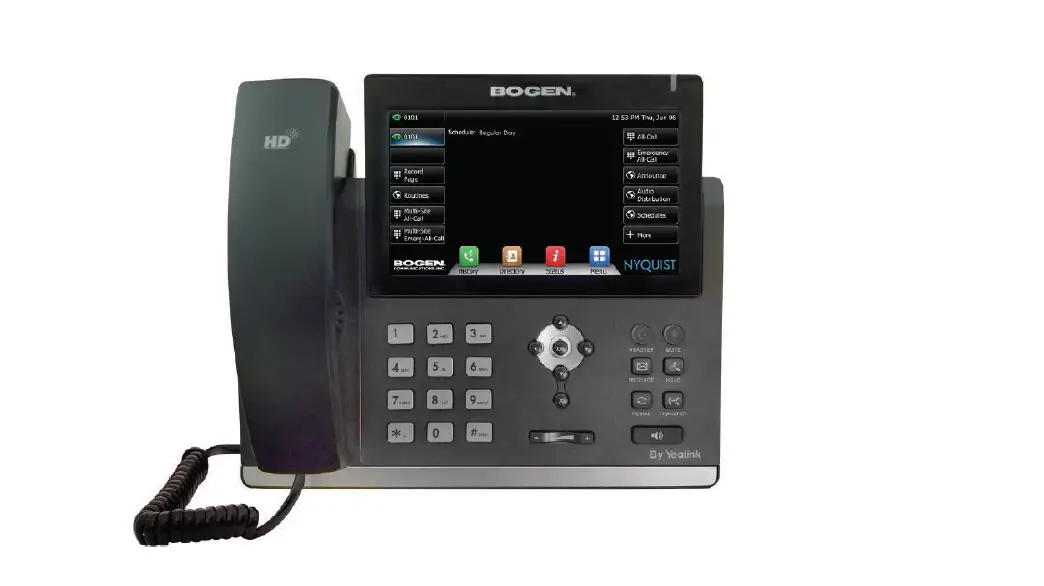
NQ-GA10P Nyquist VoIP Intercom Module
Product Information
The Nyquist VoIP Intercom Module is a plenum-rated device that
allows you to transform any low-impedance analog speaker into a
full-featured Power-over-Ethernet (PoE) IP speaker. This module
utilizes the latest technology to deliver superior audio quality,
making it perfect for IP paging and audio distribution. It also has
built-in talkback capability, making it suitable for VoIP intercom
applications.
These intercom modules are available in two variants: NQ-GA10P
(without HDMI video output) and NQ-GA10PV (with HDMI video output).
They are equipped with a CAN bus interface for compatibility with
the NQ-E7020 Digital Call Switch and a Form-C relay for controlling
third-party devices, such as A/V override equipment.
When combined with Bogen’s ANS500M microphone module (optional),
these intercom modules can function as ambient noise sensors,
helping to maintain intelligibility of paging and background music
in high-noise environments. Alternatively, they can be paired with
the Bogen DDU250 Dynamic Desktop Microphone to serve as
push-to-talk microphone stations, enabling preconfigured zone pages
or All-Call pages, including Emergency and Multi-Site
announcements.
The VoIP Intercom Module can be automatically discovered and
configured by the Nyquist server or System Controller. However, it
also offers a web-based user interface (web UI) for manual
configuration and management of certain settings.
The module features a Reset button that can be pressed for two
seconds to reboot the device. Pressing the Reset button for 10
seconds will restore the device to its factory default
configuration settings, without affecting the firmware.
Product Usage Instructions
- To access the appliance’s Web-based user interface (UI):
- Before accessing the web UI for the first time, ensure that the
Bogen Certification Authority (CA) Status or Appliance Status is
selected. Then, navigate to the device you want to configure and
click on the Link icon. - At the Login page of the Nyquist appliance, enter the username
and password. Press Enter or click on the Login button. The default
username is admin, and the default password is
bogen. - After a successful login, a warning will be displayed if the
default password is still in use. We strongly recommend changing
the default password as soon as possible. Once logged in, you will
be presented with the dashboard for the appliance.
- Before accessing the web UI for the first time, ensure that the
The dashboard provides information about the device, including
its Device Type, Serial Number, and MAC Address. These fields help
identify the model, serial number, and unique MAC address assigned
to the device’s network interface.
VoIP Intercom Module Configuration Guide
NQ-GA10P, NQ-GA10PV
© 2021 Bogen Communications LLC All rights reserved. 740-00068C 230420
Contents
Configuring the Nyquist VoIP Intercom Module . . . . . . . . . . . . . . . . . . . . . . . . . . . . 1 Using the Dashboard . . . . . . . . . . . . . . . . . . . . . . . . . . . . . . . . . . . . . . . . . . . . . . . . . . . . . . . .3 Standalone Operation . . . . . . . . . . . . . . . . . . . . . . . . . . . . . . . . . . . . . . . . . . . . . . . . . . . . . . . .4 Updating Firmware . . . . . . . . . . . . . . . . . . . . . . . . . . . . . . . . . . . . . . . . . . . . . . . . . . . . . . . . . .5 Network Settings Tab Parameters . . . . . . . . . . . . . . . . . . . . . . . . . . . . . . . . . . . . . . . . . . . . .7 Configuration Settings Tab Parameters . . . . . . . . . . . . . . . . . . . . . . . . . . . . . . . . . . . . . . . .10 Standalone Operation Configuration Settings . . . . . . . . . . . . . . . . . . . . . . . . . . . . . . . .12 Accessing Log Files . . . . . . . . . . . . . . . . . . . . . . . . . . . . . . . . . . . . . . . . . . . . . . . . . . . . . . . . .16
Appendix A: Bogen Digital Certification Authority . . . . . . . . . . . . . . . . . . . . . . . . . 19 Installing the Bogen Digital Certification Authority . . . . . . . . . . . . . . . . . . . . . . . . . . . . . .19 Installing Certification Authority on Windows System . . . . . . . . . . . . . . . . . . . . . . . . .19 Installing Certification Authority on Mac System. . . . . . . . . . . . . . . . . . . . . . . . . . . . . .20 Installing Certification Authority on an Android Device . . . . . . . . . . . . . . . . . . . . . . . .21 Installing Certification Authority on an iOS Device . . . . . . . . . . . . . . . . . . . . . . . . . . . .21 Viewing the Certificate . . . . . . . . . . . . . . . . . . . . . . . . . . . . . . . . . . . . . . . . . . . . . . . . . . . .21
i
Configuring the Nyquist VoIP Intercom Module
Bogen’s plenum-rated Nyquist Voice over Internet Protocol (VoIP) intercom modules transform any low-impedance analog speaker into a full-featured Power-over-Ethernet (PoE) IP speaker. The modules use the latest technology to deliver superior audio quality, making them perfect for IP paging and audio distribution. The built-in talkback capability allows these modules to be used in VoIP intercom applications.
These 10W single-channel intercom modules are available with (NQ-GA10PV) or without (NQ-GA10P) an HDMI video output, depending upon the application needs. They also offer a CAN bus interface to work with the NQ-E7020 Digital Call Switch and a Form-C relay for controlling third-party devices (e.g., A/V override).
When paired with Bogen’s ANS500M microphone module (optional), these intercom modules can be turned into an ambient noise sensor to help maintain paging and background music intelligibility in high-noise environments. Alternatively, it can be paired with the Bogen DDU250 Dynamic Desktop Microphone and configured as a push-to-talk microphone station, allowing it to perform a preconfigured zone page or All-Call page (including Emergency and Multi-Site).
If an HDMI video device is attached, this device can display messages and images sent by a Nyquist server, as well as a digital or analog clock. These messages can be used for scheduled announcements, emergency instructions, automatically triggered messages, simple ad-hoc messages, or many other purposes. If a Nyquist server is not present, the device will display an analog clock. For further information on displaying and scheduling messages, see the “Managing GA10PV Display Messages” section of the Nyquist System Administrator Guide.
The Nyquist server or System Controller can automatically discover and configure the VoIP intercom module, but you can also manage the device, and manually configure some settings, through the VoIP Intercom Module’s web-based user interface (web UI).
A two-second press of the appliance’s Reset button reboots the device. If you press the Reset button for 10 seconds, the appliance returns to the factory default configuration settings. Returning to the default configuration settings does not change the appliance’s firmware.
The following sections describe the process for manual configuration. For information about using Nyquist’s automatic configuration process, refer to the appropriate Nyquist System Administrator Guide.
Note: Do not use third-party Chrome browser extensions with the Nyquist user interface.
1
To access the appliance’s Web-based user interface (UI): 1 Before accessing the web UI for the first time, the Bogen Certification Authority (CA)
digital certificate must be installed on the client. This certificate can be downloaded from any Nyquist appliance and enables your browser to recognize the Nyquist web application as a trusted site. For details on how to download and install the certificate to your client computers, see “Installing the Bogen Digital Certification Authority” on page 19. 2 Access the appliance’s web UI by doing one of the following: a) On your web browser, enter the IP address for the appliance as the URL. b) From the Nyquist server’s web UI navigation bar, select Stations, select Stations
Status or Appliance Status, navigate to the device that you want to configure, and then select the Link icon.
Figure 1. Nyquist Appliance Login
3 At the Nyquist appliance’s Login page, enter username and password, then press enter or click on the Login button. The default username is admin; the default password is bogen.
Note: After a successful login, a warning will be displayed if the default password is still in use. We strongly encourage changing the default password as soon as possible. When you have logged in successfully, you will be presented with the dashboard for the appliance.
2
Figure 2. Intercom Module Dashboard
Using the Dashboard
The dashboard displays the following fields:
Table 1. Appliance Dashboard Fields
Device Type Serial Number MAC Address
Identifies the model of this device.
Identifies the serial number for the device.
Identifies the Media Access Control (MAC) address, which is a unique identifier assigned to network interfaces for communications on the physical network segment.
Firmware Version Relay Trigger Status
Identifies the firmware version installed on the device.
When enabled in Configuration Settings, this field indicates the status of the NO/NC output relay, which is activated whenever an audio signal is being sent to the speaker output.
Standalone Operation
Enables or disables Standalone mode.
The following buttons are available at the top of all pages in the application.
3
Table 2. Appliance Dashboard Buttons
Dashboard
Displays the dashboard.
Configuration Settings
Accesses the Configuration Settings page where you can view and set various options. If Standalone Operation is not enabled, you can also receive configuration settings from a Nyquist server.
Network Settings
Accesses the Network Settings page where you can view and set network settings, such as the static IP address.
Firmware Update
Accesses the Firmware Update page where you can view the current Nyquist version, update firmware to a new version, restore the configuration to factory defaults, and reboot the appliance.
Logs
Accesses log files, which record either events or messages that occur when software runs and are used when troubleshooting the appliance.
Help
Accesses the appliance’s online help.
Manual
Displays this appliance’s configuration guide.
Logout
Logs out of the appliance’s web UI.
Standalone Operation
This device can also run in Standalone Operation mode, where it will not interact with a Nyquist server (e.g., E7000 or C4000). This means the device will not: · Fetch device configuration from Nyquist server · Register with Nyquist server (via SIP) · Store backup information to Nyquist server · Allow access to Nyquist server-based NTP · Display messages or images from the Nyquist server Standalone Operation allows this device it to be used without a Nyquist server as a generic SIP endpoint when integrated with a 3rd-party VoIP telephone system or other SIP server-based solutions, such as a unified communications (UC) platform. In a non-SIP environment, these devices are capable of receiving audio through one or more prioritized multicast channels.
4
Updating Firmware
When you select Firmware Update from the appliance’s web UI, the Firmware Update page appears. From this page you can determine which Nyquist firmware version the appliance is using and if an update is available. You can also load a firmware release, install the loaded firmware, restore the configuration to factory defaults, and reboot the appliance. Note: A Nyquist appliance connected to the Nyquist network receives a configuration file from the Nyquist server that includes the latest firmware available from the server. If the firmware is different from the one installed on the appliance, an automatic firmware update occurs unless the Firmware parameter for the station is left blank. Refer to the Nyquist System Administrator Guide for more information.
Note: Some buttons only appear on this page when applicable. Figure 3. Firmware Update Page
To use the Firmware Update page: 1 On the appliance web UI’s main page, select Firmware Update to view or update the
firmware version. · If the device is in Standalone mode, the Check for Updates button will be shown.
Selecting it checks the Bogen website for the latest firmware version available. If a
5
version newer than the one currently installed is found, it is downloaded to the appliance and the Update Firmware button will be shown.
· If you already have a firmware file you would like to install to the appliance, select Upload Firmware to upload the firmware file from your computer to the appliance. A popup screen appears that allows you to select the file that you want to upload. You can navigate to the file’s location. After you select the file, select Upload.
The page displays the uploaded firmware version (“New Nyquist Version”) and an Update Firmware button appears. Select this button if you want to update the appliance’s firmware to the uploaded version.
· If you want to return your appliance to its original factory configuration, select Restore Factory Settings.
· Select Reboot Appliance to restart your appliance.
Table 3. Firmware Update settings
Current Nyquist Version
Shows the version of the appliance’s currently installed firmware.
New Nyquist Version
Shows the version of the firmware that has been loaded, though not installed, onto the appliance.
Update Firmware
Available only when a new firmware version has been loaded onto the appliance (as specified in New Nyquist Version).
Installs the loaded firmware. A reboot may be required after installation.
Upload Firmware
Prompts the user to specify a firmware file, which will then be loaded (though not installed) onto the appliance.
Check for Updates
Note: To obtain the firmware file for a specific version, please contact Bogen Technical Support.
Available only when the appliance is configured for Standalone mode.
Checks the Bogen website for the latest firmware version available and, if it finds a version newer than what is currently installed, downloads it to the appliance.
Note: Ensure your Nyquist appliance has network access to bogen-ssu.bogen.com, port 22.
6
Table 3. Firmware Update settings
Restore Factory Settings
Returns the appliance to its original factory configuration.
Reboot Appliance
Note: This does not install the original appliance firmware. The firmware will not be changed.
Restarts the appliance.
Network Settings Tab Parameters
Network settings can be configured dynamically by the Nyquist server or manually by using the appliance’s web UI. To manually configure network settings:
1 On the appliance web UI’s main page, select Network Settings. 2 Select your desired network settings. 3 Select Save.
7
Figure 4. Network Settings
Network settings are described in the following table:
IP Address Netmask Gateway VLAN ID VLAN Priority
Table 4. Network Settings
Identifies the IP address assigned to the appliance.
Identifies the subnetwork subdivision of an IP network.
Identifies the address, or route, for the default gateway.
Identifies the Virtual Local Area Network (VLAN) for this appliance. Values range from 0 to 4094.
Identifies the priority of the network traffic on the VLAN. Priority can range from 0 through 7.
8
Table 4. Network Settings (Continued)
NTP Server
Identifies the IP address or the domain name of the Network Time Protocol (NTP) Server.
TFTP Server
Note: This field is only editable when Standalone Operation is enabled.
Identifies the host name or IP address of the Trivial File Transfer Protocol (TFTP) server.
The specified TFTP server can be used to automatically set this device’s Configuration settings via the Get Configuration from Server button.
If TFTP Server from DHCP (see below) is set to “Yes”, this value will be auto-configured via DHCP option 66, assuming the DHCP server has been configured to provide option 66. For details, see the documentation for your DHCP server.
TFTP Server from DHCP
Note: A TFTP server runs on the Nyquist server on port 69 (the standard TFTP port) and the optional Nyquist DHCP service automatically provides this TFTP address via option 66.
Note: If this value is unspecified, the TFTP Server from DHCP will automatically be set to “Yes”, this field will become readonly, and DHCP will be used to configure this setting. To change this value, the TFTP Server from DHCP setting must be set to No, which makes the field editable.
Note: This setting is not available when Standalone Operation is enabled.
“Yes” means the device will use the DHCP option 66 value to retrieve an address for the TFTP Server from DHCP.
“No” means the device will ignore the DHCP option 66 value and use the manually configured value of the TFTP Server (see above).
DHCP Enabled
Note: This setting is not available when Standalone Operation is enabled.
Indicates if the device is enabled to use DHCP to retrieve its IP configuration.
Reboot Appliance
Indicates that this appliance should reboot when the Save button is clicked.
9
Configuration Settings Tab Parameters
The easiest way to configure Nyquist appliances is to obtain configuration settings from the Nyquist server by selecting Get Configuration From Server. However, you can manually configure an appliance through the appliance’s Web UI when Standalone Operation is enabled (see “Standalone Operation Configuration Settings” on page 12). To view or modify the Nyquist appliance configuration: 1 On the appliance Web UI’s main page, select Configuration Settings. 2 View the settings as described in Table 5 on page 11 for normal configuration, or
modify the settings as described in “Standalone Operation Configuration Settings” on page 12 for Standalone Operation configuration. 3 If changes were made (Standalone Operation only), click the Save Configuration Settings and/or Save Multicast Addresses buttons to save your changes.
10
The following table describes the Configuration Settings tab settings when Standalone Operation is not enabled for this device:
Table 5. Configuration Settings (Standalone disabled)
Get Configuration from Server
Retrieves configuration settings (i.e., web username, server, and local port) from the TFTP server specified in the Network Settings (see Table 1 on page 1).
Web Username
Displays the username of the current user.
Emergency-All-Call
Identifies the IP address, port number, cut level (volume), and station list used for emergency all-call pages.
All-Call
Identifies the IP address, port number, cut level (volume), and station list used for all-call pages.
Audio Distribution
Identifies the IP address, port number, cut level (volume), and station list used for audio distribution.
Multicast #
Identifies the IP address, port number, cut level (volume), and station list used for the multicast audio stream of one (or more) zones.
Nyquist Control Password
Specifies a password used to secure Nyquist control messages between this device and the Nyquist server. This value must match the password specified on the Nyquist server to support certain Nyquist features, such as sound masking, amp protection mode, and station check-in.
The specified password must be exactly 20 characters long and include uppercase, lowercase, and numeric characters.
Note: This password cannot be set unless the Web Password has been changed from the default value.
The Configuration Settings tab also displays the following information for each Device Station attached to the amplifier:
Port Number Port Type Account ID
Shows the port number of the appliance.
Shows the station type to which the port connects.
Shows the SIP account (IP address) associated with the device preceded by the extension of the device associated with this port.
11
Local Port Username
Shows the port used for SIP.
Shows the username or extension for the station associated with the port.
Standalone Operation Configuration Settings
Figure 5. Appliance Configuration Settings (Standalone enabled)
Configuring this device consists of specifying one or more of the following:
12
· The SIP server addresses, ports, and SIP extensions at which to register for incoming SIP pages and announcements.
· The input multicast addresses (and ports) from which the device will receive digital signals, which will then be converted to analog and played to the speaker output.
To use this device to make announcements or SIP calls, connect a Push-to-Talk (PTT) microphone to the speaker and call switch connections (refer to the VoIP Intercom Module Installation and Use Guide).
To receive announcements or SIP calls, configure one or more Multicast Addresses entries with the multicast addresses and ports from which to receive the input streams. Specify a codec, cut level, and output channel (i.e., speaker) on which to play the received (and decoded) audio signal.
The following table describes the Configuration Settings tab settings when Standalone Operation is enabled for this device:
Table 6. Configuration Settings (Standalone enabled)
Device Type
Displays the type of this device.
Device Name
Provides a name for this device.
Web Username Web Password Web Confirm Password
Specifies a web username for this appliance. Specifies a web password for logging into the appliance. Re-enter the password used to log into the appliance.
Time Zone
Specifies the time zone in which the device resides.
Output Power (Watts) Specifies the output power for the amplifier in Watts.
Valid values are: 1/8, 1/4, 1/2, 1, 2, 4, and 8.
Enable SIP Calls
Enables this device to receive one-way SIP calls, wherein only the caller can be heard (such as announcements). If enabled, a number of SIP-related configuration settings are displayed.
External Relay Trigger Enabled or Disabled
SIP Server Addressa SIP Network Porta
Enables this device to apply a trigger signal to the external relay output to notify an external device that an output signal is being sent to speaker output.
Specifies the IP address of the SIP Registration Server with which the device will register.
Specifies the IP port on which to communicate with the SIP Registration Server (typically 5060).
13
Table 6. Configuration Settings (Standalone enabled)
SIP Codecsa SIP Extensiona
Displays a read-only list of codecs allowed on SIP sessions. Specifies the SIP extension for this device.
The extension, along with the IP address, is used to specify the URI used to place a SIP call to this extension:
sip:<extension>@<local_ip_address>
SIP Usernamea SIP Passworda Talkback Gaina
Specifies the SIP username used to register with the SIP server.
Specifies the SIP registration password used to register with the SIP server.
Input gain applied to talkback for intercom calls.
Typea
This can be a value from -12 to 20 dB. Specifies how the device will be used. Options are:
· VoIP Speaker Only
Dial Extensiona Intercom Cut Levela
· Digital Call Switch & Speaker Only available when Type is set to Digital Call Switch & Speaker, this indicates which extension will be called when the call button is activated. Cut level for intercom calls.
This can be a value from -42 to 0 dB.
a. Available only when Enable SIP Calls has a value of Yes.
The following parameters appear for each Multicast Address configured for this device.
Multicast IP Address Multicast Port Number
Specifies the multicast IP address on which to receive audio streams.
Specifies the multicast port on which to receive audio streams.
14
Codec
Channels Cut Level (dB) Description
Specifies the codec to be used when decoding audio. Select one of the following values:
· G711 u-law
· Intercom call quality · A narrowband audio codec that provides toll-qual-
ity audio at 64 kbps. The u-law version is primarily used in North America and Japan.
· G711 a-law
· Intercom call quality · A narrowband audio codec that provides toll-qual-
ity audio at 64 kbps. The a-law version is primarily used in most countries outside of North America and Japan.
· G722
· Tone and paging quality · A wideband audio codec operating at 48, 56, and
64 kbps.
· OPUS
· Music quality · An audio codec format designed for speech and
general audio, supporting low latency, constant and variable bitrate encoding (6 to 510 kbps), and five sampling rates (from 8 to 48 kHz).
Channel(s) on which the audio streams will be output.
· This is always 1.
Specifies the cut level for the audio stream.
This can be a value from -70 to 0 dB.
The default value is -20 dB.
Note: To modify, click on the value, adjust the slider on the popup using the cursor keys or mouse, and click the check box button.
User-specified description of this multicast address.
This setting can contain a maximum of 30 characters and should not contain any of the following: []{}<>,|:
Note: A maximum of 24 multicast entries is supported.
15
Note: Multicast Addresses should be ordered by priority, highest priority first. If multiple streams are active on the same channel simultaneously, the one with the highest priority will be played. Set the Sorting switch to Enabled and drag entries using the 4-way arrow symbols to drag entries up and down to rearrange the priorities.
Accessing Log Files
A log file records events and messages that occur when software runs, to be used when troubleshooting the appliance. From the appliance’s web-based UI, log files can be viewed directly or exported via download to your PC, Mac, or Android device, where they can be copied to removable media or attached to an email for technical support. To view a log file: 1 On the appliance Web UI’s main page, select Logs. 2 From the drop-down menu, select the log that you want to view.
Multiple versions of the same log, and zipped copies of the log, may be available. 3 To export the file, select Export.
A link to a .txt file appears in the browser’s lower left corner.
16
Figure 6. Logs
Available logs are described in the following table. If a log file is empty, however, it will not appear in the drop-down list of available logs.
Log ampws.log
auth.log
btmp daemon.log debug dpkg.log faillog
Table 7. Logs
Description
Contains information about protection status and logs protection events with temperature information at the time of event.
Contains system authorization information, including user logins and authentication methods that were used.
Contains information about failed login attempts.
Contains information logged by the various background daemons that run on the system.
Contains errors and debug information.
Contains information that is logged when a package is installed or removed using dpkg command.
Contains user failed login attempts.
17
Log kern.log
lastlog messages php5-fpm.log syslog
user.log
Table 7. Logs (Continued)
Description Contains information logged by the kernel and recent login information for all users. Contains information on the last login of each user. Contains messages generated by Nyquist. Contains errors generated by the PHP script. Contains list of errors that occur when the server is running and server start and stop records Contains information about all user level logs.
18
Appendix A: Bogen Digital Certification Authority
Installing the Bogen Digital Certification Authority
When your client (e.g., a web browser) connects to the Bogen device’s web application, the device’s digital certificate is sent to the client to authenticate the identity of the device’s web application. The client uses the Bogen Certification Authority (CA) certificate to authenticate the device’s digital certificate, which verifies that the client is connecting to a valid server. If you do not install the Bogen CA certificate, the browser will display a warning that it was unable to authenticate the server, displaying a red Not secure warning immediately to the left of the browser’s address bar when you attempt to access the Bogen device.
Installing Certification Authority on Windows System
To download and install the Certification Authority on a Windows device: 1 From your Chrome or Edge browser, type http://<device>/ssl/bogenCA.crt in the address bar,
where <device> is the Nyquist device’s IP address or DNS name (for example, http:// 192.168.1.0/ssl/bogenCA.crt). 2 Select the downloaded file and select Open. 3 Select Open when prompted with “Do you want to open this file?” 4 Select the Install Certificate… button. The Certificate Import Wizard starts. 5 Select Current User, and then select Next.
Note: To allow all users on this Windows client to access the Nyquist device, select Local Machine instead of Current User. You may be prompted for administrator credentials.
6 Select “Place all certificates in the following store”, then select Browse. 7 Select Trusted Root Certification Authorities, and then select OK. 8 Select Next. 9 Select Finish. 10 Restart the browser and log in to the device’s web application.
19
You can also download and install the Certification Authority using a PowerShell command prompt or script, which involves fewer steps. To download the certificate to a CRT file, execute the following PowerShell command, replacing <device> with the IP address or DNS name of the Nyquist device:
Invoke-WebRequest -Uri http://<device>/ssl/bogenCA.crt -OutFile $env:TEMPbogenCA.crt
If you wish to validate the certificate before importing it, execute the following command after retrieving the CRT file:
(New-Object -TypeName Security.Cryptography.X509Certificates.X509Certificate2 -ArgumentList “$env:tempbogenCA.crt”).GetCertHashString()
The output will be the hash value (i.e., thumbprint) of the downloaded certificate, which should match the following (as of the current release):
0A8248F69D970F8DD855D0E0592972DA64B1A845
To install the certificate for the current user, execute the following command:
Import-Certificate -CertStoreLocation cert:CurrentUserRoot -FilePath $env:TEMPbogenCA.crt
That command installs the CA certificate into the CurrentUser certificate store, which only applies to the current user. To install the certificate for all users on this machine, which requires administrator privileges to execute, execute the following command:
Import-Certificate -CertStoreLocation cert:LocalMachineRoot -FilePath $env:TEMPbogenCA.crt
Note: These commands can also be executed remotely using PowerShell Remoting, which may be helpful if the certificate needs to be installed on many client machines.
Installing Certification Authority on Mac System
To download and install the Certification Authority on a Mac:
1 From your Chrome or Edge browser, type http://<device>/ssl/bogenCA.crt in the address bar, where <device> is the Nyquist system device’s IP address or DNS name (for example, http:// 192.168.1.0/ssl/bogenCA.crt).
2 Save the downloaded bogenCA.crt file to the desktop. 3 Double-click the certificate file on the desktop.
The Keychain Access App opens. 4 Double-click the certificate to reveal the trust settings. 5 Change the top trust setting to Always Trust. 6 Close the Trust Setting window and enter the computer administrative password to save. 7 Restart the browser and log in to the Nyquist web application.
20
Installing Certification Authority on an Android Device
Note: The Android device WiFi must be connected to the same network as the Nyquist Server.
To download and install the Certification Authority on an Android device: 1 From your Chrome or Edge browser, type http://<device>/ssl/bogenCA.crt in the address bar,
where <device> is the Nyquist device’s IP address or DNS name (for example, http://192.168.1.0/ssl/bogenCA.crt). 2 If prompted, verify your identity (e.g., enter your PIN or fingerprint). 3 Type a certificate name (e.g., “Bogen CA”), specify “VPN and apps” under “Used for”, and select OK to install the certificate.
Installing Certification Authority on an iOS Device
Note: The iOS device WiFi must be connected to the same network as the Nyquist Server.
To download and install the Certification Authority on an iPhone Operating System (iOS) device: 1 From your Safari browser, type http://<device>/ssl/bogenCA.crt in the address bar, where
<device> is the Nyquist device’s IP address (for example, http://192.168.1.0/ssl/bogenCA.crt). 2 Select Go. 3 Select Allow when prompted to allow the download. 4 Select Close after the notification that a profile was downloaded. 5 Select Settings > General > VPN & Device Management. 6 Select the Bogen CA certificate under DOWNLOADED PROFILE. 7 Select Install. 8 If prompted, enter your passcode. 9 On the Warning page, select Install. 10 Select Done. 11 Select Settings > General > About > Certificate Trust Settings. 12 Under ENABLE FULL TRUST FOR ROOT CERTIFICATES, Enable the switch next to Bogen CA.
Viewing the Certificate
The following steps outline how to view and verify the TLS/SSL certificate that was provided by the Nyquist device.
21
Important:
The user interfaces for browsers change not infrequently, so the exact details may vary from what is described in the following instructions. Some security packages can also affect the information available, such as antivirus software that injects its own CA certificate in lieu of the website’s actual certificate, which has the effect of hiding the actual certificate from the user.
1 Browse to the Bogen device’s web application in your browser (using Safari on iOS, Chrome or Edge on all other platforms).
2 Select the lock icon on the address bar of the browser (to the left of the URL).
3 Display the CA certificate by following one of the following steps:
a) On the Chrome or Edge browser, select Connection is secure, then select either Certificate is valid, the certificate icon, or Certificate information to display the Certificate Viewer dialog. Select the Details tab, then Bogen CA in the Certificate Hierarchy section.
b) On the Safari browser [MacOS or iOS only], select Show Certificate in the window that appears.
c) As an alternative on Android devices, select the Android system’s Settings > Biometrics and security > Other security settings >View security certificates, select the USER tab, and select the Bogen certificate.
4 Verify that the Bogen CA certificate is selected and not the server certificate (the server certificate’s name will be an IP address). To verify that the certificate is valid, verify that the displayed fingerprint values match the following:
SHA-1: 0A 82 48 F6 9D 97 0F 8D D8 55 D0 E0 59 29 72 DA 64 B1 A8 45 SHA-256: 6B D0 D5 8D C8 F7 E8 03 9E A3 F1 52 32 1D 9C 5C 58 8B 4E FA DF 03 43 64 34 C2 6C 63 C5 4A AC 46
22