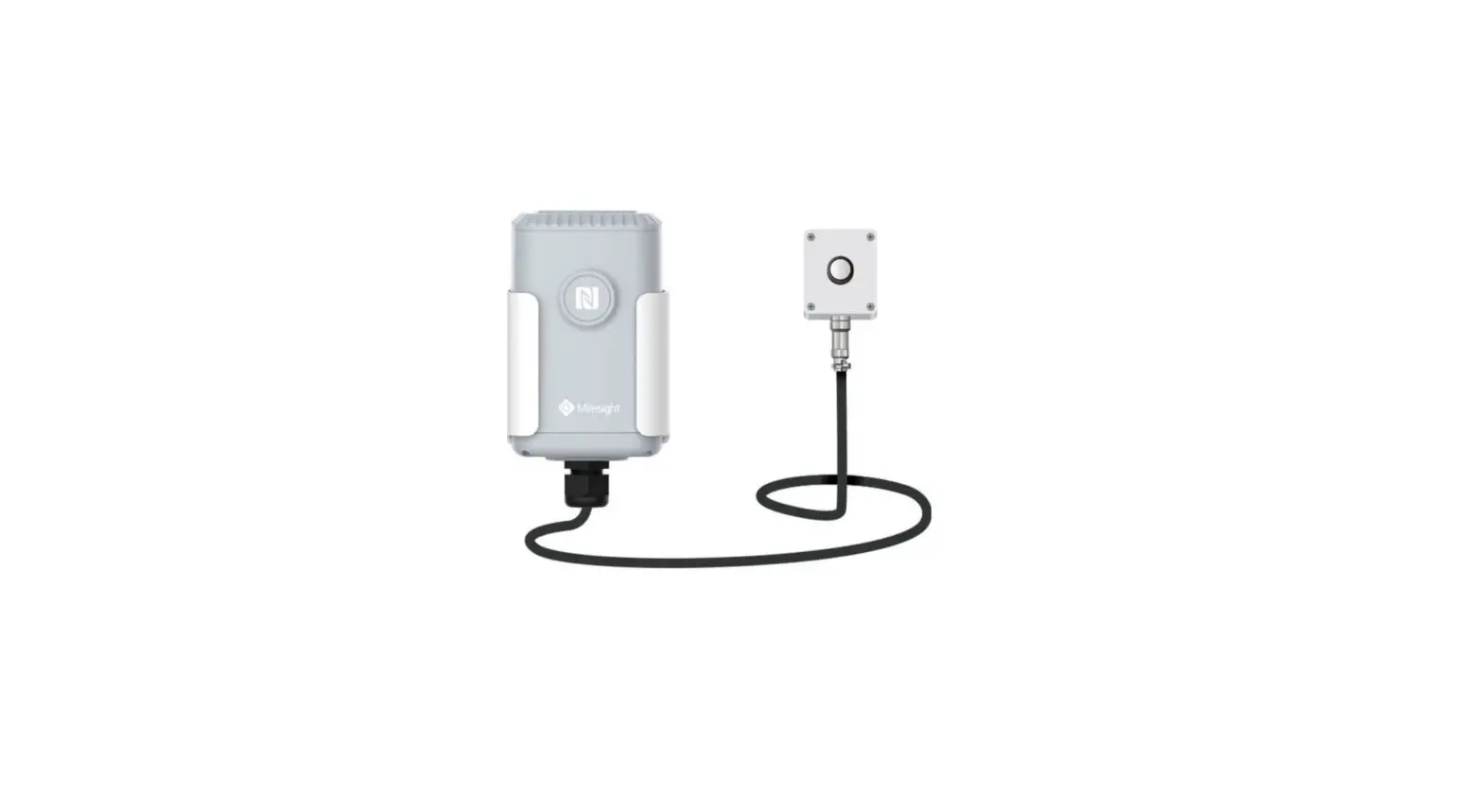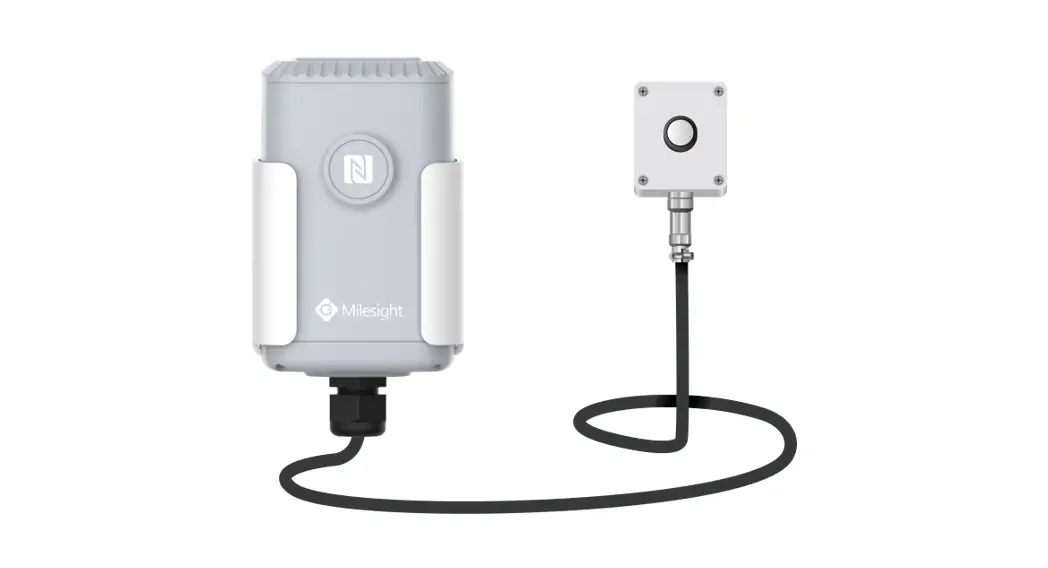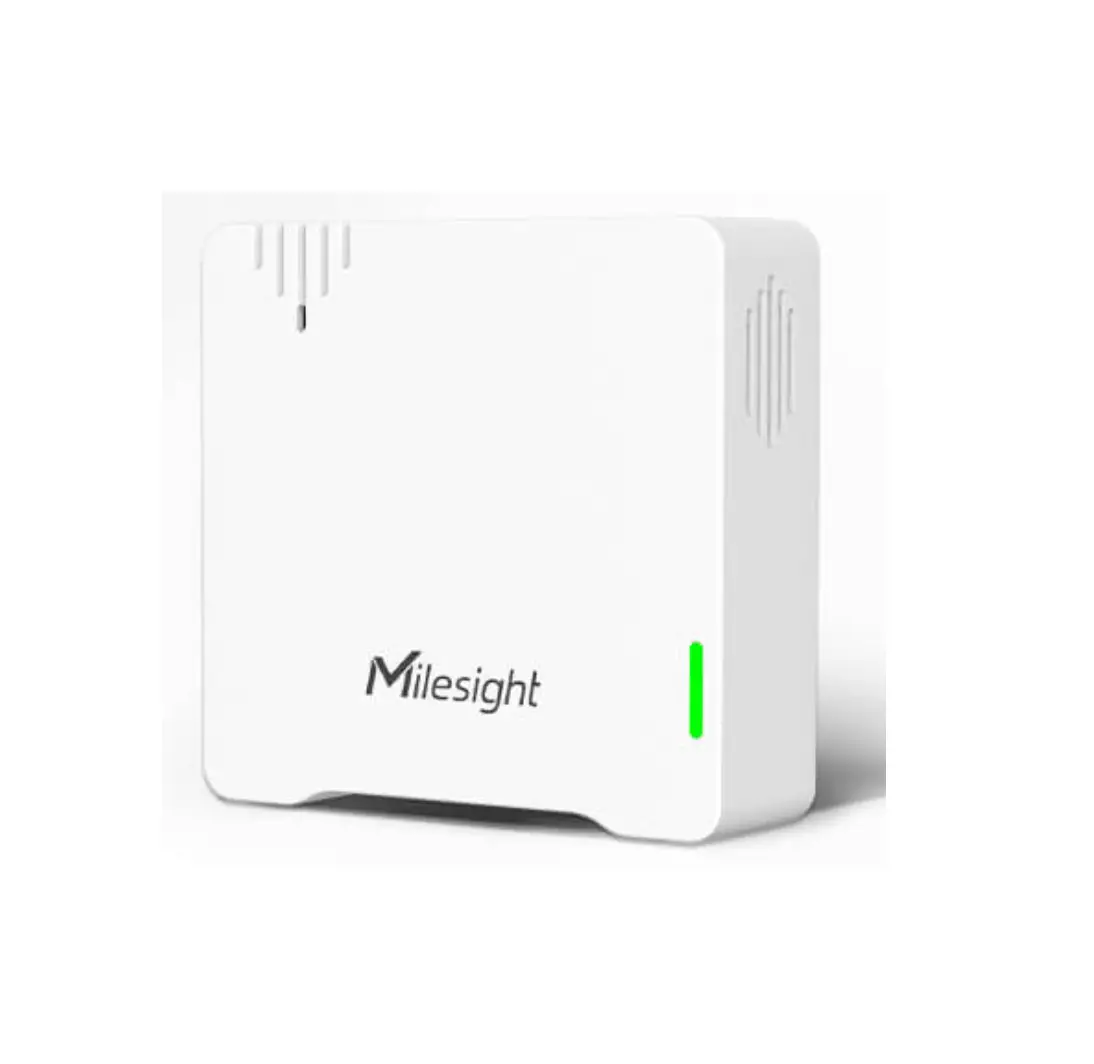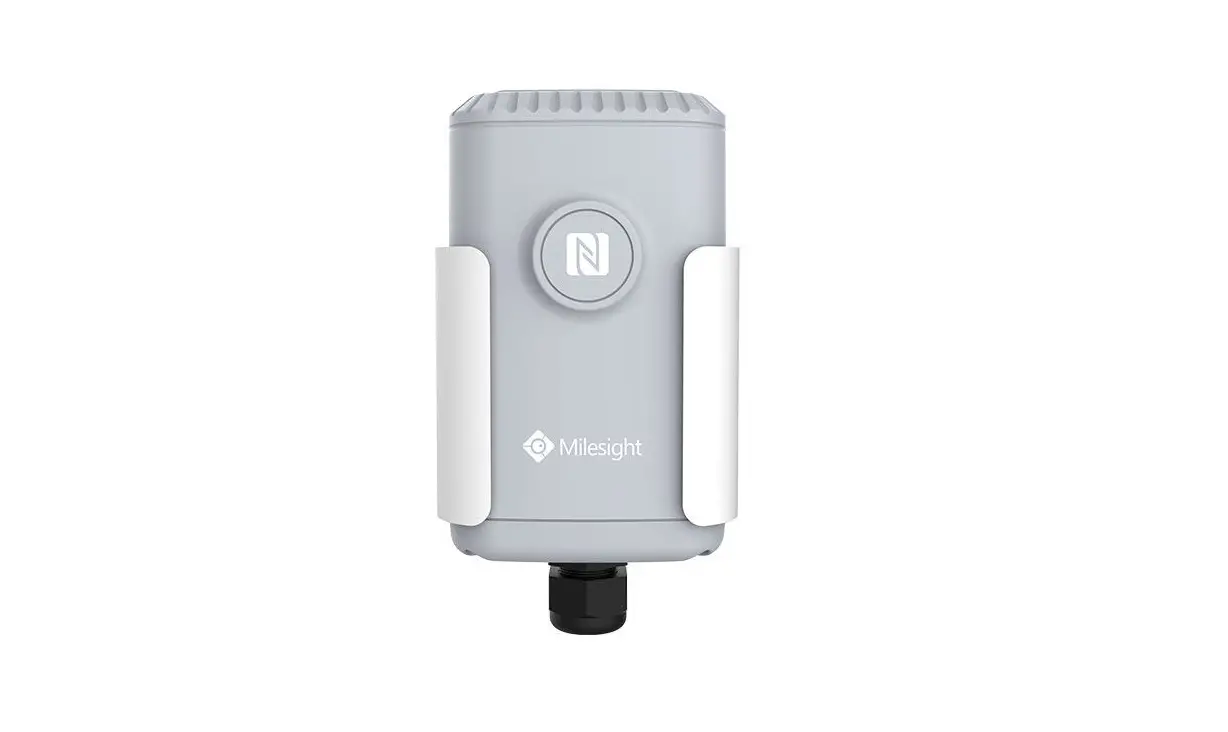

Milesight EM500 LoRaWAN Pipe Pressure Sensor
Applicability
This guide is applicable to EM500 series sensors shown as follows, except where otherwise indicated.
| Model | Description |
| EM500-CO2 | Carbon Dioxide Sensor |
| EM500-LGT | Light Sensor |
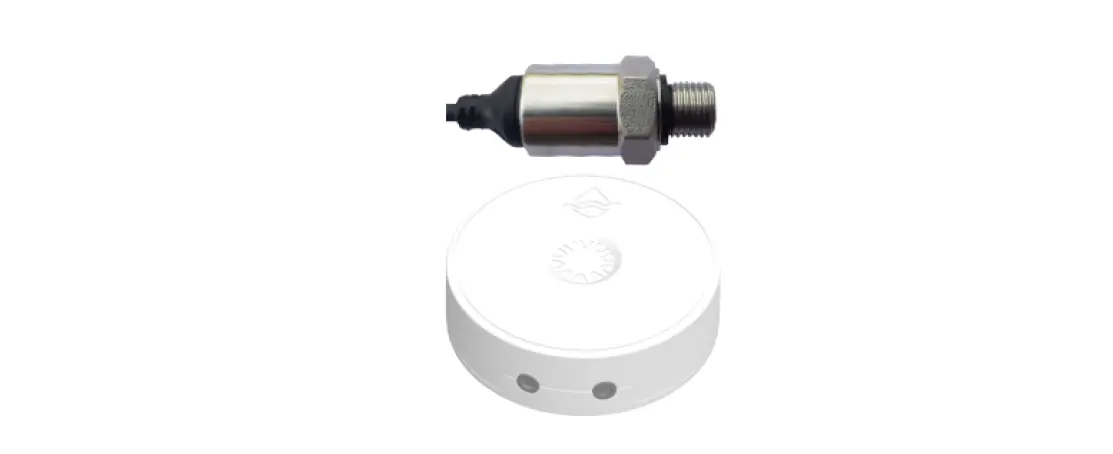
| EM500-PP | Pipe Pressure Sensor |
| EM500-PT100 | PT100 Temperature Sensor |
| EM500-SMT | Soil Moisture Sensor |
| EM500-SMTC | Soil Moisture Moisture, Temperature and Conductivity Sensor |
| EM500-SWL | Submersible Level Sensor |
| EM500-UDL | Ultrasonic Distance/Level Sensor |
Safety Precautions
Milesight will not shoulder responsibility for any loss or damage resulting from not following the instructions of this operating guide.
- The device must not be remodeled in any way.
- The device is not intended to be used as a reference sensor, and Milesight will not should responsibility for any damage which may result from inaccurate readings.
- Do not place the device close to objects with naked flames.
- Do not place the device where the temperature is below/above the operating range.
- Make sure electronic components do not drop out of the enclosure while opening.
- When installing the battery, please install it accurately, and do not install the reverse or wrong model.
- The device must never be subjected to shocks or impacts.
Declaration of Conformity
EM500 series is in conformity with the essential requirements and other relevant provisions of the CE, FCC, and RoHS.
© 2011-2021 Xiamen Milesight IoT Co., Ltd. All rights reserved. www.milesight-iot.com
All information in this guide is protected by copyright law. Whereby, no organization or individual shall copy or reproduce the whole or part of this user guide by any means without written authorization from Xiamen Milesight IoT Co., Ltd.
For assistance, please contact Milesight technical support:
Email: [email protected]
Tel: 86-592-5085280
Fax: 86-592-5023065
Revision History
| Date | Doc Version | Description |
| Nov. 23, 2020 | V 1.0 | Initial version |
Product Introduction
Overview
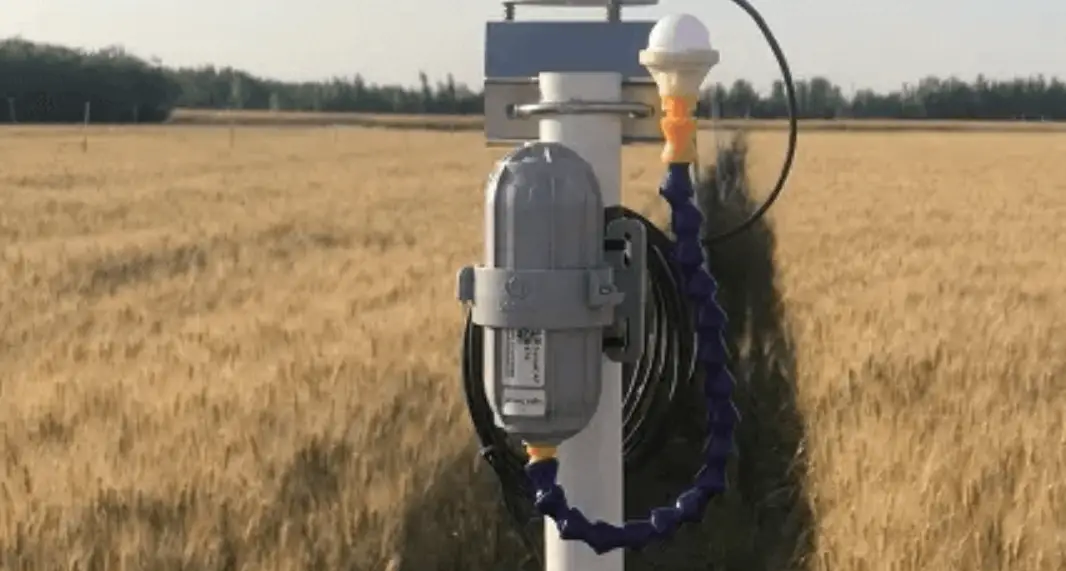
EM500 series is a sensor mainly used for outdoor environment through wireless LoRa network. EM500 device is battery powered and designed for multiple mounting ways. It is equipped with NFC (Near Field Communication) and can easily be configured by a smartphone or a PC software. Sensor data are transmitted in real-time using standard LoRaWAN® protocol. LoRaWAN® enables encrypted radio transmissions over long distance while consuming very little power. The user can obtain sensor data and view the trend of data change through Milesight IoT Cloud or through the user’s own Network Server.
Features
- Up to 11km communication range
- Easy configuration via NFC
- Standard LoRaWAN® support
- Milesight IoT Cloud compliant
- Low power consumption with 19000mAh replaceable battery
Hardware Introduction
EM500 series sensors is made up of a LoRa transceiver and a sensor. Among them, ultrasonic sensors and gas sensors are combined with LoRa transceiver.
Hardware Overview
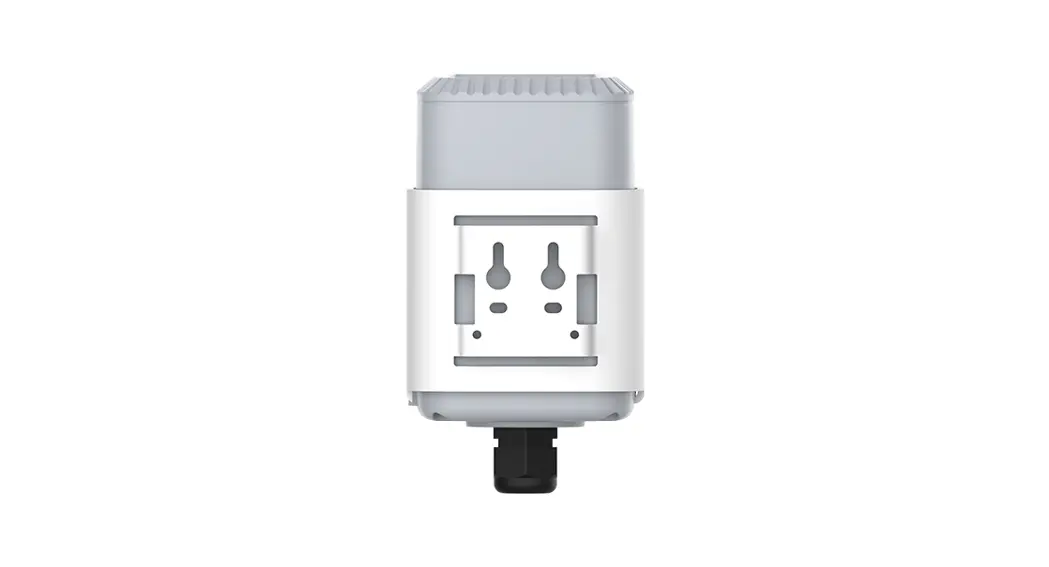
Front View of EM500: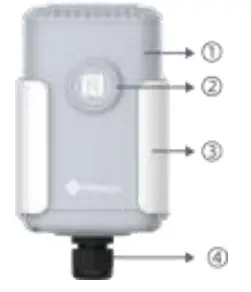
- LoRa Antenna (Internal)
- NFC Area
- Water-proof Connector
Front View of EM500-CO2: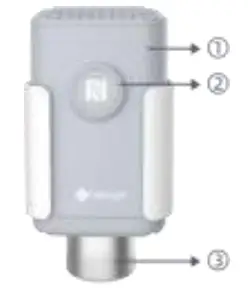
- LoRa Antenna (Internal)
- NFC Area
- Vent Tube
Front View of EM500-UDL: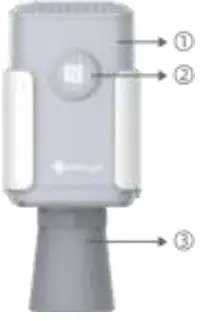
- LoRa Antenna (Internal)
- NFC Area
- Ultrasonic Horn
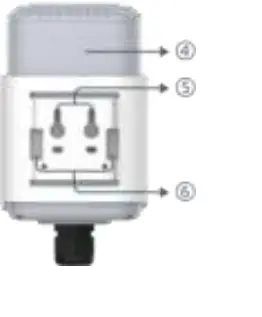
Back View:
- Battery (Internal)
- Wall Mounting Holes
- Pole Mounting Holes
Dimensions(mm)
EM500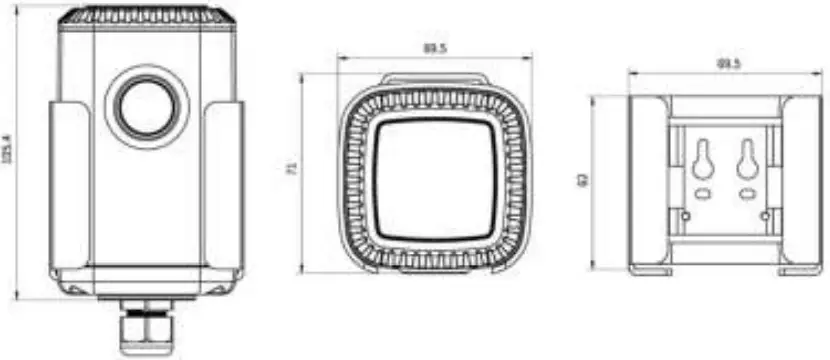
EM500-CO2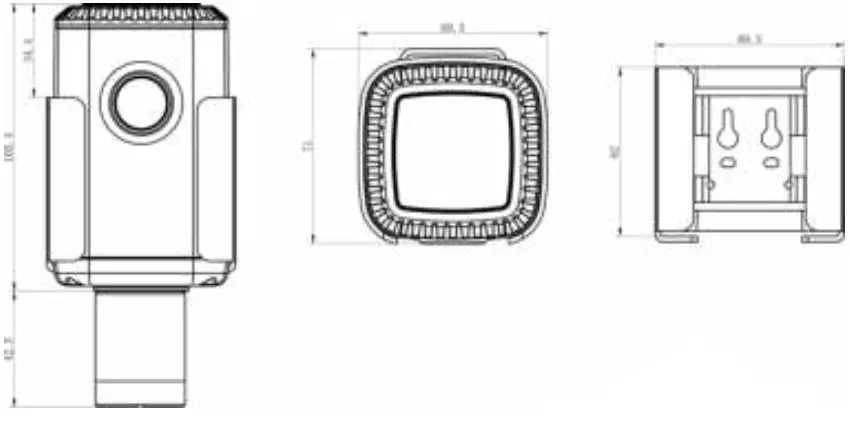
EM500-UDL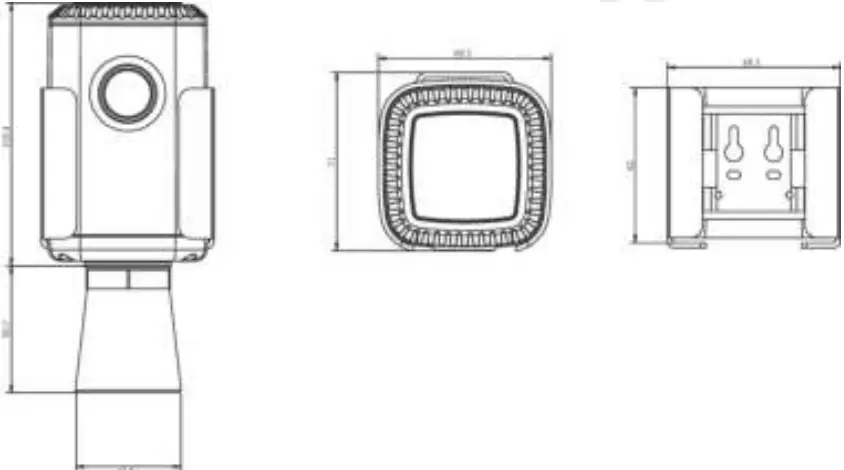
Power Button Descriptions
Note: EM500 can also be turned on/off and reset via Mobile APP or Toolbox.
| Function | Action | LED Indication |
| Turn On | Press and hold the button for more than 3s. | Off → Static Green |
| Turn Off | Press and hold the button for more than 3s. | Static Green -> Off |
|
Reset | Press and hold the button for more than 10s. Note: EM500 will automatically power on after reset. |
Blink 3 times. |
| Check On/Off Status | Quickly press the power button. | Light On: Device is on. |
| Light Off: Device is off. |
Basic Configuration
EM500 sensor can be monitored and configured via one of the following methods:
- Mobile APP (NFC);
- Windows software (NFC or Type-C port).
In order to protect the security of sensor, password validation is required when configuring via unused phone . Default password is 123456.
Configuration via Smartphone APP
Preparation:
- Smartphone (NFC supported)
- Toolbox APP: download and install from Google Play or Apple Store.
Read/Write Configuration via NFC
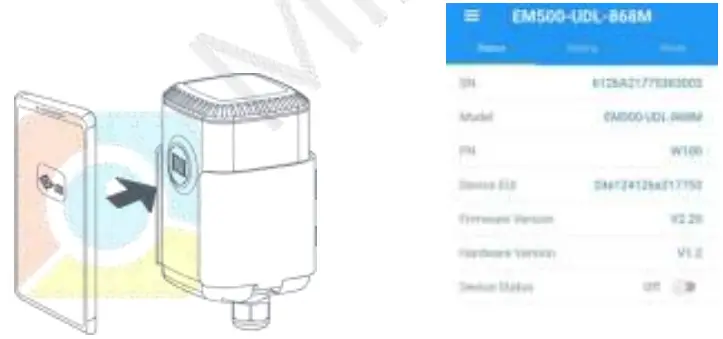
- Enable NFC on the smartphone and open“Toolbox”APP.
- Attach the smartphone with NFC area to the device to read basic information.
Note: Ensure the location of smartphone NFC area and it is recommended to take off phone case before using NFC.
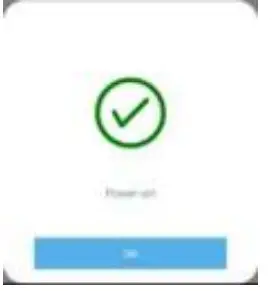
- Change the on/off status or parameters, then attach the smartphone with NFC area to the device until the APP shows a successful prompt.

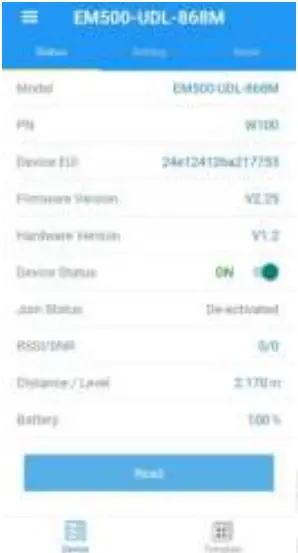
- Go to“Device > Status” to tap“Read”and attach the smartphone with NFC area to the device to read real-time data of sensor.

Template Configuration
Template settings only work for easy and quick device configuration in bulk.
Note: Template function is allowed only for sensors with the same model and LoRa frequency band.
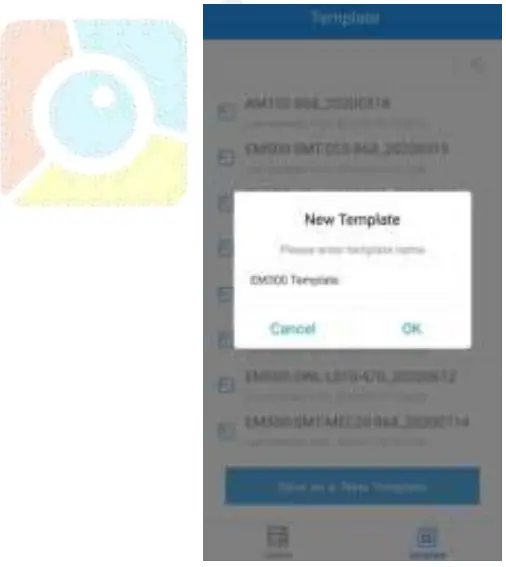
- Go to “Template” page on the APP and save current settings as a template.

- Attach the smartphone with NFC area to another device.
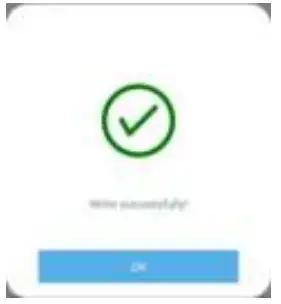
- Select the template file from Toolbox APP and tap “Write”,keep the two devices close until the APP shows a successful prompt.

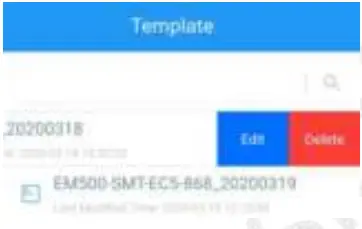
- Slide the template item to the left to edit or delete the template.

Configuration via PC
Preparation:
- Dedicated NFC Reader or Type-C USB cable
- PC (Windows 10 is recommended)
- Toolbox: https://www.milesight-iot.com/software-download/
Log in the Toolbox
Make sure “Toolbox” is downloaded on your computer. Select one of the following methods to log in Toolbox.
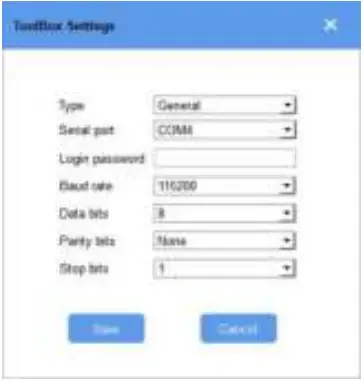
Type-C Connection
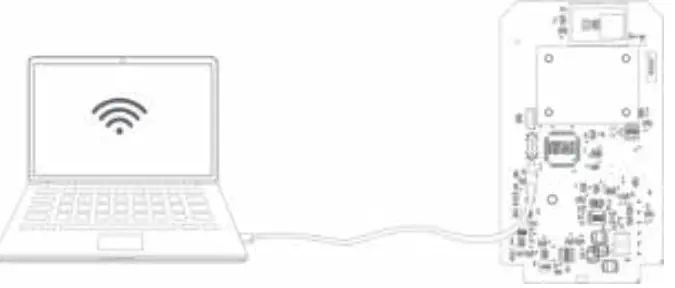
- Open the case of EM500 and connect the EM500 to computer via type-C port.

- Select type as “General” and click password to log in Toolbox. (123456)

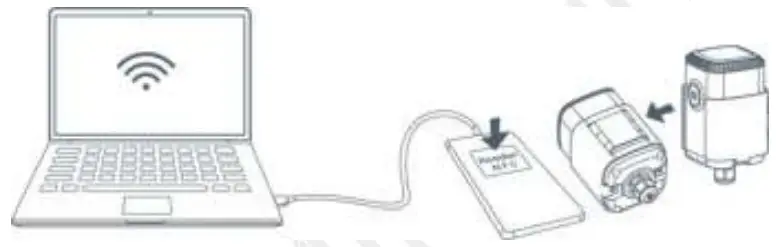
NFC Connection
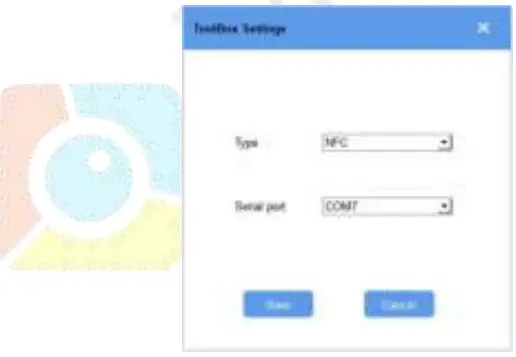
- Connect the NFC reader to computer, then attach the EM500 to NFC area of the reader.

- Select type as “NFC” and serial port as NFC reader port on Toolbox.

Basic Configuration
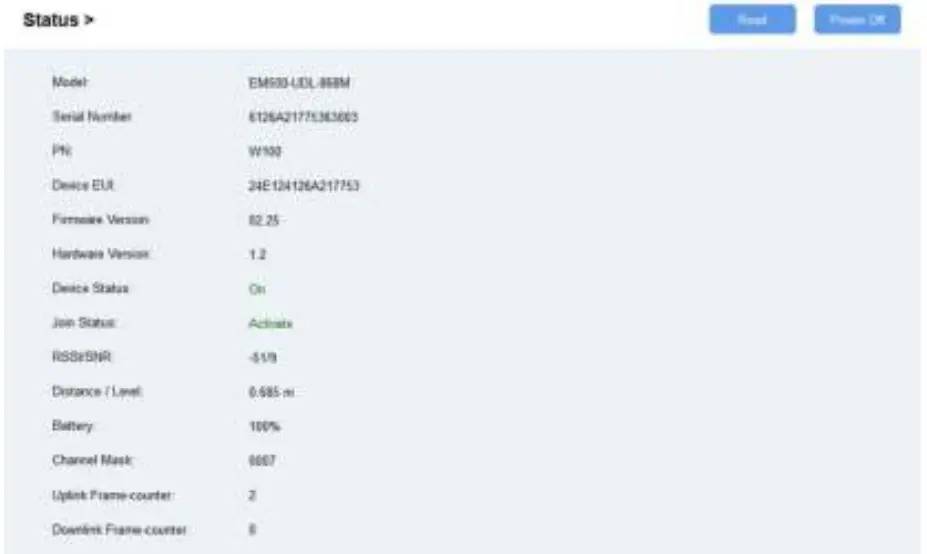
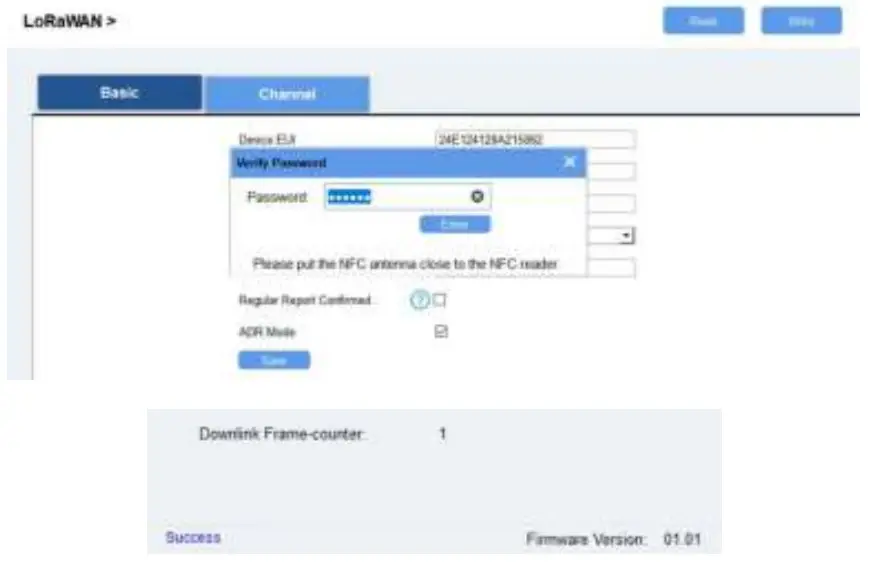
- Click “Read” to read current data of the sensor.

- When you perform one of the following operations, enter the password and wait a few seconds until toolbox shows a successful prompt. (Password is not need if you connect it via type-C port)
- Turn on/off the sensor
- Reset the sensor
- Click“Write”to change settings
- Upgrade

Template Settings
Note: Template function is allowed only for sensors with the same model and LoRa frequency band.
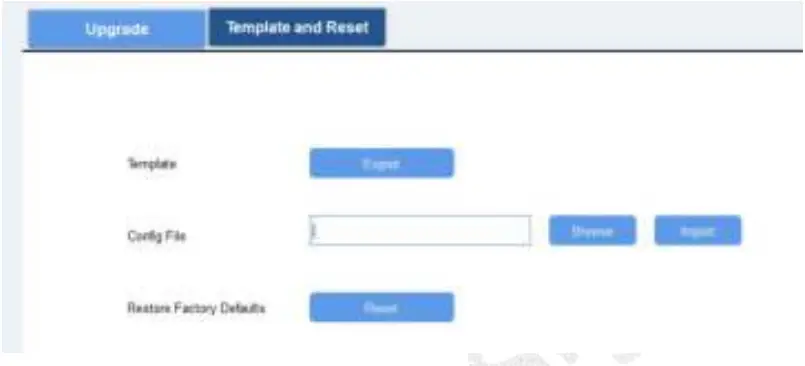
- Go to “Maintenance -> Template and Reset” page in Toolbox.
- Click “Export” to save the current settings as a template.
- Click “Browse” to select the correct template from computer.
- Click “Import” to import the template to the device.

Upgrade
- Download firmware on your computer.
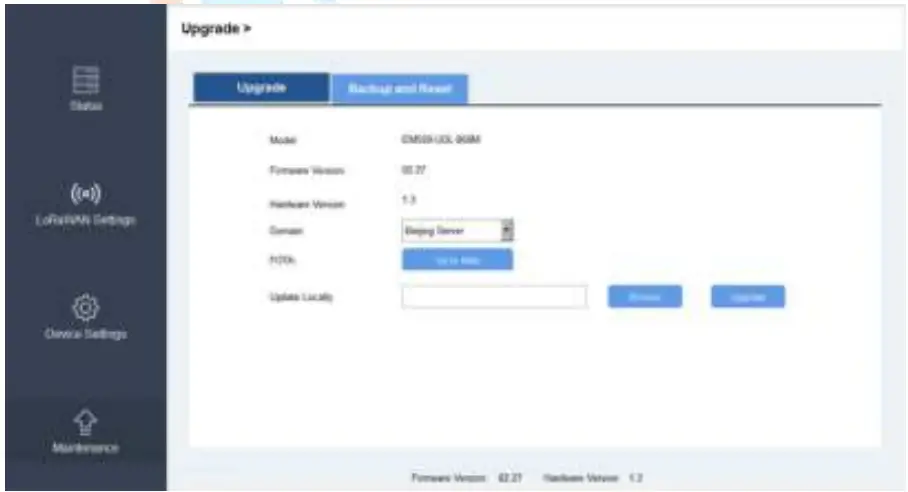
- Go to “Maintenance -> Upgrade”page in Toolbox.
- Click“Browse”and select the firmware from computer.
- Click“Upgrade”to upgrade the device.
Note: If NFC connection is selected, please keep the two devices close and don’t move them in order to get the best connectivity as possible when upgrading.
Advanced Feature Description
LoRaWAN Settings
| Parameters | Description | Default |
| Device EUI | Unique ID of the sensor. It can be found on the label. | On the label |
| App EUI | App EUI of the sensor. | 24E124C0002A0001 |
| Application Port | The port used for sending or receiving data. Default: | 85 |
| Join Type | OTAA or ABP mode. Note: If you use Milesight IoT cloud to manage sensors, please select OTAA mode. | OTAA |
| Application Key | Appkey of the sensor. | 5572404C696E6B4C 6F52613230313823 |
| Network ID | NetID of the sensor used for identifying LoRaWAN networks. | 0x010203 |
| Device Address | DevAddr of the sensor. | The 5th to 12th digits of SN. |
| Network Session Key | Nwkskey of the sensor. | 5572404C696E6B4C 6F52613230313823 |
| Application Session Key | Appskey of the sensor. | 5572404C696E6B4C 6F52613230313823 |
| Spread Factor | Select spread factor from SF7 to SF12. | SF10-DR2 |
| Confirmed Mode | If the sensor does not receive ACK package from network server, it will resend data 3 times most. | Disabled |
| Rejoin Mode | Sensor will send specific mounts of LoRaMAC packages to check connection status regularly. If no reply after specific packages, the sensor will re-join. | Enabled, 8 packages |
| ADR Mode | Allow network server to adjust datarate of the sensor. | Enabled |
| Support Frequency | LoRaWAN region. | EU868 AU915 |
Basic Settings
| Channel | Enable or disable LoRa channels. If frequency is one of CN470/AU915/US915, you can enter the index of the channel that you want to enable in the input box, making them separated by commas. Examples: 1, 40: Enabling Channel 1 and Channel 40 1-40: Enabling Channel 1 to Channel 40 1-40, 60: Enabling Channel 1 to Channel 40 and Channel 60 All: Enabling all channels Null: Indicates that all channels are disabled |
|
Calibration
| Parameters | Description |
| Reporting Interval | Interval of sending sensor data. Default: 10min. |
| Change Password | Change the password of logging Toolbox (Windows) and parameter modify(mobile APP). |
Threshold and Alarm
| Parameters | Description |
| Over/Below | Maximum/minimum data to trigger the alarm. After triggered, sensor will send current data ignoring report interval. |
| Data Collecting Interval | The sensor will detect and check whether the value is triggered again after data collecting interval. |
Milesight IoT Cloud Management
EM500 sensors can be managed by Milesight IoT Cloud platform. Milesight IoT cloud is a comprehensive platform that provides multiple services including device remote management and data visualization with the easiest operation procedures. Please register a Milesight IoT Cloud account before operating following steps.
Add a Milesight Gateway
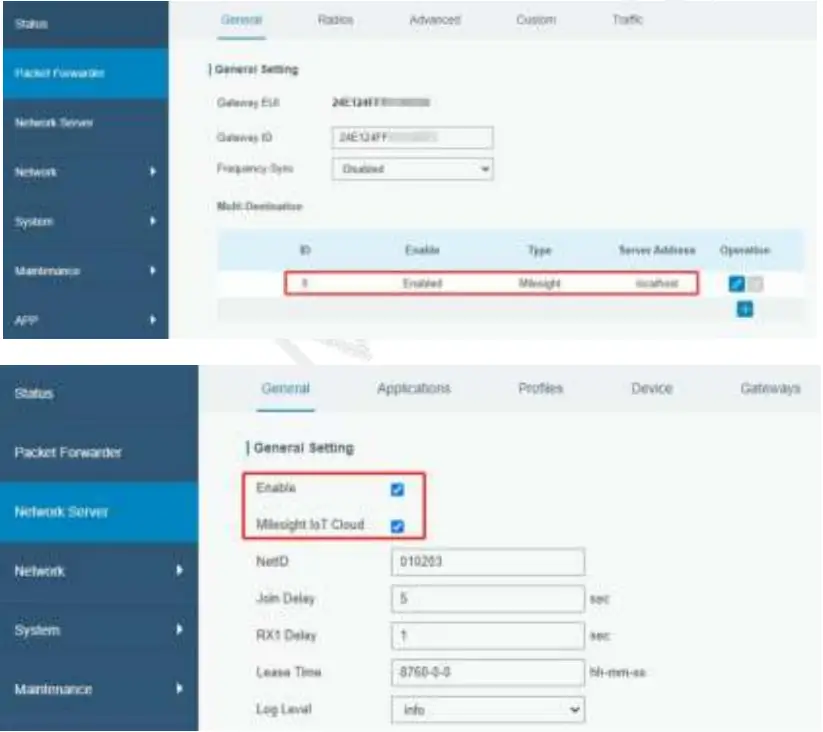
- Enable “Milesight” type network server and “Milesight IoT Cloud” mode in gateway web GUI. Note: Ensure gateway has accessed the Internet.

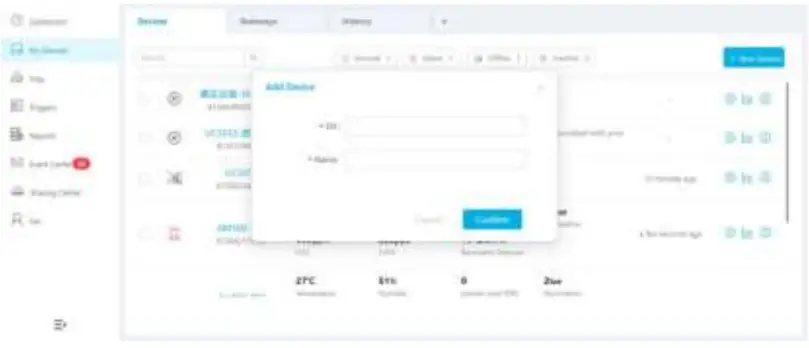
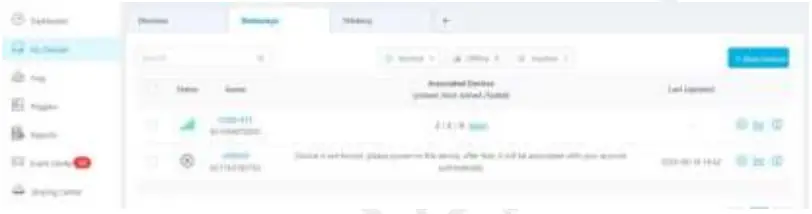
- Go to “My Devices” page and click “+New Devices” to add gateway to Milesight IoT Cloud via SN. Gateway will be added under “Gateways” menu.

- Check if gateway is online in Milesight IoT Cloud.

Add EM500 to Milesight IoT Cloud
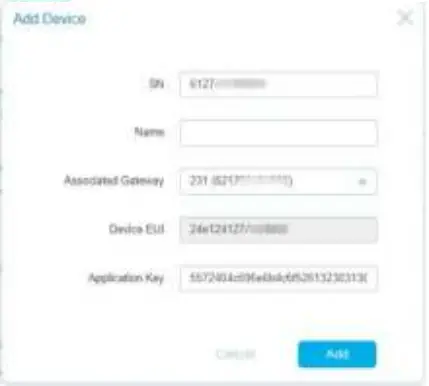
- Go to “My Devices” page and click “+New Devices”. Fill in the SN of EM500 and select associated gateway.

After EM500 is connected to Milesight IoT Cloud, you could check the device information and data and create dashboard for it.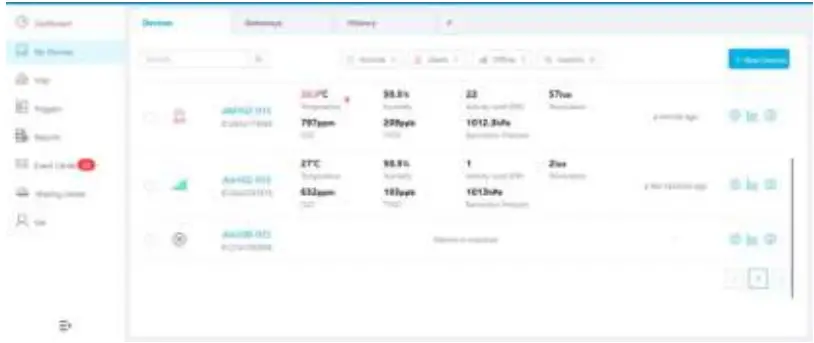
Sensor Payload
All data are based on following format(HEX):
| Channel1 | Type1 | Data1 | Channel2 | Type2 | Data2 | Channel 3 | … |
| 1 Byte | 1 Byte | N Bytes | 1 Byte | 1 Byte | M Bytes | 1 Byte | … |
Basic Information
EM500 sensors report basic information of sensor everytime joining the network.
| Channel | Type | Data Example | Description |
| ff | 01(Milesight Protocol Version) | 01 | V1 |
| 09 (Hardware Version) | 01 40 | V1.4 | |
| 0a(Software Version) | 01 14 | V1.14 | |
| 0f(Device Type) | 00 | Class A | |
| 16(Device SN) | 64 10 90 82 43 75 00 01 | Device SN is 6410908243750001 |
Sensor Data
EM500 sensors report sensor data according to reporting interval (10min by default). Battery level is reported every 24 hours.
EM500-CO2
| Channel | Type | Data Example | Description |
| 01 | 75(Battery Level) | 64 | 64=>100 Battery level =100% |
| 03 | 67 (Temperature) | 10 01 | 10 01 => 01 10 = 272 Temp=272*0.1=27.2°C |
| 04 | 68(Humidity) | 71 | 71=>113 Hum=113*0.5=56.5% |
| 05 | 7d(CO2) | 67 04 | 67 04 => 04 67 =1127 ppm |
| 06 | 73(Barometric Pressure) | 68 27 | 68 27=>27 68=10088 Pressure=10088*0.1=1008.8hPa |
EM500-LGT
| Channel | Type | Data Example | Description |
| 01 | 75(Battery Level) | 64 | 64=>100 Battery level =100% |
| 03 | 94 (Light) | 50 00 00 00 | 50 00 00 00=>00 00 00 50=80 lux |
EM500-PP
| Channel | Type | Data Example | Description |
| 01 | 75(Battery Level) | 64 | 64=>100 Battery level =100% |
| 03 | 7b (Pressure) | 0a 00 | 0a 00=>00 0a=10kPa |
EM500-PT100
| Channel | Type | Data Example | Description |
| 01 | 75(Battery Level) | 64 | 64=>100 Battery level =100% |
| 03 | 67 (Temperature) | 10 01 | 10 01 => 01 10 = 272 Temp=272*0.1=27.2°C |
EM500-SMT/SMTC
| Channel | Type | Data Example | Description |
| 01 | 75(Battery Level) | 64 | 64=>100 Battery level =100% |
| 03 | 67 (Temperature) | 10 01 | 10 01 => 01 10 = 272 Temp=272*0.1=27.2°C |
| 04 | 68(Moisture) | 71 | 71=>113 Hum=113*0.5=56.5% |
| 05 | 7d(Conductivity) | f0 00 | f0 00 => 00 f0 =240 µs/cm |
EM500-SWL
| Channel | Type | Data Example | Description |
| 01 | 75(Battery Level) | 64 | 64=>100 Battery level =100% |
| 03 | 77 (Water Level) | 02 00 | 02 00=>00 02=2cm |
EM500-UDL
| Channel | Type | Data Example | Description |
| 01 | 75(Battery Level) | 64 | 64=>100 Battery level =100% |
| 03 | 82 (Distance) | 1e 00 | 1e 00=>00 1e=30mm |
Downlink Commands
EM500 sensors support downlink commands to configure the device. Application port is 85 by default.
| Channel | Type | Data Example | Description |
| ff | 03(Set Reporting Interval) | b0 04 | b0 04 => 04 b0 = 1200s |
Appendix
Default LoRaWAN Parameters
|
DevEUI | 24E124 + 2nd to 11th digits of SN e.g. SN = 61 26 A1 01 84 96 00 41 Then Device EUI = 24E124126A101849 |
| AppEUI | 24E124C0002A0001 |
| Appport | 0x55 |
| NetID | 0x010203 |
|
DevAddr | The 5th to 12th digits of SN e.g. SN = 61 26 A1 01 84 96 00 41 Then DevAddr = A1018496 |
| AppKey | 5572404C696E6B4C6F52613230313823 |
| NwkSKey | 5572404C696E6B4C6F52613230313823 |
| AppSKey | 5572404C696E6B4C6F52613230313823 |
Default Uplink Channels
| Model | Channel Plan | Channel Settings/MHz |
| EM500-470M | CN470 | 470.3~489.3(All 95 channels) |
|
EM500-868M | EU868 | 868.1, 868.3, 868.5 |
| RU864 | 868.9, 869.1 | |
| IN865 | 865.0625, 865.4025, 865.6025 | |
|
EM500-915M | AU915 | 915.2~927.1 (All 72 channels) |
| US915 | 902.3~914.2 (All 72 channels) | |
| KR920 | 922.1, 922.3, 922.5 | |
| AS923 | 923.2, 923.4 |