
Quick Start Guide
Global Satellite Communicator
 IMPORTANT See the Product Safety, Regulatory, and Warranty Information guide, in the product box for important information. The user manual is available at https://zoleo.com/manuals.
INTRODUCTION
Welcome to ZOLEO
Thank you for choosing ZOLEO and welcome to global messaging via satellite, cellular and Wi-Fi.
What’s inside the box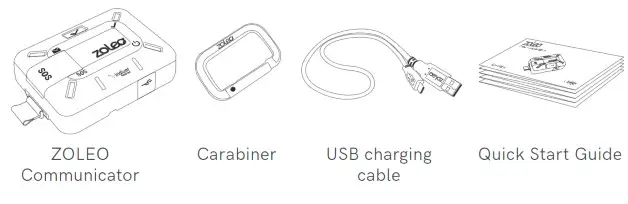
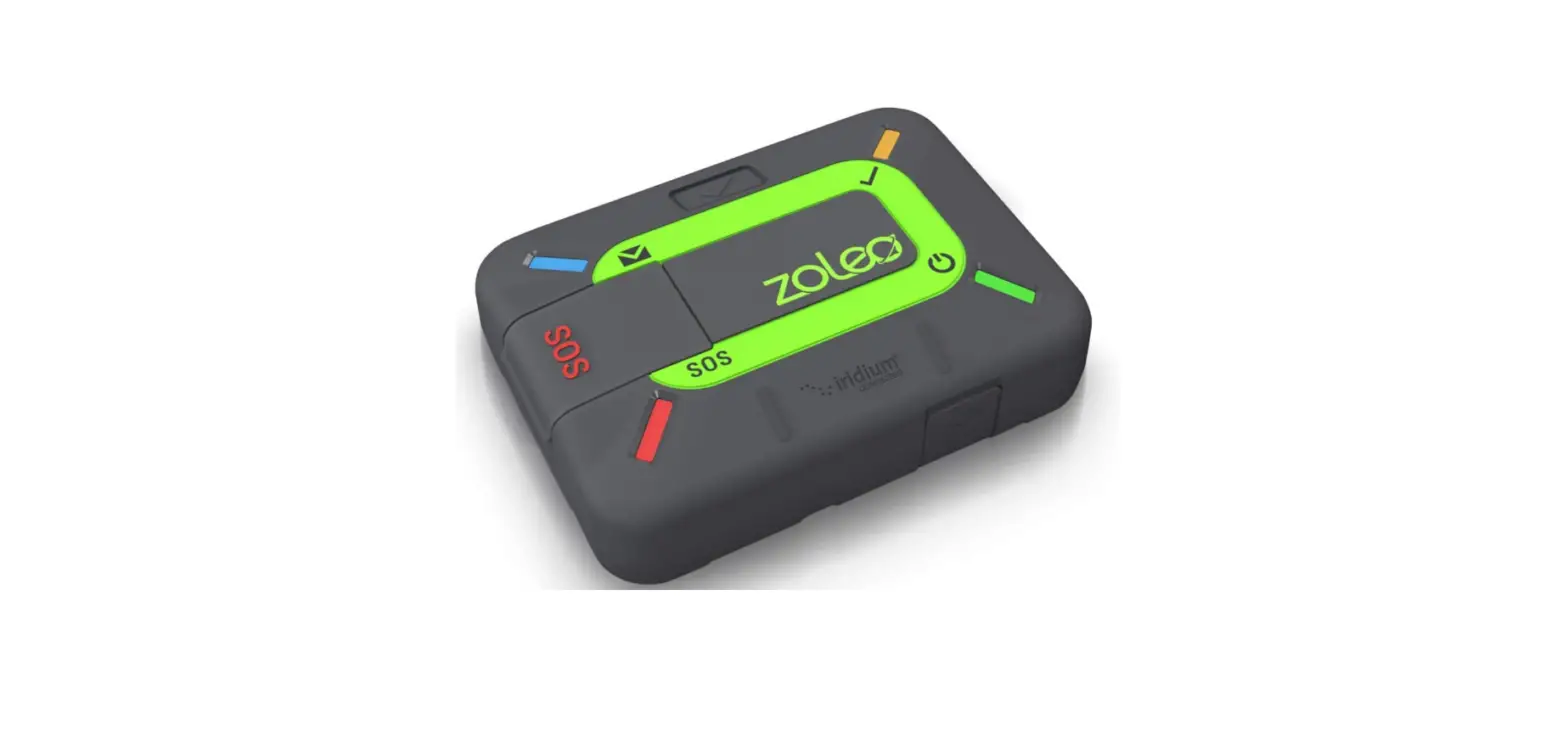
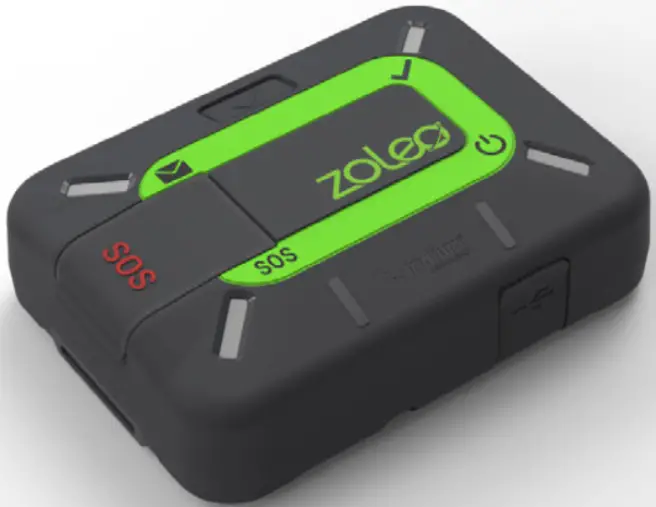
DEVICE OVERVIEW
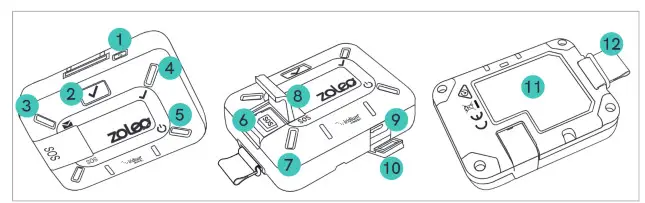
| 1. Power button 2. Check-in button 3. Message LED 4. Check-in LED 5. Power/Battery LED | 6. SOS button 7. SOS LED 8. SOS cover 9. USB port 10. USB cover | 11. Label with SOS 12. Lanyard |
GETTING STARTED
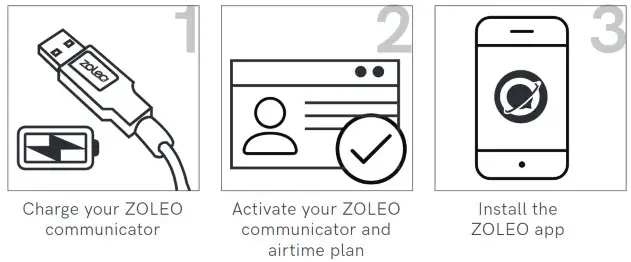
STEP 1- Charge your ZOLEO communicator
IMPORTANT the ZOLEO communicator must be connected to an active USB charger prior to first use.
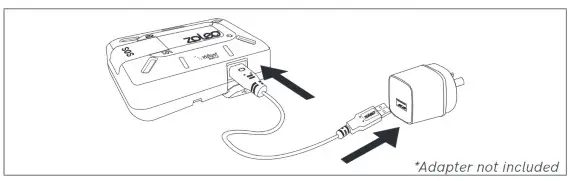
Connect the USB charging cable to the ZOLEO communicator and adapter. Plug the adapter into a power outlet and turn the power on. When finished, close the USB cover for a water-resistant seal.
Tip: While charging you can begin setting up your ZOLEO account.
STEP 2 – Activate your ZOLEO communicator and an airtime plan IMPORTANT You’ll need to add two SOS contacts when you activate your account.
Go to: https://www.zoleo.com/actiyate
Info required to activate:
- Personal contact information
- Emergency contact information x 2
- Check-in contact information x 1
- Valid email address
- Credit card information
- ZOLEO IMEI and serial number from device label
STEP 3 – Install the ZOLEO App

- Search for ‘ZOLEO’ in the App Store or Google Play and install the app on your smartphone/tablet.
- Start the application and follow the onscreen prompts to set up your ZOLEO account.
- Power on your ZOLEO communicator and ensure it has an unobstructed view of the sky (refer to Quality of Service on page 16).
- Open the ZOLEO tab and the app will automatically search for your ZOLEO device via Bluetooth. To connect, select the option that matches the details found on the back of your ZOLEO device.

- The initial setup may prompt you to update your firmware, which ensures optimal performance.
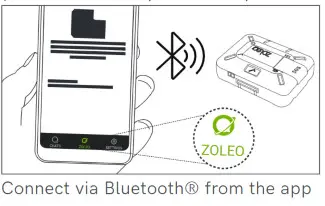
Setting up your smartphone/tablet (can’t) Once connected, you can send and receive messages from the ZOLEO app. Refer to the user manual for information on using the messaging, SOS, check-in, weather, and location features of the app.
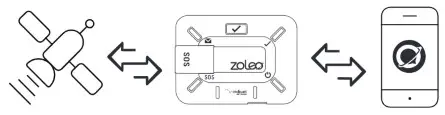
The ZOLEO app also sends and receives messages via Wi-Fi and cellular connection when available.

DEVICE FEATURES
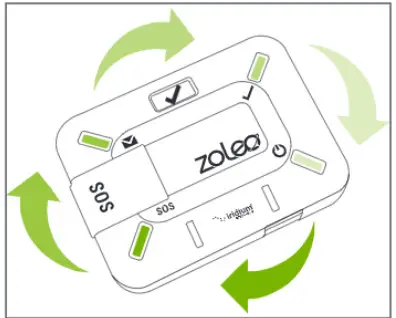
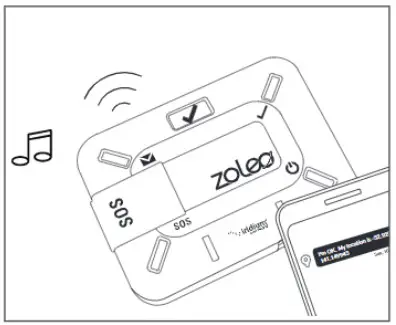
Send Check-in message
- Press and hold the Check-in button until the Check-in LED changes.

- All LEDs will spin green and send a Check-in message.

- An ascending tone will be emitted when the Check-in message is sent.

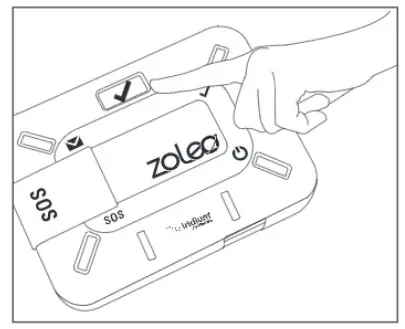
Note: Refer to pages 13-15 for a detailed LED description
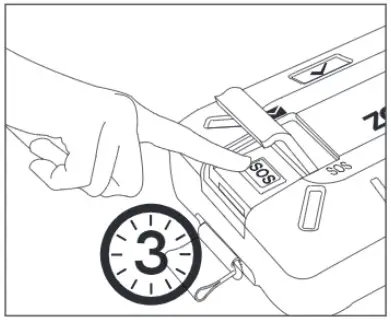
Activate SOS IMPORTANT The SOS alerting function should only be used in an emergency. SOS
- alerts are transmitted over the Iridium satellite network. To use SOS via the ZOLEO opp, it must be connected Ma Bluetooth ! with the ZOLEO communicator.
- Open the SOS cover and press the SOS button for 3 seconds.

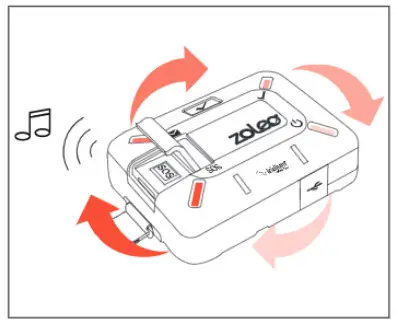
- All LEDs will spin red and an emergency tone is emitted.

- An ascending tone confirms SOS has been sent. The SOS LED will change to a slow double blink once acknowledged by GEOS.

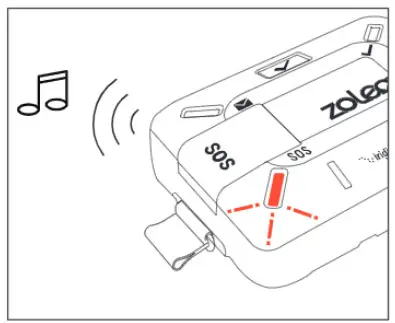
Note: Pressing the SOS button sends an alert directly to GEOS International Emergency Response Coordination Center (IERCC).
Cancel SOS
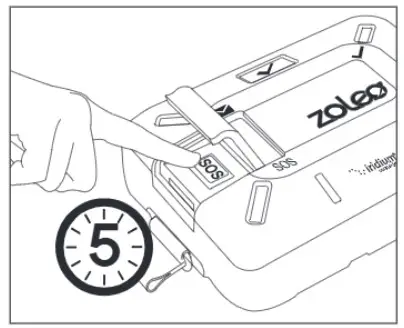
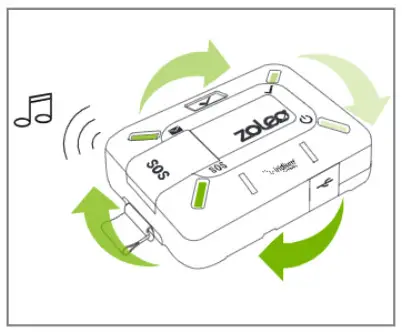
- Open the SOS cover

- Alt LEDs will spin and press the SOS green. Cancellation button for 5 seconds. is acknowledged when you hear an ascending tone.

Note: An SOS alert can be canceled at any time.
DEVICE LED DESCRIPTION

| CONDITION | LED | ACTION |
| Device is ON |  | The power LED will blink GREEN. | |
| Device is ON and charging |  | The power LED will blink AMBER. | |
| Device is ON and the battery charging |  | The power LED will slow blink AMBER and a descending tone will be emitted. | |
| Device is OFF and charging |  | The power LED will be lit solid AMBER. | |
| Device is OFF and fully charged |  | The power LED will be lit solid GREEN when connected to an active power source. | |
| Check-in sending |  | All LEDs will spin GREEN while sending a check-in. An ascending tone is emitted when the check-in is successfully sent. | |
| Check-in failed to send | | Check-in LED will blink AM BE R and a descending tone is emitted when a check-in message has failed to send. | |
| Message received |  | Message LED will fast blink BLUE and a tone is emitted at regular intervals. | |
| Message sending | 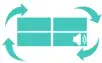 | All LEDs will spin BLUE while the message is being sent. An ascending tone is emitted when the message is successfully sent. | |
| Message failed to sen | | Message LED will blink A MBE R and a the descending tone is emitted when a message fails to send. | |
| SOS initiated | 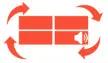 | All LEDs will spin RED and an emergency tone is emitted. To cancel the SOS, press the SOS button for 5 seconds. | |
| SOS acknowledged |  | Ascending tone confirms SOS message is sent and SOS LED will slow double blink RED when an emergency is acknowledged. | |
| SOS canceled | | All LEDs will spin GREEN once cancellation is initiated. An ascending tone is emitted when |


QUALITY OF SERVICE AND EFFICIENT OPERATION
- When using the ZOLEO in a situation where it cannot be charged, ensure that the battery is fully charged beforehand.
- If you intend to use your ZOLEO device together with the ZOLEO app, make sure that your smartphone/tablet is in Bluetooth range (less than 50 m (164 ft), line of sight) from your ZOLEO device.
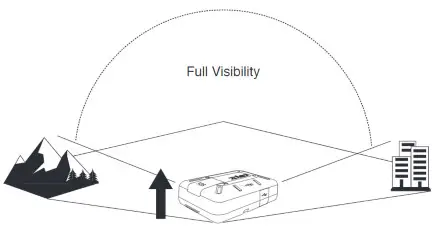
- For optimal performance, ensure the ZOLEO device has an unobstructed view of the sky, with the ZOLEO logo pointing up to the sky.
IMPORTANT TIPS
- Charge the ZOLEO device when the temperature is between 0°C (32°F) and 45°C (113°F).
- Only one smartphone/tablet can be connected to the device at a time. If another smartphone/tablet is already connected, that smartphone/tablet must first be disconnected from the device.
- For added features and convenience, invite frequent contacts to use the ZOLEO app. You’ll be able to send messages app-to-app and they don’t need to have a ZOLEO communicator themselves. You can send them an invite from your app settings.

Copyright 0 2019 ZOLEO Inc. All rights reserved. The ZOLEO name and logo are trademarks of ZOLEO Inc. Iridium and Iridium Connected logo are registered trademarks and service marks of Iridium Communications Inc. Android and Google Play are trademarks of Google Inc. Apple is a registered trademark of Apple Inc. App Store is a service mark of Apple Inc. The Bluetooth® word mark and logos are registered trademarks owned by the Bluetooth SIG, Inc. arid any use of such marks by ZOLEO Inc. is under license. All other trademarks, trade names, service marks, and logos are the property of their respective owners.
Designed in Australia. Manufactured in Malaysia.
LITSPP0141 RO1