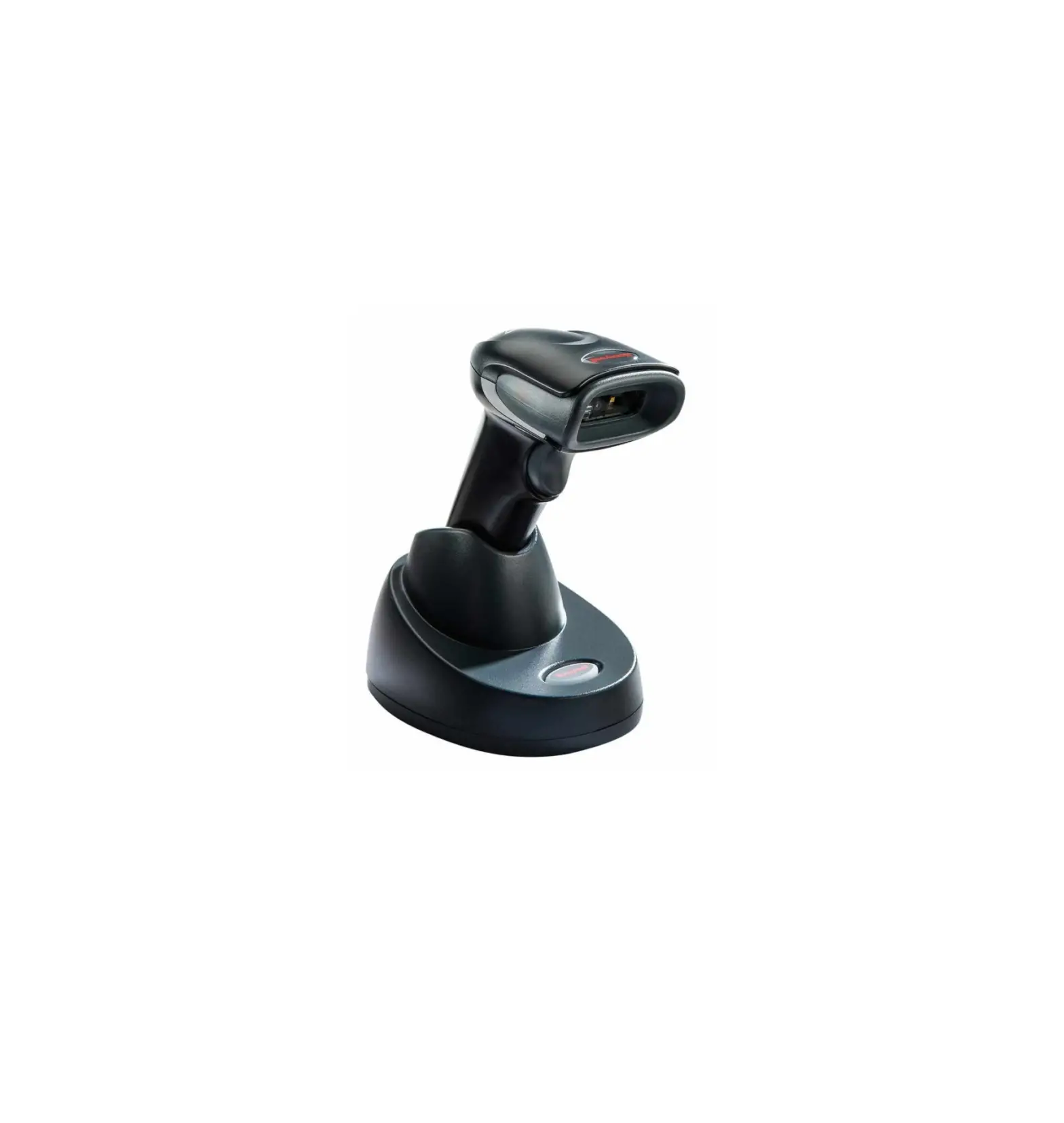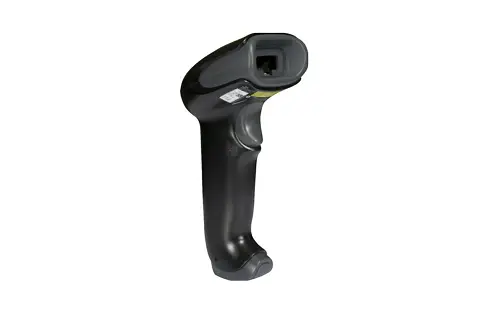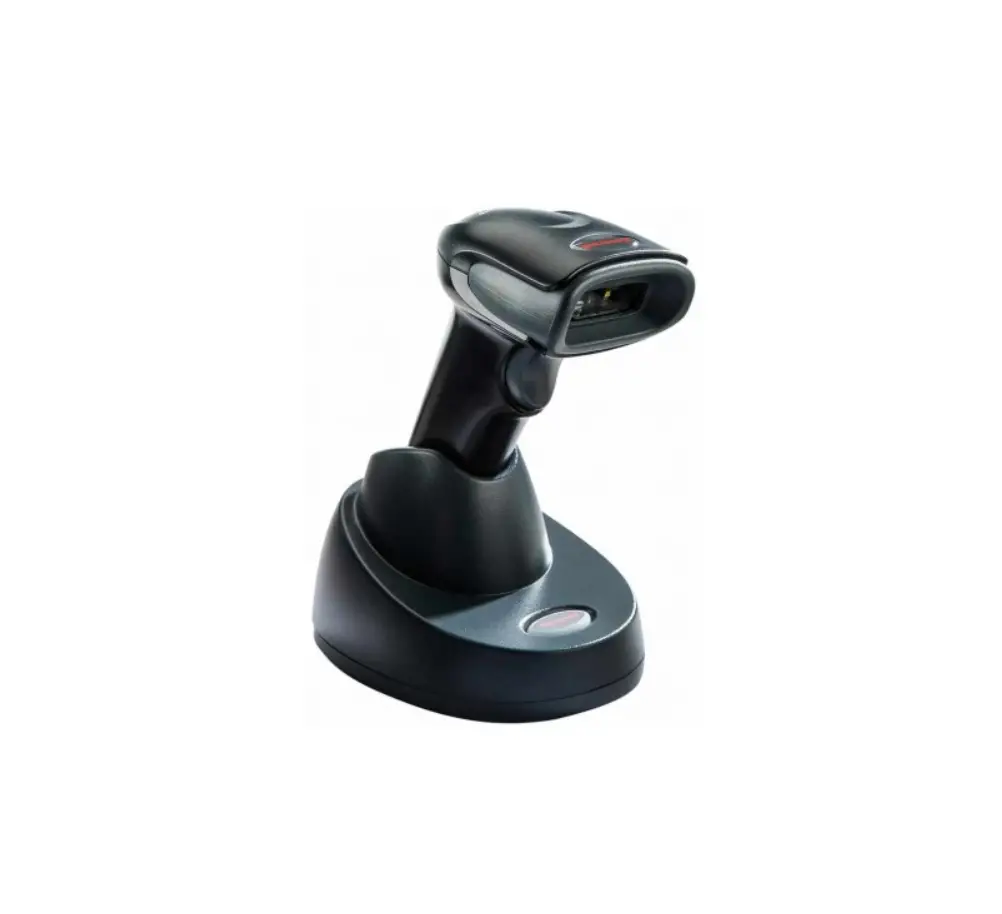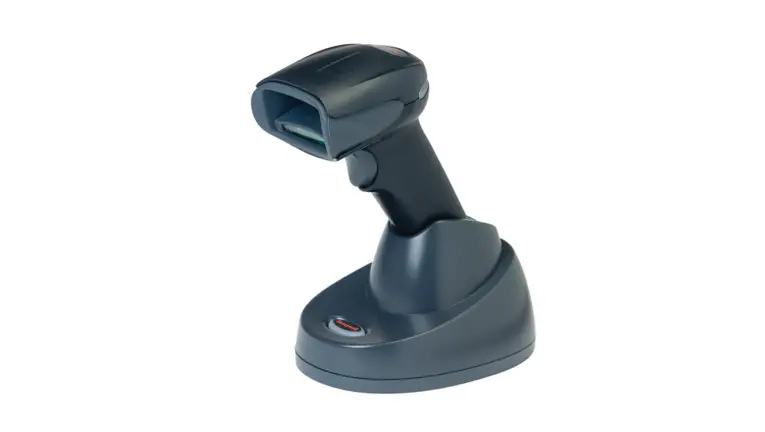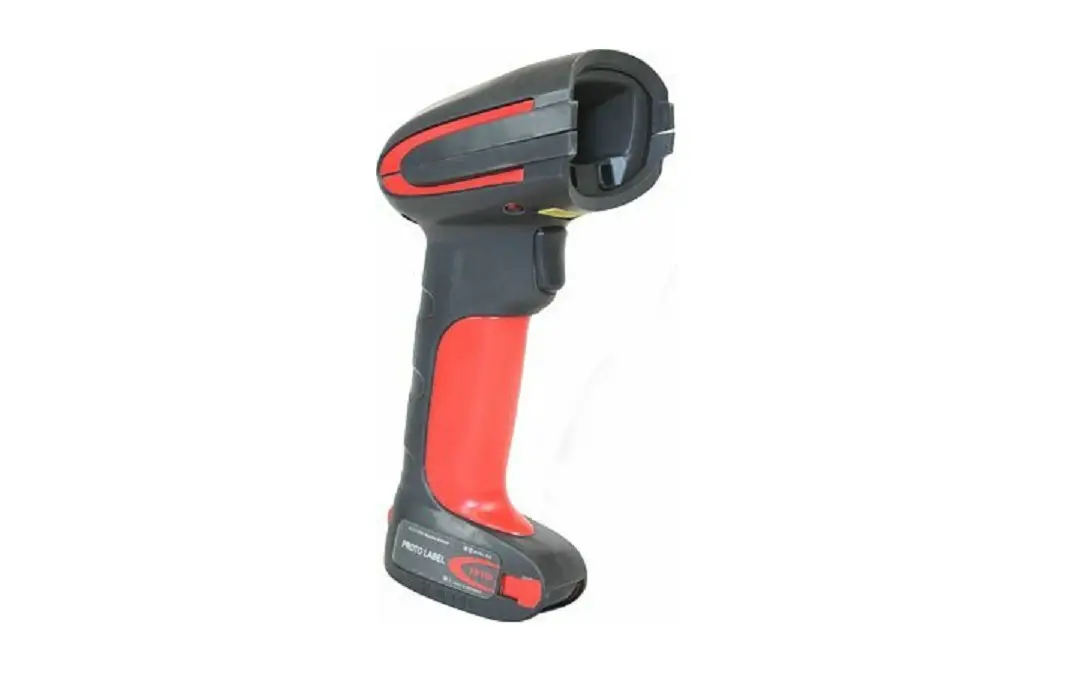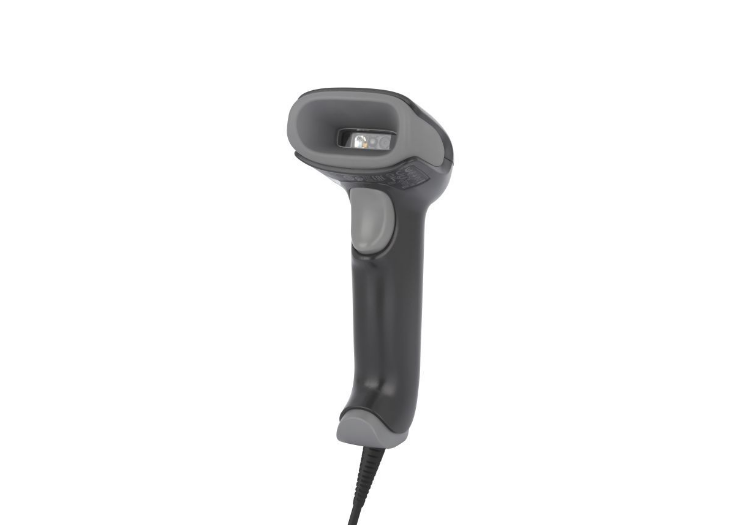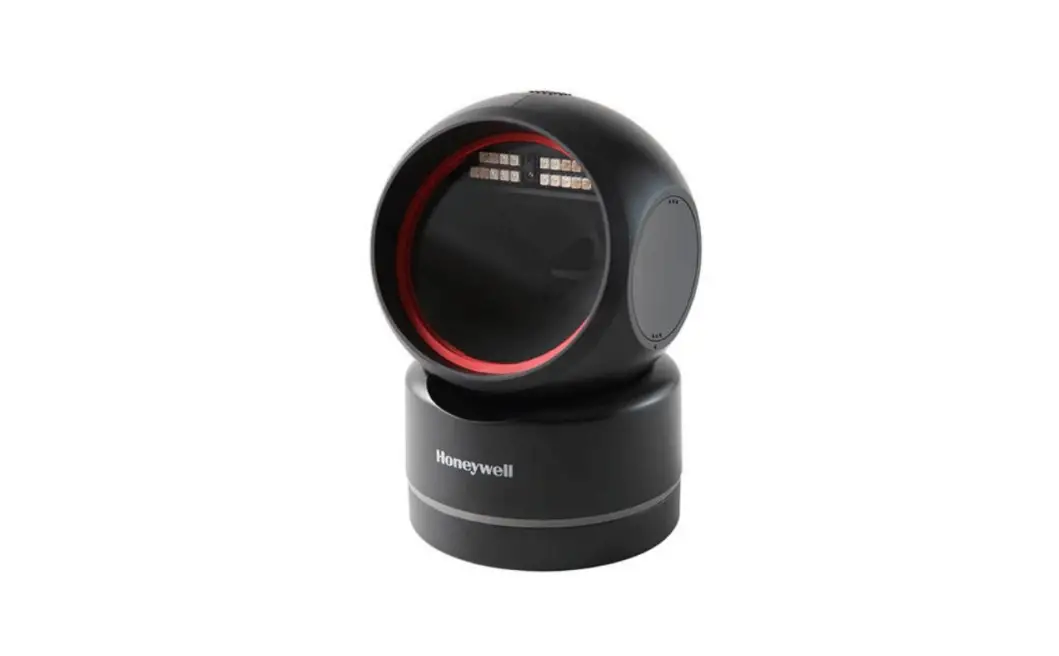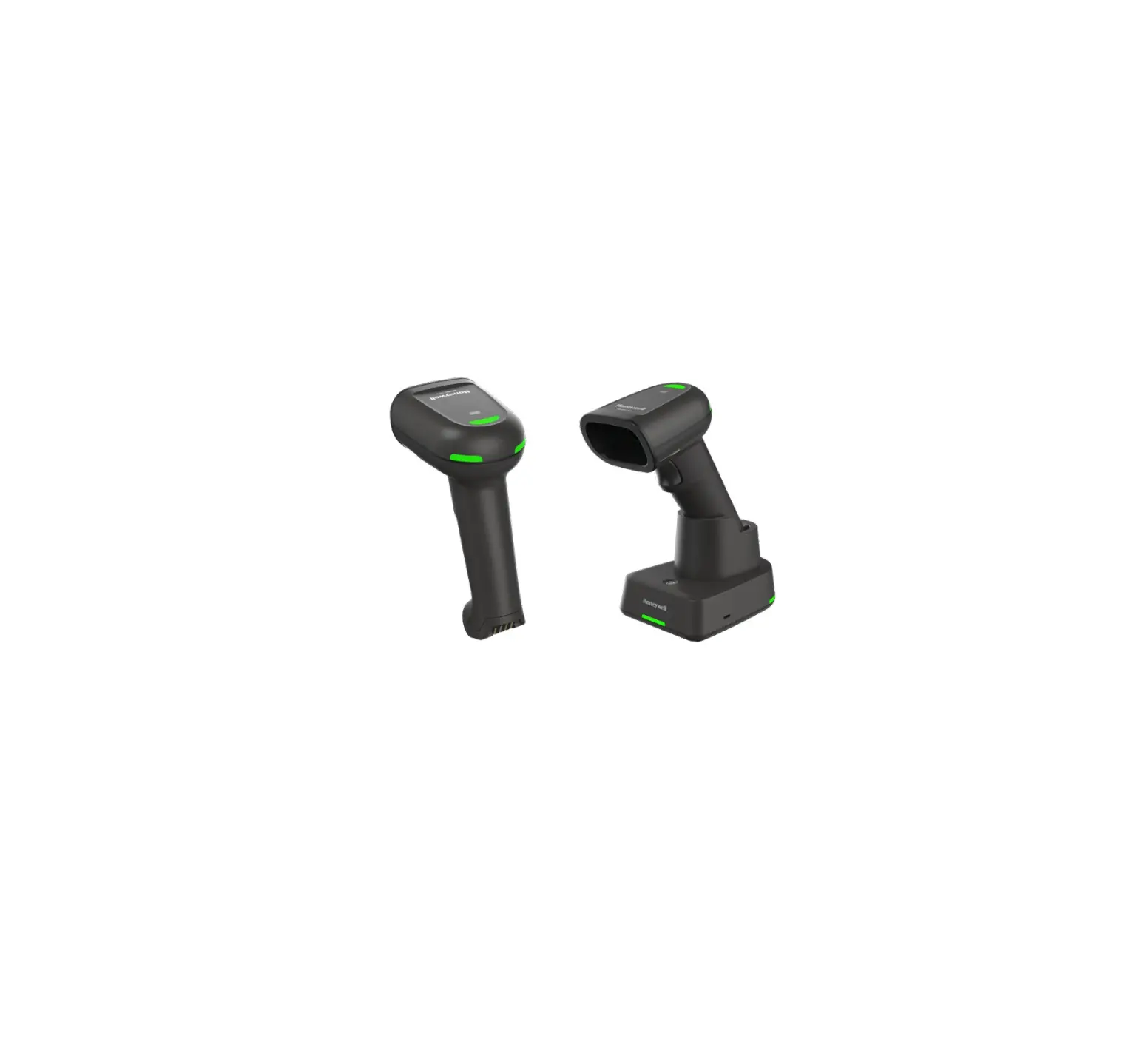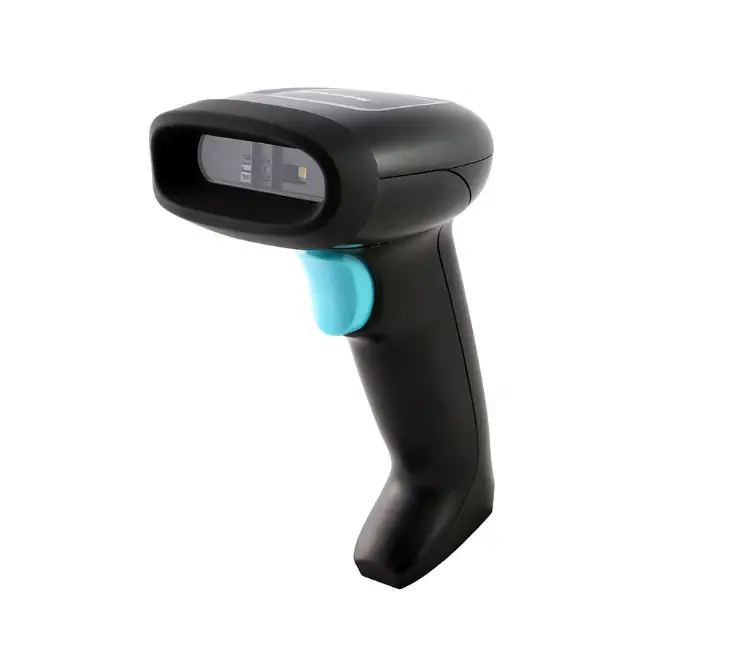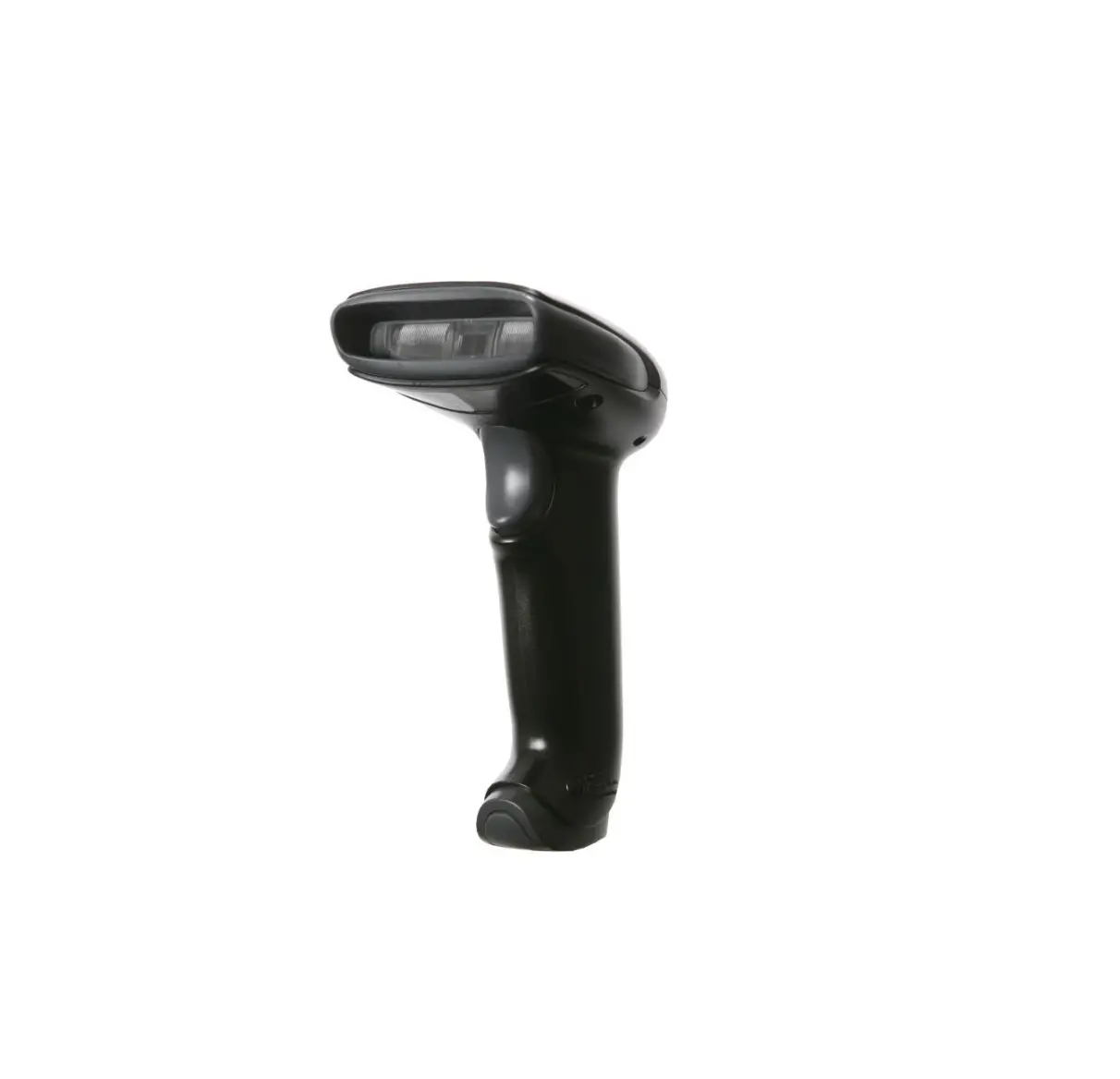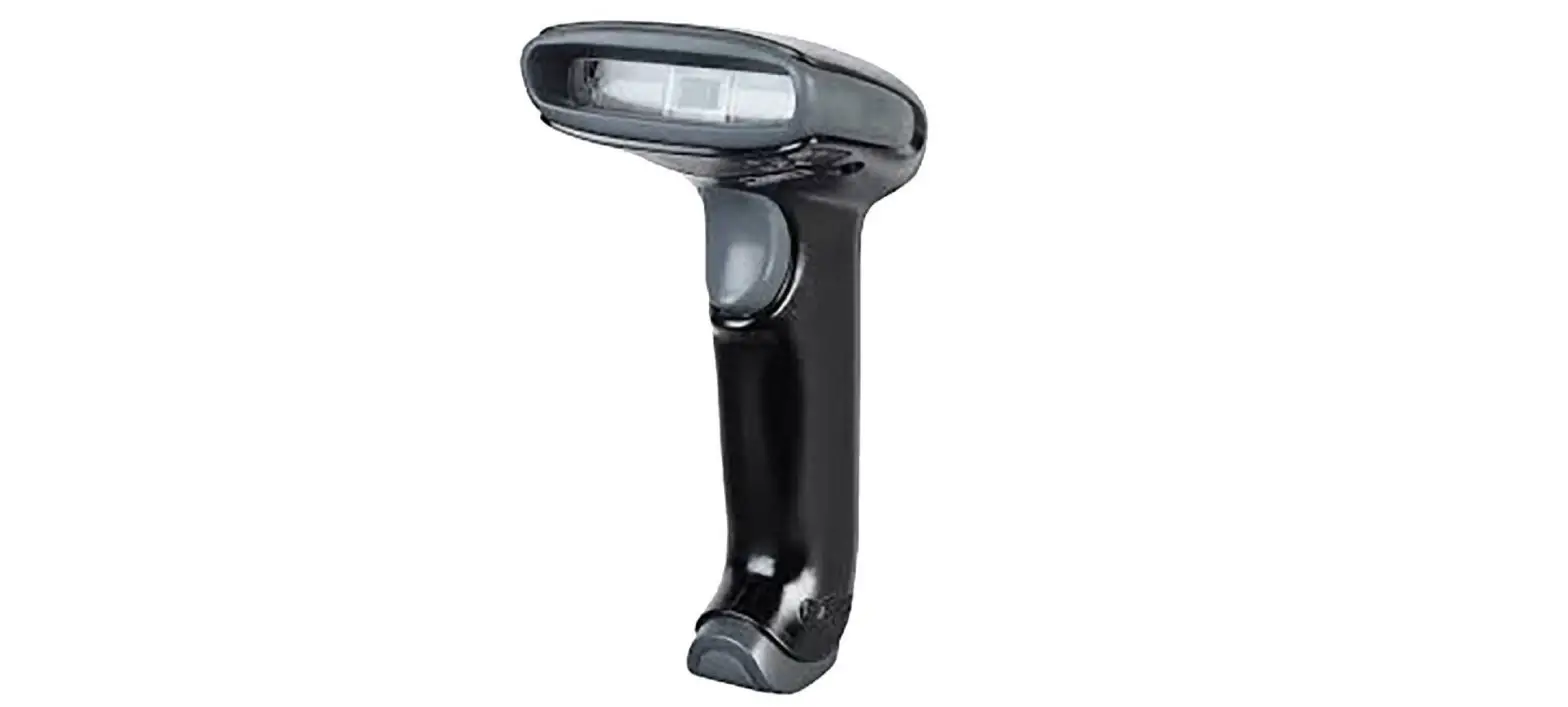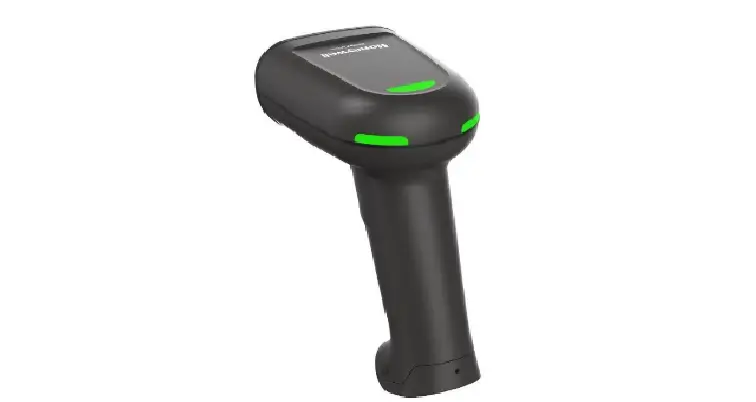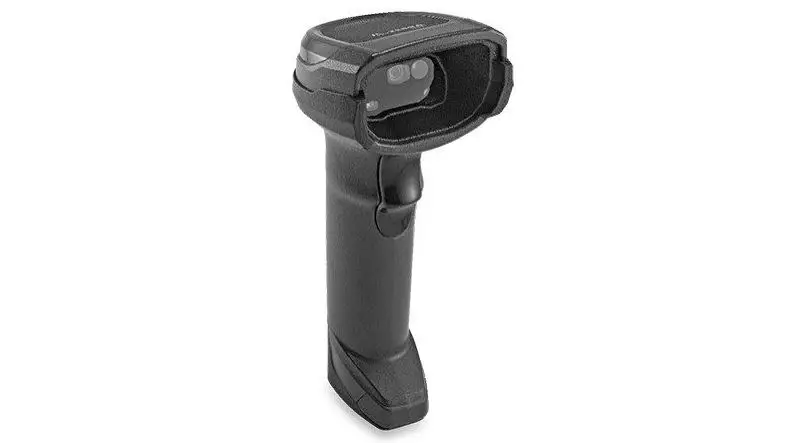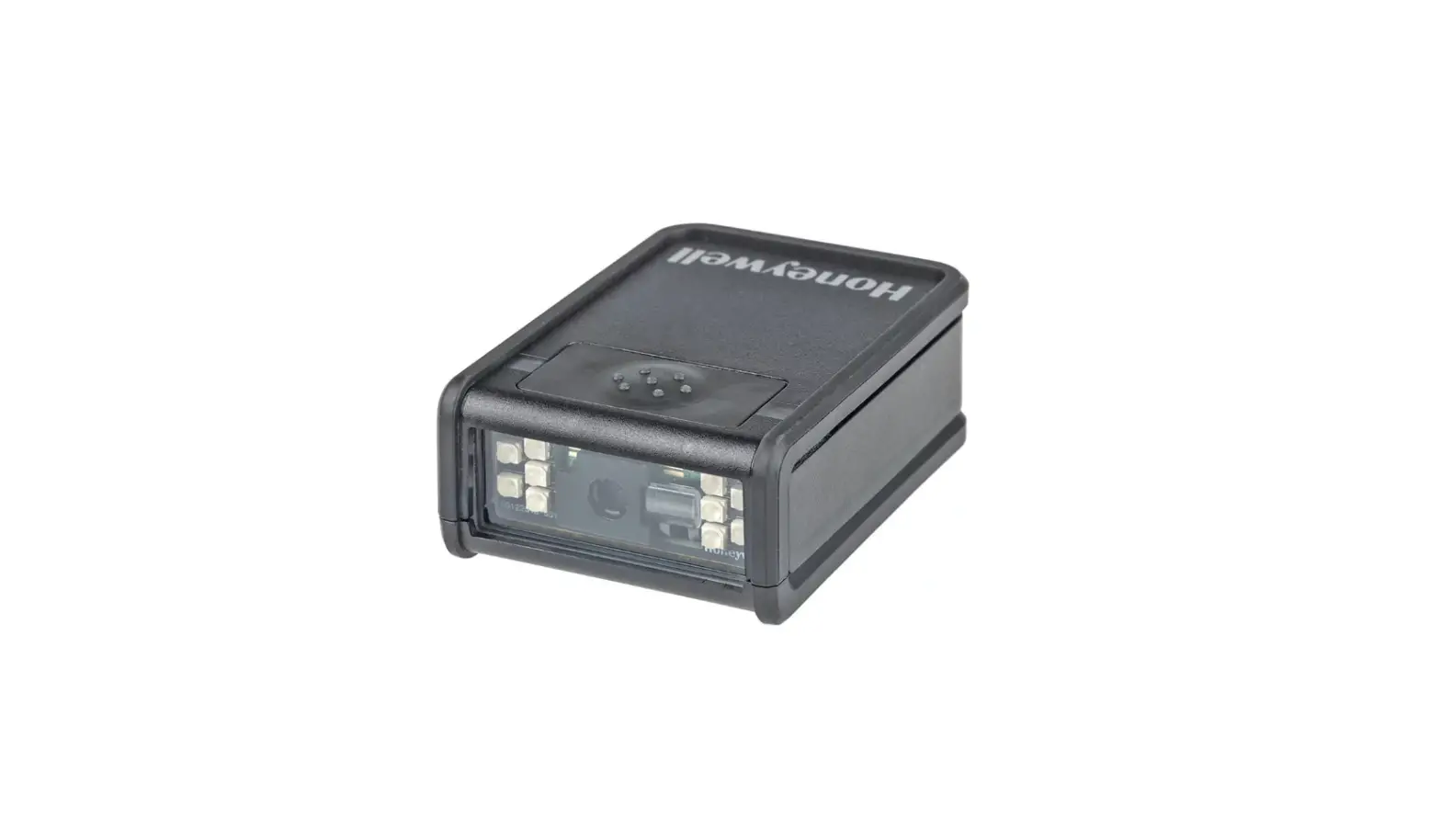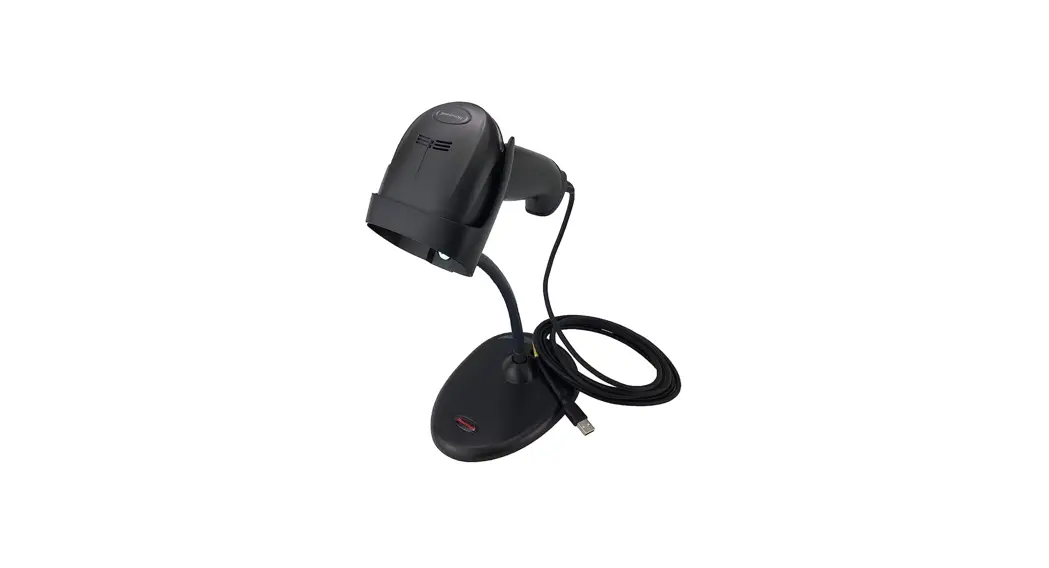
 Xenon Ultra 1962x Series Cordless Area Imaging Scanner
User Guide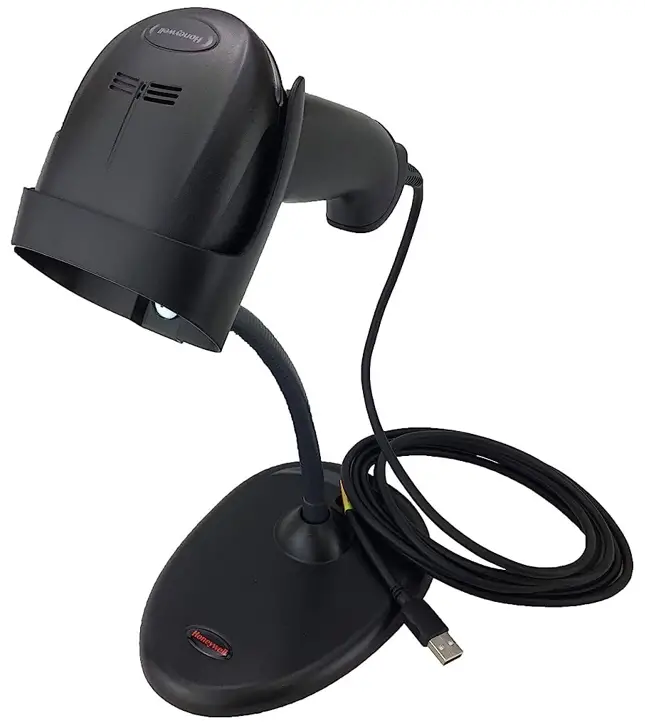
Prelim Draft, not for release
Xenon™ Ultra 1962x Series
Cordless Area-Imaging Scanner and Charge Bases
Scanner Models: 1962h, 1962g, 1962li
Quick Start Guide
Agency Model: 1962
Xenon Ultra 1962x Series Cordless Area Imaging Scanner
Note: Refer to your User Guide for information about cleaning your device.
Getting Started
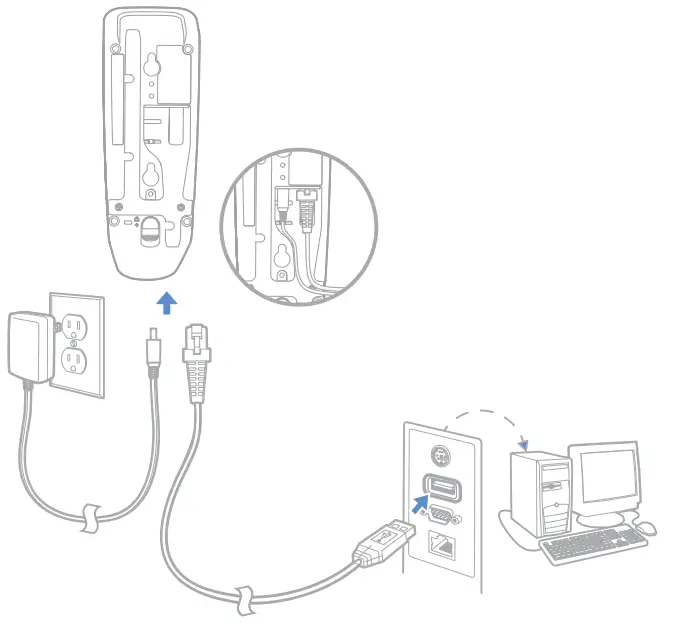
Turn off computer’s power before connecting the scanner, then power up the computer once the scanner is fully connected. Once the base is connected and powered up, follow the Link the Scanner (page 6) instructions to link the scanner to the base.
Power Supply Assembly (if included)
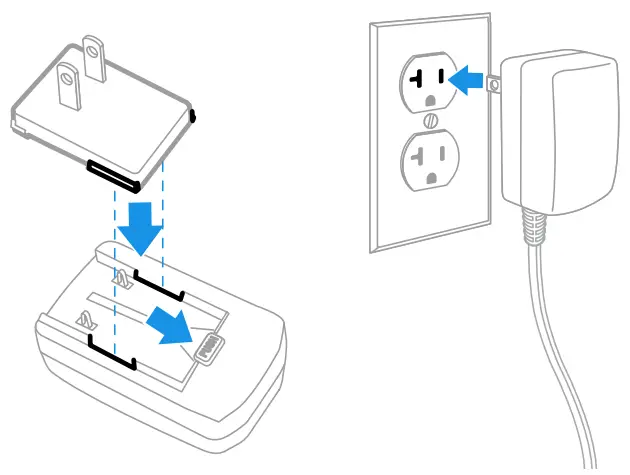
Note: The power supply must be ordered separately, if needed.
 Before you attempt to use, charge or replace the battery in the device, carefully read all labels, markings and product documentation provided in the box or online at sps.honeywell.com. To learn more about Battery Maintenance for Portable Devices, go to honeywell.com/PSS-BatteryMaintenance.
Connecting the Scanner
USB:
Note: If you are charging the scanner using the USB cable, the current available for charging is reduced and charge times are increased. Charging via the power supply is faster.
Universal Base: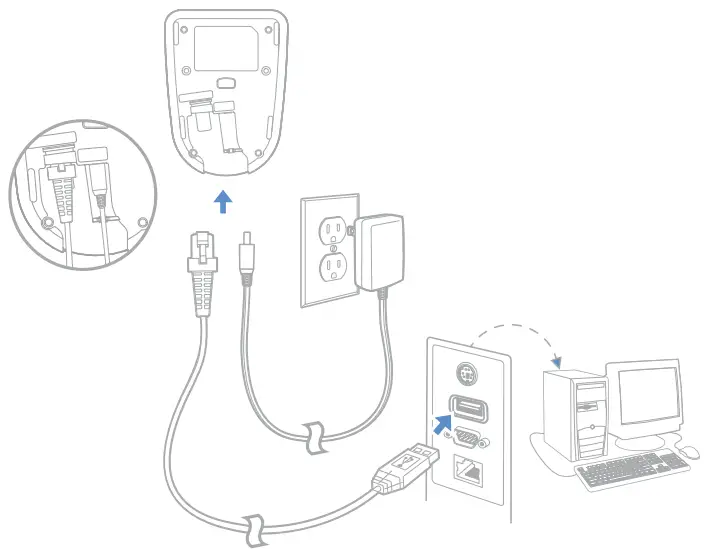
Horizontal Base:
Keyboard Wedge:
Universal Base:
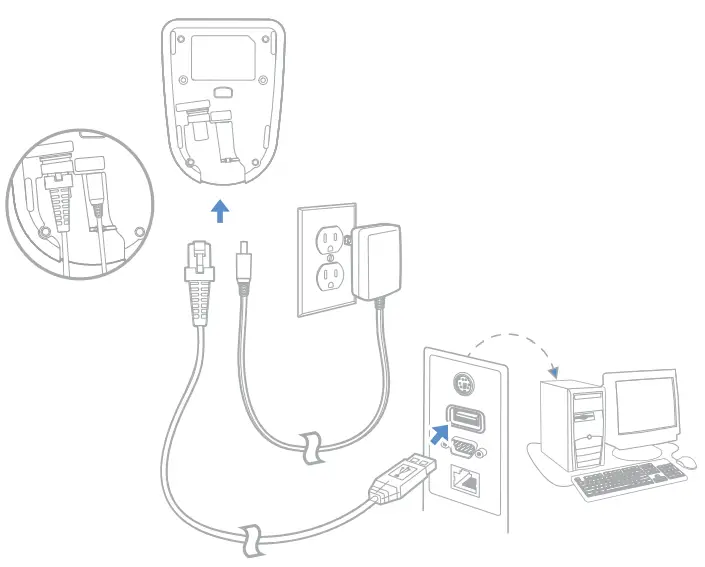
Horizontal Base:
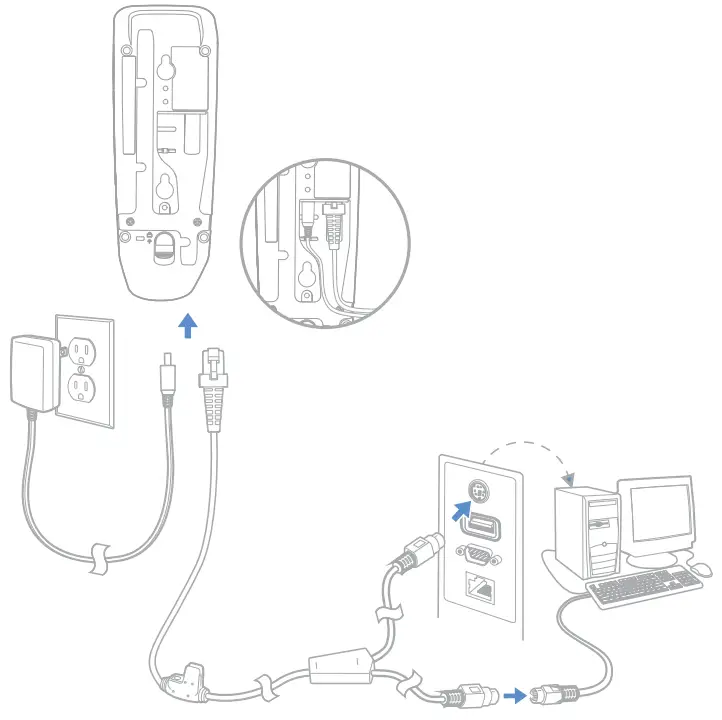
RS232 Serial Port:
Universal Base:
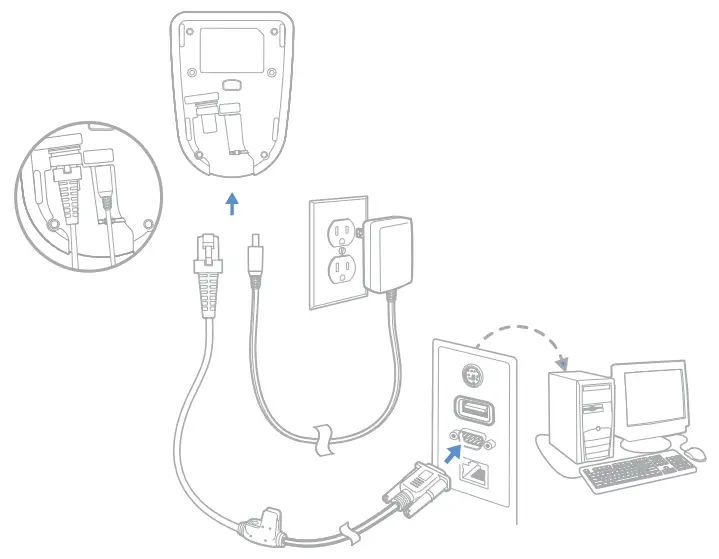
Horizontal Base:
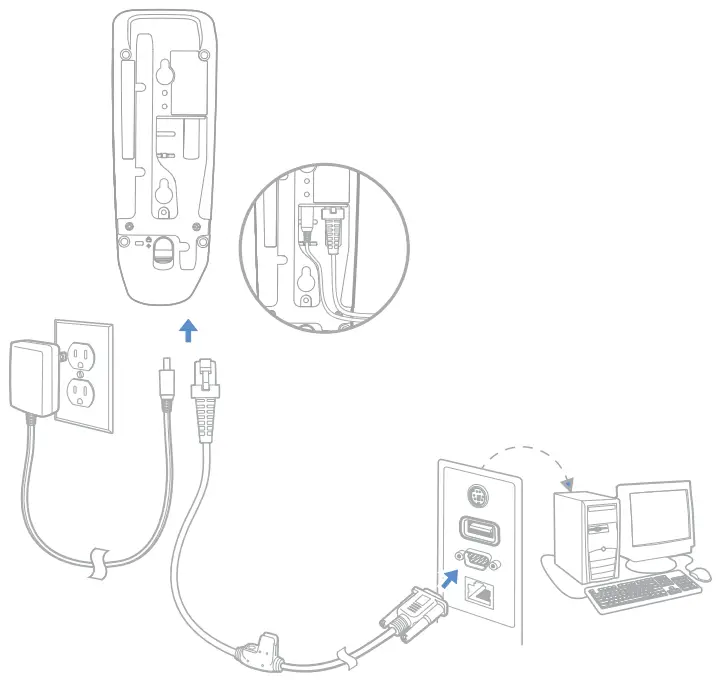
Link the Scanner
Use the following procedure to configure all scanners so they automatically connect to the base.
- Scan the barcode on the base.
- Place the scanner into the base.
- Power cycle the base to complete the link and establish communication between the base and scanner.
When the scanner is in the base, the green LED on the base flashes to indicate the scanner’s battery is charging.
Unlink the Scanner
If the base has a scanner linked to it, that scanner must be unlinked before a new scanner can be linked. Once the previous scanner is unlinked, it will no longer communicate with the base. Scan the Unlink Scanner barcode to unlink a scanner.

Reading Techniques
The view finder projects an aiming beam that should be centered over the barcode, but it can be positioned in any direction for a good read.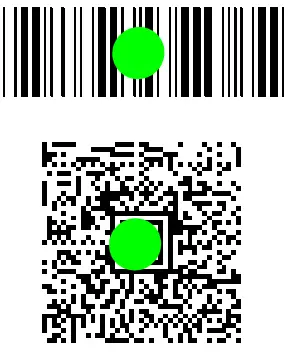
Standard Product Defaults
The following barcode resets all standard product default settings.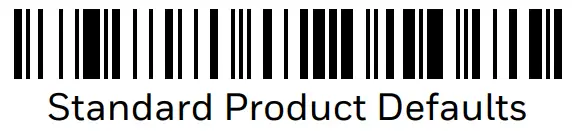
USB Serial
Scan the following code to program the scanner to emulate a regular RS232-based COM Port. If you are using a Microsoft® Windows® PC, you will need to download a driver from the Honeywell website (sps.honeywell.com). The driver will use the next available COM Port number. Apple® Macintosh computers recognize the scanner as a USB CDC class device and automatically use a class driver.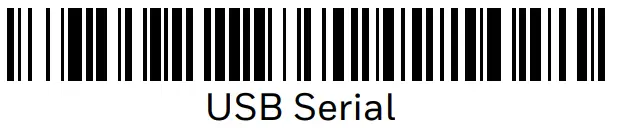
Note: No extra configuration (e.g., baud rate) is necessary.
USB PC Keyboard
Scan the following code to program the scanner for a USB PC Keyboard. 
Keyboard Country
Scan the appropriate country code below to program the keyboard layout for your country or language. By default, national character replacements are used for the following characters: #$@[\]^‘{|}~ Refer to the ISO 646 Character Replacements chart in your User Guide to view the character replacements for each country.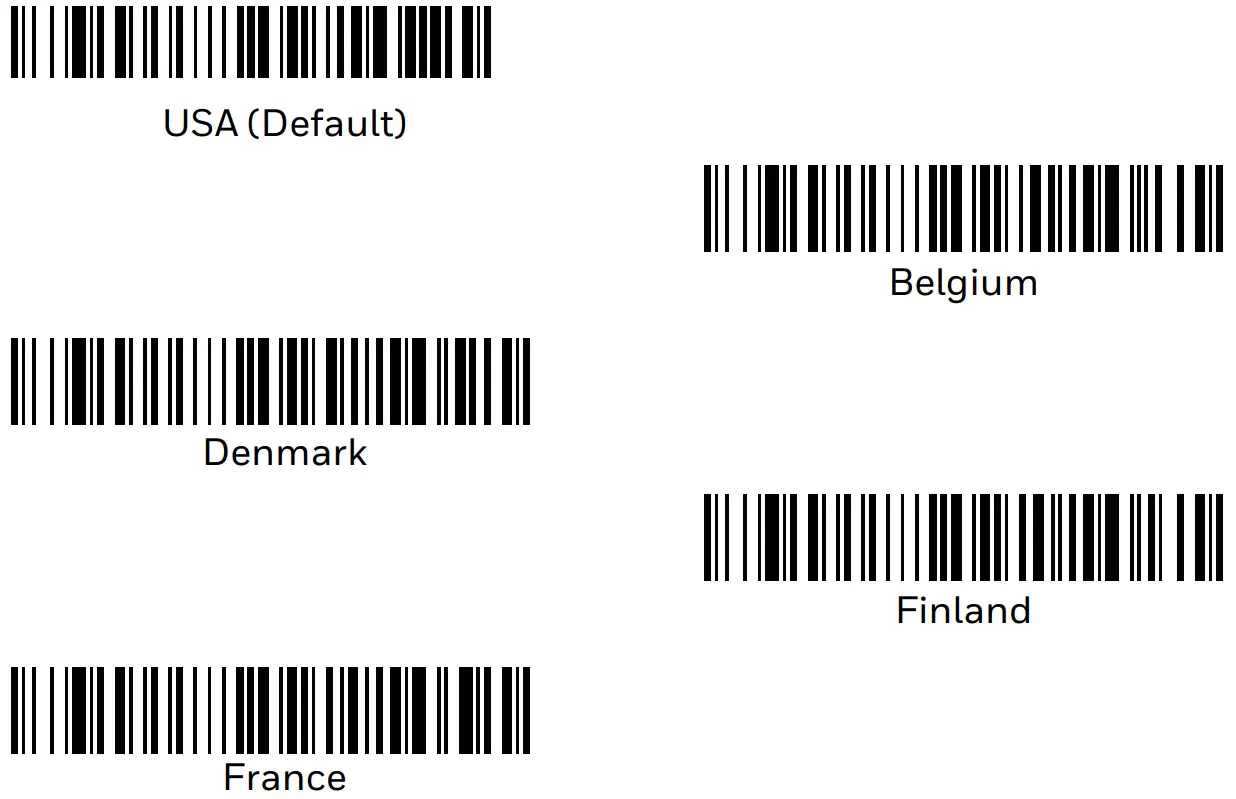
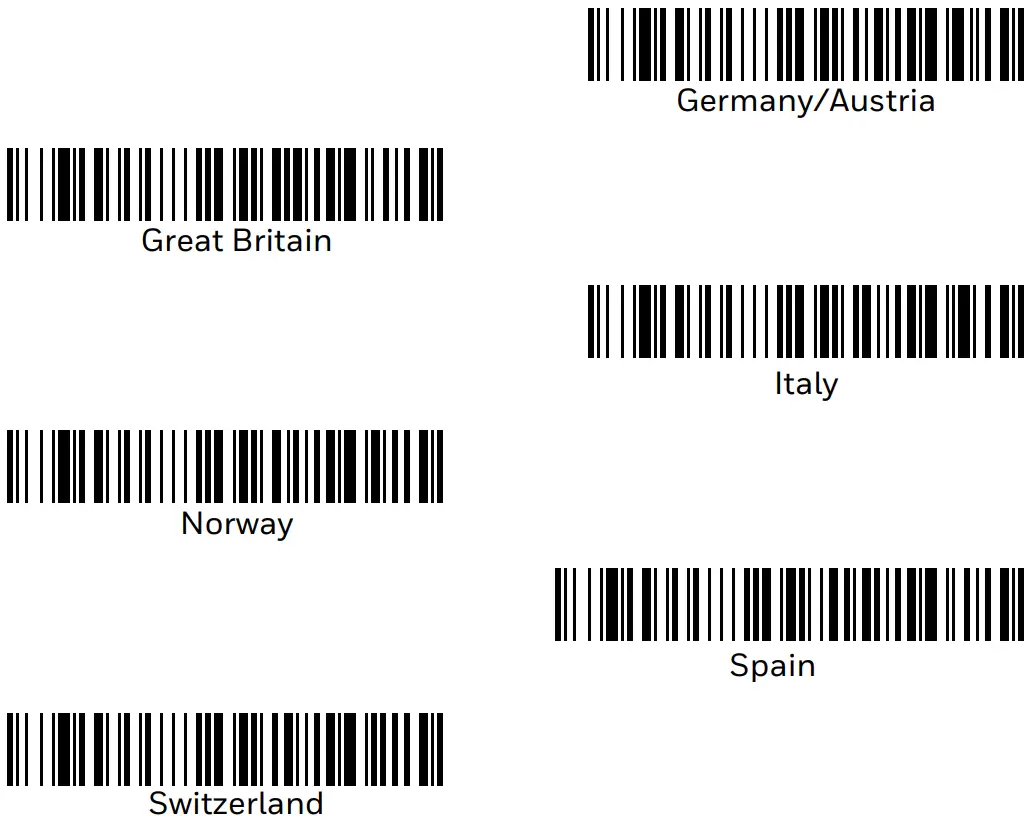
Note: For a complete list of country codes, see the User Guide for your product.
Trigger
The following barcodes will allow you to use the scanner in Manual Trigger – Normal Mode (need to press the trigger to read) or Presentation mode (the scanner is activated when it “sees” a barcode).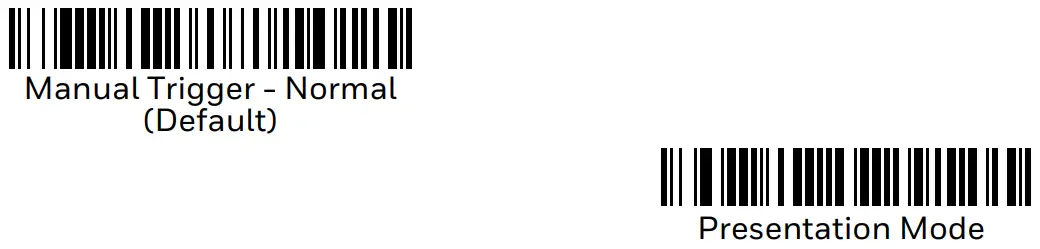
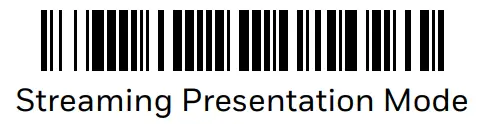
Streaming Presentation™
When in Streaming Presentation mode, the scanner leaves the scan illumination on all the time and continuously searches for barcodes.
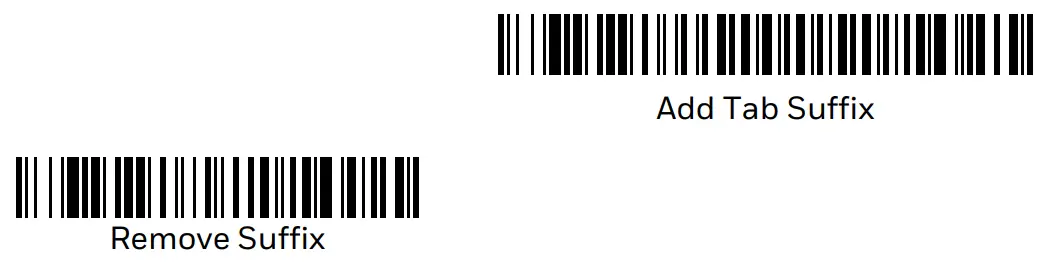
Suffix
If you want a carriage return after the barcode, scan the Add CR Suffix barcode. To add a tab after the barcode, scan the Add Tab Suffix barcode. Otherwise, scan the Remove Suffix barcode to remove the suffixes.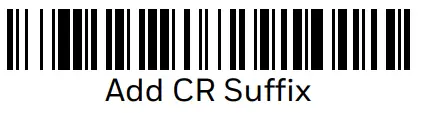
Add Code ID Prefix to all Symbiology’s
Scan the following barcode if you wish to add a Code ID prefix to all symbiology’s at once.
Note: For a complete list of Code IDs, see the User Guide for your product.
Function Code Transmit
When this selection is enabled and function codes are contained within the scanned data, the scanner transmits the function code to the terminal. Charts of these function codes are provided in your User Guide. When the scanner is in keyboard wedge mode, the scan code is converted to a key code before it is transmitted.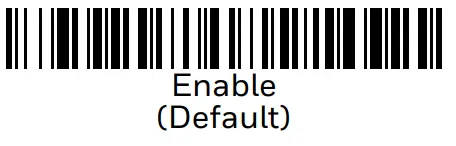
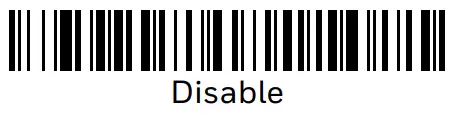
Healthcare
Note: The following settings are only supported on 1962h models.
Epic
Scan the following barcode to configure your device to communicate with an Epic software application.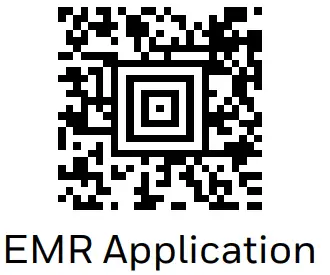
After scanning this code, you must put the scanner into the base or scan the linking barcode on the base or Access Point to relink your scanner.
Prelim Draft, not for release
Meditech®
Scan the following barcode to configure your device to communicate with a Me ditech software application.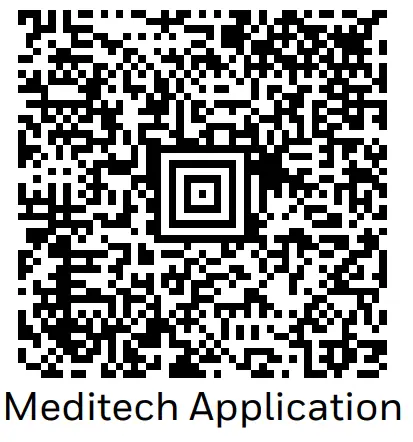
After scanning this code, you must put the scanner into the base or scan the linking barcode on the base or Access Point to relink your scanner.
Quiet Operations
The following codes configure the scanner and base to quiet modes for scanning that does not disturb resting patients.
Silent Mode with Flashing LED
Scan the following barcode to completely silence the base and scanner. When a barcode is scanned, the LED and aimer flash 5 times. Green indicates a good scan, red indicates a bad scan.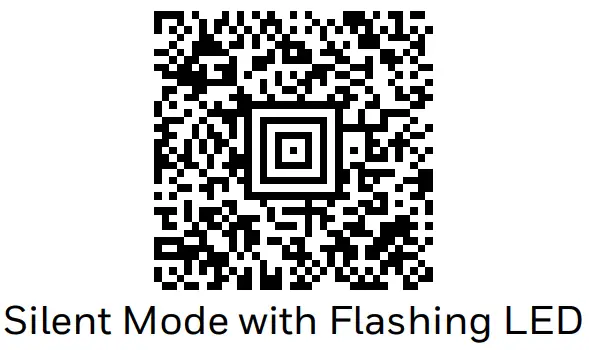
Silent Mode with Long LED
Scan the following barcode to completely silence the base and scanner. When a barcode is scanned, the LED and aimer remain solidly lit for 1 second. Green indicates a good scan, red indicates a bad scan.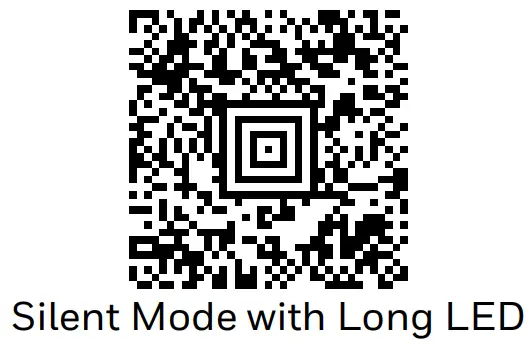
Very Low Beeper (Nighttime Mode)
The following barcode silences the base, and sets the scanner for a very low beep when reading barcodes. After scanning this code, the base beep, base and scanner power up beep, and scanner linking sounds are all silenced. When a barcode is scanned, the scanner emits a very soft beep.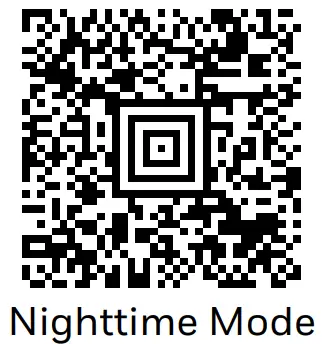
Low Beeper (Daytime Mode)
Scan the following barcode to set all sounds to on, but at a low volume. The scanner beep, base beep, base and scanner power up beep, and scanner linking sounds are all set to low volume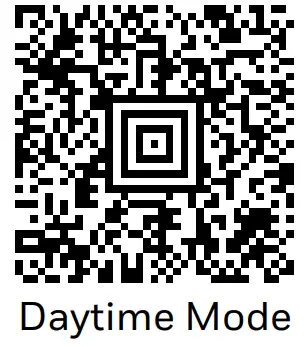
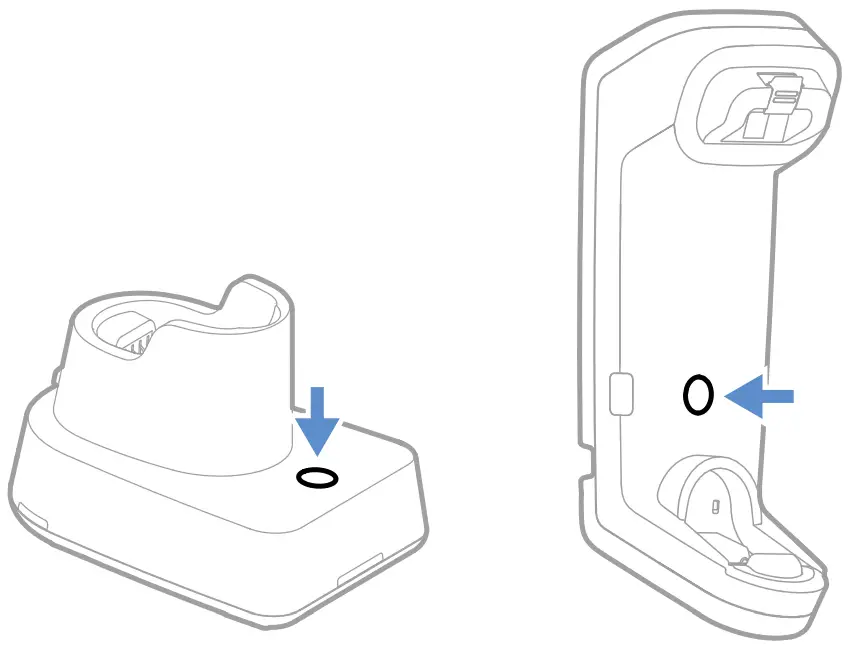
The page button on the base is used to page your scanner or to put it into Temporary Streaming Presentation mode. When the scanner is out of the base, press the page button once to make the scanner beep so you can locate it. Press the scanner’s trigger to stop the page beeping. When the scanner is in the base, press the page button once and the scanner shines the aimer until a barcode is presented to it. If the scanner doesn’t see a barcode in 10 seconds, the aimer shuts off.
Support
To search our knowledge base for a solution or to log into the Technical Support portal and report a problem, go to honeywell.com/PSStechnicalsupport.
Product Documentation
Product documentation is available at sps.honeywell.com.
Limited Warranty
For warranty information, go to sps.honeywell.com and click Support > Warranties.
Patents
For patent information, see www.hsmpats.com.
Disclaimer
Honeywell International Inc. (“HII”) reserves the right to make changes in specifications and other information contained in this document without prior notice, and the reader should in all cases consult HII to determine whether any such changes have been made. HII makes no representation or warranties regarding the information provided in this publication.
HII shall not be liable for technical or editorial errors or omissions contained herein; nor for incidental or consequential damages resulting from the furnishing, performance, or use of this material. HII disclaims all responsibility for the selection and use of software and/or hardware to achieve intended results.
This document contains proprietary information that is protected by copyright. All rights are reserved. No part of this document may be photocopied, reproduced, or translated into another language without the prior written consent of HII.
Copyright © 2023 Honeywell Group of Companies. All rights reserved.
Agency Model: 1960, 1962
Product documentation is available at sps.honeywell.com.
FCC Part 15 Subpart B Class B This device complies with part 15 of the FCC Rules. Operation is subject to the following two conditions:
- This device may not cause harmful interference.
- This device must accept any interference received, including interference that may cause undesired operation.
This equipment has been tested and found to comply with the limits for a Class B digital device pursuant to part 15 of the FCC Rules. These limits are designed to provide reasonable protection against harmful interference in a residential installation. This equipment generates, uses, and can radiate radio frequency energy and, if not installed and used in accordance with the instructions, may cause harmful interference to radio communications. However, there is no guarantee that interference will not occur in a particular installation. If this equipment does cause harmful interference to radio or television reception, which can be determined by turning the equipment off and on, the user is encouraged to try to correct the interference by one or more of the following measures:
• Reorient or relocate the receiving antenna.
• Increase the separation between the equipment and receiver.
• Connect the equipment into an outlet on a circuit different from that to which the receiver is connected.
• Consult the dealer or an experienced radio or television technician for help.
If necessary, the user should consult the dealer or an experienced radio/television technician for additional suggestions. Honeywell International Inc. is not responsible for any radio or television interference caused by unauthorized modifications of this equipment or the substitution or attachment of connecting cables and equipment other than those specified by Honeywell International Inc.. The correction is the responsibility of the user.
Caution: Any changes or modifications made to this equipment not expressly approved by Honeywell International Inc. may void the authorization to operate this equipment.
Canadian Compliance
This device contains license-exempt transmitter(s)/receiver(s) that comply with Innovation, Science and Economic Development Canada’s license-exempt RSS(s). Operation is subject to the following two conditions:
- This device may not cause interference, and
- This device must accept any interference, including interference that may cause undesired operation of the device. CAN ICES-003(B)/NMB-003(B)
Model: 1962
RF Exposure
The equipment complies with FCC RF exposure limits set forth for an uncontrolled environment. The equipment must not be co-located or operating in conjunction with any other antenna or transmitter.
IC RF Radiation Exposure
This equipment complies with IC radiation exposure limits set forth for an uncontrolled environment.

Frequency 2402-2480 MHz
Maximum power 20dBm
CAUTION: Improper battery replacement or incompatible device usage may result in risk of burns, fire, explosion, or other hazard. Dispose of batteries according to local regulations.
Model: 1960, 1962
Use only shielded data cables with this system. This unit has been tested with cables less than 3 meters. Cables greater than 3 meters may not meet class B performance.
Patents
For patent information, refer to www.hsmpats.com.
Product Environmental Information
Refer to honeywell.com/PSSenvironmental for the RoHS / REACH / WEEE information.
This document was prepared and executed in the English language. In the event this document is translated into another language and a conflict arises between the English version and a non-English version, the English version shall prevail, it being recognized and acknowledged that the English language version most clearly expresses the intent of the parties. Any notice or communication given in connection with this document must include a version in the English language.
For warranty information, go to sps.honeywell.com and click Support > Warranties.
For warranty information, go to sps.honeywell.com and click Support > Warranties.
The following statements may not apply to products assembled in Mexico:
CB Scheme
Certified to CB Scheme IEC 623681, Third Edition.
LED Safety Statement
LEDs have been tested and classified as “EXEMPT RISK GROUP” to the standard: IEC 62471:2006.
Model: 1960
 The CE marking indicates compliance with the following directives:
• 2014/30/EU EMC
• 2011/65/EU RoHS (Recast)
In addition, complies to 2014/35/ EU Low Voltage Directive, when shipped with recommended power supply. European contact: Honeywell Productivity Solutions BV Burgomaster Burgerslaan 40 5245NH Rosalyn The Netherlands
Model: 1962
Honeywell
International Inc.,
hereby declares that the radio equipment type, non-specific SRD, is in compliance with the following directives:
• 2014/53/EU Radio Equipment
• 2011/65/EU RoHS (Recast)
The full text of the EU declaration of conformity is available at the following internet address: honeywell.com/PSScompliance. European contact: Honeywell Productivity Solutions BV Burgomaster Burgerslaan 40 5245NH Rosalyn The Netherlands
Model: 1960, 1962
United Kingdom Contact: United Kingdom Honeywell Scanning and Mobility, Honeywell House, Skimped Hill Lane, Cracknell, Berkshire, RG12 1EB Phone: +44 (0)1344921052
 If the following label is attached to your product, the product meets Korean agency approval for Class B equipment:
NCC standard: Low-power Radio-frequency Devices Technical Regulations: LP0002Honeywell International Inc.
9680 Old Bails Road
Fort Mill, SC 29707 USA
© 2023 Honeywell Group of Companies. All rights reserved.
References
 Honeywell - The Future Is What We Make It
-
Honeywell - The Future Is What We Make It
-
honeywell.com/PSS-BatteryMaintenance
-
Honeywell Safety and Productivity Solutions Taiwan RoHS Table
-
Productivity Product Certifications
-
Quality Program and Environmental Compliance | Honeywell
-
Technical Support - PPR
 恩施晨拷机械设备有限公司
-
Safety and Productivity Solutions | Honeywell
 Anatel — Agência Nacional de Telecomunicações
-
Productivity products and associated patents | Honeywell
-
Safety and Productivity Solutions | Honeywell
-
honeywell.com/PSS-BatteryMaintenance
-
Safety and Productivity Solutions | Honeywell
-
Honeywell Safety and Productivity Solutions Taiwan RoHS Table
-
Productivity Product Certifications
-
Quality Program and Environmental Compliance | Honeywell
-
Technical Support - PPR
-
Productivity products and associated patents | Honeywell
-
Safety and Productivity Solutions | Honeywell
 Honeywell - The Future Is What We Make It
 Safety and Productivity Solutions | Honeywell
 Anatel — Agência Nacional de Telecomunicações
 Productivity products and associated patents | Honeywell
 Safety and Productivity Solutions | Honeywell
 Honeywell Safety and Productivity Solutions Taiwan RoHS Table