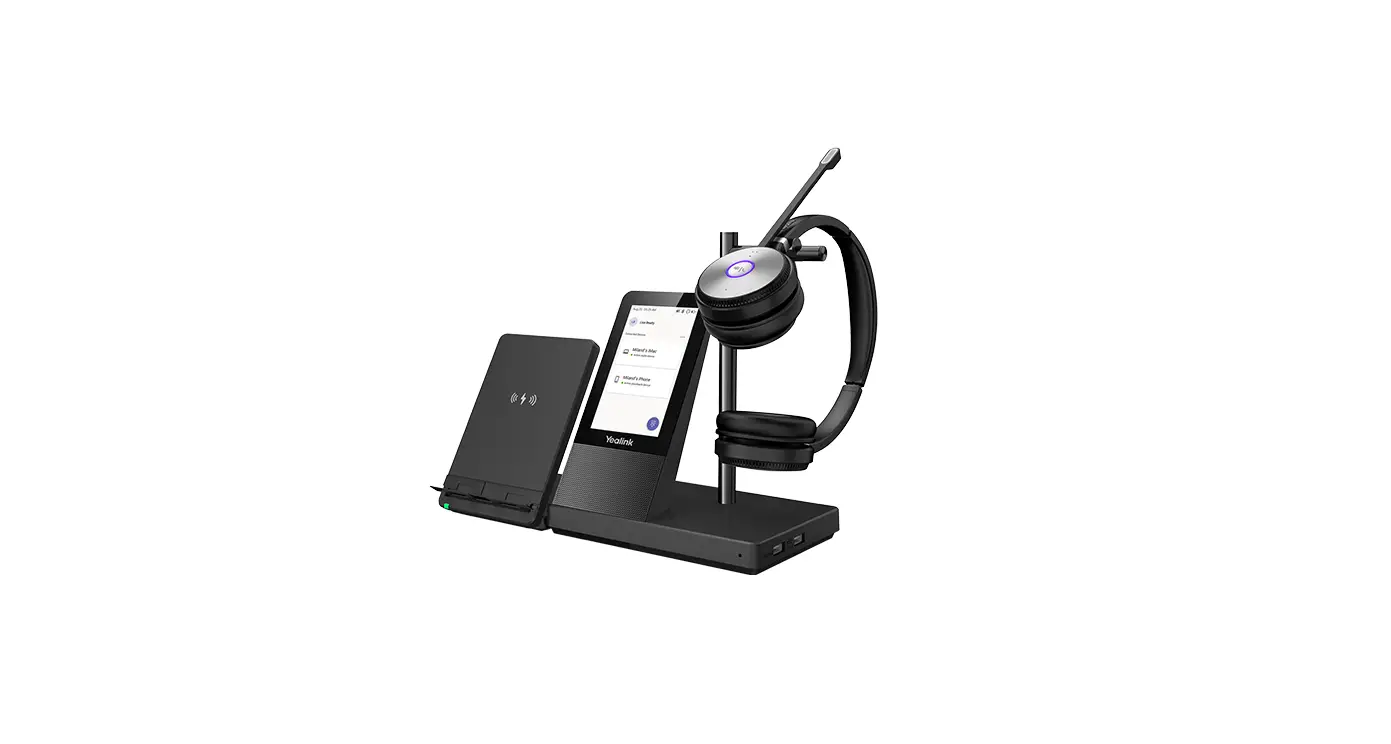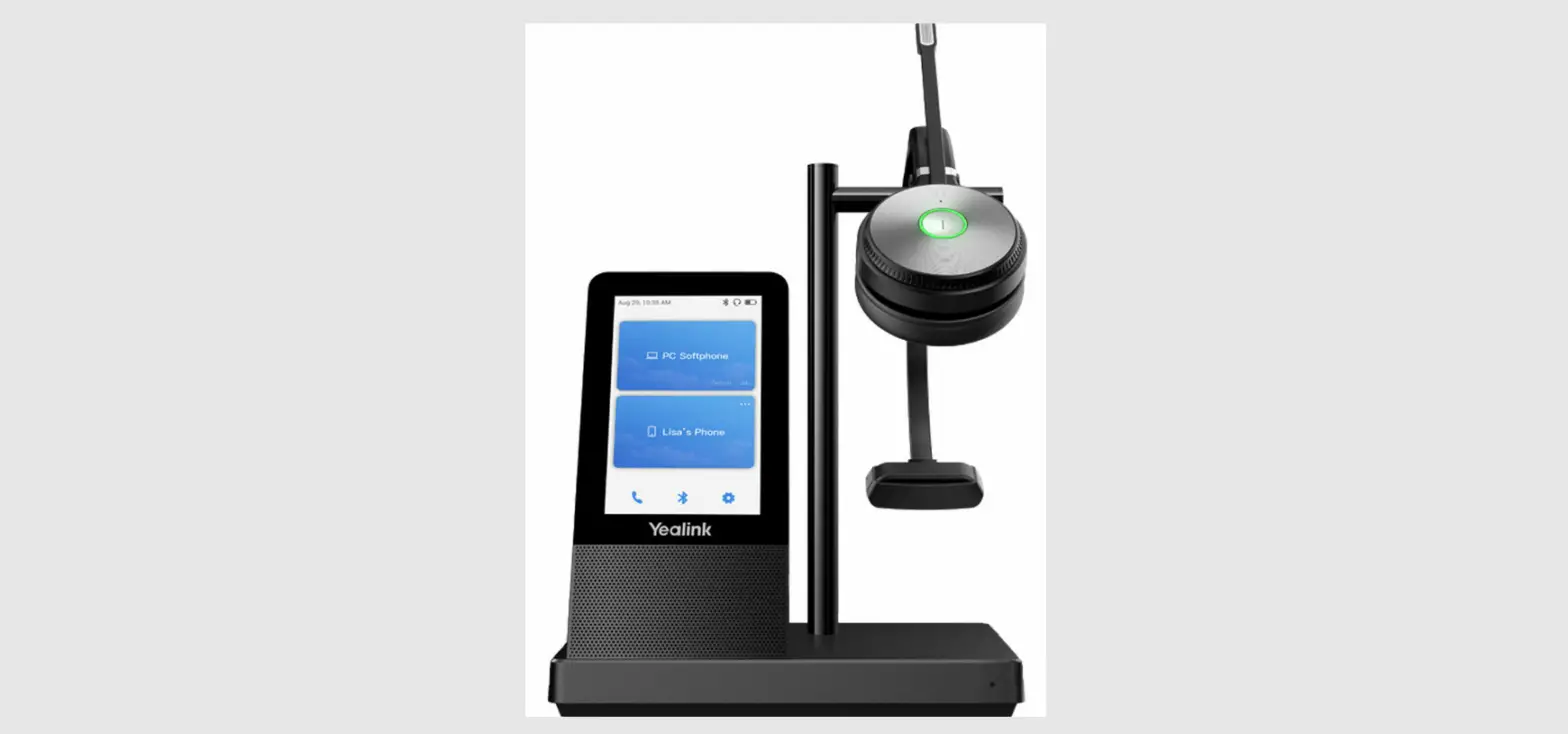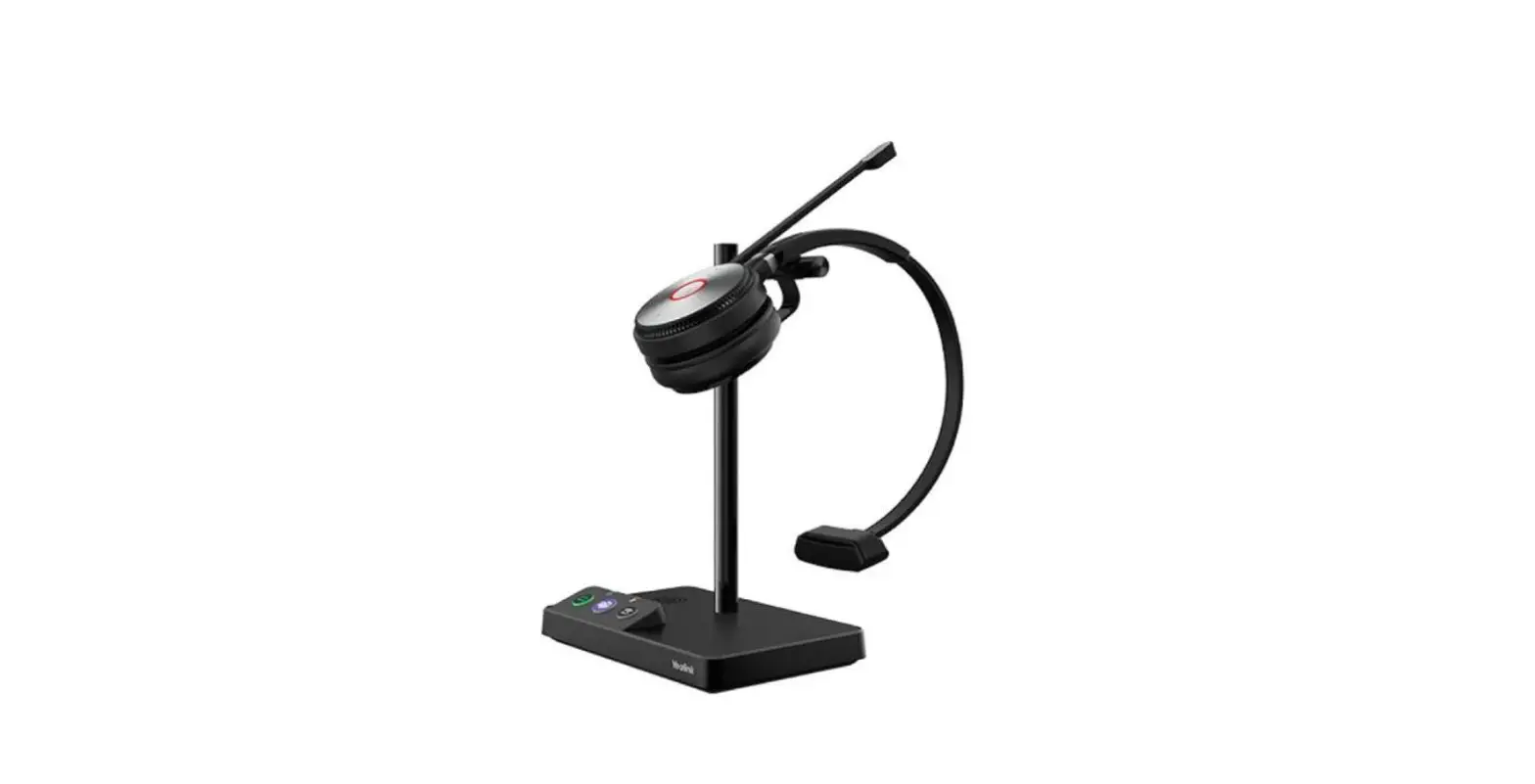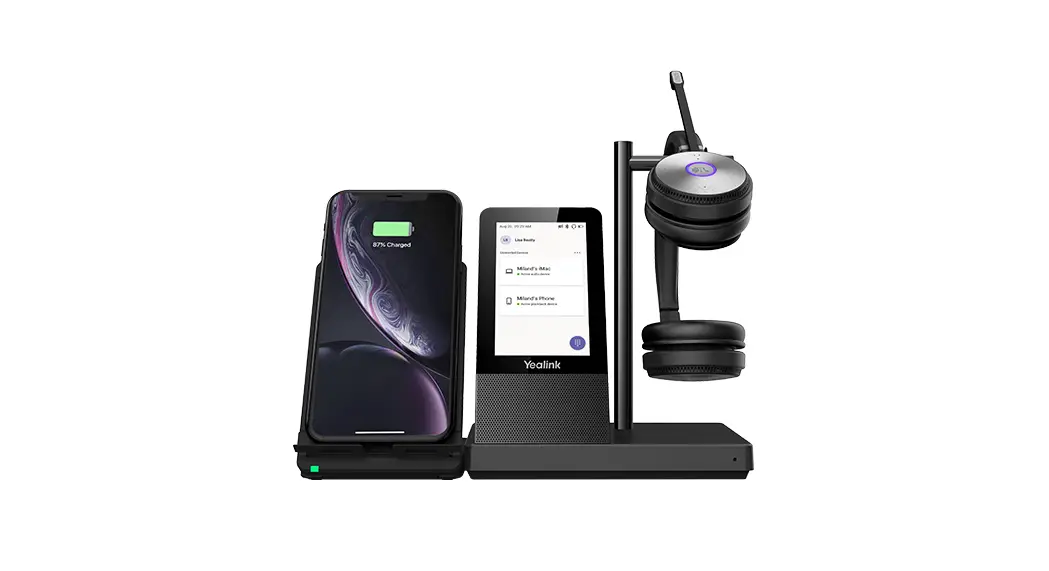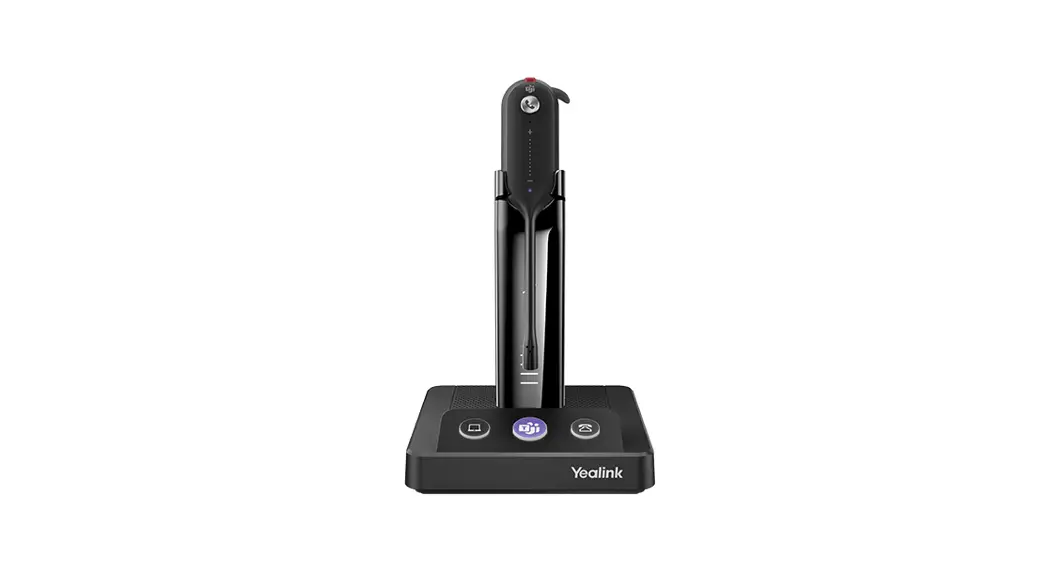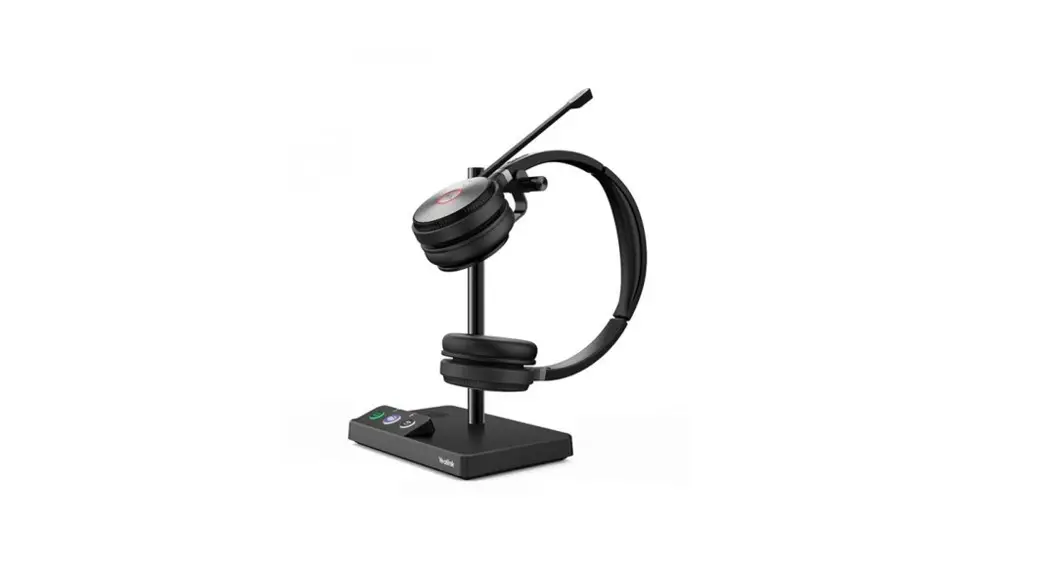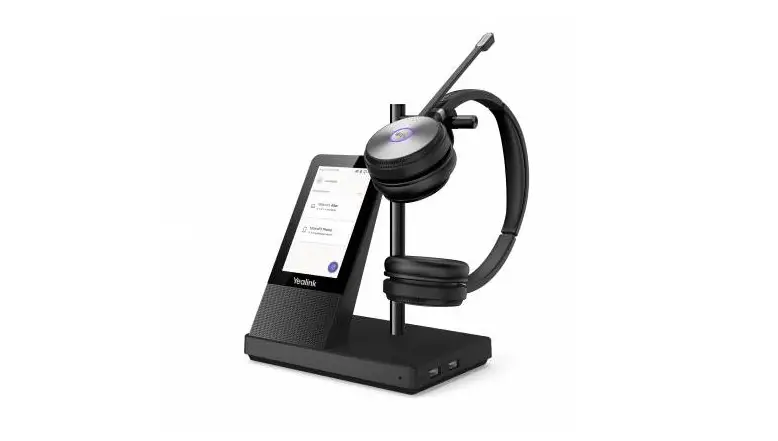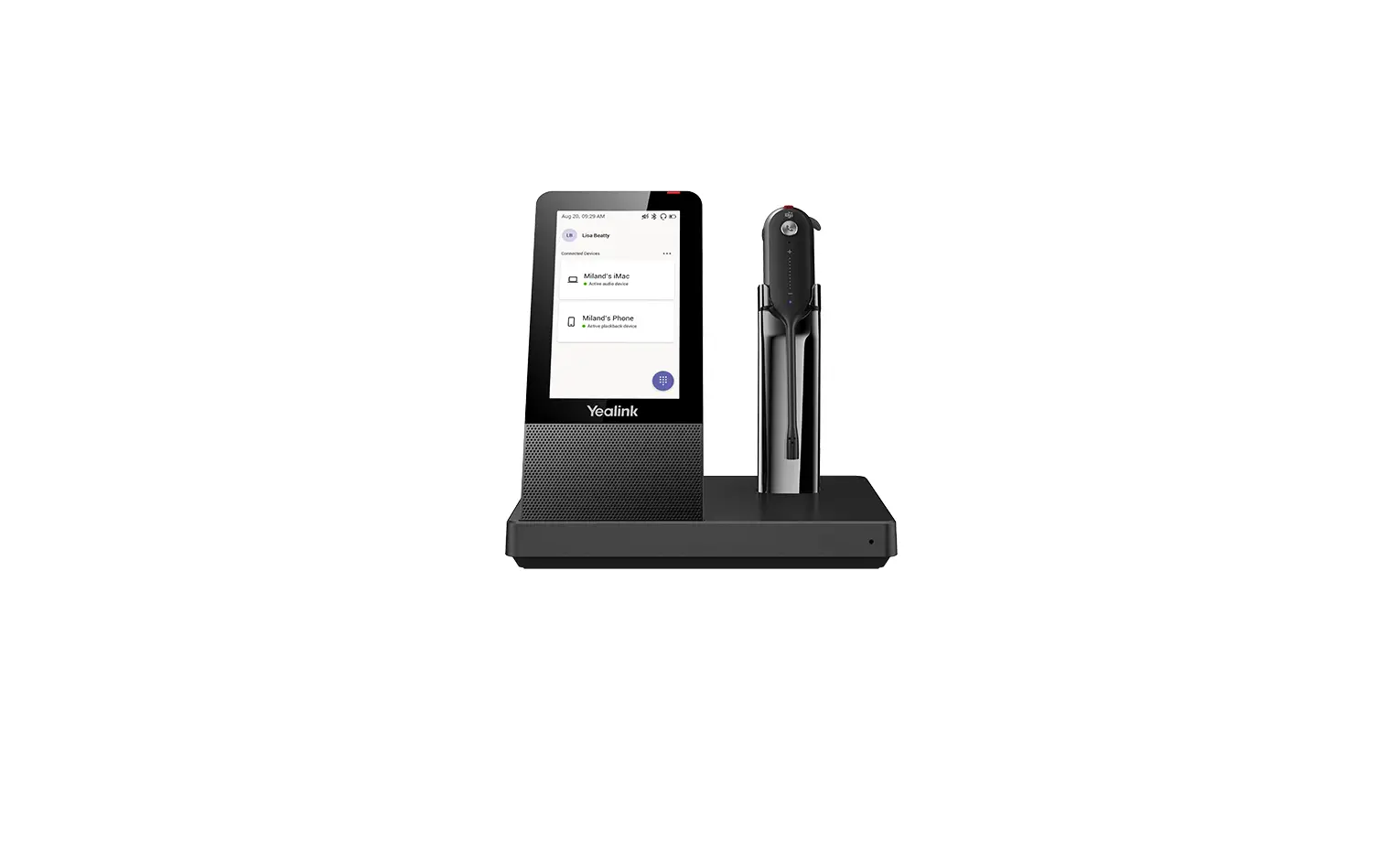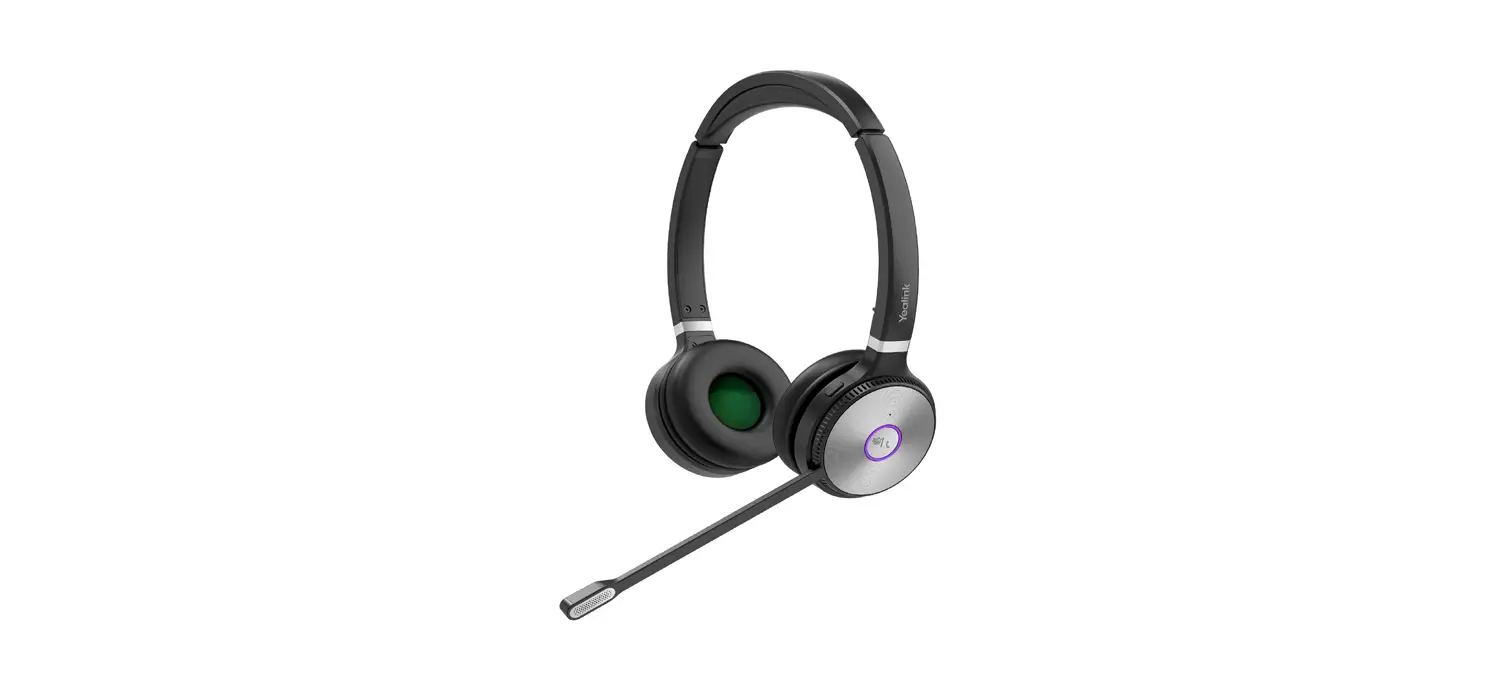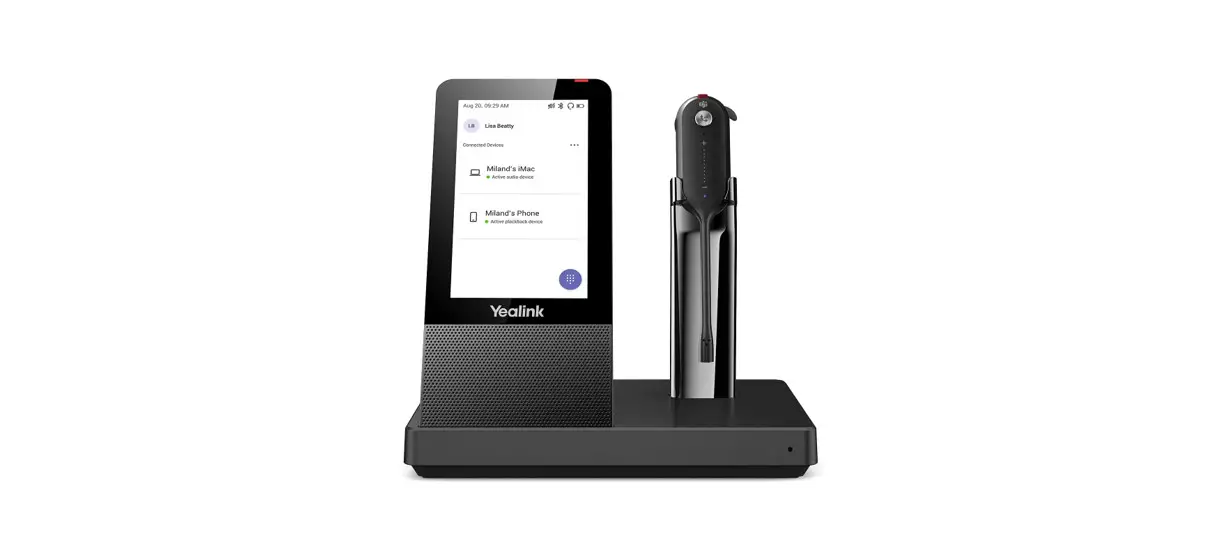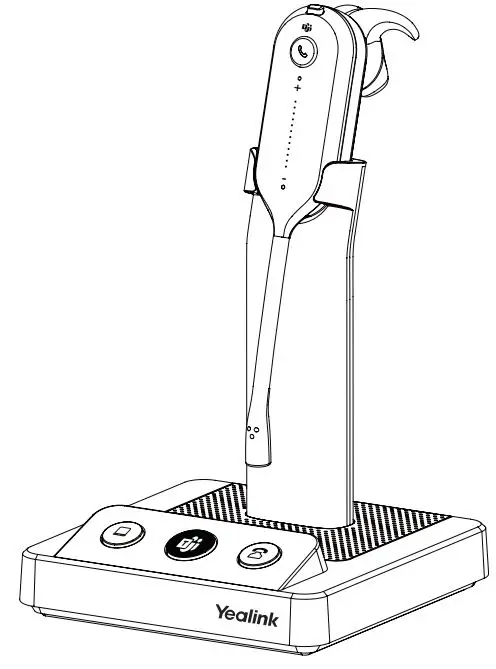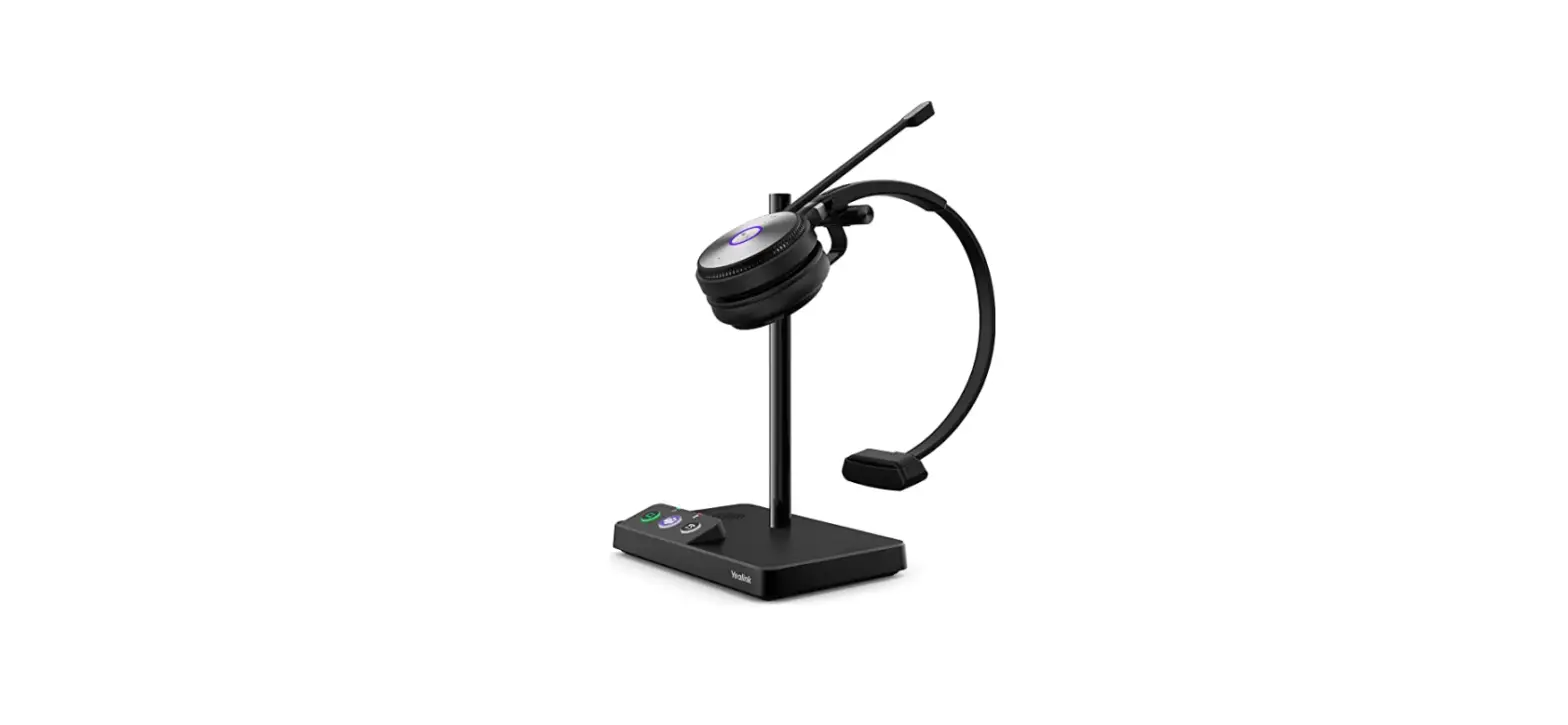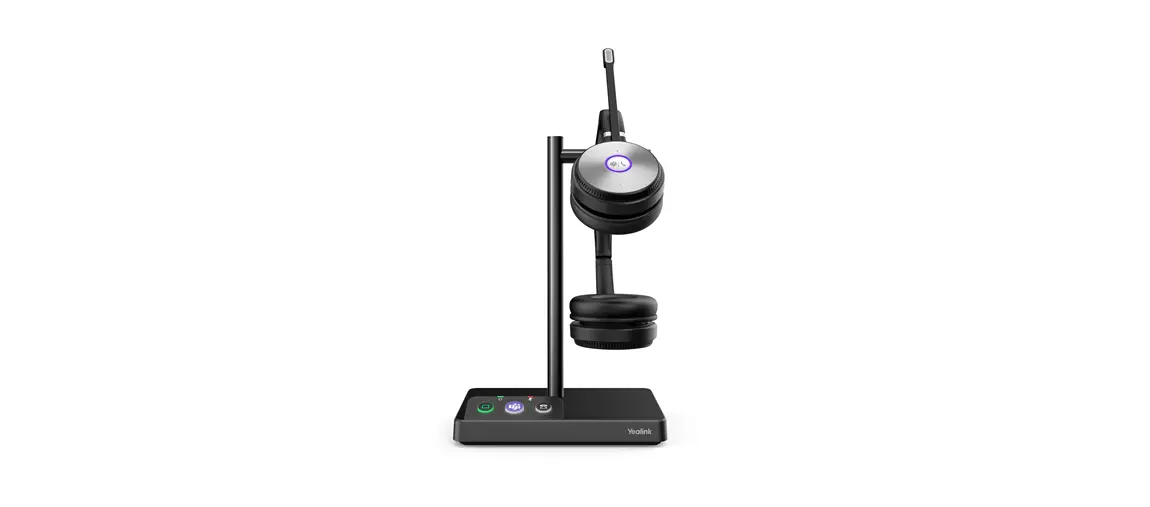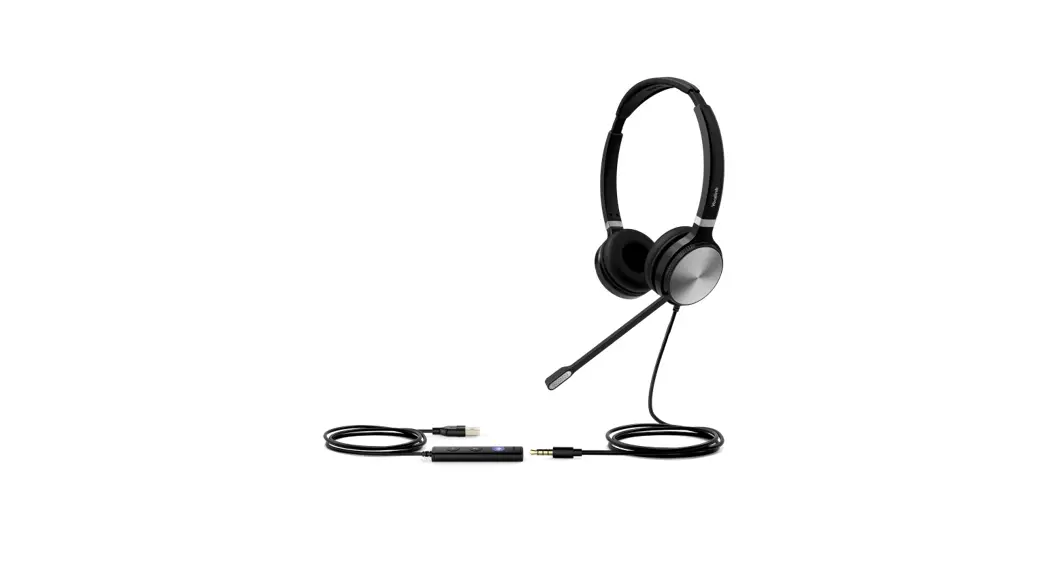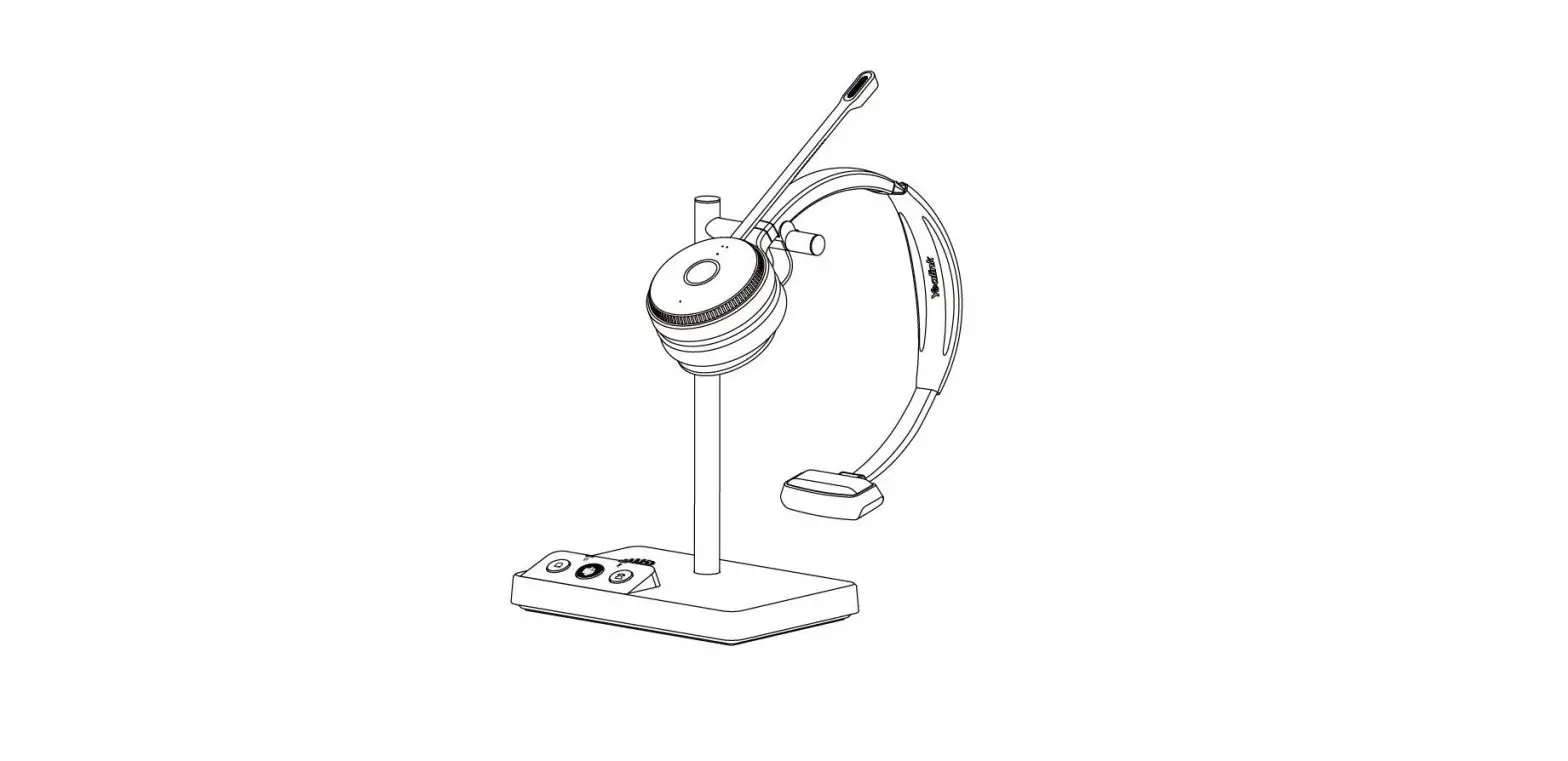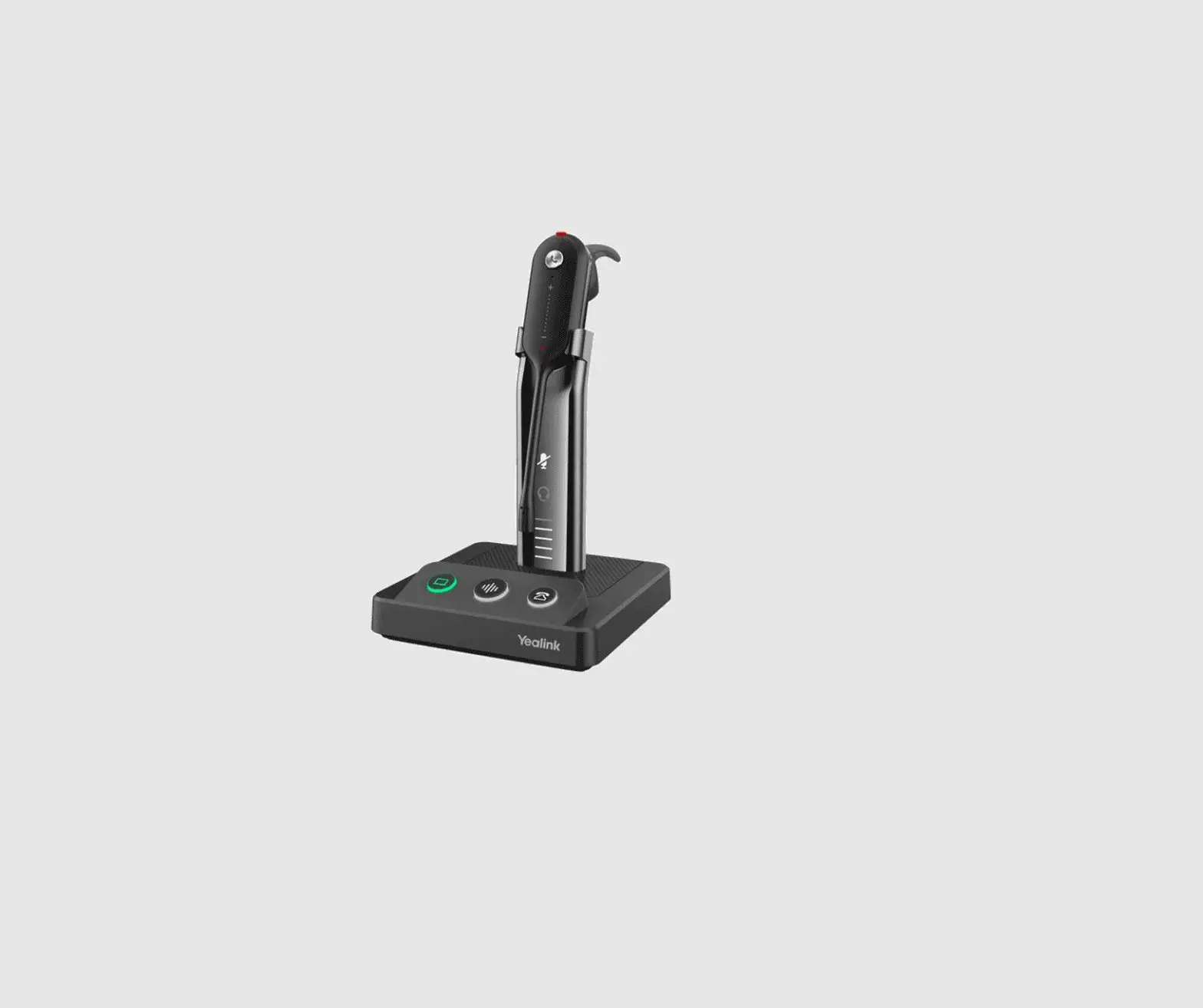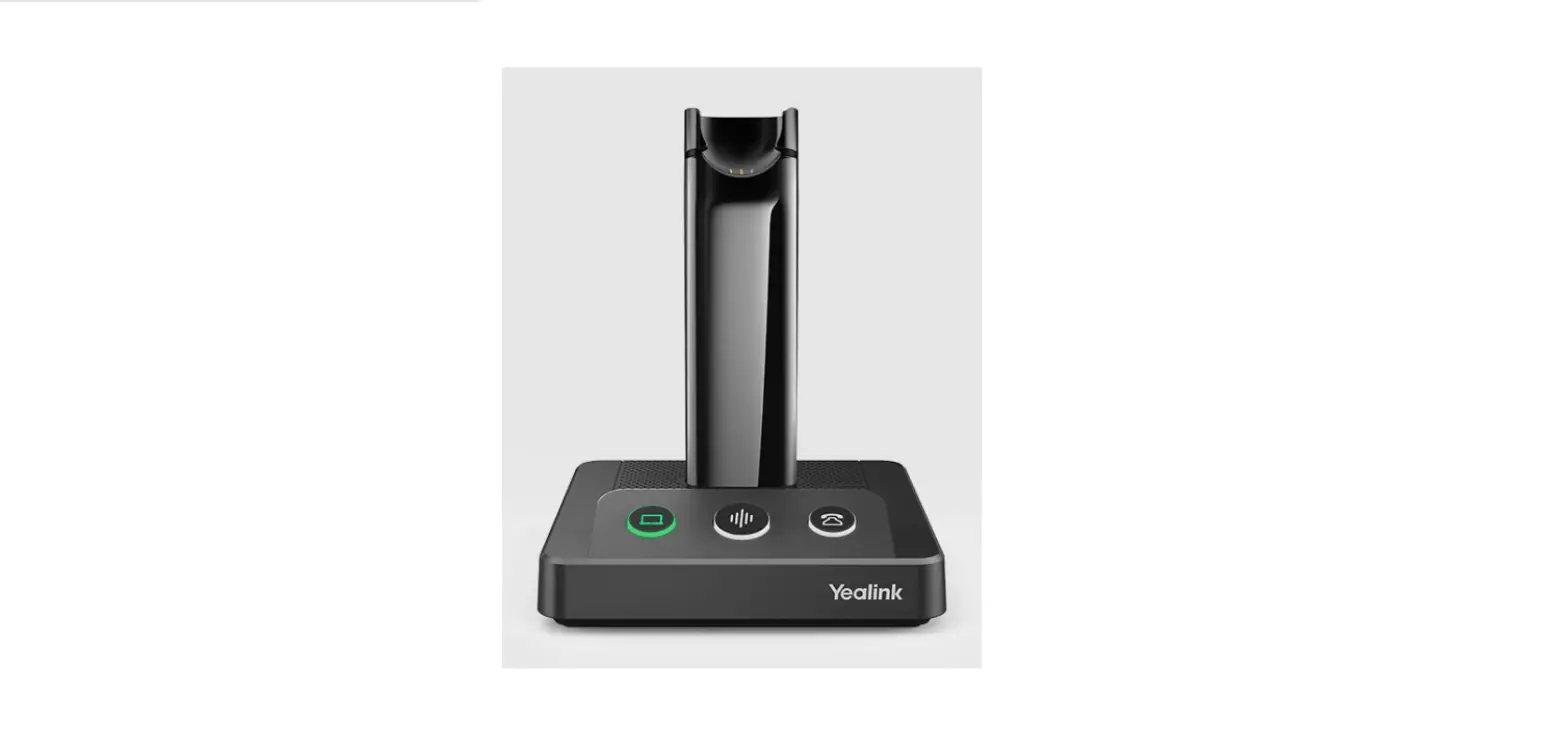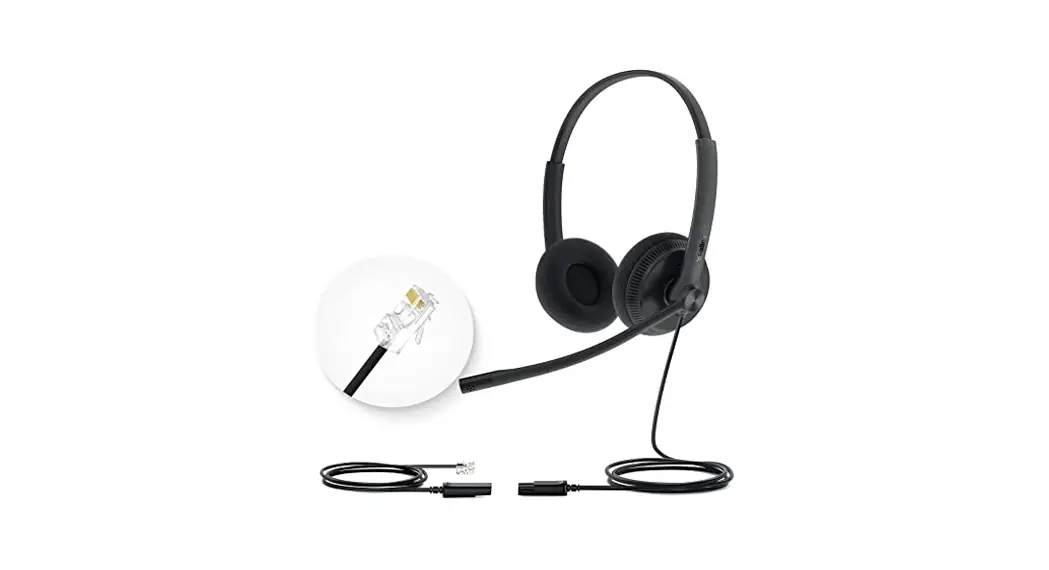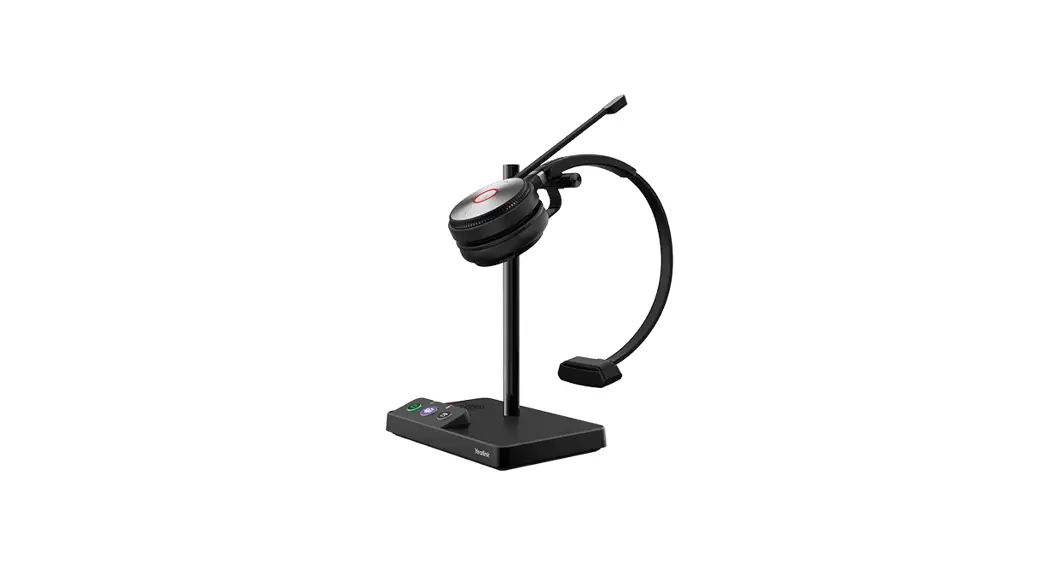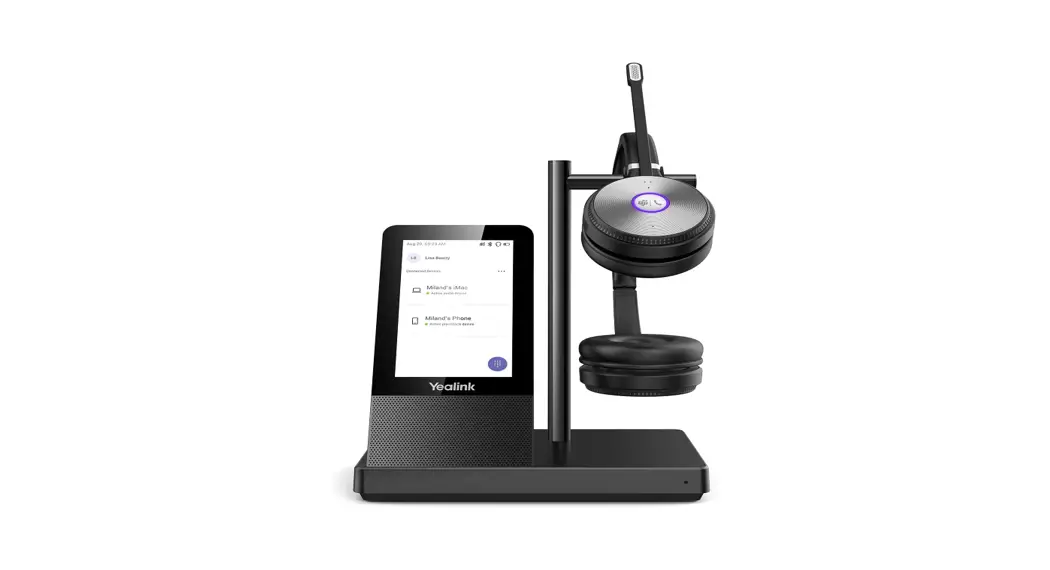

COMMUNICATIONS WH66 Yealink Mono or Dual Dect Headset
User Manual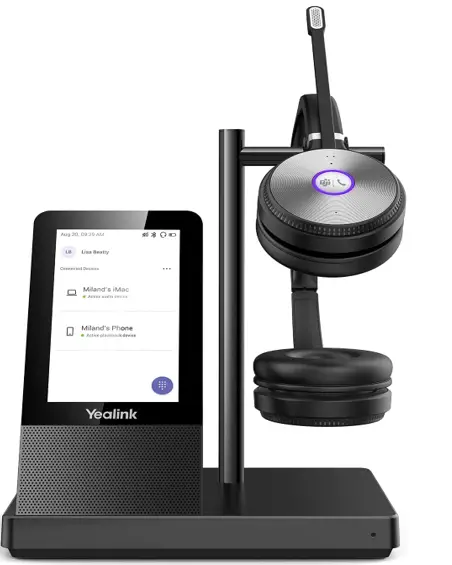

Need support? Connect with us at www.northland.net/support or
Dial 4357 (HELP) or 315-671-6262 to speak to a Northland Training Representative
YEALINK WH66 MONO + DUAL DECT HEADSET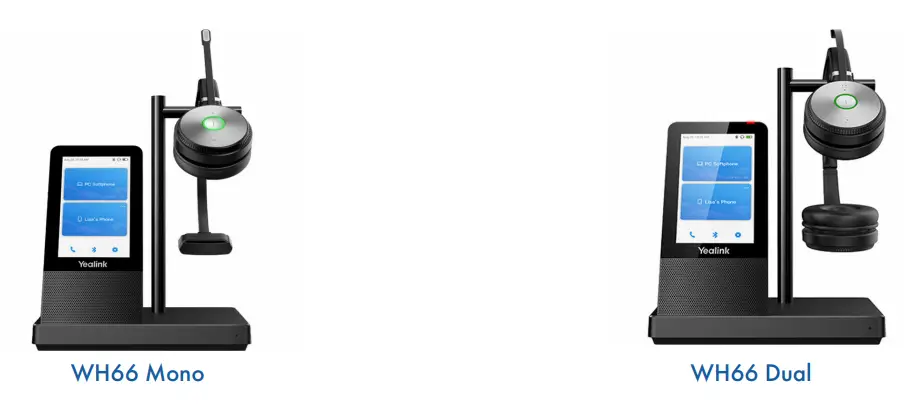
GETTING STARTED
Unbox the contents of the headset.
PACKAGE CONTENTS
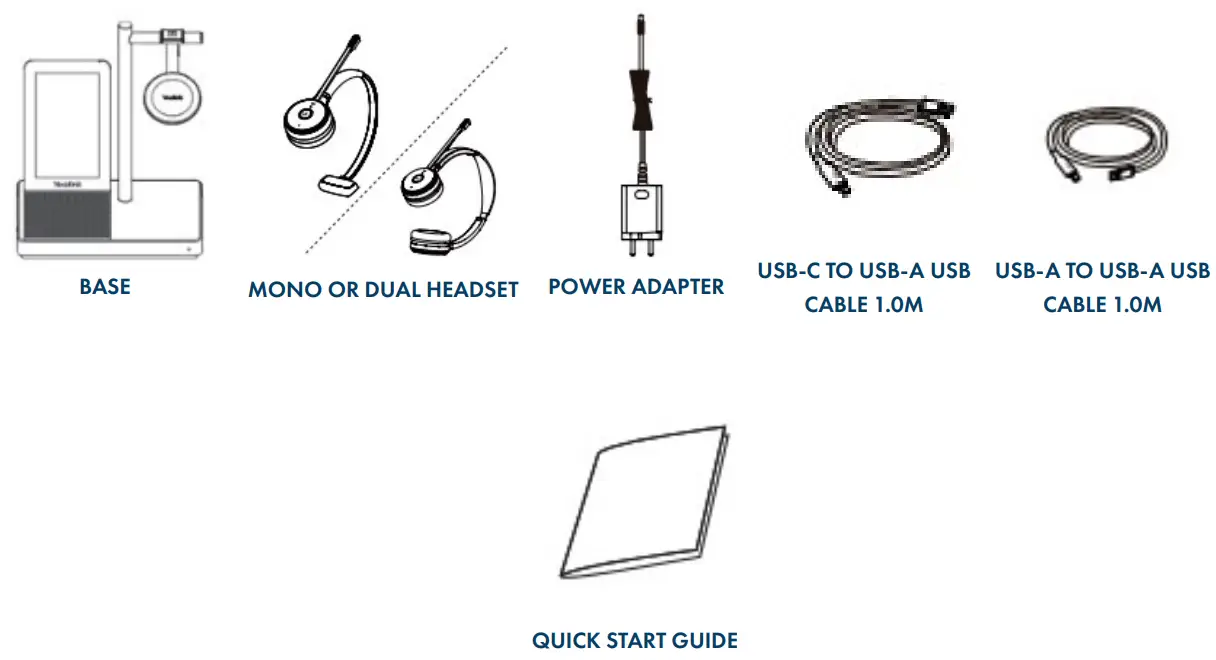
NOTES: You should use the included accessories as other accessories may have compatibility issues that prevent them from working properly.
Be sure to connect the base to a DC power supply, not just the USB power supply.
The included USB-A to USB-C cable is specifically provided for connecting the wireless charge (coming soon).
CONNECTING THE HEADSET
The following diagram will assist with connecting the headset properly.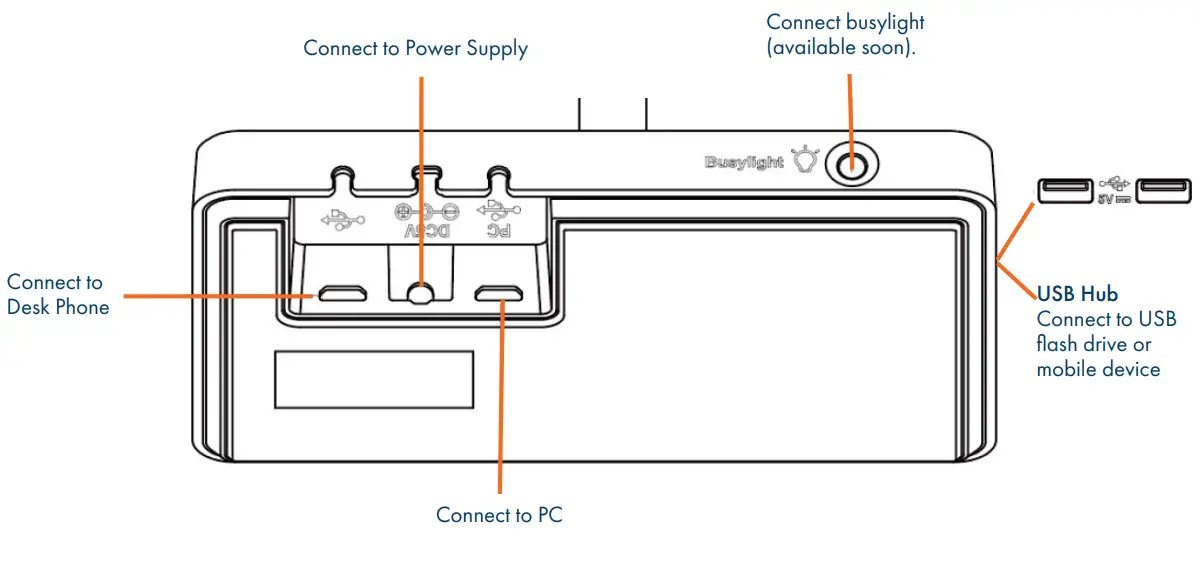
CONNECT TO PC/DESK PHONE WITH THE INCLUDED USB CABLE
Connect one end of the included USB cable to the PC port on the base and the other end into the USB Port on the PC or desk phone.
IMPORTANT: You need to connect the PC to the USB port of the base marked with the text PC.
CHARGE THE HEADSET BEFORE USE
+ Dock the headset into the charger.
+ Before initial use, dock the headset for at least 30 minutes.
+ For the initial use the headset is successfully paired with the base when you dock it in the base.
YEALINK USB CONNECT SOFTWARE
Yealink provides a USB device manager client called Yealink USB Connect that can be used to personalize and manage your Yealink Headsets.
Download the software from the Yealink website at https://www.yealink.com/product/yuc.
See the separate Yealink USB Connect Quick Reference Guide at www.northland.net/support.
CONNECT THE WH66 VIA BLUETOOTH
CONNECT A PC
You can connect the base to a PC via Bluetooth. The Bluetooth range is approximately 100 ft.
NOTE: If you connect the base via the built-in Bluetooth, the base can only supply voice pickup and audio playback. You will not be able to use the call control features on the headset display.
PC SETTINGS
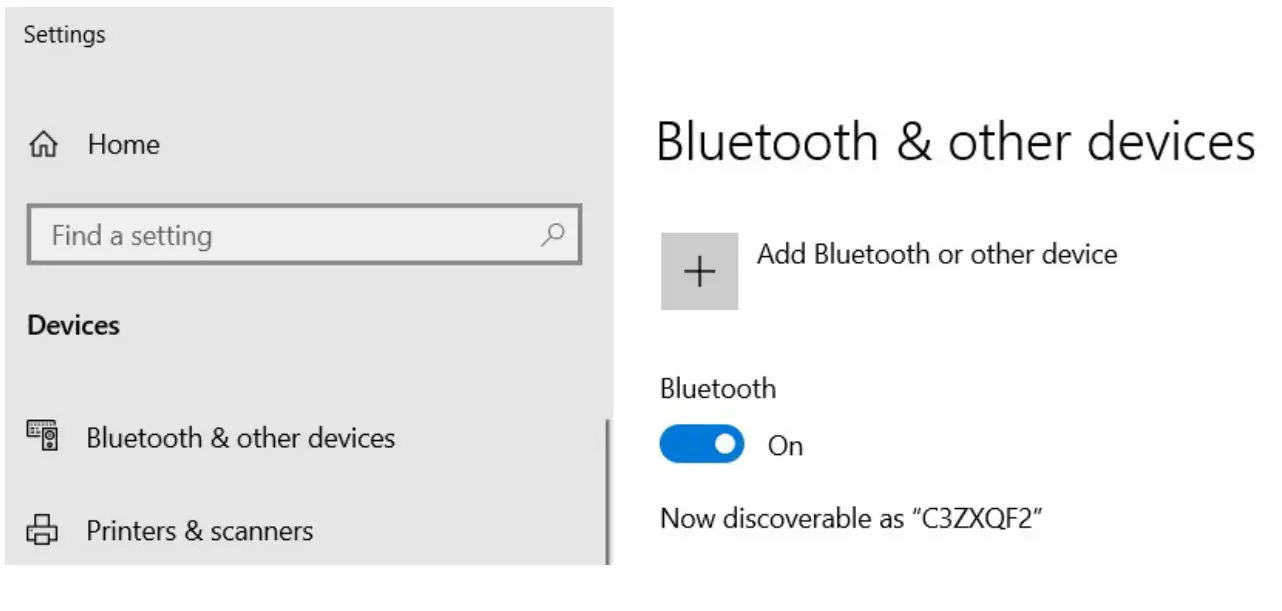
- On your PC, go to Settings > Bluetooth. Be sure Bluetooth is on.
- On the headset base, tap

- Tap Basic Settings.
- Tap Bluetooth. The base automatically enters the pairing mode.
- On your PC, select Add Bluetooth or another device.
- When it appears on the PC display, select Yealink WH66.
CONNECT A DESK PHONE
You can connect the base to a desk phone via Bluetooth. The Yealink T54W and Yealink T58A are both compatible with the WH66 Dect Headset.
- On the headset base, Tap Bluetooth. The base automatically enters the pairing mode.
- On your desk phone, turn on Bluetooth and select Yealink WH66.
CONNECT TO A SMARTPHONE
You can connect the base to a smartphone via Bluetooth.
- On the headset base, Tap Bluetooth. The base automatically enters the pairing mode.
- On your smartphone, turn on Bluetooth and select Yealink WH66.
BASE AND HEADSET CONTROLS
| No. | Name…………………………………….. Description | |
| 1 | Power LED | Indicates the Base status. |
| 2 | Touch Screen | + Shows the headset’s battery status, headset connection status, etc.. + Select items and navigate menus using the touch screen. |
| 3 | Speaker | Provides hands-free (speakerphone) audio output. |
| 4 | Microphone | Provides hands-free (speakerphone) audio output. |
HEADSET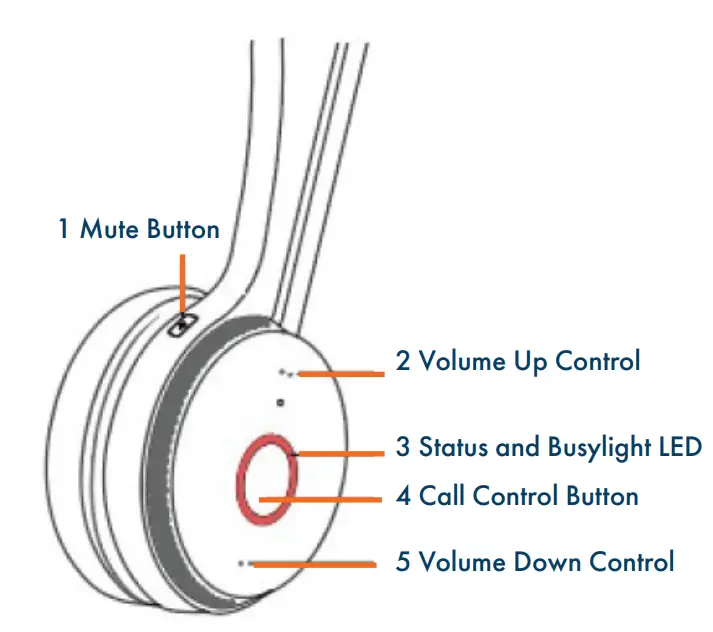
| 1 | Mute Button | Toggles the microphone on or off. |
| 2 | Volume Up Control | Raises the in-ear volume of the headset. |
| 3 | Status and Busylight LED | Indicates charging and call status. |
| 4 | Call Control Button | Power the headset on or off. + Hold for three seconds to power the headset on or off. Incoming and active call management depends upon if you have one call or multiple calls. One Call: + Press once to answer an incoming call. + Double-press to reject an incoming call. + Press once to end a call. Multiple Calls + Hold for two seconds to answer an incoming call and put the active call on hold. + Hold for two seconds to switch between the held call and active call. + Press once to end the current call and answer the incoming call. + Double press to stay on the active call and reject the second incoming call. |
| 5 | Volume Down Control | Lowers the in-ear volume of the headset. |
BASE AND HEADSET SETTINGS
Headset, Base, and General Settings can be changed on the WH66 base. You can also change settings using the Yealink USB Connect application.
CHANGE THE DEFAULT OUTGOING DIALER DEVICE
When there are multiple devices connected to the base, you can select the default outgoing dialer device.
- Tap the Audio Device card of the device you want to make the default dialer.
- In the upper right corner, tap …
- Tap Selected as an audio device.
NOTE: You will only see … on the device that is not selected as the default dialer.
When using MaX UC, call control must be done through MaX UC and not through the headset or base.
BASIC SETTINGS
- To work with the headset’s basic settings, tap
- Tap Basic Settings.
| GENERAL SETTINGS | |
| Language | Select the screen text language fro a list of 13 languages. (be sure you can read the language). |
| Bluetooth | Enable/disable Bluetooth. |
| Add Headset | Add additional headsets to the base. (Up to four). |
| Time & Date | Set the time and date manually. |
| Busylight | Available from Northland soon. |
| DISPLAY SETTINGS | |
| Backlight | Set the backlight active level and backlight time. |
| Screensaver | Change the waiting time for the screensaver. |
| Themes | Change the background and card style. |
| SOUND SETTINGS | |
| Ring Tones | Enable/Disable the base to play a built-in tone while receiving an incoming call. |
| Dial Tone | Enable/Disable the paired headset to play a dial tone when entering the dialing screen. |
| Keypad Tone | Enable/Disable the paired headset to produce a sound when pressing the keypad keys. |
| Speaker Volume | Adjusts the playback volume. |
BASIC SETTINGS
- To work with the headset’s basic settings, tap
- Tap Advanced Settings.
| GENERAL SETTINGS | |
| Wireless Range | Select the wireless range between the headset and the base. + Long: The wireless range is approximately 500 feet. + Medium: The wireless range is approximately 100 feet. + Short: The wireless range is approximately 33 feet. |
| Voice Announcement | Enable/disable the paired headset to play voice announcements. |
| Platform | Available soon from Northland. |
| CALL SETTINGS | |
| Auto Dial | Enable/disable the base to automatically dial the entered number within 5 seconds. |
| Call Device | Select which device to use for outgoing calls. |
| Call Priority | Select which call takes priority when a second call is presented. + New call: The first call is placed on hold and the new call is active. + Current call: The first call is active and the new call continues to ring. |
| Autoanswer when Undocked | Enable/disable incoming calls to be answered by undocking the headset |
| Open Line when Undocked | Enable/disable whether to enter the dialing screen when undocking the headset. |
| HEARING PROTECTION SETTINGS | |
| Anti-Startle Protection | Configure which hearing protection technology to use. |
| Daily Noise Exposure | Configure the daily noise exposure levels. (No limiting, 80dBA or 85dBA). |
CALL HANDLING FROM THE HEADSET
IMPORTANT: When using MaX UC, all call control must be done from the MaX UC application and not from the headset or base.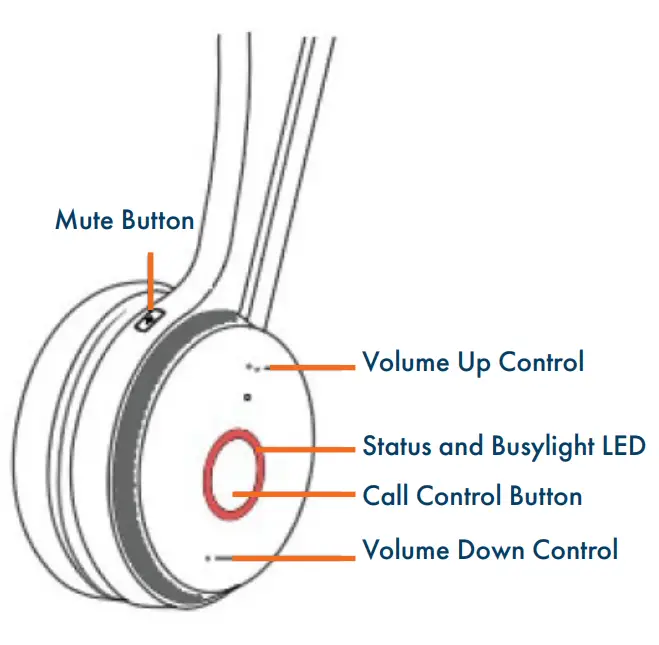
- Answer a Call: Press the Call Control button or undock the headset.
NOTE: Auto Answer must be turned on to answer the call by undocking the headset.
- End a Call: Press the Call Control button or dock the headset.
- Reject a Call: Double-press the Call Control button.
- Hold a Call: Hold the Call Control button for two seconds.
- Resume Held Call: Hold the Call Control button for two seconds.
- Adjust the Volume: Press the Volume Control button up/down.
- Mute/Unmute: Press the Mute button.
NOTE: You can also Mute/Unmute the microphone, by raising and lowering the microphone boom.
An audible announcement is heard to indicate “Muted” or “Unmuted” status.
Mute indicator lights illuminate when mute is active.
CALL HANDLING FROM THE BASE
IMPORTANT: When using MaX UC, all call control must be done from the MaX UC application and not from the headset or base.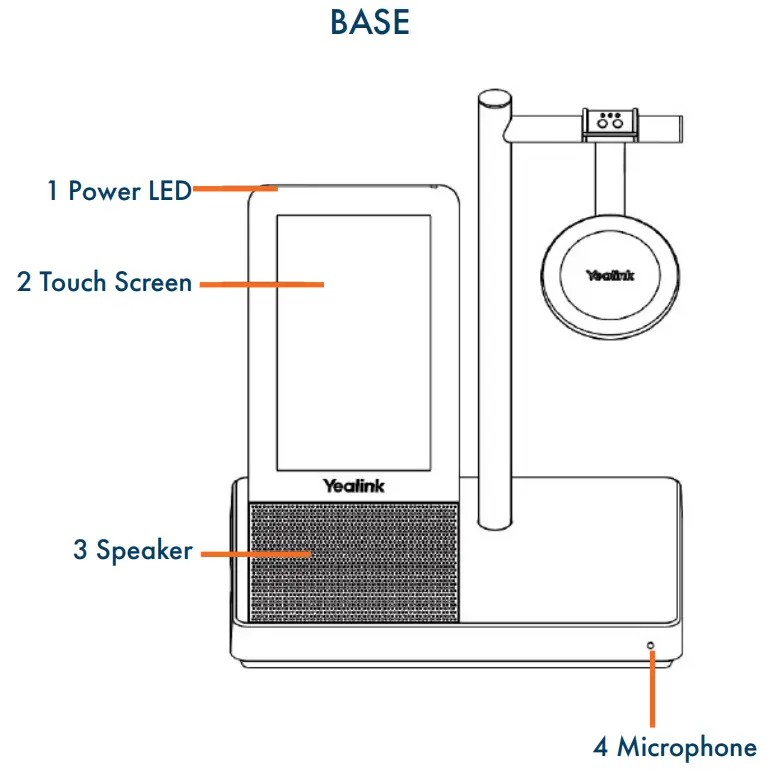
- Place a Call: On the touch screen, Tap the card of the device you want to make the call from.
or Tap
Enter the number you want to call.
Tap
- Answer a Call: Tap
- End a Call: Tap

- Reject a Call: Tap
- Silence a Call: Tap

- Hold a Call: Tap

- Resume Held Call: Tap RESUME.
- Adjust Volume: Tap

- Mute/Unmute Microphone: Tap




NOTE: You can also Mute/Unmute the microphone, by raising and lowering the microphone boom.
An audible announcement is heard to indicate “Muted” or “Unmuted” status.
Mute indicator lights illuminate when mute is active.
+ Place a Second Call: Tap and then Tap New Call.
MOVE A CALL FROM THE DESK PHONE TO THE HEADSET
BEFORE YOU BEGIN:
- The call is answered on the desk phone using the handset or speakerphone.
PROCEDURE:
- Press the Headset Key on the desk phone.
The audio will transfer from the desk phone to the headset.
MOVE A CALL FROM THE HEADSET TO THE DESK PHONE
BEFORE YOU BEGIN:
+ The call is answered on the headset.
PROCEDURE:
Do one of the following on the desk phone:
- Pick up the handset.
- Press the speaker key.
The audio will transfer from the headset to the desk phone.
HANDLE MULTIPLE CALLS FROM THE HEADSET
- End Current Call and Answer Incoming Call: Press the Call Control button.
- Place Current Call on Hold and Answer Incoming Call: Hold the Call Control button for two seconds.
- Between Held Call and Active Call: Hold the Call Control button for two seconds.
- Reject the Incoming Call While on an Active Call: Double-press the Call Control Button.
Need support? Connect with us at www.northland.net/support or
Dial 4357 (HELP) or 315-671-6262 to speak to a Northland Training Representative
 Training Support | Northland Communications
 Yealink USB Connect