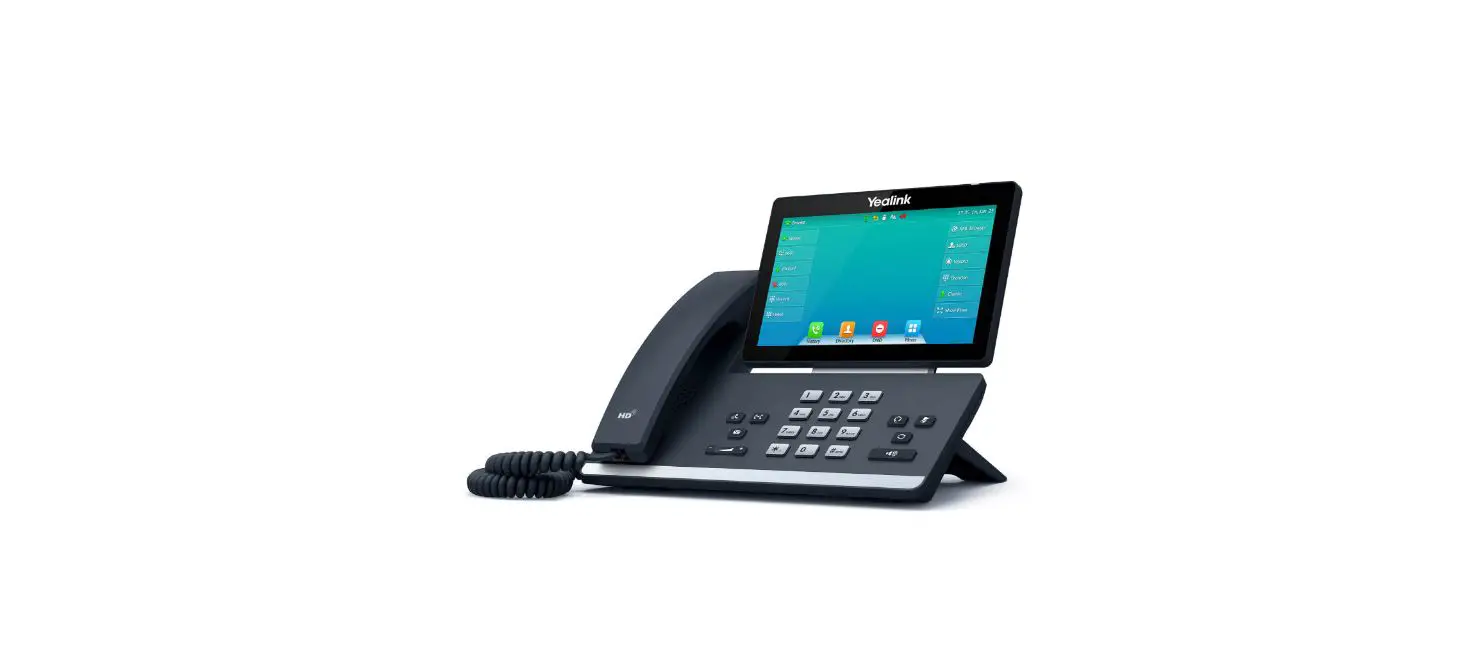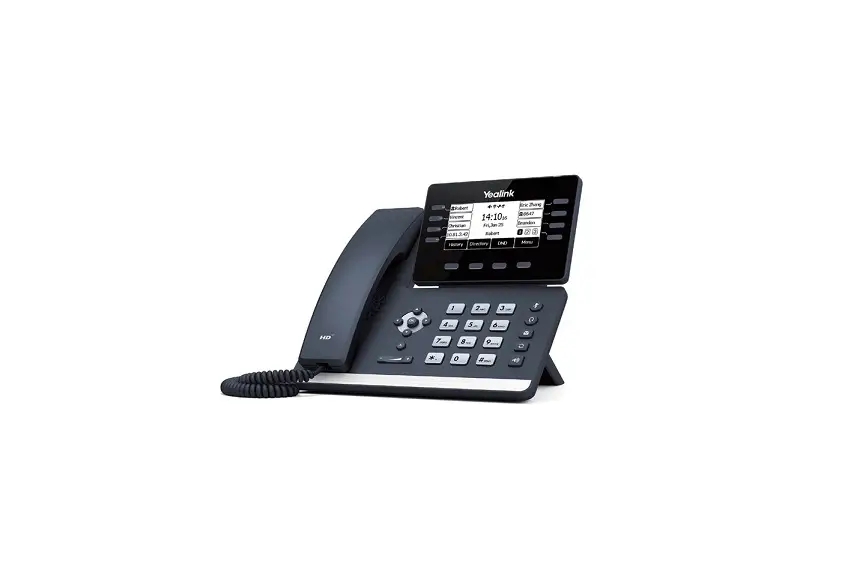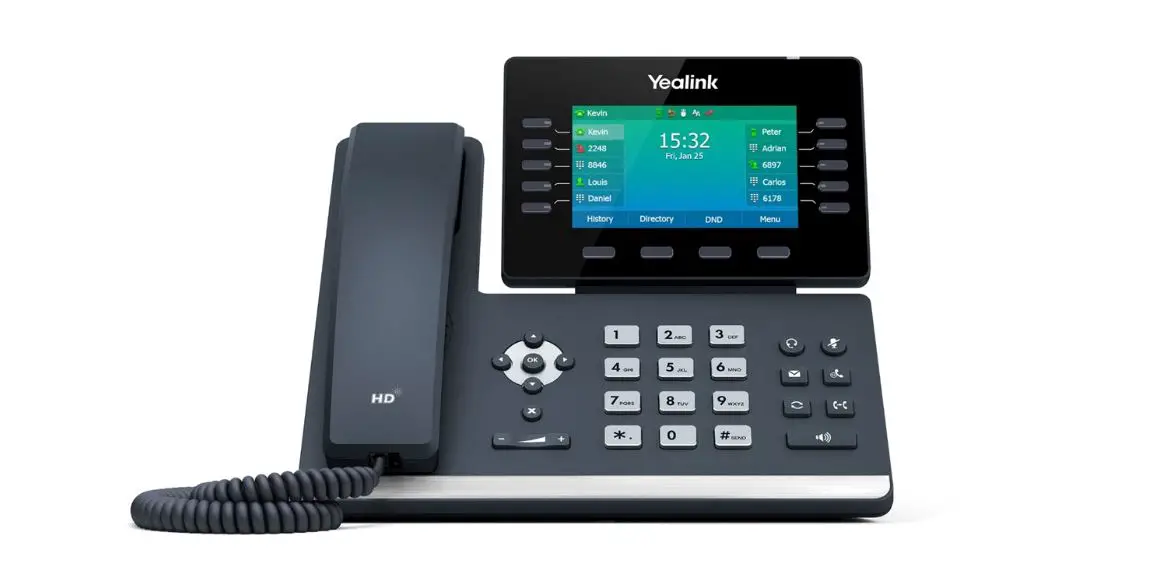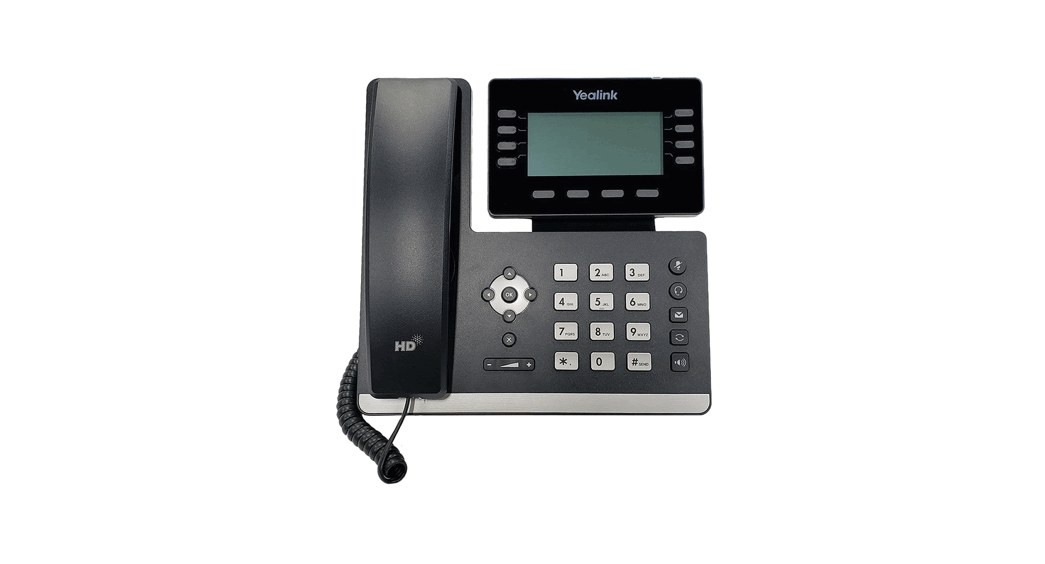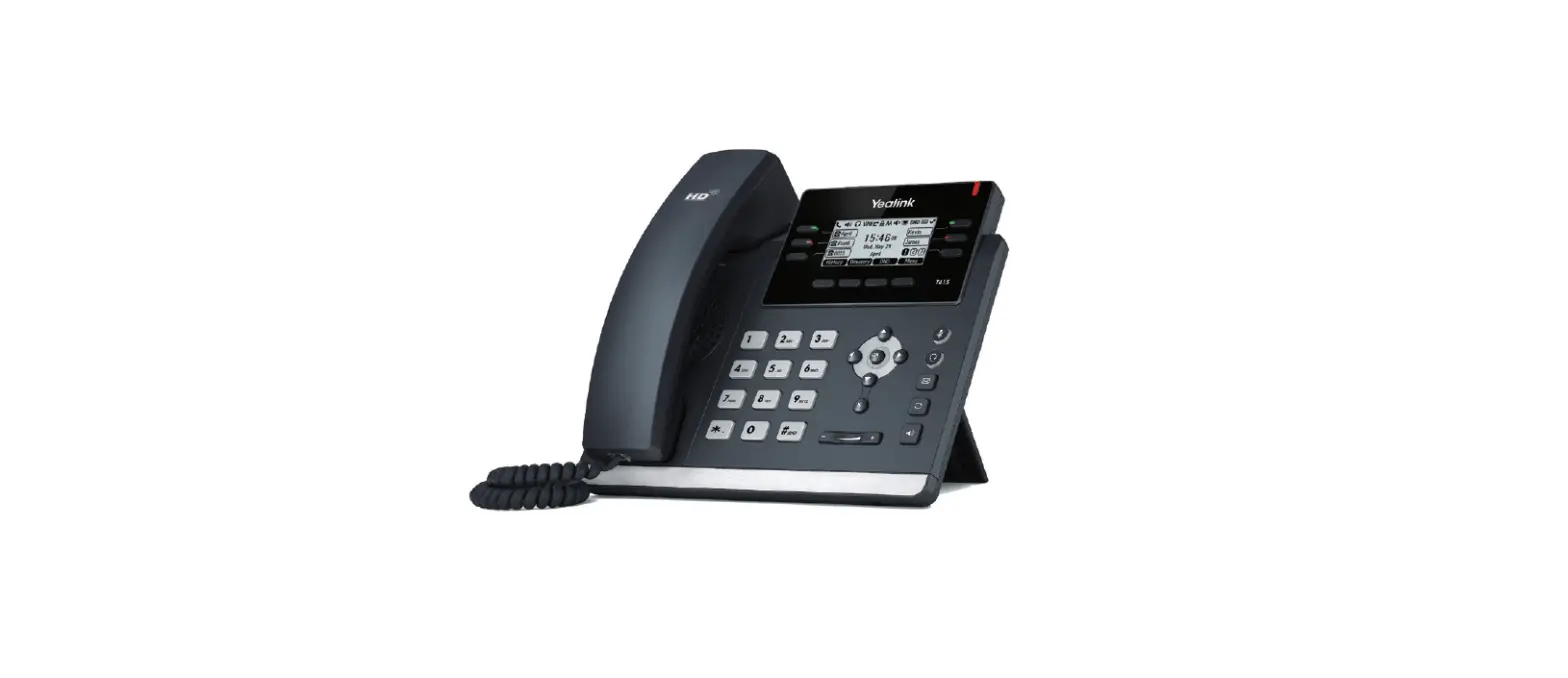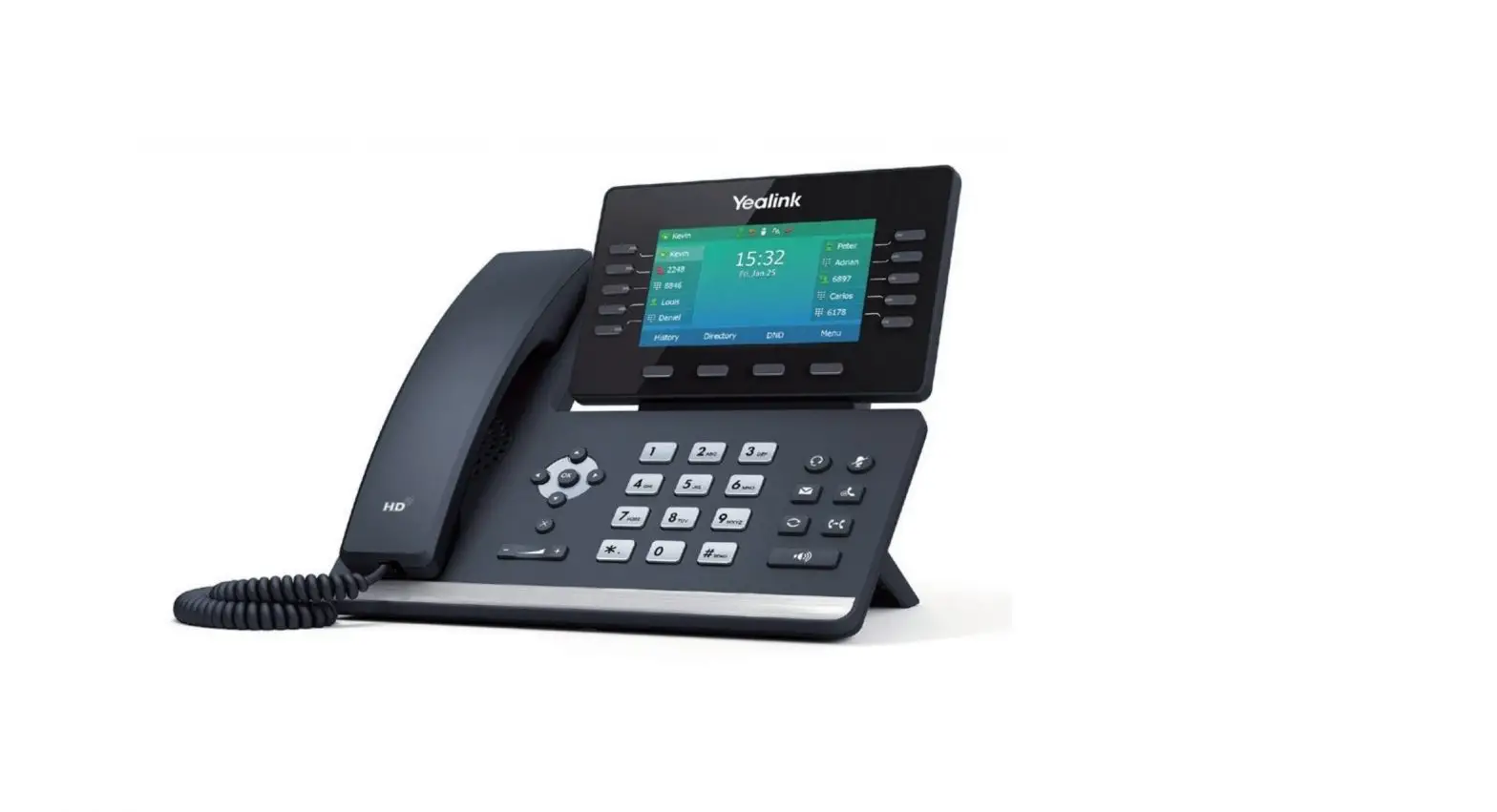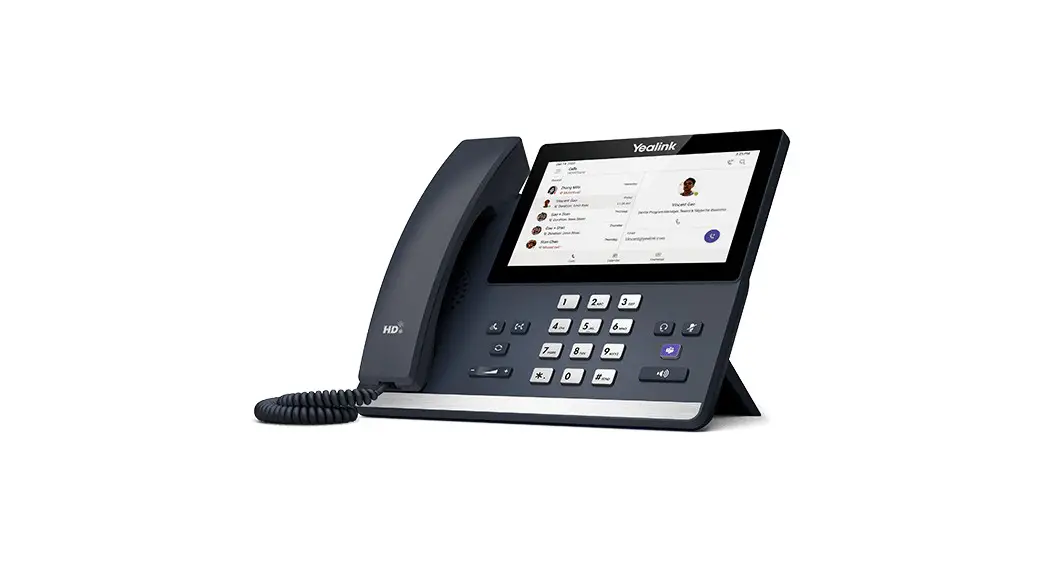
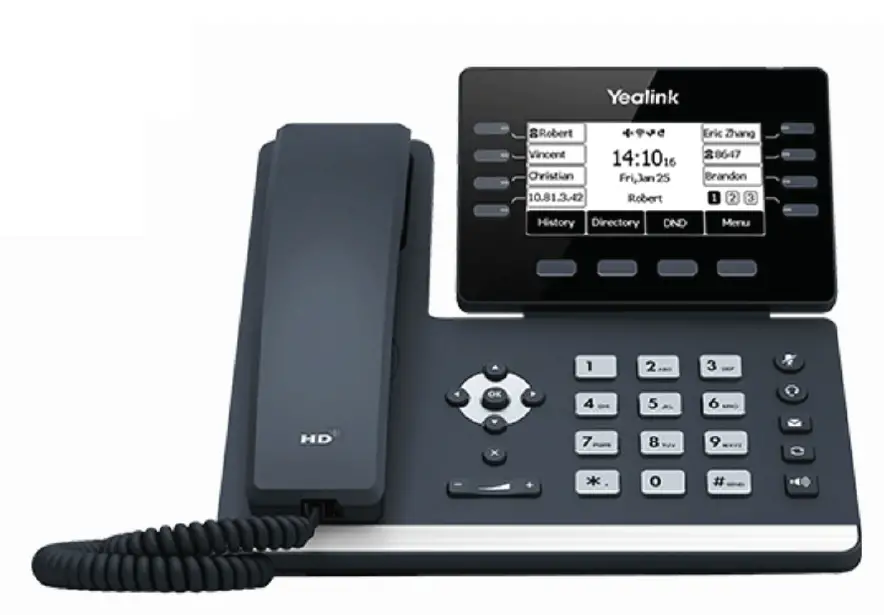
 Sparklight T53W YEALINK FORMERLY CABLE ONE BUSINESS
Once your administrator has assigned your Hosted Voice service, you’ll receive two emails:
- One with your My Phone and Voice Portal login credentials.
- One with a temporary password for the My Phone portal.
Accessing Voicemail
Press the Messages icon or dial your extension on your phone and follow the prompts. On the first login, you’ll be asked to change your passcode.
Accessing My Phone Portal
Go to businessvoice.sparklight.net/myphonenext/ enter your username and password. You’ll be asked to change your password the first time you visit the site.
Need more help?
We want to make this easy for you. You’ll find more guides and video tutorials at business.sparklight.com/support/hosted-voice
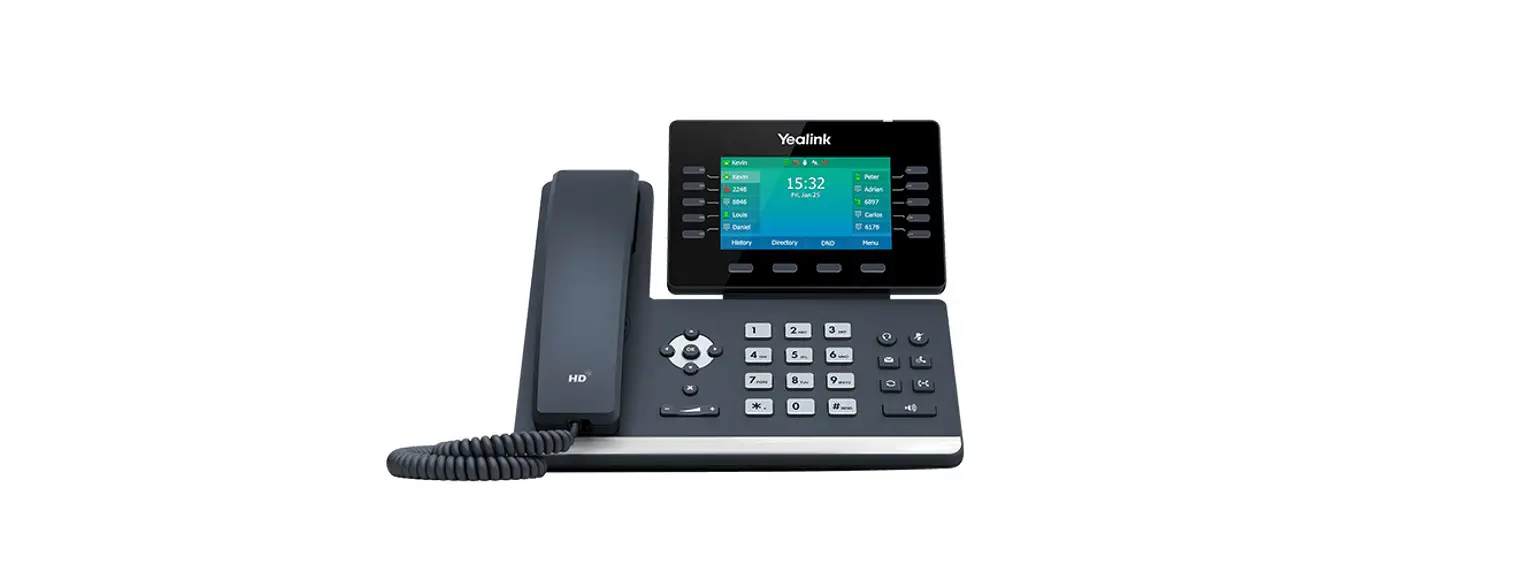
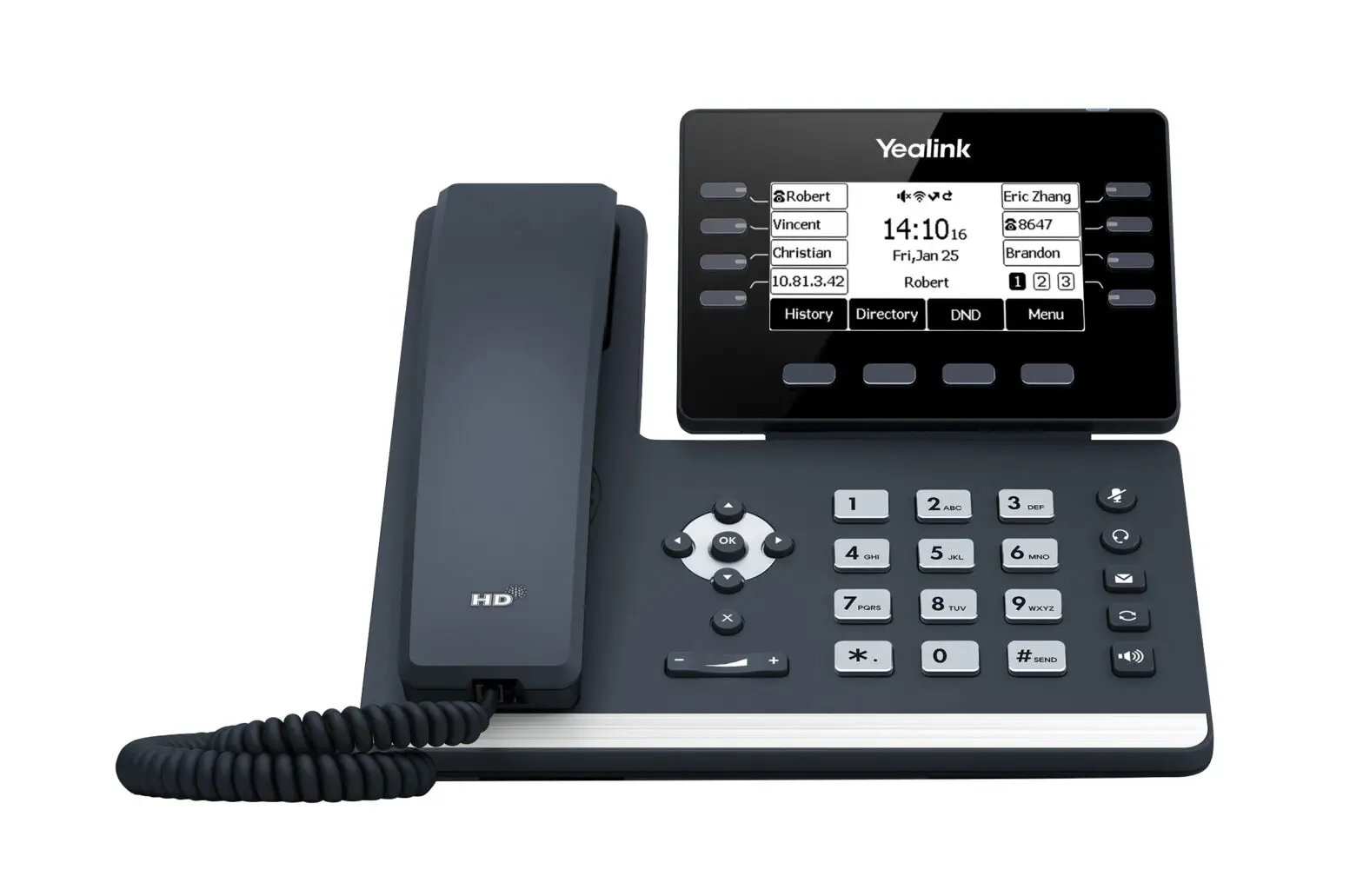
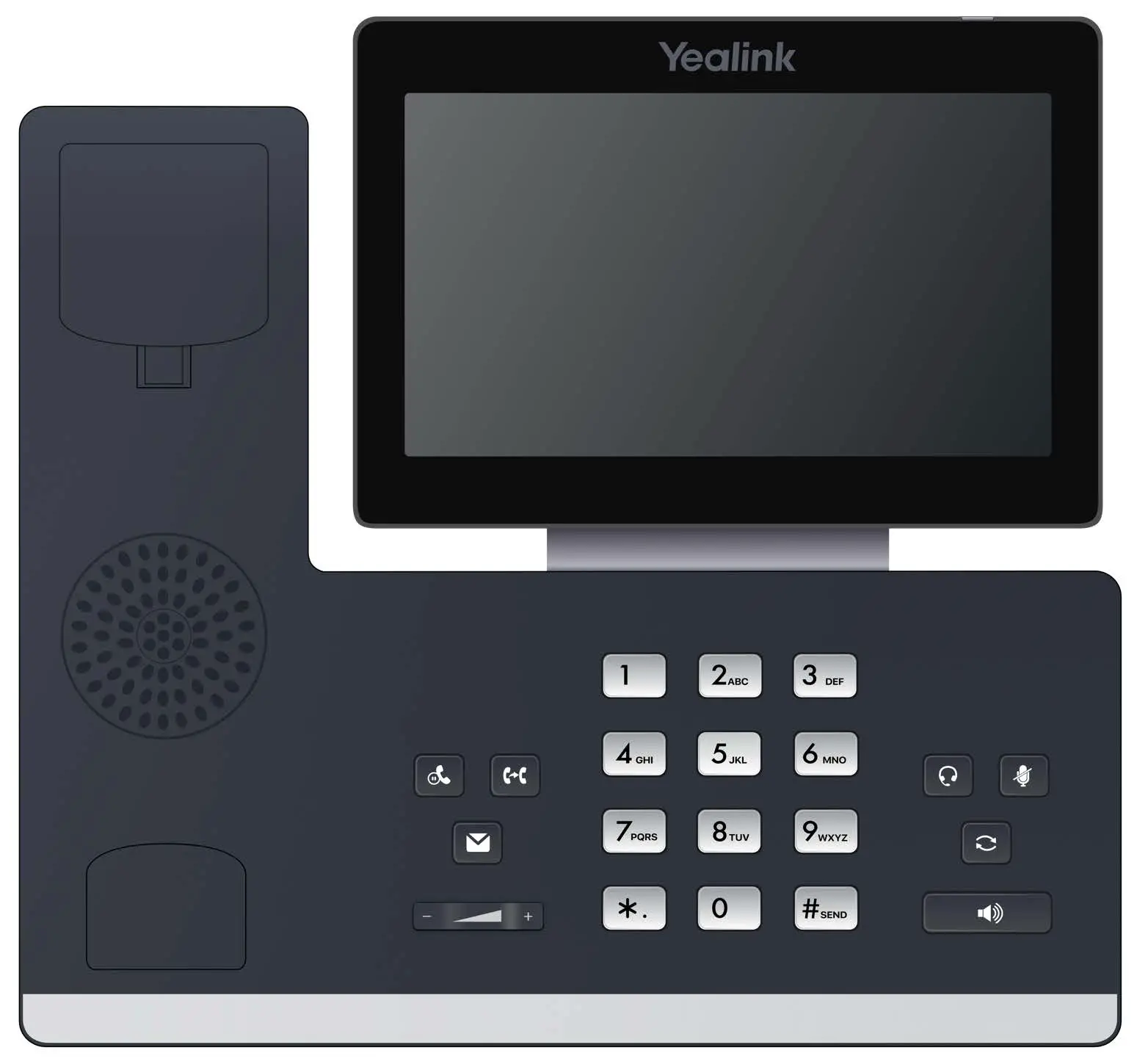
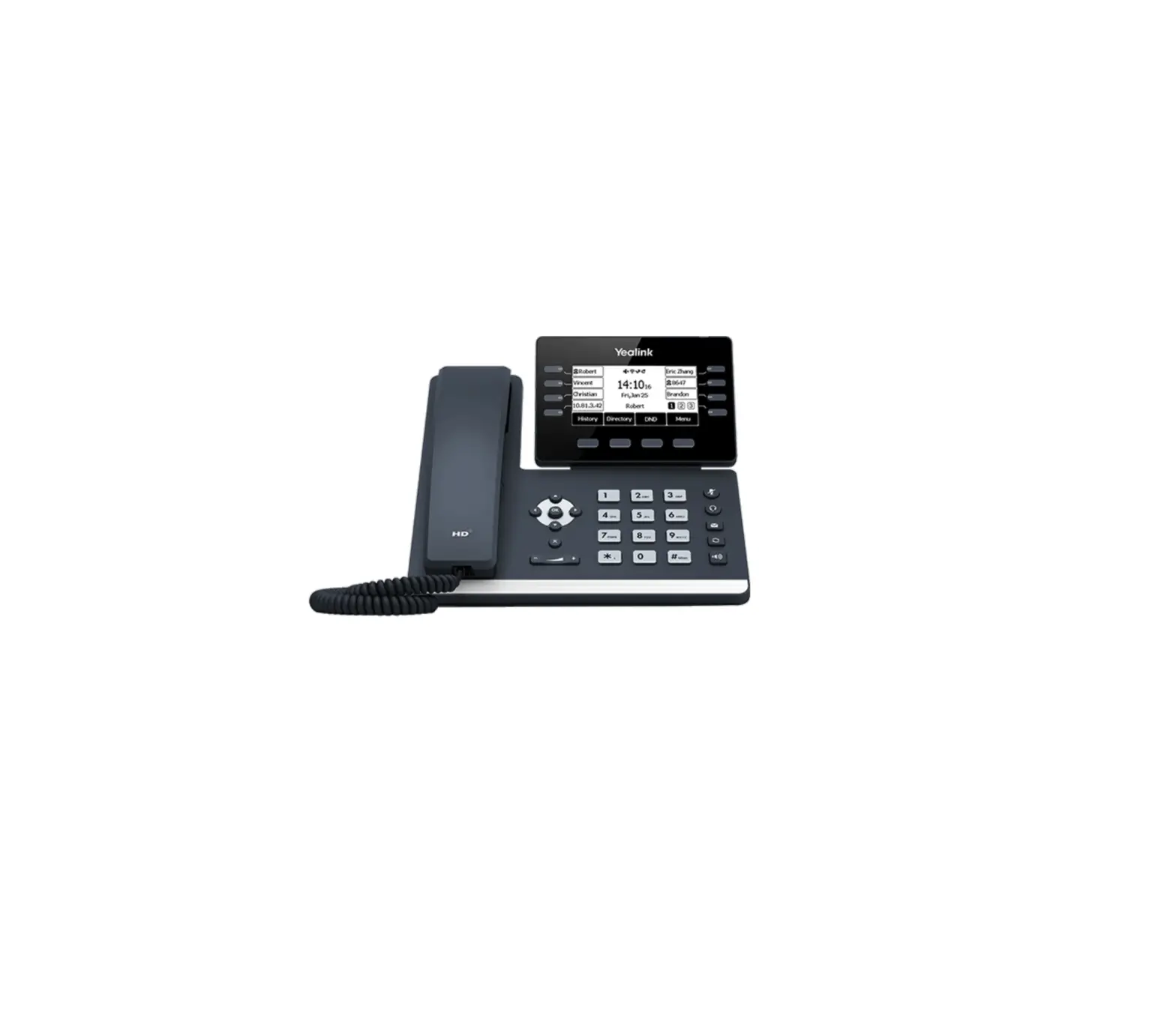
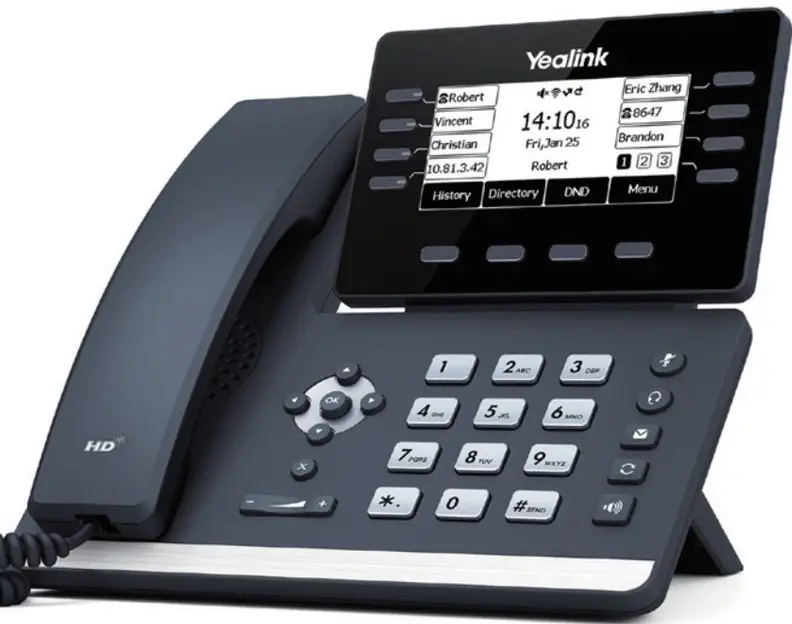
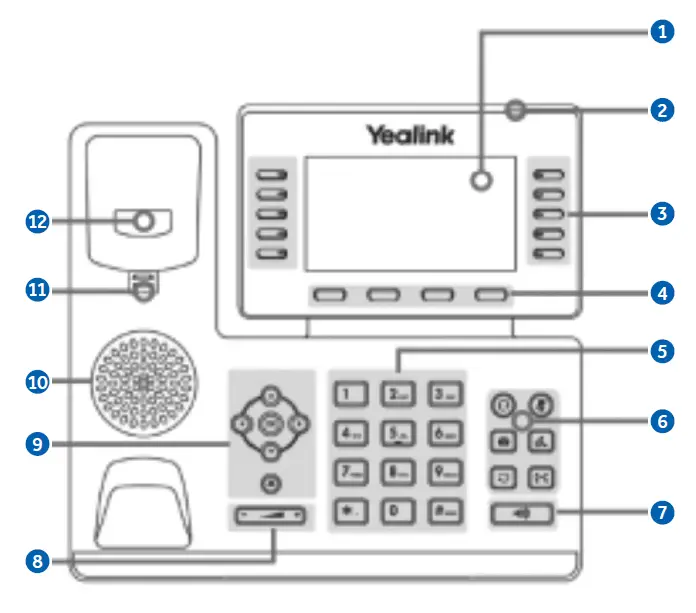
| No. | Item | Description |
| 1 | Phone Screen | Shows a screen with a backlight that enables you to view menus and data. |
| 2 | Power LED Indicator | Indicates call status, message status and phone system status. |
| 3 | Line Keys | Access your phone lines and features. |
| 4 | Soft Keys | Access the function displayed on the screen above the soft keys. The soft keys change depending on what you are doing at the time. |
| 5 | Keypad Keys | Allows you to enter numbers, letters, and special characters. If a menu item has an index number, you can use the keypad keys to select the item. |
| 6 | Headset, Mute, Message, Hold, Redial, and Transfer Keys | |
| 7 | Speakerphone Key | Toggles the speakerphone (hands-free) mode on and off. The LED indicator glows green when the speakerphone is activated. |
| 8 | Volume Key | Adjusts the volume of the handset, headset, and speaker. |
| 9 | Navigation Key | Scroll through information or options displayed on the screen. Access History and Directory respectively. |
| 10 | Speaker | Provides hands-free (speakerphone) audio output. |
| 11 | Reversible Tab | Secures the handset in the handset cradle when the phone is mounted vertically. |
| 12 | Hookswitch | Connects or disconnects the phone from the phone line. The hookswitch is automatically activated when a user lifts the handset from the cradle to get a dial tone. |
BASIC FUNCTIONS
PLACING CALLS
Placing a Call
Using the handset:
- Pick up the handset.
- Enter the number, and then press Send.
Using the speakerphone:
- With the handset on-hook, press
 .
. - Enter the number, and then press Send.
Using the headset:
- With the headset connected, press
 to activate the headset mode.
 - Enter the number, and then press Send.
ANSWERING CALLS
Answering a Call
Using the handset:
Pick up the handset.
Using the speakerphone:
Press .
Using the headset:
Press .
ENDING A CALL
Ending a Call
Using the handset:
Hang up the handset or press End Call.
Using the speakerphone:
Press or End Call.
Using the headset:
Press End Call.
REDIALING A CALL
- Press
 to enters the Placed Calls list, press
 or
or  selects the desired entry, and then pressor Send.
 - Presstwice when the phone is idle to dial out the last dialed number
MUTE/UNMUTE A CALL
Muting and Un-muting a Call
- Press to
 mute the microphone during a call.
 - Pressagain to unmute the call.
HOLD/RESUME A CALL
Press Hold during an active call.
To Resume the call, do one of the following:
- If there is only one call on hold, press Resume.
- If there is more than one call on hold, pressor selects the desired call, and then press Resume.
TRANSFERRING A CALL
Performing a Blind Transfer
- Press Transfer during an active call. The call is placed on hold.
- Enter the number you want to transfer to.
- Press B Transfer.
Performing a Semi-Attended Transfer
- Press Transfer during an active call. The call is placed on hold.
- Enter the number you want to transfer to, and then press Send.
- Press Transfer when you hear the ringback tone.
Performing an Attended Transfer
- Press Transfer during an active call. The call is placed on hold.
- Enter the number you want to transfer to, and then press Send.
- Press Transfer when the second party answers.
FORWARDING A CALL
- Navigate to Menu-> Features-> Call Forward.
- Select the desired forward type:
Always Forward—-Incoming calls are forwarded unconditionally.
Busy Forward—-Incoming calls are forwarded when the phone is busy.
No Answer Forward—-Incoming calls are forwarded if not answered after a period of time. - Enter the number you want to forward to. For No Answer Forward, pressor select the desired ring time to wait before forwarding from the After Ring Time field.
- Press Save to accept the change.
INITIATE A CONFERENCE CALL
- Press Conference during an active call. The call is placed on hold.
- Enter the number of the second party, and then press Send.
- Press Conference again when the second party answers. Three parties are now joined in the conference.
LISTEN TO VOICEMAIL
- Press
 or Connect.
 - Follow the voice prompts to listen to your voicemail messages
 Business Internet, Fiber, Phone & TV | Sparklight Business
 MyPhoneNext